Introducing, Installing, andIntroducing, Installing, and
Upgrading Windows 7Upgrading Windows 7
Lesson 1
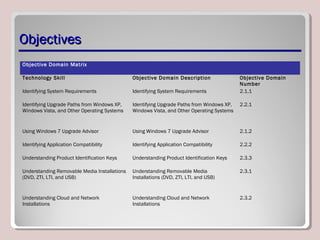
ObjectivesObjectives
Objective Domain Matrix
Technology Skill Objective Domain Description Objective Domain
Number
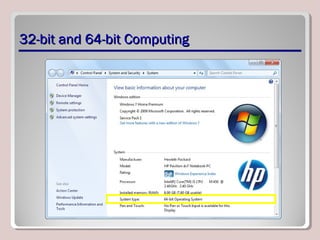
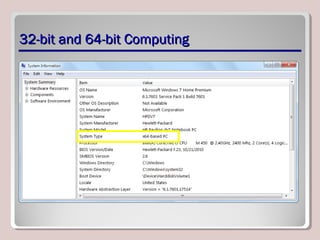
Identifying System Requirements Identifying System Requirements 2.1.1
Identifying Upgrade Paths from Windows XP,
Windows Vista, and Other Operating Systems
Identifying Upgrade Paths from Windows XP,
Windows Vista, and Other Operating Systems
2.2.1
Using Windows 7 Upgrade Advisor Using Windows 7 Upgrade Advisor 2.1.2
Identifying Application Compatibility Identifying Application Compatibility 2.2.2
Understanding Product Identification Keys Understanding Product Identification Keys 2.3.3
Understanding Removable Media Installations
(DVD, ZTI, LTI, and USB)
Understanding Removable Media
Installations (DVD, ZTI, LTI, and USB)
2.3.1
Understanding Cloud and Network
Installations
Understanding Cloud and Network
Installations
2.3.2
Windows 7Windows 7
• Windows 7 is a desktop operating system
that improves on many aspects of its direct
predecessors, Windows Vista and Windows
XP
• Includes several new features, such as large
and animated task thumbnails, homegroups,
Jump Lists, libraries, and Windows XP Mode
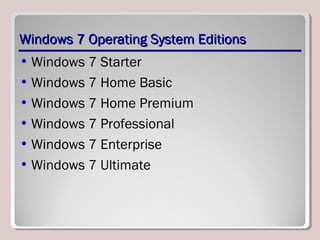
Windows 7 Operating System EditionsWindows 7 Operating System Editions
• Windows 7 Starter
• Windows 7 Home Basic
• Windows 7 Home Premium
• Windows 7 Professional
• Windows 7 Enterprise
• Windows 7 Ultimate
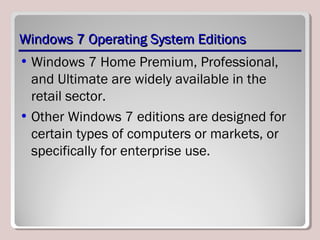
Windows 7 Operating System EditionsWindows 7 Operating System Editions
• Windows 7 Home Premium, Professional,
and Ultimate are widely available in the
retail sector.
• Other Windows 7 editions are designed for
certain types of computers or markets, or
specifically for enterprise use.
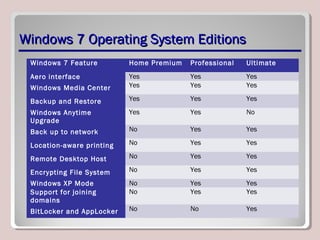
Windows 7 Operating System EditionsWindows 7 Operating System Editions
Windows 7 Feature Home Premium Professional Ultimate
Aero interface Yes Yes Yes
Windows Media Center Yes Yes Yes
Backup and Restore Yes Yes Yes
Windows Anytime
Upgrade
Yes Yes No
Back up to network No Yes Yes
Location-aware printing No Yes Yes
Remote Desktop Host No Yes Yes
Encrypting File System No Yes Yes
Windows XP Mode No Yes Yes
Support for joining
domains
No Yes Yes
BitLocker and AppLocker No No Yes
32-bit and 64-bit Computing32-bit and 64-bit Computing
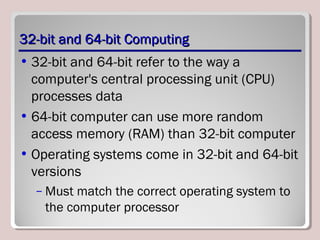
• 32-bit and 64-bit refer to the way a
computer's central processing unit (CPU)
processes data
• 64-bit computer can use more random
access memory (RAM) than 32-bit computer
• Operating systems come in 32-bit and 64-bit
versions
– Must match the correct operating system to
the computer processor
32-bit and 64-bit Computing32-bit and 64-bit Computing
• Enterprise environment with mix of 32-bit
and 64-bit systems needs:
– Both types of drivers for networked printers,
scanners, projectors, and other shared
devices
– Multiple images—at least one image for the
32-bit computers and one for the 64-bit
computers
32-bit and 64-bit Computing32-bit and 64-bit Computing
Windows 7 System RequirementsWindows 7 System Requirements
• 1 gigahertz (GHz) or faster 32-bit (x86) or
64-bit (x64) processor
• 1 gigabyte (GB) RAM (32-bit) or 2 GB RAM
(64-bit)
• 16 GB available hard disk space (32-bit) or
20 GB (64-bit)
• DirectX 9 graphics device with Windows
Display Driver Model (WDDM) 1.0 or higher
driver
Windows 7 System RequirementsWindows 7 System Requirements
• Internet access
• Additional memory and advanced graphics
hardware for video playback, depending on
the resolution required or desired
• A graphics card compatible with DirectX 10
or higher for certain games and programs
• A TV tuner and additional hardware for some
Windows Media Center functionality
Windows 7 System RequirementsWindows 7 System Requirements
• Specific hardware for Windows Touch and
Tablet PCs
• A network and PCs running Windows 7 for
HomeGroup utilization
• A compatible optical drive to burn DVDs/CDs
• Trusted Platform Module (TPM) 1.2 for
BitLocker
Windows 7 System RequirementsWindows 7 System Requirements
• A universal serial bus (USB) flash drive for
BitLocker To Go
• An additional 1 GB of RAM and an additional
15 GB of available hard disk space for
Windows XP Mode
• Audio output for music and sound
Upgrade PathsUpgrade Paths
• Upgrade path is set of options for
upgrading from one Windows operating
system to another
• Upgrade installation retains files,
settings, and programs
– Also called an in-place installation
• Custom installation overwrites files,
settings, and programs
– Also called a clean installation
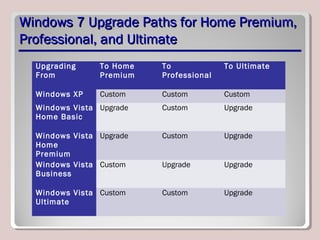
Windows 7 Upgrade Paths for Home Premium,Windows 7 Upgrade Paths for Home Premium,
Professional, and UltimateProfessional, and Ultimate
Upgrading
From
To Home
Premium
To
Professional
To Ultimate
Windows XP Custom Custom Custom
Windows Vista
Home Basic
Upgrade Custom Upgrade
Windows Vista
Home
Premium
Upgrade Custom Upgrade
Windows Vista
Business
Custom Upgrade Upgrade
Windows Vista
Ultimate
Custom Custom Upgrade
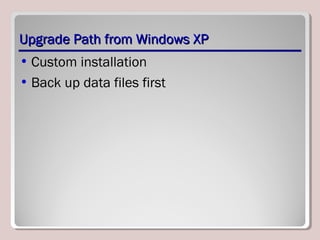
Upgrade Path from Windows XPUpgrade Path from Windows XP
• Custom installation
• Back up data files first
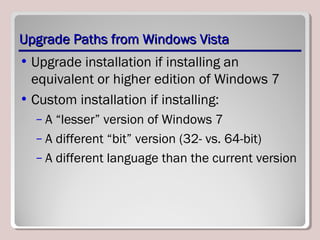
Upgrade Paths from Windows VistaUpgrade Paths from Windows Vista
• Upgrade installation if installing an
equivalent or higher edition of Windows 7
• Custom installation if installing:
– A “lesser” version of Windows 7
– A different “bit” version (32- vs. 64-bit)
– A different language than the current version
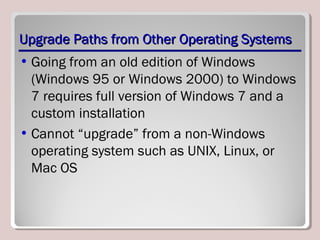
Upgrade Paths from Other Operating SystemsUpgrade Paths from Other Operating Systems
• Going from an old edition of Windows
(Windows 95 or Windows 2000) to Windows
7 requires full version of Windows 7 and a
custom installation
• Cannot “upgrade” from a non-Windows
operating system such as UNIX, Linux, or
Mac OS
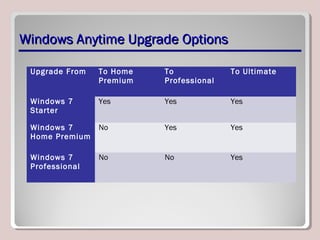
Windows Anytime Upgrade OptionsWindows Anytime Upgrade Options
Upgrade From To Home
Premium
To
Professional
To Ultimate
Windows 7
Starter
Yes Yes Yes
Windows 7
Home Premium
No Yes Yes
Windows 7
Professional
No No Yes
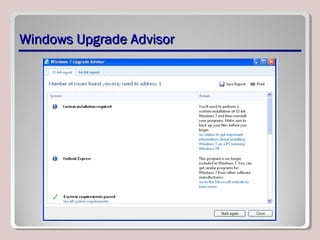
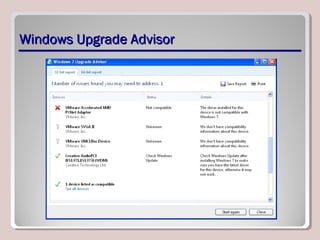
Windows Upgrade AdvisorWindows Upgrade Advisor
• Helps you determine:
– If your computer can run Windows 7
– Which editions and features will work
– Whether your computer has any compatibility
issues
Windows Upgrade AdvisorWindows Upgrade Advisor
Application CompatibilityApplication Compatibility
• Operating system upgrades can result in one
or more programs not working properly or
not working at all
• Resources:
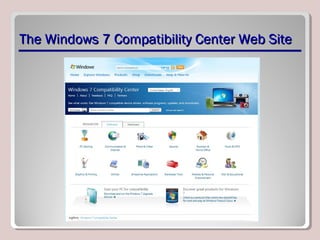
– Windows 7 Compatibility Center online
– Windows 7 Application Compatibility List for
IT Professionals:
•http://www.microsoft.com/download/en/details.a
The Windows 7 Compatibility Center Web SiteThe Windows 7 Compatibility Center Web Site
Product Identification KeysProduct Identification Keys
• A unique, alphanumeric code required by
many software programs during installation
• Helps avoid illegal product installations
• Product key you enter during Windows 7
installation is checked by Microsoft for
legitimacy and whether it is already being
used on a different computer
• Similar to xxxxx-xxxxx-xxxxx-xxxxx-xxxxx but is
composed of letters and numbers
Product Identification KeysProduct Identification Keys
• Usually located:
– On the installation disc holder inside the
Windows package
– On a sticker on the back or bottom of your
computer if the operating system came pre-
installed on the computer
– n a confirmation e-mail if you purchased and
downloaded Windows 7 online
Activation and RegistrationActivation and Registration
• Activation verifies that a copy of Windows
is:
– Genuine
– Not in use on other computers than the
number for which is licensed
• Activation is required within 30 days of
installation
• Registration is optional; enables you to
sign up for technical support and receive
other benefits
Windows 7 Installation TypesWindows 7 Installation Types
• High Touch Installation (HTI)
• Lite Touch Installation (LTI)
• Zero Touch Installation (ZTI)
High Touch Installation (HTI)High Touch Installation (HTI)
• May include retail media or a standard
image (ISO file)
• Uses an installation DVD or USB drive and
manual installation of operating system on
every computer
• Requires manual configuration of each
system
High Touch Installation (HTI)—Steps for LargerHigh Touch Installation (HTI)—Steps for Larger
EnvironmentEnvironment
1. Install Windows 7 on a clean hard disk.
2. Configure it with settings that apply to all
computers.
3. Use the Sysprep utility to create an image
of the installation.
4. Boot to the Windows Preinstallation
Environment (WinPE) and use ImageX to
save the image to media.
5. Install image on remaining computers.
Lite Touch Installation (LTI)Lite Touch Installation (LTI)
• Requires some human intervention in the
early phase of the installation but is
automated (or unattended) from that point
on
• Works well in environments with more than
150 computers
• You need the Windows AIK, Windows
Deployment Services, and the Microsoft
Deployment Toolkit
Zero Touch Installation (ZTI)Zero Touch Installation (ZTI)
• Fully automated, “touchless” method of
installing Windows
• Requires System Center Configuration
Manager (SCCM)
– Deploys and updates servers, client
computers, and all kinds of devices on a
network
Zero Touch Installation (ZTI)Zero Touch Installation (ZTI)
• Geared for environments with more than
500 computers
• Involves a fairly steep learning curve
• Requires a considerable budget compared
to HTIs
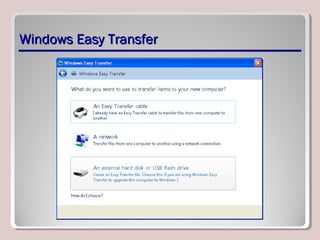
Windows Easy TransferWindows Easy Transfer
• Helps you move files and settings from one
computer running Windows to another
• “Move” can occur on the same computer if
you’re upgrading to a different version of
Windows that requires a custom installation
• Uses a MIG file for files and settings
• Cannot transfer programs—you need original
installation media to manually install them in
Windows 7
Windows Easy TransferWindows Easy Transfer
SummarySummary
• The six main editions of Windows 7 are Starter,
Home Basic, Home Premium, Professional,
Ultimate, and Enterprise.
• Common computer architectures are 32-bit and
64-bit.
• Windows 7 Upgrade Advisor helps you determine if
your computer can run Windows 7.
SummarySummary
• The upgrade path you must take from Windows
Vista to Windows 7 depends on key factors, mainly
your current operating system and the edition of
Windows 7 you want to run.
• The three main types of Windows 7 installation
methods are High Touch Installation (HTI), Lite
Touch Installation (LTI), and Zero Touch Installation
(ZTI).
• Windows Easy Transfer helps you move files and
settings from one computer to another.

Lesson 1 - Introducing, Installing, and Upgrading Windows 7

  • 1.
    Introducing, Installing, andIntroducing,Installing, and Upgrading Windows 7Upgrading Windows 7 Lesson 1
  • 2.
    ObjectivesObjectives Objective Domain Matrix TechnologySkill Objective Domain Description Objective Domain Number Identifying System Requirements Identifying System Requirements 2.1.1 Identifying Upgrade Paths from Windows XP, Windows Vista, and Other Operating Systems Identifying Upgrade Paths from Windows XP, Windows Vista, and Other Operating Systems 2.2.1 Using Windows 7 Upgrade Advisor Using Windows 7 Upgrade Advisor 2.1.2 Identifying Application Compatibility Identifying Application Compatibility 2.2.2 Understanding Product Identification Keys Understanding Product Identification Keys 2.3.3 Understanding Removable Media Installations (DVD, ZTI, LTI, and USB) Understanding Removable Media Installations (DVD, ZTI, LTI, and USB) 2.3.1 Understanding Cloud and Network Installations Understanding Cloud and Network Installations 2.3.2
  • 3.
    Windows 7Windows 7 •Windows 7 is a desktop operating system that improves on many aspects of its direct predecessors, Windows Vista and Windows XP • Includes several new features, such as large and animated task thumbnails, homegroups, Jump Lists, libraries, and Windows XP Mode
  • 4.
    Windows 7 OperatingSystem EditionsWindows 7 Operating System Editions • Windows 7 Starter • Windows 7 Home Basic • Windows 7 Home Premium • Windows 7 Professional • Windows 7 Enterprise • Windows 7 Ultimate
  • 5.
    Windows 7 OperatingSystem EditionsWindows 7 Operating System Editions • Windows 7 Home Premium, Professional, and Ultimate are widely available in the retail sector. • Other Windows 7 editions are designed for certain types of computers or markets, or specifically for enterprise use.
  • 6.
    Windows 7 OperatingSystem EditionsWindows 7 Operating System Editions Windows 7 Feature Home Premium Professional Ultimate Aero interface Yes Yes Yes Windows Media Center Yes Yes Yes Backup and Restore Yes Yes Yes Windows Anytime Upgrade Yes Yes No Back up to network No Yes Yes Location-aware printing No Yes Yes Remote Desktop Host No Yes Yes Encrypting File System No Yes Yes Windows XP Mode No Yes Yes Support for joining domains No Yes Yes BitLocker and AppLocker No No Yes
  • 7.
    32-bit and 64-bitComputing32-bit and 64-bit Computing • 32-bit and 64-bit refer to the way a computer's central processing unit (CPU) processes data • 64-bit computer can use more random access memory (RAM) than 32-bit computer • Operating systems come in 32-bit and 64-bit versions – Must match the correct operating system to the computer processor
  • 8.
    32-bit and 64-bitComputing32-bit and 64-bit Computing • Enterprise environment with mix of 32-bit and 64-bit systems needs: – Both types of drivers for networked printers, scanners, projectors, and other shared devices – Multiple images—at least one image for the 32-bit computers and one for the 64-bit computers
  • 9.
    32-bit and 64-bitComputing32-bit and 64-bit Computing
  • 10.
    32-bit and 64-bitComputing32-bit and 64-bit Computing
  • 11.
    Windows 7 SystemRequirementsWindows 7 System Requirements • 1 gigahertz (GHz) or faster 32-bit (x86) or 64-bit (x64) processor • 1 gigabyte (GB) RAM (32-bit) or 2 GB RAM (64-bit) • 16 GB available hard disk space (32-bit) or 20 GB (64-bit) • DirectX 9 graphics device with Windows Display Driver Model (WDDM) 1.0 or higher driver
  • 12.
    Windows 7 SystemRequirementsWindows 7 System Requirements • Internet access • Additional memory and advanced graphics hardware for video playback, depending on the resolution required or desired • A graphics card compatible with DirectX 10 or higher for certain games and programs • A TV tuner and additional hardware for some Windows Media Center functionality
  • 13.
    Windows 7 SystemRequirementsWindows 7 System Requirements • Specific hardware for Windows Touch and Tablet PCs • A network and PCs running Windows 7 for HomeGroup utilization • A compatible optical drive to burn DVDs/CDs • Trusted Platform Module (TPM) 1.2 for BitLocker
  • 14.
    Windows 7 SystemRequirementsWindows 7 System Requirements • A universal serial bus (USB) flash drive for BitLocker To Go • An additional 1 GB of RAM and an additional 15 GB of available hard disk space for Windows XP Mode • Audio output for music and sound
  • 15.
    Upgrade PathsUpgrade Paths •Upgrade path is set of options for upgrading from one Windows operating system to another • Upgrade installation retains files, settings, and programs – Also called an in-place installation • Custom installation overwrites files, settings, and programs – Also called a clean installation
  • 16.
    Windows 7 UpgradePaths for Home Premium,Windows 7 Upgrade Paths for Home Premium, Professional, and UltimateProfessional, and Ultimate Upgrading From To Home Premium To Professional To Ultimate Windows XP Custom Custom Custom Windows Vista Home Basic Upgrade Custom Upgrade Windows Vista Home Premium Upgrade Custom Upgrade Windows Vista Business Custom Upgrade Upgrade Windows Vista Ultimate Custom Custom Upgrade
  • 17.
    Upgrade Path fromWindows XPUpgrade Path from Windows XP • Custom installation • Back up data files first
  • 18.
    Upgrade Paths fromWindows VistaUpgrade Paths from Windows Vista • Upgrade installation if installing an equivalent or higher edition of Windows 7 • Custom installation if installing: – A “lesser” version of Windows 7 – A different “bit” version (32- vs. 64-bit) – A different language than the current version
  • 19.
    Upgrade Paths fromOther Operating SystemsUpgrade Paths from Other Operating Systems • Going from an old edition of Windows (Windows 95 or Windows 2000) to Windows 7 requires full version of Windows 7 and a custom installation • Cannot “upgrade” from a non-Windows operating system such as UNIX, Linux, or Mac OS
  • 20.
    Windows Anytime UpgradeOptionsWindows Anytime Upgrade Options Upgrade From To Home Premium To Professional To Ultimate Windows 7 Starter Yes Yes Yes Windows 7 Home Premium No Yes Yes Windows 7 Professional No No Yes
  • 21.
    Windows Upgrade AdvisorWindowsUpgrade Advisor • Helps you determine: – If your computer can run Windows 7 – Which editions and features will work – Whether your computer has any compatibility issues
  • 22.
  • 23.
  • 24.
    Application CompatibilityApplication Compatibility •Operating system upgrades can result in one or more programs not working properly or not working at all • Resources: – Windows 7 Compatibility Center online – Windows 7 Application Compatibility List for IT Professionals: •http://www.microsoft.com/download/en/details.a
  • 25.
    The Windows 7Compatibility Center Web SiteThe Windows 7 Compatibility Center Web Site
  • 26.
    Product Identification KeysProductIdentification Keys • A unique, alphanumeric code required by many software programs during installation • Helps avoid illegal product installations • Product key you enter during Windows 7 installation is checked by Microsoft for legitimacy and whether it is already being used on a different computer • Similar to xxxxx-xxxxx-xxxxx-xxxxx-xxxxx but is composed of letters and numbers
  • 27.
    Product Identification KeysProductIdentification Keys • Usually located: – On the installation disc holder inside the Windows package – On a sticker on the back or bottom of your computer if the operating system came pre- installed on the computer – n a confirmation e-mail if you purchased and downloaded Windows 7 online
  • 28.
    Activation and RegistrationActivationand Registration • Activation verifies that a copy of Windows is: – Genuine – Not in use on other computers than the number for which is licensed • Activation is required within 30 days of installation • Registration is optional; enables you to sign up for technical support and receive other benefits
  • 29.
    Windows 7 InstallationTypesWindows 7 Installation Types • High Touch Installation (HTI) • Lite Touch Installation (LTI) • Zero Touch Installation (ZTI)
  • 30.
    High Touch Installation(HTI)High Touch Installation (HTI) • May include retail media or a standard image (ISO file) • Uses an installation DVD or USB drive and manual installation of operating system on every computer • Requires manual configuration of each system
  • 31.
    High Touch Installation(HTI)—Steps for LargerHigh Touch Installation (HTI)—Steps for Larger EnvironmentEnvironment 1. Install Windows 7 on a clean hard disk. 2. Configure it with settings that apply to all computers. 3. Use the Sysprep utility to create an image of the installation. 4. Boot to the Windows Preinstallation Environment (WinPE) and use ImageX to save the image to media. 5. Install image on remaining computers.
  • 32.
    Lite Touch Installation(LTI)Lite Touch Installation (LTI) • Requires some human intervention in the early phase of the installation but is automated (or unattended) from that point on • Works well in environments with more than 150 computers • You need the Windows AIK, Windows Deployment Services, and the Microsoft Deployment Toolkit
  • 33.
    Zero Touch Installation(ZTI)Zero Touch Installation (ZTI) • Fully automated, “touchless” method of installing Windows • Requires System Center Configuration Manager (SCCM) – Deploys and updates servers, client computers, and all kinds of devices on a network
  • 34.
    Zero Touch Installation(ZTI)Zero Touch Installation (ZTI) • Geared for environments with more than 500 computers • Involves a fairly steep learning curve • Requires a considerable budget compared to HTIs
  • 35.
    Windows Easy TransferWindowsEasy Transfer • Helps you move files and settings from one computer running Windows to another • “Move” can occur on the same computer if you’re upgrading to a different version of Windows that requires a custom installation • Uses a MIG file for files and settings • Cannot transfer programs—you need original installation media to manually install them in Windows 7
  • 36.
  • 37.
    SummarySummary • The sixmain editions of Windows 7 are Starter, Home Basic, Home Premium, Professional, Ultimate, and Enterprise. • Common computer architectures are 32-bit and 64-bit. • Windows 7 Upgrade Advisor helps you determine if your computer can run Windows 7.
  • 38.
    SummarySummary • The upgradepath you must take from Windows Vista to Windows 7 depends on key factors, mainly your current operating system and the edition of Windows 7 you want to run. • The three main types of Windows 7 installation methods are High Touch Installation (HTI), Lite Touch Installation (LTI), and Zero Touch Installation (ZTI). • Windows Easy Transfer helps you move files and settings from one computer to another.

Editor's Notes

  • #12 Hardware specifications usually mean the software will run but might not result in an optimal user experience. When preparing to run Windows 7, it’s best to exceed the processor, RAM, and hard disk space requirements, if possible.
  • #32 In a larger environment, where you have, say, 25 or more computers that require Windows 7 installations, you could use a tool called ImageX to create bootable media. The Windows Automated Installation Kit (AIK) includes ImageX.
  • #33 Windows Deployment Services is a server role for Windows Server 2008 or Windows Server 2008 R2. It allows a user to press the F12 key, log on, and select an image for installation. After that, the installation can be automated. For example, you can use an answer file to configure Windows settings during installation. The answer file contains all the settings that are required for an unattended installation.