Introducing Windows 7
              Lesson 1
Objectives
• Define Windows 7 interface refinements
• Describe new features of Windows 7
• Describe the six editions of Windows 7
• Use the Upgrade Advisor to determine
  hardware and software compatibility
• Describe the modular architecture of
  Windows 7
What’s New in Windows 7


• Windows 7 Interface Refinements
  – Desktop
  – Manipulating Windows
  – Keystroke Shortcuts
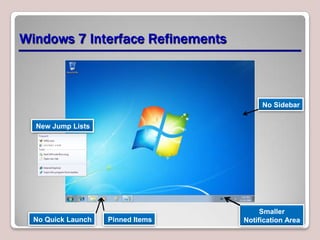
Windows 7 Interface Refinements


                                        No Sidebar


  New Jump Lists


                                        Smaller
  No Quick Launch   Pinned Items   Notification Area
Manipulating Windows


•   Aero Snap
•   Aero Shake
•   Aero Peek
•   Aero Task Switching
Using Keystroke Shortcuts


• Windows + Space – Causes the system
  to enter “peek at desktop” mode
• Windows + Up Arrow – Maximizes the
  active window
• Windows + Down Arrow – Restores the
  active window to its default size
• Windows + 1 – Starts the first program on
  the taskbar
Windows Feature Refinements


•   Explorer Libraries
•   Windows Search
•   Federated Search
•   Offline Files
•   VPN Reconnect
•   Group Policy
•   ReadyBoost
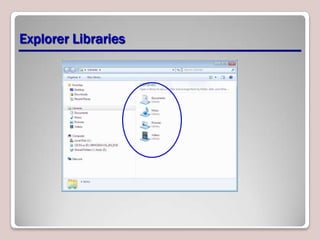
Explorer Libraries
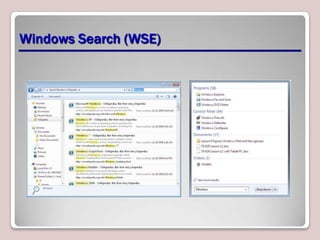
Windows Search (WSE)
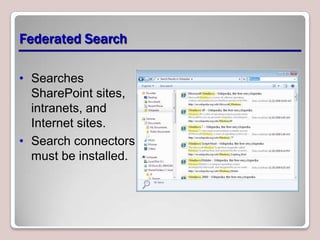
Federated Search

• Searches
  SharePoint sites,
  intranets, and
  Internet sites.
• Search connectors
  must be installed.
Offline Files


• Enables users to store copies of network
  files on the local drive
• Provides access when network is
  unavailable
• Can exclude file types to prevent
  overloading the network
VPN Reconnect


• Enables a remote computer to re-establish
  a connection to a VPN server running
  Windows Server 2008 R2, with no re-
  authentication
• Reduces frustration with loss of
  connection when using unstable wireless
  networks
Group Policy


• New preference settings to control power
  management and task scheduling
• Starter Group Policy Objects (GPOs) to
  simplify administration
ReadyBoost


• Introduced in Windows Vista to use
  external storage devices (USB flash drives
  or SD cards) as a cache for data that
  might be swapped to the hard drive.
• Windows 7 supports larger caches on as
  many as eight external devices
  simultaneously.
Introducing New Windows 7 Features
•   Action Center
•   BranchCache
•   DirectAccess
•   Windows PowerShell 2.0
•   Problem Steps Recorder
•   Resource Monitor
•   Wake on Wireless LAN
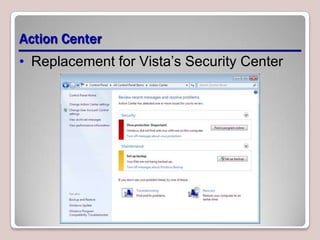
Action Center
• Replacement for Vista’s Security Center
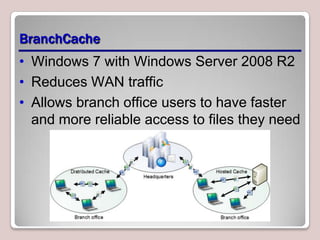
BranchCache
• Windows 7 with Windows Server 2008 R2
• Reduces WAN traffic
• Allows branch office users to have faster
  and more reliable access to files they need
DirectAccess


• Simplifies VPN connection for end users
• Automatically establishes a connection to
  the DirectAccess server when remote
  computer has Internet access
• More complicated setup for administrator
• Requires Server 2008 R2
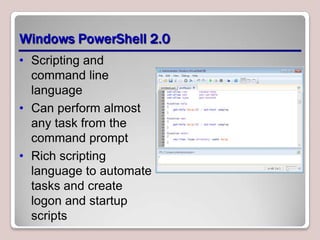
Windows PowerShell 2.0
• Scripting and
  command line
  language
• Can perform almost
  any task from the
  command prompt
• Rich scripting
  language to automate
  tasks and create
  logon and startup
  scripts
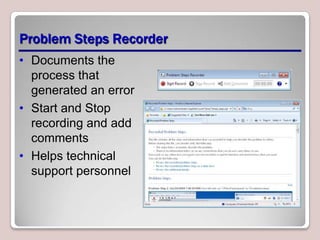
Problem Steps Recorder
• Documents the
  process that
  generated an error
• Start and Stop
  recording and add
  comments
• Helps technical
  support personnel
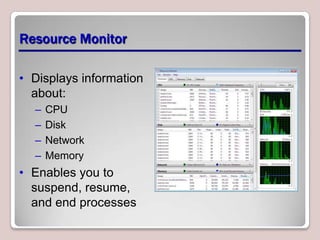
Resource Monitor

• Displays information
  about:
  –   CPU
  –   Disk
  –   Network
  –   Memory
• Enables you to
  suspend, resume,
  and end processes
Wake on Wireless LAN (WoWLAN)


• Enables a computer in sleep mode to
  wake up on the receipt of a magic packet,
  on wired LANS
• Is the equivalent standard for wireless
  networks
Introducing Windows 7 Editions


•   Windows 7 Starter
•   Windows 7 Home Basic
•   Windows 7 Home Premium
•   Windows 7 Professional
•   Windows 7 Enterprise
•   Windows 7 Ultimate
Minimum System Requirements


• 1 gigahertz (GHz) or faster 32-bit (x86) or
  64-bit (x64) processor
• 1 gigabyte (GB) RAM (32-bit) or 2 GB
  RAM (64-bit)
• 16 GB available hard disk space (32-bit) or
  20 GB (64-bit)
• DirectX 9 graphics device with WDDM 1.0
  or higher driver
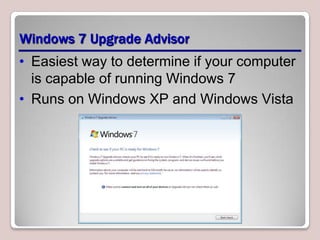
Windows 7 Upgrade Advisor
• Easiest way to determine if your computer
  is capable of running Windows 7
• Runs on Windows XP and Windows Vista
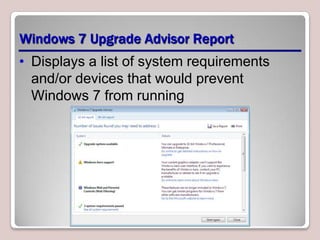
Windows 7 Upgrade Advisor Report
• Displays a list of system requirements
  and/or devices that would prevent
  Windows 7 from running
Indentifying Upgrade Paths


• Windows Vista – Supports in-place
  upgrade
  – Install the new operating system over the
    old, leaving existing applications,
    configuration settings, and personal files
    intact
  – Previous operating system files stored in
    windows.old file
Identifying Upgrade Paths cont’d


• Windows XP – Wipe-and-load upgrade
  only
  – Wipe away existing operating system
  – Install Windows 7
  – All software must be reinstalled
  – Data can be backed up and restored or
    migrated from old computer
  – Some configuration settings can be
    migrated
Upgrading Windows 7 Editions
• Windows 7 edition upgrade simplified
• Each higher edition includes all of the
  features of the next lower edition.
• Any retail product can be upgraded to any
  higher retail product.
• Upgrade process is completely electronic.
• No installation disk is required.
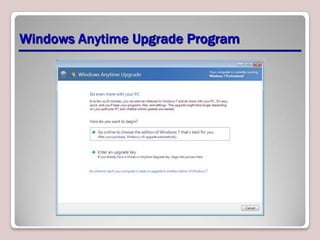
• Use Windows Anytime Upgrade program
Windows Anytime Upgrade Program
Upgrading from Windows Vista


• Can only perform IN-PLACE upgrades as
  follows:
  – Vista HOME editions to Windows 7 HOME
    editions
  – Vista BUSINESS editions to Windows 7
    BUSINESS editions
  – Any edition of Vista to Windows 7 Ultimate
  – Otherwise, do a migration
Upgrading Best Practices


• In-place upgrades do not preserve
  everything and take a lot of time
• Not everything runs properly after the
  upgrade
• Always use Upgrade Advisor to plan
• Clean installations are most reliable
• Migrate configuration settings and user
  data
Upgrading from Earlier Windows Versions


• No upgrade pricing available for Windows
  2000, Windows ME, Windows 98,
  Windows 95, or Windows 3.1
• Purchase a full version of Windows 7
• Can only perform a migration, no in-place
  upgrade
Windows 7 Modular Architecture
• All editions of Windows 7 are distributed
  on a single DVD.
• Product key determines which edition is
  installed.
• Modular architecture:
  – MinWin module – Common core module
  – Edition-specific module
  – Language module
Skills Summary
• Windows 7 includes a variety of interface
  refinements, as well as new and refined
  features.
• Windows 7 is available in six editions. Each
  successive edition is a superset of the next
  lower one.
• Upgrade Advisor is an application that
  determines whether the computer’s hardware
  and software is compatible with Windows 7.
• Windows 7 is based on a common core module
  called MinWin, an edition-specific module, and a
  language module.

Introducing Widows 7

  • 1.
  • 2.
    Objectives • Define Windows7 interface refinements • Describe new features of Windows 7 • Describe the six editions of Windows 7 • Use the Upgrade Advisor to determine hardware and software compatibility • Describe the modular architecture of Windows 7
  • 3.
    What’s New inWindows 7 • Windows 7 Interface Refinements – Desktop – Manipulating Windows – Keystroke Shortcuts
  • 4.
    Windows 7 InterfaceRefinements No Sidebar New Jump Lists Smaller No Quick Launch Pinned Items Notification Area
  • 5.
    Manipulating Windows • Aero Snap • Aero Shake • Aero Peek • Aero Task Switching
  • 6.
    Using Keystroke Shortcuts •Windows + Space – Causes the system to enter “peek at desktop” mode • Windows + Up Arrow – Maximizes the active window • Windows + Down Arrow – Restores the active window to its default size • Windows + 1 – Starts the first program on the taskbar
  • 7.
    Windows Feature Refinements • Explorer Libraries • Windows Search • Federated Search • Offline Files • VPN Reconnect • Group Policy • ReadyBoost
  • 8.
  • 9.
  • 10.
    Federated Search • Searches SharePoint sites, intranets, and Internet sites. • Search connectors must be installed.
  • 11.
    Offline Files • Enablesusers to store copies of network files on the local drive • Provides access when network is unavailable • Can exclude file types to prevent overloading the network
  • 12.
    VPN Reconnect • Enablesa remote computer to re-establish a connection to a VPN server running Windows Server 2008 R2, with no re- authentication • Reduces frustration with loss of connection when using unstable wireless networks
  • 13.
    Group Policy • Newpreference settings to control power management and task scheduling • Starter Group Policy Objects (GPOs) to simplify administration
  • 14.
    ReadyBoost • Introduced inWindows Vista to use external storage devices (USB flash drives or SD cards) as a cache for data that might be swapped to the hard drive. • Windows 7 supports larger caches on as many as eight external devices simultaneously.
  • 15.
    Introducing New Windows7 Features • Action Center • BranchCache • DirectAccess • Windows PowerShell 2.0 • Problem Steps Recorder • Resource Monitor • Wake on Wireless LAN
  • 16.
    Action Center • Replacementfor Vista’s Security Center
  • 17.
    BranchCache • Windows 7with Windows Server 2008 R2 • Reduces WAN traffic • Allows branch office users to have faster and more reliable access to files they need
  • 18.
    DirectAccess • Simplifies VPNconnection for end users • Automatically establishes a connection to the DirectAccess server when remote computer has Internet access • More complicated setup for administrator • Requires Server 2008 R2
  • 19.
    Windows PowerShell 2.0 •Scripting and command line language • Can perform almost any task from the command prompt • Rich scripting language to automate tasks and create logon and startup scripts
  • 20.
    Problem Steps Recorder •Documents the process that generated an error • Start and Stop recording and add comments • Helps technical support personnel
  • 21.
    Resource Monitor • Displaysinformation about: – CPU – Disk – Network – Memory • Enables you to suspend, resume, and end processes
  • 22.
    Wake on WirelessLAN (WoWLAN) • Enables a computer in sleep mode to wake up on the receipt of a magic packet, on wired LANS • Is the equivalent standard for wireless networks
  • 23.
    Introducing Windows 7Editions • Windows 7 Starter • Windows 7 Home Basic • Windows 7 Home Premium • Windows 7 Professional • Windows 7 Enterprise • Windows 7 Ultimate
  • 24.
    Minimum System Requirements •1 gigahertz (GHz) or faster 32-bit (x86) or 64-bit (x64) processor • 1 gigabyte (GB) RAM (32-bit) or 2 GB RAM (64-bit) • 16 GB available hard disk space (32-bit) or 20 GB (64-bit) • DirectX 9 graphics device with WDDM 1.0 or higher driver
  • 25.
    Windows 7 UpgradeAdvisor • Easiest way to determine if your computer is capable of running Windows 7 • Runs on Windows XP and Windows Vista
  • 26.
    Windows 7 UpgradeAdvisor Report • Displays a list of system requirements and/or devices that would prevent Windows 7 from running
  • 27.
    Indentifying Upgrade Paths •Windows Vista – Supports in-place upgrade – Install the new operating system over the old, leaving existing applications, configuration settings, and personal files intact – Previous operating system files stored in windows.old file
  • 28.
    Identifying Upgrade Pathscont’d • Windows XP – Wipe-and-load upgrade only – Wipe away existing operating system – Install Windows 7 – All software must be reinstalled – Data can be backed up and restored or migrated from old computer – Some configuration settings can be migrated
  • 29.
    Upgrading Windows 7Editions • Windows 7 edition upgrade simplified • Each higher edition includes all of the features of the next lower edition. • Any retail product can be upgraded to any higher retail product. • Upgrade process is completely electronic. • No installation disk is required. • Use Windows Anytime Upgrade program
  • 30.
  • 31.
    Upgrading from WindowsVista • Can only perform IN-PLACE upgrades as follows: – Vista HOME editions to Windows 7 HOME editions – Vista BUSINESS editions to Windows 7 BUSINESS editions – Any edition of Vista to Windows 7 Ultimate – Otherwise, do a migration
  • 32.
    Upgrading Best Practices •In-place upgrades do not preserve everything and take a lot of time • Not everything runs properly after the upgrade • Always use Upgrade Advisor to plan • Clean installations are most reliable • Migrate configuration settings and user data
  • 33.
    Upgrading from EarlierWindows Versions • No upgrade pricing available for Windows 2000, Windows ME, Windows 98, Windows 95, or Windows 3.1 • Purchase a full version of Windows 7 • Can only perform a migration, no in-place upgrade
  • 34.
    Windows 7 ModularArchitecture • All editions of Windows 7 are distributed on a single DVD. • Product key determines which edition is installed. • Modular architecture: – MinWin module – Common core module – Edition-specific module – Language module
  • 35.
    Skills Summary • Windows7 includes a variety of interface refinements, as well as new and refined features. • Windows 7 is available in six editions. Each successive edition is a superset of the next lower one. • Upgrade Advisor is an application that determines whether the computer’s hardware and software is compatible with Windows 7. • Windows 7 is based on a common core module called MinWin, an edition-specific module, and a language module.

Editor's Notes

  • #4 Introduce the interface refinements that will be discussed. Explain that if you have Vista experience these are some of the new improvements that you may see. If moving from XP, more of an adjustment will be needed to get used to the interface. You may find it useful to explain some of the features of the Vista interface that are not being covered here, so that XP users are not left behind.
  • #5 Describe some of the features that have disappeared from Vista or have changed. Also make sure to point out the additions.
  • #6 Describe each of these new methods for moving and resizing windows on the Windows 7 desktop.
  • #7 While the keystroke shortcuts have been around for a long time, there are some new shortcuts with Windows 7 and some of the old ones do something different with Windows 7. Here are a few examples. Refer to the full list in the book.
  • #8 Introduce the feature refinements. Windows Vista introduced many new features, but some of these have been refined or enhanced in Windows 7. Explain that although these may seem like simple changes, often times users have problems with these new features and it is important to be familiar with them if you are a desktop technician.
  • #9 Note the Libraries in the Explorer Window. Explain that these libraries can actually contain and group files from multiple computers into a single folder that makes them appear as though they are on the local drive. The libraries shown are the 4 default libraries, but more can be added. Each one can contain multiple locations.They appear in the Open and Save As options on the right side of the Start Menu, replacing the old Documents, Pictures and Music user profile folders. You may want to show this if you are using a Windows 7 computer.
  • #10 The Windows Search Engine (WSE) is a great improvement. Replaces the Search Assistant. You will now see a small search box on the Start menu, on Explorer Windows, in Windows Media Player and other places throughout the operating system. It enables users to perform context-sensitive, metadata-based, as-you-type searches from almost anywhere. You can also add Search Filters to refine your search.
  • #11 When Search connectors are installed in Windows 7, a shortcut for the site appears under Favorites in the Windows Explorer window. You can then select the favorite and type a string in the Search box to perform a search on the site. Results get displayed in the Explorer window as shown above.
  • #12 Explain Offline Files and then expand by describing the synchronization process, and how it is invisible to users.
  • #13 Because wireless networks are used so extensively nowadays, and their connectivity can be so intermittent, improvements were needed in VPN technology to reduce the need for re-authentication every time the wireless connection was dropped. This re-authentication process can take several minutes each time, therefore reducing productivity and causing frustration.
  • #14 Group Policy has been around since Active Directory was introduced in Windows 2000. Explain what Group Policy is used for, and talk about the additions to Group Policy and why Starter Group Policy Objects are a great help to administrators.
  • #15 ReviewReadyBoost information from Windows Vista and explain how it is supposed to enhance the performance of your computer. Explain the improvements with Windows 7.
  • #16 There are many new features in Windows 7 that enhance the operating system’s ability to communicate with other computers on the network safely and efficiently. These are some of the most prominent new features. Do not discuss each feature here, as they will be discussed in the upcoming slides.
  • #17 Describe the old Security Center from Windows Vista and what it was used for. Explain why the name was changed and what new notifications are included in the new tool.
  • #18 Describe BranchCache briefly. It will be discussed in more detail in a later lesson.
  • #19 Describe how DirectAccess is a remote connection technology that is completely invisible to the end user, and that it simplifies the process of making VPN connections. Often times users need greater understanding of networking concepts than they possess in order to make their own VPN connections. While this is easier for users, it is more complicated for administrators to configure.
  • #20 Explain how PowerShell is replacing VBScript and other languages supported by Windows Script Host. It is installed by default on Windows 7 and Server 2008 R2. There is a command prompt and a graphical interface.
  • #21 Explain what this tool does and why it is so helpful for technical support personnel.
  • #22 Explain how the Resource Monitor lists the processes that are consuming resources and enables you to suspend, resume and end processes as needed. Gives a great overview of what is happening on your computer.
  • #23 Explain Wake on LAN and then explain Wake on Wireless LAN.
  • #24 Review the features of each of the editions of Windows 7. Highlight that as you move down the list that each higher edition is a true superset of the lower edition, and why this is a welcome enhancement from how the Windows Vista editions were. You may want to refer to the comparison table in the textbook as you talk about the differences between the editions or you can be more general.
  • #25 Review the minimum system requirements for both the 32 bit version and 64 bit version of the operating system. Explain that the requirements are the same for each edition. These minimum requirements do not take into consideration the applications you will be running, but only the operating system. You may also want to touch on the hardware limitations of each edition of Windows 7, using the chart in the book.
  • #26 Explain the Upgrade Advisor tool, how you run it and that it is a replacement for the old Hardware Compatibility List (HCL).
  • #27 Explain what you will see in the report that gets generated by the Upgrade Advisor tool. Explain that it checks hardware and software and will make recommendations if upgrades are needed, or what you could do to improve your computer’s performance.
  • #28 Explain the difference between an in-place upgrade and a wipe and load, and then discuss, over the next 2 slides how to use each one when upgrading from either Vista or XP. Explain that there is an Upgrade version of the operating system that is available at a lower cost that the full version.
  • #29 See notes from previous slide.
  • #30 Review why the upgrade procedure is simplified and why you no longer need the installation disk to perform an upgrade. You may want to show where the Windows Anytime Upgrade program is, if you are using a Windows 7 computer.
  • #31 Explain that you must purchase the upgrade online, or have purchased the upgrade in a store. You can pay by credit card online or just enter the new upgrade key to unlock the additional modules that relate to the upgraded edition of Windows 7.
  • #32 Use this slide and the next to review the upgrade paths and to review in-place and wipe and load (migrations) upgrades. We are not discussing migration in detail at this point, but it is worth mentioning the tools that you might use to migrate settings and files. Note that migration does not necessarily bring all settings to the new computer. The migration upgrade is considered more stable than in-place upgrades.
  • #33 See notes on previous slide.
  • #34 Review the versions of Windows that do have upgrade paths in place and which versions do not.
  • #35 Explain the modular architecture of Windows 7, explaining why all editions fit on a single DVD.
  • #36 Review the Skill Summaryto wrap up your lesson.