1 1 
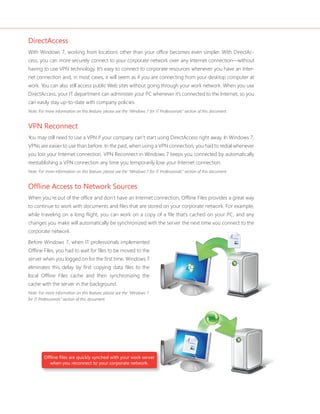
Welcome to 
Windows 7
Your PC, simplifi ed. 
3 3 
You told us what you wanted. We listened. 
This Windows® 7 Product Guide highlights 
the new and improved features that will 
help deliver the one thing you said you 
wanted the most:
INTRODUCTION TO WINDOWS 7 6 
DESIGNING WINDOWS 7 8 
Market Trends that Inspired Windows 7 9 
WINDOWS 7 EDITIONS 10 
Windows 7 Starter 11 
Windows 7 Home Basic 11 
Windows 7 Home Premium 12 
Windows 7 Professional 12 
Windows 7 Enterprise / Windows 7 Ultimate 13 
Windows Anytime Upgrade 14 
Microsoft Desktop Optimization Pack 14 
Windows 7 Editions Comparison 15 
GETTING STARTED WITH WINDOWS 7 16 
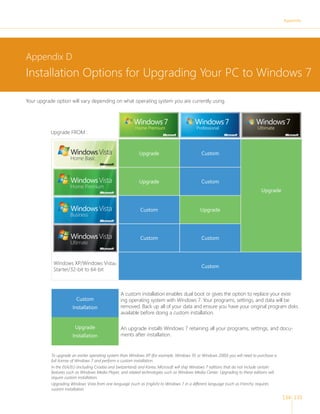
Upgrading a PC to Windows 7 16 
WHAT’S NEW IN WINDOWS 7 20 
Top Features for You 20 
Top Features for IT Professionals 22 
Application and Device Compatibility 23 
WINDOWS 7 FOR YOU 24 
WINDOWS 7 FOR YOU: SIMPLIFIES EVERYDAY TASKS 28 
Simple to Navigate 28 
Easier to Find Things 35 
Easy to Browse the Web 38 
Easy to Connect PCs and Manage Devices 41 
Easy to Communicate and Share 47 
WINDOWS 7 FOR YOU: WORKS THE WAY YOU WANT 50 
Speed, Reliability, and Responsiveness 50 
More Secure 55 
Compatible with You 62 
Better Troubleshooting and Problem Solving 66 
WINDOWS 7 FOR YOU: MAKES NEW THINGS POSSIBLE 70 
Media the Way You Want It 70 
Work Anywhere 81 
New Ways to Engage 84 
Contents
WINDOWS 7 FOR IT PROFESSIONALS 88 
WINDOWS 7 FOR IT PROFESSIONALS: 
MAKE PEOPLE PRODUCTIVE ANYWHERE 92 
Remove Barriers to Information 92 
Access Information from Anywhere 95 
WINDOWS 7 FOR IT PROFESSIONALS: 
MANAGE RISK THROUGH ENHANCED SECURITY AND CONTROL 100 
Protect Data on PCs and Devices 100 
Protect Workers and Infrastructure 102 
Builds on Windows Vista Security Foundation 103 
WINDOWS 7 FOR IT PROFESSIONALS: 
REDUCE COSTS BY STREAMLINING PC MANAGEMENT 106 
Easier Deployment 107 
Keep PCs Running Smoothly 110 
Better Support for Client Virtualization 115 
WINDOWS 7 FOR IT PROFESSIONALS: 
MICROSOFT DESKTOP OPTIMIZATION PACK 116 
Microsoft Application Virtualization 117 
Microsoft Asset Inventory Service 118 
Microsoft Advanced Group Policy Management 119 
Microsoft Diagnostics and Recovery Toolset 120 
Microsoft System Center Desktop Error Monitoring 120 
Microsoft Enterprise Desktop Virtualization 121 
WINDOWS 7 HARDWARE AND SOFTWARE LOGO PROGRAMS 122 
Windows 7 Logo for PCs 123 
Windows Starter Logo 123 
Compatible with Windows 7 Logo 123 
RECOMMENDED SYSTEM REQUIREMENTS 124 
Windows 7 System Requirements 124 
HOW TO FIND MORE INFORMATION 126 
Resources for Everyone 126 
Resources for IT Pros 127 
Resources for Device Manufacturers 127 
Resources for Software Developers 127 
APPENDIX A: EXPANDED EDITIONS FEATURE COMPARISON 128 
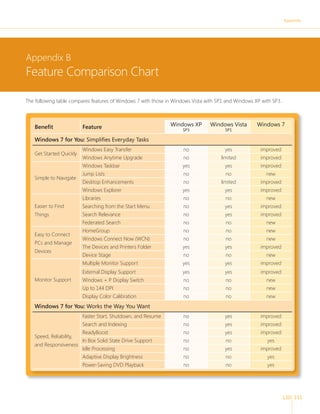
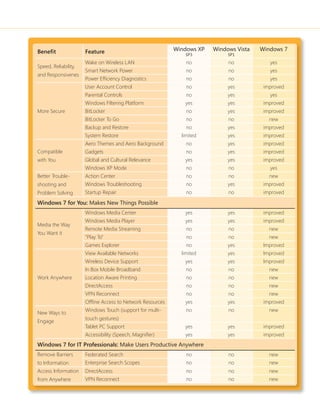
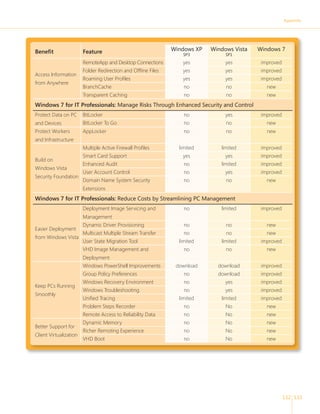
APPENDIX B: FEATURE COMPARISON CHART 131 
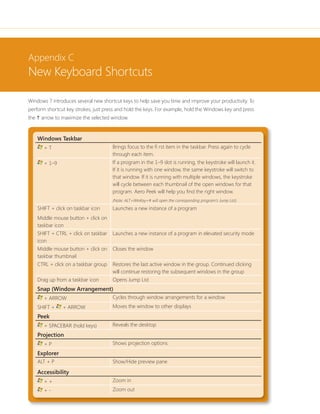
APPENDIX C: NEW KEYBOARD SHORTCUTS 134 
APPENDIX D: INSTALLATION OPTIONS FOR UPGRADING TO WINDOWS 7 135 
INDEX 136 
DISCLAIMER 139
PCs are an integral part of the daily lives of billions of people around the world. They are 
used for more functions than anyone could have imagined just a few years ago, and as 
PCs become more deeply woven into our everyday lives, our expectations keep increasing. 
With Windows® 7, you told us what you expect from a PC. And we listened. 
In Windows 7 we’ve developed hundreds of little improvements and a few big ones that 
add up, frankly, to a whole lot less. Less waiting, less clicks, less hassle connecting to devices, 
less power consumed and less overall complexity. 
And with less of what you don’t need, your PC running Windows 7 will help you do more 
by making everyday tasks simpler and easier. Windows 7 is clean and uncluttered, with 
a streamlined interface that puts the tasks you want to accomplish right at your fi nger-tips. 
You have more control over where to put the things you use most often. Managing 
multiple windows is easier. And we’ve improved search so that you can fi nd the information 
you want quickly. 
We’ve made it easier to add PCs to your home network, share fi les between networked 
PCs, and use and manage other connected devices like cell phones, cameras, and MP3 
players. Even browsing the Internet is easier thanks to improvements in Windows Internet 
Explorer® 8. 
You asked for improvements in the basic fundamentals like performance, responsiveness, 
safety, reliability, and compatibility. We designed Windows 7 to start up, shut down, and 
resume from sleep quickly so you don’t have to wait as long to get stuff done. We’ve 
reduced the number of system prompts that can interrupt your day. And you’ll have greater 
control over what your kids can do on the PC. Even better, you’ll fi nd innovative ways to 
safeguard your personal data—all while getting more ways to personalize your PC and 
make it truly your own. 
With Windows 7, we’ve also made new things possible. You’ll fi nd fresh ways to enjoy and 
share your music, photos, video, and recorded TV when and where you want regardless of 
how or where it’s stored. Windows 7 gives you more ways to access your data and work 
productively from any location including making it easier to connect to wireless networks. 
And we’ve added new ways to interact with your PC through touch-enabled screens. 
In the enterprise, the role of the PC is evolving just as quickly as it is in the home. With 
Windows 7, IT professionals have more ways to help their people get more done—more 
securely and from more locations—while still maintaining control over increasingly complex 
computing environments. 
Welcome to Windows 7. 
7 7
Designing Windows 7 
More than a billion people use Microsoft® Windows every day. You use it 
in signifi cant ways, like earning a living. You use it in personally meaningful 
ways, such as using a webcam to visit with a faraway loved one. And you 
experience it in small ways, like playing your favorite song or whiling away 
a few minutes with a game. Though each situation might be different, your 
satisfaction relies on one thing: that your PC works, plain and simple. 
In designing Windows 7, we focused on creating a better experience, 
regardless of what you do on your PC. And although we’ve made some 
architectural changes in Windows 7, we’ve focused mainly on building 
upon the platform improvements of the Windows Vista® and Windows 
Server® 2008 operating systems. 
By defi nition, a great PC experience means seamless operation across all of your hardware, software, and 
devices. We want to make sure you have a broad choice for the programs and devices you use with your 
PCs. Today, the Windows Vista Compatibility Center lists more than 10,500 applications and 9,500 devices 
with a compatible download or driver version. In most cases, the same software and hardware that works 
on Windows Vista will also work on Windows 7. 
Furthermore, we were careful to design Windows 7 so that the investments that our partners and our 
enterprise customers have made in Windows Vista will continue to deliver great value as they upgrade 
to Windows 7. We’ve worked closely with our partners from the earliest planning phase. Before writing 
code, we talked to original equipment manufacturers, the companies that make PCs. Before defi ning 
application programming interfaces, we talked to developers. And before adding support for new 
devices, we worked with device manufacturers to understand how next-generation hardware could 
create new scenarios.
Designing Windows 7 
8 9 
Market Trends that Inspired Windows 7 
As we planned Windows 7, we took a hard look at how the world of technology is changing and what 
that means for you. In doing so, we identified some key themes that influenced our engineering design 
efforts and helped us to focus on where we could deliver the highest value to you. 
• Hardware advances. Since Tablet PCs with touch screens were introduced more than five years 
ago, a whole range of new devices has made touch technology more popular. Similarly, the 
reduced cost of random access memory (RAM) has led many more people to use 64-bit proces-sors. 
Other advances include solid-state drives (SSDs), faster wireless networking, enhanced 
Bluetooth connectivity, multicore central processing units (CPUs), and powerful new graphics 
accelerators. 
• Expanded diversity and sophistication of devices. The type and range of devices continue 
to expand. Nearly 1,500 new Plug and Play devices are identified each day, with more than 4 
million expected by 2010. At the same time, devices like MP3 players and mobile phones store 
more information and offer more features than ever before. 
• Growth of mobile computing. In the United States, portable computers are becoming more 
prevalent than desktops, and we’re seeing a growing variety of them, like small notebook PCs, 
ultra-mobile PCs, and Tablet PCs. 
• More connection options. People want to get online easily and stay online using whatever 
Internet connection is available. Furthermore, people want to be able to access work and home 
information, no matter where they are. 
• Connecting multiple PCs in the home. Today, more than half of U.S. households have more 
than one PC—yet setting up a home network can still be a challenge. For many people, it’s even 
more difficult to manage, find, and share information across multiple PCs. 
• More digital media. People now have access to more types of digital media than ever, includ-ing 
music, video, TV, photos, and an ever-increasing amount of rich content on the Web. This 
media needs to be easier to find, use, and share—digital media should be accessible through 
more devices without any added complexity, regardless of whether people are listening to music 
on wireless headphones or watching movies on a big-screen TV. 
• A rapidly evolving Web. Browsing the Web remains the single most popular activity on the 
PC, with people spending more time—and doing more things—online. They want a Web 
browsing experience that supports all that the Web has to offer, with everyday tasks and 
content at their fingertips. They want easier ways to connect with friends and interact with 
social networks. And they also want protection from hackers, malicious software (malware), 
and other Internet-based threats. 
• Increased focus on costs. Although businesses often adopt new operating systems for better 
security and quantifiable cost savings, application and device compatibility can prevent them 
from moving forward. IT professionals need to know that adopting new technologies will make 
running and managing PCs easier, help increase data security, and extend the investments they 
have already made in existing applications and devices
Windows 7 Editions 
Different people expect different things from their PCs, which is why we offer 
multiple editions of Windows 7. And because your needs can change over 
time, we have designed Windows 7 so that you can move up to editions 
with more features, without giving up the features you already have. 
Windows® 7 Enterprise/Windows® 7 Ultimate 
Windows® 7 Professional 
Windows® 7 Home Premium 
Windows® 7 Home Basic 
Windows® 7 Starter 
Windows 7 Enterprise and Windows 7 Ultimate are no-compromise 
editions for people who want everything Windows 7 has to offer*. 
Windows 7 Professional is everything you need for work and home. 
This business-focused edition is great for small- and medium-sized 
companies, and people who have networking, backup, and security 
needs and multiple PCs or servers. 
Windows 7 Home Premium is the best entertainment experience on 
your PC. This edition provides full functionality on the latest hardware, 
easy ways to connect, and a visually rich environment. 
Windows 7 Home Basic makes the things you do every day faster and 
easier. This edition is designed for value PCs in emerging markets. 
Windows 7 Starter Edition is the entry-level edition for small notebook 
PCs and other PCs with limited hardware. It makes using your PC simpler. 
*Note: Windows 7 Enterprise has the same features as Ultimate, and also 
includes volume activation capabilities. It is available only to customers with 
a Software Assurance Agreement.
Windows 7 Editions 
10 11 
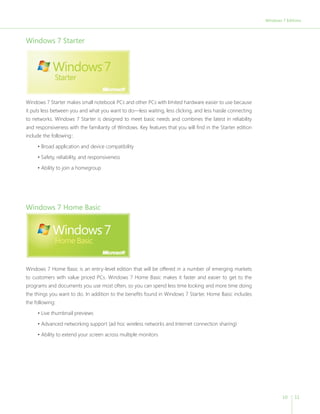
Windows 7 Starter 
Windows 7 Starter makes small notebook PCs and other PCs with limited hardware easier to use because 
it puts less between you and what you want to do—less waiting, less clicking, and less hassle connecting 
to networks. Windows 7 Starter is designed to meet basic needs and combines the latest in reliability 
and responsiveness with the familiarity of Windows. Key features that you will find in the Starter edition 
include the following:: 
• Broad application and device compatibility 
• Safety, reliability, and responsiveness 
• Ability to join a homegroup 
Windows 7 Home Basic 
Windows 7 Home Basic is an entry-level edition that will be offered in a number of emerging markets 
to customers with value priced PCs. Windows 7 Home Basic makes it faster and easier to get to the 
programs and documents you use most often, so you can spend less time looking and more time doing 
the things you want to do. In addition to the benefits found in Windows 7 Starter, Home Basic includes 
the following: 
• Live thumbnail previews 
• Advanced networking support (ad hoc wireless networks and Internet connection sharing) 
• Ability to extend your screen across multiple monitors
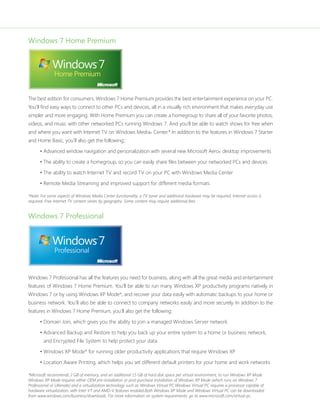
Windows 7 Home Premium 
The best edition for consumers, Windows 7 Home Premium provides the best entertainment experience on your PC. 
You’ll find easy ways to connect to other PCs and devices, all in a visually rich environment that makes everyday use 
simpler and more engaging. With Home Premium you can create a homegroup to share all of your favorite photos, 
videos, and music with other networked PCs running Windows 7. And you’ll be able to watch shows for free when 
and where you want with Internet TV on Windows Media® Center.* In addition to the features in Windows 7 Starter 
and Home Basic, you’ll also get the following:: 
• Advanced window navigation and personalization with several new Microsoft Aero® desktop improvements 
• The ability to create a homegroup, so you can easily share files between your networked PCs and devices 
• The ability to watch Internet TV and record TV on your PC with Windows Media Center 
• Remote Media Streaming and improved support for different media formats 
*Note: For some aspects of Windows Media Center functionality, a TV tuner and additional hardware may be required. Internet access is 
required. Free Internet TV content varies by geography. Some content may require additional fees. 
Windows 7 Professional 
Windows 7 Professional has all the features you need for business, along with all the great media and entertainment 
features of Windows 7 Home Premium. You’ll be able to run many Windows XP productivity programs natively in 
Windows 7 or by using Windows XP Mode*, and recover your data easily with automatic backups to your home or 
business network. You’ll also be able to connect to company networks easily and more securely. In addition to the 
features in Windows 7 Home Premium, you’ll also get the following: 
• Domain Join, which gives you the ability to join a managed Windows Server network 
• Advanced Backup and Restore to help you back up your entire system to a home or business network, 
and Encrypted File System to help protect your data 
• Windows XP Mode* for running older productivity applications that require Windows XP 
• Location Aware Printing, which helps you set different default printers for your home and work networks 
*Microsoft recommends 2 GB of memory, and an additional 15 GB of hard disk space per virtual environment, to run Windows XP Mode. 
Windows XP Mode requires either OEM pre-installation or post-purchase installation of Windows XP Mode (which runs on Windows 7 
Professional or Ultimate) and a virtualization technology such as Windows Virtual PC.Windows Virtual PC requires a processor capable of 
hardware virtualization, with Intel-VT and AMD-V features enabled.Both Windows XP Mode and Windows Virtual PC can be downloaded 
from www.windows.com/business/downloads. For more information on system requirements, go to www.microsoft.com/virtual-pc.
Windows 7 Editions 
12 13 
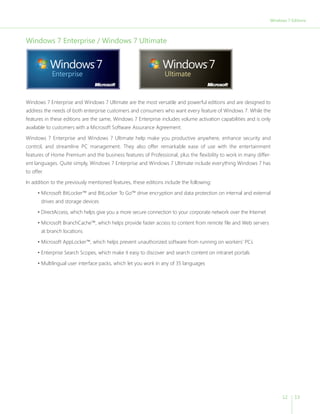
Windows 7 Enterprise / Windows 7 Ultimate 
Windows 7 Enterprise and Windows 7 Ultimate are the most versatile and powerful editions and are designed to 
address the needs of both enterprise customers and consumers who want every feature of Windows 7. While the 
features in these editions are the same, Windows 7 Enterprise includes volume activation capabilities and is only 
available to customers with a Microsoft Software Assurance Agreement. 
Windows 7 Enterprise and Windows 7 Ultimate help make you productive anywhere, enhance security and 
control, and streamline PC management. They also offer remarkable ease of use with the entertainment 
features of Home Premium and the business features of Professional, plus the flexibility to work in many differ-ent 
languages. Quite simply, Windows 7 Enterprise and Windows 7 Ultimate include everything Windows 7 has 
to offer. 
In addition to the previously mentioned features, these editions include the following: 
• Microsoft BitLocker™ and BitLocker To Go™ drive encryption and data protection on internal and external 
drives and storage devices 
• DirectAccess, which helps give you a more secure connection to your corporate network over the Internet 
• Microsoft BranchCache™, which helps provide faster access to content from remote file and Web servers 
at branch locations 
• Microsoft AppLocker™, which helps prevent unauthorized software from running on workers’ PCs 
• Enterprise Search Scopes, which make it easy to discover and search content on intranet portals 
• Multilingual user interface packs, which let you work in any of 35 languages
Windows Anytime Upgrade 
Sometimes you want to be able to do more with your PC. That’s why we’ve made it easier for you to 
move from one edition of Windows to the next. For example, you may have purchased a small notebook 
PC with Windows 7 Starter but decide soon after that you want to customize your desktop or create 
a homegroup. With Windows Anytime Upgrade, you can add features to Windows 7 in as few as 10 
minutes. Upgrading from one edition of Windows 7 to another with more features is easy and quick, and 
you’ll keep your programs, fi les, and settings. 
SPECIAL NOTE: 
In the EEA/EU (including Croatia and Switzerland) and Korea, Microsoft will ship versions of these editions that do not include 
certain features. 
“N” editions (for example, Windows 7 Home Premium N) do not include Windows Media Player and related technologies such as 
Windows Media Center and Windows DVD Maker (distribution in EEA/EU only). 
“KN” editions (for example, Windows 7 Home Premium KN) will not include Windows Media Player and related technologies such as 
Windows Media Center and Windows DVD Maker (distribution in Korea only). 
“K” editions (for example, Windows 7 Home Premium K) are the Korean language versions of the products, which contain links 
added to the Programs menu that go to Web sites that contain links to download competing media players and instant messaging 
software (distributed worldwide). 
Microsoft Desktop Optimization Pack 
Microsoft Desktop Optimization Pack for Software Assurance is a dynamic desktop solution available to 
Software Assurance customers for use with Windows 7. It helps reduce application deployment costs, 
enables delivery of applications as services, and allows for better management and control of enterprise 
desktop environments. Technologies provided in the Microsoft Desktop Optimization Pack include: 
• Microsoft Application Virtualization 
• Microsoft Asset Inventory Service 
• Microsoft Advanced Group Policy Management 
• Microsoft Diagnostics and Recovery Toolset 
• Microsoft System Center Desktop Error Monitoring 
• Microsoft Enterprise Desktop Virtualization
14 15 
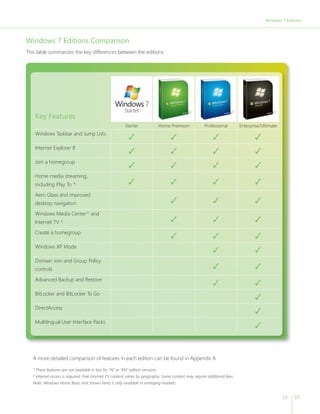
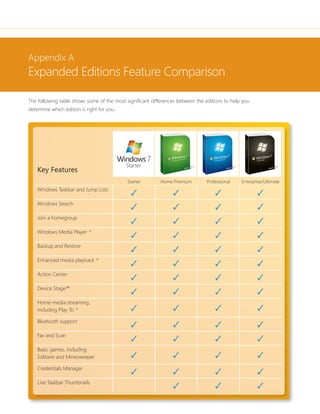
Key Features 
Starter Home Premium Professional Enterprise/Ultimate 
Windows Taskbar and Jump Lists ✓ ✓ ✓ ✓ 
Internet Explorer 8 ✓ ✓ ✓ ✓ 
Join a homegroup ✓ ✓ ✓ ✓ 
Home media streaming, 
including Play To ^ ✓ ✓ ✓ ✓ 
Aero Glass and improved 
desktop navigation ✓ ✓ ✓ 
Windows Media Center^ and 
Internet TV ¹ ✓ ✓ ✓ 
Create a homegroup ✓ ✓ ✓ 
Windows XP Mode ✓ ✓ 
Domain Join and Group Policy 
controls ✓ ✓ 
Advanced Backup and Restore ✓ ✓ 
BitLocker and BitLocker To Go ✓ 
DirectAccess ✓ 
Multilingual User Interface Packs ✓ 
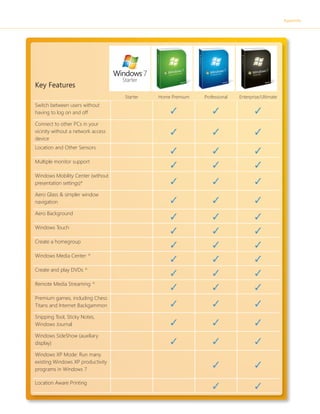
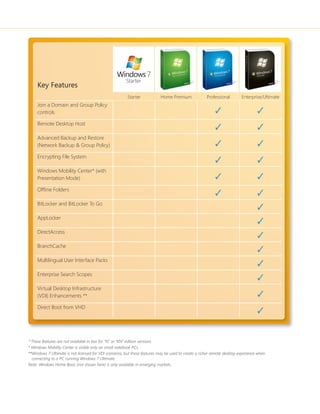
A more detailed comparison of features in each edition can be found in Appendix A. 
^These features are not available in box for “N” or “KN” edition versions. 
¹ Internet access is required. Free Internet TV content varies by geography. Some content may require additional fees. 
Note: Windows Home Basic (not shown here) is only available in emerging markets. 
Windows 7 Editions 
Windows 7 Editions Comparison 
This table summarizes the key differences between the editions:
Getting Started with Windows 7 
Whether you’re buying a new PC or upgrading your current PC to Windows 
7, you probably want to get through the setup process as quickly as 
possible. Windows 7 is designed to get you up and running fast. 
Windows 7 includes a new Getting Started experience that points you in 
the right direction by highlighting some common tasks associated with 
setting up your new PC. You’ll see Getting Started on the Start menu when 
you fi rst use Windows 7. Use it to explore new features, transfer fi les from 
your old PC, add user accounts, and more. Getting Started is there when 
you need it and stays out of your way when you’re doing other things. 
Upgrading a PC to Windows 7 
We realize that upgrading to a newer version of Windows can sometimes be a challenge, depend-ing 
on what operating system you are currently running, your familiarity with PCs in general, and your 
current system confi guration. With that in mind, we have designed Windows 7 for a smooth upgrade 
from Windows Vista and have improved several tools that can aid you in the upgrade process. (See the 
Windows Easy Transfer and Windows Upgrade Advisor sections that follow.) 
Because Windows 7 is built on the same architectural platform as Windows Vista, the transition to 
Windows 7 should be fairly smooth whether you’re using a 32-bit or 64-bit system, although you will 
need to ensure that your PC has the latest service pack fi rst.* If your upgrade gets blocked due to incom-patible 
or missing drivers, you may be able to load a new or updated driver from the Compatibility Center 
and continue with the upgrade. 
*Note: Windows Vista Service Pack 1 (SP1) was released in April 2008. Windows Vista Service Pack 2 (SP2) was released in May 
2009. While you can upgrade from Windows Vista to Windows 7 with SP1, Microsoft recommends that you install both Service 
Packs before upgrading.
Getting Started with Windows 7 
16 17 
Migrating from Windows XP 
Windows 7 is best experienced on a new PC with the latest hardware, but if your computer meets the 
minimum specifi cations, you can install Windows 7 on a PC running Windows XP. Windows 7 must be 
“custom” installed (also known as a “clean” installation) over Windows XP. Before beginning the installation, 
you’ll need to copy your fi les and settings to an external drive. After Windows 7 has been installed you will 
need to re-install all of your programs using the original installation media and then copy over the fi les 
and settings you backed up to your external drive. Because Windows 7 requires a custom installation, we 
strongly recommend that you get help with this process from your local computer service provider. 
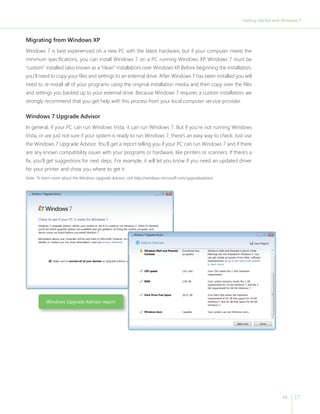
Windows 7 Upgrade Advisor 
In general, if your PC can run Windows Vista, it can run Windows 7. But if you’re not running Windows 
Vista, or are just not sure if your system is ready to run Windows 7, there’s an easy way to check. Just use 
the Windows 7 Upgrade Advisor. You’ll get a report telling you if your PC can run Windows 7 and if there 
are any known compatibility issues with your programs or hardware, like printers or scanners. If there’s a 
fi x, you’ll get suggestions for next steps. For example, it will let you know if you need an updated driver 
for your printer and show you where to get it. 
Note: To learn more about the Windows Upgrade Advisor, visit http://windows.microsoft.com/upgradeadvisor 
Windows Upgrade Advisor report
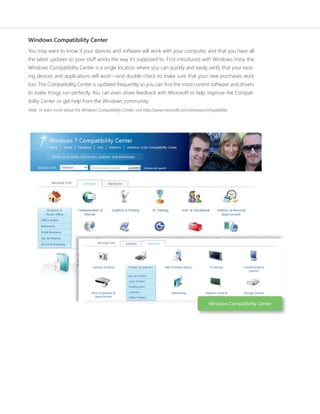
Windows Compatibility Center 
You may want to know if your devices and software will work with your computer, and that you have all 
the latest updates so your stuff works the way it’s supposed to. First introduced with Windows Vista, the 
Windows Compatibility Center is a single location where you can quickly and easily verify that your exist-ing 
devices and applications will work—and double-check to make sure that your new purchases work 
too. The Compatibility Center is updated frequently so you can fi nd the most current software and drivers 
to make things run perfectly. You can even share feedback with Microsoft to help improve the Compat-ibility 
Center or get help from the Windows community. 
Note: To learn more about the Windows Compatibility Center, visit http://www.microsoft.com/windows/compatibility. 
Windows Compatibility Center
Getting Started with Windows 7 
18 19 
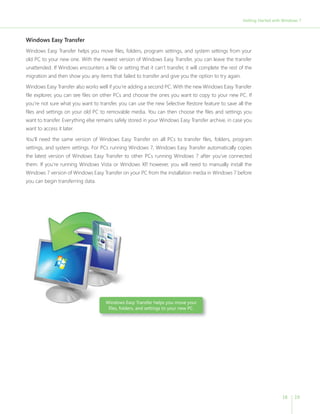
Windows Easy Transfer 
Windows Easy Transfer helps you move fi les, folders, program settings, and system settings from your 
old PC to your new one. With the newest version of Windows Easy Transfer, you can leave the transfer 
unattended. If Windows encounters a fi le or setting that it can’t transfer, it will complete the rest of the 
migration and then show you any items that failed to transfer and give you the option to try again. 
Windows Easy Transfer also works well if you’re adding a second PC. With the new Windows Easy Transfer 
fi le explorer, you can see fi les on other PCs and choose the ones you want to copy to your new PC. If 
you’re not sure what you want to transfer, you can use the new Selective Restore feature to save all the 
fi les and settings on your old PC to removable media. You can then choose the fi les and settings you 
want to transfer. Everything else remains safely stored in your Windows Easy Transfer archive, in case you 
want to access it later. 
You’ll need the same version of Windows Easy Transfer on all PCs to transfer fi les, folders, program 
settings, and system settings. For PCs running Windows 7, Windows Easy Transfer automatically copies 
the latest version of Windows Easy Transfer to other PCs running Windows 7 after you’ve connected 
them. If you’re running Windows Vista or Windows XP, however, you will need to manually install the 
Windows 7 version of Windows Easy Transfer on your PC from the installation media in Windows 7 before 
you can begin transferring data. 
Windows Easy Transfer helps you move your 
fi les, folders, and settings to your new PC.
What’s New in Windows 7 
Top Features for You 
We’ve designed Windows 7 to be the easiest, fastest, and most engaging version of Windows yet. We 
focused on helping your PC perform the way you want it to—quickly, easily, and with less effort. Although 
many of the new improvements are under the covers, Windows 7 also includes many more visible 
enhancements that will help you play with, work with, and manage your PC. 
The following table highlights some of the features that we think you’ll really like. 
Key Feature What You Can Do 
Aero Shake Click a window pane and shake your mouse to minimize all 
other open windows. Shake the pane again to restore the 
windows to their original sizes. 
Aero Themes and Aero Background Use new themes or choose a slideshow of your favorite photos 
to make your PC refl ect your personal taste. 
BitLocker and BitLocker To Go Help protect sensitive data with new, easier ways to protect 
and recover drives and extend that protection to USB remov-able 
storage devices, such as fl ash memory drives and 
portable hard disk drives. 
Home Media Streaming Use your PC as a hub and make music, videos, photos, and 
recorded TV available on other PCs or stream it to supported 
devices using Play To. 
HomeGroup Easily share fi les and printers between PCs running Windows 7 
that are connected to your home network. 
Improved Windows Taskbar Open fi les and get around your PC faster. Pin programs you 
use often to the taskbar and launch them with a single click.
What’s New in Windows 7 
20 21 
Key Feature What You Can Do 
Internet and Digital TV Watch Internet TV content and turn your PC into a digital 
video recorder by using the support in Windows Media Center 
for many new broadcast TV tuners.* 
Internet Explorer 8: Visual Search See rich, relevant, visual suggestions as you type search terms. 
Internet Explorer 8: Web Slices Get the information you want from the Web updated and avail-able 
at your fi ngertips, without leaving the page you’re on. 
Jump Lists Reduce clutter and quickly get to tasks and your favorite, 
recent, and frequently used fi les. 
Live Thumbnail Previews Manage lots of open windows easily with live thumbnail 
previews of active windows 
Location Aware Printing Set different default printers for your home and work 
networks. 
Mobile Broadband Eliminate the need to install additional software when you use 
your data card for Internet access. 
Remote Media Streaming Access your home-based digital media libraries over the Inter-net 
from another PC running Windows 7 outside the home. 
Snap Resize and expand windows more quickly and easily compare 
the contents of two different windows. 
View Available Network (VAN) See and connect to available networks—including Wi-Fi, 
broadband, dial-up, and virtual private network (VPN)—in just 
a few clicks. 
VPN Reconnect Get consistent VPN connectivity by automatically reestablish-ing 
a VPN connection whenever the Internet connection is 
temporarily lost. 
Windows Search and Libraries Search your own PC and the PCs and devices connected 
to your network to fi nd items regardless of where they’re 
stored. 
Windows Touch Interact with your PC with a touch-screen monitor by using 
your fi ngers and multitouch gestures. 
Windows Troubleshooting Resolve common issues quickly without having to call for help. 
Windows XP Mode Run many older Windows XP productivity applications right on 
your Windows 7 desktop. 
Note: For certain aspects of Windows Media Center functionality, a TV tuner and additional hardware may be required. To watch 
Internet TV, Internet access is required. Free Internet TV content varies by geography. Some content may require additional fees.
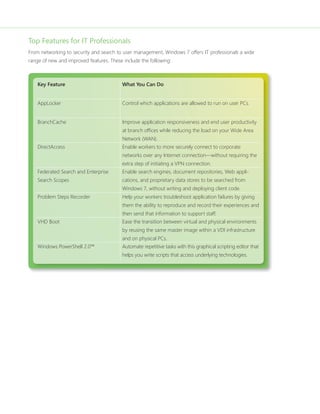
Top Features for IT Professionals 
From networking to security and search to user management, Windows 7 offers IT professionals a wide 
range of new and improved features. These include the following: 
Key Feature What You Can Do 
AppLocker Control which applications are allowed to run on user PCs. 
BranchCache Improve application responsiveness and end user productivity 
at branch offi ces while reducing the load on your Wide Area 
Network (WAN). 
DirectAccess Enable workers to more securely connect to corporate 
networks over any Internet connection—without requiring the 
extra step of initiating a VPN connection. 
Federated Search and Enterprise 
Search Scopes 
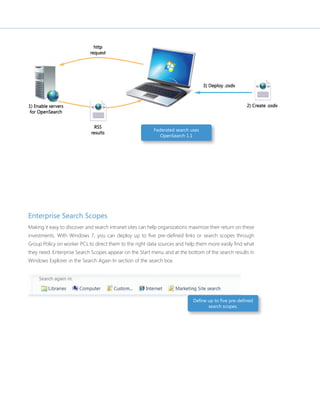
Enable search engines, document repositories, Web appli-cations, 
and proprietary data stores to be searched from 
Windows 7, without writing and deploying client code. 
Problem Steps Recorder Help your workers troubleshoot application failures by giving 
them the ability to reproduce and record their experiences and 
then send that information to support staff. 
VHD Boot Ease the transition between virtual and physical environments 
by reusing the same master image within a VDI infrastructure 
and on physical PCs. 
Windows PowerShell 2.0™ 
Automate repetitive tasks with this graphical scripting editor that 
helps you write scripts that access underlying technologies.
22 23 
Application and Device Compatibility 
We recognize that your PC experience involves programs and devices from many different providers, so 
we’ve made a significant effort to ensure that the applications and devices you use and love are compat-ible 
with Windows 7 and work the way you’d expect them to. 
Windows 7 helps address application compatibility in several ways. Perhaps most importantly, we worked 
to minimize changes in the way applications and devices interact with Windows. As a result, the work 
done by third-party software and hardware developers to make their products work on Windows Vista 
generally carries forward for Windows 7. In most cases, the same software and hardware that works with 
Windows Vista will also work with Windows 7. 
In addition, we created a comprehensive list of the most widely used consumer and business applica-tions, 
which were tested throughout the development cycle. We also created new and improved tools 
such as the Windows Upgrade Advisor, Application Compatibility Toolkit (ACT), Windows Compatibility 
Center, Quality Cookbook, Application Verifier, and ISV Developer Portal to help customers and software 
developers assess application compatibility. 
For untested programs or applications developed in-house, Windows 7 offers a number of in-the-box 
compatibility aids. For example, if a program fails to install because of a hard-coded version check, 
the Program Compatibility Troubleshooter can automatically fix the problem (with the user’s consent) 
and rerun the installer. Windows 7 also includes an expanded application shim infrastructure and a 
Problem Steps Recorder that people can use to capture application compatibility issues for evaluation 
by technical experts. 
Furthermore, we continually monitor application compatibility issues throughout the Windows ecosys-tem. 
We designed Windows 7 to monitor application health and, with the user’s permission, provide 
feedback to Microsoft so that we can work quickly with application developers to resolve compatibility 
problems and issue a fix if necessary. Microsoft has also invested in partner outreach efforts so that soft-ware 
developers have the resources required to ensure application compatibility. 
As with applications, we are also working to ensure that devices compatible with Windows Vista will work 
just as well with Windows 7. As a part of this effort, we have greatly expanded the list of devices and 
peripherals being tracked for compatibility with Windows 7. We have identified thousands of devices 
through data collected via the Customer Experience Improvement Program and through outreach efforts 
to device and PC manufacturers, and we have tested those devices for compatibility with Windows 7. 
When updated device drivers are required, we are working to ensure that you can get them directly from 
Windows Update or through links to driver downloads on device manufacturer Web sites. 
What;’s New in Windows 7
25 25 
Windows 7 
for You 
Windows 7 is more than just engineering and innovation—it’s 
the product that you asked for. 
You’ve told us you want everything you do on your PC 
to be faster and easier. You’ve said that you’d like it if the 
technology and devices in your home worked better together. 
And because you spend a lot of time on the Web, you’ve 
mentioned that you’d like that experience to be faster and 
safer—and that you’d like it to be consistent with your offl ine 
experience so that you don’t have to learn two different ways 
to do the same thing. 
In essence, you said that you wanted your PC simplifi ed. And 
with Windows 7, that’s exactly what you’ll get.
Windows 7 for You
Simplifies Everyday Tasks 
Windows 7 streamlines and simplifies the tasks you do most often. Its enhanced Start menu and Windows 
Taskbar put the files and programs you use most within easy reach, so they don’t clutter your desktop. And 
the desktop’s new streamlined interface puts you in control so you can get where you want to go faster. 
With an improved search engine and Windows Explorer in Windows 7, you don’t have to wade through 
multiple results to get the files or programs you’re looking for. No matter where files are located on your 
PC or on your network, finding them is a snap. Browsing the Web is simpler too, thanks to new features 
in Internet Explorer 8 that put the information you’re looking for right at your fingertips. 
With Windows 7, you’ll even find it easier to share things, whether you’re using Windows Live Essentials 
to communicate and share with friends, or sharing content and printers among devices connected to 
your home network. 
Works the Way You Want 
Superior performance, reliability, and security enhancements make your PC work the way you want—that 
is, without fuss and with fewer problems. Windows 7 is designed to start, shut down, and resume from 
Standby faster. We’ve even engineered Windows 7 to help extend the battery life of your portable PC. 
Windows 7 gives you new ways to help keep you and your data safe with enhanced security features, a 
more secure online experience, and Parental Controls. Keeping your PC running smoothly—and finding 
out what to do when there’s a problem—is much simpler too because you’ll be able to resolve most 
issues from one central location. You’ll recover from problems faster with self-healing diagnostic features 
and troubleshooters. In fact, Windows 7 will often fix issues without any impact to you. 
Best yet, Windows 7 is extremely flexible. Need to run older business and productivity programs that require 
Windows XP? Now you can, with the new Windows XP Mode. Plus, you can make your PC truly your own 
with more options than ever for you to customize and personalize your PC to match your personality. 
Makes New Things Possible 
Windows 7 delivers enhancements that will help you do exciting new things with your PC. Windows 
Media Center and Windows Media Player help you enjoy your media in new ways and places. Are your 
family photos located on a different PC in your home? No problem.What if you’re away on business and 
want to listen to a playlist that’s on your home PC? Believe it or not, you can do that too. 
With Windows 7, it’s easier than ever to keep communications flowing and get things done—no matter 
where you are—with new features that help you connect to the Internet and your corporate network 
from remote locations. Choose separate default printers for your home office or business office. When 
you’re ready for a break, use the improved Games Explorer to discover and play new games featuring 
higher definition graphics with finer resolution. 
Windows 7 makes it easier to move beyond the traditional mouse and keyboard and interact with your 
PC using your fingers and multitouch gestures to control what happens on your screen.
Windows 7 for You: 
Simplifi es Everyday Tasks 
In Windows 7, we set out to streamline and simplify the things you do 
every day—and you’ll fi nd you can get more done with a lot less effort. The 
user interface is nimbler and more responsive, with navigation that gets 
you where you want to go—fast. Connecting PCs and devices is easier. 
Networks are simpler to discover and use. And through the combination 
of Windows 7 and Windows Live, you can simplify your life online with 
great programs, innovative Web services from Microsoft, and integration 
with other popular online services. 
Simple to Navigate 
You’re probably already familiar with how to use and manage windows and don’t want to have to relearn 
what you already know. So the new Windows 7 features that help you get to fi les, work with windows, and 
manage your desktop, have been designed to be intuitive and familiar. These enhancements deliver great 
new ways to help you get more done with less effort.
Windows 7 for You: Simplifi es Everyday Tasks 
Simple to Navigate 
28 29 
Windows Taskbar 
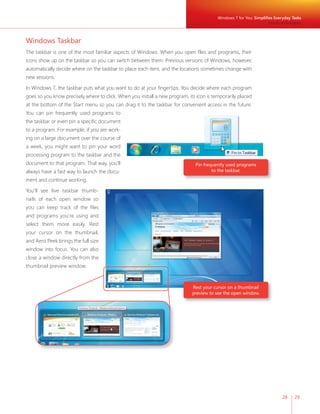
The taskbar is one of the most familiar aspects of Windows. When you open fi les and programs, their 
icons show up on the taskbar so you can switch between them. Previous versions of Windows, however, 
automatically decide where on the taskbar to place each item, and the locations sometimes change with 
new sessions. 
In Windows 7, the taskbar puts what you want to do at your fi ngertips. You decide where each program 
goes so you know precisely where to click. When you install a new program, its icon is temporarily placed 
at the bottom of the Start menu so you can drag it to the taskbar for convenient access in the future. 
You can pin frequently used programs to 
the taskbar or even pin a specifi c document 
to a program. For example, if you are work-ing 
on a large document over the course of 
a week, you might want to pin your word 
processing program to the taskbar and the 
document to that program. That way, you’ll 
always have a fast way to launch the docu-ment 
and continue working. 
You’ll see live taskbar thumb-nails 
of each open window so 
you can keep track of the fi les 
and programs you’re using and 
select them more easily. Rest 
your cursor on the thumbnail, 
and Aero Peek brings the full size 
window into focus. You can also 
close a window directly from the 
thumbnail preview window. 
Pin frequently used programs 
to the taskbar. 
Rest your cursor on a thumbnail 
preview to see the open window.
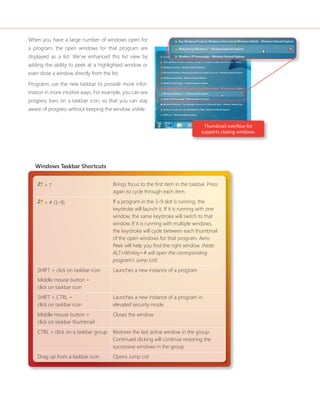
When you have a large number of windows open for 
a program, the open windows for that program are 
displayed as a list. We’ve enhanced this list view by 
adding the ability to peek at a highlighted window or 
even close a window directly from the list. 
Programs use the new taskbar to provide more infor-mation 
in more intuitive ways. For example, you can see 
progress bars on a taskbar icon, so that you can stay 
aware of progress without keeping the window visible. 
Windows Taskbar Shortcuts 
+ T Brings focus to the fi rst item in the taskbar. Press 
again to cycle through each item. 
+ # (1–9) If a program in the 1–9 slot is running, the 
keystroke will launch it. If it is running with one 
window, the same keystroke will switch to that 
window. If it is running with multiple windows, 
the keystroke will cycle between each thumbnail 
of the open windows for that program. Aero 
Peek will help you fi nd the right window. (Note: 
ALT+WinKey+# will open the corresponding 
program’s Jump List) 
SHIFT + click on taskbar icon 
Middle mouse button + 
click on taskbar icon 
Launches a new instance of a program 
SHIFT + CTRL + 
click on taskbar icon 
Launches a new instance of a program in 
elevated security mode 
Middle mouse button + 
click on taskbar thumbnail 
Closes the window 
CTRL + click on a taskbar group Restores the last active window in the group. 
Continued clicking will continue restoring the 
successive windows in the group 
Drag up from a taskbar icon Opens Jump List 
Thumbnail overfl ow list 
supports closing windows.
Windows 7 for You: Simplifi es Everyday Tasks 
Simple to Navigate 
30 31 
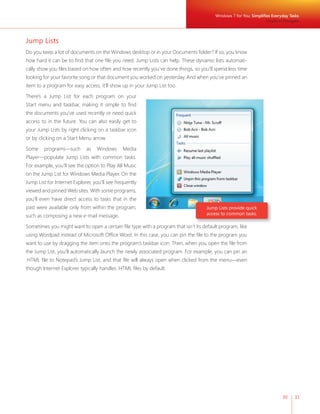
Jump Lists 
Do you keep a lot of documents on the Windows desktop or in your Documents folder? If so, you know 
how hard it can be to fi nd that one fi le you need. Jump Lists can help. These dynamic lists automati-cally 
show you fi les based on how often and how recently you’ve done things, so you’ll spend less time 
looking for your favorite song or that document you worked on yesterday. And when you’ve pinned an 
item to a program for easy access, it’ll show up in your Jump List too. 
There’s a Jump List for each program on your 
Start menu and taskbar, making it simple to fi nd 
the documents you’ve used recently or need quick 
access to in the future. You can also easily get to 
your Jump Lists by right clicking on a taskbar icon 
or by clicking on a Start Menu arrow. 
Some programs—such as Windows Media 
Player—populate Jump Lists with common tasks. 
For example, you’ll see the option to Play All Music 
on the Jump List for Windows Media Player. On the 
Jump List for Internet Explorer, you’ll see frequently 
viewed and pinned Web sites. With some programs, 
you’ll even have direct access to tasks that in the 
past were available only from within the program, 
such as composing a new e-mail message. 
Sometimes you might want to open a certain fi le type with a program that isn’t its default program, like 
using Wordpad instead of Microsoft Offi ce Word. In this case, you can pin the fi le to the program you 
want to use by dragging the item onto the program’s taskbar icon. Then, when you open the fi le from 
the Jump List, you’ll automatically launch the newly associated program. For example, you can pin an 
.HTML fi le to Notepad’s Jump List, and that fi le will always open when clicked from the menu—even 
though Internet Explorer typically handles .HTML fi les by default. 
Jump Lists provide quick 
access to common tasks.
Desktop Enhancements 
One of the many benefi ts of Windows is the ability to work with large numbers of documents and 
programs at the same time. But have you ever had to wade through a dozen open windows to get to the 
right document? Or had to minimize a number of windows to view a gadget on your desktop? Or do you 
often line up two windows so that you can easily compare their contents? 
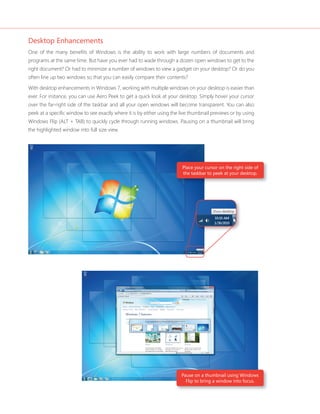
With desktop enhancements in Windows 7, working with multiple windows on your desktop is easier than 
ever. For instance, you can use Aero Peek to get a quick look at your desktop. Simply hover your cursor 
over the far-right side of the taskbar and all your open windows will become transparent. You can also 
peek at a specifi c window to see exactly where it is by either using the live thumbnail previews or by using 
Windows Flip (ALT + TAB) to quickly cycle through running windows. Pausing on a thumbnail will bring 
the highlighted window into full size view. 
Place your cursor on the right side of 
the taskbar to peek at your desktop. 
Pause on a thumbnail using Windows 
Flip to bring a window into focus.
32 33 
Want to get all but one window out of the way? Try Aero Shake. Grab the top of that window and shake 
it, and all the other windows on your screen will minimize to the taskbar. Shake the window again to 
restore the windows to their original sizes. 
You can also snap open windows to screen borders, so you’ll no longer have to click tiny objects in the 
corner of a window to change the window size. Maximize a window by dragging its border to the top 
of the screen. To return the window to its original size, drag the top of the window away from the top 
of the screen. To expand a window vertically, drag its bottom border to the bottom of the screen. 
Do you sometimes compare the contents of two different windows? That’s easy too. When you drag 
the top of each window to opposite sides of the screen, as your cursor touches the edge, the window 
will resize to fi ll that half of the screen. 
Snap allows for easy 
resizing of windows. 
New Peek Shortcut 
+ SPACEBAR (hold keys) Reveals the desktop 
Windows 7 for You: Simplifi es Everyday Tasks 
Simple to Navigate 
New Snap Shortcuts 
+ ARROW Cycles through window arrangements for a 
window (for example:  snaps to left,  snaps to 
right, and  maximizes window) 
SHIFT + + ARROW Moves the window to other displays
Windows Explorer 
As you use your PC more and more, you may fi nd the number of fi les you have to manage getting larger. 
Windows Explorer in Windows 7 give you a central place to view and organize all the fi les on your PC. 
The new layout of Windows Explorer reduces clutter and makes better use of space, while an improved 
navigation pane helps you fi nd and organize your fi les—even when those fi les are on other PCs in your 
home network. In addition, it’s now simpler than ever to sort your fi les according to how you want to see 
them with new arrangement options such as by author, subject, date created, fi le type, storage location, 
or any other tag or property. 
The new Windows Explorer also shows you rich fi le previews so you can peek at the contents of any 
fi le. You’ll appreciate the 
quick access to your favorite 
locations, new buttons that 
make it simpler to perform 
common tasks, and the abil-ity 
to sort fi les according to 
your own criteria. Addition-ally, 
Windows Explorer always 
displays the parent folder 
your fi le is in so it’s easier to 
know where you are. 
File previews in Windows Explorer help 
you fi nd the fi les you are looking for. 
New Explorer Shortcut 
ALT + P Show/Hide preview pane
Windows 7 for You: Simplifi es Everyday Tasks 
34 35 
Easier to Find Things 
Windows 7 helps you search more effi ciently, regardless of whether what you’re looking for is on your PC, 
on another PC running Windows 7, on your home network, or on the Web. The new Libraries feature and 
Windows Search enhancements go hand-in-hand with improvements to the Aero Desktop and Windows 
Explorer to make fi nding what you want a breeze. 
Libraries 
If you store a large number of fi les in different fi le folders or on several PCs or devices, you might fi nd 
it hard to fi nd the exact fi le you’re looking for or manage all your fi les effi ciently. Libraries can help. At 
their most fundamental level, Libraries are a way 
to view fi les with common characteristics—even 
if those fi les are located in different places. The 
purpose of Libraries is to make it easier to view, 
organize, manage, and search for fi les without 
the hassle of organizing the fi les into specifi c 
folders. Windows 7 automatically creates Librar-ies 
for items such as documents, music, pictures, 
and videos. 
The great thing about Libraries is that they 
make the actual location of your fi les irrelevant. 
Whether fi les are located in different folders on 
your PC, on a different drive, or even a different 
PC in your home network that Windows Search 
has indexed, Libraries help you consolidate all 
those fi les and their locations so you can browse 
and search across them as if they were in one 
location. 
Windows 7 automatically 
creates some Libraries. 
Libraries help you search 
multiple fi le locations. 
Easier to Find Things
You can even arrange and view the fi les in your Libraries by some of its metadata. For example the 
“Month” and “Day” views in the Pictures Library group together the photos taken on the same date. And 
the Videos Library features a way to arrange the fi les by length so you can separate the shorter clips from 
the longer movies. 
Libraries are automatically indexed by Windows Search so viewing and searching is fast. And because it’s 
easier to get to all your items, you won’t end up keeping multiple copies of the same fi le in different folders. 
Libraries help you browse and search across 
folders even if they are on different PCs. 
Search from the Start menu. 
Searching from the Start Menu 
The Search box in the Start menu is a fast and easy access 
point for all your programs, data, and PC settings. Just type 
a few letters in the Search box, and you’ll be presented with 
a list of matching programs, documents, pictures, music, 
e-mail, and other fi les, all arranged by category. You can even 
search for Control Panel tasks directly from the Start menu 
to more quickly adjust PC settings. And because the Search 
box in the Start menu also looks for fi les in your Libraries 
and groups them accordingly, it’s easier to understand your 
results within context.
Windows 7 for You: Simplifi es Everyday Tasks 
36 37 
Improved Search Relevance 
When searching for something, you probably want to fi nd it quickly without spending a lot of effort 
wading through extraneous items. Windows 7 makes search results more relevant and easier to under-stand. 
The search engine uses an improved algorithm to determine relevance and rank results. Within 
your search results, words from the search query appear highlighted within snippets of fi le content, fi le 
names, fi le paths, and tags so you can easily see why they were included in your results. 
It’s also simpler to specify where you want to search, whether it is in a specifi c folder on a hard disk 
drive or in a Library. Searches initiated from the Start menu look at all the data in your Libraries, while 
searches conducted from Windows Explorer look within the particular folder or Library that you’re 
already browsing. 
In addition, the Query Builder feature—found in the Search box in Windows Explorer—helps you 
search smarter by presenting dynamic fi lter suggestions that help you narrow your results. The 
Query Builder uses the properties and metadata of your documents to help you refi ne your search 
results. For example, you can refi ne a search in your Documents Library by date modifi ed or docu-ment 
type you are looking for. The Search box also shows you a list of your recent searches in case 
you want to run them again. 
Federated Search 
Most people don’t store all their fi les and content in one place. Instead, their information is scat-tered 
across multiple PCs, external hard disk drives, servers, and Web sites. With Federated Search in 
Windows 7, you can extend your search beyond your PC—and even beyond your Libraries—to fi nd 
what you need. Just add a search connector to your favorite locations to Windows 7, and you can 
search them as well. 
Note: For more information, please see the “Windows 7 for IT Professionals” section of this document. 
Easier to Find Things 
Highlighted words help demonstrate 
the relevance of search results.
Easy to Browse the Web 
As people spend more time online, their demands on the browser have increased. Since Microsoft 
delivered Internet Explorer 7, millions of people around the world have taken advantage of its tabbed 
browsing, the built-in search box, and other features to improve their Web browsing experience. Internet 
Explorer 8 takes these features a step further to help meet your browsing expectations. 
Instant and Visual Search 
We’ve improved the Search box in Internet Explorer 8 so that search providers can deliver rich, contex-tual 
search suggestions in real time. As you type a search term, you’ll see relevant suggestions that can 
Search providers can provide images 
within contextual suggestions. 
be categorized and may even include 
images. For instance, you might fi nd 
images of products from your favor-ite 
store as you search, or stock charts 
from your online brokerage account 
in the Search Box drop-down list. 
Internet Explorer 8 provides the tech-nology, 
but the choice of what to 
show is made by the search provider. 
Popular sites such as Bing, Wikipedia, 
Amazon.com, The New York Times 
online, Yahoo!, eBay, OneRiot, ESPN, 
Photobucket, and TinyPic are all taking 
advantage of the new search capabili-ties 
in Internet Explorer 8. In addition, 
because people often use Search to 
get back to sites that they’ve visited 
before, Internet Explorer 8 includes matches from your Favorites and History in the bottom of the 
Search Box drop-down list. 
The enhanced Instant Search box in Internet Explorer 8 is more helpful than before, making it easier to 
fi nd interesting content and returning more relevant search results. As you type a search term, you’ll 
see real-time search suggestions—including images and rich text—from the search provider you’ve 
chosen. The Instant Search box will even display results from your Favorites and browsing history. A 
quick pick menu at the bottom of the Instant Search box lets you switch back and forth between your 
favorite Web sites and search provider’s search suggestions with a click of the mouse.
Windows 7 for You: Simplifi es Everyday Tasks 
Easy to Browse the Web 
38 39 
Web Slices 
E-mail, weather, sports scores, stock 
quotes, or auction item status—there are 
Web sites we visit multiple times during 
the day to get updates. Web Slices in 
Internet Explorer 8 make it simple to 
access this information without having to 
navigate to the Web site again and again. 
Web site owners can now mark parts of 
their pages as Web Slices. See something 
you want to track? Just click on the Web 
Slice icon that appears next a block of 
content when you pause on it, and you’ll 
get the option to add it to your Favorites 
Bar. Alternatively, you can click Get More 
Add-ons to add Web Slices. 
Accelerators 
Do you spend a lot of time copying information from one Web page, pasting it into another, 
viewing the results—and then returning to the original page to pick up where you left off? With 
Internet Explorer 8, you won’t have to do this any longer; Accelerators in Internet Explorer 8 make 
the process of accessing online services easy. Just select some text and right-click to select an 
Accelerator and get the results instantly. 
For example, let’s say you’ve just read a review of a great new restaurant and want to see its loca-tion. 
In the past, you would have had to copy the address, navigate to a mapping service, and 
paste the address into the address fi eld. With the Accelerator called Map with Bing, you can high-light 
the address and then see your map overlaid on the page you’re currently on. 
Internet Explorer 8 includes a number 
of useful Accelerators from Microsoft 
that cover search, mapping, word 
defi nitions, translation, blogging and 
e-mail. But you can easily fi nd and 
use Accelerators from other providers 
too using the Find More Accelerators 
option on the Accelerators menu. For 
example, eBay, Yahoo!, Facebook, 
ESPN, Photobucket, and TinyPic all 
offer Accelerators that make it easier 
for you to interact with their Web sites 
and services. 
Web Slice showing traffi c. 
Map with Bing Accelerator overlays a 
map based on the highlighted address.
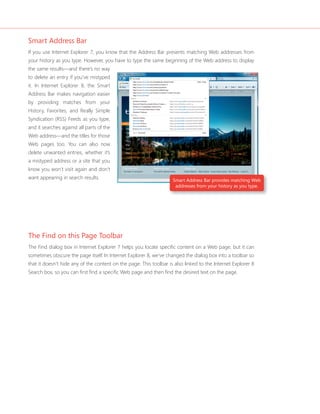
Smart Address Bar 
If you use Internet Explorer 7, you know that the Address Bar presents matching Web addresses from 
your history as you type. However, you have to type the same beginning of the Web address to display 
the same results—and there’s no way 
to delete an entry if you’ve mistyped 
it. In Internet Explorer 8, the Smart 
Address Bar makes navigation easier 
by providing matches from your 
History, Favorites, and Really Simple 
Syndication (RSS) Feeds as you type, 
and it searches against all parts of the 
Web address—and the titles for those 
Web pages too. You can also now 
delete unwanted entries, whether it’s 
a mistyped address or a site that you 
know you won’t visit again and don’t 
want appearing in search results. 
Smart Address Bar provides matching Web 
addresses from your history as you type. 
The Find on this Page Toolbar 
The Find dialog box in Internet Explorer 7 helps you locate specifi c content on a Web page, but it can 
sometimes obscure the page itself. In Internet Explorer 8, we’ve changed the dialog box into a toolbar so 
that it doesn’t hide any of the content on the page. This toolbar is also linked to the Internet Explorer 8 
Search box, so you can fi rst fi nd a specifi c Web page and then fi nd the desired text on the page.
Windows 7 for You: Simplifi es Everyday Tasks 
Easy to Connect PCs and Manage Devices 
40 41 
Easy to Connect PCs and Manage Devices 
More than half of all U.S. households have more than one PC. If you live in one of those households, 
you may have experienced trouble setting up a network or found that the PCs in your home don’t work 
together as well as they could. Even when your PCs are successfully networked together, sharing content 
and devices such as printers doesn’t happen automatically. Windows 7 makes it much easier to connect 
the technology in your home, and to share media, folders, fi les, and printers among connected devices. 
HomeGroup 
Do you have multiple PCs in your home but only one printer? If you’re like most people, when you need 
to print a fi le from your laptop in the bedroom to the printer in the den, you probably e-mail the fi le from 
one PC to another or transfer it on a USB drive. And if you need to fi nd a fi le but don’t know which PC 
it’s stored on, it can take hours to search each one. 
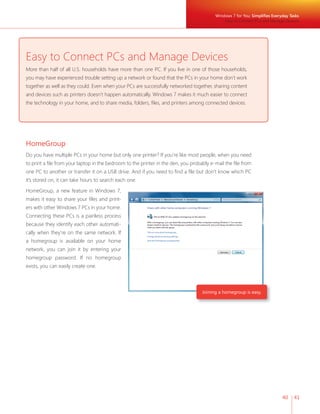
HomeGroup, a new feature in Windows 7, 
makes it easy to share your fi les and print-ers 
Joining a homegroup is easy. 
with other Windows 7 PCs in your home. 
Connecting these PCs is a painless process 
because they identify each other automati-cally 
when they’re on the same network. If 
a homegroup is available on your home 
network, you can join it by entering your 
homegroup password. If no homegroup 
exists, you can easily create one.
After you’ve created your homegroup, accessing and sharing fi les among the various PCs—or other 
devices—in your home is like having all your data on a single hard disk drive. For example, you might 
have digital photos stored on a PC in your den. With HomeGroup, you can easily access those photos 
from a laptop or any other PC in the home-group 
from anywhere in your home. Similarly, 
if there’s a printer connected to a PC in your 
homegroup, the printer is set up automatically 
on PCs that join the homegroup. In addition, 
with HomeGroup, you can specify exactly 
what you want to share so you can choose to 
keep private things private. 
HomeGroup also works for PCs that are 
connected to a work domain. When your 
domain-joined work PC is joined to a home-group, 
you automatically have access to your 
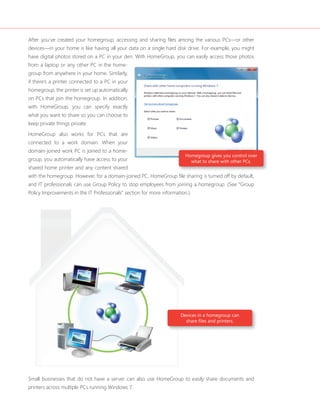
Homegroup gives you control over 
what to share with other PCs. 
shared home printer and any content shared 
with the homegroup. However, for a domain-joined PC, HomeGroup fi le sharing is turned off by default, 
and IT professionals can use Group Policy to stop employees from joining a homegroup. (See “Group 
Policy Improvements in the IT Professionals” section for more information.) 
Devices in a homegroup can 
share fi les and printers. 
Small businesses that do not have a server can also use HomeGroup to easily share documents and 
printers across multiple PCs running Windows 7.
Windows 7 for You: Simplifi es Everyday Tasks 
42 43 
Windows Connect Now 
The fi rst step in sharing information between PCs is to connect them to a network. Windows Connect 
Now is a feature of Windows 7 that makes it fast and easy to set up your home or offi ce network and 
connect additional PCs. 
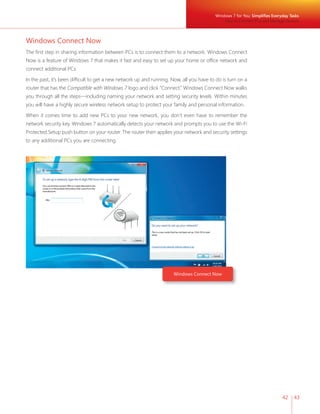
In the past, it’s been diffi cult to get a new network up and running. Now, all you have to do is turn on a 
router that has the Compatible with Windows 7 logo and click “Connect.” Windows Connect Now walks 
you through all the steps—including naming your network and setting security levels. Within minutes 
you will have a highly secure wireless network setup to protect your family and personal information. 
When it comes time to add new PCs to your new network, you don’t even have to remember the 
network security key. Windows 7 automatically detects your network and prompts you to use the Wi-Fi 
Protected Setup push button on your router. The router then applies your network and security settings 
to any additional PCs you are connecting. 
Windows Connect Now 
Easy to Connect PCs and Manage Devices
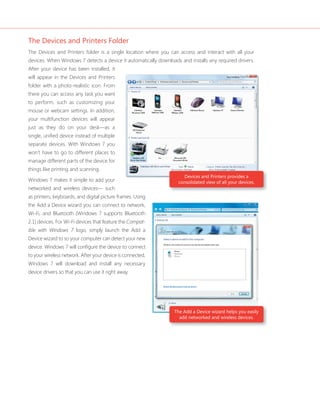
The Devices and Printers Folder 
The Devices and Printers folder is a single location where you can access and interact with all your 
devices. When Windows 7 detects a device it automatically downloads and installs any required drivers. 
After your device has been installed, it 
will appear in the Devices and Printers 
folder with a photo-realistic icon. From 
there you can access any task you want 
to perform, such as customizing your 
mouse or webcam settings. In addition, 
your multifunction devices will appear 
just as they do on your desk—as a 
single, unifi ed device instead of multiple 
separate devices. With Windows 7 you 
won’t have to go to different places to 
manage different parts of the device for 
things like printing and scanning. 
Windows 7 makes it simple to add your 
networked and wireless devices— such 
as printers, keyboards, and digital picture frames. Using 
the Add a Device wizard you can connect to network, 
Wi-Fi, and Bluetooth (Windows 7 supports Bluetooth 
2.1) devices. For Wi-Fi devices that feature the Compat-ible 
Devices and Printers provides a 
consolidated view of all your devices. 
The Add a Device wizard helps you easily 
add networked and wireless devices. 
with Windows 7 logo, simply launch the Add a 
Device wizard to so your computer can detect your new 
device. Windows 7 will confi gure the device to connect 
to your wireless network. After your device is connected, 
Windows 7 will download and install any necessary 
device drivers so that you can use it right away.
Windows 7 for You: Simplifi es Everyday Tasks 
Easy to Connect PCs and Manage Devices 
44 45 
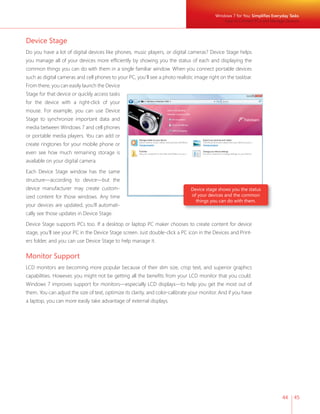
Device Stage 
Do you have a lot of digital devices like phones, music players, or digital cameras? Device Stage helps 
you manage all of your devices more effi ciently by showing you the status of each and displaying the 
common things you can do with them in a single familiar window. When you connect portable devices 
such as digital cameras and cell phones to your PC, you’ll see a photo realistic image right on the taskbar. 
From there, you can easily launch the Device 
Stage for that device or quickly access tasks 
for the device with a right-click of your 
mouse. For example, you can use Device 
Stage to synchronize important data and 
media between Windows 7 and cell phones 
or portable media players. You can add or 
create ringtones for your mobile phone or 
even see how much remaining storage is 
available on your digital camera. 
Each Device Stage window has the same 
structure—according to device—but the 
device manufacturer may create custom-ized 
content for those windows. Any time 
your devices are updated, you’ll automati-cally 
see those updates in Device Stage. 
Device stage shows you the status 
of your devices and the common 
things you can do with them. 
Device Stage supports PCs too. If a desktop or laptop PC maker chooses to create content for device 
stage, you’ll see your PC in the Device Stage screen. Just double-click a PC icon in the Devices and Print-ers 
folder, and you can use Device Stage to help manage it. 
Monitor Support 
LCD monitors are becoming more popular because of their slim size, crisp text, and superior graphics 
capabilities. However, you might not be getting all the benefi ts from your LCD monitor that you could. 
Windows 7 improves support for monitors—especially LCD displays—to help you get the most out of 
them. You can adjust the size of text, optimize its clarity, and color-calibrate your monitor. And if you have 
a laptop, you can more easily take advantage of external displays.
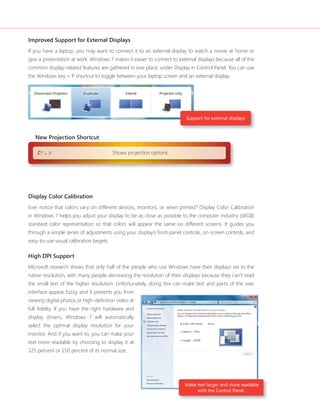
Improved Support for External Displays 
If you have a laptop, you may want to connect it to an external display to watch a movie at home or 
give a presentation at work. Windows 7 makes it easier to connect to external displays because all of the 
common display-related features are gathered in one place, under Display in Control Panel. You can use 
the Windows key + P shortcut to toggle between your laptop screen and an external display. 
Support for external displays 
Display Color Calibration 
Ever notice that colors vary on different devices, monitors, or when printed? Display Color Calibration 
in Windows 7 helps you adjust your display to be as close as possible to the computer industry (sRGB) 
standard color representation so that colors will appear the same on different screens. It guides you 
through a simple series of adjustments using your display’s front-panel controls, on-screen controls, and 
easy-to-use visual calibration targets. 
High DPI Support 
Microsoft research shows that only half of the people who use Windows have their displays set to the 
native resolution, with many people decreasing the resolution of their displays because they can’t read 
the small text of the higher resolution. Unfortunately, doing this can make text and parts of the user 
interface appear fuzzy, and it prevents you from 
viewing digital photos or high-defi nition video at 
full fi delity. If you have the right hardware and 
display drivers, Windows 7 will automatically 
select the optimal display resolution for your 
monitor. And if you want to, you can make your 
text more readable by choosing to display it at 
125 percent or 150 percent of its normal size. 
Make text larger and more readable 
with the Control Panel. 
New Projection Shortcut 
+ P Shows projection options
Windows 7 for You: Simplifi es Everyday Tasks 
Easy to Communicate and Share 
46 47 
Easy to Communicate and Share 
With Windows 7 and Windows Live Essentials, your PC will help you stay connected to the people and 
things you care about and do it safely. Windows Live Essentials is a free suite of programs for e-mail, 
photos, instant messaging, and more. It can be downloaded from the Web and, for some new PCs, 
comes pre-installed. Windows Live Essentials includes the following programs: 
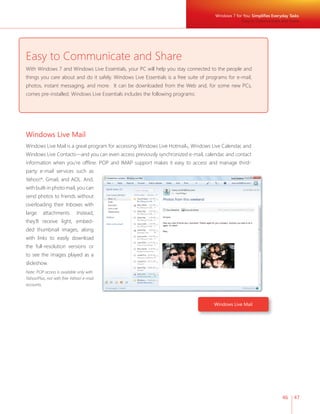
Windows Live Mail 
Windows Live Mail is a great program for accessing Windows Live Hotmail®, Windows Live Calendar, and 
Windows Live Contacts—and you can even access previously synchronized e-mail, calendar, and contact 
information when you’re offl ine. POP and IMAP support makes it easy to access and manage third-party 
Windows Live Mail 
e-mail services such as 
Yahoo!*, Gmail, and AOL. And, 
with built-in photo mail, you can 
send photos to friends without 
overloading their Inboxes with 
large attachments. Instead, 
they’ll receive light, embed-ded 
thumbnail images, along 
with links to easily download 
the full-resolution versions or 
to see the images played as a 
slideshow. 
Note: POP access is available only with 
Yahoo!Plus, not with free Yahoo! e-mail 
accounts.
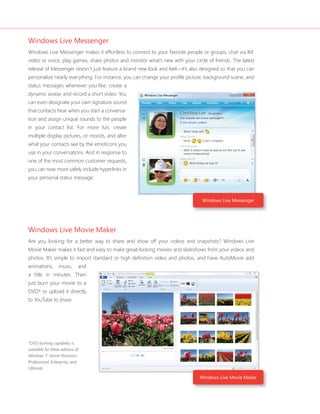
Windows Live Messenger 
Windows Live Messenger makes it effortless to connect to your favorite people or groups, chat via IM, 
video or voice, play games, share photos and monitor what’s new with your circle of friends. The latest 
release of Messenger doesn’t just feature a brand new look and feel—it’s also designed so that you can 
personalize nearly everything. For instance, you can change your profi le picture, background scene, and 
status messages whenever you like, create a 
dynamic avatar, and record a short video. You 
can even designate your own signature sound 
that contacts hear when you start a conversa-tion 
and assign unique sounds to the people 
in your contact list. For more fun, create 
multiple display pictures, or moods, and alter 
what your contacts see by the emoticons you 
use in your conversations. And in response to 
one of the most common customer requests, 
you can now more safely include hyperlinks in 
your personal status message. 
Windows Live Movie Maker 
Are you looking for a better way to share and show off your videos and snapshots? Windows Live 
Movie Maker makes it fast and easy to make great-looking movies and slideshows from your videos and 
photos. It’s simple to import standard or high defi nition video and photos, and have AutoMovie add 
animations, music, and 
a title in minutes. Then 
just burn your movie to a 
DVD* or upload it directly 
to YouTube to share. 
*DVD burning capability is 
available for these editions of 
Windows 7: Home Premium, 
Professional, Enterprise, and 
Ultimate. 
Windows Live Messenger 
Windows Live Movie Maker
Windows 7 for You: Simplifi es Everyday Tasks 
Easy to Communicate and Share 
48 49 
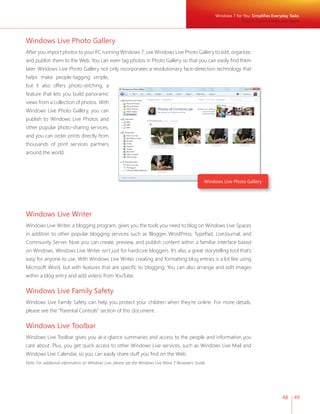
Windows Live Photo Gallery 
After you import photos to your PC running Windows 7, use Windows Live Photo Gallery to edit, organize, 
and publish them to the Web. You can even tag photos in Photo Gallery so that you can easily fi nd them 
later. Windows Live Photo Gallery not only incorporates a revolutionary face-detection technology that 
helps make people-tagging simple, 
but it also offers photo-stitching, a 
feature that lets you build panoramic 
views from a collection of photos. With 
Windows Live Photo Gallery, you can 
publish to Windows Live Photos and 
other popular photo-sharing services, 
and you can order prints directly from 
thousands of print services partners 
around the world. 
Windows Live Photo Gallery 
Windows Live Writer 
Windows Live Writer, a blogging program, gives you the tools you need to blog on Windows Live Spaces 
in addition to other popular blogging services such as Blogger, WordPress, TypePad, LiveJournal, and 
Community Server. Now you can create, preview, and publish content within a familiar interface based 
on Windows. Windows Live Writer isn’t just for hardcore bloggers. It’s also a great storytelling tool that’s 
easy for anyone to use. With Windows Live Writer, creating and formatting blog entries is a lot like using 
Microsoft Word, but with features that are specifi c to blogging. You can also arrange and edit images 
within a blog entry and add videos from YouTube. 
Windows Live Family Safety 
Windows Live Family Safety can help you protect your children when they’re online. For more details, 
please see the “Parental Controls” section of this document. 
Windows Live Toolbar 
Windows Live Toolbar gives you at-a-glance summaries and access to the people and information you 
care about. Plus, you get quick access to other Windows Live services, such as Windows Live Mail and 
Windows Live Calendar, so you can easily share stuff you fi nd on the Web. 
Note: For additional information on Windows Live, please see the Windows Live Wave 3 Reviewers Guide.
Windows 7 for You: 
Works the Way You Want 
More than anything else, you’ve told us that you care about the basics. 
No one has the time to deal with PCs that aren’t snappy and responsive 
or fall short of expected performance—like taking too long to wake up 
from sleep. And we’d all like to feel more secure, online and off. 
In other words, everything should just work—and work the way you want 
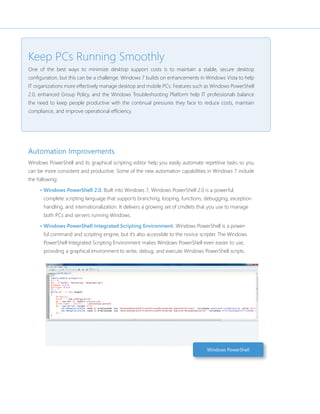
it to. Windows 7 takes the improvements we made in Windows Vista 
and extends them. And that means you’ll get an operating system that is 
designed to start quickly, be more secure, and take advantage of powerful 
new hardware. 
Speed, Reliability, and Responsiveness 
Many of the improvements of Windows 7 are things you’ll never see because they happen under the 
hood, so to speak. You’ll likely notice a difference though. For example, there’s less background activity 
now, and system services are started only when they’re needed. We’ve also designed Windows 7 to be 
more reliable so you’ll experience fewer interruptions, and you can recover more quickly from problems 
when they do occur because Windows 7 will help you fi x them.
Windows 7 for You: Works the Way You Want 
Speed, Reliability, and Responsiveness 
50 51 
Start, Shutdown, and Resume 
Windows 7 is ready when you are. It’s designed to start, hibernate, and shut down faster than Windows 
Vista. We also focused on ways to resume from sleep more quickly and reliably. And because resuming 
from sleep is much faster than rebooting your PC, you can use sleep when you really need your PC to 
come to life quickly. 
Search and Indexing 
When looking for information, you want answers, not delays. Search and indexing are both much faster 
now, because Windows 7 includes all the performance improvements from Windows Search 4.0, a 
Windows technology that indexes all the fi les on your PC, as well as several other signifi cant new perfor-mance 
optimizations. Sorting and grouping of search results are signifi cantly faster too. (See pages 34–37 
for a more detailed discussion of improvements to Windows Search.) 
ReadyBoost 
PCs that are low on memory frequently swap data to disk, which can make performance lag. With 
Microsoft ReadyBoost™ technology, which we introduced in Windows Vista, you can use a fl ash memory 
device to cache frequently used data, which in turn makes your PC more responsive. With ReadyBoost in 
Windows 7, you can use multiple fl ash devices—such as USB keys, Secure Digital cards, and internal fl ash 
devices—at the same time. 
Improved Memory Utilization 
We’ve worked hard to reduce overall memory requirements in Windows 7. For example, hundreds of 
runtime components now use less memory, while the core memory needs are smaller when the computer 
is idle. Windows 7 can reduce the memory requirements for each open window by up to 50 percent. In 
addition, we’ve introduced trigger start services, an innovative feature that launches system services only 
when they’re needed and reduces the number of programs competing for system memory. 
Solid State Drives 
Solid-state drives (SSDs), an alternative to traditional hard disk drives, are becoming more popular. This 
popularity is partially due to the fact that SSDs are typically faster than conventional hard disk drives. We 
designed Windows 7 to work well with SSDs so you’ll have a chance to experience improved PC perfor-mance, 
more consistent responsiveness, increased battery life, superior ruggedness, quicker startup 
times, and reductions in noise and vibrations. Features such as disk defragmentation, Microsoft Super- 
Fetch™ memory management technology, and ReadyBoost (described above) are designed to improve 
system responsiveness and performance when data is being retrieved from traditional hard disk drives. In 
Windows 7, these features respond to a computer’s confi guration and automatically turn themselves off 
for the newer, faster SSDs, where they are not necessary, which helps free up system memory.
Windows Experience Index 
The Windows Experience Index measures the capabilities of your PC’s hardware and software, and 
expresses this measurement as a number called a base score. A higher base score generally means that 
your computer will perform better and faster than a computer with a lower base score. 
In Windows 7, the Windows Experience Index has been updated to refl ect advances in processor, graph-ics, 
and hard disk technology. Maximum scores should generally be the same or higher for a computer 
system after upgrading from Windows Vista to Windows 7. 
Battery Life and Notifi cations 
We all know what it’s like to run out of power at a critical moment. That’s why we designed Windows 7 
to extend the battery life for your mobile PC. Power-saving enhancements include increased idle time 
for the processor, automatic dimming of the display, and more power-effi cient playback for DVDs. We’ve 
also made battery life notifi cations more prominent and accurate, so you know exactly how much power 
you’ve used and how much battery time you have left. 
Idle Processing 
When your PC is idle, it uses less power. Windows 7 reduces background activities and supports the trig-ger- 
starting of system services, so your PC’s processor can be in an idle state for longer periods of time. 
Adaptive Display Brightness 
The display on a typical mobile PC consumes more battery power than any other part of the PC. Windows 
7 automatically reduces display brightness if you are inactive for a period time, much like cell phones 
do today. Windows 7 also adapts to your activity intelligently. For example, if the screen dims after 30 
seconds and you immediately move the mouse to brighten the display, Windows 7 will wait 60 seconds 
before dimming the display again. 
Adaptive display before and after
Windows 7 for You: Works the Way You Want 
Speed, Reliability, and Responsiveness 
52 53 
Power-Saving DVD Playback 
With Windows 7, your PC will use less power when playing a DVD. Windows 7 requires less processing 
power than previous versions of Windows and is more effi cient when it spins discs. 
Wake on Wireless LAN 
Having your PC go into Sleep state when idle is a good way to conserve power. But what if you need to 
access your PC remotely? In Windows Vista, you can wake another PC in Sleep state only if it has a wired 
network connection. In Windows 7, you can use the Wake on Wireless LAN feature to wake the PC over a 
wireless network connection. Let’s say you’re using your laptop in the bedroom and want to see a photo 
on the PC in the kitchen. Because both are connected to your home network, it doesn’t matter if the 
kitchen PC is in Sleep state, because you can use Wake on Wireless LAN and view the photo. Similarly, 
the IT administrator in your company can wake up wirelessly connected PCs to apply software updates 
or perform other maintenance—and save on power costs too. 
Smart Network Power 
Your mobile PC may send energy to parts of your computer even when they’re not being used—such 
as sending power to the network adapter when you don’t have an Ethernet cable plugged in. Windows 
7 automatically turns off power to the network adapter (subject to adapters and drivers supporting this 
feature) when the cable is disconnected and restores power when the cable is connected. IT professionals 
can take advantage of this feature to reduce power costs. 
Power Effi ciency Diagnostics 
In Windows 7, we’ve updated the power confi guration utility to detect problems with devices, policies, 
fi rmware, system settings, programs, and other common items where settings can reduce power effi - 
ciency. The information is presented in an easy-to-understand report. Although we designed this feature 
primarily for developers and system integrators, it may also be useful to the tech-savvy.
64-Bit Computing Support 
If you’ve gone PC shopping lately, you’ve probably noticed more computers with 64-bit processors and 
wondered what advantages they offer. Put simply, a 64-bit PC can handle larger amounts of information 
than traditional 32-bit systems. Because it can use more RAM (4 GB and up) a 64-bit PC can be faster 
and more responsive depending on the workload. If you tend to have a lot of programs open simultane-ously, 
need to switch frequently between programs, or are an avid gamer, a 64-bit PC is a great choice. 
Windows 7 fully supports 64-bit PCs. 
DirectX 11: DirectCompute 
For PCs that have a graphics card that supports the Microsoft DirectX® 11 application programming 
interface, DirectCompute-enabled applications will perform faster on your Windows 7-based PC. For 
instance, certain applications that convert a digital media fi le to a different size or format will do that 
conversion (called transcoding) faster. So you’ll spend less time moving your home movies from a PC with 
Windows 7 to a portable playback device. DirectCompute boosts PC performance by taking on some or 
all of the application’s processing load, freeing up the computer’s main processor to perform additional 
tasks. If your PC has a graphics card that supports DirectCompute, look for applications specifi cally built 
for DirectX 11. (Also see Direct X: Direct3D 11 in the “Media the Way You Want It” section.)
Windows 7 for You: Works the Way You Want 
54 55 
More Secure 
Whether your hard disk drive contains irreplaceable family photos or the fi nancial data critical to your business, 
the information on your PC is valuable. Viruses, spyware and other unwanted software, root kits, and phishing 
scams pose a constant risk today. In Windows Vista, we created multiple layers of defense to help protect you 
against online and offl ine threats. Windows 7 builds on this foundation of security with new and improved 
features. In addition, we’ve created new ways to protect your data and help safeguard against loss, theft, or 
accidental erasure due to hardware failures. Windows 7 even provides new ways to securely store data and 
fi les on removable USB storage devices making them less risky for transporting and sharing data. 
More Secure 
User Account Control 
The User Account Control (UAC) feature we introduced in Windows Vista has been successful at reducing 
the incidence of malware infection, with Windows Vista customers experiencing 60 percent fewer malware 
infections than users of Windows XP with SP2. However, we’ve heard your call for better control of how 
often a UAC prompt launches a notifi cation window. In Windows 7, you won’t see as many prompts 
because fewer operating system programs and tasks require elevation. And if you have administrative 
privileges, you can adjust what 
you are prompted for. In order 
to help ensure your security, the 
UAC control panel runs in a high 
integrity process. Any change to 
the level of the UAC will prompt 
for confi rmation. 
User Account Control settings let you 
adjust when you’ll receive notifi cations.
Parental Controls 
If you’re a parent, Windows 7 Parental Controls can give you greater peace of mind and confi dence in 
your ability to manage what your kids can do on the PC. You can specify which PC games your children 
can play and which programs they can use. You can even specify the times when your child is allowed to 
use the PC. 
Windows Live Family Safety is a free download that works with Windows 7 and gives you tools to manage 
and monitor what your children do on the Web. For example, Web fi ltering and contact management help 
you manage who your chil-dren 
can talk to on Windows 
Live Hotmail, Messenger and 
Spaces. When you customize 
the settings for each of your 
children, you’ll even get an 
activity report that informs 
you how your children have 
been using the PC and what 
Web sites they have visited. 
And with the ability to view 
reports or modify settings 
remotely, you can keep tabs 
on your kids no matter where 
you are. Parental controls help you manage what 
your children can do on your PC.
Windows 7 for You: Works the Way You Want 
56 57 
Internet Explorer Security 
The Web can be a dangerous place, with sites that attempt to download malicious code, trick you 
into divulging personal information, or track your actions without your knowledge or consent. Internet 
Explorer 8 improves your defense against security and privacy threats, and includes the ability to help 
identify malicious sites and block the download of malicious software. 
SmartScreen Filter 
Microsoft SmartScreen® fi lter in Internet Explorer 8 boosts the anti-phishing protection found in Inter-net 
Explorer 7 by more closely examining the entire Web address and comparing it to a continually 
updated reputation database. If SmartScreen is active, the browser checks with the centrally hosted 
reputation service on the Web to help ensure that the site isn’t a known phishing or malware hosting 
site. It also notifi es you if you’ve navigated to a site that is known to distribute malicious software or has 
attempted to download fi les that others have reported as unsafe. 
SmartScreen fi lter notifi es you of 
unsafe sites and downloads. 
More Secure
Cross-Site Scripting Filter 
You could do everything right with respect to security—such as always installing the latest security 
updates—yet still remain vulnerable to some types of security threats. For example, cross-site scripting 
attacks are a leading threat against Web sites and can be used to steal cookies or other data, deface 
pages, steal credentials, or launch more exotic attacks. Cross-scripting is not a browser vulnerability in 
itself, but Internet Explorer 8 includes a Cross-Site Scripting fi lter that runs silently in the background to 
help detect type-1 cross-site scripting attacks. If an attack is detected, the fi lter sanitizes the script to 
prevent it from doing harm. 
Domain Name Highlighting 
Phishing sites frequently use part of a legitimate domain name in a Web address to trick people into 
thinking they are on a trusted, familiar Web site. Internet Explorer 8 highlights the domain name portion 
of the Web address in the Address bar in bold text, making it easier for you to tell which site you’re on 
and helping you identify phishing sites and other deceptive sites. 
Domain Name Highlighting helps 
you see what site you are on. 
InPrivate Browsing 
There may be times when you’re not comfortable leaving traces of your Web browsing on a PC, such 
as when you’re researching health information during your lunch break at work or checking e-mail on 
a friend’s PC. InPrivate Browsing in Internet Explorer 8 helps protect your data and privacy by prevent-ing 
your browsing history, temporary Internet fi les, form data, cookies, and usernames/passwords from 
InPrivate Browsing 
being stored by the browser.
Windows 7 for You: Works the Way You Want 
58 59 
InPrivate Filtering 
You probably know that the Web sites you visit can track your activity, but you may not be fully aware of 
the degree to which additional Web sites and content providers can track you as well. Most Web sites 
today are mosaics of content that come from many different sites. As a result, the sites you visit often pull 
in content from third-party sites, which can track your activity even though you’re not aware of it. There 
are many security risks inherent in this model—you can be exposed to potentially malicious content from 
every third-party site that is referenced. 
InPrivate Filtering in Internet Explorer 8 is designed 
to protect your privacy by helping prevent infor-mation 
about the Web sites that you visit from 
automatically being shared with other sites. It works 
by observing the Web sites you visit and building a 
table of the unique calls for third-party content or 
objects that are observed for each unique domain. 
When InPrivate Filtering is active, it blocks third-party 
content based on the default threshold of 10 
unique such observances. 
InPrivate Filtering is designed 
to protect your privacy. 
Data Execution Prevention 
Some Internet-based threats—such as a virus disguised as a picture—exploit certain types of memory-related 
vulnerabilities. Data Execution Prevention helps prevent code that resides in memory space 
marked as nonexecutable from running. This security feature works silently in the background, helping to 
protect against viruses and malware being installed on your PC without your knowledge. 
Tab Isolation and Crash Recovery 
Have you ever been in the middle of fi lling out a long form on a Web site when the browser crashed, forc-ing 
you to start over? In Internet Explorer 8, if a tab does crash, it is automatically restored and reloaded, 
and any information you may have already entered on the page (such as writing an e-mail or fi lling out 
a form) is restored. Similarly, if the entire browser crashes or closes unexpectedly, Internet Explorer 8 
restores the entire session (including all tabs). 
More Secure
Windows Filtering Platform 
The Windows Filtering Platform (WFP) architecture in Windows 7 helps software companies create 
fi rewalls, antivirus software, and other types of applications and services that work with Windows. For 
example, third-party developers can use the WFP to create a product that selectively turns parts of the 
Windows Firewall on or off, which allows you to choose which software fi rewall you want to use and have 
it coexist with Windows Firewall. As a result, you’ll have a wide range of choices for security software, yet 
know that they will work with your PC running Windows 7. 
BitLocker 
Each year, hundreds of thousands of PCs 
are retired, lost, or stolen. BitLocker, which 
was fi rst introduced in Windows Vista, gives 
you a way to encrypt your hard disk drive 
to better protect data in case your laptop is 
stolen or lost. In Windows 7, we’ve improved 
BitLocker in many ways. For instance, you can 
now right-click a drive to enable BitLocker 
protection. In addition, you no longer need 
to repartition your hard disk drive, because 
BitLocker automatically creates the neces-sary 
hidden boot partition. It’s also easier to 
BitLocker helps you protect 
the data on your PC. 
recover your data with Data Recovery Agent 
(DRA) support for all protected volumes. 
Note: For more information on this feature, please 
see the “Windows 7 for IT Professionals” section of 
this document. 
BitLocker To Go 
There are numerous ways you can lose your data without losing your PC, especially if you use USB 
fl ash drives and other personal storage devices. For example, you might want to take your household 
budget to a meeting with your fi nancial advisor or transport some 
work to a PC in your home using a removable storage device. 
BitLocker To Go extends support for BitLocker drive encryption 
to USB removable storage devices, such as fl ash memory drives 
and portable hard disk drives, helping protect the data on those 
devices if they’re lost or stolen. When you use BitLocker to Go, 
your data will be protected with a password, helping to ensure 
that only authorized people can access it. In addition, you can 
view the information on a device using BitLocker To Go with a PC 
running Windows XP or Windows Vista. 
Note: For more information on this feature, please see 
BitLocker To Go encrypts removable 
the “Windows 7 for IT Professionals” section of this document. 
storage devices.
Windows 7 for You: Works the Way You Want 
60 61 
Backup and Restore 
Even the most reliable PC can be subject to a hardware failure, and even the most careful person can 
delete a fi le by mistake. When these things happen, it’s important to have a recent backup of impor-tant 
Backup and restore 
data—yet many people forget to back up their PCs 
regularly. Windows 7 helps streamline the backup process. 
Now you can confi gure backup settings in three quick 
clicks, capturing all your personal fi les and, if you want, 
your system fi les too. You can easily schedule regular 
backups, so you won’t have to remember to do it manu-ally. 
Choose to back up everything or just specifi c fi les, 
and then choose from a number of advanced backup 
options, such as backing up fi les to a network location and 
performing system backups to DVD. 
Windows 7 also improves the restore experience, so you 
can restore individual fi les, selected folders, or all of your 
personal fi les. You can even re-image or restore your 
entire PC from a recent backup if your hard disk drive fails 
or your PC becomes infected with a virus. 
System Restore 
If your PC isn’t working properly, you may want to return to a previous confi guration—back to a time when 
it was running well. However, you still want to retain all of the new data and changes to existing fi les that 
you’ve made since then. Introduced in Windows XP, System Restore provides a nondestructive way to return 
your PC to the way it was at a previous point in time, without deleting any of your personal fi les. 
With Windows 7, System Restore is more reliable, predictable, and effective. You’ll see a list of programs 
that will be removed or added, providing you with more information on which restore point to choose. 
System restore points are also available in your backups, giving you more restore points to choose over 
a longer period of time. 
More Secure
Compatible With You 
A cluttered Windows desktop is like a cluttered desk—it can make it harder to focus on the task at hand. 
When you start using Windows 7, you’ll immediately notice its clean and uncluttered appearance. For 
example, the Notifi cation Area in the lower-right corner displays only four icons by default. New icons don’t 
appear automatically when you install programs. Instead, you control what gets placed where, so your 
desktop stays clean and refl ects your personal preferences. Of course, you may want to change the desktop 
and add or delete gadgets and desktop themes. With Windows 7, you’ll fi nd more options than ever. 
Aero Themes and Aero Background 
Windows 7 comes with many new themes, so you’ll have more options for making your PC refl ect your 
personal taste. Each theme includes rich backgrounds, glass colors, and a unique sound scheme. You 
can download new themes, create 
your own unique themes, and share 
your themes with friends and family. 
And within any theme, you’ll have 
16 glass color options to choose 
from instead of the eight options 
that are included with Windows 
Vista. Windows 7 also includes some 
themes that are customized for 
specifi c regions of the world. 
Note: For more information, please see the 
“Global and Cultural Relevance” section later 
in this document.) 
Windows 7 includes numerous 
personalization options
62 63 
Ever wanted to turn your desktop background into a photo slideshow? Then you’ll love Aero Background, 
the new feature in Windows 7 that lets you choose photos from your PC and display them as your desk-top 
Desktop samples 
Place gadgets where you want them. 
background. 
Windows 7 for You: Works the Way You Want 
Compatible With You 
Gadgets 
Windows 7 improves the Gadget feature fi rst found in Windows Vista by making gadgets easy to posi-tion 
anywhere on the desktop and simple to resize. If you like to keep your gadgets at the edges of your 
screen where they have traditionally resided, they’ll snap right into place as if they were magnets.
Global and Cultural Relevance 
Windows 7 offers many desktop themes tailored to different regions and languages, with special wall-papers, 
sounds, and Aero Glass colors to provide a more locally relevant experience. In addition, 
Internet Explorer favorites and RSS feeds automatically show you locally relevant content, so you feel 
right at home. 
Regional options, such as currency and date format, are set automatically based on the location you 
choose, and your preferences help shape your experience with the programs on your desktop. Also, 
multilingual browsing no longer requires font installation or setting updates. 
Windows 7 supports text display and fonts for more languages too. And fonts are now classifi ed by the 
languages you’ve enabled for your keyboard. When you want to switch the font in a document, you’ll 
see only fonts that are relevant to the particular language or languages you use. If you use multiple 
languages at home or at work, you’ll appreciate the multilingual capabilities in Windows 7. Download 
the language packs and you can change the display language on your PC to view wizards, dialog boxes, 
menus, Help topics, and other items in Windows in whichever language you choose. IT professionals can 
confi gure a single disk image that supports multiple languages. 
Windows XP Mode 
Do you want all the benefi ts of the latest PCs but still need to run older business and productivity programs? 
Windows 7 will run many Windows XP programs with no problem. But for those programs that require 
a PC running Windows XP, small and medium-sized business customers can use Windows XP Mode.* 
Windows XP Mode is a virtual Windows XP environment that works on Windows 7 using a virtualization 
technology, such as Windows Virtual PC. Once installed, you can set up Windows XP Mode with just a few 
clicks and install your programs 
within the virtual Windows XP 
environment. You’ll be able to 
open your programs right from 
your Windows 7 desktop and 
access printers and other USB 
devices just like you always do. 
To use Windows XP Mode, your 
PC will need to support proces-sor- 
based virtualization. 
Windows XP Mode runs older 
programs designed for Windows XP. 
*Windows XP Mode requires either OEM pre-installation or post-purchase installation of Windows XP Mode (which runs on Windows 
7 Professional or Ultimate) and a virtualization technology, such as Windows Virtual PC. You can download both Windows XP Mode 
and Windows Virtual PC by visiting: www.microsoft.com/windows/xpmode.
64 65 
Access Your Windows 7-based PC’s Network Connections 
You can still access the Internet when you’re working in Windows XP Mode because the network connec-tions 
of your Windows 7-based PC are always accessible. In addition, you can also connect your virtual 
Loading an application from a USB 
device in Windows XP Mode. 
machine to your company network. 
Share Files and Folders 
The Clipboard is shared between physical and virtual machines, so you can copy and paste any infor-mation 
you want between Windows XP and Windows 7 programs. And because your Windows 7 My 
Documents folder appears on your virtual Windows XP desktop, you’ll always have easy access to any 
fi les you need. 
Access USB Devices 
When you’re in Windows XP Mode, you can still use the external USB devices attached to your PC 
running Windows 7. You can also easily access the host CD drive, and print on a local or network printer 
from within your applications for Windows XP. 
If a USB device does not appear in the My Computer window, it’s easy to make it available. Just navigate 
to the USB drop-down menu that appears either in the upper-left hand corner of the Windows XP desk-top 
window (Desktop Mode), or at the top of the desktop (Full-Screen Desktop Mode). Click the device’s 
name to use it on the virtual machine. When you’re done, click it once more. 
Windows 7 for You: Works the Way You Want 
Compatible With You
Better Troubleshooting and Problem Solving 
We created Windows 7 to help give you a trouble-free computing experience. But if problems do arise, 
Windows 7 notifi es you in more intelligent ways and makes resolution easier and faster. When something 
in Windows 7 needs your attention, you’ll have one place to go, with troubleshooters that help solve 
many common problems. 
Action Center 
In previous versions, Windows notifi es you that something needs attention on your PC by using pop-ups 
or other messages. These messages are helpful if the problem requires immediate attention, but they can 
be very distracting if the problem isn’t urgent. 
Windows 7 not only helps you 
solve more problems, but it also 
helps you solve them on your 
own schedule. The Action Center, 
a new, integrated Control Panel 
experience, is the central place 
for all tasks and notifi cations 
associated with keeping your 
PC running safely and smoothly. 
It makes it easier for you to fi x 
problems yourself by providing a 
new streamlined way to address 
notifi cations and manage PC 
issues, including confi guring the 
User Account Control. 
You’ll see fewer notifi cations on your desktop because the Action 
Center consolidates alerts from 10 existing Windows features, 
including Security Center, Problem Reports and Solutions, Windows 
Defender, Windows Update, Diagnostics, Network Access Protection, 
Backup and Restore, Recovery, and User Account Control. When 
Windows 7 needs your attention, you’ll see a new icon in the notifi ca-tion 
area. To fi nd out more, click the icon to launch a menu that gives 
you options to fi x the issue immediately or go to the Action Center 
for more details. If you don’t have time to address the issue immedi-ately, 
the information you need will be waiting for you the next time 
you visit the Action Center. 
Action Center centralizes all tasks 
and notifi cations associated with 
keeping your PC running smoothly. 
Action Center consolidates alerts 
and makes follow-up easier.
Windows 7 for You: Works the Way You Want 
Better Troubleshooting and Problem Solving 
66 67 
Windows Troubleshooting 
Wouldn’t it be nice if your PC could recognize and solve many common problems, so that you could stay 
productive rather than calling for help? 
Windows Troubleshooting—new in Windows 7—diagnoses and resolves common operating system and 
hardware issues by using built-in troubleshooters for several different types of problems. For example, the 
printing troubleshooter helps you resolve 
problems with local printers, such as remov-ing 
Windows Troubleshooting 
a job that’s stuck in the print queue, 
as well as problems related to networked 
printers at the offi ce. Similarly, the power-effi 
ciency troubleshooter runs a simple test 
to determine the percentage degradation 
in storage capacity for your portable PC’s 
battery, so that you can be proactive in 
replacing a battery that’s near the end of 
its useful life. 
To launch the troubleshooting platform, just 
go to the Start menu and type fi x or trou-bleshoot. 
A wizard will launch automatically. 
Other troubleshooters in Windows 7 run 
in the background on a scheduled basis. If 
these troubleshooters discover a problem, they’ll let you know in the Action Center. With Windows 7, it’s 
easier than ever to perform tasks like cleaning up temporary fi les, detecting hard disk errors, removing 
broken shortcuts, and ensuring that the system time is correct. 
Windows 7 has built-in troubleshooters for many categories, as shown in the following table. New and 
updated troubleshooters provided by Microsoft and your PC vendor will be posted online for you to 
download. In addition, businesses can create their own troubleshooters. For more details, please see the 
“Windows 7 for IT Professionals” section of this guide.
Built-in Troubleshooters in Windows 7 
Troubleshooter Description 
Aero Troubleshoot problems that prevent you from experiencing 
Aero animations and effects. 
Browse the Web Troubleshoot problems that prevent you from browsing the 
Web with Internet Explorer. 
Connection to a Shared Folder Access shared fi les and folders on other PCs. 
Connection to a Workplace 
Using Direct Access 
Troubleshoot problems that prevent you from connecting to 
your workplace network over the Internet using DirectAccess. 
Hardware and Devices Troubleshoot problems with hardware and devices. 
HomeGroup Networking Troubleshoot problems that prevent you from viewing PC or 
shared fi les in a homegroup. 
Incoming Connections to This 
Computer 
Allow other PCs to connect to this computer. 
Internet Connections Connect to the Internet or to a particular Web site. 
Maintenance Clean up unused fi les and shortcuts, and perform other 
maintenance tasks. 
Network Adapter Troubleshoot Ethernet, wireless, or other network adapters. 
Performance Adjust settings in Windows that can help improve overall 
speed and performance. 
Play a DVD in Windows Media 
Player 
Troubleshoot problems that prevent a DVD from playing in 
Windows Media Player. 
Play Sound Troubleshoot problems that prevent your PC from playing 
sound. 
Power Adjust power settings to improve battery life and reduce 
power consumption. 
Printer Troubleshoot problems that prevent you from using a printer. 
Program Compatibility 
Troubleshooter 
Troubleshoot a program that doesn’t work in this version of 
Windows. 
Record Sound Troubleshoot problems that prevent your PC from recording 
sound. 
Web Browsing Safety Adjust settings for browser safety in Internet Explorer. 
Windows Media Player Library Troubleshoot problems that prevent music and movies from 
being shown in the Windows Media Player Library. 
Windows Media Player Settings Reset Windows Media Player back to default settings.
Windows 7 for You: Works the Way You Want 
Better Troubleshooting and Problem Solving 
68 69 
Startup Repair 
Startup problems can be diffi cult to troubleshoot, because if you can’t start the operating system you 
can’t use the built-in troubleshooting tools. In the past, you or your support professionals may have 
found it easier to reinstall your operating system than troubleshoot, even though the solution may be as 
simple as replacing a single fi le. And although Windows Vista provides an automated Startup Repair tool 
to diagnose and recover unbootable systems, the tool requires extra steps if the operating system is on 
a different partition. 
Windows 7 automatically installs the Startup Repair tool onto the operating system partition, so you’ll 
always have access to it. After an unsuccessful boot, Windows 7 automatically loads Startup Repair, which 
scans your PC for issues (such as corrupt registry and system fi les or an invalid Boot Confi guration Data-base), 
automatically repairs fi les when possible, and then reboots as normal. 
Note: For more information on this feature, please see the “Windows 7 for IT Professionals” section of this document.
Windows 7 for You: 
Makes New Things Possible 
As new technologies emerge, we’re busy translating them into exciting 
new experiences that are sophisticated, yet fun and easy to use. We’re 
providing new ways for you to view TV, listen to and share music, and 
bring your PC to life with multi-touch technology. And when you need to 
work remotely, you’ll have more ways to maintain productivity and stay 
connected with your family and colleagues. 
Media the Way You Want It 
Today we have access to more digital media than ever, with options that range from DVDs to digital 
music and Internet TV. Windows 7 brings your media world together, whether you’re listening to music, 
watching TV and movies, playing games, or creating rich photo experiences. And that means you can 
enjoy your media when you want and where you want.
Windows 7 for You: Makes New Things Possible 
Media the Way You Want It 
70 71 
Windows Media Center 
With a streamlined user interface and support for new content types and digital TV, Windows Media 
Center in Windows 7 makes viewing TV, movies, and other media content on your PC easier than ever. 
The new Electronic Program Guide (EPG) in Windows Media Center brings together both broadcast and 
Internet TV so you can fi nd all your favorite programs in one place. 
Internet TV 
Windows 7 pulls the growing amount of media content on the Internet into the Windows Media Center 
experience. You can choose from a variety of online TV shows and movies, all organized and view-able 
with a consistent look 
and feel. With a broadband 
connection, Windows Media 
Center is populated auto-matically 
with Internet TV 
channels and content, which 
are conveniently organized 
in the familiar program 
guide for easy discovery. 
Note: Internet access is required. 
Free Internet TV content varies by 
geography. Some content may 
require additional fees. 
Digital TV 
Turn your PC into a digital video recorder by adding a broadcast TV tuner, which you can fi nd at many 
popular retail electronics stores. Windows 7 Media Center includes support for a wide range of TV 
standards to meet the 
needs of television viewers 
around the world. Digital TV 
in Windows 7 works in more 
than 20 global markets, 
with certifi ed support for 
the United States ATSC 
and QAM cable standards, 
Japan’s ISDB standards 
(ISDB-T and ISDB-S), Euro-pean 
DVB TV standards 
(DVB-T, DVB-S), and Pay TV 
standards. 
Electronic Program Guide consolidates 
Internet TV and broadcast TV. 
Recorded TV
Sharing TV around the Home 
If you have multiple PCs running Windows Media Center in your homegroup, you can access recorded 
TV Libraries—in addition to your music, photos, and videos—on those different PCs. You can also copy 
a TV show to your laptop to enjoy on the go. 
Windows Media Center in Windows 7 makes sure that all unprotected Windows TV recordings can be 
discovered, played, and copied by any PC running Windows 7 in your homegroup. 
Enhanced UI 
Through its enhanced user interface (UI), Windows 7 Media Center makes TV as personal as your PC. It’s 
easy to set up, and fast to fi nd the media you want. For example, with the new Turbo Scroll feature, you can 
quickly move through a large Library or TV guide by pressing and holding the right arrow button. When 
viewing a recorded TV show, you can quickly jump to a specifi c spot in a show by clicking the Seek bar. 
Watching a live show 
and want to see what 
else is playing? A mini 
guide can be viewed 
on top of your show. 
And because Windows 
Media Center is 
touch-enabled, with a 
touch-enabled monitor 
you can use your fi nger 
to navigate the start 
menu, program guide, 
and photo galleries—or 
even slide your fi nger 
across the program 
guide screen to turbo-scroll 
through listings. 
Note: Some product features of Windows 7, such as the ability to watch and 
record live TV, may require advanced or additional hardware. 
Pull up the mini guide to see what else 
is playing—while you are watching.
72 73 
Windows Media Player 
Windows Media Player in Windows 7 plays more media and delivers a richer media experience than 
earlier versions. Whether you want to listen to your favorite songs while you’re working or watch a DVD 
in full-screen mode, playback starts quickly and remains consistent. Windows 7 can also play more 
types of media than ever before, so you can play more of your content without having to switch players 
or download additional software. 
Listen to and View More Media 
Are you tired of having to use different media players to listen to, view, transfer, and manage different 
media formats? Windows 7 supports more media formats, making it easier for you to manage and 
play your media from one place—and to synchronize your media with a broad range of devices. In 
most cases, if your device doesn’t support the fi le type you’re synchronizing or streaming, Windows will 
convert that content into a format that the device you selected will play. 
For example, let’s say you want to sync a movie you captured with your Flip Video camera from your 
PC running Windows 7 to a portable media player that does not natively support Flip Video movies. 
If the portable media device features a Compatible with Windows 7 logo, the fi le will automatically be 
converted during the sync to a format your portable device can play. 
Windows 7 features built-in playback support for many common media formats, including WMV, 
WMA, MPEG-4, most iTunes non-digital rights managed content (including audio and video podcasts), 
FlipVideo fi les, most DivX and XviD fi les, and most AVI fi les. Windows 7 also supports playback of 
most MOV fi les that are produced by digital cameras and camcorders. Windows 7 Home Premium, 
Professional, Enterprise, and Ultimate editions will also play video from popular high-defi nition digital 
camcorders (AVCHD). 
Now Playing Mode 
Enjoying your favorite media on your PC has never been simpler. Windows Media Player includes a 
new lightweight playback mode. The compact size changes 
depending on whether you’re playing a song or video, and 
the UI is streamlined for playback, with pause, skip, and 
volume controls presented in an uncluttered interface that 
fi ts comfortably into a window on your desktop. Now Play-ing 
Mode is particularly useful when you have many windows 
open because it makes it easy to control your playback expe-rience 
without overtaking your screen. 
Now playing mode 
Windows 7 for You: Makes New Things Possible 
Media the Way You Want It
Improved Content Filtering 
In Windows 7, content that cannot be played, such as Apple’s Lossless .M4A or H.263 MPEG-4 content, 
will no longer appear in the music or video library view so you don’t get distracted by fi les that won’t 
work. But if you need to get them for some reason, these fi les will still be listed in the Other Media library 
in Windows Media Player. 
Better Access to your Media 
With Windows 7, you always have quick access to media and how it’s played. For instance, Libraries 
(described earlier) make it easy to browse and access photos, music, and videos on other PCs and 
devices on your home network. The content of Jump Lists in Windows Media Player on the Start menu 
and Windows Taskbar changes based on what you play, helping you quickly get to the media you use 
the most. Then, as you’re playing music, you can rest the mouse pointer on the Windows Media Player 
taskbar thumbnail to access playback controls or to just see the title of the song that’s playing. 
Windows Media Jump Lists change 
based on what you play. 
Windows Media player taskbar 
thumbnail includes playback controls.
Windows 7 for You: Makes New Things Possible 
74 75 
Media Streaming 
As you acquire more PCs and devices, you’ll have more physical places to store your music, photos, 
and video. But what if all your music is on a laptop, yet you want to play it on your main PC with the 
great speakers? Now, with Media Streaming, you can. 
When you join a homegroup or set up media streaming from within Windows Media Player, the music, 
pictures, and videos you want to access will be 
immediately available on other PCs and devices 
that are part of your homegroup, and, if you 
choose, can even be shared with PCs that are 
not part of your homegroup. The new media 
sharing experience in Windows 7 is easier than 
ever to set up—and you can add new PCs, 
media servers, and playback devices at any 
time. Windows 7 also makes it simpler to fi nd 
the settings you want to change and to under-stand 
your choices. And of course, you can 
always restrict access to media you don’t wish 
to share. 
Stream media to other devices 
on your home network. 
Play To 
Do you have media on your PC that you want to play on your home entertainment system? More 
and more consumer electronics devices have the capability to connect to networks or to the Internet. 
However, the user interfaces on those devices can be inconsistent or diffi cult to use, especially if you 
have a large collection of digital media. 
Windows 7 helps you use your home audio-video system and other networked media devices to play 
music, watch videos, and display photos from 
your PC. 
Using your PC as a controller, you can stream 
digital media directly to a supported device on 
your home network such as a Compatible with 
Windows 7 Digital Media Receiver, another PC 
running Windows 7, or an Extender for Windows 
Media Center, such as an Xbox 360® video game 
and entertainment system console. 
With Play To, you can stream 
digital media to devices on your 
home network. 
Media the Way You Want It
For example, say you’re sitting on your couch, using your laptop to read e-mail or surf the Web, and 
you’d like to listen to some music, but your laptop speakers don’t sound good enough. With Windows 7, 
you can open Windows Media Player, right-click the song, album, or playlist you’d like to hear, select Play 
To, and you’ll see a list of supported devices and PCs on which you can play your music. In most cases, if 
your media receiver cannot play the fi le format for your media, Windows 7 will automatically detect that 
and translate the fi le into a format that your media receiver can play. 
With Play To, you can use your PC as a controller 
to stream digital media to supported devices. 
Windows 7 supports the Digital Living Network Alliance (DLNA) v.1.5 standard, so you’ll have access to 
many different devices and functionality. You can use your PC running Windows 7 to stream media to 
network media devices that feature the Compatible with Windows 7 logo, which incorporates the DNLA 
v1.5 specifi cation.
76 77 
Remote Media Streaming 
If you’re like most people, your home PC is the central place where you store and enjoy your photo, 
music, and video collections. But you probably also often take your laptop to other locations such as 
hotels, airports, or coffee shops. 
Windows 7 offers Remote Media Streaming, which allows you to access your home-based digital media 
Libraries over the Internet from another PC running Windows 7 outside the home. Just associate two or 
more PCs running Windows 7 with your online ID provider credentials (such as your Windows Live e-mail 
address and password) and allow Internet access to your media. Windows Media Player displays and 
plays the media Libraries from 
remote PCs the same way it does 
for those on a home network. You 
can even stream content from 
any other PC in your homegroup 
that has enabled Remote Media 
Streaming. 
Note: Corporate networks often block 
home media streaming, so accessing 
media libraries from other PCs over the 
Internet may not be possible. 
Associate two Windows 7 PCs 
and allow Internet Access to use 
Remote Media Streaming. 
Access home-based digital media Libraries over the 
Internet from another PC running Windows 7. 
Windows 7 for You: Makes New Things Possible 
Media the Way You Want It
Outstanding Sound 
Whether you’re playing music, watching a video, or listening to voicemail through your PC, you want 
a high-quality sound experience. With improved sound management features in Windows 7, you’ll get 
great sound for both entertainment and communications. For instance, Windows 7 automatically routes 
sounds—such as music, calls, and Windows sounds—to the right devices. The new HDMI feature means 
you can stream mono, stereo, or multichannel, high-defi nition audio and video using a single HDMI 
cable. Windows automatically detects the capabilities of the device and adjusts the sound settings for the 
right format and number of speakers. 
Gaming 
For many people, gaming is a favorite pastime. Windows 7 includes new features and technology that 
improve gaming. Windows 7 includes six basic games: FreeCell, Hearts, Minesweeper, Purble Place, Soli-taire, 
and Spider Solitaire. 
Home Premium, Professional, Enterprise, and Ultimate editions also include fi ve additional premium games: 
Chess Titans, Mahjong Titans, and three new online multiplayer games—Internet Backgammon, Internet 
Checkers, and Internet Spades.. 
Premium Games (clockwise from top): 
Internet Spades, Internet Checkers, Internet Backgammon, Chess Titans
78 79 
Games Explorer 
Games Explorer is the center for gaming on Windows 7. Just type games in the Windows Search box, and 
you’ll see all your games organized in one central location. Games Explorer provides information about 
games, such as game play statistics, ratings, and 
requirements. In addition, you can fi nd new games 
or more information about your favorite games 
from online Game Providers right from Games 
Explorer. With the Game Update feature within 
Games Explorer, you can request to be notifi ed 
whenever there are updates for your games. And 
as mentioned in the “Parental Controls” section of 
this guide, you can even specify which PC games 
your children can play. 
Games Explorer 
Control what games your children can 
play through Parental Controls. 
Windows 7 for You: Makes New Things Possible 
Media the Way You Want It
A notifi cation appears any time 
an update is available. 
64-bit Gaming 
If you’re a gamer, you know how graphics, sound, and interaction capabilities are becoming richer. You 
probably also know that the hardware limitations of 32-bit PCs can limit your gaming experience. As more 
people start using 64-bit PCs, more games will be available to take advantage of its powerful processing. 
And because Windows 7 fully supports 64-bit PCs, you’ll be ready when they arrive. 
DirectX: Direct3D 11 
As part of the newest DirectX Graphics Technology Platform, Direct3D® 11 helps game developers create 
high performance games with richer, more realistic graphics. With a DirectX 11 compatible graphics card, 
you’ll be playing games with higher frame rates, more organic, realistic looking characters, smarter arti-fi 
cial intelligence, and more natural-looking effects. A large subset of the Direct3D 11 feature set is also 
available on existing DirectX 10-compatible graphics cards. (See also DirectX 11: DirectCompute in the 
“Works the Way You Want” section.)
Windows 7 for You: Makes New Things Possible 
80 81 
Work Anywhere 
We live in a mobile world, taking our laptops and devices with us as we move between home, work, and 
other places. With Windows 7, you can easily get online and stay online as you move from place to place. 
Whether you’re switching from one network to another, attempting to access the Internet from a device, 
or taking advantage of mobile broadband, Windows 7 helps keep you connected. 
Location aware printing—set a different 
default printer for different networks. 
Viewing available networks 
Mobile Broadband 
Work Anywhere 
Location Aware Printing 
Do you use one printer at home and another at work? With 
Windows 7, you no longer need to select the printer each 
time you’re in a different place. Instead, you can select a 
default printer for each network location you’ve confi gured, 
and Windows 7 will automatically use that printer when 
you’re connected to that network. So when you print at 
work, Windows 7 will automatically print to your work printer. 
When you print at home, Windows 7 will automatically select 
and use your home printer. 
View Available Networks 
Windows 7 improves how you view and connect to all of your networks, making 
the process simple and consistent. You’ll always have one-click access to available 
networks, regardless of whether those networks are based on Wi-Fi, mobile broad-band, 
dial-up, or your corporate VPN. 
Mobile Broadband 
With Windows 7, it’s much simpler to connect your PC to the Internet using a wire-less 
data card, regardless of which mobile provider you use. It’s just like connecting 
to any other wireless network, which can be accomplished by using the View Avail-able 
Networks feature, mentioned above. You don’t need to install any additional 
software—just insert your wireless data card, your drivers will be installed on fi rst use 
and your PC will connect to the Internet automatically. And if your PC has a built-in 
data card, you’ll be connected to the Internet wherever there’s mobile service.
DirectAccess 
With Windows 7, working from locations other than your offi ce becomes even simpler. With DirectAc-cess, 
you can more securely connect to your corporate network over any Internet connection—without 
having to use VPN technology. It’s easy to connect to corporate resources whenever you have an Inter-net 
connection and, in most cases, it will seem as if you are connecting from your desktop computer at 
work. You can also still access public Web sites without going through your work network. When you use 
DirectAccess, your IT department can administer your PC whenever it’s connected to the Internet, so you 
can easily stay up-to-date with company policies. 
Note: For more information on this feature, please see the “Windows 7 for IT Professionals” section of this document. 
VPN Reconnect 
You may still need to use a VPN if your company can’t start using DirectAccess right away. In Windows 7, 
VPNs are easier to use than before. In the past, when using a VPN connection, you had to redial whenever 
you lost your Internet connection. VPN Reconnect in Windows 7 keeps you connected by automatically 
reestablishing a VPN connection any time you temporarily lose your Internet connection. 
Note: For more information on this feature, please see the “Windows 7 for IT Professionals” section of this document. 
Offl ine Access to Network Sources 
When you’re out of the offi ce and don’t have an Internet connection, Offl ine Files provides a great way 
to continue to work with documents and fi les that are stored on your corporate network. For example, 
while traveling on a long fl ight, you can work on a copy of a fi le that’s cached on your PC, and any 
changes you make will automatically be synchronized with the server the next time you connect to the 
corporate network. 
Before Windows 7, when IT professionals implemented 
Offl ine Files, you had to wait for fi les to be moved to the 
server when you logged on for the fi rst time. Windows 7 
eliminates this delay by fi rst copying data fi les to the 
local Offl ine Files cache and then synchronizing the 
cache with the server in the background. 
Note: For more information on this feature, please see the “Windows 7 
for IT Professionals” section of this document. 
Offl ine fi les are quickly synched with your work server 
when you reconnect to your corporate network.
Windows 7 for You: Makes New Things Possible 
82 83 
XPS Documents 
XML Paper Specifi cation (XPS) documents are fi xed-format documents that you can share and archive 
in a high-quality, effi cient format. XPS documents can be opened without having the original program 
in which the document was created, so you can easily share your work. You can preview XPS docu-ments 
within the Windows Explorer or Microsoft Offi ce Outlook® messaging and collaboration client 
preview panes. 
With Windows 7, it’s easy to create XPS documents using the Microsoft XPS Document Writer. Available 
from any program that you can print from, just select the XPS Document Writer rather than a physical 
printer from the print dialogue and follow the prompts to create your document. Offi ce 2007 users 
can also use the Save as XPS function from the Save As menu to create XPS documents from Offi ce 
2007 applications. 
Windows 7 also provides a richer viewing experience with the XPS Viewer. The improved experience 
features a more streamlined user interface, easier ways to navigate through the document, and relevancy-ranked 
XPS searches. You can even display pages as thumbnails to get an interactive view of several 
pages at once, which is great for visually searching through long documents. Finally, you can use the XPS 
Viewer to digitally sign XPS documents and, if your company uses Windows Rights Management Services, 
control who can open an XPS 
document and what they can 
do with it. 
XPS Viewer showing pages 
as thumbnails. 
Work Anywhere 
Create XPS fi les from any application 
that allows you to print.
New Ways to Engage 
As new technologies emerge, Microsoft is working to translate them into exciting new experiences. 
Windows 7 builds on the work we’ve done in next-generation user interfaces, moving beyond the mouse 
and keyboard so that you can interact with your PC with multitouch gestures, handwriting, or voice. In 
addition, Microsoft continues to add support for Tablet PCs and to extend and improve accessibility 
options. 
Windows Touch 
Humans are tactile beings, with brains that are wired for touch. PCs and devices can come to life in 
entirely new ways when you use your fi ngers to control what happens on the screen, making PC use 
simple and intuitive. Instead of pointing and clicking, you just touch and tap. Pan the screen to scroll 
through Web pages and lists and tap to launch programs and open documents. Sort and resize photos 
more naturally. With Windows 7 and a touch-enabled monitor, virtually any program that works with 
Windows now responds to your touch. 
(Shown here: Microsoft Surface Collage, part of the free 
Microsoft Touch Pack for Windows 7) 
The Start menu is touch friendly. 
Use your fi ngers to sort 
and resize photos.
Windows 7 for You: Makes New Things Possible 
84 85 
Windows 7 is touch-friendly throughout. For instance, the Start menu, Windows Taskbar, and Windows 
Explorer all have bigger icons that are easier to select with your fi nger. You can use your fi nger to arrange 
the pictures in a photo album or scroll through and select recorded TV in Windows Media Center. 
You can also control what happens on the screen by using more than one fi nger. Zoom in on an image by 
moving two fi ngers apart, or zoom out by moving two fi ngers closer together, like you’re pinching some-thing. 
Rotate an image on the screen by rotating one fi nger around another, or right-click by holding one 
fi nger on your target and tapping the screen with a second fi nger. 
The multitouch features built into Windows 7 also provide a rich platform for software developers, giving 
them full access to multitouch data and manipulation APIs for stretching, rotating, or moving objects. 
Note: Some product features of Windows 7, such as the ability to watch and record live TV or navigation through the use of touch, 
may require advanced or additional hardware. 
New Ways to Engage
Tablet PC Enhancements 
Windows 7 improves the Tablet PC with greater accuracy and speed for handwriting recognition, support for 
handwritten math expressions, personalized custom dictionaries for handwriting recognition, and more. 
Improved Handwriting Recognition 
The Tablet PC writing surface has been completely re-designed so that handwriting is converted to 
text automatically as you write. When combined with the new editing gestures and smart correction 
(correcting one character will automatically update the rest of the word to match it) you’ll experience new 
fl exibility and effi ciency during 
handwriting input. In fact, you’ll 
notice much better handwriting-recognition 
accuracy and speed 
for all supported languages 
including Chinese Simplifi ed, 
Chinese Traditional, Japanese, 
and Korean. 
Handwriting on the Tablet PC 
Handwritten Math Expressions 
If you work with math expressions, you’ll be especially pleased with how you can use handwriting recog-nition 
to enter those expressions in Windows 7. The Math Input Panel is a new accessory that recognizes 
handwritten math expressions, provides a rich correction experience, and inserts math expressions into 
target programs. 
Text Prediction for Touch Keyboard 
When using the Touch keyboard in Windows 7, text prediction helps you enter text more effi ciently. Just 
type a few letters and you’ll be offered a list of words that match. Based on the words you use frequently 
and the corrections that you make, Windows 7 will become even better at predicting what you type over 
time. The redesigned keyboard also offers better support for using your fi ngers with features like the glow 
feedback (that shows you the key you tapped), automatic larger size when used with touch vs. a pen, and 
Web keys to make entering Web addresses even easier. 
Custom Dictionaries 
If you need specialized vocabularies, you’ll fi nd it easier to create and install custom dictionaries that will 
improve handwriting recognition. For instance, if you’re a doctor, you can add medical terminology. 
Support for Additional Languages 
In addition to the 12 languages supported by Windows Vista, Windows 7 adds handwriting support for 
Swedish, Danish, Norwegian, Finnish, Portuguese (Portugal), Polish, Russian, Romanian, Catalan, Serbian 
Latin, Croatian, Serbian-Cyrillic, and Czech. Text Prediction with pen input has been expanded from 
Windows Vista too. 
Note: Windows Vista supports handwriting recognition for Tablet PCs in 12 languages: English (U.S.), English (U.K.), German, 
French, Spanish, Italian, Dutch, Portuguese (Brazil), Chinese Simplifi ed, Chinese Traditional, Japanese, and Korean.
Windows 7 for You: Makes New Things Possible 
86 87 
Accessibility 
Windows 7 enhances the accessibility options that are so important to people with special needs. 
From more personalized speech recognition to a new on-screen layout, Windows 7 is more accessible 
to everyone. 
Speech 
In Windows 7, we’ve improved the accuracy of Windows Speech Recognition so that you can dictate to 
your PC in many common programs and tell it what to do. For instance, you can easily dictate an e-mail 
by speaking the recipient’s name and the content of the message. 
Magnifi er 
Use Magnifi er whenever you need to magnify the entire screen or parts of it. It’s particularly helpful for 
people who are visually impaired or have diffi culty seeing the screen, but it can be used anytime you 
want to see an object better—even when using a small notebook PC. You can use full-screen mode 
to magnify the entire desktop or lens-mode to magnify only a portion of the screen. In Windows 7, 
Magnifi er works with DirectX content and supports the use of a pen, touch, and keyboard shortcuts in 
full-screen magnifi cation. 
On-Screen Keyboard 
The on-screen keyboard in Windows 7 has a new look, and now includes personalized word and next-word 
prediction based on the same technology used for the Tablet PC. If you’re unable to use a standard 
keyboard, this feature can dramatically improve how fast you enter words. 
On-Screen keyboard 
New Ways to Engage 
New Accessibility Shortcuts 
+ + Zoom in 
+ - Zoom out
89 89 
Windows 7 
for IT Pros 
As people become increasingly computer-savvy, they 
expect more from the technology they use at work. 
They expect to be able to work from home, from 
branch offi ces, and on the road, all without a decrease 
in productivity. As their needs have grown, so have 
the demands placed on IT professionals, who are 
being asked to deliver new capabilities and support 
greater fl exibility, while continuing to reduce risk and 
minimize costs. 
With Windows 7, you can meet diverse needs in a 
way that’s more manageable. Enhanced security 
and control reduce the risk associated with data on 
lost PCs or external hard disk drives. Streamlined 
PC management means it takes less work to deploy 
Windows 7 and keep it running smoothly. And because 
Windows 7 is based on the Windows Vista foundation, 
companies that have already deployed Windows Vista 
will fi nd that Windows 7 is highly compatible with 
existing hardware, software, and tools. 
In other words, Windows 7 works the way you want 
it to.
Windows 7 for IT Pros
Make People Productive Anywhere 
Windows 7 helps your people be productive no matter where they are or where the data they need 
resides. They won’t have to look in multiple places to fi nd information because a single search can examine 
a Microsoft SharePoint® team services site on a company intranet in addition to fi les on their PCs. With 
DirectAccess, mobile workers can more simply and securely access corporate resources when out of the 
offi ce, without dialing a VPN. Workers in branch offi ces with slow connections will be more productive 
because BranchCache in Windows 7 can increase the network responsiveness of centralized applications 
accessed from remote offi ces. 
Manage Risks Through Enhanced Security 
and Control 
Windows 7 builds on the foundation of Windows Vista by adding more fl exibility in securing PCs and data. 
Businesses using Windows 7 can worry less about the loss of sensitive data because they can protect inter-nal 
PC hard disks with BitLocker and use BitLocker To Go to encrypt external thumb drives and hard disks. 
Both BitLocker and BitLocker To Go provide recovery keys so that the data is accessible when needed. 
Enterprises that demand the highest levels of compliance can use AppLocker to dictate which applications 
are allowed to run on user PCs, providing yet another way to limit the risk of malicious software. 
Reduce Costs by Streamlining PC Management 
Whether you manage and deploy desktops, laptops, or virtual environments, Windows 7 makes the 
job easier while helping you use the same tools and skills you do with Windows Vista. Advanced image 
management and deployment tools help you add, remove, and report on drivers, language packs, and 
updates—and push those system images out to PCs using less network bandwidth. New scripting and 
automation capabilities based on Windows PowerShell™ 2.0 command line interface will reduce the costs 
of managing and troubleshooting PCs. For companies making the leap to client virtualization, Windows 7 
helps maintain virtual machine images and provides a richer user experience over remote connections. 
Optimize the Desktop with Microsoft Desktop 
Optimization Pack 
The Microsoft Desktop Optimization Pack (MDOP), which is updated at least once a year, completes the 
enterprise experience. By using Windows 7 and the MDOP together, companies can optimize their desktop 
infrastructure and gain the fl exibility to address their unique business needs. (The MDOP is an optional, 
additional subscription for Microsoft Software Assurance customers.)
Windows 7 for IT Pros: 
Make People Productive Anywhere 
With Windows 7, you can respond to the need to make your workers 
productive on a range of applications, locations, and devices. They can 
access information more easily whether they’re on the road or in branch 
offi ces, and they can search in more places, including remote data sources 
and locations within the enterprise. And through it all, you’ll see the 
improved performance and reliability that helps keep productivity high 
and reduces calls to your help desk. 
Remove Barriers to Information 
Windows 7 removes barriers that keep people from getting to their information, regardless of where it’s 
stored, and helps them stay productive no matter where they are. They’ll get even more fl exibility when 
their companies take advantage of the Microsoft Desktop Optimization Pack, which includes virtualization 
technologies that give them access to their desktop and applications from almost any PC.
Windows 7 for IT Pros: Make People Productive Anywhere 
Remove Barriers to Information 
92 93 
Search and Federated Search 
In Windows 7, search is better integrated with enterprise infrastructures to help people more easily fi nd 
the information they need. They can search in more places more easily—including remote data sources 
and within encrypted fi les—and IT professionals can publish important search locations through Group 
Policy. In addition, Windows 7 search signifi cantly reduces the impact of indexing e-mail in Microsoft 
Exchange Server when Cached Exchange mode is disabled. 
Search results in Windows 7 are 
more relevant and simpler to under-stand, 
and workers can easily narrow 
down or expand the locations being 
searched. In addition, Federated 
Search provides out-of-the-box 
support for searching beyond the 
user’s PC. Developers and IT profes-sionals 
alike can confi gure document 
repositories, Web applications, 
and proprietary data stores to be 
searched from Windows 7, with-out 
writing and deploying client 
Search Federation 
code. This ability enables people to 
search these remote indexes easily as they search their local fi les—all from within the same familiar 
Windows interface. 
Federated Search supports the public OpenSearch 1.1 standard, so with a few minor updates, Web 
developers can take advantage of existing investments in RSS lists to quickly return results to Windows 
7. In most cases, this represents a few days’ work for a Web developer. After a server has been made 
capable of responding to OpenSearch requests, a simple data-driven install fi le (called an Open Search 
Description File) is used to integrate the search results into Windows Explorer in Windows 7. These Open 
Search Descriptors can be placed on Web sites so that people can install them in a manner similar to 
subscribing to an RSS feed today. Offi ce SharePoint Server 2007 and many third-party products already 
support Federated Search, so companies can immediately begin taking advantage of this feature in 
Windows 7.
Federated search uses 
OpenSearch 1.1 
Enterprise Search Scopes 
Making it easy to discover and search intranet sites can help organizations maximize their return on these 
investments. With Windows 7, you can deploy up to fi ve pre-defi ned links or search scopes through 
Group Policy on worker PCs to direct them to the right data sources and help them more easily fi nd what 
they need. Enterprise Search Scopes appear on the Start menu and at the bottom of the search results in 
Windows Explorer in the Search Again In section of the search box. 
Defi ne up to fi ve pre-defi ned 
search scopes.
Windows 7 for IT Pros: Make People Productive Anywhere 
Access Information from Anywhere 
94 95 
Access Information from Anywhere 
Whether traveling for business, taking work home at night, or simply bringing a portable computer 
to a meeting in the conference room down the hall, mobility is essential to a worker’s computing 
experience. As a result, more organizations are helping their people work from anywhere. Windows 
7 makes it easy for workers to get connected and stay connected, regardless of location or type of 
network. Windows 7 not only supports the needs of employees, but it also helps you meet those needs 
securely, reliably, and cost-effectively. 
More Secure Access and PC Management with DirectAccess 
More people are working from places other than the offi ce and accessing corporate network resources 
securely and maintaining connectivity using remote access solutions, such as VPN, can add complexity 
and effort. It’s also harder for you to manage those mobile PCs. 
DirectAccess is a new feature that helps solve both these issues. Using DirectAccess, workers can easily 
navigate to intranet sites or internal fi le shares and access documents from remote locations, without 
establishing a VPN connection. 
Because it’s based on IPv6 technology, DirectAccess also streamlines the management of remote comput-ers. 
You no longer need to wait for users to return to the offi ce to or connect to VPNs to update PCs. 
Instead, you can keep these remote computers up-to-date with required policies or updates any time the 
computers connect to the Internet—even if they aren’t logged on to the corporate network. 
DirectAccess also helps improve security by taking advantage of IPsec for authentication and encryption. 
As an IT administrator you can confi gure the DirectAccess server to restrict the servers that workers and 
individual applications can access remotely, and choose whether they require smart cards for authentica-tion. 
Furthermore, smart card support does not require Windows 7 Domain Functional Mode because 
it now focuses only on edge enforcement rather than both edge enforcement and local client enforce-ment. 
(Please note that the option to enforce smart cards for all interactive logons is not available in the 
DirectAccess wizard. If a smart card is required, an enhanced user notifi cation will help inform the user.) 
DirectAccess integrates with Network Access Protection (NAP) to perform compliance checking on client 
computers before allowing them to connect to internal resources.
By default, Windows 7 does not deploy DirectAccess automatically. If you choose to enable DirectAccess, 
you will need to deploy Windows 7 Enterprise Edition or Windows 7 Ultimate Edition on worker PCs. You 
will also need to deploy Windows Server 2008 R2 DirectAccess Server on the edge of your network. 
Note: For more information on this feature, please see the “Windows 7 for You” section of this document. 
DirectAccess clients access the 
intranet using IPv6 and IPsec. 
VPN Reconnect 
While many organizations can use DirectAccess as their only way to connect remotely, some may still need 
to use VPN technology. VPN Reconnect (also described in Windows 7 for You) keep workers productive and 
connected. By using Internet Key Exchange version 2 (IKEv2) technology to provide consistent VPN connec-tivity, 
it automatically reestablishes a VPN when users temporarily lose their Internet connections. 
RemoteApp and Desktop Connections 
Many companies want to host client applications centrally because of concerns over security, continual 
cost pressures, and the need to support remote workers. For many years, Microsoft Terminal Services 
RemoteApp® network software technology met this need. In previous versions of Windows, however, 
the user experience for Terminal Services-hosted applications was noticeably different than that of 
client-hosted applications. With RemoteApp and Desktop Connections, you can enable a better remote 
experience while keeping costs in check and maintaining security and control. 
Now, it’s easier for workers to connect to remote applications and remote desktop sessions from any PC 
running Windows 7, no matter where they are. Once connected, they can launch sessions from the Start 
menu, just as they do for local applications. Even better, each application launches, looks, and feels as if 
it’s running locally, and new programs appear automatically on the Start menu as they become available. 
And with the addition of support for audio recording, multimedia playback, and more, the experience will 
be remarkably similar to running programs locally on your PC. 
Note: Although the names are similar, RemoteApp and Desktop Connections should not be confused with Remote Desktop. 
RemoteApp and Desktop Connections provides a way for users to more intuitively access centrally hosted desktops and programs 
that run on a server, under Terminal Services, as typically deployed and managed by a company’s IT department. Remote Desktop 
is typically used to access one PC running Windows from another.
Windows 7 for IT Pros: Make People Productive Anywhere 
Access Information from Anywhere 
96 97 
Folder Redirection and Offline Files 
Using Folder Redirection and Offline Files is a convenient way for people not connected to the corporate 
network to access files stored on a central server. Windows 7 reduces initial wait times and improves 
branch office and remote access scenarios by operating in a Usually Offline mode when users are not 
connected to the same local area network (LAN) as the central server. Any changes made to copies 
of files that are cached on a user’s computer are synchronized to the central server the next time that 
person connects to the corporate network. 
Windows 7 makes it easier to manage Folder Redirection and Offline Files. For example, you can use 
Group Policy to prevent specific types of files (such as music files) from being synchronized to the server. 
Administrators can also control when offline files are synchronized with the server, set up specific time 
intervals for synchronization, block out other times for bandwidth management, and configure a maxi-mum 
stale time after which files must be resynchronized. 
Users can rename and delete folders even while in the offline mode. If network latency slows, and a share 
is transitioned into the slow-link mode, the share will automatically transition back to the online mode if 
network latency improves. 
Improved Roaming User Profiles 
Windows 7 makes Roaming User Profiles more useful and reliable because you can now automatically 
synchronize user settings with the data server while workers are still logged on, rather than waiting until 
after they log off.
BranchCache 
For branch offi ces, network bandwidth limitations and latency in application response times can nega-tively 
affect productivity. We introduced Background Intelligent Transfer Service in Windows XP and the 
Distributed File System Replication service in Windows Server 2008 to help resolve these issues. Branch- 
Cache in Windows 7 and Windows Server 2008 R2 is the next step for improving worker productivity in 
branch offi ces and giving them an experience more like working in the main offi ce. By caching content 
from remote fi le and Web servers in the branch location, workers can more quickly access the informa-tion 
they need. 
BranchCache can operate in one of two modes: 
• Distributed Cache. Using a peer-to-peer architecture, Windows 7 client computers cache 
copies of fi les and send them directly to other Windows 7 client computers as necessary. 
Improving performance is as easy as enabling BranchCache on your Windows 7 client and 
Windows Server 2008 R2 PCs. Distributed Cache is especially benefi cial for branch offi ces that 
do not have a local server. 
• Hosted Cache. Using a client/server architecture, Windows 7 client computers cache content to 
a computer on the local network running Windows Server 2008 R2, known as the Hosted Cache. 
Other clients that need the same content retrieve it directly from the Hosted Cache which offers 
more reliable availability than Distributed Cache. Hosted Cache does not require a dedicated 
machine, making it ideal for branch offi ces with server hardware already installed. Hosted Cache 
can be confi gured on a branch fi le server, read-only domain controller, ISA server and more, 
while the Hosted Cache computer can run the Server Core. 
Hosted Cache can be confi gured on 
existing server hardware within a branch.
Windows 7 for IT Pros: Make People Productive Anywhere 
Access Information from Anywhere 
98 99 
BranchCache supports the same network protocols that are commonly used in enterprises—HTTP(S) 
and SMB—so that any applications based on these network protocols will automatically benefit from the 
technology. Examples of these applications include Microsoft Office SharePoint 2007, Internet Explorer, 
CopyFile, and others. For example, Windows Media Player uses the HTTP protocol so internal training 
videos can be cached and viewed more efficiently by branch office users. BranchCache also supports 
network security protocols (such as SSL and IPSec), helping ensure that only authorized PCs can access 
requested data. 
To implement BranchCache, you need to install Windows Server 2008 R2 on the remote file servers, Web 
servers, and optionally the branch office server on which the cache is hosted. 
Transparent Caching 
Before Windows 7, client PCs always retrieved the file from the server computer to open a file across a 
slow network—even if the client PC had recently read the file. With transparent caching in Windows 7, 
client PCs cache remote files more frequently, which helps reduce the number of times a client PC has to 
retrieve the same data from a server computer. 
The first time a user opens a file in a shared folder, Windows 7 reads the file from the server computer 
and then stores it in a cache on the PC’s hard disk. For any subsequent times a user reads the same 
file, Windows 7 retrieves the cached file from the hard disk instead of the server computer. Windows 7 
always contacts the server computer to make sure the cached copy is up-to-date. The cache is never 
accessed if the server computer is unavailable, and updates to the file are always written directly to 
the server computer. 
By default, transparent caching is not enabled on fast networks. You can use Group Policy to enable 
transparent caching to improve the efficiency of the cache and to save disk space on the client. 
You can also configure the amount of disk space the cache uses and prevent specific file types from 
being synchronized. 
As the feature name implies, transparent caching is invisible to users, which makes it seem more like they 
are on the same LAN as the server computer. In addition, transparent caching helps reduce bandwidth 
utilization across WAN links.
Windows 7 for IT Pros: 
Manage Risk Through Enhanced 
Security and Control 
As we become more connected and our IT infrastructures become more 
complex, the risks to systems and data continue to increase. Windows 7 
builds on the security we developed in Windows Vista, retaining the multiple 
layers of defense that made Windows Vista the most secure version of 
the Windows client to date. We took into account requests to make the 
security features in Windows Vista more usable and manageable, and in 
Windows 7 we deliver new security features to help you better address 
the evolving threat landscape. You can also take advantage of Advanced 
Group Policy Management and other features in the Microsoft Desktop 
Optimization Pack (MDOP) to further enhance security and control. 
Protect Data on PCs and Devices 
Windows 7 addresses the continued threat of data leakage with deployment and manageability updates 
to BitLocker Drive Encryption and the introduction of BitLocker To Go, which provides data protection 
for removable storage devices such as USB fl ash drives and portable hard disk drives. Whether people 
are traveling with their portable computers, sharing large fi les with trusted partners, or taking work 
home, BitLocker-protected devices help ensure that only authorized users can read the data, even if 
the physical media is lost, stolen, or misused. Best of all, BitLocker protection is easy to deploy and easy 
for workers to use.
100 101 
Easier Deployment and Management of BitLocker 
In Windows 7, we enhanced core BitLocker functionality in many ways. One improvement is the ability 
to right-click a drive to enable BitLocker protection. With Windows Vista, if you deploy BitLocker after 
the operating system is installed, you may have to repartition the hard disk drive on each worker’s PC to 
create the second, hidden boot partition required by BitLocker. Windows 7 creates that second partition 
automatically upon installation, which makes deploying BitLocker much easier. 
Based on your requests, we’ve also added Data Recovery Agent (DRA) support for all protected volumes. 
In Windows Vista, you have to maintain a unique recovery key for each BitLocker-encrypted volume. With 
DRA support, you can dictate that all BitLocker-protected volumes (operating system, fi xed data, and the 
new removable volumes) are encrypted with an appropriate DRA, so you get a single key with which to 
recover data on any BitLocker-encrypted volume. 
Note: For more information on this feature, please see the “Windows 7 for You” section of this document. 
Managing BitLocker To Go 
Misplaced USB drives often go 
unreported—or even unnoticed. Yet 
prohibiting the use of USB storage 
devices is often impractical. Employ-ees 
have valid business reasons to 
store data on removable USB stor-age 
devices—from sharing large 
fi les with a trusted partner to taking 
work home. 
With BitLocker To Go, you get more 
control over how removable storage devices can be used and 
the strength of protection required. Now you can require data 
protection for writing to any removable storage device while 
still allowing unprotected storage devices to be used in a read-only 
mode. You can also use Group Policy to require strong 
passwords or a smart card for protected removable storage 
devices. Additionally, BitLocker To Go provides confi gurable 
read-only support for removable devices on older versions of 
Windows, so that users running Windows 7 can share BitLocker-protected 
fi les with people who are still running Windows Vista 
and Windows XP. 
Note: For more information on this feature, please see the “Windows 7 for You” 
section of this document. 
Windows 7 for IT Pros: 
Manage Risk Through Enhanced Security and Control 
Protect Data on PCs and Devices 
BitLocker To Go
Protect Workers and Infrastructure 
People who run unauthorized software often experience a higher incidence of malware infections and 
generate more help desk calls. We understand how diffi cult it can be for IT departments to make sure that 
user PCs are running only approved, licensed software. With Windows 7, you’ll get even greater control 
over which applications can run on PCs. 
AppLocker 
In Windows 7, we’ve enhanced application control policies with AppLocker, a fl exible and easily adminis-tered 
mechanism with which you can specify exactly what is allowed to run on user PCs. As a result, you’ll 
be able to standardize applications for better 
security and operations. 
AppLocker provides simple, powerful, 
rule-based structures for specifying which appli-cations 
can run, so you get the fl exibility you 
need in determining which users can run which 
applications, installation programs, and scripts. 
AppLocker also introduces publisher rules that 
are based on an application’s digital signature, 
which makes it possible to build rules that 
survive application updates. For example, you 
could create a rule to “allow all versions greater 
than 9.0 of the program Acrobat Reader to run 
if it’s signed by the software publisher Adobe.” 
In this way, when Adobe updates Acrobat, you 
can safely deploy the application update with-out 
having to build another rule for the new 
version of Acrobat. 
With the Audit Only Enforcement Mode 
setting, you can determine which applica-tions 
are used in an organization and test 
rules before deploying them. When the 
AppLocker policy for a rule collection is set 
to Audit Only, rules for that rule collection 
are not enforced. However, before applica-tions 
are deployed, you can import rules 
into AppLocker and test them using the 
Audit Only enforcement mode. 
AppLocker showing 
executable rules. 
AppLocker summary
102 103 
Builds on Windows Vista Security Foundation 
Windows 7 builds on the proven security lineage of Windows Vista, retaining the multiple layers 
of defense that have made it the most secure version of the Windows client to date. Windows 7 
is supported by Windows Update, Automatic Updates, Microsoft Updates, and a Software Update 
Validation program that provides rigorous testing of updates before they‘re released to customers. In 
addition, Windows 7 is engineered to support Common Criteria requirements to achieve Evaluation 
Assurance Level 4 certifi cation and Federal Information Processing Standard 140-2 evaluation. 
Multiple Active Firewall Profi les 
When fi rewall policy is based on the type of network connection established—such as Home, Work, 
Public, or Domain (which is a fourth, hidden type)—it can be diffi cult to deal with unnecessary security 
obstacles. Windows 7 supports multiple active fi rewall policies, which allows user PCs to obtain and 
apply domain fi rewall profi le infor-mation 
regardless of other networks 
that may be active on the PC. As a 
result, you can simplify connectivity 
and security policies by maintaining 
a single set of rules for both remote 
clients and clients that are physically 
connected to the corporate network. 
Windows Firewall 
Windows 7 for IT Pros: 
Manage Risk Through Enhanced Security and Control 
Builds on Windows Vista Security Foundation
Improved Smart Card Support 
Although password-based authentication has well-understood security limitations, deploying strong 
authentication technologies remains a challenge for many organizations. Building on the smart card 
infrastructure advances made in Windows Vista, Windows 7 eases smart card deployment through the 
support of Plug and Play. The drivers required to support smart cards and smart card readers are auto-matically 
installed without the need for administrative permissions or user interaction, which helps ease 
the deployment of strong, two-factor authentication in the enterprise. Also, Windows 7 extends the 
platform support of PKINIT (RFC 5349) to include ECC-based smart cards, allowing the use of Elliptic 
Curve-backed certificates on smart cards for Windows Logon. 
Enhanced Audit 
Windows 7 improves on the audit capabilities provided in Windows Vista, making it easier for organizations 
to meet regulatory and business requirements. Enhancements include simplified management of audit 
configurations through integration with Group Policy, reporting on why someone was granted or denied 
access to specific information, and easier monitoring of the changes made by specific people or groups. 
Streamlined User Account Control 
We introduced User Account Control (UAC) in Windows Vista to help increase security and improve total 
cost of ownership by allowing the operating system to be deployed without administrative privileges. 
Windows 7 continues the investment in UAC with changes that enhance the user experience and give 
users more control over when UAC prompts are displayed. We’ve reduced the number of operating 
system applications and tasks that require elevation, so standard users can do more than before while 
experiencing fewer elevation prompts. 
Note: For more information on how UAC in Windows 7 enhances the user experience, please see the “Windows 7 for You” section of 
this document. 
Domain Name System Security Extensions 
The Domain Name System (DNS) is an essential protocol that supports many everyday Internet activities, 
including e-mail delivery, Web browsing, and instant messaging. DNS, however, was designed more than 
three decades ago, at a time when today’s security concerns couldn’t possibly be anticipated. DNS Secu-rity 
Extensions (DNSSEC) provide the security services required for today’s Internet. Windows 7 supports 
DNSSEC as specified in RFCs 4033, 4034, and 4035, giving you greater confidence that domain name 
records are not being spoofed and helping you protect against malicious activities.
Windows 7 for IT Pros: 
Manage Risk Through Enhanced Security and Control 
Builds on Windows Vista Security Foundation 
104 105
Windows 7 for IT Pros: 
Reduce Costs by Streamlining 
PC Management 
The PC life cycle has a direct impact on costs, service levels, user 
productivity, and the ability to deliver business value. Organizations are 
constantly struggling to streamline all stages of the PC life cycle, including 
operating system and application deployment, ongoing management, and 
troubleshooting. In Windows 7, we’ve created desktop and application 
deployment tools that build on the advances made in Windows Vista, 
helping you more easily manage and deliver operating system images, 
provision drivers, and migrate user data and settings. Similarly, features 
such as Windows PowerShell 2.0, enhanced Group Policy, and the Windows 
Troubleshooting Platform help you better manage PCs and troubleshoot 
problems, so you can keep workers productive, reduce costs, maintain 
compliance, and improve operational effi ciency. Windows 7 also includes 
several enhancements that make it easier for you to deploy virtual desktop 
infrastructures. Enterprises that want to further optimize PC life cycle 
management can take advantage of the advanced capabilities provided 
in the MDOP.
106 107 
Deployment Image Servicing and Management 
The Deployment Image Servicing and Management (DISM) tool in Windows 7 provides a central place for 
you to build and service Windows images offline. DISM is a scriptable command-line tool that combines 
the functionality of several offline image management utilities provided with Windows Vista, including 
International Settings Configuration (Intlcfg.exe), PEImg, and Package Manager (PkgMgr.exe). 
Dynamic Driver Provisioning 
With Dynamic Driver Provisioning in Windows 7, you can reduce the size of system images and the 
number of images to manage. Plus, you won’t need to update images when new hardware is introduced. 
Drivers are stored centrally—separate from images—and can either be installed dynamically based on 
the Plug and Play IDs of a PC’s hardware or as predetermined sets based on information contained in the 
basic input/output system (BIOS). When clients are deployed, Plug and Play enumeration is performed, 
and applicable drivers from the deployment server are located and applied. Reducing the number of 
drivers on individual computers reduces the number of potential driver conflicts, ultimately speeding up 
installation and setup times. 
Multicast Multiple Stream Transfer 
With Multicast Multiple Stream Transfer in Windows 7, you can deploy images across networks more 
efficiently. Instead of requiring separate direct connections between deployment servers and each client, 
Multicast Multiple Stream Transfer enables deployment servers to broadcast image data to multiple 
clients simultaneously. Multicast Multiple Stream Transfer also helps servers group clients with similar 
bandwidth capabilities into network streams, ensuring the fastest possible overall transfer rate. You can 
define minimum performance thresholds to automatically remove slower PCs from a multicast group. 
(This is different from the standard multicast introduced in Windows Server 2008, in which the slowest PC 
throttles the transfer rate for all clients.) 
Windows 7 for IT Pros: 
Reduce Costs by Streamlining PC Management 
Easier Deployment 
Easier Deployment 
Windows 7 enhances desktop and application deployment in several ways, beginning with improvements 
in application and hardware compatibility that reduce the evaluation and readiness cycle. New system 
imaging tools expand on the advances made in Windows Vista, helping you manage operating system 
images by using a single, consolidated toolset. Multicast Multiple Stream Transfer improves system image 
delivery over the network, and Dynamic Driver Provisioning helps reduce image sizes. Through our 
improved migration tools and enhancements to VHD image management and deployment, rolling out 
Windows 7 is faster and easier than ever. 
Note: For a detailed discussion of enhancements that support application and device compatibility, please see the “What’s New in 
Windows 7” section.
User State Migration Tool 
The User State Migration Tool (USMT) is a command-line tool you can use to migrate user profiles, files, 
and system and application settings from one operating system installation to another. For Windows 7, 
USMT adds a Hardlink Migration feature that migrates files from one operating system to another on 
the same PC without physically moving those files on the disk, providing significant performance gains 
compared to previous file-moving methods. In this case, files are indexed and redirected through the use 
of links in the new operating system. USMT for Windows 7 also reduces the need to write custom XML 
files to control migration by providing a dynamic algorithm that discovers user documents at runtime. 
Additionally, USMT for Windows 7 adds flexibility by enabling offline migrations. And it provides support 
for volume shadow copy, enabling the migration of files that an application is using at the time of file 
capture. 
Windows Easy Transfer is another migration tool that can help simplify upgrading your PC to Windows 7 
by making the transfer of personal data easy and intuitive. 
Note: For more information on Windows Easy Transfer, please see the “Getting Started with Windows 7” section. 
VHD Image Management and Deployment 
Virtual machine images have traditionally required different management and deployment solutions than 
native file-based Windows Imaging Format (WIM) system images. With Windows 7, you can use the same 
processes and tools while managing WIM and virtual hard disk (VHD) image files. VHD files based on 
Windows 7 can be treated similarly to WIM files with regard to offline image servicing and image-based 
setup. You can manage virtual machine images using DISM and deploy VHD files using Windows Deploy-ment 
Services and multicast deployment options. VHD files can be deployed in an automated manner, 
just like WIM files, and can be natively booted into by Windows 7. 
VHD boot is a feature of Windows 7 that helps ease the transition between virtual and physical envi-ronments. 
With VHD boot, enterprises can reuse the same master image both within a virtual desktop 
infrastructure (VDI) and on physical PCs. For example, imagine a call center with 100 users who work 
remotely through VDI but need the same desktop images as their counterparts who work onsite using 
traditional PCs. VHD boot is designed for users in a highly managed environment and is best used with 
technologies such as Folder Redirection and Roaming User Profiles so that the user’s state is not stored 
in the image. 
In Windows 7, deployment tools such as Windows Deployment Services also support deployment and 
servicing of VHD files. Although this technology opens up new deployment scenarios, there will not be 
full parity between WIM and VHD in the user experience. For this reason, Microsoft recommends physical 
deployment of VHDs only to desktops in highly managed environments. 
Note: For more information about VHD Boot in Windows 7, please see the “VHD Boot” section of this document.
108 109 
Flexible Deployment of Internet Explorer 8 
With Internet Explorer 8, organizations will get the flexibility they need to deploy Internet Explorer 8 in 
ways that make sense for their particular needs. For instance, you can deploy it on its own by using the 
publicly available download or creating a custom installation package, and then using one of a variety 
of deployment services, such as Microsoft Active Directory® directory service, Windows Server Update 
Services, or Microsoft System Center Configuration Manager. Alternatively, Internet Explorer 8 can be 
deployed and customized as part of an operating system image. When Internet Explorer 8 is deployed 
in this way, it behaves as part of Windows and cannot be uninstalled by users, thereby improving desk-top 
consistency and manageability. 
An enhanced Internet Explorer Administrator Kit helps IT professionals more easily configure deploy-ment 
settings. Three licensing modes are now provided for the Internet Explorer Administrator Kit to 
give IT professionals a version that closely aligns with their needs. 
In addition, an enhanced Application Compatibility Toolkit (ACT) supports new types of events to help 
system administrators identify potential compatibility issues. Granular Group Policy settings help IT 
professionals address compatibility issues. On intranets, Internet Explorer 8 defaults to the Internet 
Explorer 7 rendering mode. 
Windows 7 for IT Pros: 
Reduce Costs by Streamlining PC Management 
Easier Deployment
Keep PCs Running Smoothly 
One of the best ways to minimize desktop support costs is to maintain a stable, secure desktop 
confi guration, but this can be a challenge. Windows 7 builds on enhancements in Windows Vista to help 
IT organizations more effectively manage desktop and mobile PCs. Features such as Windows PowerShell 
2.0, enhanced Group Policy, and the Windows Troubleshooting Platform help IT professionals balance 
the need to keep people productive with the continual pressures they face to reduce costs, maintain 
compliance, and improve operational effi ciency. 
Automation Improvements 
Windows PowerShell and its graphical scripting editor help you easily automate repetitive tasks so you 
can be more consistent and productive. Some of the new automation capabilities in Windows 7 include 
the following: 
• Windows PowerShell 2.0. Built into Windows 7, Windows PowerShell 2.0 is a powerful, 
complete scripting language that supports branching, looping, functions, debugging, exception 
handling, and internationalization. It delivers a growing set of cmdlets that you use to manage 
both PCs and servers running Windows. 
• Windows PowerShell Integrated Scripting Environment. Windows PowerShell is a power-ful 
command and scripting engine, but it’s also accessible to the novice scripter. The Windows 
PowerShell Integrated Scripting Environment makes Windows PowerShell even easier to use, 
providing a graphical environment to write, debug, and execute Windows PowerShell scripts. 
Windows PowerShell
110 111 
• PowerShell Remoting. Windows PowerShell uses the standard management protocol WS 
Management (WS-MAN) to invoke cmdlets on client PCs. It supports two types of remoting: 
fan-out remoting, which provides one-to-many remoting capabilities so you can run manage-ment 
scripts across multiple PCs from a single console, and one-to-one interactive remoting, for 
remotely troubleshooting a specific computer. 
• Script Internationalization. With Windows 7, you can easily localize messages and content for 
Windows PowerShell scripts using the .NET localization model. This can be especially useful for 
companies in which employees work in several different languages. 
• PowerShell Restricted Shell. You can use the PowerShell Restricted Shell to create a custom 
shell in which only certain commands and command parameters are available to system admin-istrators. 
You can also set access permissions—or active control lists (ACLs) on custom scripts, so 
that system administrators can access only scripts to which they have been granted rights. This 
increases the ability to drive automation throughout an organization by enabling IT profession-als 
to delegate only certain tasks. 
• Automating Group Policy. With the Group Policy Management Console, which is available as 
a separate download, you can use scripting to manage Group Policy Objects (GPOs) and create 
and edit registry-based Group Policy settings in Windows 7. In this way, you can save time and 
avoid errors when managing multiple Group Policies. 
• Richer Logon Scripts. Use Windows PowerShell to create simple yet powerful logon, logoff, 
startup, and shutdown scripts that are executed through Group Policy. Windows PowerShell 
offers a more advanced way to configure PCs than by using simple batch files. 
Group Policy Improvements 
Now you can flexibly manage PCs that are disconnected from the corporate network, limit which applica-tions 
people can run, require removable storage devices to be encrypted, and audit user activity more 
granularly. For example, organizations that use DirectAccess to provide users with seamless remote access 
to corporate resources using an Internet connection also can manage remote PCs more effectively. Windows 
7 also provides more comprehensive Group Policy settings so you can better configure and manage user 
PCs. There are additional settings for security and data protection, and you can manage new Group Policy 
scenarios using BitLocker To Go, more granular auditing, and AppLocker. In addition, an improved adminis-trative 
experience for Group Policy helps you take advantage of predefined best practices, further automate 
activities, and use Group Policy Preferences to extend the range of managed settings. 
Windows 7 for IT Pros: 
Reduce Costs by Streamlining PC Management 
Keep PCs Running Smoothly
Group Policy Preferences 
Group Policy Preferences extend the reach of what Group Policy can manage and how settings are 
applied. With Group Policy Preferences, system administrators can manage Windows components that 
are not Group Policy-aware, such as mapped network drives and desktop shortcuts. Windows 7 contains 
new Group Policy Preferences for flexible power management and more advanced task scheduling. You 
can also use Group Policy Preferences to deploy registry settings for managing applications. System 
administrators can even create custom Group Policy Preferences extensions. 
Unlike traditional Group Policy settings, Group Policy Preferences are not enforced. Rather, they are treated 
as defaults that users can change. Preferences can be configured to reapply preferred settings every time 
that standard Group Policies are applied (if the user has made a change), or to use the preferred setting 
as a baseline configuration that the user can permanently change. This gives you the flexibility to strike 
an optimal balance between control and user productivity. Group Policy Preferences provides additional 
flexibility by enabling system administrators to configure unique settings for different groups of users or 
PCs within a single GPO, without requiring WMI filters. 
Internet Explorer 8 Group Policy 
Internet Explorer 8 supports more than 1,300 group policies so that organizations can easily create 
Internet Explorer configurations. It includes more than 100 new Group Policy settings designed to ease 
browser deployment, configuration, and customization and supports many features, such as Compatibil-ity 
View, Accelerators, and InPrivate Browsing Mode. For example, you can turn off InPrivate Browsing by 
enabling the Turn Off InPrivate Group Policy. Group Policy also supports many Internet Explorer security 
features such as SmartScreen filter, Data URI, and Encryption support to help ensure that people will be 
safe in the corporate environment. 
System administrators can easily change settings for Internet Explorer 8 after it has been deployed. 
They can use the Internet Explorer Administrator Kit to create a configuration-only package with which 
they can update security settings, apply custom branding, and change other settings for existing Inter-net 
Explorer 8 deployments. System administrators also can use Group Policy to centrally change and 
manage machine and user settings. 
Starter Group Policy Objects 
Starter GPOs in Windows 7 are collections of preconfigured administrative templates that you can use 
as standard baseline configurations to create a live GPO. These templates encapsulate Microsoft best 
practices, containing recommended policy settings and values for key enterprise scenarios. You can also 
create and share you own Starter GPOs based on internal or industry regulatory requirements. 
URL-based Quality of Service 
System administrators today prioritize network traffic based on application, port number, and IP address. 
New initiatives such as Software-as-a-Service, however, introduce the need to prioritize network traffic in 
new ways. Windows 7 provides the ability to implement Quality of Service (QoS) based on URL. URL-based 
QoS is configurable through Group Policy, giving you the ability to more finely tune your networks.
112 113 
Troubleshooting and Support 
Windows 7 provides richer built-in troubleshooting capabilities so consumers can resolve more technical 
issues on their own. If a call to the help desk is unavoidable, Windows 7 gives you the tools you need to 
resolve the issue quickly. 
Problem Steps Recorder 
The Problem Steps Recorder can aid you in troubleshooting 
application failures by helping users reproduce and record their 
experiences with application failures. The Problem Steps Recorder 
records each step as a screen image, along with accompany-ing 
logs and software confi guration data, and then produces a 
compressed fi le that can be sent to support staff to troubleshoot 
the problem. 
Problem steps recorder output 
Problem steps recorder 
Windows Recovery Environment 
Windows 7 for IT Pros: 
Reduce Costs by Streamlining PC Management 
Keep PCs Running Smoothly 
Windows Recovery Environment (Windows RE) 
With Windows Vista, IT professionals and OEMs have to 
take extra steps to deploy the Windows RE partition (which 
supports functions such as System Restore and Startup 
Repair). Windows 7 automatically installs Windows RE into 
the operating system partition by default, so that all users 
will have access to it.
Windows Troubleshooting Platform 
Windows 7 delivers a comprehensive, extensible troubleshooting platform that uses a mechanism based 
on Windows PowerShell to troubleshoot problems. Key components of the Windows Troubleshooting 
Platform are as follows: 
• Windows Troubleshooting Packs. Windows troubleshooting packs are collections of Windows 
PowerShell scripts and related information. IT professionals can execute troubleshooting packs 
remotely from the command line, and enterprises can control troubleshooting pack execution 
through Group Policy settings. OEMs, ISVs, and IT professionals can easily author troubleshoot-ing 
packs to address needs specific to their infrastructures or applications. Troubleshooting packs 
are packaged into .CAB files for simple deployment to PCs across the enterprise. 
• Windows Troubleshooting Pack Designer. The Windows Troubleshooting Pack Designer 
provides a graphical environment to assist IT professionals and third parties in building rich 
troubleshooting packs. It links to the PowerShell Integrated Scripting Environment to facilitate 
the authoring of detection, resolution, and verification scripts. The Windows Troubleshooting 
Pack Designer also includes a single-click, compile-and-run feature, which enables the author of 
a troubleshooting pack to easily compile it, sign it with a certificate, package it into a .CAB file, 
and even test it—all by pressing a button in the toolkit’s GUI. The Windows Troubleshooting Pack 
Designer is provided as part of the Windows 7 software development kit (SDK). 
Unified Tracing 
Problems with network connectivity can be very difficult to identify and resolve. While the network diag-nostics 
included in Windows can resolve many problems for users and help avoid support calls, there are 
always cases for which assisted support is required. Before Windows 7, each networking component had 
its own method for tracing and collecting the information needed for troubleshooting, often with differ-ent 
output formats. This made it difficult to collect and analyze all of the information needed to solve the 
problem, often requiring several cycles of problem reproduction and data collection. 
Unified Tracing provides a single tool for determining what’s happening in the Windows 7 networking 
stack, making it much easier for support professionals, system administrators, and developers to diagnose 
and solve problems. It collects event logs and captures packets from across all layers of the networking 
stack using only in-box tools, and groups the data into activities on individual components. 
Remote Access to Reliability Data 
Windows Vista introduced the Reliability Monitor, a graphical tool that correlates overall system stability 
and events such as application or device driver installations and system failures. This tool is helpful in 
guiding support staff to identify the cause of many common problems. 
Windows 7 provides programmatic access to reliability data through Windows Management Instrumen-tation 
(WMI), which means that you can remotely access that data for one or many PCs using PowerShell, 
System Center Configuration Manager, System Center Operations Manager, and third-party manage-ment 
tools. In this way, you can easily check stability status and view recent events remotely, reducing the 
time it takes to solve problems.
114 115 
Better Support for Client Virtualization 
With VDI, you can run user desktops running in virtual machines on centralized servers. VDI provides 
an alternative to traditional desktop environments for nonmobile workers, with benefits that include 
flexibility (including user access from multiple locations) and increased business continuity. Key issues with 
VDI today are total cost of ownership (because VDI requires a significant upfront investment in servers 
and infrastructure) and the quality of the user experience, which is delivered over the network. 
Windows 7 delivers improvements in both of these areas—including richer remote graphics and 
improved performance and reliability—when coupled with Microsoft Windows Server 2008 R2 Hyper-V™ 
technology. Also, through the introduction of direct VHD boot, you can now use the same image to 
deploy a virtual desktop as you use to deploy a typical PC. 
Richer Remoting Experience 
Windows 7 delivers a richer virtual desktop experience that is closer to the experience provided by a local 
Windows desktop. 
Graphics 
Windows 7 provides multimonitor support for virtual desktops. Enterprises can now realize the benefits of 
VDI in scenarios such as financial trading, where users need to view information on multiple physical moni-tors. 
Other graphics improvements include remoting of the Aero UI and more fluid video performance with 
Windows Media Player. Specifically engineered 3-D applications are also remoted more efficiently. 
Audio 
With support for bidirectional audio, workers can now use microphones, meaning that remote desktops 
can use functionality such as Voice over Internet Protocol (VoIP), speech recognition, and unified commu-nications. 
Improved audio playback over low-latency connections helps mitigate A/V synchronization 
issues when remoting multimedia content. 
Devices 
Workers can easily print to a local printer from their client PCs while operating in a VDI environment, 
without the need to install printer drivers on the server. 
VHD Boot 
VHD boot is a feature of Windows 7 that helps ease the transition between virtual and physical environ-ments, 
by helping enterprises reuse the same master image within a VDI infrastructure and on physical 
PCs. For example, imagine a call center with 100 users who work remotely through VDI but need the 
same desktop images as their counterparts who work onsite using traditional PCs. VHD boot is designed 
for users in a highly managed environment and is best used with technologies such as Folder Redirection 
and Roaming User Profiles so that the user’s state is not stored in the image. 
Windows 7 for IT Pros: 
Reduce Costs by Streamlining PC Management 
Better Support for Client Virtualization
Windows 7 for IT Pros: 
Microsoft Desktop Optimization Pack 
In addition to providing new enterprise benefi ts in each release of 
Windows, Microsoft regularly delivers new enterprise technologies 
through the Microsoft Desktop Optimization Pack (MDOP) for Software 
Assurance. With this optional subscription, IT professionals can take 
advantage of MDOP technologies today to move closer to a fully 
automated desktop environment, streamline their environment using 
virtualization technologies, and ease the transition to Windows 7. The 
MDOP subscription includes a variety of technologies.
116 117 
Microsoft Application Virtualization 
Application virtualization turns programs based on Windows into centrally managed virtual services that 
can be delivered to any physical or virtual desktop or portable computer worldwide. 
With application virtualization, you 
can deploy new applications in days 
instead of months, without worrying 
about whether the application will play 
work with other programs. As a result, 
you can respond to your organization’s 
needs, whether it’s automating business 
processes or increasing user productiv-ity. 
At the same time, your people can 
run applications locally without install-ing 
them—including multiple versions 
of the same application—yet also be 
able to access them when using another 
PC. 
You’ll get more fl exible deployment 
models and simpler and faster appli-cation 
migrations, while reducing the 
need for regression testing and the time spent on support issues. In addition, application virtualization 
also makes it easier to upgrade to future versions of Windows because all user applications are available 
as soon as they logon for the fi rst time. 
Windows 7 for IT Pros: 
Microsoft Desktop Optimization Pack 
Side-by-side isolation enables each 
application to have its own virtual registry 
and run in its own virtual environment.
Microsoft Asset Inventory Service 
To remain compliant and optimize IT budgets, organizations must effectively manage their software-asset 
inventory, and the fi rst step toward upgrading to a new version of Windows is to get an accurate 
inventory of all their applications. The Microsoft Asset Inventory Service provides advanced software 
inventory scanning capabilities, with a robust database of software titles that translates application data 
into useful, IT-friendly information for 
on-demand access. The Asset Inven-tory 
Service is an easily administered 
hosted service that you can access 
from virtually anywhere in the world, 
which makes it easy for IT profes-sionals 
to send reports to anyone 
in the organization. The service also 
supports remote workers, telecom-muters, 
and branch offi ce scenarios. 
With the Asset Inventory Service, 
you can quickly and easily identify 
installed applications that contradict 
corporate policies. Its rich categoriza-tion 
and intelligence features can be 
used in a broad variety of ways—from 
forecasting organizational needs to 
identifying individual computers for 
recovery and troubleshooting. 
Asset Inventory Service 
management console
118 119 
Microsoft Advanced Group Policy Management 
With Microsoft Advanced Group Policy Management (AGPM), IT professionals can take control of user 
PCs through effective change management, versioning, and rollbacks—all based on Group Policy Objects 
(GPOs) and a robust, role-based administration and delegation model. Not only can Advanced Group 
Policy Management help you take advantage of the power of Group Policy in the current version of 
Windows running on user PCs, but it will also help you to more fully take advantage of the new Group 
Policy enhancements in Windows 7. 
With Advanced Group Policy Manage-ment, 
you can reduce the possibility of 
errors and better respond to requests 
to implement new or modifi ed policies. 
It can even help bridge organizational 
gaps, such as departmental policies that 
may prevent desktop administrators 
from managing PCs using Group Policy 
when server Group Policy Objects are 
managed by server administrators. 
Windows 7 for IT Pros: 
Microsoft Desktop Optimization Pack 
AGPM history 
Advanced Group Policy Management 
acts as a native extension to the Group 
Policy Management Console.
Microsoft Diagnostics and Recovery Toolset 
The Diagnostics and Recovery Toolset aids IT professionals in quickly diagnosing critical infrastructure 
problems so you can reduce support costs and keep people productive. It provides advanced diagnos-tic 
tools that can restore unbootable PCs, clean 
computers infected with malicious software, 
and help recover lost data. The Diagnostics and 
Recovery Toolset complements the capabilities 
provided by the new Windows Troubleshoot-ing 
Platform in Windows 7, which is designed 
to resolve common issues. For instance, you 
can use the Diagnostics and Recovery Toolset 
to diagnose and handle severe issues, such as 
repairing unbootable or locked-out systems, 
recovering users’ PCs without wiping and reload-ing 
the operating system image, recovering data, 
diagnosing system issues, and removing malware 
from infected PCs while they are safely discon-nected 
from the network. 
Diagnostic tools 
Microsoft System Center Desktop Error Monitoring 
Microsoft System Center Desktop Error Monitoring helps IT professionals proactively address problems 
with applications and system components that may cause user PCs to crash or stop responding—even 
if the user never reports the issue. It provides a 
scalable, low-cost, enterprise-ready solution for 
granular error-reporting and alerting. Through 
its agentless crash-monitoring technology, which 
can be rapidly deployed across the enterprise 
with a single GPO, this tool can help identify the 
impact, probable cause, and means of resolution 
for all failures. 
Desktop Error Monitoring reports 
application crashes and hangs. 
Desktop Error Monitoring 
top applications
120 121 
Microsoft Enterprise Desktop Virtualization 
Microsoft Enterprise Desktop Virtualization (MED-V), enables deployment and management of Microsoft 
virtual PC Windows desktops to address key enterprise scenarios. Primarily, MED-V helps enterprises 
upgrade to the latest version of Windows even when some applications are not yet functional or 
supported. MED-V builds on top of Virtual PC to run two operating systems on one device, adding virtual 
image delivery, policy-based provisioning, and centralized management. 
MED-V helps to minimize application-to-operating system compatibility issues while accelerating oper-ating 
system migration. In fact, MED-V helps remove the barriers of upgrading the operating system. 
By delivering Windows XP or Windows 2000 productivity applications in a Virtual PC, you can complete 
testing more quickly and manage incompatible applications after the upgrade. MED-V also gives users 
a seamless experience because virtualized applications can be accessed from the standard desktop Start 
menu and appear alongside native applications. 
When you add MED-V to a Microsoft Virtual PC, you’ll get the following administration capabilities: 
• Virtual images repository and delivery to provide mechanisms for simplifying the process of 
creating, testing, delivering, and maintaining virtual images from a central location. 
• Centralized management and monitoring to help administrators manage the entire life-cycle of 
virtual machines deployed on desktops throughout the enterprise 
• Usage policy and data transfer control on the MED-V client to enforce user or group usage poli-cies, 
access permissions to virtual images, and data transfer permissions 
Windows 7 for IT Pros: 
Microsoft Desktop Optimization Pack
Windows 7 Hardware and Software 
Logo Program 
With millions of choices in PCs, software, and devices, it can sometimes be time-consuming to fi nd high 
quality products that are easy to use. The Windows 7 logo program helps you make better purchase 
decisions by identifying products that have passed Microsoft designed tests for compatibility and reli-ability 
with Windows 7, for both 32-bit and 64-bit systems. 
Microsoft has evolved (and simplifi ed) its hardware and software logo programs to help you identify 
products that work well with Windows 7. The primary goals of the program are to help ensure compat-ibility 
and reliability. 
Compatibility Goals Reliability Goals 
• Installs without worry 
• Compatible with all versions 
of Windows 7 including 64-bit 
systems 
• Tested to minimize the number of 
crashes, hangs, and reboots 
• Ensure that there is no malware or 
spyware in any application with the 
Compatible with Windows 7 logo 
• All executable and drivers are 
signed
Windows 7 Hardware and Software Logos 
122 123 
Windows 7 Logo for PCs 
PCs with the Windows 7 Logo are tested to run and ship with Windows 7. If you see 
this logo, you’ll know that the PC meets the logo certifi cation process, it has passed 
our comprehensive logo tests, and it can be upgraded to any edition of Windows 
7. The Windows 7 Logo is your assurance that the PC meets or exceeds the system 
performance requirements for the Windows 7 operating system. 
PCs with the Windows 7 Logo meet or exceed the Windows 7 system performance requirements. 
Windows Starter Logo 
In addition, you may see the Windows 7 Starter logo on PCs that come preinstalled 
with the Windows 7 Starter Edition. These PCs provide solid performance with less 
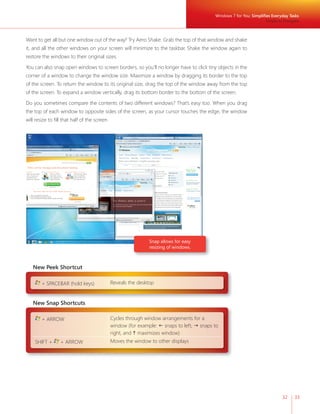
memory and lower processing speeds. Windows 7 Starter is the entry-level edition 
of Windows 7 that has basic features and limited options for personalizing your PC. 
These PCs can be upgraded to premium editions of Windows 7 that offer more 
features and more ways to personalize your PC at any time though the Windows 
Anytime Upgrade process. 
Windows 7 Starter Logo can be found on PCs with the Windows 7 Starter Edition 
Compatible with Windows 7 Logo 
Microsoft recommends choosing products that have earned the Compatible with 
Windows 7 logo. You’ll fi nd the Compatible with Windows 7 logo on devices, soft-ware, 
and games. 
Compatible with Windows 7 products install without worry and run reliably with Windows 7 
Software applications that carry the Compatible with Windows 7 logo have passed Microsoft-designed 
tests to help ensure they install readily every time and minimize the number of crashes, restarts, and 
other problems that you experience. Devices that have earned the Compatible with Windows 7 logo 
install without worry—just connect the device for a reliable Windows 7 experience. Devices with this logo 
are compatible with all versions of Windows 7, including 64-bit.
Recommended System Requirements 
Microsoft recommends the following minimum system requirements to make sure you get all the benefi ts 
of Windows 7. 
Windows 7 System Requirements 
• 1 gigahertz (GHz) or faster 32-bit (x86) or 64-bit (x64) processor 
• 1 gigabyte (GB) RAM (32-bit) / 2 GB RAM (64-bit) 
• 16 GB available disk space (32-bit) / 20 GB (64-bit) 
• DirectX 9 graphics processor with WDDM 1.0 or higher driver 
If you’re not sure which features and editions of Windows 7 will run on your existing PC, the Windows 7 
Upgrade Advisor can help. Please visit http://windows.microsoft.com/upgradeadvisor. 
Additional Requirements to Use Certain Features 
• Internet access (fees may apply) 
• Depending on resolution, video playback may require additional memory and advanced graph-ics 
hardware 
• For some aspects of Windows Media Center functionality, a TV tuner and additional hardware 
may be required 
• Windows Touch and Tablet PCs require specifi c hardware 
• HomeGroup requires a network and PCs running Windows 7 
• DVD/CD authoring requires a compatible optical drive 
• BitLocker requires Trusted Platform Module (TPM) 1.2 
• BitLocker To Go requires a USB fl ash drive
Recommended System Requirements 
124 125 
• Music and sound require audio output 
• Windows XP Mode requires the following: 
• Additional 1 GB of RAM 
• Additional 15 GB of available hard disk space 
• Processor capable of hardware virtualization, with Intel-VT or AMD-V turned on 
Product functionality and graphics may vary based on your system confi guration. Some features may 
require advanced or additional hardware. For more information, visit http://windows.microsoft.com/ 
systemrequirements.
How to Find More Information 
Although this guide provides a summary of the new and improved features in Windows 7, we realize that 
some of you might want to delve deeper into certain areas. A number of great resources are available to 
you to further your knowledge of these subjects. 
Resources for Everyone 
Whether you want to learn more about individual features or check out new security features to safe-guard 
your precious information, there’s a wealth of information about Windows 7 online. 
Windows 7 Home 
http://www.microsoft.com/windows/windows-7/ 
Windows keyboard shortcuts 
http://windows.microsoft.com/en-us/Windows7/Keyboard-shortcuts 
Accessibility features 
http://windows.microsoft.com/en-us/windows7/What-accessibility-features-does-Windows-offer 
Windows Help and How To 
http://windows.microsoft.com/en-US/windows7/help 
Security checklist 
http://windows.microsoft.com/en-us/windows7/Security-checklist-for-Windows-7 
Windows Live Essentials 
http://www.windowslive.com/Desktop 
Internet Explorer 8 
http://www.microsoft.com/windows/internet-explorer/
How to Find More Information 
126 127 
Resources for IT Pros 
The Springboard Series on TechNet is the resource for Windows desktop IT professionals, offering 
dynamic content and monthly features about structured guidance and resources to ease your imple-mentation 
experience wherever you are in the Windows Client adoption and management life cycle. Visit 
http://www.microsoft.com/springboard to access these resources today. At TechNet’s Springboard Series 
Web site, you will fi nd screencasts as well as resources on deployment, application compatibility, security, 
imaging, and more. 
To hear inside stories Windows 7 development from the engineering team and other IT pros, please visit: 
http://www.talkingaboutwindows.com 
Resources for Device Manufacturers 
Windows Hardware Developer Central (WHDC) is the defi nitive source of resources for system designers, 
driver developers, and test engineers. Please visit: http://www.microsoft.com/whdc/default.mspx 
To learn more about the Windows Ecosystem Readiness Program, please visit: 
http://www.microsoft.com/whdc/win7/default.mspx 
To learn more about the Windows Logo Program, please visit: 
http://www.microsoft.com/whdc/winlogo/default.mspx 
Resources for Software Developers 
To learn more about building software for Windows 7, please visit the Windows Developer Center at: 
http://msdn.microsoft.com/windows 
Get the latest news on Windows 7 and access trainings and toolkits to jumpstart your development 
efforts. Watch videos on Channel 9 or learn about how you can partner with Microsoft. Here you can 
visit the Develop for Windows 7 page to learn all about developing for the Windows 7 client. The 
site also includes a Windows 7 Developer Guide and a link to the Software Development for Windows 
Client Forums.
Appendix A 
Expanded Editions Feature Comparison 
The following table shows some of the most signifi cant differences between the editions to help you 
determine which edition is right for you. 
Key Features 
Starter Home Premium Professional Enterprise/Ultimate 
Windows Taskbar and Jump Lists ✓ ✓ ✓ ✓ 
Windows Search ✓ ✓ ✓ ✓ 
Join a homegroup ✓ ✓ ✓ ✓ 
Windows Media Player ^ ✓ ✓ ✓ ✓ 
Backup and Restore ✓ ✓ ✓ ✓ 
Enhanced media playback ^ ✓ ✓ ✓ ✓ 
Action Center ✓ ✓ ✓ ✓ 
Device Stage™ ✓ ✓ ✓ ✓ 
Home media streaming, 
including Play To ^ ✓ ✓ ✓ ✓ 
Bluetooth support ✓ ✓ ✓ ✓ 
Fax and Scan ✓ ✓ ✓ ✓ 
Basic games, including 
Solitaire and Minesweeper ✓ ✓ ✓ ✓ 
Credentials Manager ✓ ✓ ✓ ✓ 
Live Taskbar Thumbnails ✓ ✓ ✓
Appendix 
Key Features 
Starter Home Premium Professional Enterprise/Ultimate 
Switch between users without 
having to log on and off ✓ ✓ ✓ 
Connect to other PCs in your 
vicinity without a network access 
✓ ✓ ✓ 
device 
Location and Other Sensors ✓ ✓ ✓ 
Multiple monitor support ✓ ✓ ✓ 
Windows Mobility Center (without 
presentation settings)* ✓ ✓ ✓ 
Aero Glass & simpler window 
navigation ✓ ✓ ✓ 
Aero Background ✓ ✓ ✓ 
Windows Touch ✓ ✓ ✓ 
Create a homegroup ✓ ✓ ✓ 
Windows Media Center ^ ✓ ✓ ✓ 
Create and play DVDs ^ ✓ ✓ ✓ 
Remote Media Streaming ^ ✓ ✓ ✓ 
Premium games, including Chess 
Titans and Internet Backgammon ✓ ✓ ✓ 
Snipping Tool, Sticky Notes, 
Windows Journal ✓ ✓ ✓ 
Windows SideShow (auxiliary 
display) ✓ ✓ ✓ 
Windows XP Mode: Run many 
existing Windows XP productivity 
✓ ✓ 
programs in Windows 7 
Location Aware Printing ✓ ✓
Key Features 
Starter Home Premium Professional Enterprise/Ultimate 
Join a Domain and Group Policy 
controls ✓ ✓ 
Remote Desktop Host ✓ ✓ 
Advanced Backup and Restore 
(Network Backup & Group Policy) ✓ ✓ 
Encrypting File System ✓ ✓ 
Windows Mobility Center* (with 
Presentation Mode) ✓ ✓ 
Offl ine Folders ✓ ✓ 
BitLocker and BitLocker To Go ✓ 
AppLocker ✓ 
DirectAccess ✓ 
BranchCache ✓ 
Multilingual User Interface Packs ✓ 
Enterprise Search Scopes ✓ 
Virtual Desktop Infrastructure 
(VDI) Enhancements ** ✓ 
Direct Boot from VHD ✓ 
^These features are not available in box for “N” or “KN” edition versions. 
* Windows Mobility Center is visible only on small notebook PCs. 
** Windows 7 Ultimate is not licensed for VDI scenarios, but these features may be used to create a richer remote desktop experience when 
connecting to a PC running Windows 7 Ultimate. 
Note: Windows Home Basic (not shown here) is only available in emerging markets.
Appendix 
130 131 
Appendix B 
Feature Comparison Chart 
The following table compares features of Windows 7 with those in Windows Vista with SP1 and Windows XP with SP3. 
Benefi t Feature Windows XP 
SP3 
Windows Vista 
SP1 
Windows 7 
Windows 7 for You: Simplifi es Everyday Tasks 
Get Started Quickly 
Windows Easy Transfer no yes improved 
Windows Anytime Upgrade no limited improved 
Simple to Navigate 
Windows Taskbar yes yes improved 
Jump Lists no no new 
Desktop Enhancements no limited improved 
Windows Explorer yes yes improved 
Easier to Find 
Things 
Libraries no no new 
Searching from the Start Menu no yes improved 
Search Relevance no yes improved 
Federated Search no no new 
Easy to Connect 
PCs and Manage 
Devices 
HomeGroup no no new 
Windows Connect Now (WCN) no no new 
The Devices and Printers Folder yes yes improved 
Device Stage no no new 
Monitor Support 
Multiple Monitor Support yes yes improved 
External Display Support yes yes improved 
Windows + P Display Switch no no new 
Up to 144 DPI no no new 
Display Color Calibration no no new 
Windows 7 for You: Works the Way You Want 
Speed, Reliability, 
and Responsiveness 
Faster Start, Shutdown, and Resume no yes improved 
Search and Indexing no yes improved 
ReadyBoost no yes improved 
In Box Solid State Drive Support no no yes 
Idle Processing no yes improved 
Adaptive Display Brightness no no yes 
Power-Saving DVD Playback no no yes
Benefi t Feature Windows XP 
SP3 
Windows Vista 
SP1 
Windows 7 
Speed, Reliability, 
and Responsivenes 
Wake on Wireless LAN no no yes 
Smart Network Power no no yes 
Power Effi ciency Diagnostics no no yes 
More Secure 
User Account Control no yes improved 
Parental Controls no yes yes 
Windows Filtering Platform yes yes improved 
BitLocker no yes improved 
BitLocker To Go no no new 
Backup and Restore no yes improved 
System Restore limited yes improved 
Compatible 
with You 
Aero Themes and Aero Background no yes improved 
Gadgets no yes improved 
Global and Cultural Relevance yes yes improved 
Windows XP Mode no no yes 
Better Trouble-shooting 
and 
Problem Solving 
Action Center no no new 
Windows Troubleshooting no yes improved 
Startup Repair no no improved 
Windows 7 for You: Makes New Things Possible 
Media the Way 
You Want it 
Windows Media Center yes yes improved 
Windows Media Player yes yes improved 
Remote Media Streaming no no new 
“Play To” no no new 
Games Explorer no yes Improved 
Work Anywhere 
View Available Networks limited yes Improved 
Wireless Device Support yes yes Improved 
In Box Mobile Broadband no no new 
Location Aware Printing no no new 
DirectAccess no no new 
VPN Reconnect no no new 
Offl ine Access to Network Resources yes yes improved 
New Ways to 
Engage 
Windows Touch (support for multi-touch 
gestures) 
no no new 
Tablet PC Support yes yes improved 
Accessibility (Speech, Magnifi er) yes yes improved 
Windows 7 for IT Professionals: Make Users Productive Anywhere 
Remove Barriers 
to Information 
Federated Search no no new 
Enterprise Search Scopes no no new 
Access Information 
from Anywhere 
DirectAccess no no new 
VPN Reconnect no no new
Appendix 
132 133 
Benefi t Feature Windows XP 
SP3 
Windows Vista 
SP1 
Windows 7 
Access Information 
from Anywhere 
RemoteApp and Desktop Connections yes yes improved 
Folder Redirection and Offl ine Files yes yes improved 
Roaming User Profi les yes yes improved 
BranchCache no no new 
Transparent Caching no no new 
Windows 7 for IT Professionals: Manage Risks Through Enhanced Security and Control 
Protect Data on PC 
and Devices 
BitLocker no yes improved 
BitLocker To Go no no new 
Protect Workers 
and Infrastructure 
AppLocker no no new 
Build on 
Windows Vista 
Security Foundation 
Multiple Active Firewall Profi les limited limited improved 
Smart Card Support yes yes improved 
Enhanced Audit no limited improved 
User Account Control no yes improved 
Domain Name System Security 
no no new 
Extensions 
Windows 7 for IT Professionals: Reduce Costs by Streamlining PC Management 
Easier Deployment 
from Windows Vista 
Deployment Image Servicing and 
Management 
no limited improved 
Dynamic Driver Provisioning no no new 
Multicast Multiple Stream Transfer no no new 
User State Migration Tool limited limited improved 
VHD Image Management and 
no no new 
Deployment 
Keep PCs Running 
Smoothly 
Windows PowerShell Improvements download download improved 
Group Policy Preferences no download improved 
Windows Recovery Environment no yes improved 
Windows Troubleshooting no yes improved 
Unifi ed Tracing limited limited improved 
Problem Steps Recorder no No new 
Remote Access to Reliability Data no No new 
Better Support for 
Client Virtualization 
Dynamic Memory no No new 
Richer Remoting Experience no No new 
VHD Boot no No new
Appendix C 
New Keyboard Shortcuts 
Windows 7 introduces several new shortcut keys to help save you time and improve your productivity. To 
perform shortcut key strokes, just press and hold the keys. For example, hold the Windows key and press 
the  arrow to maximize the selected window. 
Windows Taskbar 
+ T Brings focus to the fi rst item in the taskbar. Press again to cycle 
through each item. 
+ 1–9 If a program in the 1–9 slot is running, the keystroke will launch it. 
If it is running with one window, the same keystroke will switch to 
that window. If it is running with multiple windows, the keystroke 
will cycle between each thumbnail of the open windows for that 
program. Aero Peek will help you fi nd the right window. 
(Note: ALT+WinKey+# will open the corresponding program’s Jump List) 
SHIFT + click on taskbar icon 
Middle mouse button + click on 
taskbar icon 
Launches a new instance of a program 
SHIFT + CTRL + click on taskbar 
icon 
Launches a new instance of a program in elevated security mode 
Middle mouse button + click on 
taskbar thumbnail 
Closes the window 
CTRL + click on a taskbar group Restores the last active window in the group. Continued clicking 
will continue restoring the subsequent windows in the group 
Drag up from a taskbar icon Opens Jump List 
Snap (Window Arrangement) 
+ ARROW Cycles through window arrangements for a window 
SHIFT + + ARROW Moves the window to other displays 
Peek 
+ SPACEBAR (hold keys) Reveals the desktop 
Projection 
+ P Shows projection options 
Explorer 
ALT + P Show/Hide preview pane 
Accessibility 
+ + Zoom in 
+ - Zoom out
Appendix 
Appendix D 
Installation Options for Upgrading Your PC to Windows 7 
Your upgrade option will vary depending on what operating system you are currently using. 
7 7 7 
134 135 
Upgrade Custom 
Upgrade 
Upgrade Custom 
Custom Upgrade 
Custom Custom 
Windows XP/Windows Vista® 
Starter/32-bit to 64-bit Custom 
Custom 
Installation 
A custom installation enables dual boot or gives the option to replace your exist-ing 
operating system with Windows 7. Your programs, settings, and data will be 
removed. Back up all of your data and ensure you have your original program disks 
available before doing a custom installation. 
Upgrade 
Installation 
An upgrade installs Windows 7 retaining all your programs, settings, and docu-ments 
after installation. 
Upgrade FROM : 
To upgrade an earlier operating system than Windows XP (for example, Windows 95 or Windows 2000) you will need to purchase a 
full license of Windows 7 and perform a custom installation. 
In the EEA/EU (including Croatia and Switzerland) and Korea, Microsoft will ship Windows 7 editions that do not include certain 
features such as Windows Media Player, and related technologies such as Windows Media Center. Upgrading to these editions will 
require custom installation. 
Upgrading Windows Vista from one language (such as English) to Windows 7 in a different language (such as French), requires 
custom installation.
Index 
64-Bit 9, 16, 54, 80, 122, 123, 124 
64-bit Gaming 80 
Accelerators 9, 39, 112 
Access Information from Anywhere 95, 132 
Accessibility 87, 126, 133, 134 
Action Center 66, 67, 128, 132 
Adaptive Display Brightness 52, 131 
Additional Resources 126 
Aero Background 62, 63, 129, 132 
Aero Themes 20, 62, 132 
AppLocker 13, 22, 91, 102, 111, 130, 133 
Audio 73, 78, 96, 115, 125 
Backup and Restore 12, 15, 61, 66, 128, 130, 132 
Battery Life and Notifications 51 
BitLocker 13, 15, 20, 60, 91, 100, 101, 111, 124, 125, 130, 132, 
133 
BitLocker To Go 13, 15, 20, 60, 91, 100, 101, 130, 132, 133 
BranchCache 13, 22, 91, 98, 99, 130, 133 
Browse the Web 38, 68 
Browsing 7, 9, 37, 38, 58, 64, 68, 104 
Client Virtualization 91, 115, 133 
Compatibility 7, 9, 11, 17, 23, 107, 109, 121, 122, 127 
Compatible with Windows 7 23, 43, 44, 73, 76, 122, 123 
Content Filtering 74 
Cross-Site Scripting Filter 58 
Data Execution Prevention 59 
Deployment 14, 91, 100, 104, 106, 107, 108, 109, 112, 114, 117, 
121, 127 
Deployment Image Servicing and Management 107, 133 
Desktop 12, 14, 15, 21, 27, 31, 32, 45, 62, 63, 64, 65, 66, 73, 82, 
87, 91, 92, 96, 106, 107, 108, 109, 110, 12, 115, 116, 
117, 119, 121, 127, 130, 134 
Device Stage 45, 128, 131 
Devices 7, 8, 9, 12, 18, 20, 21, 23, 27, 28, 41, 42, 44, 45, 46, 51, 
53, 55, 60, 68, 73, 74, 75, 76, 78, 81, 84, 92, 100, 101, 
111, 122, 123 
Digital TV 21, 71 
DirectAccess 13, 15, 22, 68, 82, 91, 95, 96, 111, 130, 132, 133 
DirectX 54, 80, 87, 124 
DirectX: Direct3D 11 54, 80 
DirectX: DirectCompute 54, 80 
Display 38, 40, 46, 48, 51, 52, 62, 63, 64, 75, 83, 129 
Domain Name Highlighting 58 
Domain Name System Security Extensions 104, 133 
Dynamic Driver Provisioning 197, 133 
Enhanced Audit 104, 133 
Enterprise Search Scopes 13, 22, 44, 130, 133 
Feature Comparison 128, 131 
Federated Search 22, 37, 93, 131, 133 
Flexible Deployment of Internet Explorer 8, 109 
Folder Redirection and Offline Files 97, 133 
Gadgets 63, 132 
Games Explorer 27, 79, 132 
Gaming 78, 79, 80 
Global and Cultural Relevance 62, 64, 132 
Graphics 9, 27, 45, 51, 52, 54, 80, 115, 124, 125 
Group Policy 14, 15, 42, 193, 97, 100, 101, 104, 106, 109, 110, 
111, 112, 114, 119, 130, 133 
Handwriting Recognition 86 
Handwritten Math Expression 86 
HomeGroup 11, 12, 14, 15, 20, 41, 42, 68, 72, 75, 77, 124, 128, 
129, 131 
Idle Processing 52, 131 
Improved Memory Utilization 51 
InPrivate Browsing 58 
InPrivate Filtering 59 
Instant Search 38 
Internet Explorer 31, 38, 40, 57, 64, 68, 99, 109, 112 
Internet Explorer 8 7, 15, 21, 27, 38, 39, 40, 57, 58, 59, 109, 112, 
126 
Internet TV 12, 15, 21, 70, 71 
Jump Lists 21, 31, 74, 128, 131 
Keyboard shortcuts 87, 126, 134
Index 
136 137 
Libraries 21, 35, 36, 37, 72, 74, 77,131 
Location Aware Printing 12, 81, 129, 132 
Magnifier 87, 133 
Manage Devices 41, 131 
MDOP 91, 100, 106, 116 
Media Streaming 12, 15, 20, 21, 75, 128, 129 
Microsoft Advanced Group Policy Management 119 
Microsoft Application Virtualization 14, 117 
Microsoft Asset Inventory Service 14, 118 
Microsoft Desktop Optimization Pack (MDOP) 14, 91, 92, 100, 
116 
Microsoft Diagnostics and Recovery Toolset 14, 120 
Microsoft Enterprise Desktop Virtualization 14, 121 
Microsoft System Center Desktop Error Monitoring 14, 120 
Mobile Broadband 81, 132 
Monitor 21, 23, 45, 46, 48, 56, 72, 84, 114, 129, 131 
Multicast Multiple Stream Transfer 102, 133 
Multilingual User Interface Packs 13, 15 
Multiple Active Firewall Profiles 103, 133 
Navigate 28, 39, 65, 72, 83, 95 
Navigation 12, 28, 34, 40, 129 
Network Connections 65 
Now Playing Mode 73 
Offline Access 82, 133 
Offline Files 82, 133 
On-Screen Keyboard 87 
Parental Controls 27, 49, 56, 79, 132 
Play To 20, 75, 76, 128, 132 
Power Efficiency Diagnostics 53, 132 
Power-Saving DVD Playback 53, 131 
Problem Solving 66 
Problem Steps Recorder 22, 23, 113,, 133 
Protect Data on PCs and Devices 100 
ReadyBoost 51, 131 
Remote Access to Reliability Data 114, 133 
Remote Media Streaming 77, 132 
RemoteApp and Desktop Connections 96, 133 
Remoting Experience 115, 133 
Roaming User Profiles 97, 108, 115, 133 
Search 7, 13, 21, 22, 27, 35, 36, 37, 38, 39, 40, 51, 91, 92, 93, 
131 
Secure Access 95 
Security 9, 13, 27, 43, 55, 57, 58, 59, 60, 66, 89, 95, 96, 99, 100, 
102, 103, 104, 111, 112, 126, 127, 133, 134 
Share 7, 9, 12, 18, 20, 27, 41, 42, 47, 48, 49, 62, 70, 75, 83, 97, 
101, 112 
Share Files and Folders 65 
Sharing TV 72 
Smart Address Bar 40 
Smart Card Support 95, 104 
Smart Network Power 53, 132 
SmartScreen Filter 57, 112, 
Solid State Drives 51 
Speech 87, 115, 133 
Speed, Reliability, and Responsiveness 50, 131 
Start Menu 16, 27, 29, 31, 36, 37, 67, 74, 85, 96, 131 
Start, Shutdown, and Resume 51, 131 
Startup Repair 69, 114, 132 
Support for Additional Languages 86 
System Requirements 12, 124 
System Restore 61, 114, 132 
Tab Isolation and Crash Recovery 59 
Tablet PC 9, 84, 86, 87, 124, 133 
Taskbar 15, 20, 27, 29, 30, 31, 32, 33, 45, 74, 85, 128, 131, 134 
Toolbar 40 
Touch Keyboard 86 
Transparent Caching 99, 133 
Troubleshooting 66, 67, 69, 91, 106, 111, 113, 114, 118, 132 
UAC 104 
Unified Tracing 114, 133 
URL-based Quality of Service 112 
USB Devices 64, 65 
User Account Control 55, 66, 104, 132, 133 
User State Migration Tool 108, 133 
VHD Boot 22, 108, 115, 133 
VHD Image Management and Deployment 107, 108, 133 
View Available Networks (VAN) 81, 133 
Visual Search 21, 38 
VPN Reconnect 82, 96, 132, 133 
Wake on Wireless LAN 21, 39 
Web Slices 10, 13, 96 
Windows 7 Enterprise 10, 13, 96 
Windows 7 Home Basic 10, 11 
Windows 7 Home Premium 10, 12, 14, 73
Windows 7 Logo Program 122 
Windows 7 Professional 10, 12 
Windows 7 Starter 10, 11, 14, 123 
Windows 7 Ultimate 10, 13, 96, 130 
Windows 7 Upgrade Advisor 16, 17, 124 
Windows Anytime Upgrade 14, 123, 131 
Windows Compatibility Center 18, 23 
Windows Connect Now 43, 131 
Windows Easy Transfer 16, 19, 131 
Windows Experience Index 51, 52 
Windows Explorer 27, 34, 35, 37, 83, 85, 93, 131 
Windows Filtering Platform 60, 132 
Windows Live Family Safety 49, 56 
Windows Live Mail 47, 49 
Windows Live Messenger 48 
Windows Live Movie Maker 48 
Windows Live Photo Gallery 49 
Windows Live Toolbar 49 
Windows Live Writer 49 
Windows Media Center 12, 14, 15, 21, 27, 71, 72, 76, 85, 124, 
129, 132, 135 
Windows Media Player 14, 27, 31, 68, 73, 74, 75, 76, 77, 99, 115, 
128, 132, 135 
Windows Recovery Environment (Windows RE) 114 
Windows Touch 84, 124, 129, 133 
Windows Troubleshooting 21, 67, 68, 106, 110, 114, 120,, 132, 
133, 138 
Windows Vista 8, 16, 17, 18, 19, 50, 51, 52, 53, 55, 60, 62, 63, 
69, 86, 89, 91, 100, 101, 103, 104, 106, 107, 110, 
113, 131 ,132, 133, 135 
Windows XP Mode 12, 15, 21, 27, 64, 65, 125, 129, 132
138 139 
DISCLAIMER 
The information contained in this document represents the current view of Microsoft 
Corp. on the issues discussed as of the date of publication. Because Microsoft 
must respond to changing market conditions, it should not be interpreted to be a 
commitment on the part of Microsoft, and Microsoft cannot guarantee the accuracy of 
any information presented after the date of publication. 
This guide is for informational purposes only. MICROSOFT MAKES NO WARRANTIES, 
EXPRESS OR IMPLIED, IN THIS SUMMARY. 
Complying with all applicable copyright laws is the responsibility of the user. Without 
limiting the rights under copyright, no part of this document may be reproduced, stored 
in or introduced into a retrieval system, or transmitted in any form, by any means 
(electronic, mechanical, photocopying, recording or otherwise), or for any purpose, 
without the express written permission of Microsoft. 
Microsoft may have patents, patent applications, trademarks, copyrights or other 
intellectual property rights covering subject matter in this document. Except as expressly 
provided in any written license agreement from Microsoft, the furnishing of this 
document does not give you any license to these patents, trademarks, copyrights, or 
other intellectual property. 
Unless otherwise noted, the example companies, organizations, products, domain 
names, e-mail addresses, logos, people, places, and events depicted herein are fictitious, 
and no association with any real company, organization, product, domain name, 
e-mail address, logo, person, place, or event is intended or should be inferred. 
© 2009 Microsoft Corp. All rights reserved. 
Microsoft, Active Directory, Aero, AppLocker, BitLocker, BitLocker To Go, BranchCache, 
DirectX, Hyper-V, Internet Explorer, Outlook, PowerShell, ReadyBoost, SharePoint, 
SmartScreen, SuperFetch, Terminal Services RemoteApp, Windows, Windows Live, 
Windows Media, Windows Server, Windows Vista, and Xbox 360 are either registered 
trademarks or trademarks of Microsoft Corporation in the United States and/or other 
countries. All other trademarks are property of their respective owners.
Part No. 098-115613

Windows 7 product guide

  • 1.
    1 1 Welcometo Windows 7
  • 3.
    Your PC, simplified. 3 3 You told us what you wanted. We listened. This Windows® 7 Product Guide highlights the new and improved features that will help deliver the one thing you said you wanted the most:
  • 4.
    INTRODUCTION TO WINDOWS7 6 DESIGNING WINDOWS 7 8 Market Trends that Inspired Windows 7 9 WINDOWS 7 EDITIONS 10 Windows 7 Starter 11 Windows 7 Home Basic 11 Windows 7 Home Premium 12 Windows 7 Professional 12 Windows 7 Enterprise / Windows 7 Ultimate 13 Windows Anytime Upgrade 14 Microsoft Desktop Optimization Pack 14 Windows 7 Editions Comparison 15 GETTING STARTED WITH WINDOWS 7 16 Upgrading a PC to Windows 7 16 WHAT’S NEW IN WINDOWS 7 20 Top Features for You 20 Top Features for IT Professionals 22 Application and Device Compatibility 23 WINDOWS 7 FOR YOU 24 WINDOWS 7 FOR YOU: SIMPLIFIES EVERYDAY TASKS 28 Simple to Navigate 28 Easier to Find Things 35 Easy to Browse the Web 38 Easy to Connect PCs and Manage Devices 41 Easy to Communicate and Share 47 WINDOWS 7 FOR YOU: WORKS THE WAY YOU WANT 50 Speed, Reliability, and Responsiveness 50 More Secure 55 Compatible with You 62 Better Troubleshooting and Problem Solving 66 WINDOWS 7 FOR YOU: MAKES NEW THINGS POSSIBLE 70 Media the Way You Want It 70 Work Anywhere 81 New Ways to Engage 84 Contents
  • 5.
    WINDOWS 7 FORIT PROFESSIONALS 88 WINDOWS 7 FOR IT PROFESSIONALS: MAKE PEOPLE PRODUCTIVE ANYWHERE 92 Remove Barriers to Information 92 Access Information from Anywhere 95 WINDOWS 7 FOR IT PROFESSIONALS: MANAGE RISK THROUGH ENHANCED SECURITY AND CONTROL 100 Protect Data on PCs and Devices 100 Protect Workers and Infrastructure 102 Builds on Windows Vista Security Foundation 103 WINDOWS 7 FOR IT PROFESSIONALS: REDUCE COSTS BY STREAMLINING PC MANAGEMENT 106 Easier Deployment 107 Keep PCs Running Smoothly 110 Better Support for Client Virtualization 115 WINDOWS 7 FOR IT PROFESSIONALS: MICROSOFT DESKTOP OPTIMIZATION PACK 116 Microsoft Application Virtualization 117 Microsoft Asset Inventory Service 118 Microsoft Advanced Group Policy Management 119 Microsoft Diagnostics and Recovery Toolset 120 Microsoft System Center Desktop Error Monitoring 120 Microsoft Enterprise Desktop Virtualization 121 WINDOWS 7 HARDWARE AND SOFTWARE LOGO PROGRAMS 122 Windows 7 Logo for PCs 123 Windows Starter Logo 123 Compatible with Windows 7 Logo 123 RECOMMENDED SYSTEM REQUIREMENTS 124 Windows 7 System Requirements 124 HOW TO FIND MORE INFORMATION 126 Resources for Everyone 126 Resources for IT Pros 127 Resources for Device Manufacturers 127 Resources for Software Developers 127 APPENDIX A: EXPANDED EDITIONS FEATURE COMPARISON 128 APPENDIX B: FEATURE COMPARISON CHART 131 APPENDIX C: NEW KEYBOARD SHORTCUTS 134 APPENDIX D: INSTALLATION OPTIONS FOR UPGRADING TO WINDOWS 7 135 INDEX 136 DISCLAIMER 139
  • 7.
    PCs are anintegral part of the daily lives of billions of people around the world. They are used for more functions than anyone could have imagined just a few years ago, and as PCs become more deeply woven into our everyday lives, our expectations keep increasing. With Windows® 7, you told us what you expect from a PC. And we listened. In Windows 7 we’ve developed hundreds of little improvements and a few big ones that add up, frankly, to a whole lot less. Less waiting, less clicks, less hassle connecting to devices, less power consumed and less overall complexity. And with less of what you don’t need, your PC running Windows 7 will help you do more by making everyday tasks simpler and easier. Windows 7 is clean and uncluttered, with a streamlined interface that puts the tasks you want to accomplish right at your fi nger-tips. You have more control over where to put the things you use most often. Managing multiple windows is easier. And we’ve improved search so that you can fi nd the information you want quickly. We’ve made it easier to add PCs to your home network, share fi les between networked PCs, and use and manage other connected devices like cell phones, cameras, and MP3 players. Even browsing the Internet is easier thanks to improvements in Windows Internet Explorer® 8. You asked for improvements in the basic fundamentals like performance, responsiveness, safety, reliability, and compatibility. We designed Windows 7 to start up, shut down, and resume from sleep quickly so you don’t have to wait as long to get stuff done. We’ve reduced the number of system prompts that can interrupt your day. And you’ll have greater control over what your kids can do on the PC. Even better, you’ll fi nd innovative ways to safeguard your personal data—all while getting more ways to personalize your PC and make it truly your own. With Windows 7, we’ve also made new things possible. You’ll fi nd fresh ways to enjoy and share your music, photos, video, and recorded TV when and where you want regardless of how or where it’s stored. Windows 7 gives you more ways to access your data and work productively from any location including making it easier to connect to wireless networks. And we’ve added new ways to interact with your PC through touch-enabled screens. In the enterprise, the role of the PC is evolving just as quickly as it is in the home. With Windows 7, IT professionals have more ways to help their people get more done—more securely and from more locations—while still maintaining control over increasingly complex computing environments. Welcome to Windows 7. 7 7
  • 8.
    Designing Windows 7 More than a billion people use Microsoft® Windows every day. You use it in signifi cant ways, like earning a living. You use it in personally meaningful ways, such as using a webcam to visit with a faraway loved one. And you experience it in small ways, like playing your favorite song or whiling away a few minutes with a game. Though each situation might be different, your satisfaction relies on one thing: that your PC works, plain and simple. In designing Windows 7, we focused on creating a better experience, regardless of what you do on your PC. And although we’ve made some architectural changes in Windows 7, we’ve focused mainly on building upon the platform improvements of the Windows Vista® and Windows Server® 2008 operating systems. By defi nition, a great PC experience means seamless operation across all of your hardware, software, and devices. We want to make sure you have a broad choice for the programs and devices you use with your PCs. Today, the Windows Vista Compatibility Center lists more than 10,500 applications and 9,500 devices with a compatible download or driver version. In most cases, the same software and hardware that works on Windows Vista will also work on Windows 7. Furthermore, we were careful to design Windows 7 so that the investments that our partners and our enterprise customers have made in Windows Vista will continue to deliver great value as they upgrade to Windows 7. We’ve worked closely with our partners from the earliest planning phase. Before writing code, we talked to original equipment manufacturers, the companies that make PCs. Before defi ning application programming interfaces, we talked to developers. And before adding support for new devices, we worked with device manufacturers to understand how next-generation hardware could create new scenarios.
  • 9.
    Designing Windows 7 8 9 Market Trends that Inspired Windows 7 As we planned Windows 7, we took a hard look at how the world of technology is changing and what that means for you. In doing so, we identified some key themes that influenced our engineering design efforts and helped us to focus on where we could deliver the highest value to you. • Hardware advances. Since Tablet PCs with touch screens were introduced more than five years ago, a whole range of new devices has made touch technology more popular. Similarly, the reduced cost of random access memory (RAM) has led many more people to use 64-bit proces-sors. Other advances include solid-state drives (SSDs), faster wireless networking, enhanced Bluetooth connectivity, multicore central processing units (CPUs), and powerful new graphics accelerators. • Expanded diversity and sophistication of devices. The type and range of devices continue to expand. Nearly 1,500 new Plug and Play devices are identified each day, with more than 4 million expected by 2010. At the same time, devices like MP3 players and mobile phones store more information and offer more features than ever before. • Growth of mobile computing. In the United States, portable computers are becoming more prevalent than desktops, and we’re seeing a growing variety of them, like small notebook PCs, ultra-mobile PCs, and Tablet PCs. • More connection options. People want to get online easily and stay online using whatever Internet connection is available. Furthermore, people want to be able to access work and home information, no matter where they are. • Connecting multiple PCs in the home. Today, more than half of U.S. households have more than one PC—yet setting up a home network can still be a challenge. For many people, it’s even more difficult to manage, find, and share information across multiple PCs. • More digital media. People now have access to more types of digital media than ever, includ-ing music, video, TV, photos, and an ever-increasing amount of rich content on the Web. This media needs to be easier to find, use, and share—digital media should be accessible through more devices without any added complexity, regardless of whether people are listening to music on wireless headphones or watching movies on a big-screen TV. • A rapidly evolving Web. Browsing the Web remains the single most popular activity on the PC, with people spending more time—and doing more things—online. They want a Web browsing experience that supports all that the Web has to offer, with everyday tasks and content at their fingertips. They want easier ways to connect with friends and interact with social networks. And they also want protection from hackers, malicious software (malware), and other Internet-based threats. • Increased focus on costs. Although businesses often adopt new operating systems for better security and quantifiable cost savings, application and device compatibility can prevent them from moving forward. IT professionals need to know that adopting new technologies will make running and managing PCs easier, help increase data security, and extend the investments they have already made in existing applications and devices
  • 10.
    Windows 7 Editions Different people expect different things from their PCs, which is why we offer multiple editions of Windows 7. And because your needs can change over time, we have designed Windows 7 so that you can move up to editions with more features, without giving up the features you already have. Windows® 7 Enterprise/Windows® 7 Ultimate Windows® 7 Professional Windows® 7 Home Premium Windows® 7 Home Basic Windows® 7 Starter Windows 7 Enterprise and Windows 7 Ultimate are no-compromise editions for people who want everything Windows 7 has to offer*. Windows 7 Professional is everything you need for work and home. This business-focused edition is great for small- and medium-sized companies, and people who have networking, backup, and security needs and multiple PCs or servers. Windows 7 Home Premium is the best entertainment experience on your PC. This edition provides full functionality on the latest hardware, easy ways to connect, and a visually rich environment. Windows 7 Home Basic makes the things you do every day faster and easier. This edition is designed for value PCs in emerging markets. Windows 7 Starter Edition is the entry-level edition for small notebook PCs and other PCs with limited hardware. It makes using your PC simpler. *Note: Windows 7 Enterprise has the same features as Ultimate, and also includes volume activation capabilities. It is available only to customers with a Software Assurance Agreement.
  • 11.
    Windows 7 Editions 10 11 Windows 7 Starter Windows 7 Starter makes small notebook PCs and other PCs with limited hardware easier to use because it puts less between you and what you want to do—less waiting, less clicking, and less hassle connecting to networks. Windows 7 Starter is designed to meet basic needs and combines the latest in reliability and responsiveness with the familiarity of Windows. Key features that you will find in the Starter edition include the following:: • Broad application and device compatibility • Safety, reliability, and responsiveness • Ability to join a homegroup Windows 7 Home Basic Windows 7 Home Basic is an entry-level edition that will be offered in a number of emerging markets to customers with value priced PCs. Windows 7 Home Basic makes it faster and easier to get to the programs and documents you use most often, so you can spend less time looking and more time doing the things you want to do. In addition to the benefits found in Windows 7 Starter, Home Basic includes the following: • Live thumbnail previews • Advanced networking support (ad hoc wireless networks and Internet connection sharing) • Ability to extend your screen across multiple monitors
  • 12.
    Windows 7 HomePremium The best edition for consumers, Windows 7 Home Premium provides the best entertainment experience on your PC. You’ll find easy ways to connect to other PCs and devices, all in a visually rich environment that makes everyday use simpler and more engaging. With Home Premium you can create a homegroup to share all of your favorite photos, videos, and music with other networked PCs running Windows 7. And you’ll be able to watch shows for free when and where you want with Internet TV on Windows Media® Center.* In addition to the features in Windows 7 Starter and Home Basic, you’ll also get the following:: • Advanced window navigation and personalization with several new Microsoft Aero® desktop improvements • The ability to create a homegroup, so you can easily share files between your networked PCs and devices • The ability to watch Internet TV and record TV on your PC with Windows Media Center • Remote Media Streaming and improved support for different media formats *Note: For some aspects of Windows Media Center functionality, a TV tuner and additional hardware may be required. Internet access is required. Free Internet TV content varies by geography. Some content may require additional fees. Windows 7 Professional Windows 7 Professional has all the features you need for business, along with all the great media and entertainment features of Windows 7 Home Premium. You’ll be able to run many Windows XP productivity programs natively in Windows 7 or by using Windows XP Mode*, and recover your data easily with automatic backups to your home or business network. You’ll also be able to connect to company networks easily and more securely. In addition to the features in Windows 7 Home Premium, you’ll also get the following: • Domain Join, which gives you the ability to join a managed Windows Server network • Advanced Backup and Restore to help you back up your entire system to a home or business network, and Encrypted File System to help protect your data • Windows XP Mode* for running older productivity applications that require Windows XP • Location Aware Printing, which helps you set different default printers for your home and work networks *Microsoft recommends 2 GB of memory, and an additional 15 GB of hard disk space per virtual environment, to run Windows XP Mode. Windows XP Mode requires either OEM pre-installation or post-purchase installation of Windows XP Mode (which runs on Windows 7 Professional or Ultimate) and a virtualization technology such as Windows Virtual PC.Windows Virtual PC requires a processor capable of hardware virtualization, with Intel-VT and AMD-V features enabled.Both Windows XP Mode and Windows Virtual PC can be downloaded from www.windows.com/business/downloads. For more information on system requirements, go to www.microsoft.com/virtual-pc.
  • 13.
    Windows 7 Editions 12 13 Windows 7 Enterprise / Windows 7 Ultimate Windows 7 Enterprise and Windows 7 Ultimate are the most versatile and powerful editions and are designed to address the needs of both enterprise customers and consumers who want every feature of Windows 7. While the features in these editions are the same, Windows 7 Enterprise includes volume activation capabilities and is only available to customers with a Microsoft Software Assurance Agreement. Windows 7 Enterprise and Windows 7 Ultimate help make you productive anywhere, enhance security and control, and streamline PC management. They also offer remarkable ease of use with the entertainment features of Home Premium and the business features of Professional, plus the flexibility to work in many differ-ent languages. Quite simply, Windows 7 Enterprise and Windows 7 Ultimate include everything Windows 7 has to offer. In addition to the previously mentioned features, these editions include the following: • Microsoft BitLocker™ and BitLocker To Go™ drive encryption and data protection on internal and external drives and storage devices • DirectAccess, which helps give you a more secure connection to your corporate network over the Internet • Microsoft BranchCache™, which helps provide faster access to content from remote file and Web servers at branch locations • Microsoft AppLocker™, which helps prevent unauthorized software from running on workers’ PCs • Enterprise Search Scopes, which make it easy to discover and search content on intranet portals • Multilingual user interface packs, which let you work in any of 35 languages
  • 14.
    Windows Anytime Upgrade Sometimes you want to be able to do more with your PC. That’s why we’ve made it easier for you to move from one edition of Windows to the next. For example, you may have purchased a small notebook PC with Windows 7 Starter but decide soon after that you want to customize your desktop or create a homegroup. With Windows Anytime Upgrade, you can add features to Windows 7 in as few as 10 minutes. Upgrading from one edition of Windows 7 to another with more features is easy and quick, and you’ll keep your programs, fi les, and settings. SPECIAL NOTE: In the EEA/EU (including Croatia and Switzerland) and Korea, Microsoft will ship versions of these editions that do not include certain features. “N” editions (for example, Windows 7 Home Premium N) do not include Windows Media Player and related technologies such as Windows Media Center and Windows DVD Maker (distribution in EEA/EU only). “KN” editions (for example, Windows 7 Home Premium KN) will not include Windows Media Player and related technologies such as Windows Media Center and Windows DVD Maker (distribution in Korea only). “K” editions (for example, Windows 7 Home Premium K) are the Korean language versions of the products, which contain links added to the Programs menu that go to Web sites that contain links to download competing media players and instant messaging software (distributed worldwide). Microsoft Desktop Optimization Pack Microsoft Desktop Optimization Pack for Software Assurance is a dynamic desktop solution available to Software Assurance customers for use with Windows 7. It helps reduce application deployment costs, enables delivery of applications as services, and allows for better management and control of enterprise desktop environments. Technologies provided in the Microsoft Desktop Optimization Pack include: • Microsoft Application Virtualization • Microsoft Asset Inventory Service • Microsoft Advanced Group Policy Management • Microsoft Diagnostics and Recovery Toolset • Microsoft System Center Desktop Error Monitoring • Microsoft Enterprise Desktop Virtualization
  • 15.
    14 15 KeyFeatures Starter Home Premium Professional Enterprise/Ultimate Windows Taskbar and Jump Lists ✓ ✓ ✓ ✓ Internet Explorer 8 ✓ ✓ ✓ ✓ Join a homegroup ✓ ✓ ✓ ✓ Home media streaming, including Play To ^ ✓ ✓ ✓ ✓ Aero Glass and improved desktop navigation ✓ ✓ ✓ Windows Media Center^ and Internet TV ¹ ✓ ✓ ✓ Create a homegroup ✓ ✓ ✓ Windows XP Mode ✓ ✓ Domain Join and Group Policy controls ✓ ✓ Advanced Backup and Restore ✓ ✓ BitLocker and BitLocker To Go ✓ DirectAccess ✓ Multilingual User Interface Packs ✓ A more detailed comparison of features in each edition can be found in Appendix A. ^These features are not available in box for “N” or “KN” edition versions. ¹ Internet access is required. Free Internet TV content varies by geography. Some content may require additional fees. Note: Windows Home Basic (not shown here) is only available in emerging markets. Windows 7 Editions Windows 7 Editions Comparison This table summarizes the key differences between the editions:
  • 16.
    Getting Started withWindows 7 Whether you’re buying a new PC or upgrading your current PC to Windows 7, you probably want to get through the setup process as quickly as possible. Windows 7 is designed to get you up and running fast. Windows 7 includes a new Getting Started experience that points you in the right direction by highlighting some common tasks associated with setting up your new PC. You’ll see Getting Started on the Start menu when you fi rst use Windows 7. Use it to explore new features, transfer fi les from your old PC, add user accounts, and more. Getting Started is there when you need it and stays out of your way when you’re doing other things. Upgrading a PC to Windows 7 We realize that upgrading to a newer version of Windows can sometimes be a challenge, depend-ing on what operating system you are currently running, your familiarity with PCs in general, and your current system confi guration. With that in mind, we have designed Windows 7 for a smooth upgrade from Windows Vista and have improved several tools that can aid you in the upgrade process. (See the Windows Easy Transfer and Windows Upgrade Advisor sections that follow.) Because Windows 7 is built on the same architectural platform as Windows Vista, the transition to Windows 7 should be fairly smooth whether you’re using a 32-bit or 64-bit system, although you will need to ensure that your PC has the latest service pack fi rst.* If your upgrade gets blocked due to incom-patible or missing drivers, you may be able to load a new or updated driver from the Compatibility Center and continue with the upgrade. *Note: Windows Vista Service Pack 1 (SP1) was released in April 2008. Windows Vista Service Pack 2 (SP2) was released in May 2009. While you can upgrade from Windows Vista to Windows 7 with SP1, Microsoft recommends that you install both Service Packs before upgrading.
  • 17.
    Getting Started withWindows 7 16 17 Migrating from Windows XP Windows 7 is best experienced on a new PC with the latest hardware, but if your computer meets the minimum specifi cations, you can install Windows 7 on a PC running Windows XP. Windows 7 must be “custom” installed (also known as a “clean” installation) over Windows XP. Before beginning the installation, you’ll need to copy your fi les and settings to an external drive. After Windows 7 has been installed you will need to re-install all of your programs using the original installation media and then copy over the fi les and settings you backed up to your external drive. Because Windows 7 requires a custom installation, we strongly recommend that you get help with this process from your local computer service provider. Windows 7 Upgrade Advisor In general, if your PC can run Windows Vista, it can run Windows 7. But if you’re not running Windows Vista, or are just not sure if your system is ready to run Windows 7, there’s an easy way to check. Just use the Windows 7 Upgrade Advisor. You’ll get a report telling you if your PC can run Windows 7 and if there are any known compatibility issues with your programs or hardware, like printers or scanners. If there’s a fi x, you’ll get suggestions for next steps. For example, it will let you know if you need an updated driver for your printer and show you where to get it. Note: To learn more about the Windows Upgrade Advisor, visit http://windows.microsoft.com/upgradeadvisor Windows Upgrade Advisor report
  • 18.
    Windows Compatibility Center You may want to know if your devices and software will work with your computer, and that you have all the latest updates so your stuff works the way it’s supposed to. First introduced with Windows Vista, the Windows Compatibility Center is a single location where you can quickly and easily verify that your exist-ing devices and applications will work—and double-check to make sure that your new purchases work too. The Compatibility Center is updated frequently so you can fi nd the most current software and drivers to make things run perfectly. You can even share feedback with Microsoft to help improve the Compat-ibility Center or get help from the Windows community. Note: To learn more about the Windows Compatibility Center, visit http://www.microsoft.com/windows/compatibility. Windows Compatibility Center
  • 19.
    Getting Started withWindows 7 18 19 Windows Easy Transfer Windows Easy Transfer helps you move fi les, folders, program settings, and system settings from your old PC to your new one. With the newest version of Windows Easy Transfer, you can leave the transfer unattended. If Windows encounters a fi le or setting that it can’t transfer, it will complete the rest of the migration and then show you any items that failed to transfer and give you the option to try again. Windows Easy Transfer also works well if you’re adding a second PC. With the new Windows Easy Transfer fi le explorer, you can see fi les on other PCs and choose the ones you want to copy to your new PC. If you’re not sure what you want to transfer, you can use the new Selective Restore feature to save all the fi les and settings on your old PC to removable media. You can then choose the fi les and settings you want to transfer. Everything else remains safely stored in your Windows Easy Transfer archive, in case you want to access it later. You’ll need the same version of Windows Easy Transfer on all PCs to transfer fi les, folders, program settings, and system settings. For PCs running Windows 7, Windows Easy Transfer automatically copies the latest version of Windows Easy Transfer to other PCs running Windows 7 after you’ve connected them. If you’re running Windows Vista or Windows XP, however, you will need to manually install the Windows 7 version of Windows Easy Transfer on your PC from the installation media in Windows 7 before you can begin transferring data. Windows Easy Transfer helps you move your fi les, folders, and settings to your new PC.
  • 20.
    What’s New inWindows 7 Top Features for You We’ve designed Windows 7 to be the easiest, fastest, and most engaging version of Windows yet. We focused on helping your PC perform the way you want it to—quickly, easily, and with less effort. Although many of the new improvements are under the covers, Windows 7 also includes many more visible enhancements that will help you play with, work with, and manage your PC. The following table highlights some of the features that we think you’ll really like. Key Feature What You Can Do Aero Shake Click a window pane and shake your mouse to minimize all other open windows. Shake the pane again to restore the windows to their original sizes. Aero Themes and Aero Background Use new themes or choose a slideshow of your favorite photos to make your PC refl ect your personal taste. BitLocker and BitLocker To Go Help protect sensitive data with new, easier ways to protect and recover drives and extend that protection to USB remov-able storage devices, such as fl ash memory drives and portable hard disk drives. Home Media Streaming Use your PC as a hub and make music, videos, photos, and recorded TV available on other PCs or stream it to supported devices using Play To. HomeGroup Easily share fi les and printers between PCs running Windows 7 that are connected to your home network. Improved Windows Taskbar Open fi les and get around your PC faster. Pin programs you use often to the taskbar and launch them with a single click.
  • 21.
    What’s New inWindows 7 20 21 Key Feature What You Can Do Internet and Digital TV Watch Internet TV content and turn your PC into a digital video recorder by using the support in Windows Media Center for many new broadcast TV tuners.* Internet Explorer 8: Visual Search See rich, relevant, visual suggestions as you type search terms. Internet Explorer 8: Web Slices Get the information you want from the Web updated and avail-able at your fi ngertips, without leaving the page you’re on. Jump Lists Reduce clutter and quickly get to tasks and your favorite, recent, and frequently used fi les. Live Thumbnail Previews Manage lots of open windows easily with live thumbnail previews of active windows Location Aware Printing Set different default printers for your home and work networks. Mobile Broadband Eliminate the need to install additional software when you use your data card for Internet access. Remote Media Streaming Access your home-based digital media libraries over the Inter-net from another PC running Windows 7 outside the home. Snap Resize and expand windows more quickly and easily compare the contents of two different windows. View Available Network (VAN) See and connect to available networks—including Wi-Fi, broadband, dial-up, and virtual private network (VPN)—in just a few clicks. VPN Reconnect Get consistent VPN connectivity by automatically reestablish-ing a VPN connection whenever the Internet connection is temporarily lost. Windows Search and Libraries Search your own PC and the PCs and devices connected to your network to fi nd items regardless of where they’re stored. Windows Touch Interact with your PC with a touch-screen monitor by using your fi ngers and multitouch gestures. Windows Troubleshooting Resolve common issues quickly without having to call for help. Windows XP Mode Run many older Windows XP productivity applications right on your Windows 7 desktop. Note: For certain aspects of Windows Media Center functionality, a TV tuner and additional hardware may be required. To watch Internet TV, Internet access is required. Free Internet TV content varies by geography. Some content may require additional fees.
  • 22.
    Top Features forIT Professionals From networking to security and search to user management, Windows 7 offers IT professionals a wide range of new and improved features. These include the following: Key Feature What You Can Do AppLocker Control which applications are allowed to run on user PCs. BranchCache Improve application responsiveness and end user productivity at branch offi ces while reducing the load on your Wide Area Network (WAN). DirectAccess Enable workers to more securely connect to corporate networks over any Internet connection—without requiring the extra step of initiating a VPN connection. Federated Search and Enterprise Search Scopes Enable search engines, document repositories, Web appli-cations, and proprietary data stores to be searched from Windows 7, without writing and deploying client code. Problem Steps Recorder Help your workers troubleshoot application failures by giving them the ability to reproduce and record their experiences and then send that information to support staff. VHD Boot Ease the transition between virtual and physical environments by reusing the same master image within a VDI infrastructure and on physical PCs. Windows PowerShell 2.0™ Automate repetitive tasks with this graphical scripting editor that helps you write scripts that access underlying technologies.
  • 23.
    22 23 Applicationand Device Compatibility We recognize that your PC experience involves programs and devices from many different providers, so we’ve made a significant effort to ensure that the applications and devices you use and love are compat-ible with Windows 7 and work the way you’d expect them to. Windows 7 helps address application compatibility in several ways. Perhaps most importantly, we worked to minimize changes in the way applications and devices interact with Windows. As a result, the work done by third-party software and hardware developers to make their products work on Windows Vista generally carries forward for Windows 7. In most cases, the same software and hardware that works with Windows Vista will also work with Windows 7. In addition, we created a comprehensive list of the most widely used consumer and business applica-tions, which were tested throughout the development cycle. We also created new and improved tools such as the Windows Upgrade Advisor, Application Compatibility Toolkit (ACT), Windows Compatibility Center, Quality Cookbook, Application Verifier, and ISV Developer Portal to help customers and software developers assess application compatibility. For untested programs or applications developed in-house, Windows 7 offers a number of in-the-box compatibility aids. For example, if a program fails to install because of a hard-coded version check, the Program Compatibility Troubleshooter can automatically fix the problem (with the user’s consent) and rerun the installer. Windows 7 also includes an expanded application shim infrastructure and a Problem Steps Recorder that people can use to capture application compatibility issues for evaluation by technical experts. Furthermore, we continually monitor application compatibility issues throughout the Windows ecosys-tem. We designed Windows 7 to monitor application health and, with the user’s permission, provide feedback to Microsoft so that we can work quickly with application developers to resolve compatibility problems and issue a fix if necessary. Microsoft has also invested in partner outreach efforts so that soft-ware developers have the resources required to ensure application compatibility. As with applications, we are also working to ensure that devices compatible with Windows Vista will work just as well with Windows 7. As a part of this effort, we have greatly expanded the list of devices and peripherals being tracked for compatibility with Windows 7. We have identified thousands of devices through data collected via the Customer Experience Improvement Program and through outreach efforts to device and PC manufacturers, and we have tested those devices for compatibility with Windows 7. When updated device drivers are required, we are working to ensure that you can get them directly from Windows Update or through links to driver downloads on device manufacturer Web sites. What;’s New in Windows 7
  • 25.
    25 25 Windows7 for You Windows 7 is more than just engineering and innovation—it’s the product that you asked for. You’ve told us you want everything you do on your PC to be faster and easier. You’ve said that you’d like it if the technology and devices in your home worked better together. And because you spend a lot of time on the Web, you’ve mentioned that you’d like that experience to be faster and safer—and that you’d like it to be consistent with your offl ine experience so that you don’t have to learn two different ways to do the same thing. In essence, you said that you wanted your PC simplifi ed. And with Windows 7, that’s exactly what you’ll get.
  • 26.
  • 27.
    Simplifies Everyday Tasks Windows 7 streamlines and simplifies the tasks you do most often. Its enhanced Start menu and Windows Taskbar put the files and programs you use most within easy reach, so they don’t clutter your desktop. And the desktop’s new streamlined interface puts you in control so you can get where you want to go faster. With an improved search engine and Windows Explorer in Windows 7, you don’t have to wade through multiple results to get the files or programs you’re looking for. No matter where files are located on your PC or on your network, finding them is a snap. Browsing the Web is simpler too, thanks to new features in Internet Explorer 8 that put the information you’re looking for right at your fingertips. With Windows 7, you’ll even find it easier to share things, whether you’re using Windows Live Essentials to communicate and share with friends, or sharing content and printers among devices connected to your home network. Works the Way You Want Superior performance, reliability, and security enhancements make your PC work the way you want—that is, without fuss and with fewer problems. Windows 7 is designed to start, shut down, and resume from Standby faster. We’ve even engineered Windows 7 to help extend the battery life of your portable PC. Windows 7 gives you new ways to help keep you and your data safe with enhanced security features, a more secure online experience, and Parental Controls. Keeping your PC running smoothly—and finding out what to do when there’s a problem—is much simpler too because you’ll be able to resolve most issues from one central location. You’ll recover from problems faster with self-healing diagnostic features and troubleshooters. In fact, Windows 7 will often fix issues without any impact to you. Best yet, Windows 7 is extremely flexible. Need to run older business and productivity programs that require Windows XP? Now you can, with the new Windows XP Mode. Plus, you can make your PC truly your own with more options than ever for you to customize and personalize your PC to match your personality. Makes New Things Possible Windows 7 delivers enhancements that will help you do exciting new things with your PC. Windows Media Center and Windows Media Player help you enjoy your media in new ways and places. Are your family photos located on a different PC in your home? No problem.What if you’re away on business and want to listen to a playlist that’s on your home PC? Believe it or not, you can do that too. With Windows 7, it’s easier than ever to keep communications flowing and get things done—no matter where you are—with new features that help you connect to the Internet and your corporate network from remote locations. Choose separate default printers for your home office or business office. When you’re ready for a break, use the improved Games Explorer to discover and play new games featuring higher definition graphics with finer resolution. Windows 7 makes it easier to move beyond the traditional mouse and keyboard and interact with your PC using your fingers and multitouch gestures to control what happens on your screen.
  • 28.
    Windows 7 forYou: Simplifi es Everyday Tasks In Windows 7, we set out to streamline and simplify the things you do every day—and you’ll fi nd you can get more done with a lot less effort. The user interface is nimbler and more responsive, with navigation that gets you where you want to go—fast. Connecting PCs and devices is easier. Networks are simpler to discover and use. And through the combination of Windows 7 and Windows Live, you can simplify your life online with great programs, innovative Web services from Microsoft, and integration with other popular online services. Simple to Navigate You’re probably already familiar with how to use and manage windows and don’t want to have to relearn what you already know. So the new Windows 7 features that help you get to fi les, work with windows, and manage your desktop, have been designed to be intuitive and familiar. These enhancements deliver great new ways to help you get more done with less effort.
  • 29.
    Windows 7 forYou: Simplifi es Everyday Tasks Simple to Navigate 28 29 Windows Taskbar The taskbar is one of the most familiar aspects of Windows. When you open fi les and programs, their icons show up on the taskbar so you can switch between them. Previous versions of Windows, however, automatically decide where on the taskbar to place each item, and the locations sometimes change with new sessions. In Windows 7, the taskbar puts what you want to do at your fi ngertips. You decide where each program goes so you know precisely where to click. When you install a new program, its icon is temporarily placed at the bottom of the Start menu so you can drag it to the taskbar for convenient access in the future. You can pin frequently used programs to the taskbar or even pin a specifi c document to a program. For example, if you are work-ing on a large document over the course of a week, you might want to pin your word processing program to the taskbar and the document to that program. That way, you’ll always have a fast way to launch the docu-ment and continue working. You’ll see live taskbar thumb-nails of each open window so you can keep track of the fi les and programs you’re using and select them more easily. Rest your cursor on the thumbnail, and Aero Peek brings the full size window into focus. You can also close a window directly from the thumbnail preview window. Pin frequently used programs to the taskbar. Rest your cursor on a thumbnail preview to see the open window.
  • 30.
    When you havea large number of windows open for a program, the open windows for that program are displayed as a list. We’ve enhanced this list view by adding the ability to peek at a highlighted window or even close a window directly from the list. Programs use the new taskbar to provide more infor-mation in more intuitive ways. For example, you can see progress bars on a taskbar icon, so that you can stay aware of progress without keeping the window visible. Windows Taskbar Shortcuts + T Brings focus to the fi rst item in the taskbar. Press again to cycle through each item. + # (1–9) If a program in the 1–9 slot is running, the keystroke will launch it. If it is running with one window, the same keystroke will switch to that window. If it is running with multiple windows, the keystroke will cycle between each thumbnail of the open windows for that program. Aero Peek will help you fi nd the right window. (Note: ALT+WinKey+# will open the corresponding program’s Jump List) SHIFT + click on taskbar icon Middle mouse button + click on taskbar icon Launches a new instance of a program SHIFT + CTRL + click on taskbar icon Launches a new instance of a program in elevated security mode Middle mouse button + click on taskbar thumbnail Closes the window CTRL + click on a taskbar group Restores the last active window in the group. Continued clicking will continue restoring the successive windows in the group Drag up from a taskbar icon Opens Jump List Thumbnail overfl ow list supports closing windows.
  • 31.
    Windows 7 forYou: Simplifi es Everyday Tasks Simple to Navigate 30 31 Jump Lists Do you keep a lot of documents on the Windows desktop or in your Documents folder? If so, you know how hard it can be to fi nd that one fi le you need. Jump Lists can help. These dynamic lists automati-cally show you fi les based on how often and how recently you’ve done things, so you’ll spend less time looking for your favorite song or that document you worked on yesterday. And when you’ve pinned an item to a program for easy access, it’ll show up in your Jump List too. There’s a Jump List for each program on your Start menu and taskbar, making it simple to fi nd the documents you’ve used recently or need quick access to in the future. You can also easily get to your Jump Lists by right clicking on a taskbar icon or by clicking on a Start Menu arrow. Some programs—such as Windows Media Player—populate Jump Lists with common tasks. For example, you’ll see the option to Play All Music on the Jump List for Windows Media Player. On the Jump List for Internet Explorer, you’ll see frequently viewed and pinned Web sites. With some programs, you’ll even have direct access to tasks that in the past were available only from within the program, such as composing a new e-mail message. Sometimes you might want to open a certain fi le type with a program that isn’t its default program, like using Wordpad instead of Microsoft Offi ce Word. In this case, you can pin the fi le to the program you want to use by dragging the item onto the program’s taskbar icon. Then, when you open the fi le from the Jump List, you’ll automatically launch the newly associated program. For example, you can pin an .HTML fi le to Notepad’s Jump List, and that fi le will always open when clicked from the menu—even though Internet Explorer typically handles .HTML fi les by default. Jump Lists provide quick access to common tasks.
  • 32.
    Desktop Enhancements Oneof the many benefi ts of Windows is the ability to work with large numbers of documents and programs at the same time. But have you ever had to wade through a dozen open windows to get to the right document? Or had to minimize a number of windows to view a gadget on your desktop? Or do you often line up two windows so that you can easily compare their contents? With desktop enhancements in Windows 7, working with multiple windows on your desktop is easier than ever. For instance, you can use Aero Peek to get a quick look at your desktop. Simply hover your cursor over the far-right side of the taskbar and all your open windows will become transparent. You can also peek at a specifi c window to see exactly where it is by either using the live thumbnail previews or by using Windows Flip (ALT + TAB) to quickly cycle through running windows. Pausing on a thumbnail will bring the highlighted window into full size view. Place your cursor on the right side of the taskbar to peek at your desktop. Pause on a thumbnail using Windows Flip to bring a window into focus.
  • 33.
    32 33 Wantto get all but one window out of the way? Try Aero Shake. Grab the top of that window and shake it, and all the other windows on your screen will minimize to the taskbar. Shake the window again to restore the windows to their original sizes. You can also snap open windows to screen borders, so you’ll no longer have to click tiny objects in the corner of a window to change the window size. Maximize a window by dragging its border to the top of the screen. To return the window to its original size, drag the top of the window away from the top of the screen. To expand a window vertically, drag its bottom border to the bottom of the screen. Do you sometimes compare the contents of two different windows? That’s easy too. When you drag the top of each window to opposite sides of the screen, as your cursor touches the edge, the window will resize to fi ll that half of the screen. Snap allows for easy resizing of windows. New Peek Shortcut + SPACEBAR (hold keys) Reveals the desktop Windows 7 for You: Simplifi es Everyday Tasks Simple to Navigate New Snap Shortcuts + ARROW Cycles through window arrangements for a window (for example:  snaps to left,  snaps to right, and  maximizes window) SHIFT + + ARROW Moves the window to other displays
  • 34.
    Windows Explorer Asyou use your PC more and more, you may fi nd the number of fi les you have to manage getting larger. Windows Explorer in Windows 7 give you a central place to view and organize all the fi les on your PC. The new layout of Windows Explorer reduces clutter and makes better use of space, while an improved navigation pane helps you fi nd and organize your fi les—even when those fi les are on other PCs in your home network. In addition, it’s now simpler than ever to sort your fi les according to how you want to see them with new arrangement options such as by author, subject, date created, fi le type, storage location, or any other tag or property. The new Windows Explorer also shows you rich fi le previews so you can peek at the contents of any fi le. You’ll appreciate the quick access to your favorite locations, new buttons that make it simpler to perform common tasks, and the abil-ity to sort fi les according to your own criteria. Addition-ally, Windows Explorer always displays the parent folder your fi le is in so it’s easier to know where you are. File previews in Windows Explorer help you fi nd the fi les you are looking for. New Explorer Shortcut ALT + P Show/Hide preview pane
  • 35.
    Windows 7 forYou: Simplifi es Everyday Tasks 34 35 Easier to Find Things Windows 7 helps you search more effi ciently, regardless of whether what you’re looking for is on your PC, on another PC running Windows 7, on your home network, or on the Web. The new Libraries feature and Windows Search enhancements go hand-in-hand with improvements to the Aero Desktop and Windows Explorer to make fi nding what you want a breeze. Libraries If you store a large number of fi les in different fi le folders or on several PCs or devices, you might fi nd it hard to fi nd the exact fi le you’re looking for or manage all your fi les effi ciently. Libraries can help. At their most fundamental level, Libraries are a way to view fi les with common characteristics—even if those fi les are located in different places. The purpose of Libraries is to make it easier to view, organize, manage, and search for fi les without the hassle of organizing the fi les into specifi c folders. Windows 7 automatically creates Librar-ies for items such as documents, music, pictures, and videos. The great thing about Libraries is that they make the actual location of your fi les irrelevant. Whether fi les are located in different folders on your PC, on a different drive, or even a different PC in your home network that Windows Search has indexed, Libraries help you consolidate all those fi les and their locations so you can browse and search across them as if they were in one location. Windows 7 automatically creates some Libraries. Libraries help you search multiple fi le locations. Easier to Find Things
  • 36.
    You can evenarrange and view the fi les in your Libraries by some of its metadata. For example the “Month” and “Day” views in the Pictures Library group together the photos taken on the same date. And the Videos Library features a way to arrange the fi les by length so you can separate the shorter clips from the longer movies. Libraries are automatically indexed by Windows Search so viewing and searching is fast. And because it’s easier to get to all your items, you won’t end up keeping multiple copies of the same fi le in different folders. Libraries help you browse and search across folders even if they are on different PCs. Search from the Start menu. Searching from the Start Menu The Search box in the Start menu is a fast and easy access point for all your programs, data, and PC settings. Just type a few letters in the Search box, and you’ll be presented with a list of matching programs, documents, pictures, music, e-mail, and other fi les, all arranged by category. You can even search for Control Panel tasks directly from the Start menu to more quickly adjust PC settings. And because the Search box in the Start menu also looks for fi les in your Libraries and groups them accordingly, it’s easier to understand your results within context.
  • 37.
    Windows 7 forYou: Simplifi es Everyday Tasks 36 37 Improved Search Relevance When searching for something, you probably want to fi nd it quickly without spending a lot of effort wading through extraneous items. Windows 7 makes search results more relevant and easier to under-stand. The search engine uses an improved algorithm to determine relevance and rank results. Within your search results, words from the search query appear highlighted within snippets of fi le content, fi le names, fi le paths, and tags so you can easily see why they were included in your results. It’s also simpler to specify where you want to search, whether it is in a specifi c folder on a hard disk drive or in a Library. Searches initiated from the Start menu look at all the data in your Libraries, while searches conducted from Windows Explorer look within the particular folder or Library that you’re already browsing. In addition, the Query Builder feature—found in the Search box in Windows Explorer—helps you search smarter by presenting dynamic fi lter suggestions that help you narrow your results. The Query Builder uses the properties and metadata of your documents to help you refi ne your search results. For example, you can refi ne a search in your Documents Library by date modifi ed or docu-ment type you are looking for. The Search box also shows you a list of your recent searches in case you want to run them again. Federated Search Most people don’t store all their fi les and content in one place. Instead, their information is scat-tered across multiple PCs, external hard disk drives, servers, and Web sites. With Federated Search in Windows 7, you can extend your search beyond your PC—and even beyond your Libraries—to fi nd what you need. Just add a search connector to your favorite locations to Windows 7, and you can search them as well. Note: For more information, please see the “Windows 7 for IT Professionals” section of this document. Easier to Find Things Highlighted words help demonstrate the relevance of search results.
  • 38.
    Easy to Browsethe Web As people spend more time online, their demands on the browser have increased. Since Microsoft delivered Internet Explorer 7, millions of people around the world have taken advantage of its tabbed browsing, the built-in search box, and other features to improve their Web browsing experience. Internet Explorer 8 takes these features a step further to help meet your browsing expectations. Instant and Visual Search We’ve improved the Search box in Internet Explorer 8 so that search providers can deliver rich, contex-tual search suggestions in real time. As you type a search term, you’ll see relevant suggestions that can Search providers can provide images within contextual suggestions. be categorized and may even include images. For instance, you might fi nd images of products from your favor-ite store as you search, or stock charts from your online brokerage account in the Search Box drop-down list. Internet Explorer 8 provides the tech-nology, but the choice of what to show is made by the search provider. Popular sites such as Bing, Wikipedia, Amazon.com, The New York Times online, Yahoo!, eBay, OneRiot, ESPN, Photobucket, and TinyPic are all taking advantage of the new search capabili-ties in Internet Explorer 8. In addition, because people often use Search to get back to sites that they’ve visited before, Internet Explorer 8 includes matches from your Favorites and History in the bottom of the Search Box drop-down list. The enhanced Instant Search box in Internet Explorer 8 is more helpful than before, making it easier to fi nd interesting content and returning more relevant search results. As you type a search term, you’ll see real-time search suggestions—including images and rich text—from the search provider you’ve chosen. The Instant Search box will even display results from your Favorites and browsing history. A quick pick menu at the bottom of the Instant Search box lets you switch back and forth between your favorite Web sites and search provider’s search suggestions with a click of the mouse.
  • 39.
    Windows 7 forYou: Simplifi es Everyday Tasks Easy to Browse the Web 38 39 Web Slices E-mail, weather, sports scores, stock quotes, or auction item status—there are Web sites we visit multiple times during the day to get updates. Web Slices in Internet Explorer 8 make it simple to access this information without having to navigate to the Web site again and again. Web site owners can now mark parts of their pages as Web Slices. See something you want to track? Just click on the Web Slice icon that appears next a block of content when you pause on it, and you’ll get the option to add it to your Favorites Bar. Alternatively, you can click Get More Add-ons to add Web Slices. Accelerators Do you spend a lot of time copying information from one Web page, pasting it into another, viewing the results—and then returning to the original page to pick up where you left off? With Internet Explorer 8, you won’t have to do this any longer; Accelerators in Internet Explorer 8 make the process of accessing online services easy. Just select some text and right-click to select an Accelerator and get the results instantly. For example, let’s say you’ve just read a review of a great new restaurant and want to see its loca-tion. In the past, you would have had to copy the address, navigate to a mapping service, and paste the address into the address fi eld. With the Accelerator called Map with Bing, you can high-light the address and then see your map overlaid on the page you’re currently on. Internet Explorer 8 includes a number of useful Accelerators from Microsoft that cover search, mapping, word defi nitions, translation, blogging and e-mail. But you can easily fi nd and use Accelerators from other providers too using the Find More Accelerators option on the Accelerators menu. For example, eBay, Yahoo!, Facebook, ESPN, Photobucket, and TinyPic all offer Accelerators that make it easier for you to interact with their Web sites and services. Web Slice showing traffi c. Map with Bing Accelerator overlays a map based on the highlighted address.
  • 40.
    Smart Address Bar If you use Internet Explorer 7, you know that the Address Bar presents matching Web addresses from your history as you type. However, you have to type the same beginning of the Web address to display the same results—and there’s no way to delete an entry if you’ve mistyped it. In Internet Explorer 8, the Smart Address Bar makes navigation easier by providing matches from your History, Favorites, and Really Simple Syndication (RSS) Feeds as you type, and it searches against all parts of the Web address—and the titles for those Web pages too. You can also now delete unwanted entries, whether it’s a mistyped address or a site that you know you won’t visit again and don’t want appearing in search results. Smart Address Bar provides matching Web addresses from your history as you type. The Find on this Page Toolbar The Find dialog box in Internet Explorer 7 helps you locate specifi c content on a Web page, but it can sometimes obscure the page itself. In Internet Explorer 8, we’ve changed the dialog box into a toolbar so that it doesn’t hide any of the content on the page. This toolbar is also linked to the Internet Explorer 8 Search box, so you can fi rst fi nd a specifi c Web page and then fi nd the desired text on the page.
  • 41.
    Windows 7 forYou: Simplifi es Everyday Tasks Easy to Connect PCs and Manage Devices 40 41 Easy to Connect PCs and Manage Devices More than half of all U.S. households have more than one PC. If you live in one of those households, you may have experienced trouble setting up a network or found that the PCs in your home don’t work together as well as they could. Even when your PCs are successfully networked together, sharing content and devices such as printers doesn’t happen automatically. Windows 7 makes it much easier to connect the technology in your home, and to share media, folders, fi les, and printers among connected devices. HomeGroup Do you have multiple PCs in your home but only one printer? If you’re like most people, when you need to print a fi le from your laptop in the bedroom to the printer in the den, you probably e-mail the fi le from one PC to another or transfer it on a USB drive. And if you need to fi nd a fi le but don’t know which PC it’s stored on, it can take hours to search each one. HomeGroup, a new feature in Windows 7, makes it easy to share your fi les and print-ers Joining a homegroup is easy. with other Windows 7 PCs in your home. Connecting these PCs is a painless process because they identify each other automati-cally when they’re on the same network. If a homegroup is available on your home network, you can join it by entering your homegroup password. If no homegroup exists, you can easily create one.
  • 42.
    After you’ve createdyour homegroup, accessing and sharing fi les among the various PCs—or other devices—in your home is like having all your data on a single hard disk drive. For example, you might have digital photos stored on a PC in your den. With HomeGroup, you can easily access those photos from a laptop or any other PC in the home-group from anywhere in your home. Similarly, if there’s a printer connected to a PC in your homegroup, the printer is set up automatically on PCs that join the homegroup. In addition, with HomeGroup, you can specify exactly what you want to share so you can choose to keep private things private. HomeGroup also works for PCs that are connected to a work domain. When your domain-joined work PC is joined to a home-group, you automatically have access to your Homegroup gives you control over what to share with other PCs. shared home printer and any content shared with the homegroup. However, for a domain-joined PC, HomeGroup fi le sharing is turned off by default, and IT professionals can use Group Policy to stop employees from joining a homegroup. (See “Group Policy Improvements in the IT Professionals” section for more information.) Devices in a homegroup can share fi les and printers. Small businesses that do not have a server can also use HomeGroup to easily share documents and printers across multiple PCs running Windows 7.
  • 43.
    Windows 7 forYou: Simplifi es Everyday Tasks 42 43 Windows Connect Now The fi rst step in sharing information between PCs is to connect them to a network. Windows Connect Now is a feature of Windows 7 that makes it fast and easy to set up your home or offi ce network and connect additional PCs. In the past, it’s been diffi cult to get a new network up and running. Now, all you have to do is turn on a router that has the Compatible with Windows 7 logo and click “Connect.” Windows Connect Now walks you through all the steps—including naming your network and setting security levels. Within minutes you will have a highly secure wireless network setup to protect your family and personal information. When it comes time to add new PCs to your new network, you don’t even have to remember the network security key. Windows 7 automatically detects your network and prompts you to use the Wi-Fi Protected Setup push button on your router. The router then applies your network and security settings to any additional PCs you are connecting. Windows Connect Now Easy to Connect PCs and Manage Devices
  • 44.
    The Devices andPrinters Folder The Devices and Printers folder is a single location where you can access and interact with all your devices. When Windows 7 detects a device it automatically downloads and installs any required drivers. After your device has been installed, it will appear in the Devices and Printers folder with a photo-realistic icon. From there you can access any task you want to perform, such as customizing your mouse or webcam settings. In addition, your multifunction devices will appear just as they do on your desk—as a single, unifi ed device instead of multiple separate devices. With Windows 7 you won’t have to go to different places to manage different parts of the device for things like printing and scanning. Windows 7 makes it simple to add your networked and wireless devices— such as printers, keyboards, and digital picture frames. Using the Add a Device wizard you can connect to network, Wi-Fi, and Bluetooth (Windows 7 supports Bluetooth 2.1) devices. For Wi-Fi devices that feature the Compat-ible Devices and Printers provides a consolidated view of all your devices. The Add a Device wizard helps you easily add networked and wireless devices. with Windows 7 logo, simply launch the Add a Device wizard to so your computer can detect your new device. Windows 7 will confi gure the device to connect to your wireless network. After your device is connected, Windows 7 will download and install any necessary device drivers so that you can use it right away.
  • 45.
    Windows 7 forYou: Simplifi es Everyday Tasks Easy to Connect PCs and Manage Devices 44 45 Device Stage Do you have a lot of digital devices like phones, music players, or digital cameras? Device Stage helps you manage all of your devices more effi ciently by showing you the status of each and displaying the common things you can do with them in a single familiar window. When you connect portable devices such as digital cameras and cell phones to your PC, you’ll see a photo realistic image right on the taskbar. From there, you can easily launch the Device Stage for that device or quickly access tasks for the device with a right-click of your mouse. For example, you can use Device Stage to synchronize important data and media between Windows 7 and cell phones or portable media players. You can add or create ringtones for your mobile phone or even see how much remaining storage is available on your digital camera. Each Device Stage window has the same structure—according to device—but the device manufacturer may create custom-ized content for those windows. Any time your devices are updated, you’ll automati-cally see those updates in Device Stage. Device stage shows you the status of your devices and the common things you can do with them. Device Stage supports PCs too. If a desktop or laptop PC maker chooses to create content for device stage, you’ll see your PC in the Device Stage screen. Just double-click a PC icon in the Devices and Print-ers folder, and you can use Device Stage to help manage it. Monitor Support LCD monitors are becoming more popular because of their slim size, crisp text, and superior graphics capabilities. However, you might not be getting all the benefi ts from your LCD monitor that you could. Windows 7 improves support for monitors—especially LCD displays—to help you get the most out of them. You can adjust the size of text, optimize its clarity, and color-calibrate your monitor. And if you have a laptop, you can more easily take advantage of external displays.
  • 46.
    Improved Support forExternal Displays If you have a laptop, you may want to connect it to an external display to watch a movie at home or give a presentation at work. Windows 7 makes it easier to connect to external displays because all of the common display-related features are gathered in one place, under Display in Control Panel. You can use the Windows key + P shortcut to toggle between your laptop screen and an external display. Support for external displays Display Color Calibration Ever notice that colors vary on different devices, monitors, or when printed? Display Color Calibration in Windows 7 helps you adjust your display to be as close as possible to the computer industry (sRGB) standard color representation so that colors will appear the same on different screens. It guides you through a simple series of adjustments using your display’s front-panel controls, on-screen controls, and easy-to-use visual calibration targets. High DPI Support Microsoft research shows that only half of the people who use Windows have their displays set to the native resolution, with many people decreasing the resolution of their displays because they can’t read the small text of the higher resolution. Unfortunately, doing this can make text and parts of the user interface appear fuzzy, and it prevents you from viewing digital photos or high-defi nition video at full fi delity. If you have the right hardware and display drivers, Windows 7 will automatically select the optimal display resolution for your monitor. And if you want to, you can make your text more readable by choosing to display it at 125 percent or 150 percent of its normal size. Make text larger and more readable with the Control Panel. New Projection Shortcut + P Shows projection options
  • 47.
    Windows 7 forYou: Simplifi es Everyday Tasks Easy to Communicate and Share 46 47 Easy to Communicate and Share With Windows 7 and Windows Live Essentials, your PC will help you stay connected to the people and things you care about and do it safely. Windows Live Essentials is a free suite of programs for e-mail, photos, instant messaging, and more. It can be downloaded from the Web and, for some new PCs, comes pre-installed. Windows Live Essentials includes the following programs: Windows Live Mail Windows Live Mail is a great program for accessing Windows Live Hotmail®, Windows Live Calendar, and Windows Live Contacts—and you can even access previously synchronized e-mail, calendar, and contact information when you’re offl ine. POP and IMAP support makes it easy to access and manage third-party Windows Live Mail e-mail services such as Yahoo!*, Gmail, and AOL. And, with built-in photo mail, you can send photos to friends without overloading their Inboxes with large attachments. Instead, they’ll receive light, embed-ded thumbnail images, along with links to easily download the full-resolution versions or to see the images played as a slideshow. Note: POP access is available only with Yahoo!Plus, not with free Yahoo! e-mail accounts.
  • 48.
    Windows Live Messenger Windows Live Messenger makes it effortless to connect to your favorite people or groups, chat via IM, video or voice, play games, share photos and monitor what’s new with your circle of friends. The latest release of Messenger doesn’t just feature a brand new look and feel—it’s also designed so that you can personalize nearly everything. For instance, you can change your profi le picture, background scene, and status messages whenever you like, create a dynamic avatar, and record a short video. You can even designate your own signature sound that contacts hear when you start a conversa-tion and assign unique sounds to the people in your contact list. For more fun, create multiple display pictures, or moods, and alter what your contacts see by the emoticons you use in your conversations. And in response to one of the most common customer requests, you can now more safely include hyperlinks in your personal status message. Windows Live Movie Maker Are you looking for a better way to share and show off your videos and snapshots? Windows Live Movie Maker makes it fast and easy to make great-looking movies and slideshows from your videos and photos. It’s simple to import standard or high defi nition video and photos, and have AutoMovie add animations, music, and a title in minutes. Then just burn your movie to a DVD* or upload it directly to YouTube to share. *DVD burning capability is available for these editions of Windows 7: Home Premium, Professional, Enterprise, and Ultimate. Windows Live Messenger Windows Live Movie Maker
  • 49.
    Windows 7 forYou: Simplifi es Everyday Tasks Easy to Communicate and Share 48 49 Windows Live Photo Gallery After you import photos to your PC running Windows 7, use Windows Live Photo Gallery to edit, organize, and publish them to the Web. You can even tag photos in Photo Gallery so that you can easily fi nd them later. Windows Live Photo Gallery not only incorporates a revolutionary face-detection technology that helps make people-tagging simple, but it also offers photo-stitching, a feature that lets you build panoramic views from a collection of photos. With Windows Live Photo Gallery, you can publish to Windows Live Photos and other popular photo-sharing services, and you can order prints directly from thousands of print services partners around the world. Windows Live Photo Gallery Windows Live Writer Windows Live Writer, a blogging program, gives you the tools you need to blog on Windows Live Spaces in addition to other popular blogging services such as Blogger, WordPress, TypePad, LiveJournal, and Community Server. Now you can create, preview, and publish content within a familiar interface based on Windows. Windows Live Writer isn’t just for hardcore bloggers. It’s also a great storytelling tool that’s easy for anyone to use. With Windows Live Writer, creating and formatting blog entries is a lot like using Microsoft Word, but with features that are specifi c to blogging. You can also arrange and edit images within a blog entry and add videos from YouTube. Windows Live Family Safety Windows Live Family Safety can help you protect your children when they’re online. For more details, please see the “Parental Controls” section of this document. Windows Live Toolbar Windows Live Toolbar gives you at-a-glance summaries and access to the people and information you care about. Plus, you get quick access to other Windows Live services, such as Windows Live Mail and Windows Live Calendar, so you can easily share stuff you fi nd on the Web. Note: For additional information on Windows Live, please see the Windows Live Wave 3 Reviewers Guide.
  • 50.
    Windows 7 forYou: Works the Way You Want More than anything else, you’ve told us that you care about the basics. No one has the time to deal with PCs that aren’t snappy and responsive or fall short of expected performance—like taking too long to wake up from sleep. And we’d all like to feel more secure, online and off. In other words, everything should just work—and work the way you want it to. Windows 7 takes the improvements we made in Windows Vista and extends them. And that means you’ll get an operating system that is designed to start quickly, be more secure, and take advantage of powerful new hardware. Speed, Reliability, and Responsiveness Many of the improvements of Windows 7 are things you’ll never see because they happen under the hood, so to speak. You’ll likely notice a difference though. For example, there’s less background activity now, and system services are started only when they’re needed. We’ve also designed Windows 7 to be more reliable so you’ll experience fewer interruptions, and you can recover more quickly from problems when they do occur because Windows 7 will help you fi x them.
  • 51.
    Windows 7 forYou: Works the Way You Want Speed, Reliability, and Responsiveness 50 51 Start, Shutdown, and Resume Windows 7 is ready when you are. It’s designed to start, hibernate, and shut down faster than Windows Vista. We also focused on ways to resume from sleep more quickly and reliably. And because resuming from sleep is much faster than rebooting your PC, you can use sleep when you really need your PC to come to life quickly. Search and Indexing When looking for information, you want answers, not delays. Search and indexing are both much faster now, because Windows 7 includes all the performance improvements from Windows Search 4.0, a Windows technology that indexes all the fi les on your PC, as well as several other signifi cant new perfor-mance optimizations. Sorting and grouping of search results are signifi cantly faster too. (See pages 34–37 for a more detailed discussion of improvements to Windows Search.) ReadyBoost PCs that are low on memory frequently swap data to disk, which can make performance lag. With Microsoft ReadyBoost™ technology, which we introduced in Windows Vista, you can use a fl ash memory device to cache frequently used data, which in turn makes your PC more responsive. With ReadyBoost in Windows 7, you can use multiple fl ash devices—such as USB keys, Secure Digital cards, and internal fl ash devices—at the same time. Improved Memory Utilization We’ve worked hard to reduce overall memory requirements in Windows 7. For example, hundreds of runtime components now use less memory, while the core memory needs are smaller when the computer is idle. Windows 7 can reduce the memory requirements for each open window by up to 50 percent. In addition, we’ve introduced trigger start services, an innovative feature that launches system services only when they’re needed and reduces the number of programs competing for system memory. Solid State Drives Solid-state drives (SSDs), an alternative to traditional hard disk drives, are becoming more popular. This popularity is partially due to the fact that SSDs are typically faster than conventional hard disk drives. We designed Windows 7 to work well with SSDs so you’ll have a chance to experience improved PC perfor-mance, more consistent responsiveness, increased battery life, superior ruggedness, quicker startup times, and reductions in noise and vibrations. Features such as disk defragmentation, Microsoft Super- Fetch™ memory management technology, and ReadyBoost (described above) are designed to improve system responsiveness and performance when data is being retrieved from traditional hard disk drives. In Windows 7, these features respond to a computer’s confi guration and automatically turn themselves off for the newer, faster SSDs, where they are not necessary, which helps free up system memory.
  • 52.
    Windows Experience Index The Windows Experience Index measures the capabilities of your PC’s hardware and software, and expresses this measurement as a number called a base score. A higher base score generally means that your computer will perform better and faster than a computer with a lower base score. In Windows 7, the Windows Experience Index has been updated to refl ect advances in processor, graph-ics, and hard disk technology. Maximum scores should generally be the same or higher for a computer system after upgrading from Windows Vista to Windows 7. Battery Life and Notifi cations We all know what it’s like to run out of power at a critical moment. That’s why we designed Windows 7 to extend the battery life for your mobile PC. Power-saving enhancements include increased idle time for the processor, automatic dimming of the display, and more power-effi cient playback for DVDs. We’ve also made battery life notifi cations more prominent and accurate, so you know exactly how much power you’ve used and how much battery time you have left. Idle Processing When your PC is idle, it uses less power. Windows 7 reduces background activities and supports the trig-ger- starting of system services, so your PC’s processor can be in an idle state for longer periods of time. Adaptive Display Brightness The display on a typical mobile PC consumes more battery power than any other part of the PC. Windows 7 automatically reduces display brightness if you are inactive for a period time, much like cell phones do today. Windows 7 also adapts to your activity intelligently. For example, if the screen dims after 30 seconds and you immediately move the mouse to brighten the display, Windows 7 will wait 60 seconds before dimming the display again. Adaptive display before and after
  • 53.
    Windows 7 forYou: Works the Way You Want Speed, Reliability, and Responsiveness 52 53 Power-Saving DVD Playback With Windows 7, your PC will use less power when playing a DVD. Windows 7 requires less processing power than previous versions of Windows and is more effi cient when it spins discs. Wake on Wireless LAN Having your PC go into Sleep state when idle is a good way to conserve power. But what if you need to access your PC remotely? In Windows Vista, you can wake another PC in Sleep state only if it has a wired network connection. In Windows 7, you can use the Wake on Wireless LAN feature to wake the PC over a wireless network connection. Let’s say you’re using your laptop in the bedroom and want to see a photo on the PC in the kitchen. Because both are connected to your home network, it doesn’t matter if the kitchen PC is in Sleep state, because you can use Wake on Wireless LAN and view the photo. Similarly, the IT administrator in your company can wake up wirelessly connected PCs to apply software updates or perform other maintenance—and save on power costs too. Smart Network Power Your mobile PC may send energy to parts of your computer even when they’re not being used—such as sending power to the network adapter when you don’t have an Ethernet cable plugged in. Windows 7 automatically turns off power to the network adapter (subject to adapters and drivers supporting this feature) when the cable is disconnected and restores power when the cable is connected. IT professionals can take advantage of this feature to reduce power costs. Power Effi ciency Diagnostics In Windows 7, we’ve updated the power confi guration utility to detect problems with devices, policies, fi rmware, system settings, programs, and other common items where settings can reduce power effi - ciency. The information is presented in an easy-to-understand report. Although we designed this feature primarily for developers and system integrators, it may also be useful to the tech-savvy.
  • 54.
    64-Bit Computing Support If you’ve gone PC shopping lately, you’ve probably noticed more computers with 64-bit processors and wondered what advantages they offer. Put simply, a 64-bit PC can handle larger amounts of information than traditional 32-bit systems. Because it can use more RAM (4 GB and up) a 64-bit PC can be faster and more responsive depending on the workload. If you tend to have a lot of programs open simultane-ously, need to switch frequently between programs, or are an avid gamer, a 64-bit PC is a great choice. Windows 7 fully supports 64-bit PCs. DirectX 11: DirectCompute For PCs that have a graphics card that supports the Microsoft DirectX® 11 application programming interface, DirectCompute-enabled applications will perform faster on your Windows 7-based PC. For instance, certain applications that convert a digital media fi le to a different size or format will do that conversion (called transcoding) faster. So you’ll spend less time moving your home movies from a PC with Windows 7 to a portable playback device. DirectCompute boosts PC performance by taking on some or all of the application’s processing load, freeing up the computer’s main processor to perform additional tasks. If your PC has a graphics card that supports DirectCompute, look for applications specifi cally built for DirectX 11. (Also see Direct X: Direct3D 11 in the “Media the Way You Want It” section.)
  • 55.
    Windows 7 forYou: Works the Way You Want 54 55 More Secure Whether your hard disk drive contains irreplaceable family photos or the fi nancial data critical to your business, the information on your PC is valuable. Viruses, spyware and other unwanted software, root kits, and phishing scams pose a constant risk today. In Windows Vista, we created multiple layers of defense to help protect you against online and offl ine threats. Windows 7 builds on this foundation of security with new and improved features. In addition, we’ve created new ways to protect your data and help safeguard against loss, theft, or accidental erasure due to hardware failures. Windows 7 even provides new ways to securely store data and fi les on removable USB storage devices making them less risky for transporting and sharing data. More Secure User Account Control The User Account Control (UAC) feature we introduced in Windows Vista has been successful at reducing the incidence of malware infection, with Windows Vista customers experiencing 60 percent fewer malware infections than users of Windows XP with SP2. However, we’ve heard your call for better control of how often a UAC prompt launches a notifi cation window. In Windows 7, you won’t see as many prompts because fewer operating system programs and tasks require elevation. And if you have administrative privileges, you can adjust what you are prompted for. In order to help ensure your security, the UAC control panel runs in a high integrity process. Any change to the level of the UAC will prompt for confi rmation. User Account Control settings let you adjust when you’ll receive notifi cations.
  • 56.
    Parental Controls Ifyou’re a parent, Windows 7 Parental Controls can give you greater peace of mind and confi dence in your ability to manage what your kids can do on the PC. You can specify which PC games your children can play and which programs they can use. You can even specify the times when your child is allowed to use the PC. Windows Live Family Safety is a free download that works with Windows 7 and gives you tools to manage and monitor what your children do on the Web. For example, Web fi ltering and contact management help you manage who your chil-dren can talk to on Windows Live Hotmail, Messenger and Spaces. When you customize the settings for each of your children, you’ll even get an activity report that informs you how your children have been using the PC and what Web sites they have visited. And with the ability to view reports or modify settings remotely, you can keep tabs on your kids no matter where you are. Parental controls help you manage what your children can do on your PC.
  • 57.
    Windows 7 forYou: Works the Way You Want 56 57 Internet Explorer Security The Web can be a dangerous place, with sites that attempt to download malicious code, trick you into divulging personal information, or track your actions without your knowledge or consent. Internet Explorer 8 improves your defense against security and privacy threats, and includes the ability to help identify malicious sites and block the download of malicious software. SmartScreen Filter Microsoft SmartScreen® fi lter in Internet Explorer 8 boosts the anti-phishing protection found in Inter-net Explorer 7 by more closely examining the entire Web address and comparing it to a continually updated reputation database. If SmartScreen is active, the browser checks with the centrally hosted reputation service on the Web to help ensure that the site isn’t a known phishing or malware hosting site. It also notifi es you if you’ve navigated to a site that is known to distribute malicious software or has attempted to download fi les that others have reported as unsafe. SmartScreen fi lter notifi es you of unsafe sites and downloads. More Secure
  • 58.
    Cross-Site Scripting Filter You could do everything right with respect to security—such as always installing the latest security updates—yet still remain vulnerable to some types of security threats. For example, cross-site scripting attacks are a leading threat against Web sites and can be used to steal cookies or other data, deface pages, steal credentials, or launch more exotic attacks. Cross-scripting is not a browser vulnerability in itself, but Internet Explorer 8 includes a Cross-Site Scripting fi lter that runs silently in the background to help detect type-1 cross-site scripting attacks. If an attack is detected, the fi lter sanitizes the script to prevent it from doing harm. Domain Name Highlighting Phishing sites frequently use part of a legitimate domain name in a Web address to trick people into thinking they are on a trusted, familiar Web site. Internet Explorer 8 highlights the domain name portion of the Web address in the Address bar in bold text, making it easier for you to tell which site you’re on and helping you identify phishing sites and other deceptive sites. Domain Name Highlighting helps you see what site you are on. InPrivate Browsing There may be times when you’re not comfortable leaving traces of your Web browsing on a PC, such as when you’re researching health information during your lunch break at work or checking e-mail on a friend’s PC. InPrivate Browsing in Internet Explorer 8 helps protect your data and privacy by prevent-ing your browsing history, temporary Internet fi les, form data, cookies, and usernames/passwords from InPrivate Browsing being stored by the browser.
  • 59.
    Windows 7 forYou: Works the Way You Want 58 59 InPrivate Filtering You probably know that the Web sites you visit can track your activity, but you may not be fully aware of the degree to which additional Web sites and content providers can track you as well. Most Web sites today are mosaics of content that come from many different sites. As a result, the sites you visit often pull in content from third-party sites, which can track your activity even though you’re not aware of it. There are many security risks inherent in this model—you can be exposed to potentially malicious content from every third-party site that is referenced. InPrivate Filtering in Internet Explorer 8 is designed to protect your privacy by helping prevent infor-mation about the Web sites that you visit from automatically being shared with other sites. It works by observing the Web sites you visit and building a table of the unique calls for third-party content or objects that are observed for each unique domain. When InPrivate Filtering is active, it blocks third-party content based on the default threshold of 10 unique such observances. InPrivate Filtering is designed to protect your privacy. Data Execution Prevention Some Internet-based threats—such as a virus disguised as a picture—exploit certain types of memory-related vulnerabilities. Data Execution Prevention helps prevent code that resides in memory space marked as nonexecutable from running. This security feature works silently in the background, helping to protect against viruses and malware being installed on your PC without your knowledge. Tab Isolation and Crash Recovery Have you ever been in the middle of fi lling out a long form on a Web site when the browser crashed, forc-ing you to start over? In Internet Explorer 8, if a tab does crash, it is automatically restored and reloaded, and any information you may have already entered on the page (such as writing an e-mail or fi lling out a form) is restored. Similarly, if the entire browser crashes or closes unexpectedly, Internet Explorer 8 restores the entire session (including all tabs). More Secure
  • 60.
    Windows Filtering Platform The Windows Filtering Platform (WFP) architecture in Windows 7 helps software companies create fi rewalls, antivirus software, and other types of applications and services that work with Windows. For example, third-party developers can use the WFP to create a product that selectively turns parts of the Windows Firewall on or off, which allows you to choose which software fi rewall you want to use and have it coexist with Windows Firewall. As a result, you’ll have a wide range of choices for security software, yet know that they will work with your PC running Windows 7. BitLocker Each year, hundreds of thousands of PCs are retired, lost, or stolen. BitLocker, which was fi rst introduced in Windows Vista, gives you a way to encrypt your hard disk drive to better protect data in case your laptop is stolen or lost. In Windows 7, we’ve improved BitLocker in many ways. For instance, you can now right-click a drive to enable BitLocker protection. In addition, you no longer need to repartition your hard disk drive, because BitLocker automatically creates the neces-sary hidden boot partition. It’s also easier to BitLocker helps you protect the data on your PC. recover your data with Data Recovery Agent (DRA) support for all protected volumes. Note: For more information on this feature, please see the “Windows 7 for IT Professionals” section of this document. BitLocker To Go There are numerous ways you can lose your data without losing your PC, especially if you use USB fl ash drives and other personal storage devices. For example, you might want to take your household budget to a meeting with your fi nancial advisor or transport some work to a PC in your home using a removable storage device. BitLocker To Go extends support for BitLocker drive encryption to USB removable storage devices, such as fl ash memory drives and portable hard disk drives, helping protect the data on those devices if they’re lost or stolen. When you use BitLocker to Go, your data will be protected with a password, helping to ensure that only authorized people can access it. In addition, you can view the information on a device using BitLocker To Go with a PC running Windows XP or Windows Vista. Note: For more information on this feature, please see BitLocker To Go encrypts removable the “Windows 7 for IT Professionals” section of this document. storage devices.
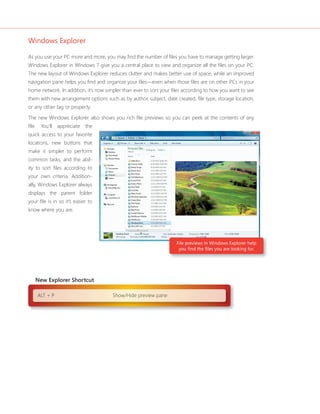
  • 61.
    Windows 7 forYou: Works the Way You Want 60 61 Backup and Restore Even the most reliable PC can be subject to a hardware failure, and even the most careful person can delete a fi le by mistake. When these things happen, it’s important to have a recent backup of impor-tant Backup and restore data—yet many people forget to back up their PCs regularly. Windows 7 helps streamline the backup process. Now you can confi gure backup settings in three quick clicks, capturing all your personal fi les and, if you want, your system fi les too. You can easily schedule regular backups, so you won’t have to remember to do it manu-ally. Choose to back up everything or just specifi c fi les, and then choose from a number of advanced backup options, such as backing up fi les to a network location and performing system backups to DVD. Windows 7 also improves the restore experience, so you can restore individual fi les, selected folders, or all of your personal fi les. You can even re-image or restore your entire PC from a recent backup if your hard disk drive fails or your PC becomes infected with a virus. System Restore If your PC isn’t working properly, you may want to return to a previous confi guration—back to a time when it was running well. However, you still want to retain all of the new data and changes to existing fi les that you’ve made since then. Introduced in Windows XP, System Restore provides a nondestructive way to return your PC to the way it was at a previous point in time, without deleting any of your personal fi les. With Windows 7, System Restore is more reliable, predictable, and effective. You’ll see a list of programs that will be removed or added, providing you with more information on which restore point to choose. System restore points are also available in your backups, giving you more restore points to choose over a longer period of time. More Secure
  • 62.
    Compatible With You A cluttered Windows desktop is like a cluttered desk—it can make it harder to focus on the task at hand. When you start using Windows 7, you’ll immediately notice its clean and uncluttered appearance. For example, the Notifi cation Area in the lower-right corner displays only four icons by default. New icons don’t appear automatically when you install programs. Instead, you control what gets placed where, so your desktop stays clean and refl ects your personal preferences. Of course, you may want to change the desktop and add or delete gadgets and desktop themes. With Windows 7, you’ll fi nd more options than ever. Aero Themes and Aero Background Windows 7 comes with many new themes, so you’ll have more options for making your PC refl ect your personal taste. Each theme includes rich backgrounds, glass colors, and a unique sound scheme. You can download new themes, create your own unique themes, and share your themes with friends and family. And within any theme, you’ll have 16 glass color options to choose from instead of the eight options that are included with Windows Vista. Windows 7 also includes some themes that are customized for specifi c regions of the world. Note: For more information, please see the “Global and Cultural Relevance” section later in this document.) Windows 7 includes numerous personalization options
  • 63.
    62 63 Everwanted to turn your desktop background into a photo slideshow? Then you’ll love Aero Background, the new feature in Windows 7 that lets you choose photos from your PC and display them as your desk-top Desktop samples Place gadgets where you want them. background. Windows 7 for You: Works the Way You Want Compatible With You Gadgets Windows 7 improves the Gadget feature fi rst found in Windows Vista by making gadgets easy to posi-tion anywhere on the desktop and simple to resize. If you like to keep your gadgets at the edges of your screen where they have traditionally resided, they’ll snap right into place as if they were magnets.
  • 64.
    Global and CulturalRelevance Windows 7 offers many desktop themes tailored to different regions and languages, with special wall-papers, sounds, and Aero Glass colors to provide a more locally relevant experience. In addition, Internet Explorer favorites and RSS feeds automatically show you locally relevant content, so you feel right at home. Regional options, such as currency and date format, are set automatically based on the location you choose, and your preferences help shape your experience with the programs on your desktop. Also, multilingual browsing no longer requires font installation or setting updates. Windows 7 supports text display and fonts for more languages too. And fonts are now classifi ed by the languages you’ve enabled for your keyboard. When you want to switch the font in a document, you’ll see only fonts that are relevant to the particular language or languages you use. If you use multiple languages at home or at work, you’ll appreciate the multilingual capabilities in Windows 7. Download the language packs and you can change the display language on your PC to view wizards, dialog boxes, menus, Help topics, and other items in Windows in whichever language you choose. IT professionals can confi gure a single disk image that supports multiple languages. Windows XP Mode Do you want all the benefi ts of the latest PCs but still need to run older business and productivity programs? Windows 7 will run many Windows XP programs with no problem. But for those programs that require a PC running Windows XP, small and medium-sized business customers can use Windows XP Mode.* Windows XP Mode is a virtual Windows XP environment that works on Windows 7 using a virtualization technology, such as Windows Virtual PC. Once installed, you can set up Windows XP Mode with just a few clicks and install your programs within the virtual Windows XP environment. You’ll be able to open your programs right from your Windows 7 desktop and access printers and other USB devices just like you always do. To use Windows XP Mode, your PC will need to support proces-sor- based virtualization. Windows XP Mode runs older programs designed for Windows XP. *Windows XP Mode requires either OEM pre-installation or post-purchase installation of Windows XP Mode (which runs on Windows 7 Professional or Ultimate) and a virtualization technology, such as Windows Virtual PC. You can download both Windows XP Mode and Windows Virtual PC by visiting: www.microsoft.com/windows/xpmode.
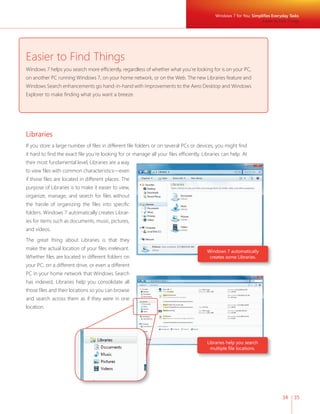
  • 65.
    64 65 AccessYour Windows 7-based PC’s Network Connections You can still access the Internet when you’re working in Windows XP Mode because the network connec-tions of your Windows 7-based PC are always accessible. In addition, you can also connect your virtual Loading an application from a USB device in Windows XP Mode. machine to your company network. Share Files and Folders The Clipboard is shared between physical and virtual machines, so you can copy and paste any infor-mation you want between Windows XP and Windows 7 programs. And because your Windows 7 My Documents folder appears on your virtual Windows XP desktop, you’ll always have easy access to any fi les you need. Access USB Devices When you’re in Windows XP Mode, you can still use the external USB devices attached to your PC running Windows 7. You can also easily access the host CD drive, and print on a local or network printer from within your applications for Windows XP. If a USB device does not appear in the My Computer window, it’s easy to make it available. Just navigate to the USB drop-down menu that appears either in the upper-left hand corner of the Windows XP desk-top window (Desktop Mode), or at the top of the desktop (Full-Screen Desktop Mode). Click the device’s name to use it on the virtual machine. When you’re done, click it once more. Windows 7 for You: Works the Way You Want Compatible With You
  • 66.
    Better Troubleshooting andProblem Solving We created Windows 7 to help give you a trouble-free computing experience. But if problems do arise, Windows 7 notifi es you in more intelligent ways and makes resolution easier and faster. When something in Windows 7 needs your attention, you’ll have one place to go, with troubleshooters that help solve many common problems. Action Center In previous versions, Windows notifi es you that something needs attention on your PC by using pop-ups or other messages. These messages are helpful if the problem requires immediate attention, but they can be very distracting if the problem isn’t urgent. Windows 7 not only helps you solve more problems, but it also helps you solve them on your own schedule. The Action Center, a new, integrated Control Panel experience, is the central place for all tasks and notifi cations associated with keeping your PC running safely and smoothly. It makes it easier for you to fi x problems yourself by providing a new streamlined way to address notifi cations and manage PC issues, including confi guring the User Account Control. You’ll see fewer notifi cations on your desktop because the Action Center consolidates alerts from 10 existing Windows features, including Security Center, Problem Reports and Solutions, Windows Defender, Windows Update, Diagnostics, Network Access Protection, Backup and Restore, Recovery, and User Account Control. When Windows 7 needs your attention, you’ll see a new icon in the notifi ca-tion area. To fi nd out more, click the icon to launch a menu that gives you options to fi x the issue immediately or go to the Action Center for more details. If you don’t have time to address the issue immedi-ately, the information you need will be waiting for you the next time you visit the Action Center. Action Center centralizes all tasks and notifi cations associated with keeping your PC running smoothly. Action Center consolidates alerts and makes follow-up easier.
  • 67.
    Windows 7 forYou: Works the Way You Want Better Troubleshooting and Problem Solving 66 67 Windows Troubleshooting Wouldn’t it be nice if your PC could recognize and solve many common problems, so that you could stay productive rather than calling for help? Windows Troubleshooting—new in Windows 7—diagnoses and resolves common operating system and hardware issues by using built-in troubleshooters for several different types of problems. For example, the printing troubleshooter helps you resolve problems with local printers, such as remov-ing Windows Troubleshooting a job that’s stuck in the print queue, as well as problems related to networked printers at the offi ce. Similarly, the power-effi ciency troubleshooter runs a simple test to determine the percentage degradation in storage capacity for your portable PC’s battery, so that you can be proactive in replacing a battery that’s near the end of its useful life. To launch the troubleshooting platform, just go to the Start menu and type fi x or trou-bleshoot. A wizard will launch automatically. Other troubleshooters in Windows 7 run in the background on a scheduled basis. If these troubleshooters discover a problem, they’ll let you know in the Action Center. With Windows 7, it’s easier than ever to perform tasks like cleaning up temporary fi les, detecting hard disk errors, removing broken shortcuts, and ensuring that the system time is correct. Windows 7 has built-in troubleshooters for many categories, as shown in the following table. New and updated troubleshooters provided by Microsoft and your PC vendor will be posted online for you to download. In addition, businesses can create their own troubleshooters. For more details, please see the “Windows 7 for IT Professionals” section of this guide.
  • 68.
    Built-in Troubleshooters inWindows 7 Troubleshooter Description Aero Troubleshoot problems that prevent you from experiencing Aero animations and effects. Browse the Web Troubleshoot problems that prevent you from browsing the Web with Internet Explorer. Connection to a Shared Folder Access shared fi les and folders on other PCs. Connection to a Workplace Using Direct Access Troubleshoot problems that prevent you from connecting to your workplace network over the Internet using DirectAccess. Hardware and Devices Troubleshoot problems with hardware and devices. HomeGroup Networking Troubleshoot problems that prevent you from viewing PC or shared fi les in a homegroup. Incoming Connections to This Computer Allow other PCs to connect to this computer. Internet Connections Connect to the Internet or to a particular Web site. Maintenance Clean up unused fi les and shortcuts, and perform other maintenance tasks. Network Adapter Troubleshoot Ethernet, wireless, or other network adapters. Performance Adjust settings in Windows that can help improve overall speed and performance. Play a DVD in Windows Media Player Troubleshoot problems that prevent a DVD from playing in Windows Media Player. Play Sound Troubleshoot problems that prevent your PC from playing sound. Power Adjust power settings to improve battery life and reduce power consumption. Printer Troubleshoot problems that prevent you from using a printer. Program Compatibility Troubleshooter Troubleshoot a program that doesn’t work in this version of Windows. Record Sound Troubleshoot problems that prevent your PC from recording sound. Web Browsing Safety Adjust settings for browser safety in Internet Explorer. Windows Media Player Library Troubleshoot problems that prevent music and movies from being shown in the Windows Media Player Library. Windows Media Player Settings Reset Windows Media Player back to default settings.
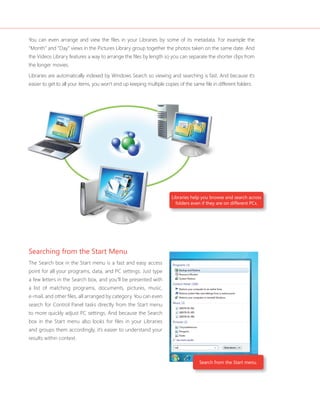
  • 69.
    Windows 7 forYou: Works the Way You Want Better Troubleshooting and Problem Solving 68 69 Startup Repair Startup problems can be diffi cult to troubleshoot, because if you can’t start the operating system you can’t use the built-in troubleshooting tools. In the past, you or your support professionals may have found it easier to reinstall your operating system than troubleshoot, even though the solution may be as simple as replacing a single fi le. And although Windows Vista provides an automated Startup Repair tool to diagnose and recover unbootable systems, the tool requires extra steps if the operating system is on a different partition. Windows 7 automatically installs the Startup Repair tool onto the operating system partition, so you’ll always have access to it. After an unsuccessful boot, Windows 7 automatically loads Startup Repair, which scans your PC for issues (such as corrupt registry and system fi les or an invalid Boot Confi guration Data-base), automatically repairs fi les when possible, and then reboots as normal. Note: For more information on this feature, please see the “Windows 7 for IT Professionals” section of this document.
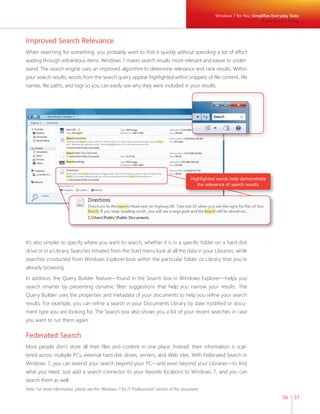
  • 70.
    Windows 7 forYou: Makes New Things Possible As new technologies emerge, we’re busy translating them into exciting new experiences that are sophisticated, yet fun and easy to use. We’re providing new ways for you to view TV, listen to and share music, and bring your PC to life with multi-touch technology. And when you need to work remotely, you’ll have more ways to maintain productivity and stay connected with your family and colleagues. Media the Way You Want It Today we have access to more digital media than ever, with options that range from DVDs to digital music and Internet TV. Windows 7 brings your media world together, whether you’re listening to music, watching TV and movies, playing games, or creating rich photo experiences. And that means you can enjoy your media when you want and where you want.
  • 71.
    Windows 7 forYou: Makes New Things Possible Media the Way You Want It 70 71 Windows Media Center With a streamlined user interface and support for new content types and digital TV, Windows Media Center in Windows 7 makes viewing TV, movies, and other media content on your PC easier than ever. The new Electronic Program Guide (EPG) in Windows Media Center brings together both broadcast and Internet TV so you can fi nd all your favorite programs in one place. Internet TV Windows 7 pulls the growing amount of media content on the Internet into the Windows Media Center experience. You can choose from a variety of online TV shows and movies, all organized and view-able with a consistent look and feel. With a broadband connection, Windows Media Center is populated auto-matically with Internet TV channels and content, which are conveniently organized in the familiar program guide for easy discovery. Note: Internet access is required. Free Internet TV content varies by geography. Some content may require additional fees. Digital TV Turn your PC into a digital video recorder by adding a broadcast TV tuner, which you can fi nd at many popular retail electronics stores. Windows 7 Media Center includes support for a wide range of TV standards to meet the needs of television viewers around the world. Digital TV in Windows 7 works in more than 20 global markets, with certifi ed support for the United States ATSC and QAM cable standards, Japan’s ISDB standards (ISDB-T and ISDB-S), Euro-pean DVB TV standards (DVB-T, DVB-S), and Pay TV standards. Electronic Program Guide consolidates Internet TV and broadcast TV. Recorded TV
  • 72.
    Sharing TV aroundthe Home If you have multiple PCs running Windows Media Center in your homegroup, you can access recorded TV Libraries—in addition to your music, photos, and videos—on those different PCs. You can also copy a TV show to your laptop to enjoy on the go. Windows Media Center in Windows 7 makes sure that all unprotected Windows TV recordings can be discovered, played, and copied by any PC running Windows 7 in your homegroup. Enhanced UI Through its enhanced user interface (UI), Windows 7 Media Center makes TV as personal as your PC. It’s easy to set up, and fast to fi nd the media you want. For example, with the new Turbo Scroll feature, you can quickly move through a large Library or TV guide by pressing and holding the right arrow button. When viewing a recorded TV show, you can quickly jump to a specifi c spot in a show by clicking the Seek bar. Watching a live show and want to see what else is playing? A mini guide can be viewed on top of your show. And because Windows Media Center is touch-enabled, with a touch-enabled monitor you can use your fi nger to navigate the start menu, program guide, and photo galleries—or even slide your fi nger across the program guide screen to turbo-scroll through listings. Note: Some product features of Windows 7, such as the ability to watch and record live TV, may require advanced or additional hardware. Pull up the mini guide to see what else is playing—while you are watching.
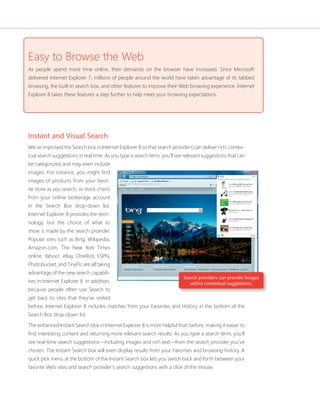
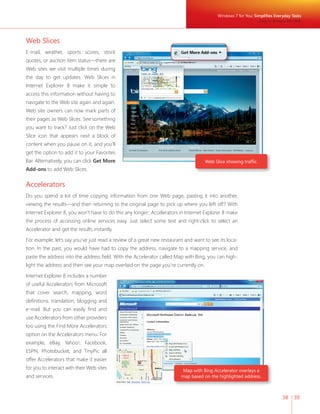
  • 73.
    72 73 WindowsMedia Player Windows Media Player in Windows 7 plays more media and delivers a richer media experience than earlier versions. Whether you want to listen to your favorite songs while you’re working or watch a DVD in full-screen mode, playback starts quickly and remains consistent. Windows 7 can also play more types of media than ever before, so you can play more of your content without having to switch players or download additional software. Listen to and View More Media Are you tired of having to use different media players to listen to, view, transfer, and manage different media formats? Windows 7 supports more media formats, making it easier for you to manage and play your media from one place—and to synchronize your media with a broad range of devices. In most cases, if your device doesn’t support the fi le type you’re synchronizing or streaming, Windows will convert that content into a format that the device you selected will play. For example, let’s say you want to sync a movie you captured with your Flip Video camera from your PC running Windows 7 to a portable media player that does not natively support Flip Video movies. If the portable media device features a Compatible with Windows 7 logo, the fi le will automatically be converted during the sync to a format your portable device can play. Windows 7 features built-in playback support for many common media formats, including WMV, WMA, MPEG-4, most iTunes non-digital rights managed content (including audio and video podcasts), FlipVideo fi les, most DivX and XviD fi les, and most AVI fi les. Windows 7 also supports playback of most MOV fi les that are produced by digital cameras and camcorders. Windows 7 Home Premium, Professional, Enterprise, and Ultimate editions will also play video from popular high-defi nition digital camcorders (AVCHD). Now Playing Mode Enjoying your favorite media on your PC has never been simpler. Windows Media Player includes a new lightweight playback mode. The compact size changes depending on whether you’re playing a song or video, and the UI is streamlined for playback, with pause, skip, and volume controls presented in an uncluttered interface that fi ts comfortably into a window on your desktop. Now Play-ing Mode is particularly useful when you have many windows open because it makes it easy to control your playback expe-rience without overtaking your screen. Now playing mode Windows 7 for You: Makes New Things Possible Media the Way You Want It
  • 74.
    Improved Content Filtering In Windows 7, content that cannot be played, such as Apple’s Lossless .M4A or H.263 MPEG-4 content, will no longer appear in the music or video library view so you don’t get distracted by fi les that won’t work. But if you need to get them for some reason, these fi les will still be listed in the Other Media library in Windows Media Player. Better Access to your Media With Windows 7, you always have quick access to media and how it’s played. For instance, Libraries (described earlier) make it easy to browse and access photos, music, and videos on other PCs and devices on your home network. The content of Jump Lists in Windows Media Player on the Start menu and Windows Taskbar changes based on what you play, helping you quickly get to the media you use the most. Then, as you’re playing music, you can rest the mouse pointer on the Windows Media Player taskbar thumbnail to access playback controls or to just see the title of the song that’s playing. Windows Media Jump Lists change based on what you play. Windows Media player taskbar thumbnail includes playback controls.
  • 75.
    Windows 7 forYou: Makes New Things Possible 74 75 Media Streaming As you acquire more PCs and devices, you’ll have more physical places to store your music, photos, and video. But what if all your music is on a laptop, yet you want to play it on your main PC with the great speakers? Now, with Media Streaming, you can. When you join a homegroup or set up media streaming from within Windows Media Player, the music, pictures, and videos you want to access will be immediately available on other PCs and devices that are part of your homegroup, and, if you choose, can even be shared with PCs that are not part of your homegroup. The new media sharing experience in Windows 7 is easier than ever to set up—and you can add new PCs, media servers, and playback devices at any time. Windows 7 also makes it simpler to fi nd the settings you want to change and to under-stand your choices. And of course, you can always restrict access to media you don’t wish to share. Stream media to other devices on your home network. Play To Do you have media on your PC that you want to play on your home entertainment system? More and more consumer electronics devices have the capability to connect to networks or to the Internet. However, the user interfaces on those devices can be inconsistent or diffi cult to use, especially if you have a large collection of digital media. Windows 7 helps you use your home audio-video system and other networked media devices to play music, watch videos, and display photos from your PC. Using your PC as a controller, you can stream digital media directly to a supported device on your home network such as a Compatible with Windows 7 Digital Media Receiver, another PC running Windows 7, or an Extender for Windows Media Center, such as an Xbox 360® video game and entertainment system console. With Play To, you can stream digital media to devices on your home network. Media the Way You Want It
  • 76.
    For example, sayyou’re sitting on your couch, using your laptop to read e-mail or surf the Web, and you’d like to listen to some music, but your laptop speakers don’t sound good enough. With Windows 7, you can open Windows Media Player, right-click the song, album, or playlist you’d like to hear, select Play To, and you’ll see a list of supported devices and PCs on which you can play your music. In most cases, if your media receiver cannot play the fi le format for your media, Windows 7 will automatically detect that and translate the fi le into a format that your media receiver can play. With Play To, you can use your PC as a controller to stream digital media to supported devices. Windows 7 supports the Digital Living Network Alliance (DLNA) v.1.5 standard, so you’ll have access to many different devices and functionality. You can use your PC running Windows 7 to stream media to network media devices that feature the Compatible with Windows 7 logo, which incorporates the DNLA v1.5 specifi cation.
  • 77.
    76 77 RemoteMedia Streaming If you’re like most people, your home PC is the central place where you store and enjoy your photo, music, and video collections. But you probably also often take your laptop to other locations such as hotels, airports, or coffee shops. Windows 7 offers Remote Media Streaming, which allows you to access your home-based digital media Libraries over the Internet from another PC running Windows 7 outside the home. Just associate two or more PCs running Windows 7 with your online ID provider credentials (such as your Windows Live e-mail address and password) and allow Internet access to your media. Windows Media Player displays and plays the media Libraries from remote PCs the same way it does for those on a home network. You can even stream content from any other PC in your homegroup that has enabled Remote Media Streaming. Note: Corporate networks often block home media streaming, so accessing media libraries from other PCs over the Internet may not be possible. Associate two Windows 7 PCs and allow Internet Access to use Remote Media Streaming. Access home-based digital media Libraries over the Internet from another PC running Windows 7. Windows 7 for You: Makes New Things Possible Media the Way You Want It
  • 78.
    Outstanding Sound Whetheryou’re playing music, watching a video, or listening to voicemail through your PC, you want a high-quality sound experience. With improved sound management features in Windows 7, you’ll get great sound for both entertainment and communications. For instance, Windows 7 automatically routes sounds—such as music, calls, and Windows sounds—to the right devices. The new HDMI feature means you can stream mono, stereo, or multichannel, high-defi nition audio and video using a single HDMI cable. Windows automatically detects the capabilities of the device and adjusts the sound settings for the right format and number of speakers. Gaming For many people, gaming is a favorite pastime. Windows 7 includes new features and technology that improve gaming. Windows 7 includes six basic games: FreeCell, Hearts, Minesweeper, Purble Place, Soli-taire, and Spider Solitaire. Home Premium, Professional, Enterprise, and Ultimate editions also include fi ve additional premium games: Chess Titans, Mahjong Titans, and three new online multiplayer games—Internet Backgammon, Internet Checkers, and Internet Spades.. Premium Games (clockwise from top): Internet Spades, Internet Checkers, Internet Backgammon, Chess Titans
  • 79.
    78 79 GamesExplorer Games Explorer is the center for gaming on Windows 7. Just type games in the Windows Search box, and you’ll see all your games organized in one central location. Games Explorer provides information about games, such as game play statistics, ratings, and requirements. In addition, you can fi nd new games or more information about your favorite games from online Game Providers right from Games Explorer. With the Game Update feature within Games Explorer, you can request to be notifi ed whenever there are updates for your games. And as mentioned in the “Parental Controls” section of this guide, you can even specify which PC games your children can play. Games Explorer Control what games your children can play through Parental Controls. Windows 7 for You: Makes New Things Possible Media the Way You Want It
  • 80.
    A notifi cationappears any time an update is available. 64-bit Gaming If you’re a gamer, you know how graphics, sound, and interaction capabilities are becoming richer. You probably also know that the hardware limitations of 32-bit PCs can limit your gaming experience. As more people start using 64-bit PCs, more games will be available to take advantage of its powerful processing. And because Windows 7 fully supports 64-bit PCs, you’ll be ready when they arrive. DirectX: Direct3D 11 As part of the newest DirectX Graphics Technology Platform, Direct3D® 11 helps game developers create high performance games with richer, more realistic graphics. With a DirectX 11 compatible graphics card, you’ll be playing games with higher frame rates, more organic, realistic looking characters, smarter arti-fi cial intelligence, and more natural-looking effects. A large subset of the Direct3D 11 feature set is also available on existing DirectX 10-compatible graphics cards. (See also DirectX 11: DirectCompute in the “Works the Way You Want” section.)
  • 81.
    Windows 7 forYou: Makes New Things Possible 80 81 Work Anywhere We live in a mobile world, taking our laptops and devices with us as we move between home, work, and other places. With Windows 7, you can easily get online and stay online as you move from place to place. Whether you’re switching from one network to another, attempting to access the Internet from a device, or taking advantage of mobile broadband, Windows 7 helps keep you connected. Location aware printing—set a different default printer for different networks. Viewing available networks Mobile Broadband Work Anywhere Location Aware Printing Do you use one printer at home and another at work? With Windows 7, you no longer need to select the printer each time you’re in a different place. Instead, you can select a default printer for each network location you’ve confi gured, and Windows 7 will automatically use that printer when you’re connected to that network. So when you print at work, Windows 7 will automatically print to your work printer. When you print at home, Windows 7 will automatically select and use your home printer. View Available Networks Windows 7 improves how you view and connect to all of your networks, making the process simple and consistent. You’ll always have one-click access to available networks, regardless of whether those networks are based on Wi-Fi, mobile broad-band, dial-up, or your corporate VPN. Mobile Broadband With Windows 7, it’s much simpler to connect your PC to the Internet using a wire-less data card, regardless of which mobile provider you use. It’s just like connecting to any other wireless network, which can be accomplished by using the View Avail-able Networks feature, mentioned above. You don’t need to install any additional software—just insert your wireless data card, your drivers will be installed on fi rst use and your PC will connect to the Internet automatically. And if your PC has a built-in data card, you’ll be connected to the Internet wherever there’s mobile service.
  • 82.
    DirectAccess With Windows7, working from locations other than your offi ce becomes even simpler. With DirectAc-cess, you can more securely connect to your corporate network over any Internet connection—without having to use VPN technology. It’s easy to connect to corporate resources whenever you have an Inter-net connection and, in most cases, it will seem as if you are connecting from your desktop computer at work. You can also still access public Web sites without going through your work network. When you use DirectAccess, your IT department can administer your PC whenever it’s connected to the Internet, so you can easily stay up-to-date with company policies. Note: For more information on this feature, please see the “Windows 7 for IT Professionals” section of this document. VPN Reconnect You may still need to use a VPN if your company can’t start using DirectAccess right away. In Windows 7, VPNs are easier to use than before. In the past, when using a VPN connection, you had to redial whenever you lost your Internet connection. VPN Reconnect in Windows 7 keeps you connected by automatically reestablishing a VPN connection any time you temporarily lose your Internet connection. Note: For more information on this feature, please see the “Windows 7 for IT Professionals” section of this document. Offl ine Access to Network Sources When you’re out of the offi ce and don’t have an Internet connection, Offl ine Files provides a great way to continue to work with documents and fi les that are stored on your corporate network. For example, while traveling on a long fl ight, you can work on a copy of a fi le that’s cached on your PC, and any changes you make will automatically be synchronized with the server the next time you connect to the corporate network. Before Windows 7, when IT professionals implemented Offl ine Files, you had to wait for fi les to be moved to the server when you logged on for the fi rst time. Windows 7 eliminates this delay by fi rst copying data fi les to the local Offl ine Files cache and then synchronizing the cache with the server in the background. Note: For more information on this feature, please see the “Windows 7 for IT Professionals” section of this document. Offl ine fi les are quickly synched with your work server when you reconnect to your corporate network.
  • 83.
    Windows 7 forYou: Makes New Things Possible 82 83 XPS Documents XML Paper Specifi cation (XPS) documents are fi xed-format documents that you can share and archive in a high-quality, effi cient format. XPS documents can be opened without having the original program in which the document was created, so you can easily share your work. You can preview XPS docu-ments within the Windows Explorer or Microsoft Offi ce Outlook® messaging and collaboration client preview panes. With Windows 7, it’s easy to create XPS documents using the Microsoft XPS Document Writer. Available from any program that you can print from, just select the XPS Document Writer rather than a physical printer from the print dialogue and follow the prompts to create your document. Offi ce 2007 users can also use the Save as XPS function from the Save As menu to create XPS documents from Offi ce 2007 applications. Windows 7 also provides a richer viewing experience with the XPS Viewer. The improved experience features a more streamlined user interface, easier ways to navigate through the document, and relevancy-ranked XPS searches. You can even display pages as thumbnails to get an interactive view of several pages at once, which is great for visually searching through long documents. Finally, you can use the XPS Viewer to digitally sign XPS documents and, if your company uses Windows Rights Management Services, control who can open an XPS document and what they can do with it. XPS Viewer showing pages as thumbnails. Work Anywhere Create XPS fi les from any application that allows you to print.
  • 84.
    New Ways toEngage As new technologies emerge, Microsoft is working to translate them into exciting new experiences. Windows 7 builds on the work we’ve done in next-generation user interfaces, moving beyond the mouse and keyboard so that you can interact with your PC with multitouch gestures, handwriting, or voice. In addition, Microsoft continues to add support for Tablet PCs and to extend and improve accessibility options. Windows Touch Humans are tactile beings, with brains that are wired for touch. PCs and devices can come to life in entirely new ways when you use your fi ngers to control what happens on the screen, making PC use simple and intuitive. Instead of pointing and clicking, you just touch and tap. Pan the screen to scroll through Web pages and lists and tap to launch programs and open documents. Sort and resize photos more naturally. With Windows 7 and a touch-enabled monitor, virtually any program that works with Windows now responds to your touch. (Shown here: Microsoft Surface Collage, part of the free Microsoft Touch Pack for Windows 7) The Start menu is touch friendly. Use your fi ngers to sort and resize photos.
  • 85.
    Windows 7 forYou: Makes New Things Possible 84 85 Windows 7 is touch-friendly throughout. For instance, the Start menu, Windows Taskbar, and Windows Explorer all have bigger icons that are easier to select with your fi nger. You can use your fi nger to arrange the pictures in a photo album or scroll through and select recorded TV in Windows Media Center. You can also control what happens on the screen by using more than one fi nger. Zoom in on an image by moving two fi ngers apart, or zoom out by moving two fi ngers closer together, like you’re pinching some-thing. Rotate an image on the screen by rotating one fi nger around another, or right-click by holding one fi nger on your target and tapping the screen with a second fi nger. The multitouch features built into Windows 7 also provide a rich platform for software developers, giving them full access to multitouch data and manipulation APIs for stretching, rotating, or moving objects. Note: Some product features of Windows 7, such as the ability to watch and record live TV or navigation through the use of touch, may require advanced or additional hardware. New Ways to Engage
  • 86.
    Tablet PC Enhancements Windows 7 improves the Tablet PC with greater accuracy and speed for handwriting recognition, support for handwritten math expressions, personalized custom dictionaries for handwriting recognition, and more. Improved Handwriting Recognition The Tablet PC writing surface has been completely re-designed so that handwriting is converted to text automatically as you write. When combined with the new editing gestures and smart correction (correcting one character will automatically update the rest of the word to match it) you’ll experience new fl exibility and effi ciency during handwriting input. In fact, you’ll notice much better handwriting-recognition accuracy and speed for all supported languages including Chinese Simplifi ed, Chinese Traditional, Japanese, and Korean. Handwriting on the Tablet PC Handwritten Math Expressions If you work with math expressions, you’ll be especially pleased with how you can use handwriting recog-nition to enter those expressions in Windows 7. The Math Input Panel is a new accessory that recognizes handwritten math expressions, provides a rich correction experience, and inserts math expressions into target programs. Text Prediction for Touch Keyboard When using the Touch keyboard in Windows 7, text prediction helps you enter text more effi ciently. Just type a few letters and you’ll be offered a list of words that match. Based on the words you use frequently and the corrections that you make, Windows 7 will become even better at predicting what you type over time. The redesigned keyboard also offers better support for using your fi ngers with features like the glow feedback (that shows you the key you tapped), automatic larger size when used with touch vs. a pen, and Web keys to make entering Web addresses even easier. Custom Dictionaries If you need specialized vocabularies, you’ll fi nd it easier to create and install custom dictionaries that will improve handwriting recognition. For instance, if you’re a doctor, you can add medical terminology. Support for Additional Languages In addition to the 12 languages supported by Windows Vista, Windows 7 adds handwriting support for Swedish, Danish, Norwegian, Finnish, Portuguese (Portugal), Polish, Russian, Romanian, Catalan, Serbian Latin, Croatian, Serbian-Cyrillic, and Czech. Text Prediction with pen input has been expanded from Windows Vista too. Note: Windows Vista supports handwriting recognition for Tablet PCs in 12 languages: English (U.S.), English (U.K.), German, French, Spanish, Italian, Dutch, Portuguese (Brazil), Chinese Simplifi ed, Chinese Traditional, Japanese, and Korean.
  • 87.
    Windows 7 forYou: Makes New Things Possible 86 87 Accessibility Windows 7 enhances the accessibility options that are so important to people with special needs. From more personalized speech recognition to a new on-screen layout, Windows 7 is more accessible to everyone. Speech In Windows 7, we’ve improved the accuracy of Windows Speech Recognition so that you can dictate to your PC in many common programs and tell it what to do. For instance, you can easily dictate an e-mail by speaking the recipient’s name and the content of the message. Magnifi er Use Magnifi er whenever you need to magnify the entire screen or parts of it. It’s particularly helpful for people who are visually impaired or have diffi culty seeing the screen, but it can be used anytime you want to see an object better—even when using a small notebook PC. You can use full-screen mode to magnify the entire desktop or lens-mode to magnify only a portion of the screen. In Windows 7, Magnifi er works with DirectX content and supports the use of a pen, touch, and keyboard shortcuts in full-screen magnifi cation. On-Screen Keyboard The on-screen keyboard in Windows 7 has a new look, and now includes personalized word and next-word prediction based on the same technology used for the Tablet PC. If you’re unable to use a standard keyboard, this feature can dramatically improve how fast you enter words. On-Screen keyboard New Ways to Engage New Accessibility Shortcuts + + Zoom in + - Zoom out
  • 89.
    89 89 Windows7 for IT Pros As people become increasingly computer-savvy, they expect more from the technology they use at work. They expect to be able to work from home, from branch offi ces, and on the road, all without a decrease in productivity. As their needs have grown, so have the demands placed on IT professionals, who are being asked to deliver new capabilities and support greater fl exibility, while continuing to reduce risk and minimize costs. With Windows 7, you can meet diverse needs in a way that’s more manageable. Enhanced security and control reduce the risk associated with data on lost PCs or external hard disk drives. Streamlined PC management means it takes less work to deploy Windows 7 and keep it running smoothly. And because Windows 7 is based on the Windows Vista foundation, companies that have already deployed Windows Vista will fi nd that Windows 7 is highly compatible with existing hardware, software, and tools. In other words, Windows 7 works the way you want it to.
  • 90.
  • 91.
    Make People ProductiveAnywhere Windows 7 helps your people be productive no matter where they are or where the data they need resides. They won’t have to look in multiple places to fi nd information because a single search can examine a Microsoft SharePoint® team services site on a company intranet in addition to fi les on their PCs. With DirectAccess, mobile workers can more simply and securely access corporate resources when out of the offi ce, without dialing a VPN. Workers in branch offi ces with slow connections will be more productive because BranchCache in Windows 7 can increase the network responsiveness of centralized applications accessed from remote offi ces. Manage Risks Through Enhanced Security and Control Windows 7 builds on the foundation of Windows Vista by adding more fl exibility in securing PCs and data. Businesses using Windows 7 can worry less about the loss of sensitive data because they can protect inter-nal PC hard disks with BitLocker and use BitLocker To Go to encrypt external thumb drives and hard disks. Both BitLocker and BitLocker To Go provide recovery keys so that the data is accessible when needed. Enterprises that demand the highest levels of compliance can use AppLocker to dictate which applications are allowed to run on user PCs, providing yet another way to limit the risk of malicious software. Reduce Costs by Streamlining PC Management Whether you manage and deploy desktops, laptops, or virtual environments, Windows 7 makes the job easier while helping you use the same tools and skills you do with Windows Vista. Advanced image management and deployment tools help you add, remove, and report on drivers, language packs, and updates—and push those system images out to PCs using less network bandwidth. New scripting and automation capabilities based on Windows PowerShell™ 2.0 command line interface will reduce the costs of managing and troubleshooting PCs. For companies making the leap to client virtualization, Windows 7 helps maintain virtual machine images and provides a richer user experience over remote connections. Optimize the Desktop with Microsoft Desktop Optimization Pack The Microsoft Desktop Optimization Pack (MDOP), which is updated at least once a year, completes the enterprise experience. By using Windows 7 and the MDOP together, companies can optimize their desktop infrastructure and gain the fl exibility to address their unique business needs. (The MDOP is an optional, additional subscription for Microsoft Software Assurance customers.)
  • 92.
    Windows 7 forIT Pros: Make People Productive Anywhere With Windows 7, you can respond to the need to make your workers productive on a range of applications, locations, and devices. They can access information more easily whether they’re on the road or in branch offi ces, and they can search in more places, including remote data sources and locations within the enterprise. And through it all, you’ll see the improved performance and reliability that helps keep productivity high and reduces calls to your help desk. Remove Barriers to Information Windows 7 removes barriers that keep people from getting to their information, regardless of where it’s stored, and helps them stay productive no matter where they are. They’ll get even more fl exibility when their companies take advantage of the Microsoft Desktop Optimization Pack, which includes virtualization technologies that give them access to their desktop and applications from almost any PC.
  • 93.
    Windows 7 forIT Pros: Make People Productive Anywhere Remove Barriers to Information 92 93 Search and Federated Search In Windows 7, search is better integrated with enterprise infrastructures to help people more easily fi nd the information they need. They can search in more places more easily—including remote data sources and within encrypted fi les—and IT professionals can publish important search locations through Group Policy. In addition, Windows 7 search signifi cantly reduces the impact of indexing e-mail in Microsoft Exchange Server when Cached Exchange mode is disabled. Search results in Windows 7 are more relevant and simpler to under-stand, and workers can easily narrow down or expand the locations being searched. In addition, Federated Search provides out-of-the-box support for searching beyond the user’s PC. Developers and IT profes-sionals alike can confi gure document repositories, Web applications, and proprietary data stores to be searched from Windows 7, with-out writing and deploying client Search Federation code. This ability enables people to search these remote indexes easily as they search their local fi les—all from within the same familiar Windows interface. Federated Search supports the public OpenSearch 1.1 standard, so with a few minor updates, Web developers can take advantage of existing investments in RSS lists to quickly return results to Windows 7. In most cases, this represents a few days’ work for a Web developer. After a server has been made capable of responding to OpenSearch requests, a simple data-driven install fi le (called an Open Search Description File) is used to integrate the search results into Windows Explorer in Windows 7. These Open Search Descriptors can be placed on Web sites so that people can install them in a manner similar to subscribing to an RSS feed today. Offi ce SharePoint Server 2007 and many third-party products already support Federated Search, so companies can immediately begin taking advantage of this feature in Windows 7.
  • 94.
    Federated search uses OpenSearch 1.1 Enterprise Search Scopes Making it easy to discover and search intranet sites can help organizations maximize their return on these investments. With Windows 7, you can deploy up to fi ve pre-defi ned links or search scopes through Group Policy on worker PCs to direct them to the right data sources and help them more easily fi nd what they need. Enterprise Search Scopes appear on the Start menu and at the bottom of the search results in Windows Explorer in the Search Again In section of the search box. Defi ne up to fi ve pre-defi ned search scopes.
  • 95.
    Windows 7 forIT Pros: Make People Productive Anywhere Access Information from Anywhere 94 95 Access Information from Anywhere Whether traveling for business, taking work home at night, or simply bringing a portable computer to a meeting in the conference room down the hall, mobility is essential to a worker’s computing experience. As a result, more organizations are helping their people work from anywhere. Windows 7 makes it easy for workers to get connected and stay connected, regardless of location or type of network. Windows 7 not only supports the needs of employees, but it also helps you meet those needs securely, reliably, and cost-effectively. More Secure Access and PC Management with DirectAccess More people are working from places other than the offi ce and accessing corporate network resources securely and maintaining connectivity using remote access solutions, such as VPN, can add complexity and effort. It’s also harder for you to manage those mobile PCs. DirectAccess is a new feature that helps solve both these issues. Using DirectAccess, workers can easily navigate to intranet sites or internal fi le shares and access documents from remote locations, without establishing a VPN connection. Because it’s based on IPv6 technology, DirectAccess also streamlines the management of remote comput-ers. You no longer need to wait for users to return to the offi ce to or connect to VPNs to update PCs. Instead, you can keep these remote computers up-to-date with required policies or updates any time the computers connect to the Internet—even if they aren’t logged on to the corporate network. DirectAccess also helps improve security by taking advantage of IPsec for authentication and encryption. As an IT administrator you can confi gure the DirectAccess server to restrict the servers that workers and individual applications can access remotely, and choose whether they require smart cards for authentica-tion. Furthermore, smart card support does not require Windows 7 Domain Functional Mode because it now focuses only on edge enforcement rather than both edge enforcement and local client enforce-ment. (Please note that the option to enforce smart cards for all interactive logons is not available in the DirectAccess wizard. If a smart card is required, an enhanced user notifi cation will help inform the user.) DirectAccess integrates with Network Access Protection (NAP) to perform compliance checking on client computers before allowing them to connect to internal resources.
  • 96.
    By default, Windows7 does not deploy DirectAccess automatically. If you choose to enable DirectAccess, you will need to deploy Windows 7 Enterprise Edition or Windows 7 Ultimate Edition on worker PCs. You will also need to deploy Windows Server 2008 R2 DirectAccess Server on the edge of your network. Note: For more information on this feature, please see the “Windows 7 for You” section of this document. DirectAccess clients access the intranet using IPv6 and IPsec. VPN Reconnect While many organizations can use DirectAccess as their only way to connect remotely, some may still need to use VPN technology. VPN Reconnect (also described in Windows 7 for You) keep workers productive and connected. By using Internet Key Exchange version 2 (IKEv2) technology to provide consistent VPN connec-tivity, it automatically reestablishes a VPN when users temporarily lose their Internet connections. RemoteApp and Desktop Connections Many companies want to host client applications centrally because of concerns over security, continual cost pressures, and the need to support remote workers. For many years, Microsoft Terminal Services RemoteApp® network software technology met this need. In previous versions of Windows, however, the user experience for Terminal Services-hosted applications was noticeably different than that of client-hosted applications. With RemoteApp and Desktop Connections, you can enable a better remote experience while keeping costs in check and maintaining security and control. Now, it’s easier for workers to connect to remote applications and remote desktop sessions from any PC running Windows 7, no matter where they are. Once connected, they can launch sessions from the Start menu, just as they do for local applications. Even better, each application launches, looks, and feels as if it’s running locally, and new programs appear automatically on the Start menu as they become available. And with the addition of support for audio recording, multimedia playback, and more, the experience will be remarkably similar to running programs locally on your PC. Note: Although the names are similar, RemoteApp and Desktop Connections should not be confused with Remote Desktop. RemoteApp and Desktop Connections provides a way for users to more intuitively access centrally hosted desktops and programs that run on a server, under Terminal Services, as typically deployed and managed by a company’s IT department. Remote Desktop is typically used to access one PC running Windows from another.
  • 97.
    Windows 7 forIT Pros: Make People Productive Anywhere Access Information from Anywhere 96 97 Folder Redirection and Offline Files Using Folder Redirection and Offline Files is a convenient way for people not connected to the corporate network to access files stored on a central server. Windows 7 reduces initial wait times and improves branch office and remote access scenarios by operating in a Usually Offline mode when users are not connected to the same local area network (LAN) as the central server. Any changes made to copies of files that are cached on a user’s computer are synchronized to the central server the next time that person connects to the corporate network. Windows 7 makes it easier to manage Folder Redirection and Offline Files. For example, you can use Group Policy to prevent specific types of files (such as music files) from being synchronized to the server. Administrators can also control when offline files are synchronized with the server, set up specific time intervals for synchronization, block out other times for bandwidth management, and configure a maxi-mum stale time after which files must be resynchronized. Users can rename and delete folders even while in the offline mode. If network latency slows, and a share is transitioned into the slow-link mode, the share will automatically transition back to the online mode if network latency improves. Improved Roaming User Profiles Windows 7 makes Roaming User Profiles more useful and reliable because you can now automatically synchronize user settings with the data server while workers are still logged on, rather than waiting until after they log off.
  • 98.
    BranchCache For branchoffi ces, network bandwidth limitations and latency in application response times can nega-tively affect productivity. We introduced Background Intelligent Transfer Service in Windows XP and the Distributed File System Replication service in Windows Server 2008 to help resolve these issues. Branch- Cache in Windows 7 and Windows Server 2008 R2 is the next step for improving worker productivity in branch offi ces and giving them an experience more like working in the main offi ce. By caching content from remote fi le and Web servers in the branch location, workers can more quickly access the informa-tion they need. BranchCache can operate in one of two modes: • Distributed Cache. Using a peer-to-peer architecture, Windows 7 client computers cache copies of fi les and send them directly to other Windows 7 client computers as necessary. Improving performance is as easy as enabling BranchCache on your Windows 7 client and Windows Server 2008 R2 PCs. Distributed Cache is especially benefi cial for branch offi ces that do not have a local server. • Hosted Cache. Using a client/server architecture, Windows 7 client computers cache content to a computer on the local network running Windows Server 2008 R2, known as the Hosted Cache. Other clients that need the same content retrieve it directly from the Hosted Cache which offers more reliable availability than Distributed Cache. Hosted Cache does not require a dedicated machine, making it ideal for branch offi ces with server hardware already installed. Hosted Cache can be confi gured on a branch fi le server, read-only domain controller, ISA server and more, while the Hosted Cache computer can run the Server Core. Hosted Cache can be confi gured on existing server hardware within a branch.
  • 99.
    Windows 7 forIT Pros: Make People Productive Anywhere Access Information from Anywhere 98 99 BranchCache supports the same network protocols that are commonly used in enterprises—HTTP(S) and SMB—so that any applications based on these network protocols will automatically benefit from the technology. Examples of these applications include Microsoft Office SharePoint 2007, Internet Explorer, CopyFile, and others. For example, Windows Media Player uses the HTTP protocol so internal training videos can be cached and viewed more efficiently by branch office users. BranchCache also supports network security protocols (such as SSL and IPSec), helping ensure that only authorized PCs can access requested data. To implement BranchCache, you need to install Windows Server 2008 R2 on the remote file servers, Web servers, and optionally the branch office server on which the cache is hosted. Transparent Caching Before Windows 7, client PCs always retrieved the file from the server computer to open a file across a slow network—even if the client PC had recently read the file. With transparent caching in Windows 7, client PCs cache remote files more frequently, which helps reduce the number of times a client PC has to retrieve the same data from a server computer. The first time a user opens a file in a shared folder, Windows 7 reads the file from the server computer and then stores it in a cache on the PC’s hard disk. For any subsequent times a user reads the same file, Windows 7 retrieves the cached file from the hard disk instead of the server computer. Windows 7 always contacts the server computer to make sure the cached copy is up-to-date. The cache is never accessed if the server computer is unavailable, and updates to the file are always written directly to the server computer. By default, transparent caching is not enabled on fast networks. You can use Group Policy to enable transparent caching to improve the efficiency of the cache and to save disk space on the client. You can also configure the amount of disk space the cache uses and prevent specific file types from being synchronized. As the feature name implies, transparent caching is invisible to users, which makes it seem more like they are on the same LAN as the server computer. In addition, transparent caching helps reduce bandwidth utilization across WAN links.
  • 100.
    Windows 7 forIT Pros: Manage Risk Through Enhanced Security and Control As we become more connected and our IT infrastructures become more complex, the risks to systems and data continue to increase. Windows 7 builds on the security we developed in Windows Vista, retaining the multiple layers of defense that made Windows Vista the most secure version of the Windows client to date. We took into account requests to make the security features in Windows Vista more usable and manageable, and in Windows 7 we deliver new security features to help you better address the evolving threat landscape. You can also take advantage of Advanced Group Policy Management and other features in the Microsoft Desktop Optimization Pack (MDOP) to further enhance security and control. Protect Data on PCs and Devices Windows 7 addresses the continued threat of data leakage with deployment and manageability updates to BitLocker Drive Encryption and the introduction of BitLocker To Go, which provides data protection for removable storage devices such as USB fl ash drives and portable hard disk drives. Whether people are traveling with their portable computers, sharing large fi les with trusted partners, or taking work home, BitLocker-protected devices help ensure that only authorized users can read the data, even if the physical media is lost, stolen, or misused. Best of all, BitLocker protection is easy to deploy and easy for workers to use.
  • 101.
    100 101 EasierDeployment and Management of BitLocker In Windows 7, we enhanced core BitLocker functionality in many ways. One improvement is the ability to right-click a drive to enable BitLocker protection. With Windows Vista, if you deploy BitLocker after the operating system is installed, you may have to repartition the hard disk drive on each worker’s PC to create the second, hidden boot partition required by BitLocker. Windows 7 creates that second partition automatically upon installation, which makes deploying BitLocker much easier. Based on your requests, we’ve also added Data Recovery Agent (DRA) support for all protected volumes. In Windows Vista, you have to maintain a unique recovery key for each BitLocker-encrypted volume. With DRA support, you can dictate that all BitLocker-protected volumes (operating system, fi xed data, and the new removable volumes) are encrypted with an appropriate DRA, so you get a single key with which to recover data on any BitLocker-encrypted volume. Note: For more information on this feature, please see the “Windows 7 for You” section of this document. Managing BitLocker To Go Misplaced USB drives often go unreported—or even unnoticed. Yet prohibiting the use of USB storage devices is often impractical. Employ-ees have valid business reasons to store data on removable USB stor-age devices—from sharing large fi les with a trusted partner to taking work home. With BitLocker To Go, you get more control over how removable storage devices can be used and the strength of protection required. Now you can require data protection for writing to any removable storage device while still allowing unprotected storage devices to be used in a read-only mode. You can also use Group Policy to require strong passwords or a smart card for protected removable storage devices. Additionally, BitLocker To Go provides confi gurable read-only support for removable devices on older versions of Windows, so that users running Windows 7 can share BitLocker-protected fi les with people who are still running Windows Vista and Windows XP. Note: For more information on this feature, please see the “Windows 7 for You” section of this document. Windows 7 for IT Pros: Manage Risk Through Enhanced Security and Control Protect Data on PCs and Devices BitLocker To Go
  • 102.
    Protect Workers andInfrastructure People who run unauthorized software often experience a higher incidence of malware infections and generate more help desk calls. We understand how diffi cult it can be for IT departments to make sure that user PCs are running only approved, licensed software. With Windows 7, you’ll get even greater control over which applications can run on PCs. AppLocker In Windows 7, we’ve enhanced application control policies with AppLocker, a fl exible and easily adminis-tered mechanism with which you can specify exactly what is allowed to run on user PCs. As a result, you’ll be able to standardize applications for better security and operations. AppLocker provides simple, powerful, rule-based structures for specifying which appli-cations can run, so you get the fl exibility you need in determining which users can run which applications, installation programs, and scripts. AppLocker also introduces publisher rules that are based on an application’s digital signature, which makes it possible to build rules that survive application updates. For example, you could create a rule to “allow all versions greater than 9.0 of the program Acrobat Reader to run if it’s signed by the software publisher Adobe.” In this way, when Adobe updates Acrobat, you can safely deploy the application update with-out having to build another rule for the new version of Acrobat. With the Audit Only Enforcement Mode setting, you can determine which applica-tions are used in an organization and test rules before deploying them. When the AppLocker policy for a rule collection is set to Audit Only, rules for that rule collection are not enforced. However, before applica-tions are deployed, you can import rules into AppLocker and test them using the Audit Only enforcement mode. AppLocker showing executable rules. AppLocker summary
  • 103.
    102 103 Buildson Windows Vista Security Foundation Windows 7 builds on the proven security lineage of Windows Vista, retaining the multiple layers of defense that have made it the most secure version of the Windows client to date. Windows 7 is supported by Windows Update, Automatic Updates, Microsoft Updates, and a Software Update Validation program that provides rigorous testing of updates before they‘re released to customers. In addition, Windows 7 is engineered to support Common Criteria requirements to achieve Evaluation Assurance Level 4 certifi cation and Federal Information Processing Standard 140-2 evaluation. Multiple Active Firewall Profi les When fi rewall policy is based on the type of network connection established—such as Home, Work, Public, or Domain (which is a fourth, hidden type)—it can be diffi cult to deal with unnecessary security obstacles. Windows 7 supports multiple active fi rewall policies, which allows user PCs to obtain and apply domain fi rewall profi le infor-mation regardless of other networks that may be active on the PC. As a result, you can simplify connectivity and security policies by maintaining a single set of rules for both remote clients and clients that are physically connected to the corporate network. Windows Firewall Windows 7 for IT Pros: Manage Risk Through Enhanced Security and Control Builds on Windows Vista Security Foundation
  • 104.
    Improved Smart CardSupport Although password-based authentication has well-understood security limitations, deploying strong authentication technologies remains a challenge for many organizations. Building on the smart card infrastructure advances made in Windows Vista, Windows 7 eases smart card deployment through the support of Plug and Play. The drivers required to support smart cards and smart card readers are auto-matically installed without the need for administrative permissions or user interaction, which helps ease the deployment of strong, two-factor authentication in the enterprise. Also, Windows 7 extends the platform support of PKINIT (RFC 5349) to include ECC-based smart cards, allowing the use of Elliptic Curve-backed certificates on smart cards for Windows Logon. Enhanced Audit Windows 7 improves on the audit capabilities provided in Windows Vista, making it easier for organizations to meet regulatory and business requirements. Enhancements include simplified management of audit configurations through integration with Group Policy, reporting on why someone was granted or denied access to specific information, and easier monitoring of the changes made by specific people or groups. Streamlined User Account Control We introduced User Account Control (UAC) in Windows Vista to help increase security and improve total cost of ownership by allowing the operating system to be deployed without administrative privileges. Windows 7 continues the investment in UAC with changes that enhance the user experience and give users more control over when UAC prompts are displayed. We’ve reduced the number of operating system applications and tasks that require elevation, so standard users can do more than before while experiencing fewer elevation prompts. Note: For more information on how UAC in Windows 7 enhances the user experience, please see the “Windows 7 for You” section of this document. Domain Name System Security Extensions The Domain Name System (DNS) is an essential protocol that supports many everyday Internet activities, including e-mail delivery, Web browsing, and instant messaging. DNS, however, was designed more than three decades ago, at a time when today’s security concerns couldn’t possibly be anticipated. DNS Secu-rity Extensions (DNSSEC) provide the security services required for today’s Internet. Windows 7 supports DNSSEC as specified in RFCs 4033, 4034, and 4035, giving you greater confidence that domain name records are not being spoofed and helping you protect against malicious activities.
  • 105.
    Windows 7 forIT Pros: Manage Risk Through Enhanced Security and Control Builds on Windows Vista Security Foundation 104 105
  • 106.
    Windows 7 forIT Pros: Reduce Costs by Streamlining PC Management The PC life cycle has a direct impact on costs, service levels, user productivity, and the ability to deliver business value. Organizations are constantly struggling to streamline all stages of the PC life cycle, including operating system and application deployment, ongoing management, and troubleshooting. In Windows 7, we’ve created desktop and application deployment tools that build on the advances made in Windows Vista, helping you more easily manage and deliver operating system images, provision drivers, and migrate user data and settings. Similarly, features such as Windows PowerShell 2.0, enhanced Group Policy, and the Windows Troubleshooting Platform help you better manage PCs and troubleshoot problems, so you can keep workers productive, reduce costs, maintain compliance, and improve operational effi ciency. Windows 7 also includes several enhancements that make it easier for you to deploy virtual desktop infrastructures. Enterprises that want to further optimize PC life cycle management can take advantage of the advanced capabilities provided in the MDOP.
  • 107.
    106 107 DeploymentImage Servicing and Management The Deployment Image Servicing and Management (DISM) tool in Windows 7 provides a central place for you to build and service Windows images offline. DISM is a scriptable command-line tool that combines the functionality of several offline image management utilities provided with Windows Vista, including International Settings Configuration (Intlcfg.exe), PEImg, and Package Manager (PkgMgr.exe). Dynamic Driver Provisioning With Dynamic Driver Provisioning in Windows 7, you can reduce the size of system images and the number of images to manage. Plus, you won’t need to update images when new hardware is introduced. Drivers are stored centrally—separate from images—and can either be installed dynamically based on the Plug and Play IDs of a PC’s hardware or as predetermined sets based on information contained in the basic input/output system (BIOS). When clients are deployed, Plug and Play enumeration is performed, and applicable drivers from the deployment server are located and applied. Reducing the number of drivers on individual computers reduces the number of potential driver conflicts, ultimately speeding up installation and setup times. Multicast Multiple Stream Transfer With Multicast Multiple Stream Transfer in Windows 7, you can deploy images across networks more efficiently. Instead of requiring separate direct connections between deployment servers and each client, Multicast Multiple Stream Transfer enables deployment servers to broadcast image data to multiple clients simultaneously. Multicast Multiple Stream Transfer also helps servers group clients with similar bandwidth capabilities into network streams, ensuring the fastest possible overall transfer rate. You can define minimum performance thresholds to automatically remove slower PCs from a multicast group. (This is different from the standard multicast introduced in Windows Server 2008, in which the slowest PC throttles the transfer rate for all clients.) Windows 7 for IT Pros: Reduce Costs by Streamlining PC Management Easier Deployment Easier Deployment Windows 7 enhances desktop and application deployment in several ways, beginning with improvements in application and hardware compatibility that reduce the evaluation and readiness cycle. New system imaging tools expand on the advances made in Windows Vista, helping you manage operating system images by using a single, consolidated toolset. Multicast Multiple Stream Transfer improves system image delivery over the network, and Dynamic Driver Provisioning helps reduce image sizes. Through our improved migration tools and enhancements to VHD image management and deployment, rolling out Windows 7 is faster and easier than ever. Note: For a detailed discussion of enhancements that support application and device compatibility, please see the “What’s New in Windows 7” section.
  • 108.
    User State MigrationTool The User State Migration Tool (USMT) is a command-line tool you can use to migrate user profiles, files, and system and application settings from one operating system installation to another. For Windows 7, USMT adds a Hardlink Migration feature that migrates files from one operating system to another on the same PC without physically moving those files on the disk, providing significant performance gains compared to previous file-moving methods. In this case, files are indexed and redirected through the use of links in the new operating system. USMT for Windows 7 also reduces the need to write custom XML files to control migration by providing a dynamic algorithm that discovers user documents at runtime. Additionally, USMT for Windows 7 adds flexibility by enabling offline migrations. And it provides support for volume shadow copy, enabling the migration of files that an application is using at the time of file capture. Windows Easy Transfer is another migration tool that can help simplify upgrading your PC to Windows 7 by making the transfer of personal data easy and intuitive. Note: For more information on Windows Easy Transfer, please see the “Getting Started with Windows 7” section. VHD Image Management and Deployment Virtual machine images have traditionally required different management and deployment solutions than native file-based Windows Imaging Format (WIM) system images. With Windows 7, you can use the same processes and tools while managing WIM and virtual hard disk (VHD) image files. VHD files based on Windows 7 can be treated similarly to WIM files with regard to offline image servicing and image-based setup. You can manage virtual machine images using DISM and deploy VHD files using Windows Deploy-ment Services and multicast deployment options. VHD files can be deployed in an automated manner, just like WIM files, and can be natively booted into by Windows 7. VHD boot is a feature of Windows 7 that helps ease the transition between virtual and physical envi-ronments. With VHD boot, enterprises can reuse the same master image both within a virtual desktop infrastructure (VDI) and on physical PCs. For example, imagine a call center with 100 users who work remotely through VDI but need the same desktop images as their counterparts who work onsite using traditional PCs. VHD boot is designed for users in a highly managed environment and is best used with technologies such as Folder Redirection and Roaming User Profiles so that the user’s state is not stored in the image. In Windows 7, deployment tools such as Windows Deployment Services also support deployment and servicing of VHD files. Although this technology opens up new deployment scenarios, there will not be full parity between WIM and VHD in the user experience. For this reason, Microsoft recommends physical deployment of VHDs only to desktops in highly managed environments. Note: For more information about VHD Boot in Windows 7, please see the “VHD Boot” section of this document.
  • 109.
    108 109 FlexibleDeployment of Internet Explorer 8 With Internet Explorer 8, organizations will get the flexibility they need to deploy Internet Explorer 8 in ways that make sense for their particular needs. For instance, you can deploy it on its own by using the publicly available download or creating a custom installation package, and then using one of a variety of deployment services, such as Microsoft Active Directory® directory service, Windows Server Update Services, or Microsoft System Center Configuration Manager. Alternatively, Internet Explorer 8 can be deployed and customized as part of an operating system image. When Internet Explorer 8 is deployed in this way, it behaves as part of Windows and cannot be uninstalled by users, thereby improving desk-top consistency and manageability. An enhanced Internet Explorer Administrator Kit helps IT professionals more easily configure deploy-ment settings. Three licensing modes are now provided for the Internet Explorer Administrator Kit to give IT professionals a version that closely aligns with their needs. In addition, an enhanced Application Compatibility Toolkit (ACT) supports new types of events to help system administrators identify potential compatibility issues. Granular Group Policy settings help IT professionals address compatibility issues. On intranets, Internet Explorer 8 defaults to the Internet Explorer 7 rendering mode. Windows 7 for IT Pros: Reduce Costs by Streamlining PC Management Easier Deployment
  • 110.
    Keep PCs RunningSmoothly One of the best ways to minimize desktop support costs is to maintain a stable, secure desktop confi guration, but this can be a challenge. Windows 7 builds on enhancements in Windows Vista to help IT organizations more effectively manage desktop and mobile PCs. Features such as Windows PowerShell 2.0, enhanced Group Policy, and the Windows Troubleshooting Platform help IT professionals balance the need to keep people productive with the continual pressures they face to reduce costs, maintain compliance, and improve operational effi ciency. Automation Improvements Windows PowerShell and its graphical scripting editor help you easily automate repetitive tasks so you can be more consistent and productive. Some of the new automation capabilities in Windows 7 include the following: • Windows PowerShell 2.0. Built into Windows 7, Windows PowerShell 2.0 is a powerful, complete scripting language that supports branching, looping, functions, debugging, exception handling, and internationalization. It delivers a growing set of cmdlets that you use to manage both PCs and servers running Windows. • Windows PowerShell Integrated Scripting Environment. Windows PowerShell is a power-ful command and scripting engine, but it’s also accessible to the novice scripter. The Windows PowerShell Integrated Scripting Environment makes Windows PowerShell even easier to use, providing a graphical environment to write, debug, and execute Windows PowerShell scripts. Windows PowerShell
  • 111.
    110 111 •PowerShell Remoting. Windows PowerShell uses the standard management protocol WS Management (WS-MAN) to invoke cmdlets on client PCs. It supports two types of remoting: fan-out remoting, which provides one-to-many remoting capabilities so you can run manage-ment scripts across multiple PCs from a single console, and one-to-one interactive remoting, for remotely troubleshooting a specific computer. • Script Internationalization. With Windows 7, you can easily localize messages and content for Windows PowerShell scripts using the .NET localization model. This can be especially useful for companies in which employees work in several different languages. • PowerShell Restricted Shell. You can use the PowerShell Restricted Shell to create a custom shell in which only certain commands and command parameters are available to system admin-istrators. You can also set access permissions—or active control lists (ACLs) on custom scripts, so that system administrators can access only scripts to which they have been granted rights. This increases the ability to drive automation throughout an organization by enabling IT profession-als to delegate only certain tasks. • Automating Group Policy. With the Group Policy Management Console, which is available as a separate download, you can use scripting to manage Group Policy Objects (GPOs) and create and edit registry-based Group Policy settings in Windows 7. In this way, you can save time and avoid errors when managing multiple Group Policies. • Richer Logon Scripts. Use Windows PowerShell to create simple yet powerful logon, logoff, startup, and shutdown scripts that are executed through Group Policy. Windows PowerShell offers a more advanced way to configure PCs than by using simple batch files. Group Policy Improvements Now you can flexibly manage PCs that are disconnected from the corporate network, limit which applica-tions people can run, require removable storage devices to be encrypted, and audit user activity more granularly. For example, organizations that use DirectAccess to provide users with seamless remote access to corporate resources using an Internet connection also can manage remote PCs more effectively. Windows 7 also provides more comprehensive Group Policy settings so you can better configure and manage user PCs. There are additional settings for security and data protection, and you can manage new Group Policy scenarios using BitLocker To Go, more granular auditing, and AppLocker. In addition, an improved adminis-trative experience for Group Policy helps you take advantage of predefined best practices, further automate activities, and use Group Policy Preferences to extend the range of managed settings. Windows 7 for IT Pros: Reduce Costs by Streamlining PC Management Keep PCs Running Smoothly
  • 112.
    Group Policy Preferences Group Policy Preferences extend the reach of what Group Policy can manage and how settings are applied. With Group Policy Preferences, system administrators can manage Windows components that are not Group Policy-aware, such as mapped network drives and desktop shortcuts. Windows 7 contains new Group Policy Preferences for flexible power management and more advanced task scheduling. You can also use Group Policy Preferences to deploy registry settings for managing applications. System administrators can even create custom Group Policy Preferences extensions. Unlike traditional Group Policy settings, Group Policy Preferences are not enforced. Rather, they are treated as defaults that users can change. Preferences can be configured to reapply preferred settings every time that standard Group Policies are applied (if the user has made a change), or to use the preferred setting as a baseline configuration that the user can permanently change. This gives you the flexibility to strike an optimal balance between control and user productivity. Group Policy Preferences provides additional flexibility by enabling system administrators to configure unique settings for different groups of users or PCs within a single GPO, without requiring WMI filters. Internet Explorer 8 Group Policy Internet Explorer 8 supports more than 1,300 group policies so that organizations can easily create Internet Explorer configurations. It includes more than 100 new Group Policy settings designed to ease browser deployment, configuration, and customization and supports many features, such as Compatibil-ity View, Accelerators, and InPrivate Browsing Mode. For example, you can turn off InPrivate Browsing by enabling the Turn Off InPrivate Group Policy. Group Policy also supports many Internet Explorer security features such as SmartScreen filter, Data URI, and Encryption support to help ensure that people will be safe in the corporate environment. System administrators can easily change settings for Internet Explorer 8 after it has been deployed. They can use the Internet Explorer Administrator Kit to create a configuration-only package with which they can update security settings, apply custom branding, and change other settings for existing Inter-net Explorer 8 deployments. System administrators also can use Group Policy to centrally change and manage machine and user settings. Starter Group Policy Objects Starter GPOs in Windows 7 are collections of preconfigured administrative templates that you can use as standard baseline configurations to create a live GPO. These templates encapsulate Microsoft best practices, containing recommended policy settings and values for key enterprise scenarios. You can also create and share you own Starter GPOs based on internal or industry regulatory requirements. URL-based Quality of Service System administrators today prioritize network traffic based on application, port number, and IP address. New initiatives such as Software-as-a-Service, however, introduce the need to prioritize network traffic in new ways. Windows 7 provides the ability to implement Quality of Service (QoS) based on URL. URL-based QoS is configurable through Group Policy, giving you the ability to more finely tune your networks.
  • 113.
    112 113 Troubleshootingand Support Windows 7 provides richer built-in troubleshooting capabilities so consumers can resolve more technical issues on their own. If a call to the help desk is unavoidable, Windows 7 gives you the tools you need to resolve the issue quickly. Problem Steps Recorder The Problem Steps Recorder can aid you in troubleshooting application failures by helping users reproduce and record their experiences with application failures. The Problem Steps Recorder records each step as a screen image, along with accompany-ing logs and software confi guration data, and then produces a compressed fi le that can be sent to support staff to troubleshoot the problem. Problem steps recorder output Problem steps recorder Windows Recovery Environment Windows 7 for IT Pros: Reduce Costs by Streamlining PC Management Keep PCs Running Smoothly Windows Recovery Environment (Windows RE) With Windows Vista, IT professionals and OEMs have to take extra steps to deploy the Windows RE partition (which supports functions such as System Restore and Startup Repair). Windows 7 automatically installs Windows RE into the operating system partition by default, so that all users will have access to it.
  • 114.
    Windows Troubleshooting Platform Windows 7 delivers a comprehensive, extensible troubleshooting platform that uses a mechanism based on Windows PowerShell to troubleshoot problems. Key components of the Windows Troubleshooting Platform are as follows: • Windows Troubleshooting Packs. Windows troubleshooting packs are collections of Windows PowerShell scripts and related information. IT professionals can execute troubleshooting packs remotely from the command line, and enterprises can control troubleshooting pack execution through Group Policy settings. OEMs, ISVs, and IT professionals can easily author troubleshoot-ing packs to address needs specific to their infrastructures or applications. Troubleshooting packs are packaged into .CAB files for simple deployment to PCs across the enterprise. • Windows Troubleshooting Pack Designer. The Windows Troubleshooting Pack Designer provides a graphical environment to assist IT professionals and third parties in building rich troubleshooting packs. It links to the PowerShell Integrated Scripting Environment to facilitate the authoring of detection, resolution, and verification scripts. The Windows Troubleshooting Pack Designer also includes a single-click, compile-and-run feature, which enables the author of a troubleshooting pack to easily compile it, sign it with a certificate, package it into a .CAB file, and even test it—all by pressing a button in the toolkit’s GUI. The Windows Troubleshooting Pack Designer is provided as part of the Windows 7 software development kit (SDK). Unified Tracing Problems with network connectivity can be very difficult to identify and resolve. While the network diag-nostics included in Windows can resolve many problems for users and help avoid support calls, there are always cases for which assisted support is required. Before Windows 7, each networking component had its own method for tracing and collecting the information needed for troubleshooting, often with differ-ent output formats. This made it difficult to collect and analyze all of the information needed to solve the problem, often requiring several cycles of problem reproduction and data collection. Unified Tracing provides a single tool for determining what’s happening in the Windows 7 networking stack, making it much easier for support professionals, system administrators, and developers to diagnose and solve problems. It collects event logs and captures packets from across all layers of the networking stack using only in-box tools, and groups the data into activities on individual components. Remote Access to Reliability Data Windows Vista introduced the Reliability Monitor, a graphical tool that correlates overall system stability and events such as application or device driver installations and system failures. This tool is helpful in guiding support staff to identify the cause of many common problems. Windows 7 provides programmatic access to reliability data through Windows Management Instrumen-tation (WMI), which means that you can remotely access that data for one or many PCs using PowerShell, System Center Configuration Manager, System Center Operations Manager, and third-party manage-ment tools. In this way, you can easily check stability status and view recent events remotely, reducing the time it takes to solve problems.
  • 115.
    114 115 BetterSupport for Client Virtualization With VDI, you can run user desktops running in virtual machines on centralized servers. VDI provides an alternative to traditional desktop environments for nonmobile workers, with benefits that include flexibility (including user access from multiple locations) and increased business continuity. Key issues with VDI today are total cost of ownership (because VDI requires a significant upfront investment in servers and infrastructure) and the quality of the user experience, which is delivered over the network. Windows 7 delivers improvements in both of these areas—including richer remote graphics and improved performance and reliability—when coupled with Microsoft Windows Server 2008 R2 Hyper-V™ technology. Also, through the introduction of direct VHD boot, you can now use the same image to deploy a virtual desktop as you use to deploy a typical PC. Richer Remoting Experience Windows 7 delivers a richer virtual desktop experience that is closer to the experience provided by a local Windows desktop. Graphics Windows 7 provides multimonitor support for virtual desktops. Enterprises can now realize the benefits of VDI in scenarios such as financial trading, where users need to view information on multiple physical moni-tors. Other graphics improvements include remoting of the Aero UI and more fluid video performance with Windows Media Player. Specifically engineered 3-D applications are also remoted more efficiently. Audio With support for bidirectional audio, workers can now use microphones, meaning that remote desktops can use functionality such as Voice over Internet Protocol (VoIP), speech recognition, and unified commu-nications. Improved audio playback over low-latency connections helps mitigate A/V synchronization issues when remoting multimedia content. Devices Workers can easily print to a local printer from their client PCs while operating in a VDI environment, without the need to install printer drivers on the server. VHD Boot VHD boot is a feature of Windows 7 that helps ease the transition between virtual and physical environ-ments, by helping enterprises reuse the same master image within a VDI infrastructure and on physical PCs. For example, imagine a call center with 100 users who work remotely through VDI but need the same desktop images as their counterparts who work onsite using traditional PCs. VHD boot is designed for users in a highly managed environment and is best used with technologies such as Folder Redirection and Roaming User Profiles so that the user’s state is not stored in the image. Windows 7 for IT Pros: Reduce Costs by Streamlining PC Management Better Support for Client Virtualization
  • 116.
    Windows 7 forIT Pros: Microsoft Desktop Optimization Pack In addition to providing new enterprise benefi ts in each release of Windows, Microsoft regularly delivers new enterprise technologies through the Microsoft Desktop Optimization Pack (MDOP) for Software Assurance. With this optional subscription, IT professionals can take advantage of MDOP technologies today to move closer to a fully automated desktop environment, streamline their environment using virtualization technologies, and ease the transition to Windows 7. The MDOP subscription includes a variety of technologies.
  • 117.
    116 117 MicrosoftApplication Virtualization Application virtualization turns programs based on Windows into centrally managed virtual services that can be delivered to any physical or virtual desktop or portable computer worldwide. With application virtualization, you can deploy new applications in days instead of months, without worrying about whether the application will play work with other programs. As a result, you can respond to your organization’s needs, whether it’s automating business processes or increasing user productiv-ity. At the same time, your people can run applications locally without install-ing them—including multiple versions of the same application—yet also be able to access them when using another PC. You’ll get more fl exible deployment models and simpler and faster appli-cation migrations, while reducing the need for regression testing and the time spent on support issues. In addition, application virtualization also makes it easier to upgrade to future versions of Windows because all user applications are available as soon as they logon for the fi rst time. Windows 7 for IT Pros: Microsoft Desktop Optimization Pack Side-by-side isolation enables each application to have its own virtual registry and run in its own virtual environment.
  • 118.
    Microsoft Asset InventoryService To remain compliant and optimize IT budgets, organizations must effectively manage their software-asset inventory, and the fi rst step toward upgrading to a new version of Windows is to get an accurate inventory of all their applications. The Microsoft Asset Inventory Service provides advanced software inventory scanning capabilities, with a robust database of software titles that translates application data into useful, IT-friendly information for on-demand access. The Asset Inven-tory Service is an easily administered hosted service that you can access from virtually anywhere in the world, which makes it easy for IT profes-sionals to send reports to anyone in the organization. The service also supports remote workers, telecom-muters, and branch offi ce scenarios. With the Asset Inventory Service, you can quickly and easily identify installed applications that contradict corporate policies. Its rich categoriza-tion and intelligence features can be used in a broad variety of ways—from forecasting organizational needs to identifying individual computers for recovery and troubleshooting. Asset Inventory Service management console
  • 119.
    118 119 MicrosoftAdvanced Group Policy Management With Microsoft Advanced Group Policy Management (AGPM), IT professionals can take control of user PCs through effective change management, versioning, and rollbacks—all based on Group Policy Objects (GPOs) and a robust, role-based administration and delegation model. Not only can Advanced Group Policy Management help you take advantage of the power of Group Policy in the current version of Windows running on user PCs, but it will also help you to more fully take advantage of the new Group Policy enhancements in Windows 7. With Advanced Group Policy Manage-ment, you can reduce the possibility of errors and better respond to requests to implement new or modifi ed policies. It can even help bridge organizational gaps, such as departmental policies that may prevent desktop administrators from managing PCs using Group Policy when server Group Policy Objects are managed by server administrators. Windows 7 for IT Pros: Microsoft Desktop Optimization Pack AGPM history Advanced Group Policy Management acts as a native extension to the Group Policy Management Console.
  • 120.
    Microsoft Diagnostics andRecovery Toolset The Diagnostics and Recovery Toolset aids IT professionals in quickly diagnosing critical infrastructure problems so you can reduce support costs and keep people productive. It provides advanced diagnos-tic tools that can restore unbootable PCs, clean computers infected with malicious software, and help recover lost data. The Diagnostics and Recovery Toolset complements the capabilities provided by the new Windows Troubleshoot-ing Platform in Windows 7, which is designed to resolve common issues. For instance, you can use the Diagnostics and Recovery Toolset to diagnose and handle severe issues, such as repairing unbootable or locked-out systems, recovering users’ PCs without wiping and reload-ing the operating system image, recovering data, diagnosing system issues, and removing malware from infected PCs while they are safely discon-nected from the network. Diagnostic tools Microsoft System Center Desktop Error Monitoring Microsoft System Center Desktop Error Monitoring helps IT professionals proactively address problems with applications and system components that may cause user PCs to crash or stop responding—even if the user never reports the issue. It provides a scalable, low-cost, enterprise-ready solution for granular error-reporting and alerting. Through its agentless crash-monitoring technology, which can be rapidly deployed across the enterprise with a single GPO, this tool can help identify the impact, probable cause, and means of resolution for all failures. Desktop Error Monitoring reports application crashes and hangs. Desktop Error Monitoring top applications
  • 121.
    120 121 MicrosoftEnterprise Desktop Virtualization Microsoft Enterprise Desktop Virtualization (MED-V), enables deployment and management of Microsoft virtual PC Windows desktops to address key enterprise scenarios. Primarily, MED-V helps enterprises upgrade to the latest version of Windows even when some applications are not yet functional or supported. MED-V builds on top of Virtual PC to run two operating systems on one device, adding virtual image delivery, policy-based provisioning, and centralized management. MED-V helps to minimize application-to-operating system compatibility issues while accelerating oper-ating system migration. In fact, MED-V helps remove the barriers of upgrading the operating system. By delivering Windows XP or Windows 2000 productivity applications in a Virtual PC, you can complete testing more quickly and manage incompatible applications after the upgrade. MED-V also gives users a seamless experience because virtualized applications can be accessed from the standard desktop Start menu and appear alongside native applications. When you add MED-V to a Microsoft Virtual PC, you’ll get the following administration capabilities: • Virtual images repository and delivery to provide mechanisms for simplifying the process of creating, testing, delivering, and maintaining virtual images from a central location. • Centralized management and monitoring to help administrators manage the entire life-cycle of virtual machines deployed on desktops throughout the enterprise • Usage policy and data transfer control on the MED-V client to enforce user or group usage poli-cies, access permissions to virtual images, and data transfer permissions Windows 7 for IT Pros: Microsoft Desktop Optimization Pack
  • 122.
    Windows 7 Hardwareand Software Logo Program With millions of choices in PCs, software, and devices, it can sometimes be time-consuming to fi nd high quality products that are easy to use. The Windows 7 logo program helps you make better purchase decisions by identifying products that have passed Microsoft designed tests for compatibility and reli-ability with Windows 7, for both 32-bit and 64-bit systems. Microsoft has evolved (and simplifi ed) its hardware and software logo programs to help you identify products that work well with Windows 7. The primary goals of the program are to help ensure compat-ibility and reliability. Compatibility Goals Reliability Goals • Installs without worry • Compatible with all versions of Windows 7 including 64-bit systems • Tested to minimize the number of crashes, hangs, and reboots • Ensure that there is no malware or spyware in any application with the Compatible with Windows 7 logo • All executable and drivers are signed
  • 123.
    Windows 7 Hardwareand Software Logos 122 123 Windows 7 Logo for PCs PCs with the Windows 7 Logo are tested to run and ship with Windows 7. If you see this logo, you’ll know that the PC meets the logo certifi cation process, it has passed our comprehensive logo tests, and it can be upgraded to any edition of Windows 7. The Windows 7 Logo is your assurance that the PC meets or exceeds the system performance requirements for the Windows 7 operating system. PCs with the Windows 7 Logo meet or exceed the Windows 7 system performance requirements. Windows Starter Logo In addition, you may see the Windows 7 Starter logo on PCs that come preinstalled with the Windows 7 Starter Edition. These PCs provide solid performance with less memory and lower processing speeds. Windows 7 Starter is the entry-level edition of Windows 7 that has basic features and limited options for personalizing your PC. These PCs can be upgraded to premium editions of Windows 7 that offer more features and more ways to personalize your PC at any time though the Windows Anytime Upgrade process. Windows 7 Starter Logo can be found on PCs with the Windows 7 Starter Edition Compatible with Windows 7 Logo Microsoft recommends choosing products that have earned the Compatible with Windows 7 logo. You’ll fi nd the Compatible with Windows 7 logo on devices, soft-ware, and games. Compatible with Windows 7 products install without worry and run reliably with Windows 7 Software applications that carry the Compatible with Windows 7 logo have passed Microsoft-designed tests to help ensure they install readily every time and minimize the number of crashes, restarts, and other problems that you experience. Devices that have earned the Compatible with Windows 7 logo install without worry—just connect the device for a reliable Windows 7 experience. Devices with this logo are compatible with all versions of Windows 7, including 64-bit.
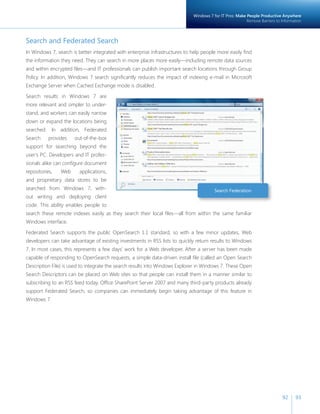
  • 124.
    Recommended System Requirements Microsoft recommends the following minimum system requirements to make sure you get all the benefi ts of Windows 7. Windows 7 System Requirements • 1 gigahertz (GHz) or faster 32-bit (x86) or 64-bit (x64) processor • 1 gigabyte (GB) RAM (32-bit) / 2 GB RAM (64-bit) • 16 GB available disk space (32-bit) / 20 GB (64-bit) • DirectX 9 graphics processor with WDDM 1.0 or higher driver If you’re not sure which features and editions of Windows 7 will run on your existing PC, the Windows 7 Upgrade Advisor can help. Please visit http://windows.microsoft.com/upgradeadvisor. Additional Requirements to Use Certain Features • Internet access (fees may apply) • Depending on resolution, video playback may require additional memory and advanced graph-ics hardware • For some aspects of Windows Media Center functionality, a TV tuner and additional hardware may be required • Windows Touch and Tablet PCs require specifi c hardware • HomeGroup requires a network and PCs running Windows 7 • DVD/CD authoring requires a compatible optical drive • BitLocker requires Trusted Platform Module (TPM) 1.2 • BitLocker To Go requires a USB fl ash drive
  • 125.
    Recommended System Requirements 124 125 • Music and sound require audio output • Windows XP Mode requires the following: • Additional 1 GB of RAM • Additional 15 GB of available hard disk space • Processor capable of hardware virtualization, with Intel-VT or AMD-V turned on Product functionality and graphics may vary based on your system confi guration. Some features may require advanced or additional hardware. For more information, visit http://windows.microsoft.com/ systemrequirements.
  • 126.
    How to FindMore Information Although this guide provides a summary of the new and improved features in Windows 7, we realize that some of you might want to delve deeper into certain areas. A number of great resources are available to you to further your knowledge of these subjects. Resources for Everyone Whether you want to learn more about individual features or check out new security features to safe-guard your precious information, there’s a wealth of information about Windows 7 online. Windows 7 Home http://www.microsoft.com/windows/windows-7/ Windows keyboard shortcuts http://windows.microsoft.com/en-us/Windows7/Keyboard-shortcuts Accessibility features http://windows.microsoft.com/en-us/windows7/What-accessibility-features-does-Windows-offer Windows Help and How To http://windows.microsoft.com/en-US/windows7/help Security checklist http://windows.microsoft.com/en-us/windows7/Security-checklist-for-Windows-7 Windows Live Essentials http://www.windowslive.com/Desktop Internet Explorer 8 http://www.microsoft.com/windows/internet-explorer/
  • 127.
    How to FindMore Information 126 127 Resources for IT Pros The Springboard Series on TechNet is the resource for Windows desktop IT professionals, offering dynamic content and monthly features about structured guidance and resources to ease your imple-mentation experience wherever you are in the Windows Client adoption and management life cycle. Visit http://www.microsoft.com/springboard to access these resources today. At TechNet’s Springboard Series Web site, you will fi nd screencasts as well as resources on deployment, application compatibility, security, imaging, and more. To hear inside stories Windows 7 development from the engineering team and other IT pros, please visit: http://www.talkingaboutwindows.com Resources for Device Manufacturers Windows Hardware Developer Central (WHDC) is the defi nitive source of resources for system designers, driver developers, and test engineers. Please visit: http://www.microsoft.com/whdc/default.mspx To learn more about the Windows Ecosystem Readiness Program, please visit: http://www.microsoft.com/whdc/win7/default.mspx To learn more about the Windows Logo Program, please visit: http://www.microsoft.com/whdc/winlogo/default.mspx Resources for Software Developers To learn more about building software for Windows 7, please visit the Windows Developer Center at: http://msdn.microsoft.com/windows Get the latest news on Windows 7 and access trainings and toolkits to jumpstart your development efforts. Watch videos on Channel 9 or learn about how you can partner with Microsoft. Here you can visit the Develop for Windows 7 page to learn all about developing for the Windows 7 client. The site also includes a Windows 7 Developer Guide and a link to the Software Development for Windows Client Forums.
  • 128.
    Appendix A ExpandedEditions Feature Comparison The following table shows some of the most signifi cant differences between the editions to help you determine which edition is right for you. Key Features Starter Home Premium Professional Enterprise/Ultimate Windows Taskbar and Jump Lists ✓ ✓ ✓ ✓ Windows Search ✓ ✓ ✓ ✓ Join a homegroup ✓ ✓ ✓ ✓ Windows Media Player ^ ✓ ✓ ✓ ✓ Backup and Restore ✓ ✓ ✓ ✓ Enhanced media playback ^ ✓ ✓ ✓ ✓ Action Center ✓ ✓ ✓ ✓ Device Stage™ ✓ ✓ ✓ ✓ Home media streaming, including Play To ^ ✓ ✓ ✓ ✓ Bluetooth support ✓ ✓ ✓ ✓ Fax and Scan ✓ ✓ ✓ ✓ Basic games, including Solitaire and Minesweeper ✓ ✓ ✓ ✓ Credentials Manager ✓ ✓ ✓ ✓ Live Taskbar Thumbnails ✓ ✓ ✓
  • 129.
    Appendix Key Features Starter Home Premium Professional Enterprise/Ultimate Switch between users without having to log on and off ✓ ✓ ✓ Connect to other PCs in your vicinity without a network access ✓ ✓ ✓ device Location and Other Sensors ✓ ✓ ✓ Multiple monitor support ✓ ✓ ✓ Windows Mobility Center (without presentation settings)* ✓ ✓ ✓ Aero Glass & simpler window navigation ✓ ✓ ✓ Aero Background ✓ ✓ ✓ Windows Touch ✓ ✓ ✓ Create a homegroup ✓ ✓ ✓ Windows Media Center ^ ✓ ✓ ✓ Create and play DVDs ^ ✓ ✓ ✓ Remote Media Streaming ^ ✓ ✓ ✓ Premium games, including Chess Titans and Internet Backgammon ✓ ✓ ✓ Snipping Tool, Sticky Notes, Windows Journal ✓ ✓ ✓ Windows SideShow (auxiliary display) ✓ ✓ ✓ Windows XP Mode: Run many existing Windows XP productivity ✓ ✓ programs in Windows 7 Location Aware Printing ✓ ✓
  • 130.
    Key Features StarterHome Premium Professional Enterprise/Ultimate Join a Domain and Group Policy controls ✓ ✓ Remote Desktop Host ✓ ✓ Advanced Backup and Restore (Network Backup & Group Policy) ✓ ✓ Encrypting File System ✓ ✓ Windows Mobility Center* (with Presentation Mode) ✓ ✓ Offl ine Folders ✓ ✓ BitLocker and BitLocker To Go ✓ AppLocker ✓ DirectAccess ✓ BranchCache ✓ Multilingual User Interface Packs ✓ Enterprise Search Scopes ✓ Virtual Desktop Infrastructure (VDI) Enhancements ** ✓ Direct Boot from VHD ✓ ^These features are not available in box for “N” or “KN” edition versions. * Windows Mobility Center is visible only on small notebook PCs. ** Windows 7 Ultimate is not licensed for VDI scenarios, but these features may be used to create a richer remote desktop experience when connecting to a PC running Windows 7 Ultimate. Note: Windows Home Basic (not shown here) is only available in emerging markets.
  • 131.
    Appendix 130 131 Appendix B Feature Comparison Chart The following table compares features of Windows 7 with those in Windows Vista with SP1 and Windows XP with SP3. Benefi t Feature Windows XP SP3 Windows Vista SP1 Windows 7 Windows 7 for You: Simplifi es Everyday Tasks Get Started Quickly Windows Easy Transfer no yes improved Windows Anytime Upgrade no limited improved Simple to Navigate Windows Taskbar yes yes improved Jump Lists no no new Desktop Enhancements no limited improved Windows Explorer yes yes improved Easier to Find Things Libraries no no new Searching from the Start Menu no yes improved Search Relevance no yes improved Federated Search no no new Easy to Connect PCs and Manage Devices HomeGroup no no new Windows Connect Now (WCN) no no new The Devices and Printers Folder yes yes improved Device Stage no no new Monitor Support Multiple Monitor Support yes yes improved External Display Support yes yes improved Windows + P Display Switch no no new Up to 144 DPI no no new Display Color Calibration no no new Windows 7 for You: Works the Way You Want Speed, Reliability, and Responsiveness Faster Start, Shutdown, and Resume no yes improved Search and Indexing no yes improved ReadyBoost no yes improved In Box Solid State Drive Support no no yes Idle Processing no yes improved Adaptive Display Brightness no no yes Power-Saving DVD Playback no no yes
  • 132.
    Benefi t FeatureWindows XP SP3 Windows Vista SP1 Windows 7 Speed, Reliability, and Responsivenes Wake on Wireless LAN no no yes Smart Network Power no no yes Power Effi ciency Diagnostics no no yes More Secure User Account Control no yes improved Parental Controls no yes yes Windows Filtering Platform yes yes improved BitLocker no yes improved BitLocker To Go no no new Backup and Restore no yes improved System Restore limited yes improved Compatible with You Aero Themes and Aero Background no yes improved Gadgets no yes improved Global and Cultural Relevance yes yes improved Windows XP Mode no no yes Better Trouble-shooting and Problem Solving Action Center no no new Windows Troubleshooting no yes improved Startup Repair no no improved Windows 7 for You: Makes New Things Possible Media the Way You Want it Windows Media Center yes yes improved Windows Media Player yes yes improved Remote Media Streaming no no new “Play To” no no new Games Explorer no yes Improved Work Anywhere View Available Networks limited yes Improved Wireless Device Support yes yes Improved In Box Mobile Broadband no no new Location Aware Printing no no new DirectAccess no no new VPN Reconnect no no new Offl ine Access to Network Resources yes yes improved New Ways to Engage Windows Touch (support for multi-touch gestures) no no new Tablet PC Support yes yes improved Accessibility (Speech, Magnifi er) yes yes improved Windows 7 for IT Professionals: Make Users Productive Anywhere Remove Barriers to Information Federated Search no no new Enterprise Search Scopes no no new Access Information from Anywhere DirectAccess no no new VPN Reconnect no no new
  • 133.
    Appendix 132 133 Benefi t Feature Windows XP SP3 Windows Vista SP1 Windows 7 Access Information from Anywhere RemoteApp and Desktop Connections yes yes improved Folder Redirection and Offl ine Files yes yes improved Roaming User Profi les yes yes improved BranchCache no no new Transparent Caching no no new Windows 7 for IT Professionals: Manage Risks Through Enhanced Security and Control Protect Data on PC and Devices BitLocker no yes improved BitLocker To Go no no new Protect Workers and Infrastructure AppLocker no no new Build on Windows Vista Security Foundation Multiple Active Firewall Profi les limited limited improved Smart Card Support yes yes improved Enhanced Audit no limited improved User Account Control no yes improved Domain Name System Security no no new Extensions Windows 7 for IT Professionals: Reduce Costs by Streamlining PC Management Easier Deployment from Windows Vista Deployment Image Servicing and Management no limited improved Dynamic Driver Provisioning no no new Multicast Multiple Stream Transfer no no new User State Migration Tool limited limited improved VHD Image Management and no no new Deployment Keep PCs Running Smoothly Windows PowerShell Improvements download download improved Group Policy Preferences no download improved Windows Recovery Environment no yes improved Windows Troubleshooting no yes improved Unifi ed Tracing limited limited improved Problem Steps Recorder no No new Remote Access to Reliability Data no No new Better Support for Client Virtualization Dynamic Memory no No new Richer Remoting Experience no No new VHD Boot no No new
  • 134.
    Appendix C NewKeyboard Shortcuts Windows 7 introduces several new shortcut keys to help save you time and improve your productivity. To perform shortcut key strokes, just press and hold the keys. For example, hold the Windows key and press the  arrow to maximize the selected window. Windows Taskbar + T Brings focus to the fi rst item in the taskbar. Press again to cycle through each item. + 1–9 If a program in the 1–9 slot is running, the keystroke will launch it. If it is running with one window, the same keystroke will switch to that window. If it is running with multiple windows, the keystroke will cycle between each thumbnail of the open windows for that program. Aero Peek will help you fi nd the right window. (Note: ALT+WinKey+# will open the corresponding program’s Jump List) SHIFT + click on taskbar icon Middle mouse button + click on taskbar icon Launches a new instance of a program SHIFT + CTRL + click on taskbar icon Launches a new instance of a program in elevated security mode Middle mouse button + click on taskbar thumbnail Closes the window CTRL + click on a taskbar group Restores the last active window in the group. Continued clicking will continue restoring the subsequent windows in the group Drag up from a taskbar icon Opens Jump List Snap (Window Arrangement) + ARROW Cycles through window arrangements for a window SHIFT + + ARROW Moves the window to other displays Peek + SPACEBAR (hold keys) Reveals the desktop Projection + P Shows projection options Explorer ALT + P Show/Hide preview pane Accessibility + + Zoom in + - Zoom out
  • 135.
    Appendix Appendix D Installation Options for Upgrading Your PC to Windows 7 Your upgrade option will vary depending on what operating system you are currently using. 7 7 7 134 135 Upgrade Custom Upgrade Upgrade Custom Custom Upgrade Custom Custom Windows XP/Windows Vista® Starter/32-bit to 64-bit Custom Custom Installation A custom installation enables dual boot or gives the option to replace your exist-ing operating system with Windows 7. Your programs, settings, and data will be removed. Back up all of your data and ensure you have your original program disks available before doing a custom installation. Upgrade Installation An upgrade installs Windows 7 retaining all your programs, settings, and docu-ments after installation. Upgrade FROM : To upgrade an earlier operating system than Windows XP (for example, Windows 95 or Windows 2000) you will need to purchase a full license of Windows 7 and perform a custom installation. In the EEA/EU (including Croatia and Switzerland) and Korea, Microsoft will ship Windows 7 editions that do not include certain features such as Windows Media Player, and related technologies such as Windows Media Center. Upgrading to these editions will require custom installation. Upgrading Windows Vista from one language (such as English) to Windows 7 in a different language (such as French), requires custom installation.
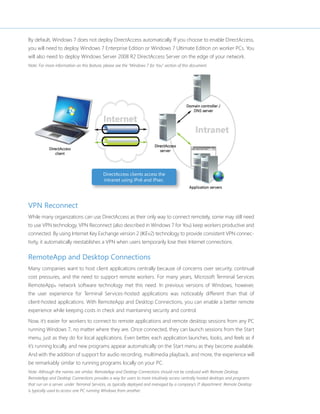
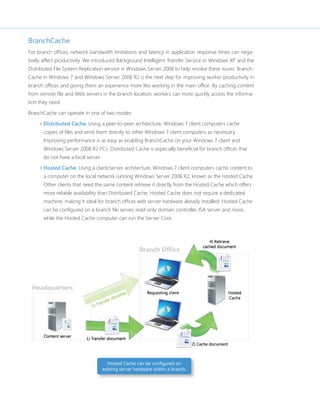
  • 136.
    Index 64-Bit 9,16, 54, 80, 122, 123, 124 64-bit Gaming 80 Accelerators 9, 39, 112 Access Information from Anywhere 95, 132 Accessibility 87, 126, 133, 134 Action Center 66, 67, 128, 132 Adaptive Display Brightness 52, 131 Additional Resources 126 Aero Background 62, 63, 129, 132 Aero Themes 20, 62, 132 AppLocker 13, 22, 91, 102, 111, 130, 133 Audio 73, 78, 96, 115, 125 Backup and Restore 12, 15, 61, 66, 128, 130, 132 Battery Life and Notifications 51 BitLocker 13, 15, 20, 60, 91, 100, 101, 111, 124, 125, 130, 132, 133 BitLocker To Go 13, 15, 20, 60, 91, 100, 101, 130, 132, 133 BranchCache 13, 22, 91, 98, 99, 130, 133 Browse the Web 38, 68 Browsing 7, 9, 37, 38, 58, 64, 68, 104 Client Virtualization 91, 115, 133 Compatibility 7, 9, 11, 17, 23, 107, 109, 121, 122, 127 Compatible with Windows 7 23, 43, 44, 73, 76, 122, 123 Content Filtering 74 Cross-Site Scripting Filter 58 Data Execution Prevention 59 Deployment 14, 91, 100, 104, 106, 107, 108, 109, 112, 114, 117, 121, 127 Deployment Image Servicing and Management 107, 133 Desktop 12, 14, 15, 21, 27, 31, 32, 45, 62, 63, 64, 65, 66, 73, 82, 87, 91, 92, 96, 106, 107, 108, 109, 110, 12, 115, 116, 117, 119, 121, 127, 130, 134 Device Stage 45, 128, 131 Devices 7, 8, 9, 12, 18, 20, 21, 23, 27, 28, 41, 42, 44, 45, 46, 51, 53, 55, 60, 68, 73, 74, 75, 76, 78, 81, 84, 92, 100, 101, 111, 122, 123 Digital TV 21, 71 DirectAccess 13, 15, 22, 68, 82, 91, 95, 96, 111, 130, 132, 133 DirectX 54, 80, 87, 124 DirectX: Direct3D 11 54, 80 DirectX: DirectCompute 54, 80 Display 38, 40, 46, 48, 51, 52, 62, 63, 64, 75, 83, 129 Domain Name Highlighting 58 Domain Name System Security Extensions 104, 133 Dynamic Driver Provisioning 197, 133 Enhanced Audit 104, 133 Enterprise Search Scopes 13, 22, 44, 130, 133 Feature Comparison 128, 131 Federated Search 22, 37, 93, 131, 133 Flexible Deployment of Internet Explorer 8, 109 Folder Redirection and Offline Files 97, 133 Gadgets 63, 132 Games Explorer 27, 79, 132 Gaming 78, 79, 80 Global and Cultural Relevance 62, 64, 132 Graphics 9, 27, 45, 51, 52, 54, 80, 115, 124, 125 Group Policy 14, 15, 42, 193, 97, 100, 101, 104, 106, 109, 110, 111, 112, 114, 119, 130, 133 Handwriting Recognition 86 Handwritten Math Expression 86 HomeGroup 11, 12, 14, 15, 20, 41, 42, 68, 72, 75, 77, 124, 128, 129, 131 Idle Processing 52, 131 Improved Memory Utilization 51 InPrivate Browsing 58 InPrivate Filtering 59 Instant Search 38 Internet Explorer 31, 38, 40, 57, 64, 68, 99, 109, 112 Internet Explorer 8 7, 15, 21, 27, 38, 39, 40, 57, 58, 59, 109, 112, 126 Internet TV 12, 15, 21, 70, 71 Jump Lists 21, 31, 74, 128, 131 Keyboard shortcuts 87, 126, 134
  • 137.
    Index 136 137 Libraries 21, 35, 36, 37, 72, 74, 77,131 Location Aware Printing 12, 81, 129, 132 Magnifier 87, 133 Manage Devices 41, 131 MDOP 91, 100, 106, 116 Media Streaming 12, 15, 20, 21, 75, 128, 129 Microsoft Advanced Group Policy Management 119 Microsoft Application Virtualization 14, 117 Microsoft Asset Inventory Service 14, 118 Microsoft Desktop Optimization Pack (MDOP) 14, 91, 92, 100, 116 Microsoft Diagnostics and Recovery Toolset 14, 120 Microsoft Enterprise Desktop Virtualization 14, 121 Microsoft System Center Desktop Error Monitoring 14, 120 Mobile Broadband 81, 132 Monitor 21, 23, 45, 46, 48, 56, 72, 84, 114, 129, 131 Multicast Multiple Stream Transfer 102, 133 Multilingual User Interface Packs 13, 15 Multiple Active Firewall Profiles 103, 133 Navigate 28, 39, 65, 72, 83, 95 Navigation 12, 28, 34, 40, 129 Network Connections 65 Now Playing Mode 73 Offline Access 82, 133 Offline Files 82, 133 On-Screen Keyboard 87 Parental Controls 27, 49, 56, 79, 132 Play To 20, 75, 76, 128, 132 Power Efficiency Diagnostics 53, 132 Power-Saving DVD Playback 53, 131 Problem Solving 66 Problem Steps Recorder 22, 23, 113,, 133 Protect Data on PCs and Devices 100 ReadyBoost 51, 131 Remote Access to Reliability Data 114, 133 Remote Media Streaming 77, 132 RemoteApp and Desktop Connections 96, 133 Remoting Experience 115, 133 Roaming User Profiles 97, 108, 115, 133 Search 7, 13, 21, 22, 27, 35, 36, 37, 38, 39, 40, 51, 91, 92, 93, 131 Secure Access 95 Security 9, 13, 27, 43, 55, 57, 58, 59, 60, 66, 89, 95, 96, 99, 100, 102, 103, 104, 111, 112, 126, 127, 133, 134 Share 7, 9, 12, 18, 20, 27, 41, 42, 47, 48, 49, 62, 70, 75, 83, 97, 101, 112 Share Files and Folders 65 Sharing TV 72 Smart Address Bar 40 Smart Card Support 95, 104 Smart Network Power 53, 132 SmartScreen Filter 57, 112, Solid State Drives 51 Speech 87, 115, 133 Speed, Reliability, and Responsiveness 50, 131 Start Menu 16, 27, 29, 31, 36, 37, 67, 74, 85, 96, 131 Start, Shutdown, and Resume 51, 131 Startup Repair 69, 114, 132 Support for Additional Languages 86 System Requirements 12, 124 System Restore 61, 114, 132 Tab Isolation and Crash Recovery 59 Tablet PC 9, 84, 86, 87, 124, 133 Taskbar 15, 20, 27, 29, 30, 31, 32, 33, 45, 74, 85, 128, 131, 134 Toolbar 40 Touch Keyboard 86 Transparent Caching 99, 133 Troubleshooting 66, 67, 69, 91, 106, 111, 113, 114, 118, 132 UAC 104 Unified Tracing 114, 133 URL-based Quality of Service 112 USB Devices 64, 65 User Account Control 55, 66, 104, 132, 133 User State Migration Tool 108, 133 VHD Boot 22, 108, 115, 133 VHD Image Management and Deployment 107, 108, 133 View Available Networks (VAN) 81, 133 Visual Search 21, 38 VPN Reconnect 82, 96, 132, 133 Wake on Wireless LAN 21, 39 Web Slices 10, 13, 96 Windows 7 Enterprise 10, 13, 96 Windows 7 Home Basic 10, 11 Windows 7 Home Premium 10, 12, 14, 73
  • 138.
    Windows 7 LogoProgram 122 Windows 7 Professional 10, 12 Windows 7 Starter 10, 11, 14, 123 Windows 7 Ultimate 10, 13, 96, 130 Windows 7 Upgrade Advisor 16, 17, 124 Windows Anytime Upgrade 14, 123, 131 Windows Compatibility Center 18, 23 Windows Connect Now 43, 131 Windows Easy Transfer 16, 19, 131 Windows Experience Index 51, 52 Windows Explorer 27, 34, 35, 37, 83, 85, 93, 131 Windows Filtering Platform 60, 132 Windows Live Family Safety 49, 56 Windows Live Mail 47, 49 Windows Live Messenger 48 Windows Live Movie Maker 48 Windows Live Photo Gallery 49 Windows Live Toolbar 49 Windows Live Writer 49 Windows Media Center 12, 14, 15, 21, 27, 71, 72, 76, 85, 124, 129, 132, 135 Windows Media Player 14, 27, 31, 68, 73, 74, 75, 76, 77, 99, 115, 128, 132, 135 Windows Recovery Environment (Windows RE) 114 Windows Touch 84, 124, 129, 133 Windows Troubleshooting 21, 67, 68, 106, 110, 114, 120,, 132, 133, 138 Windows Vista 8, 16, 17, 18, 19, 50, 51, 52, 53, 55, 60, 62, 63, 69, 86, 89, 91, 100, 101, 103, 104, 106, 107, 110, 113, 131 ,132, 133, 135 Windows XP Mode 12, 15, 21, 27, 64, 65, 125, 129, 132
  • 139.
    138 139 DISCLAIMER The information contained in this document represents the current view of Microsoft Corp. on the issues discussed as of the date of publication. Because Microsoft must respond to changing market conditions, it should not be interpreted to be a commitment on the part of Microsoft, and Microsoft cannot guarantee the accuracy of any information presented after the date of publication. This guide is for informational purposes only. MICROSOFT MAKES NO WARRANTIES, EXPRESS OR IMPLIED, IN THIS SUMMARY. Complying with all applicable copyright laws is the responsibility of the user. Without limiting the rights under copyright, no part of this document may be reproduced, stored in or introduced into a retrieval system, or transmitted in any form, by any means (electronic, mechanical, photocopying, recording or otherwise), or for any purpose, without the express written permission of Microsoft. Microsoft may have patents, patent applications, trademarks, copyrights or other intellectual property rights covering subject matter in this document. Except as expressly provided in any written license agreement from Microsoft, the furnishing of this document does not give you any license to these patents, trademarks, copyrights, or other intellectual property. Unless otherwise noted, the example companies, organizations, products, domain names, e-mail addresses, logos, people, places, and events depicted herein are fictitious, and no association with any real company, organization, product, domain name, e-mail address, logo, person, place, or event is intended or should be inferred. © 2009 Microsoft Corp. All rights reserved. Microsoft, Active Directory, Aero, AppLocker, BitLocker, BitLocker To Go, BranchCache, DirectX, Hyper-V, Internet Explorer, Outlook, PowerShell, ReadyBoost, SharePoint, SmartScreen, SuperFetch, Terminal Services RemoteApp, Windows, Windows Live, Windows Media, Windows Server, Windows Vista, and Xbox 360 are either registered trademarks or trademarks of Microsoft Corporation in the United States and/or other countries. All other trademarks are property of their respective owners.
  • 140.