Operating 
Systems 
By: Gaurav Aggarwal
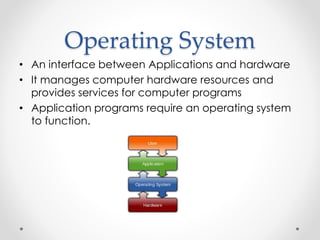
Operating System 
• An interface between Applications and hardware 
• It manages computer hardware resources and 
provides services for computer programs 
• Application programs require an operating system 
to function.
Operating System 
• A program or a software that governs the 
functioning of other programs 
• It keeps track of files and folder on the disk 
• Manages CPU Time 
• Control devices 
• Allows convenient usage; hides the tedious stuff
Types of Operating 
Softsmith Infotech 
System 
• Tasks 
o Uni tasking (DOS) 
o Multi tasking : All modern OS 
• Users 
o Single User: Mac, Windows 
o Multi User: Linux
Types of Operating 
Softsmith Infotech 
System 
• Single User, Single Task 
o A user can do only one thing at a time 
o MS DOS 
• Single User, Multi Task 
o Most commonly Used 
o A user can do multiple tasks 
o Windows, MAC 
• Multi User, Multi Task 
o Multiple users can do multiple tasks 
o Linux, Unix
Types of Operating 
System – Real Time OS 
• Aims at executing real-time applications 
• Objective: quick and predictable response to 
events 
• Event-driven or Time sharing design 
• Event-driven system switches between tasks based 
on their priorities or external events 
• Time-sharing operating systems switch tasks based 
on clock interrupts 
Softsmith Infotech
Types of Operating 
System – Distributed 
• A distributed operating system manages a group of 
independent computers 
• Makes them appear to be a single computer 
• Emerged because of development of networked 
computers 
• Example: Processor on one system and hard disk on 
another 
• Architecture can be implemented on Unix and 
Linux 
Softsmith Infotech
Types of Operating 
System – Mobile 
• Mobile OS operates Smartphone, Tablet and other 
mobile devices 
• They have features of Personal Computer 
Operating System along with features to manage 
other hardware 
o Cellular, camera, Near field communication, infrared, etc. 
• IOS, Android, Windows Phone, Firefox OS, etc 
Softsmith Infotech
Softsmith Infotech 
FOSS 
• Free Open Source Software 
• Free – Means Liberty and not related to Price or cost 
• Open – Source code is available and any body can 
contribute to the development. Organization 
independent 
• Example: Linux
How does a Computer 
Boot?
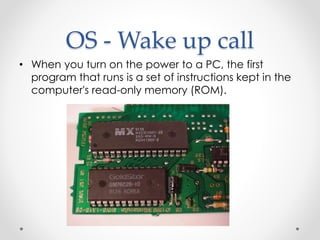
OS - Wake up call 
• When you turn on the power to a PC, the first 
program that runs is a set of instructions kept in the 
computer's read-only memory (ROM).
OS - Wake up call 
• These instructions are 
called Power on Self Test 
(POST) 
• It checks to make sure 
everything is functioning 
properly. 
• It checks the CPU, 
memory, and basic input-output 
systems (BIOS) for 
errors.
OS - Wake up call 
• Once successful, the software will begin to 
activate the computer's disk drives. 
• The BIOS attempts to access the first sector of the 
drive designated as the boot disk. 
• The BIOS confirms there's a bootstrap loader, or 
boot loader, in that first sector of the boot disk, 
and it loads that boot loader into memory (RAM)
OS - Wake up call 
• The bootstrap loader or boot loader is a small 
program that has a single function: It loads the 
operating system into memory and allows it to 
begin operation. 
• Once the boot loader is in memory, the BIOS hands 
over its work to the boot loader, which in turn 
begins loading the operating system into memory.
OS - Wake up call 
• When the boot loader finishes its task, it turns control 
of the PC over to the operating system. 
• Then, the OS is ready for user interaction.
OS - Memory Storage and 
Management
OS - Memory Storage and 
Management 
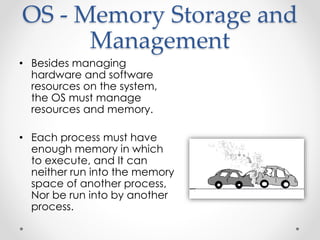
• Besides managing 
hardware and software 
resources on the system, 
the OS must manage 
resources and memory. 
• Each process must have 
enough memory in which 
to execute, and It can 
neither run into the memory 
space of another process, 
Nor be run into by another 
process.
OS - Memory Storage and 
Management 
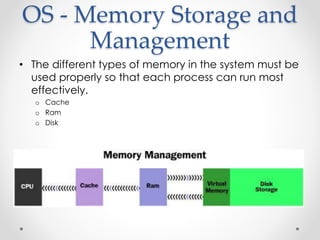
• The different types of memory in the system must be 
used properly so that each process can run most 
effectively. 
o Cache 
o Ram 
o Disk
Cache Memory 
• A section of a computer's memory which 
temporarily retains recently accessed data in order 
to speed up repeated access to the same data. 
• It provides rapid access without having to wait for 
systems to load. 
• Very Costly
RAM 
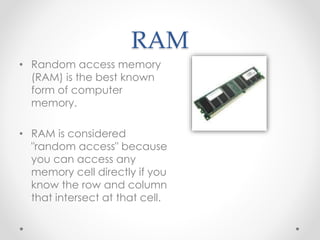
• Random access memory 
(RAM) is the best known 
form of computer 
memory. 
• RAM is considered 
"random access" because 
you can access any 
memory cell directly if you 
know the row and column 
that intersect at that cell.
RAM 
• The more RAM your computer has, the faster 
programs can function. 
• Remember, that if the power is turned off, then 
all data left in RAM, that has not been saved to 
the hard drive, is lost.
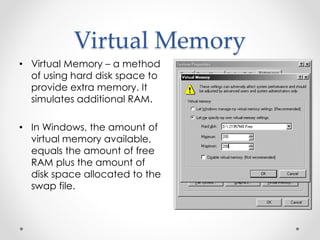
Virtual Memory 
• Virtual Memory – a method 
of using hard disk space to 
provide extra memory. It 
simulates additional RAM. 
• In Windows, the amount of 
virtual memory available, 
equals the amount of free 
RAM plus the amount of 
disk space allocated to the 
swap file.
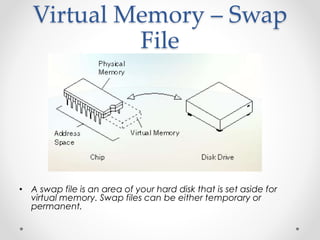
Virtual Memory – Swap 
File 
• A swap file is an area of your hard disk that is set aside for 
virtual memory. Swap files can be either temporary or 
permanent.
Kernel
Kernel 
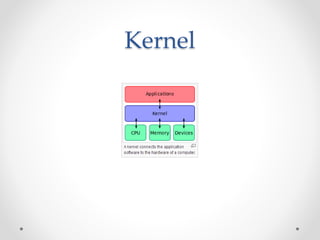
• Core or nucleus of an operating system 
• Interacts with the hardware 
• First program to get loaded when the system starts 
and runs till the session gets terminated 
• Different from BIOS which is hardware dependent. 
• Kernel is software dependent
Kernel
Kernel types 
• Monolithic 
o All OS related code are stuffed in a single 
module 
o Available as a single file 
o Advantage : Faster functioning 
• Micro 
o OS components are isolated and run in their own 
address space 
o Device drivers, programs and system services run 
outside kernel memory space 
o Supports modularity 
o Lesser in size
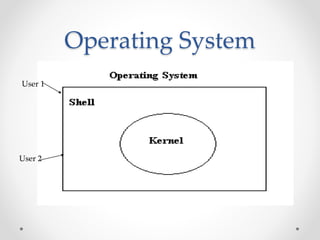
Shell 
• Program that interacts with kernel 
• Bridge between kernel and the user 
• Command interpreter 
• User can type command and the command is 
conveyed to the kernel and it will be executed
Types of Shell 
• Sh – simple shell 
• BASH – Bourne Again Shell 
• KSH – Korne Shell 
• CSH – C Shell 
• SSH – Secure Shell 
• To use a particular shell type the shell name at the command 
prompt. 
o Eg $csh – will switch the current shell to c shell 
• To view the available shells in the system, type cat /etc/shells 
at the command prompt 
• To view the current shell that is being used, type echo $SHELL 
at the command prompt
Operating System 
User 1 
User 2
Shell Scripting 
• Shell scripting is the most useful and powerful 
feature in Linux 
o Minimizes typing of repetitive command 
o Can schedule jobs to run in the system 
o Can initiate back up activities for system administration 
o Similar to batch files in DOS, but more powerful than Batch files
Working with shell script 
• Open a file with extension .sh using vi editor 
• We can type any number of commands that we 
use to type at command prompt 
• Save the file 
• Execute the file 
o sh file.sh 
o ./file.sh (if the file has execution permission)
4 Freedoms with FOSS 
• Freedom to run the software anywhere 
• Freedom to study how the programs work. i.e 
source code will be accessible 
• Freedom to redistribute copies 
• Freedom to improve the software 
• If a software has all these 4 freedoms, then it is a 
FOSS
Copyleft 
• Termed by Richard Mathew Stallman 
• Copyleft statement: 
o “Copying and redistribution are permitted in any medium provided this 
notice is preserved.”
Linux 
• Developed in 1991 by Linus Torvalds 
• Used in most of the computers, ranging from 
super computers to embedded system 
• Multi user 
• Multi tasking 
• Time sharing 
• Monolithic kernel
Free Software Foundation 
• Founded by Richard Stallman in 1983 
• Organisation that started developing copylefted 
programs 
• Project – GNU Project 
o GNU Not Unix 
o Recursive expansion
Components
Interrupts 
• Interrupt transfers control to the interrupt service routine 
generally, through the interrupt vector, which contains 
the addresses of all the service routines. 
• Interrupt architecture must save the address of the 
interrupted instruction. 
• Incoming interrupts are disabled while another interrupt 
is being processed to prevent a lost interrupt. 
• A trap is a software-generated interrupt caused either by 
an error or a user request. 
• An operating system is interrupt driven.
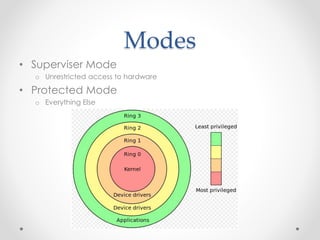
Modes 
• Superviser Mode 
o Unrestricted access to hardware 
• Protected Mode 
o Everything Else
Process
41 
PROCESSES 
PROCESS CONCEPT: 
A program is passive; a process active. 
Attributes held by a process include 
•hardware state, 
•memory, 
•CPU, 
•progress (executing) 
WHY HAVE PROCESSES? 
Resource sharing ( logical (files) and physical(hardware) ). 
Computation speedup - taking advantage of multiprogramming – i.e. example 
of a customer/server database system.
42 
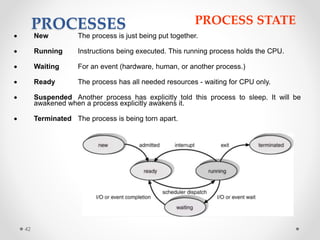
PROCESSES PROCESS STATE 
 New The process is just being put together. 
 Running Instructions being executed. This running process holds the CPU. 
 Waiting For an event (hardware, human, or another process.) 
 Ready The process has all needed resources - waiting for CPU only. 
 Suspended Another process has explicitly told this process to sleep. It will be 
awakened when a process explicitly awakens it. 
 Terminated The process is being torn apart.
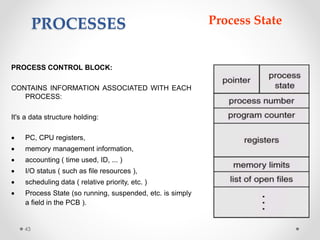
PROCESS CONTROL BLOCK: 
CONTAINS INFORMATION ASSOCIATED WITH EACH 
PROCESS: 
It's a data structure holding: 
 PC, CPU registers, 
 memory management information, 
 accounting ( time used, ID, ... ) 
 I/O status ( such as file resources ), 
 scheduling data ( relative priority, etc. ) 
 Process State (so running, suspended, etc. is simply 
a field in the PCB ). 
43 
PROCESSES Process State
PROCESSES 
Scheduling 
Components 
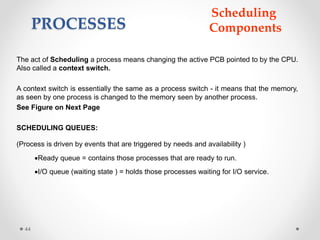
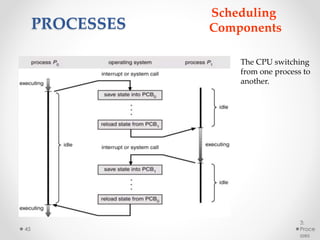
The act of Scheduling a process means changing the active PCB pointed to by the CPU. 
Also called a context switch. 
A context switch is essentially the same as a process switch - it means that the memory, 
as seen by one process is changed to the memory seen by another process. 
See Figure on Next Page 
SCHEDULING QUEUES: 
(Process is driven by events that are triggered by needs and availability ) 
44 
Ready queue = contains those processes that are ready to run. 
I/O queue (waiting state ) = holds those processes waiting for I/O service.
3: 
Proce 
sses 
45 
PROCESSES 
Scheduling 
Components 
The CPU switching 
from one process to 
another.
Process Scheduling 
• First Come – First Serve 
o Long process may make others starve 
• Shortest Job First 
o Long process may starve 
• Round Robin 
o Lots of time used in switching 
• Priority Scheduling 
o Low priority Job Starve
Threads
Thread 
• A thread of execution is the smallest sequence of 
programmed instructions that can be managed 
independently by an operating system schedule 
• Processes are typically independent, while threads 
exist as subsets of a process
Multitasking and 
Multithreading 
• Multitasking refers to a computer's ability to 
perform multiple jobs concurrently 
o more than one program are running concurrently, 
e.g., UNIX 
• A thread is a single sequence of execution 
within a program 
• Multithreading refers to multiple threads of 
control within a single program 
o each program can run multiple threads of control 
within it, e.g., Web Browser
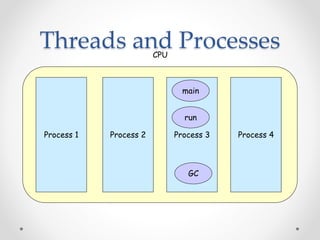
Threads and Processes 
CPU 
main 
run 
Process 1 Process 2 Process 3 Process 4 
GC
What are Threads Good 
For? 
• To maintain responsiveness of an application during 
a long running task. 
• To separate independent tasks and make the 
execution faster. 
o If a thread waits for I/O, other thread can execute in meanwhile
Cloud Computing
Cloud Computing 
• A type of outsourcing of computer services 
• Similar to the way in which the supply of electricity is 
outsourced. Users can simply use it. 
• They do not need to worry where the electricity is 
from, how it is made, or transported. Every month, 
they pay for what they consumed. 
• Idea behind cloud is similar
Cloud Computing 
• The user can simply use storage, computing power, 
or specially crafted development environments, 
without having to worry how these work internally. 
• Cloud computing is a systems architecture model 
for Internet-based computing. 
• It is the development and use of computer 
technology on the Internet
The Average Cloud user 
• Connects to the cloud via the Internet 
o Does computing tasks, or 
o Runs applications, or 
o Stores Data
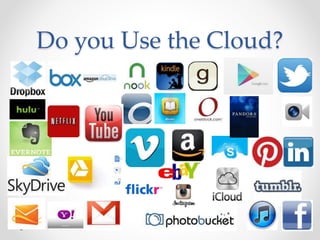
Do you Use the Cloud?
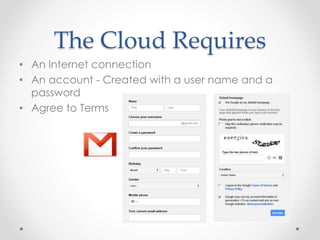
The Cloud Requires 
• An Internet connection 
• An account - Created with a user name and a 
password 
• Agree to Terms
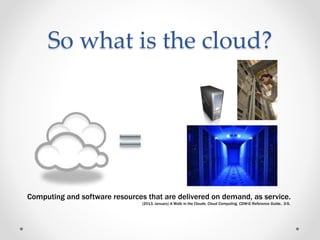
So what is the cloud? 
Computing and software resources that are delivered on demand, as service. 
(2013, January) A Walk in the Clouds. Cloud Computing, CDW-G Reference Guide., 3-5.
Cloud Computing – Simple Definition 
Cloud Computing = Software as a Service 
+ Platform as a Service 
+ Infrastructure as a Service 
+ Data as a Service
Cloud Computing – Simple Definition 
Cloud Computing = Software as a Service 
+ Platform as a Service 
+ Infrastructure as a Service 
+ Data as a Service 
• Software as a Service (SaaS) 
̵ From end user’s point of view 
̵ Apps are located in the cloud 
̵ Software experiences are delivered through the Internet 
̵ Example: Google Docs
Cloud Computing – Simple Definition 
Cloud Computing = Software as a Service 
+ Platform as a Service 
+ Infrastructure as a Service 
+ Data as a Service 
• Platform as a Service (PaaS) 
̵ From developer’s point of view (i.e. cloud users) 
̵ Cloud providers offer an Internet-based platform to 
developers who want to create services but don't want to 
build their own cloud 
̵ Example: Web Hosting
Cloud Computing – Simple Definition 
Cloud Computing = Software as a Service 
+ Platform as a Service 
+ Infrastructure as a Service 
+ Data as a Service 
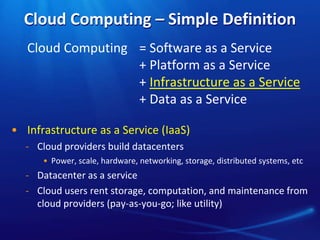
• Infrastructure as a Service (IaaS) 
̵ Cloud providers build datacenters 
• Power, scale, hardware, networking, storage, distributed systems, etc 
̵ Datacenter as a service 
̵ Cloud users rent storage, computation, and maintenance from 
cloud providers (pay-as-you-go; like utility)
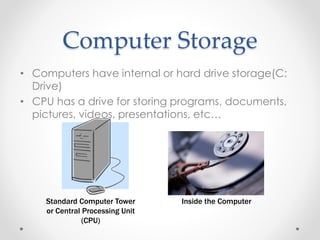
Computer Storage 
• Computers have internal or hard drive storage(C: 
Drive) 
• CPU has a drive for storing programs, documents, 
pictures, videos, presentations, etc… 
Standard Computer Tower 
or Central Processing Unit 
(CPU) 
Inside the Computer
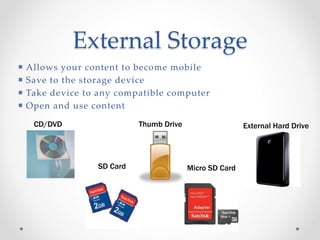
External Storage 
 Allows your content to become mobile 
 Save to the storage device 
 Take device to any compatible computer 
 Open and use content 
CD/DVD Thumb Drive External Hard Drive 
SD Card Micro SD Card
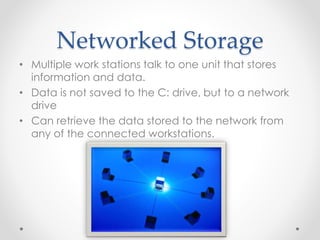
Networked Storage 
• Multiple work stations talk to one unit that stores 
information and data. 
• Data is not saved to the C: drive, but to a network 
drive 
• Can retrieve the data stored to the network from 
any of the connected workstations.
Cloud Storage 
• Create an Account – 
User name and 
password 
• Content lives with the 
account in the cloud 
• Log onto any 
computer with Wi-Fi to 
find your content
Software 
and 
application 
s 
More than 
Storage
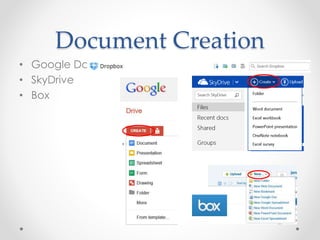
Document Creation 
• Google Docs 
• SkyDrive 
• Box
Advantages of Cloud Computing 
• Lower computer costs: 
o You do not need a high-powered and high-priced 
computer to run cloud computing's web-based 
applications. 
o Since applications run in the cloud, not on the desktop 
PC, your desktop PC does not need the processing 
power or hard disk space demanded by traditional 
desktop software. 
o When you are using web-based applications, your PC 
can be less expensive, with a smaller hard disk, less 
memory, more efficient processor... 
o In fact, your PC in this scenario does not even need a 
CD or DVD drive, as no software programs have to be 
loaded and no document files need to be saved. 
69
Advantages of Cloud Computing 
• Improved performance: 
o With few large programs hogging your computer's 
memory, you will see better performance from your 
PC. 
o Computers in a cloud computing system boot and 
run faster because they have fewer programs and 
processes loaded into memory… 
• Reduced software costs: 
o Instead of purchasing expensive software 
applications, you can get most of what you need for 
free-ish! 
• most cloud computing applications today, such as the Google 
Docs suite. 
o better than paying for similar commercial software 
• which alone may be justification for switching to cloud 
applications. 
70
Advantages of Cloud Computing 
• Instant software updates: 
o Another advantage to cloud computing is that you are no 
longer faced with choosing between obsolete software and 
high upgrade costs. 
o When the application is web-based, updates happen 
automatically 
• available the next time you log into the cloud. 
o When you access a web-based application, you get the 
latest version 
• without needing to pay for or download an upgrade. 
• Improved document format compatibility. 
o You do not have to worry about the documents you create 
on your machine being compatible with other users' 
applications or OSes 
o There are potentially no format incompatibilities when 
everyone is sharing documents and applications in the cloud. 
71
Advantages of Cloud Computing 
• Unlimited storage capacity: 
o Cloud computing offers virtually limitless storage. 
o Your computer's current 1 Tbyte hard drive is small 
compared to the hundreds of Pbytes available in the 
cloud. 
• Increased data reliability: 
o Unlike desktop computing, in which if a hard disk 
crashes and destroy all your valuable data, a 
computer crashing in the cloud should not affect the 
storage of your data. 
• if your personal computer crashes, all your data is still out 
there in the cloud, still accessible 
o In a world where few individual desktop PC users 
back up their data on a regular basis, cloud 
computing is a data-safe computing platform! 
72
Advantages of Cloud Computing 
• Universal document access: 
o That is not a problem with cloud computing, because 
you do not take your documents with you. 
o Instead, they stay in the cloud, and you can access 
them whenever you have a computer and an Internet 
connection 
o Documents are instantly available from wherever you 
are 
• Latest version availability: 
o When you edit a document at home, that edited 
version is what you see when you access the 
document at work. 
o The cloud always hosts the latest version of your 
documents 
• as long as you are connected, you are not in danger of having an 
outdated version 
73
Advantages of Cloud Computing 
• Easier group collaboration: 
o Sharing documents leads directly to better 
collaboration. 
o Many users do this as it is an important advantages of 
cloud computing 
• multiple users can collaborate easily on documents and 
projects 
• Device independence. 
o You are no longer tethered to a single computer or 
network. 
o Changes to computers, applications and documents 
follow you through the cloud. 
o Move to a portable device, and your applications and 
documents are still available. 
74
Disadvantages of Cloud Computing 
• Requires a constant Internet connection: 
o Cloud computing is impossible if you cannot 
connect to the Internet. 
o Since you use the Internet to connect to both 
your applications and documents, if you do not 
have an Internet connection you cannot access 
anything, even your own documents. 
o A dead Internet connection means no work and 
in areas where Internet connections are few or 
inherently unreliable, this could be a deal-breaker. 
75
Disadvantages of Cloud Computing 
• Does not work well with low-speed connections: 
o Similarly, a low-speed Internet connection, such as 
that found with dial-up services, makes cloud 
computing painful at best and often impossible. 
o Web-based applications require a lot of bandwidth 
to download, as do large documents. 
• Features might be limited: 
o This situation is bound to change, but today many 
web-based applications simply are not as full-featured 
as their desktop-based applications. 
• For example, you can do a lot more with Microsoft 
PowerPoint than with Google Presentation's web-based 
offering 
76
Disadvantages of Cloud Computing 
• Can be slow: 
o Even with a fast connection, web-based 
applications can sometimes be slower than 
accessing a similar software program on your 
desktop PC. 
o Everything about the program, from the interface 
to the current document, has to be sent back 
and forth from your computer to the computers 
in the cloud. 
o If the cloud servers happen to be backed up at 
that moment, or if the Internet is having a slow 
day, you would not get the instantaneous access 
you might expect from desktop applications. 
77
Disadvantages of Cloud Computing 
• Stored data might not be secure: 
o With cloud computing, all your data is stored on the 
cloud. 
• The questions is How secure is the cloud? 
o Can unauthorised users gain access to your 
confidential data? 
• Stored data can be lost: 
o Theoretically, data stored in the cloud is safe, 
replicated across multiple machines. 
o But on the off chance that your data goes missing, 
you have no physical or local backup. 
• Put simply, relying on the cloud puts you at risk if the cloud 
lets you down. 
78
Questions?

Operating systems (For CBSE School Students)

  • 1.
    Operating Systems By:Gaurav Aggarwal
  • 2.
    Operating System •An interface between Applications and hardware • It manages computer hardware resources and provides services for computer programs • Application programs require an operating system to function.
  • 3.
    Operating System •A program or a software that governs the functioning of other programs • It keeps track of files and folder on the disk • Manages CPU Time • Control devices • Allows convenient usage; hides the tedious stuff
  • 4.
    Types of Operating Softsmith Infotech System • Tasks o Uni tasking (DOS) o Multi tasking : All modern OS • Users o Single User: Mac, Windows o Multi User: Linux
  • 5.
    Types of Operating Softsmith Infotech System • Single User, Single Task o A user can do only one thing at a time o MS DOS • Single User, Multi Task o Most commonly Used o A user can do multiple tasks o Windows, MAC • Multi User, Multi Task o Multiple users can do multiple tasks o Linux, Unix
  • 6.
    Types of Operating System – Real Time OS • Aims at executing real-time applications • Objective: quick and predictable response to events • Event-driven or Time sharing design • Event-driven system switches between tasks based on their priorities or external events • Time-sharing operating systems switch tasks based on clock interrupts Softsmith Infotech
  • 7.
    Types of Operating System – Distributed • A distributed operating system manages a group of independent computers • Makes them appear to be a single computer • Emerged because of development of networked computers • Example: Processor on one system and hard disk on another • Architecture can be implemented on Unix and Linux Softsmith Infotech
  • 8.
    Types of Operating System – Mobile • Mobile OS operates Smartphone, Tablet and other mobile devices • They have features of Personal Computer Operating System along with features to manage other hardware o Cellular, camera, Near field communication, infrared, etc. • IOS, Android, Windows Phone, Firefox OS, etc Softsmith Infotech
  • 9.
    Softsmith Infotech FOSS • Free Open Source Software • Free – Means Liberty and not related to Price or cost • Open – Source code is available and any body can contribute to the development. Organization independent • Example: Linux
  • 10.
    How does aComputer Boot?
  • 11.
    OS - Wakeup call • When you turn on the power to a PC, the first program that runs is a set of instructions kept in the computer's read-only memory (ROM).
  • 12.
    OS - Wakeup call • These instructions are called Power on Self Test (POST) • It checks to make sure everything is functioning properly. • It checks the CPU, memory, and basic input-output systems (BIOS) for errors.
  • 13.
    OS - Wakeup call • Once successful, the software will begin to activate the computer's disk drives. • The BIOS attempts to access the first sector of the drive designated as the boot disk. • The BIOS confirms there's a bootstrap loader, or boot loader, in that first sector of the boot disk, and it loads that boot loader into memory (RAM)
  • 14.
    OS - Wakeup call • The bootstrap loader or boot loader is a small program that has a single function: It loads the operating system into memory and allows it to begin operation. • Once the boot loader is in memory, the BIOS hands over its work to the boot loader, which in turn begins loading the operating system into memory.
  • 15.
    OS - Wakeup call • When the boot loader finishes its task, it turns control of the PC over to the operating system. • Then, the OS is ready for user interaction.
  • 16.
    OS - MemoryStorage and Management
  • 17.
    OS - MemoryStorage and Management • Besides managing hardware and software resources on the system, the OS must manage resources and memory. • Each process must have enough memory in which to execute, and It can neither run into the memory space of another process, Nor be run into by another process.
  • 18.
    OS - MemoryStorage and Management • The different types of memory in the system must be used properly so that each process can run most effectively. o Cache o Ram o Disk
  • 19.
    Cache Memory •A section of a computer's memory which temporarily retains recently accessed data in order to speed up repeated access to the same data. • It provides rapid access without having to wait for systems to load. • Very Costly
  • 20.
    RAM • Randomaccess memory (RAM) is the best known form of computer memory. • RAM is considered "random access" because you can access any memory cell directly if you know the row and column that intersect at that cell.
  • 21.
    RAM • Themore RAM your computer has, the faster programs can function. • Remember, that if the power is turned off, then all data left in RAM, that has not been saved to the hard drive, is lost.
  • 22.
    Virtual Memory •Virtual Memory – a method of using hard disk space to provide extra memory. It simulates additional RAM. • In Windows, the amount of virtual memory available, equals the amount of free RAM plus the amount of disk space allocated to the swap file.
  • 23.
    Virtual Memory –Swap File • A swap file is an area of your hard disk that is set aside for virtual memory. Swap files can be either temporary or permanent.
  • 24.
  • 25.
    Kernel • Coreor nucleus of an operating system • Interacts with the hardware • First program to get loaded when the system starts and runs till the session gets terminated • Different from BIOS which is hardware dependent. • Kernel is software dependent
  • 26.
  • 27.
    Kernel types •Monolithic o All OS related code are stuffed in a single module o Available as a single file o Advantage : Faster functioning • Micro o OS components are isolated and run in their own address space o Device drivers, programs and system services run outside kernel memory space o Supports modularity o Lesser in size
  • 28.
    Shell • Programthat interacts with kernel • Bridge between kernel and the user • Command interpreter • User can type command and the command is conveyed to the kernel and it will be executed
  • 29.
    Types of Shell • Sh – simple shell • BASH – Bourne Again Shell • KSH – Korne Shell • CSH – C Shell • SSH – Secure Shell • To use a particular shell type the shell name at the command prompt. o Eg $csh – will switch the current shell to c shell • To view the available shells in the system, type cat /etc/shells at the command prompt • To view the current shell that is being used, type echo $SHELL at the command prompt
  • 30.
  • 31.
    Shell Scripting •Shell scripting is the most useful and powerful feature in Linux o Minimizes typing of repetitive command o Can schedule jobs to run in the system o Can initiate back up activities for system administration o Similar to batch files in DOS, but more powerful than Batch files
  • 32.
    Working with shellscript • Open a file with extension .sh using vi editor • We can type any number of commands that we use to type at command prompt • Save the file • Execute the file o sh file.sh o ./file.sh (if the file has execution permission)
  • 33.
    4 Freedoms withFOSS • Freedom to run the software anywhere • Freedom to study how the programs work. i.e source code will be accessible • Freedom to redistribute copies • Freedom to improve the software • If a software has all these 4 freedoms, then it is a FOSS
  • 34.
    Copyleft • Termedby Richard Mathew Stallman • Copyleft statement: o “Copying and redistribution are permitted in any medium provided this notice is preserved.”
  • 35.
    Linux • Developedin 1991 by Linus Torvalds • Used in most of the computers, ranging from super computers to embedded system • Multi user • Multi tasking • Time sharing • Monolithic kernel
  • 36.
    Free Software Foundation • Founded by Richard Stallman in 1983 • Organisation that started developing copylefted programs • Project – GNU Project o GNU Not Unix o Recursive expansion
  • 37.
  • 38.
    Interrupts • Interrupttransfers control to the interrupt service routine generally, through the interrupt vector, which contains the addresses of all the service routines. • Interrupt architecture must save the address of the interrupted instruction. • Incoming interrupts are disabled while another interrupt is being processed to prevent a lost interrupt. • A trap is a software-generated interrupt caused either by an error or a user request. • An operating system is interrupt driven.
  • 39.
    Modes • SuperviserMode o Unrestricted access to hardware • Protected Mode o Everything Else
  • 40.
  • 41.
    41 PROCESSES PROCESSCONCEPT: A program is passive; a process active. Attributes held by a process include •hardware state, •memory, •CPU, •progress (executing) WHY HAVE PROCESSES? Resource sharing ( logical (files) and physical(hardware) ). Computation speedup - taking advantage of multiprogramming – i.e. example of a customer/server database system.
  • 42.
    42 PROCESSES PROCESSSTATE  New The process is just being put together.  Running Instructions being executed. This running process holds the CPU.  Waiting For an event (hardware, human, or another process.)  Ready The process has all needed resources - waiting for CPU only.  Suspended Another process has explicitly told this process to sleep. It will be awakened when a process explicitly awakens it.  Terminated The process is being torn apart.
  • 43.
    PROCESS CONTROL BLOCK: CONTAINS INFORMATION ASSOCIATED WITH EACH PROCESS: It's a data structure holding:  PC, CPU registers,  memory management information,  accounting ( time used, ID, ... )  I/O status ( such as file resources ),  scheduling data ( relative priority, etc. )  Process State (so running, suspended, etc. is simply a field in the PCB ). 43 PROCESSES Process State
  • 44.
    PROCESSES Scheduling Components The act of Scheduling a process means changing the active PCB pointed to by the CPU. Also called a context switch. A context switch is essentially the same as a process switch - it means that the memory, as seen by one process is changed to the memory seen by another process. See Figure on Next Page SCHEDULING QUEUES: (Process is driven by events that are triggered by needs and availability ) 44 Ready queue = contains those processes that are ready to run. I/O queue (waiting state ) = holds those processes waiting for I/O service.
  • 45.
    3: Proce sses 45 PROCESSES Scheduling Components The CPU switching from one process to another.
  • 46.
    Process Scheduling •First Come – First Serve o Long process may make others starve • Shortest Job First o Long process may starve • Round Robin o Lots of time used in switching • Priority Scheduling o Low priority Job Starve
  • 47.
  • 48.
    Thread • Athread of execution is the smallest sequence of programmed instructions that can be managed independently by an operating system schedule • Processes are typically independent, while threads exist as subsets of a process
  • 49.
    Multitasking and Multithreading • Multitasking refers to a computer's ability to perform multiple jobs concurrently o more than one program are running concurrently, e.g., UNIX • A thread is a single sequence of execution within a program • Multithreading refers to multiple threads of control within a single program o each program can run multiple threads of control within it, e.g., Web Browser
  • 50.
    Threads and Processes CPU main run Process 1 Process 2 Process 3 Process 4 GC
  • 51.
    What are ThreadsGood For? • To maintain responsiveness of an application during a long running task. • To separate independent tasks and make the execution faster. o If a thread waits for I/O, other thread can execute in meanwhile
  • 52.
  • 53.
    Cloud Computing •A type of outsourcing of computer services • Similar to the way in which the supply of electricity is outsourced. Users can simply use it. • They do not need to worry where the electricity is from, how it is made, or transported. Every month, they pay for what they consumed. • Idea behind cloud is similar
  • 54.
    Cloud Computing •The user can simply use storage, computing power, or specially crafted development environments, without having to worry how these work internally. • Cloud computing is a systems architecture model for Internet-based computing. • It is the development and use of computer technology on the Internet
  • 55.
    The Average Clouduser • Connects to the cloud via the Internet o Does computing tasks, or o Runs applications, or o Stores Data
  • 56.
    Do you Usethe Cloud?
  • 57.
    The Cloud Requires • An Internet connection • An account - Created with a user name and a password • Agree to Terms
  • 58.
    So what isthe cloud? Computing and software resources that are delivered on demand, as service. (2013, January) A Walk in the Clouds. Cloud Computing, CDW-G Reference Guide., 3-5.
  • 59.
    Cloud Computing –Simple Definition Cloud Computing = Software as a Service + Platform as a Service + Infrastructure as a Service + Data as a Service
  • 60.
    Cloud Computing –Simple Definition Cloud Computing = Software as a Service + Platform as a Service + Infrastructure as a Service + Data as a Service • Software as a Service (SaaS) ̵ From end user’s point of view ̵ Apps are located in the cloud ̵ Software experiences are delivered through the Internet ̵ Example: Google Docs
  • 61.
    Cloud Computing –Simple Definition Cloud Computing = Software as a Service + Platform as a Service + Infrastructure as a Service + Data as a Service • Platform as a Service (PaaS) ̵ From developer’s point of view (i.e. cloud users) ̵ Cloud providers offer an Internet-based platform to developers who want to create services but don't want to build their own cloud ̵ Example: Web Hosting
  • 62.
    Cloud Computing –Simple Definition Cloud Computing = Software as a Service + Platform as a Service + Infrastructure as a Service + Data as a Service • Infrastructure as a Service (IaaS) ̵ Cloud providers build datacenters • Power, scale, hardware, networking, storage, distributed systems, etc ̵ Datacenter as a service ̵ Cloud users rent storage, computation, and maintenance from cloud providers (pay-as-you-go; like utility)
  • 63.
    Computer Storage •Computers have internal or hard drive storage(C: Drive) • CPU has a drive for storing programs, documents, pictures, videos, presentations, etc… Standard Computer Tower or Central Processing Unit (CPU) Inside the Computer
  • 64.
    External Storage Allows your content to become mobile  Save to the storage device  Take device to any compatible computer  Open and use content CD/DVD Thumb Drive External Hard Drive SD Card Micro SD Card
  • 65.
    Networked Storage •Multiple work stations talk to one unit that stores information and data. • Data is not saved to the C: drive, but to a network drive • Can retrieve the data stored to the network from any of the connected workstations.
  • 66.
    Cloud Storage •Create an Account – User name and password • Content lives with the account in the cloud • Log onto any computer with Wi-Fi to find your content
  • 67.
    Software and application s More than Storage
  • 68.
    Document Creation •Google Docs • SkyDrive • Box
  • 69.
    Advantages of CloudComputing • Lower computer costs: o You do not need a high-powered and high-priced computer to run cloud computing's web-based applications. o Since applications run in the cloud, not on the desktop PC, your desktop PC does not need the processing power or hard disk space demanded by traditional desktop software. o When you are using web-based applications, your PC can be less expensive, with a smaller hard disk, less memory, more efficient processor... o In fact, your PC in this scenario does not even need a CD or DVD drive, as no software programs have to be loaded and no document files need to be saved. 69
  • 70.
    Advantages of CloudComputing • Improved performance: o With few large programs hogging your computer's memory, you will see better performance from your PC. o Computers in a cloud computing system boot and run faster because they have fewer programs and processes loaded into memory… • Reduced software costs: o Instead of purchasing expensive software applications, you can get most of what you need for free-ish! • most cloud computing applications today, such as the Google Docs suite. o better than paying for similar commercial software • which alone may be justification for switching to cloud applications. 70
  • 71.
    Advantages of CloudComputing • Instant software updates: o Another advantage to cloud computing is that you are no longer faced with choosing between obsolete software and high upgrade costs. o When the application is web-based, updates happen automatically • available the next time you log into the cloud. o When you access a web-based application, you get the latest version • without needing to pay for or download an upgrade. • Improved document format compatibility. o You do not have to worry about the documents you create on your machine being compatible with other users' applications or OSes o There are potentially no format incompatibilities when everyone is sharing documents and applications in the cloud. 71
  • 72.
    Advantages of CloudComputing • Unlimited storage capacity: o Cloud computing offers virtually limitless storage. o Your computer's current 1 Tbyte hard drive is small compared to the hundreds of Pbytes available in the cloud. • Increased data reliability: o Unlike desktop computing, in which if a hard disk crashes and destroy all your valuable data, a computer crashing in the cloud should not affect the storage of your data. • if your personal computer crashes, all your data is still out there in the cloud, still accessible o In a world where few individual desktop PC users back up their data on a regular basis, cloud computing is a data-safe computing platform! 72
  • 73.
    Advantages of CloudComputing • Universal document access: o That is not a problem with cloud computing, because you do not take your documents with you. o Instead, they stay in the cloud, and you can access them whenever you have a computer and an Internet connection o Documents are instantly available from wherever you are • Latest version availability: o When you edit a document at home, that edited version is what you see when you access the document at work. o The cloud always hosts the latest version of your documents • as long as you are connected, you are not in danger of having an outdated version 73
  • 74.
    Advantages of CloudComputing • Easier group collaboration: o Sharing documents leads directly to better collaboration. o Many users do this as it is an important advantages of cloud computing • multiple users can collaborate easily on documents and projects • Device independence. o You are no longer tethered to a single computer or network. o Changes to computers, applications and documents follow you through the cloud. o Move to a portable device, and your applications and documents are still available. 74
  • 75.
    Disadvantages of CloudComputing • Requires a constant Internet connection: o Cloud computing is impossible if you cannot connect to the Internet. o Since you use the Internet to connect to both your applications and documents, if you do not have an Internet connection you cannot access anything, even your own documents. o A dead Internet connection means no work and in areas where Internet connections are few or inherently unreliable, this could be a deal-breaker. 75
  • 76.
    Disadvantages of CloudComputing • Does not work well with low-speed connections: o Similarly, a low-speed Internet connection, such as that found with dial-up services, makes cloud computing painful at best and often impossible. o Web-based applications require a lot of bandwidth to download, as do large documents. • Features might be limited: o This situation is bound to change, but today many web-based applications simply are not as full-featured as their desktop-based applications. • For example, you can do a lot more with Microsoft PowerPoint than with Google Presentation's web-based offering 76
  • 77.
    Disadvantages of CloudComputing • Can be slow: o Even with a fast connection, web-based applications can sometimes be slower than accessing a similar software program on your desktop PC. o Everything about the program, from the interface to the current document, has to be sent back and forth from your computer to the computers in the cloud. o If the cloud servers happen to be backed up at that moment, or if the Internet is having a slow day, you would not get the instantaneous access you might expect from desktop applications. 77
  • 78.
    Disadvantages of CloudComputing • Stored data might not be secure: o With cloud computing, all your data is stored on the cloud. • The questions is How secure is the cloud? o Can unauthorised users gain access to your confidential data? • Stored data can be lost: o Theoretically, data stored in the cloud is safe, replicated across multiple machines. o But on the off chance that your data goes missing, you have no physical or local backup. • Put simply, relying on the cloud puts you at risk if the cloud lets you down. 78
  • 79.