INTRODUCTION TO GIS
CONCEPTS & SOFTWARE
Building a Foundation of GIS KnowledgeDay 1
Key Learning Objectives
 To understand what a GIS is, including how
GIS is applied in a humanitarian context
 To gain a basic understanding of GIS
concepts and vocabulary.
 Get hands-on experience working with GIS
software to make basic maps, create, edit, &
integrate data from different sources.
Short Video About GIS
What is GIS?
What Does GIS Do?
Questions a GIS Can Help Answer
 Questions about space: where is an entity
located and what is its extent?
 Questions about attributes: what are the
characteristics of the entity located there?
 Questions about time: when were the
entity’s location, extent, or characteristics
measured? How has the entity changed
over time?
Questions a GIS is Not So Good for
 Why are the entities located there?
 Why do they have the kind of characteristics
that they have?
 Why have the characteristics changed over
time?
 GIS cannot provide clear-cut answers to
predictive questions right out of the box.
ArcGIS Desktop Components
ArcGIS Desktop product includes two applications:
ArcMap and ArcCatalog.
 ArcMap is the application you work with to
explore and analyze data and make maps.
 ArcCatalog is the application you work with to
manage data.
Exercise 1: Experiment with ArcGIS Interface
 Add data to ArcMap
 Locate Table of Contents, Toolbox, Catalog
 Move Toolbars
 Open & View Data in ArcCatalog
 Close ArcMap & ArcCatalog
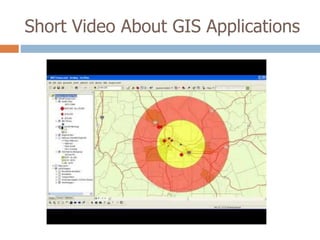
Short Video About GIS Applications
Distinguishing Properties
of Geographic Data
□ Geographic data represent spatial locations and their associated
attributes measured at certain times
□ Geographic space is continuous
□ Geographic space is nearly spherical
□ Geographic data tend to be spatially dependent (things that are
close together tend to be more related than things that are far apart)
□ Geographic data are selective, generalized, and approximate
(the larger the area covered, the more generalized the data tends to be;
the smaller the area the more detail)
□ Getting it in Sucks (GIS) = The lion’s share of the cost of most GIS projects
is associated with the development of a suitable database)
Two Dominant GIS Formats
• VECTOR
• RASTER
Vector Data Model
The Vector Data is based on the assumption that the
earth's surface is composed of discrete objects such as
trees, rivers, and lakes.
Objects are sampled at intervals along the length of a road
or property parcel, for example.
The vector approach is well suited for mapping entities
with well defined edges, such as highways, pipelines, or
property parcels.
Shapefiles (.shp)
 ArcGIS uses shapefiles as the
smallest unit to create maps.
 Shapefiles are stored in a .shp format.
 Shapefiles contain information either
in form of points (e.g., villages), lines
(e.g., roads) or polygons (e.g., country
boundaries).
Shapefiles Continued….
 A single shapefile is actually composed of several computer
files. Depending on how the shapefile was created, there
may be up to seven separate files that comprise the
shapefile dataset.
 If you want to share a shapefile dataset, all of the
associated files must be transferred or the dataset will be
unusable.
 Shapefiles should not be moved from their original location
in the directory.
 Shapefile are a universal exchange format and used heavily
in GIS field
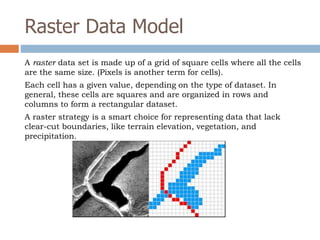
Raster Data Model
A raster data set is made up of a grid of square cells where all the cells
are the same size. (Pixels is another term for cells).
Each cell has a given value, depending on the type of dataset. In
general, these cells are squares and are organized in rows and
columns to form a rectangular dataset.
A raster strategy is a smart choice for representing data that lack
clear-cut boundaries, like terrain elevation, vegetation, and
precipitation.
15 Minute Break
Exercise 2: The Basics of ArcMap
□ Connect to folder
□ Add Data to ArcMap & Understand Layers
□ Understand what a Data Frame is
□ Explore data using appropriate tools (identify,
bookmarks, attribute tables)
□ Use a basic ArcMap skill set to build a map
□ Explore page & printer settings
Coordinate Systems
 The geographic coordinate system uses
spherical coordinates to identify points,
lines, or areas on the Earth’s surface.
 A projected coordinate system uses planar
coordinates to identify points, lines, or
areas on the Earth’s surface.
Equator
Prime Meridian
The prime meridian (green line) is the starting point
for longitude and has a value of 0.
The equator (red line) is the starting point for latitude
and has a value of 0. It runs midway between the
north and south poles, dividing the earth into
northern southern hemispheres.
Origin = (0,0)
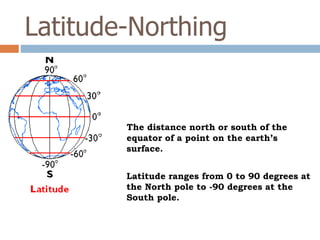
Latitude-Northing
The distance north or south of the
equator of a point on the earth’s
surface.
Latitude ranges from 0 to 90 degrees at
the North pole to -90 degrees at the
South pole.
Longitude-Easting
Longitude is measured zero to 180° going
east or zero to -180° going west to the
International Date Line (IDL).
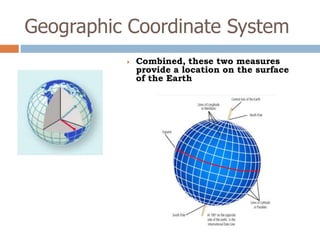
 Combined, these two measures
provide a location on the surface
of the Earth
Geographic Coordinate System
 Position format
– Degree
• DDD.DDDDD – decimal degree
• DD MM SS.S – degree, minute, and second
Examples…
34.73459 (DDD.DDDDD)
34° 44’ 04.5” (DD MM SS.S)
Measuring Latitude & Longitude
Projected Coordinate Systems
 The surface of the earth is curved but maps are flat. To
convert feature locations from the spherical earth to a
flat map, the latitude and longitude coordinates from a
geographic coordinate system must be converted, or
projected, to planar coordinates.
What is a Map Projection?
 A map projection is a mathematical formula that we use
to convert data that are stored in spherical coordinates
(e.g., latitude and longitude) into plane coordinates.
Projected Coordinate Systems
Test Your Knowledge:
Let’s Play a Game!
https://www.e-education.psu.edu/natureofgeoinfo/c2_p11.html
Exercise 3: Coordinate System Practice
 Learn firsthand why it is important to
have data that is spatially reference.
 Learn how to look up a layer’s spatial
information.
 Learn how to define a coordinate system.
Lunch Break
INTRODUCTION
TO CARTOGRAPHY
Making Maps & MorePart 1
Map Purpose & Audience
 Before you start making a map, it’s is
important to consider who your audience will
be and what their level of expertise is in the
subject matter you are mapping and in reading
maps.
Visual Hierarchy
Visual hierarchy adds depth to an image
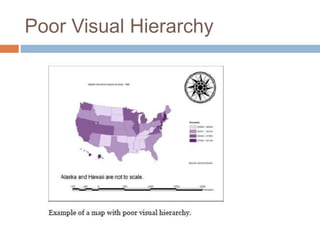
Poor Visual Hierarchy
Good Visual Hierarchy
Map Media
Map media may be classified into two major
types:
1.) Print (hard copy)
2.) Electronic media (soft copy)
Color Space
Map Scale
 Map scale is the proportion between a
distance on a map and a corresponding
distance on the ground
Map Scale
Map Scale
Map Scale
Exercise 4: Setting a Map
Reference Scale
 Add layers
 Explore Layout View
 Learn how to set a reference scale
 Understand how setting a reference scale
affects features
Attribute Data
 A particular type, or category, of
information associated with a feature in a
GIS is called an attribute.
 For example, population can be an
attribute of a city, country, continent, and
other features.
Attribute Table
 Feature attributes are stored in an
attribute table. In an attribute table, each
feature is a record (row) and each
attribute is a column, or field. The
attributes for all the features in a layer
are stored in the same attribute table.
15 Minute Break
Exercise 4: Label Features
 Learn various ways to label features.
 Learn about masking labels.
Labeling Features
There are three ways to label features in ArcMap
1.) Use label tool on the draw toolbar
2.) Use data attribute fields to generate dynamic
labels
3.) create data frame annotation
Quiz
INTRODUCTION
TO CARTOGRAPHY
Making Maps & MorePart 2
Exercise 1: Map Symbolization and
Layout
 Learn how to symbolize data
 Learn how to layout a map.
 Learn how to add various elements to a map,
such as scale bar, legend, north arrow.
15 Minute Break
Exercise 2: Make Your Own Map in Under 1
Hour
 Add at least 3 layers from data provided.
 Label all features, except roads.
 Use Masking for overlapping labels.
 Symbolize Data (edit font color, size, etc.)
 Classify Data (your area of map should be a different color than the
rest of the map).
 Insert Inset Map with extent rectangle.
 Layout Map (insert all map elements: title, scale bar, north arrow,
legend).
 Export for presentation.
Lunch Break
Present Your Own Map
Exercise 3: Data Creation & Editing
 Editor toolbar in ArcMap
Exercise 4: Mapping Refugee Camp
Infrastructure & Population Density
Quiz
Exercise 1: Mapping Mae La
 Must have roads, rivers, polygon, houses
features
 Must have scale bar
 Must have north arrow
 Legend
 Layout
 Title
 Export
 Present

GIS_Intro_March_2014

  • 1.
    INTRODUCTION TO GIS CONCEPTS& SOFTWARE Building a Foundation of GIS KnowledgeDay 1
  • 2.
    Key Learning Objectives To understand what a GIS is, including how GIS is applied in a humanitarian context  To gain a basic understanding of GIS concepts and vocabulary.  Get hands-on experience working with GIS software to make basic maps, create, edit, & integrate data from different sources.
  • 3.
  • 4.
  • 5.
  • 6.
    Questions a GISCan Help Answer  Questions about space: where is an entity located and what is its extent?  Questions about attributes: what are the characteristics of the entity located there?  Questions about time: when were the entity’s location, extent, or characteristics measured? How has the entity changed over time?
  • 7.
    Questions a GISis Not So Good for  Why are the entities located there?  Why do they have the kind of characteristics that they have?  Why have the characteristics changed over time?  GIS cannot provide clear-cut answers to predictive questions right out of the box.
  • 8.
    ArcGIS Desktop Components ArcGISDesktop product includes two applications: ArcMap and ArcCatalog.  ArcMap is the application you work with to explore and analyze data and make maps.  ArcCatalog is the application you work with to manage data.
  • 9.
    Exercise 1: Experimentwith ArcGIS Interface  Add data to ArcMap  Locate Table of Contents, Toolbox, Catalog  Move Toolbars  Open & View Data in ArcCatalog  Close ArcMap & ArcCatalog
  • 10.
    Short Video AboutGIS Applications
  • 11.
    Distinguishing Properties of GeographicData □ Geographic data represent spatial locations and their associated attributes measured at certain times □ Geographic space is continuous □ Geographic space is nearly spherical □ Geographic data tend to be spatially dependent (things that are close together tend to be more related than things that are far apart) □ Geographic data are selective, generalized, and approximate (the larger the area covered, the more generalized the data tends to be; the smaller the area the more detail) □ Getting it in Sucks (GIS) = The lion’s share of the cost of most GIS projects is associated with the development of a suitable database)
  • 12.
    Two Dominant GISFormats • VECTOR • RASTER
  • 13.
    Vector Data Model TheVector Data is based on the assumption that the earth's surface is composed of discrete objects such as trees, rivers, and lakes. Objects are sampled at intervals along the length of a road or property parcel, for example. The vector approach is well suited for mapping entities with well defined edges, such as highways, pipelines, or property parcels.
  • 14.
    Shapefiles (.shp)  ArcGISuses shapefiles as the smallest unit to create maps.  Shapefiles are stored in a .shp format.  Shapefiles contain information either in form of points (e.g., villages), lines (e.g., roads) or polygons (e.g., country boundaries).
  • 15.
    Shapefiles Continued….  Asingle shapefile is actually composed of several computer files. Depending on how the shapefile was created, there may be up to seven separate files that comprise the shapefile dataset.  If you want to share a shapefile dataset, all of the associated files must be transferred or the dataset will be unusable.  Shapefiles should not be moved from their original location in the directory.  Shapefile are a universal exchange format and used heavily in GIS field
  • 16.
    Raster Data Model Araster data set is made up of a grid of square cells where all the cells are the same size. (Pixels is another term for cells). Each cell has a given value, depending on the type of dataset. In general, these cells are squares and are organized in rows and columns to form a rectangular dataset. A raster strategy is a smart choice for representing data that lack clear-cut boundaries, like terrain elevation, vegetation, and precipitation.
  • 17.
  • 18.
    Exercise 2: TheBasics of ArcMap □ Connect to folder □ Add Data to ArcMap & Understand Layers □ Understand what a Data Frame is □ Explore data using appropriate tools (identify, bookmarks, attribute tables) □ Use a basic ArcMap skill set to build a map □ Explore page & printer settings
  • 19.
    Coordinate Systems  Thegeographic coordinate system uses spherical coordinates to identify points, lines, or areas on the Earth’s surface.  A projected coordinate system uses planar coordinates to identify points, lines, or areas on the Earth’s surface.
  • 20.
  • 21.
    Prime Meridian The primemeridian (green line) is the starting point for longitude and has a value of 0. The equator (red line) is the starting point for latitude and has a value of 0. It runs midway between the north and south poles, dividing the earth into northern southern hemispheres. Origin = (0,0)
  • 22.
    Latitude-Northing The distance northor south of the equator of a point on the earth’s surface. Latitude ranges from 0 to 90 degrees at the North pole to -90 degrees at the South pole.
  • 23.
    Longitude-Easting Longitude is measuredzero to 180° going east or zero to -180° going west to the International Date Line (IDL).
  • 24.
     Combined, thesetwo measures provide a location on the surface of the Earth Geographic Coordinate System
  • 25.
    Geographic Coordinate System Position format – Degree • DDD.DDDDD – decimal degree • DD MM SS.S – degree, minute, and second Examples… 34.73459 (DDD.DDDDD) 34° 44’ 04.5” (DD MM SS.S)
  • 26.
  • 27.
    Projected Coordinate Systems The surface of the earth is curved but maps are flat. To convert feature locations from the spherical earth to a flat map, the latitude and longitude coordinates from a geographic coordinate system must be converted, or projected, to planar coordinates.
  • 28.
    What is aMap Projection?  A map projection is a mathematical formula that we use to convert data that are stored in spherical coordinates (e.g., latitude and longitude) into plane coordinates.
  • 29.
  • 30.
    Test Your Knowledge: Let’sPlay a Game! https://www.e-education.psu.edu/natureofgeoinfo/c2_p11.html
  • 31.
    Exercise 3: CoordinateSystem Practice  Learn firsthand why it is important to have data that is spatially reference.  Learn how to look up a layer’s spatial information.  Learn how to define a coordinate system.
  • 32.
  • 33.
  • 34.
    Map Purpose &Audience  Before you start making a map, it’s is important to consider who your audience will be and what their level of expertise is in the subject matter you are mapping and in reading maps.
  • 35.
    Visual Hierarchy Visual hierarchyadds depth to an image
  • 36.
  • 37.
  • 38.
    Map Media Map mediamay be classified into two major types: 1.) Print (hard copy) 2.) Electronic media (soft copy)
  • 39.
  • 40.
    Map Scale  Mapscale is the proportion between a distance on a map and a corresponding distance on the ground
  • 41.
  • 42.
  • 43.
  • 44.
    Exercise 4: Settinga Map Reference Scale  Add layers  Explore Layout View  Learn how to set a reference scale  Understand how setting a reference scale affects features
  • 45.
    Attribute Data  Aparticular type, or category, of information associated with a feature in a GIS is called an attribute.  For example, population can be an attribute of a city, country, continent, and other features.
  • 46.
    Attribute Table  Featureattributes are stored in an attribute table. In an attribute table, each feature is a record (row) and each attribute is a column, or field. The attributes for all the features in a layer are stored in the same attribute table.
  • 47.
  • 48.
    Exercise 4: LabelFeatures  Learn various ways to label features.  Learn about masking labels.
  • 49.
    Labeling Features There arethree ways to label features in ArcMap 1.) Use label tool on the draw toolbar 2.) Use data attribute fields to generate dynamic labels 3.) create data frame annotation
  • 50.
  • 51.
  • 52.
    Exercise 1: MapSymbolization and Layout  Learn how to symbolize data  Learn how to layout a map.  Learn how to add various elements to a map, such as scale bar, legend, north arrow.
  • 53.
  • 54.
    Exercise 2: MakeYour Own Map in Under 1 Hour  Add at least 3 layers from data provided.  Label all features, except roads.  Use Masking for overlapping labels.  Symbolize Data (edit font color, size, etc.)  Classify Data (your area of map should be a different color than the rest of the map).  Insert Inset Map with extent rectangle.  Layout Map (insert all map elements: title, scale bar, north arrow, legend).  Export for presentation.
  • 55.
  • 56.
  • 57.
    Exercise 3: DataCreation & Editing  Editor toolbar in ArcMap
  • 58.
    Exercise 4: MappingRefugee Camp Infrastructure & Population Density
  • 59.
  • 60.
    Exercise 1: MappingMae La  Must have roads, rivers, polygon, houses features  Must have scale bar  Must have north arrow  Legend  Layout  Title  Export  Present