

















SLIDESHARE
STEP BY STEP
GUIDE ON HOW
TO USE
SLIDESHARE
SlideShare is a
global hub of
professional
content.
It’s one of the top 100
most-visited websites in
the world, with over 70
million unique visitors a
month and 18 million
uploads to date
On SlideShare you can
view and upload
Presentations,
Infographics,
Documents and Videos.
Now let’s get
started!
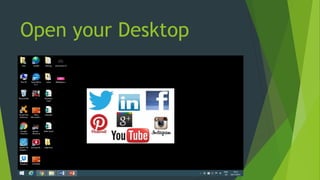
Open your Desktop
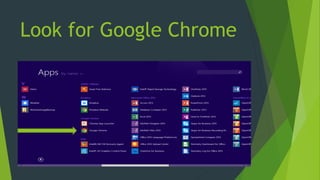
Look for Google Chrome
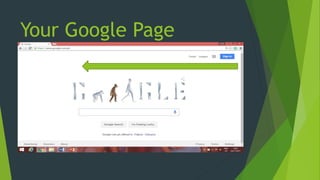
Your Google Page
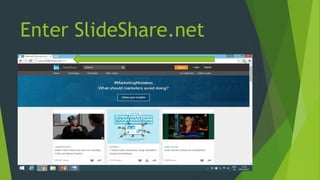
Enter SlideShare.net
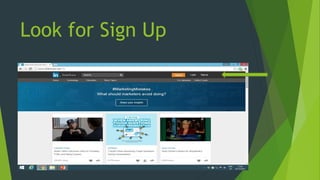
Look for Sign Up
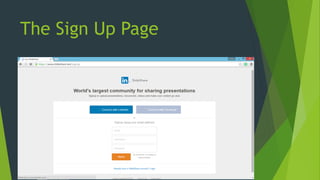
The Sign Up Page
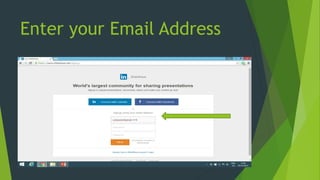
Enter your Email Address
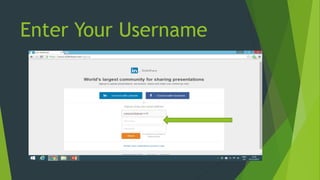
Enter Your Username
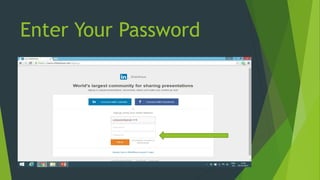
Enter Your Password
They will welcome
you on the site. Just
click the emailed link
to verify your
account.
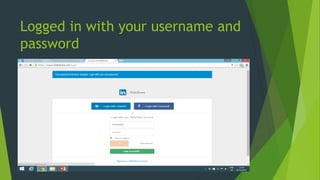
Logged in with your username and
password
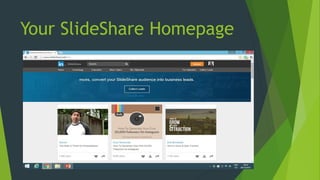
Your SlideShare Homepage
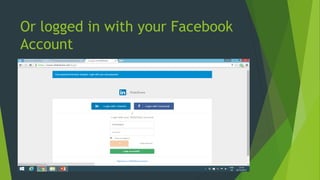
Or logged in with your Facebook
Account
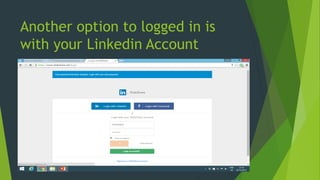
Another option to logged in is
with your Linkedin Account
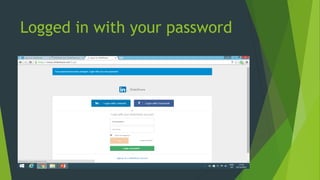
Logged in with your password
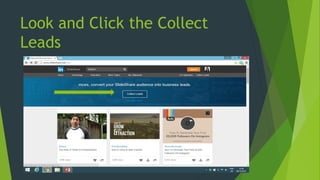
Look and Click the Collect
Leads
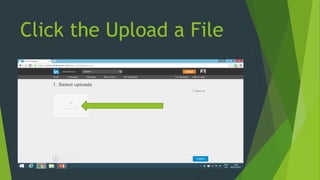
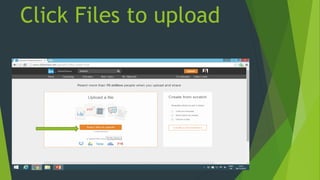
Click the Upload a File
Click Files to upload
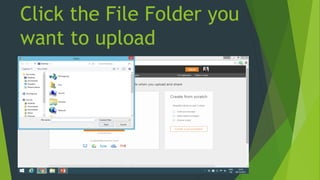
Click the File Folder you
want to upload
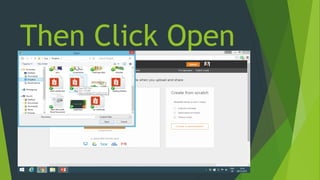
Then Click Open
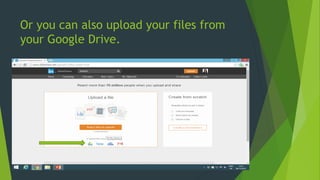
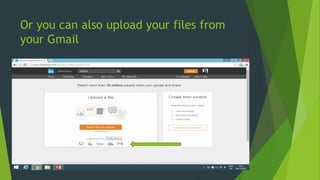
Or you can also upload your files from
your Google Drive.
Or you can also upload your files from
your Gmail
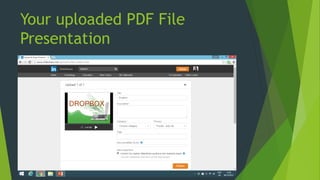
Your uploaded PDF File
Presentation
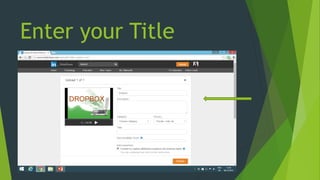
Enter your Title
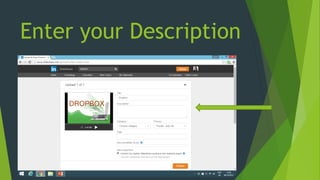
Enter your Description
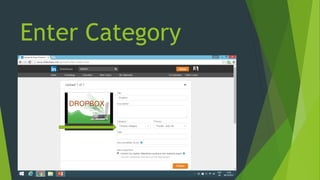
Enter Category
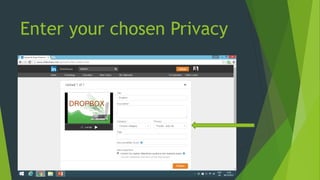
Enter your chosen Privacy
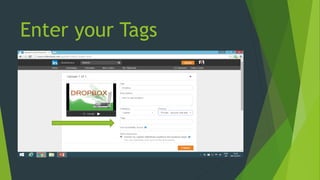
Enter your Tags
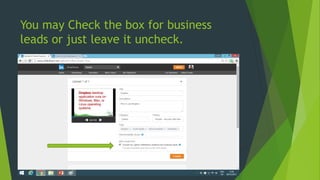
You may Check the box for business
leads or just leave it uncheck.
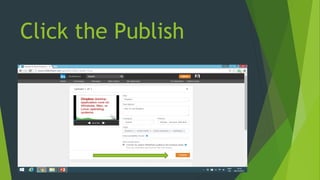
Click the Publish
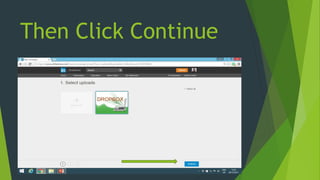
Then Click Continue
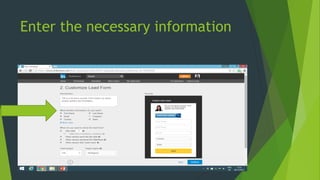
Enter the necessary information
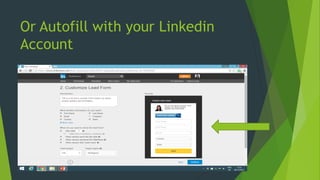
Or Autofill with your Linkedin
Account
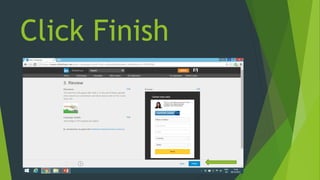
Click Finish
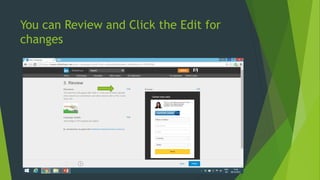
You can Review and Click the Edit for
changes
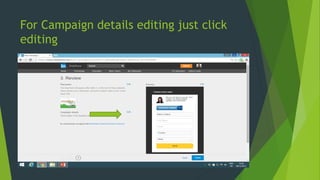
For Campaign details editing just click
editing
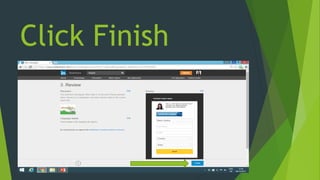
Click Finish
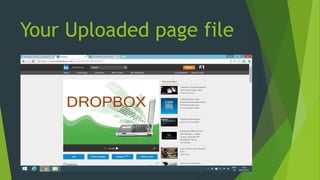
Your Uploaded page file
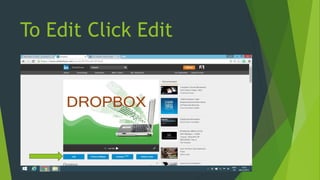
To Edit Click Edit
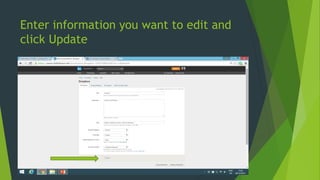
Enter information you want to edit and
click Update
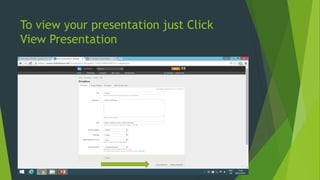
To view your presentation just Click
View Presentation
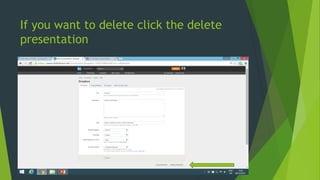
If you want to delete click the delete
presentation
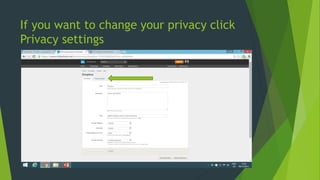
If you want to change your privacy click
Privacy settings
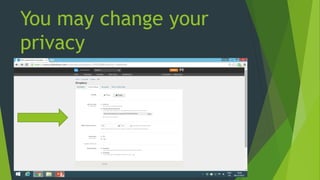
You may change your
privacy
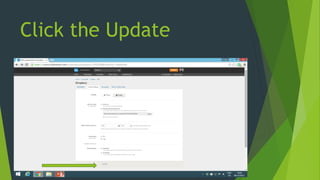
Click the Update
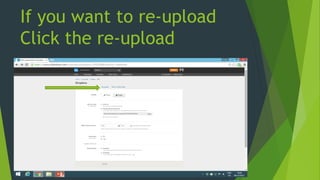
If you want to re-upload
Click the re-upload
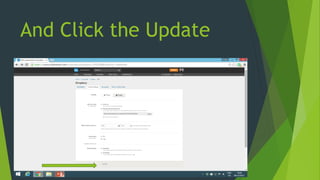
And Click the Update
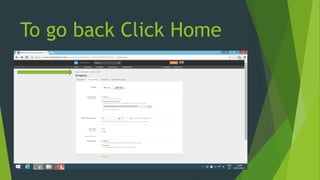
To go back Click Home
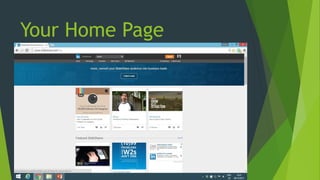
Your Home Page
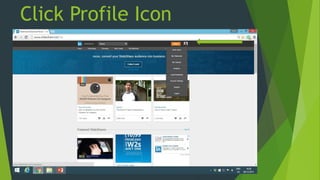
Click Profile Icon
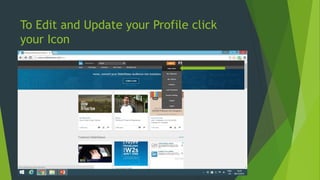
To Edit and Update your Profile click
your Icon
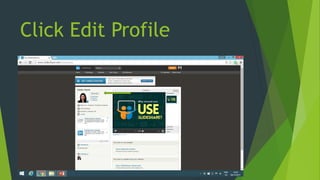
Click Edit Profile
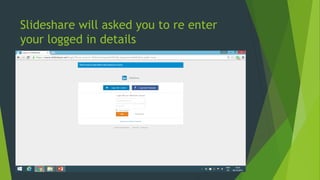
Slideshare will asked you to re enter
your logged in details
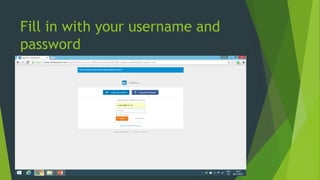
Fill in with your username and
password
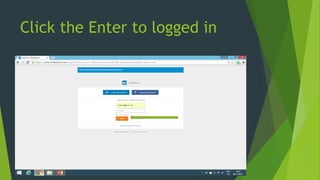
Click the Enter to logged in
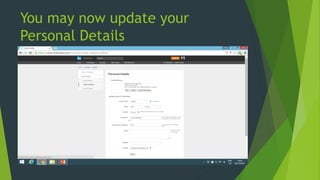
You may now update your
Personal Details
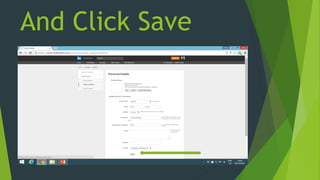
And Click Save
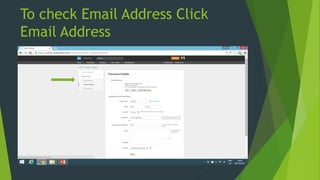
To check Email Address Click
Email Address
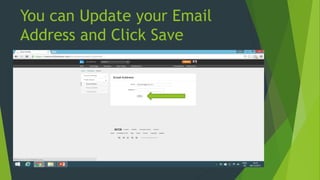
You can Update your Email
Address and Click Save
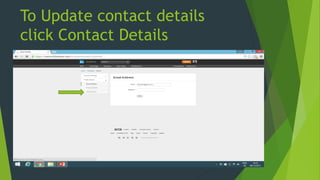
To Update contact details
click Contact Details
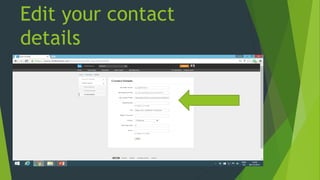
Edit your contact
details
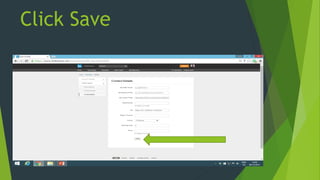
Click Save
Clipping is a tool
designed
To make it
easier to
conduct,
organize,
Save, learned
any topic even
faster and
easier
Clip and save any
presentations you
wish to view or
share later.
How to Clip
Presentation?
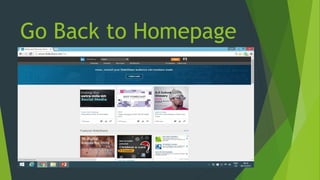
Go Back to Homepage
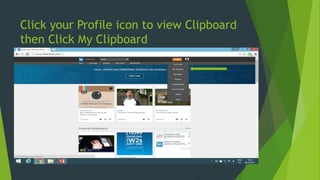
Click your Profile icon to view Clipboard
then Click My Clipboard
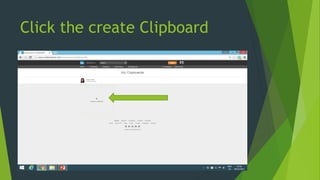
Click the create Clipboard
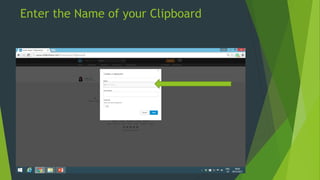
Enter the Name of your Clipboard
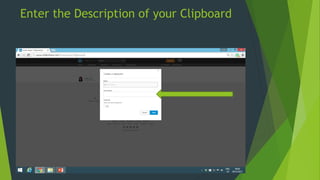
Enter the Description of your Clipboard
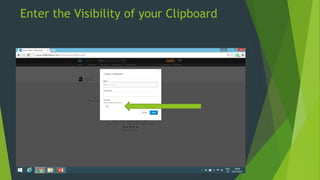
Enter the Visibility of your Clipboard
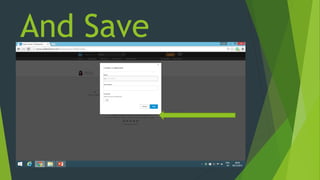
And Save
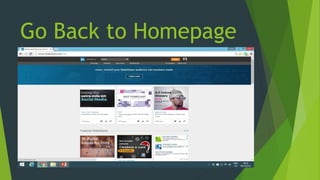
Go Back to Homepage
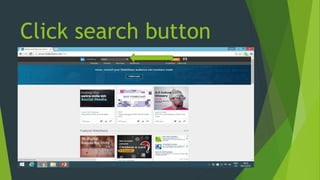
Click search button
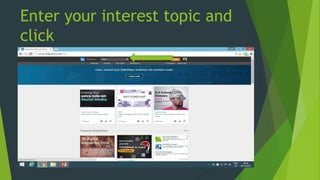
Enter your interest topic and
click
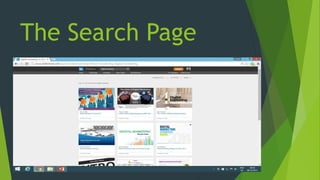
The Search Page
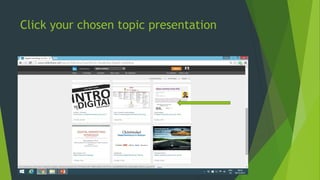
Click your chosen topic presentation
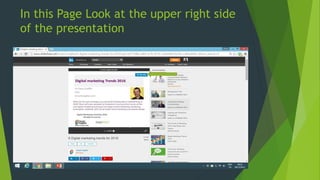
In this Page Look at the upper right side
of the presentation
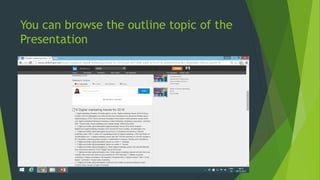
You can browse the outline topic of the
Presentation
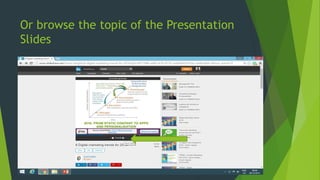
Or browse the topic of the Presentation
Slides
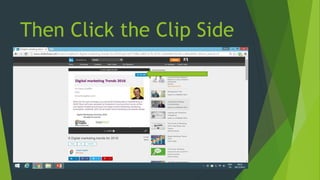
Then Click the Clip Side
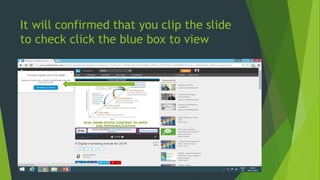
It will confirmed that you clip the slide
to check click the blue box to view
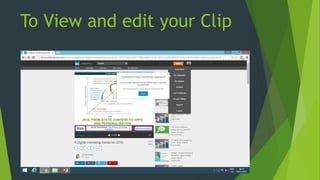
To View and edit your Clip
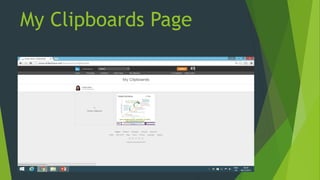
My Clipboards Page
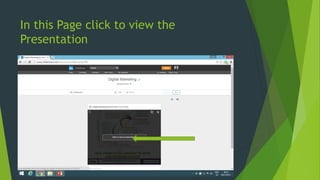
In this Page click to view the
Presentation
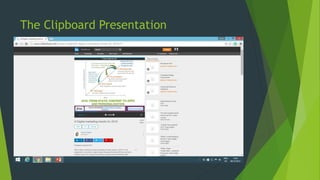
The Clipboard Presentation
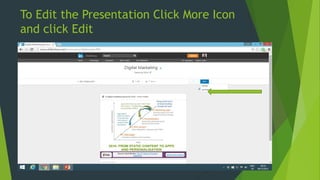
To Edit the Presentation Click More Icon
and click Edit
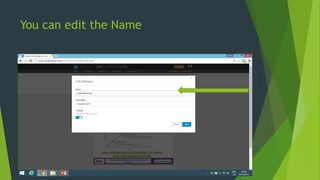
You can edit the Name
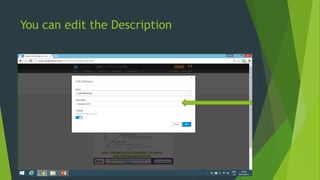
You can edit the Description
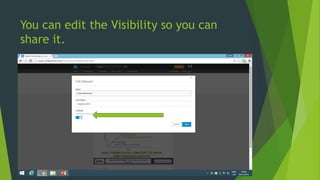
You can edit the Visibility so you can
share it.
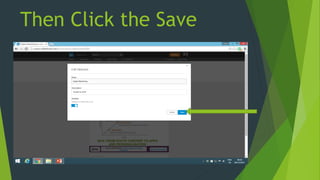
Then Click the Save
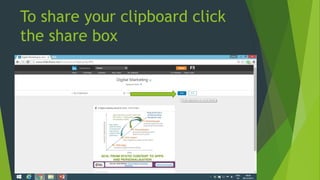
To share your clipboard click
the share box
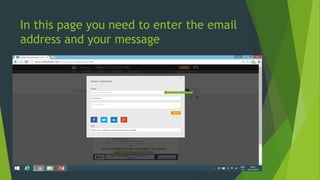
In this page you need to enter the email
address and your message
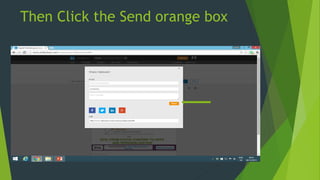
Then Click the Send orange box
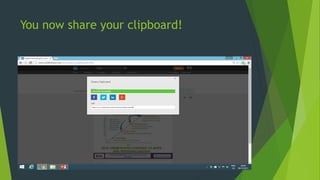
You now share your clipboard!
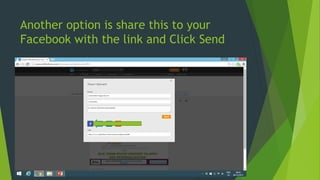
Another option is share this to your
Facebook with the link and Click Send
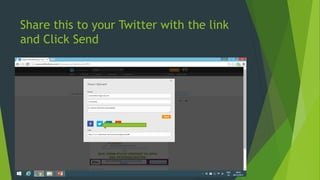
Share this to your Twitter with the link
and Click Send
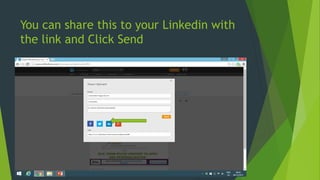
You can share this to your Linkedin with
the link and Click Send
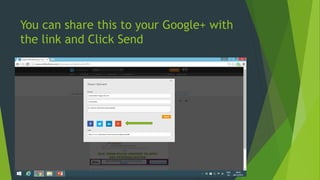
You can share this to your Google+ with
the link and Click Send
To check if they
received your
shared clipboard
presentation?
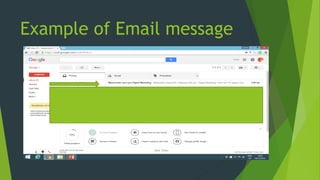
Example of Email message
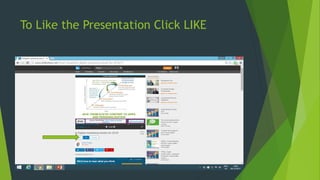
To Like the Presentation Click LIKE
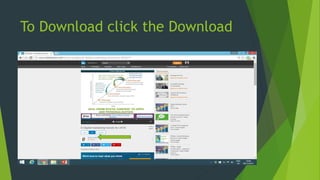
To Download click the Download
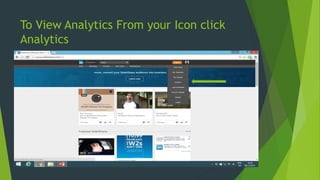
To View Analytics From your Icon click
Analytics
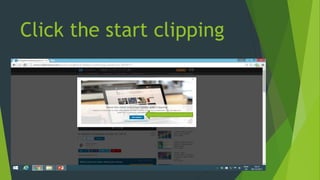
Click the start clipping
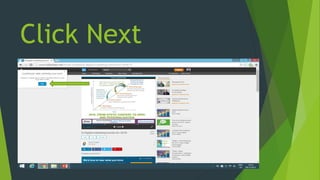
Click Next
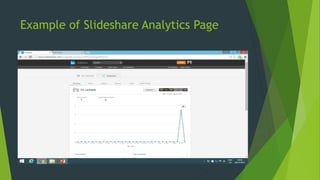
Example of Slideshare Analytics Page
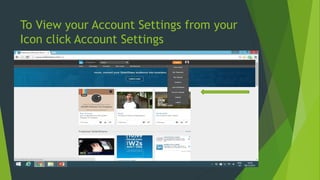
To View your Account Settings from your
Icon click Account Settings
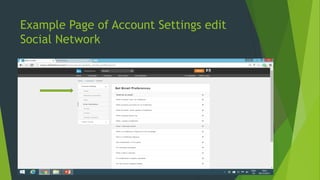
Example Page of Account Settings edit
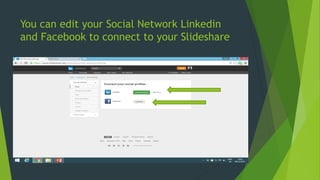
Social Network
You can edit your Social Network Linkedin
and Facebook to connect to your Slideshare
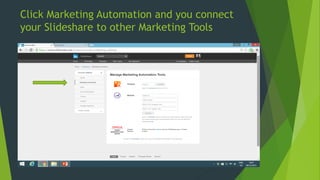
Click Marketing Automation and you connect
your Slideshare to other Marketing Tools
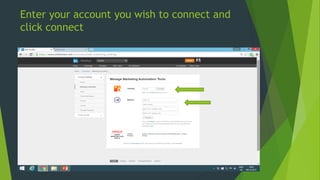
Enter your account you wish to connect and
click connect
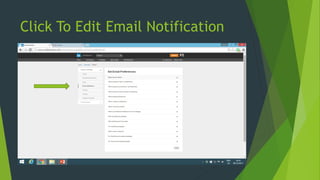
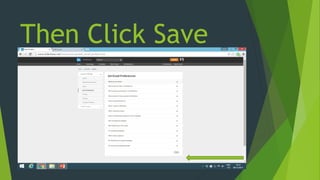
Click To Edit Email Notification
Then Click Save
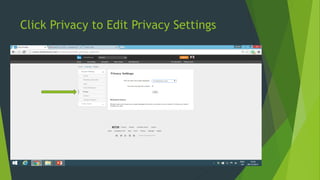
Click Privacy to Edit Privacy Settings
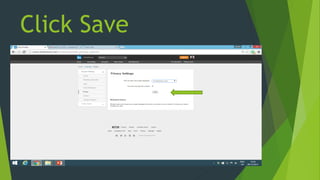
Click Save
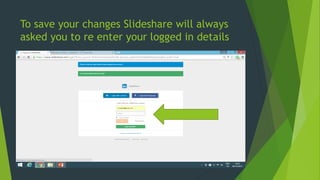
To save your changes Slideshare will always
asked you to re enter your logged in details
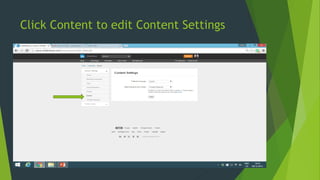
Click Content to edit Content Settings
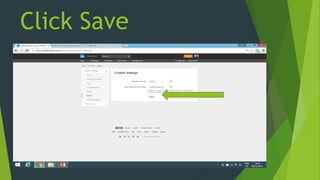
Click Save
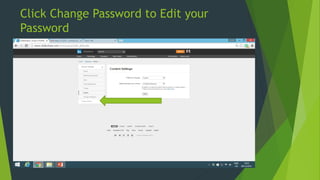
Click Change Password to Edit your
Password
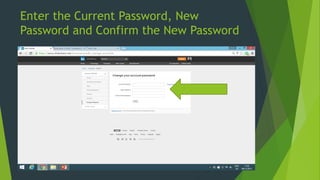
Enter the Current Password, New
Password and Confirm the New Password
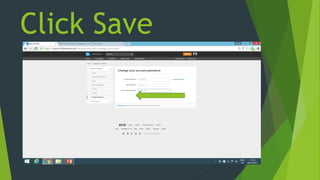
Click Save
How To Look
and View other
Presentation?
Go Back to Homepage
Enter the topic on Search box
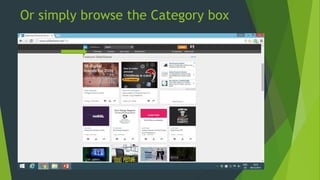
Or simply browse the Category box
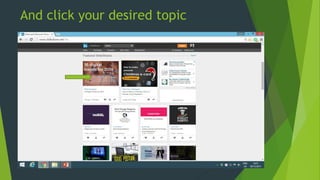
And click your desired topic
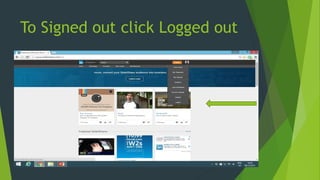
To Signed out click Logged out
Slideshare is
free and easy
to use
It is a great web
tool because it is
easily accessible
anywhere
It is good for
sharing content,
and connects
people globally.
Slideshare is
also a great
place to share
your insights!

Step by step Guide on How to use Slide share