Introduction to SPSS

          BY
     Reza Beebeejaun
WHAT IS SPSS?
2


       SPSS is a statistical package used for conducting
        statistical analyses, manipulating and presenting
        data.
       Acronym - Statistical Package for the Social
        Science but now it is known as Predictive analysis
        software
       Its statistical capabilities range from simple
        percentages to complex analyses including multiple
        regressions and general linear models
                                             04/09/13
                                                             2
STARTING SPSS
Data Analysis
 with SPSS


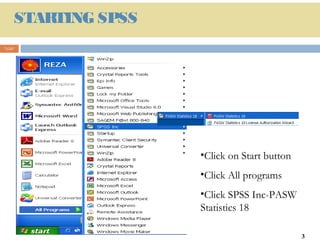
                            •Click on Start button
                            •Click All programs
                            •Click SPSS Inc-PASW
                            Statistics 18

                                                     3
SPSS INTERFACE
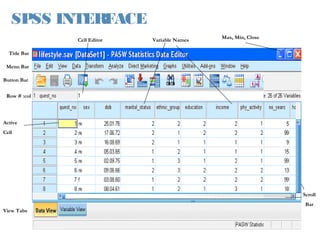
                                                       Max, Min, Close
              Cell Editor    Variable Names

  Title Bar

 Menu Bar

Button Bar


 Row # :col


Active
Cell


                                                                         Scroll
                                                                          Bar
View Tabs

                            Data Analysis with SPSS   04/09/13
DATA EDITOR
5

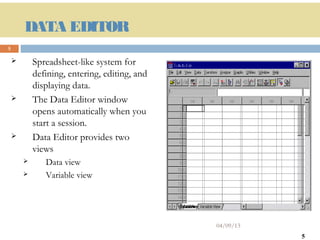
           Spreadsheet-like system for
            defining, entering, editing, and
            displaying data.
           The Data Editor window
            opens automatically when you
            start a session.
           Data Editor provides two
            views
              Data view
              Variable view


                                               04/09/13
                                                          5
DATA VIEW
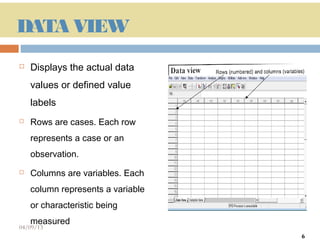
   Displays the actual data
    values or defined value
    labels
   Rows are cases. Each row
    represents a case or an
    observation.
   Columns are variables. Each
    column represents a variable
    or characteristic being
    measured
04/09/13                           6
                                       6
VARIABLE VIEW
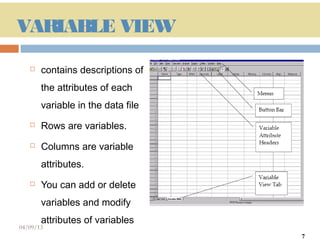
      contains descriptions of
       the attributes of each
       variable in the data file
      Rows are variables.
      Columns are variable
       attributes.
      You can add or delete
       variables and modify
       attributes of variables
04/09/13                           7
                                       7
THE OUTPUT VIEW

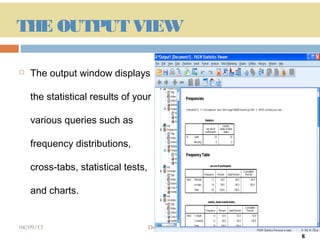
   The output window displays

    the statistical results of your

    various queries such as

    frequency distributions,

    cross-tabs, statistical tests,

    and charts.


04/09/13                             Data Analysis with SPSS   8
                                                                   8
THE SYNTAX VIEW

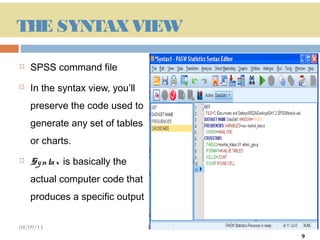
   SPSS command file
   In the syntax view, you’ll
    preserve the code used to
    generate any set of tables
    or charts.
   Sy nta x is basically the
    actual computer code that
    produces a specific output

04/09/13                         Data Analysis with SPSS   9
                                                               9
MENUS
10


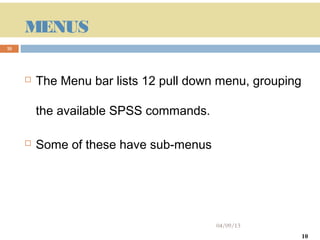
        The Menu bar lists 12 pull down menu, grouping

         the available SPSS commands.

        Some of these have sub-menus


                                        04/09/13
                                                          10
OPEN SPSS DATA FILE
11


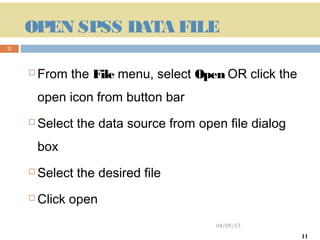
        From the File menu, select Open OR click the
         open icon from button bar
        Select the data source from open file dialog
         box
        Select the desired file
        Click open
                                        04/09/13
                                                        11
IMPORT/
            READ SPREADSHEET FILE
12


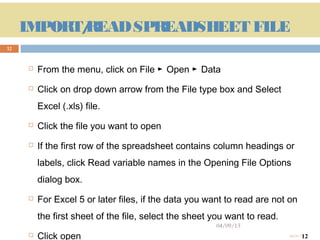
             From the menu, click on File ► Open ► Data
             Click on drop down arrow from the File type box and Select
              Excel (.xls) file.
             Click the file you want to open
             If the first row of the spreadsheet contains column headings or
              labels, click Read variable names in the Opening File Options
              dialog box.
             For Excel 5 or later files, if the data you want to read are not on
              the first sheet of the file, select the sheet you want to read.
                                                            04/09/13
     12      Click open                                                               12
                                                                                04/09/13
IMPORT/
                READ TEXT DATA FILE
13


             From the menu, click on File ► read text Data
             The open file dialog box will appear
             Select the file you want to open and click open
             Follow the steps in the Text Wizard to define
              how to read the data file.


                                             04/09/13
     13                                                          13
                                                          04/09/13
QUIT SPSS
14


         From the menu
         Click File
                    Exit


         04/09/13
                           04/09/13        14
                                      14

Introduction to spss 18

  • 1.
    Introduction to SPSS BY Reza Beebeejaun
  • 2.
    WHAT IS SPSS? 2  SPSS is a statistical package used for conducting statistical analyses, manipulating and presenting data.  Acronym - Statistical Package for the Social Science but now it is known as Predictive analysis software  Its statistical capabilities range from simple percentages to complex analyses including multiple regressions and general linear models 04/09/13 2
  • 3.
    STARTING SPSS Data Analysis with SPSS •Click on Start button •Click All programs •Click SPSS Inc-PASW Statistics 18 3
  • 4.
    SPSS INTERFACE Max, Min, Close Cell Editor Variable Names Title Bar Menu Bar Button Bar Row # :col Active Cell Scroll Bar View Tabs Data Analysis with SPSS 04/09/13
  • 5.
    DATA EDITOR 5  Spreadsheet-like system for defining, entering, editing, and displaying data.  The Data Editor window opens automatically when you start a session.  Data Editor provides two views  Data view  Variable view 04/09/13 5
  • 6.
    DATA VIEW  Displays the actual data values or defined value labels  Rows are cases. Each row represents a case or an observation.  Columns are variables. Each column represents a variable or characteristic being measured 04/09/13 6 6
  • 7.
    VARIABLE VIEW  contains descriptions of the attributes of each variable in the data file  Rows are variables.  Columns are variable attributes.  You can add or delete variables and modify attributes of variables 04/09/13 7 7
  • 8.
    THE OUTPUT VIEW  The output window displays the statistical results of your various queries such as frequency distributions, cross-tabs, statistical tests, and charts. 04/09/13 Data Analysis with SPSS 8 8
  • 9.
    THE SYNTAX VIEW  SPSS command file  In the syntax view, you’ll preserve the code used to generate any set of tables or charts.  Sy nta x is basically the actual computer code that produces a specific output 04/09/13 Data Analysis with SPSS 9 9
  • 10.
    MENUS 10  The Menu bar lists 12 pull down menu, grouping the available SPSS commands.  Some of these have sub-menus 04/09/13 10
  • 11.
    OPEN SPSS DATAFILE 11  From the File menu, select Open OR click the open icon from button bar  Select the data source from open file dialog box  Select the desired file  Click open 04/09/13 11
  • 12.
    IMPORT/ READ SPREADSHEET FILE 12  From the menu, click on File ► Open ► Data  Click on drop down arrow from the File type box and Select Excel (.xls) file.  Click the file you want to open  If the first row of the spreadsheet contains column headings or labels, click Read variable names in the Opening File Options dialog box.  For Excel 5 or later files, if the data you want to read are not on the first sheet of the file, select the sheet you want to read. 04/09/13 12  Click open 12 04/09/13
  • 13.
    IMPORT/ READ TEXT DATA FILE 13  From the menu, click on File ► read text Data  The open file dialog box will appear  Select the file you want to open and click open  Follow the steps in the Text Wizard to define how to read the data file. 04/09/13 13 13 04/09/13
  • 14.
    QUIT SPSS 14  From the menu  Click File Exit 04/09/13 04/09/13 14 14

Editor's Notes

  • #2 Elementary Concepts in Statistics 04/09/13 Data Analysis with SPSS
  • #3 SPSS is a statistical package to provide multiple functions for managing, analyzing, and presenting data. Acronym - Statistical Package for the Social Science but now it is known as Predictive analysis software Its statistical capabilities range from simple percentages to complex analyses of variance, multiple regressions, and general linear models
  • #4 To start spss, Click start button All programs SPSS Inc PASW Statistics 18
  • #5 The SPSS Interface is displayed as follows;
  • #6 The Data Editor window displays the contents of the working dataset. It is arranged in a spreadsheet format that contains variables in columns and cases in rows Data Editor SPSS has both a data view and a variable view; the data view displays the data for each variable variable view displays the specifications for each variable in a SPSS data set. To switch in between variable and data view, select the desired view with the button in the bottom left corner; the view that is currently in use will remain highlighted.
  • #7 Data view presents data in a series of rows and columns, where the rows are individual cases and the columns are separate variables, this means that each entry corresponds to both a case and a variable.
  • #8 The variable view contains descriptions of the attributes of each variable in the data file Rows are variables. Columns are variable attributes. You can add or delete variables and modify attributes of variables
  • #9 All the statistical results are displayed in the output view When you execute a command for a statistical analysis, regardless of whether you used syntax or dialog boxes, the output will be printed in the Output Viewer.
  • #10 SPSS syntax editor enable you to save all the commands for later use. The dialog boxes available through the pull-down menus have a button labeled Paste which will print the syntax for the procedure you are running in the dialog box environment to the Syntax Editor. Open the data file Open new syntax Carry out the analysis Click paste before executing the command save the syntax view Extension of the saved file will be “sps.” To run the command, click on run form the syntax editor For example: Click Analyze, Descriptive statistics, then click Frequencies. Put “Gender‟ in the Variable(s) box. Click Paste. Click OK.
  • #12 To retrieve a simple data file From the File menu, select Open OR click the open icon from button bar Select the data source from open file dialog box Select the desired file Click open
  • #13 We can also import or retrieve a spreadsheet data file From the menu, click on File ►Open ►Data Click on drop down arrow from the File type box and Select Excel (.xls) file. Click the file you want to open If the first row of the spreadsheet contains column headings or labels, click Read variable names in the Opening File Options dialog box. For Excel 5 or later files, if the data you want to read are not on the first sheet of the file, select the sheet you want to read. Click open
  • #14 Similarly we can also import or read a text data file From the menu, click on File ►read text data The open file dialog box will appear Select the file you want to open and click open Follow the steps in the Text Wizard to define how to read the data file. you can choose a predefined format or create a new format in the wizard. Select No to indicate that a new format should be created. Click Next to continue Select Delimited to indicate that the data use a delimited formatting structure. Select Yes to indicate that variable names should be read from the top of the file. Click Next to continue Type 2 in the top section of next dialog box to indicate that the first row of data starts on the second line of the text file. Keep the default values for the remainder of this dialog box, and click Next to continue Select Tab and deselect the other options. Click Next to continue. To change a data type, Under Data preview, select the variable you want to change Leave the default selections in this dialog box, and click Finish to import the data