Introduction
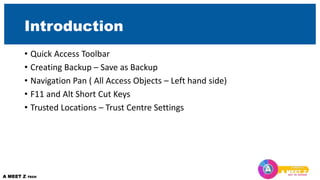
Introduction
• Quick Access Toolbar
• Creating Backup – Save as Backup
• Navigation Pan ( All Access Objects – Left hand side)
• F11 and Alt Short Cut Keys
• Trusted Locations – Trust Centre Settings
DESIGNING A DATABASE
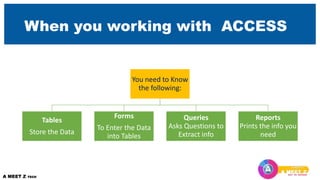
When you working with ACCESS
You need to Know
the following:
Tables
Store the Data
Forms
To Enter the Data
into Tables
Queries
Asks Questions to
Extract info
Reports
Prints the info you
need
Module 1
TABLE STRUCTURE
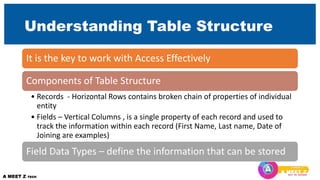
Understanding Table Structure
It is the key to work with Access Effectively
Components of Table Structure
• Records - Horizontal Rows contains broken chain of properties of individual
entity
• Fields – Vertical Columns , is a single property of each record and used to
track the information within each record (First Name, Last name, Date of
Joining are examples)
Field Data Types – define the information that can be stored
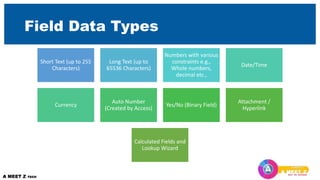
Field Data Types
Short Text (up to 255
Characters)
Long Text (up to
65536 Characters)
Numbers with various
constraints e.g.,
Whole numbers,
decimal etc.,
Date/Time
Currency
Auto Number
(Created by Access)
Yes/No (Binary Field)
Attachment /
Hyperlink
Calculated Fields and
Lookup Wizard
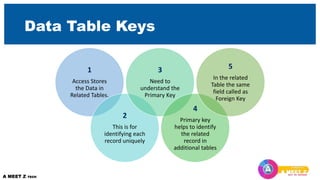
Data Table Keys
1
Access Stores
the Data in
Related Tables.
2
This is for
identifying each
record uniquely
3
Need to
understand the
Primary Key
4
Primary key
helps to identify
the related
record in
additional tables
5
In the related
Table the same
field called as
Foreign Key
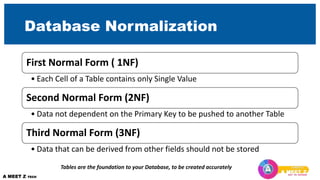
Database Normalization
First Normal Form ( 1NF)
• Each Cell of a Table contains only Single Value
Second Normal Form (2NF)
• Data not dependent on the Primary Key to be pushed to another Table
Third Normal Form (3NF)
• Data that can be derived from other fields should not be stored
Tables are the foundation to your Database, to be created accurately
ACTIVITY
LETS CREATE A TABLE
ASSIGN DATA TYPES
SAVE THE TABLE
Another Table From Existing Data Available
Set the Primary Key and Foreign Key
Module 2
TABLERELATION-SHIPS
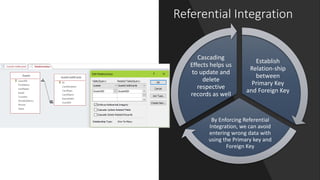
Referential Integration
Establish
Relation-ship
between
Primary Key
and Foreign Key
By Enforcing Referential
Integration, we can avoid
entering wrong data with
using the Primary key and
Foreign Key
Cascading
Effects helps us
to update and
delete
respective
records as well
Relationships
ACTIVITY
• Build Relation
• Referential Integration
• Cascading Effect
EDITING TABLE STRUCTURE
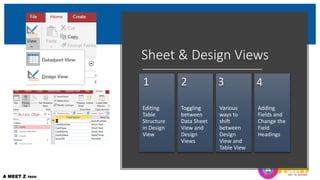
Sheet & Design Views
Editing
Table
Structure
in Design
View
1
Toggling
between
Data Sheet
View and
Design
Views
2
Various
ways to
shift
between
Design
View and
Table View
3
Adding
Fields and
Change the
Field
Headings
4
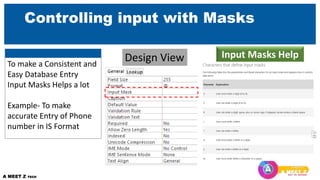
Controlling input with Masks
Design View Input Masks Help
To make a Consistent and
Easy Database Entry
Input Masks Helps a lot
Example- To make
accurate Entry of Phone
number in IS Format
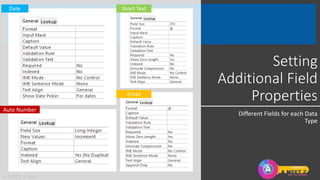
Setting
Additional Field
Properties
Different Fields for each Data
Type
Date
Auto Number
Short Text
Email
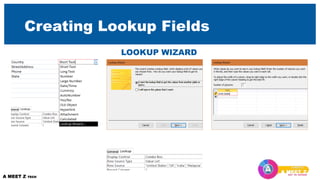
Creating Lookup Fields
LOOKUP WIZARD
Challenge
• Create A Table Structure with Proper Fields
• Create another Table with some data and establish Relation ship
with first Table
Module 3
ORGANISING RECORDS
Formatting
• Formatting Tables and Records
• Sorting Data
• Filter Data
• Status Bar to see number of characters and other information
• Search and Replace
Module 4
UNDERSTANDING QUERIES
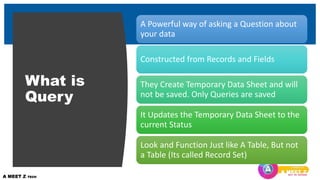
What is
Query
A Powerful way of asking a Question about
your data
Constructed from Records and Fields
They Create Temporary Data Sheet and will
not be saved. Only Queries are saved
It Updates the Temporary Data Sheet to the
current Status
Look and Function Just like A Table, But not
a Table (Its called Record Set)
Ways to create a Query
Using Simple Query Wizard
• Pulling required information from two relational tables
• Look at the Relation-ships to understand what you can get from a Query
Building Queries in Designer View
• Sort View using a Specific Field
• Using Show/Hide Option [check box]
• Establishing Constraints
• Using Simple Criteria
• Criterial with Wildcards (* , ?)
• “[abc]*”
• Multiple Query Criteria with AND / OR , BETWEEN Statements
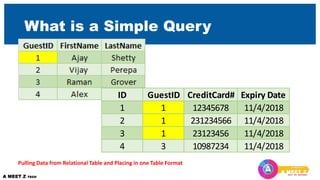
What is a Simple Query
ID GuestID CreditCard# Expiry Date
1 1 12345678 11/4/2018
2 1 231234566 11/4/2018
3 1 23123456 11/4/2018
4 3 10987234 11/4/2018
Pulling Data from Relational Table and Placing in one Table Format
Query in Design View –
using filtering constraints
Sort View using a Specific Field
Using Show/Hide Option [check box]
Establishing Constraints
Using Simple Criteria
Criterial with Wildcards (* , ?)
“[abc]*”
Multiple Query Criteria with AND / OR , BETWEEN Statements
Filtering Data with Math Comparisons
• Comparison Operators
• > Greater Than
• < Less Than
• <> No Equal to
• <= Less than or Equal to
• >= Greater than Equal to
• Majorly used to calculate Value Fields
• Parameter Requests - Like [which alphabet to begin with] & “*”
[which Country would you like to see]
• Building Expressions (Calculated Columns), using Builder
A Complete recap on all Queries
Module 5
SPECIAL QUERIES
ACTION QUERIES
Action Queries
• In the earlier Module you have seen Select Queries which just mere
instructions reproduce existing data
• Action Queries are one step ahead they update and append the
existing data with additional information. (make sure while
performing action queries, you have back up)
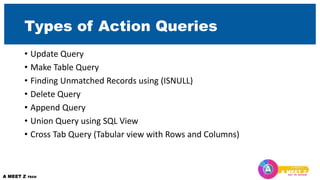
Types of Action Queries
• Update Query
• Make Table Query
• Finding Unmatched Records using (ISNULL)
• Delete Query
• Append Query
• Union Query using SQL View
• Cross Tab Query (Tabular view with Rows and Columns)
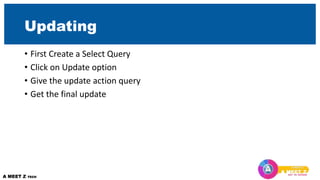
Updating
• First Create a Select Query
• Click on Update option
• Give the update action query
• Get the final update
CREATING FORMS
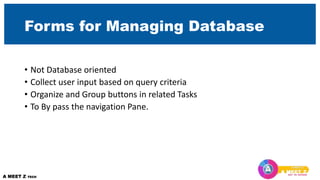
Forms for Managing Database
• Not Database oriented
• Collect user input based on query criteria
• Organize and Group buttons in related Tasks
• To By pass the navigation Pane.
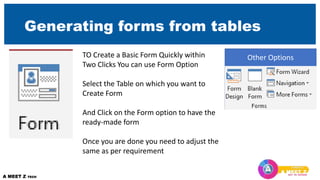
Generating forms from tables
TO Create a Basic Form Quickly within
Two Clicks You can use Form Option
Select the Table on which you want to
Create Form
And Click on the Form option to have the
ready-made form
Once you are done you need to adjust the
same as per requirement
Other Options
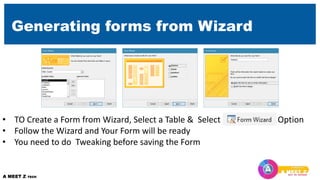
Generating forms from Wizard
• TO Create a Form from Wizard, Select a Table & Select Option
• Follow the Wizard and Your Form will be ready
• You need to do Tweaking before saving the Form
Designing Forms
• Creating forms in Design view
• Exploring the form property sheet – Very Important
• Setting data sources
• Adding components with form controls
• Understanding input boxes
• Record navigation
• Adding buttons
• Assigning a tab order
• Checking out the More Forms options
• Creating a navigation form
CREATING REPORTS
Reports
• Reports are to summarize the Data and to Print
• Using Report Wizard
• Creating reports with Design
• Editing Report Layout
• Grouping and Sorting Reports
• Creating Calculations
• Conditional Formatting
• Print Settings
WORKING WITH MACROS
Macros
• Creating Basic Macros
• Embedding Macros into Button
• Attaching Data to Macros
• Launching Macros as Startup

Access essential training framework

  • 1.
  • 2.
    Introduction • Quick AccessToolbar • Creating Backup – Save as Backup • Navigation Pan ( All Access Objects – Left hand side) • F11 and Alt Short Cut Keys • Trusted Locations – Trust Centre Settings
  • 3.
  • 4.
    When you workingwith ACCESS You need to Know the following: Tables Store the Data Forms To Enter the Data into Tables Queries Asks Questions to Extract info Reports Prints the info you need
  • 5.
  • 6.
    Understanding Table Structure Itis the key to work with Access Effectively Components of Table Structure • Records - Horizontal Rows contains broken chain of properties of individual entity • Fields – Vertical Columns , is a single property of each record and used to track the information within each record (First Name, Last name, Date of Joining are examples) Field Data Types – define the information that can be stored
  • 7.
    Field Data Types ShortText (up to 255 Characters) Long Text (up to 65536 Characters) Numbers with various constraints e.g., Whole numbers, decimal etc., Date/Time Currency Auto Number (Created by Access) Yes/No (Binary Field) Attachment / Hyperlink Calculated Fields and Lookup Wizard
  • 8.
    Data Table Keys 1 AccessStores the Data in Related Tables. 2 This is for identifying each record uniquely 3 Need to understand the Primary Key 4 Primary key helps to identify the related record in additional tables 5 In the related Table the same field called as Foreign Key
  • 9.
    Database Normalization First NormalForm ( 1NF) • Each Cell of a Table contains only Single Value Second Normal Form (2NF) • Data not dependent on the Primary Key to be pushed to another Table Third Normal Form (3NF) • Data that can be derived from other fields should not be stored Tables are the foundation to your Database, to be created accurately
  • 10.
    ACTIVITY LETS CREATE ATABLE ASSIGN DATA TYPES SAVE THE TABLE Another Table From Existing Data Available Set the Primary Key and Foreign Key
  • 11.
  • 12.
    Referential Integration Establish Relation-ship between Primary Key andForeign Key By Enforcing Referential Integration, we can avoid entering wrong data with using the Primary key and Foreign Key Cascading Effects helps us to update and delete respective records as well
  • 13.
  • 14.
    ACTIVITY • Build Relation •Referential Integration • Cascading Effect
  • 15.
  • 16.
    Sheet & DesignViews Editing Table Structure in Design View 1 Toggling between Data Sheet View and Design Views 2 Various ways to shift between Design View and Table View 3 Adding Fields and Change the Field Headings 4
  • 17.
    Controlling input withMasks Design View Input Masks Help To make a Consistent and Easy Database Entry Input Masks Helps a lot Example- To make accurate Entry of Phone number in IS Format
  • 18.
    Setting Additional Field Properties Different Fieldsfor each Data Type Date Auto Number Short Text Email
  • 19.
  • 20.
    Challenge • Create ATable Structure with Proper Fields • Create another Table with some data and establish Relation ship with first Table
  • 21.
  • 22.
    Formatting • Formatting Tablesand Records • Sorting Data • Filter Data • Status Bar to see number of characters and other information • Search and Replace
  • 23.
  • 24.
    What is Query A Powerfulway of asking a Question about your data Constructed from Records and Fields They Create Temporary Data Sheet and will not be saved. Only Queries are saved It Updates the Temporary Data Sheet to the current Status Look and Function Just like A Table, But not a Table (Its called Record Set)
  • 25.
    Ways to createa Query Using Simple Query Wizard • Pulling required information from two relational tables • Look at the Relation-ships to understand what you can get from a Query Building Queries in Designer View • Sort View using a Specific Field • Using Show/Hide Option [check box] • Establishing Constraints • Using Simple Criteria • Criterial with Wildcards (* , ?) • “[abc]*” • Multiple Query Criteria with AND / OR , BETWEEN Statements
  • 26.
    What is aSimple Query ID GuestID CreditCard# Expiry Date 1 1 12345678 11/4/2018 2 1 231234566 11/4/2018 3 1 23123456 11/4/2018 4 3 10987234 11/4/2018 Pulling Data from Relational Table and Placing in one Table Format
  • 27.
    Query in DesignView – using filtering constraints Sort View using a Specific Field Using Show/Hide Option [check box] Establishing Constraints Using Simple Criteria Criterial with Wildcards (* , ?) “[abc]*” Multiple Query Criteria with AND / OR , BETWEEN Statements
  • 28.
    Filtering Data withMath Comparisons • Comparison Operators • > Greater Than • < Less Than • <> No Equal to • <= Less than or Equal to • >= Greater than Equal to • Majorly used to calculate Value Fields • Parameter Requests - Like [which alphabet to begin with] & “*” [which Country would you like to see] • Building Expressions (Calculated Columns), using Builder
  • 29.
    A Complete recapon all Queries
  • 30.
  • 31.
    Action Queries • Inthe earlier Module you have seen Select Queries which just mere instructions reproduce existing data • Action Queries are one step ahead they update and append the existing data with additional information. (make sure while performing action queries, you have back up)
  • 32.
    Types of ActionQueries • Update Query • Make Table Query • Finding Unmatched Records using (ISNULL) • Delete Query • Append Query • Union Query using SQL View • Cross Tab Query (Tabular view with Rows and Columns)
  • 33.
    Updating • First Createa Select Query • Click on Update option • Give the update action query • Get the final update
  • 34.
  • 35.
    Forms for ManagingDatabase • Not Database oriented • Collect user input based on query criteria • Organize and Group buttons in related Tasks • To By pass the navigation Pane.
  • 36.
    Generating forms fromtables TO Create a Basic Form Quickly within Two Clicks You can use Form Option Select the Table on which you want to Create Form And Click on the Form option to have the ready-made form Once you are done you need to adjust the same as per requirement Other Options
  • 37.
    Generating forms fromWizard • TO Create a Form from Wizard, Select a Table & Select Option • Follow the Wizard and Your Form will be ready • You need to do Tweaking before saving the Form
  • 38.
    Designing Forms • Creatingforms in Design view • Exploring the form property sheet – Very Important • Setting data sources • Adding components with form controls • Understanding input boxes • Record navigation • Adding buttons • Assigning a tab order • Checking out the More Forms options • Creating a navigation form
  • 39.
  • 40.
    Reports • Reports areto summarize the Data and to Print • Using Report Wizard • Creating reports with Design • Editing Report Layout • Grouping and Sorting Reports • Creating Calculations • Conditional Formatting • Print Settings
  • 41.
  • 42.
    Macros • Creating BasicMacros • Embedding Macros into Button • Attaching Data to Macros • Launching Macros as Startup

Editor's Notes

  • #13 Referential Integrity – We cannot enter a Credit Card Data relating to a guest whose record doesn’t exist in the Related Table It also doesn’t allow delete a guest record whose credit card information is there in the Credit Card Table In other words it prevents orphan Records. Cascading Effect - Cascading Effect for updating and Deleting the records
  • #18 Change Phone Number Format or Deciding how the input format should be
  • #19 Change the number of characters in Field size of Short Text it allows Caption – Field Caption Indexed – Indexing any specific Field with duplicates yes , duplicates no, no Default Value – To skip the Entry by choosing most common value in that field Establishing Validation Rules – for Example for Expiry Date of Credit Card , Validation rules are Gatekeepers to make sure correct information entered
  • #20 Lookup Value Dramatically Speed up the Data entry
  • #28 Understanding queries Creating queries with the Simple Query Wizard Building queries in Design view Establishing constraints with criteria Specifying criteria with wildcards Leveraging multiple criteria with AND and OR statements Filtering with mathematical comparisons Creating flexible queries with parameter requests using [ ] etc Building expressions (using expression builder) Obtaining summary statistics