

Introduction to SPSS
 About the four-windows in SPSS
 The basics of managing data files
 The basic analysis in SPSS
 The acronym “SPSS” stands for Statistical
Package for Social Science
 One of the most popular statistical
packages which can perform highly
complex data manipulation and analysis
with simple instructions
Data editor
Output viewer
Syntax editor
Script window
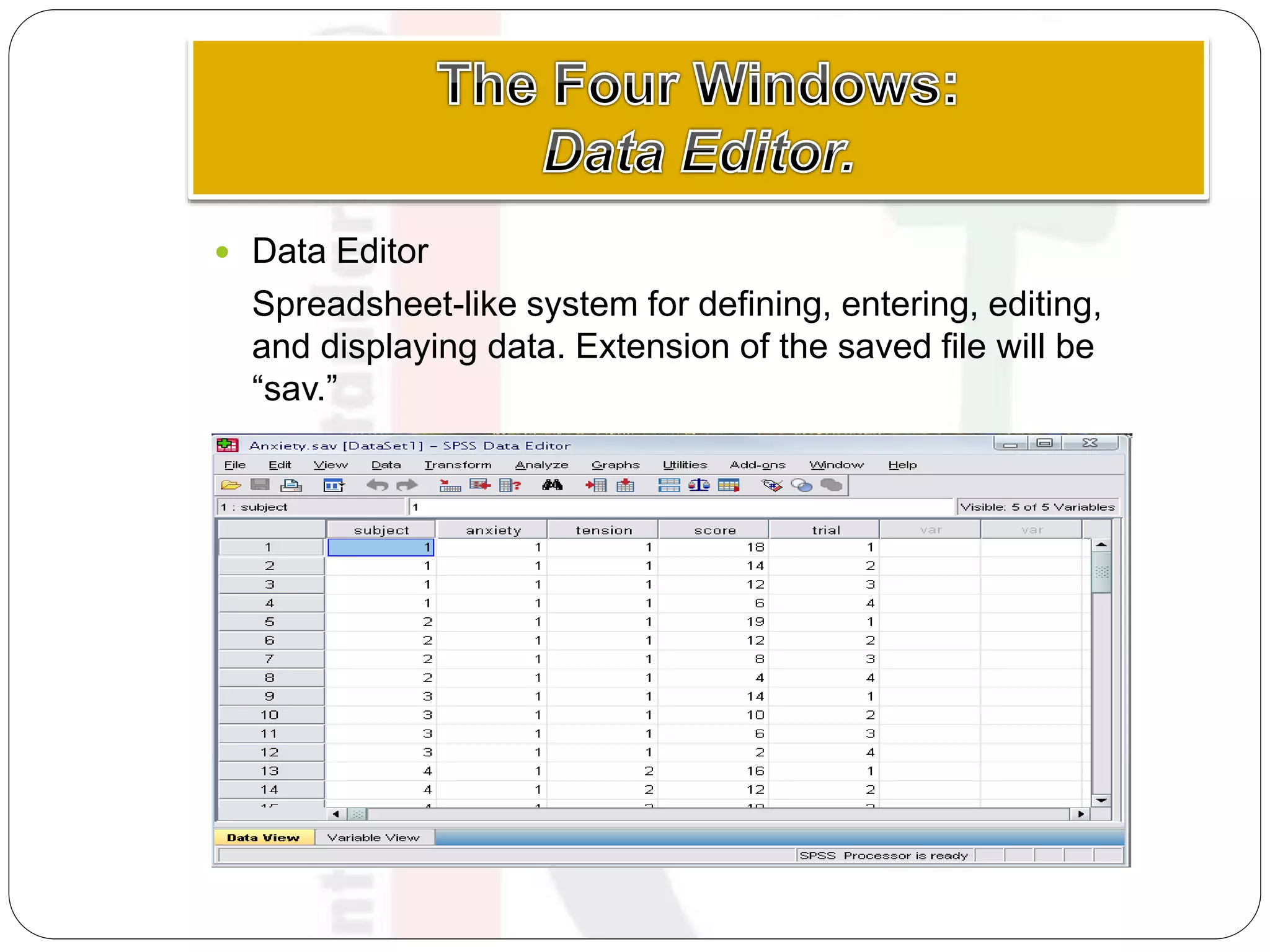
 Data Editor
Spreadsheet-like system for defining, entering, editing,
and displaying data. Extension of the saved file will be
“sav.”
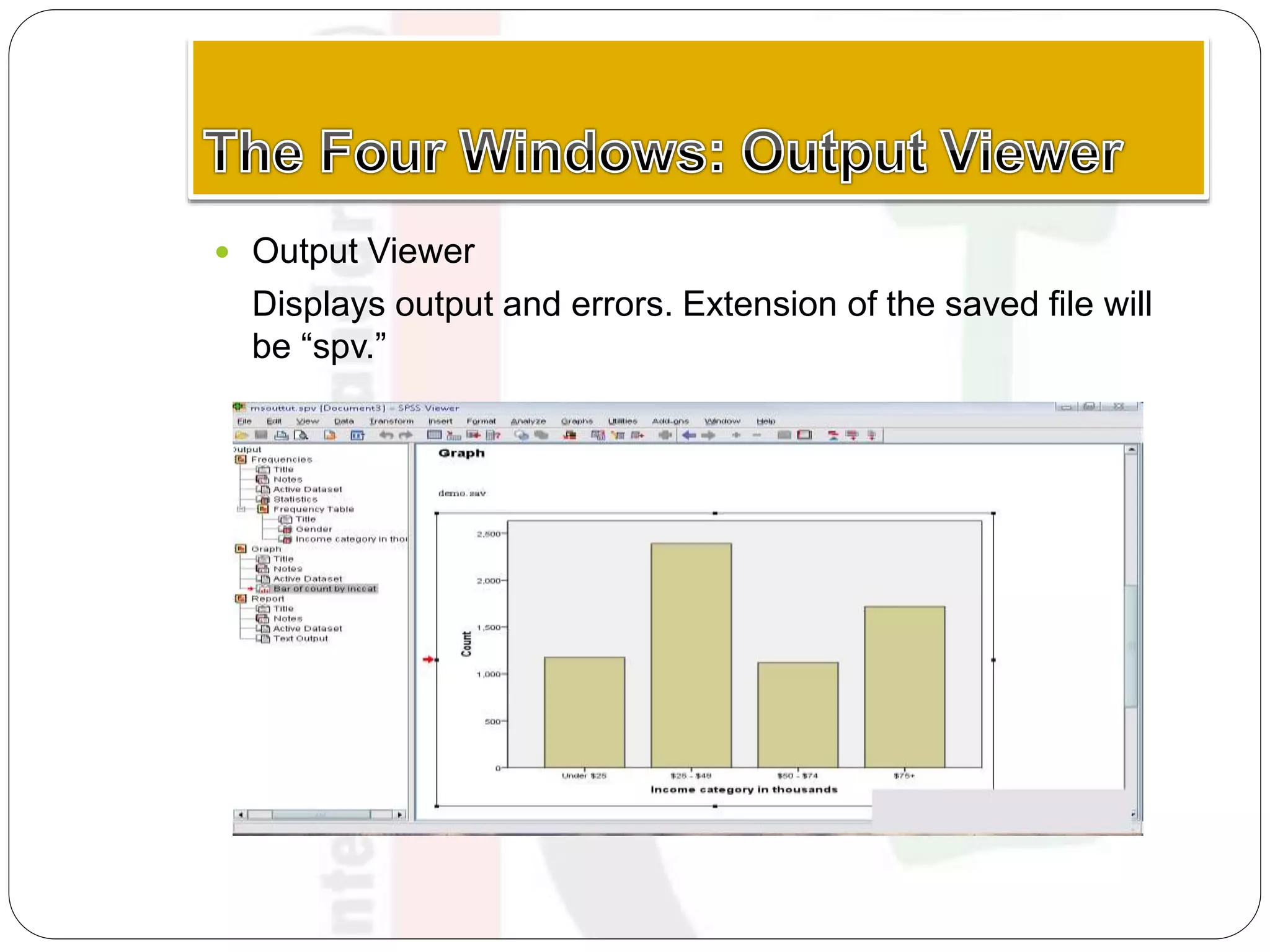
 Output Viewer
Displays output and errors. Extension of the saved file will
be “spv.”
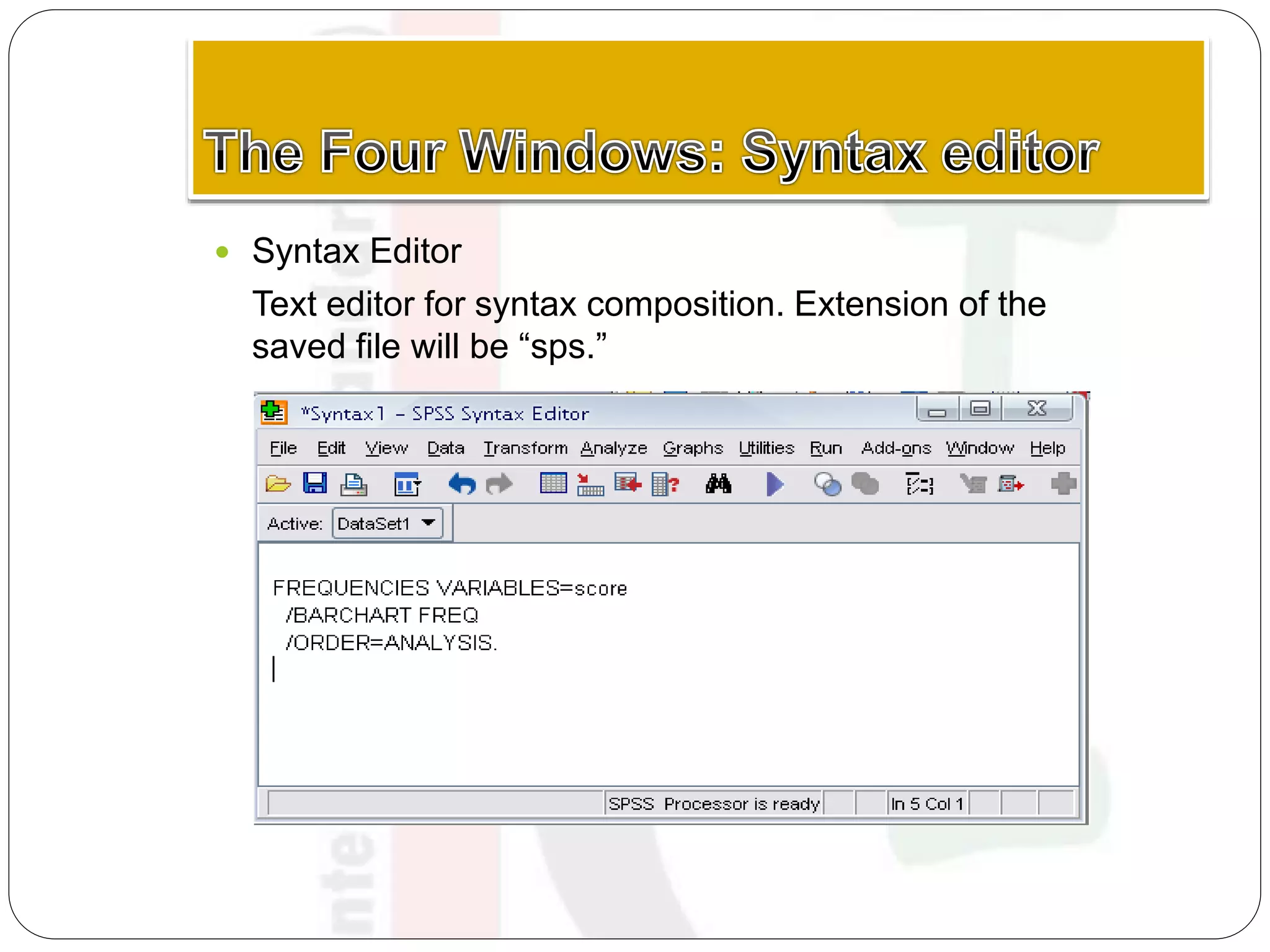
 Syntax Editor
Text editor for syntax composition. Extension of the
saved file will be “sps.”
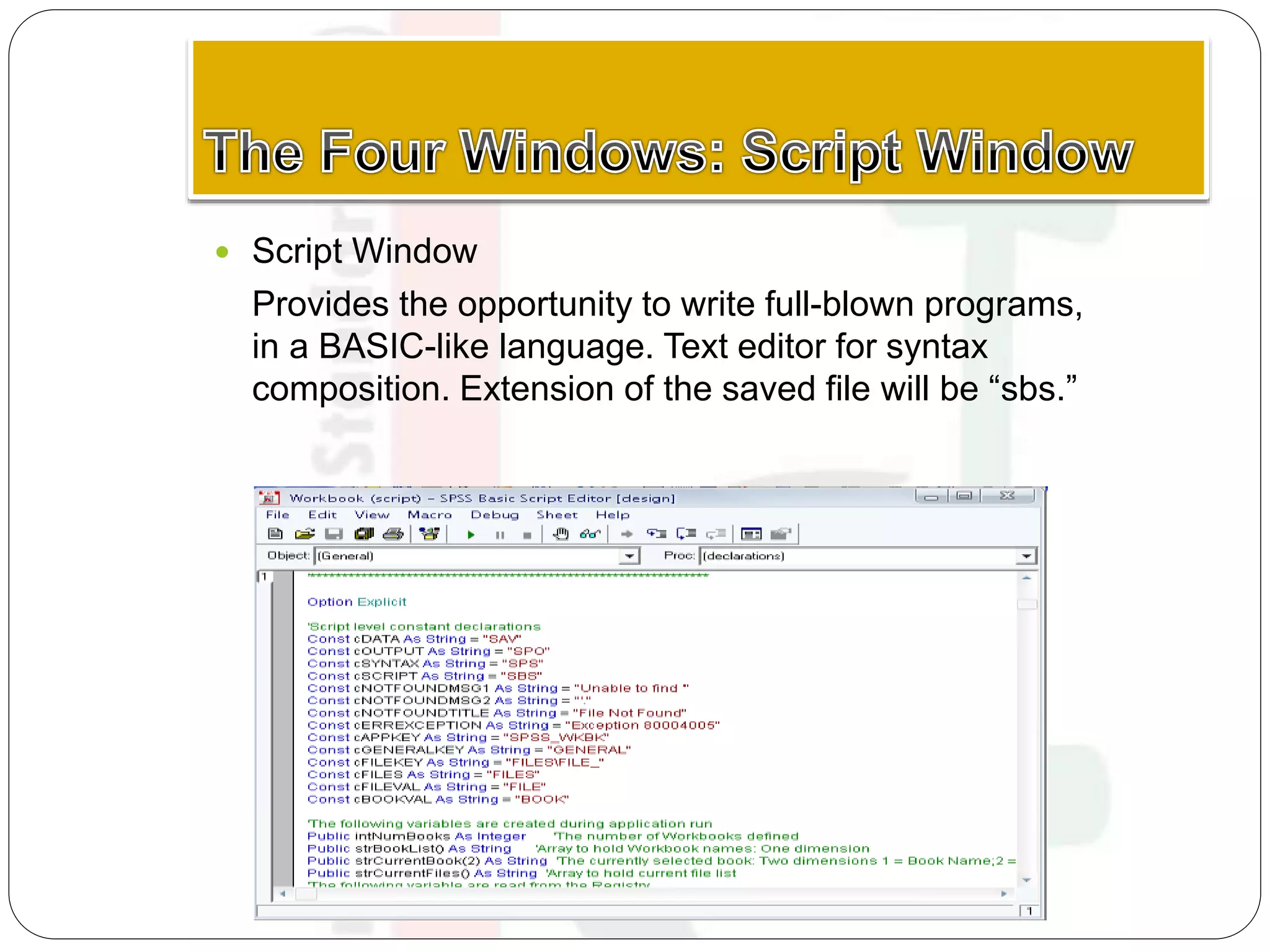
 Script Window
Provides the opportunity to write full-blown programs,
in a BASIC-like language. Text editor for syntax
composition. Extension of the saved file will be “sbs.”
The basics of managing data
files
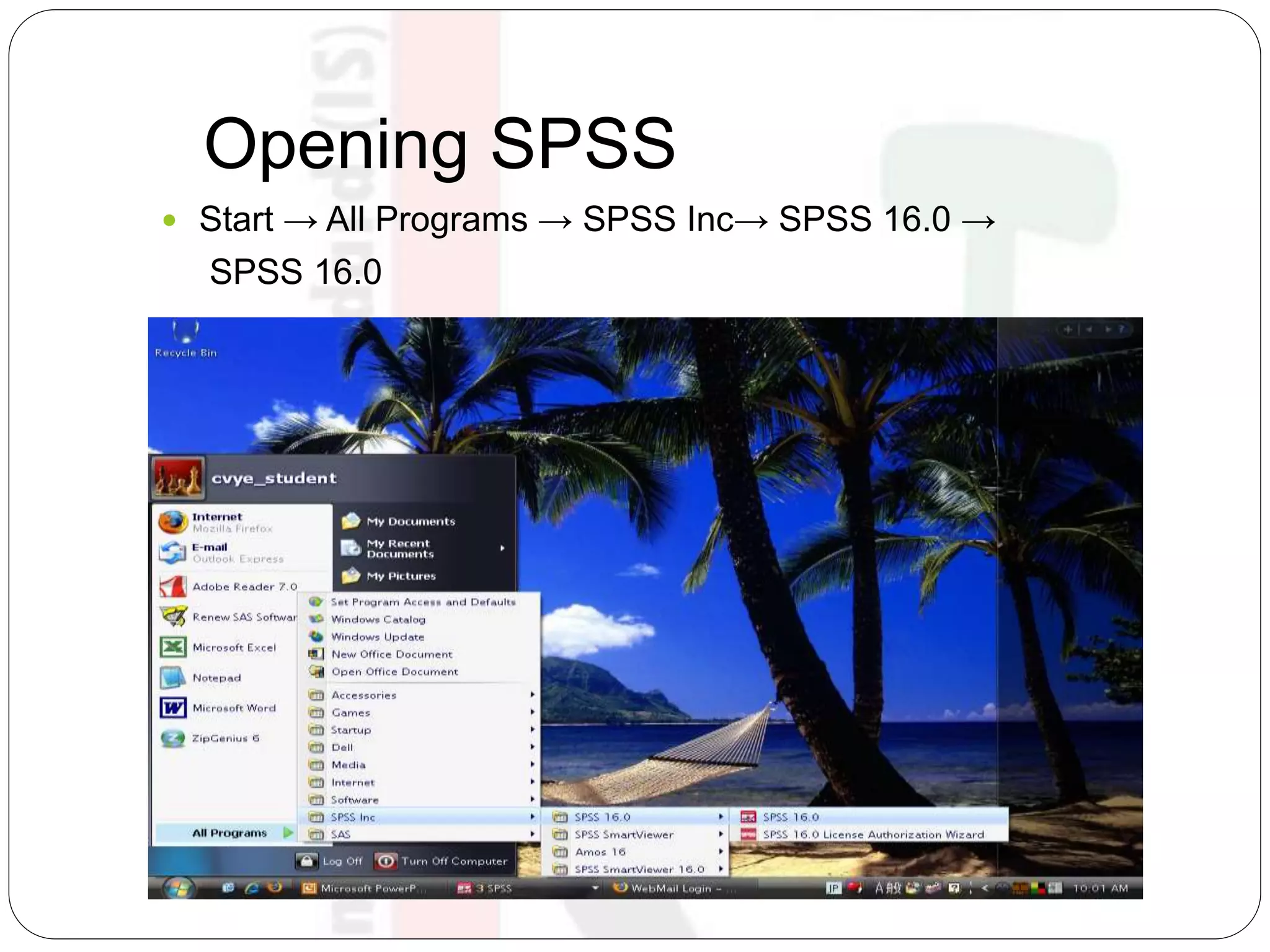
Opening SPSS
 Start → All Programs → SPSS Inc→ SPSS 16.0 →
SPSS 16.0
Opening SPSS
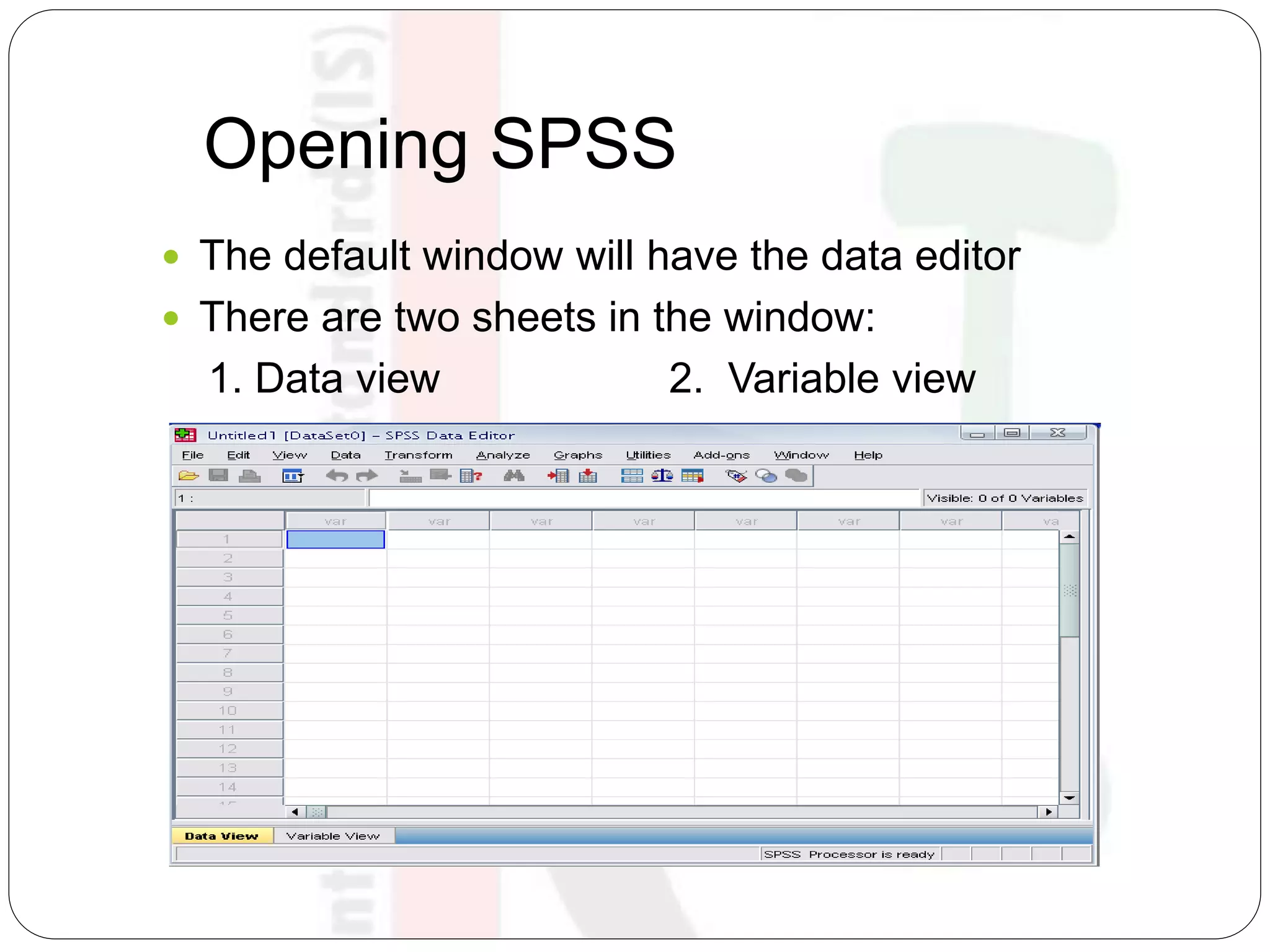
 The default window will have the data editor
 There are two sheets in the window:
1. Data view 2. Variable view
Data View window
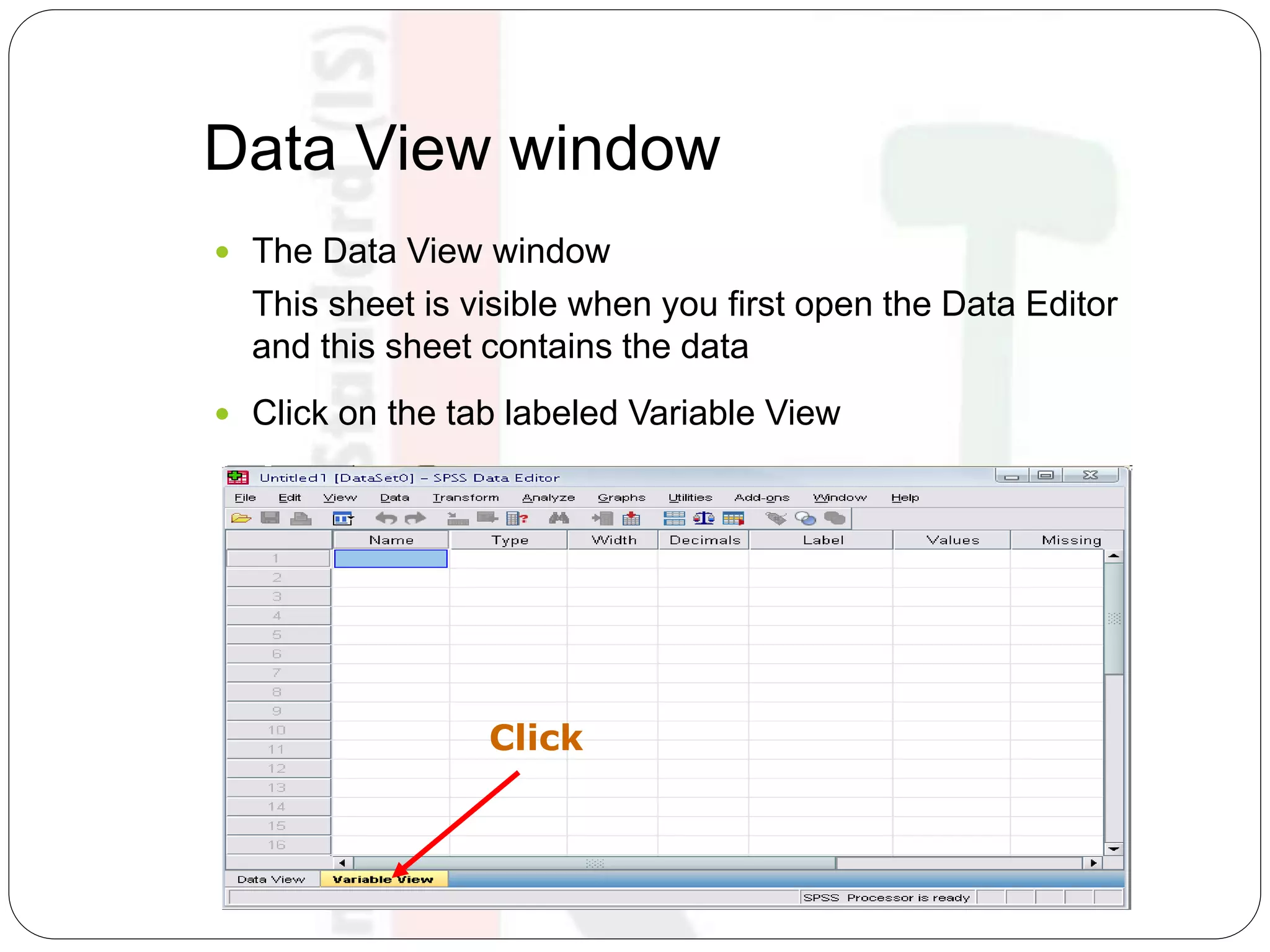
 The Data View window
This sheet is visible when you first open the Data Editor
and this sheet contains the data
 Click on the tab labeled Variable View
Click
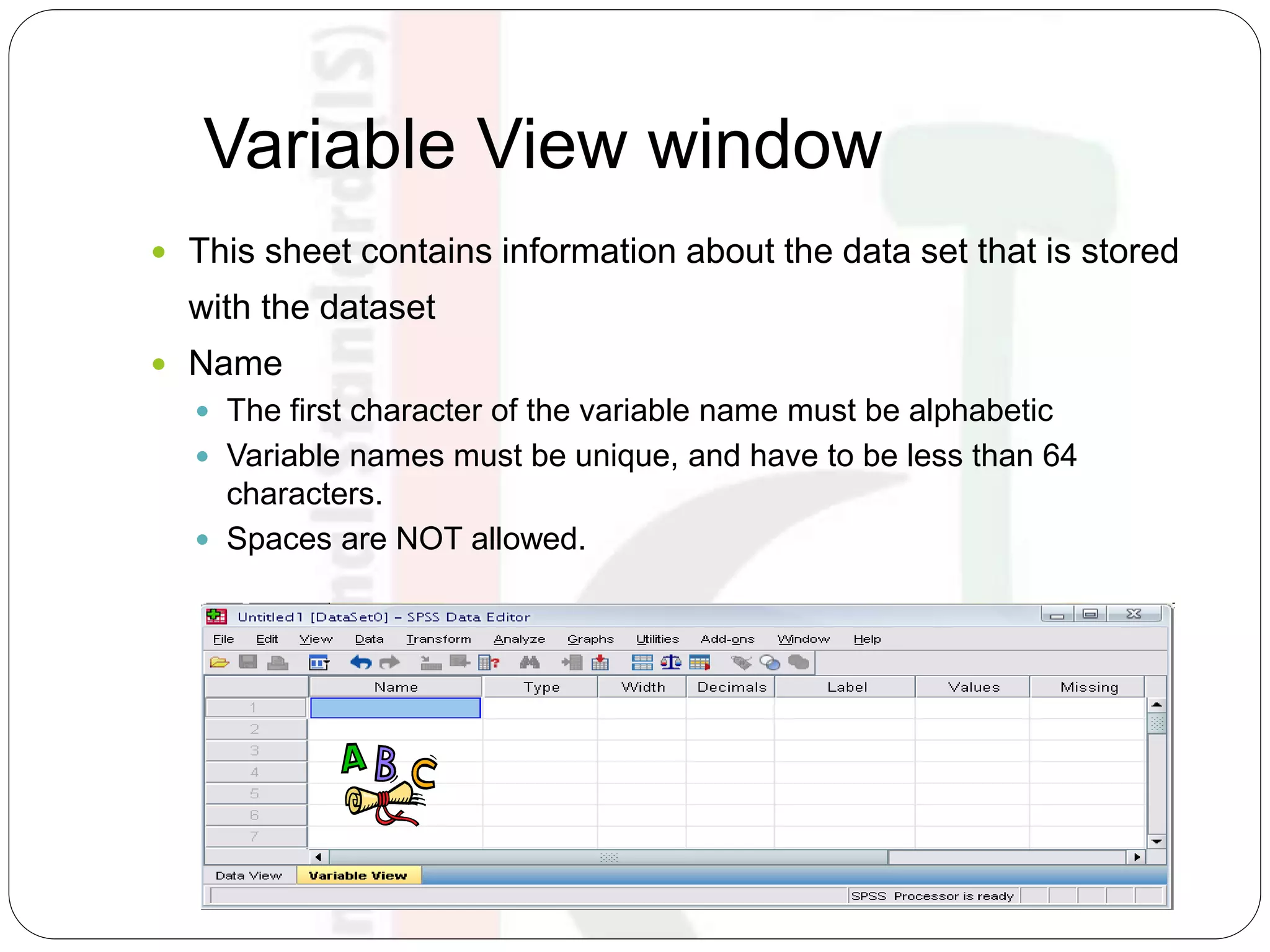
Variable View window
 This sheet contains information about the data set that is stored
with the dataset
 Name
 The first character of the variable name must be alphabetic
 Variable names must be unique, and have to be less than 64
characters.
 Spaces are NOT allowed.
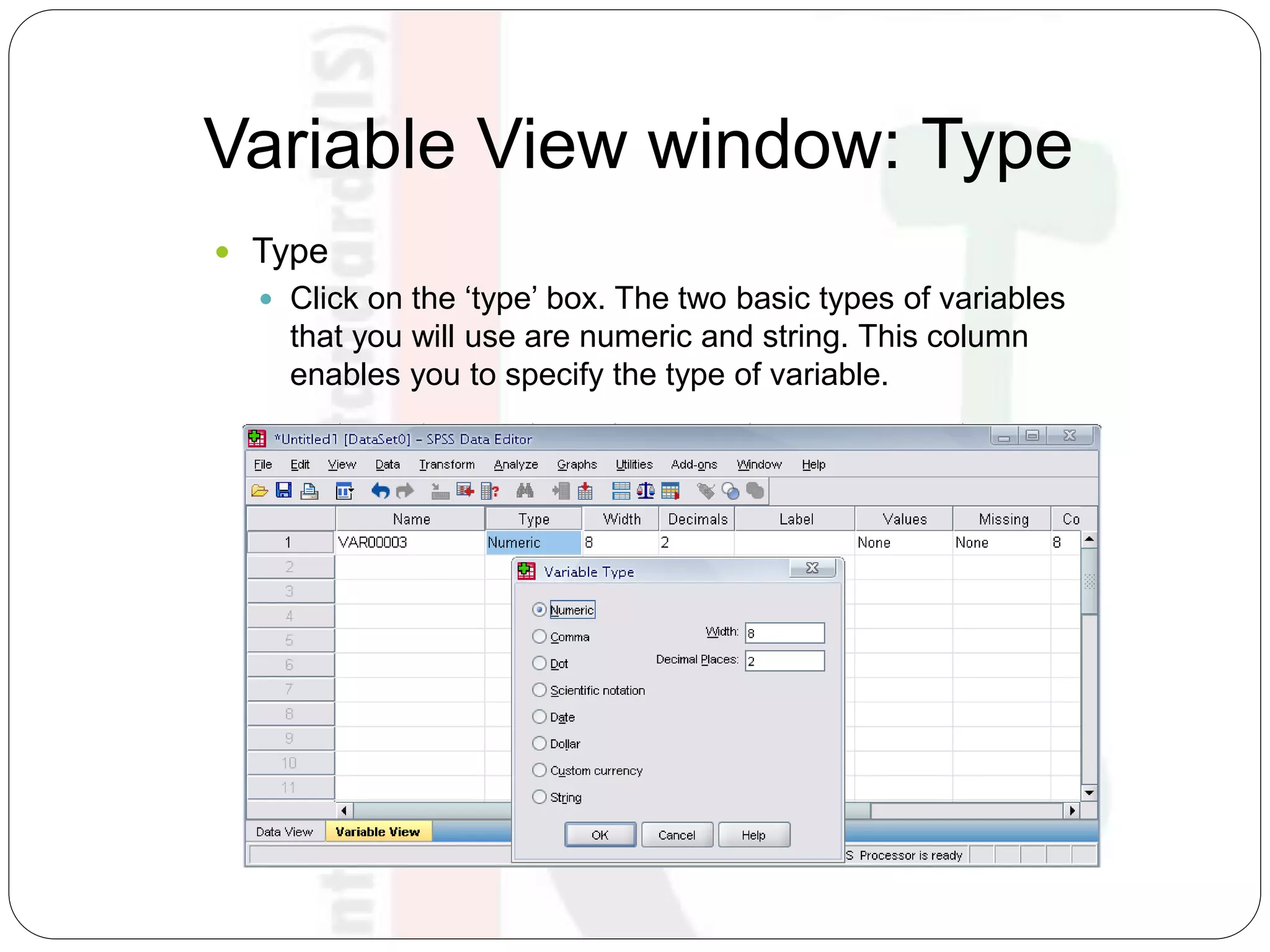
Variable View window: Type
 Type
 Click on the ‘type’ box. The two basic types of variables
that you will use are numeric and string. This column
enables you to specify the type of variable.
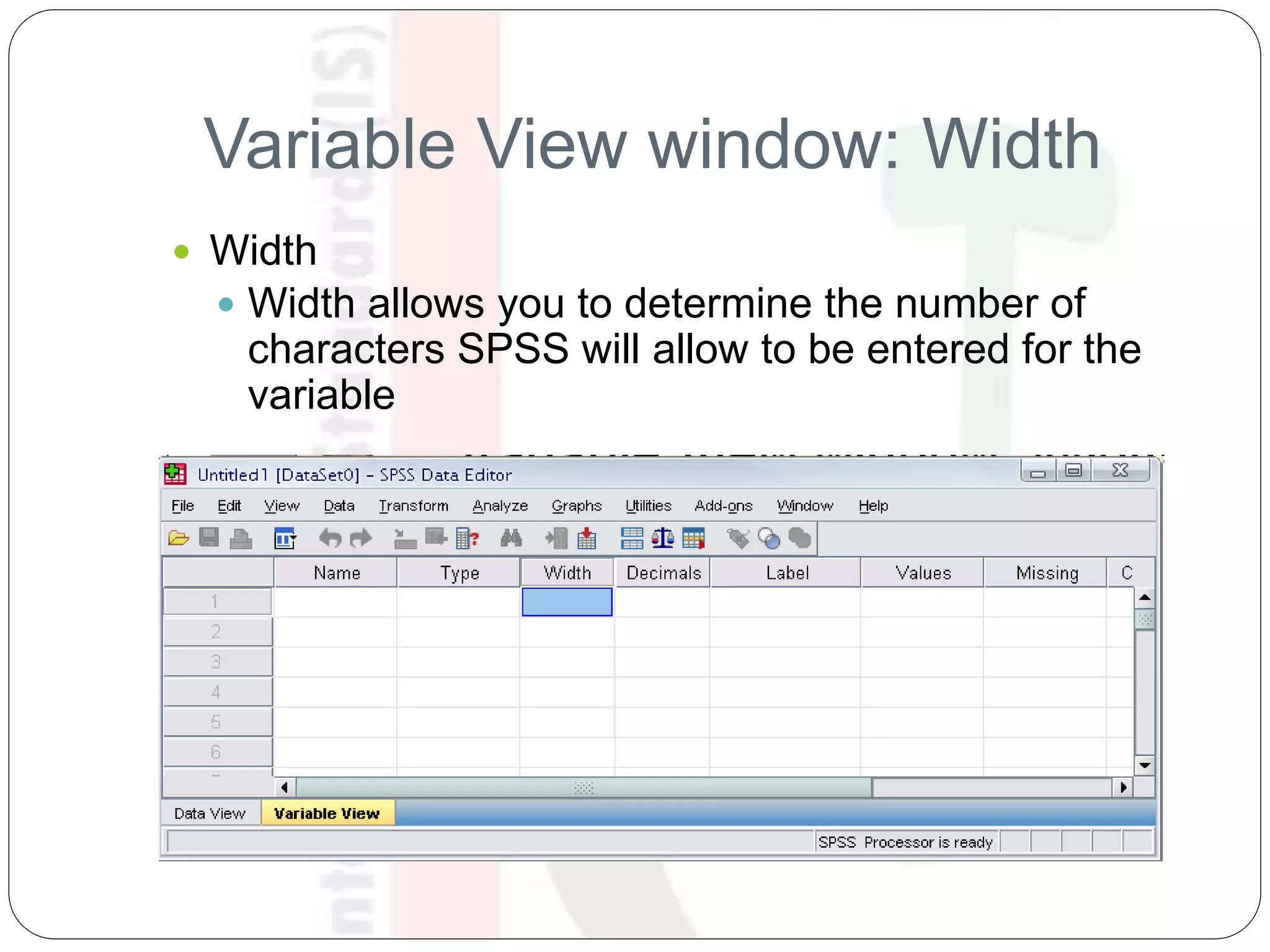
Variable View window: Width
 Width
 Width allows you to determine the number of
characters SPSS will allow to be entered for the
variable
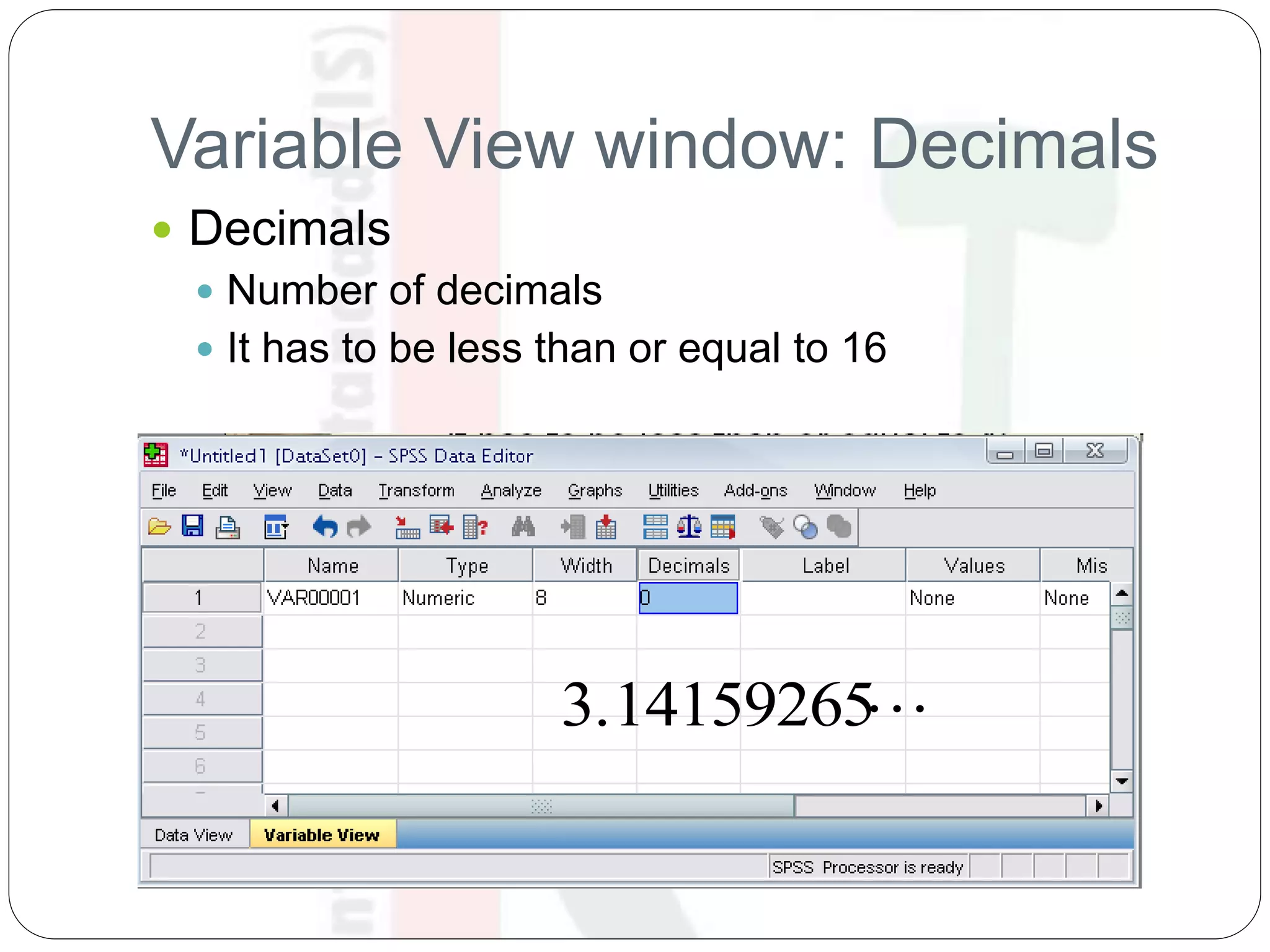
Variable View window: Decimals
 Decimals
 Number of decimals
 It has to be less than or equal to 16
3.14159265
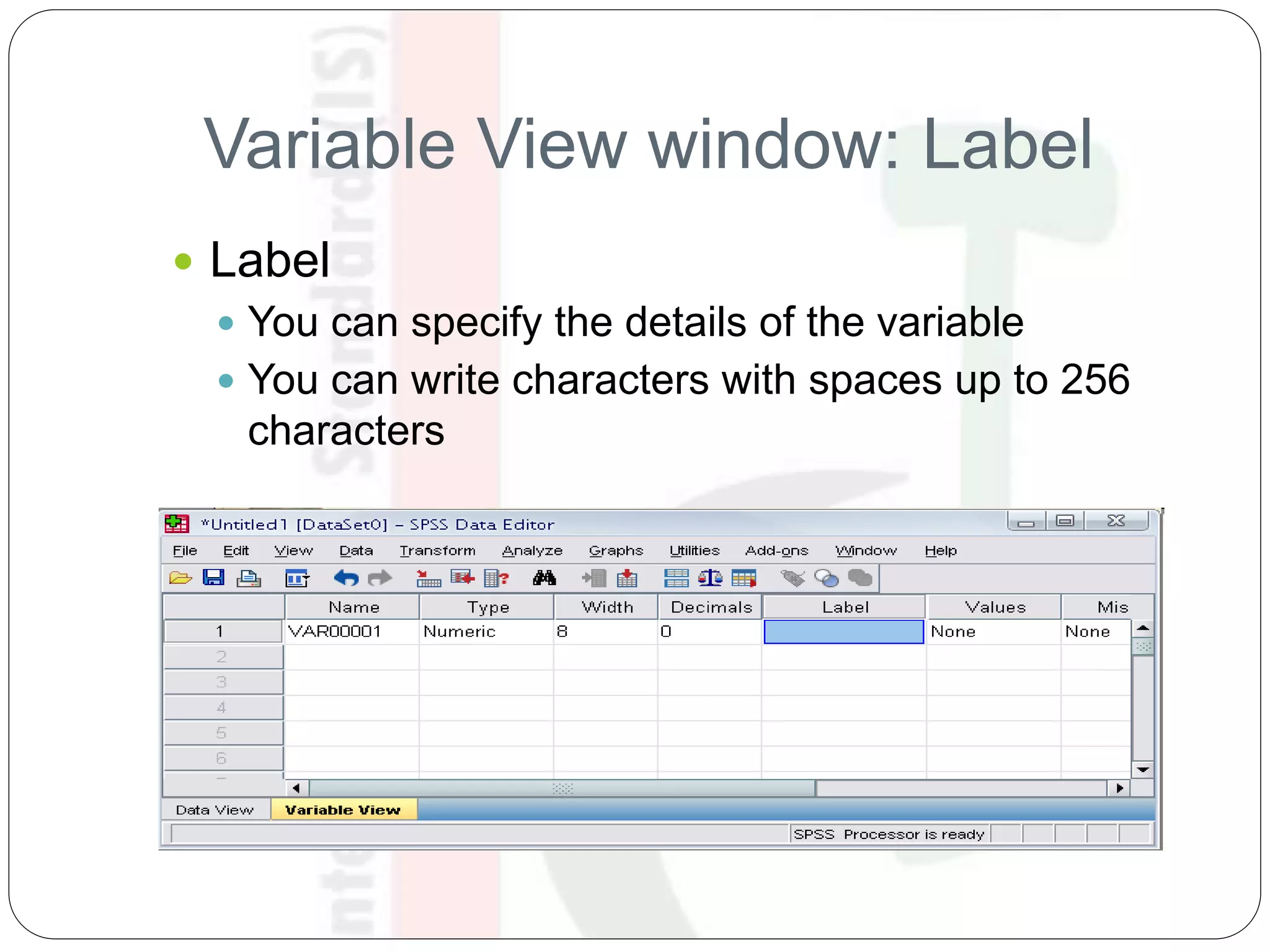
Variable View window: Label
 Label
 You can specify the details of the variable
 You can write characters with spaces up to 256
characters
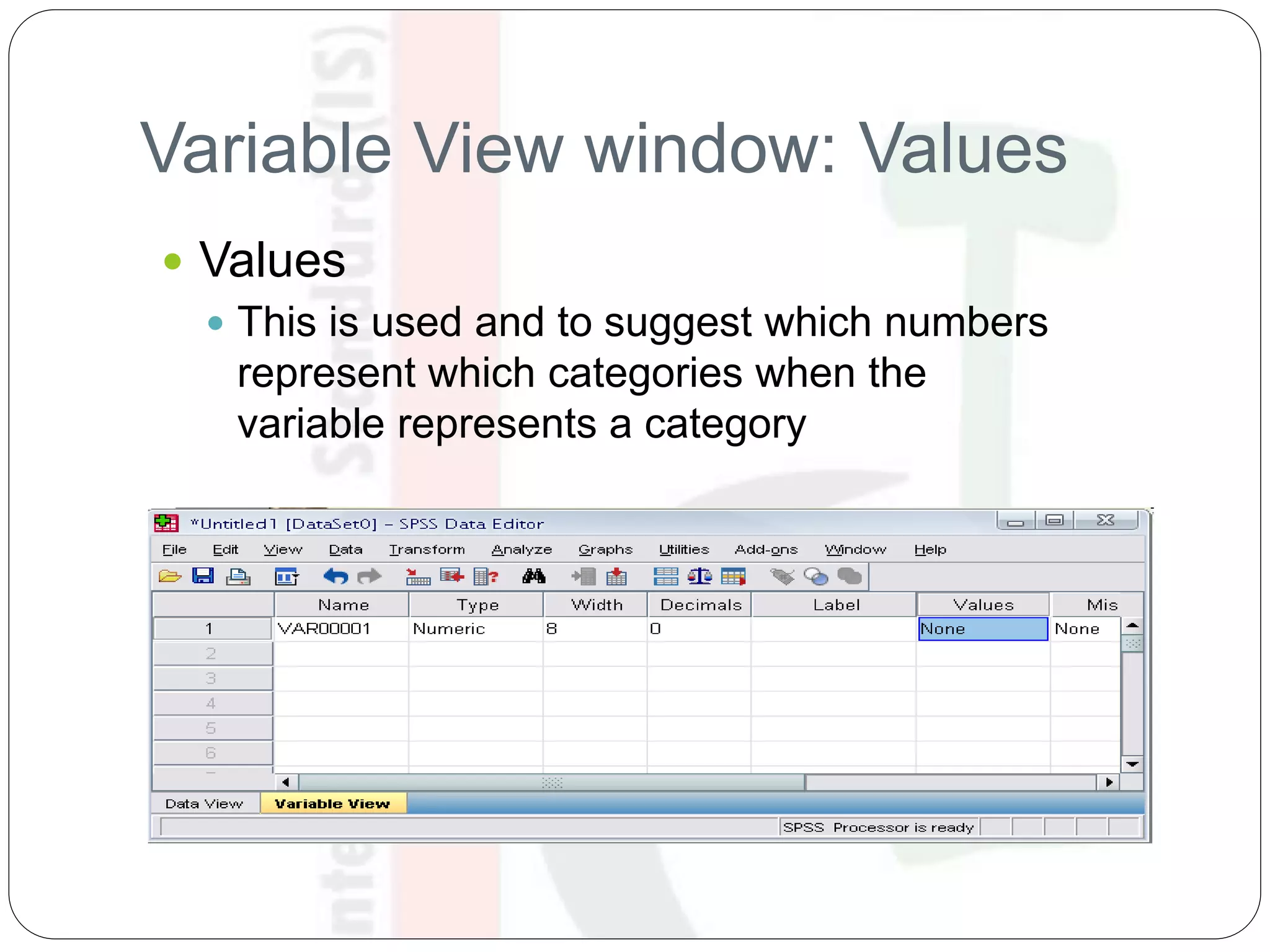
Variable View window: Values
 Values
 This is used and to suggest which numbers
represent which categories when the
variable represents a category
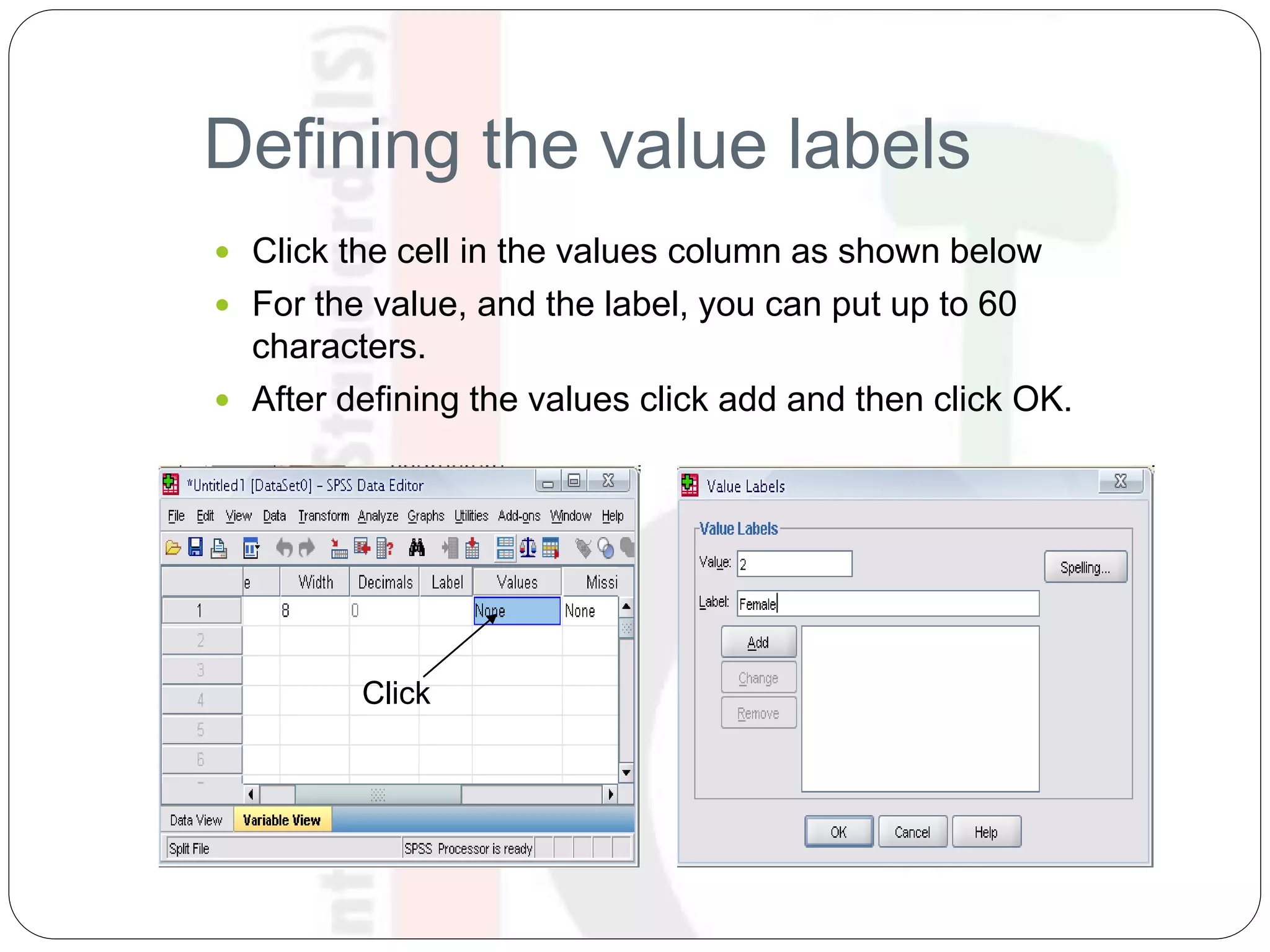
Defining the value labels
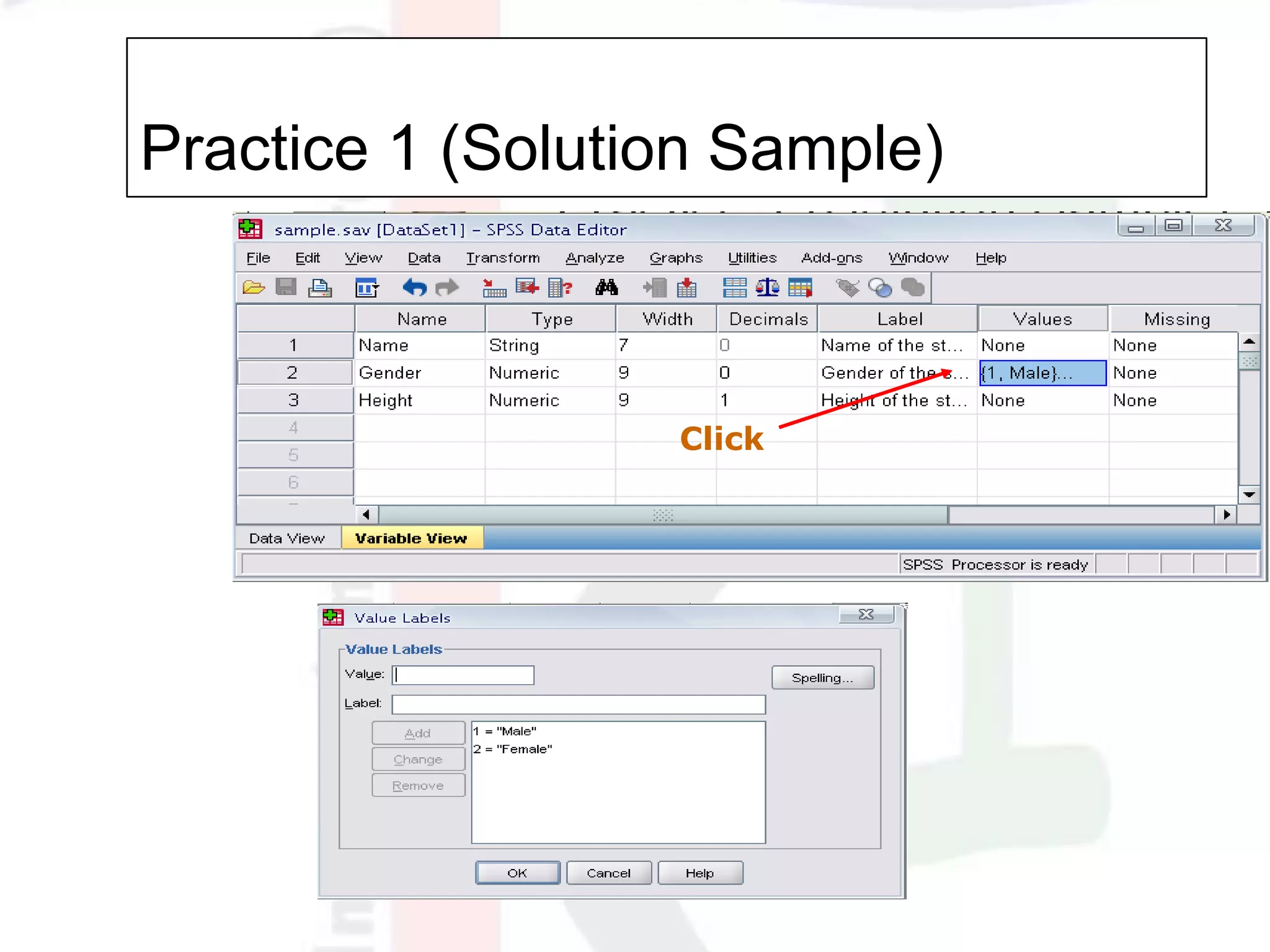
 Click the cell in the values column as shown below
 For the value, and the label, you can put up to 60
characters.
 After defining the values click add and then click OK.
Click
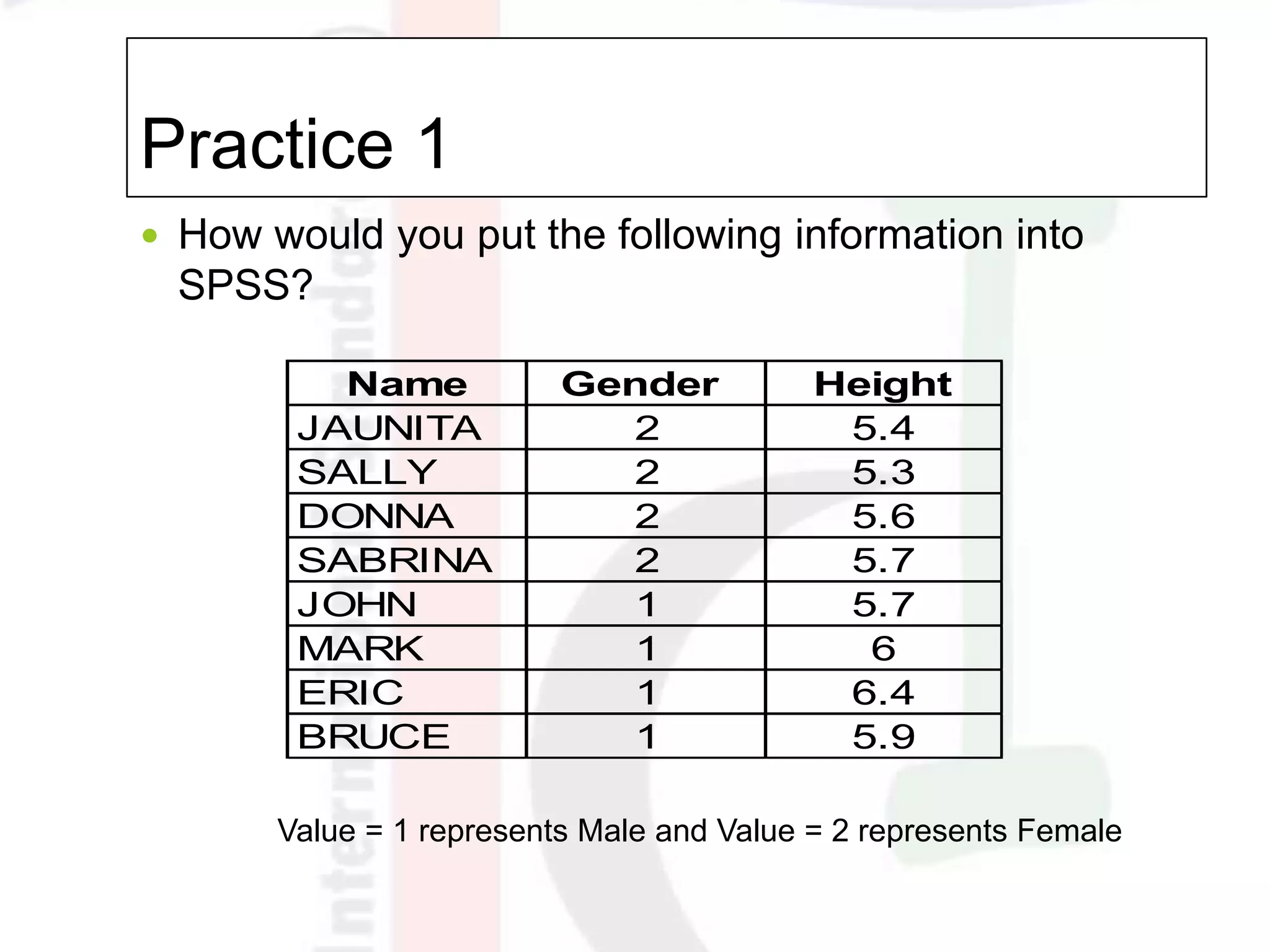
Practice 1
 How would you put the following information into
SPSS?
Value = 1 represents Male and Value = 2 represents Female
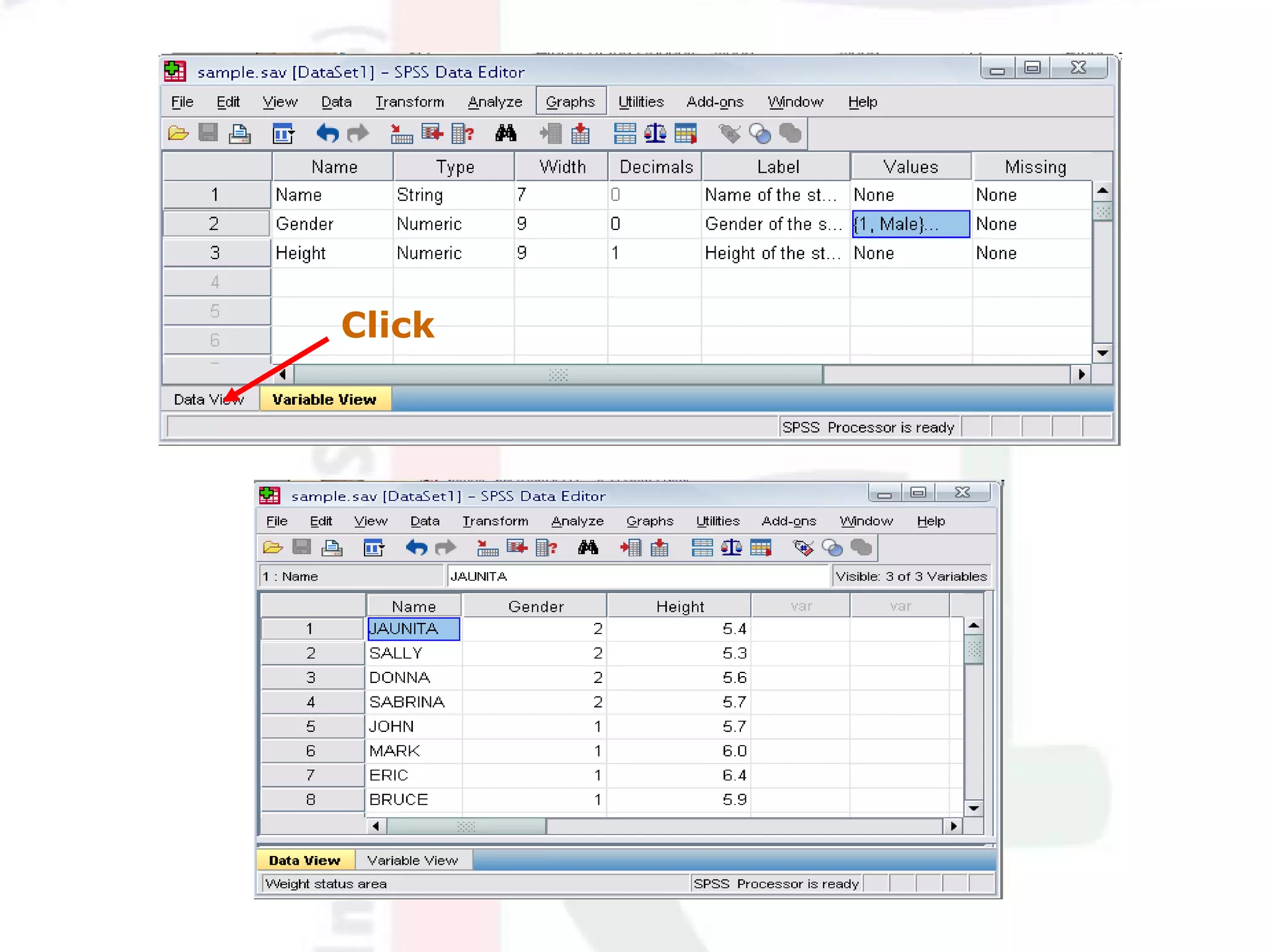
Name Gender Height
JAUNITA 2 5.4
SALLY 2 5.3
DONNA 2 5.6
SABRINA 2 5.7
JOHN 1 5.7
MARK 1 6
ERIC 1 6.4
BRUCE 1 5.9
Practice 1 (Solution Sample)
Click
Click
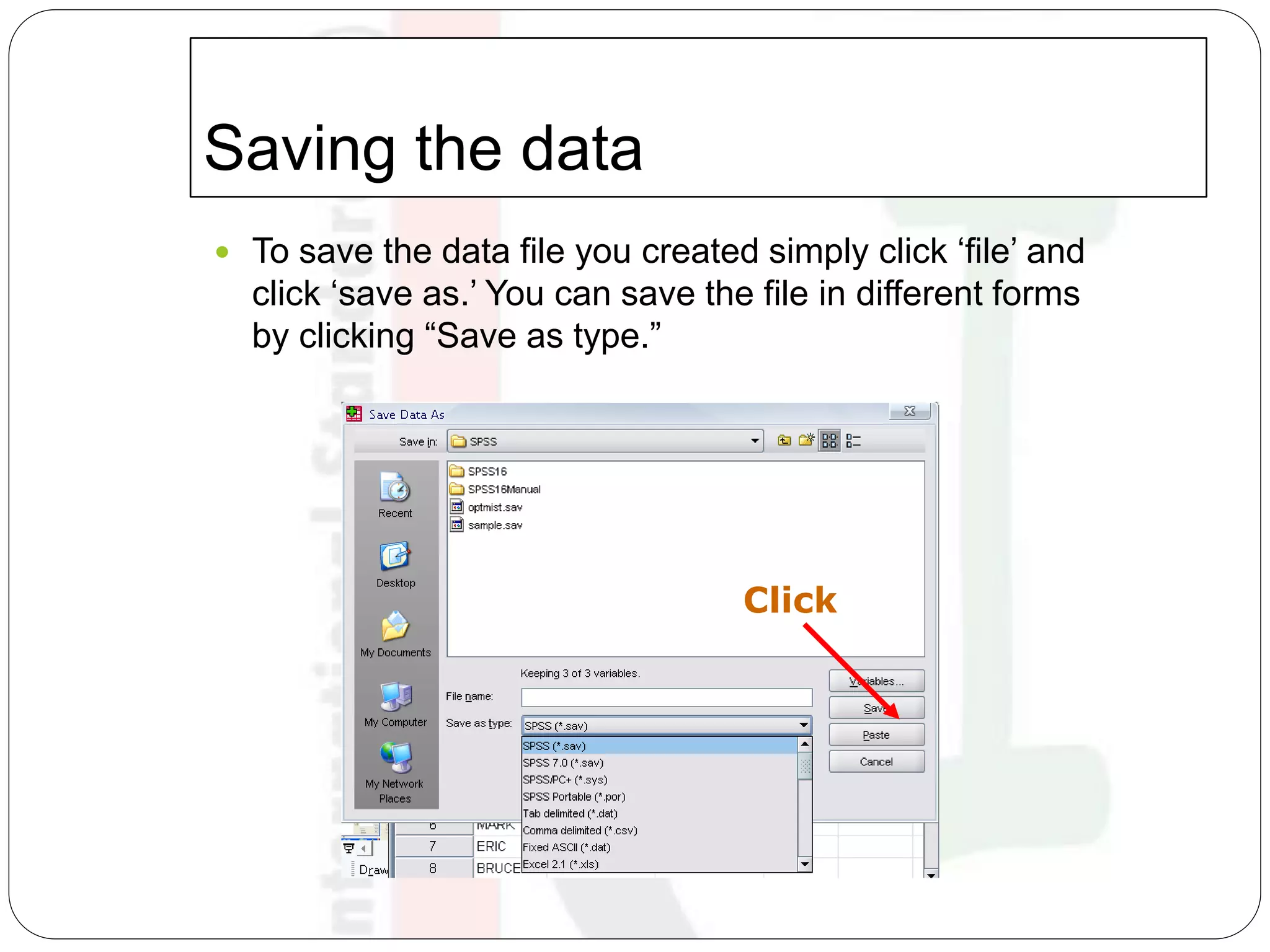
Saving the data
 To save the data file you created simply click ‘file’ and
click ‘save as.’ You can save the file in different forms
by clicking “Save as type.”
Click
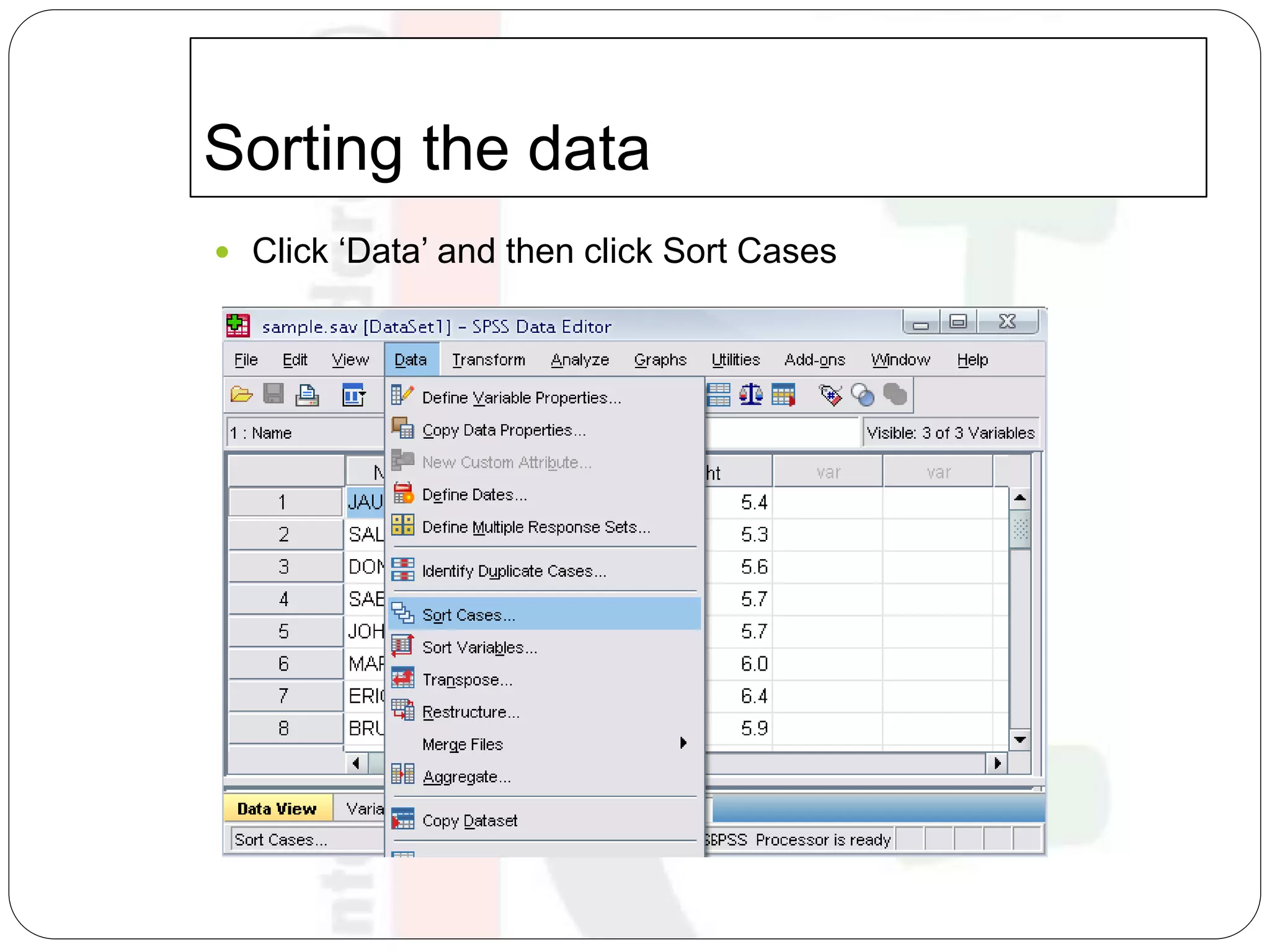
Sorting the data
 Click ‘Data’ and then click Sort Cases
Sorting the data (cont’d)
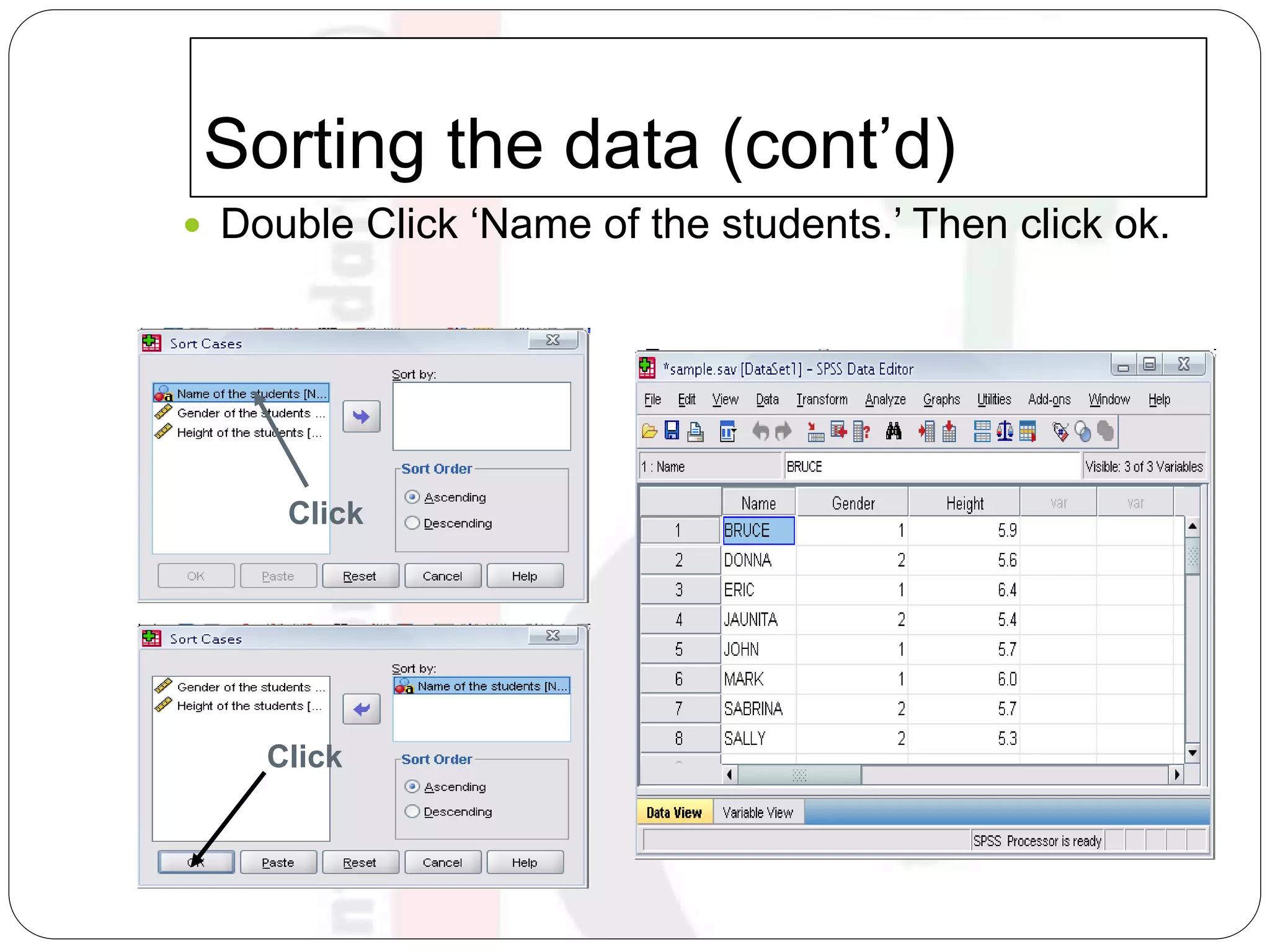
 Double Click ‘Name of the students.’ Then click ok.
Click
Click
Practice 2
 How would you sort the data by the ‘Height’
of students in descending order?
 Answer
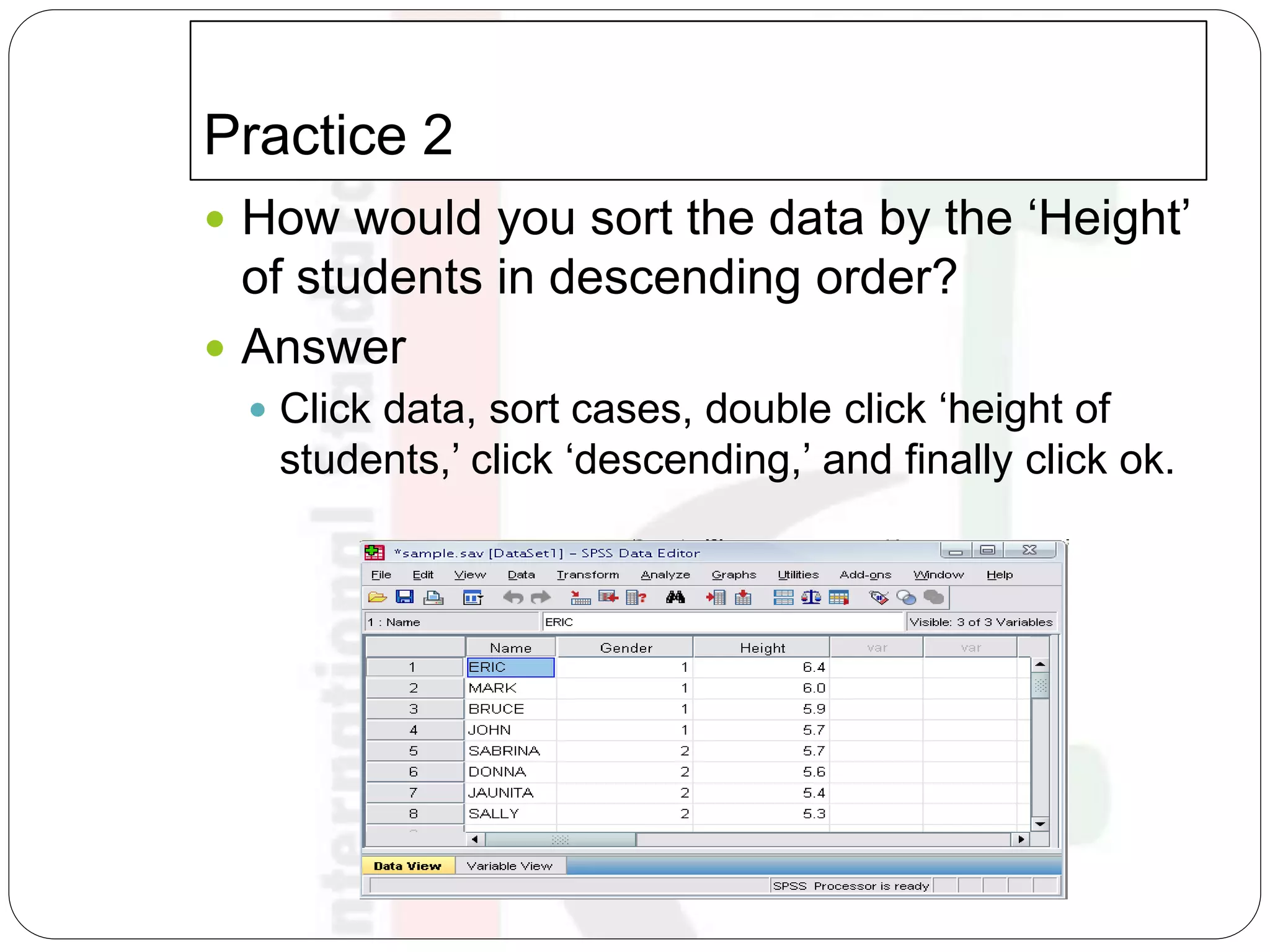
 Click data, sort cases, double click ‘height of
students,’ click ‘descending,’ and finally click ok.
Transforming data
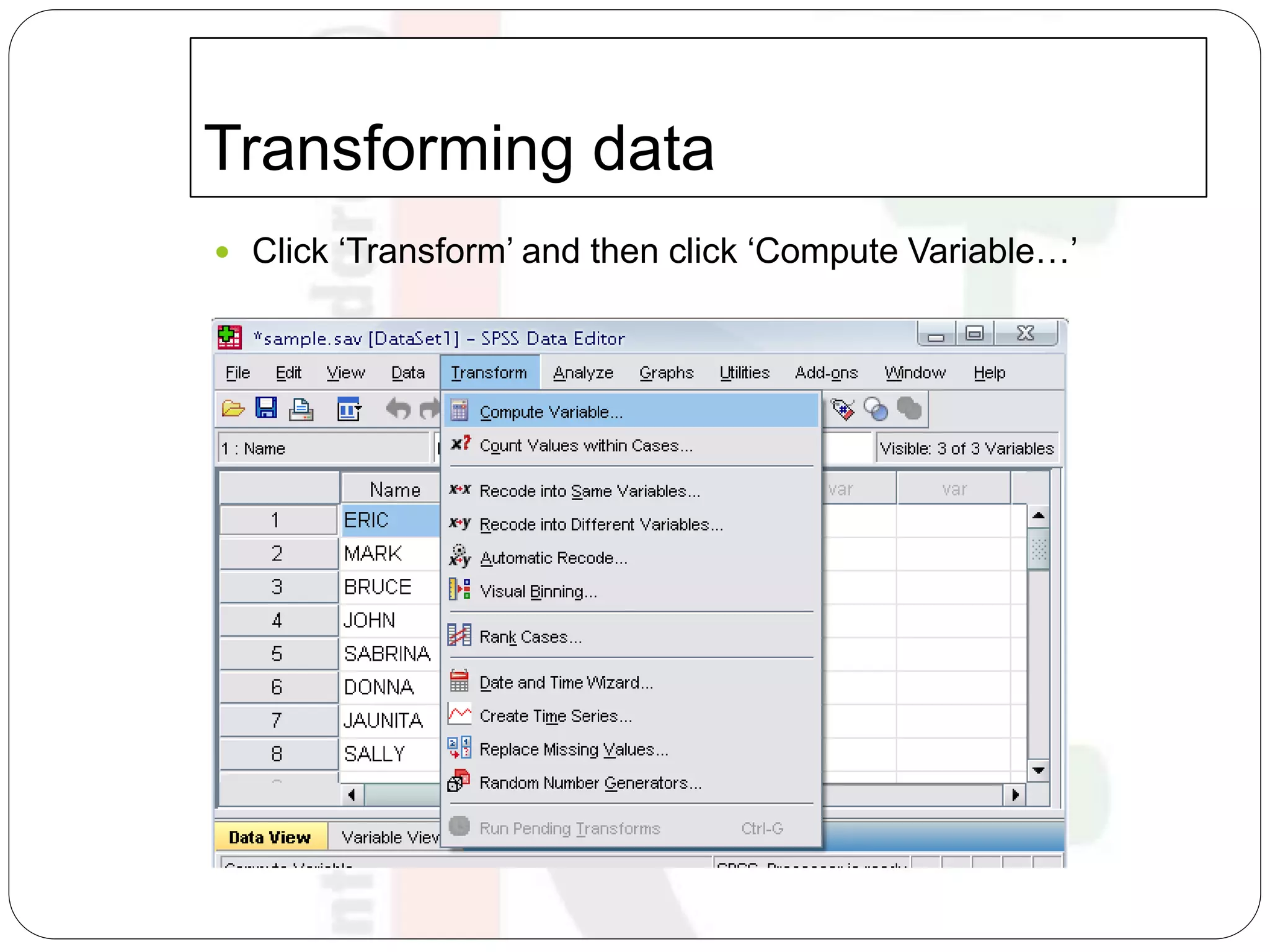
 Click ‘Transform’ and then click ‘Compute Variable…’
Transforming data (cont’d)
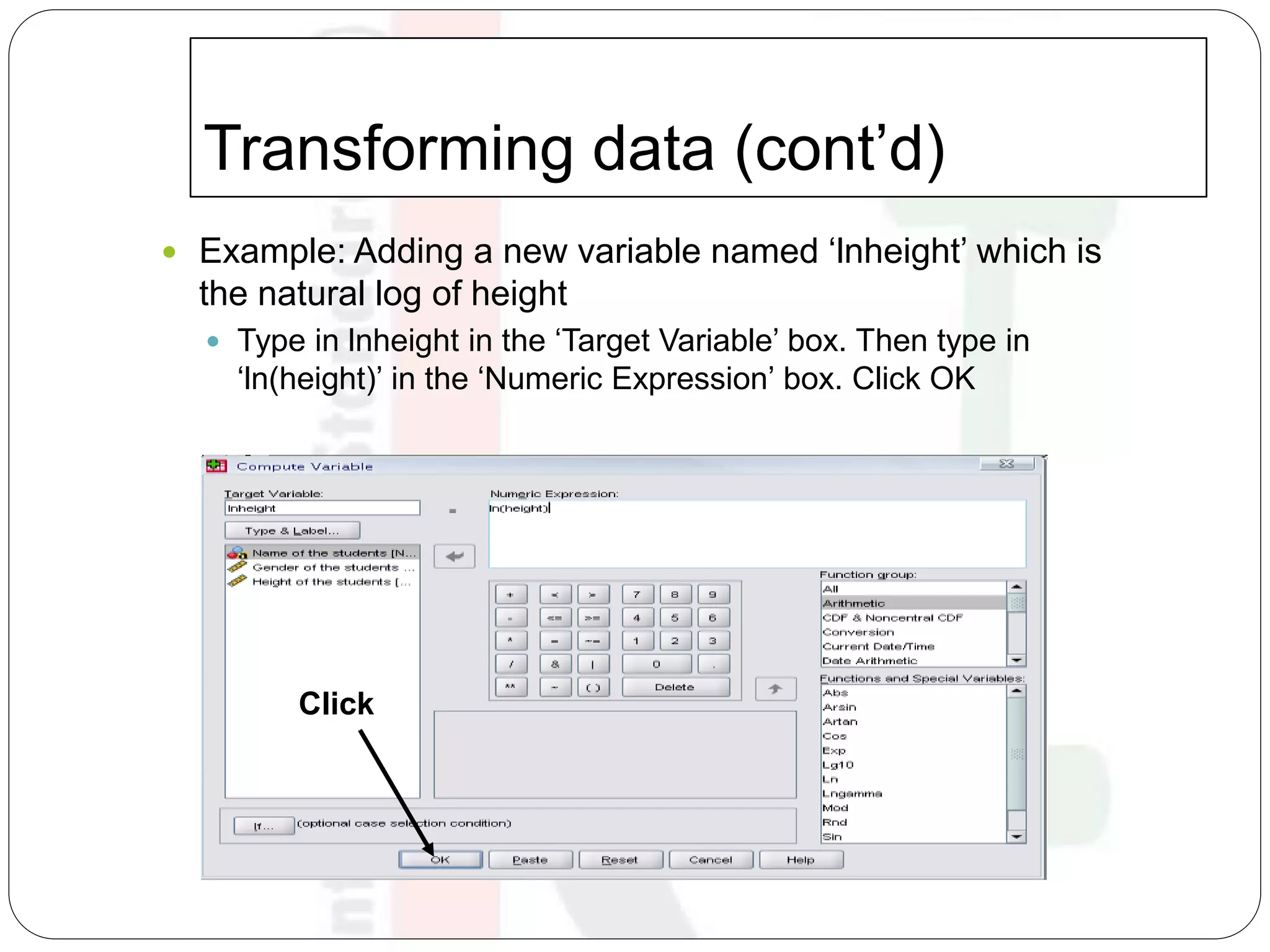
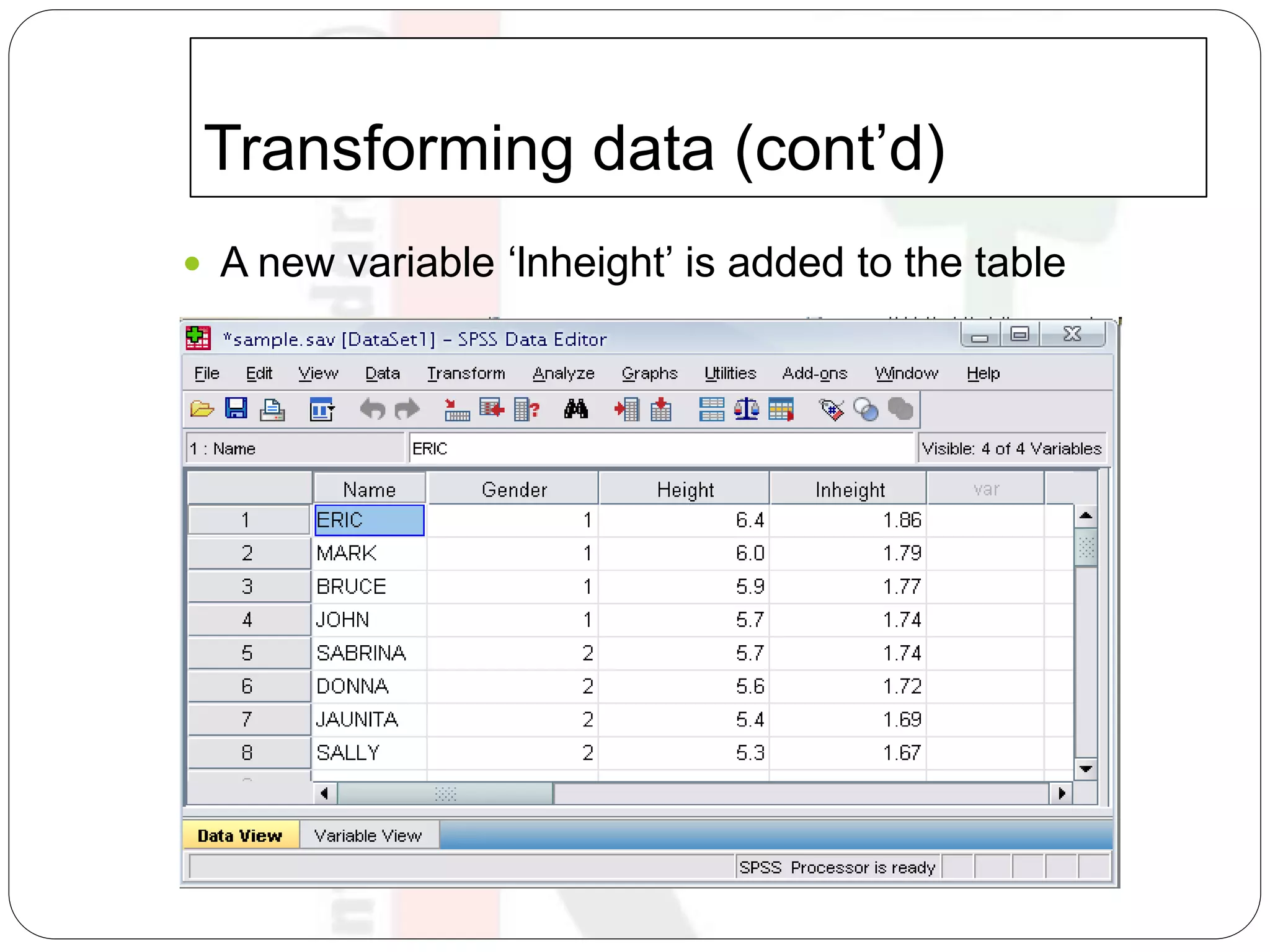
 Example: Adding a new variable named ‘lnheight’ which is
the natural log of height
 Type in lnheight in the ‘Target Variable’ box. Then type in
‘ln(height)’ in the ‘Numeric Expression’ box. Click OK
Click
Transforming data (cont’d)
 A new variable ‘lnheight’ is added to the table
Practice 3
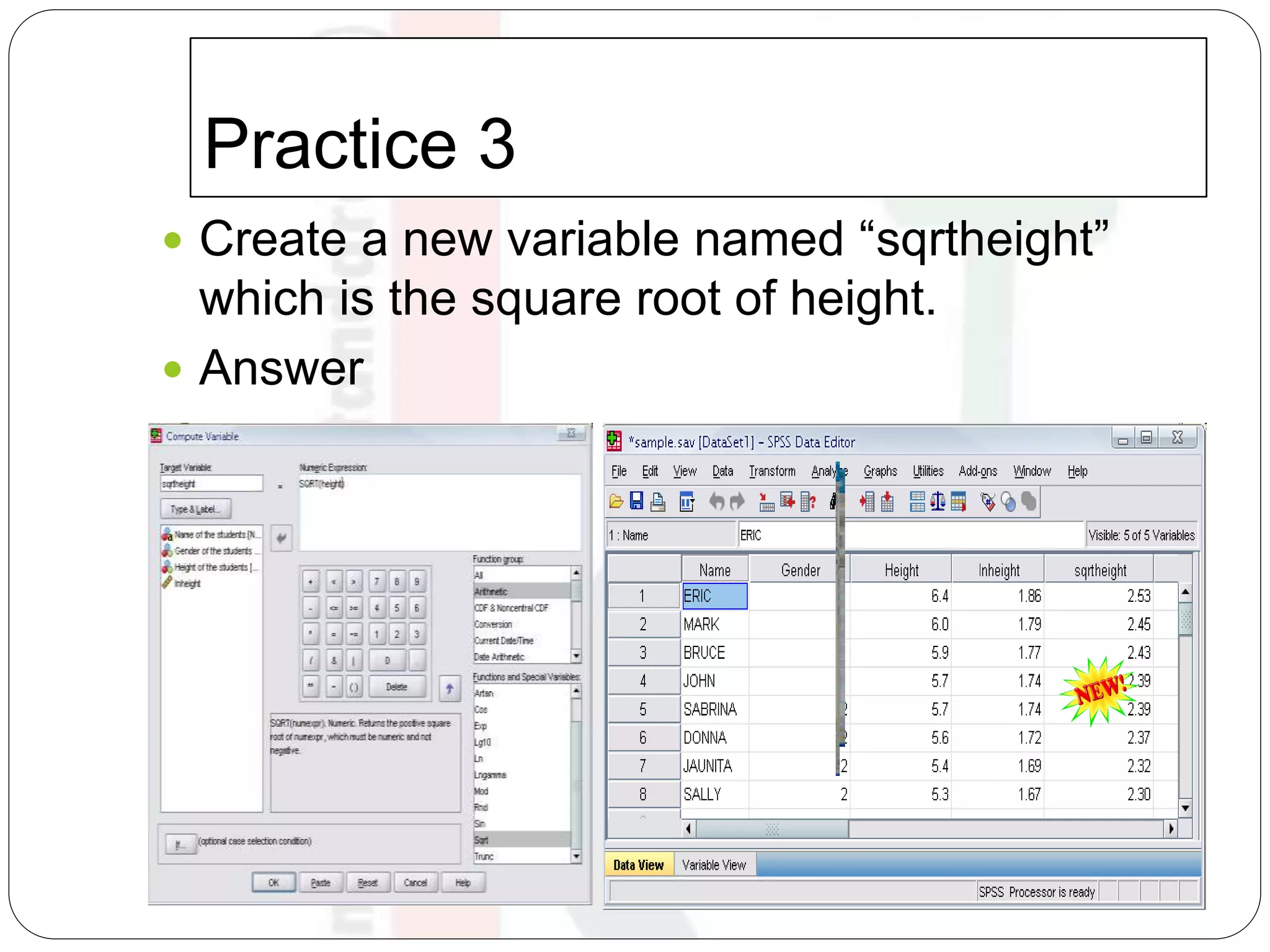
 Create a new variable named “sqrtheight”
which is the square root of height.
 Answer
The basic analysis
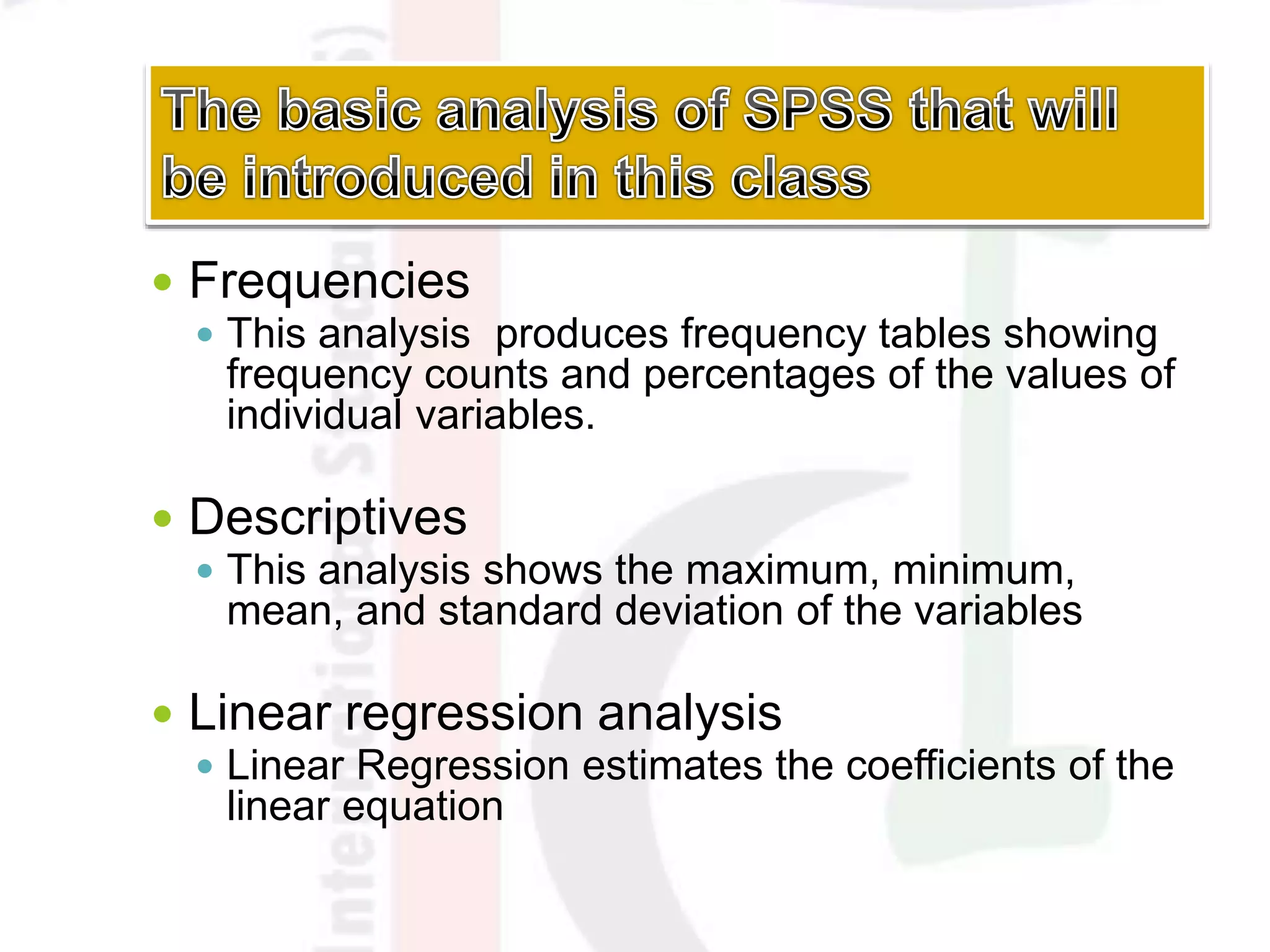
 Frequencies
 This analysis produces frequency tables showing
frequency counts and percentages of the values of
individual variables.
 Descriptives
 This analysis shows the maximum, minimum,
mean, and standard deviation of the variables
 Linear regression analysis
 Linear Regression estimates the coefficients of the
linear equation
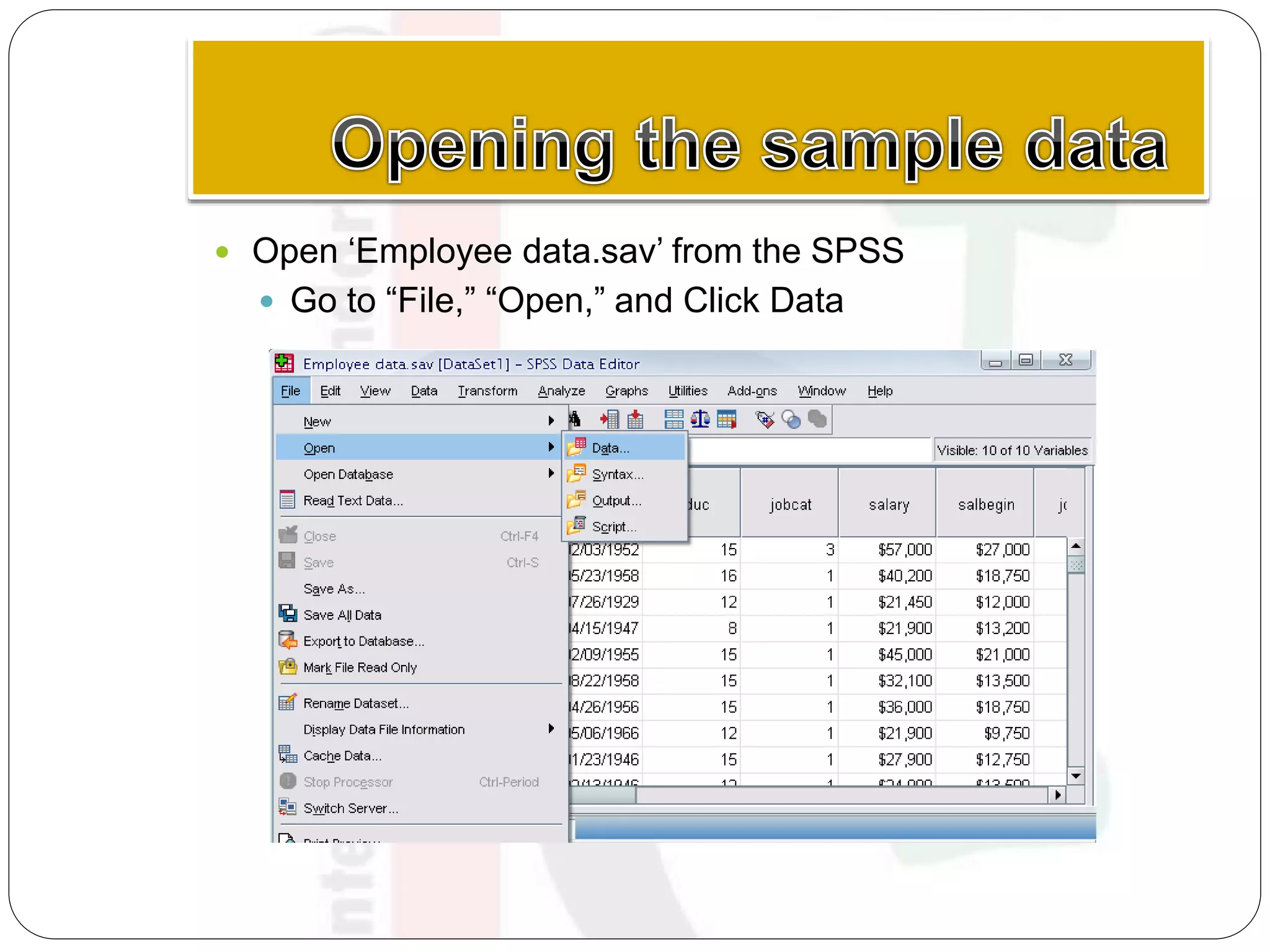
 Open ‘Employee data.sav’ from the SPSS
 Go to “File,” “Open,” and Click Data
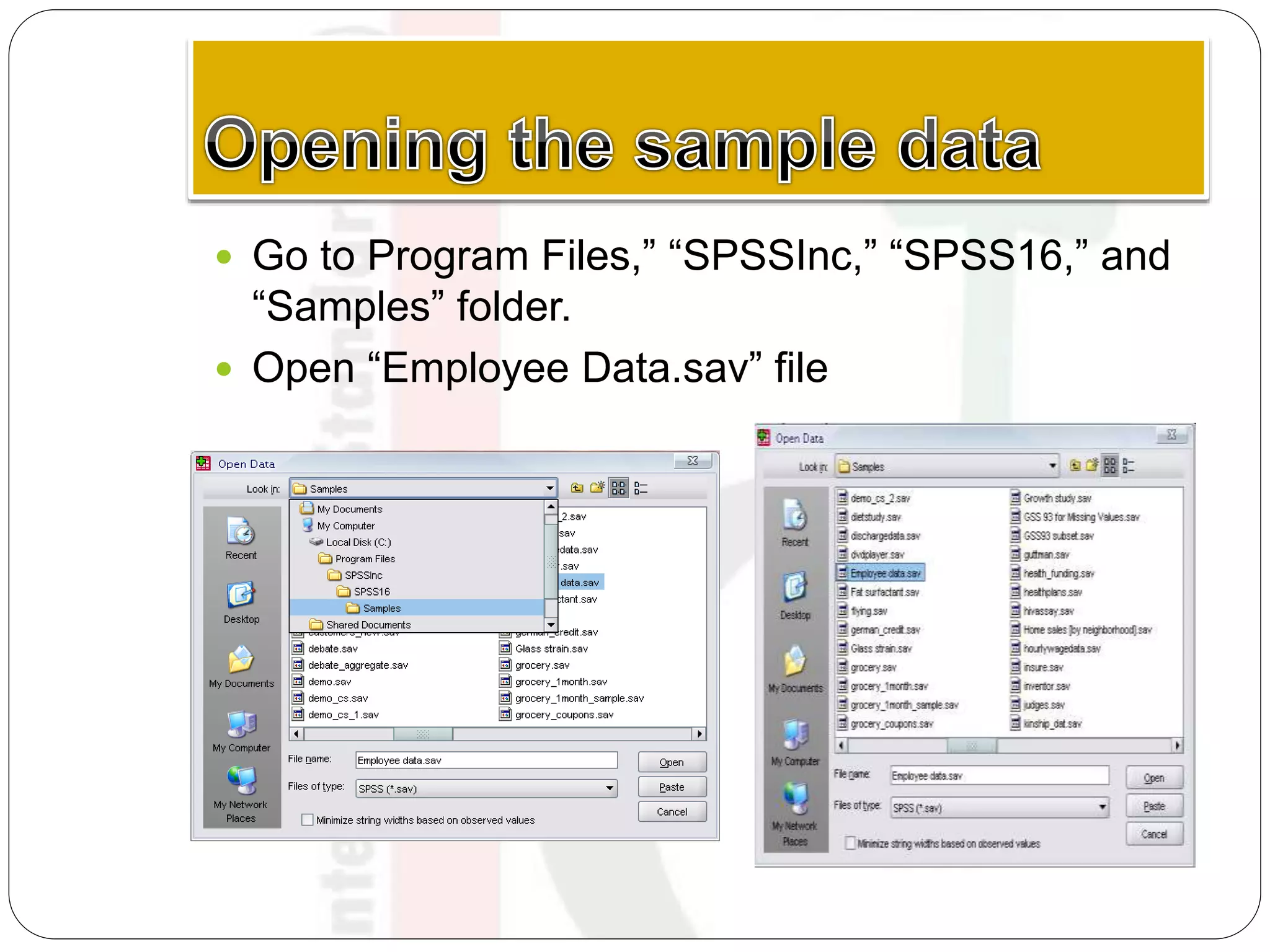
 Go to Program Files,” “SPSSInc,” “SPSS16,” and
“Samples” folder.
 Open “Employee Data.sav” file
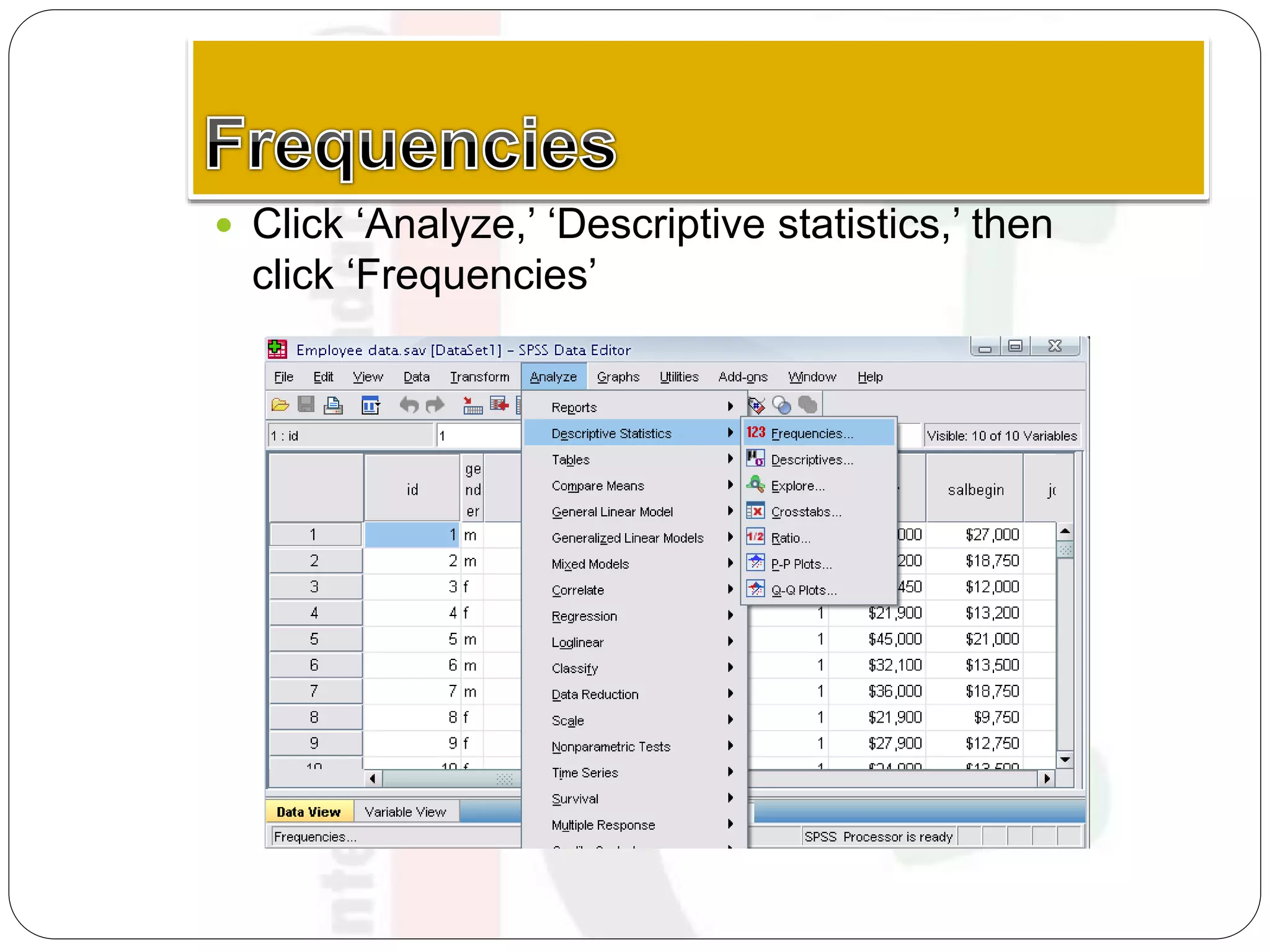
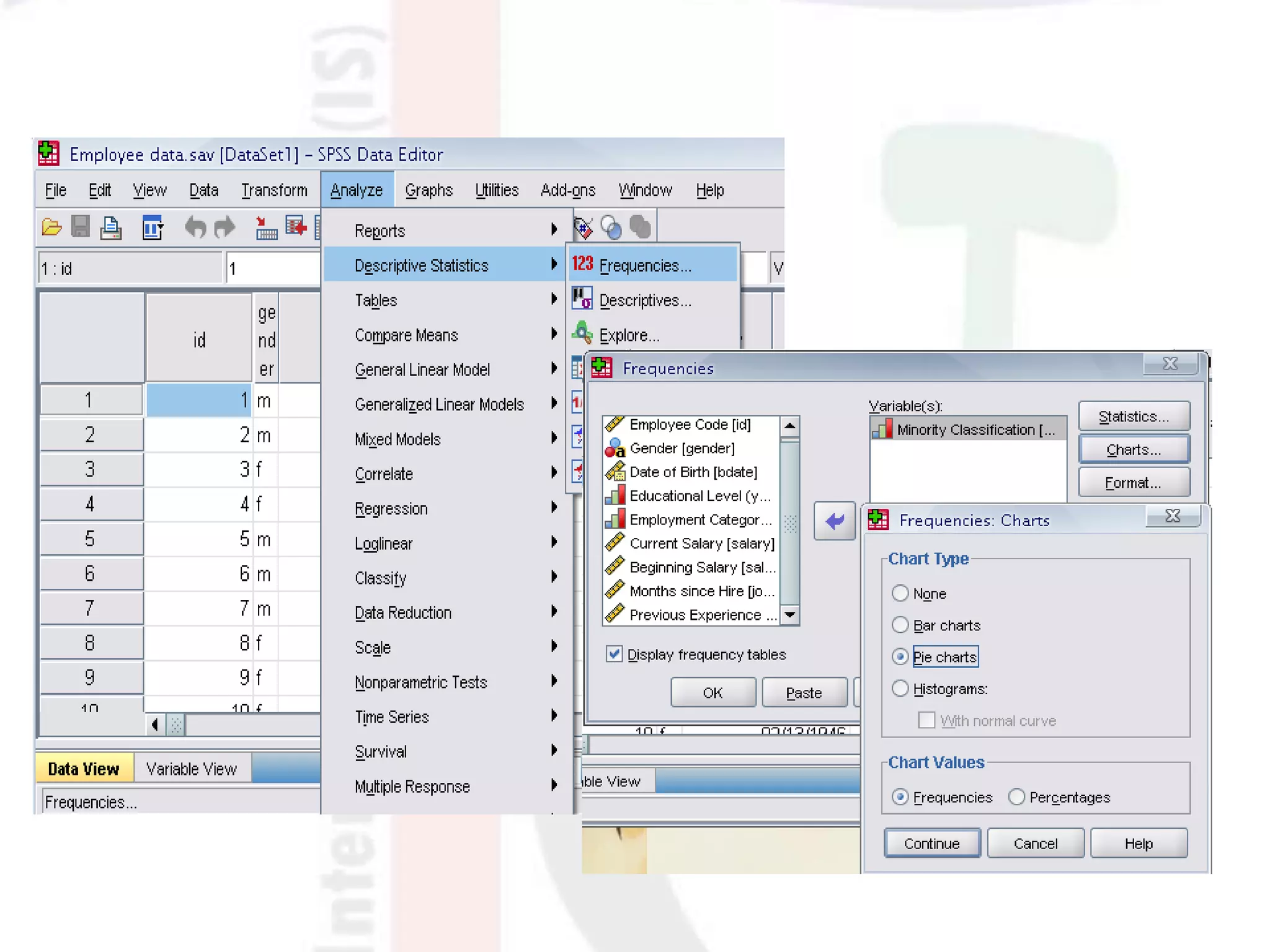
 Click ‘Analyze,’ ‘Descriptive statistics,’ then
click ‘Frequencies’
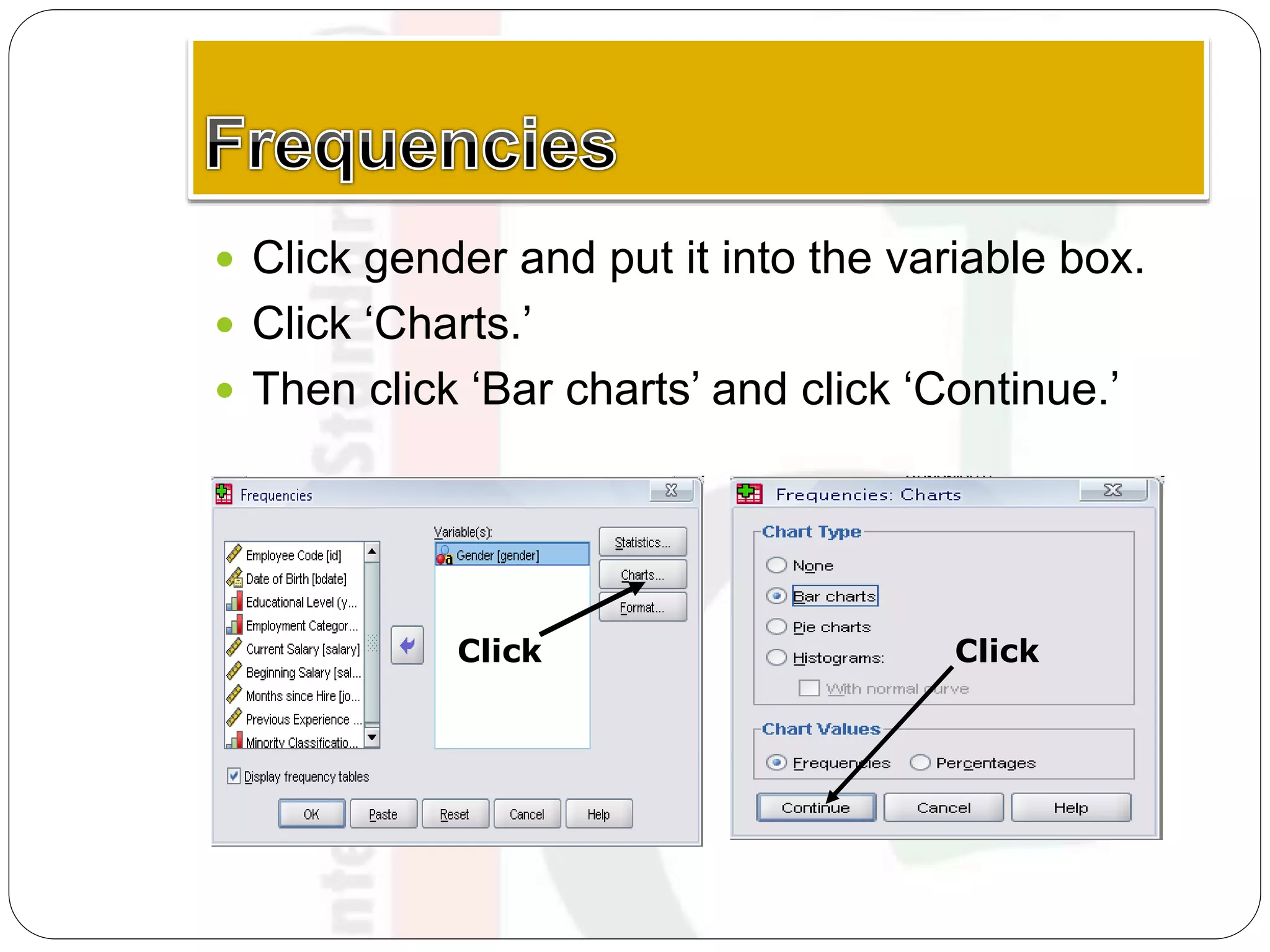
 Click gender and put it into the variable box.
 Click ‘Charts.’
 Then click ‘Bar charts’ and click ‘Continue.’
Click Click
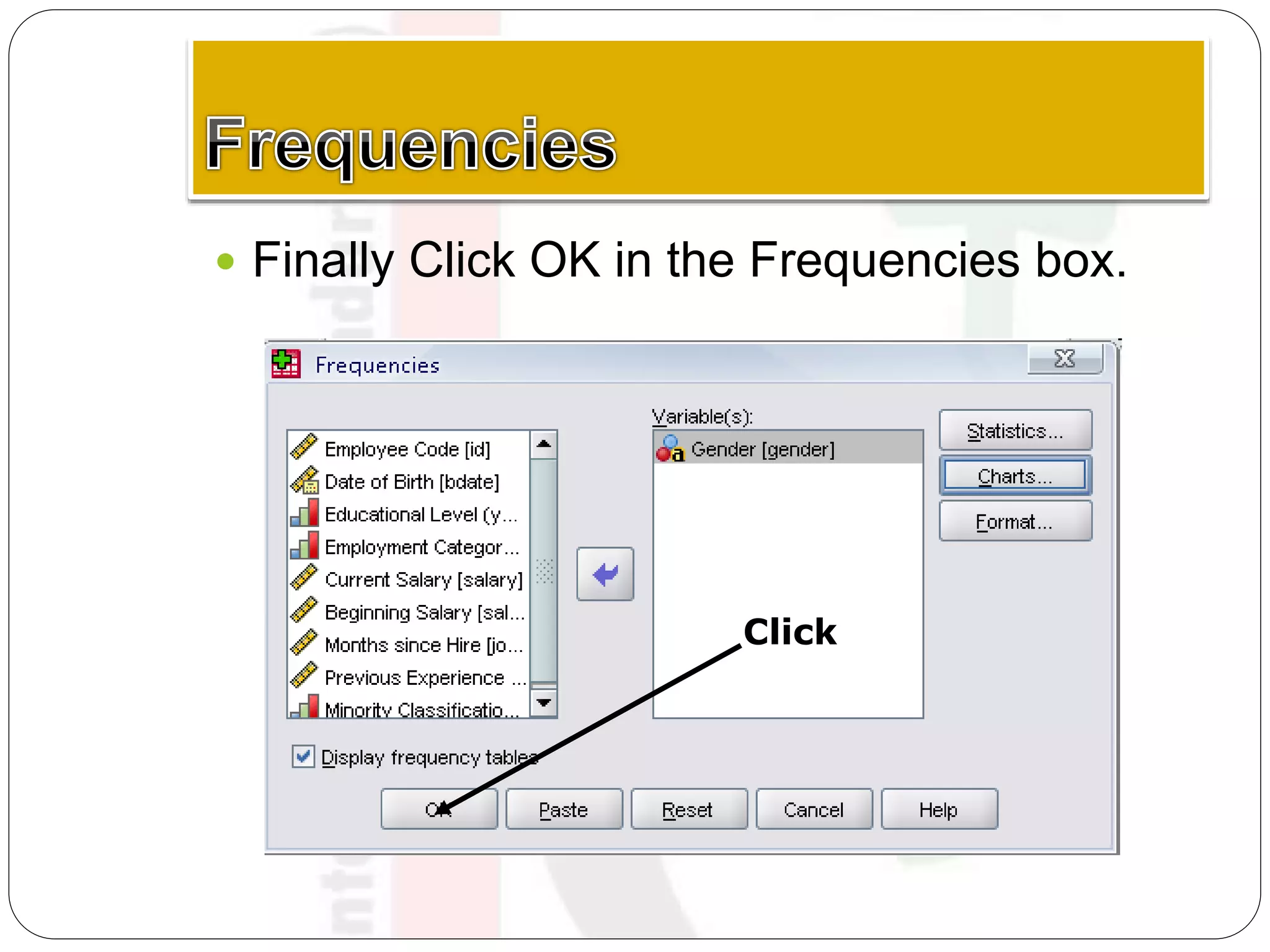
 Finally Click OK in the Frequencies box.
Click
Using the Syntax editor
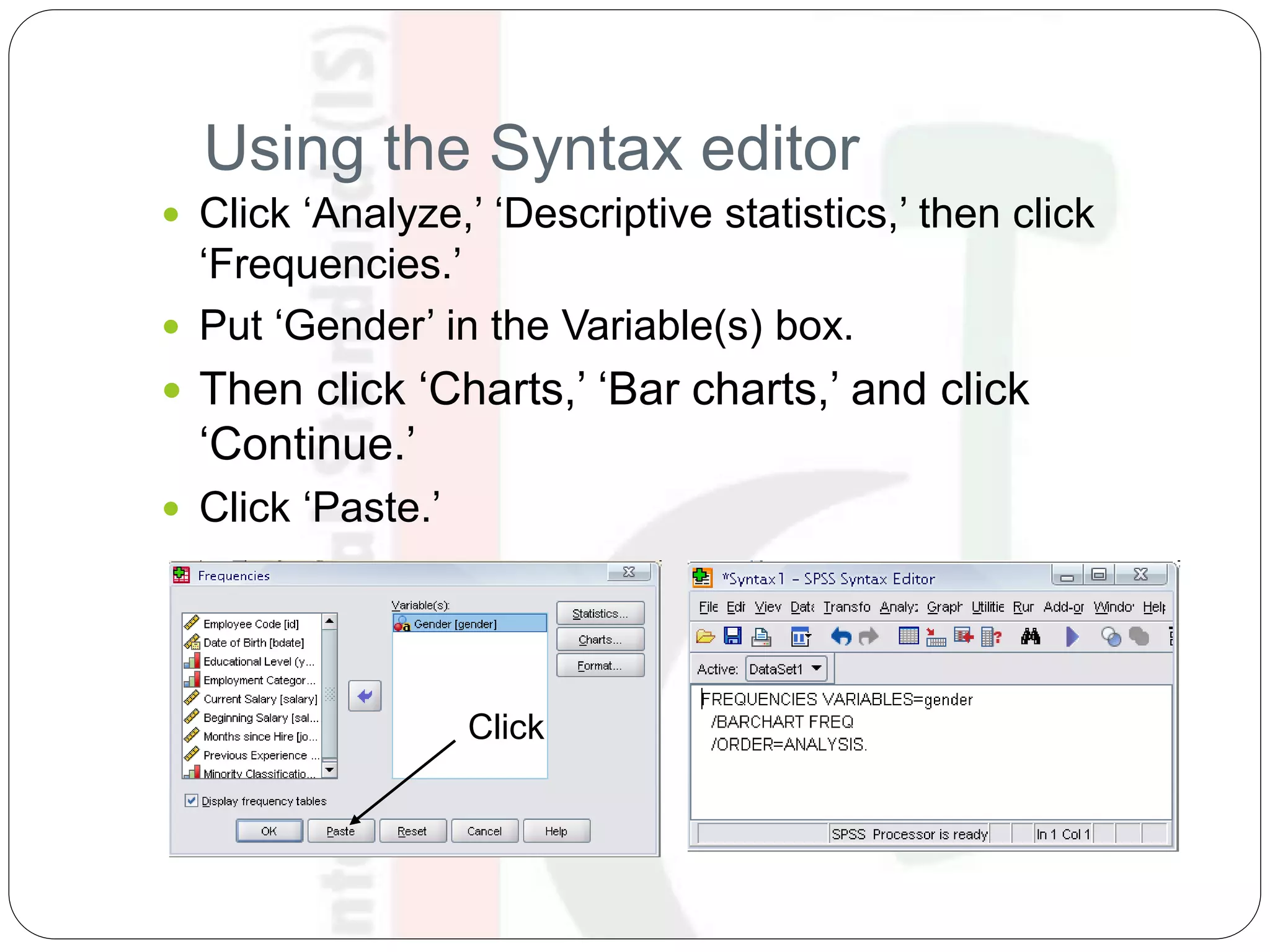
 Click ‘Analyze,’ ‘Descriptive statistics,’ then click
‘Frequencies.’
 Put ‘Gender’ in the Variable(s) box.
 Then click ‘Charts,’ ‘Bar charts,’ and click
‘Continue.’
 Click ‘Paste.’
Click
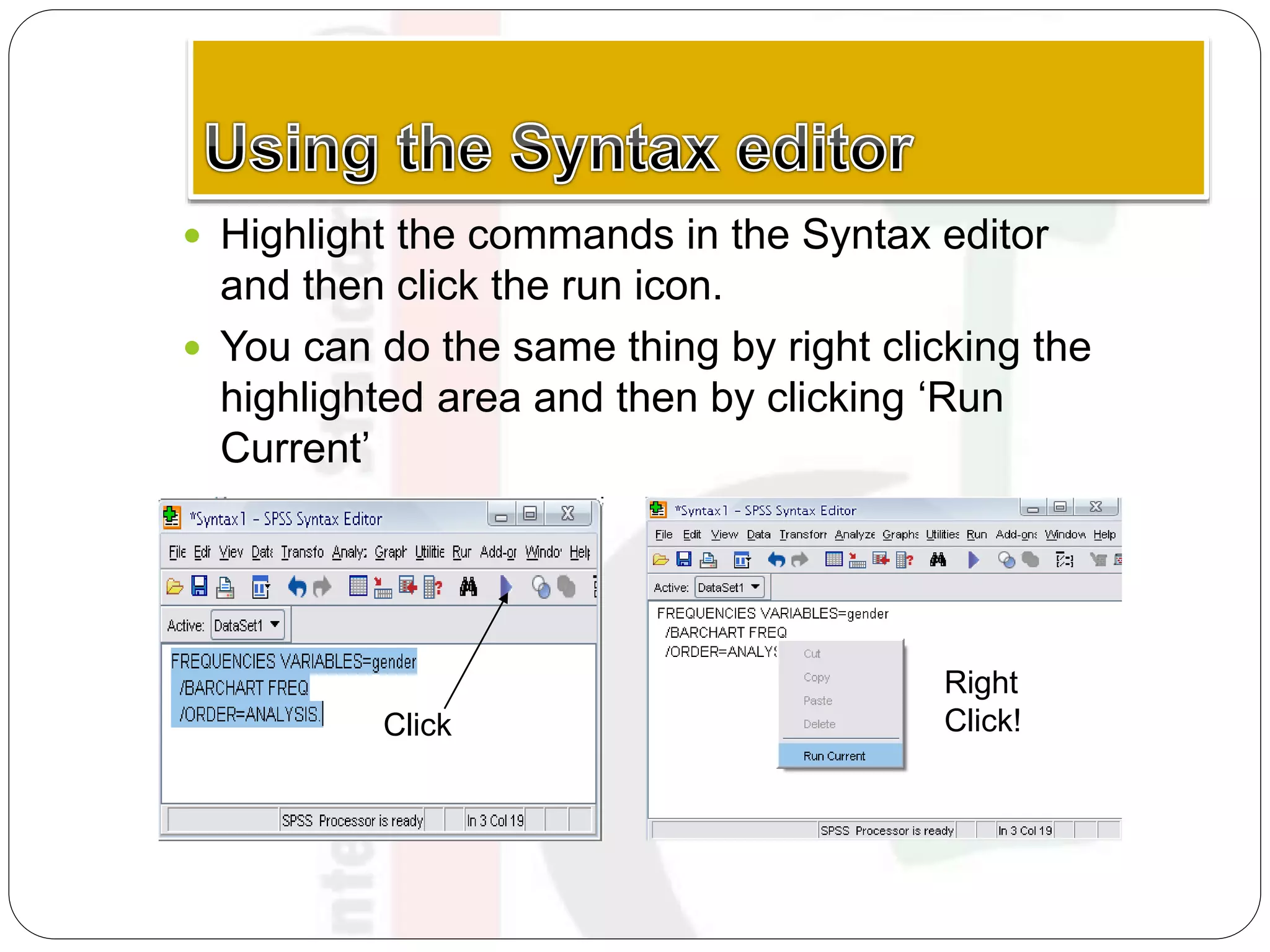
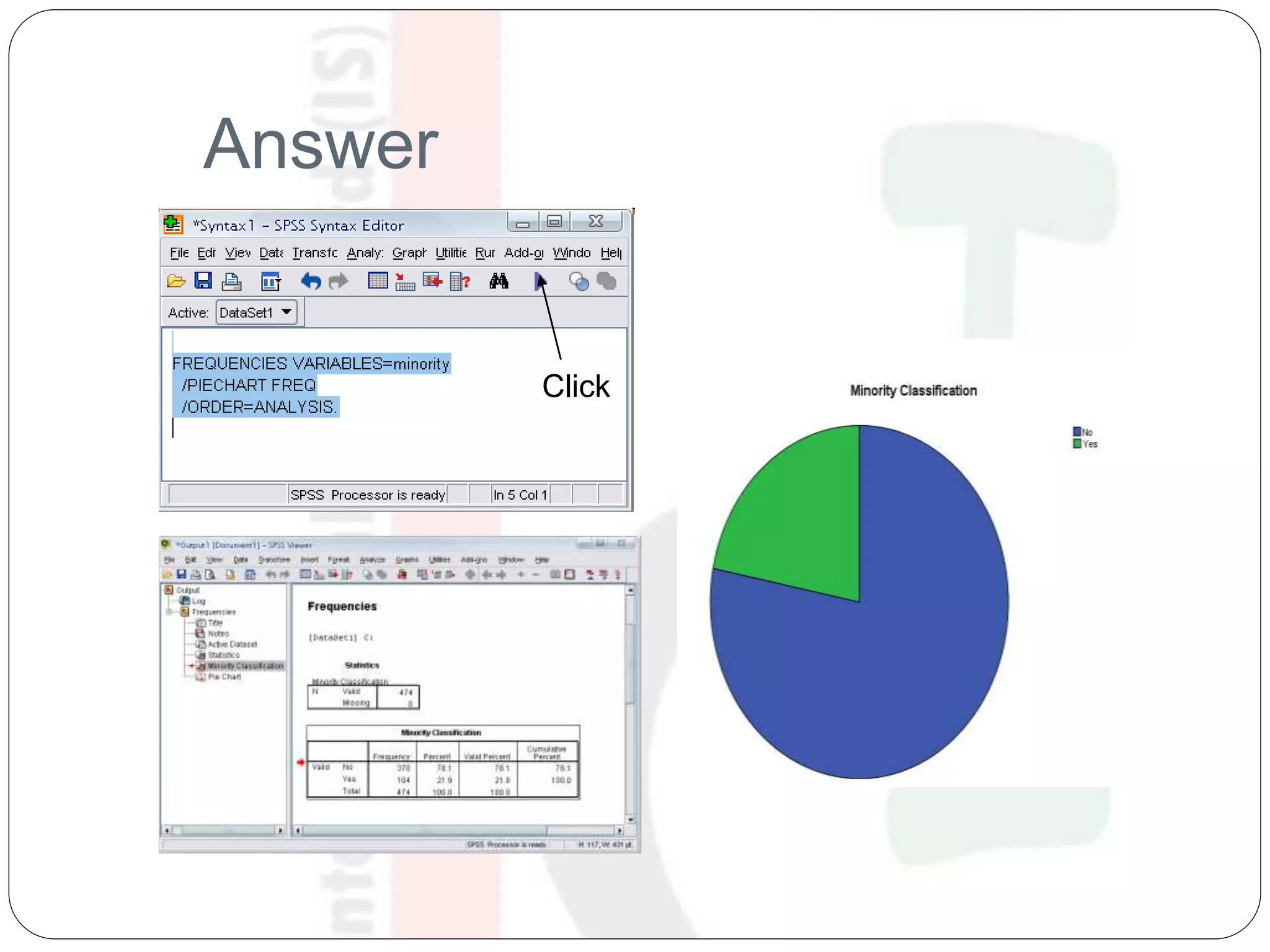
 Highlight the commands in the Syntax editor
and then click the run icon.
 You can do the same thing by right clicking the
highlighted area and then by clicking ‘Run
Current’
Click
Right
Click!
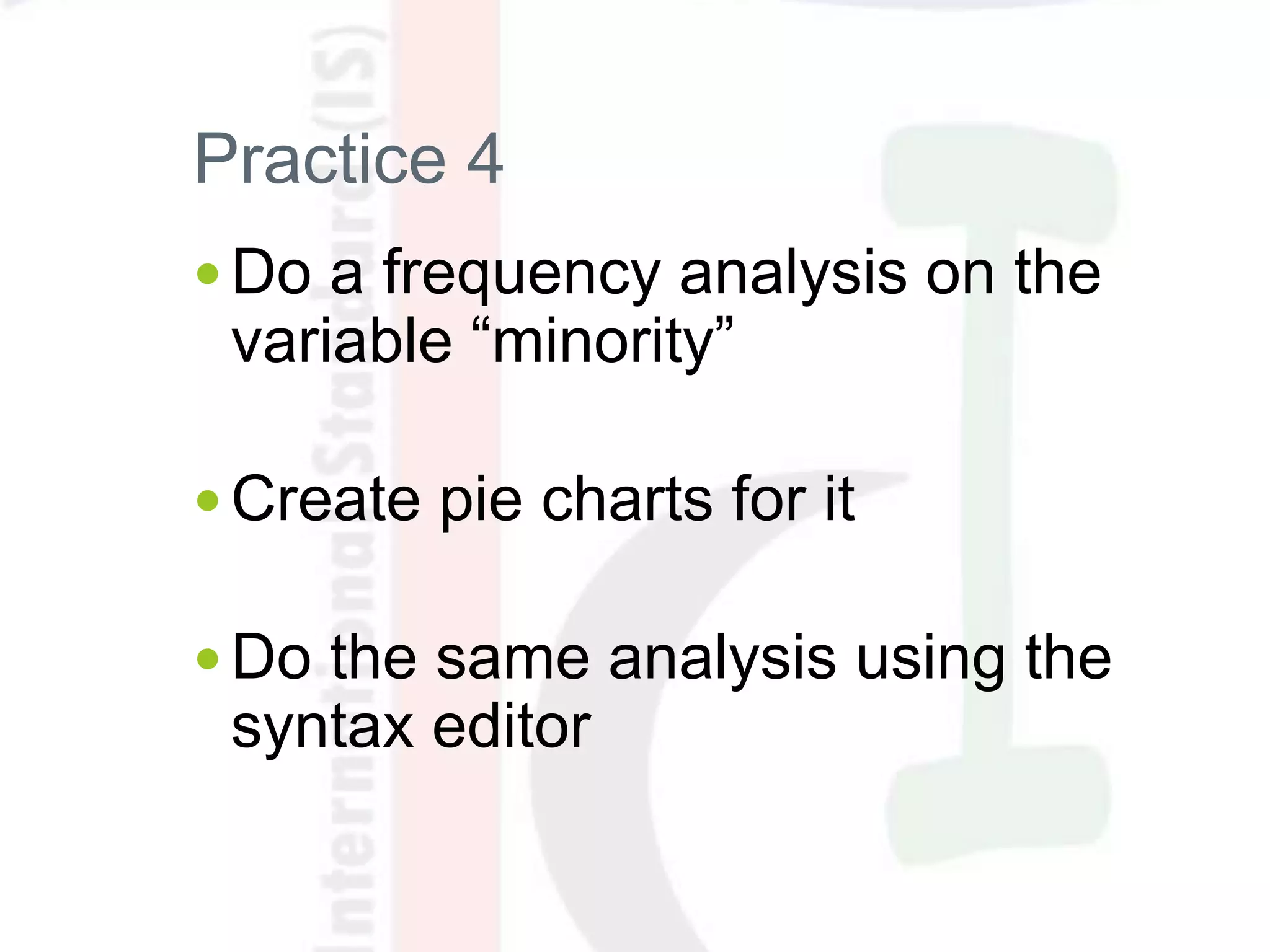
Practice 4
 Do a frequency analysis on the
variable “minority”
 Create pie charts for it
 Do the same analysis using the
syntax editor
Answer
Click
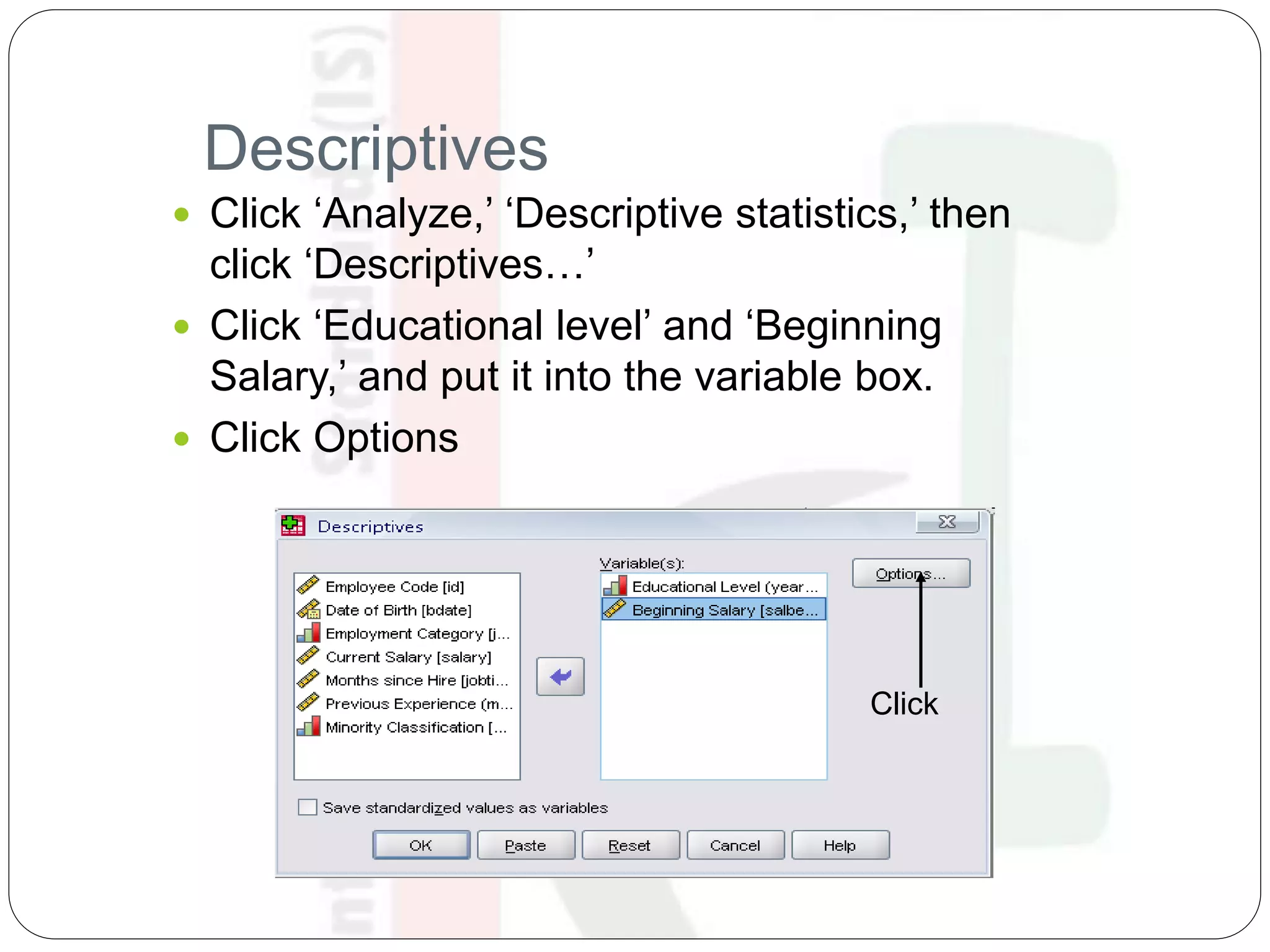
Descriptives
 Click ‘Analyze,’ ‘Descriptive statistics,’ then
click ‘Descriptives…’
 Click ‘Educational level’ and ‘Beginning
Salary,’ and put it into the variable box.
 Click Options
Click
Descriptives
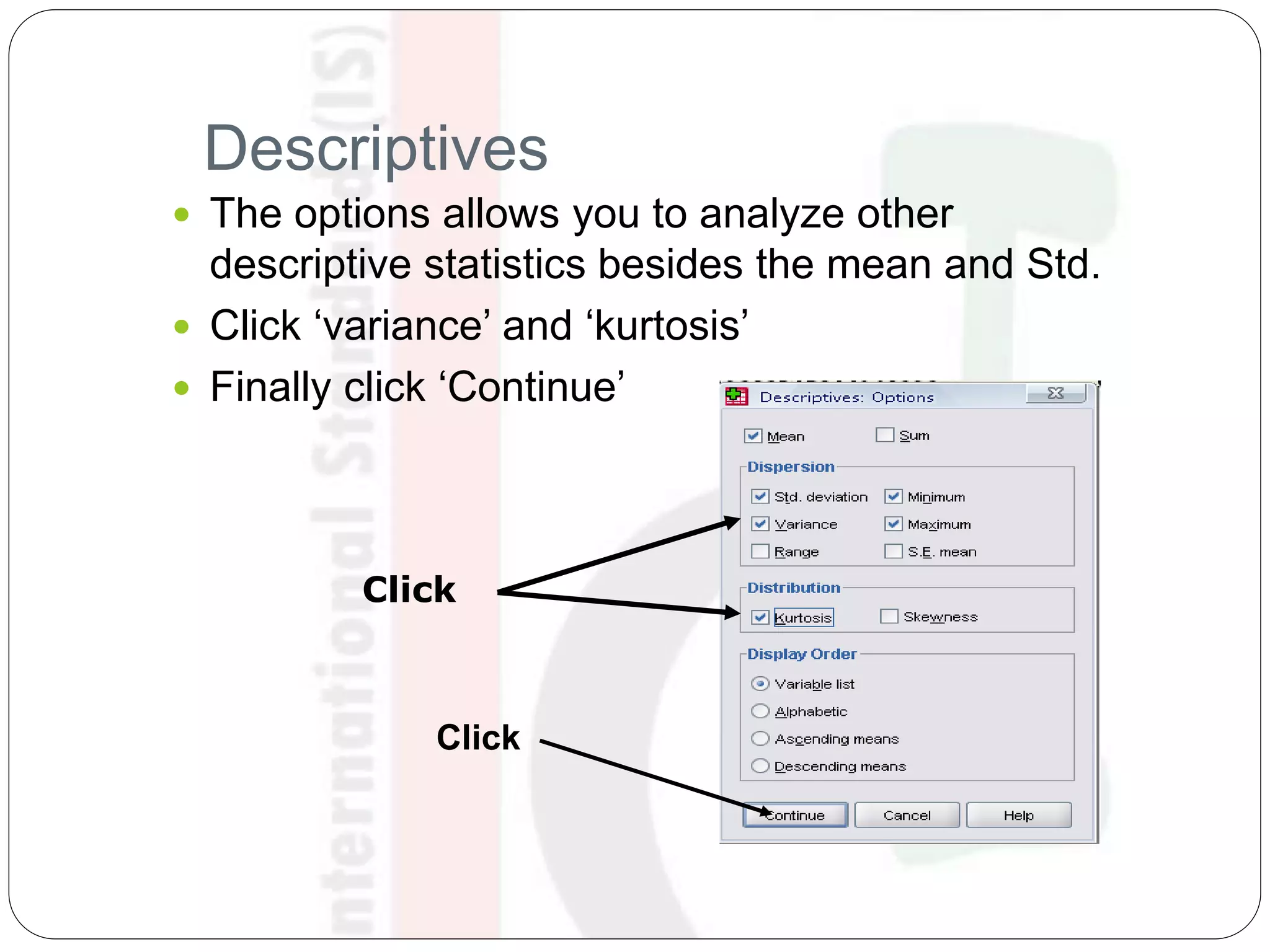
 The options allows you to analyze other
descriptive statistics besides the mean and Std.
 Click ‘variance’ and ‘kurtosis’
 Finally click ‘Continue’
Click
Click
Descriptives
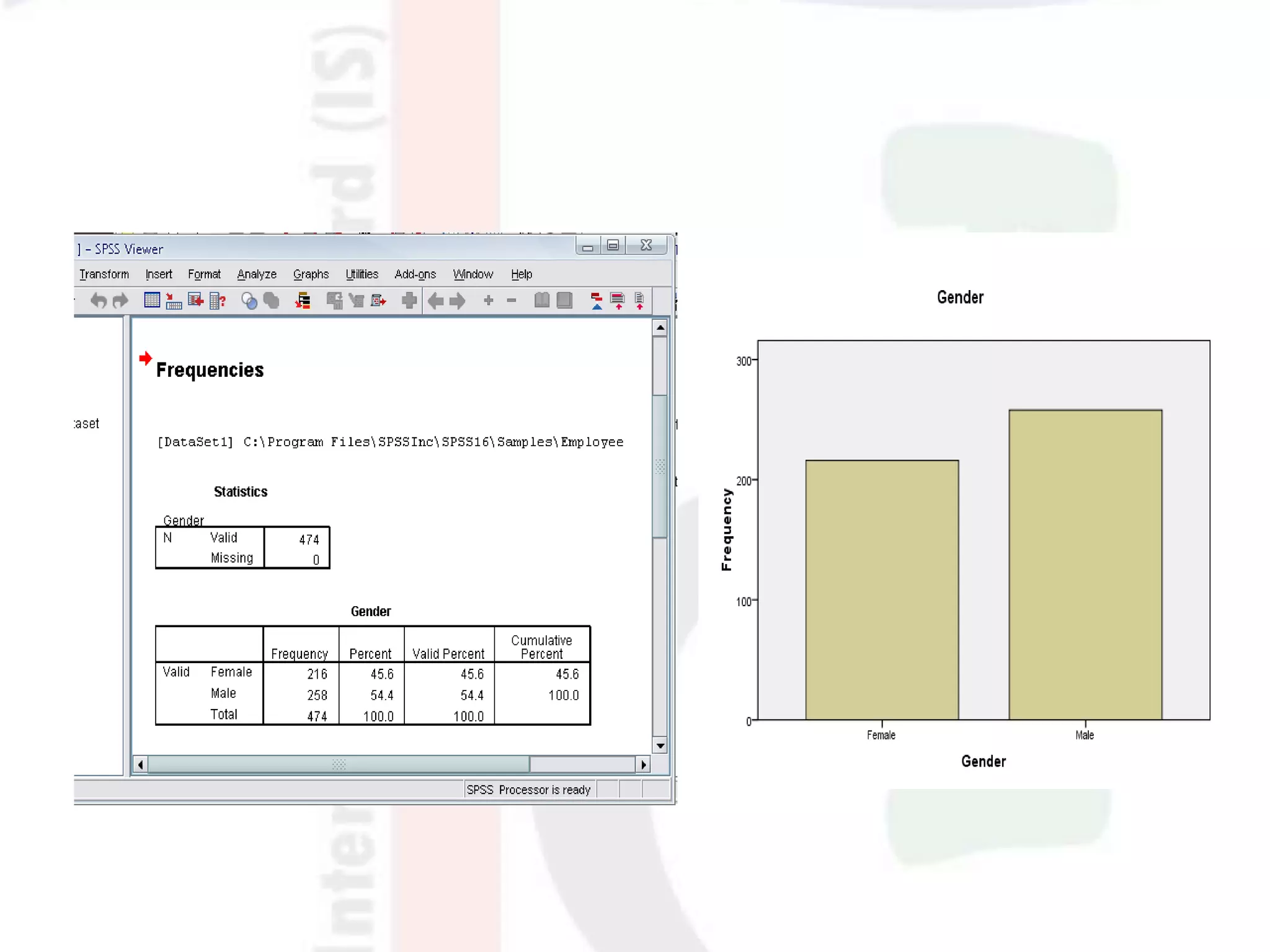
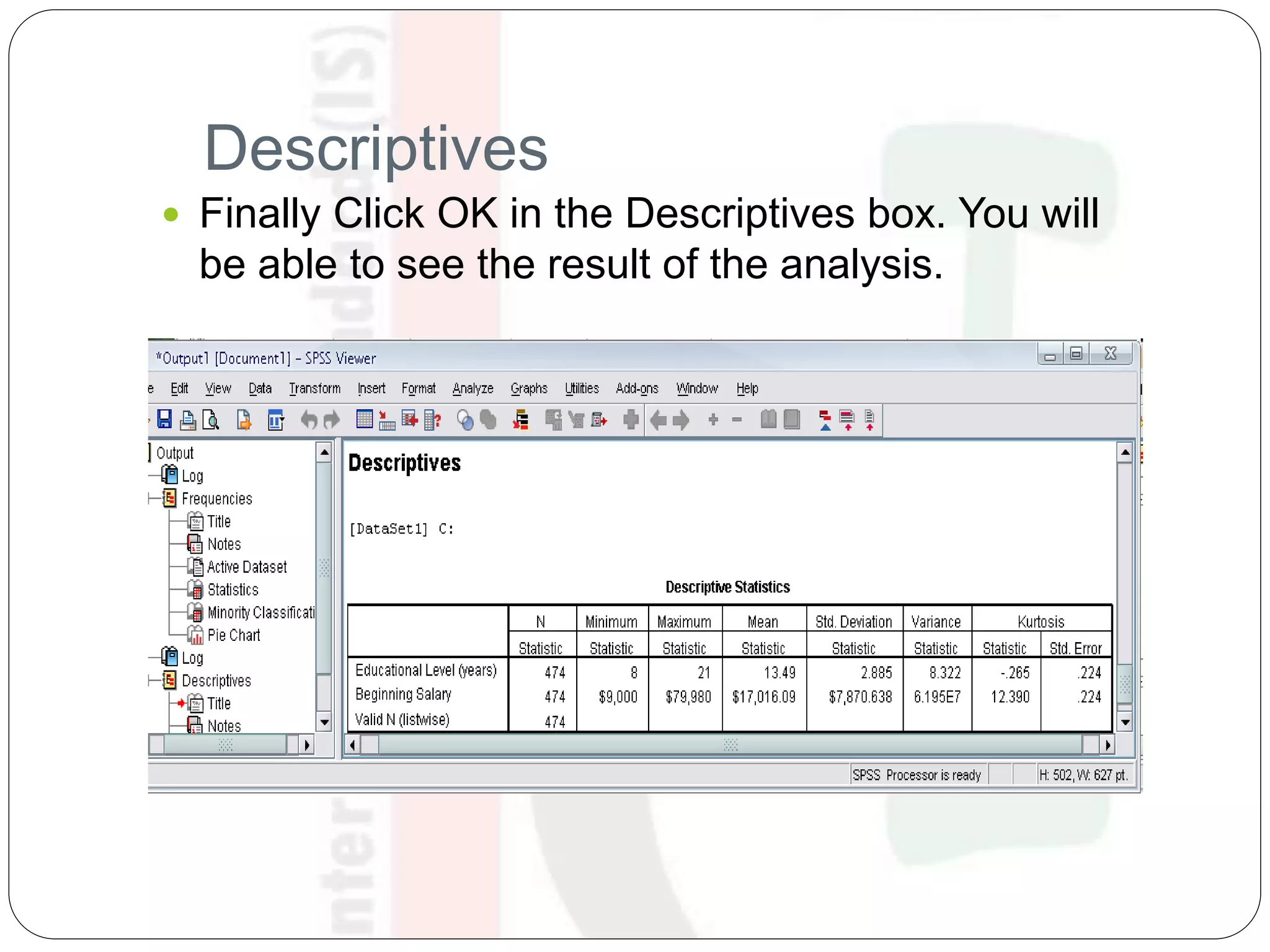
 Finally Click OK in the Descriptives box. You will
be able to see the result of the analysis.
Regression Analysis
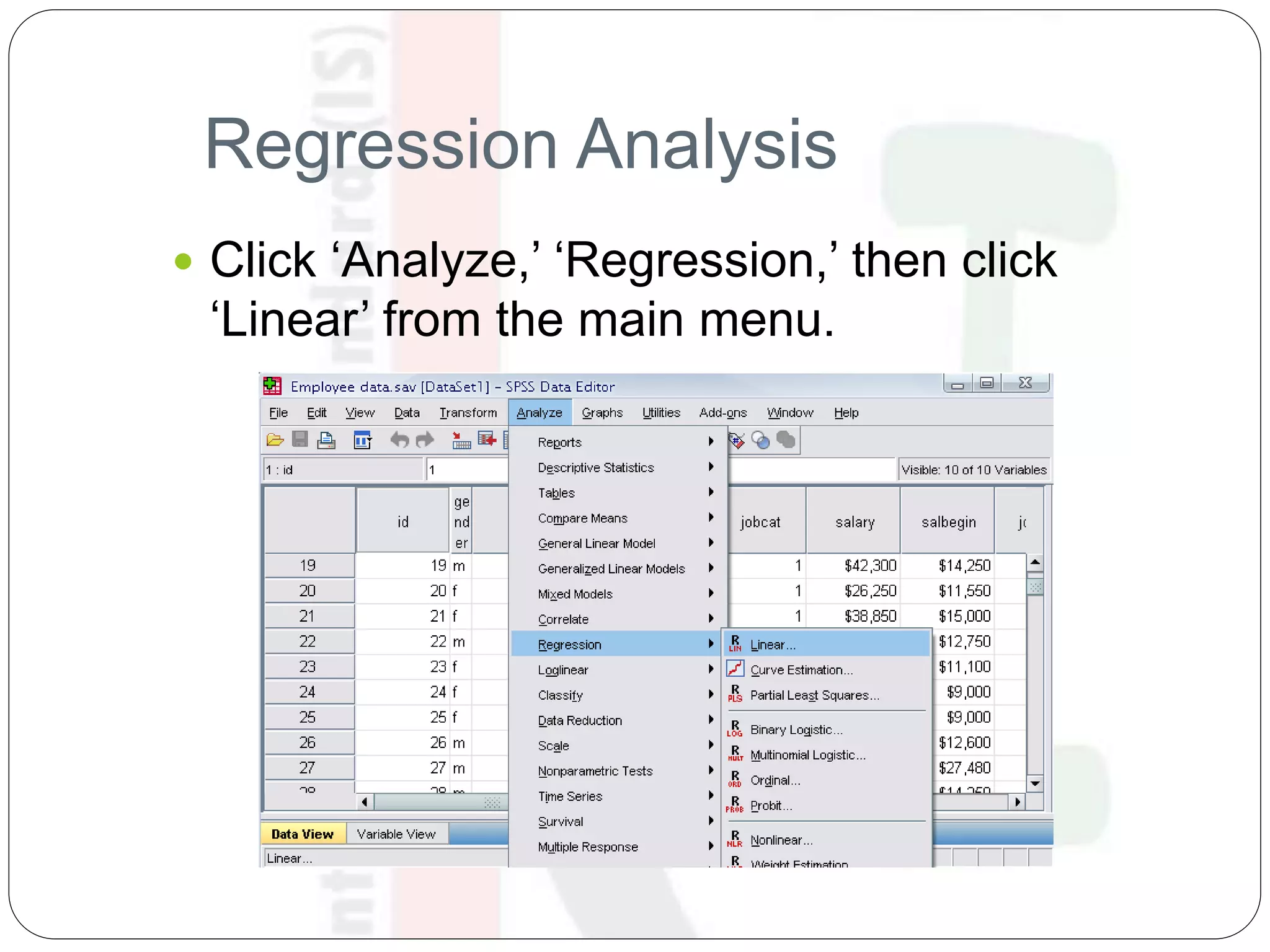
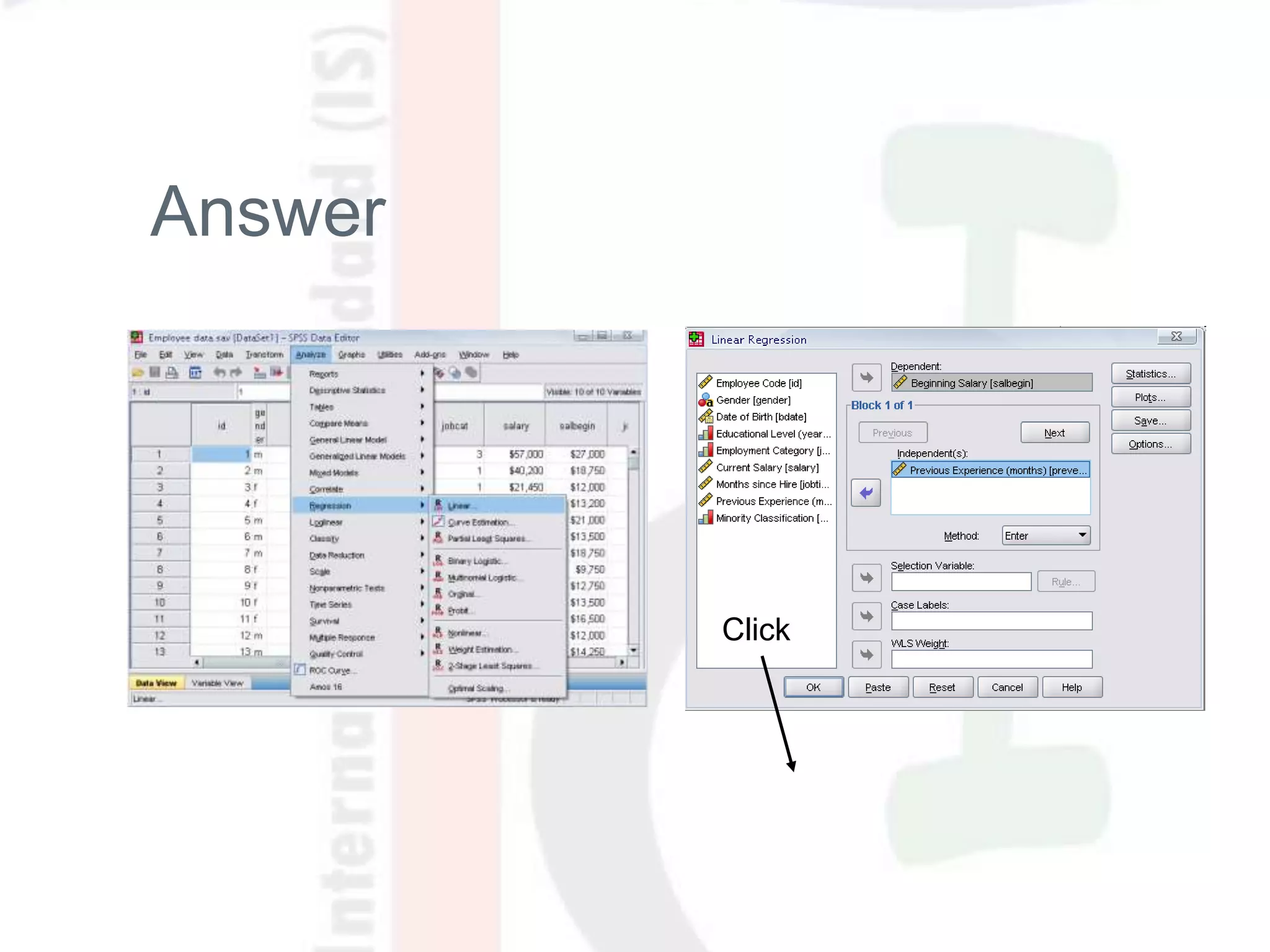
 Click ‘Analyze,’ ‘Regression,’ then click
‘Linear’ from the main menu.
Regression Analysis
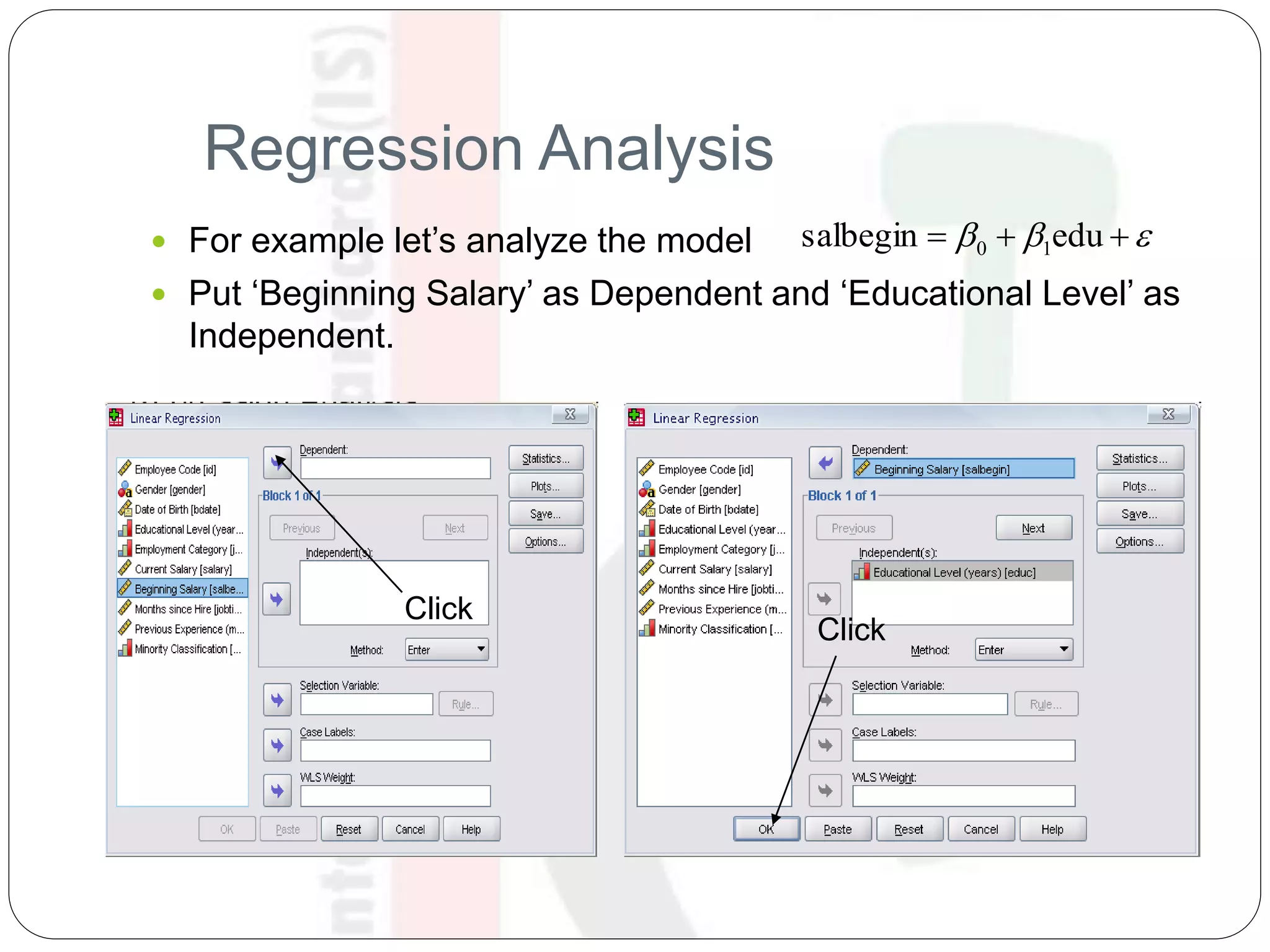
 For example let’s analyze the model
 Put ‘Beginning Salary’ as Dependent and ‘Educational Level’ as
Independent.
  edusalbegin 10
Click
Click
Regression Analysis
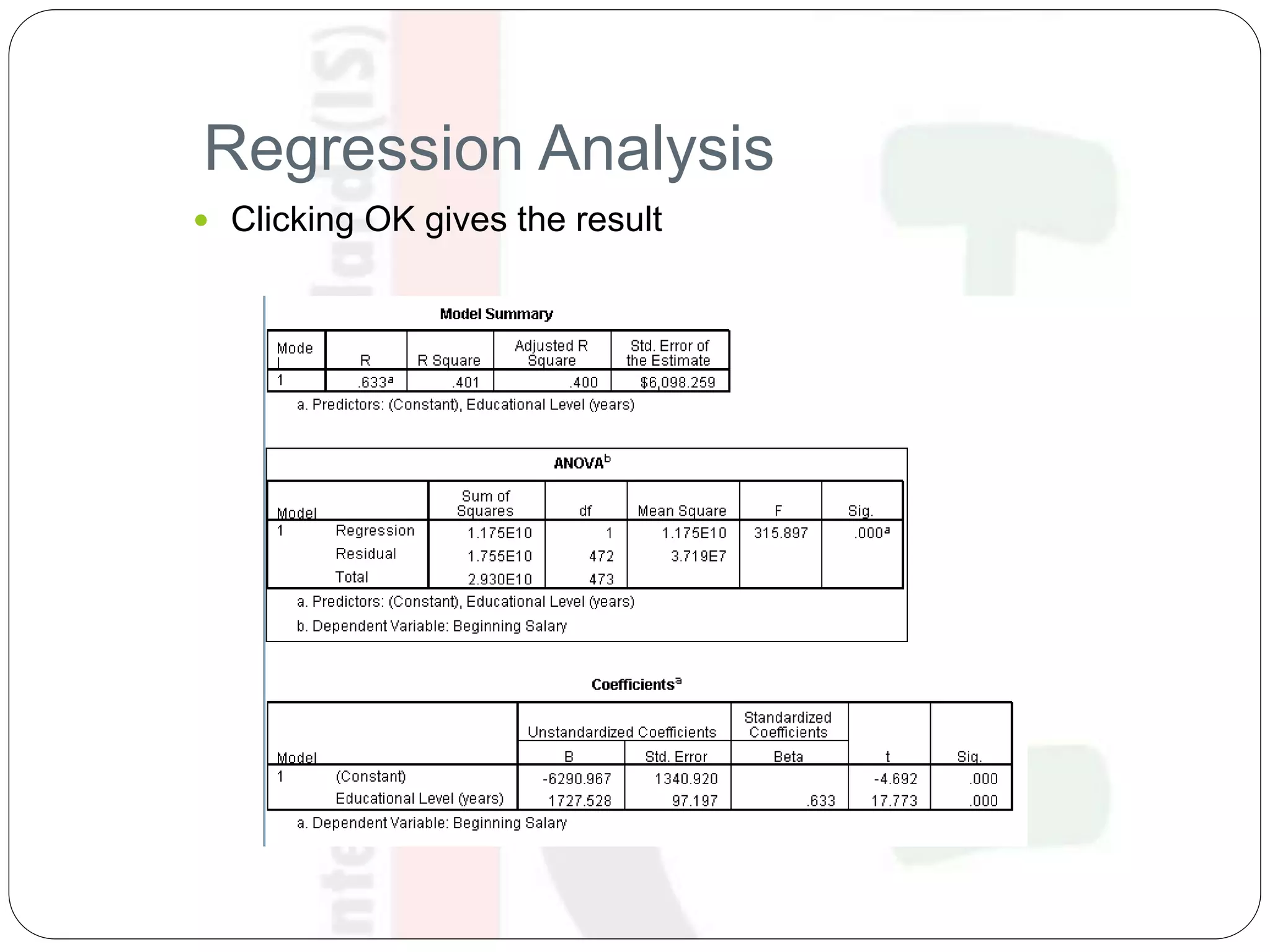
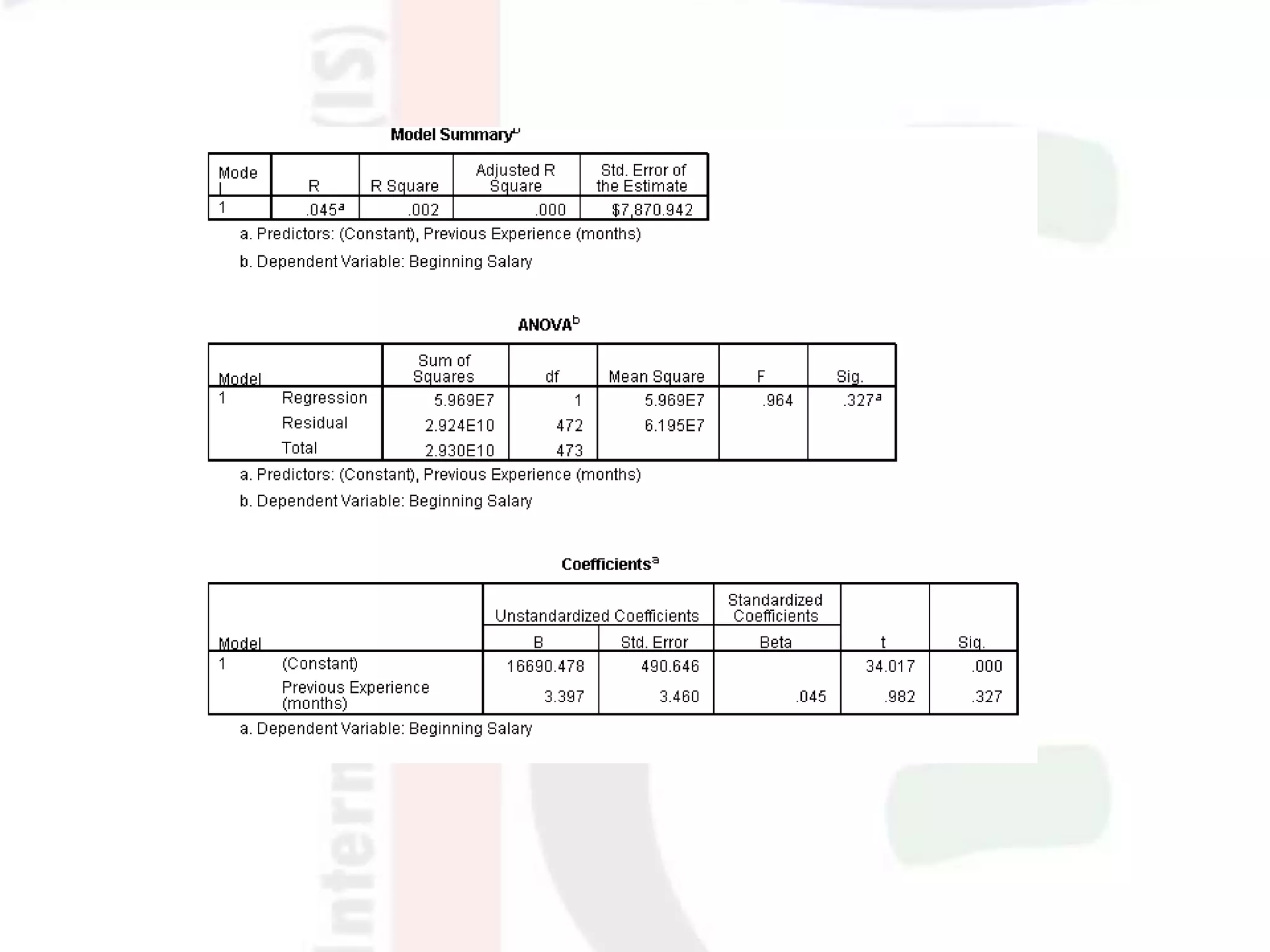
 Clicking OK gives the result
Plotting the regression line
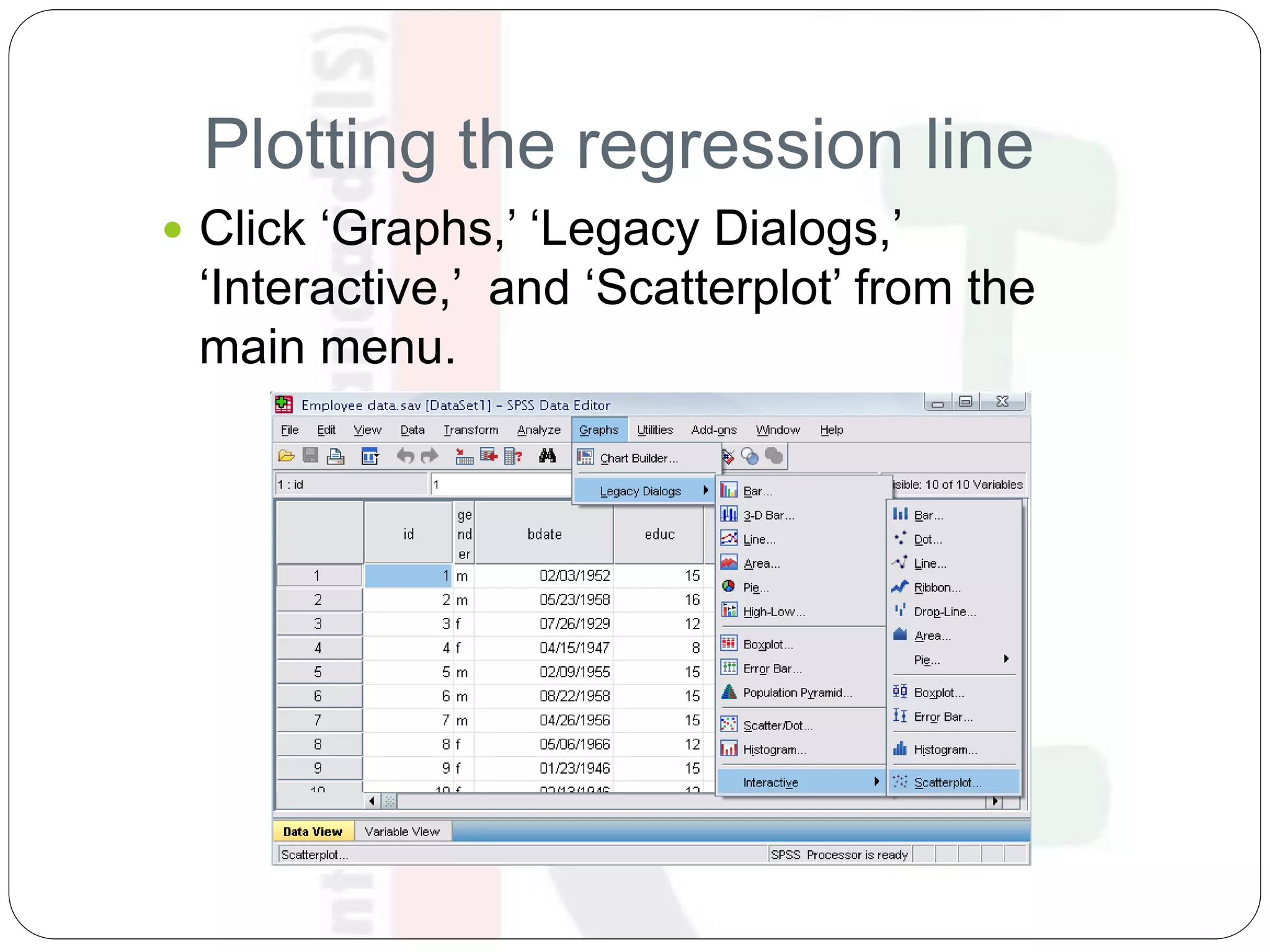
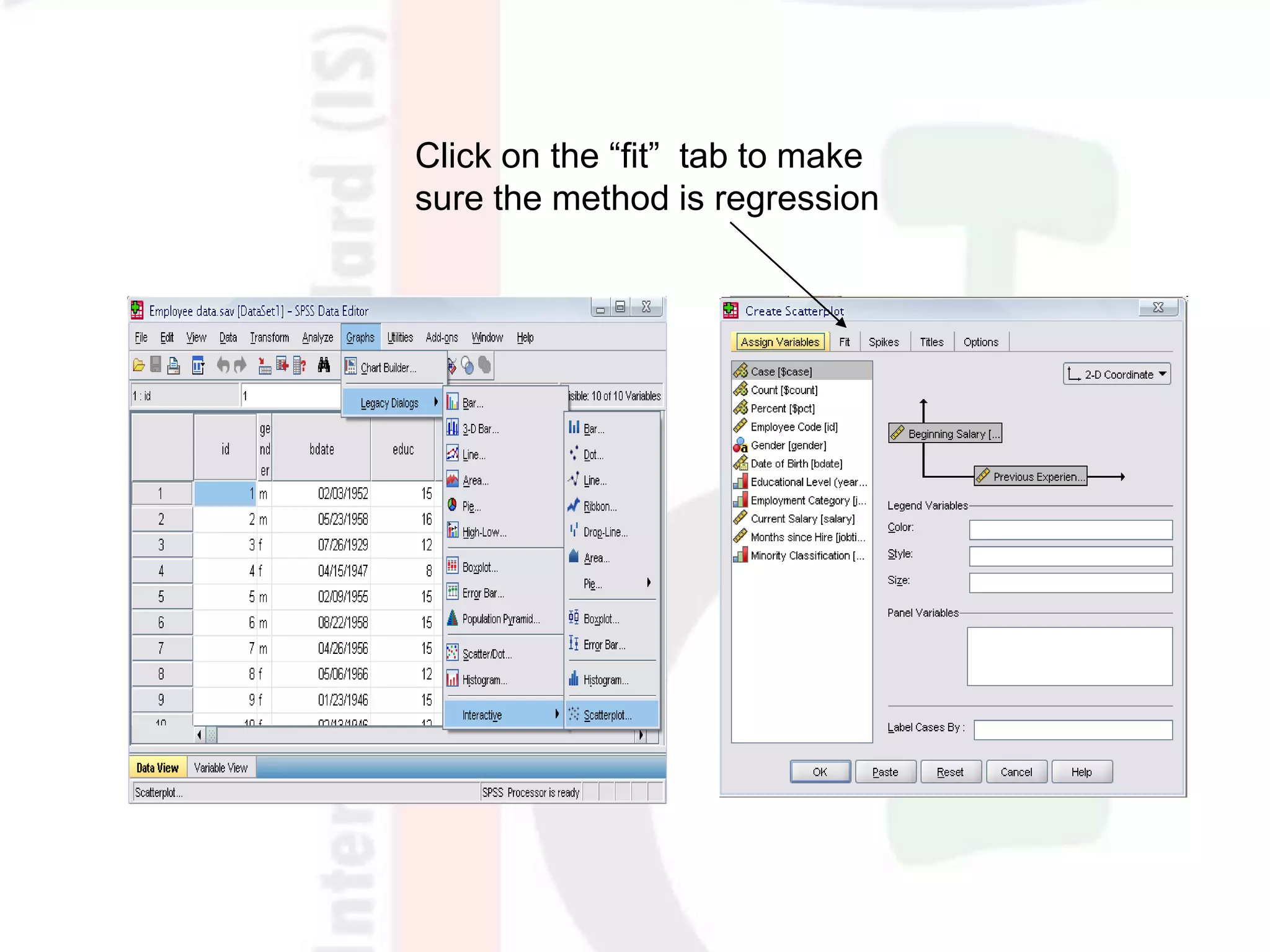
 Click ‘Graphs,’ ‘Legacy Dialogs,’
‘Interactive,’ and ‘Scatterplot’ from the
main menu.
Plotting the regression line
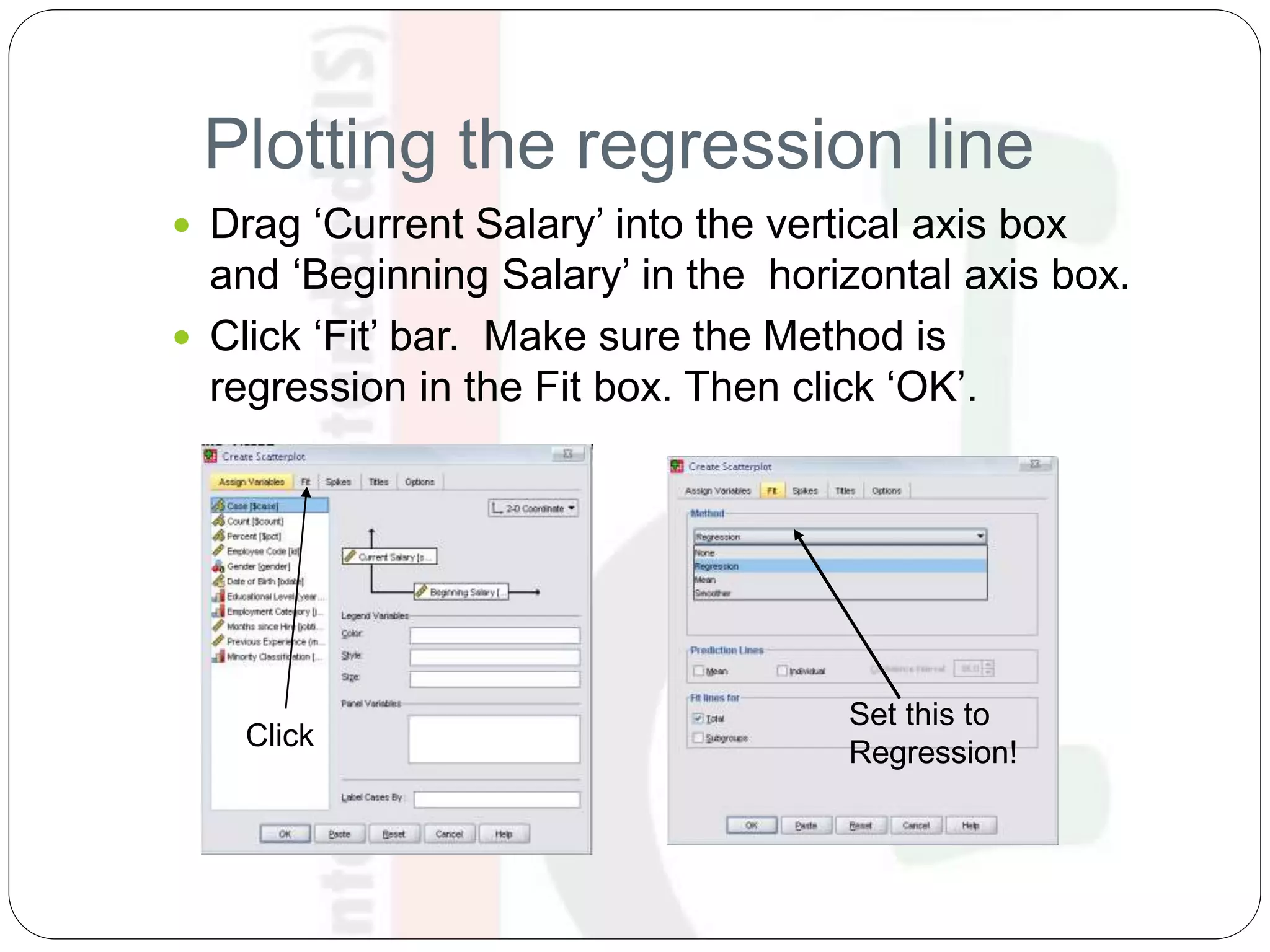
 Drag ‘Current Salary’ into the vertical axis box
and ‘Beginning Salary’ in the horizontal axis box.
 Click ‘Fit’ bar. Make sure the Method is
regression in the Fit box. Then click ‘OK’.
Click
Set this to
Regression!
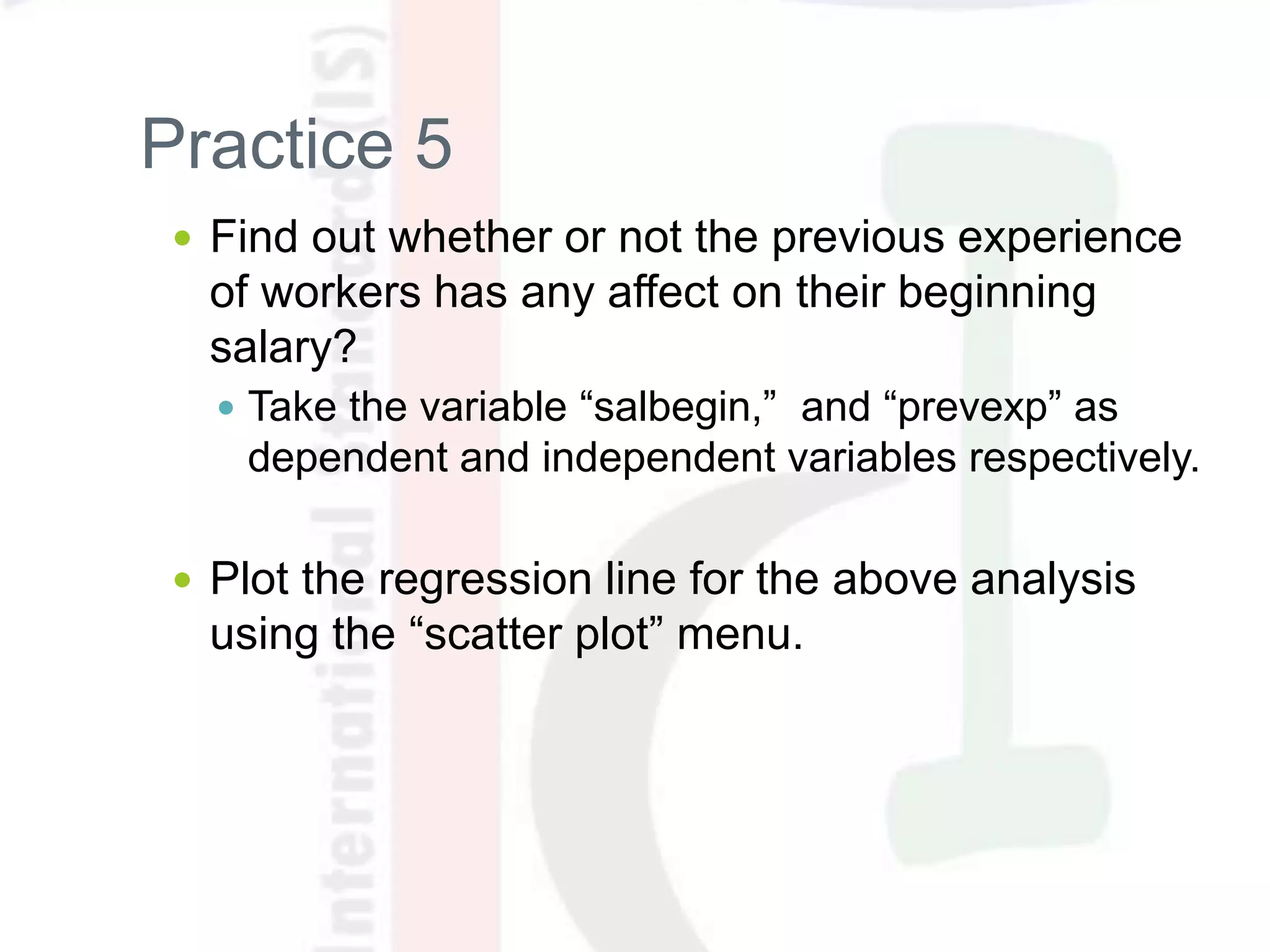
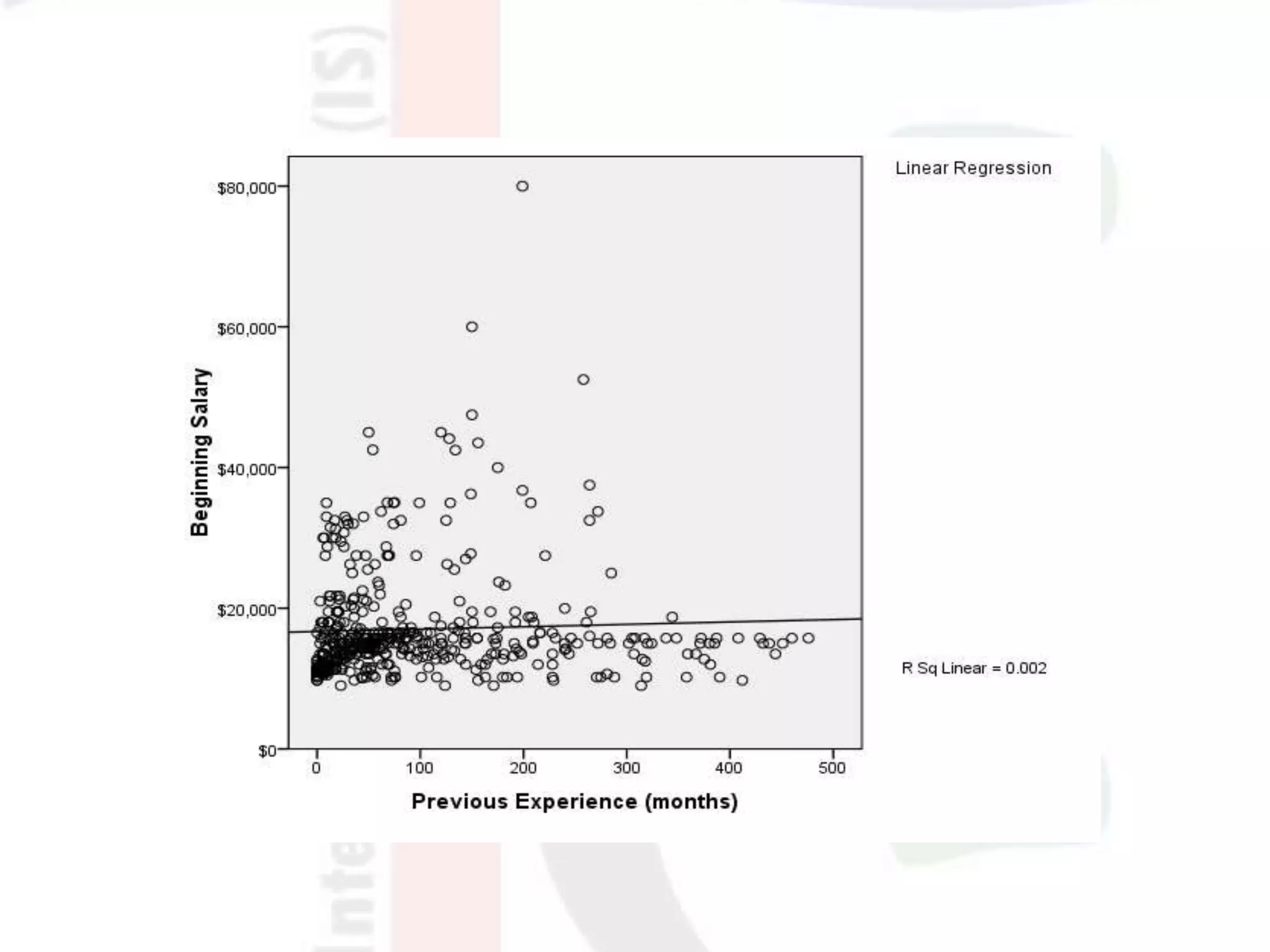
Practice 5
 Find out whether or not the previous experience
of workers has any affect on their beginning
salary?
 Take the variable “salbegin,” and “prevexp” as
dependent and independent variables respectively.
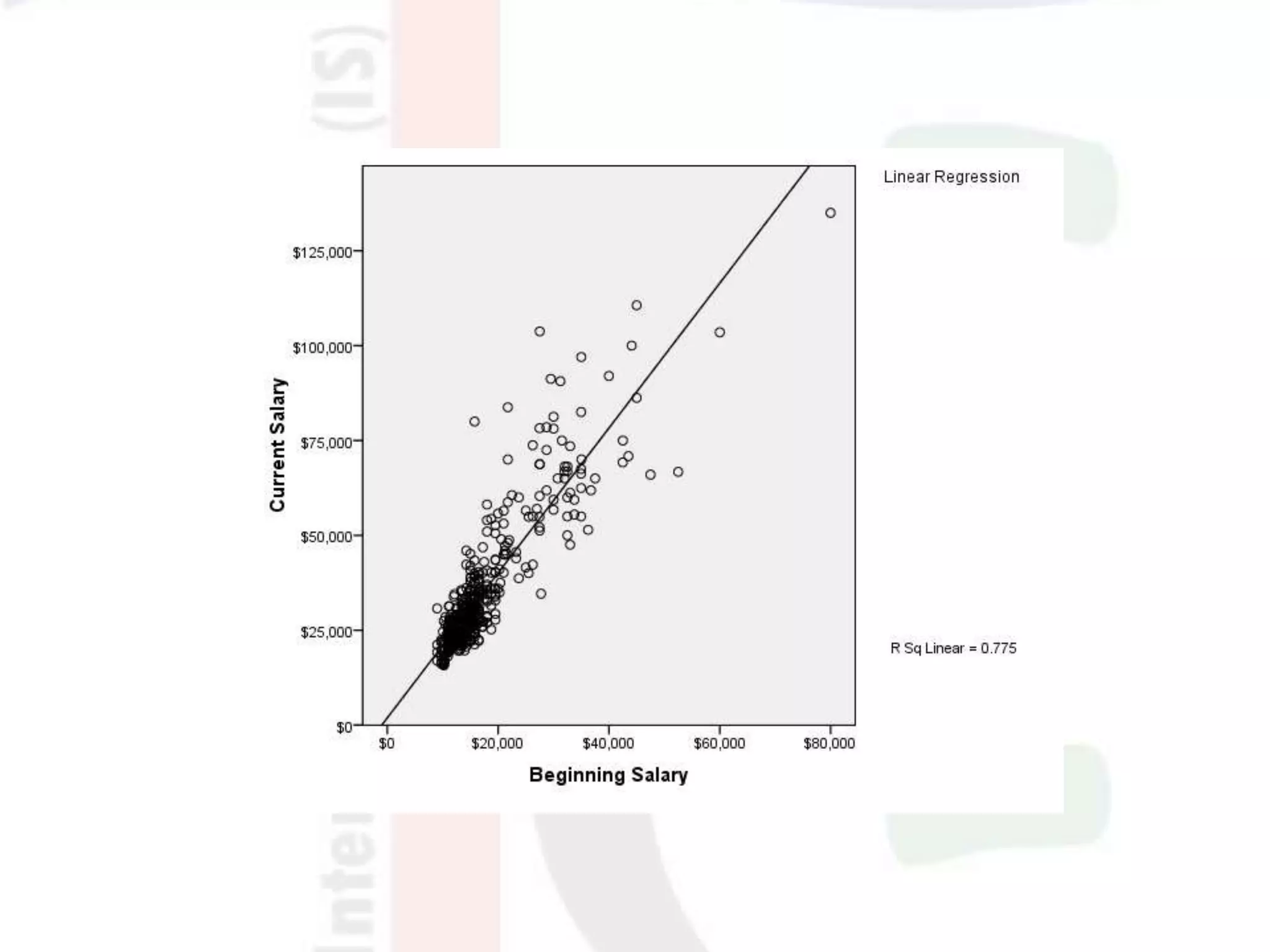
 Plot the regression line for the above analysis
using the “scatter plot” menu.
Answer
Click
Click on the “fit” tab to make
sure the method is regression
Thanks.
For further Questions:
thankgodokpe@gmail.com

Introduction To SPSS

  • 1.
  • 2.
     About thefour-windows in SPSS  The basics of managing data files  The basic analysis in SPSS
  • 3.
     The acronym“SPSS” stands for Statistical Package for Social Science  One of the most popular statistical packages which can perform highly complex data manipulation and analysis with simple instructions
  • 4.
  • 5.
     Data Editor Spreadsheet-likesystem for defining, entering, editing, and displaying data. Extension of the saved file will be “sav.”
  • 6.
     Output Viewer Displaysoutput and errors. Extension of the saved file will be “spv.”
  • 7.
     Syntax Editor Texteditor for syntax composition. Extension of the saved file will be “sps.”
  • 8.
     Script Window Providesthe opportunity to write full-blown programs, in a BASIC-like language. Text editor for syntax composition. Extension of the saved file will be “sbs.”
  • 9.
    The basics ofmanaging data files
  • 10.
    Opening SPSS  Start→ All Programs → SPSS Inc→ SPSS 16.0 → SPSS 16.0
  • 11.
    Opening SPSS  Thedefault window will have the data editor  There are two sheets in the window: 1. Data view 2. Variable view
  • 12.
    Data View window The Data View window This sheet is visible when you first open the Data Editor and this sheet contains the data  Click on the tab labeled Variable View Click
  • 13.
    Variable View window This sheet contains information about the data set that is stored with the dataset  Name  The first character of the variable name must be alphabetic  Variable names must be unique, and have to be less than 64 characters.  Spaces are NOT allowed.
  • 14.
    Variable View window:Type  Type  Click on the ‘type’ box. The two basic types of variables that you will use are numeric and string. This column enables you to specify the type of variable.
  • 15.
    Variable View window:Width  Width  Width allows you to determine the number of characters SPSS will allow to be entered for the variable
  • 16.
    Variable View window:Decimals  Decimals  Number of decimals  It has to be less than or equal to 16 3.14159265
  • 17.
    Variable View window:Label  Label  You can specify the details of the variable  You can write characters with spaces up to 256 characters
  • 18.
    Variable View window:Values  Values  This is used and to suggest which numbers represent which categories when the variable represents a category
  • 19.
    Defining the valuelabels  Click the cell in the values column as shown below  For the value, and the label, you can put up to 60 characters.  After defining the values click add and then click OK. Click
  • 20.
    Practice 1  Howwould you put the following information into SPSS? Value = 1 represents Male and Value = 2 represents Female Name Gender Height JAUNITA 2 5.4 SALLY 2 5.3 DONNA 2 5.6 SABRINA 2 5.7 JOHN 1 5.7 MARK 1 6 ERIC 1 6.4 BRUCE 1 5.9
  • 21.
    Practice 1 (SolutionSample) Click
  • 22.
  • 23.
    Saving the data To save the data file you created simply click ‘file’ and click ‘save as.’ You can save the file in different forms by clicking “Save as type.” Click
  • 24.
    Sorting the data Click ‘Data’ and then click Sort Cases
  • 25.
    Sorting the data(cont’d)  Double Click ‘Name of the students.’ Then click ok. Click Click
  • 26.
    Practice 2  Howwould you sort the data by the ‘Height’ of students in descending order?  Answer  Click data, sort cases, double click ‘height of students,’ click ‘descending,’ and finally click ok.
  • 27.
    Transforming data  Click‘Transform’ and then click ‘Compute Variable…’
  • 28.
    Transforming data (cont’d) Example: Adding a new variable named ‘lnheight’ which is the natural log of height  Type in lnheight in the ‘Target Variable’ box. Then type in ‘ln(height)’ in the ‘Numeric Expression’ box. Click OK Click
  • 29.
    Transforming data (cont’d) A new variable ‘lnheight’ is added to the table
  • 30.
    Practice 3  Createa new variable named “sqrtheight” which is the square root of height.  Answer
  • 31.
  • 32.
     Frequencies  Thisanalysis produces frequency tables showing frequency counts and percentages of the values of individual variables.  Descriptives  This analysis shows the maximum, minimum, mean, and standard deviation of the variables  Linear regression analysis  Linear Regression estimates the coefficients of the linear equation
  • 33.
     Open ‘Employeedata.sav’ from the SPSS  Go to “File,” “Open,” and Click Data
  • 34.
     Go toProgram Files,” “SPSSInc,” “SPSS16,” and “Samples” folder.  Open “Employee Data.sav” file
  • 35.
     Click ‘Analyze,’‘Descriptive statistics,’ then click ‘Frequencies’
  • 36.
     Click genderand put it into the variable box.  Click ‘Charts.’  Then click ‘Bar charts’ and click ‘Continue.’ Click Click
  • 37.
     Finally ClickOK in the Frequencies box. Click
  • 39.
    Using the Syntaxeditor  Click ‘Analyze,’ ‘Descriptive statistics,’ then click ‘Frequencies.’  Put ‘Gender’ in the Variable(s) box.  Then click ‘Charts,’ ‘Bar charts,’ and click ‘Continue.’  Click ‘Paste.’ Click
  • 40.
     Highlight thecommands in the Syntax editor and then click the run icon.  You can do the same thing by right clicking the highlighted area and then by clicking ‘Run Current’ Click Right Click!
  • 41.
    Practice 4  Doa frequency analysis on the variable “minority”  Create pie charts for it  Do the same analysis using the syntax editor
  • 43.
  • 44.
    Descriptives  Click ‘Analyze,’‘Descriptive statistics,’ then click ‘Descriptives…’  Click ‘Educational level’ and ‘Beginning Salary,’ and put it into the variable box.  Click Options Click
  • 45.
    Descriptives  The optionsallows you to analyze other descriptive statistics besides the mean and Std.  Click ‘variance’ and ‘kurtosis’  Finally click ‘Continue’ Click Click
  • 46.
    Descriptives  Finally ClickOK in the Descriptives box. You will be able to see the result of the analysis.
  • 47.
    Regression Analysis  Click‘Analyze,’ ‘Regression,’ then click ‘Linear’ from the main menu.
  • 48.
    Regression Analysis  Forexample let’s analyze the model  Put ‘Beginning Salary’ as Dependent and ‘Educational Level’ as Independent.   edusalbegin 10 Click Click
  • 49.
  • 50.
    Plotting the regressionline  Click ‘Graphs,’ ‘Legacy Dialogs,’ ‘Interactive,’ and ‘Scatterplot’ from the main menu.
  • 51.
    Plotting the regressionline  Drag ‘Current Salary’ into the vertical axis box and ‘Beginning Salary’ in the horizontal axis box.  Click ‘Fit’ bar. Make sure the Method is regression in the Fit box. Then click ‘OK’. Click Set this to Regression!
  • 53.
    Practice 5  Findout whether or not the previous experience of workers has any affect on their beginning salary?  Take the variable “salbegin,” and “prevexp” as dependent and independent variables respectively.  Plot the regression line for the above analysis using the “scatter plot” menu.
  • 54.
  • 56.
    Click on the“fit” tab to make sure the method is regression
  • 58.
  • 59.