Let’s learn Tableau
Data Visualization Software
Version 2019.3.0
Made By: Kanika Nagpal
LinkedIn Id: https://www.linkedin.com/in/kanika-nagpal/
Calculated
FieldCalculations which are used to find certain
information that is not available in the data
Use of
Calculated
Fields
Calculated Field helps to create new
data from the data that already exists in
the data source.
When a calculated field is generated,
basically a new field (or column) is
created in the data source. The values
or members of this calculated field are
determined by the calculation that user
controls.
This new calculated field is saved to the
data source and can be used to create
more robust visualizations.
But don't worry, the original data
remains untouched.
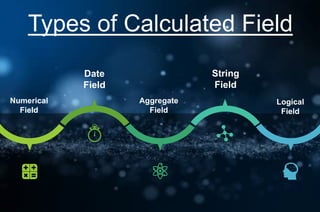
Types of Calculated Field
Numerical
Field
Aggregate
Field
Logical
Field
String
Field
Date
Field
Dataset : India_Life_Expectancy
Life expectancy is a statistical measure of the average time a person
is expected to live, based on the year of its birth, its current age, and
other demographic factors including gender.
The dataset available on Kaggle has been modified for this chapter.
List of columns used are as follows:-
 City Name
 State
 Last Election Date
 Death Rate
 Population Current
TIME TO CREATE
NUMERICAL
FIELD
Steps to create Numerical Field
● Click the drop down beside the ‘Dimensions’ section.
● Select ‘Create Calculated Field…’ and a dialogue box will
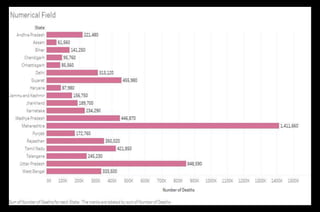
appear. Name it ‘Number of Deaths’ and write the formula:
([Death Rate]/100)*[Population Current] -> Apply -> Ok.
This will create a field under ‘Measures’ section which describes
the total number of deaths in every city.
● Create a Bar graph using ‘State’ and ‘Number of Deaths’.
Resulting graph has been put up on the next slide and is self
explanatory.
DATE
FIELD
Steps to create Date Field
● Select the drop down beside ‘Dimensions’ section.
● Select ‘Create Calculated Field…’ and a dialogue box will appear.
Name it ‘Years from Last Election’ and write formula: DATEDIFF(
'year' , [Last Election Date] , Today()) -> Apply -> Ok.
This will create a field under ‘Measures’ section which describes
number of years that have passed since the last election was held in
that City .
● Create a Bar graph using ‘State’, ‘City’ and ‘Years from Last
Election’.
Resulting graph (excluding few States) has been put up on the next
slide for reference and is self explanatory.
AGGREGATE
FIELD
Steps to create Aggregate Field
● Select the drop down beside ‘Dimensions’ section.
● Select ‘Create Calculated Field…’ and a dialogue box will
appear. Name it ‘Average Population’ and write formula:
AVG ([Population Current]) -> Apply -> Ok.
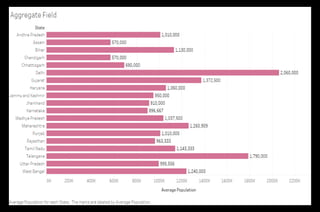
This will create a field under ‘Measures’ section which describes
the average population for every City.
● Create a Bar graph using ‘State’ and ‘Average Population’.
Resulting graph has been put up on the next slide for reference
and is self explanatory.
STRING
FIELD
Steps to create String Field
There are two ways to create a String field in ‘Dimensions’ section.
One way is by Splitting an existing field and the other way is by
Combining any two fields.
Steps to create a String field by splitting :-
● Right click on ‘City Name’ in ‘Dimensions’ section.
● Select ‘Transform’ and then ‘Split’.
This will create two fields under ‘Dimensions’ section, one containing
the name of the city and the other its code.
● Rename the ‘City Name - Split 1’ as ‘City’ and ‘City Name - Split
2’ as ‘City Code’.
Steps to create String Field
Steps to create a String field by combining :-
● Select ‘State’ and ‘City Name’ using Ctrl key.
● Right click on either of the field. Select ‘Create’ and then
‘Combined Field’.
This will create a field under ‘Dimensions’ section which
combines the ‘State’ and ‘City Name’ using ‘, ’ as a separator for
each row in the dataset.
● Create a Bar graph using ‘City’, ‘City Code’, ‘City Name &
State (Combined)’ and ‘Population Current’.
Resulting graph (excluding few States) has been put up on the
next slide for reference and is self explanatory.
LOGICAL
FIELD
Steps to create Logical Field
● Select the drop down beside ‘Dimensions’ section.
● Select ‘Create Calculated Field…’ and a dialogue box will appear.
Name it ‘Death Category’ and write formula:
IF [Death Rate] <= 10 then 'Low‘
ELSEIF [Death Rate] > 10 and [Death Rate] <= 15 then 'Mild'
ELSE 'High' END
● Click ‘Apply’ and then click ‘Ok’.
This will create a field under ‘Measures’ section which labels the each row
according to the above logic ‘Death Rate’.
● Create a Bar graph using ‘State’, ‘Death Rate’ and ‘Death Category’.
Resulting graph has been put up on the next slide for reference and is self
explanatory.
Image Sources
https://www.free-powerpoint-templates-design.com/
https://www.liberaldictionary.com/wp-content/uploads/2018/11/numbers.jpg
https://www.pngarts.com/explore/130045
https://help.tableau.com/current/pro/desktop/en-
us/calculations_calculatedfields_create.htm
https://img.freepik.com/free-photo/dark-blue-glow-dust-particle-abstract-
background_35672-1414.jpg?size=626&ext=jpg
https://images.squarespace-
cdn.com/content/5835c88346c3c4a5dd582405/1499729757596-
EBQ0IH3085GD38IXVTLR/?format=1000w&content-type=image%2Fjpeg
https://image.freepik.com/free-vector/business-performance-analysis-with-
graphs_53876-59914.jpg
https://cdn4.vectorstock.com/i/1000x1000/42/98/cute-cartoon-kids-set-
children-girls-boys-vector-23984298.jpg
END

Calculated Fields in Tableau

  • 1.
    Let’s learn Tableau DataVisualization Software Version 2019.3.0 Made By: Kanika Nagpal LinkedIn Id: https://www.linkedin.com/in/kanika-nagpal/
  • 2.
    Calculated FieldCalculations which areused to find certain information that is not available in the data
  • 3.
    Use of Calculated Fields Calculated Fieldhelps to create new data from the data that already exists in the data source. When a calculated field is generated, basically a new field (or column) is created in the data source. The values or members of this calculated field are determined by the calculation that user controls. This new calculated field is saved to the data source and can be used to create more robust visualizations. But don't worry, the original data remains untouched.
  • 4.
    Types of CalculatedField Numerical Field Aggregate Field Logical Field String Field Date Field
  • 6.
    Dataset : India_Life_Expectancy Lifeexpectancy is a statistical measure of the average time a person is expected to live, based on the year of its birth, its current age, and other demographic factors including gender. The dataset available on Kaggle has been modified for this chapter. List of columns used are as follows:-  City Name  State  Last Election Date  Death Rate  Population Current
  • 7.
  • 8.
  • 9.
    Steps to createNumerical Field ● Click the drop down beside the ‘Dimensions’ section. ● Select ‘Create Calculated Field…’ and a dialogue box will appear. Name it ‘Number of Deaths’ and write the formula: ([Death Rate]/100)*[Population Current] -> Apply -> Ok. This will create a field under ‘Measures’ section which describes the total number of deaths in every city. ● Create a Bar graph using ‘State’ and ‘Number of Deaths’. Resulting graph has been put up on the next slide and is self explanatory.
  • 11.
  • 12.
    Steps to createDate Field ● Select the drop down beside ‘Dimensions’ section. ● Select ‘Create Calculated Field…’ and a dialogue box will appear. Name it ‘Years from Last Election’ and write formula: DATEDIFF( 'year' , [Last Election Date] , Today()) -> Apply -> Ok. This will create a field under ‘Measures’ section which describes number of years that have passed since the last election was held in that City . ● Create a Bar graph using ‘State’, ‘City’ and ‘Years from Last Election’. Resulting graph (excluding few States) has been put up on the next slide for reference and is self explanatory.
  • 14.
  • 15.
    Steps to createAggregate Field ● Select the drop down beside ‘Dimensions’ section. ● Select ‘Create Calculated Field…’ and a dialogue box will appear. Name it ‘Average Population’ and write formula: AVG ([Population Current]) -> Apply -> Ok. This will create a field under ‘Measures’ section which describes the average population for every City. ● Create a Bar graph using ‘State’ and ‘Average Population’. Resulting graph has been put up on the next slide for reference and is self explanatory.
  • 17.
  • 18.
    Steps to createString Field There are two ways to create a String field in ‘Dimensions’ section. One way is by Splitting an existing field and the other way is by Combining any two fields. Steps to create a String field by splitting :- ● Right click on ‘City Name’ in ‘Dimensions’ section. ● Select ‘Transform’ and then ‘Split’. This will create two fields under ‘Dimensions’ section, one containing the name of the city and the other its code. ● Rename the ‘City Name - Split 1’ as ‘City’ and ‘City Name - Split 2’ as ‘City Code’.
  • 19.
    Steps to createString Field Steps to create a String field by combining :- ● Select ‘State’ and ‘City Name’ using Ctrl key. ● Right click on either of the field. Select ‘Create’ and then ‘Combined Field’. This will create a field under ‘Dimensions’ section which combines the ‘State’ and ‘City Name’ using ‘, ’ as a separator for each row in the dataset. ● Create a Bar graph using ‘City’, ‘City Code’, ‘City Name & State (Combined)’ and ‘Population Current’. Resulting graph (excluding few States) has been put up on the next slide for reference and is self explanatory.
  • 21.
  • 22.
    Steps to createLogical Field ● Select the drop down beside ‘Dimensions’ section. ● Select ‘Create Calculated Field…’ and a dialogue box will appear. Name it ‘Death Category’ and write formula: IF [Death Rate] <= 10 then 'Low‘ ELSEIF [Death Rate] > 10 and [Death Rate] <= 15 then 'Mild' ELSE 'High' END ● Click ‘Apply’ and then click ‘Ok’. This will create a field under ‘Measures’ section which labels the each row according to the above logic ‘Death Rate’. ● Create a Bar graph using ‘State’, ‘Death Rate’ and ‘Death Category’. Resulting graph has been put up on the next slide for reference and is self explanatory.
  • 24.
  • 25.