Conditional formatting in Excel


                          Next Slide
Conditional Formatting
• Makes spreadsheets of complex data easier to
  read by formatting cells based on the data
  contained.


                                      Next Slide
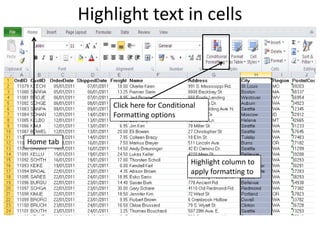
Highlight text in cells


               Click here for Conditional
               Formatting options


Home tab

                                       Highlight column to
                                       apply formatting to
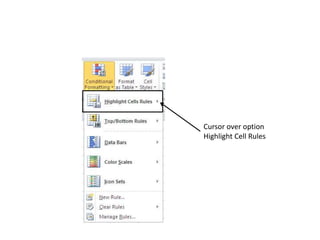
Cursor over option
Highlight Cell Rules
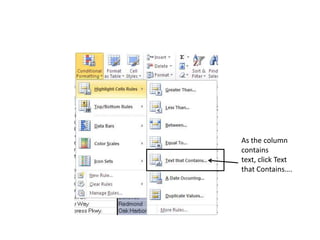
As the column
contains
text, click Text
that Contains….
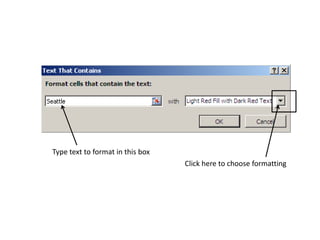
Type text to format in this box
                                  Click here to choose formatting
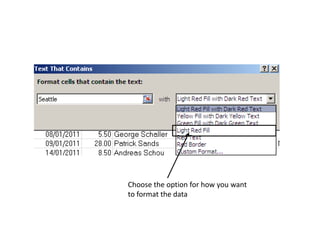
Choose the option for how you want
to format the data
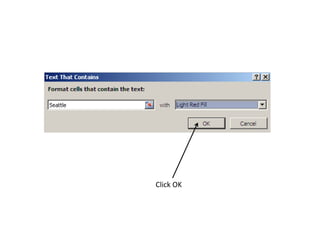
Click OK
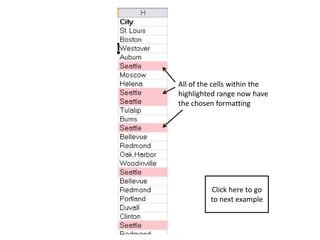
All of the cells within the
highlighted range now have
the chosen formatting


         Click here to go
         to next example
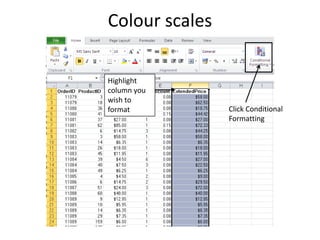
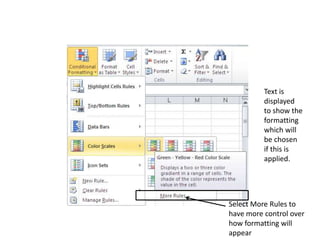
Colour scales

Highlight
column you
wish to
format          Click Conditional
                Formatting
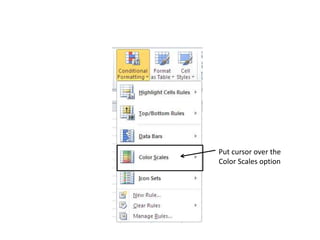
Put cursor over the
Color Scales option
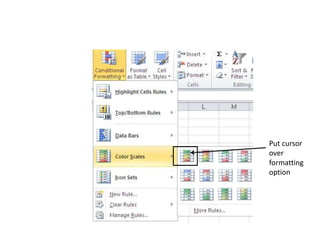
Put cursor
over
formatting
option
Text is
          displayed
          to show the
          formatting
          which will
          be chosen
          if this is
          applied.


Select More Rules to
have more control over
how formatting will
appear
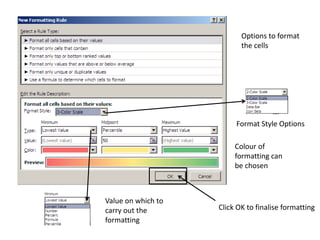
Options to format
                           the cells


                         Format Style Options

                         Colour of
                         formatting can
                         be chosen


Value on which to
carry out the       Click OK to finalise formatting
formatting
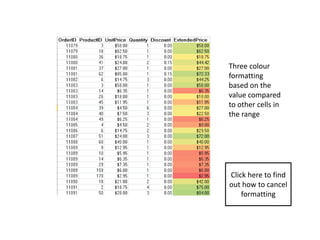
Three colour
formatting
based on the
value compared
to other cells in
the range


Click here to find
out how to cancel
    formatting
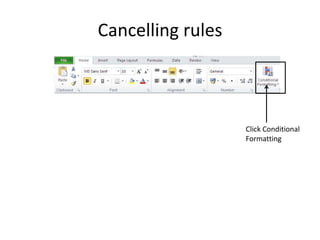
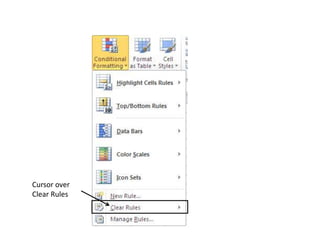
Cancelling rules


                   Click Conditional
                   Formatting
Cursor over
Clear Rules
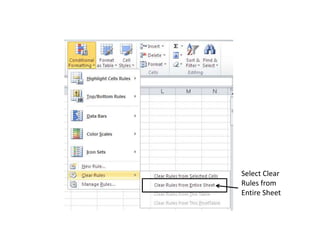
Select Clear
Rules from
Entire Sheet
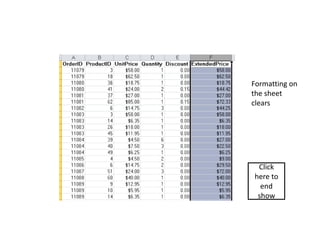
Formatting on
the sheet
clears


 Click
here to
  end
 show

Conditional formatting in excel v2