DATABASE LABS
MS ACCESS
Identify Good Database Design(1 of 2)
MS Access is a relational database management system
 Database—organized collection of data
 Information—data organized in a useful manner
 Flat database—simple database, not related to other data
 Relational database—database, multiple collections are
related
 Tables—foundation of an Access database
 Record—all the data relating to one person, place, event,
thing, or idea is stored
 Field—single piece of information for every record
Identify Good Database Design(2 of 4)
 First principle of a good database design
 Organize data so there is no duplication of
information
 Second principle of a good database design
Use techniques to ensure that data is consistent
 Normalization is important because your goal in
creating a database is to have it perform as
expected
 Tables in a relational database are joined to one
another on a common field
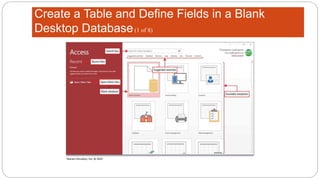
Create a Table and Define Fields in a Blank
Desktop Database(1 of 8)
Create a Table and Define Fields in a Blank
Desktop Database(2 of 8)
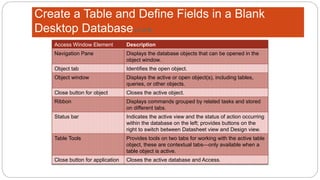
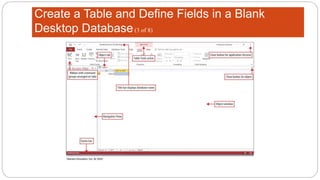
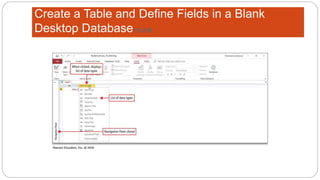
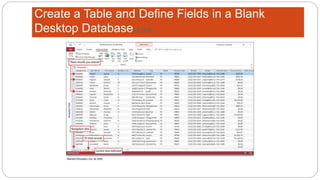
Access Window Element Description
Navigation Pane Displays the database objects that can be opened in the
object window.
Object tab Identifies the open object.
Object window Displays the active or open object(s), including tables,
queries, or other objects.
Close button for object Closes the active object.
Ribbon Displays commands grouped by related tasks and stored
on different tabs.
Status bar Indicates the active view and the status of action occurring
within the database on the left; provides buttons on the
right to switch between Datasheet view and Design view.
Table Tools Provides tools on two tabs for working with the active table
object, these are contextual tabs—only available when a
table object is active.
Close button for application Closes the active database and Access.
Create a Table and Define Fields in a Blank
Desktop Database(3 of 8)
Create a Table and Define Fields in a Blank
Desktop Database(4 of 8)
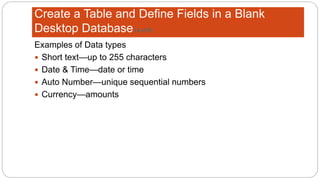
Examples of Data types
 Short text—up to 255 characters
 Date & Time—date or time
 Auto Number—unique sequential numbers
 Currency—amounts
Create a Table and Define Fields in a Blank
Desktop Database(5 of 8)
Create a Table and Define Fields in a Blank
Desktop Database(6 of 8)
Create a Table and Define Fields in a Blank
Desktop Database(7 of 8)
Create a Table and Define Fields in a Blank
Desktop Database(8 of 8)
Change the Structure of Tables and Add a Second
Table (1 of 6)
Change the Structure of Tables and Add a Second
Table (2 of 6)
Change the Structure of Tables and Add a Second
Table (3 of 6)
Change the Structure of Tables and Add a Second
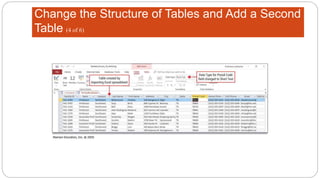
Table (4 of 6)
Change the Structure of Tables and Add a Second
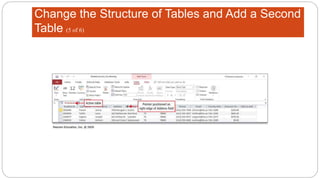
Table (5 of 6)
Change the Structure of Tables and Add a Second
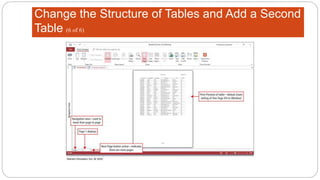
Table (6 of 6)
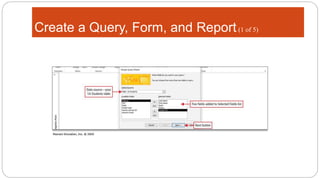
Create a Query, Form, and Report(1 of 5)
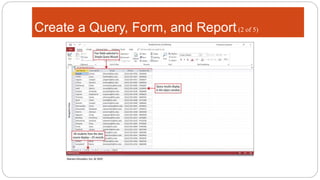
Create a Query, Form, and Report(2 of 5)
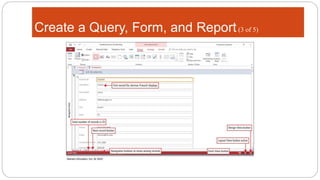
Create a Query, Form, and Report(3 of 5)
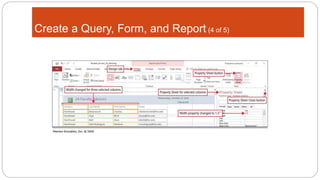
Create a Query, Form, and Report (4 of 5)
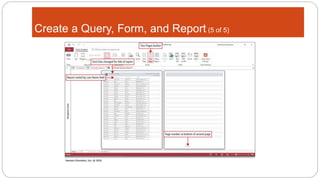
Create a Query, Form, and Report (5 of 5)
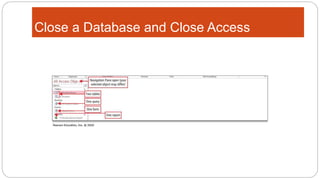
Close a Database and Close Access
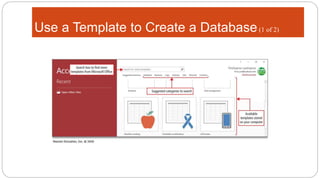
Use a Template to Create a Database(1 of 2)
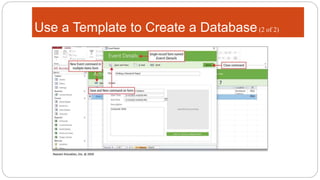
Use a Template to Create a Database(2 of 2)
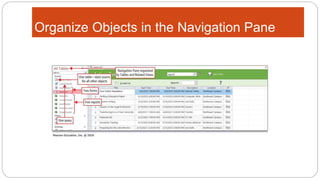
Organize Objects in the Navigation Pane
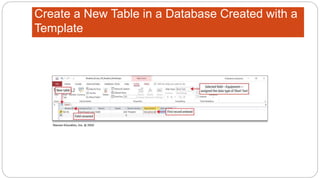
Create a New Table in a Database Created with a
Template
View a Report
 Layout view—enables you to make changes to an object while
viewing the data in the fields
Copyright

Week 1 Lab Directions

  • 1.
  • 2.
  • 3.
    Identify Good DatabaseDesign(1 of 2) MS Access is a relational database management system  Database—organized collection of data  Information—data organized in a useful manner  Flat database—simple database, not related to other data  Relational database—database, multiple collections are related  Tables—foundation of an Access database  Record—all the data relating to one person, place, event, thing, or idea is stored  Field—single piece of information for every record
  • 4.
    Identify Good DatabaseDesign(2 of 4)  First principle of a good database design  Organize data so there is no duplication of information  Second principle of a good database design Use techniques to ensure that data is consistent  Normalization is important because your goal in creating a database is to have it perform as expected  Tables in a relational database are joined to one another on a common field
  • 5.
    Create a Tableand Define Fields in a Blank Desktop Database(1 of 8)
  • 6.
    Create a Tableand Define Fields in a Blank Desktop Database(2 of 8) Access Window Element Description Navigation Pane Displays the database objects that can be opened in the object window. Object tab Identifies the open object. Object window Displays the active or open object(s), including tables, queries, or other objects. Close button for object Closes the active object. Ribbon Displays commands grouped by related tasks and stored on different tabs. Status bar Indicates the active view and the status of action occurring within the database on the left; provides buttons on the right to switch between Datasheet view and Design view. Table Tools Provides tools on two tabs for working with the active table object, these are contextual tabs—only available when a table object is active. Close button for application Closes the active database and Access.
  • 7.
    Create a Tableand Define Fields in a Blank Desktop Database(3 of 8)
  • 8.
    Create a Tableand Define Fields in a Blank Desktop Database(4 of 8) Examples of Data types  Short text—up to 255 characters  Date & Time—date or time  Auto Number—unique sequential numbers  Currency—amounts
  • 9.
    Create a Tableand Define Fields in a Blank Desktop Database(5 of 8)
  • 10.
    Create a Tableand Define Fields in a Blank Desktop Database(6 of 8)
  • 11.
    Create a Tableand Define Fields in a Blank Desktop Database(7 of 8)
  • 12.
    Create a Tableand Define Fields in a Blank Desktop Database(8 of 8)
  • 13.
    Change the Structureof Tables and Add a Second Table (1 of 6)
  • 14.
    Change the Structureof Tables and Add a Second Table (2 of 6)
  • 15.
    Change the Structureof Tables and Add a Second Table (3 of 6)
  • 16.
    Change the Structureof Tables and Add a Second Table (4 of 6)
  • 17.
    Change the Structureof Tables and Add a Second Table (5 of 6)
  • 18.
    Change the Structureof Tables and Add a Second Table (6 of 6)
  • 19.
    Create a Query,Form, and Report(1 of 5)
  • 20.
    Create a Query,Form, and Report(2 of 5)
  • 21.
    Create a Query,Form, and Report(3 of 5)
  • 22.
    Create a Query,Form, and Report (4 of 5)
  • 23.
    Create a Query,Form, and Report (5 of 5)
  • 24.
    Close a Databaseand Close Access
  • 25.
    Use a Templateto Create a Database(1 of 2)
  • 26.
    Use a Templateto Create a Database(2 of 2)
  • 27.
    Organize Objects inthe Navigation Pane
  • 28.
    Create a NewTable in a Database Created with a Template
  • 29.
    View a Report Layout view—enables you to make changes to an object while viewing the data in the fields
  • 30.