Tutorial 6

     Using Form Tools and
    Creating Custom Forms
Microsoft Access 2010
           ®
Objectives                                          XP

      • Change a lookup field to a Text field
      • View and print database documentation
      • Create datasheet, multiple items, and split forms
      • Modify a form and anchor form controls in Layout
        view
      • Plan, design, and create a custom form in Design view
        and in Layout view
      • Select, move, align, resize, delete, and rename
        controls in a form


New Perspectives on Microsoft Office Access 2010                2
Objectives                                    XP


      • Add a combo box to a form
      • Add form headers and footers to a form
      • Add a combo box to a form to find records
      • Add a subform to a form
      • Add calculated controls to a form and a
        subform
      • Change the tab order in a form
      • Improve the appearance of a form

New Perspectives on Microsoft Office Access 2010         3
Anchoring Controls                           XP


New Perspectives on Microsoft Office Access 2010        4
Designing Forms                                   XP


      • To create a custom form, you can modify an
        existing form in Layout view or in Design view,
        or you can design and create a form from
        scratch in Layout view or in Design view
      • A combo box is a control that provides the
        features of a text box and a list box; it lets you
        choose a value from the list or type an entry


New Perspectives on Microsoft Office Access 2010             5
Designing Forms                              XP


New Perspectives on Microsoft Office Access 2010        6
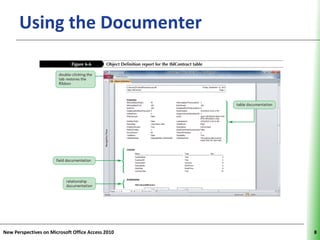
Using the Documenter                                 XP

      • Start Access and open the database you want to
        document
      • In the Analyze group on the Database Tools tab, click
        the Database Documenter button
      • Select the object(s) you want to document
      • If necessary, click the Options button to select
        specific documentation options for the selected
        object(s), and then click the OK button
      • Click the OK button, print the documentation, and
        then close the Object Definition window

New Perspectives on Microsoft Office Access 2010                7
Using the Documenter                         XP


New Perspectives on Microsoft Office Access 2010        8
Creating Forms Using Form Tools XP
      • The Datasheet tool creates a form in a
        datasheet format that contains all the fields in
        the source table or query


New Perspectives on Microsoft Office Access 2010           9
Creating Forms Using Form Tools XP
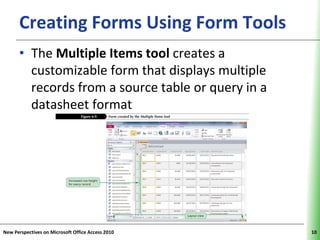
      • The Multiple Items tool creates a
        customizable form that displays multiple
        records from a source table or query in a
        datasheet format


New Perspectives on Microsoft Office Access 2010    10
Creating Forms Using Form Tools XP
      • The Split Form tool creates a customizable
        form that displays the data in a form in both
        Form view and Datasheet view at the same
        time


New Perspectives on Microsoft Office Access 2010        11
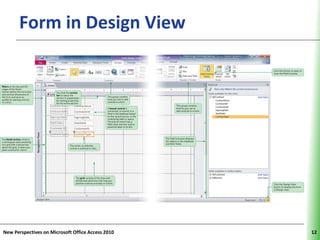
Form in Design View                          XP


New Perspectives on Microsoft Office Access 2010        12
Planning and Designing                       XP
      a Custom Form


New Perspectives on Microsoft Office Access 2010        13
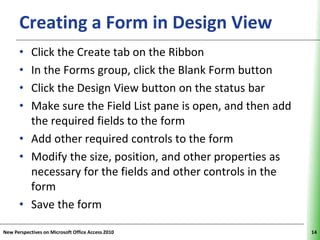
Creating a Form in Design View                          XP

      • Click the Create tab on the Ribbon
      • In the Forms group, click the Blank Form button
      • Click the Design View button on the status bar
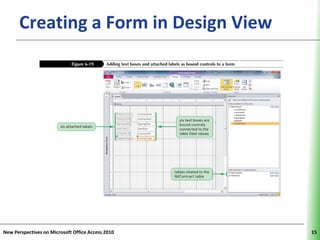
      • Make sure the Field List pane is open, and then add
        the required fields to the form
      • Add other required controls to the form
      • Modify the size, position, and other properties as
        necessary for the fields and other controls in the
        form
      • Save the form

New Perspectives on Microsoft Office Access 2010                   14
Creating a Form in Design View               XP


New Perspectives on Microsoft Office Access 2010        15
Selecting and Moving Controls                                     XP

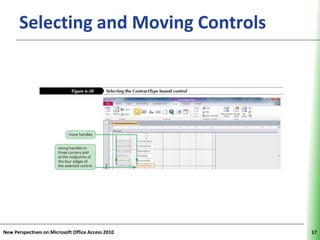
      • Click the control to select it. To select several controls at once,
        press and hold down the Shift key while clicking each control.
        Handles appear around all selected controls
      • To move a single selected control, drag the control’s move
        handle, which is the handle in the upper-left corner, to its new
        position
      • To move a group of selected controls, point to any selected
        control until the pointer changes to a move pointer, and then
        drag the group of selected controls to its new position
      • To move selected controls in small increments, press the
        appropriate arrow key
      • To move selected controls to the next nearest grid dot, hold
        down the Ctrl key and press the appropriate arrow key
New Perspectives on Microsoft Office Access 2010                              16
Selecting and Moving Controls                XP


New Perspectives on Microsoft Office Access 2010        17
Resizing a Control in Design View XP
      • Click the control to select it and display the
        sizing handles
      • Place the pointer over the sizing handle you
        want, and then drag the edge of the control
        until it is the size you want
      • To resize selected controls in small
        increments, hold down the Shift key and press
        the appropriate arrow key. This technique
        applies the resizing to the right edge and the
        bottom edge of the control
New Perspectives on Microsoft Office Access 2010         18
Resizing a Control                           XP


New Perspectives on Microsoft Office Access 2010        19
Adding a Combo Box to a Form                  XP


      • You use the Combo Box tool in Design view to
        add a combo box to a form
      • A Control Wizard asks a series of questions
        and then uses your answers to create a control
        in a form or report


New Perspectives on Microsoft Office Access 2010         20
Changing a Label’s Caption                                XP

      • Right-click the label to select it and to display the
        shortcut menu, and then click Properties to display
        the property sheet
      • If necessary, click the All tab to display the All page in
        the property sheet
      • Edit the existing text in the Caption box; or click the
        Caption box and press the F2 key to select the
        current value, and then type a new caption
      • In the Tools group on the Design tab, click the
        Property Sheet button to close the property sheet

New Perspectives on Microsoft Office Access 2010                     21
Changing a Label’s Caption                   XP


New Perspectives on Microsoft Office Access 2010        22
Adding and Removing Form        XP
      Header and Form Footer Sections
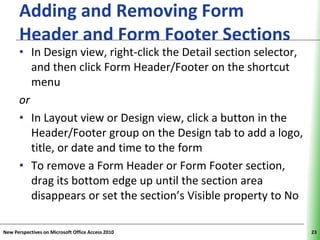
      • In Design view, right-click the Detail section selector,
         and then click Form Header/Footer on the shortcut
         menu
      or
      • In Layout view or Design view, click a button in the
         Header/Footer group on the Design tab to add a logo,
         title, or date and time to the form
      • To remove a Form Header or Form Footer section,
         drag its bottom edge up until the section area
         disappears or set the section’s Visible property to No

New Perspectives on Microsoft Office Access 2010                   23
Adding and Removing Form        XP
      Header and Form Footer Sections


New Perspectives on Microsoft Office Access 2010   24
Custom Form in Form View                     XP


New Perspectives on Microsoft Office Access 2010        25
Adding a Combo Box                                  XP
      to Find Records
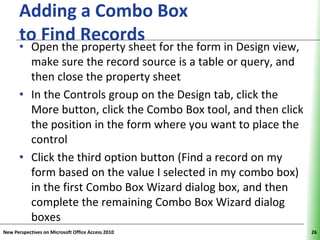
      • Open the property sheet for the form in Design view,
        make sure the record source is a table or query, and
        then close the property sheet
      • In the Controls group on the Design tab, click the
        More button, click the Combo Box tool, and then click
        the position in the form where you want to place the
        control
      • Click the third option button (Find a record on my
        form based on the value I selected in my combo box)
        in the first Combo Box Wizard dialog box, and then
        complete the remaining Combo Box Wizard dialog
        boxes
New Perspectives on Microsoft Office Access 2010                26
Adding a Combo Box                           XP
      to Find Records


New Perspectives on Microsoft Office Access 2010        27
Adding a Subform to a Form                     XP


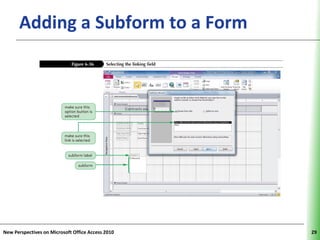
      • You use the Subform/Subreport tool in Design
        view to add a subform to a form
      • In the Controls group on the Design tab, click
        the More button to open the Controls gallery,
        make sure the Control Wizards tool is selected,
        and then click the Subform/Subreport tool


New Perspectives on Microsoft Office Access 2010          28
Adding a Subform to a Form                   XP


New Perspectives on Microsoft Office Access 2010        29
Adding a Subform to a Form                   XP


New Perspectives on Microsoft Office Access 2010        30
Displaying a Subform’s CalculatedXP
      Controls in the Main Form
      • The Count function determines the number of
        occurrences of an expression, and its general
        format as a control in a form or report is
        =Count(expression)
      • The Sum function calculates the total of an
        expression, and its general format as a control
        in a form or report is =Sum(expression)


New Perspectives on Microsoft Office Access 2010          31
Displaying a Subform’s CalculatedXP
      Controls in the Main Form


New Perspectives on Microsoft Office Access 2010   32
Changing the Tab Order in a FormXP
      • Focus refers to the control that is currently
        active and awaiting user action; focus also
        refers to the object and record that is
        currently active
      • The order in which you move from control to
        control, or change the focus, in a form when
        you press the Tab key is called the tab order
      • Switch to Design view, click the Arrange tab on
        the Ribbon, and then in the Tools group on the
        Design tab, click the Tab Order button
New Perspectives on Microsoft Office Access 2010          33
Changing the Tab Order in a FormXP


New Perspectives on Microsoft Office Access 2010   34
Adding a Line to a Form or ReportXP
      • Display the form or report in Design view
      • In the Controls group on the Design tab, click the More button,
        and then click the Line tool
      • Position the pointer where you want the line to begin
      • Drag the pointer to the position for the end of the line, and
        then release the mouse button. If you want to ensure that you
        draw a straight horizontal or vertical line, hold down the Shift
        key before and during the drag operation
      • To make small adjustments to the line length, select the line,
        hold down the Shift key, and then press an arrow key. To
        make small adjustments in the placement of a line, select the
        line, hold down the Ctrl key, and then press an arrow key

New Perspectives on Microsoft Office Access 2010                           35
Adding a Rectangle                              XP
      to a Form or Report
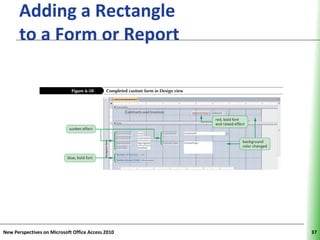
      • Display the form or report in Design view
      • In the Controls group on the Design tab, click
        the More button, and then click the Rectangle
        tool
      • Click in the form or report to create a default-
        sized rectangle, or drag a rectangle in the
        position and size you want


New Perspectives on Microsoft Office Access 2010           36
Adding a Rectangle                           XP
      to a Form or Report


New Perspectives on Microsoft Office Access 2010        37

New Perspectives: Access.06

  • 1.
    Tutorial 6 Using Form Tools and Creating Custom Forms Microsoft Access 2010 ®
  • 2.
    Objectives XP • Change a lookup field to a Text field • View and print database documentation • Create datasheet, multiple items, and split forms • Modify a form and anchor form controls in Layout view • Plan, design, and create a custom form in Design view and in Layout view • Select, move, align, resize, delete, and rename controls in a form New Perspectives on Microsoft Office Access 2010 2
  • 3.
    Objectives XP • Add a combo box to a form • Add form headers and footers to a form • Add a combo box to a form to find records • Add a subform to a form • Add calculated controls to a form and a subform • Change the tab order in a form • Improve the appearance of a form New Perspectives on Microsoft Office Access 2010 3
  • 4.
    Anchoring Controls XP New Perspectives on Microsoft Office Access 2010 4
  • 5.
    Designing Forms XP • To create a custom form, you can modify an existing form in Layout view or in Design view, or you can design and create a form from scratch in Layout view or in Design view • A combo box is a control that provides the features of a text box and a list box; it lets you choose a value from the list or type an entry New Perspectives on Microsoft Office Access 2010 5
  • 6.
    Designing Forms XP New Perspectives on Microsoft Office Access 2010 6
  • 7.
    Using the Documenter XP • Start Access and open the database you want to document • In the Analyze group on the Database Tools tab, click the Database Documenter button • Select the object(s) you want to document • If necessary, click the Options button to select specific documentation options for the selected object(s), and then click the OK button • Click the OK button, print the documentation, and then close the Object Definition window New Perspectives on Microsoft Office Access 2010 7
  • 8.
    Using the Documenter XP New Perspectives on Microsoft Office Access 2010 8
  • 9.
    Creating Forms UsingForm Tools XP • The Datasheet tool creates a form in a datasheet format that contains all the fields in the source table or query New Perspectives on Microsoft Office Access 2010 9
  • 10.
    Creating Forms UsingForm Tools XP • The Multiple Items tool creates a customizable form that displays multiple records from a source table or query in a datasheet format New Perspectives on Microsoft Office Access 2010 10
  • 11.
    Creating Forms UsingForm Tools XP • The Split Form tool creates a customizable form that displays the data in a form in both Form view and Datasheet view at the same time New Perspectives on Microsoft Office Access 2010 11
  • 12.
    Form in DesignView XP New Perspectives on Microsoft Office Access 2010 12
  • 13.
    Planning and Designing XP a Custom Form New Perspectives on Microsoft Office Access 2010 13
  • 14.
    Creating a Formin Design View XP • Click the Create tab on the Ribbon • In the Forms group, click the Blank Form button • Click the Design View button on the status bar • Make sure the Field List pane is open, and then add the required fields to the form • Add other required controls to the form • Modify the size, position, and other properties as necessary for the fields and other controls in the form • Save the form New Perspectives on Microsoft Office Access 2010 14
  • 15.
    Creating a Formin Design View XP New Perspectives on Microsoft Office Access 2010 15
  • 16.
    Selecting and MovingControls XP • Click the control to select it. To select several controls at once, press and hold down the Shift key while clicking each control. Handles appear around all selected controls • To move a single selected control, drag the control’s move handle, which is the handle in the upper-left corner, to its new position • To move a group of selected controls, point to any selected control until the pointer changes to a move pointer, and then drag the group of selected controls to its new position • To move selected controls in small increments, press the appropriate arrow key • To move selected controls to the next nearest grid dot, hold down the Ctrl key and press the appropriate arrow key New Perspectives on Microsoft Office Access 2010 16
  • 17.
    Selecting and MovingControls XP New Perspectives on Microsoft Office Access 2010 17
  • 18.
    Resizing a Controlin Design View XP • Click the control to select it and display the sizing handles • Place the pointer over the sizing handle you want, and then drag the edge of the control until it is the size you want • To resize selected controls in small increments, hold down the Shift key and press the appropriate arrow key. This technique applies the resizing to the right edge and the bottom edge of the control New Perspectives on Microsoft Office Access 2010 18
  • 19.
    Resizing a Control XP New Perspectives on Microsoft Office Access 2010 19
  • 20.
    Adding a ComboBox to a Form XP • You use the Combo Box tool in Design view to add a combo box to a form • A Control Wizard asks a series of questions and then uses your answers to create a control in a form or report New Perspectives on Microsoft Office Access 2010 20
  • 21.
    Changing a Label’sCaption XP • Right-click the label to select it and to display the shortcut menu, and then click Properties to display the property sheet • If necessary, click the All tab to display the All page in the property sheet • Edit the existing text in the Caption box; or click the Caption box and press the F2 key to select the current value, and then type a new caption • In the Tools group on the Design tab, click the Property Sheet button to close the property sheet New Perspectives on Microsoft Office Access 2010 21
  • 22.
    Changing a Label’sCaption XP New Perspectives on Microsoft Office Access 2010 22
  • 23.
    Adding and RemovingForm XP Header and Form Footer Sections • In Design view, right-click the Detail section selector, and then click Form Header/Footer on the shortcut menu or • In Layout view or Design view, click a button in the Header/Footer group on the Design tab to add a logo, title, or date and time to the form • To remove a Form Header or Form Footer section, drag its bottom edge up until the section area disappears or set the section’s Visible property to No New Perspectives on Microsoft Office Access 2010 23
  • 24.
    Adding and RemovingForm XP Header and Form Footer Sections New Perspectives on Microsoft Office Access 2010 24
  • 25.
    Custom Form inForm View XP New Perspectives on Microsoft Office Access 2010 25
  • 26.
    Adding a ComboBox XP to Find Records • Open the property sheet for the form in Design view, make sure the record source is a table or query, and then close the property sheet • In the Controls group on the Design tab, click the More button, click the Combo Box tool, and then click the position in the form where you want to place the control • Click the third option button (Find a record on my form based on the value I selected in my combo box) in the first Combo Box Wizard dialog box, and then complete the remaining Combo Box Wizard dialog boxes New Perspectives on Microsoft Office Access 2010 26
  • 27.
    Adding a ComboBox XP to Find Records New Perspectives on Microsoft Office Access 2010 27
  • 28.
    Adding a Subformto a Form XP • You use the Subform/Subreport tool in Design view to add a subform to a form • In the Controls group on the Design tab, click the More button to open the Controls gallery, make sure the Control Wizards tool is selected, and then click the Subform/Subreport tool New Perspectives on Microsoft Office Access 2010 28
  • 29.
    Adding a Subformto a Form XP New Perspectives on Microsoft Office Access 2010 29
  • 30.
    Adding a Subformto a Form XP New Perspectives on Microsoft Office Access 2010 30
  • 31.
    Displaying a Subform’sCalculatedXP Controls in the Main Form • The Count function determines the number of occurrences of an expression, and its general format as a control in a form or report is =Count(expression) • The Sum function calculates the total of an expression, and its general format as a control in a form or report is =Sum(expression) New Perspectives on Microsoft Office Access 2010 31
  • 32.
    Displaying a Subform’sCalculatedXP Controls in the Main Form New Perspectives on Microsoft Office Access 2010 32
  • 33.
    Changing the TabOrder in a FormXP • Focus refers to the control that is currently active and awaiting user action; focus also refers to the object and record that is currently active • The order in which you move from control to control, or change the focus, in a form when you press the Tab key is called the tab order • Switch to Design view, click the Arrange tab on the Ribbon, and then in the Tools group on the Design tab, click the Tab Order button New Perspectives on Microsoft Office Access 2010 33
  • 34.
    Changing the TabOrder in a FormXP New Perspectives on Microsoft Office Access 2010 34
  • 35.
    Adding a Lineto a Form or ReportXP • Display the form or report in Design view • In the Controls group on the Design tab, click the More button, and then click the Line tool • Position the pointer where you want the line to begin • Drag the pointer to the position for the end of the line, and then release the mouse button. If you want to ensure that you draw a straight horizontal or vertical line, hold down the Shift key before and during the drag operation • To make small adjustments to the line length, select the line, hold down the Shift key, and then press an arrow key. To make small adjustments in the placement of a line, select the line, hold down the Ctrl key, and then press an arrow key New Perspectives on Microsoft Office Access 2010 35
  • 36.
    Adding a Rectangle XP to a Form or Report • Display the form or report in Design view • In the Controls group on the Design tab, click the More button, and then click the Rectangle tool • Click in the form or report to create a default- sized rectangle, or drag a rectangle in the position and size you want New Perspectives on Microsoft Office Access 2010 36
  • 37.
    Adding a Rectangle XP to a Form or Report New Perspectives on Microsoft Office Access 2010 37