CNIT 121:
Computer
Forensics
11 Analysis Methodology
Process
Define Objectives
Background
• You must have a commanding knowledge of
both the situation and the technology,
understanding:
• What are you looking to determine?
• Is it possible to form a conclusion from the
facts you have?
• Low long will it take?
Background
• What resources will you need?
• Who is interested in your results?
• What do they plan to do with them?
Leadership
• Identify who will define the objectives
• Ensure that the entire investigative team knows
who that person is
• This prevents miscommunication and loss of
focus
Proving a Negative
• Don't attempt to "prove" that a server was not
compromised
• That task is difficult or impossible
• Because you won't have enough information
• Audit trails don't cover every action
• Logs don't go back to the start of time
Positive Goals
• Look for a set of indicators of compromise
• State if you can find any
• If indicators are reasonable,
• You can state an opinion that the system was
likely not compromised
• But you don't know for sure
Realistic Questions
• Is malware present on this computer?
• Not realistic to determine for sure
• Is there an active file with this specific MD5
hash on this computer?
• Realistic, easy to answer
Scope
• Too vague:
• Look at this hard drive
• Look at all e-mail
• Better:
• Review all active .pst files for any email Bob
Smith received within the last month
Why?
• Always ask "Why?"
• Keep asking questions until the stakeholders
come to a consensus about the scope and
purpose of the analysis
• Analyst may need to define the objectives
because the company representatives don't
understand what is possible or reasonable
Know Your Data
Where is Data Stored?
• Desktop and laptop computers
• Hard drives
• External storage
• Virtual desktops--no local storage, everything
on centralized virtualization infrastructure
Where is Data Stored?
• Servers
• Data centers, server rooms, or
communication closets
• Often rack-mounted
• At least one hard drive for operating system
• May contain additional drives, or use external
storage solutions exclusively, especially for
virtual servers
Where is Data Stored?
• Mobile devices
• Phones, personal digital assistants (PDAs),
tablet, wearable computers
• Small amount of nonvolatile storage
• Flash memory
• Expansion slots and ports for external
storage devices
Where is Data Stored?
• Storage solutions and media
• USB flash drives and hard drives
• CDs and DVDs
• Network Attached Storage (NAS)
• Storage Area Network (SAN)
Where is Data Stored?
• Network Devices
• Firewalls, switches, routers
• Typically don't store user data
• Contain configuration and logging data
Where is Data Stored?
• Cloud services
• Off-site third-party service hosting data
• Hosted email, timesheets, payroll, human
resources
• Dropbox, Google Drive, etc.
Where is Data Stored?
• Backups
• Can be stored on local devices
• Disaster recovery plan requires off-site
backups
• Most commonly on tape, but could be on USB
drives or DVDs
• Cloud-based, like Carbonite or Mozy
What's Available?
• Four types of evidence
• Operating system
• Application
• User data
• Network services and instrumentation
Operating System
• File systems like NTFS and HFS+
• State information such as running processes
and open network ports
• OS logs
• OS-specific data sources, like Windows registry,
Unix syslog, and Apple plist files
File Systems
• Can be independent of operating systems
• General concepts:
• Allocation units
• Active files, deleted files
• Timestamps
• Unallocated (free) space, file slack
• Partition tables
File Systems
• Unique characteristics, data, and artifacts
• NTFS filename timestamps (link Ch 11i)
• NTFS data streams
• UFS inodes
• HFS resource forks
• File Allocation Table for FAT12, 16, and 32
Brian Carrier's Book
• From 2005
• Authoritative
• Very detailed
• Link Ch 11b
Application-Specific
Artifacts
• Internet browser cache
• Database files
• Web server logs
• Chat program user preferences and logs
• Email client data files
• Often left behind when applications are uninstalled
User Data
• Email, documents, spreadsheets, source code
• May be on their day-to-day system
• Or other systems throughout the environment
• May be in centralized locations for each user
Network Services and
Instrumentation
• DHCP, DNS, Proxy servers
• Network flow data
• IDS/IPS systems
• Firewalls
Access Your Data
Raw Data
• May be
• Encrypted, compressed, or encoded
• In a custom format
• Provided on original hard drives
• Contained in hard drive images
• Broken
Ask Questions
• Determine what you have
• If someone else provides the data,
• You must ask good questions
• You may have trouble using the data you
receive
Disk Images
• May be encrypted
• Could be logical copy, forensic image, or clone
• Could be from a RAID
• Three common formats:
• Expert Witness (E01), Raw (DD), virtual
machine disk files (VMDK, OVF)
Converting Disk Formats
• EnCase can handle all three common formats
directly
• AccessData's FTK Imager can create, convert,
and view disk images for many formats
• In Linux, you can mount DD images with
Filesystem in Userspace (FUSE) and mount E01
images with libewf
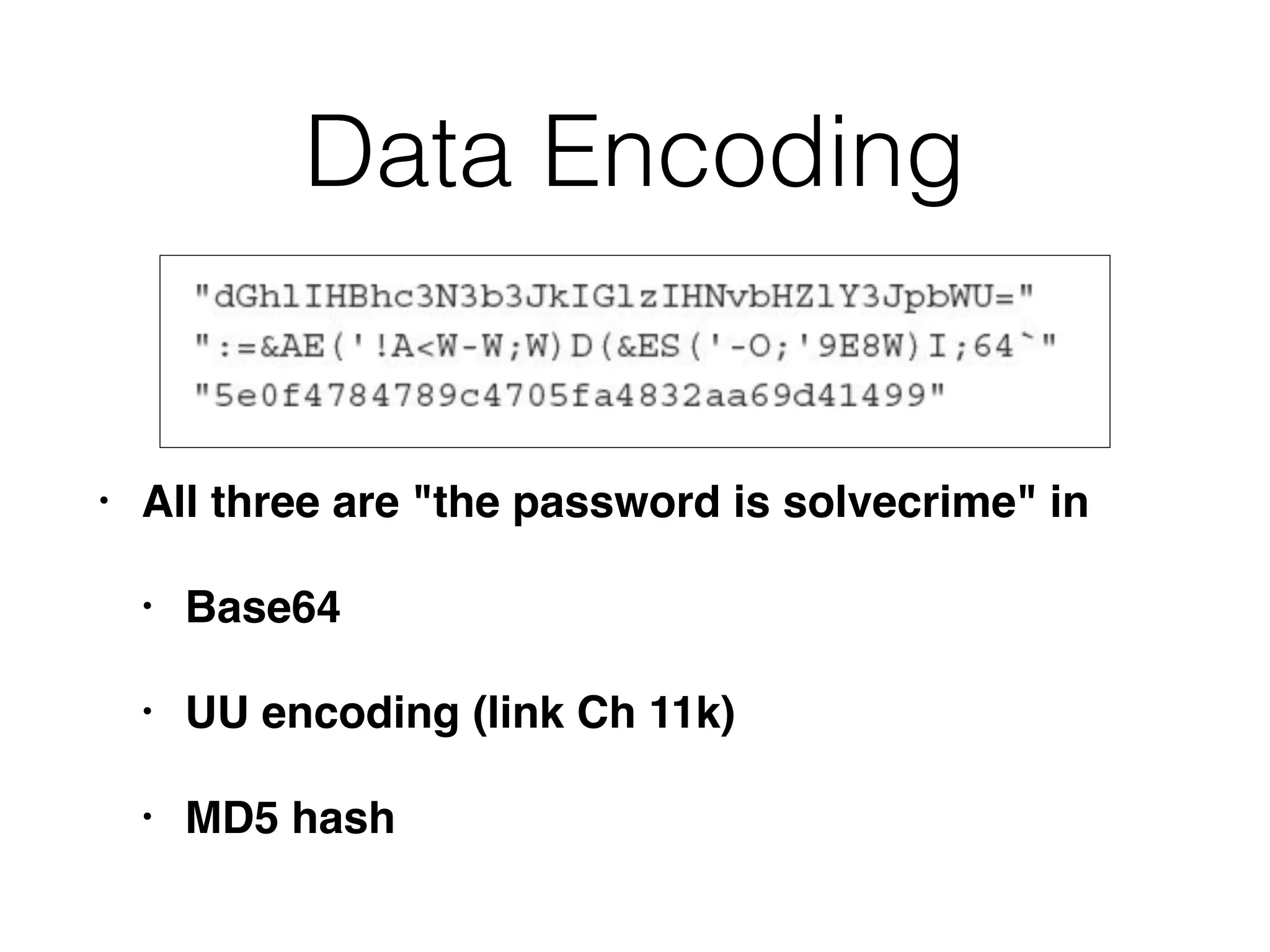
Data Encoding
• All three are "the password is solvecrime" in
• Base64
• UU encoding (link Ch 11k)
• MD5 hash
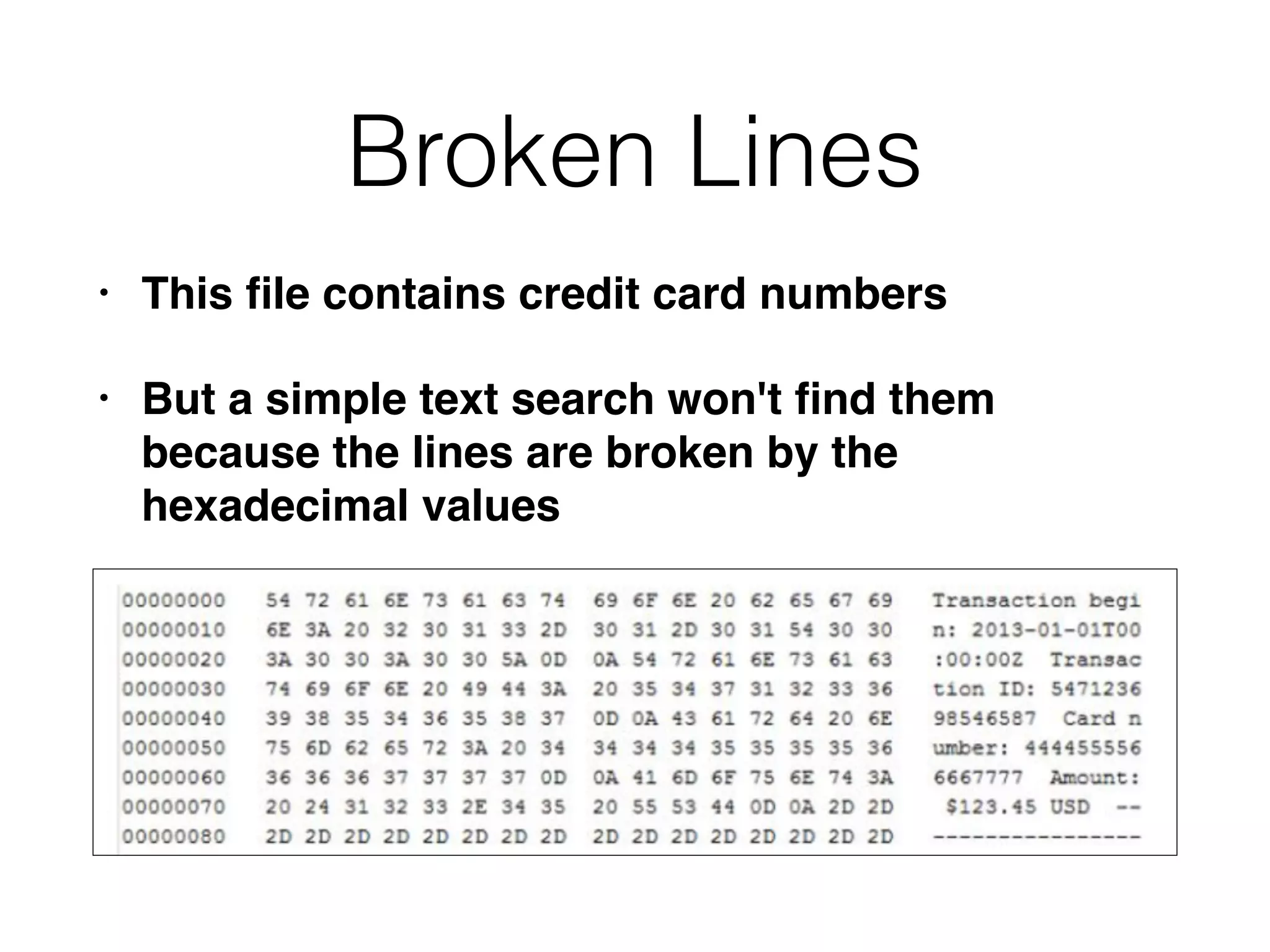
Broken Lines
• This file contains credit card numbers
• But a simple text search won't find them
because the lines are broken by the
hexadecimal values
Localizations
• Different conventions for
• Times, dates, numbers, characters, etc.
• Many different formats for dates even at the
same location
Analyze Your Data
Example: Data Theft
• Start with these types of evidence
• Network anomalies
• Common host-based artifacts of data theft
Network Anomalies
• Network flow data
• High outbound volume of data on a single day
• Unusual level of traffic over certain protocols
or ports
• Proxy logs, DNS logs, firewall logs
• Look for anything suspicious, such as failed
login attempts
Host-Based Artifacts of Data
Theft
Look for Malware
Legitimate Tools
• cmd.exe in a folder other than 

WindowsSystem32 is suspicious
• Many compromises use normal system tools,
not malware
Plan Tasks
• Example: search for abnormal user login times
• Do you already have a way to automate that
process?
• You may need to develop a technique, or
perform steps manually
• Consider volume of data, time required to
process, who is available to work on it, and how
likely the data source is to answer your question
Select Methods
• General methods
External Resources
• Contains MD5 and SHA1 hashes of known files
• Exclude known harmless files from analysis
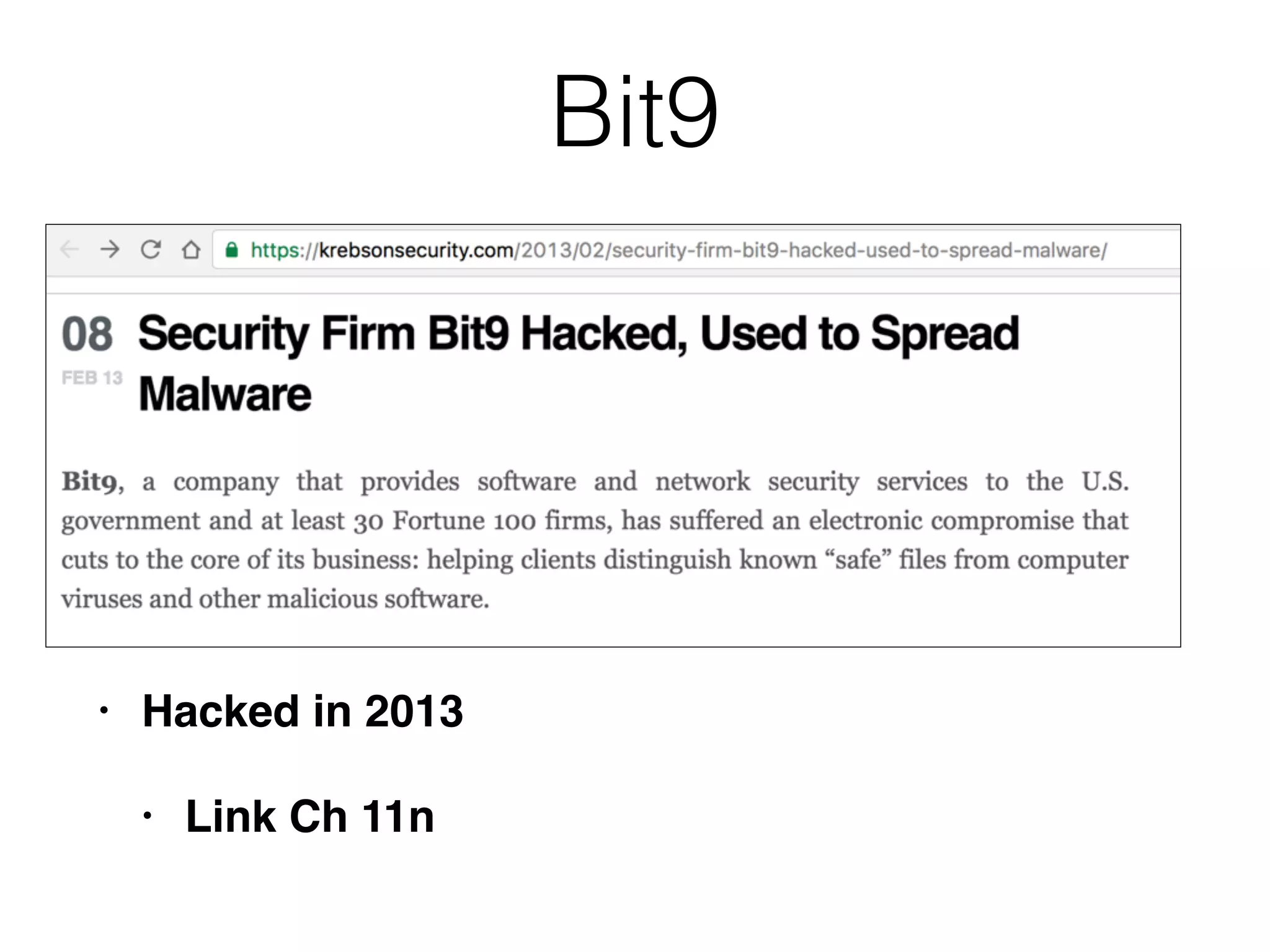
Bit9
• Hacked in 2013
• Link Ch 11n
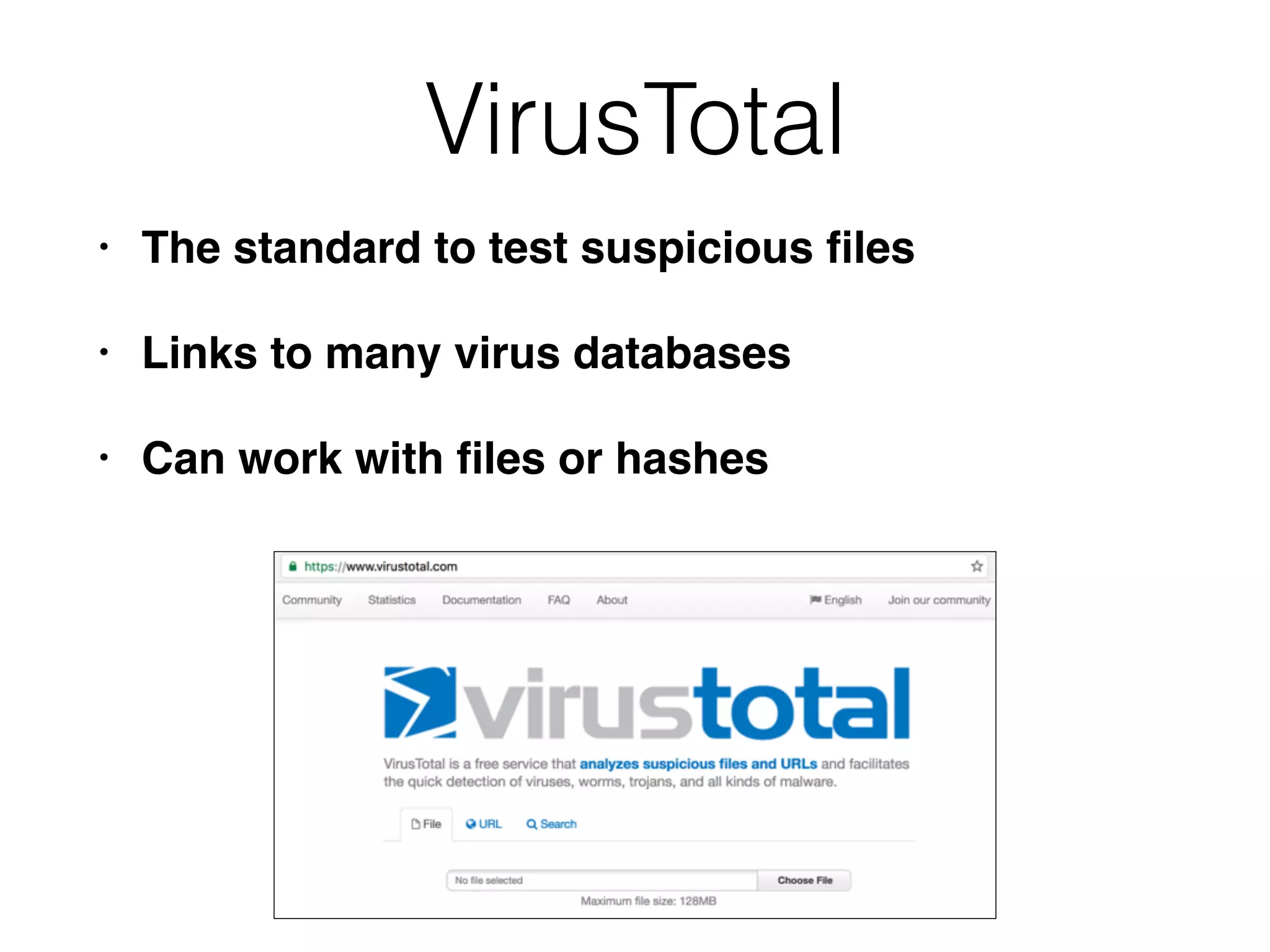
VirusTotal
• The standard to test suspicious files
• Links to many virus databases
• Can work with files or hashes
Manual Review
• Small items such as floppy disks can be
searched in their entirety manually
• Sometimes it's faster to just search manually
than to figure out a shortcut
• Manual review is also good to validate the
results obtained from other methods
• Select important samples to review
Don't Trust Tools Too Much
• There are many tools that help forensics
• Data visualization
• Browser artifact analysis
• Malware identification
• File system metadata reporting
• ALWAYS VERIFY IMPORTANT FINDINGS
• Manually, or with a second tool
• Every tool has bugs
Data Minimization:
Sorting & Filtering
• File system metadata may have hundreds or
thousands of files
• Need to exclude irrelevant data & focus on the
important data
• Sort and filter by
• Date, filename, other attributes
Statistical Analysis
• You don't know exactly what you are looking for
• Or how to find it
• Use statistical analysis to uncover patterns or
anomalies
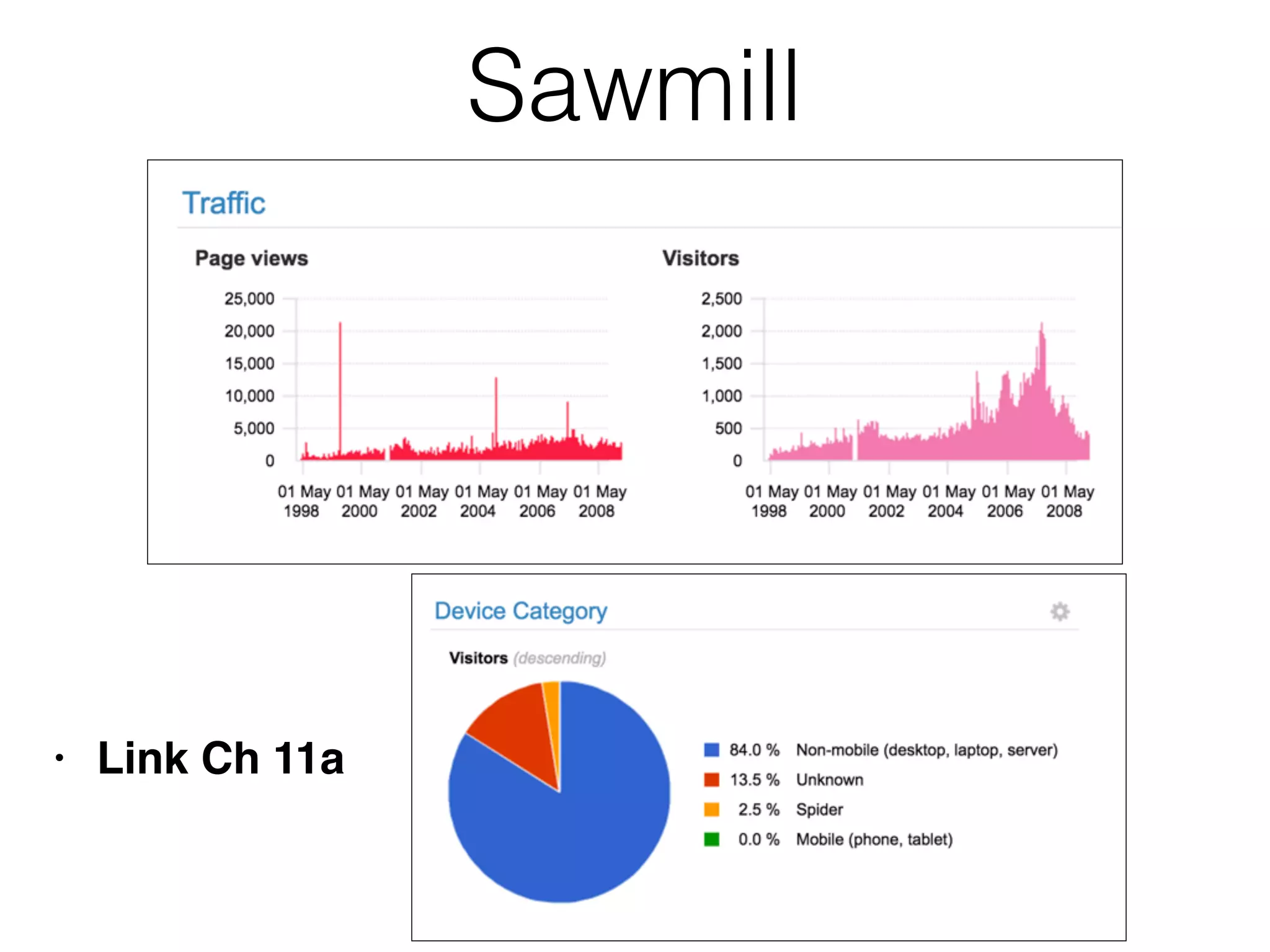
• Ex: Web server logs
• Use a log analysis tool to parse data
Sawmill
• Link Ch 11a
String or Keyword Search
• Create a list of strings relevant to the case
• Search the files for those strings
• Emails, Word documents, etc.
• Find more strings in those files and repeat
• You're done when you aren't finding any new
strings to search for
Unallocated and Slack
Space
• Unallocated blocks often contain portions of
deleted files
• Unused bytes at the end of active files may also
contain fragments of old files
• They can both be searched by forensic suites
like EnCase, FTK, and Sleuthkit
File Carving
• Look for file headers and footers in unallocated
space
• Or other raw data, such as a drive image
• Attempt to reconstruct files
• Usually by just taking all date from the header
to the footer
• Foremost is a good file-carving tool
Evaluate Results
When to Evaluate Results
• Periodically throughout the analysis process
• Are you making real progress, or wasting time
on a blind alley?
• At the end
• How well has your analysis answered the
investigative questions?
Example
• I participated in the Dept. of Defense Bug
Bounty program earlier this year
• I ran a vulnerability scanner on the DoD site
• It reported 300 Remote Code Execution vulns
• Manual testing showed they were false positives

CNIT 121: 11 Analysis Methodology

  • 1.
  • 2.
  • 3.
  • 4.
    Background • You musthave a commanding knowledge of both the situation and the technology, understanding: • What are you looking to determine? • Is it possible to form a conclusion from the facts you have? • Low long will it take?
  • 5.
    Background • What resourceswill you need? • Who is interested in your results? • What do they plan to do with them?
  • 6.
    Leadership • Identify whowill define the objectives • Ensure that the entire investigative team knows who that person is • This prevents miscommunication and loss of focus
  • 7.
    Proving a Negative •Don't attempt to "prove" that a server was not compromised • That task is difficult or impossible • Because you won't have enough information • Audit trails don't cover every action • Logs don't go back to the start of time
  • 8.
    Positive Goals • Lookfor a set of indicators of compromise • State if you can find any • If indicators are reasonable, • You can state an opinion that the system was likely not compromised • But you don't know for sure
  • 9.
    Realistic Questions • Ismalware present on this computer? • Not realistic to determine for sure • Is there an active file with this specific MD5 hash on this computer? • Realistic, easy to answer
  • 10.
    Scope • Too vague: •Look at this hard drive • Look at all e-mail • Better: • Review all active .pst files for any email Bob Smith received within the last month
  • 11.
    Why? • Always ask"Why?" • Keep asking questions until the stakeholders come to a consensus about the scope and purpose of the analysis • Analyst may need to define the objectives because the company representatives don't understand what is possible or reasonable
  • 12.
  • 13.
    Where is DataStored? • Desktop and laptop computers • Hard drives • External storage • Virtual desktops--no local storage, everything on centralized virtualization infrastructure
  • 14.
    Where is DataStored? • Servers • Data centers, server rooms, or communication closets • Often rack-mounted • At least one hard drive for operating system • May contain additional drives, or use external storage solutions exclusively, especially for virtual servers
  • 15.
    Where is DataStored? • Mobile devices • Phones, personal digital assistants (PDAs), tablet, wearable computers • Small amount of nonvolatile storage • Flash memory • Expansion slots and ports for external storage devices
  • 16.
    Where is DataStored? • Storage solutions and media • USB flash drives and hard drives • CDs and DVDs • Network Attached Storage (NAS) • Storage Area Network (SAN)
  • 17.
    Where is DataStored? • Network Devices • Firewalls, switches, routers • Typically don't store user data • Contain configuration and logging data
  • 18.
    Where is DataStored? • Cloud services • Off-site third-party service hosting data • Hosted email, timesheets, payroll, human resources • Dropbox, Google Drive, etc.
  • 19.
    Where is DataStored? • Backups • Can be stored on local devices • Disaster recovery plan requires off-site backups • Most commonly on tape, but could be on USB drives or DVDs • Cloud-based, like Carbonite or Mozy
  • 20.
    What's Available? • Fourtypes of evidence • Operating system • Application • User data • Network services and instrumentation
  • 21.
    Operating System • Filesystems like NTFS and HFS+ • State information such as running processes and open network ports • OS logs • OS-specific data sources, like Windows registry, Unix syslog, and Apple plist files
  • 22.
    File Systems • Canbe independent of operating systems • General concepts: • Allocation units • Active files, deleted files • Timestamps • Unallocated (free) space, file slack • Partition tables
  • 23.
    File Systems • Uniquecharacteristics, data, and artifacts • NTFS filename timestamps (link Ch 11i) • NTFS data streams • UFS inodes • HFS resource forks • File Allocation Table for FAT12, 16, and 32
  • 24.
    Brian Carrier's Book •From 2005 • Authoritative • Very detailed • Link Ch 11b
  • 25.
    Application-Specific Artifacts • Internet browsercache • Database files • Web server logs • Chat program user preferences and logs • Email client data files • Often left behind when applications are uninstalled
  • 26.
    User Data • Email,documents, spreadsheets, source code • May be on their day-to-day system • Or other systems throughout the environment • May be in centralized locations for each user
  • 27.
    Network Services and Instrumentation •DHCP, DNS, Proxy servers • Network flow data • IDS/IPS systems • Firewalls
  • 28.
  • 29.
    Raw Data • Maybe • Encrypted, compressed, or encoded • In a custom format • Provided on original hard drives • Contained in hard drive images • Broken
  • 30.
    Ask Questions • Determinewhat you have • If someone else provides the data, • You must ask good questions • You may have trouble using the data you receive
  • 31.
    Disk Images • Maybe encrypted • Could be logical copy, forensic image, or clone • Could be from a RAID • Three common formats: • Expert Witness (E01), Raw (DD), virtual machine disk files (VMDK, OVF)
  • 32.
    Converting Disk Formats •EnCase can handle all three common formats directly • AccessData's FTK Imager can create, convert, and view disk images for many formats • In Linux, you can mount DD images with Filesystem in Userspace (FUSE) and mount E01 images with libewf
  • 33.
    Data Encoding • Allthree are "the password is solvecrime" in • Base64 • UU encoding (link Ch 11k) • MD5 hash
  • 34.
    Broken Lines • Thisfile contains credit card numbers • But a simple text search won't find them because the lines are broken by the hexadecimal values
  • 35.
    Localizations • Different conventionsfor • Times, dates, numbers, characters, etc. • Many different formats for dates even at the same location
  • 36.
  • 37.
    Example: Data Theft •Start with these types of evidence • Network anomalies • Common host-based artifacts of data theft
  • 38.
    Network Anomalies • Networkflow data • High outbound volume of data on a single day • Unusual level of traffic over certain protocols or ports • Proxy logs, DNS logs, firewall logs • Look for anything suspicious, such as failed login attempts
  • 39.
  • 40.
  • 41.
    Legitimate Tools • cmd.exein a folder other than 
 WindowsSystem32 is suspicious • Many compromises use normal system tools, not malware
  • 42.
    Plan Tasks • Example:search for abnormal user login times • Do you already have a way to automate that process? • You may need to develop a technique, or perform steps manually • Consider volume of data, time required to process, who is available to work on it, and how likely the data source is to answer your question
  • 43.
  • 44.
    External Resources • ContainsMD5 and SHA1 hashes of known files • Exclude known harmless files from analysis
  • 45.
    Bit9 • Hacked in2013 • Link Ch 11n
  • 46.
    VirusTotal • The standardto test suspicious files • Links to many virus databases • Can work with files or hashes
  • 47.
    Manual Review • Smallitems such as floppy disks can be searched in their entirety manually • Sometimes it's faster to just search manually than to figure out a shortcut • Manual review is also good to validate the results obtained from other methods • Select important samples to review
  • 48.
    Don't Trust ToolsToo Much • There are many tools that help forensics • Data visualization • Browser artifact analysis • Malware identification • File system metadata reporting • ALWAYS VERIFY IMPORTANT FINDINGS • Manually, or with a second tool • Every tool has bugs
  • 49.
    Data Minimization: Sorting &Filtering • File system metadata may have hundreds or thousands of files • Need to exclude irrelevant data & focus on the important data • Sort and filter by • Date, filename, other attributes
  • 50.
    Statistical Analysis • Youdon't know exactly what you are looking for • Or how to find it • Use statistical analysis to uncover patterns or anomalies • Ex: Web server logs • Use a log analysis tool to parse data
  • 51.
  • 52.
    String or KeywordSearch • Create a list of strings relevant to the case • Search the files for those strings • Emails, Word documents, etc. • Find more strings in those files and repeat • You're done when you aren't finding any new strings to search for
  • 53.
    Unallocated and Slack Space •Unallocated blocks often contain portions of deleted files • Unused bytes at the end of active files may also contain fragments of old files • They can both be searched by forensic suites like EnCase, FTK, and Sleuthkit
  • 54.
    File Carving • Lookfor file headers and footers in unallocated space • Or other raw data, such as a drive image • Attempt to reconstruct files • Usually by just taking all date from the header to the footer • Foremost is a good file-carving tool
  • 55.
  • 56.
    When to EvaluateResults • Periodically throughout the analysis process • Are you making real progress, or wasting time on a blind alley? • At the end • How well has your analysis answered the investigative questions?
  • 57.
    Example • I participatedin the Dept. of Defense Bug Bounty program earlier this year • I ran a vulnerability scanner on the DoD site • It reported 300 Remote Code Execution vulns • Manual testing showed they were false positives