Tutorial ( Adding animation effects to your presentation )
Are you a teacher in A basic Education schools?? Do you use a PowerPoint program to present your lessons?? Are you PowerPoint presentations boring? Are they poor of life?? Exit
Here is the solution!! You can use this tutorial to make your presentations more interesting and  effective!! Exit
At the end of this tutorial, you will : Aware of the importance of animation in your presentation. Able to apply custom animation. Able ton animate: Text Object Chart Graphic Able to time, order and change the sequence of your animated object. Know more about trigger animations. OBJECTIVES Exit
Changing animation order Timing animations Animating graphics Definition Animating a chart Animating text and objects Apply custom animation Introduction Trigger animations Main menu Previewing  animations Exit
.  An animation is the ability to move objects in a slide without your direct intervention during a presentation .  For example, instead of displaying the main title directly when a slide comes up, you may want it to show one word at a time .  Imagine you have a picture in a slide but you want to introduce the picture before displaying it .  To achieve this, you can delay the picture .  Furthermore, if you have a picture with various parts, you can show these parts one at a time . Introduction
Based on this, you can see that animation can add very dramatic effects to your presentation .  You create an animation on one slide or on some slides of the presentation .  To apply a general animation to all slides, you can access the slide master .  To support animations, Microsoft PowerPoint provides various options in the Slide Show group of the main menu….. Cont,, Introduction Exit
*Animation   (animate: To add a special visual or sound effect to text or an object). ـــــــــــــــــــــــــــــــــــــــ  *For example  -> you can have your text bullet points fly in from the left, one word at a time, or hear the sound of applause when a picture is uncovered. Definition Exit
If you want to make the text or object enter the slide show presentation with an effect, point to         and then click an effect .  If you want to add an effect to text or an object that is on the slide, point to         and then click an effect .  *In the   Custom Animation   task pane ,  click       ,  and do one or more of the following :  (3)
Apply custom animation In normal view, display the slide that has the text or objects you want to animate Select the object you want to animate .  On the   Slide Show   menu, click   Custom Animation . . Exit
3.If you want to add an effect to text or an object that makes it leave the slide at some point, point to         and then click an effect .  4.If you want to add an effect that makes an object move in a specified pattern, point to         and then click an effect . Exit
2.  On the Slide Show menu, click Animation Schemes. 3.  In the Slide Design task pane, under Apply to selected slides, click an animation scheme in the list. 4.  If you want to apply the scheme to all slides, click the Apply to All Slides button (2) Exit
(Animating text and objects) Apply a preset animation scheme: to apply the animation   scheme to a few slides, click the Slides tab, and select the slides you want.(1) Exit
In normal view, display the slide that has the chart you want to animate and select it.  On the Slide Show menu, click Custom Animation.  In the Custom Animation task pane, click the down arrow on  , and do one of the following:  Animating a chart Exit
Animate the chart as a whole: If you want to make the text or object enter the slide show presentation with an effect, point to  Entrance  and then click an effect. If you want to add an effect to text or an object that is on the slide, point to  Emphasis  and then click an effect.
If you want to add an effect to text or an object that makes it leave the slide at some point, point to  Exit  and then click an effect If you want to add an effect that makes an object move in a specified pattern, point to  Motion Paths  and then click an effect. Exit
You can take any of the images in your presentation and animate them. That is what really brings your presentation to life. There are many different types of animations to choose from. To animate an image follow the next steps. Animating graphics Exit
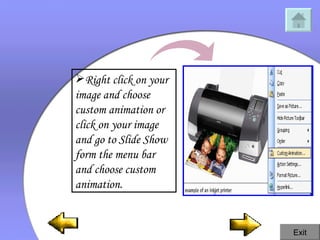
Right click on your image and choose custom animation or click on your image and go to Slide Show form the menu bar and choose custom animation.  Exit
Get into the Slide Show mode and check out your animation.  Exit
Choose the type of animation you want. Exit
Timing animations *When you add   animations   to your slides, you have a variety of timing options available to ensure that every piece flows smoothly and looks professional .  Exit
*Set up your custom animations or adjust the preset   animation   schemes   you have applied with options for start times  ( including delays ),  triggers ,  speed or duration, looping  ( repeating ) , and automatic rewind) .. Exit
Changing animation order Normally, the object that is animated first appears first, but you can rearrange the order .  Here's what you do                       Exit
2.  On the Custom Animation Toolbar, click the (Re-order) and change the order of the animation from that button.                   Click the object you want to change .  For example, the   “Design”  word, which given order(1) in the animation order. Exit
You'll need two images to  illustrate the trigger… . *Insert two images of the same size within this slide *choose Insert / Picture /From File .  (Keep both of them in different areas of the slide) Trigger Animations Exit
Right - click one of them and choose Custom Animation from the resultant menu .  This will activate the Custom Animation task pane Exit
*By default, PowerPoint chooses  " On Click' for the Start options .  That's what we want so don't alter that .  Exit
*Click the 'Add Effect' button and then choose an Entrance animation .  I've chosen the Appear animation since that provides the most optimum. Exit
This will open the Timing tab of the animation dialog box .  Click the 'Triggers' button so that more options are visible .  Choose the second option that reads 'Start effect on click of : ' and choose the name of the second image we inserted within the slide .  Click OK .                                                                                      Exit
*Below that option, you'll find the name of your image in a listing of animations .  Besides the name, you'll find an arrow that reveals a drop - down menu on being clicked .  Choose the Timing option in that menu .                                                             Exit
PowerPoint lets you preview animation settings for your current slide without running the entire slide show .  1 .   In Slide View, go to the slide you want to preview .  2 .   Click the Sli d e Show menu, then click Animation Pr e view . Previewing animation Exit                                                  
*Place both the images one on top of the other  ( that's why we chose images of the same size )  and play the presentation .  Clicking on the visible image should show us the other image .  If that doesn't work, right click the image that's visible and choose Order / Send   To   Back  ( or Send Backward multiple times depending on how many objects you have onscreen. *And then save your work.
A slide miniature appears in the upper right corner .  It shows the full animation effects of the slide .   Read  More Exit
To know and discover more about  ( Animations and Transitional Effects   )  in PowerPoint.. See this attachment to a website!!
Thanks Done By : Asma Al.Amri. Exit

Tutorial

  • 1.
    Tutorial ( Addinganimation effects to your presentation )
  • 2.
    Are you ateacher in A basic Education schools?? Do you use a PowerPoint program to present your lessons?? Are you PowerPoint presentations boring? Are they poor of life?? Exit
  • 3.
    Here is thesolution!! You can use this tutorial to make your presentations more interesting and effective!! Exit
  • 4.
    At the endof this tutorial, you will : Aware of the importance of animation in your presentation. Able to apply custom animation. Able ton animate: Text Object Chart Graphic Able to time, order and change the sequence of your animated object. Know more about trigger animations. OBJECTIVES Exit
  • 5.
    Changing animation orderTiming animations Animating graphics Definition Animating a chart Animating text and objects Apply custom animation Introduction Trigger animations Main menu Previewing animations Exit
  • 6.
    . Ananimation is the ability to move objects in a slide without your direct intervention during a presentation . For example, instead of displaying the main title directly when a slide comes up, you may want it to show one word at a time . Imagine you have a picture in a slide but you want to introduce the picture before displaying it . To achieve this, you can delay the picture . Furthermore, if you have a picture with various parts, you can show these parts one at a time . Introduction
  • 7.
    Based on this,you can see that animation can add very dramatic effects to your presentation . You create an animation on one slide or on some slides of the presentation . To apply a general animation to all slides, you can access the slide master . To support animations, Microsoft PowerPoint provides various options in the Slide Show group of the main menu….. Cont,, Introduction Exit
  • 8.
    *Animation   (animate:To add a special visual or sound effect to text or an object). ـــــــــــــــــــــــــــــــــــــــ *For example -> you can have your text bullet points fly in from the left, one word at a time, or hear the sound of applause when a picture is uncovered. Definition Exit
  • 9.
    If you wantto make the text or object enter the slide show presentation with an effect, point to      and then click an effect . If you want to add an effect to text or an object that is on the slide, point to     and then click an effect . *In the Custom Animation task pane , click     , and do one or more of the following : (3)
  • 10.
    Apply custom animationIn normal view, display the slide that has the text or objects you want to animate Select the object you want to animate . On the Slide Show menu, click Custom Animation . . Exit
  • 11.
    3.If you wantto add an effect to text or an object that makes it leave the slide at some point, point to      and then click an effect . 4.If you want to add an effect that makes an object move in a specified pattern, point to      and then click an effect . Exit
  • 12.
    2. Onthe Slide Show menu, click Animation Schemes. 3. In the Slide Design task pane, under Apply to selected slides, click an animation scheme in the list. 4. If you want to apply the scheme to all slides, click the Apply to All Slides button (2) Exit
  • 13.
    (Animating text andobjects) Apply a preset animation scheme: to apply the animation scheme to a few slides, click the Slides tab, and select the slides you want.(1) Exit
  • 14.
    In normal view,display the slide that has the chart you want to animate and select it. On the Slide Show menu, click Custom Animation. In the Custom Animation task pane, click the down arrow on , and do one of the following: Animating a chart Exit
  • 15.
    Animate the chartas a whole: If you want to make the text or object enter the slide show presentation with an effect, point to Entrance and then click an effect. If you want to add an effect to text or an object that is on the slide, point to Emphasis and then click an effect.
  • 16.
    If you wantto add an effect to text or an object that makes it leave the slide at some point, point to Exit and then click an effect If you want to add an effect that makes an object move in a specified pattern, point to Motion Paths and then click an effect. Exit
  • 17.
    You can takeany of the images in your presentation and animate them. That is what really brings your presentation to life. There are many different types of animations to choose from. To animate an image follow the next steps. Animating graphics Exit
  • 18.
    Right click onyour image and choose custom animation or click on your image and go to Slide Show form the menu bar and choose custom animation. Exit
  • 19.
    Get into theSlide Show mode and check out your animation. Exit
  • 20.
    Choose the typeof animation you want. Exit
  • 21.
    Timing animations *Whenyou add animations to your slides, you have a variety of timing options available to ensure that every piece flows smoothly and looks professional . Exit
  • 22.
    *Set up yourcustom animations or adjust the preset animation schemes you have applied with options for start times ( including delays ), triggers , speed or duration, looping ( repeating ) , and automatic rewind) .. Exit
  • 23.
    Changing animation orderNormally, the object that is animated first appears first, but you can rearrange the order . Here's what you do                       Exit
  • 24.
    2. Onthe Custom Animation Toolbar, click the (Re-order) and change the order of the animation from that button.                  Click the object you want to change . For example, the “Design” word, which given order(1) in the animation order. Exit
  • 25.
    You'll need twoimages to illustrate the trigger… . *Insert two images of the same size within this slide *choose Insert / Picture /From File . (Keep both of them in different areas of the slide) Trigger Animations Exit
  • 26.
    Right - clickone of them and choose Custom Animation from the resultant menu . This will activate the Custom Animation task pane Exit
  • 27.
    *By default, PowerPointchooses " On Click' for the Start options . That's what we want so don't alter that . Exit
  • 28.
    *Click the 'AddEffect' button and then choose an Entrance animation . I've chosen the Appear animation since that provides the most optimum. Exit
  • 29.
    This will openthe Timing tab of the animation dialog box . Click the 'Triggers' button so that more options are visible . Choose the second option that reads 'Start effect on click of : ' and choose the name of the second image we inserted within the slide . Click OK .                                                                                    Exit
  • 30.
    *Below that option,you'll find the name of your image in a listing of animations . Besides the name, you'll find an arrow that reveals a drop - down menu on being clicked . Choose the Timing option in that menu .                                                           Exit
  • 31.
    PowerPoint lets youpreview animation settings for your current slide without running the entire slide show . 1 . In Slide View, go to the slide you want to preview . 2 . Click the Sli d e Show menu, then click Animation Pr e view . Previewing animation Exit                                       
  • 32.
    *Place both theimages one on top of the other ( that's why we chose images of the same size ) and play the presentation . Clicking on the visible image should show us the other image . If that doesn't work, right click the image that's visible and choose Order / Send To Back ( or Send Backward multiple times depending on how many objects you have onscreen. *And then save your work.
  • 33.
    A slide miniatureappears in the upper right corner . It shows the full animation effects of the slide . Read More Exit
  • 34.
    To know anddiscover more about ( Animations and Transitional Effects   ) in PowerPoint.. See this attachment to a website!!
  • 35.
    Thanks Done By: Asma Al.Amri. Exit