BASICS
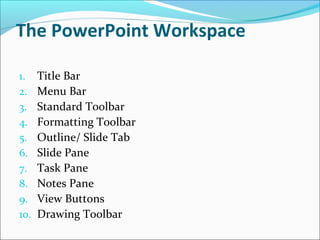
The PowerPoint Workspace
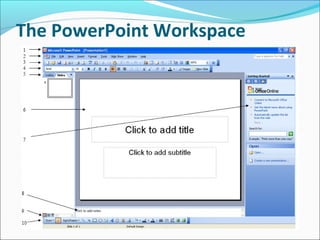
1. Title Bar
2. Menu Bar
3. Standard Toolbar
4. Formatting Toolbar
5. Outline/ Slide Tab
6. Slide Pane
7. Task Pane
8. Notes Pane
9. View Buttons
10. Drawing Toolbar
The PowerPoint Workspace
Title Bar
It displays the name of the program (Microsoft
PowerPoint) and the given name of the presentation
that is currently open (Presentation1 by default).
Menu Bar
It contains a list of options with a simple click to it
gives you the access to its command. (File, Edit, View,
Insert, Format, Tools, Slide Show, Window, Help)
Standard Toolbar
It contains shortcut buttons of the most commonly
used commands, such as opening, saving, and
printing.
Formatting Toolbar
It contains buttons used for formatting, such as font
type, font size and style, paragraph alignment, and
others.
Outline/ Slide Tab
Outline Tab
It shows pure text and it is used for creating and editing
the content of your presentation.
Slide Tab
It is used to navigate through a slide by clicking on a
thumbnail to go to that specific slide.
Slide Pane
It displays the current slide that you are working on.
The slide pane shows only one slide at a time.
Task Pane
It contains a list of commands that are relevant to
whatever you are doing in PowerPoint.
Notes Pane
This pane is used as “cheat-sheet”. This is where you
can add notes to be used as a guide of the things you
want to say during your presentation.
View Buttons
These buttons are used to quickly switch between
different PowerPoint views.
Drawing Toolbar
It contains buttons and menus used to draw and
manipulate objects.
Different View Orientations
Normal View
Slide Sorter
Outline View
Slide Show View
Normal View
Has three panes: Outline and Slide tab, the slide pane,
the Notes pane
Let’s you work on your presentation’s every aspect in
one place
Slide Sorter
All slides of your presentation are displayed as
thumbnails (miniature slides)
Lets you add, delete, move slides, add slide transitions,
preview slide animations on multiple slides
Outline View
Included in the normal view which lets you organize
and develop your presentation’s content
Lets you type all the text of your presentation and
arrange them accordingly
Slide Show View
Lets you preview your presentation in an electronic
slide show
Used when delivering your presentation to an audience
Types of Placeholders
Title placeholder
An imaginary box that holds the title of the slide
Text placeholder
Holds other text like a bullet list lines, or paragraph
text
Object placeholder
Holds objects such as graphics, charts, media clips, etc.
END!

Ms PowerPoint 2003 Introducton

  • 1.
  • 2.
    The PowerPoint Workspace 1.Title Bar 2. Menu Bar 3. Standard Toolbar 4. Formatting Toolbar 5. Outline/ Slide Tab 6. Slide Pane 7. Task Pane 8. Notes Pane 9. View Buttons 10. Drawing Toolbar
  • 3.
  • 4.
    Title Bar It displaysthe name of the program (Microsoft PowerPoint) and the given name of the presentation that is currently open (Presentation1 by default).
  • 5.
    Menu Bar It containsa list of options with a simple click to it gives you the access to its command. (File, Edit, View, Insert, Format, Tools, Slide Show, Window, Help)
  • 6.
    Standard Toolbar It containsshortcut buttons of the most commonly used commands, such as opening, saving, and printing.
  • 7.
    Formatting Toolbar It containsbuttons used for formatting, such as font type, font size and style, paragraph alignment, and others.
  • 8.
    Outline/ Slide Tab OutlineTab It shows pure text and it is used for creating and editing the content of your presentation. Slide Tab It is used to navigate through a slide by clicking on a thumbnail to go to that specific slide.
  • 9.
    Slide Pane It displaysthe current slide that you are working on. The slide pane shows only one slide at a time.
  • 10.
    Task Pane It containsa list of commands that are relevant to whatever you are doing in PowerPoint.
  • 11.
    Notes Pane This paneis used as “cheat-sheet”. This is where you can add notes to be used as a guide of the things you want to say during your presentation.
  • 12.
    View Buttons These buttonsare used to quickly switch between different PowerPoint views.
  • 13.
    Drawing Toolbar It containsbuttons and menus used to draw and manipulate objects.
  • 14.
    Different View Orientations NormalView Slide Sorter Outline View Slide Show View
  • 15.
    Normal View Has threepanes: Outline and Slide tab, the slide pane, the Notes pane Let’s you work on your presentation’s every aspect in one place
  • 16.
    Slide Sorter All slidesof your presentation are displayed as thumbnails (miniature slides) Lets you add, delete, move slides, add slide transitions, preview slide animations on multiple slides
  • 17.
    Outline View Included inthe normal view which lets you organize and develop your presentation’s content Lets you type all the text of your presentation and arrange them accordingly
  • 18.
    Slide Show View Letsyou preview your presentation in an electronic slide show Used when delivering your presentation to an audience
  • 19.
    Types of Placeholders Titleplaceholder An imaginary box that holds the title of the slide Text placeholder Holds other text like a bullet list lines, or paragraph text Object placeholder Holds objects such as graphics, charts, media clips, etc.
  • 20.