foreword Goal is just to share PowerPoint ‘tips & tricks’ You can agree or disagree with some statements It’s just a ‘toolbox’ PowerPoint is just a tool. If content is not good, it cannot help Objective is just to help you to… Spend less time on layout & more on content Make ‘better’ presentations ‘ 6 S’  approach is just my own ‘proposal’… Unrestricted comments are welcome !   Jean-Luc
[email_address] see PowerPoint 100 pictures   & PowerPoint 50 templates comments are welcome !   Jean-Luc
part 1 ‘ tips & tricks’
not are slides funny ! next
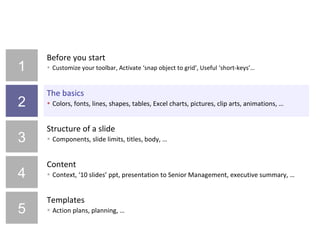
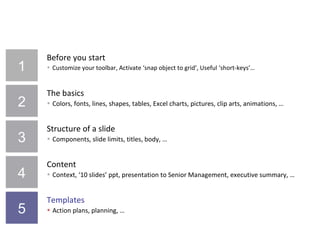
table of content 1 2 3 4 5 Before you start Customize your toolbar, activate ‘snap object to grid’ & ‘ruler’, useful ‘short-keys’,  Speed Building blocks Colors, black-white, fonts, lines, shapes, alignments, pictures, clip-arts, tables, charts,   animations ‘ Slide’ design Components, slide limits, titles, slide, body,  Simplicity , layout Content Scope , audience,  Schedule ,  Structure , visualize presentation,  Story ,  6 S More tips Advanced tips, templates
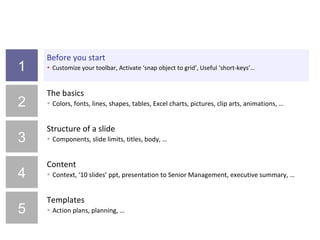
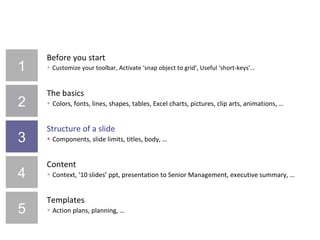
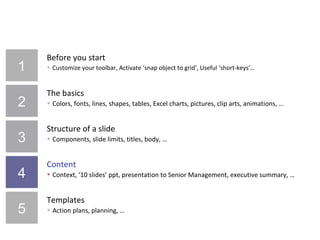
1 2 3 4 5 Before you start Customize your toolbar, activate ‘snap object to grid’ & ‘ruler’, useful ‘short-keys’,  Speed Building blocks Colors, black-white, fonts, lines, shapes, alignments, pictures, clip-arts, tables, charts,   animations ‘ Slide’ design Components, slide limits, titles, slide, body,  Simplicity , layout Content Scope , audience,  Schedule ,  Structure , visualize presentation,  Story ,  6 S More tips Advanced tips, templates
switch to ‘ EDIT ’ view (esc)
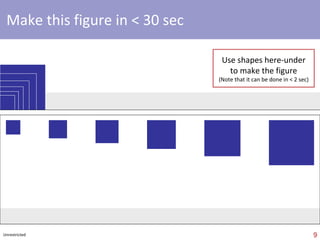
make this figure in < 30 sec Use shapes here-under to make the figure
analsis of your results this can be done in < 2 seconds
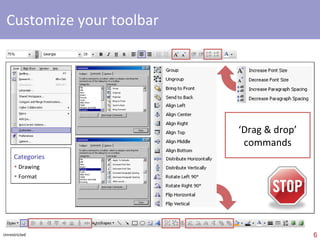
customize the ‘format’ toolbar No need for additional new commands in toolbar
customize the ‘drawing’ toolbar No need for additional new commands in toolbar
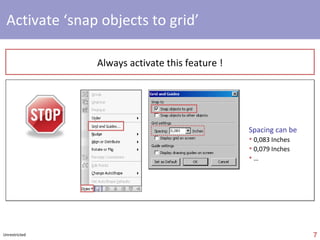
activate ‘snap objects to grid’   Always activate this feature ! Spacing can be 0,083 Inches 0,079 Inches …
activate ‘ruler’  Always activate this feature !
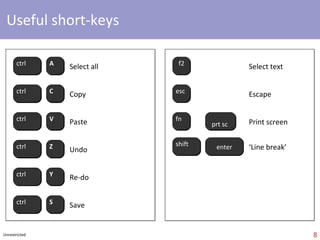
useful short-keys ctrl A  ctrl C  ctrl V  ctrl Z  ctrl Y  ctrl S  esc  fn prt sc  f2  Select all  Copy  Paste  Undo  Re-do  Save  Select text  Escape Print screen  shift  enter ‘ Line break’
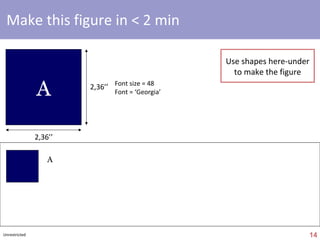
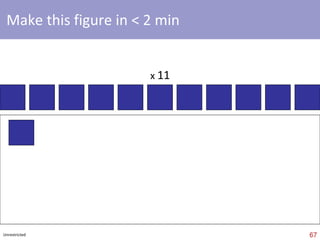
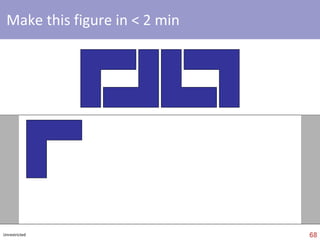
make this figure in < 2 min x  11
select all figures & rotate ‘left’
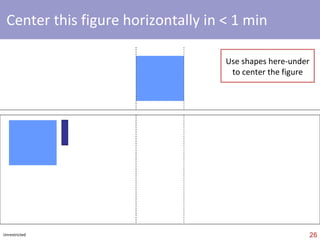
center this figure horizontally in < 1 min Use shapes here-under to center the figure Unrestricted
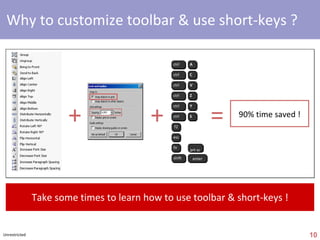
speed + + = 90% time saved ! Take some time to learn how to use toolbar & short-keys ! 1 st  S ctrl A  ctrl C  ctrl V  ctrl Z  ctrl Y  ctrl S  esc  fn prt sc  f2  shift  enter
switch to  ‘ SLIDE SHOW ’
what does ‘90% time saved’ mean ? 1h 3h20 1h40 10’ 20’ Do invest some time to learn how to use ‘toolbar’ & ‘short-keys’ !!!   10h   1 day    10 days
1 2 3 4 5 Before you start Customize your toolbar, activate ‘snap object to grid’ & ‘ruler’, useful ‘short-keys’,  Speed Building blocks Colors, black-white, fonts, lines, shapes, alignments, pictures, clip-arts, tables, charts,   animations ‘ Slide’ design Components, slide limits, titles, slide, body,  Simplicity , layout Content Scope , audience,  Schedule ,  Structure , visualize presentation,  Story ,  6 S More tips Advanced tips, templates
focus = ‘internal’ presentations but easy to transpose…
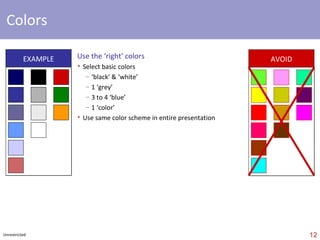
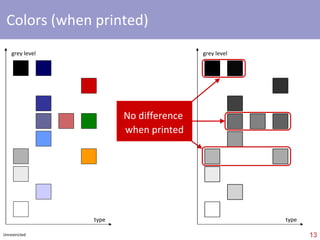
colors Use the ‘right’ colors Select basic colors (e.g.) ‘ black’ & ‘white’ 1 ‘grey’ 3 to 4 ‘blue’ 1 ‘color’ Use same colors in entire presentation EXAMPLE AVOID
black & white (or colors when printed in ‘grey’) type grey level No difference  when printed type grey level
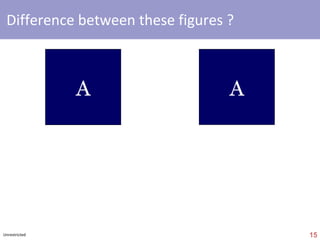
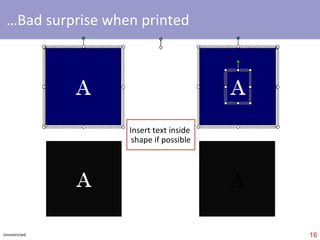
what’s the difference between these figures ? A A
… bad surprise when printed
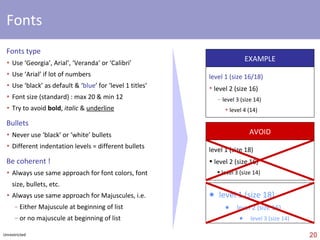
fonts Fonts type Use ‘Georgia’, Arial’, ‘ Helvetica ’, ‘Veranda’ or ‘Calibri’ Use ‘Arial’ if lot of numbers Use ‘black’ as default & ‘ blue ’ for ‘level 1 titles’ Font size (standard) : max 20 & min 12 Try to avoid  bold ,  italic  &  underline Bullets Avoid ‘black’ or ‘white’ bullets Different indentation levels = different bullets  Be coherent ! Always use same approach for font colors, font   size, bullets, etc. Always use same approach for Majuscules, i.e. Either Majuscule at beginning of list or no majuscule at beginning of list level 1 (size  18  / 20) level 2 (size  16  / 18) level 3 (size 14 / 16) level 4 (14) level 1 (size 18) level 2 (size 16) level 3 (size 14) level 1 (size 18) level 2 (size 16) level 3 (size 14) AVOID EXAMPLE
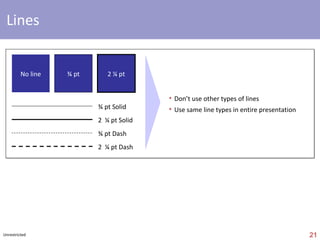
lines  ¾ pt 2 ¼ pt No line ¾ pt Solid 2  ¼ pt Solid ¾ pt Dash 2  ¼ pt Dash No need for other types of lines  Use same line types in entire presentation
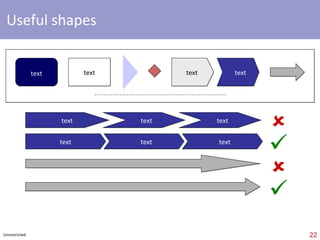
useful shapes text text text text      text text text text text text
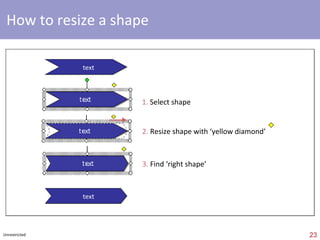
how to resize a shape text text 1.  Select shape 2.  Resize shape with ‘yellow diamond’ 3.  Find ‘right shape’
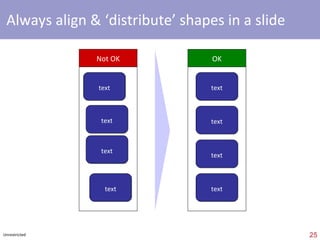
always align & ‘distribute’ shapes in a slide text text text text Not OK text text text text OK
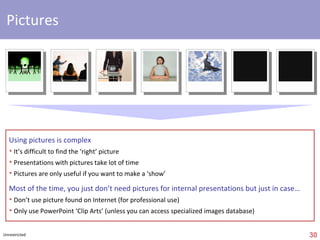
pictures Using pictures is complex It’s difficult to find the ‘right’ picture Presentations with pictures take lot of time Pictures are only useful if you want to make a ‘show’ Most of the time, you just don’t need pictures for internal presentations but just in case… Don’t use pictures found on Internet (for professional use) Only use PowerPoint ‘Clip Arts’ (unless you can access specialized images database)
But  pictures  are   good  for  show  !
If correctly chosen
Otherwise…
So think twice…
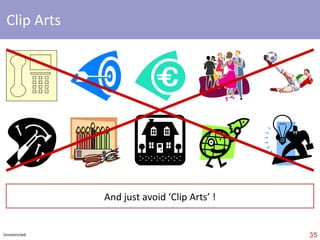
clip arts And just avoid ugly ‘Clip Arts’ !
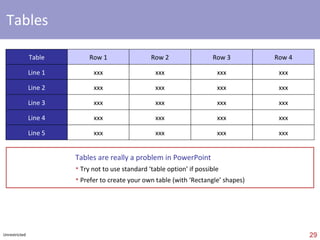
tables Table Row 1 Row 2 Row 3 Row 4 Line 1 xxx xxx xxx xxx Line 2 xxx xxx xxx xxx Line 3 xxx xxx xxx xxx Line 4 xxx xxx xxx xxx Line 5 xxx xxx xxx xxx Tables are really a problem in PowerPoint Try not to use standard ‘table option’ if possible Prefer to create your own table (with ‘Rectangle’ shapes)
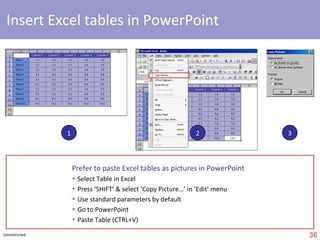
insert Excel tables in PowerPoint Prefer to paste Excel tables as pictures in PowerPoint  Select Table in Excel Press ‘SHIFT’ & select ‘Copy Picture…’ in ‘Edit’ menu Use standard parameters by default Go to PowerPoint Paste Table (CTRL+V) 1 2 3 If possible, better to create own table in PowerPoint
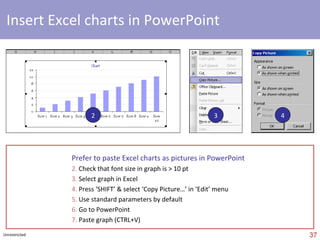
insert Excel charts in PowerPoint Paste Excel charts as pictures in PowerPoint  Check that font size in graph is > 10 pt Select graph in Excel Press ‘SHIFT’ & select ‘Copy Picture…’ in ‘Edit’ menu Use standard parameters by default Go to PowerPoint Paste graph (CTRL+V) 2 3 4
need to insert > 1 Excel chart in PowerPoint ? Not enough space on the slide, isn’t it ?
so you’ve just ‘re-sized’ the charts Are you sure it’s still possible to read them ? Chart 0 2 4 6 8 10 Row 1 Row 2 Row 3 Row 4 Row 5 Row 6 Row 7 Row 8 Row 9 Row...
prefer to adapt size in Excel  (with font size > 10 !)
Go to   next   slide &  press ‘ enter ’ after a few seconds
a z e r t f g h j k l m w x a z e r t f g h j k l m w x a z e r t f g h j k l m w x a z e r t f g h j k l m w x a z e r t f g h j k l m w x a z e r t f g h j k l m w x a z e r t f g h j k l m w x a z e r t f g h j k l m w x a z e r t f g h j k l m w x a z e r t f g h j k l m w x a z e r t f g h j k l m w x a z e r t f g h j k l m w x a z e r t f g h j k l m w x a z e r t f g h j k l m w x a z e r t f g h j k l m w x a z e r t f g h j k l m w x a z e r t f g h j k l m w x a z e r t f g h j k l m w x a z e r t f g h j k l m w x a z e r t f g h j k l m w x a z e r t f g h j k l m w x a z e r t f g h j k l m w x a z e r t f g h j k l m w x a z e r t f g h j k l m w x a z e r t f g h j k l m w x a z e r t f g h j k l m w x a z e r t f g h j k l m w x a z e r t f g h j k l m w x a z e r t f g h j k l m w x a z e r t f g h j k l m w x a z e r t f g h j k l m w x a z e r t f g h j k l m w x a z e r t f g h j k l m w x a z e r t f g h j k l m w x a z e r t f g h j k l m w x a z e r t f g h j k l m w x a z e r t f g h j k l m w x a z e r t f g h j k l m w x a z e r t u i p q s d f g h j k l m w x c v s z a a z e r t g h j k l m w x c v b / s z a a z e r t y u i o p q s d f g h j k l m w x c v b n ? . / s a a z e r t u i o p q s d f g h j k l m w x c v b n ? . / s z a z e r t u i o p q s d f g h j k l m w x c v b n ? . / s z a z e r t u i o p q s d f g h j k l m w x c v b n ? . / s z a z e r t u i o p q s d f g h j k l m w x c v b n ? . / s z a z e r t y u q s d f g h j k l m w x c ? z a a z e r t y u i o p f g h j k l m w x c v b n ? . / s z a z e r t y u i o p f g h j k l m w x c v b n ? . / s z a z e r t y u i o p q s d g h j k l m w x c v a a z e r t y u i o p f g h j k l m w x c v b n a a z e r t y u q s d f g h j k l m w x c v b n ? a a z e r t i o p q s d f g x c v b n ? . / s z a z e r t y f g h j k l m w x n ? . / s z a z e r t y f g h j k l m w x n ? . / s z a z e r t y f g h j k l m w x n ? . / s z a z e r t y f g h j k l m w x n ? . / s z a z e r t y f g h j k l m w x n ? . / s z a z e r t y u i o p q s d f g h j k l a a z e r t y f g h j k l m w x n ? . / s z a z e r t y f g h j k l m w x n ? . / s z a z e r t y f g h j k l m w x n ? . / s z a z e r t y f g h j k l m w x n ? . / s z a z e r t y f g h j k l m w x n ? . / s z a z e r t y f g h j k l m w x n ? . / s z a z e r t y f g h j k l m w x n ? . / s z a z e r t y f g h j k l m w x n ? . / s z a z e r t y f g h j k l m w x n ? . / s z a z e r t y f g h j k l m w x n ? . / s z a z e r t y f g h j k l m w x n ? . / s z a z e r t y f g h j k l m w x n ? . / s z a z e r t u i o p q s d g h j k l m w x c a a z e rq s d g h j k l m w x c v b n ? . / s z a a z e r t y f g h j k l m w . / s z a a z e r t y u i o p q s d f g h j k l m w x c v b n ? . / s z a z e r t y f g h j k l m w x n ? . / s z a z e r t y f g h j k l m w x n ? . / s z a z e r t y f g h j k l m w x n ? . / s z a z e r t y f g h j k l m w x n ? . / s z a z e r t y u i o p q s d f g h j k l m w x a z e r t y u i o p q s d f g h j k l m w x c z a a z e r t y u i o p q s d f g h j k l m w x c v ? . / s z a a z e r t y u i o p q s . / s z a a z e r t y u i o p q s d f g h j k l m w x c v a a z e r t y u i o p q s d f g h j k l m w x c v b n ? / s z a a z e r t y u i o p q s d f g h j a z e r t y u i o p q s d f g h j k l m a a z e r t y u i o p q s d f g h j k l m w b n ? . / s z a a z e r t y u i o p q sb n ? . / s z a z e r t y u i o p q s d f g h j k l m w a JUST   AVOID   ANIMATIONS   !!!
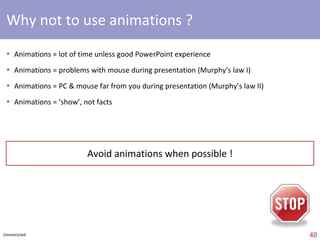
why not to use animations ? Animations = lot of time unless good PowerPoint skills Animations = problems with mouse during presentation (Murphy’s law I) Animations = PC & mouse far from you during presentation (Murphy’s law II) Animations = ‘show’, not ‘facts’ Avoid animations when possible !
1 2 3 4 5 Before you start Customize your toolbar, activate ‘snap object to grid’ & ‘ruler’, useful ‘short-keys’,  Speed Building blocks Colors, black-white, fonts, lines, shapes, alignments, pictures, clip-arts, tables, charts,  animations ‘ Slide’ design Components, slide limits, titles, slide, body,  Simplicity , layout Content Scope , audience,  Schedule ,  Structure , visualize presentation,  Story ,  6 S More tips Advanced tips, templates
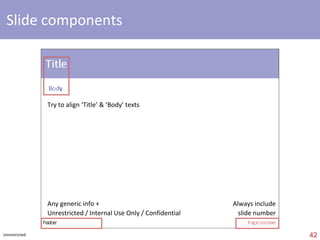
slide components Footer slide number Try to align ‘Title’ & ‘Body’ texts Always include ‘slide #’ & confidentiality level for internal ppt (exception : no slide # on ‘Title slides’)
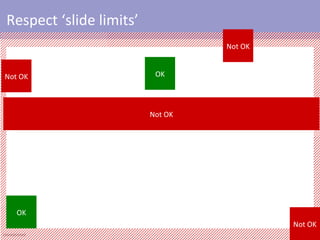
respect ‘slide limits’ NO NO NO NO YES YES
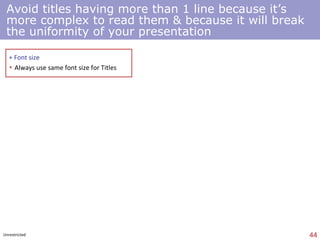
avoid titles having more than 1 line because it’s difficult to read them & because it will break the ‘uniformity’ of your presentation
titles & sub-titles  Sub-title = summary of slide in 1 sentence Only exception = titles + sub-titles (no majuscule for titles & Majuscule for sub-titles)
always use same font  size  &  type  for titles
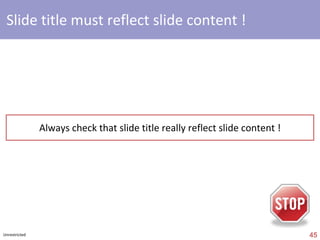
slide title must reflect slide content ! Always check that slide title really reflects slide content !
make your ‘own’ body When you creare a new slide… Create your own ‘boby’ = ‘rectangle’ with following attibutes ‘ Colors & Lines‘ color = ‘NoFill’  line  = ‘No line’ ‘ Text Box’ ‘ Text  a nchor Point’ = Top ‘ Internal margins’ (left, right, top, bottom) = 0,1’ or 0,05’’ ‘ Word wrap text in Autoshape’ checked No other option ‘checked’ Adapt margins ! Never use standard ‘Title and Text’ template
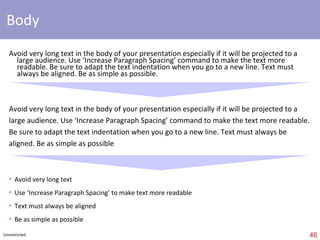
body Avoid very long text in the body of your presentation especially if it will be projected to a large audience. Use ‘Increase Paragraph Spacing’ command to make the text  more readable. Be sure to adapt the text indentation when you go to a new line. Text must always be aligned. Be as simple as possible. Avoid very long text in the body of your presentation especially if it will be projected to a large audience. Use ‘Increase Paragraph Spacing’ command to make the text more readable. Be sure to adapt the text indentation when you go to a new line. Text must always be aligned. Be as simple as possible Avoid very long text Use  to make text more readable Text must always be aligned Be as simple as possible
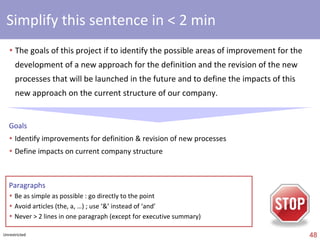
simplicity The goals of this project if to identify the possible areas of improvement for the  development of a new approach for the definition and the revision of the new  processes that will be launched in the future and to define the impacts of this   new approach on the current structure of our company. Goals Identify improvements for definition & revision of new processes  Define impacts on current company structure Keep it simple ! Be as simple as possible : go directly to the point Avoid articles (the, a, …) ; use ‘&’ instead of ‘and’ Never > 2 lines in one paragraph (except for executive summary) 2 nd  S
always check if slide is readable when printed remember this ? People usually print (business) presentations
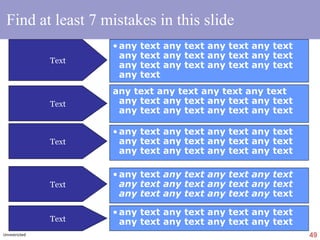
Find at least 7 ‘mistakes’ in this slide Text Text Text Text Text any text any text any text any text any text any text any text any text any text any text any text any text any text  any text any text any text any text any text any text any text any text any text any text any text any text any text any text any text any text any text any text any text any text any text any text any text any text any text  any text any text any text any text any text any text any text any text any text any text any  text any text any text any text any text any text any text any text any text
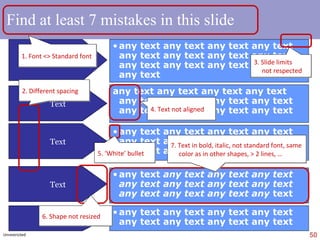
Find at least 7 ‘mistakes’ in this slide Text Text Text Text Text any text any text any text any text any text any text any text any text any text any text any text any text any text  any text any text any text any text any text any text any text any text any text any text any text any text any text any text any text any text any text any text any text any text any text any text any text any text any text  any text any text any text any text any text any text any text any text any text any text any  text any text any text any text any text any text any text any text any text 2. Different spacing 1. Font <> Standard font 3. Slide limits not respected 5. ‘White’ bullet 4. Text not aligned 6. Shape not resized 7. Text in bold, italic, not standard font, same color as in other shapes, > 2 lines, …
  you want a cool slide layout ?
layout   Cool  layout  but  few   colors  available  for  text
layout Prefer ‘white’ backgrounds (easier, less ink & less money spent when printed)
1 2 3 4 5 Before you start Customize your toolbar, activate ‘snap object to grid’ & ‘ruler’, useful ‘short-keys’,  Speed Building blocks Colors, black-white, fonts, lines, shapes, alignments, pictures, clip-arts, tables, charts,  animations ‘ Slide’ design Components, slide limits, titles, slide, body,  Simplicity , layout Content Scope , audience,  Schedule ,  Structure , visualize presentation,  Story ,  6 S More tips Advanced tips, templates
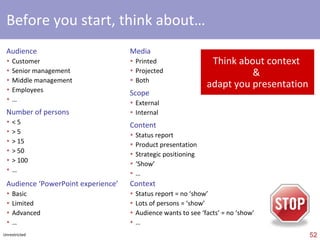
# attendees Media Audience Content Timing + + + + = Think about  scope  of presentation ! 3 rd  S > 100 > 50 > 10 < 10 < 5 Projection Both Paper > 30min 15 / 20 min 10 min 5 min ‘ Story’ Standard Details Facts & figures ‘ Show’ ‘ Public’ Customer Senior Mgt. Middle Mgt. Employees … ‘ Vision’ Strategy / Positioning Product presentation Technical / Financials Status report …
audience Adapt to audience !
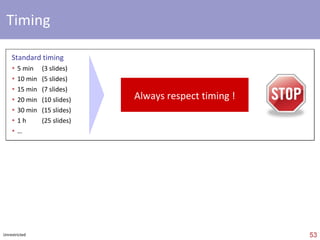
schedule 4 th  S Always respect timing ! 5 min 10 min 15 min 20 min 1h 30 min < 3  slides < 5  slides < 7  slides < 10  slides < 15  slides < 25  slides
structure it’s easy… 1 slide = 1 idea (If you can’t summarize slide in one sentence, slide is too complex) 5 th  S
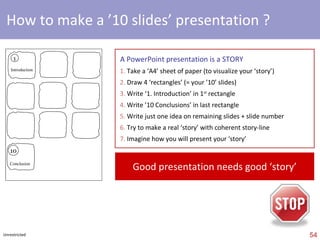
visualize presentation 1.  Take a ‘A4’ sheet of paper 2.  Draw 10 ‘rectangles’ (= if ’10’ slides) 3.  Write ‘1. Introduction’ in 1 st  rectangle 4.  Write ’10 Conclusions’ in last rectangle 5.  Write just one idea on remaining slides 6.  Make a ‘story’ with coherent story line 1 10 Introduction Conclusions Always visualize your presentation
story A presentation is a  STORY You have to make a ‘scenario’ with 1.   STRONG   start  (attract attention) 2.  Coherent story line  (no flash-back) 3.   ACTION !!!  (keep public awake) 4.  Suspense & surprises (retain interest)  5.  Happy end !  (of course…) Good presentation needs good ‘Story’ 6 th  S
6 S  PowerPoint  S ummary S peed   customized toolbar & short-keys S implicity   simplify everything S cope   think about context  S chedule   always respect timing S tructure   1 slide = 1 idea S tory   make your scenario
1 2 3 4 5 Before you start Customize your toolbar, activate ‘snap object to grid’ & ‘ruler’, useful ‘short-keys’,  Speed Building blocks Colors, black-white, fonts, lines, shapes, alignments, pictures, clip-arts, tables, charts,  animations ‘ Slide’ design Components, slide limits, titles, slide, body,  Simplicity , layout Content Scope , audience,  Timing , Structure , visualize presentation,   Story ,  6 S More tips Advanced tips, templates
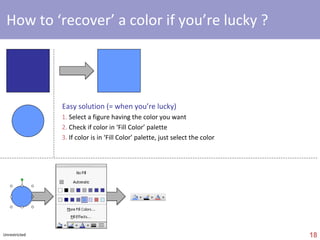
how to ‘recover’ a color if you’re lucky ? Solution #1 (= when you’re lucky) 1.  Select a figure having the color you want 2.  Check if color in ‘Fill Color’ palette 3.  If color is in ‘Fill Color’ palette, just select the color
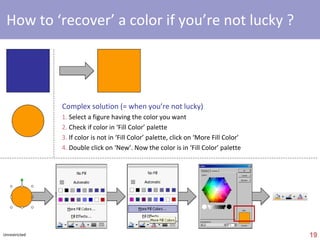
how to ‘recover’ a color if you’re not lucky ? Solution #2 (= when you’re not lucky) 1.  Select a figure having the color you want 2.  Check if color in ‘Fill Color’ palette 3.  If color is not in ‘Fill Color’ palette, click on ‘More Fill Color’ 4.  Double click on ‘New’. Now the color is in ‘Fill Color’ palette
what’s the difference between these figures ?
… color & transparency Color = Transparency = 70% Color = Transparency =   0%
transparency Transparency allows… Nice effects when correctly used But most of the time Transparency = bad surprise when presentation is printed You can make the same effect with standard colors
colors effects Colors effects are cool but usually… Colors effects take lots of time Bad surprise when presentation is printed
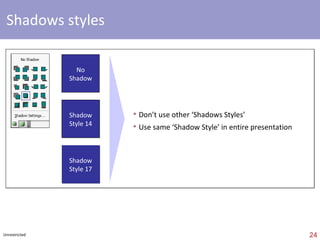
shadows styles No Shadow Shadow Style 14 Shadow Style 17 Don’t use other ‘Shadows Styles’  Use same ‘Shadow Style’ in entire presentation
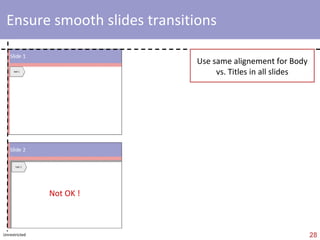
smooth slides transitions Use same alignment for  ‘ body’ vs. ‘title’ in all slides Not OK !
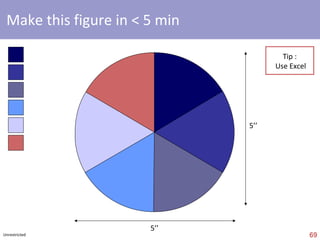
make this figure in < 5 min 5’’ 5’’ Tip : Use Excel
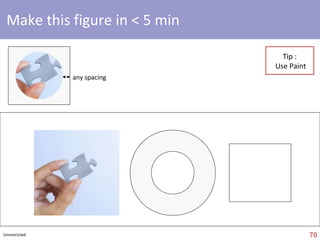
make this figure in < 5 min Tip : Use Paint any spacing
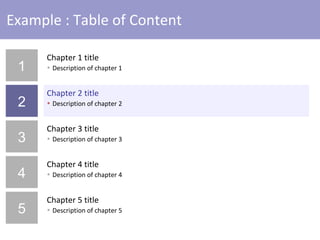
template : table of content 1 2 3 4 5 Chapter 1 title Description of chapter 1 Chapter 2 title Description of chapter 2 Chapter 3 title Description of chapter 3 Chapter 4 title Description of chapter 4 Chapter 5 title Description of chapter 5
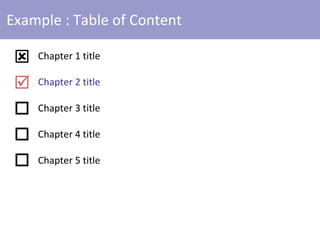
template : table of content Chapter 1 title Chapter 2 title Chapter 3 title Chapter 4 title Chapter 5 title     
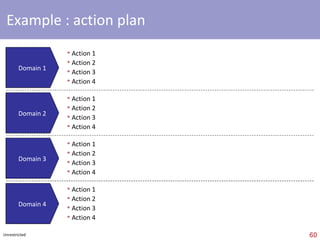
template : action plan Unrestricted Domain 1 Domain 2 Domain 3 Domain 4 Action 1  Action 2 Action 3 Action 4 Action 1 Action 2 Action 3 Action 4 Action 1 Action 2 Action 3 Action 4 Action 1 Action 2 Action 3 Action 4
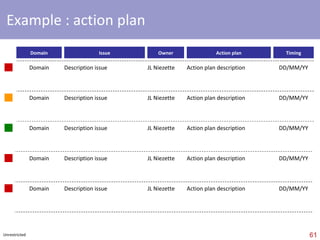
template : action plan Unrestricted Owner Action plan Timing Issue Domain Domain Description issue JL Niezette Action plan description DD/MM/YY Domain Description issue JL Niezette Action plan description DD/MM/YY Domain Description issue JL Niezette Action plan description DD/MM/YY Domain Description issue JL Niezette Action plan description DD/MM/YY Domain Description issue JL Niezette Action plan description DD/MM/YY
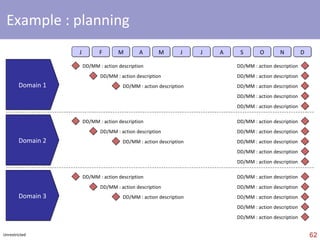
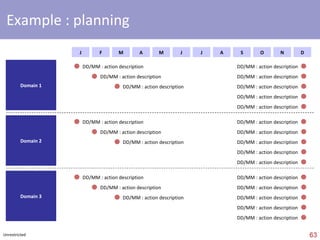
template : planning Unrestricted J F M A M J J A S O D N Domain 1 Domain 2 Domain 3 DD/MM : action description DD/MM : action description DD/MM : action description DD/MM : action description DD/MM : action description DD/MM : action description DD/MM : action description DD/MM : action description DD/MM : action description DD/MM : action description DD/MM : action description DD/MM : action description DD/MM : action description DD/MM : action description DD/MM : action description DD/MM : action description DD/MM : action description DD/MM : action description DD/MM : action description DD/MM : action description DD/MM : action description DD/MM : action description DD/MM : action description DD/MM : action description
template : planning Unrestricted Domain 2 Domain 3 Domain 1 DD/MM : action description DD/MM : action description DD/MM : action description DD/MM : action description DD/MM : action description DD/MM : action description DD/MM : action description DD/MM : action description DD/MM : action description DD/MM : action description DD/MM : action description DD/MM : action description DD/MM : action description DD/MM : action description DD/MM : action description DD/MM : action description DD/MM : action description DD/MM : action description DD/MM : action description DD/MM : action description DD/MM : action description DD/MM : action description DD/MM : action description DD/MM : action description J F M A M J J A S O N D
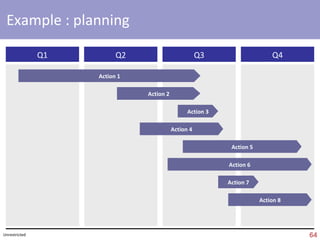
template : planning Q4 Q3 Q2 Q1 Action 1 Action 2 Action 3 Action 4 Action 5 Action 6 Action 7 Action 8 Unrestricted
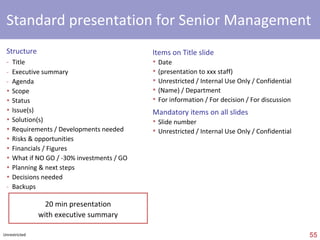
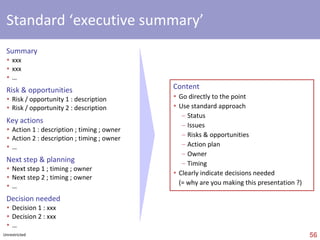
template : 10 slides for Senior Management Structure -   Title -   Executive summary -   Agenda Scope Status Issue(s) Solution(s) Requirements / Developments needed Risks & opportunities Financials / Figures What if NO GO / -30% investments / GO Planning & next steps  Decisions needed -  Backup Items on Title slide Date (presentation to xxx) Unrestricted / Internal Use Only / Confidential (Name) / Department / (Company) For information / For decision / For discussion Mandatory items on all slides Slide number Unrestricted / Internal Use Only / Confidential / … 20 min presentation with executive summary
part 2 ‘ show’
You have to make a presentation
but you’re… running out of time
same story once again ?
you have to find a way out ?
better to be somewhere else?
no stress !
you just need a  toolbox …
to win  lot of   time !
this is the goal of this presentation
aim is just to help to save time you
and to spend more time on real priorities
content of this tutorial
before you start building blocks ‘ slide’ design content + tips
before you start
take 5’ to customize your toolbar
1’  to lock grid ruler
5’’ to ‘activate’ ruler
use few short-keys
to win time
building blocks before you start
c o l o r s
black  white
fonts
lines
shapes
alignments
pictures
clip-arts
tables
charts
animations
‘ slide’ design building blocks before you start
components
slide li mits
title
body
simplicity
layout
content ‘ slide’ design building blocks before you start
scope
scope
audience
schedule
structure 1 slide 1 idea
visualize presentation
Y R O T S a ! m e k a
6 S S peed S implicity S cope S chedule S tructure S tory
+ tips content ‘ slide’ design building blocks before you start
advanced tips
… and templates
 
what do you think ?
ready to go ?
Hope i t helps [email_address]
[email_address] see PowerPoint 100 pictures   & PowerPoint 50 templates comments are welcome !   Jean-Luc

PowerPoint Tutorial Presentation - Tips & Tricks

  • 1.
  • 2.
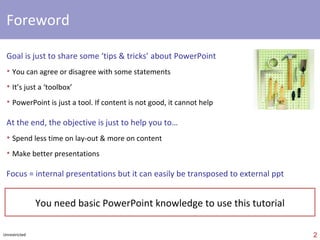
    foreword Goal isjust to share PowerPoint ‘tips & tricks’ You can agree or disagree with some statements It’s just a ‘toolbox’ PowerPoint is just a tool. If content is not good, it cannot help Objective is just to help you to… Spend less time on layout & more on content Make ‘better’ presentations ‘ 6 S’ approach is just my own ‘proposal’… Unrestricted comments are welcome ! Jean-Luc
  • 3.
    [email_address] see PowerPoint100 pictures & PowerPoint 50 templates comments are welcome ! Jean-Luc
  • 4.
    part 1 ‘tips & tricks’
  • 5.
    not are slidesfunny ! next
  • 6.
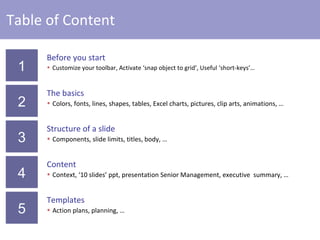
    table of content1 2 3 4 5 Before you start Customize your toolbar, activate ‘snap object to grid’ & ‘ruler’, useful ‘short-keys’, Speed Building blocks Colors, black-white, fonts, lines, shapes, alignments, pictures, clip-arts, tables, charts, animations ‘ Slide’ design Components, slide limits, titles, slide, body, Simplicity , layout Content Scope , audience, Schedule , Structure , visualize presentation, Story , 6 S More tips Advanced tips, templates
  • 7.
    1 2 34 5 Before you start Customize your toolbar, activate ‘snap object to grid’ & ‘ruler’, useful ‘short-keys’, Speed Building blocks Colors, black-white, fonts, lines, shapes, alignments, pictures, clip-arts, tables, charts, animations ‘ Slide’ design Components, slide limits, titles, slide, body, Simplicity , layout Content Scope , audience, Schedule , Structure , visualize presentation, Story , 6 S More tips Advanced tips, templates
  • 8.
    switch to ‘EDIT ’ view (esc)
  • 9.
    make this figurein < 30 sec Use shapes here-under to make the figure
  • 10.
    analsis of yourresults this can be done in < 2 seconds
  • 11.
    customize the ‘format’toolbar No need for additional new commands in toolbar
  • 12.
    customize the ‘drawing’toolbar No need for additional new commands in toolbar
  • 13.
    activate ‘snap objectsto grid’   Always activate this feature ! Spacing can be 0,083 Inches 0,079 Inches …
  • 14.
    activate ‘ruler’  Alwaysactivate this feature !
  • 15.
    useful short-keys ctrlA ctrl C ctrl V ctrl Z ctrl Y ctrl S esc fn prt sc f2 Select all Copy Paste Undo Re-do Save Select text Escape Print screen shift enter ‘ Line break’
  • 16.
    make this figurein < 2 min x 11
  • 17.
    select all figures& rotate ‘left’
  • 18.
    center this figurehorizontally in < 1 min Use shapes here-under to center the figure Unrestricted
  • 19.
    speed + += 90% time saved ! Take some time to learn how to use toolbar & short-keys ! 1 st S ctrl A ctrl C ctrl V ctrl Z ctrl Y ctrl S esc fn prt sc f2 shift enter
  • 20.
    switch to ‘ SLIDE SHOW ’
  • 21.
    what does ‘90%time saved’ mean ? 1h 3h20 1h40 10’ 20’ Do invest some time to learn how to use ‘toolbar’ & ‘short-keys’ !!! 10h 1 day 10 days
  • 22.
    1 2 34 5 Before you start Customize your toolbar, activate ‘snap object to grid’ & ‘ruler’, useful ‘short-keys’, Speed Building blocks Colors, black-white, fonts, lines, shapes, alignments, pictures, clip-arts, tables, charts, animations ‘ Slide’ design Components, slide limits, titles, slide, body, Simplicity , layout Content Scope , audience, Schedule , Structure , visualize presentation, Story , 6 S More tips Advanced tips, templates
  • 23.
    focus = ‘internal’presentations but easy to transpose…
  • 24.
    colors Use the‘right’ colors Select basic colors (e.g.) ‘ black’ & ‘white’ 1 ‘grey’ 3 to 4 ‘blue’ 1 ‘color’ Use same colors in entire presentation EXAMPLE AVOID
  • 25.
    black & white(or colors when printed in ‘grey’) type grey level No difference when printed type grey level
  • 26.
    what’s the differencebetween these figures ? A A
  • 27.
    … bad surprisewhen printed
  • 28.
    fonts Fonts typeUse ‘Georgia’, Arial’, ‘ Helvetica ’, ‘Veranda’ or ‘Calibri’ Use ‘Arial’ if lot of numbers Use ‘black’ as default & ‘ blue ’ for ‘level 1 titles’ Font size (standard) : max 20 & min 12 Try to avoid bold , italic & underline Bullets Avoid ‘black’ or ‘white’ bullets Different indentation levels = different bullets Be coherent ! Always use same approach for font colors, font size, bullets, etc. Always use same approach for Majuscules, i.e. Either Majuscule at beginning of list or no majuscule at beginning of list level 1 (size 18 / 20) level 2 (size 16 / 18) level 3 (size 14 / 16) level 4 (14) level 1 (size 18) level 2 (size 16) level 3 (size 14) level 1 (size 18) level 2 (size 16) level 3 (size 14) AVOID EXAMPLE
  • 29.
    lines ¾pt 2 ¼ pt No line ¾ pt Solid 2 ¼ pt Solid ¾ pt Dash 2 ¼ pt Dash No need for other types of lines Use same line types in entire presentation
  • 30.
    useful shapes texttext text text     text text text text text text
  • 31.
    how to resizea shape text text 1. Select shape 2. Resize shape with ‘yellow diamond’ 3. Find ‘right shape’
  • 32.
    always align &‘distribute’ shapes in a slide text text text text Not OK text text text text OK
  • 33.
    pictures Using picturesis complex It’s difficult to find the ‘right’ picture Presentations with pictures take lot of time Pictures are only useful if you want to make a ‘show’ Most of the time, you just don’t need pictures for internal presentations but just in case… Don’t use pictures found on Internet (for professional use) Only use PowerPoint ‘Clip Arts’ (unless you can access specialized images database)
  • 34.
    But pictures are good for show !
  • 35.
  • 36.
  • 37.
  • 38.
    clip arts Andjust avoid ugly ‘Clip Arts’ !
  • 39.
    tables Table Row1 Row 2 Row 3 Row 4 Line 1 xxx xxx xxx xxx Line 2 xxx xxx xxx xxx Line 3 xxx xxx xxx xxx Line 4 xxx xxx xxx xxx Line 5 xxx xxx xxx xxx Tables are really a problem in PowerPoint Try not to use standard ‘table option’ if possible Prefer to create your own table (with ‘Rectangle’ shapes)
  • 40.
    insert Excel tablesin PowerPoint Prefer to paste Excel tables as pictures in PowerPoint Select Table in Excel Press ‘SHIFT’ & select ‘Copy Picture…’ in ‘Edit’ menu Use standard parameters by default Go to PowerPoint Paste Table (CTRL+V) 1 2 3 If possible, better to create own table in PowerPoint
  • 41.
    insert Excel chartsin PowerPoint Paste Excel charts as pictures in PowerPoint Check that font size in graph is > 10 pt Select graph in Excel Press ‘SHIFT’ & select ‘Copy Picture…’ in ‘Edit’ menu Use standard parameters by default Go to PowerPoint Paste graph (CTRL+V) 2 3 4
  • 42.
    need to insert> 1 Excel chart in PowerPoint ? Not enough space on the slide, isn’t it ?
  • 43.
    so you’ve just‘re-sized’ the charts Are you sure it’s still possible to read them ? Chart 0 2 4 6 8 10 Row 1 Row 2 Row 3 Row 4 Row 5 Row 6 Row 7 Row 8 Row 9 Row...
  • 44.
    prefer to adaptsize in Excel (with font size > 10 !)
  • 45.
    Go to next slide & press ‘ enter ’ after a few seconds
  • 46.
    a z er t f g h j k l m w x a z e r t f g h j k l m w x a z e r t f g h j k l m w x a z e r t f g h j k l m w x a z e r t f g h j k l m w x a z e r t f g h j k l m w x a z e r t f g h j k l m w x a z e r t f g h j k l m w x a z e r t f g h j k l m w x a z e r t f g h j k l m w x a z e r t f g h j k l m w x a z e r t f g h j k l m w x a z e r t f g h j k l m w x a z e r t f g h j k l m w x a z e r t f g h j k l m w x a z e r t f g h j k l m w x a z e r t f g h j k l m w x a z e r t f g h j k l m w x a z e r t f g h j k l m w x a z e r t f g h j k l m w x a z e r t f g h j k l m w x a z e r t f g h j k l m w x a z e r t f g h j k l m w x a z e r t f g h j k l m w x a z e r t f g h j k l m w x a z e r t f g h j k l m w x a z e r t f g h j k l m w x a z e r t f g h j k l m w x a z e r t f g h j k l m w x a z e r t f g h j k l m w x a z e r t f g h j k l m w x a z e r t f g h j k l m w x a z e r t f g h j k l m w x a z e r t f g h j k l m w x a z e r t f g h j k l m w x a z e r t f g h j k l m w x a z e r t f g h j k l m w x a z e r t f g h j k l m w x a z e r t u i p q s d f g h j k l m w x c v s z a a z e r t g h j k l m w x c v b / s z a a z e r t y u i o p q s d f g h j k l m w x c v b n ? . / s a a z e r t u i o p q s d f g h j k l m w x c v b n ? . / s z a z e r t u i o p q s d f g h j k l m w x c v b n ? . / s z a z e r t u i o p q s d f g h j k l m w x c v b n ? . / s z a z e r t u i o p q s d f g h j k l m w x c v b n ? . / s z a z e r t y u q s d f g h j k l m w x c ? z a a z e r t y u i o p f g h j k l m w x c v b n ? . / s z a z e r t y u i o p f g h j k l m w x c v b n ? . / s z a z e r t y u i o p q s d g h j k l m w x c v a a z e r t y u i o p f g h j k l m w x c v b n a a z e r t y u q s d f g h j k l m w x c v b n ? a a z e r t i o p q s d f g x c v b n ? . / s z a z e r t y f g h j k l m w x n ? . / s z a z e r t y f g h j k l m w x n ? . / s z a z e r t y f g h j k l m w x n ? . / s z a z e r t y f g h j k l m w x n ? . / s z a z e r t y f g h j k l m w x n ? . / s z a z e r t y u i o p q s d f g h j k l a a z e r t y f g h j k l m w x n ? . / s z a z e r t y f g h j k l m w x n ? . / s z a z e r t y f g h j k l m w x n ? . / s z a z e r t y f g h j k l m w x n ? . / s z a z e r t y f g h j k l m w x n ? . / s z a z e r t y f g h j k l m w x n ? . / s z a z e r t y f g h j k l m w x n ? . / s z a z e r t y f g h j k l m w x n ? . / s z a z e r t y f g h j k l m w x n ? . / s z a z e r t y f g h j k l m w x n ? . / s z a z e r t y f g h j k l m w x n ? . / s z a z e r t y f g h j k l m w x n ? . / s z a z e r t u i o p q s d g h j k l m w x c a a z e rq s d g h j k l m w x c v b n ? . / s z a a z e r t y f g h j k l m w . / s z a a z e r t y u i o p q s d f g h j k l m w x c v b n ? . / s z a z e r t y f g h j k l m w x n ? . / s z a z e r t y f g h j k l m w x n ? . / s z a z e r t y f g h j k l m w x n ? . / s z a z e r t y f g h j k l m w x n ? . / s z a z e r t y u i o p q s d f g h j k l m w x a z e r t y u i o p q s d f g h j k l m w x c z a a z e r t y u i o p q s d f g h j k l m w x c v ? . / s z a a z e r t y u i o p q s . / s z a a z e r t y u i o p q s d f g h j k l m w x c v a a z e r t y u i o p q s d f g h j k l m w x c v b n ? / s z a a z e r t y u i o p q s d f g h j a z e r t y u i o p q s d f g h j k l m a a z e r t y u i o p q s d f g h j k l m w b n ? . / s z a a z e r t y u i o p q sb n ? . / s z a z e r t y u i o p q s d f g h j k l m w a JUST AVOID ANIMATIONS !!!
  • 47.
    why not touse animations ? Animations = lot of time unless good PowerPoint skills Animations = problems with mouse during presentation (Murphy’s law I) Animations = PC & mouse far from you during presentation (Murphy’s law II) Animations = ‘show’, not ‘facts’ Avoid animations when possible !
  • 48.
    1 2 34 5 Before you start Customize your toolbar, activate ‘snap object to grid’ & ‘ruler’, useful ‘short-keys’, Speed Building blocks Colors, black-white, fonts, lines, shapes, alignments, pictures, clip-arts, tables, charts, animations ‘ Slide’ design Components, slide limits, titles, slide, body, Simplicity , layout Content Scope , audience, Schedule , Structure , visualize presentation, Story , 6 S More tips Advanced tips, templates
  • 49.
    slide components Footerslide number Try to align ‘Title’ & ‘Body’ texts Always include ‘slide #’ & confidentiality level for internal ppt (exception : no slide # on ‘Title slides’)
  • 50.
    respect ‘slide limits’NO NO NO NO YES YES
  • 51.
    avoid titles havingmore than 1 line because it’s difficult to read them & because it will break the ‘uniformity’ of your presentation
  • 52.
    titles & sub-titles Sub-title = summary of slide in 1 sentence Only exception = titles + sub-titles (no majuscule for titles & Majuscule for sub-titles)
  • 53.
    always use samefont size & type for titles
  • 54.
    slide title mustreflect slide content ! Always check that slide title really reflects slide content !
  • 55.
    make your ‘own’body When you creare a new slide… Create your own ‘boby’ = ‘rectangle’ with following attibutes ‘ Colors & Lines‘ color = ‘NoFill’ line = ‘No line’ ‘ Text Box’ ‘ Text a nchor Point’ = Top ‘ Internal margins’ (left, right, top, bottom) = 0,1’ or 0,05’’ ‘ Word wrap text in Autoshape’ checked No other option ‘checked’ Adapt margins ! Never use standard ‘Title and Text’ template
  • 56.
    body Avoid verylong text in the body of your presentation especially if it will be projected to a large audience. Use ‘Increase Paragraph Spacing’ command to make the text more readable. Be sure to adapt the text indentation when you go to a new line. Text must always be aligned. Be as simple as possible. Avoid very long text in the body of your presentation especially if it will be projected to a large audience. Use ‘Increase Paragraph Spacing’ command to make the text more readable. Be sure to adapt the text indentation when you go to a new line. Text must always be aligned. Be as simple as possible Avoid very long text Use to make text more readable Text must always be aligned Be as simple as possible
  • 57.
    simplicity The goalsof this project if to identify the possible areas of improvement for the development of a new approach for the definition and the revision of the new processes that will be launched in the future and to define the impacts of this new approach on the current structure of our company. Goals Identify improvements for definition & revision of new processes Define impacts on current company structure Keep it simple ! Be as simple as possible : go directly to the point Avoid articles (the, a, …) ; use ‘&’ instead of ‘and’ Never > 2 lines in one paragraph (except for executive summary) 2 nd S
  • 58.
    always check ifslide is readable when printed remember this ? People usually print (business) presentations
  • 59.
    Find at least7 ‘mistakes’ in this slide Text Text Text Text Text any text any text any text any text any text any text any text any text any text any text any text any text any text any text any text any text any text any text any text any text any text any text any text any text any text any text any text any text any text any text any text any text any text any text any text any text any text any text any text any text any text any text any text any text any text any text any text any text any text any text any text any text any text any text any text any text any text
  • 60.
    Find at least7 ‘mistakes’ in this slide Text Text Text Text Text any text any text any text any text any text any text any text any text any text any text any text any text any text any text any text any text any text any text any text any text any text any text any text any text any text any text any text any text any text any text any text any text any text any text any text any text any text any text any text any text any text any text any text any text any text any text any text any text any text any text any text any text any text any text any text any text any text 2. Different spacing 1. Font <> Standard font 3. Slide limits not respected 5. ‘White’ bullet 4. Text not aligned 6. Shape not resized 7. Text in bold, italic, not standard font, same color as in other shapes, > 2 lines, …
  • 61.
    youwant a cool slide layout ?
  • 62.
    layout Cool layout but few colors available for text
  • 63.
    layout Prefer ‘white’backgrounds (easier, less ink & less money spent when printed)
  • 64.
    1 2 34 5 Before you start Customize your toolbar, activate ‘snap object to grid’ & ‘ruler’, useful ‘short-keys’, Speed Building blocks Colors, black-white, fonts, lines, shapes, alignments, pictures, clip-arts, tables, charts, animations ‘ Slide’ design Components, slide limits, titles, slide, body, Simplicity , layout Content Scope , audience, Schedule , Structure , visualize presentation, Story , 6 S More tips Advanced tips, templates
  • 65.
    # attendees MediaAudience Content Timing + + + + = Think about scope of presentation ! 3 rd S > 100 > 50 > 10 < 10 < 5 Projection Both Paper > 30min 15 / 20 min 10 min 5 min ‘ Story’ Standard Details Facts & figures ‘ Show’ ‘ Public’ Customer Senior Mgt. Middle Mgt. Employees … ‘ Vision’ Strategy / Positioning Product presentation Technical / Financials Status report …
  • 66.
  • 67.
    schedule 4 th S Always respect timing ! 5 min 10 min 15 min 20 min 1h 30 min < 3 slides < 5 slides < 7 slides < 10 slides < 15 slides < 25 slides
  • 68.
    structure it’s easy…1 slide = 1 idea (If you can’t summarize slide in one sentence, slide is too complex) 5 th S
  • 69.
    visualize presentation 1. Take a ‘A4’ sheet of paper 2. Draw 10 ‘rectangles’ (= if ’10’ slides) 3. Write ‘1. Introduction’ in 1 st rectangle 4. Write ’10 Conclusions’ in last rectangle 5. Write just one idea on remaining slides 6. Make a ‘story’ with coherent story line 1 10 Introduction Conclusions Always visualize your presentation
  • 70.
    story A presentationis a STORY You have to make a ‘scenario’ with 1. STRONG start (attract attention) 2. Coherent story line (no flash-back) 3. ACTION !!! (keep public awake) 4. Suspense & surprises (retain interest) 5. Happy end ! (of course…) Good presentation needs good ‘Story’ 6 th S
  • 71.
    6 S PowerPoint S ummary S peed customized toolbar & short-keys S implicity simplify everything S cope think about context S chedule always respect timing S tructure 1 slide = 1 idea S tory make your scenario
  • 72.
    1 2 34 5 Before you start Customize your toolbar, activate ‘snap object to grid’ & ‘ruler’, useful ‘short-keys’, Speed Building blocks Colors, black-white, fonts, lines, shapes, alignments, pictures, clip-arts, tables, charts, animations ‘ Slide’ design Components, slide limits, titles, slide, body, Simplicity , layout Content Scope , audience, Timing , Structure , visualize presentation, Story , 6 S More tips Advanced tips, templates
  • 73.
    how to ‘recover’a color if you’re lucky ? Solution #1 (= when you’re lucky) 1. Select a figure having the color you want 2. Check if color in ‘Fill Color’ palette 3. If color is in ‘Fill Color’ palette, just select the color
  • 74.
    how to ‘recover’a color if you’re not lucky ? Solution #2 (= when you’re not lucky) 1. Select a figure having the color you want 2. Check if color in ‘Fill Color’ palette 3. If color is not in ‘Fill Color’ palette, click on ‘More Fill Color’ 4. Double click on ‘New’. Now the color is in ‘Fill Color’ palette
  • 75.
    what’s the differencebetween these figures ?
  • 76.
    … color &transparency Color = Transparency = 70% Color = Transparency = 0%
  • 77.
    transparency Transparency allows…Nice effects when correctly used But most of the time Transparency = bad surprise when presentation is printed You can make the same effect with standard colors
  • 78.
    colors effects Colorseffects are cool but usually… Colors effects take lots of time Bad surprise when presentation is printed
  • 79.
    shadows styles NoShadow Shadow Style 14 Shadow Style 17 Don’t use other ‘Shadows Styles’ Use same ‘Shadow Style’ in entire presentation
  • 80.
    smooth slides transitionsUse same alignment for ‘ body’ vs. ‘title’ in all slides Not OK !
  • 81.
    make this figurein < 5 min 5’’ 5’’ Tip : Use Excel
  • 82.
    make this figurein < 5 min Tip : Use Paint any spacing
  • 83.
    template : tableof content 1 2 3 4 5 Chapter 1 title Description of chapter 1 Chapter 2 title Description of chapter 2 Chapter 3 title Description of chapter 3 Chapter 4 title Description of chapter 4 Chapter 5 title Description of chapter 5
  • 84.
    template : tableof content Chapter 1 title Chapter 2 title Chapter 3 title Chapter 4 title Chapter 5 title     
  • 85.
    template : actionplan Unrestricted Domain 1 Domain 2 Domain 3 Domain 4 Action 1 Action 2 Action 3 Action 4 Action 1 Action 2 Action 3 Action 4 Action 1 Action 2 Action 3 Action 4 Action 1 Action 2 Action 3 Action 4
  • 86.
    template : actionplan Unrestricted Owner Action plan Timing Issue Domain Domain Description issue JL Niezette Action plan description DD/MM/YY Domain Description issue JL Niezette Action plan description DD/MM/YY Domain Description issue JL Niezette Action plan description DD/MM/YY Domain Description issue JL Niezette Action plan description DD/MM/YY Domain Description issue JL Niezette Action plan description DD/MM/YY
  • 87.
    template : planningUnrestricted J F M A M J J A S O D N Domain 1 Domain 2 Domain 3 DD/MM : action description DD/MM : action description DD/MM : action description DD/MM : action description DD/MM : action description DD/MM : action description DD/MM : action description DD/MM : action description DD/MM : action description DD/MM : action description DD/MM : action description DD/MM : action description DD/MM : action description DD/MM : action description DD/MM : action description DD/MM : action description DD/MM : action description DD/MM : action description DD/MM : action description DD/MM : action description DD/MM : action description DD/MM : action description DD/MM : action description DD/MM : action description
  • 88.
    template : planningUnrestricted Domain 2 Domain 3 Domain 1 DD/MM : action description DD/MM : action description DD/MM : action description DD/MM : action description DD/MM : action description DD/MM : action description DD/MM : action description DD/MM : action description DD/MM : action description DD/MM : action description DD/MM : action description DD/MM : action description DD/MM : action description DD/MM : action description DD/MM : action description DD/MM : action description DD/MM : action description DD/MM : action description DD/MM : action description DD/MM : action description DD/MM : action description DD/MM : action description DD/MM : action description DD/MM : action description J F M A M J J A S O N D
  • 89.
    template : planningQ4 Q3 Q2 Q1 Action 1 Action 2 Action 3 Action 4 Action 5 Action 6 Action 7 Action 8 Unrestricted
  • 90.
    template : 10slides for Senior Management Structure - Title - Executive summary - Agenda Scope Status Issue(s) Solution(s) Requirements / Developments needed Risks & opportunities Financials / Figures What if NO GO / -30% investments / GO Planning & next steps Decisions needed - Backup Items on Title slide Date (presentation to xxx) Unrestricted / Internal Use Only / Confidential (Name) / Department / (Company) For information / For decision / For discussion Mandatory items on all slides Slide number Unrestricted / Internal Use Only / Confidential / … 20 min presentation with executive summary
  • 91.
    part 2 ‘show’
  • 92.
    You have tomake a presentation
  • 93.
  • 94.
  • 95.
    you have tofind a way out ?
  • 96.
    better to besomewhere else?
  • 97.
  • 98.
    you just needa toolbox …
  • 99.
    to win lot of time !
  • 100.
    this is thegoal of this presentation
  • 101.
    aim is justto help to save time you
  • 102.
    and to spendmore time on real priorities
  • 103.
  • 104.
    before you startbuilding blocks ‘ slide’ design content + tips
  • 105.
  • 106.
    take 5’ tocustomize your toolbar
  • 107.
    1’ tolock grid ruler
  • 108.
  • 109.
  • 110.
  • 111.
  • 112.
    c o lo r s
  • 113.
  • 114.
  • 115.
  • 116.
  • 117.
  • 118.
  • 119.
  • 120.
  • 121.
  • 122.
  • 123.
    ‘ slide’ designbuilding blocks before you start
  • 124.
  • 125.
  • 126.
  • 127.
  • 128.
  • 129.
  • 130.
    content ‘ slide’design building blocks before you start
  • 131.
  • 132.
  • 133.
  • 134.
  • 135.
  • 136.
  • 137.
    Y R OT S a ! m e k a
  • 138.
    6 S Speed S implicity S cope S chedule S tructure S tory
  • 139.
    + tips content‘ slide’ design building blocks before you start
  • 140.
  • 141.
  • 142.
  • 143.
    what do youthink ?
  • 144.
  • 145.
    Hope i thelps [email_address]
  • 146.
    [email_address] see PowerPoint100 pictures & PowerPoint 50 templates comments are welcome ! Jean-Luc