Microsoft PowerPoint and  Microsoft Excel Seminar on  Learning Skills for Open  and Distance Learners May 3, 2008, 1:00 PM- 5:00 PM DOUS Computer Laboratory Room 01/13/12
Microsoft PowerPoint  Introduction to Ms PowerPoint Creating a Presentation Different PowerPoint Views Working with Slides Slide Animation View Slideshow 01/13/12
Microsoft PowerPoint PowerPoint is used to create and deliver presentations. Desktop presentation program Electronically presentation Print presentation on over head transparencies or on paper for printed handouts 01/13/12 NEXT  SLIDE
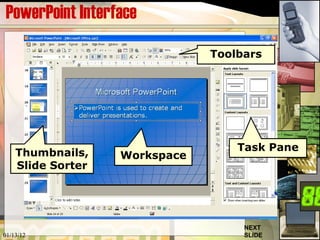
PowerPoint Interface 01/13/12 Workspace Task Pane Thumbnails, Slide Sorter Toolbars NEXT  SLIDE
First Presentation 01/13/12
The AutoContent Wizard  01/13/12 The AutoContent Wizard Dialog Box Creates a new presentation by prompting you for information about content, purpose, style, handouts and output. The new presentation contains sample text that you can replace with your own information.
Templates 01/13/12 You can also create a presentation using a pre-defined template. PowerPoint applies the color scheme and general layout of the template to each slide in the presentation.
AutoLayout Dialog Box 01/13/12
Auto Layout con’t… 01/13/12
The Presentation Window 01/13/12
Working with Slides 01/13/12 Normal View Slide show Slide Sorter View Displays miniature versions of all slides in a presentation, complete with text and graphics. In slide sorter view, you can reorder slides, add transitions, and animation effects. You can also set the timings for electronic slide shows.  Switches to normal view, where you can work on one slide at a time or organize the structure of all the slides in your presentation   Runs your slide show in a full screen, beginning with the current slide if you are in slide view or the selected slide if you are in slide sorter view
Outline view  01/13/12 Switches to outline view, where you can work with the structure of your file in outline form. Work in outline view when you need to organize the structure of your file.
Slide View 01/13/12 Switches to slide view, where you can work on one slide at a time
Notes Page 01/13/12 With the Notes Page View, you can type speaker notes that you can print and use during your presentation.
Changing your Presentation’s Look Adding and Formatting Text, Word art, Bullets 01/13/12 Word Art Text Box
Changing Color Schemes and Background 01/13/12
Changing the Color Scheme 01/13/12
Fill Effects- Gradient 01/13/12
Fill Effects- Texture 01/13/12
Fill Effects- Pattern 01/13/12
Adding Pictures Clip Art is a collection of images or pictures that you can place on a slide. 01/13/12 Insert Diagram or Organizational Chart Insert Clip Art  Insert Picture
01/13/12
Dressing Up Your Presentation 01/13/12
Dressing Up Your Presentation If you only want to apply the animation scheme to a few slides, click the Slides tab, and select the slides you want.  On the Slide Show menu, click Animation Schemes.  In the Slide Design task pane, under Apply to selected slides, click an animation scheme in the list.  If you want to apply the scheme to all slides, click the Apply to All Slides button.  01/13/12
Custom Animation In normal view, display the slide that has the text or objects you want to animate.  Select the object you want to animate.  On the Slide Show menu, click Custom Animation.  In the Custom Animation task pane, click  , and do one or more of the following:  If you want to make the text or object enter the slide show presentation with an effect, point to  Entrance and then click an effect.  If you want to add an effect to text or an object that is on the slide, point to  Emphasis and then click an effect.  If you want to add an effect to text or an object that makes it leave the slide at some point, point to  Exit and then click an effect.  01/13/12
01/13/12
Entrance Effect 01/13/12
Add Emphasis Effect 01/13/12
Add Exit Effect 01/13/12
Add Motion Path 01/13/12
Custom Animation 01/13/12
Slide Transitions Add transitions between slides Do one of the following: Add the same transition to all slides in a slide show presentation On the Slide Show menu, click Slide Transition.  In the list, click the transition effect you want.  Click Apply to All Slides.  Add different transitions between slides Repeat the following process for each slide you want to add a different transition to. On the Slides tab in normal view, select the slides you want to add a transition to.  On the Slide Show menu, click Slide Transition.  In the list, click the transition effect you want.  01/13/12
01/13/12
Set timings for a slide show  Repeat the following process for each slide you want to set the timing for. On the Slides tab in normal view, select the slides you want to set the timing for.  On the Slide Show menu, click Slide Transition.  Under Advance slide, select the Automatically after check box, and then enter the number of seconds you want the slide to appear on the screen.  01/13/12
Set Up Show 01/13/12
01/13/12 Rehearsal Dialog Box The Prompt to save your timing proposal
Viewing the Slide Show 4 ways: Click Slide Show at the lower left of the PowerPoint window On the Slide Show menu, click View show On the View menu, click slide show Press F5 on the keyboard. 01/13/12
Reference: MS PowerPoint 2003 ~the end~ 01/13/12

Microsoft PowerPoint

  • 1.
    Microsoft PowerPoint and Microsoft Excel Seminar on Learning Skills for Open and Distance Learners May 3, 2008, 1:00 PM- 5:00 PM DOUS Computer Laboratory Room 01/13/12
  • 2.
    Microsoft PowerPoint Introduction to Ms PowerPoint Creating a Presentation Different PowerPoint Views Working with Slides Slide Animation View Slideshow 01/13/12
  • 3.
    Microsoft PowerPoint PowerPointis used to create and deliver presentations. Desktop presentation program Electronically presentation Print presentation on over head transparencies or on paper for printed handouts 01/13/12 NEXT SLIDE
  • 4.
    PowerPoint Interface 01/13/12Workspace Task Pane Thumbnails, Slide Sorter Toolbars NEXT SLIDE
  • 5.
  • 6.
    The AutoContent Wizard 01/13/12 The AutoContent Wizard Dialog Box Creates a new presentation by prompting you for information about content, purpose, style, handouts and output. The new presentation contains sample text that you can replace with your own information.
  • 7.
    Templates 01/13/12 Youcan also create a presentation using a pre-defined template. PowerPoint applies the color scheme and general layout of the template to each slide in the presentation.
  • 8.
  • 9.
  • 10.
  • 11.
    Working with Slides01/13/12 Normal View Slide show Slide Sorter View Displays miniature versions of all slides in a presentation, complete with text and graphics. In slide sorter view, you can reorder slides, add transitions, and animation effects. You can also set the timings for electronic slide shows. Switches to normal view, where you can work on one slide at a time or organize the structure of all the slides in your presentation Runs your slide show in a full screen, beginning with the current slide if you are in slide view or the selected slide if you are in slide sorter view
  • 12.
    Outline view 01/13/12 Switches to outline view, where you can work with the structure of your file in outline form. Work in outline view when you need to organize the structure of your file.
  • 13.
    Slide View 01/13/12Switches to slide view, where you can work on one slide at a time
  • 14.
    Notes Page 01/13/12With the Notes Page View, you can type speaker notes that you can print and use during your presentation.
  • 15.
    Changing your Presentation’sLook Adding and Formatting Text, Word art, Bullets 01/13/12 Word Art Text Box
  • 16.
    Changing Color Schemesand Background 01/13/12
  • 17.
    Changing the ColorScheme 01/13/12
  • 18.
  • 19.
  • 20.
  • 21.
    Adding Pictures ClipArt is a collection of images or pictures that you can place on a slide. 01/13/12 Insert Diagram or Organizational Chart Insert Clip Art Insert Picture
  • 22.
  • 23.
    Dressing Up YourPresentation 01/13/12
  • 24.
    Dressing Up YourPresentation If you only want to apply the animation scheme to a few slides, click the Slides tab, and select the slides you want. On the Slide Show menu, click Animation Schemes. In the Slide Design task pane, under Apply to selected slides, click an animation scheme in the list. If you want to apply the scheme to all slides, click the Apply to All Slides button. 01/13/12
  • 25.
    Custom Animation Innormal view, display the slide that has the text or objects you want to animate. Select the object you want to animate. On the Slide Show menu, click Custom Animation. In the Custom Animation task pane, click , and do one or more of the following: If you want to make the text or object enter the slide show presentation with an effect, point to Entrance and then click an effect. If you want to add an effect to text or an object that is on the slide, point to Emphasis and then click an effect. If you want to add an effect to text or an object that makes it leave the slide at some point, point to Exit and then click an effect. 01/13/12
  • 26.
  • 27.
  • 28.
  • 29.
  • 30.
  • 31.
  • 32.
    Slide Transitions Addtransitions between slides Do one of the following: Add the same transition to all slides in a slide show presentation On the Slide Show menu, click Slide Transition. In the list, click the transition effect you want. Click Apply to All Slides. Add different transitions between slides Repeat the following process for each slide you want to add a different transition to. On the Slides tab in normal view, select the slides you want to add a transition to. On the Slide Show menu, click Slide Transition. In the list, click the transition effect you want. 01/13/12
  • 33.
  • 34.
    Set timings fora slide show Repeat the following process for each slide you want to set the timing for. On the Slides tab in normal view, select the slides you want to set the timing for. On the Slide Show menu, click Slide Transition. Under Advance slide, select the Automatically after check box, and then enter the number of seconds you want the slide to appear on the screen. 01/13/12
  • 35.
    Set Up Show01/13/12
  • 36.
    01/13/12 Rehearsal DialogBox The Prompt to save your timing proposal
  • 37.
    Viewing the SlideShow 4 ways: Click Slide Show at the lower left of the PowerPoint window On the Slide Show menu, click View show On the View menu, click slide show Press F5 on the keyboard. 01/13/12
  • 38.
    Reference: MS PowerPoint2003 ~the end~ 01/13/12