MICROSOFT
 WORD 2010
    Katherine Mitchell
Info & Education Instructor
  Muncie Public Library
is the word processing
program of the Microsoft Office
suite that allows you to create
   documents and reports.
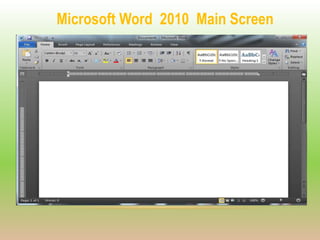
Microsoft Word 2010 Main Screen
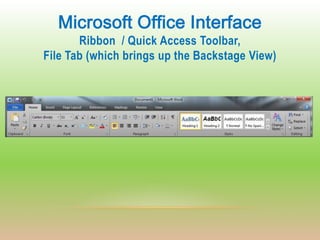
Microsoft Office Interface
       Ribbon / Quick Access Toolbar,
File Tab (which brings up the Backstage View)
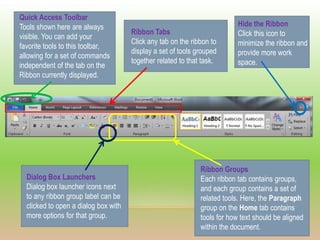
Quick Access Toolbar
Tools shown here are always                                                Hide the Ribbon
                                      Ribbon Tabs                          Click this icon to
visible. You can add your
                                      Click any tab on the ribbon to       minimize the ribbon and
favorite tools to this toolbar,
                                      display a set of tools grouped       provide more work
allowing for a set of commands
                                      together related to that task.       space.
independent of the tab on the
Ribbon currently displayed.


                                                              Ribbon Groups
  Dialog Box Launchers                                        Each ribbon tab contains groups,
  Dialog box launcher icons next                              and each group contains a set of
  to any ribbon group label can be                            related tools. Here, the Paragraph
  clicked to open a dialog box with                           group on the Home tab contains
  more options for that group.                                tools for how text should be aligned
                                                              within the document.
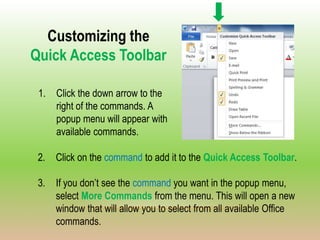
Customizing the
Quick Access Toolbar

 1.   Click the down arrow to the
      right of the commands. A
      popup menu will appear with
      available commands.

 2.   Click on the command to add it to the Quick Access Toolbar.

 3.   If you don’t see the command you want in the popup menu,
      select More Commands from the menu. This will open a new
      window that will allow you to select from all available Office
      commands.
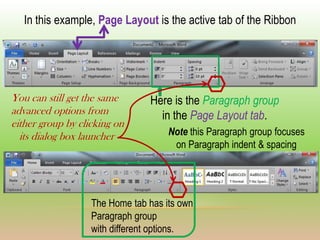
In this example, Page Layout is the active tab of the Ribbon


You can still get the same      Here is the Paragraph group
advanced options from             in the Page Layout tab.
either group by clicking on
  its dialog box launcher            Note this Paragraph group focuses
                                      on Paragraph indent & spacing


                   The Home tab has its own
                   Paragraph group
                   with different options.
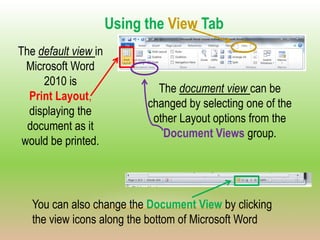
Using the View Tab
The default view in
  Microsoft Word
      2010 is
                              The document view can be
  Print Layout,
                            changed by selecting one of the
  displaying the
                             other Layout options from the
  document as it
                               Document Views group.
 would be printed.


   You can also change the Document View by clicking
   the view icons along the bottom of Microsoft Word
The Backstage View appears when clicking the File Tab on the Ribbon.
      This is a set of commands you use to do things to a document.
Save
(& Send)
Inspect
documents
for hidden
Metadata
    or
personal
information
Create
Help
Set Options
such as
turning on
or off Auto
Complete
suggestions
Creating A New Document
Click File
Click New
You can select
Blank Document
(this is selected
by default) and
then click


       You can also create a new document from a pre-existing template in
         one of the categories under the Office.com Templates section
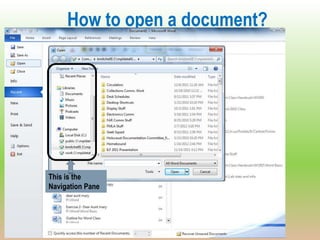
How to open a document?


This is the
Navigation Pane
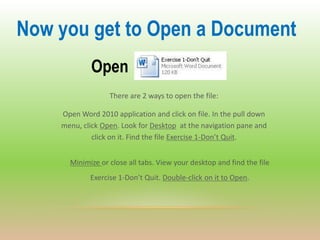
Now you get to Open a Document
             Open
                  There are 2 ways to open the file:

    Open Word 2010 application and click on file. In the pull down
    menu, click Open. Look for Desktop at the navigation pane and
             click on it. Find the file Exercise 1-Don’t Quit.


      Minimize or close all tabs. View your desktop and find the file
            Exercise 1-Don’t Quit. Double-click on it to Open.
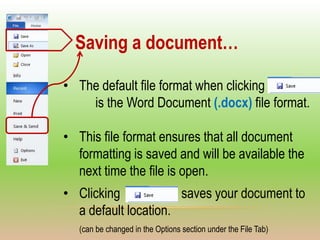
Saving a document…

• The default file format when clicking
    is the Word Document (.docx) file format.

• This file format ensures that all document
  formatting is saved and will be available the
  next time the file is open.
• Clicking            saves your document to
  a default location.
   (can be changed in the Options section under the File Tab)
If the file needs to be
       shared with a
  computer with Word
2003 or earlier (.doc),
or you need a different
   file type than .doc,
      Use

        Change
     Save as type
to the type you need.
Here is a way to save directly to a
    PDF (portable document format) file:


To save a Word document as a PDF, click the File tab, and then
click Save & Send. Click on Create PDF/XPS Document and
then click Create PDF/XPS (XPS is from Microsoft / PDF is from Adobe)
       XPS stands for XML Paper Specification – fixed layout document format
    designed to preserve document fidelity, providing device-independent document
         appearance. Users can put their digital signature on XPS documents.
           http://www.journalofaccountancy.com/Issues/2011/Apr/XPS.htm
Home Tab - Styling your Document


            Font Formatting – change Font Style,Size,Color
Cut / Paste Text
Highlight the text you wish to move, click
Move your cursor to the desired location
Click                    Copy / Paste Text
                         Highlight the text you wish to copy, click
                         Move your cursor to the desired location
                         Click
Here is
how you
stop the

button
from
coming up
after you
paste
something
if you don’t
like it
Paragraph Formatting From the Home Tab
    Bullets and           Indentations, Sorting, &
   numbered lists           Display Format Symbols


   Alignment
                        Line spacing, Shading, & Borders


 For additional paragraph formatting options, click the
             Paragraph Dialog Box icon.
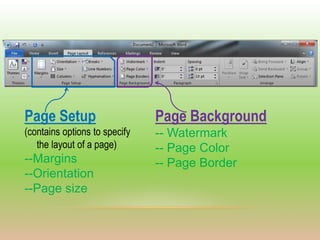
Page Setup                     Page Background
(contains options to specify   -- Watermark
   the layout of a page)       -- Page Color
--Margins                      -- Page Border
--Orientation
--Page size
PRINT YOUR DOCUMENT
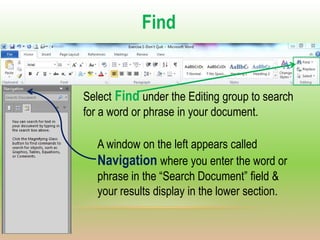
Find


Select Find under the Editing group to search
for a word or phrase in your document.

   A window on the left appears called
   Navigation where you enter the word or
   phrase in the “Search Document” field &
   your results display in the lower section.
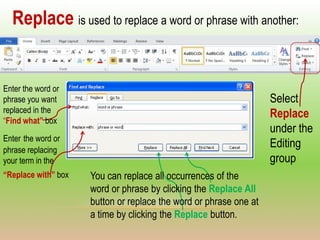
Replace is used to replace a word or phrase with another:


Enter the word or
phrase you want                                                    Select
replaced in the                                                    Replace
“Find what” box
                                                                   under the
Enter the word or
phrase replacing
                                                                   Editing
your term in the                                                   group
“Replace with” box   You can replace all occurrences of the
                     word or phrase by clicking the Replace All
                     button or replace the word or phrase one at
                     a time by clicking the Replace button.
Review Tab


This tab is used to review your document, including proofing the
document, adding comments, tracking changes, and comparing
a document against a previous version.
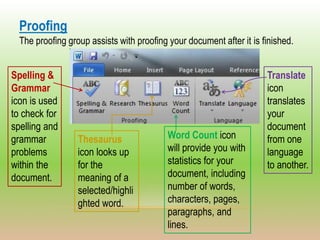
Proofing
  The proofing group assists with proofing your document after it is finished.


Spelling &                                                            Translate
Grammar                                                               icon
icon is used                                                          translates
to check for                                                          your
spelling and                                                          document
grammar           Thesaurus                Word Count icon            from one
problems          icon looks up            will provide you with      language
within the        for the                  statistics for your        to another.
document.         meaning of a             document, including
                  selected/highli          number of words,
                  ghted word.              characters, pages,
                                           paragraphs, and
                                           lines.
Insert Tab
        Used to insert various types of objects


P   T        I   Pictures     L   H   &   T       S
A   A        L   Clip Art     I   E   F   E       Y
G   B        L   Screenshot   N   A   O   X       M
E   L        U   Shapes       K   D   O   T       B
S   E        S                S   E   T           O
    S        T                    R   E           L
             R                    S   R           S
             A                        S
             T
             I
             O
             N
             S

Microsoft Word 2010 Beginning Class

  • 1.
    MICROSOFT WORD 2010 Katherine Mitchell Info & Education Instructor Muncie Public Library
  • 2.
    is the wordprocessing program of the Microsoft Office suite that allows you to create documents and reports.
  • 3.
  • 4.
    Microsoft Office Interface Ribbon / Quick Access Toolbar, File Tab (which brings up the Backstage View)
  • 5.
    Quick Access Toolbar Toolsshown here are always Hide the Ribbon Ribbon Tabs Click this icon to visible. You can add your Click any tab on the ribbon to minimize the ribbon and favorite tools to this toolbar, display a set of tools grouped provide more work allowing for a set of commands together related to that task. space. independent of the tab on the Ribbon currently displayed. Ribbon Groups Dialog Box Launchers Each ribbon tab contains groups, Dialog box launcher icons next and each group contains a set of to any ribbon group label can be related tools. Here, the Paragraph clicked to open a dialog box with group on the Home tab contains more options for that group. tools for how text should be aligned within the document.
  • 6.
    Customizing the Quick AccessToolbar 1. Click the down arrow to the right of the commands. A popup menu will appear with available commands. 2. Click on the command to add it to the Quick Access Toolbar. 3. If you don’t see the command you want in the popup menu, select More Commands from the menu. This will open a new window that will allow you to select from all available Office commands.
  • 7.
    In this example,Page Layout is the active tab of the Ribbon You can still get the same Here is the Paragraph group advanced options from in the Page Layout tab. either group by clicking on its dialog box launcher Note this Paragraph group focuses on Paragraph indent & spacing The Home tab has its own Paragraph group with different options.
  • 8.
    Using the ViewTab The default view in Microsoft Word 2010 is The document view can be Print Layout, changed by selecting one of the displaying the other Layout options from the document as it Document Views group. would be printed. You can also change the Document View by clicking the view icons along the bottom of Microsoft Word
  • 9.
    The Backstage Viewappears when clicking the File Tab on the Ribbon. This is a set of commands you use to do things to a document. Save (& Send) Inspect documents for hidden Metadata or personal information Create Help Set Options such as turning on or off Auto Complete suggestions
  • 10.
    Creating A NewDocument Click File Click New You can select Blank Document (this is selected by default) and then click You can also create a new document from a pre-existing template in one of the categories under the Office.com Templates section
  • 11.
    How to opena document? This is the Navigation Pane
  • 12.
    Now you getto Open a Document Open There are 2 ways to open the file: Open Word 2010 application and click on file. In the pull down menu, click Open. Look for Desktop at the navigation pane and click on it. Find the file Exercise 1-Don’t Quit. Minimize or close all tabs. View your desktop and find the file Exercise 1-Don’t Quit. Double-click on it to Open.
  • 13.
    Saving a document… •The default file format when clicking is the Word Document (.docx) file format. • This file format ensures that all document formatting is saved and will be available the next time the file is open. • Clicking saves your document to a default location. (can be changed in the Options section under the File Tab)
  • 14.
    If the fileneeds to be shared with a computer with Word 2003 or earlier (.doc), or you need a different file type than .doc, Use Change Save as type to the type you need.
  • 15.
    Here is away to save directly to a PDF (portable document format) file: To save a Word document as a PDF, click the File tab, and then click Save & Send. Click on Create PDF/XPS Document and then click Create PDF/XPS (XPS is from Microsoft / PDF is from Adobe) XPS stands for XML Paper Specification – fixed layout document format designed to preserve document fidelity, providing device-independent document appearance. Users can put their digital signature on XPS documents. http://www.journalofaccountancy.com/Issues/2011/Apr/XPS.htm
  • 16.
    Home Tab -Styling your Document Font Formatting – change Font Style,Size,Color Cut / Paste Text Highlight the text you wish to move, click Move your cursor to the desired location Click Copy / Paste Text Highlight the text you wish to copy, click Move your cursor to the desired location Click
  • 17.
    Here is how you stopthe button from coming up after you paste something if you don’t like it
  • 18.
    Paragraph Formatting Fromthe Home Tab Bullets and Indentations, Sorting, & numbered lists Display Format Symbols Alignment Line spacing, Shading, & Borders For additional paragraph formatting options, click the Paragraph Dialog Box icon.
  • 19.
    Page Setup Page Background (contains options to specify -- Watermark the layout of a page) -- Page Color --Margins -- Page Border --Orientation --Page size
  • 20.
  • 21.
    Find Select Find underthe Editing group to search for a word or phrase in your document. A window on the left appears called Navigation where you enter the word or phrase in the “Search Document” field & your results display in the lower section.
  • 22.
    Replace is usedto replace a word or phrase with another: Enter the word or phrase you want Select replaced in the Replace “Find what” box under the Enter the word or phrase replacing Editing your term in the group “Replace with” box You can replace all occurrences of the word or phrase by clicking the Replace All button or replace the word or phrase one at a time by clicking the Replace button.
  • 23.
    Review Tab This tabis used to review your document, including proofing the document, adding comments, tracking changes, and comparing a document against a previous version.
  • 24.
    Proofing Theproofing group assists with proofing your document after it is finished. Spelling & Translate Grammar icon icon is used translates to check for your spelling and document grammar Thesaurus Word Count icon from one problems icon looks up will provide you with language within the for the statistics for your to another. document. meaning of a document, including selected/highli number of words, ghted word. characters, pages, paragraphs, and lines.
  • 25.
    Insert Tab Used to insert various types of objects P T I Pictures L H & T S A A L Clip Art I E F E Y G B L Screenshot N A O X M E L U Shapes K D O T B S E S S E T O S T R E L R S R S A S T I O N S