Introduction to Visual Basic
Definition – Visual Basic
Visual Basic is an ideal programming language for
developing sophisticated professional applications
for Microsoft windows
It makes use of GUI(Graphical User Interface) for
creating robust powerful applications
INTRODUCTION
Developed from programming language “BASIC”
– in 1970’s
In 1982, Microsoft QuickBasic revolutionized
BASIC and later on, Microsoft Corporation created
the enhanced version of BASIC called Visual
Basic for Windows.
Features of Visual Basic
Easier comprehension
User Friendliness
Faster Application Development
And Also:
Introduction to ActiveX Technology
Internet Features.
VB 6.0 Installation Environment
MS Windows 95 / Windows NT 3.51 ,
486 processor and a minimum of 16 MB of RAM ,
More than 250MB of Hard Disk Space
VB 6.0 Programming Environment
Steps in initiating VB
Start Programs Microsoft Visual Basic
6.0 Visual Basic 6.0
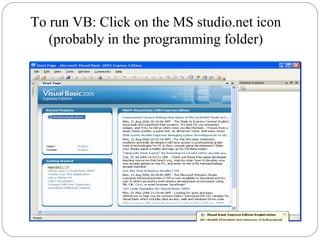
To run VB: Click on the MS studio.net icon
(probably in the programming folder)
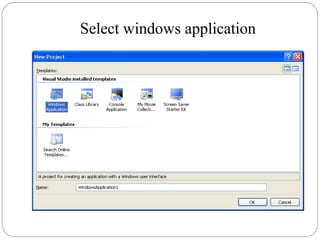
Select windows application
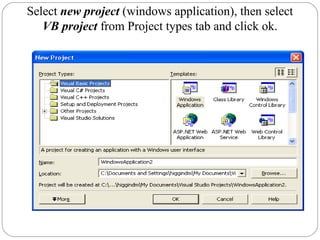
Select new project (windows application), then select
VB project from Project types tab and click ok.
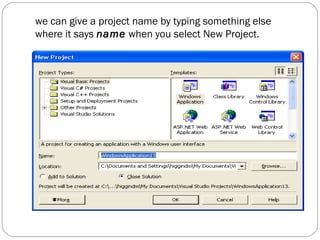
we can give a project name by typing something else
where it says name when you select New Project.
IDE [INTEGRATED DEVELOPMENT
ENVIRONMENT]
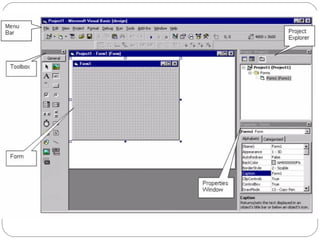
Menu Bar
Toolbars
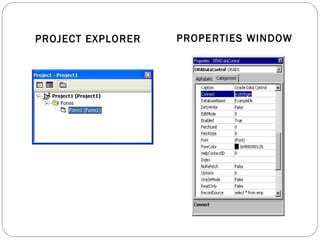
Project Explorer
Toolbox
Properties Window
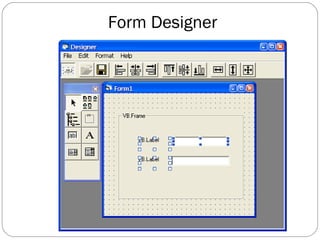
Form Designer
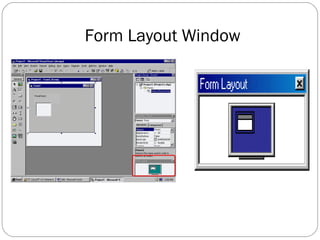
Form Layout window
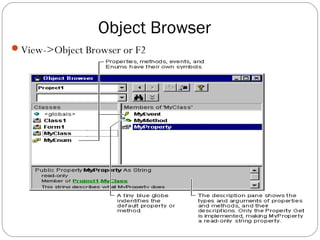
Object Browser
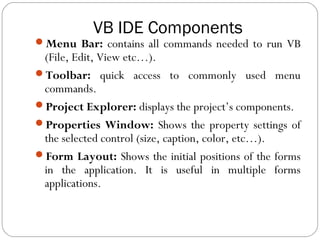
VB IDE COMPONENTS
menu
bar
Toolbar
Project
Explorer
Properties
window
Form
layout
Toolbox
Immediate
window
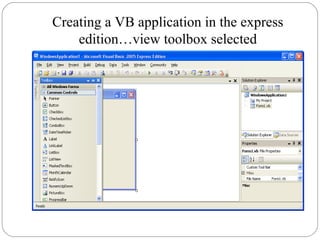
Creating a VB application in the express
edition…view toolbox selected
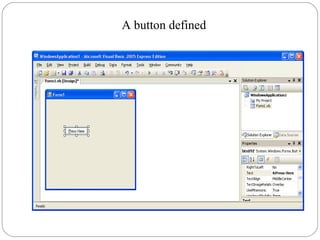
A button defined
Selecting new VB project (as per above) will open the
form design interface
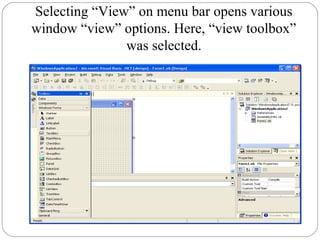
Selecting “View” on menu bar opens various
window “view” options. Here, “view toolbox”
was selected.
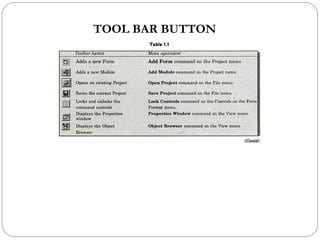
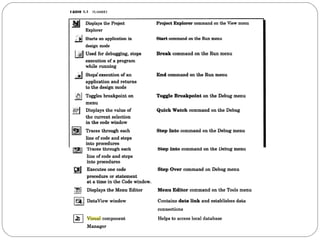
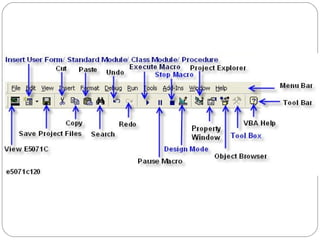
TOOL BAR BUTTON
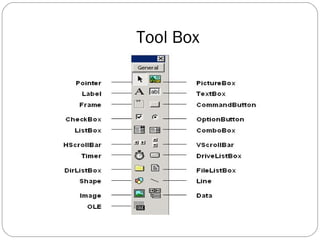
Tool Box
PROJECT EXPLORER PROPERTIES WINDOW
Form Layout Window
Form Designer
Object Browser
View->Object Browser or F2
VB IDE Components
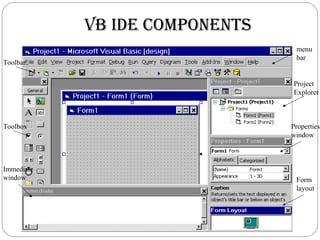
Menu Bar: contains all commands needed to run VB
(File, Edit, View etc…).
Toolbar: quick access to commonly used menu
commands.
Project Explorer: displays the project’s components.
Properties Window: Shows the property settings of
the selected control (size, caption, color, etc…).
Form Layout: Shows the initial positions of the forms
in the application. It is useful in multiple forms
applications.
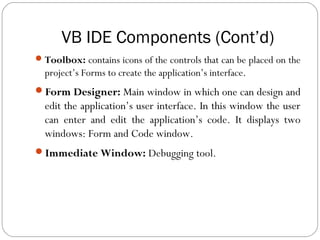
VB IDE Components (Cont’d)
Toolbox: contains icons of the controls that can be placed on the
project’s Forms to create the application’s interface.
Form Designer: Main window in which one can design and
edit the application’s user interface. In this window the user
can enter and edit the application’s code. It displays two
windows: Form and Code window.
Immediate Window: Debugging tool.

Vb unit t 1.1