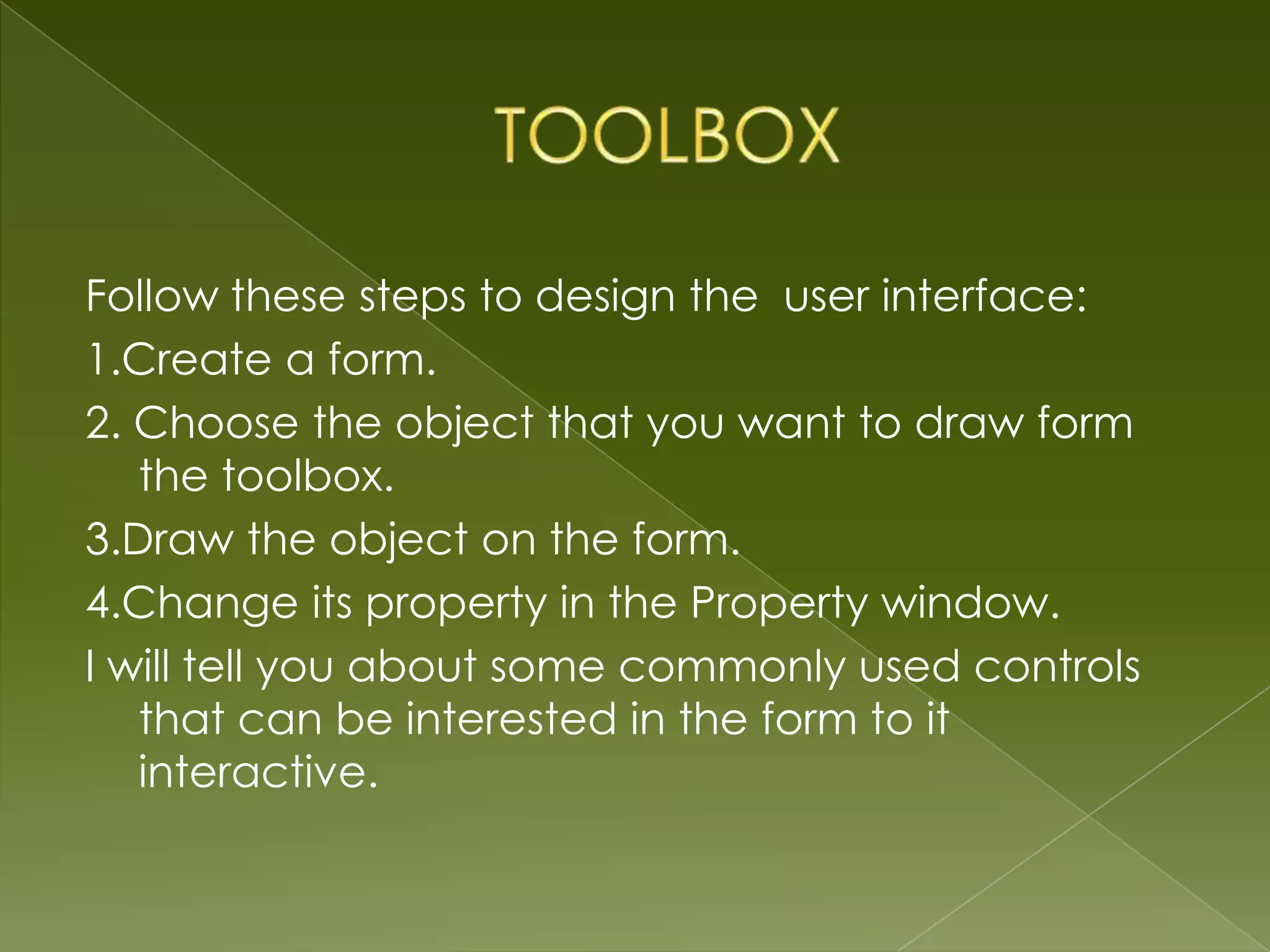
Follow these steps to design the user interface:
1.Create a form.
2. Choose the object that you want to draw form
   the toolbox.
3.Draw the object on the form.
4.Change its property in the Property window.
I will tell you about some commonly used controls
   that can be interested in the form to it
   interactive.
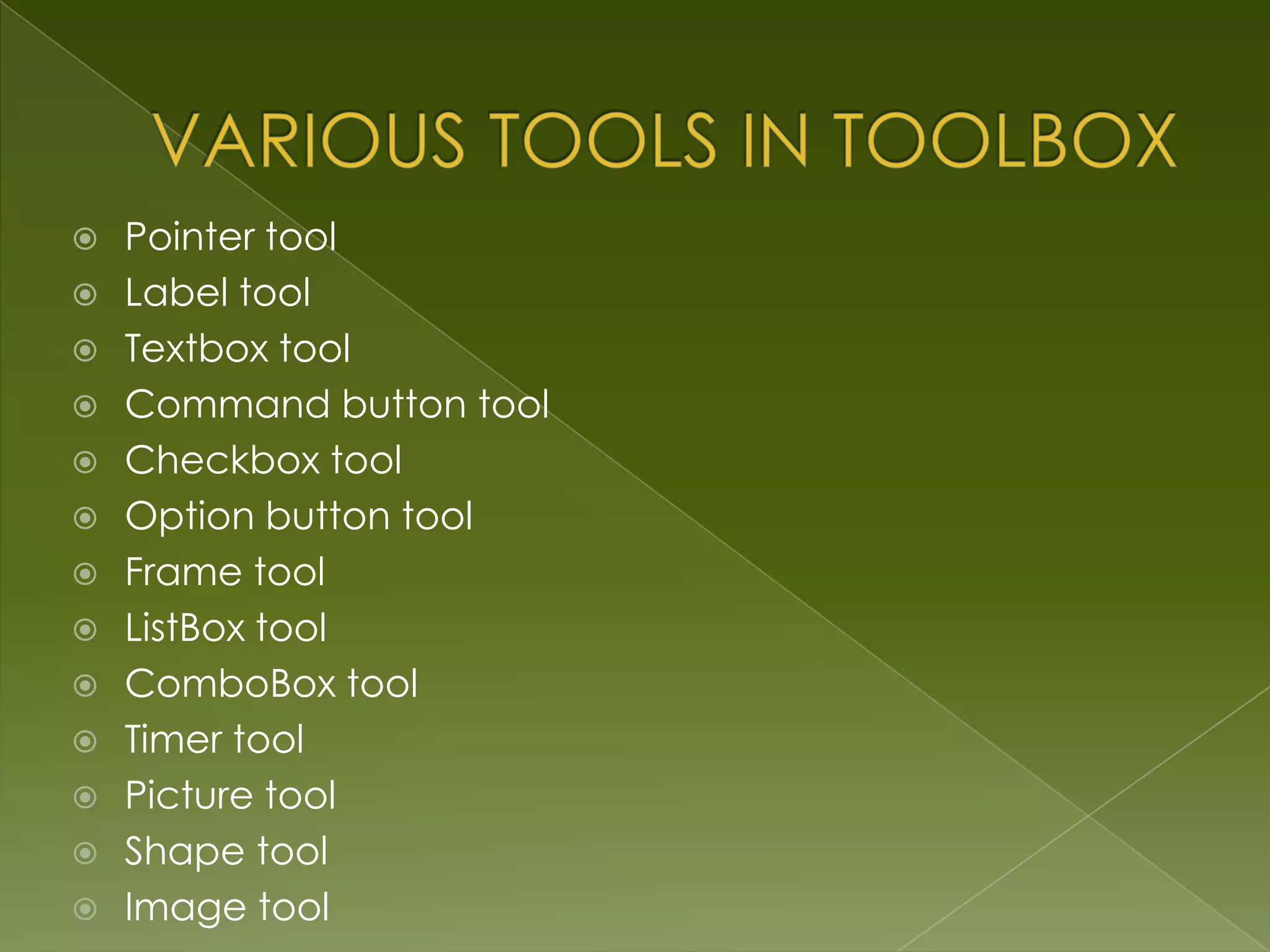
   Pointer tool
   Label tool
   Textbox tool
   Command button tool
   Checkbox tool
   Option button tool
   Frame tool
   ListBox tool
   ComboBox tool
   Timer tool
   Picture tool
   Shape tool
   Image tool
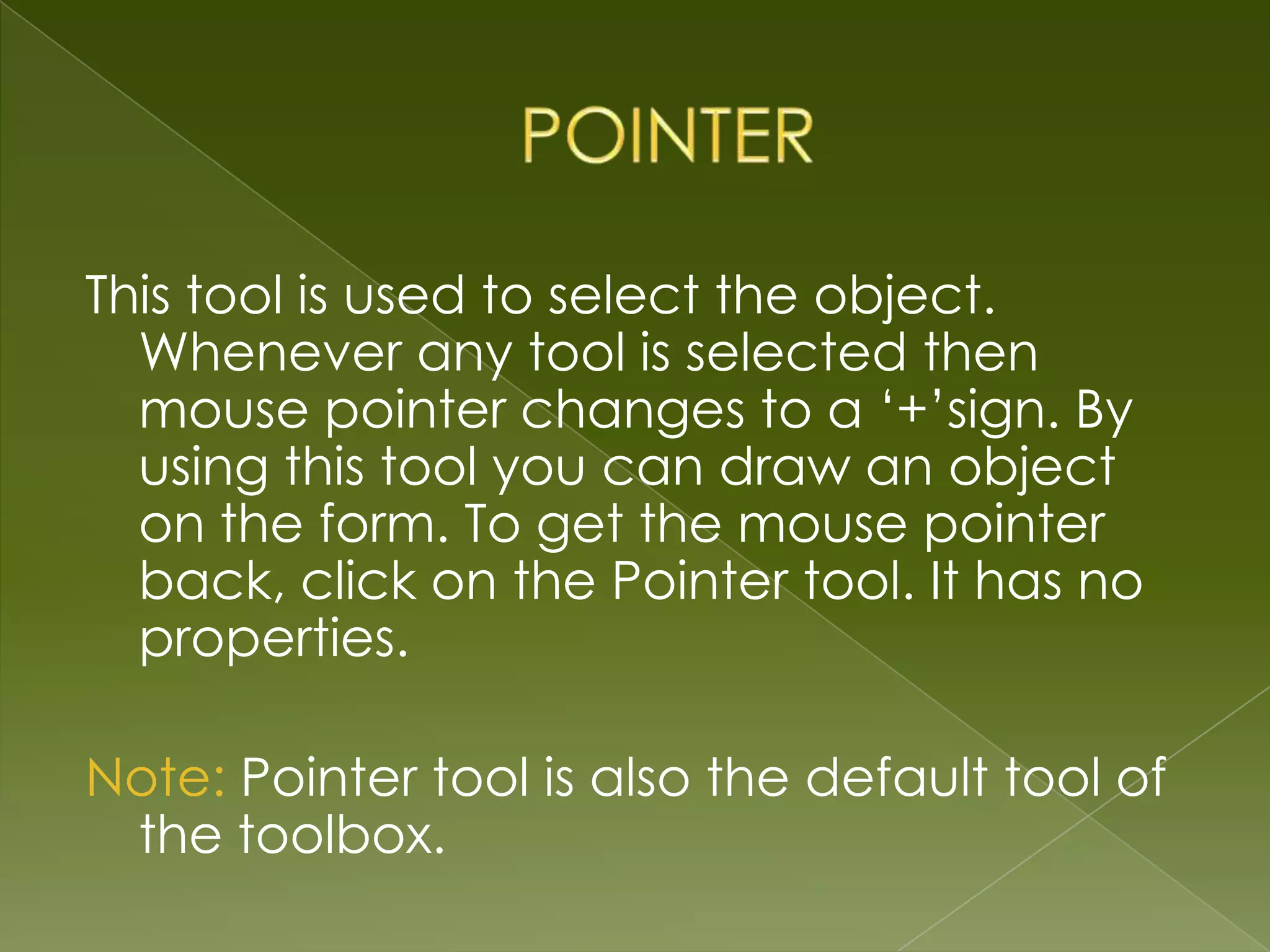
This tool is used to select the object.
  Whenever any tool is selected then
  mouse pointer changes to a ‘+’sign. By
  using this tool you can draw an object
  on the form. To get the mouse pointer
  back, click on the Pointer tool. It has no
  properties.

Note: Pointer tool is also the default tool of
 the toolbox.
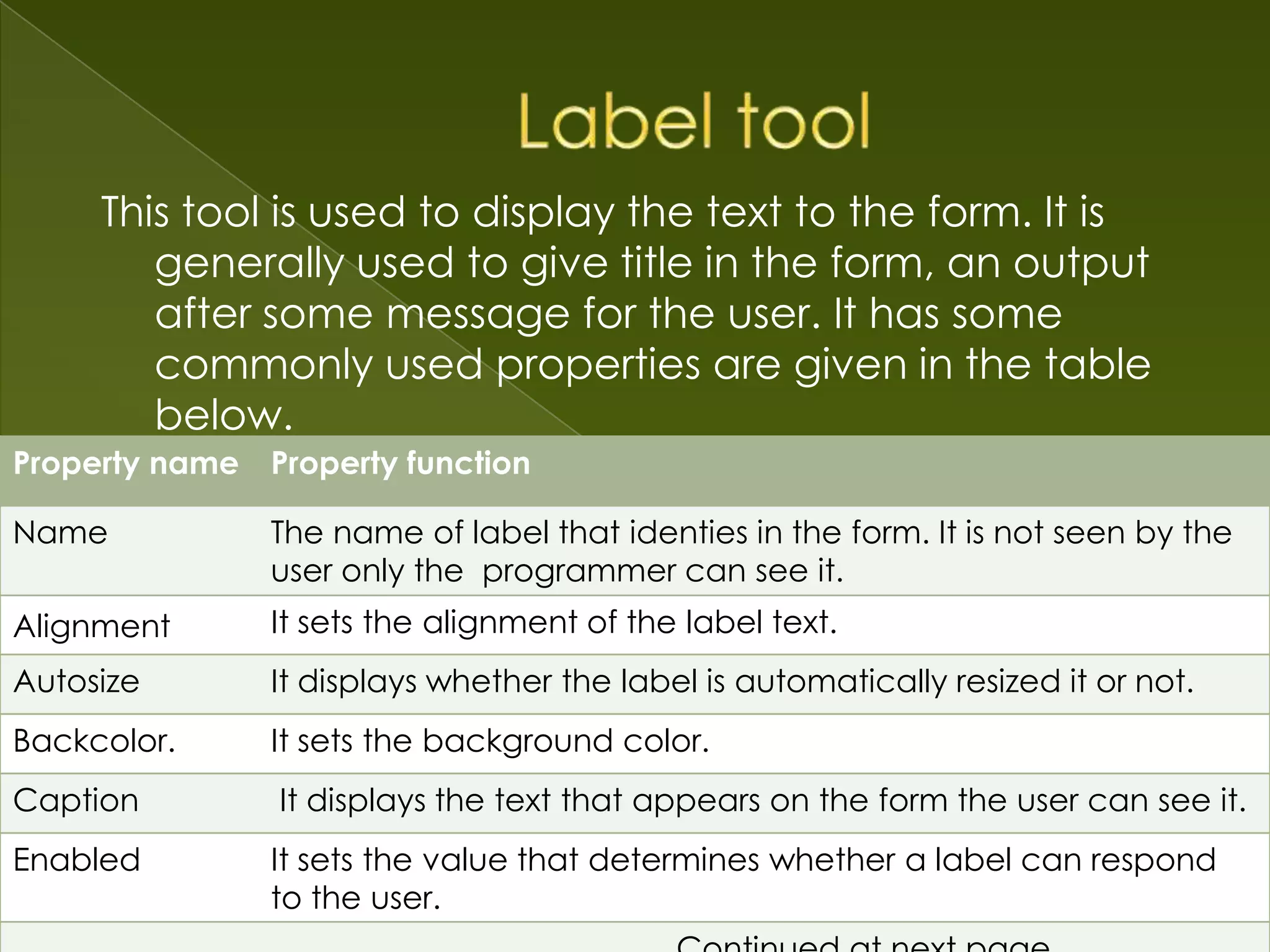
This tool is used to display the text to the form. It is
        generally used to give title in the form, an output
        after some message for the user. It has some
        commonly used properties are given in the table
        below.
Property name Property function

Name           The name of label that identies in the form. It is not seen by the
               user only the programmer can see it.
Alignment      It sets the alignment of the label text.
Autosize       It displays whether the label is automatically resized it or not.
Backcolor.     It sets the background color.
Caption        It displays the text that appears on the form the user can see it.
Enabled        It sets the value that determines whether a label can respond
               to the user.
Font        The user can apply font setting to
            the text.

Forecolor   It sets the forecolor of the object
            in a label.

ToolTip Text The text will be seen when mouse
             is moved

Visible     It sets the value that determines
            whether the label in visible or
            hidden during run time.
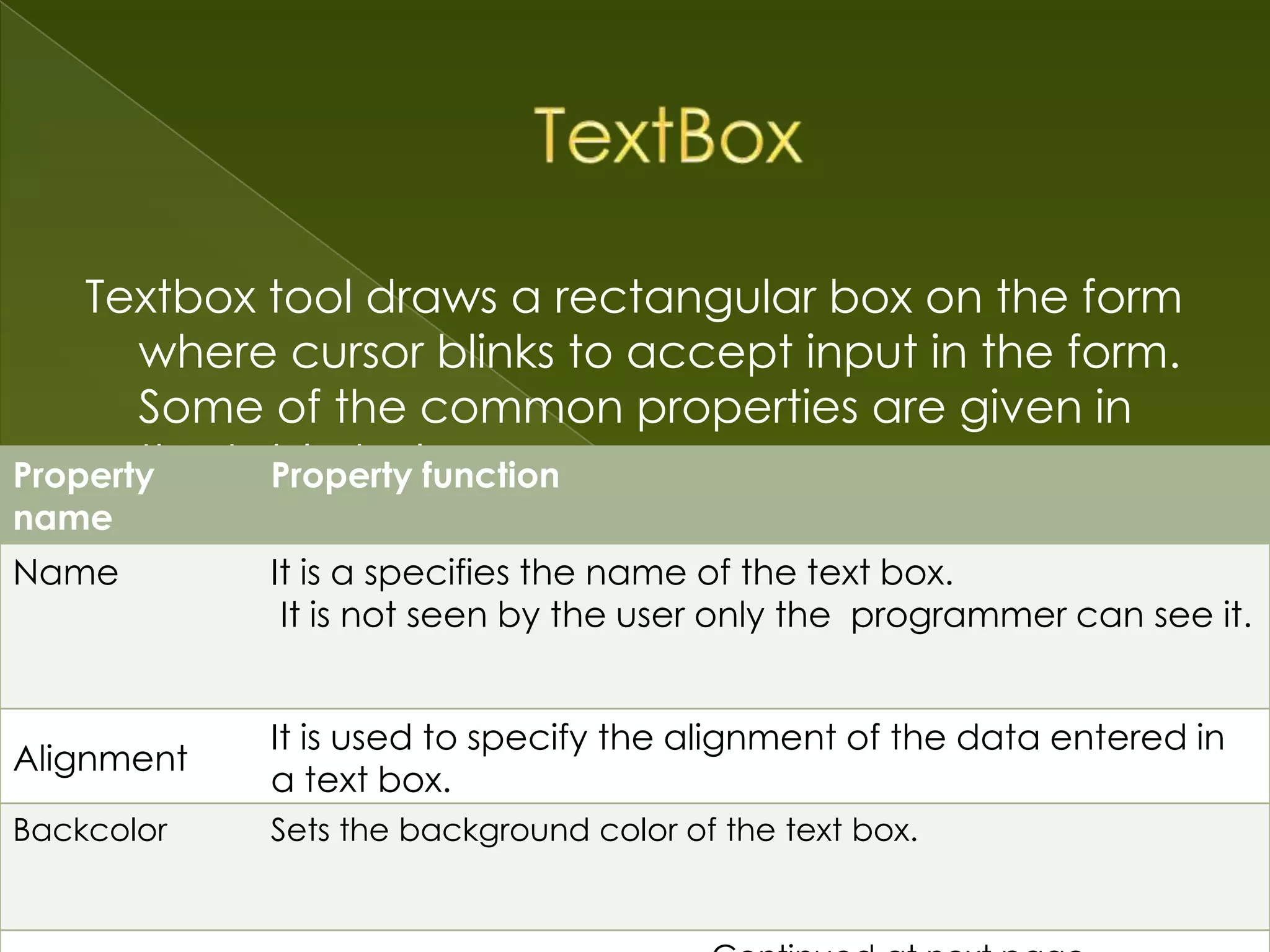
Textbox tool draws a rectangular box on the form
       where cursor blinks to accept input in the form.
       Some of the common properties are given in
       the table below.
Property     Property function
name
Name        It is a specifies the name of the text box.
             It is not seen by the user only the programmer can see it.


            It is used to specify the alignment of the data entered in
Alignment
            a text box.
Backcolor
Backcolor   Sets the background color of the text box.
            Sets the background color .
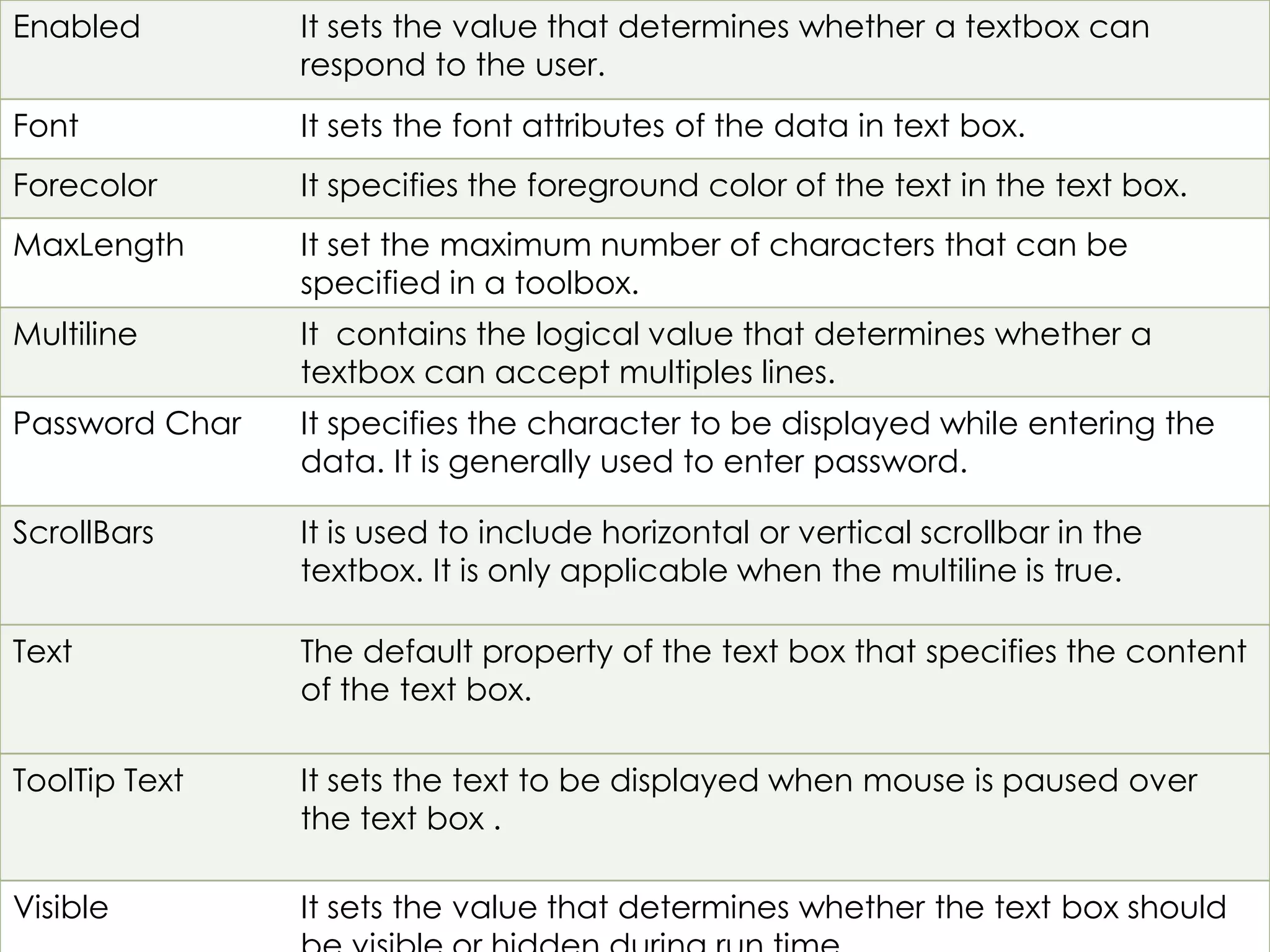
Enabled         It sets the value that determines whether a textbox can
                respond to the user.
Font            It sets the font attributes of the data in text box.
Forecolor       It specifies the foreground color of the text in the text box.
MaxLength       It set the maximum number of characters that can be
                specified in a toolbox.
Multiline       It contains the logical value that determines whether a
                textbox can accept multiples lines.
Password Char   It specifies the character to be displayed while entering the
                data. It is generally used to enter password.

ScrollBars      It is used to include horizontal or vertical scrollbar in the
                textbox. It is only applicable when the multiline is true.

Text            The default property of the text box that specifies the content
                of the text box.

ToolTip Text    It sets the text to be displayed when mouse is paused over
                the text box .

Visible         It sets the value that determines whether the text box should
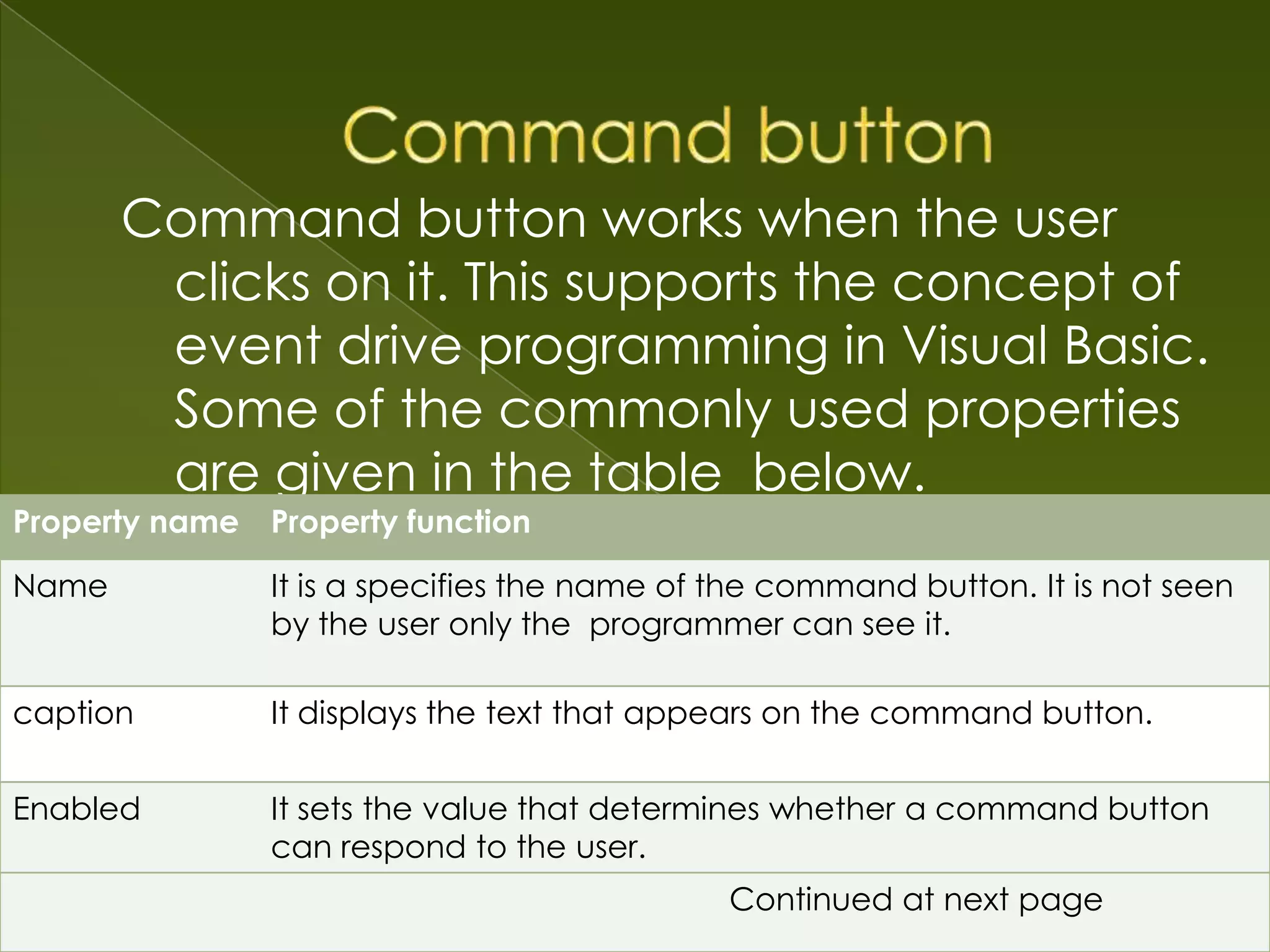
Command button works when the user
        clicks on it. This supports the concept of
        event drive programming in Visual Basic.
        Some of the commonly used properties
        are given in the table below.
Property name Property function

Name           It is a specifies the name of the command button. It is not seen
               by the user only the programmer can see it.

caption        It displays the text that appears on the command button.


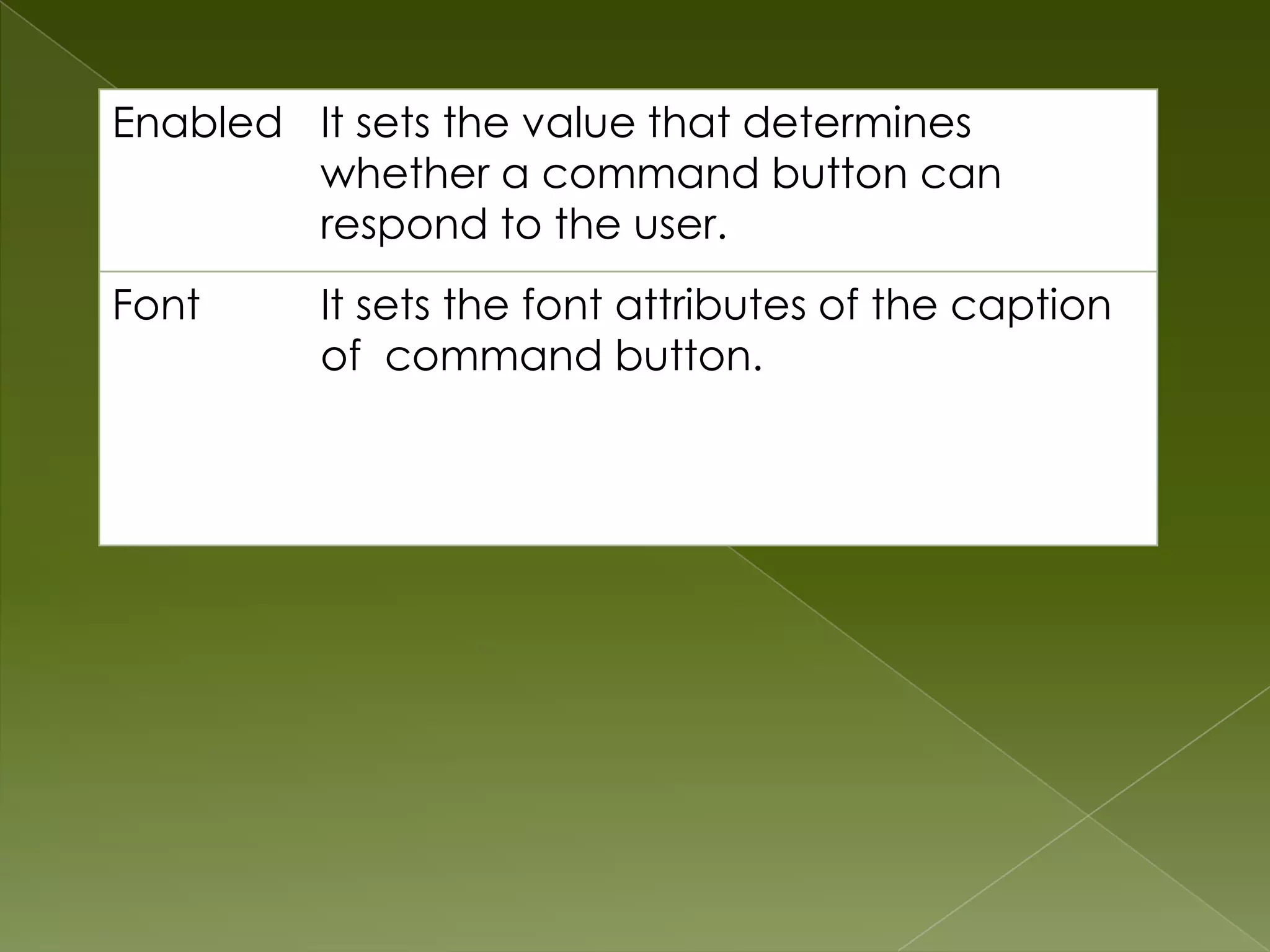
Enabled        It sets the value that determines whether a command button
               can respond to the user.
Font           It sets the font attributes of theContinued at next page
                                                  caption of command button.
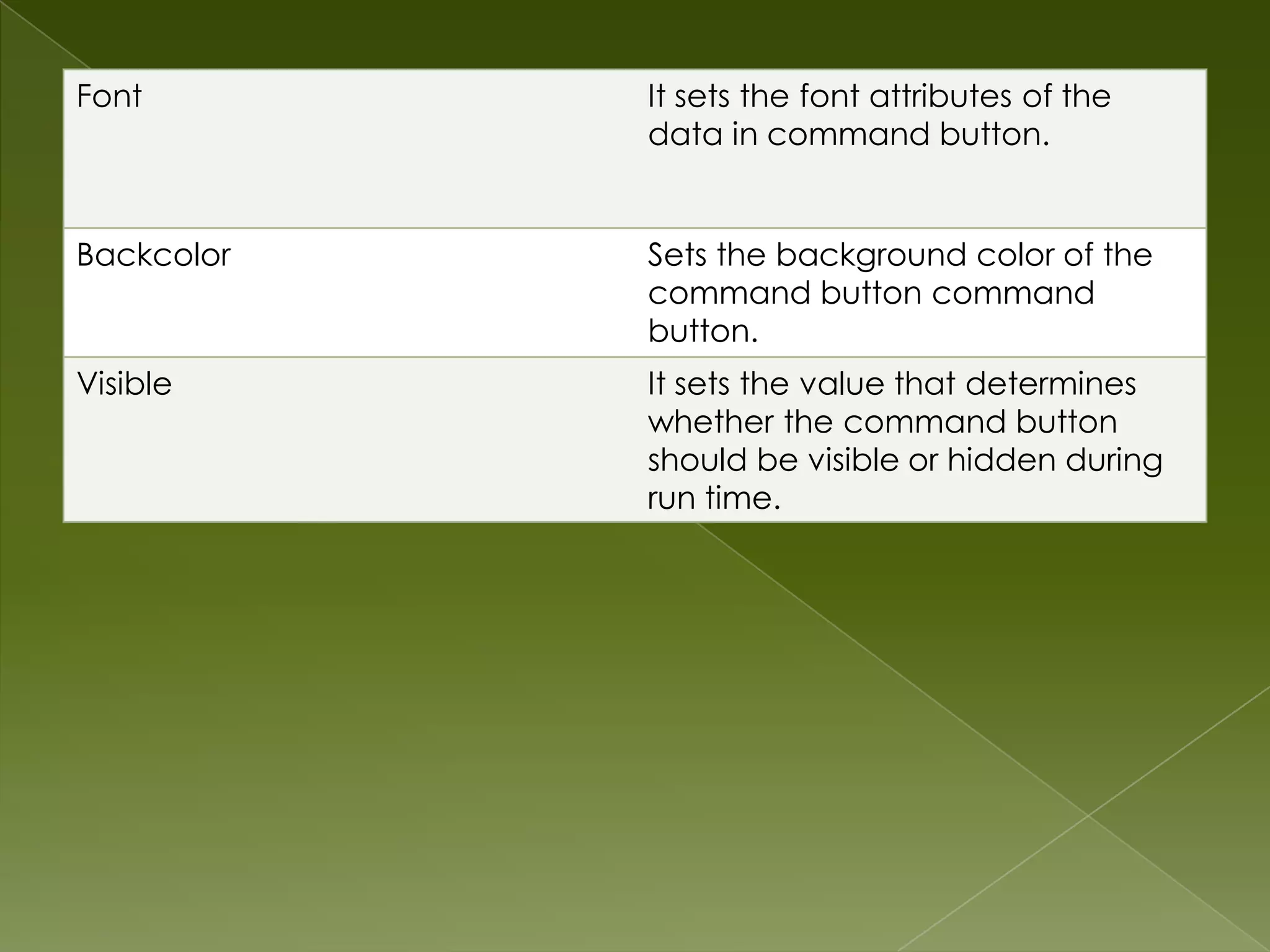
Font        It sets the font attributes of the
            data in command button.


Backcolor   Sets the background color of the
            command button command
            button.
Visible     It sets the value that determines
            whether the command button
            should be visible or hidden during
            run time.
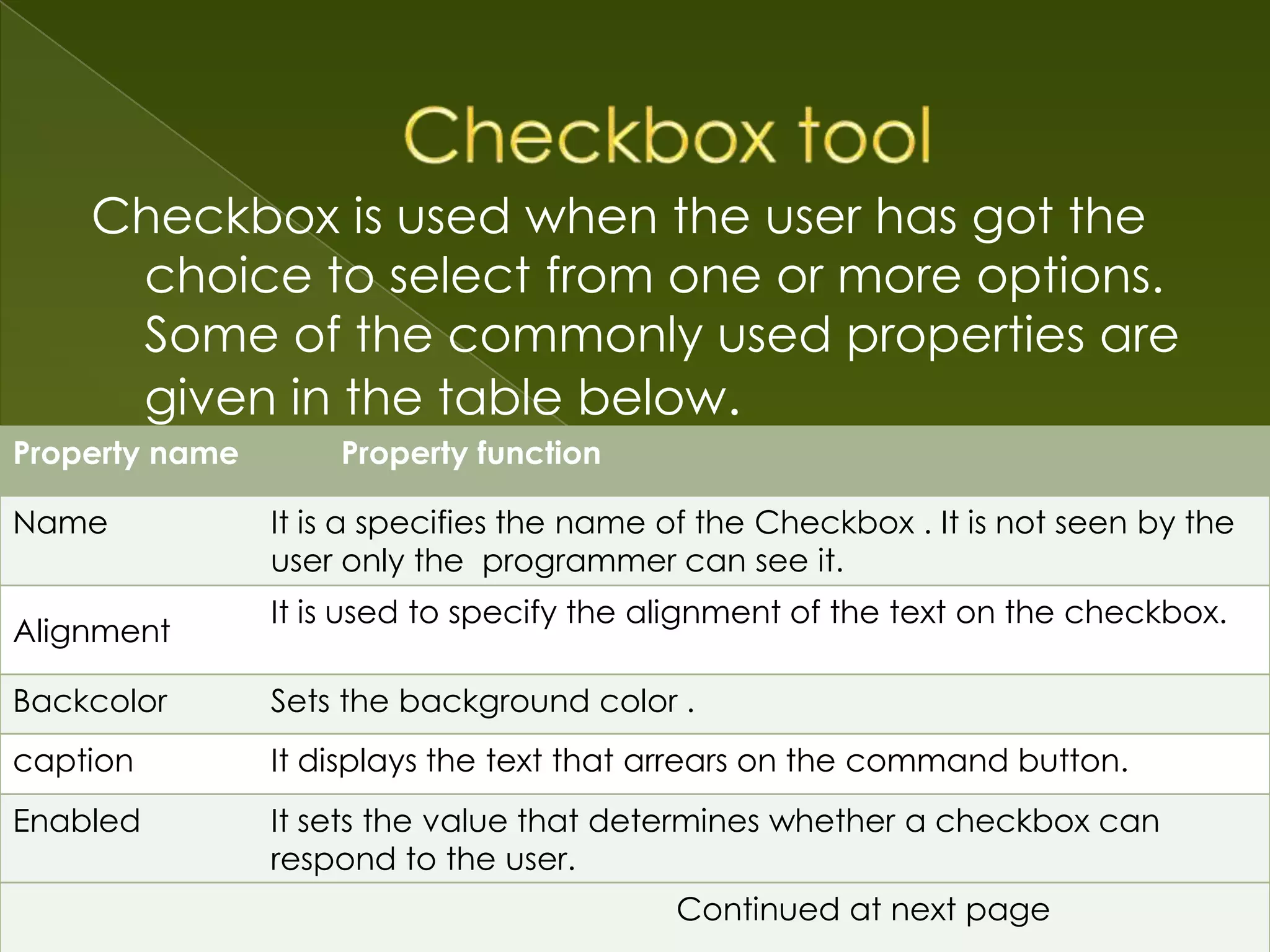
Checkbox is used when the user has got the
     choice to select from one or more options.
     Some of the commonly used properties are
     given in the table below.
Property name       Property function

Name            It is a specifies the name of the Checkbox . It is not seen by the
                user only the programmer can see it.
                It is used to specify the alignment of the text on the checkbox.
Alignment

Backcolor       Sets the background color .
caption         It displays the text that arrears on the command button.
Enabled         It sets the value that determines whether a checkbox can
                respond to the user.
                                           Continued at next page
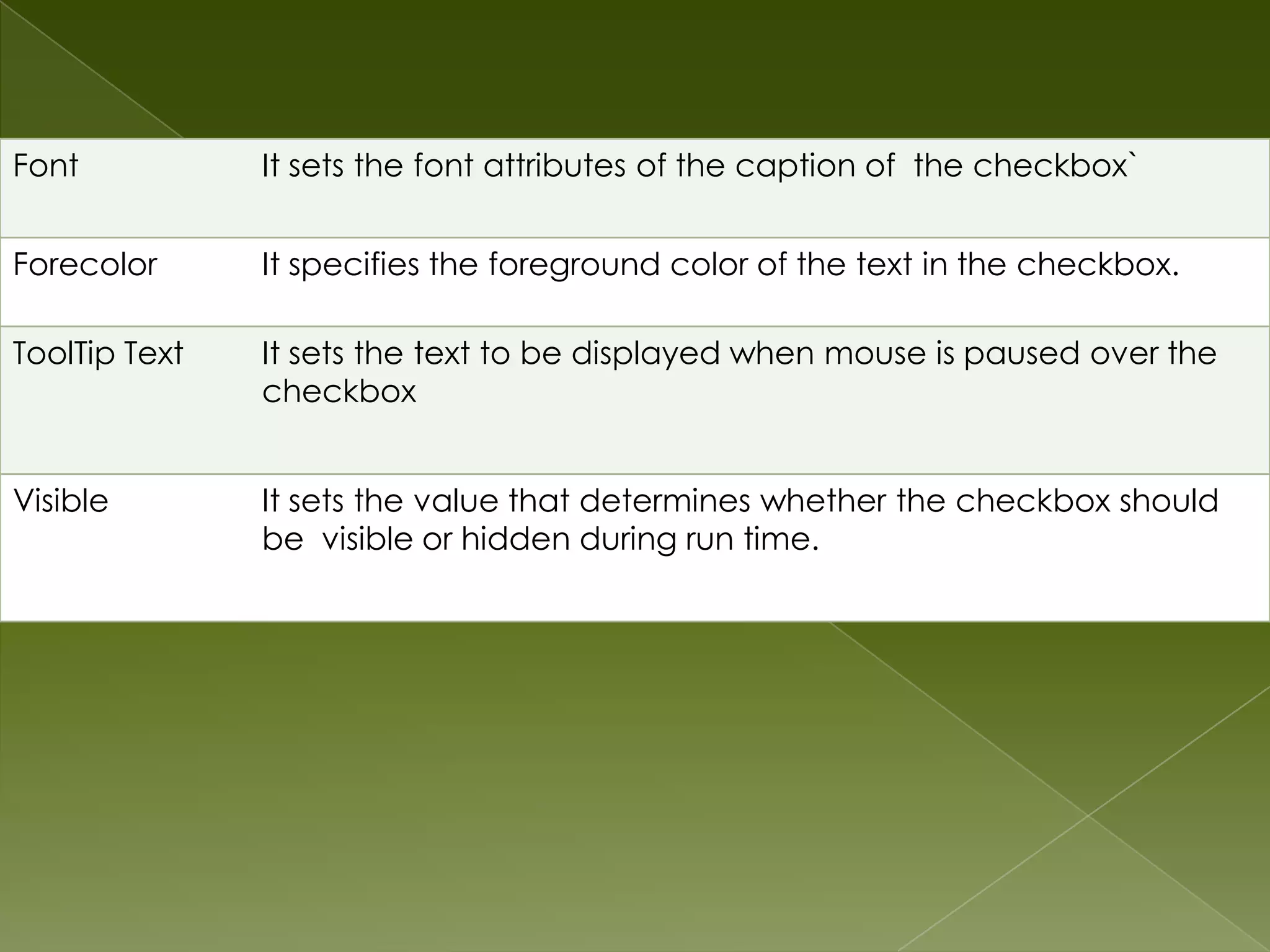
Font           It sets the font attributes of the caption of the checkbox`


Forecolor      It specifies the foreground color of the text in the checkbox.

ToolTip Text   It sets the text to be displayed when mouse is paused over the
               checkbox


Visible        It sets the value that determines whether the checkbox should
               be visible or hidden during run time.
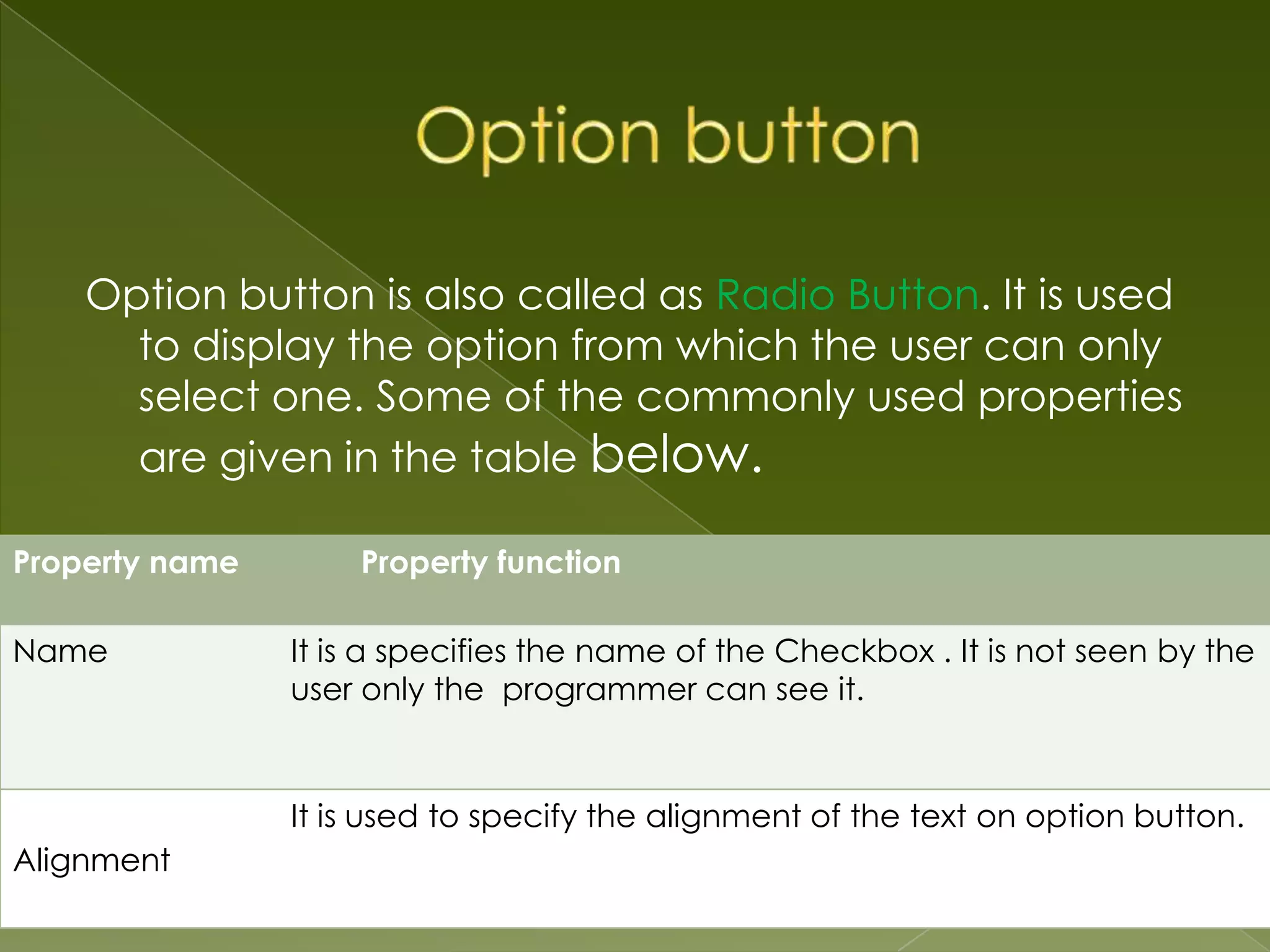
Option button is also called as Radio Button. It is used
      to display the option from which the user can only
      select one. Some of the commonly used properties
      are given in the table below.

Property name       Property function

Name            It is a specifies the name of the Checkbox . It is not seen by the
                user only the programmer can see it.


                It is used to specify the alignment of the text on option button.
Alignment
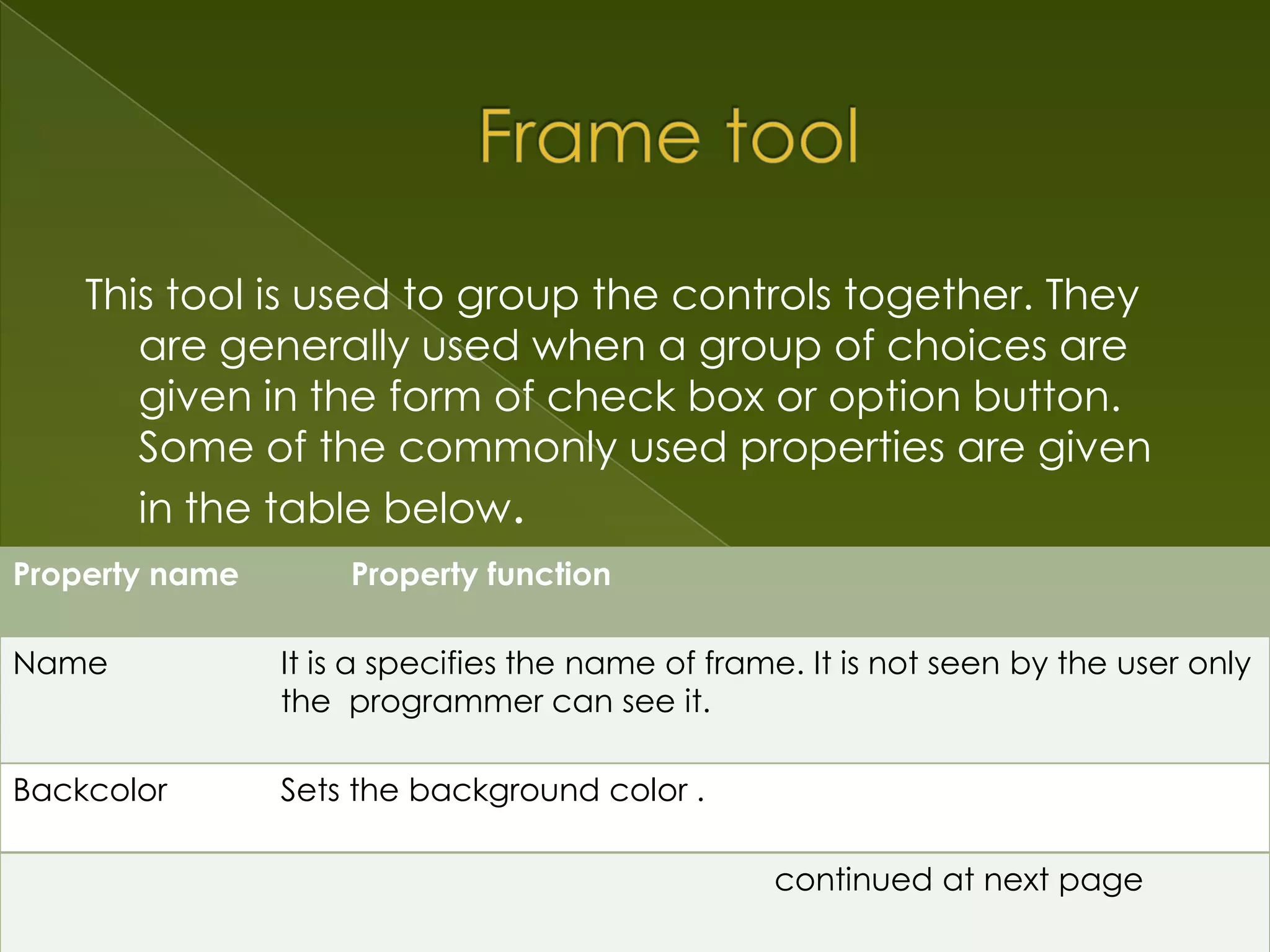
This tool is used to group the controls together. They
       are generally used when a group of choices are
       given in the form of check box or option button.
       Some of the commonly used properties are given
       in the table below.
Property name       Property function

Name            It is a specifies the name of frame. It is not seen by the user only
                the programmer can see it.

Backcolor       Sets the background color .

caption         It displays the text that arrears on the command button.
                                                   continued at next page
Enabled It sets the value that determines
        whether a command button can
        respond to the user.
Font     It sets the font attributes of the caption
         of command button.
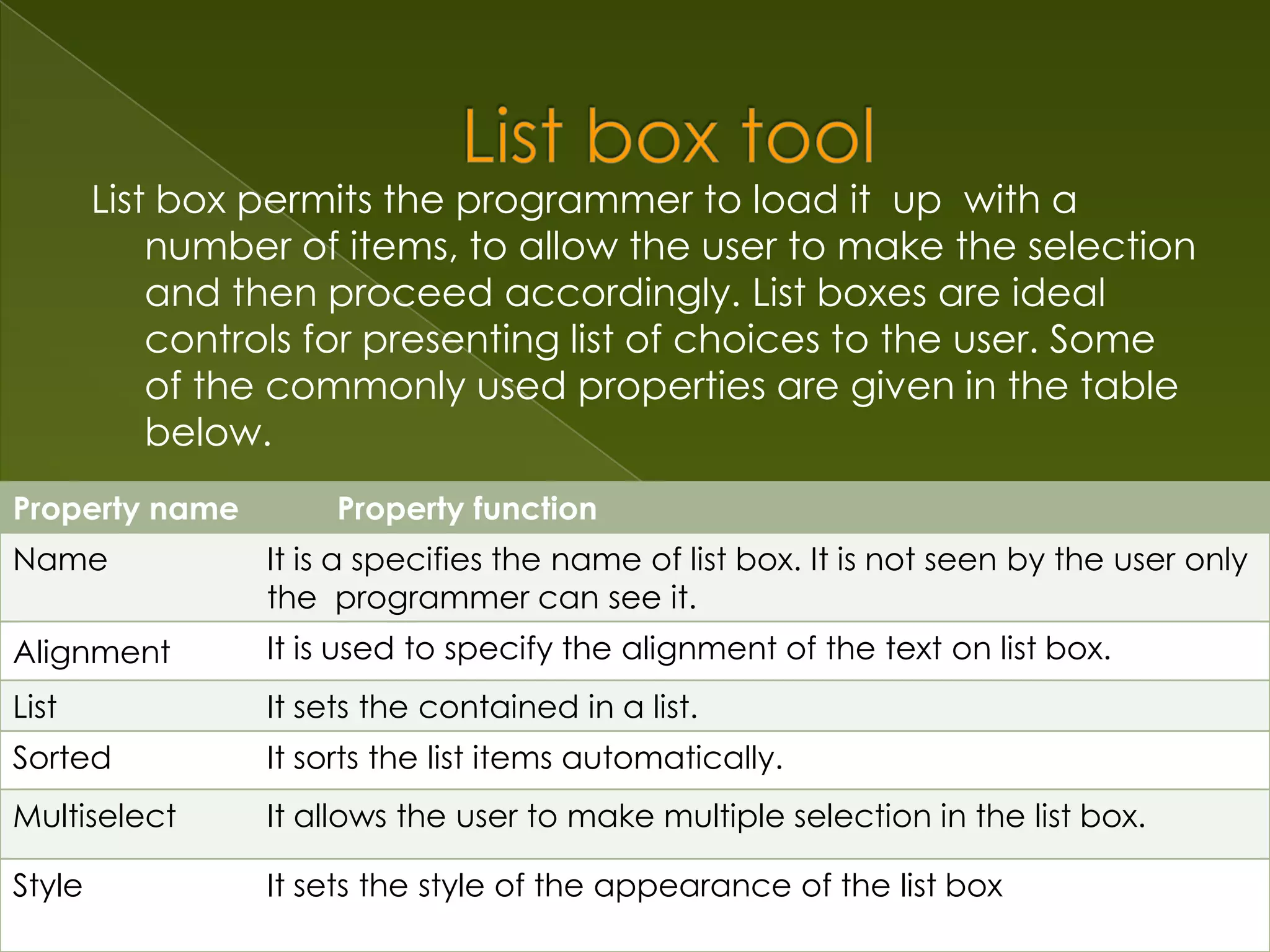
List box permits the programmer to load it up with a
            number of items, to allow the user to make the selection
            and then proceed accordingly. List boxes are ideal
            controls for presenting list of choices to the user. Some
            of the commonly used properties are given in the table
            below.
Property name         Property function
Name             It is a specifies the name of list box. It is not seen by the user only
                 the programmer can see it.
Alignment        It is used to specify the alignment of the text on list box.
List             It sets the contained in a list.
Sorted           It sorts the list items automatically.
Multiselect      It allows the user to make multiple selection in the list box.

Style            It sets the style of the appearance of the list box
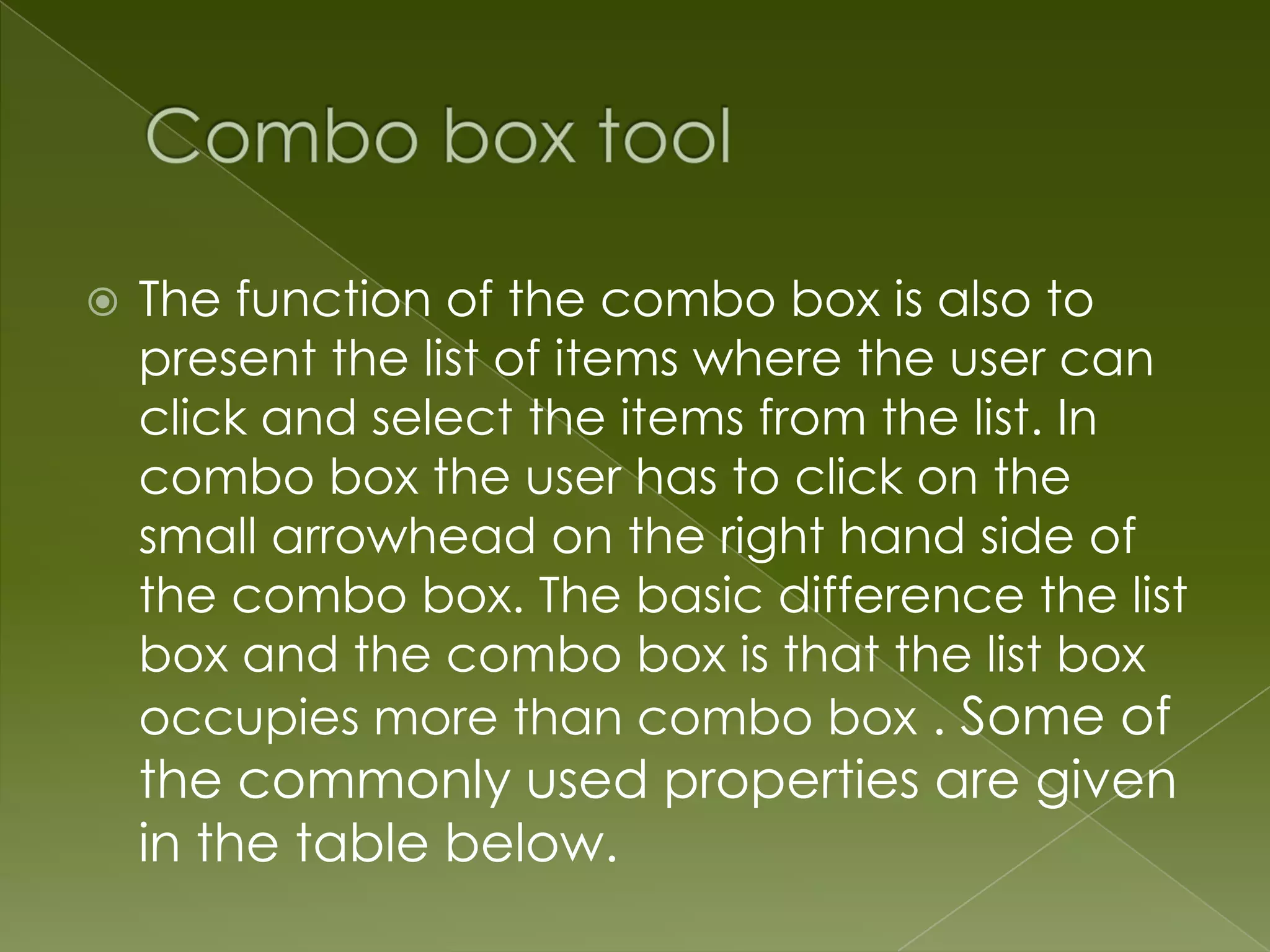
   The function of the combo box is also to
    present the list of items where the user can
    click and select the items from the list. In
    combo box the user has to click on the
    small arrowhead on the right hand side of
    the combo box. The basic difference the list
    box and the combo box is that the list box
    occupies more than combo box . Some of
    the commonly used properties are given
    in the table below.
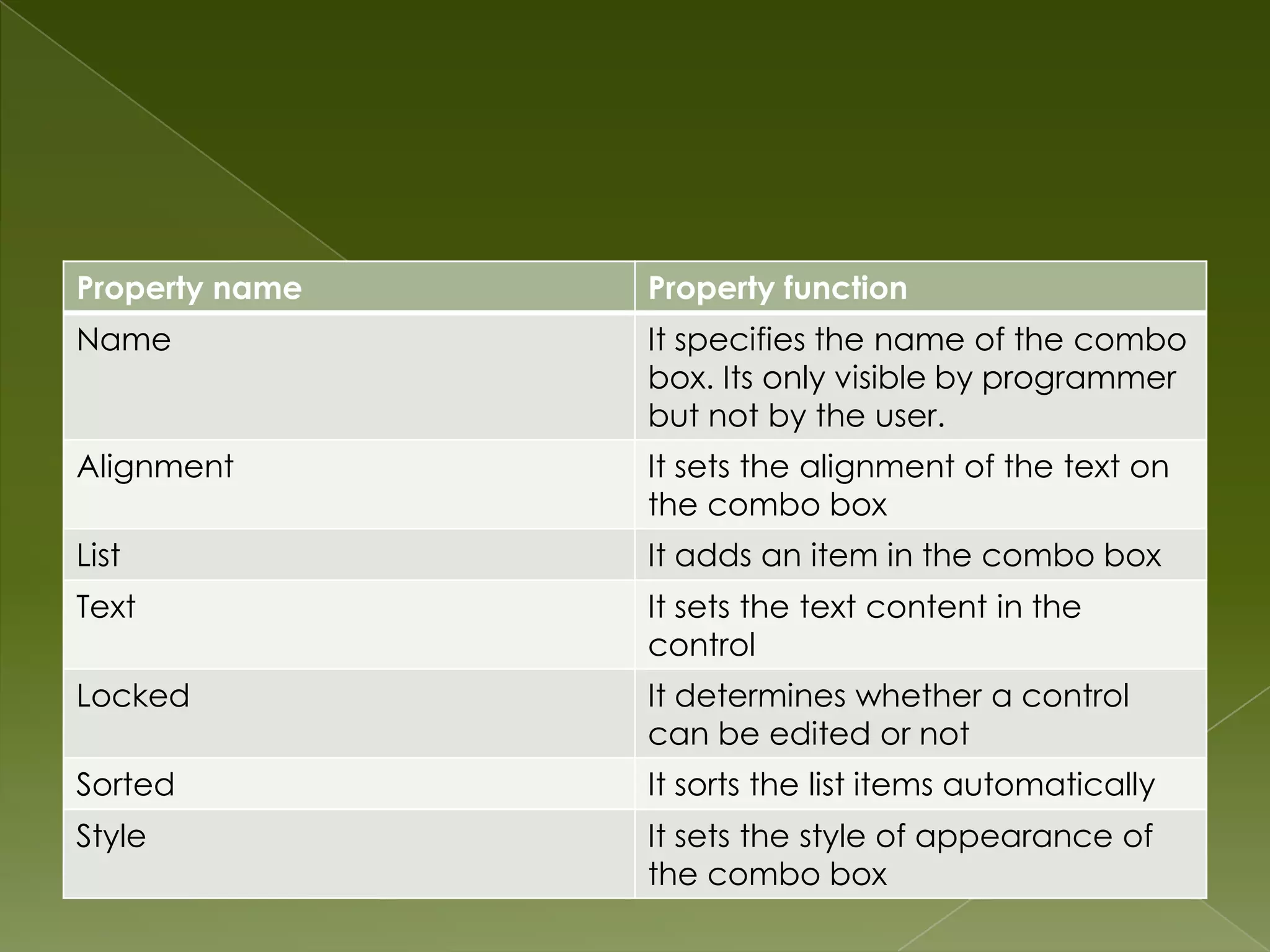
Property name   Property function
Name            It specifies the name of the combo
                box. Its only visible by programmer
                but not by the user.
Alignment       It sets the alignment of the text on
                the combo box
List            It adds an item in the combo box
Text            It sets the text content in the
                control
Locked          It determines whether a control
                can be edited or not
Sorted          It sorts the list items automatically
Style           It sets the style of appearance of
                the combo box
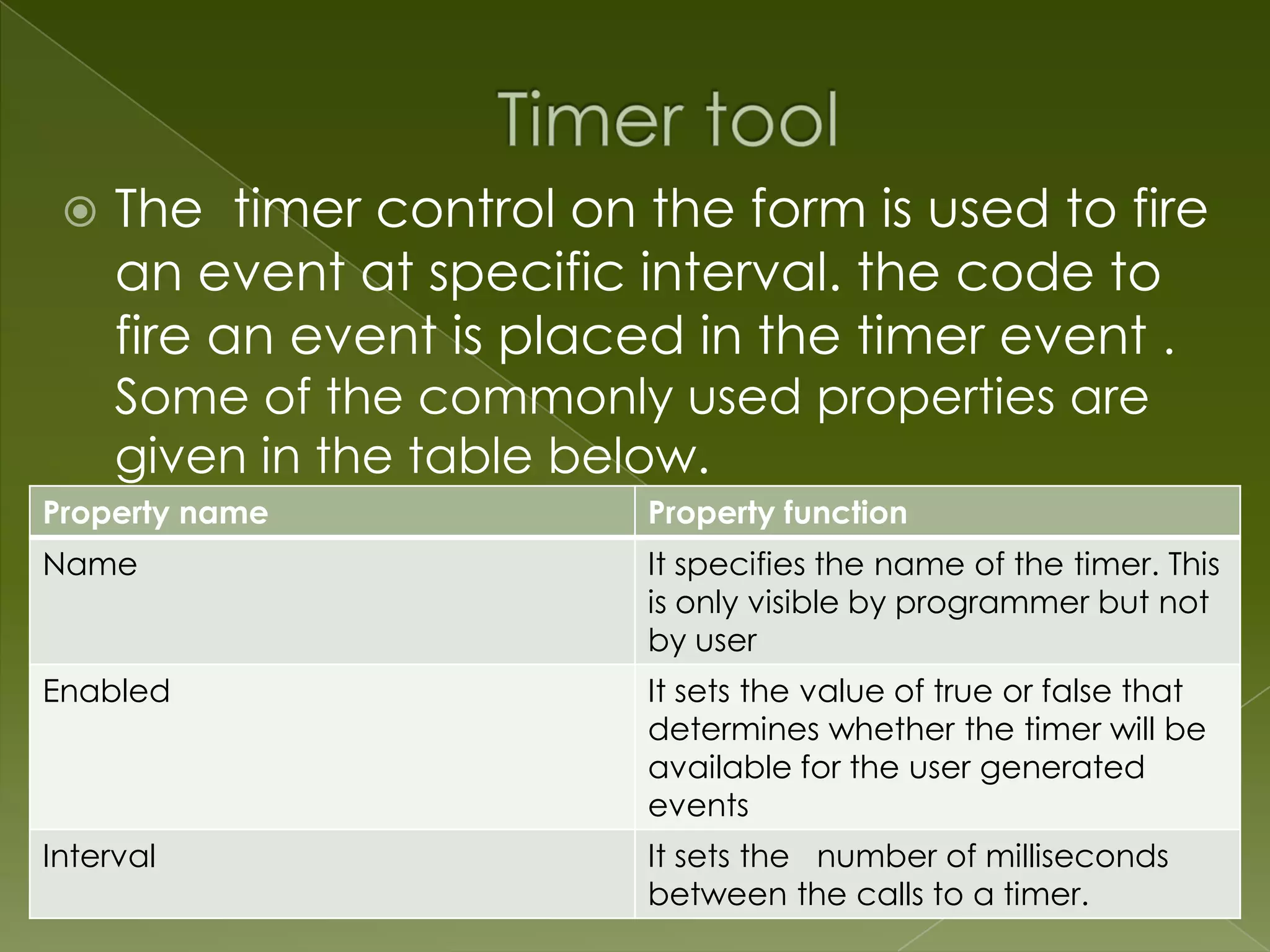
   The timer control on the form is used to fire
     an event at specific interval. the code to
     fire an event is placed in the timer event .
     Some of the commonly used properties are
     given in the table below.
Property name             Property function
Name                      It specifies the name of the timer. This
                          is only visible by programmer but not
                          by user
Enabled                   It sets the value of true or false that
                          determines whether the timer will be
                          available for the user generated
                          events
Interval                  It sets the number of milliseconds
                          between the calls to a timer.
   The shape tool is used to draw different
    shapes on the form. The shape property
    is used to create a specific shape on the
    form by using different integer values.
    some of the commonly used properties
    are given in the table below
Property name   Property function
Name            It specifies the name of the shape
                tool. This is only visible by
                programmer but not by user
Shape           It sets the value returning the
                appearance of the shape tool
   The Picture tool is one of the controls
    that is used to handle graphics. You can
    upload a picture at design phase by
    clicking on the picture item in the
    property window and select the picture.
    You can also load the picture at run time
    using the Load Picture method. some of
    the commonly used properties are given
    in the table below
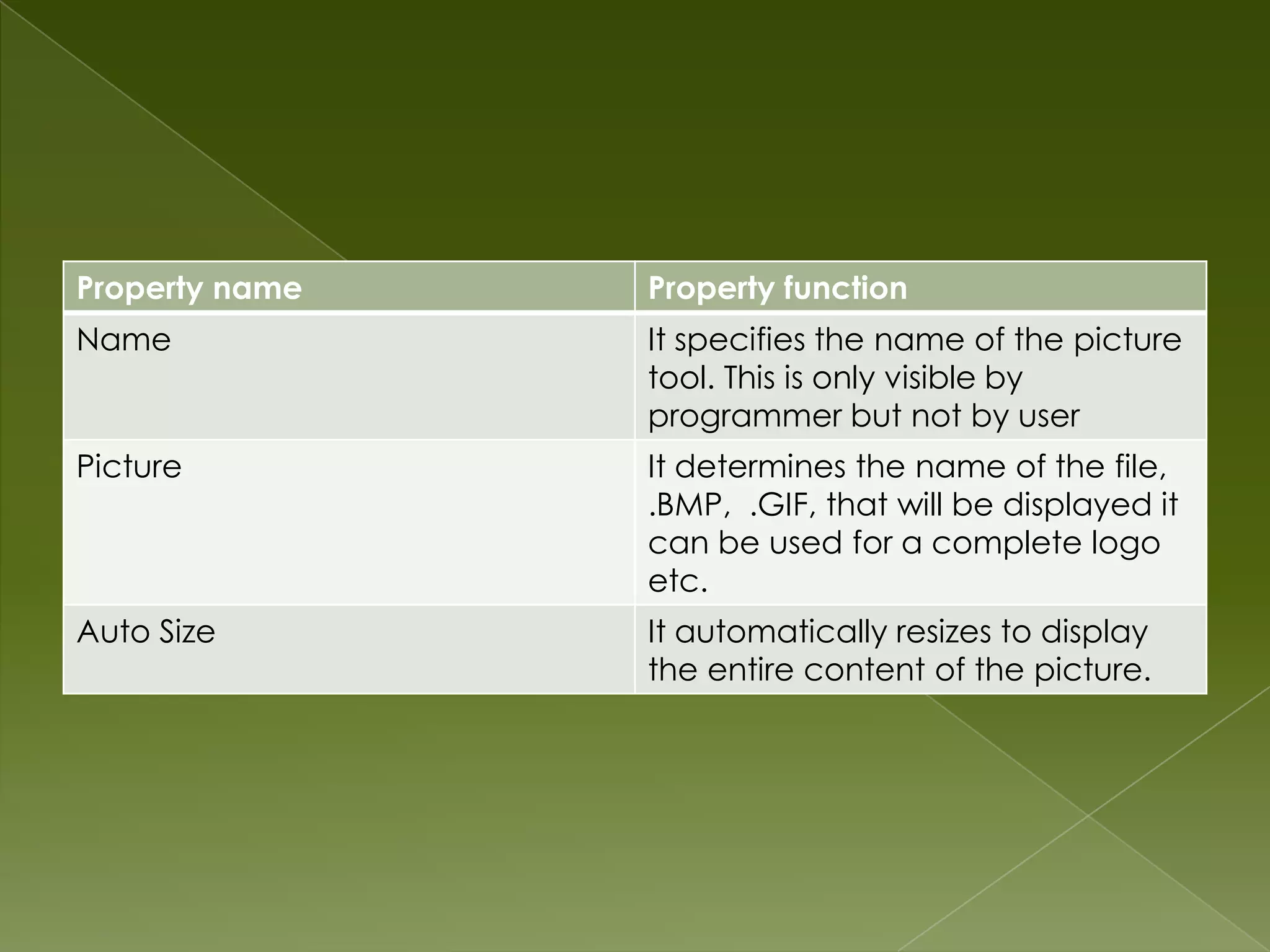
Property name   Property function
Name            It specifies the name of the picture
                tool. This is only visible by
                programmer but not by user
Picture         It determines the name of the file,
                .BMP, .GIF, that will be displayed it
                can be used for a complete logo
                etc.
Auto Size       It automatically resizes to display
                the entire content of the picture.
   The image box is another control that
    handles image and pictures it functions
    almost identically to the picture box.
    However, there is a major difference, the
    image in an image box is stretchable,
    which means it can be sized. some of
    the commonly used properties are given
    in the table below
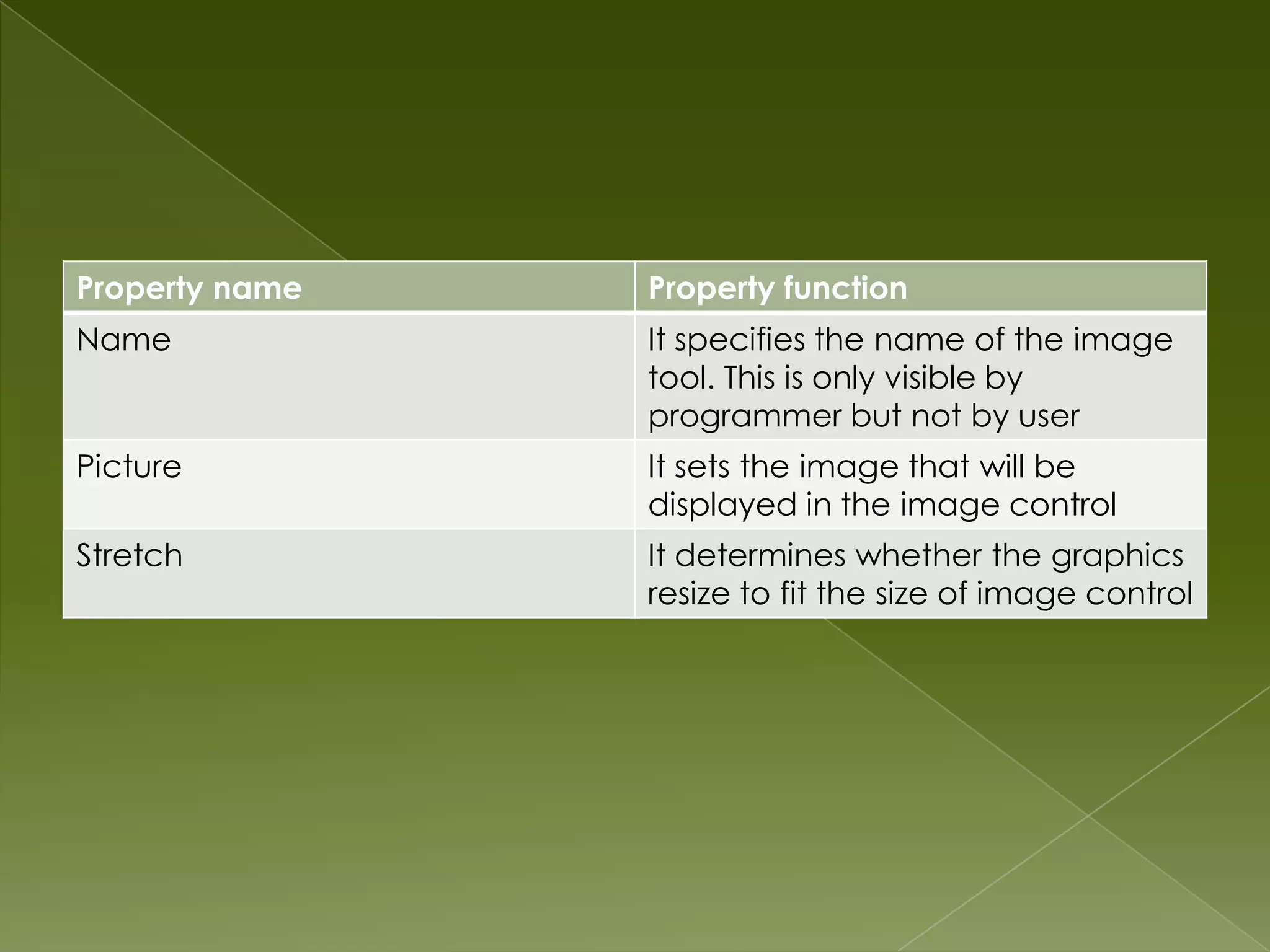
Property name   Property function
Name            It specifies the name of the image
                tool. This is only visible by
                programmer but not by user
Picture         It sets the image that will be
                displayed in the image control
Stretch         It determines whether the graphics
                resize to fit the size of image control

toolbox and its properties in the visual basic

  • 2.
    Follow these stepsto design the user interface: 1.Create a form. 2. Choose the object that you want to draw form the toolbox. 3.Draw the object on the form. 4.Change its property in the Property window. I will tell you about some commonly used controls that can be interested in the form to it interactive.
  • 3.
    Pointer tool  Label tool  Textbox tool  Command button tool  Checkbox tool  Option button tool  Frame tool  ListBox tool  ComboBox tool  Timer tool  Picture tool  Shape tool  Image tool
  • 4.
    This tool isused to select the object. Whenever any tool is selected then mouse pointer changes to a ‘+’sign. By using this tool you can draw an object on the form. To get the mouse pointer back, click on the Pointer tool. It has no properties. Note: Pointer tool is also the default tool of the toolbox.
  • 5.
    This tool isused to display the text to the form. It is generally used to give title in the form, an output after some message for the user. It has some commonly used properties are given in the table below. Property name Property function Name The name of label that identies in the form. It is not seen by the user only the programmer can see it. Alignment It sets the alignment of the label text. Autosize It displays whether the label is automatically resized it or not. Backcolor. It sets the background color. Caption It displays the text that appears on the form the user can see it. Enabled It sets the value that determines whether a label can respond to the user.
  • 6.
    Font The user can apply font setting to the text. Forecolor It sets the forecolor of the object in a label. ToolTip Text The text will be seen when mouse is moved Visible It sets the value that determines whether the label in visible or hidden during run time.
  • 7.
    Textbox tool drawsa rectangular box on the form where cursor blinks to accept input in the form. Some of the common properties are given in the table below. Property Property function name Name It is a specifies the name of the text box. It is not seen by the user only the programmer can see it. It is used to specify the alignment of the data entered in Alignment a text box. Backcolor Backcolor Sets the background color of the text box. Sets the background color .
  • 8.
    Enabled It sets the value that determines whether a textbox can respond to the user. Font It sets the font attributes of the data in text box. Forecolor It specifies the foreground color of the text in the text box. MaxLength It set the maximum number of characters that can be specified in a toolbox. Multiline It contains the logical value that determines whether a textbox can accept multiples lines. Password Char It specifies the character to be displayed while entering the data. It is generally used to enter password. ScrollBars It is used to include horizontal or vertical scrollbar in the textbox. It is only applicable when the multiline is true. Text The default property of the text box that specifies the content of the text box. ToolTip Text It sets the text to be displayed when mouse is paused over the text box . Visible It sets the value that determines whether the text box should
  • 9.
    Command button workswhen the user clicks on it. This supports the concept of event drive programming in Visual Basic. Some of the commonly used properties are given in the table below. Property name Property function Name It is a specifies the name of the command button. It is not seen by the user only the programmer can see it. caption It displays the text that appears on the command button. Enabled It sets the value that determines whether a command button can respond to the user. Font It sets the font attributes of theContinued at next page caption of command button.
  • 10.
    Font It sets the font attributes of the data in command button. Backcolor Sets the background color of the command button command button. Visible It sets the value that determines whether the command button should be visible or hidden during run time.
  • 11.
    Checkbox is usedwhen the user has got the choice to select from one or more options. Some of the commonly used properties are given in the table below. Property name Property function Name It is a specifies the name of the Checkbox . It is not seen by the user only the programmer can see it. It is used to specify the alignment of the text on the checkbox. Alignment Backcolor Sets the background color . caption It displays the text that arrears on the command button. Enabled It sets the value that determines whether a checkbox can respond to the user. Continued at next page
  • 12.
    Font It sets the font attributes of the caption of the checkbox` Forecolor It specifies the foreground color of the text in the checkbox. ToolTip Text It sets the text to be displayed when mouse is paused over the checkbox Visible It sets the value that determines whether the checkbox should be visible or hidden during run time.
  • 13.
    Option button isalso called as Radio Button. It is used to display the option from which the user can only select one. Some of the commonly used properties are given in the table below. Property name Property function Name It is a specifies the name of the Checkbox . It is not seen by the user only the programmer can see it. It is used to specify the alignment of the text on option button. Alignment
  • 14.
    This tool isused to group the controls together. They are generally used when a group of choices are given in the form of check box or option button. Some of the commonly used properties are given in the table below. Property name Property function Name It is a specifies the name of frame. It is not seen by the user only the programmer can see it. Backcolor Sets the background color . caption It displays the text that arrears on the command button. continued at next page
  • 15.
    Enabled It setsthe value that determines whether a command button can respond to the user. Font It sets the font attributes of the caption of command button.
  • 16.
    List box permitsthe programmer to load it up with a number of items, to allow the user to make the selection and then proceed accordingly. List boxes are ideal controls for presenting list of choices to the user. Some of the commonly used properties are given in the table below. Property name Property function Name It is a specifies the name of list box. It is not seen by the user only the programmer can see it. Alignment It is used to specify the alignment of the text on list box. List It sets the contained in a list. Sorted It sorts the list items automatically. Multiselect It allows the user to make multiple selection in the list box. Style It sets the style of the appearance of the list box
  • 17.
    The function of the combo box is also to present the list of items where the user can click and select the items from the list. In combo box the user has to click on the small arrowhead on the right hand side of the combo box. The basic difference the list box and the combo box is that the list box occupies more than combo box . Some of the commonly used properties are given in the table below.
  • 18.
    Property name Property function Name It specifies the name of the combo box. Its only visible by programmer but not by the user. Alignment It sets the alignment of the text on the combo box List It adds an item in the combo box Text It sets the text content in the control Locked It determines whether a control can be edited or not Sorted It sorts the list items automatically Style It sets the style of appearance of the combo box
  • 19.
    The timer control on the form is used to fire an event at specific interval. the code to fire an event is placed in the timer event . Some of the commonly used properties are given in the table below. Property name Property function Name It specifies the name of the timer. This is only visible by programmer but not by user Enabled It sets the value of true or false that determines whether the timer will be available for the user generated events Interval It sets the number of milliseconds between the calls to a timer.
  • 20.
    The shape tool is used to draw different shapes on the form. The shape property is used to create a specific shape on the form by using different integer values. some of the commonly used properties are given in the table below
  • 21.
    Property name Property function Name It specifies the name of the shape tool. This is only visible by programmer but not by user Shape It sets the value returning the appearance of the shape tool
  • 22.
    The Picture tool is one of the controls that is used to handle graphics. You can upload a picture at design phase by clicking on the picture item in the property window and select the picture. You can also load the picture at run time using the Load Picture method. some of the commonly used properties are given in the table below
  • 23.
    Property name Property function Name It specifies the name of the picture tool. This is only visible by programmer but not by user Picture It determines the name of the file, .BMP, .GIF, that will be displayed it can be used for a complete logo etc. Auto Size It automatically resizes to display the entire content of the picture.
  • 24.
    The image box is another control that handles image and pictures it functions almost identically to the picture box. However, there is a major difference, the image in an image box is stretchable, which means it can be sized. some of the commonly used properties are given in the table below
  • 25.
    Property name Property function Name It specifies the name of the image tool. This is only visible by programmer but not by user Picture It sets the image that will be displayed in the image control Stretch It determines whether the graphics resize to fit the size of image control