Chapter 2
Lecturer: Yasir A. Mohamed
Visual Basic 6.0 versus Other
Versions of Visual Basic
 The original Visual Basic for DOS and Visual Basic For
Windows were
introduced in 1991.
· Visual Basic 3.0 (a vast improvement over previous
versions) was released in
1993.
· Visual Basic 4.0 released in late 1995 (added 32 bit
application support).
··
Visual Basic 5.0 released in late 1996. New environment,
supported creation of
ActiveX controls, deleted 16 bit application support.
 Faster compiler
 New ActiveX data control object
 Allows database integration with wide variety
of applications
 New data report designer
 New Package & Deployment Wizard
 Additional internet capabilites
features of Visual Basic 6.0
 There are three primary steps involved in
building a Visual Basic application:
Draw the user interface
Assign properties to controls
Attach code to controls
Steps in Developing Application
 Visual Basic operates in three modes.
◦ Design mode - used to build application
◦ Run mode - used to run the application
◦ Break mode - application halted and debugger is
available We focus here on the design mode.
Drawing the User Interface and Setting
Properties
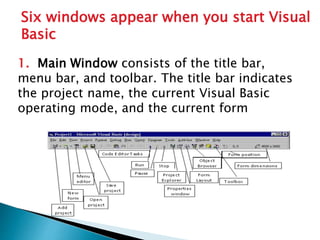
1. Main Window consists of the title bar,
menu bar, and toolbar. The title bar indicates
the project name, the current Visual Basic
operating mode, and the current form
Six windows appear when you start Visual
Basic
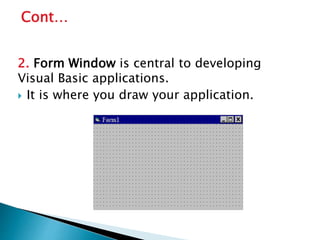
2. Form Window is central to developing
Visual Basic applications.
 It is where you draw your application.
Cont…
3. Toolbox is the selection menu for controls
used in your application.
4. The Properties Window is used to establish
initial property values for objects. The
drop-down box at the top of the window
lists all objects in the current form. Two
views are available: Alphabetic and
Categorized. Under this box are the
available properties for the currently
selected object.
Cont…
5. The Form Layout Window shows where
(upon program execution) your form will be
displayed relative to your monitor’s screen.
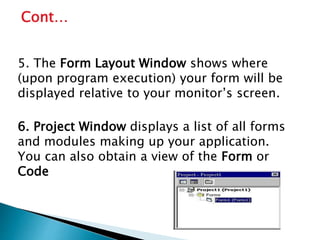
6. Project Window displays a list of all forms
and modules making up your application.
You can also obtain a view of the Form or
Code
Cont…
Cont…
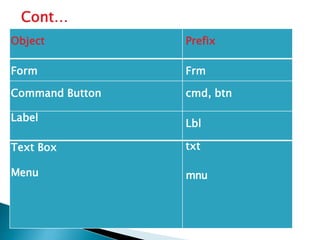
Object Prefix
Form Frm
Command Button cmd, btn
Label
Lbl
Text Box
Menu
txt
mnu
5. The Form Layout Window shows where
(upon program execution) your form will be
displayed relative to your monitor’s screen.
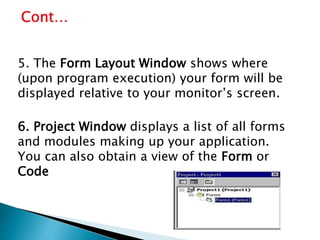
6. Project Window displays a list of all forms
and modules making up your application.
You can also obtain a view of the Form or
Code
Cont…
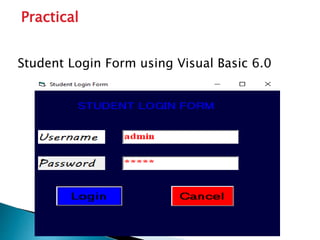
Student Login Form using Visual Basic 6.0
Practical
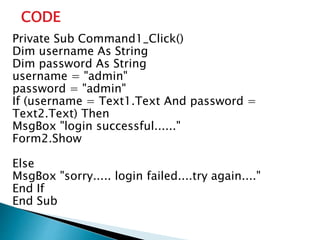
Private Sub Command1_Click()
Dim username As String
Dim password As String
username = "admin"
password = "admin"
If (username = Text1.Text And password =
Text2.Text) Then
MsgBox "login successful......"
Form2.Show
Else
MsgBox "sorry..... login failed....try again...."
End If
End Sub
CODE
Login Project with introduction .pptx

Login Project with introduction .pptx

  • 1.
    Chapter 2 Lecturer: YasirA. Mohamed Visual Basic 6.0 versus Other Versions of Visual Basic
  • 2.
     The originalVisual Basic for DOS and Visual Basic For Windows were introduced in 1991. · Visual Basic 3.0 (a vast improvement over previous versions) was released in 1993. · Visual Basic 4.0 released in late 1995 (added 32 bit application support). ·· Visual Basic 5.0 released in late 1996. New environment, supported creation of ActiveX controls, deleted 16 bit application support.
  • 3.
     Faster compiler New ActiveX data control object  Allows database integration with wide variety of applications  New data report designer  New Package & Deployment Wizard  Additional internet capabilites features of Visual Basic 6.0
  • 4.
     There arethree primary steps involved in building a Visual Basic application: Draw the user interface Assign properties to controls Attach code to controls Steps in Developing Application
  • 5.
     Visual Basicoperates in three modes. ◦ Design mode - used to build application ◦ Run mode - used to run the application ◦ Break mode - application halted and debugger is available We focus here on the design mode. Drawing the User Interface and Setting Properties
  • 6.
    1. Main Windowconsists of the title bar, menu bar, and toolbar. The title bar indicates the project name, the current Visual Basic operating mode, and the current form Six windows appear when you start Visual Basic
  • 7.
    2. Form Windowis central to developing Visual Basic applications.  It is where you draw your application. Cont…
  • 8.
    3. Toolbox isthe selection menu for controls used in your application. 4. The Properties Window is used to establish initial property values for objects. The drop-down box at the top of the window lists all objects in the current form. Two views are available: Alphabetic and Categorized. Under this box are the available properties for the currently selected object. Cont…
  • 9.
    5. The FormLayout Window shows where (upon program execution) your form will be displayed relative to your monitor’s screen. 6. Project Window displays a list of all forms and modules making up your application. You can also obtain a view of the Form or Code Cont…
  • 10.
    Cont… Object Prefix Form Frm CommandButton cmd, btn Label Lbl Text Box Menu txt mnu
  • 11.
    5. The FormLayout Window shows where (upon program execution) your form will be displayed relative to your monitor’s screen. 6. Project Window displays a list of all forms and modules making up your application. You can also obtain a view of the Form or Code Cont…
  • 12.
    Student Login Formusing Visual Basic 6.0 Practical
  • 13.
    Private Sub Command1_Click() Dimusername As String Dim password As String username = "admin" password = "admin" If (username = Text1.Text And password = Text2.Text) Then MsgBox "login successful......" Form2.Show Else MsgBox "sorry..... login failed....try again...." End If End Sub CODE