A Programme Under the Compumitra Series
Understanding
Integrated Development Environments
and Visual Web Developer 2010
Theory Session
Outline
 Notepad to IDE?
 Main Features of IDE
 Feature Explanation
 Start Page
 Website Creation
 Understanding Actions
 Understanding Default Pages
 Understanding Features.
Notepad to IDE
 Notepad is a fast starting, already available
simple text editor tool, so it is good to begin the
programming activity immediately. While using
notepad one also gets an idea of process of
compilation and running a program.
 IDE (Integrated Development Environment) is a
specially developed tool for a language and it
usually comes along with
 Compiler for the Language.
 Project Level Building.
 Language Specific Editing Features such as syntax
highlighting, text completion, line numbering and
block visibility options.
 Debugging Mechanism
 Help and Language Learning System.
It is convenient to use an IDE for many day-to-day tasks
but somehow experienced programmers go back to
simple text editors for their most program editing tasks.
Why?
Main Features of IDE
 GUI Builder for Visual
Designing.
 Project Builder.
 Language Compiler
 Debugger.
 Source Code Editor with Syntax
highlighting, Auto Completion
and Block Level Hide.
 Toolchain
 Code Analyser
Microsoft Visual Studio 2008/2010 provides all above
features and its subset Visual Web Developer is meant
for .NET based development.
WORKING WITH
VISUAL WEB DEVELOPER 2010 (VWD)
VWD: Start Page
This main area shows recent feeds
from Microsoft for important
developer Information
Create/Open web site
or a Project.
A project allows
multiple file addition
and simultaneous
compilation as a
single solution
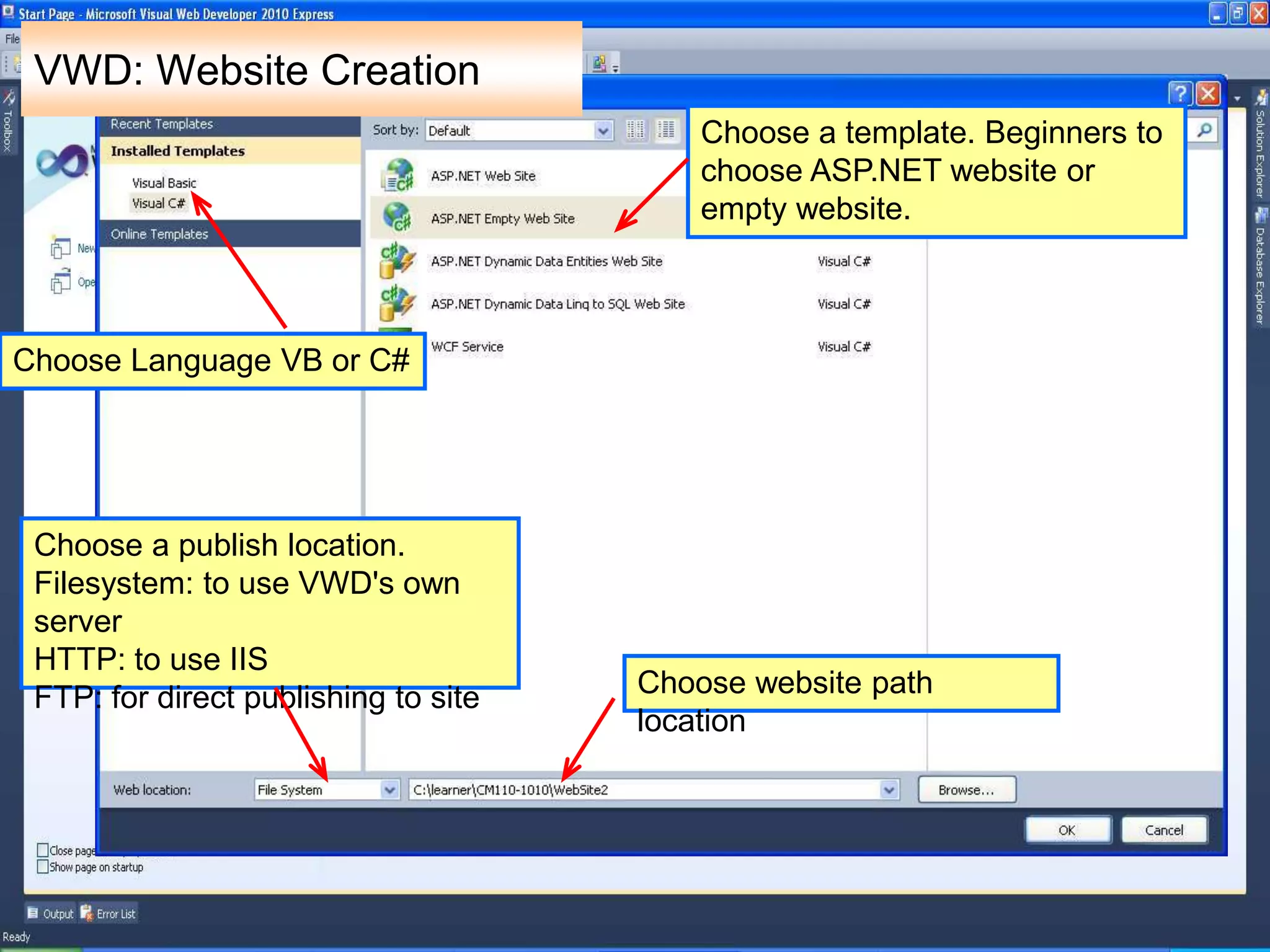
VWD: Website Creation
Choose a template. Beginners to
choose ASP.NET website or
empty website.
Choose website path
location
Choose a publish location.
Filesystem: to use VWD's own
server
HTTP: to use IIS
FTP: for direct publishing to site
Choose Language VB or C#
VWD: Action Understanding
 Visual Web Developer does this for you.
(When a new website is created by you)
Creates a folder as specified by you.
Creates a file called web.config where you
can set your project permissions and
environment.
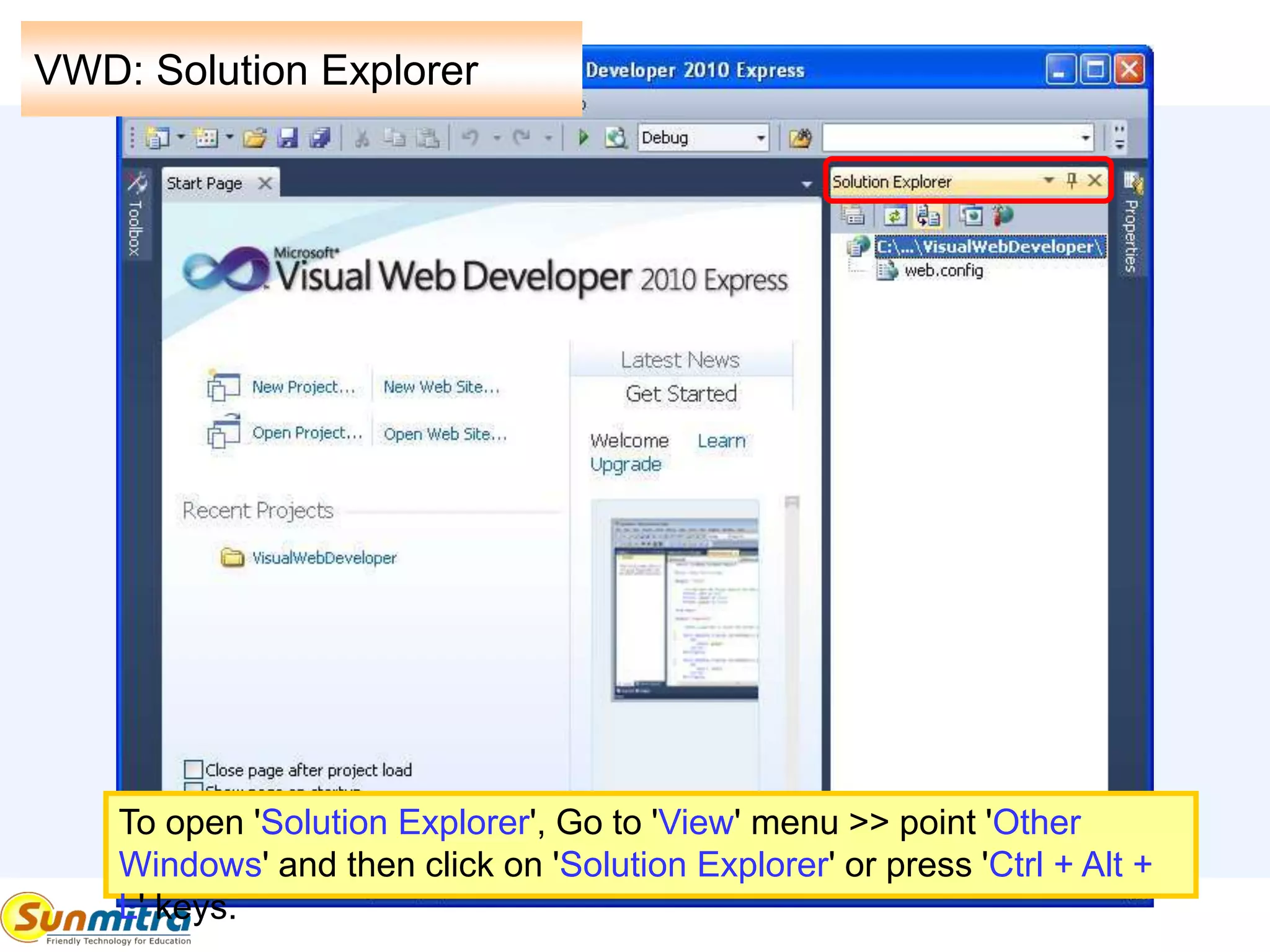
To open 'Solution Explorer', Go to 'View' menu >> point 'Other
Windows' and then click on 'Solution Explorer' or press 'Ctrl + Alt +
L' keys.
VWD: Solution Explorer
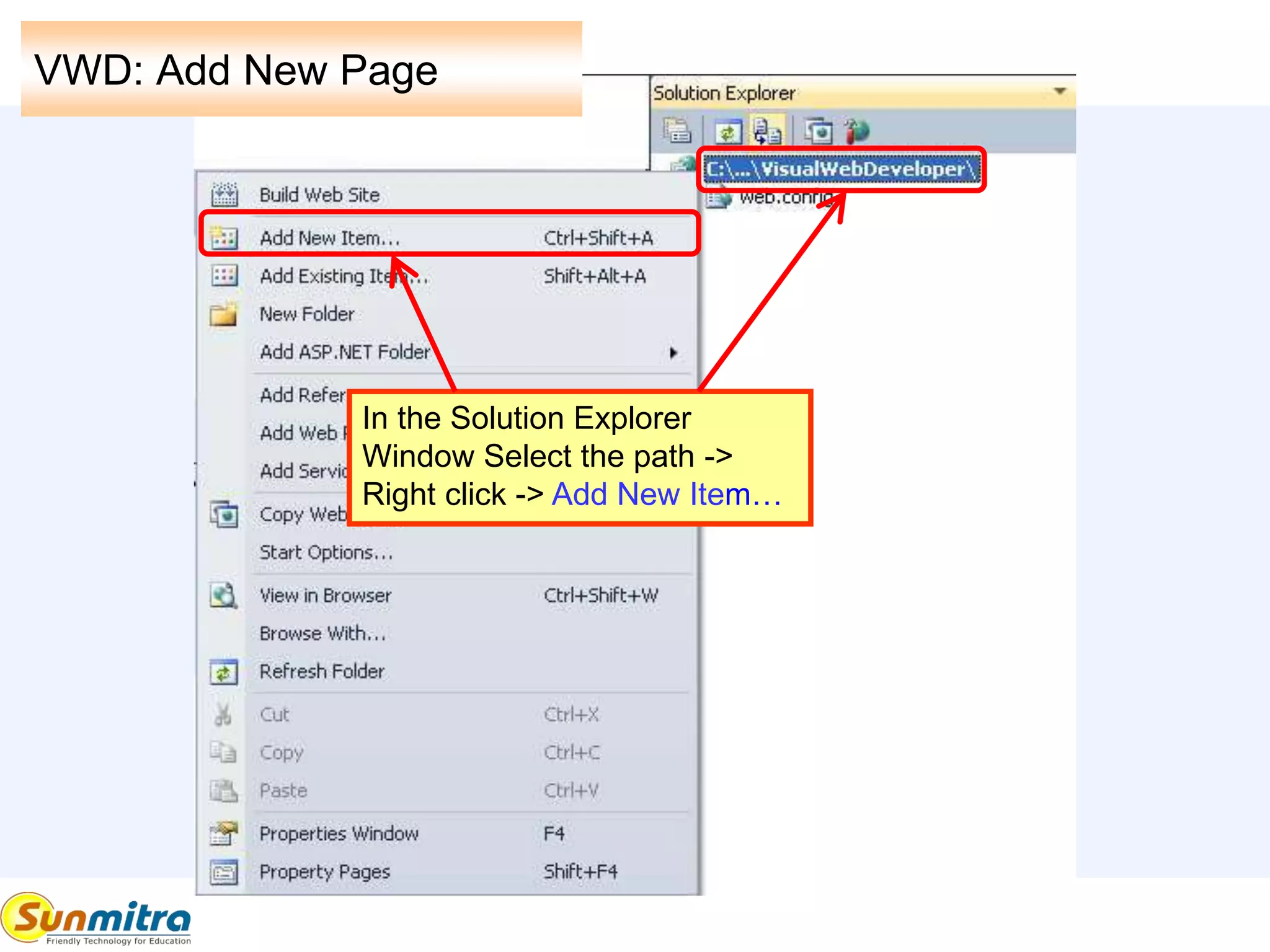
VWD: Add New Page
In the Solution Explorer
Window Select the path ->
Right click -> Add New Item…
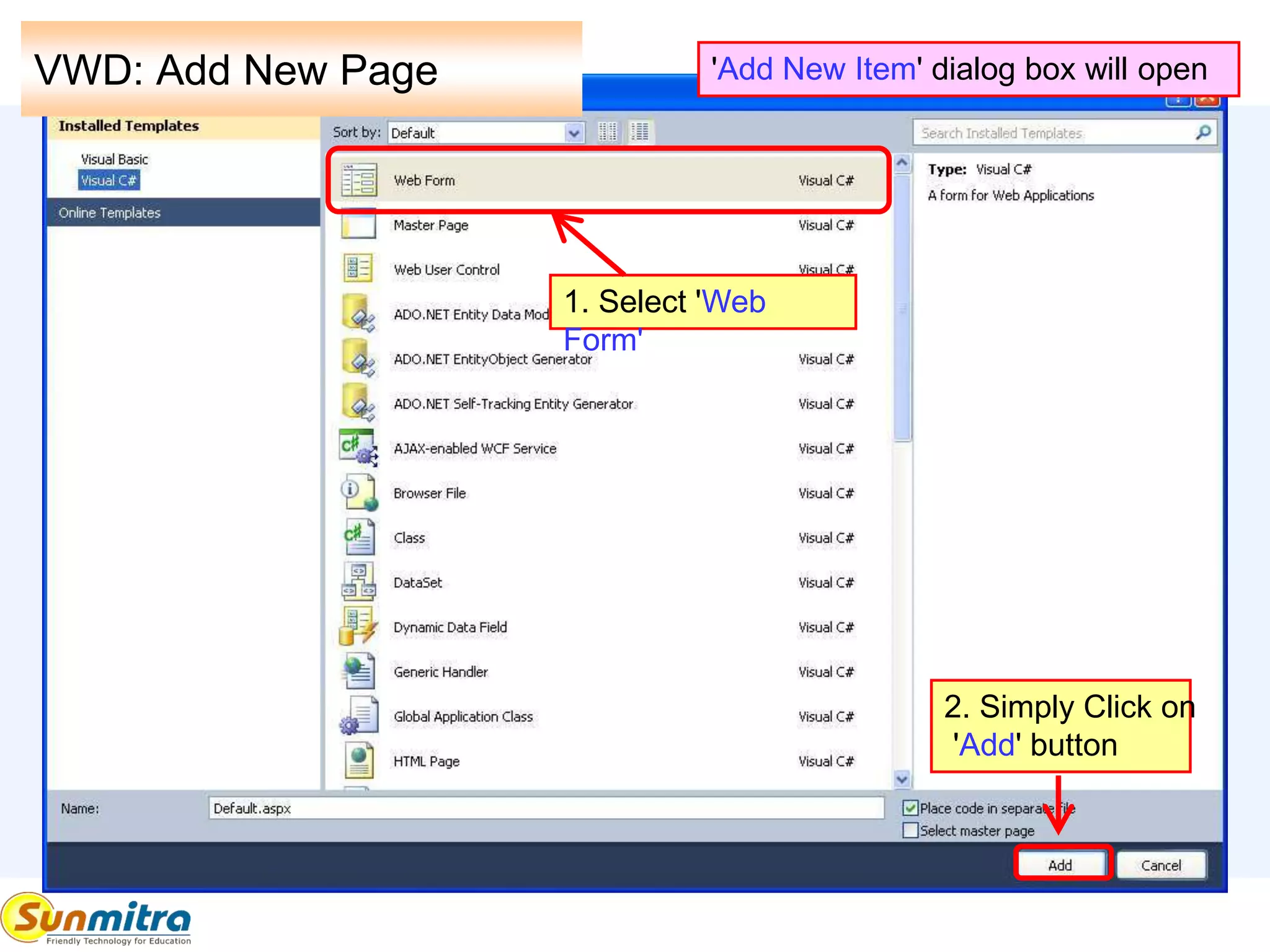
VWD: Add New Page 'Add New Item' dialog box will open
1. Select 'Web
Form'
2. Simply Click on
'Add' button
VWD: Understanding
Default.aspx
ASP Page Directives between
<%@ %>
Language = "C#"
AutoEventWireup=Allows
automatic page events
execution.
Codefile= Related Code file
name.
Inherits=Related Class Name in
code
<!DOCTYPE > indicates which
HTML/XHTML version to use
for checking errors>
HTML Template with
Xmlns – xmlnamespace defining which
html tagnames can be used.
<Head><Title> construct
<Body><Form><Div> construct
User's code is generally added inside
<DIV> construct
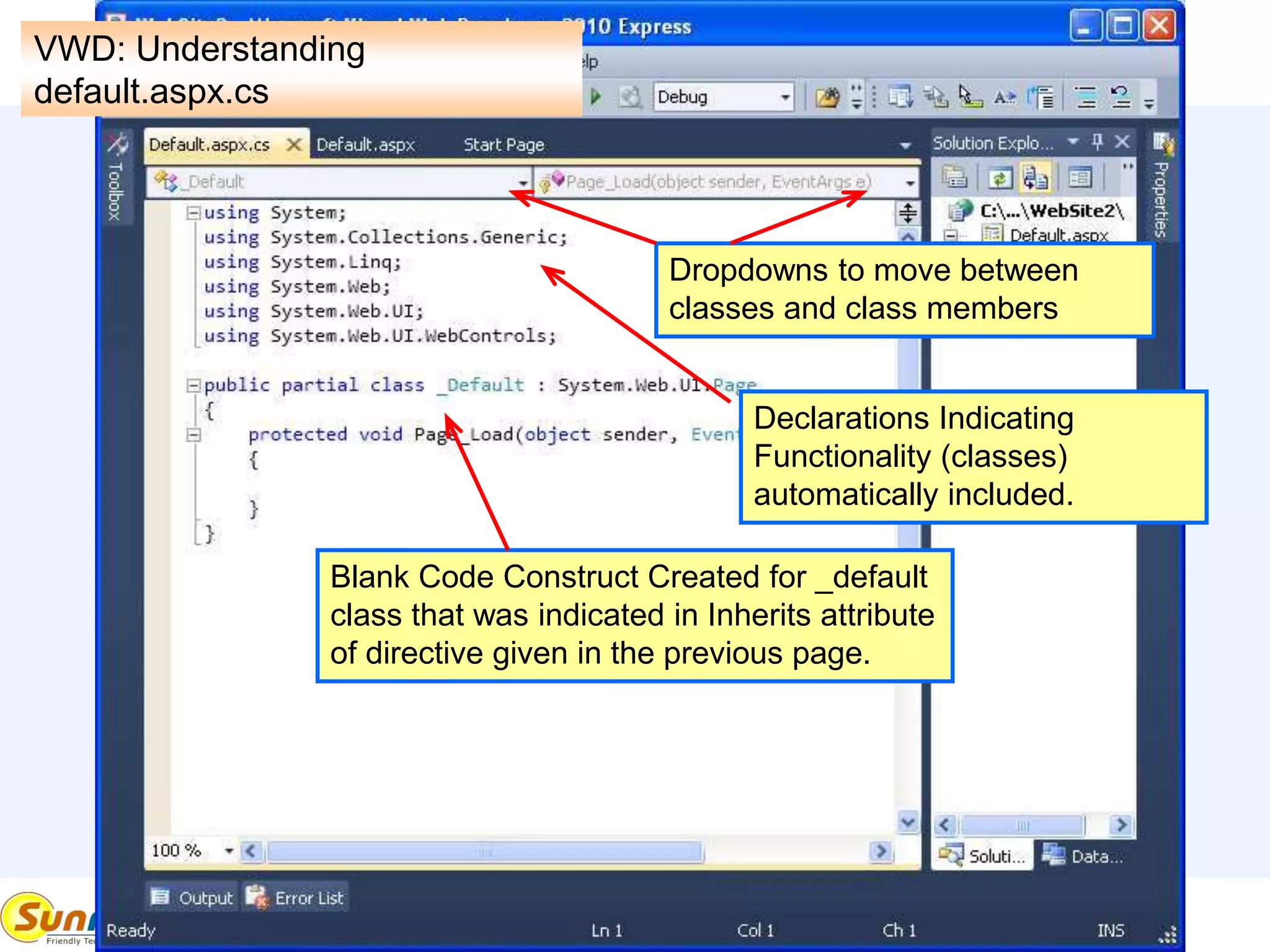
VWD: Understanding
default.aspx.cs
Dropdowns to move between
classes and class members
Declarations Indicating
Functionality (classes)
automatically included.
Blank Code Construct Created for _default
class that was indicated in Inherits attribute
of directive given in the previous page.
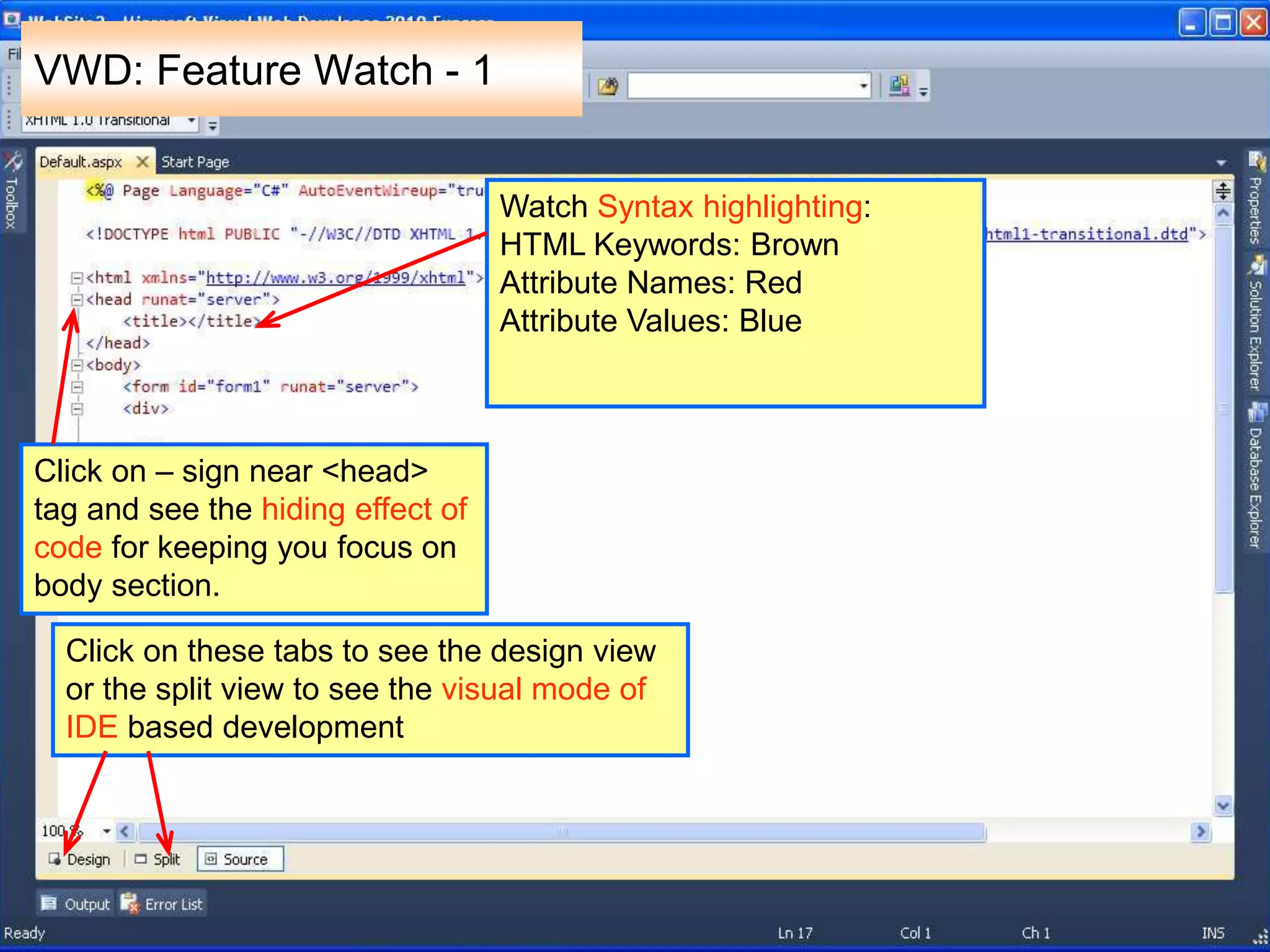
VWD: Feature Watch - 1
Watch Syntax highlighting:
HTML Keywords: Brown
Attribute Names: Red
Attribute Values: Blue
Click on – sign near <head>
tag and see the hiding effect of
code for keeping you focus on
body section.
Click on these tabs to see the design view
or the split view to see the visual mode of
IDE based development
VWD: Feature Watch - 2
Click on this + sign to see
that a code block for 'cs' or
'vb' file has been generated
which can further be clicked
to open it.
Solution Explorer: Allows to
navigate between files of
your website/project
Properties Window: Allows
to Set attributes/properties of
any control in client side
code (.aspx) file or server
side code (.cs or .vb) file .
VWD: Feature Watch - 3
Debug Menu Item is usually used
to run the code with debugging
(F5)
The Build menu item is used to
do a pre-compilation of all related
files.
Output Window, where build
information comes.
Toolbox is used to allow insertion of
code/controls in user files.
 Ask and guide me at
sunmitraeducation@gmail.com
 Share this information with as
many people as possible.
 Keep visiting www.sunmitra.com
for programme updates.

Understanding IDEs

  • 1.
    A Programme Underthe Compumitra Series Understanding Integrated Development Environments and Visual Web Developer 2010 Theory Session
  • 2.
    Outline  Notepad toIDE?  Main Features of IDE  Feature Explanation  Start Page  Website Creation  Understanding Actions  Understanding Default Pages  Understanding Features.
  • 3.
    Notepad to IDE Notepad is a fast starting, already available simple text editor tool, so it is good to begin the programming activity immediately. While using notepad one also gets an idea of process of compilation and running a program.  IDE (Integrated Development Environment) is a specially developed tool for a language and it usually comes along with  Compiler for the Language.  Project Level Building.  Language Specific Editing Features such as syntax highlighting, text completion, line numbering and block visibility options.  Debugging Mechanism  Help and Language Learning System. It is convenient to use an IDE for many day-to-day tasks but somehow experienced programmers go back to simple text editors for their most program editing tasks. Why?
  • 4.
    Main Features ofIDE  GUI Builder for Visual Designing.  Project Builder.  Language Compiler  Debugger.  Source Code Editor with Syntax highlighting, Auto Completion and Block Level Hide.  Toolchain  Code Analyser Microsoft Visual Studio 2008/2010 provides all above features and its subset Visual Web Developer is meant for .NET based development.
  • 5.
    WORKING WITH VISUAL WEBDEVELOPER 2010 (VWD)
  • 6.
    VWD: Start Page Thismain area shows recent feeds from Microsoft for important developer Information Create/Open web site or a Project. A project allows multiple file addition and simultaneous compilation as a single solution
  • 7.
    VWD: Website Creation Choosea template. Beginners to choose ASP.NET website or empty website. Choose website path location Choose a publish location. Filesystem: to use VWD's own server HTTP: to use IIS FTP: for direct publishing to site Choose Language VB or C#
  • 8.
    VWD: Action Understanding Visual Web Developer does this for you. (When a new website is created by you) Creates a folder as specified by you. Creates a file called web.config where you can set your project permissions and environment.
  • 9.
    To open 'SolutionExplorer', Go to 'View' menu >> point 'Other Windows' and then click on 'Solution Explorer' or press 'Ctrl + Alt + L' keys. VWD: Solution Explorer
  • 10.
    VWD: Add NewPage In the Solution Explorer Window Select the path -> Right click -> Add New Item…
  • 11.
    VWD: Add NewPage 'Add New Item' dialog box will open 1. Select 'Web Form' 2. Simply Click on 'Add' button
  • 12.
    VWD: Understanding Default.aspx ASP PageDirectives between <%@ %> Language = "C#" AutoEventWireup=Allows automatic page events execution. Codefile= Related Code file name. Inherits=Related Class Name in code <!DOCTYPE > indicates which HTML/XHTML version to use for checking errors> HTML Template with Xmlns – xmlnamespace defining which html tagnames can be used. <Head><Title> construct <Body><Form><Div> construct User's code is generally added inside <DIV> construct
  • 13.
    VWD: Understanding default.aspx.cs Dropdowns tomove between classes and class members Declarations Indicating Functionality (classes) automatically included. Blank Code Construct Created for _default class that was indicated in Inherits attribute of directive given in the previous page.
  • 14.
    VWD: Feature Watch- 1 Watch Syntax highlighting: HTML Keywords: Brown Attribute Names: Red Attribute Values: Blue Click on – sign near <head> tag and see the hiding effect of code for keeping you focus on body section. Click on these tabs to see the design view or the split view to see the visual mode of IDE based development
  • 15.
    VWD: Feature Watch- 2 Click on this + sign to see that a code block for 'cs' or 'vb' file has been generated which can further be clicked to open it. Solution Explorer: Allows to navigate between files of your website/project Properties Window: Allows to Set attributes/properties of any control in client side code (.aspx) file or server side code (.cs or .vb) file .
  • 16.
    VWD: Feature Watch- 3 Debug Menu Item is usually used to run the code with debugging (F5) The Build menu item is used to do a pre-compilation of all related files. Output Window, where build information comes. Toolbox is used to allow insertion of code/controls in user files.
  • 17.
     Ask andguide me at sunmitraeducation@gmail.com  Share this information with as many people as possible.  Keep visiting www.sunmitra.com for programme updates.