Android User
Interface
Android User Interface
Android User
Interface
Android User Interface
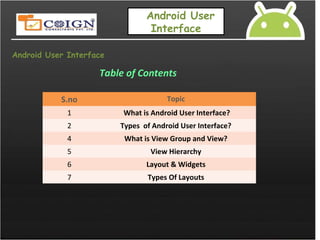
Table of Contents
S.no Topic
1 What is Android User Interface?
2 Types of Android User Interface?
4 What is View Group and View?
5 View Hierarchy
6 Layout & Widgets
7 Types Of Layouts
Android User Interface
What is Android User Interface ?
 User interface in Android Platform just like other Java based user interface.
 You can create user interface in to ways,
Static [Drag and Drop]
Dynamic [ Run time]
Difference between java UI and Android UI
Type of Application Java [UI
Design]
Android [UI
Design]
Windows Awt,Swings
Web based Html,css,java
script
Mobile Midlets
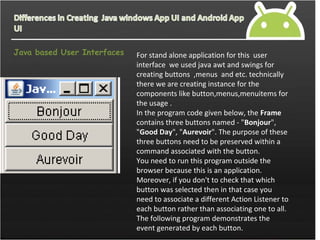
Java based User Interfaces For stand alone application for this user
interface we used java awt and swings for
creating buttons ,menus and etc. technically
there we are creating instance for the
components like button,menus,menuitems for
the usage .
In the program code given below, the Frame
contains three buttons named - "Bonjour",
"Good Day", "Aurevoir". The purpose of these
three buttons need to be preserved within a
command associated with the button.
You need to run this program outside the
browser because this is an application.
Moreover, if you don't to check that which
button was selected then in that case you
need to associate a different Action Listener to
each button rather than associating one to all.
The following program demonstrates the
event generated by each button.
Java Design Code import java.awt.*;
import java.awt.event.*;
public class ButtonDemo {
public static void main(String[] args){
Button b;
Action Listener a = new MyActionListener();
Frame f = new Frame("Java Applet");
f.add(b = new Button("Bonjour"), BorderLayout.
NORTH);
b.setActionCommand("Good Morning");
b.addActionListener(a);
f.add(b = new Button("Good Day"), BorderLayo
ut.CENTER);
b.addActionListener(a);
f.add(b = new Button("Aurevoir"), BorderLayout
.SOUTH);
b.setActionCommand("Exit");
b.addActionListener(a);
f.pack();
f.show();
}
}
Android Design
In order to create any android application there we have different
frame works to create rich android application. For creating android
user interface we have two ways one is using xml and second type
is runtime design as same as awt and swings concepts . In android
environment we have facility called drag and drop in the xml layout.
After dragging all the code will be automatically created ,for the ref please
See the following code.
Android Design Code <?xml version="1.0" encoding="utf-8"?>
<AbsoluteLayout
xmlns:android="http://schemas.android.com/apk/res/an
droid"
>
<Button
android:layout_width="100px“
android: text="Sign Up"
android:textStyle="bold"
android:layout_x="76px"
android:layout_y="115px"
>
</Button>
<Button
android:id="@+id/widget29“
>
</Button>
<Button
android:id="@+id/widget30"
android:layout_width="100px“
>
</Button>
</AbsoluteLayout>
Android User Interface
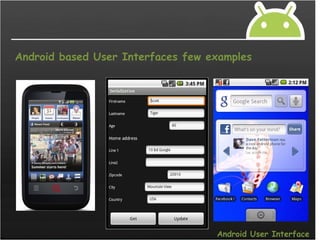
Android based User Interfaces few examples
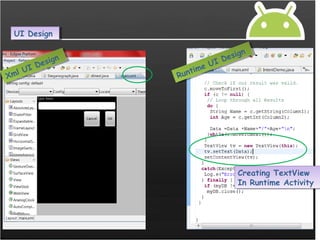
UI DesignUI Design
Xml UI Design
Xml UI Design
Runtime UI Design
Runtime UI Design
Creating TextView
In Runtime Activity
Creating TextView
In Runtime Activity
What is View Group and View?
In an Android application, the user interface is built using
View and View Group objects. There are many types of
views and view groups, each of which is a descendant of
the View class.
View objects are the basic units of user interface
expression on the Android platform. The View class
serves as the base for subclasses called "widgets,"
which offer fully implemented UI objects, like text
fields and buttons.
The View Group class serves as the base for subclasses
called "layouts," which offer different kinds of layout
architecture, like linear, tabular and relative.
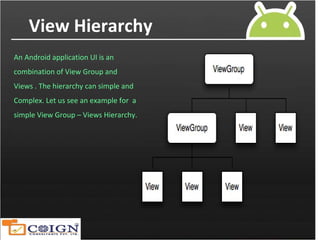
View Hierarchy
An Android application UI is an
combination of View Group and
Views . The hierarchy can simple and
Complex. Let us see an example for a
simple View Group – Views Hierarchy.
Layout (View Groups) &
Widgets (Views)
Layout (View Groups) &
Widgets (Views)
Now Let us see, how View Groups and Views can be added in XML format in Android
app using layouts and simple views.
<?xml version="1.0" encoding="utf-8"?>
<LinearLayout
xmlns:android="http://schemas.android.com/apk/re
s/android"
              android:layout_width="fill_parent"
              android:layout_height="fill_parent"
              android:orientation="vertical" >
    <TextView android:id="@+id/text"
              android:layout_width="wrap_content"
              android:layout_height="wrap_content"
              android:text="Hello, I am a TextView" />
    <Button android:id="@+id/button"
            android:layout_width="wrap_content"
            android:layout_height="wrap_content"
            android:text="Hello, I am a Button" />
</LinearLayout>
View
Group
V
i
e
w
s
Notice from above Linear Layout element contains both the Text View and
the Button. You can nest another Linear Layout (or other type of view group) inside
linear layout (View Group), to create more complex layout.
Widgets --Widgets --
A widget is a View object that serves as an interface for interaction
with the user.
Android provides a set of fully implemented widgets, like buttons,
checkboxes, and text-entry fields, so you can quickly build your
UI. Some widgets provided by Android are more complex, like a
date picker, a clock, and zoom controls.
But you're not limited to the kinds of widgets provided by the
Android platform. If you'd like to do something more customized
and create your own actionable elements, you can, by defining
your own View object or by extending and combining existing
widgets.
Widgets Providing By Android --Widgets Providing By Android --
--
--
Types of Layout
Absolute
Linear Layout
Relative Layout
Table Layout
Tab Layout
Grid Layout
List Layout
Absolute
Linear Layout
Relative Layout
Table Layout
Tab Layout
Grid Layout
List Layout
--
Types of Layout
Absolute LayoutAbsolute Layout
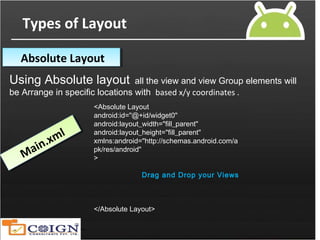
Using Absolute layout all the view and view Group elements will
be Arrange in specific locations with based x/y coordinates .
<Absolute Layout
android:id="@+id/widget0"
android:layout_width="fill_parent"
android:layout_height="fill_parent"
xmlns:android="http://schemas.android.com/a
pk/res/android"
>
Drag and Drop your Views
</Absolute Layout>
     
Main.xml
Main.xml
--
Types of Layout
Absolute LayoutAbsolute Layout
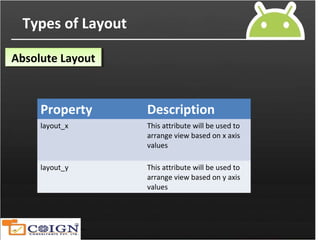
Property Description
layout_x This attribute will be used to
arrange view based on x axis
values
layout_y This attribute will be used to
arrange view based on y axis
values
--
Types of Layout
Linear LayoutLinear Layout
Linear layout is a View Group that displays child View
elements in a linear direction, either vertically or horizontally.
<Linear Layout
      android: orientation="horizontal"
      android:layout_width="fill parent"
      android:layout_height="fill parent"
      android:layout_weight="1">
     
Drag and Drop your Views
</Linear Layout>
     
Main.xml
Main.xml
--
Types of Layout
Relative LayoutRelative Layout
 Relative Layout is a View Group that displays child View elements in
relative positions.
 The position of a View can be specified as relative to sibling elements
(such as to the left-of or below a given element) or in positions relative to
the Relative Layout area (such as aligned to the bottom, left of center)..
 Relative Layout is a View Group that displays child View elements in
relative positions.
 The position of a View can be specified as relative to sibling elements
(such as to the left-of or below a given element) or in positions relative to
the Relative Layout area (such as aligned to the bottom, left of center)..
A Relative Layout IS very powerful utility for designing a user interface because
it can eliminate nested View Group. If you find yourself using several nested
Linear Layout groups, you may be able to replace them with a single
Relative Layout
A Relative Layout IS very powerful utility for designing a user interface because
it can eliminate nested View Group. If you find yourself using several nested
Linear Layout groups, you may be able to replace them with a single
Relative Layout
--
Types of Layout
Main.xml
Main.xml
Relative LayoutRelative Layout <Relative Layout
xmlns:android="http://schemas.android.com/ap
k/res/android"
    android:layout_width="fill_parent"
    android:layout_height="fill_parent">
    <Text View
        android:id="@+id/label"
        android:layout_width="fill_parent"
        android:layout_height="wrap_content"
        android:text="Type here:"/>
<Button
android:id="@+id/ok"
android:layout_width="wrap_content"
android:layout_height="wrap_content"
android:layout_below="@id/label"
android:layout_alignParentRight="true"
android:layout_marginLeft="10dip"
android:text="OK" />
Relation using below
attribute
For the Button
--
Types of Layout
Relative LayoutRelative Layout
Property Description
_below This attribute will be used to
maintain relation between
the components .
_LeftofParent This will be used to align the
components like center, right
and left.
--
Types of Layout
Table LayoutTable Layout
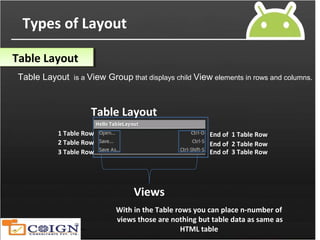
Table Layout is a View Group that displays child View elements in rows and columns.
Table Layout
1 Table Row
2 Table Row
3 Table Row
End of 1 Table Row
End of 2 Table Row
End of 3 Table Row
Views
With in the Table rows you can place n-number of
views those are nothing but table data as same as
HTML table
--
Types of Layout
Table LayoutTable Layout
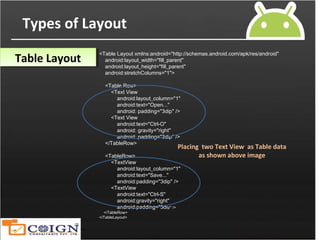
<Table Layout xmlns:android="http://schemas.android.com/apk/res/android"
    android:layout_width="fill_parent"
    android:layout_height="fill_parent"
    android:stretchColumns="1">
    <Table Row>
        <Text View
            android:layout_column="1"
            android:text="Open..."
            android: padding="3dip" />
        <Text View
            android:text="Ctrl-O"
            android: gravity="right"
            android: padding="3dip" />
    </TableRow>
    <TableRow>
        <TextView
            android:layout_column="1"
            android:text="Save..."
            android:padding="3dip" />
        <TextView
            android:text="Ctrl-S"
            android:gravity="right"
            android:padding="3dip" />
    </TableRow>
</TableLayout>
Placing two Text View as Table data
as shown above image
--
Types of Layout
Tab LayoutTab Layout
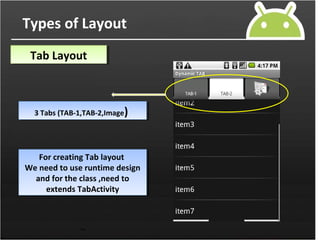
To create a tabbed UI, you need to use a Tab Host and a Tab Widget The Tab Host
must be the root node for the layout,
Which contains both the Tab Widget for displaying the tabs and a Frame Layout
or displaying the tab content
You can implement your tab content in one of two ways: use the tabs to
swap View within the same Activity, or use the tabs to change between
entirely separate activities.
--
Types of Layout
Tab LayoutTab Layout
3 Tabs (TAB-1,TAB-2,Image)3 Tabs (TAB-1,TAB-2,Image)
For creating Tab layout
We need to use runtime design
and for the class ,need to
extends TabActivity
For creating Tab layout
We need to use runtime design
and for the class ,need to
extends TabActivity
--
Types of Layout
Tab LayoutTab Layout
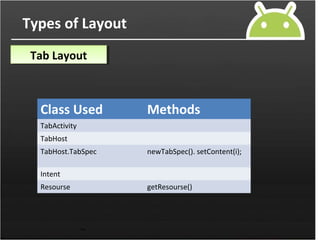
Class Used Methods
TabActivity
TabHost
TabHost.TabSpec newTabSpec(). setContent(i);
Intent
Resourse getResourse()
--
Types of Layout
Grid LayoutGrid Layout
Using the Grid layout, we can set our screen in to thumbnails format
GridView is a ViewGroup that displays items in a two-dimensional, scrollable
grid. The grid items are automatically inserted to the layout using a ListAdapter
Viewing all
content in grid
format and
arrange all by
the index based
Viewing all
content in grid
format and
arrange all by
the index based
--
Types of Layout
Grid LayoutGrid Layout
GridView gridview = (GridView) findViewById(R.id.gridview);
gridview.setAdapter(new ImageAdapter(this));
GridView gridview = (GridView) findViewById(R.id.gridview);
gridview.setAdapter(new ImageAdapter(this));
For the adding images into Grid we need to bind all images through
adapters while Runtime
For the adding images into Grid we need to bind all images through
adapters while Runtime
Using Image Adapter
class ,we need to add
all images through
BaseAdapter
methods
Using Image Adapter
class ,we need to add
all images through
BaseAdapter
methods
Main.xml
<GridView
android:id="@+id/gridview"
android:layout_width="fill_parent"
android:layout_height="fill_parent"
/>
Main.xml
<GridView
android:id="@+id/gridview"
android:layout_width="fill_parent"
android:layout_height="fill_parent"
/>
--
Types of Layout
Grid LayoutGrid Layout
Class Used Methods
GridView Set Adapter()
BaseAdapter getView();//to add all images
to adapter
--
Types of Layout
List LayoutList Layout
Using the List layout, we can set our screen in to sequence of strings in vertical
format
List View is a ViewGroupthat creates a list of scrollable items. The list items are
automatically inserted to the list using a ListAdapter
Viewing all
content in List
format based on
ListAdapters
Viewing all
content in List
format based on
ListAdapters
--
Types of Layout
List LayoutList Layout
public class HelloListView extends ListActivity {
setListAdapter(new Array Adapter<String>(this, R.layout.list_item, Languages));
ListView lv = getListView();
lv.setTextFilterEnabled(true);}
public class HelloListView extends ListActivity {
setListAdapter(new Array Adapter<String>(this, R.layout.list_item, Languages));
ListView lv = getListView();
lv.setTextFilterEnabled(true);}
static final String[] Languages=
new String[]
{java ,c++,lisp,c#}
static final String[] Languages=
new String[]
{java ,c++,lisp,c#}
Adding list of items in runtime through arraysAdding list of items in runtime through arrays
--
Types of Layout
List LayoutList Layout
Class Used Methods
ListActivity setListAdapter();
ListView getListView();
Android User
Interface
Thanking You
!
Any Queries….?Any Queries….?

android layouts

  • 1.
  • 2.
    Android User Interface Android UserInterface Table of Contents S.no Topic 1 What is Android User Interface? 2 Types of Android User Interface? 4 What is View Group and View? 5 View Hierarchy 6 Layout & Widgets 7 Types Of Layouts
  • 3.
    Android User Interface Whatis Android User Interface ?  User interface in Android Platform just like other Java based user interface.  You can create user interface in to ways, Static [Drag and Drop] Dynamic [ Run time] Difference between java UI and Android UI Type of Application Java [UI Design] Android [UI Design] Windows Awt,Swings Web based Html,css,java script Mobile Midlets
  • 4.
    Java based UserInterfaces For stand alone application for this user interface we used java awt and swings for creating buttons ,menus and etc. technically there we are creating instance for the components like button,menus,menuitems for the usage . In the program code given below, the Frame contains three buttons named - "Bonjour", "Good Day", "Aurevoir". The purpose of these three buttons need to be preserved within a command associated with the button. You need to run this program outside the browser because this is an application. Moreover, if you don't to check that which button was selected then in that case you need to associate a different Action Listener to each button rather than associating one to all. The following program demonstrates the event generated by each button.
  • 5.
    Java Design Codeimport java.awt.*; import java.awt.event.*; public class ButtonDemo { public static void main(String[] args){ Button b; Action Listener a = new MyActionListener(); Frame f = new Frame("Java Applet"); f.add(b = new Button("Bonjour"), BorderLayout. NORTH); b.setActionCommand("Good Morning"); b.addActionListener(a); f.add(b = new Button("Good Day"), BorderLayo ut.CENTER); b.addActionListener(a); f.add(b = new Button("Aurevoir"), BorderLayout .SOUTH); b.setActionCommand("Exit"); b.addActionListener(a); f.pack(); f.show(); } }
  • 6.
    Android Design In orderto create any android application there we have different frame works to create rich android application. For creating android user interface we have two ways one is using xml and second type is runtime design as same as awt and swings concepts . In android environment we have facility called drag and drop in the xml layout. After dragging all the code will be automatically created ,for the ref please See the following code.
  • 7.
    Android Design Code<?xml version="1.0" encoding="utf-8"?> <AbsoluteLayout xmlns:android="http://schemas.android.com/apk/res/an droid" > <Button android:layout_width="100px“ android: text="Sign Up" android:textStyle="bold" android:layout_x="76px" android:layout_y="115px" > </Button> <Button android:id="@+id/widget29“ > </Button> <Button android:id="@+id/widget30" android:layout_width="100px“ > </Button> </AbsoluteLayout>
  • 8.
    Android User Interface Androidbased User Interfaces few examples
  • 9.
    UI DesignUI Design XmlUI Design Xml UI Design Runtime UI Design Runtime UI Design Creating TextView In Runtime Activity Creating TextView In Runtime Activity
  • 10.
    What is ViewGroup and View? In an Android application, the user interface is built using View and View Group objects. There are many types of views and view groups, each of which is a descendant of the View class. View objects are the basic units of user interface expression on the Android platform. The View class serves as the base for subclasses called "widgets," which offer fully implemented UI objects, like text fields and buttons.
  • 11.
    The View Groupclass serves as the base for subclasses called "layouts," which offer different kinds of layout architecture, like linear, tabular and relative.
  • 12.
    View Hierarchy An Androidapplication UI is an combination of View Group and Views . The hierarchy can simple and Complex. Let us see an example for a simple View Group – Views Hierarchy.
  • 13.
    Layout (View Groups)& Widgets (Views) Layout (View Groups) & Widgets (Views) Now Let us see, how View Groups and Views can be added in XML format in Android app using layouts and simple views. <?xml version="1.0" encoding="utf-8"?> <LinearLayout xmlns:android="http://schemas.android.com/apk/re s/android"               android:layout_width="fill_parent"               android:layout_height="fill_parent"               android:orientation="vertical" >     <TextView android:id="@+id/text"               android:layout_width="wrap_content"               android:layout_height="wrap_content"               android:text="Hello, I am a TextView" />     <Button android:id="@+id/button"             android:layout_width="wrap_content"             android:layout_height="wrap_content"             android:text="Hello, I am a Button" /> </LinearLayout> View Group V i e w s
  • 14.
    Notice from aboveLinear Layout element contains both the Text View and the Button. You can nest another Linear Layout (or other type of view group) inside linear layout (View Group), to create more complex layout.
  • 15.
    Widgets --Widgets -- Awidget is a View object that serves as an interface for interaction with the user. Android provides a set of fully implemented widgets, like buttons, checkboxes, and text-entry fields, so you can quickly build your UI. Some widgets provided by Android are more complex, like a date picker, a clock, and zoom controls. But you're not limited to the kinds of widgets provided by the Android platform. If you'd like to do something more customized and create your own actionable elements, you can, by defining your own View object or by extending and combining existing widgets.
  • 16.
    Widgets Providing ByAndroid --Widgets Providing By Android -- --
  • 17.
    -- Types of Layout Absolute LinearLayout Relative Layout Table Layout Tab Layout Grid Layout List Layout Absolute Linear Layout Relative Layout Table Layout Tab Layout Grid Layout List Layout
  • 18.
    -- Types of Layout AbsoluteLayoutAbsolute Layout Using Absolute layout all the view and view Group elements will be Arrange in specific locations with based x/y coordinates . <Absolute Layout android:id="@+id/widget0" android:layout_width="fill_parent" android:layout_height="fill_parent" xmlns:android="http://schemas.android.com/a pk/res/android" > Drag and Drop your Views </Absolute Layout>       Main.xml Main.xml
  • 19.
    -- Types of Layout AbsoluteLayoutAbsolute Layout Property Description layout_x This attribute will be used to arrange view based on x axis values layout_y This attribute will be used to arrange view based on y axis values
  • 20.
    -- Types of Layout LinearLayoutLinear Layout Linear layout is a View Group that displays child View elements in a linear direction, either vertically or horizontally. <Linear Layout       android: orientation="horizontal"       android:layout_width="fill parent"       android:layout_height="fill parent"       android:layout_weight="1">       Drag and Drop your Views </Linear Layout>       Main.xml Main.xml
  • 21.
    -- Types of Layout RelativeLayoutRelative Layout  Relative Layout is a View Group that displays child View elements in relative positions.  The position of a View can be specified as relative to sibling elements (such as to the left-of or below a given element) or in positions relative to the Relative Layout area (such as aligned to the bottom, left of center)..  Relative Layout is a View Group that displays child View elements in relative positions.  The position of a View can be specified as relative to sibling elements (such as to the left-of or below a given element) or in positions relative to the Relative Layout area (such as aligned to the bottom, left of center).. A Relative Layout IS very powerful utility for designing a user interface because it can eliminate nested View Group. If you find yourself using several nested Linear Layout groups, you may be able to replace them with a single Relative Layout A Relative Layout IS very powerful utility for designing a user interface because it can eliminate nested View Group. If you find yourself using several nested Linear Layout groups, you may be able to replace them with a single Relative Layout
  • 22.
    -- Types of Layout Main.xml Main.xml RelativeLayoutRelative Layout <Relative Layout xmlns:android="http://schemas.android.com/ap k/res/android"     android:layout_width="fill_parent"     android:layout_height="fill_parent">     <Text View         android:id="@+id/label"         android:layout_width="fill_parent"         android:layout_height="wrap_content"         android:text="Type here:"/> <Button android:id="@+id/ok" android:layout_width="wrap_content" android:layout_height="wrap_content" android:layout_below="@id/label" android:layout_alignParentRight="true" android:layout_marginLeft="10dip" android:text="OK" /> Relation using below attribute For the Button
  • 23.
    -- Types of Layout RelativeLayoutRelative Layout Property Description _below This attribute will be used to maintain relation between the components . _LeftofParent This will be used to align the components like center, right and left.
  • 24.
    -- Types of Layout TableLayoutTable Layout Table Layout is a View Group that displays child View elements in rows and columns. Table Layout 1 Table Row 2 Table Row 3 Table Row End of 1 Table Row End of 2 Table Row End of 3 Table Row Views With in the Table rows you can place n-number of views those are nothing but table data as same as HTML table
  • 25.
    -- Types of Layout TableLayoutTable Layout <Table Layout xmlns:android="http://schemas.android.com/apk/res/android"     android:layout_width="fill_parent"     android:layout_height="fill_parent"     android:stretchColumns="1">     <Table Row>         <Text View             android:layout_column="1"             android:text="Open..."             android: padding="3dip" />         <Text View             android:text="Ctrl-O"             android: gravity="right"             android: padding="3dip" />     </TableRow>     <TableRow>         <TextView             android:layout_column="1"             android:text="Save..."             android:padding="3dip" />         <TextView             android:text="Ctrl-S"             android:gravity="right"             android:padding="3dip" />     </TableRow> </TableLayout> Placing two Text View as Table data as shown above image
  • 26.
    -- Types of Layout TabLayoutTab Layout To create a tabbed UI, you need to use a Tab Host and a Tab Widget The Tab Host must be the root node for the layout, Which contains both the Tab Widget for displaying the tabs and a Frame Layout or displaying the tab content You can implement your tab content in one of two ways: use the tabs to swap View within the same Activity, or use the tabs to change between entirely separate activities.
  • 27.
    -- Types of Layout TabLayoutTab Layout 3 Tabs (TAB-1,TAB-2,Image)3 Tabs (TAB-1,TAB-2,Image) For creating Tab layout We need to use runtime design and for the class ,need to extends TabActivity For creating Tab layout We need to use runtime design and for the class ,need to extends TabActivity
  • 28.
    -- Types of Layout TabLayoutTab Layout Class Used Methods TabActivity TabHost TabHost.TabSpec newTabSpec(). setContent(i); Intent Resourse getResourse()
  • 29.
    -- Types of Layout GridLayoutGrid Layout Using the Grid layout, we can set our screen in to thumbnails format GridView is a ViewGroup that displays items in a two-dimensional, scrollable grid. The grid items are automatically inserted to the layout using a ListAdapter Viewing all content in grid format and arrange all by the index based Viewing all content in grid format and arrange all by the index based
  • 30.
    -- Types of Layout GridLayoutGrid Layout GridView gridview = (GridView) findViewById(R.id.gridview); gridview.setAdapter(new ImageAdapter(this)); GridView gridview = (GridView) findViewById(R.id.gridview); gridview.setAdapter(new ImageAdapter(this)); For the adding images into Grid we need to bind all images through adapters while Runtime For the adding images into Grid we need to bind all images through adapters while Runtime Using Image Adapter class ,we need to add all images through BaseAdapter methods Using Image Adapter class ,we need to add all images through BaseAdapter methods Main.xml <GridView android:id="@+id/gridview" android:layout_width="fill_parent" android:layout_height="fill_parent" /> Main.xml <GridView android:id="@+id/gridview" android:layout_width="fill_parent" android:layout_height="fill_parent" />
  • 31.
    -- Types of Layout GridLayoutGrid Layout Class Used Methods GridView Set Adapter() BaseAdapter getView();//to add all images to adapter
  • 32.
    -- Types of Layout ListLayoutList Layout Using the List layout, we can set our screen in to sequence of strings in vertical format List View is a ViewGroupthat creates a list of scrollable items. The list items are automatically inserted to the list using a ListAdapter Viewing all content in List format based on ListAdapters Viewing all content in List format based on ListAdapters
  • 33.
    -- Types of Layout ListLayoutList Layout public class HelloListView extends ListActivity { setListAdapter(new Array Adapter<String>(this, R.layout.list_item, Languages)); ListView lv = getListView(); lv.setTextFilterEnabled(true);} public class HelloListView extends ListActivity { setListAdapter(new Array Adapter<String>(this, R.layout.list_item, Languages)); ListView lv = getListView(); lv.setTextFilterEnabled(true);} static final String[] Languages= new String[] {java ,c++,lisp,c#} static final String[] Languages= new String[] {java ,c++,lisp,c#} Adding list of items in runtime through arraysAdding list of items in runtime through arrays
  • 34.
    -- Types of Layout ListLayoutList Layout Class Used Methods ListActivity setListAdapter(); ListView getListView();
  • 35.
    Android User Interface Thanking You ! AnyQueries….?Any Queries….?