Presentation
      on
File Handling
Contents
   Definition Of File
   Types Of Files
   Operations on File
    Opening A File
    Closing A File
    Writing Data To A File
    Reading Data From A File
    Detecting The End of File
    Storing A File
    Demo Application
Definition Of File
   A File is a collection of data stored on a
    computer’s disk.
   Information can be saved to files and later
    reused.
Types Of Files
   There are three types of files.
1)   Sequential Access Files
2)   Random Access Files
3)   Binary Files
Sequential Access File
   A sequential access file is a stream of data that

    must be read from its beginning to its end.

   To read a record that is stored in the middle or at

    the end of sequential access file an application

    must read all the records in the file before it.
Random Access File
   In Random access file Records must be identical

    in length and may be accessed in any order.

   An application may immediately jump to any

    record in a random access file without first

    reading the preceding records.
Binary File
   In binary file data is stored in binary form not in

    plain text.

   The records in binary files may vary in length.

   Binary files are usually smaller than text files but

    user cannot view their contents with text editor.
Binary File
   In binary file data is stored in binary form not in

    plain text.

   The records in binary files may vary in length.

   Binary files are usually smaller than text files but

    user cannot view their contents with text editor.
Operations on File
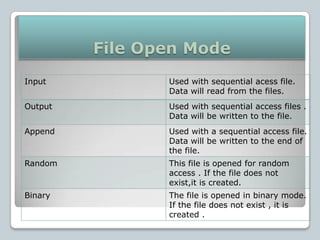
File Open Mode
Input           Used with sequential acess file.
                Data will read from the files.
Output          Used with sequential access files .
                Data will be written to the file.
Append          Used with a sequential access file.
                Data will be written to the end of
                the file.
Random          This file is opened for random
                access . If the file does not
                exist,it is created.
Binary          The file is opened in binary mode.
                If the file does not exist , it is
                created .
Opening A File
   Open statement is used to open a file.


Syntax :


Open*filename*for mode as # filenumber [len=recordlength]
Contd..
   When a sequential file is opened , visual basic

    creates a file buffer.

   A file buffer is a small holding section of memory

    that data is first written to.
Closing A File
   Close statement is used to close a file.

         Syntax :


             Close [filenumberlist]


• In syntax, Filenumberlsit is one or more file
  numbers separated by commas.
Contd..
   The # symbol must appear with each file number.

   Example close #1,#2

   If user don’t specify any file number , visual basic

    closes all the files the applications has opened.
Writing data to a File
   Data may be written to a file that is opened in

    either output or append mode.

   The write statement is used to write a data to the

    file.
             Syntax


              Write # filenumber, [itemlist]
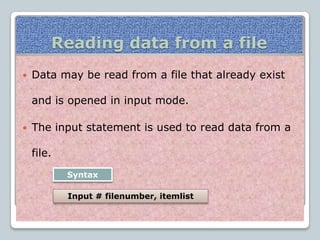
Reading data from a file
   Data may be read from a file that already exist

    and is opened in input mode.

   The input statement is used to read data from a

    file.
            Syntax

            Input # filenumber, itemlist
Opening a file in append mode
   When a file is opened in append mode data is

    written to the end of the file.

   If the file is already exist its contents are not

    erased.

   If the file does not exist it is created.
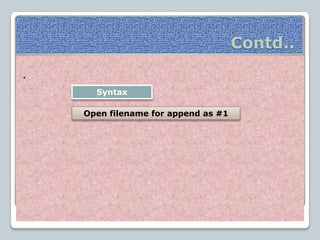
Contd..
.
      Syntax

    Open filename for append as #1
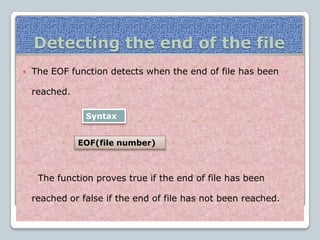
Detecting the end of the file
   The EOF function detects when the end of file has been

    reached.

                Syntax


               EOF(file number)


     The function proves true if the end of file has been

    reached or false if the end of file has not been reached.
Application on file handling
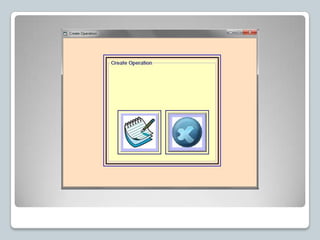
How to apply picture on command
             button

   Select the command button.
   Draw it and then go to properties window.
   Change the style property to 1-graphical.
   Select the picture option.
   Select the picture user want to apply.
How to draw a shape
•Select the shape option from the toolbox.
•Then go to shape properties and select any
option.


                                        Shape
                                        option
Coding Of this Form
   Private Sub cmdappend_Click()

   Unload Me

   frmappend.Show

   End Sub


   Private Sub cmdclose_Click()

   Unload Me

   End

   End Sub
Contd….
   Private Sub cmdcreate_Click()

   Unload Me

   frmcreate.Show

   End Sub

   Private Sub cmdread_Click()

   Unload Me

   frmread.Show

   End Sub

   Private Sub cmdwrite_Click()

   Unload Me

   frmwrite.Show

   End Sub
Contd….
   Dim fname As String

   Dim productname As String

   Dim companyname As String

   Dim price As Integer

   Dim intcount As Integer

   Private Sub cmdclose_Click()

   Unload Me

   End

   End Sub
Contd….
   Private Sub cmdcreate_Click()

   fname = InputBox("Enter the File Name")

   Open fname For Output As #1

   For intcount = 1 To 4

   MsgBox " Enter the product details " & FormatNumber(intcount, 0)

   productname = InputBox("Enter the Product name")

   companyname = InputBox("Enter the Company name")

   price = Val(InputBox("Enter the Price"))

   Write #1, productname, companyname, price

   Next intcount

   Close #1

   End Sub
Control Array
   A control array is a group of controls all of the
    same type.
   The control array has a name but the individual
    controls in the array donot.
   To refer to a member of a control array, the
    syntax is:
   ControlName(Index)[.Property]
How to create a control array
   Select (command button,text box ,label etc).

   Then draw it.

   Then copy it and paste it.

   It will ask do you want to create a control array

    then click yes.
Coding
   Private Sub cmdappend_Click()
   Open "d:aman.txt" For Append As #1
   productname = "laptop"
   companyname = "samsung"
   price = 33000
   Write #1, productname, companyname, price
   Close #1
   End Sub

 Private Sub cmdclose_Click()
 Unload Me
 End
 End Sub
Coding
 Private Sub cmdclose_Click()
 Unload Me
 End
 End Sub


   Private Sub cmdwrite_Click()
   Open "d:aman.txt" For Output As #1
   productname = "laptop"
   companyname = "samsung"
   price = 33000
   Write #1, productname, companyname, price
   Close #1
   End Sub
Filehandling

Filehandling

  • 1.
    Presentation on File Handling
  • 2.
    Contents  Definition Of File  Types Of Files  Operations on File  Opening A File  Closing A File  Writing Data To A File  Reading Data From A File  Detecting The End of File  Storing A File  Demo Application
  • 3.
    Definition Of File  A File is a collection of data stored on a computer’s disk.  Information can be saved to files and later reused.
  • 4.
    Types Of Files  There are three types of files. 1) Sequential Access Files 2) Random Access Files 3) Binary Files
  • 5.
    Sequential Access File  A sequential access file is a stream of data that must be read from its beginning to its end.  To read a record that is stored in the middle or at the end of sequential access file an application must read all the records in the file before it.
  • 6.
    Random Access File  In Random access file Records must be identical in length and may be accessed in any order.  An application may immediately jump to any record in a random access file without first reading the preceding records.
  • 7.
    Binary File  In binary file data is stored in binary form not in plain text.  The records in binary files may vary in length.  Binary files are usually smaller than text files but user cannot view their contents with text editor.
  • 8.
    Binary File  In binary file data is stored in binary form not in plain text.  The records in binary files may vary in length.  Binary files are usually smaller than text files but user cannot view their contents with text editor.
  • 9.
  • 10.
    File Open Mode Input Used with sequential acess file. Data will read from the files. Output Used with sequential access files . Data will be written to the file. Append Used with a sequential access file. Data will be written to the end of the file. Random This file is opened for random access . If the file does not exist,it is created. Binary The file is opened in binary mode. If the file does not exist , it is created .
  • 11.
    Opening A File  Open statement is used to open a file. Syntax : Open*filename*for mode as # filenumber [len=recordlength]
  • 12.
    Contd..  When a sequential file is opened , visual basic creates a file buffer.  A file buffer is a small holding section of memory that data is first written to.
  • 13.
    Closing A File  Close statement is used to close a file. Syntax : Close [filenumberlist] • In syntax, Filenumberlsit is one or more file numbers separated by commas.
  • 14.
    Contd..  The # symbol must appear with each file number.  Example close #1,#2  If user don’t specify any file number , visual basic closes all the files the applications has opened.
  • 15.
    Writing data toa File  Data may be written to a file that is opened in either output or append mode.  The write statement is used to write a data to the file. Syntax Write # filenumber, [itemlist]
  • 16.
    Reading data froma file  Data may be read from a file that already exist and is opened in input mode.  The input statement is used to read data from a file. Syntax Input # filenumber, itemlist
  • 17.
    Opening a filein append mode  When a file is opened in append mode data is written to the end of the file.  If the file is already exist its contents are not erased.  If the file does not exist it is created.
  • 18.
    Contd.. . Syntax Open filename for append as #1
  • 19.
    Detecting the endof the file  The EOF function detects when the end of file has been reached. Syntax EOF(file number) The function proves true if the end of file has been reached or false if the end of file has not been reached.
  • 20.
  • 22.
    How to applypicture on command button  Select the command button.  Draw it and then go to properties window.  Change the style property to 1-graphical.  Select the picture option.  Select the picture user want to apply.
  • 23.
    How to drawa shape •Select the shape option from the toolbox. •Then go to shape properties and select any option. Shape option
  • 24.
    Coding Of thisForm  Private Sub cmdappend_Click()  Unload Me  frmappend.Show  End Sub  Private Sub cmdclose_Click()  Unload Me  End  End Sub
  • 25.
    Contd….  Private Sub cmdcreate_Click()  Unload Me  frmcreate.Show  End Sub  Private Sub cmdread_Click()  Unload Me  frmread.Show  End Sub  Private Sub cmdwrite_Click()  Unload Me  frmwrite.Show  End Sub
  • 27.
    Contd….  Dim fname As String  Dim productname As String  Dim companyname As String  Dim price As Integer  Dim intcount As Integer  Private Sub cmdclose_Click()  Unload Me  End  End Sub
  • 28.
    Contd….  Private Sub cmdcreate_Click()  fname = InputBox("Enter the File Name")  Open fname For Output As #1  For intcount = 1 To 4  MsgBox " Enter the product details " & FormatNumber(intcount, 0)  productname = InputBox("Enter the Product name")  companyname = InputBox("Enter the Company name")  price = Val(InputBox("Enter the Price"))  Write #1, productname, companyname, price  Next intcount  Close #1  End Sub
  • 29.
    Control Array  A control array is a group of controls all of the same type.  The control array has a name but the individual controls in the array donot.  To refer to a member of a control array, the syntax is:  ControlName(Index)[.Property]
  • 30.
    How to createa control array  Select (command button,text box ,label etc).  Then draw it.  Then copy it and paste it.  It will ask do you want to create a control array then click yes.
  • 33.
    Coding  Private Sub cmdappend_Click()  Open "d:aman.txt" For Append As #1  productname = "laptop"  companyname = "samsung"  price = 33000  Write #1, productname, companyname, price  Close #1  End Sub  Private Sub cmdclose_Click()  Unload Me  End  End Sub
  • 35.
    Coding  Private Subcmdclose_Click()  Unload Me  End  End Sub  Private Sub cmdwrite_Click()  Open "d:aman.txt" For Output As #1  productname = "laptop"  companyname = "samsung"  price = 33000  Write #1, productname, companyname, price  Close #1  End Sub