Word Processing The Basics
Basics. Spell Checker Grammar Check Change Font  Size  and   style Bold Underline Italics 1
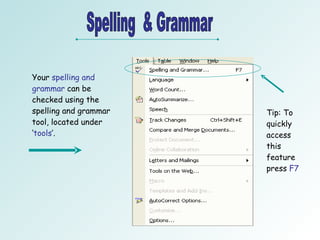
Spelling  & Grammar Your  spelling and grammar  can be checked using the spelling and grammar tool, located under ‘ tools ’.  Tip: To quickly access this feature press  F7
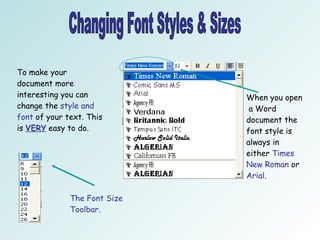
Changing Font Styles & Sizes To make your document more interesting you can change the  style and font  of your text. This is  VERY  easy to do.  When you open  a Word document the font style is always in either  Times New Roman  or  Arial . The Font Size Toolbar.
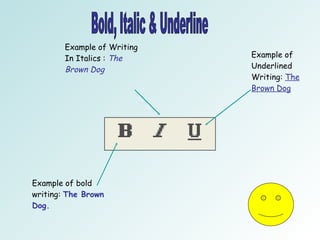
Bold, Italic & Underline Example of bold writing:  The Brown Dog. Example of Writing In Italics :  The Brown Dog Example of Underlined Writing:  The Brown Dog
Essential Skills Enter and Edit Text Formatting Standard Letter &  Mail Merge. 2
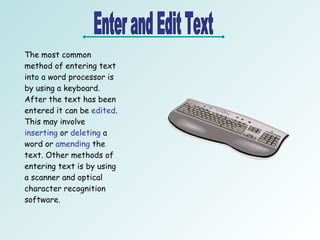
Enter and Edit Text The most common method of entering text into a word processor is by using a keyboard. After the text has been entered it can be  edited . This may involve  inserting  or  deleting  a word or  amending  the text. Other methods of entering text is by using a scanner and optical character recognition software.
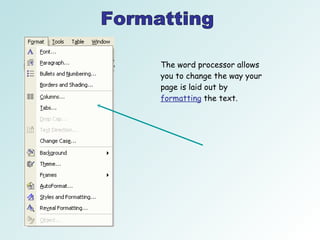
Formatting The word processor allows you to change the way your page is laid out by  formatting  the text.
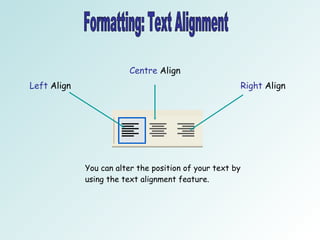
Formatting: Text Alignment  Left  Align Centre  Align Right  Align You can alter the position of your text by using the text alignment feature.
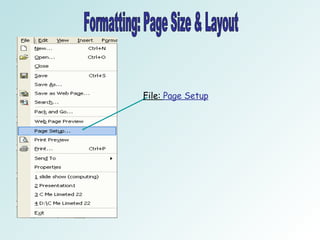
Formatting: Page Size & Layout File:  Page Setup
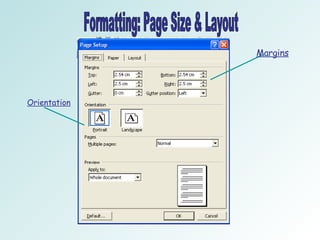
Formatting: Page Size & Layout Orientation Margins
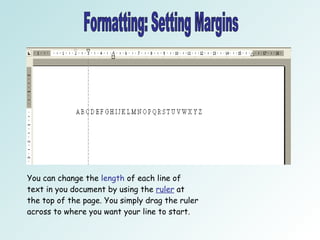
Formatting: Setting Margins You can change the  length  of each line of text in you document by using the  ruler  at the top of the page. You simply drag the ruler across to where you want your line to start.
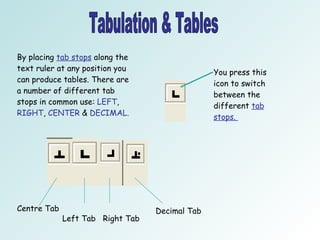
Tabulation & Tables By placing  tab stops  along the text ruler at any position you can produce tables. There are a number of different tab stops in common use:  LEFT ,  RIGHT ,  CENTER  &  DECIMAL.   You press this icon to switch between the different  tab stops.  Centre Tab Left Tab  Right Tab Decimal Tab
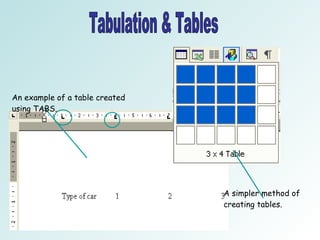
Tabulation & Tables An example of a table created using TABS.   A simpler method of creating tables.
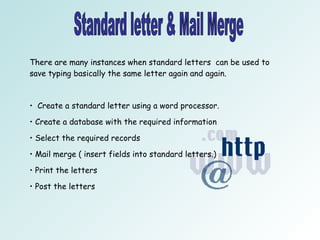
Standard letter & Mail Merge There are many instances when standard letters  can be used to save typing basically the same letter again and again.  Create a standard letter using a word processor. Create a database with the required information Select the required records Mail merge ( insert fields into standard letters.) Print the letters  Post the letters
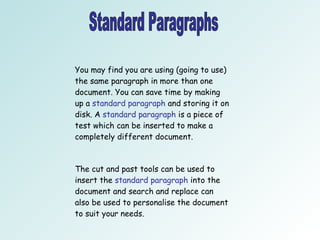
Standard Paragraphs You may find you are using (going to use) the same paragraph in more than one document. You can save time by making up a  standard paragraph  and storing it on disk. A  standard paragraph  is a piece of test which can be inserted to make a completely different document.  The cut and past tools can be used to insert the  standard paragraph  into the document and search and replace can also be used to personalise the document to suit your needs.
FUN STUFF! WORD ART WORD ART auto shapes WORD ART WORD ART
BY SOPHIE CORRIGAN

The Word Processor

  • 1.
  • 2.
    Basics. Spell CheckerGrammar Check Change Font Size and style Bold Underline Italics 1
  • 3.
    Spelling &Grammar Your spelling and grammar can be checked using the spelling and grammar tool, located under ‘ tools ’. Tip: To quickly access this feature press F7
  • 4.
    Changing Font Styles& Sizes To make your document more interesting you can change the style and font of your text. This is VERY easy to do. When you open a Word document the font style is always in either Times New Roman or Arial . The Font Size Toolbar.
  • 5.
    Bold, Italic &Underline Example of bold writing: The Brown Dog. Example of Writing In Italics : The Brown Dog Example of Underlined Writing: The Brown Dog
  • 6.
    Essential Skills Enterand Edit Text Formatting Standard Letter & Mail Merge. 2
  • 7.
    Enter and EditText The most common method of entering text into a word processor is by using a keyboard. After the text has been entered it can be edited . This may involve inserting or deleting a word or amending the text. Other methods of entering text is by using a scanner and optical character recognition software.
  • 8.
    Formatting The wordprocessor allows you to change the way your page is laid out by formatting the text.
  • 9.
    Formatting: Text Alignment Left Align Centre Align Right Align You can alter the position of your text by using the text alignment feature.
  • 10.
    Formatting: Page Size& Layout File: Page Setup
  • 11.
    Formatting: Page Size& Layout Orientation Margins
  • 12.
    Formatting: Setting MarginsYou can change the length of each line of text in you document by using the ruler at the top of the page. You simply drag the ruler across to where you want your line to start.
  • 13.
    Tabulation & TablesBy placing tab stops along the text ruler at any position you can produce tables. There are a number of different tab stops in common use: LEFT , RIGHT , CENTER & DECIMAL. You press this icon to switch between the different tab stops. Centre Tab Left Tab Right Tab Decimal Tab
  • 14.
    Tabulation & TablesAn example of a table created using TABS. A simpler method of creating tables.
  • 15.
    Standard letter &Mail Merge There are many instances when standard letters can be used to save typing basically the same letter again and again. Create a standard letter using a word processor. Create a database with the required information Select the required records Mail merge ( insert fields into standard letters.) Print the letters Post the letters
  • 16.
    Standard Paragraphs Youmay find you are using (going to use) the same paragraph in more than one document. You can save time by making up a standard paragraph and storing it on disk. A standard paragraph is a piece of test which can be inserted to make a completely different document. The cut and past tools can be used to insert the standard paragraph into the document and search and replace can also be used to personalise the document to suit your needs.
  • 17.
    FUN STUFF! WORDART WORD ART auto shapes WORD ART WORD ART
  • 18.