Using Microsoft OfficeMicrosoft Wordand the Elements of Word Processing1
Topics to be discussed...Review general word processing rules,The elements of word processing,Introduction to Microsoft Word.2
Topics to be discussed...Review general word processing rules,The elements of word processing,Introduction to Microsoft Word.3
General Word Processing Rules4
General Word Processing Rules...Follow the directions as to font, font size and font style,One space between words and after commas,Two spaces after periods and all punctuation ending a sentence,Do not type in all CAPs unless told to do so,Keep typing; the computer will go down to the next line automatically,Press TAB once to indent a paragraph.5
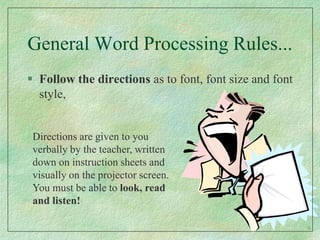
General Word Processing Rules...Follow the directions as to font, font size and font style,Directions are given to you verbally by the teacher, written down on instruction sheets and visually on the projector screen. You must be able to look, read and listen!6
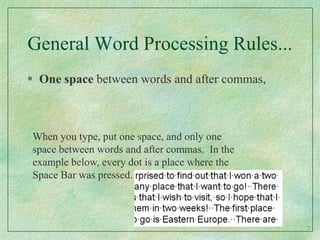
General Word Processing Rules...One space between words and after commas,When you type, put one space, and only one space between words and after commas.  In the example below, every dot is a place where the Space Bar was pressed. 7
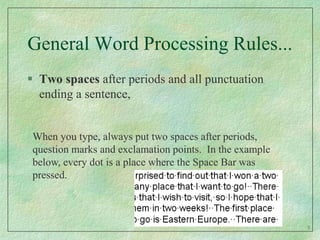
General Word Processing Rules...Two spaces after periods and all punctuation ending a sentence,When you type, always put two spaces after periods, question marks and exclamation points.  In the example below, every dot is a place where the Space Bar was pressed. 8
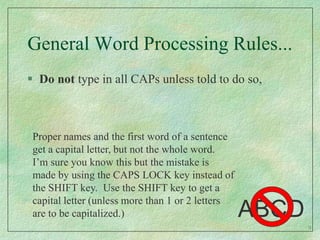
General Word Processing Rules...Do not type in all CAPs unless told to do so,Proper names and the first word of a sentence get a capital letter, but not the whole word.  I’m sure you know this but the mistake is made by using the CAPS LOCK key instead of the SHIFT key.  Use the SHIFT key to get a capital letter (unless more than 1 or 2 letters are to be capitalized.)ABCD9
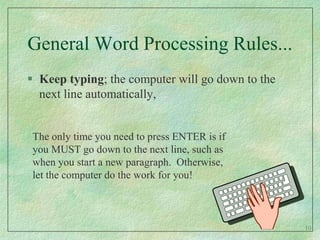
General Word Processing Rules...Keep typing; the computer will go down to the next line automatically,The only time you need to press ENTER is if you MUST go down to the next line, such as when you start a new paragraph.  Otherwise, let the computer do the work for you! 10
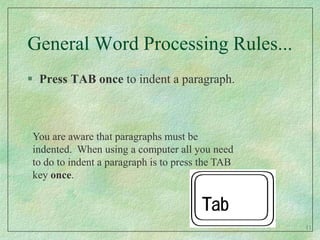
General Word Processing Rules...Press TAB once to indent a paragraph.You are aware that paragraphs must be indented.  When using a computer all you need to do to indent a paragraph is to press the TAB key once.11
Topics to be discussed...Review general word processing rules,The elements of word processing,Introduction to Microsoft Word.12
The Elements of Word Processing...13
…but first and important term.14
…but first and important term.Default15
Default...A default is an initial setting on your computer. For example, the default font and size in Microsoft Word 2007 are Calibri, size 11, and the default style is plain.  16
Default...A default is an initial setting on your computer. For example, the default font and size in Microsoft Word 2007 are Calibri, size 11, and the default style is plain.  Everything you type appears in this font and size unless you instruct the computer to do otherwise.17
Elements of Word Processing...Line spacing,Text alignment,Using fonts, font sizes and font styles,18
Elements of Word Processing...Line spacing,Line spacing refers to the amount of space found between the lines of text in a document.  The types of line spacing in Word 2007 are…1.0 (single spaced), 1.15 (default line spacing in Word 2007),1.5,2.0 (double spaced),2.5,3.0.The most requested line spacing is double spacing.  Most reports and projects are to be typed this way.Business letters and personal letters are always single spaced.19
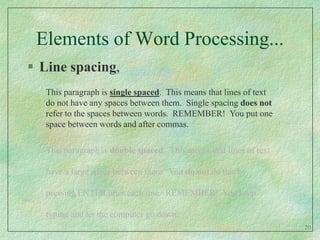
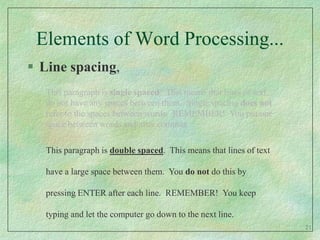
Elements of Word Processing...Line spacing,This paragraph is single spaced.  This means that lines of text do not have any spaces between them.  Single spacing does not refer to the spaces between words.  REMEMBER!  You put one space between words and after commas.This paragraph is double spaced.  This means that lines of text have a large space between them.  You do not do this by pressing ENTER after each line.  REMEMBER!  You keep typing and let the computer go down.20
Elements of Word Processing...Line spacing,This paragraph is single spaced.  This means that lines of text do not have any spaces between them.  Single spacing does not refer to the spaces between words.  REMEMBER!  You put one space between words and after commas.This paragraph is double spaced.  This means that lines of text have a large space between them.  You do not do this by pressing ENTER after each line.  REMEMBER!  You keep typing and let the computer go down to the next line.21
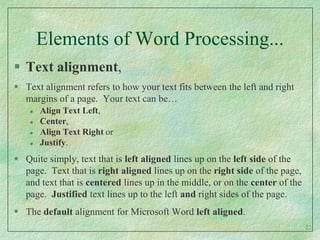
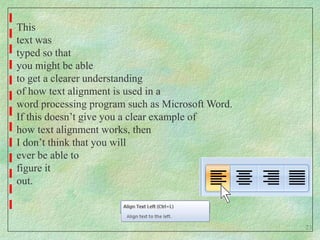
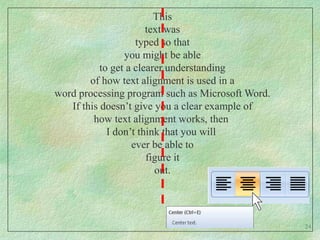
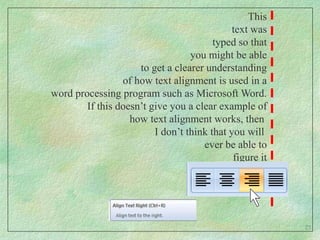
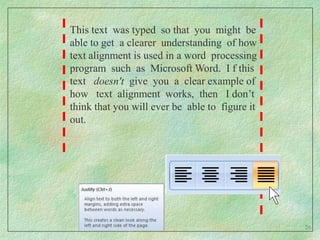
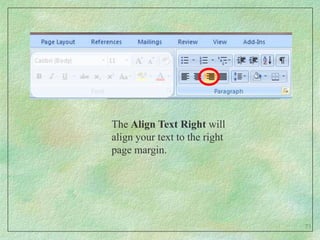
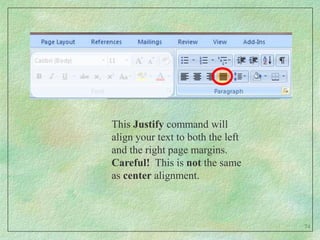
Elements of Word Processing...Text alignment,Text alignment refers to how your text fits between the left and right margins of a page.  Your text can be…Align Text Left, Center, Align Text Right or Justify.  Quite simply, text that is left aligned lines up on the left side of the page.  Text that is right aligned lines up on the right side of the page, and text that is centered lines up in the middle, or on the center of the page.  Justified text lines up to the left and right sides of the page.The default alignment for Microsoft Word left aligned.22
Thistext wastyped so thatyou might be ableto get a clearer understandingof how text alignment is used in aword processing program such as Microsoft Word.If this doesn’t give you a clear example ofhow text alignment works, then I don’t think that you will ever be able tofigure itout.23
Thistext wastyped so thatyou might be ableto get a clearer understandingof how text alignment is used in aword processing program such as Microsoft Word.If this doesn’t give you a clear example ofhow text alignment works, then I don’t think that you will ever be able tofigure itout.24
Thistext wastyped so thatyou might be ableto get a clearer understandingof how text alignment is used in aword processing program such as Microsoft Word.If this doesn’t give you a clear example ofhow text alignment works, then I don’t think that you will ever be able tofigure itout.25
This text  was typed  so that  you  might  be able to get  a clearer  understanding  of how text alignment is used in a word  processing program  such  as  Microsoft Word.  I f this text   doesn't  give  you  a  clear example of how   text  alignment  works,  then   I don’t think that you will ever be  able to  figure it out.26
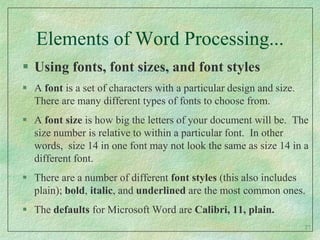
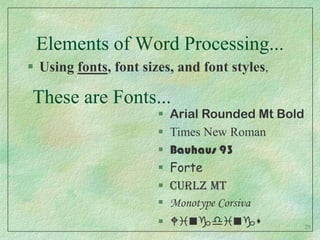
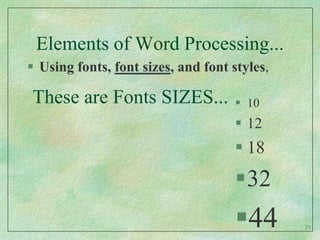
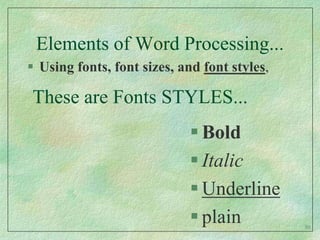
Elements of Word Processing...Using fonts, font sizes, and font stylesA font is a set of characters with a particular design and size.  There are many different types of fonts to choose from.  A font size is how big the letters of your document will be.  The size number is relative to within a particular font.  In other words,  size 14 in one font may not look the same as size 14 in a different font.There are a number of different font styles (this also includes plain); bold, italic, and underlined are the most common ones.The defaults for Microsoft Wordare Calibri, 11, plain.27
Elements of Word Processing...Using fonts, font sizes, and font styles,These are Fonts...Arial Rounded Mt Bold
Times New Roman
Bauhaus 93
Forte
Curlz MT
Monotype Corsiva
Wingdings28
Elements of Word Processing...Using fonts, font sizes, and font styles,These are Fonts SIZES...10
12
18
32
4429
Elements of Word Processing...Using fonts, font sizes, and font styles,These are Fonts STYLES...Bold
Italic
Underline
plain30
Topics to be discussed...Review  general word processing rules,The elements of word processing,Introduction to Microsoft Word.31
Introduction to Microsoft Word32
Microsoft Word…is a word processor.  A word processor is software you can use to produce documents, including letters, reports, manuals, and newsletters.  33
Microsoft Word…is a word processor.  A word processor is software you can use to produce documents, including letters, reports, manuals, and newsletters.  Most word processors include a built-in spell check and thesaurus to increase the accuracy and quality of a document. 34
Microsoft Word…is a word processor.  A word processor is software you can use to produce documents, including letters, reports, manuals, and newsletters.  Most word processors include a built-in spell check and thesaurus to increase the accuracy and quality of a document. Another word processor is WordPerfect.  A very basic word processor with limited features is WordPad.35
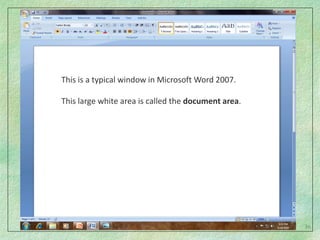
This is a typical window in Microsoft Word 2007.This large white area is called the document area.This is a typical window in Microsoft Word.This large white area is called the workspace.36
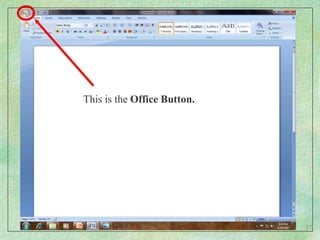
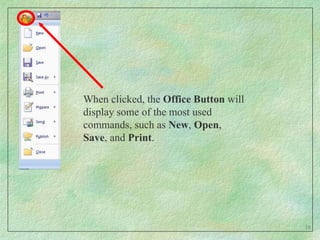
This is the Office Button.37
When clicked, the Office Button will display some of the most used commands, such as New, Open, Save, and Print. 38
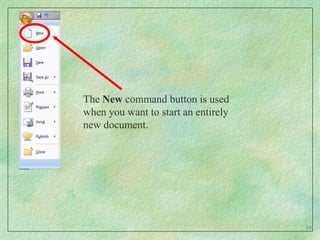
The New command button is used when you want to start an entirely new document. 39
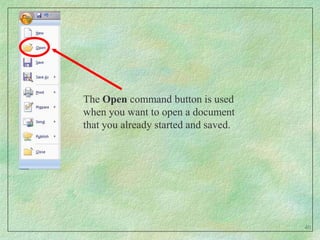
The Open command button is used when you want to open a document that you already started and saved. 40
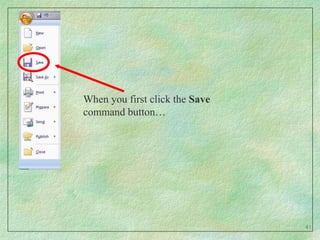
When you first click the Save command button…41
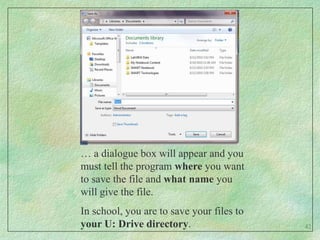
… a dialogue box will appear and you must tell the program where you want to save the file and what name you will give the file. In school, you are to save your files to your U: Drive directory.42
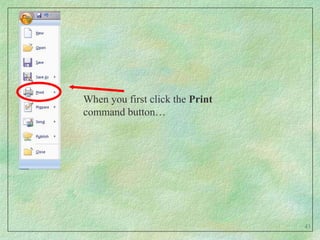
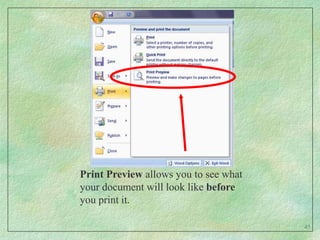
When you first click the Print command button… 43
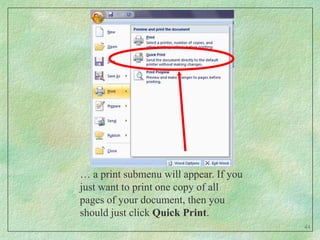
… a print submenu will appear. If you just want to print one copy of all pages of your document, then you should just click Quick Print.44
Print Preview allows you to see what your document will look like before you print it.45
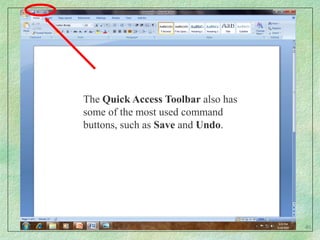
The Quick Access Toolbar also has some of the most used command buttons, such as Save and Undo.46
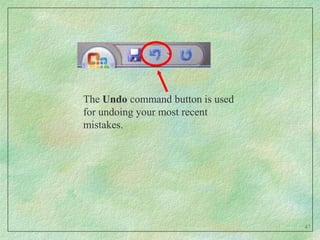
The Undo command button is used for undoing your most recent mistakes.47
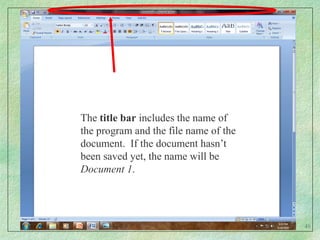
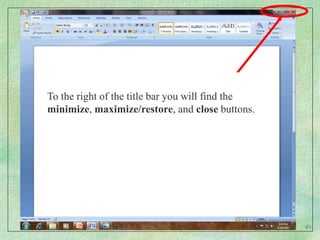
The title bar includes the name of the program and the file name of the document.  If the document hasn’t been saved yet, the name will be Document 1.48
To the right of the title bar you will find the minimize, maximize/restore, and close buttons.  The minimize button will make the program as small as it can get, while still running.  The maximize button will make the program as large as it can get.If the program screen was resized, the restore button will return the previous size it was.49
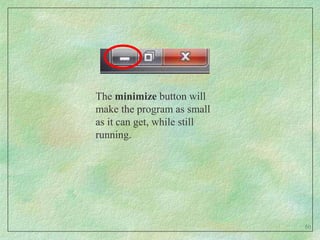
The minimize button will make the program as small as it can get, while still running.  50
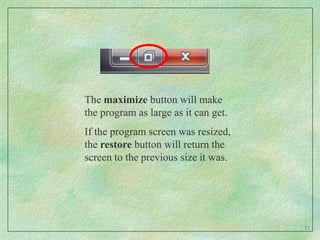
The maximize button will make the program as large as it can get.If the program screen was resized, the restore button will return the screen to the previous size it was.51
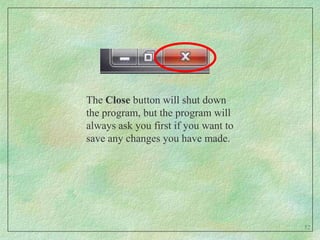
The Close button will shut down the program, but the program will always ask you first if you want to save any changes you have made.  52
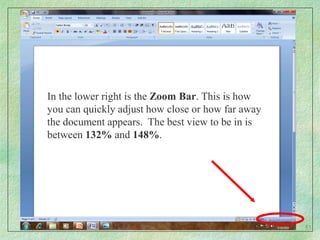
In the lower right is the Zoom Bar. This is how you can quickly adjust how close or how far away the document appears.  The best view to be in is between 132% and 148%.53
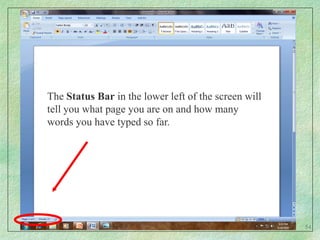
The Status Bar in the lower left of the screen will tell you what page you are on and how many words you have typed so far. 54
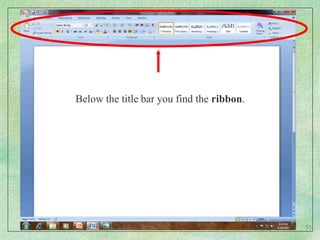
Below the title bar you find the ribbon.  55
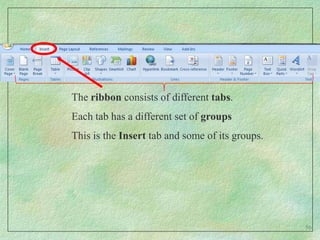
The ribbon consists of different tabs.Each tab has a different set of groupsThis is the Insert tab and some of its groups.56
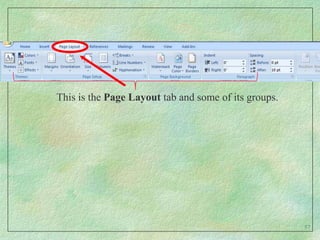
This is the Page Layout tab and some of its groups.57
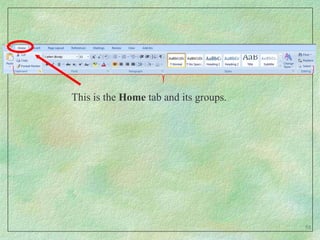
This is the Home tab and its groups.  58
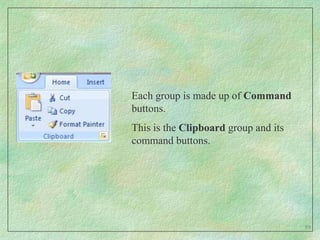
Each group is made up of Command buttons.This is the Clipboard group and its command buttons.59
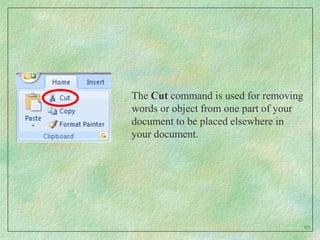
The Cut command is used for removing words or object from one part of your document to be placed elsewhere in your document.60
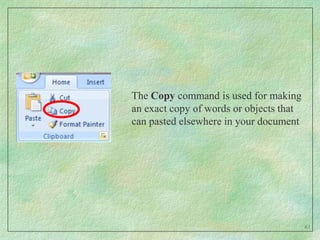
The Copy command is used for making an exact copy of words or objects that can pasted elsewhere in your document61
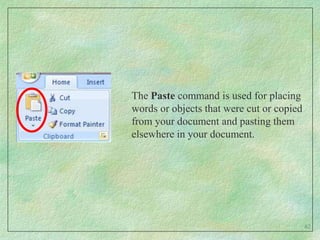
The Paste command is used for placing words or objects that were cut or copied from your document and pasting them elsewhere in your document.62
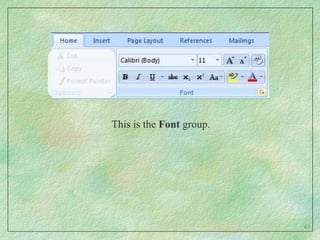
This is the Font group.63
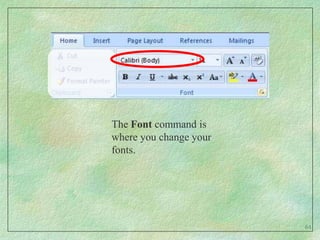
The Font command is where you change your fonts.64
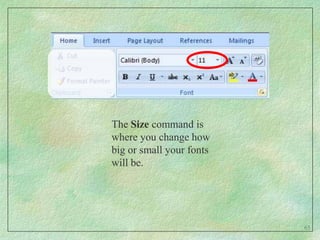
The Size command is where you change how big or small your fonts will be.65

Slide, word and word processing

  • 1.
    Using Microsoft OfficeMicrosoftWordand the Elements of Word Processing1
  • 2.
    Topics to bediscussed...Review general word processing rules,The elements of word processing,Introduction to Microsoft Word.2
  • 3.
    Topics to bediscussed...Review general word processing rules,The elements of word processing,Introduction to Microsoft Word.3
  • 4.
  • 5.
    General Word ProcessingRules...Follow the directions as to font, font size and font style,One space between words and after commas,Two spaces after periods and all punctuation ending a sentence,Do not type in all CAPs unless told to do so,Keep typing; the computer will go down to the next line automatically,Press TAB once to indent a paragraph.5
  • 6.
    General Word ProcessingRules...Follow the directions as to font, font size and font style,Directions are given to you verbally by the teacher, written down on instruction sheets and visually on the projector screen. You must be able to look, read and listen!6
  • 7.
    General Word ProcessingRules...One space between words and after commas,When you type, put one space, and only one space between words and after commas. In the example below, every dot is a place where the Space Bar was pressed. 7
  • 8.
    General Word ProcessingRules...Two spaces after periods and all punctuation ending a sentence,When you type, always put two spaces after periods, question marks and exclamation points. In the example below, every dot is a place where the Space Bar was pressed. 8
  • 9.
    General Word ProcessingRules...Do not type in all CAPs unless told to do so,Proper names and the first word of a sentence get a capital letter, but not the whole word. I’m sure you know this but the mistake is made by using the CAPS LOCK key instead of the SHIFT key. Use the SHIFT key to get a capital letter (unless more than 1 or 2 letters are to be capitalized.)ABCD9
  • 10.
    General Word ProcessingRules...Keep typing; the computer will go down to the next line automatically,The only time you need to press ENTER is if you MUST go down to the next line, such as when you start a new paragraph. Otherwise, let the computer do the work for you! 10
  • 11.
    General Word ProcessingRules...Press TAB once to indent a paragraph.You are aware that paragraphs must be indented. When using a computer all you need to do to indent a paragraph is to press the TAB key once.11
  • 12.
    Topics to bediscussed...Review general word processing rules,The elements of word processing,Introduction to Microsoft Word.12
  • 13.
    The Elements ofWord Processing...13
  • 14.
    …but first andimportant term.14
  • 15.
    …but first andimportant term.Default15
  • 16.
    Default...A default isan initial setting on your computer. For example, the default font and size in Microsoft Word 2007 are Calibri, size 11, and the default style is plain. 16
  • 17.
    Default...A default isan initial setting on your computer. For example, the default font and size in Microsoft Word 2007 are Calibri, size 11, and the default style is plain. Everything you type appears in this font and size unless you instruct the computer to do otherwise.17
  • 18.
    Elements of WordProcessing...Line spacing,Text alignment,Using fonts, font sizes and font styles,18
  • 19.
    Elements of WordProcessing...Line spacing,Line spacing refers to the amount of space found between the lines of text in a document. The types of line spacing in Word 2007 are…1.0 (single spaced), 1.15 (default line spacing in Word 2007),1.5,2.0 (double spaced),2.5,3.0.The most requested line spacing is double spacing. Most reports and projects are to be typed this way.Business letters and personal letters are always single spaced.19
  • 20.
    Elements of WordProcessing...Line spacing,This paragraph is single spaced. This means that lines of text do not have any spaces between them. Single spacing does not refer to the spaces between words. REMEMBER! You put one space between words and after commas.This paragraph is double spaced. This means that lines of text have a large space between them. You do not do this by pressing ENTER after each line. REMEMBER! You keep typing and let the computer go down.20
  • 21.
    Elements of WordProcessing...Line spacing,This paragraph is single spaced. This means that lines of text do not have any spaces between them. Single spacing does not refer to the spaces between words. REMEMBER! You put one space between words and after commas.This paragraph is double spaced. This means that lines of text have a large space between them. You do not do this by pressing ENTER after each line. REMEMBER! You keep typing and let the computer go down to the next line.21
  • 22.
    Elements of WordProcessing...Text alignment,Text alignment refers to how your text fits between the left and right margins of a page. Your text can be…Align Text Left, Center, Align Text Right or Justify. Quite simply, text that is left aligned lines up on the left side of the page. Text that is right aligned lines up on the right side of the page, and text that is centered lines up in the middle, or on the center of the page. Justified text lines up to the left and right sides of the page.The default alignment for Microsoft Word left aligned.22
  • 23.
    Thistext wastyped sothatyou might be ableto get a clearer understandingof how text alignment is used in aword processing program such as Microsoft Word.If this doesn’t give you a clear example ofhow text alignment works, then I don’t think that you will ever be able tofigure itout.23
  • 24.
    Thistext wastyped sothatyou might be ableto get a clearer understandingof how text alignment is used in aword processing program such as Microsoft Word.If this doesn’t give you a clear example ofhow text alignment works, then I don’t think that you will ever be able tofigure itout.24
  • 25.
    Thistext wastyped sothatyou might be ableto get a clearer understandingof how text alignment is used in aword processing program such as Microsoft Word.If this doesn’t give you a clear example ofhow text alignment works, then I don’t think that you will ever be able tofigure itout.25
  • 26.
    This text was typed so that you might be able to get a clearer understanding of how text alignment is used in a word processing program such as Microsoft Word. I f this text doesn't give you a clear example of how text alignment works, then I don’t think that you will ever be able to figure it out.26
  • 27.
    Elements of WordProcessing...Using fonts, font sizes, and font stylesA font is a set of characters with a particular design and size. There are many different types of fonts to choose from. A font size is how big the letters of your document will be. The size number is relative to within a particular font. In other words, size 14 in one font may not look the same as size 14 in a different font.There are a number of different font styles (this also includes plain); bold, italic, and underlined are the most common ones.The defaults for Microsoft Wordare Calibri, 11, plain.27
  • 28.
    Elements of WordProcessing...Using fonts, font sizes, and font styles,These are Fonts...Arial Rounded Mt Bold
  • 29.
  • 30.
  • 31.
  • 32.
  • 33.
  • 34.
  • 35.
    Elements of WordProcessing...Using fonts, font sizes, and font styles,These are Fonts SIZES...10
  • 36.
  • 37.
  • 38.
  • 39.
  • 40.
    Elements of WordProcessing...Using fonts, font sizes, and font styles,These are Fonts STYLES...Bold
  • 41.
  • 42.
  • 43.
  • 44.
    Topics to bediscussed...Review general word processing rules,The elements of word processing,Introduction to Microsoft Word.31
  • 45.
  • 46.
    Microsoft Word…is aword processor. A word processor is software you can use to produce documents, including letters, reports, manuals, and newsletters. 33
  • 47.
    Microsoft Word…is aword processor. A word processor is software you can use to produce documents, including letters, reports, manuals, and newsletters. Most word processors include a built-in spell check and thesaurus to increase the accuracy and quality of a document. 34
  • 48.
    Microsoft Word…is aword processor. A word processor is software you can use to produce documents, including letters, reports, manuals, and newsletters. Most word processors include a built-in spell check and thesaurus to increase the accuracy and quality of a document. Another word processor is WordPerfect. A very basic word processor with limited features is WordPad.35
  • 49.
    This is atypical window in Microsoft Word 2007.This large white area is called the document area.This is a typical window in Microsoft Word.This large white area is called the workspace.36
  • 50.
    This is theOffice Button.37
  • 51.
    When clicked, theOffice Button will display some of the most used commands, such as New, Open, Save, and Print. 38
  • 52.
    The New commandbutton is used when you want to start an entirely new document. 39
  • 53.
    The Open commandbutton is used when you want to open a document that you already started and saved. 40
  • 54.
    When you firstclick the Save command button…41
  • 55.
    … a dialoguebox will appear and you must tell the program where you want to save the file and what name you will give the file. In school, you are to save your files to your U: Drive directory.42
  • 56.
    When you firstclick the Print command button… 43
  • 57.
    … a printsubmenu will appear. If you just want to print one copy of all pages of your document, then you should just click Quick Print.44
  • 58.
    Print Preview allowsyou to see what your document will look like before you print it.45
  • 59.
    The Quick AccessToolbar also has some of the most used command buttons, such as Save and Undo.46
  • 60.
    The Undo commandbutton is used for undoing your most recent mistakes.47
  • 61.
    The title barincludes the name of the program and the file name of the document. If the document hasn’t been saved yet, the name will be Document 1.48
  • 62.
    To the rightof the title bar you will find the minimize, maximize/restore, and close buttons. The minimize button will make the program as small as it can get, while still running. The maximize button will make the program as large as it can get.If the program screen was resized, the restore button will return the previous size it was.49
  • 63.
    The minimize buttonwill make the program as small as it can get, while still running. 50
  • 64.
    The maximize buttonwill make the program as large as it can get.If the program screen was resized, the restore button will return the screen to the previous size it was.51
  • 65.
    The Close buttonwill shut down the program, but the program will always ask you first if you want to save any changes you have made. 52
  • 66.
    In the lowerright is the Zoom Bar. This is how you can quickly adjust how close or how far away the document appears. The best view to be in is between 132% and 148%.53
  • 67.
    The Status Barin the lower left of the screen will tell you what page you are on and how many words you have typed so far. 54
  • 68.
    Below the titlebar you find the ribbon. 55
  • 69.
    The ribbon consistsof different tabs.Each tab has a different set of groupsThis is the Insert tab and some of its groups.56
  • 70.
    This is thePage Layout tab and some of its groups.57
  • 71.
    This is theHome tab and its groups. 58
  • 72.
    Each group ismade up of Command buttons.This is the Clipboard group and its command buttons.59
  • 73.
    The Cut commandis used for removing words or object from one part of your document to be placed elsewhere in your document.60
  • 74.
    The Copy commandis used for making an exact copy of words or objects that can pasted elsewhere in your document61
  • 75.
    The Paste commandis used for placing words or objects that were cut or copied from your document and pasting them elsewhere in your document.62
  • 76.
    This is theFont group.63
  • 77.
    The Font commandis where you change your fonts.64
  • 78.
    The Size commandis where you change how big or small your fonts will be.65