Submitted To:-
Prof. Dr. Jitender Kumar
Submitted By:-
Priyamvada,Manisha
Mothsra
Content
Introduction
Meaning of MS-Word
Knowing a Word Document
Using the Word Window
Working with Text Heading
Formatting
Header and Footer
Insert Pictures and Tables
Close Window
References
Microsoft Word is a program called a WORD
PROCESSOR. WORD PROCESSOR refers to
a program in which the user inputs text which is
formatted to create a readable document.
Microsoft Word is a part of the Microsoft office
package and has been use for over a decade.
Word is a tool that helps you quickly create
documents with a professional look.
Word processors offer you
the flexibility to format
documents by making
changes to the font, the
page layout, and the page
style.
Microsoft Word is the word
processing component of
the Microsoft Office Suite. It
is used primarily to enter,
edit, format, save, retrieve
and print documents.
Word is a word processor which provides various
processing and documentation tools. We can type in text
and even insert graphics, videos and sound in a word
document.
In its simplest form, a word document is a sequence of
characters that exists in a computer’s memory. Using
word, a document can be edited and given a verity of lay
outs. Once, the document has been created, there are a
large number of actions that can be carried out, such as
saving printing or sending the document as an e-mail.
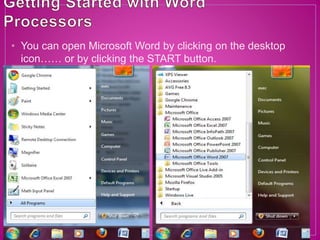
• You can open Microsoft Word by clicking on the desktop
icon…… or by clicking the START button.
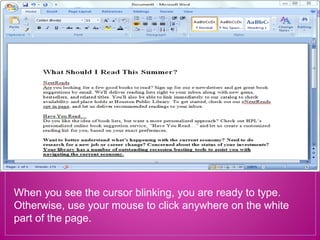
When you see the cursor blinking, you are ready to type.
Otherwise, use your mouse to click anywhere on the white
part of the page.
The tools of Microsoft Word
are organized under the
tabs HOME, INSERT, PAGE
LAYOUT, REFERENCES,
MAILINGS, REVIEW, and
VIEW.
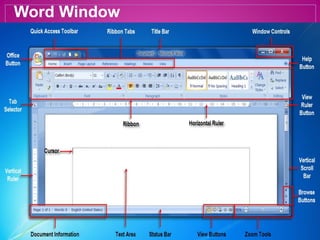
Word Window
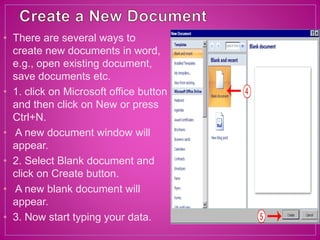
• There are several ways to
create new documents in word,
e.g., open existing document,
save documents etc.
• 1. click on Microsoft office button
and then click on New or press
Ctrl+N.
• A new document window will
appear.
• 2. Select Blank document and
click on Create button.
• A new blank document will
appear.
• 3. Now start typing your data.
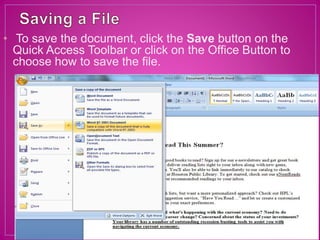
• To save the document, click the Save button on the
Quick Access Toolbar or click on the Office Button to
choose how to save the file.
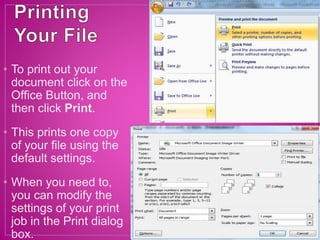
• To print out your
document click on the
Office Button, and
then click Print.
• This prints one copy
of your file using the
default settings.
• When you need to,
you can modify the
settings of your print
job in the Print dialog
box.
Select
Hold down the left mouse button and drag the
cursor OR
Hold down SHIFT and use the arrow keys on the
keyboard.
Copy
You can find the Copy and Paste commands
under the Home Tab.
Paste
You can also copy and paste by clicking with the
right mouse button on a word you have selected
to pull up a shortcut menu.
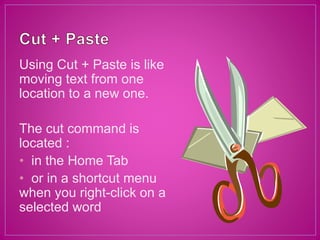
Using Cut + Paste is like
moving text from one
location to a new one.
The cut command is
located :
• in the Home Tab
• or in a shortcut menu
when you right-click on a
selected word
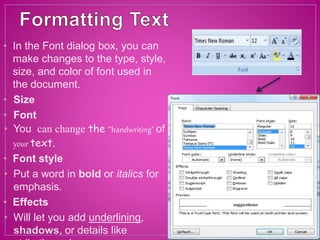
• In the Font dialog box, you can
make changes to the type, style,
size, and color of font used in
the document.
• Size
• Font
• You can change the “handwriting” of
your text.
• Font style
• Put a word in bold or italics for
emphasis.
• Effects
• Will let you add underlining,
shadows, or details like
Many of these text options
can also be found on your
Home Ribbon in the Font
Group.
Font Size Colour
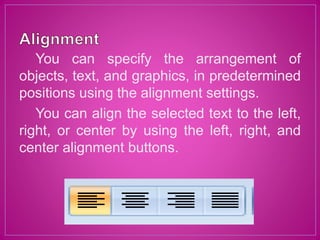
You can specify the arrangement of
objects, text, and graphics, in predetermined
positions using the alignment settings.
You can align the selected text to the left,
right, or center by using the left, right, and
center alignment buttons.
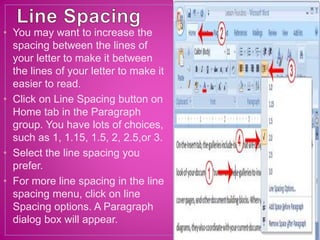
• You may want to increase the
spacing between the lines of
your letter to make it between
the lines of your letter to make it
easier to read.
• Click on Line Spacing button on
Home tab in the Paragraph
group. You have lots of choices,
such as 1, 1.15, 1.5, 2, 2.5,or 3.
• Select the line spacing you
prefer.
• For more line spacing in the line
spacing menu, click on line
Spacing options. A Paragraph
dialog box will appear.
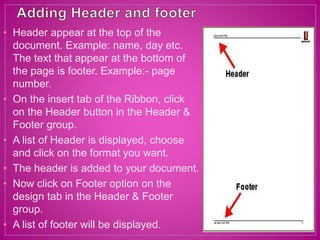
• Header appear at the top of the
document. Example: name, day etc.
The text that appear at the bottom of
the page is footer. Example:- page
number.
• On the insert tab of the Ribbon, click
on the Header button in the Header &
Footer group.
• A list of Header is displayed, choose
and click on the format you want.
• The header is added to your document.
• Now click on Footer option on the
design tab in the Header & Footer
group.
• A list of footer will be displayed.
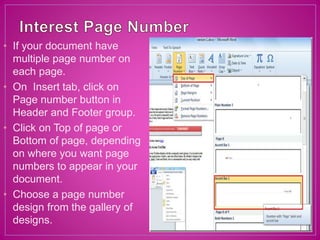
• If your document have
multiple page number on
each page.
• On Insert tab, click on
Page number button in
Header and Footer group.
• Click on Top of page or
Bottom of page, depending
on where you want page
numbers to appear in your
document.
• Choose a page number
design from the gallery of
designs.
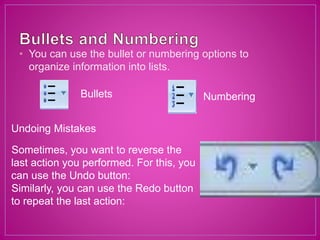
• You can use the bullet or numbering options to
organize information into lists.
Bullets Numbering
Undoing Mistakes
Sometimes, you want to reverse the
last action you performed. For this, you
can use the Undo button:
Similarly, you can use the Redo button
to repeat the last action:
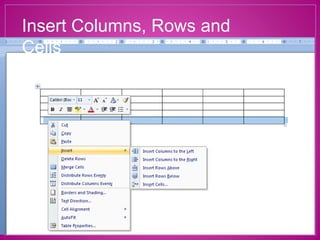
Insert Columns, Rows and
Cells
• Advanced word processors,
such as Word, can
automatically detect the
language of the typed text
and then use the spelling
dictionary, grammar
checker, and punctuation
rules for that language.
• Language tools are a
convenient way to perform
certain tasks automatically
as you type, such as
checking spelling and
grammar.
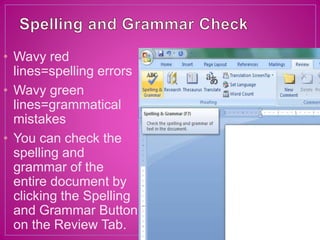
• Wavy red
lines=spelling errors
• Wavy green
lines=grammatical
mistakes
• You can check the
spelling and
grammar of the
entire document by
clicking the Spelling
and Grammar Button
on the Review Tab.
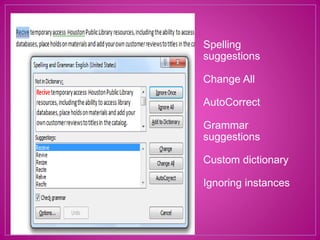
Spelling
suggestions
Change All
AutoCorrect
Grammar
suggestions
Custom dictionary
Ignoring instances
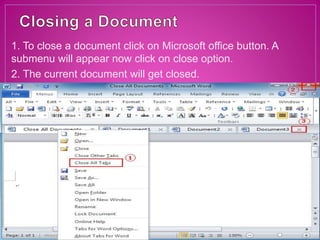
1. To close a document click on Microsoft office button. A
submenu will appear now click on close option.
2. The current document will get closed.
• Cox, J. And Urban, P. “Quick Course in Microsoft
Office. Galgotia Publications, New Delhi,1990.
• Jain, Satish: “Introduction to Computer Science and
basic Programming.” BPB Publications,New Delhi,
1990.
• Rajaraman, V., “Fundamental of Computers”,
Prentice Hall of India, New Delhi, 1996.
• Saxena, S., “A First Coursein Computers”, Vikas
Publishing House Pvt. Ltd., New Delhi,1998.
• Sinha, P.K. “Computer Fundamentals: BPB
Publications, New Delhi, 1990.
• Taneenbaum, A.S. “Computer Networks”, Prentice
Hall of India, New Delhi, 1998.
Ms word 2007

Ms word 2007

  • 1.
    Submitted To:- Prof. Dr.Jitender Kumar Submitted By:- Priyamvada,Manisha Mothsra
  • 2.
    Content Introduction Meaning of MS-Word Knowinga Word Document Using the Word Window Working with Text Heading Formatting Header and Footer Insert Pictures and Tables Close Window References
  • 3.
    Microsoft Word isa program called a WORD PROCESSOR. WORD PROCESSOR refers to a program in which the user inputs text which is formatted to create a readable document. Microsoft Word is a part of the Microsoft office package and has been use for over a decade. Word is a tool that helps you quickly create documents with a professional look.
  • 4.
    Word processors offeryou the flexibility to format documents by making changes to the font, the page layout, and the page style. Microsoft Word is the word processing component of the Microsoft Office Suite. It is used primarily to enter, edit, format, save, retrieve and print documents.
  • 5.
    Word is aword processor which provides various processing and documentation tools. We can type in text and even insert graphics, videos and sound in a word document. In its simplest form, a word document is a sequence of characters that exists in a computer’s memory. Using word, a document can be edited and given a verity of lay outs. Once, the document has been created, there are a large number of actions that can be carried out, such as saving printing or sending the document as an e-mail.
  • 6.
    • You canopen Microsoft Word by clicking on the desktop icon…… or by clicking the START button.
  • 7.
    When you seethe cursor blinking, you are ready to type. Otherwise, use your mouse to click anywhere on the white part of the page.
  • 8.
    The tools ofMicrosoft Word are organized under the tabs HOME, INSERT, PAGE LAYOUT, REFERENCES, MAILINGS, REVIEW, and VIEW.
  • 9.
  • 10.
    • There areseveral ways to create new documents in word, e.g., open existing document, save documents etc. • 1. click on Microsoft office button and then click on New or press Ctrl+N. • A new document window will appear. • 2. Select Blank document and click on Create button. • A new blank document will appear. • 3. Now start typing your data.
  • 11.
    • To savethe document, click the Save button on the Quick Access Toolbar or click on the Office Button to choose how to save the file.
  • 12.
    • To printout your document click on the Office Button, and then click Print. • This prints one copy of your file using the default settings. • When you need to, you can modify the settings of your print job in the Print dialog box.
  • 13.
    Select Hold down theleft mouse button and drag the cursor OR Hold down SHIFT and use the arrow keys on the keyboard. Copy You can find the Copy and Paste commands under the Home Tab. Paste You can also copy and paste by clicking with the right mouse button on a word you have selected to pull up a shortcut menu.
  • 14.
    Using Cut +Paste is like moving text from one location to a new one. The cut command is located : • in the Home Tab • or in a shortcut menu when you right-click on a selected word
  • 15.
    • In theFont dialog box, you can make changes to the type, style, size, and color of font used in the document. • Size • Font • You can change the “handwriting” of your text. • Font style • Put a word in bold or italics for emphasis. • Effects • Will let you add underlining, shadows, or details like
  • 16.
    Many of thesetext options can also be found on your Home Ribbon in the Font Group. Font Size Colour
  • 17.
    You can specifythe arrangement of objects, text, and graphics, in predetermined positions using the alignment settings. You can align the selected text to the left, right, or center by using the left, right, and center alignment buttons.
  • 18.
    • You maywant to increase the spacing between the lines of your letter to make it between the lines of your letter to make it easier to read. • Click on Line Spacing button on Home tab in the Paragraph group. You have lots of choices, such as 1, 1.15, 1.5, 2, 2.5,or 3. • Select the line spacing you prefer. • For more line spacing in the line spacing menu, click on line Spacing options. A Paragraph dialog box will appear.
  • 19.
    • Header appearat the top of the document. Example: name, day etc. The text that appear at the bottom of the page is footer. Example:- page number. • On the insert tab of the Ribbon, click on the Header button in the Header & Footer group. • A list of Header is displayed, choose and click on the format you want. • The header is added to your document. • Now click on Footer option on the design tab in the Header & Footer group. • A list of footer will be displayed.
  • 20.
    • If yourdocument have multiple page number on each page. • On Insert tab, click on Page number button in Header and Footer group. • Click on Top of page or Bottom of page, depending on where you want page numbers to appear in your document. • Choose a page number design from the gallery of designs.

  • 21.
    • You canuse the bullet or numbering options to organize information into lists. Bullets Numbering Undoing Mistakes Sometimes, you want to reverse the last action you performed. For this, you can use the Undo button: Similarly, you can use the Redo button to repeat the last action:
  • 23.
  • 27.
    • Advanced wordprocessors, such as Word, can automatically detect the language of the typed text and then use the spelling dictionary, grammar checker, and punctuation rules for that language. • Language tools are a convenient way to perform certain tasks automatically as you type, such as checking spelling and grammar.
  • 28.
    • Wavy red lines=spellingerrors • Wavy green lines=grammatical mistakes • You can check the spelling and grammar of the entire document by clicking the Spelling and Grammar Button on the Review Tab.
  • 29.
  • 30.
    1. To closea document click on Microsoft office button. A submenu will appear now click on close option. 2. The current document will get closed.
  • 31.
    • Cox, J.And Urban, P. “Quick Course in Microsoft Office. Galgotia Publications, New Delhi,1990. • Jain, Satish: “Introduction to Computer Science and basic Programming.” BPB Publications,New Delhi, 1990. • Rajaraman, V., “Fundamental of Computers”, Prentice Hall of India, New Delhi, 1996. • Saxena, S., “A First Coursein Computers”, Vikas Publishing House Pvt. Ltd., New Delhi,1998. • Sinha, P.K. “Computer Fundamentals: BPB Publications, New Delhi, 1990. • Taneenbaum, A.S. “Computer Networks”, Prentice Hall of India, New Delhi, 1998.