MICROSOFT WORD
PRESENTATION
Word Processing
 Software that is designed for the entry, editing, and
printing of documents.
 WindowsVersion = Microsoft Word (MS Word)
 Word processing documents include:
 Letters
 Memorandums
 Faxes
 Mail Merges
 Reports
 One page flyers
 E-mail
Getting Started with
MS Word…
Creating Documents
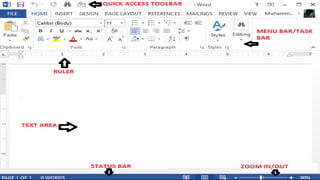
Know the parts of your MS
Word screen.
 Quick access toolbar.
 Menu Bar/Tool Bar.
 Toolbars and Buttons.
 Ruler.
 Scroll Bars.
 Status Bar.
The Quick AccessToolbar
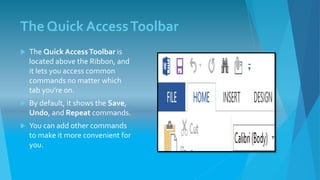
 The Quick AccessToolbar is
located above the Ribbon, and
it lets you access common
commands no matter which
tab you're on.
 By default, it shows the Save,
Undo, and Repeat commands.
 You can add other commands
to make it more convenient for
you.
The Quick AccessToolbar
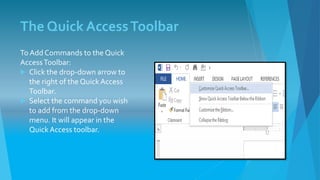
To Add Commands to the Quick
AccessToolbar:
 Click the drop-down arrow to
the right of the QuickAccess
Toolbar.
 Select the command you wish
to add from the drop-down
menu. It will appear in the
QuickAccess toolbar.
The Ribbon
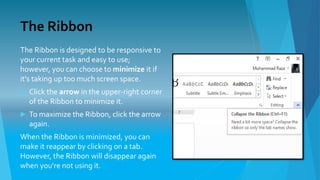
The Ribbon is designed to be responsive to
your current task and easy to use;
however, you can choose to minimize it if
it's taking up too much screen space.
 Click the arrow in the upper-right corner
of the Ribbon to minimize it.
 To maximize the Ribbon, click the arrow
again.
When the Ribbon is minimized, you can
make it reappear by clicking on a tab.
However, the Ribbon will disappear again
when you're not using it.
The Ribbon
You can customize the Ribbon by creating
your own tabs with whichever commands
you want. Commands are always housed
within a group, and you can create as
many groups as you want in order to keep
your tab organized. If you want, you can
even add commands to any of the default
tabs, as long as you create a custom group
in the tab.
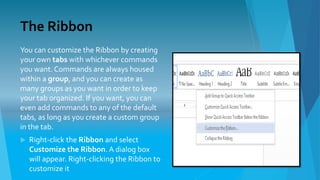
 Right-click the Ribbon and select
Customize the Ribbon. A dialog box
will appear. Right-clicking the Ribbon to
customize it
The Ribbon
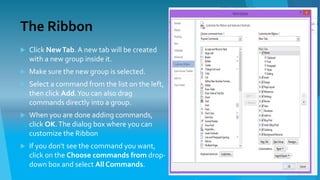
 Click NewTab. A new tab will be created
with a new group inside it.
 Make sure the new group is selected.
 Select a command from the list on the left,
then click Add.You can also drag
commands directly into a group.
 When you are done adding commands,
click OK.The dialog box where you can
customize the Ribbon
 If you don't see the command you want,
click on the Choose commands from drop-
down box and select All Commands.
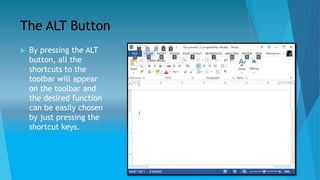
The ALT Button
 By pressing the ALT
button, all the
shortcuts to the
toolbar will appear
on the toolbar and
the desired function
can be easily chosen
by just pressing the
shortcut keys.
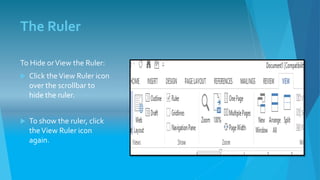
The Ruler
To Hide orView the Ruler:
 Click theView Ruler icon
over the scrollbar to
hide the ruler.
 To show the ruler, click
theView Ruler icon
again.
BackstageView
To Get to BackstageView:
 Click the File tab.
 You can choose an option
on the left side of the page.
 To get back to your
document, just click any tab
on the Ribbon.
The Font
 To Change the Font Size:
 Select the text you wish to
modify.
 Click the drop-down arrow next
to the Font Size box on the
Home tab. A drop-down menu
appears.
 Move the mouse pointer over
the various font sizes. A live
preview of the font size will
appear in the document.
 Select the font size you wish to
use.
The Font
To Change the Font:
 Select the text you wish to
modify.
 Click the drop-down arrow next
to the Font box on the Home
tab.The Font drop-down menu
appears.
 Move the mouse pointer over
the various fonts. A live
preview of the font will appear
in the document.
 Select the font you wish to use.
The font will change in the
document.
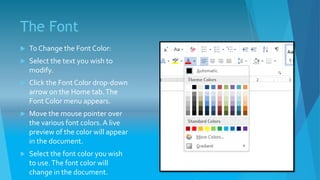
The Font
 To Change the Font Color:
 Select the text you wish to
modify.
 Click the Font Color drop-down
arrow on the Home tab.The
Font Color menu appears.
 Move the mouse pointer over
the various font colors. A live
preview of the color will appear
in the document.
 Select the font color you wish
to use.The font color will
change in the document.
The Font
To HighlightText:
 From the Home tab, click the
Text Highlight Color drop-
down arrow.The Highlight
Color menu appears.
 Select the desired highlight
color.
 Select the text you wish to
modify. It will then be
highlighted.
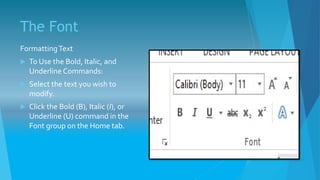
The Font
FormattingText
 To Use the Bold, Italic, and
Underline Commands:
 Select the text you wish to
modify.
 Click the Bold (B), Italic (I), or
Underline (U) command in the
Font group on the Home tab.
The Font
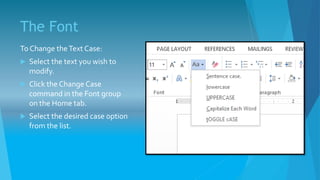
To Change theText Case:
 Select the text you wish to
modify.
 Click the Change Case
command in the Font group
on the Home tab.
 Select the desired case option
from the list.
The Font
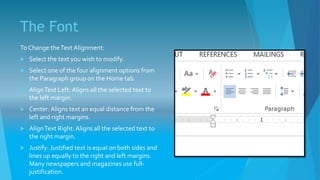
To Change theText Alignment:
 Select the text you wish to modify.
 Select one of the four alignment options from
the Paragraph group on the Home tab.
 AlignText Left: Aligns all the selected text to
the left margin.
 Center: Aligns text an equal distance from the
left and right margins.
 AlignText Right:Aligns all the selected text to
the right margin.
 Justify: Justified text is equal on both sides and
lines up equally to the right and left margins.
Many newspapers and magazines use full-
justification.
The Page
To Change Page Orientation:
 Select the Page Layout tab.
 Click the Orientation
command in the Page Setup
group.
 Click either Portrait or
Landscape to change the
page orientation.
 Landscape format means
that the page is oriented
horizontally, and portrait
format is oriented vertically.
The Page
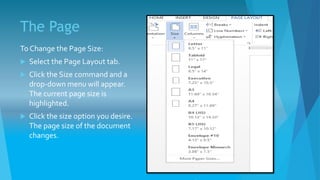
To Change the Page Size:
 Select the Page Layout tab.
 Click the Size command and a
drop-down menu will appear.
The current page size is
highlighted.
 Click the size option you desire.
The page size of the document
changes.
The Page
To Format Page Margins:
 Select the Page Layout tab.
 Click the Margins command.
A menu of options appears.
Normal is selected by
default.
 Click the predefined margin
size you desire.
The Page
To Use Custom Margins:
 From the Page Layout tab,
click Margins.
 Select Custom Margins. This
will take you to the Page
Setup dialog box.
 Adjust the margin sizes for
each side of the page and
click OK.
Spelling Error
To Run a Spelling & Grammar Check:
 Go to the Review tab.
 Click on the Spelling & Grammar
command.
 The Spelling and Grammar dialog box
will open. For each error in your
document, Word will try to offer one
or more suggestions. You can select a
suggestion and then click Change to
correct the error.
 If no suggestions are given, you can
manually type in the correct spelling.
Spelling Error
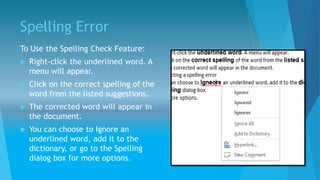
To Use the Spelling Check Feature:
 Right-click the underlined word. A
menu will appear.
 Click on the correct spelling of the
word from the listed suggestions.
 The corrected word will appear in
the document.
 You can choose to Ignore an
underlined word, add it to the
dictionary, or go to the Spelling
dialog box for more options.
Line and Paragraph Spacing
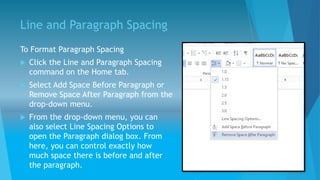
To Format Paragraph Spacing
 Click the Line and Paragraph Spacing
command on the Home tab.
 Select Add Space Before Paragraph or
Remove Space After Paragraph from the
drop-down menu.
 From the drop-down menu, you can
also select Line Spacing Options to
open the Paragraph dialog box. From
here, you can control exactly how
much space there is before and after
the paragraph.
THANK
YOU

MS Word Introduction and Tools.

  • 1.
  • 2.
    Word Processing  Softwarethat is designed for the entry, editing, and printing of documents.  WindowsVersion = Microsoft Word (MS Word)  Word processing documents include:  Letters  Memorandums  Faxes  Mail Merges  Reports  One page flyers  E-mail
  • 3.
  • 5.
    Creating Documents Know theparts of your MS Word screen.  Quick access toolbar.  Menu Bar/Tool Bar.  Toolbars and Buttons.  Ruler.  Scroll Bars.  Status Bar.
  • 7.
    The Quick AccessToolbar The Quick AccessToolbar is located above the Ribbon, and it lets you access common commands no matter which tab you're on.  By default, it shows the Save, Undo, and Repeat commands.  You can add other commands to make it more convenient for you.
  • 8.
    The Quick AccessToolbar ToAdd Commands to the Quick AccessToolbar:  Click the drop-down arrow to the right of the QuickAccess Toolbar.  Select the command you wish to add from the drop-down menu. It will appear in the QuickAccess toolbar.
  • 9.
    The Ribbon The Ribbonis designed to be responsive to your current task and easy to use; however, you can choose to minimize it if it's taking up too much screen space.  Click the arrow in the upper-right corner of the Ribbon to minimize it.  To maximize the Ribbon, click the arrow again. When the Ribbon is minimized, you can make it reappear by clicking on a tab. However, the Ribbon will disappear again when you're not using it.
  • 10.
    The Ribbon You cancustomize the Ribbon by creating your own tabs with whichever commands you want. Commands are always housed within a group, and you can create as many groups as you want in order to keep your tab organized. If you want, you can even add commands to any of the default tabs, as long as you create a custom group in the tab.  Right-click the Ribbon and select Customize the Ribbon. A dialog box will appear. Right-clicking the Ribbon to customize it
  • 11.
    The Ribbon  ClickNewTab. A new tab will be created with a new group inside it.  Make sure the new group is selected.  Select a command from the list on the left, then click Add.You can also drag commands directly into a group.  When you are done adding commands, click OK.The dialog box where you can customize the Ribbon  If you don't see the command you want, click on the Choose commands from drop- down box and select All Commands.
  • 12.
    The ALT Button By pressing the ALT button, all the shortcuts to the toolbar will appear on the toolbar and the desired function can be easily chosen by just pressing the shortcut keys.
  • 13.
    The Ruler To HideorView the Ruler:  Click theView Ruler icon over the scrollbar to hide the ruler.  To show the ruler, click theView Ruler icon again.
  • 14.
    BackstageView To Get toBackstageView:  Click the File tab.  You can choose an option on the left side of the page.  To get back to your document, just click any tab on the Ribbon.
  • 15.
    The Font  ToChange the Font Size:  Select the text you wish to modify.  Click the drop-down arrow next to the Font Size box on the Home tab. A drop-down menu appears.  Move the mouse pointer over the various font sizes. A live preview of the font size will appear in the document.  Select the font size you wish to use.
  • 16.
    The Font To Changethe Font:  Select the text you wish to modify.  Click the drop-down arrow next to the Font box on the Home tab.The Font drop-down menu appears.  Move the mouse pointer over the various fonts. A live preview of the font will appear in the document.  Select the font you wish to use. The font will change in the document.
  • 17.
    The Font  ToChange the Font Color:  Select the text you wish to modify.  Click the Font Color drop-down arrow on the Home tab.The Font Color menu appears.  Move the mouse pointer over the various font colors. A live preview of the color will appear in the document.  Select the font color you wish to use.The font color will change in the document.
  • 18.
    The Font To HighlightText: From the Home tab, click the Text Highlight Color drop- down arrow.The Highlight Color menu appears.  Select the desired highlight color.  Select the text you wish to modify. It will then be highlighted.
  • 19.
    The Font FormattingText  ToUse the Bold, Italic, and Underline Commands:  Select the text you wish to modify.  Click the Bold (B), Italic (I), or Underline (U) command in the Font group on the Home tab.
  • 20.
    The Font To ChangetheText Case:  Select the text you wish to modify.  Click the Change Case command in the Font group on the Home tab.  Select the desired case option from the list.
  • 21.
    The Font To ChangetheText Alignment:  Select the text you wish to modify.  Select one of the four alignment options from the Paragraph group on the Home tab.  AlignText Left: Aligns all the selected text to the left margin.  Center: Aligns text an equal distance from the left and right margins.  AlignText Right:Aligns all the selected text to the right margin.  Justify: Justified text is equal on both sides and lines up equally to the right and left margins. Many newspapers and magazines use full- justification.
  • 22.
    The Page To ChangePage Orientation:  Select the Page Layout tab.  Click the Orientation command in the Page Setup group.  Click either Portrait or Landscape to change the page orientation.  Landscape format means that the page is oriented horizontally, and portrait format is oriented vertically.
  • 23.
    The Page To Changethe Page Size:  Select the Page Layout tab.  Click the Size command and a drop-down menu will appear. The current page size is highlighted.  Click the size option you desire. The page size of the document changes.
  • 24.
    The Page To FormatPage Margins:  Select the Page Layout tab.  Click the Margins command. A menu of options appears. Normal is selected by default.  Click the predefined margin size you desire.
  • 25.
    The Page To UseCustom Margins:  From the Page Layout tab, click Margins.  Select Custom Margins. This will take you to the Page Setup dialog box.  Adjust the margin sizes for each side of the page and click OK.
  • 26.
    Spelling Error To Runa Spelling & Grammar Check:  Go to the Review tab.  Click on the Spelling & Grammar command.  The Spelling and Grammar dialog box will open. For each error in your document, Word will try to offer one or more suggestions. You can select a suggestion and then click Change to correct the error.  If no suggestions are given, you can manually type in the correct spelling.
  • 27.
    Spelling Error To Usethe Spelling Check Feature:  Right-click the underlined word. A menu will appear.  Click on the correct spelling of the word from the listed suggestions.  The corrected word will appear in the document.  You can choose to Ignore an underlined word, add it to the dictionary, or go to the Spelling dialog box for more options.
  • 28.
    Line and ParagraphSpacing To Format Paragraph Spacing  Click the Line and Paragraph Spacing command on the Home tab.  Select Add Space Before Paragraph or Remove Space After Paragraph from the drop-down menu.  From the drop-down menu, you can also select Line Spacing Options to open the Paragraph dialog box. From here, you can control exactly how much space there is before and after the paragraph.
  • 29.