Word Processing Week 3 Change is the law of life. John F Kennedy
summary BASIC FUNCTIONS, PROCESS AND TYPES OF WORD PROCESSOR MICROSOFT WORD Basic Skills  Techniques:  create documents editing documents formatting documents build table formatting large documents structuring contents build indexes Graphical uses:  Clipart, AutoShape ,  WordArt, … Creating and using Template
BASIC FUNCTIONS & PROCESS OF WP WP - the tools for producing, saving, editing  and managing text. The earliest WP    basic functions of manipulating text. Recently    page layout and graphics facilities  Now more demand  ready-made style sheets, font-manipulation, and one-click boxes and icons.  .: modern word-processors are now a combination of text-processors and page-layout packages.
Advantage of using WP 1. offer the chance to  generate text  revise text  in ways which were inconceivable before.  2.  makes writing more of a pleasure 3. saves time  4. increases output
TYPES OF WORD PROCESSOR The big four  Corel Lotus  Microsoft  AppleWorks PC-based   uses Corel WordPerfect, Lotus Ami Pro (or the newer Word Pro), or Microsoft Word for Windows Mac    Apple Works WP
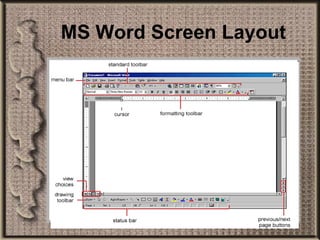
MS Word Screen Layout
Word allows you to efficiently produce documents for business or personal use such as newsletters, reports, letters and essays. OPENING A DOCUMENT When you start Word, it opens a new blank  document. The default name is Document 1  If you open several new documents    Document 2, Document 3… until they are  saved and named  Intro to MS Word
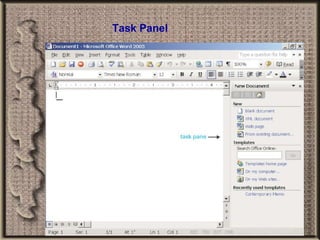
Task Panel
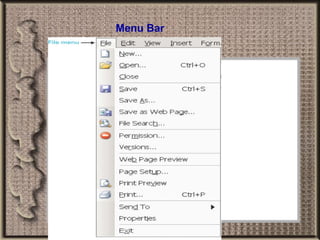
Menu Bar
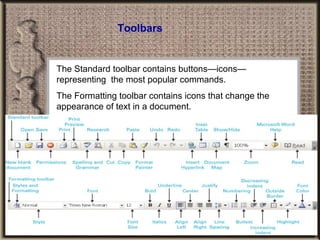
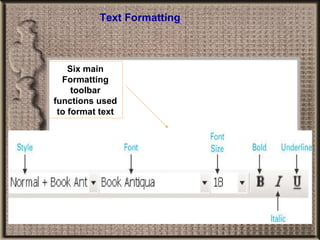
Toolbars The Standard toolbar contains buttons—icons—representing  the most popular commands.  The Formatting toolbar contains icons that change the appearance of text in a document.
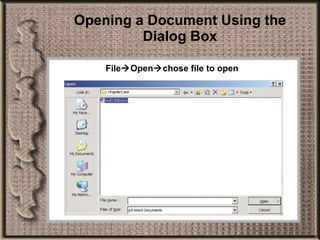
Opening a Document Using the Dialog Box File  Open  chose file to open
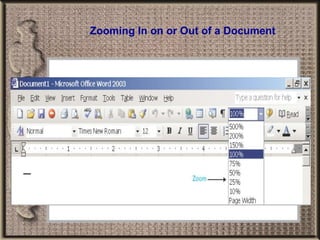
Zooming In on or Out of a Document
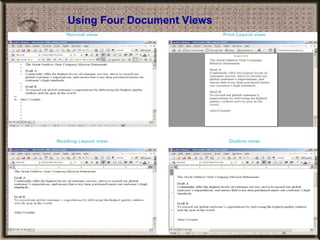
Using Four Document Views
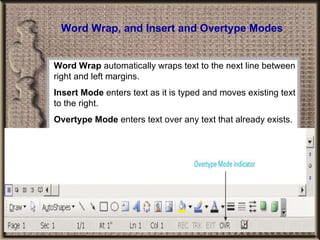
Word Wrap, and Insert and Overtype Modes Word Wrap  automatically wraps text to the next line between right and left margins. Insert Mode  enters text as it is typed and moves existing text to the right. Overtype Mode  enters text over any text that already exists.
Backspace and Delete keys The Backspace key  deletes to the left of the insertion point. The Delete key  deletes to the right of the insertion point.
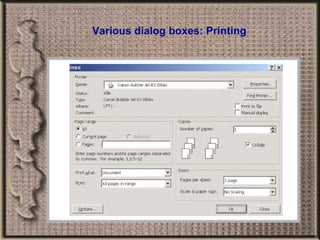
Various dialog boxes: Printing
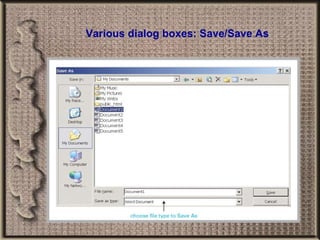
Various dialog boxes: Save/Save As
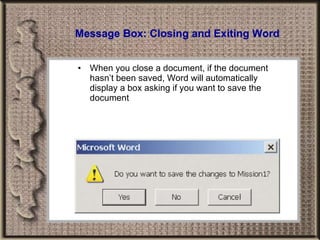
Message Box: Closing and Exiting Word When you close a document, if the document hasn’t been saved, Word will automatically display a box asking if you want to save the document
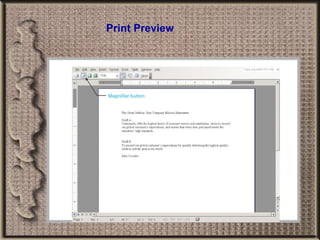
Print Preview
Kuiz 1  (Close Book) 28/1/2008 Take out a piece of paper.Write your name & matric no. Using Ms Word.State how what is the maximum zoom in and maximum zoom out In Ms Word menu bar – under file.Tell the difference between close and exit command
Editing and Formatting Documents
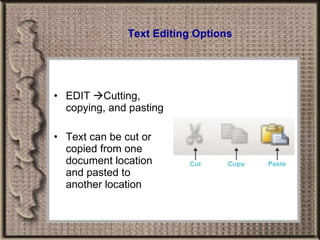
Text Editing Options EDIT   Cutting, copying, and pasting Text can be cut or copied from one document location and pasted to another location
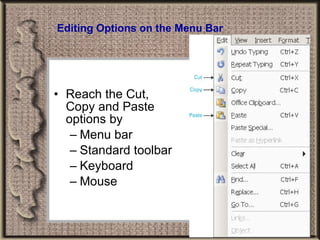
Editing Options on the Menu Bar Reach the Cut, Copy and Paste options by Menu bar Standard toolbar Keyboard Mouse
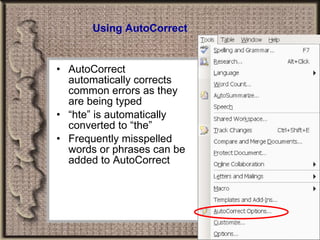
Using AutoCorrect AutoCorrect automatically corrects common errors as they are being typed “ hte” is automatically converted to “the” Frequently misspelled words or phrases can be added to AutoCorrect
Formatting Purpose of formatting: Clarity and readability Formatting such as changes the look of a single letter, word, or a series of words Change the type, size and appearance of text Apply bold, underline, and italics to text Change the text color Word offers three levels of formatting Character Paragraph Document
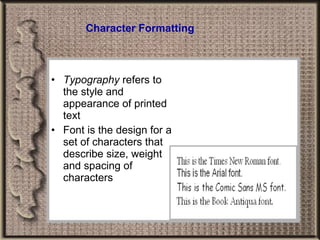
Character Formatting Typography  refers to the style and appearance of printed text Font is the design for a set of characters that describe size, weight and spacing of characters
Text Formatting Six main Formatting toolbar functions used to format text
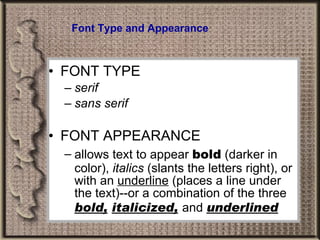
Font Type and Appearance FONT TYPE  serif   sans serif FONT APPEARANCE  allows text to appear  bold  (darker in color),  italics  (slants the letters right), or with an  underline  (places a line under the text)--or a combination of the three  bold,   italicized,   and   underlined
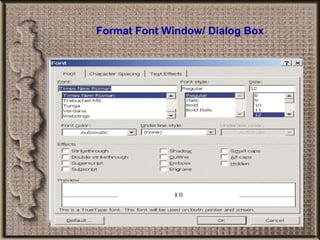
Format Font Window/ Dialog Box
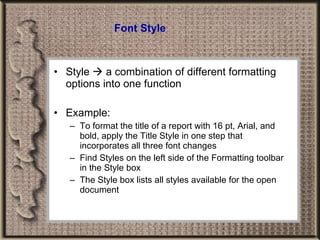
Font Style Style    a combination of different formatting options into one function Example: To format the title of a report with 16 pt, Arial, and bold, apply the Title Style in one step that incorporates all three font changes Find Styles on the left side of the Formatting toolbar in the Style box The Style box lists all styles available for the open document
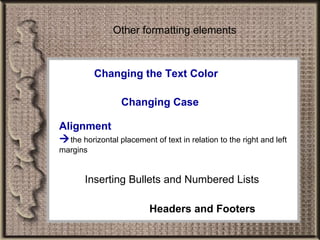
Changing the Text Color Changing Case Alignment  the horizontal placement of text in relation to the right and left margins Inserting Bullets and Numbered Lists Headers and Footers Other formatting elements
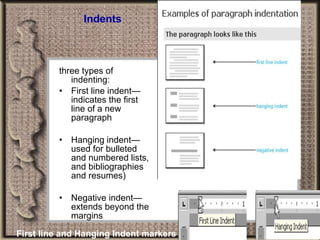
Indents three types of indenting: First line indent—indicates the first line of a new paragraph Hanging indent—used for bulleted and numbered lists, and bibliographies and resumes) Negative indent—extends beyond the margins First line and Hanging Indent markers
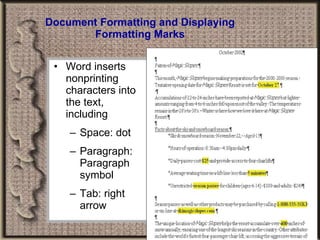
Document Formatting and Displaying Formatting Marks Word inserts nonprinting characters into the text, including Space: dot Paragraph: Paragraph symbol Tab: right arrow
LONG DOCUMENTS: Formatting Reports Page number Page break Section break
LONG DOCUMENTS: Creating a Table of Contents To create a table of contents Specify entries/use pre-defined headings Build the entries into a table of contents TOC field can only be generated if there are styles applied to the document headings and subheadings
LONG DOSUMENTS: Creating an Index To create an index Mark the words and phrases to be included Build the index
Using Tables and Graphics
Drawing or Inserting a Table Three ways to create a table Use the Insert Table button to select the number of rows and columns Use the Draw Table tool to create a table with cells of different heights Convert existing text, data from a database, or data from a worksheet
Operations with tables Add/delete rows/columns Adjust column width/row heights Convert table to text or vise-versa Table autoformat Calculation in cells
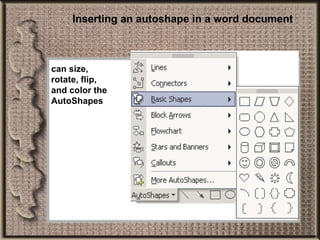
Inserting an autoshape in a word document can size, rotate, flip, and color the AutoShapes
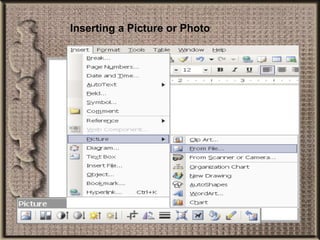
Inserting a Picture or Photo
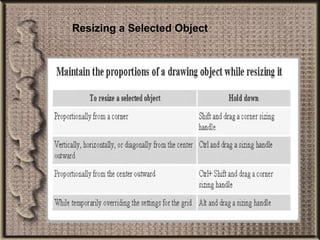
Resizing a Selected Object
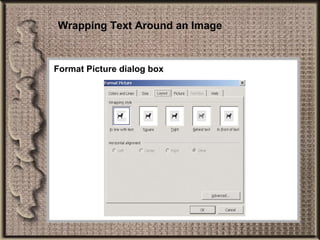
Wrapping Text Around an Image Format Picture dialog box
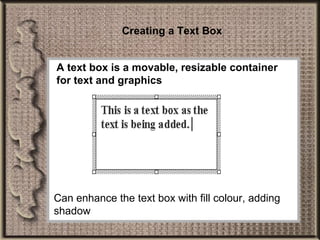
Creating a Text Box A text box is a movable, resizable container for text and graphics Can enhance the text box with fill colour, adding shadow
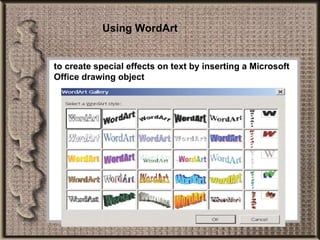
Using WordArt to create special effects on text by inserting a Microsoft Office drawing object
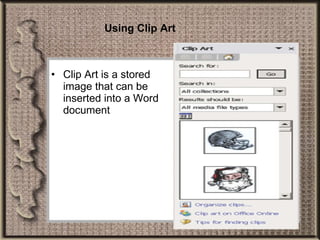
Using Clip Art Clip Art is a stored image that can be inserted into a Word document
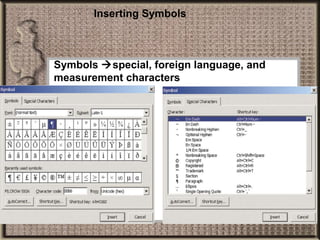
Inserting Symbols Symbols   special, foreign language, and measurement characters
TEMPLATES A template  a collection of styles, keyboard assignments, and toolbar assignments saved to a file—making  them readily available and saving time Word provides templates for common types of documents, saved in special files with a  .dot  extension Templates can be created and saved from scratch, can be based on an existing document, or can be based on another template
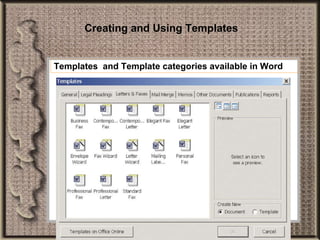
Creating and Using Templates Templates  and Template categories available in Word

TID Chapter 3 Introduction To Word Processing

  • 1.
    Word Processing Week3 Change is the law of life. John F Kennedy
  • 2.
    summary BASIC FUNCTIONS,PROCESS AND TYPES OF WORD PROCESSOR MICROSOFT WORD Basic Skills Techniques: create documents editing documents formatting documents build table formatting large documents structuring contents build indexes Graphical uses: Clipart, AutoShape , WordArt, … Creating and using Template
  • 3.
    BASIC FUNCTIONS &PROCESS OF WP WP - the tools for producing, saving, editing and managing text. The earliest WP  basic functions of manipulating text. Recently  page layout and graphics facilities Now more demand  ready-made style sheets, font-manipulation, and one-click boxes and icons. .: modern word-processors are now a combination of text-processors and page-layout packages.
  • 4.
    Advantage of usingWP 1. offer the chance to generate text revise text in ways which were inconceivable before. 2. makes writing more of a pleasure 3. saves time 4. increases output
  • 5.
    TYPES OF WORDPROCESSOR The big four Corel Lotus Microsoft AppleWorks PC-based  uses Corel WordPerfect, Lotus Ami Pro (or the newer Word Pro), or Microsoft Word for Windows Mac  Apple Works WP
  • 6.
  • 7.
    Word allows youto efficiently produce documents for business or personal use such as newsletters, reports, letters and essays. OPENING A DOCUMENT When you start Word, it opens a new blank document. The default name is Document 1 If you open several new documents  Document 2, Document 3… until they are saved and named Intro to MS Word
  • 8.
  • 9.
  • 10.
    Toolbars The Standardtoolbar contains buttons—icons—representing the most popular commands. The Formatting toolbar contains icons that change the appearance of text in a document.
  • 11.
    Opening a DocumentUsing the Dialog Box File  Open  chose file to open
  • 12.
    Zooming In onor Out of a Document
  • 13.
  • 14.
    Word Wrap, andInsert and Overtype Modes Word Wrap automatically wraps text to the next line between right and left margins. Insert Mode enters text as it is typed and moves existing text to the right. Overtype Mode enters text over any text that already exists.
  • 15.
    Backspace and Deletekeys The Backspace key deletes to the left of the insertion point. The Delete key deletes to the right of the insertion point.
  • 16.
  • 17.
  • 18.
    Message Box: Closingand Exiting Word When you close a document, if the document hasn’t been saved, Word will automatically display a box asking if you want to save the document
  • 19.
  • 20.
    Kuiz 1 (Close Book) 28/1/2008 Take out a piece of paper.Write your name & matric no. Using Ms Word.State how what is the maximum zoom in and maximum zoom out In Ms Word menu bar – under file.Tell the difference between close and exit command
  • 21.
  • 22.
    Text Editing OptionsEDIT  Cutting, copying, and pasting Text can be cut or copied from one document location and pasted to another location
  • 23.
    Editing Options onthe Menu Bar Reach the Cut, Copy and Paste options by Menu bar Standard toolbar Keyboard Mouse
  • 24.
    Using AutoCorrect AutoCorrectautomatically corrects common errors as they are being typed “ hte” is automatically converted to “the” Frequently misspelled words or phrases can be added to AutoCorrect
  • 25.
    Formatting Purpose offormatting: Clarity and readability Formatting such as changes the look of a single letter, word, or a series of words Change the type, size and appearance of text Apply bold, underline, and italics to text Change the text color Word offers three levels of formatting Character Paragraph Document
  • 26.
    Character Formatting Typography refers to the style and appearance of printed text Font is the design for a set of characters that describe size, weight and spacing of characters
  • 27.
    Text Formatting Sixmain Formatting toolbar functions used to format text
  • 28.
    Font Type andAppearance FONT TYPE serif sans serif FONT APPEARANCE allows text to appear bold (darker in color), italics (slants the letters right), or with an underline (places a line under the text)--or a combination of the three bold, italicized, and underlined
  • 29.
  • 30.
    Font Style Style  a combination of different formatting options into one function Example: To format the title of a report with 16 pt, Arial, and bold, apply the Title Style in one step that incorporates all three font changes Find Styles on the left side of the Formatting toolbar in the Style box The Style box lists all styles available for the open document
  • 31.
    Changing the TextColor Changing Case Alignment  the horizontal placement of text in relation to the right and left margins Inserting Bullets and Numbered Lists Headers and Footers Other formatting elements
  • 32.
    Indents three typesof indenting: First line indent—indicates the first line of a new paragraph Hanging indent—used for bulleted and numbered lists, and bibliographies and resumes) Negative indent—extends beyond the margins First line and Hanging Indent markers
  • 33.
    Document Formatting andDisplaying Formatting Marks Word inserts nonprinting characters into the text, including Space: dot Paragraph: Paragraph symbol Tab: right arrow
  • 34.
    LONG DOCUMENTS: FormattingReports Page number Page break Section break
  • 35.
    LONG DOCUMENTS: Creatinga Table of Contents To create a table of contents Specify entries/use pre-defined headings Build the entries into a table of contents TOC field can only be generated if there are styles applied to the document headings and subheadings
  • 36.
    LONG DOSUMENTS: Creatingan Index To create an index Mark the words and phrases to be included Build the index
  • 37.
  • 38.
    Drawing or Insertinga Table Three ways to create a table Use the Insert Table button to select the number of rows and columns Use the Draw Table tool to create a table with cells of different heights Convert existing text, data from a database, or data from a worksheet
  • 39.
    Operations with tablesAdd/delete rows/columns Adjust column width/row heights Convert table to text or vise-versa Table autoformat Calculation in cells
  • 40.
    Inserting an autoshapein a word document can size, rotate, flip, and color the AutoShapes
  • 41.
  • 42.
  • 43.
    Wrapping Text Aroundan Image Format Picture dialog box
  • 44.
    Creating a TextBox A text box is a movable, resizable container for text and graphics Can enhance the text box with fill colour, adding shadow
  • 45.
    Using WordArt tocreate special effects on text by inserting a Microsoft Office drawing object
  • 46.
    Using Clip ArtClip Art is a stored image that can be inserted into a Word document
  • 47.
    Inserting Symbols Symbols  special, foreign language, and measurement characters
  • 48.
    TEMPLATES A template a collection of styles, keyboard assignments, and toolbar assignments saved to a file—making them readily available and saving time Word provides templates for common types of documents, saved in special files with a .dot extension Templates can be created and saved from scratch, can be based on an existing document, or can be based on another template
  • 49.
    Creating and UsingTemplates Templates and Template categories available in Word

Editor's Notes

  • #22 Animations are set on mouse clicks: Orange text boxes are animated
  • #38 Animations are set on mouse clicks: Orange text boxes are animated