Introduction to 
Presentation & Word-Processing Software
I 
Presentation Software
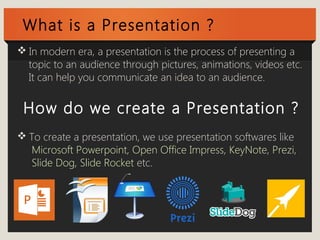
What is a Presentation ? 
In modern era, a presentation is the process of presenting a 
topic to an audience through pictures, animations, videos etc. 
It can help you communicate an idea to an audience. 
How do we create a Presentation ? 
To create a presentation, we use presentation softwares like 
Microsoft Powerpoint, Open Office Impress, KeyNote, Prezi, 
Slide Dog, Slide Rocket etc.
Getting Started with Microsoft Powerpoint 
Here, we are going to use Microsoft Powerpoint to learn the 
basics of making a good presentation. 
We are going to learn the following things: 
1. Creating a New Slide 
2. Changing Slide Layout 
3. Applying a Slide Template 
4. Inserting text in the Slide 
5. Inserting picture in the Slide
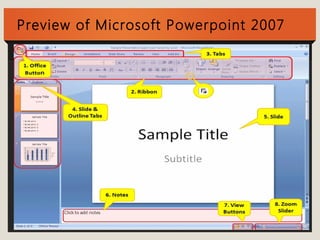
Preview of Microsoft Powerpoint 2007
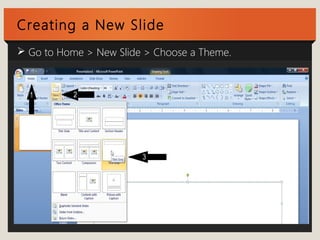
Creating a New Slide 
 Go to Home > New Slide > Choose a Theme.
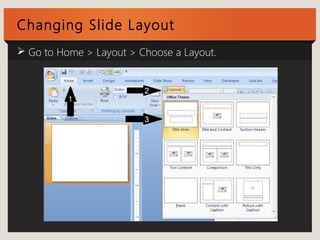
Changing Slide Layout 
 Go to Home > Layout > Choose a Layout.
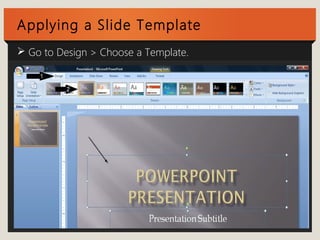
Applying a Slide Template 
 Go to Design > Choose a Template.
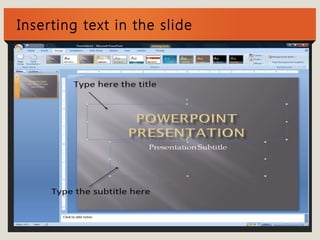
Inserting text in the slide
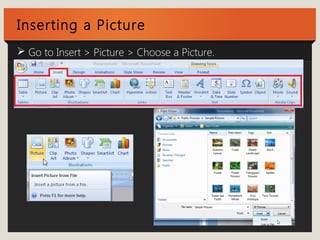
Inserting a Picture 
 Go to Insert > Picture > Choose a Picture.
II 
Word-Processing Software
What is a Word-Processing Software ? 
It is an computer software application that can perform word 
processing: the composition, editing, formatting, and 
sometimes printing of any sort of written material. 
Examples of Word Processing Softwares are Microsoft Word, 
OpenOffice Writer, Apple Pages, Kingsoft Writer, Lotus Word 
Pro, Polaris Office, Ragtime etc.
Getting Started with Microsoft Word 
Here, we are going to use Microsoft Word to learn the basics of 
making a good document. 
We are going to learn the following things: 
1. Creating a New Document 
2. Inserting text 
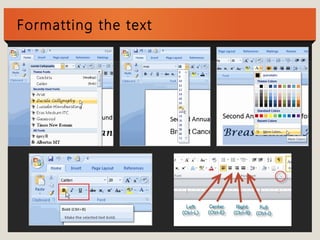
3. Formatting the text 
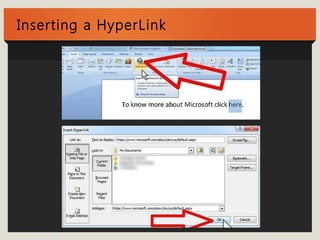
4. Inserting a HyperLink 
5. Changing the Margin
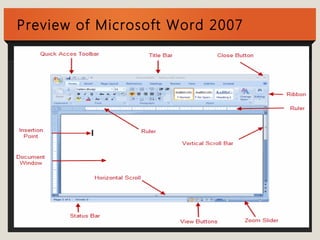
Preview of Microsoft Word 2007
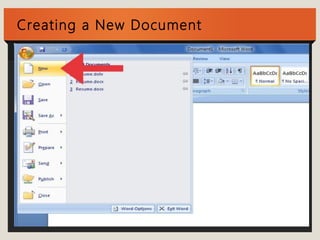
Creating a New Document
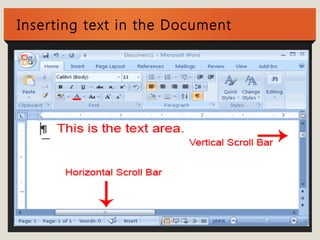
Inserting text in the Document
Formatting the text
Inserting a HyperLink
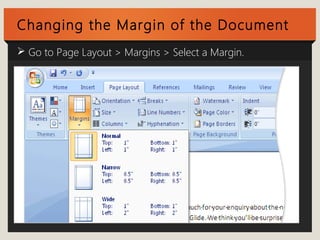
Changing the Margin of the Document 
 Go to Page Layout > Margins > Select a Margin.
References 
Images Information 
Template Theme
That's the End 
Thanks for Listening

Introduction to Presentation & Word-Processing Software.

  • 1.
    Introduction to Presentation& Word-Processing Software
  • 2.
  • 3.
    What is aPresentation ? In modern era, a presentation is the process of presenting a topic to an audience through pictures, animations, videos etc. It can help you communicate an idea to an audience. How do we create a Presentation ? To create a presentation, we use presentation softwares like Microsoft Powerpoint, Open Office Impress, KeyNote, Prezi, Slide Dog, Slide Rocket etc.
  • 4.
    Getting Started withMicrosoft Powerpoint Here, we are going to use Microsoft Powerpoint to learn the basics of making a good presentation. We are going to learn the following things: 1. Creating a New Slide 2. Changing Slide Layout 3. Applying a Slide Template 4. Inserting text in the Slide 5. Inserting picture in the Slide
  • 5.
    Preview of MicrosoftPowerpoint 2007
  • 6.
    Creating a NewSlide  Go to Home > New Slide > Choose a Theme.
  • 7.
    Changing Slide Layout  Go to Home > Layout > Choose a Layout.
  • 8.
    Applying a SlideTemplate  Go to Design > Choose a Template.
  • 9.
  • 10.
    Inserting a Picture  Go to Insert > Picture > Choose a Picture.
  • 11.
  • 12.
    What is aWord-Processing Software ? It is an computer software application that can perform word processing: the composition, editing, formatting, and sometimes printing of any sort of written material. Examples of Word Processing Softwares are Microsoft Word, OpenOffice Writer, Apple Pages, Kingsoft Writer, Lotus Word Pro, Polaris Office, Ragtime etc.
  • 13.
    Getting Started withMicrosoft Word Here, we are going to use Microsoft Word to learn the basics of making a good document. We are going to learn the following things: 1. Creating a New Document 2. Inserting text 3. Formatting the text 4. Inserting a HyperLink 5. Changing the Margin
  • 14.
  • 15.
  • 16.
    Inserting text inthe Document
  • 17.
  • 18.
  • 19.
    Changing the Marginof the Document  Go to Page Layout > Margins > Select a Margin.
  • 20.
  • 21.
    That's the End Thanks for Listening