Word Processing By Rebecca Cameron
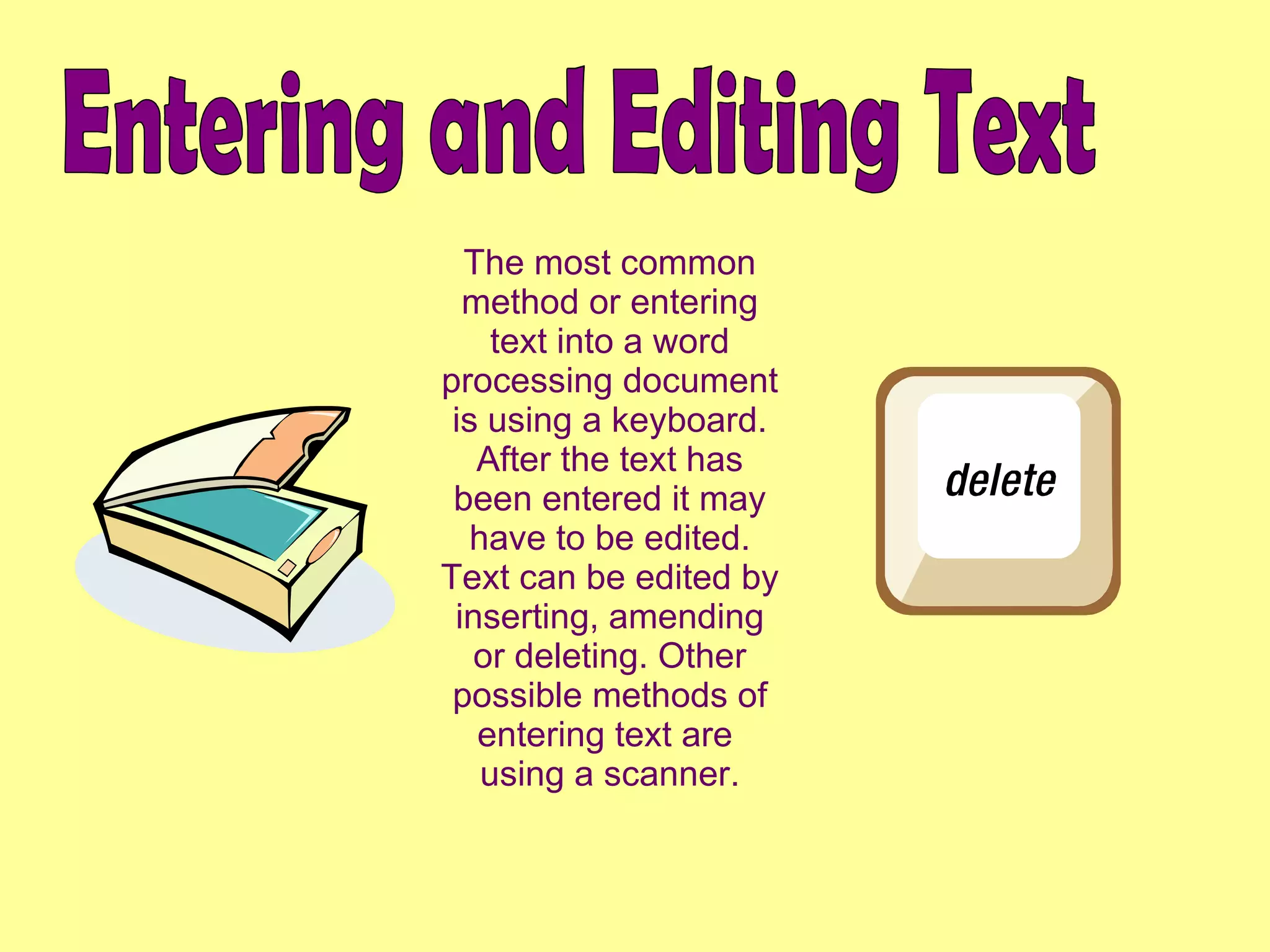
Entering and Editing Text The most common method or entering text into a word processing document is using a keyboard. After the text has been entered it may have to be edited. Text can be edited by inserting, amending or deleting. Other possible methods of entering text are  using a scanner.
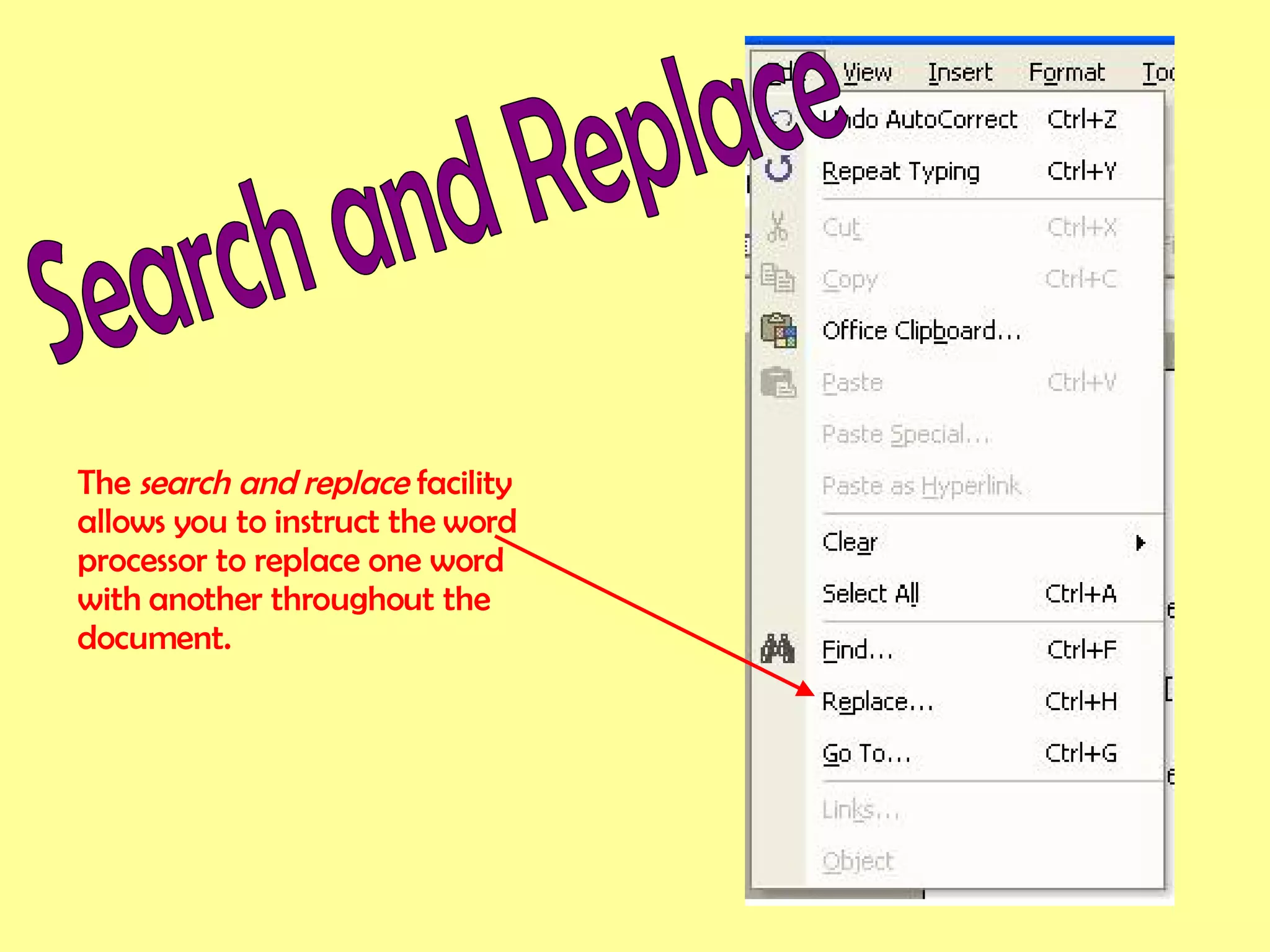
Search and Replace The  search and replace  facility allows you to instruct the word processor to replace one word with another throughout the document.
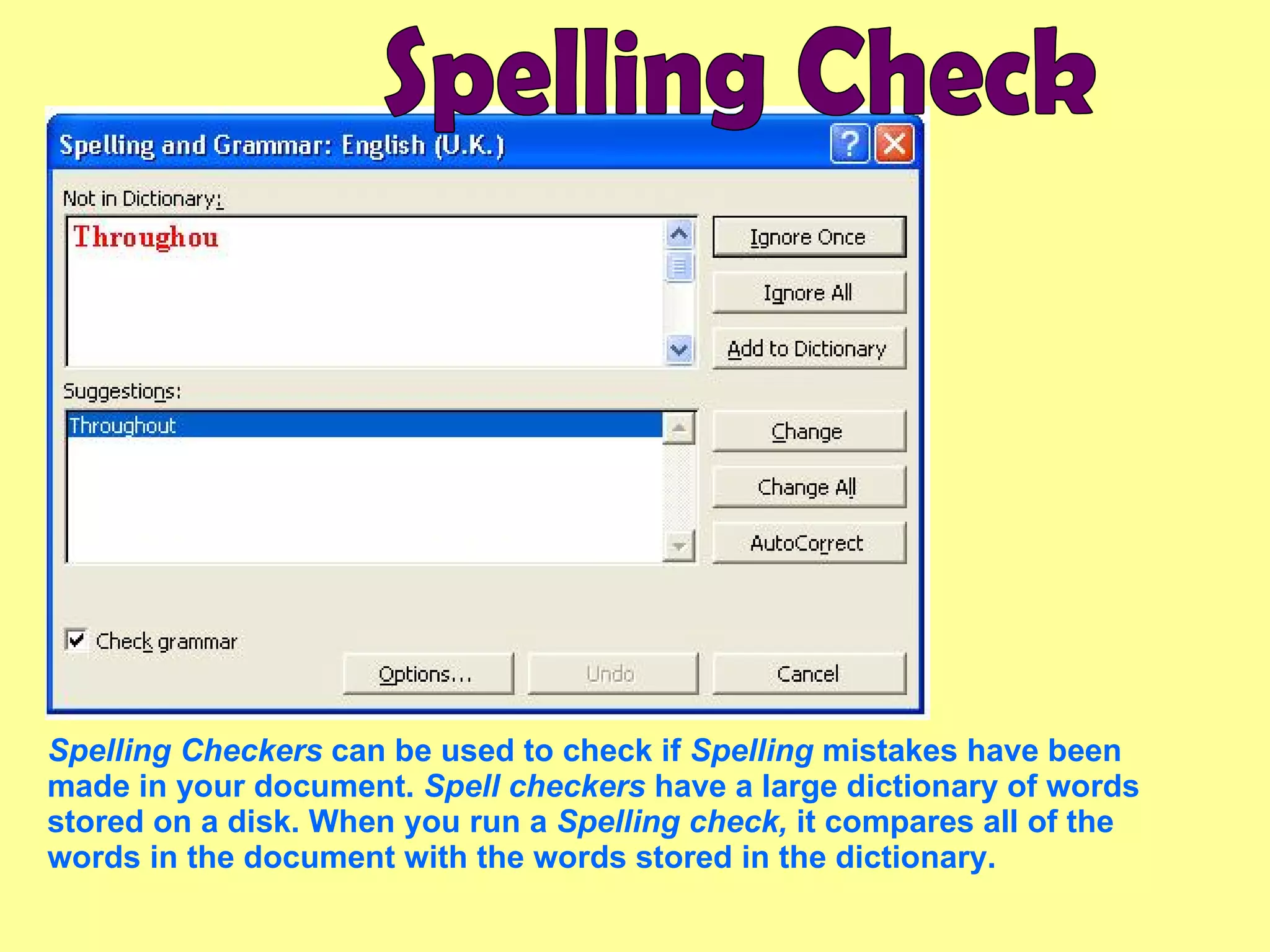
Spelling Checkers  can be used to check if  Spelling  mistakes have been made in your document.  Spell checkers  have a large dictionary of words stored on a disk. When you run a  Spelling check,  it compares all of the words in the document with the words stored in the dictionary.  Spelling Check
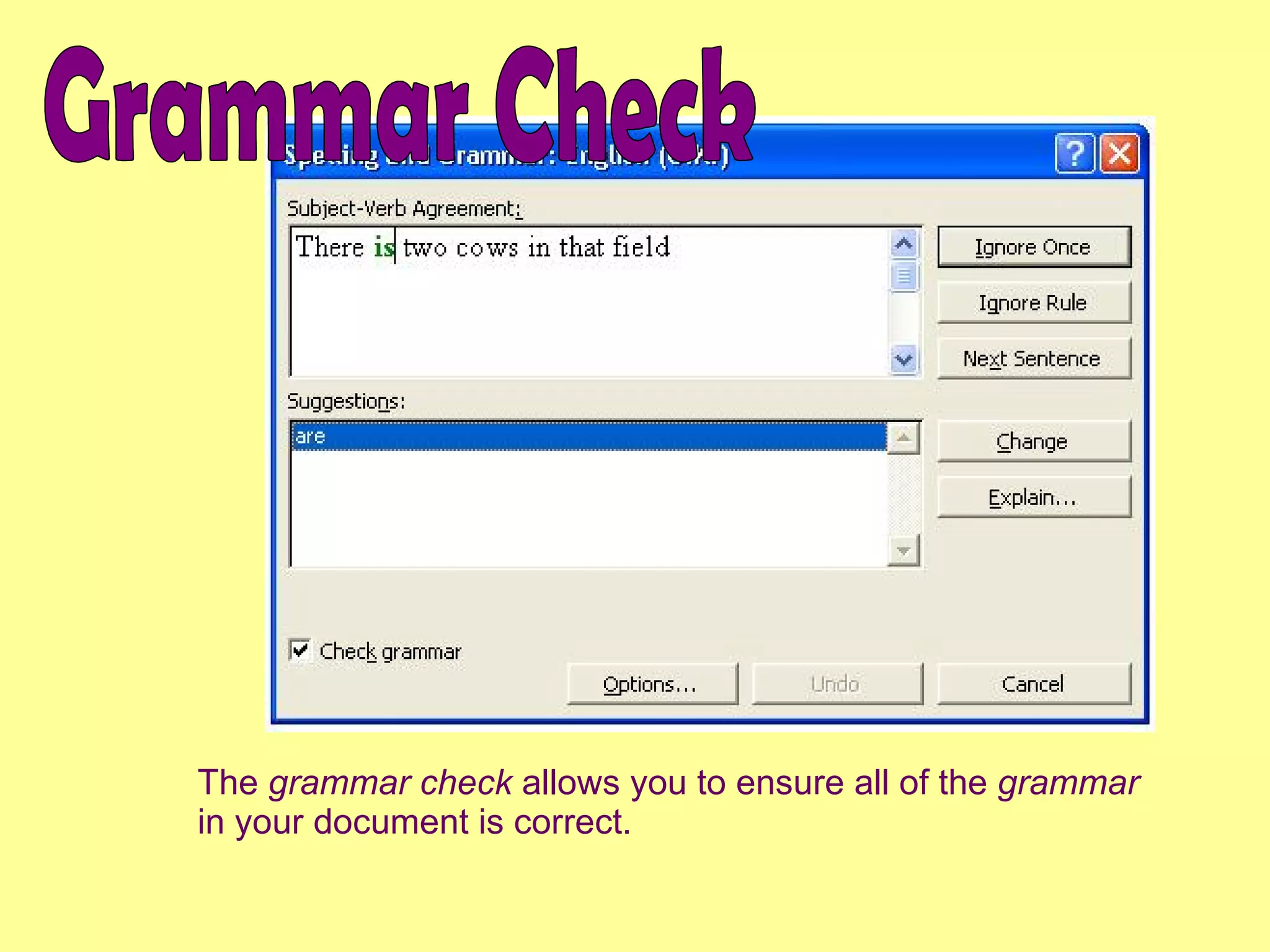
Grammar Check The  grammar check  allows you to ensure all of the  grammar  in your document is correct.
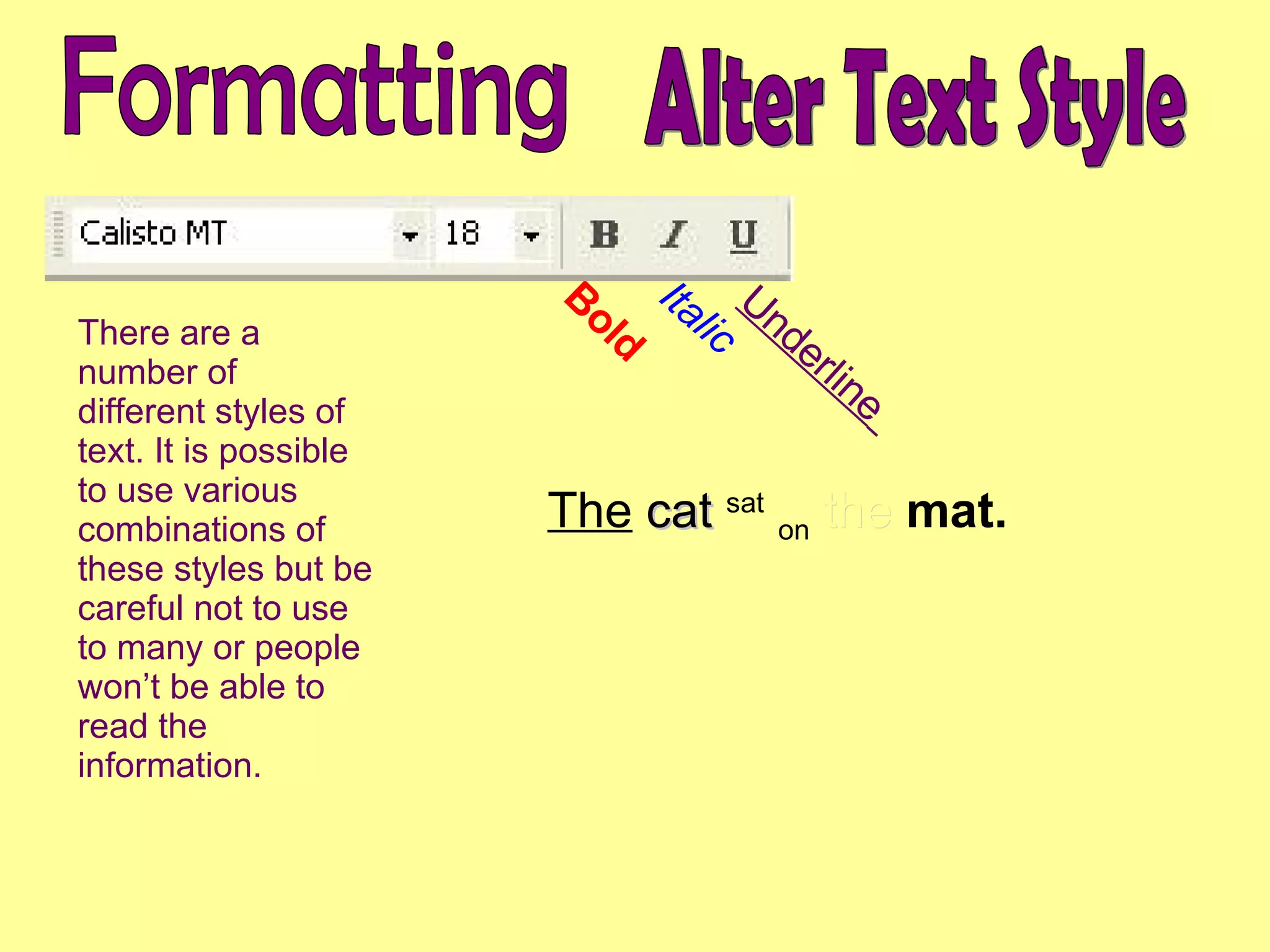
Alter Text Style Italic Underline   Bold Formatting There are a number of different styles of text. It is possible to use various combinations of these styles but be careful not to use to many or people won’t be able to read the information. The   cat   sat   on   the   mat.
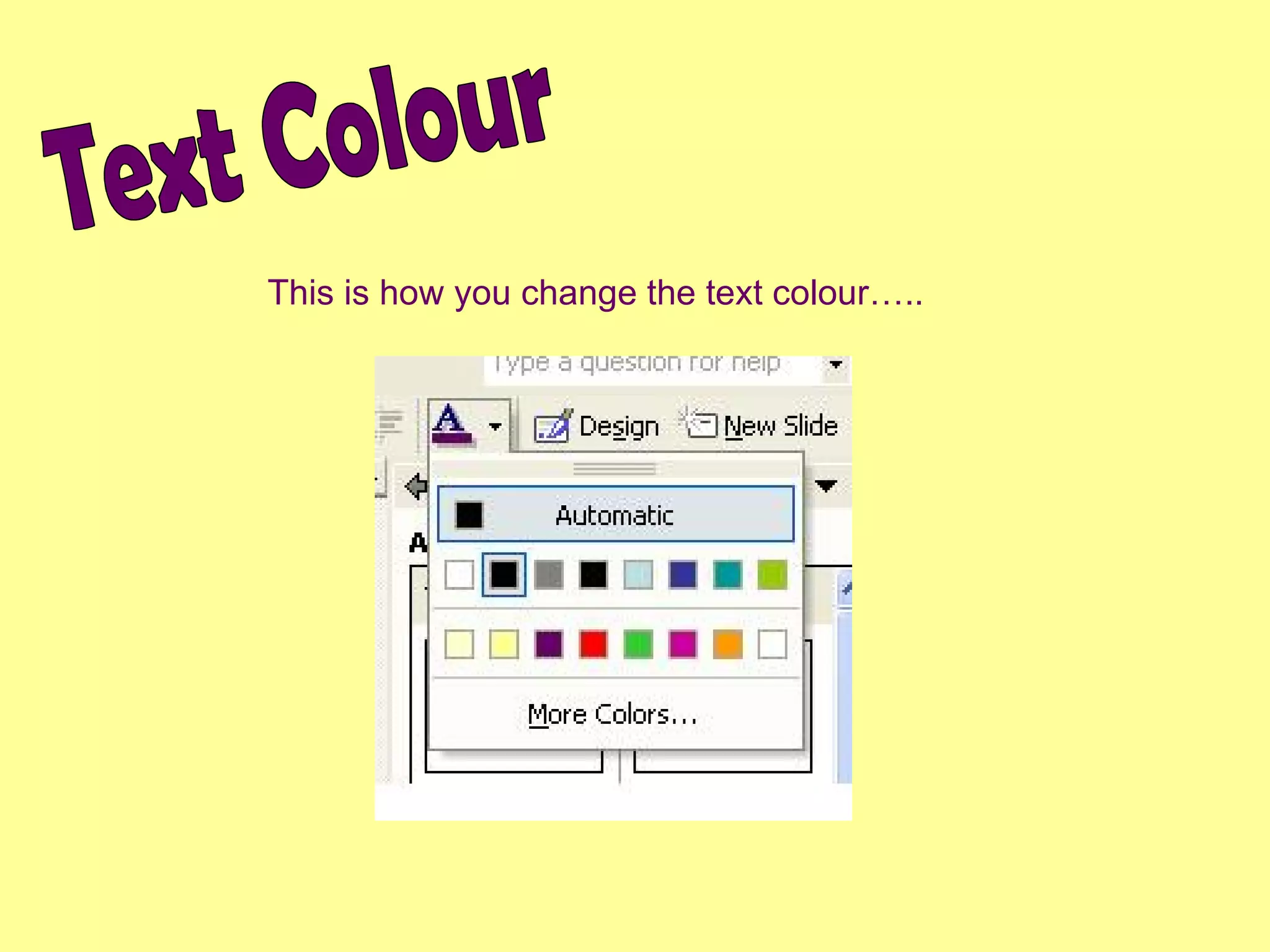
Text Colour This is how you change the text colour…..
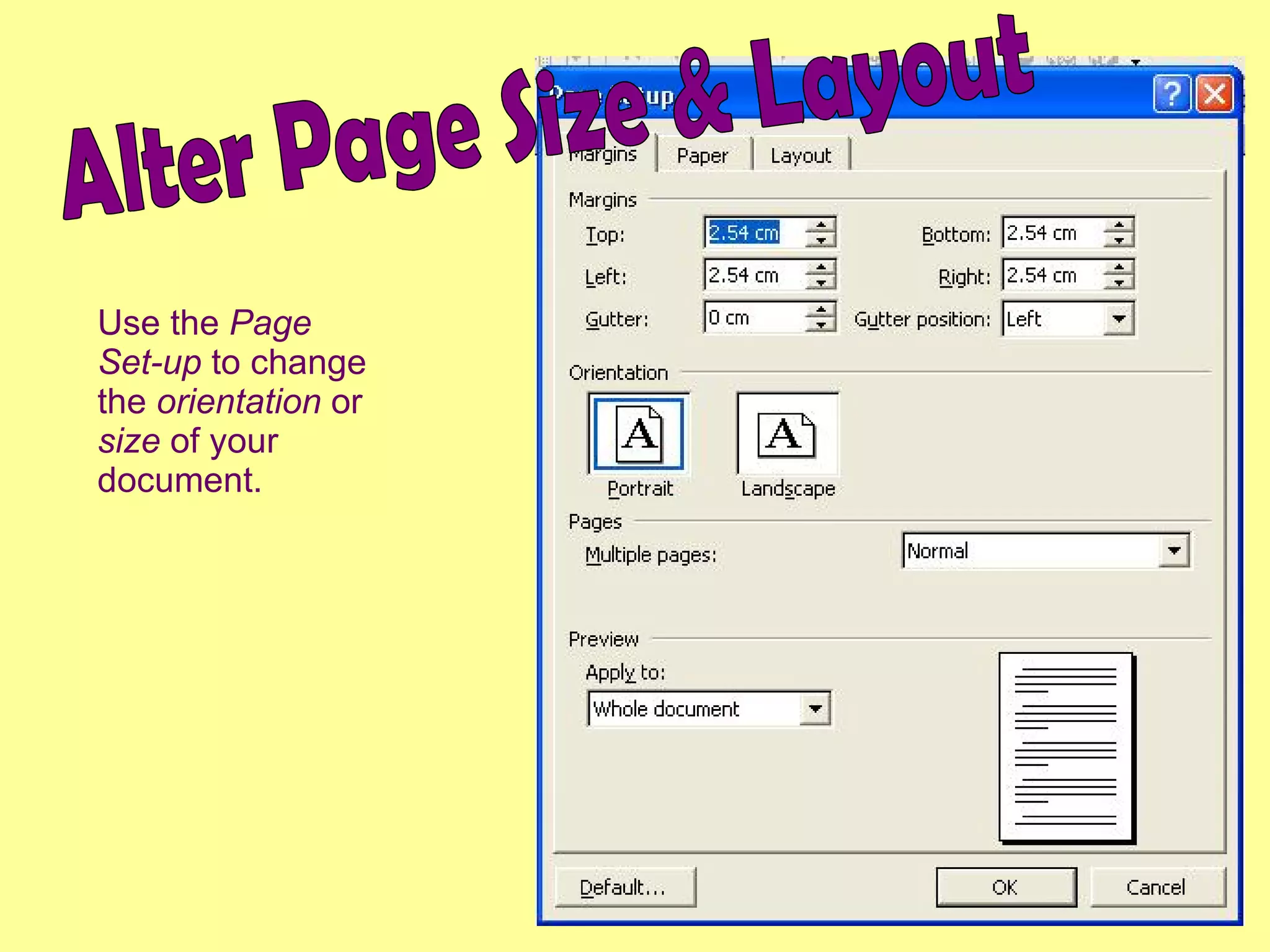
Alter Page Size & Layout Use the  Page Set-up  to change the  orientation  or  size  of your document.
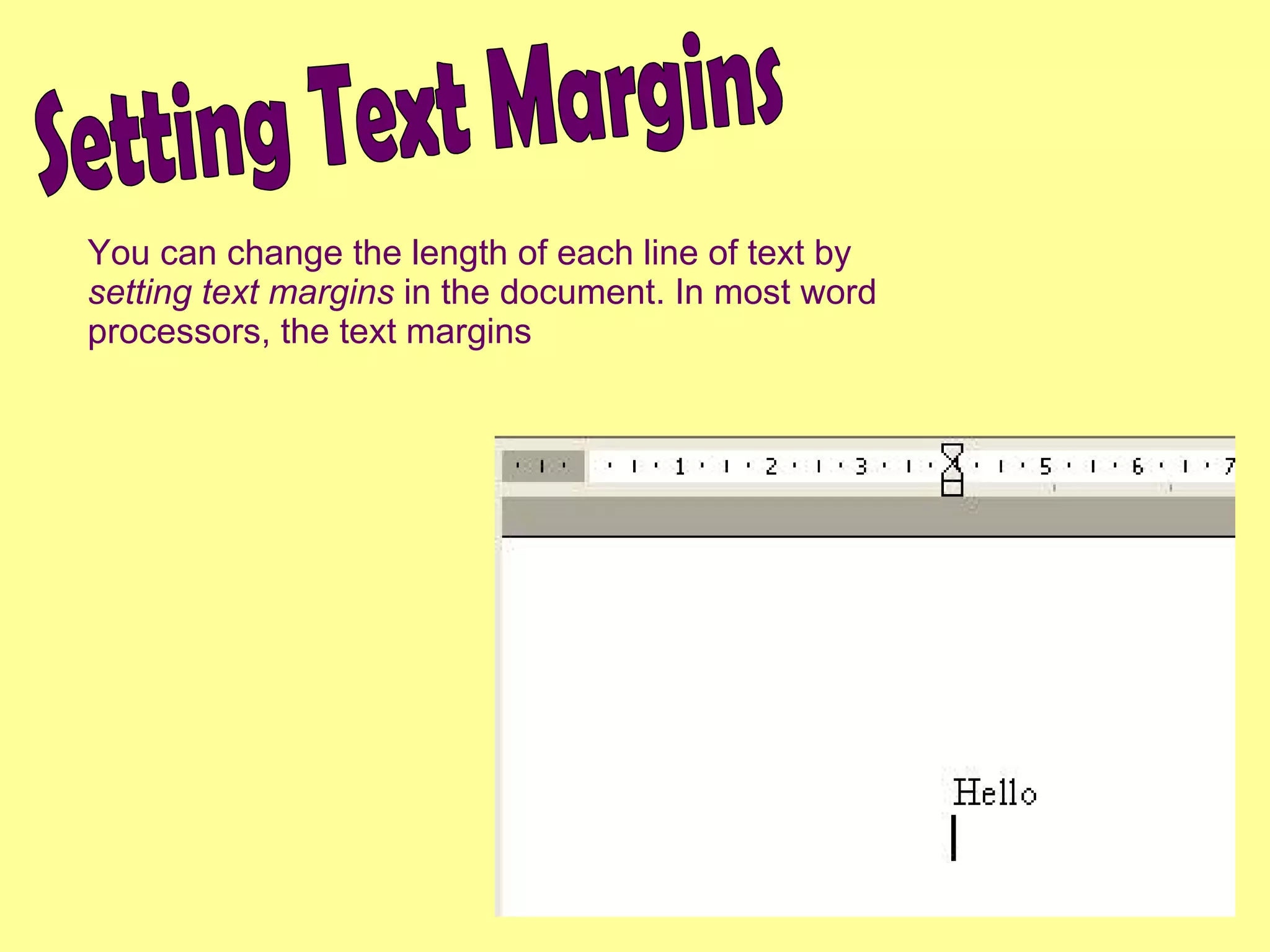
Setting Text Margins You can change the length of each line of text by  setting text margins  in the document. In most word processors, the text margins
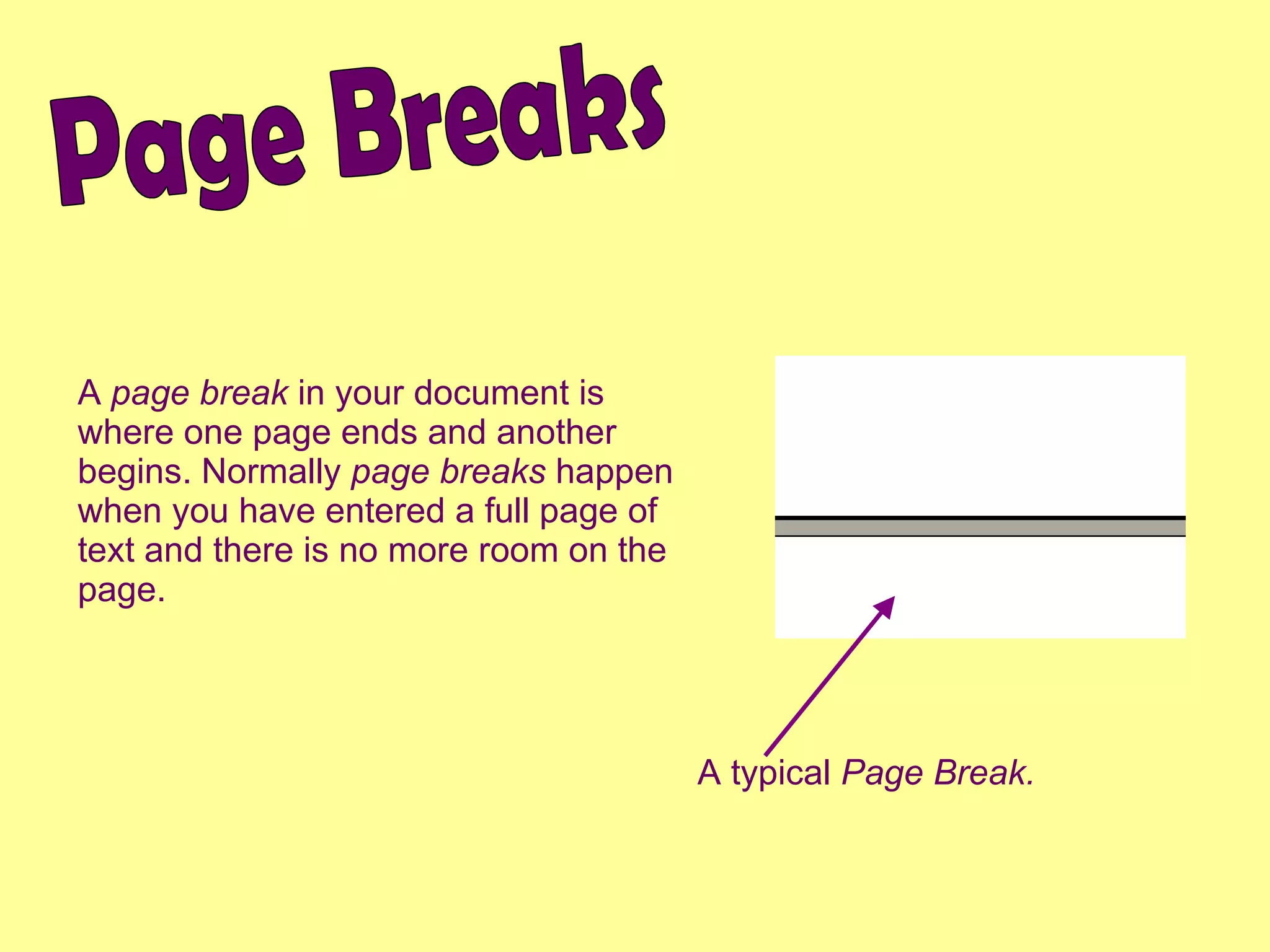
Page Breaks A  page break  in your document is where one page ends and another begins. Normally  page breaks  happen when you have entered a full page of text and there is no more room on the page. A typical  Page Break.
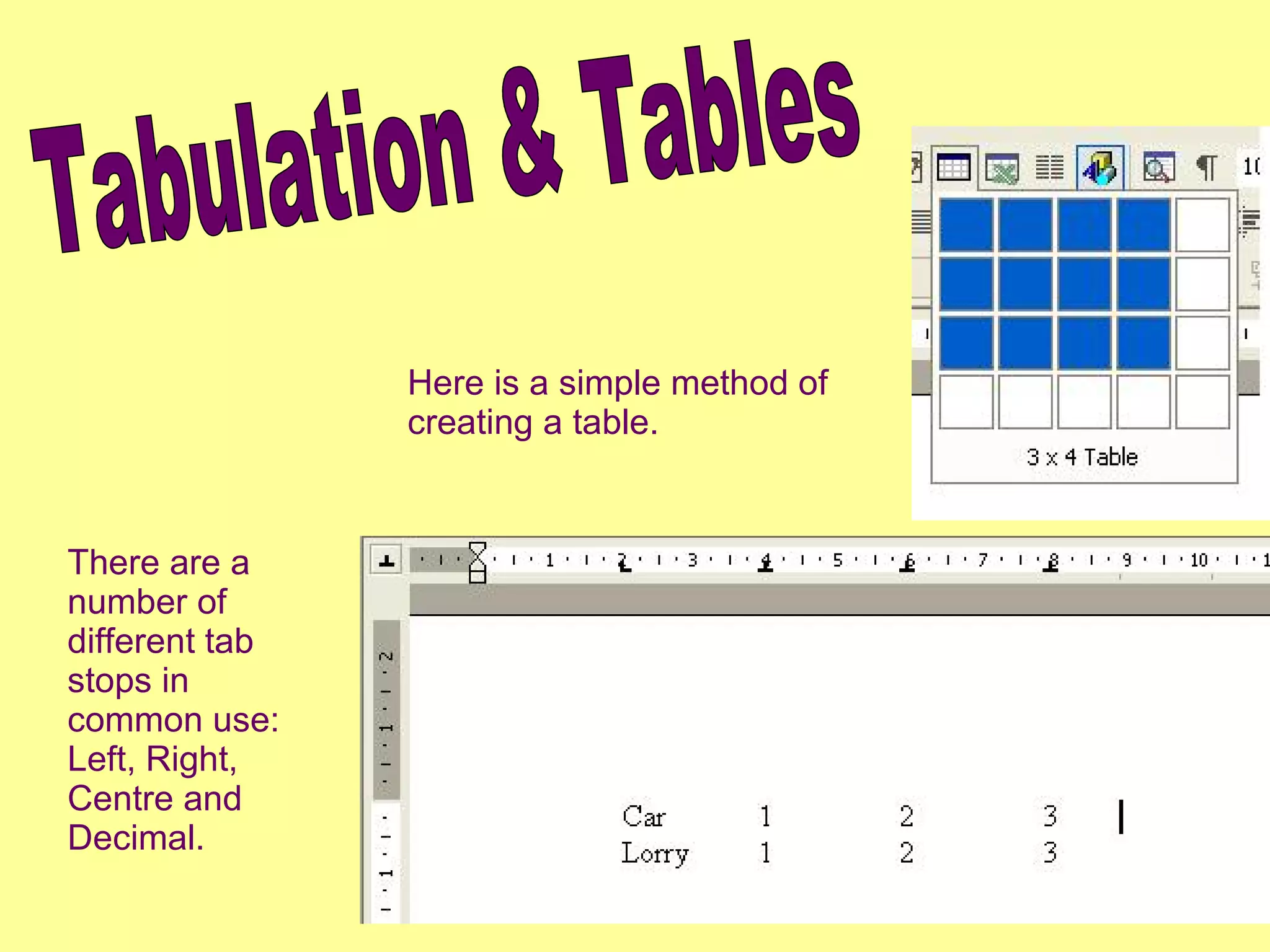
Tabulation & Tables There are a number of different tab stops in common use: Left, Right, Centre and Decimal. Here is a simple method of creating a table.
Standard Letter  & Mail Merge There are many instances where  standard letters  can be can be used.  Standard letters  can be produced quickly and easily. Create a standard letter using a word processor. Create a database with the required fields. Select Required Fields. Mail Merge (insert fields into standard letter). Print the letters. Post the letters (mail shot).
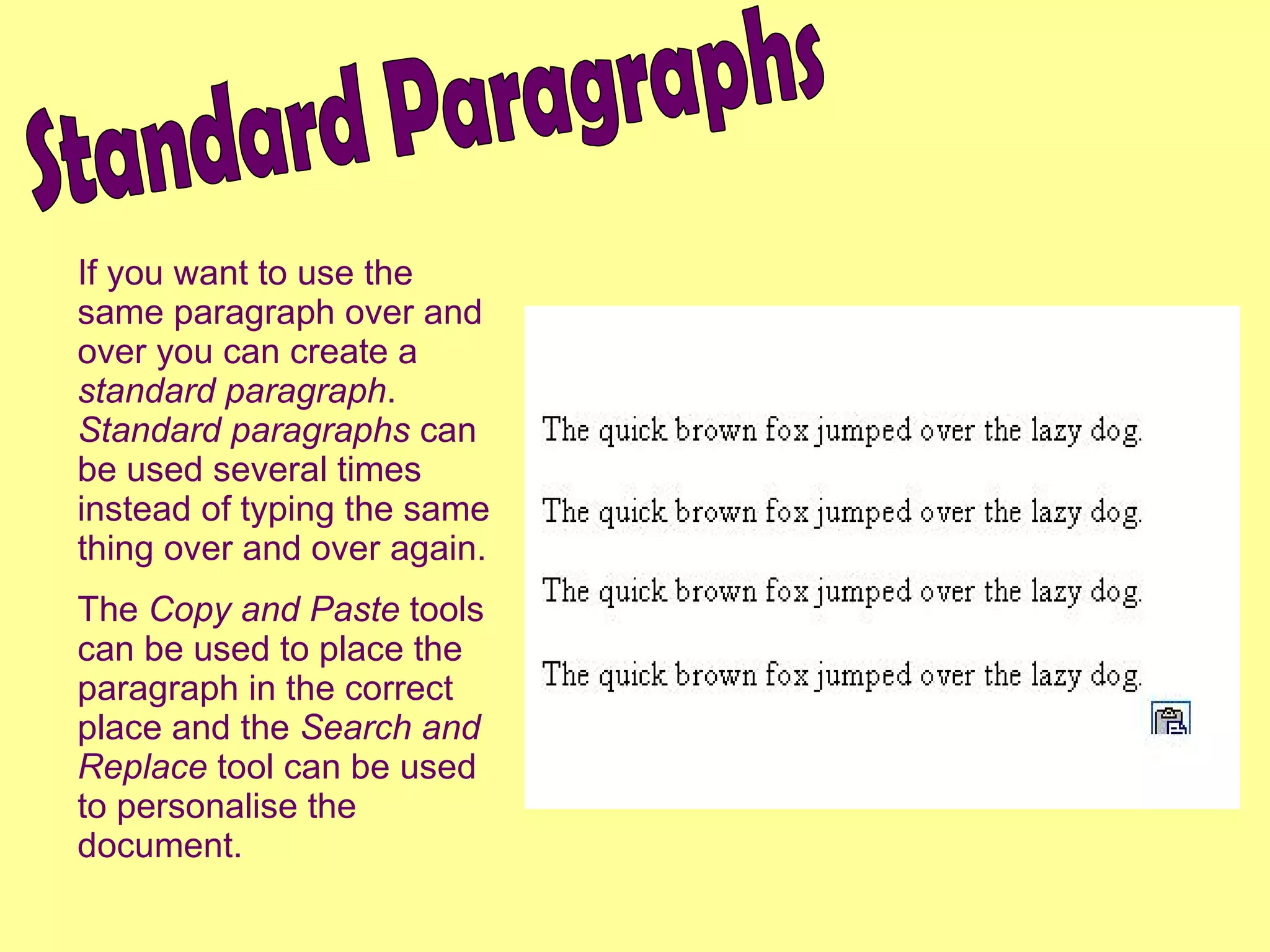
If you want to use the same paragraph over and over you can create a  standard paragraph .  Standard paragraphs  can be used several times instead of typing the same thing over and over again. The  Copy and Paste  tools can be used to place the paragraph in the correct place and the  Search and Replace  tool can be used to personalise the document. Standard Paragraphs
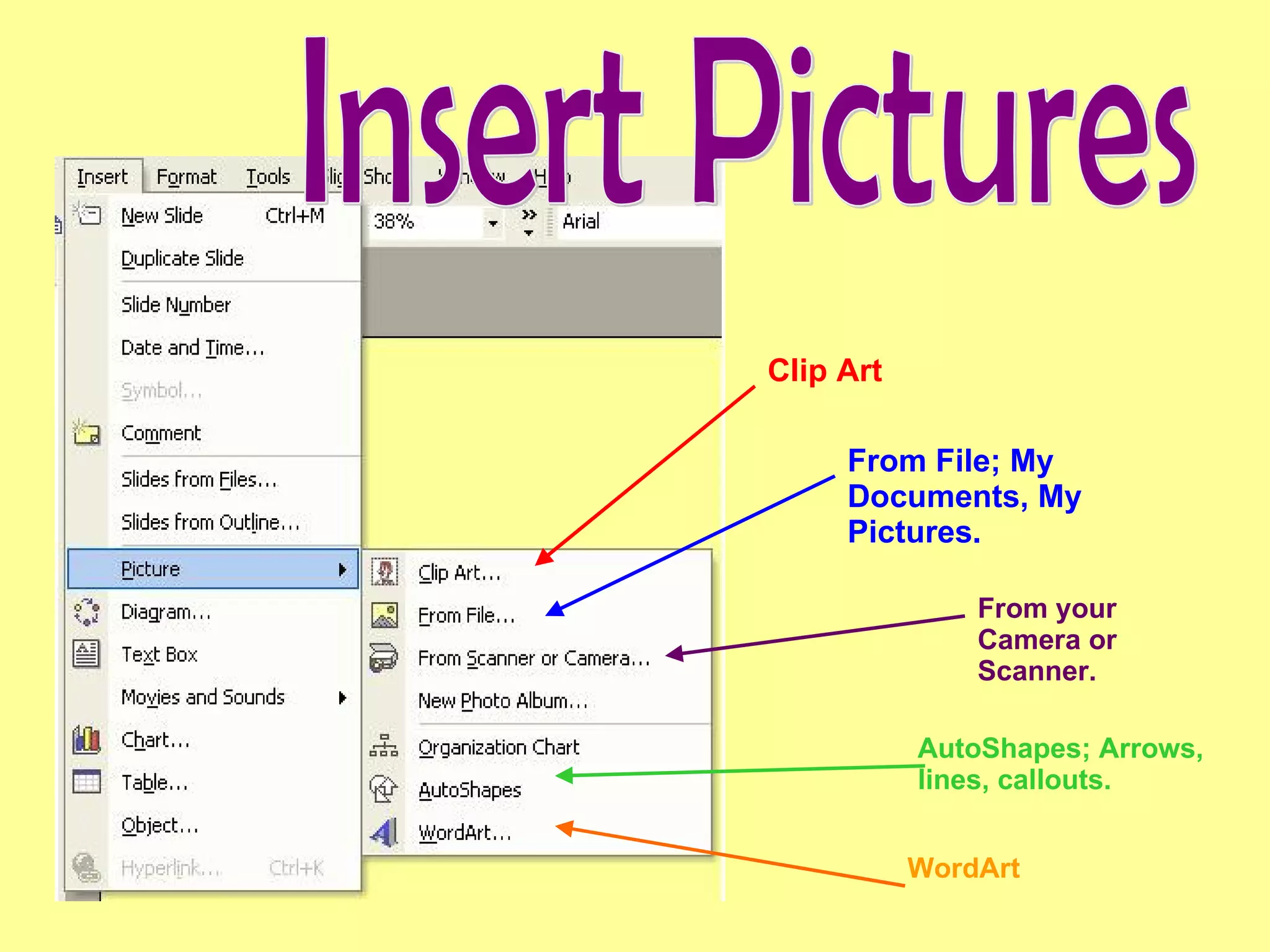
Insert Pictures Clip Art From File; My Documents, My Pictures. From your Camera or Scanner. AutoShapes; Arrows, lines, callouts.  WordArt
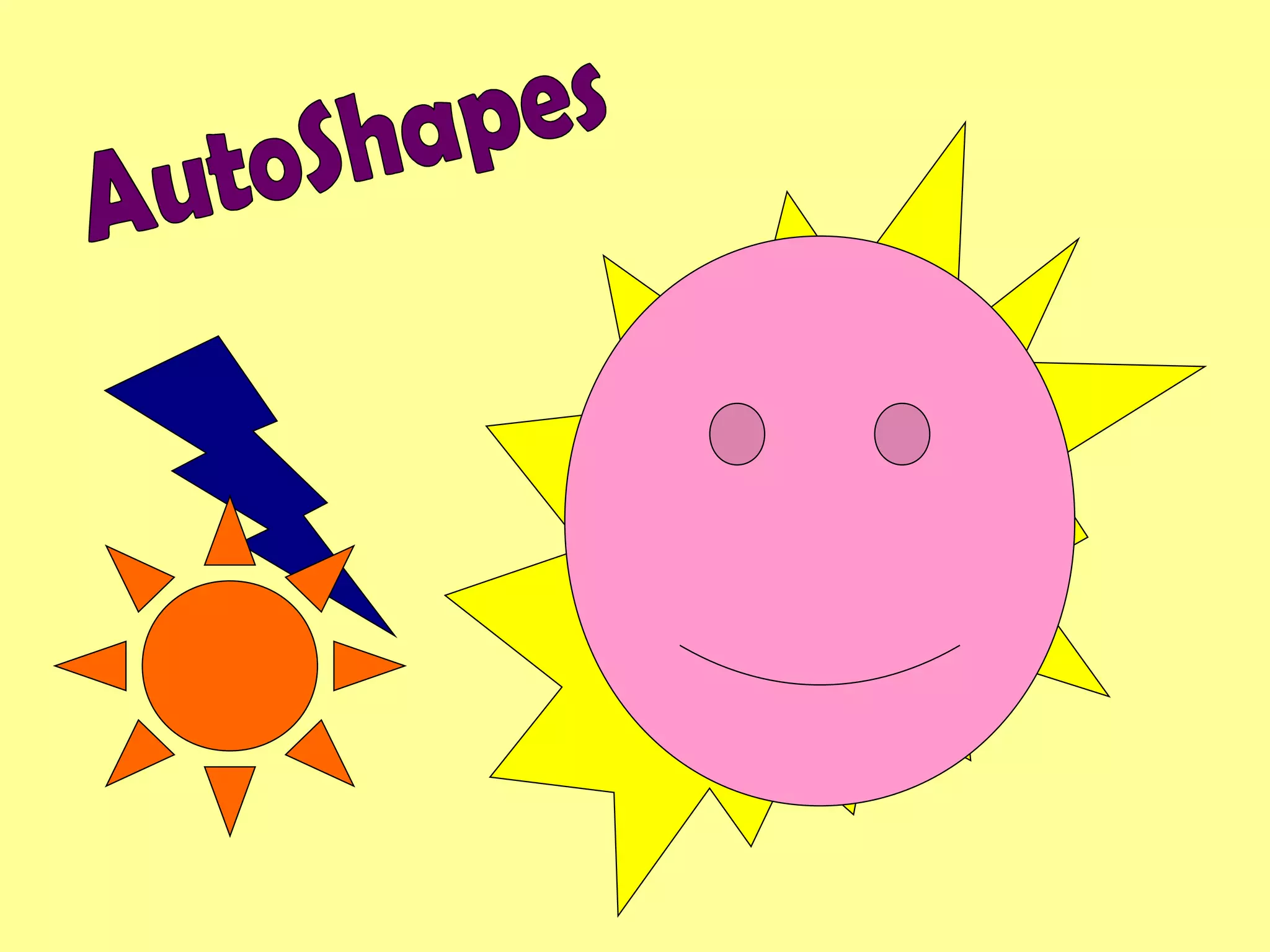
AutoShapes

The Word Processor

  • 1.
    Word Processing ByRebecca Cameron
  • 2.
    Entering and EditingText The most common method or entering text into a word processing document is using a keyboard. After the text has been entered it may have to be edited. Text can be edited by inserting, amending or deleting. Other possible methods of entering text are using a scanner.
  • 3.
    Search and ReplaceThe search and replace facility allows you to instruct the word processor to replace one word with another throughout the document.
  • 4.
    Spelling Checkers can be used to check if Spelling mistakes have been made in your document. Spell checkers have a large dictionary of words stored on a disk. When you run a Spelling check, it compares all of the words in the document with the words stored in the dictionary. Spelling Check
  • 5.
    Grammar Check The grammar check allows you to ensure all of the grammar in your document is correct.
  • 6.
    Alter Text StyleItalic Underline Bold Formatting There are a number of different styles of text. It is possible to use various combinations of these styles but be careful not to use to many or people won’t be able to read the information. The cat sat on the mat.
  • 7.
    Text Colour Thisis how you change the text colour…..
  • 8.
    Alter Page Size& Layout Use the Page Set-up to change the orientation or size of your document.
  • 9.
    Setting Text MarginsYou can change the length of each line of text by setting text margins in the document. In most word processors, the text margins
  • 10.
    Page Breaks A page break in your document is where one page ends and another begins. Normally page breaks happen when you have entered a full page of text and there is no more room on the page. A typical Page Break.
  • 11.
    Tabulation & TablesThere are a number of different tab stops in common use: Left, Right, Centre and Decimal. Here is a simple method of creating a table.
  • 12.
    Standard Letter & Mail Merge There are many instances where standard letters can be can be used. Standard letters can be produced quickly and easily. Create a standard letter using a word processor. Create a database with the required fields. Select Required Fields. Mail Merge (insert fields into standard letter). Print the letters. Post the letters (mail shot).
  • 13.
    If you wantto use the same paragraph over and over you can create a standard paragraph . Standard paragraphs can be used several times instead of typing the same thing over and over again. The Copy and Paste tools can be used to place the paragraph in the correct place and the Search and Replace tool can be used to personalise the document. Standard Paragraphs
  • 14.
    Insert Pictures ClipArt From File; My Documents, My Pictures. From your Camera or Scanner. AutoShapes; Arrows, lines, callouts. WordArt
  • 15.