

Data Handling in  EXCEL   C.V. Suresh Babu
Topics Data Handling Techniques Entering Data Importing Data Excel’s Database Capabilities Sort  Filter Subtotal Pivot Tables and Charts
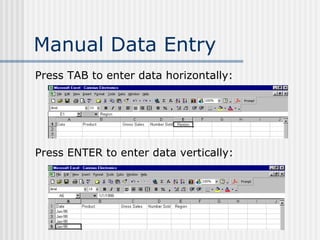
Manual Data Entry Press TAB to enter data horizontally: Press ENTER to enter data vertically:
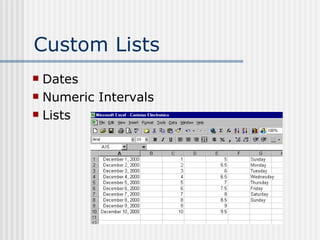
Custom Lists Dates Numeric Intervals Lists
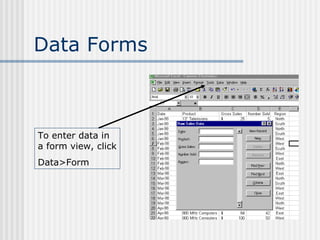
Data Forms To enter data in a form view, click Data>Form
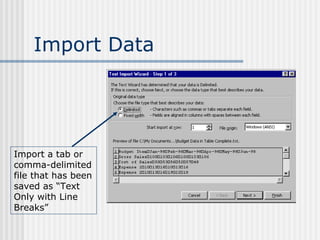
Import Data Import a tab or comma-delimited file that has been saved as “Text Only with Line Breaks”
Excel’s Database Capabilities Sorting Filtering Working with Subtotals Tap the database functions of Excel Click  Data . . . Sort ,  Data . . . Filter , or  Data . . .Subgroup
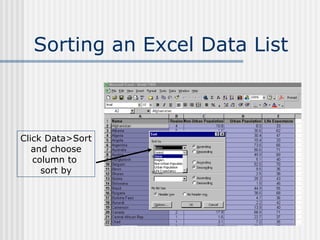
Sorting an Excel Data List Click Data>Sort and choose column to  sort by
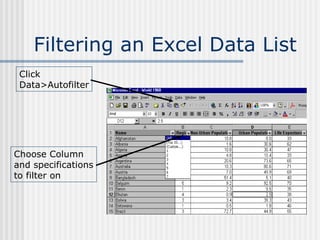
Filtering an Excel Data List Click  Data>Autofilter Choose Column and specifications to filter on
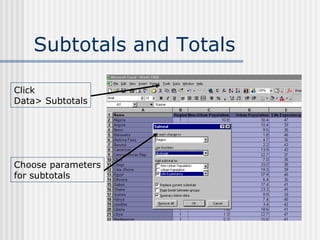
Subtotals and Totals Click  Data> Subtotals Choose parameters for subtotals
Pivot Tables and Charts The Pivot Table in Excel is an interactive worksheet that allows you to summarize large amounts of information.  The graphical representation of the Pivot Table is a Pivot Chart.
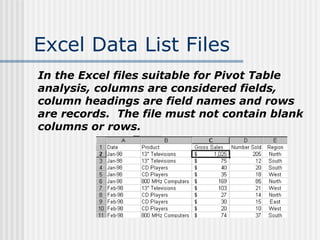
Excel Data List Files In the Excel files suitable for Pivot Table analysis, columns are considered fields, column headings are field names and rows are records.  The file must not contain blank columns or rows.
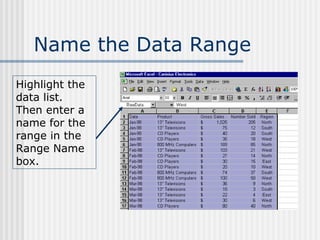
Name the Data Range Highlight the data list.  Then enter a name for the range in the Range Name box.
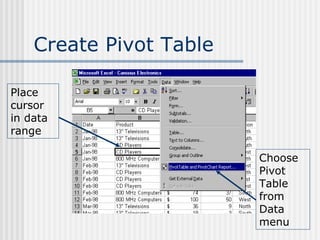
Create Pivot Table Place cursor in data range Choose Pivot Table from Data menu
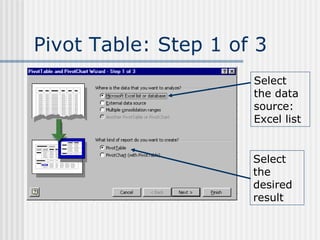
Pivot Table: Step 1 of 3 Select the data source: Excel list Select the desired result
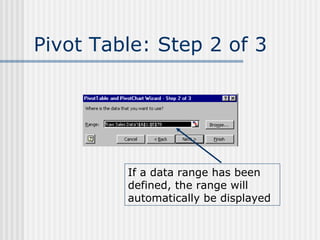
Pivot Table: Step 2 of 3 If a data range has been defined, the range will automatically be displayed
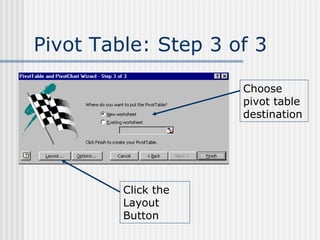
Pivot Table: Step 3 of 3 Choose pivot table destination Click the Layout Button
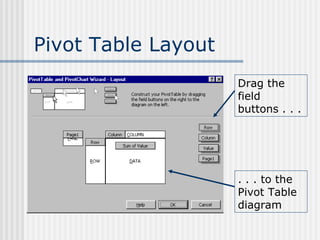
Pivot Table Layout Drag the field buttons . . . . . . to the Pivot Table diagram
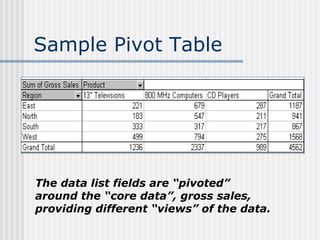
Sample Pivot Table The data list fields are “pivoted” around the “core data”, gross sales, providing different “views” of the data.
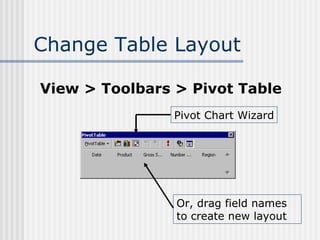
Change Table Layout View > Toolbars > Pivot Table Pivot Chart Wizard Or, drag field names to create new layout
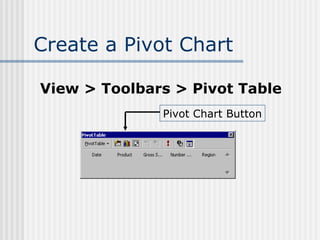
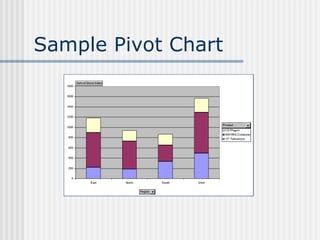
Create a Pivot Chart View > Toolbars > Pivot Table Pivot Chart Button
Sample Pivot Chart
Pivot Table Capabilities “Drill Down” for Detail Automatic Updates Multiple Data Views
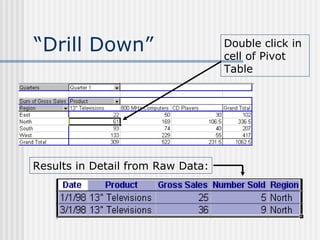
“Drill Down” Double click in cell of Pivot Table Results in Detail from Raw Data:
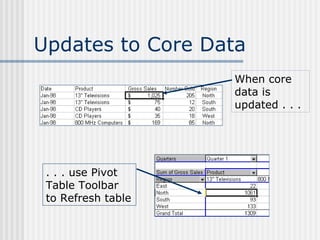
Updates to Core Data When core data is updated . . . . . . use Pivot Table Toolbar to Refresh table
Multiple Consolidation of Ranges Compare Similar Data in  Multiple Worksheets
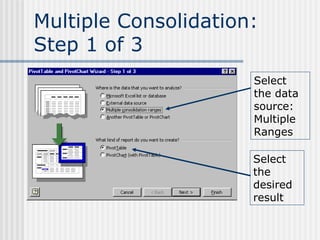
Multiple Consolidation: Step 1 of 3 Select the data source: Multiple Ranges Select the desired result
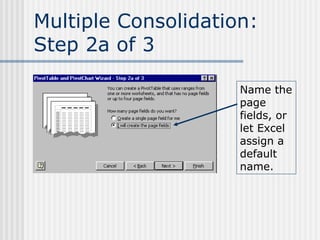
Multiple Consolidation: Step 2a of 3 Name the page fields, or let Excel assign a default name.
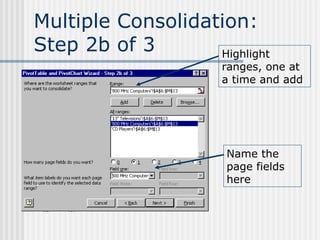
Multiple Consolidation: Step 2b of 3 Highlight ranges, one at a time and add Name the page fields here
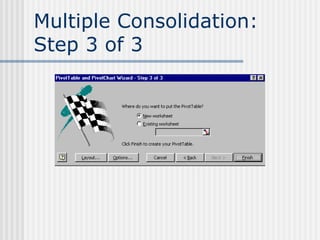
Multiple Consolidation: Step 3 of 3
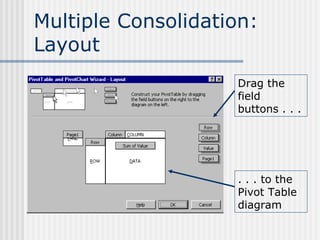
Multiple Consolidation: Layout Drag the field buttons . . . . . . to the Pivot Table diagram
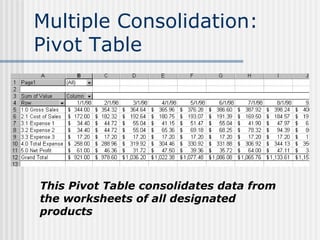
Multiple Consolidation: Pivot Table This Pivot Table consolidates data from the worksheets of all designated products
Consolidate Grouped Data
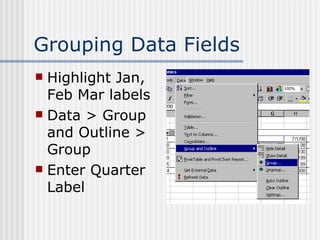
Grouping Data Fields Highlight Jan, Feb Mar labels Data > Group and Outline > Group Enter Quarter Label
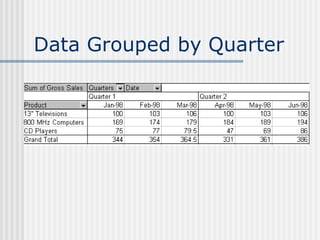
Data Grouped by Quarter
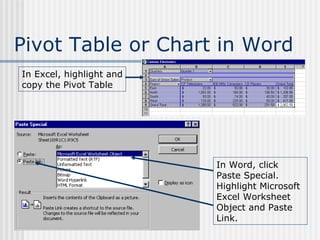
Pivot Table or Chart in Word In Excel, highlight and copy the Pivot Table In Word, click Paste Special.  Highlight Microsoft Excel Worksheet Object and Paste Link.
Formatting Options Format Cells Autoformat Conditional Formats
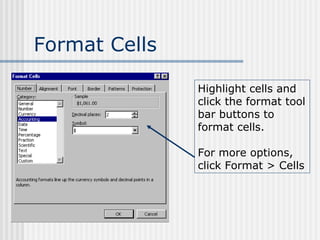
Format Cells Highlight cells and click the format tool bar buttons to format cells. For more options, click Format > Cells
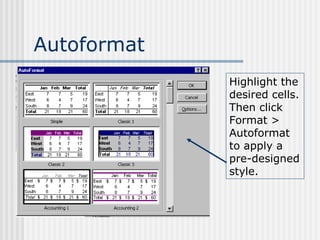
Autoformat Highlight the desired cells. Then click Format > Autoformat to apply a pre-designed style.
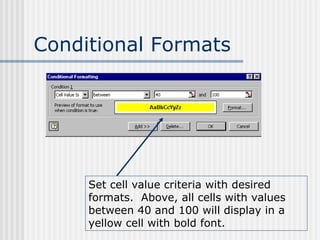
Conditional Formats Set cell value criteria with desired formats.  Above, all cells with values between 40 and 100 will display in a yellow cell with bold font.

Pivot Tables

Editor's Notes

  • #4 Custom Lists Open a new file Enter dates (Jan 1998) in column 1, row 5 Enter numbers in column 2 row 1; first 1 and copy across row (result: all 1’s) Enter number interval in column 2 & 3 row 2; then copy across Do the same with interval of 5 (start 0 and 5) Do the same with a decimal (1.1 and 1.2) Open RawData File in Excel Dec-98 13" Televisions $ 46 10 West Dec-98 CD Players $ 40 20 East Dec-98 CD Players $ 60 30 West Dec-98 800 MHz Computers $ 25 13 North Hand enter one line Use a data form to complete the rest
  • #7 In days of e-mail attachments, you may receive files that are not already in Excel format, but which you need to “read” into Excel. Show on the File> Open dialog box, the File Types which can be imported Show a comma-delimited file: Budget Data Comma Delimited Save as Text only with line breaks Open in Excel (Note must close file in word first, or there will be an error) Show Word file with a table: RawData in Table Convert Table to Text Save as Text only with line breaks Import into Excel (Note must close file in word first, or there will be an error)
  • #8 WORLD 1960 Sorting: Do several sorts; one level, two levels, three levels Filtering: for what-if operations: MAKE SURE A1 IS HIGHLIGHTED all regions =4 life expectancy =60 go back to “all” on life exp.; to do another filter >60 do several more to get rid of all filters: Data . . . Filter . . . Turn off autofilter Subtotals: Sort by region first: now in a group count number in each region ave life exp by region ave pop by region at each subtotal: remove all; or leave in by region show expand and collapse by region Some options: remove current and replace by new subtotals; put each group on a different page; summary below data Remove all - to go back to original
  • #14 Open Canisius Electronics Name the Data Range because: Excel recognizes the data range for the pivot table updates can be made
  • #19 Column: Product Row: Region Data: Gross Sales (Sum of)
  • #20 Note: created in new sheet Show: Choosing only some products vs. all Choosing only some regions vs. all Drop Date in Page Field Choosing a particular date vs. All Show changing “statistic” to show: sum of sales vs. Average sales
  • #21 Show multi field columns and rows: put region in column put date in rows Then show “putting them back”: drag field to Pivot Toolbar
  • #22 Create a chart
  • #23 Note: created in new worksheet Then “pivot” All as in Pivot Table Show putting date in page field Alter legend Alter axis Alter Value calculated
  • #25 Are you losing detail? No, you can “drill down” to see the detail on which the summary is based. Click twice in the desired cell Note: the detail goes on a new worksheet; you can return to the pivot table Note: the database, or data mining terminology
  • #26 Change jan 98 TV gross sales to 2025, number sold to 205 Return to Pivot table; position cursor; refresh data Add new data: it’s included in the range – one of the reasons we named it! But it will have to be re-sorted before we can refresh the pivot table data>sort> date, product Then refresh Pivot table
  • #27 Data in Multiple Worksheets to be compared Example: separate budget sheets for each product compare over date range
  • #29 User can create the “page field” names
  • #33 To see each product separately, choose from the “Page Field” drop down list.
  • #35 This can be done on the Pivot Table itself
  • #36 Move Quarter field up to page field line Double click on it to rename to “Quarters” Show how to choose quarters and display data
  • #39 Pivot Table formatting works the same as regular worksheet formatting Choose Toolbar buttons, or, for more options, click Format > Cells
  • #40 Click one cell in the pivot table and then click format report from Pivot table toolbar for some autoformats Or highlight the whole Pivot table, click Format > Autoformat and apply a predesigned format