Word “Pivot” Means
 Spin around
 Spin
 Revolve
 Rotate
 Turn, etc
Source: MS Office online dictionary
2MS Excel: PivotTable & PivotChart Reports
PivotTable & PivotChart Reports
Overview
• PivotTable report is an Interactive Excel report
which is used to Summarize, Analyze, and
Explore data
• Pivot Tables are great Tools for Comparing
Data using Cross-tabulation
3
Source: MS Office Help, Google
MS Excel: PivotTable & PivotChart Reports
PivotTable & PivotChart Reports
Overview
• PivotChart report Visualizes the Summary
Data of a PivotTable report, to easily see
Comparisons, Patterns, and Trends
• Both a PivotTable report and a PivotChart
report enable us to make Informed Decisions
about Critical Data in any enterprise
4
Source: MS Office Help, Google
MS Excel: PivotTable & PivotChart Reports
Construction of PivotTable Report
5
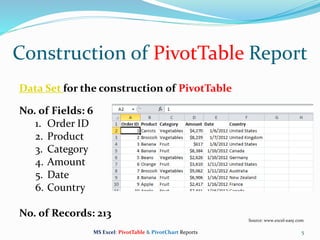
Data Set for the construction of PivotTable
No. of Fields: 6
1. Order ID
2. Product
3. Category
4. Amount
5. Date
6. Country
No. of Records: 213
Source: www.excel-easy.com
MS Excel: PivotTable & PivotChart Reports
Steps to Insert PivotTable
6
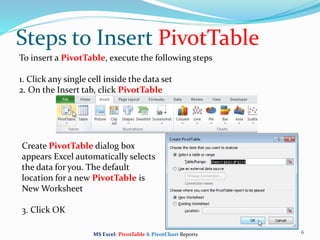
To insert a PivotTable, execute the following steps
1. Click any single cell inside the data set
2. On the Insert tab, click PivotTable
Create PivotTable dialog box
appears Excel automatically selects
the data for you. The default
location for a new PivotTable is
New Worksheet
3. Click OK
MS Excel: PivotTable & PivotChart Reports
7
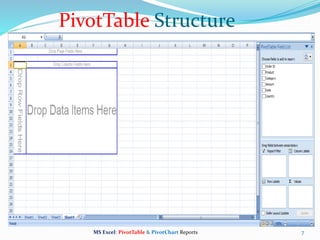
PivotTable Structure
MS Excel: PivotTable & PivotChart Reports
Drag Fields
8
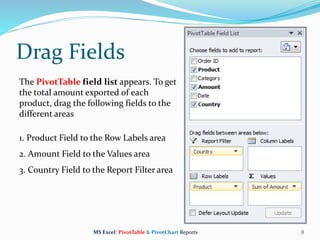
The PivotTable field list appears. To get
the total amount exported of each
product, drag the following fields to the
different areas
1. Product Field to the Row Labels area
2. Amount Field to the Values area
3. Country Field to the Report Filter area
MS Excel: PivotTable & PivotChart Reports
PivotTable Report
9
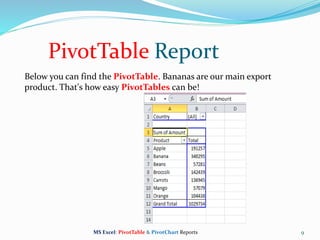
Below you can find the PivotTable. Bananas are our main export
product. That's how easy PivotTables can be!
MS Excel: PivotTable & PivotChart Reports
10
To insert a PivotTable, execute the following steps:
1. Click any single cell inside the data set
2. On the Insert tab, click PivotTable
Create PivotTable dialog box appears Excel automatically selects the data
for you. The default location for a new PivotTable is New Worksheet
3. Click OK
4. Drag Product Field to the Row Labels area
5. Drag Amount Field to the Values area
6. Drag Country Field to the Report Filter area
MS Excel: PivotTable & PivotChart Reports
Sorting PivotTable
11
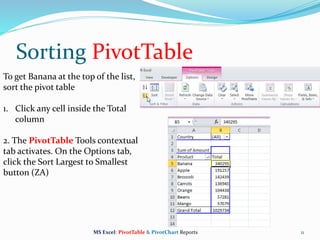
To get Banana at the top of the list,
sort the pivot table
1. Click any cell inside the Total
column
2. The PivotTable Tools contextual
tab activates. On the Options tab,
click the Sort Largest to Smallest
button (ZA)
MS Excel: PivotTable & PivotChart Reports
Filter PivotTable
12
Because we added the Country field to
the Report Filter area, we can filter this
PivotTable by Country. For example,
which products do we export the most to
France?
1. Click the filter drop-down and select
France
Result: Apples are our main export
product to France
Note: You can use the standard filter (triangle next to Product) to
only show the totals of specific products
MS Excel: PivotTable & PivotChart Reports
Change Summary Calculations of
PivotTable
13
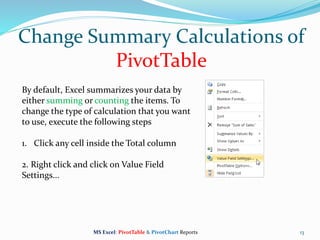
By default, Excel summarizes your data by
either summing or counting the items. To
change the type of calculation that you want
to use, execute the following steps
1. Click any cell inside the Total column
2. Right click and click on Value Field
Settings...
MS Excel: PivotTable & PivotChart Reports
14
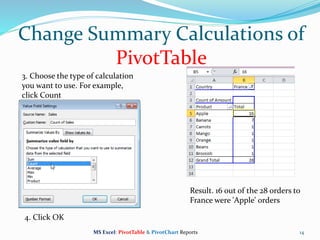
3. Choose the type of calculation
you want to use. For example,
click Count
Result. 16 out of the 28 orders to
France were 'Apple' orders
Change Summary Calculations of
PivotTable
4. Click OK
MS Excel: PivotTable & PivotChart Reports
15
To change calculations of PivotTable, execute the following steps:
1. Click any cell inside the Total column
2. Right click and click on Value Field Settings...
3. Choose the type of calculation you want to use. For example, click Count
4. Click OK
MS Excel: PivotTable & PivotChart Reports
Updating PivotTable
16
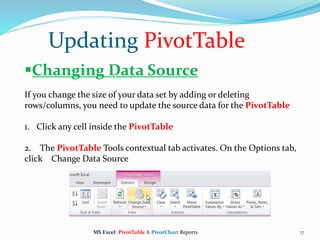
Any changes you make to the data set are not automatically picked up by
the PivotTable. Refresh the PivotTable or change the data source to
update the PivotTable with the applied changes
Refresh
If you change any of the text or numbers in your
data set, you need to refresh the PivotTable
1. Click any cell inside the PivotTable
2. Right click and click on Refresh
MS Excel: PivotTable & PivotChart Reports
17
Changing Data Source
If you change the size of your data set by adding or deleting
rows/columns, you need to update the source data for the PivotTable
1. Click any cell inside the PivotTable
2. The PivotTable Tools contextual tab activates. On the Options tab,
click Change Data Source
Updating PivotTable
MS Excel: PivotTable & PivotChart Reports
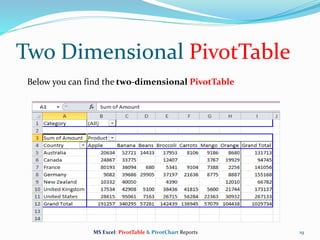
Two Dimensional PivotTable
18
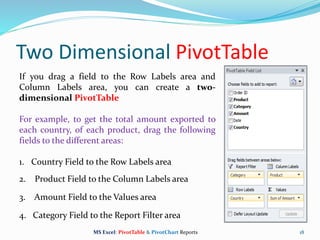
If you drag a field to the Row Labels area and
Column Labels area, you can create a two-
dimensional PivotTable
For example, to get the total amount exported to
each country, of each product, drag the following
fields to the different areas:
1. Country Field to the Row Labels area
2. Product Field to the Column Labels area
3. Amount Field to the Values area
4. Category Field to the Report Filter area
MS Excel: PivotTable & PivotChart Reports
19
Below you can find the two-dimensional PivotTable
Two Dimensional PivotTable
MS Excel: PivotTable & PivotChart Reports
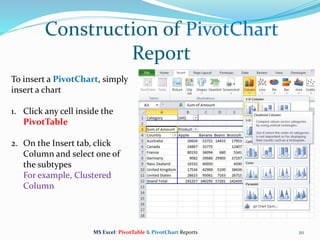
Construction of PivotChart
Report
20
To insert a PivotChart, simply
insert a chart
1. Click any cell inside the
PivotTable
2. On the Insert tab, click
Column and select one of
the subtypes
For example, Clustered
Column
MS Excel: PivotTable & PivotChart Reports
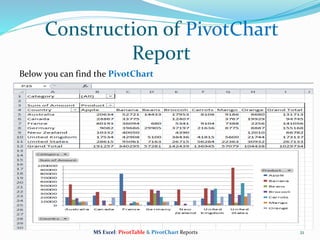
21
Below you can find the PivotChart
Construction of PivotChart
Report
MS Excel: PivotTable & PivotChart Reports
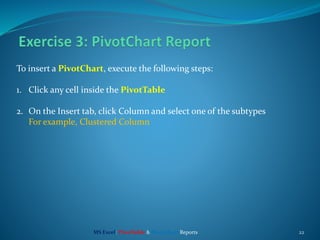
22
To insert a PivotChart, execute the following steps:
1. Click any cell inside the PivotTable
2. On the Insert tab, click Column and select one of the subtypes
For example, Clustered Column
MS Excel: PivotTable & PivotChart Reports
Filter PivotChart
23
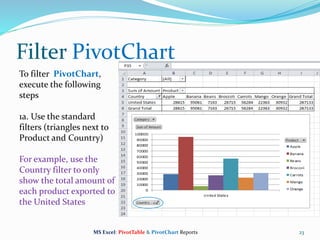
To filter PivotChart,
execute the following
steps
1a. Use the standard
filters (triangles next to
Product and Country)
For example, use the
Country filter to only
show the total amount of
each product exported to
the United States
MS Excel: PivotTable & PivotChart Reports
24
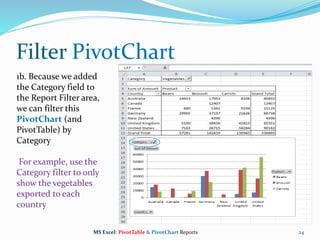
1b. Because we added
the Category field to
the Report Filter area,
we can filter this
PivotChart (and
PivotTable) by
Category
For example, use the
Category filter to only
show the vegetables
exported to each
country
Filter PivotChart
MS Excel: PivotTable & PivotChart Reports
Change PivotChart Type
25
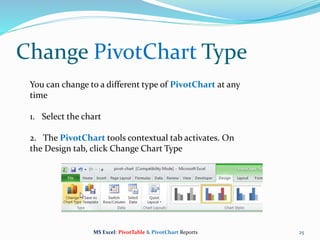
You can change to a different type of PivotChart at any
time
1. Select the chart
2. The PivotChart tools contextual tab activates. On
the Design tab, click Change Chart Type
MS Excel: PivotTable & PivotChart Reports
26
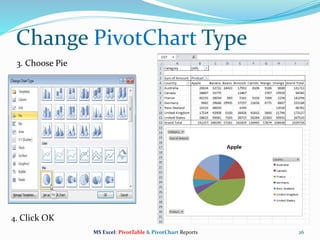
3. Choose Pie
Change PivotChart Type
4. Click OK
MS Excel: PivotTable & PivotChart Reports
Calculated Field PivotTable
27
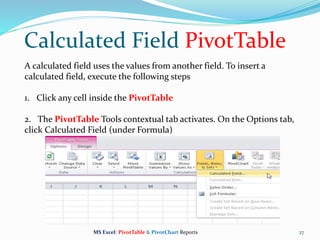
A calculated field uses the values from another field. To insert a
calculated field, execute the following steps
1. Click any cell inside the PivotTable
2. The PivotTable Tools contextual tab activates. On the Options tab,
click Calculated Field (under Formula)
MS Excel: PivotTable & PivotChart Reports
28
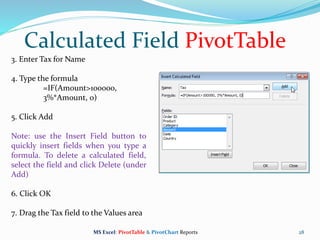
3. Enter Tax for Name
4. Type the formula
=IF(Amount>100000,
3%*Amount, 0)
5. Click Add
Note: use the Insert Field button to
quickly insert fields when you type a
formula. To delete a calculated field,
select the field and click Delete (under
Add)
6. Click OK
7. Drag the Tax field to the Values area
Calculated Field PivotTable
MS Excel: PivotTable & PivotChart Reports
29
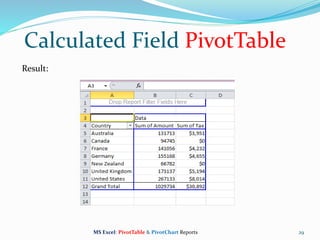
Result:
Calculated Field PivotTable
MS Excel: PivotTable & PivotChart Reports
30
To insert a calculated field PivotTable, execute the following steps:
1. Click any cell inside the PivotTable
2. The PivotTable Tools contextual tab activates. On the Options tab,
click Calculated Field (under Formula)
3. Enter Tax for Name
4. Type the formula
=IF(Amount>100000, 3%*Amount, 0)
5. Click Add
6. Click OK
7. Drag the Tax field to the Values area
MS Excel: PivotTable & PivotChart Reports
Multi Level PivotTable
31
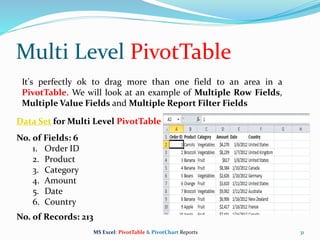
It's perfectly ok to drag more than one field to an area in a
PivotTable. We will look at an example of Multiple Row Fields,
Multiple Value Fields and Multiple Report Filter Fields
Data Set for Multi Level PivotTable
No. of Fields: 6
1. Order ID
2. Product
3. Category
4. Amount
5. Date
6. Country
No. of Records: 213
MS Excel: PivotTable & PivotChart Reports
32
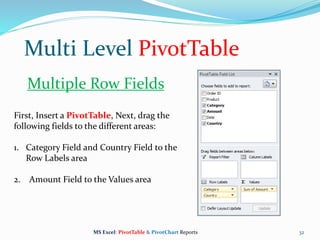
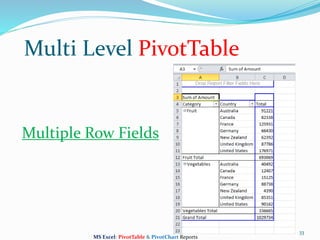
First, Insert a PivotTable, Next, drag the
following fields to the different areas:
1. Category Field and Country Field to the
Row Labels area
2. Amount Field to the Values area
Multi Level PivotTable
MS Excel: PivotTable & PivotChart Reports
Multiple Row Fields
33
Multi Level PivotTable
MS Excel: PivotTable & PivotChart Reports
Multiple Row Fields
34
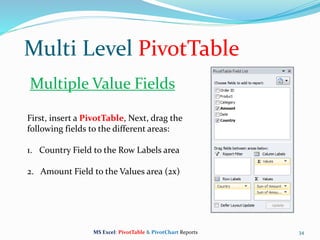
First, insert a PivotTable, Next, drag the
following fields to the different areas:
1. Country Field to the Row Labels area
2. Amount Field to the Values area (2x)
Multi Level PivotTable
MS Excel: PivotTable & PivotChart Reports
Multiple Value Fields
35
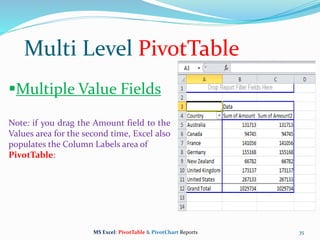
Multiple Value Fields
Note: if you drag the Amount field to the
Values area for the second time, Excel also
populates the Column Labels area of
PivotTable:
Multi Level PivotTable
MS Excel: PivotTable & PivotChart Reports
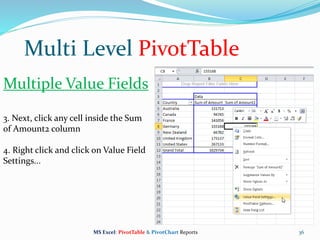
36
3. Next, click any cell inside the Sum
of Amount2 column
4. Right click and click on Value Field
Settings...
Multi Level PivotTable
MS Excel: PivotTable & PivotChart Reports
Multiple Value Fields
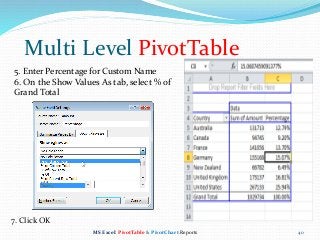
37
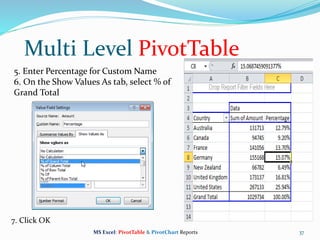
5. Enter Percentage for Custom Name
6. On the Show Values As tab, select % of
Grand Total
Multi Level PivotTable
7. Click OK
MS Excel: PivotTable & PivotChart Reports
38
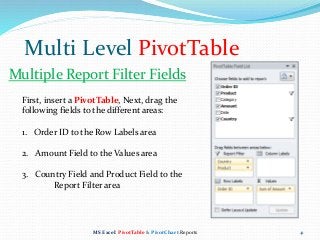
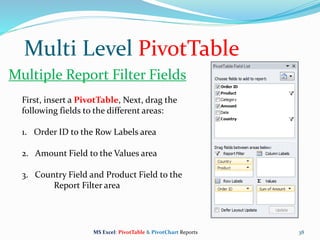
First, insert a PivotTable, Next, drag the
following fields to the different areas:
1. Order ID to the Row Labels area
2. Amount Field to the Values area
3. Country Field and Product Field to the
Report Filter area
Multi Level PivotTable
MS Excel: PivotTable & PivotChart Reports
Multiple Report Filter Fields
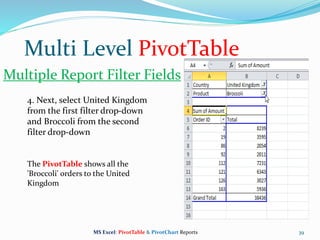
39
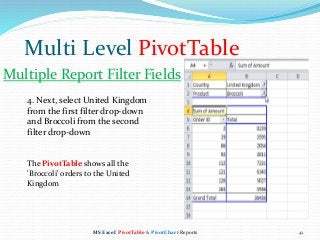
4. Next, select United Kingdom
from the first filter drop-down
and Broccoli from the second
filter drop-down
Multi Level PivotTable
MS Excel: PivotTable & PivotChart Reports
Multiple Report Filter Fields
The PivotTable shows all the
'Broccoli' orders to the United
Kingdom
MS Excel Pivot Table Reports & Charts

MS Excel Pivot Table Reports & Charts

  • 2.
    Word “Pivot” Means Spin around  Spin  Revolve  Rotate  Turn, etc Source: MS Office online dictionary 2MS Excel: PivotTable & PivotChart Reports
  • 3.
    PivotTable & PivotChartReports Overview • PivotTable report is an Interactive Excel report which is used to Summarize, Analyze, and Explore data • Pivot Tables are great Tools for Comparing Data using Cross-tabulation 3 Source: MS Office Help, Google MS Excel: PivotTable & PivotChart Reports
  • 4.
    PivotTable & PivotChartReports Overview • PivotChart report Visualizes the Summary Data of a PivotTable report, to easily see Comparisons, Patterns, and Trends • Both a PivotTable report and a PivotChart report enable us to make Informed Decisions about Critical Data in any enterprise 4 Source: MS Office Help, Google MS Excel: PivotTable & PivotChart Reports
  • 5.
    Construction of PivotTableReport 5 Data Set for the construction of PivotTable No. of Fields: 6 1. Order ID 2. Product 3. Category 4. Amount 5. Date 6. Country No. of Records: 213 Source: www.excel-easy.com MS Excel: PivotTable & PivotChart Reports
  • 6.
    Steps to InsertPivotTable 6 To insert a PivotTable, execute the following steps 1. Click any single cell inside the data set 2. On the Insert tab, click PivotTable Create PivotTable dialog box appears Excel automatically selects the data for you. The default location for a new PivotTable is New Worksheet 3. Click OK MS Excel: PivotTable & PivotChart Reports
  • 7.
    7 PivotTable Structure MS Excel:PivotTable & PivotChart Reports
  • 8.
    Drag Fields 8 The PivotTablefield list appears. To get the total amount exported of each product, drag the following fields to the different areas 1. Product Field to the Row Labels area 2. Amount Field to the Values area 3. Country Field to the Report Filter area MS Excel: PivotTable & PivotChart Reports
  • 9.
    PivotTable Report 9 Below youcan find the PivotTable. Bananas are our main export product. That's how easy PivotTables can be! MS Excel: PivotTable & PivotChart Reports
  • 10.
    10 To insert aPivotTable, execute the following steps: 1. Click any single cell inside the data set 2. On the Insert tab, click PivotTable Create PivotTable dialog box appears Excel automatically selects the data for you. The default location for a new PivotTable is New Worksheet 3. Click OK 4. Drag Product Field to the Row Labels area 5. Drag Amount Field to the Values area 6. Drag Country Field to the Report Filter area MS Excel: PivotTable & PivotChart Reports
  • 11.
    Sorting PivotTable 11 To getBanana at the top of the list, sort the pivot table 1. Click any cell inside the Total column 2. The PivotTable Tools contextual tab activates. On the Options tab, click the Sort Largest to Smallest button (ZA) MS Excel: PivotTable & PivotChart Reports
  • 12.
    Filter PivotTable 12 Because weadded the Country field to the Report Filter area, we can filter this PivotTable by Country. For example, which products do we export the most to France? 1. Click the filter drop-down and select France Result: Apples are our main export product to France Note: You can use the standard filter (triangle next to Product) to only show the totals of specific products MS Excel: PivotTable & PivotChart Reports
  • 13.
    Change Summary Calculationsof PivotTable 13 By default, Excel summarizes your data by either summing or counting the items. To change the type of calculation that you want to use, execute the following steps 1. Click any cell inside the Total column 2. Right click and click on Value Field Settings... MS Excel: PivotTable & PivotChart Reports
  • 14.
    14 3. Choose thetype of calculation you want to use. For example, click Count Result. 16 out of the 28 orders to France were 'Apple' orders Change Summary Calculations of PivotTable 4. Click OK MS Excel: PivotTable & PivotChart Reports
  • 15.
    15 To change calculationsof PivotTable, execute the following steps: 1. Click any cell inside the Total column 2. Right click and click on Value Field Settings... 3. Choose the type of calculation you want to use. For example, click Count 4. Click OK MS Excel: PivotTable & PivotChart Reports
  • 16.
    Updating PivotTable 16 Any changesyou make to the data set are not automatically picked up by the PivotTable. Refresh the PivotTable or change the data source to update the PivotTable with the applied changes Refresh If you change any of the text or numbers in your data set, you need to refresh the PivotTable 1. Click any cell inside the PivotTable 2. Right click and click on Refresh MS Excel: PivotTable & PivotChart Reports
  • 17.
    17 Changing Data Source Ifyou change the size of your data set by adding or deleting rows/columns, you need to update the source data for the PivotTable 1. Click any cell inside the PivotTable 2. The PivotTable Tools contextual tab activates. On the Options tab, click Change Data Source Updating PivotTable MS Excel: PivotTable & PivotChart Reports
  • 18.
    Two Dimensional PivotTable 18 Ifyou drag a field to the Row Labels area and Column Labels area, you can create a two- dimensional PivotTable For example, to get the total amount exported to each country, of each product, drag the following fields to the different areas: 1. Country Field to the Row Labels area 2. Product Field to the Column Labels area 3. Amount Field to the Values area 4. Category Field to the Report Filter area MS Excel: PivotTable & PivotChart Reports
  • 19.
    19 Below you canfind the two-dimensional PivotTable Two Dimensional PivotTable MS Excel: PivotTable & PivotChart Reports
  • 20.
    Construction of PivotChart Report 20 Toinsert a PivotChart, simply insert a chart 1. Click any cell inside the PivotTable 2. On the Insert tab, click Column and select one of the subtypes For example, Clustered Column MS Excel: PivotTable & PivotChart Reports
  • 21.
    21 Below you canfind the PivotChart Construction of PivotChart Report MS Excel: PivotTable & PivotChart Reports
  • 22.
    22 To insert aPivotChart, execute the following steps: 1. Click any cell inside the PivotTable 2. On the Insert tab, click Column and select one of the subtypes For example, Clustered Column MS Excel: PivotTable & PivotChart Reports
  • 23.
    Filter PivotChart 23 To filterPivotChart, execute the following steps 1a. Use the standard filters (triangles next to Product and Country) For example, use the Country filter to only show the total amount of each product exported to the United States MS Excel: PivotTable & PivotChart Reports
  • 24.
    24 1b. Because weadded the Category field to the Report Filter area, we can filter this PivotChart (and PivotTable) by Category For example, use the Category filter to only show the vegetables exported to each country Filter PivotChart MS Excel: PivotTable & PivotChart Reports
  • 25.
    Change PivotChart Type 25 Youcan change to a different type of PivotChart at any time 1. Select the chart 2. The PivotChart tools contextual tab activates. On the Design tab, click Change Chart Type MS Excel: PivotTable & PivotChart Reports
  • 26.
    26 3. Choose Pie ChangePivotChart Type 4. Click OK MS Excel: PivotTable & PivotChart Reports
  • 27.
    Calculated Field PivotTable 27 Acalculated field uses the values from another field. To insert a calculated field, execute the following steps 1. Click any cell inside the PivotTable 2. The PivotTable Tools contextual tab activates. On the Options tab, click Calculated Field (under Formula) MS Excel: PivotTable & PivotChart Reports
  • 28.
    28 3. Enter Taxfor Name 4. Type the formula =IF(Amount>100000, 3%*Amount, 0) 5. Click Add Note: use the Insert Field button to quickly insert fields when you type a formula. To delete a calculated field, select the field and click Delete (under Add) 6. Click OK 7. Drag the Tax field to the Values area Calculated Field PivotTable MS Excel: PivotTable & PivotChart Reports
  • 29.
    29 Result: Calculated Field PivotTable MSExcel: PivotTable & PivotChart Reports
  • 30.
    30 To insert acalculated field PivotTable, execute the following steps: 1. Click any cell inside the PivotTable 2. The PivotTable Tools contextual tab activates. On the Options tab, click Calculated Field (under Formula) 3. Enter Tax for Name 4. Type the formula =IF(Amount>100000, 3%*Amount, 0) 5. Click Add 6. Click OK 7. Drag the Tax field to the Values area MS Excel: PivotTable & PivotChart Reports
  • 31.
    Multi Level PivotTable 31 It'sperfectly ok to drag more than one field to an area in a PivotTable. We will look at an example of Multiple Row Fields, Multiple Value Fields and Multiple Report Filter Fields Data Set for Multi Level PivotTable No. of Fields: 6 1. Order ID 2. Product 3. Category 4. Amount 5. Date 6. Country No. of Records: 213 MS Excel: PivotTable & PivotChart Reports
  • 32.
    32 First, Insert aPivotTable, Next, drag the following fields to the different areas: 1. Category Field and Country Field to the Row Labels area 2. Amount Field to the Values area Multi Level PivotTable MS Excel: PivotTable & PivotChart Reports Multiple Row Fields
  • 33.
    33 Multi Level PivotTable MSExcel: PivotTable & PivotChart Reports Multiple Row Fields
  • 34.
    34 First, insert aPivotTable, Next, drag the following fields to the different areas: 1. Country Field to the Row Labels area 2. Amount Field to the Values area (2x) Multi Level PivotTable MS Excel: PivotTable & PivotChart Reports Multiple Value Fields
  • 35.
    35 Multiple Value Fields Note:if you drag the Amount field to the Values area for the second time, Excel also populates the Column Labels area of PivotTable: Multi Level PivotTable MS Excel: PivotTable & PivotChart Reports
  • 36.
    36 3. Next, clickany cell inside the Sum of Amount2 column 4. Right click and click on Value Field Settings... Multi Level PivotTable MS Excel: PivotTable & PivotChart Reports Multiple Value Fields
  • 37.
    37 5. Enter Percentagefor Custom Name 6. On the Show Values As tab, select % of Grand Total Multi Level PivotTable 7. Click OK MS Excel: PivotTable & PivotChart Reports
  • 38.
    38 First, insert aPivotTable, Next, drag the following fields to the different areas: 1. Order ID to the Row Labels area 2. Amount Field to the Values area 3. Country Field and Product Field to the Report Filter area Multi Level PivotTable MS Excel: PivotTable & PivotChart Reports Multiple Report Filter Fields
  • 39.
    39 4. Next, selectUnited Kingdom from the first filter drop-down and Broccoli from the second filter drop-down Multi Level PivotTable MS Excel: PivotTable & PivotChart Reports Multiple Report Filter Fields The PivotTable shows all the 'Broccoli' orders to the United Kingdom