Pivot Tables: Step by StepGail Jones-NemethToledo, OhioCSSL10
AgendaStarting a new Pivot Table or chart from data extracted into Excel QueryPivot TablesLaying out rows, columns, valuesCosmetics – make it pretty!Filtering, totaling, subtotaling, sorting, groupingDrill Down:  Expanding and collapsingPivot ChartsData setupTime series chart
About the PresenterSolomon consultant for 15 years, beginning in 1985; Betco CIO 2000-2010Betco is regional manufacturer and distributor of floor finishes, skin care products, and cleaning chemicals and equipment for the Jan/San and institutional/educational marketsDeeply implemented Dynamics-SL site
Excel Query TipsCreate read-only access user group with specific read-only rights only to tables that need to be queriedUse SQL authentication to assign rightsCreate separate database with predefined, read-only views to shorten list of tablesKeep your spreadsheets smallSkip straight from extract to Pivot Table reportDon’t save data in the Pivot Table!
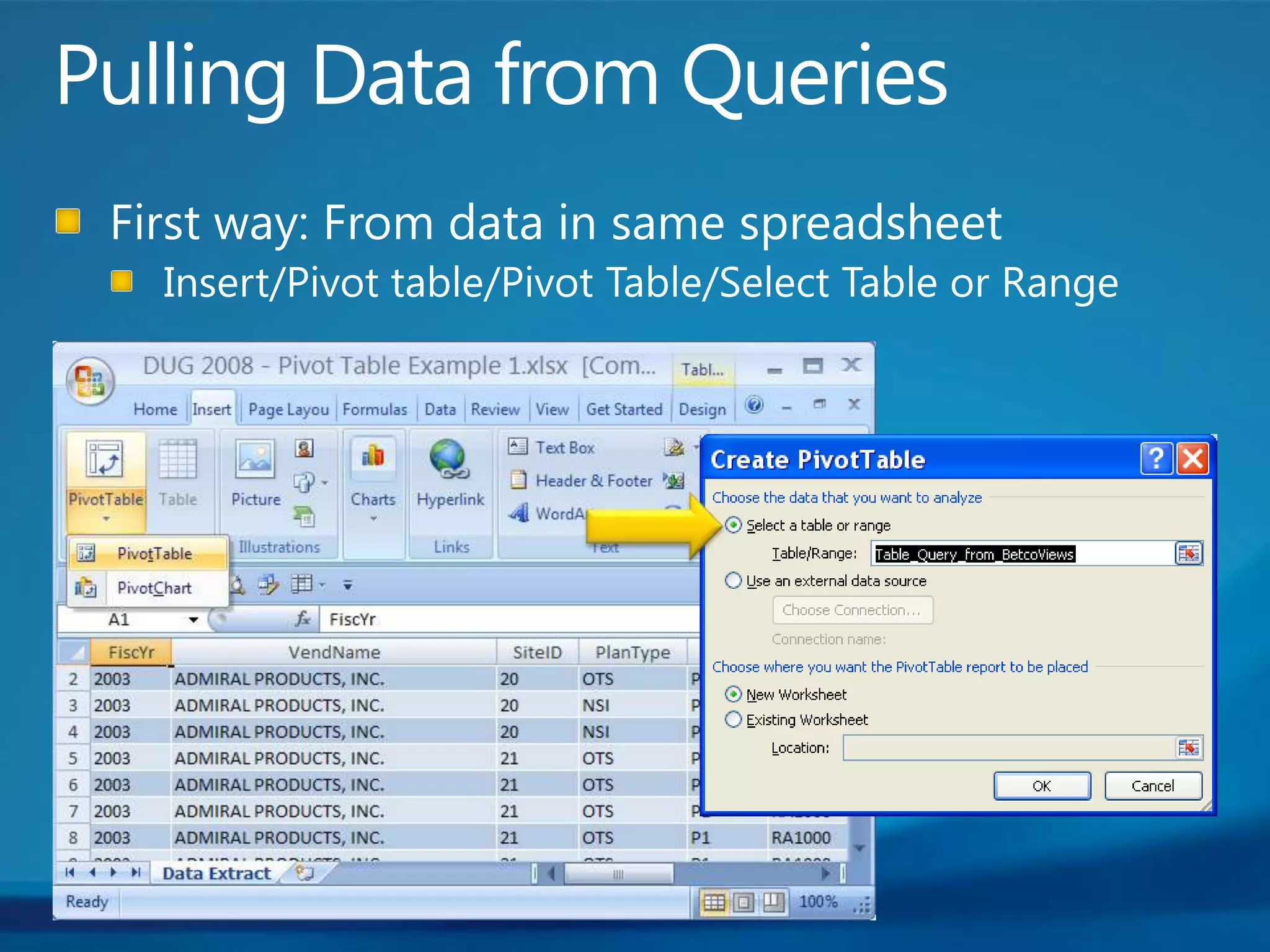
Pulling Data from QueriesFirst way: From data in same spreadsheetInsert/Pivot table/Pivot Table/Select Table or Range
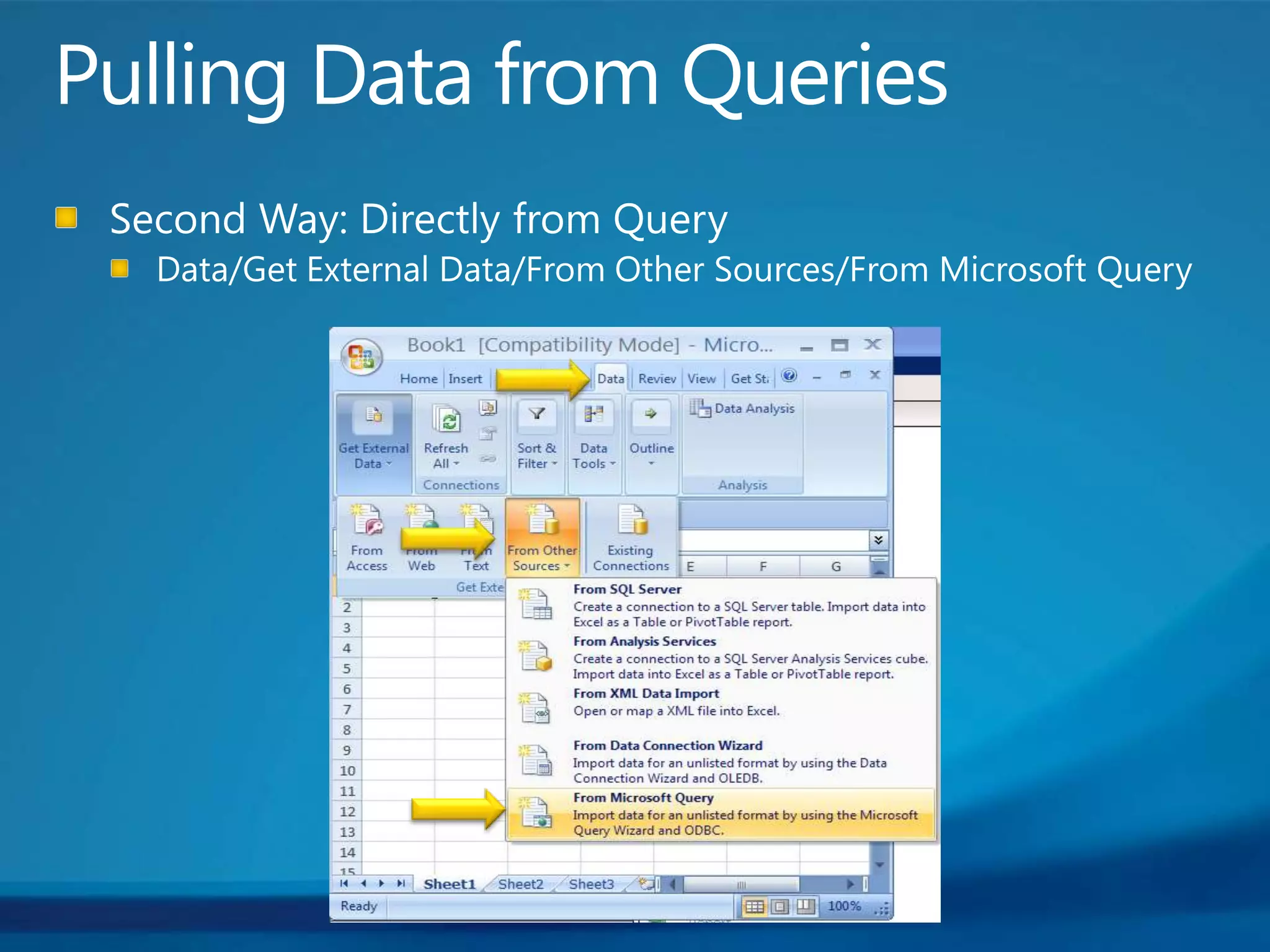
Pulling Data from QueriesSecond Way: Directly from QueryData/Get External Data/From Other Sources/From Microsoft Query
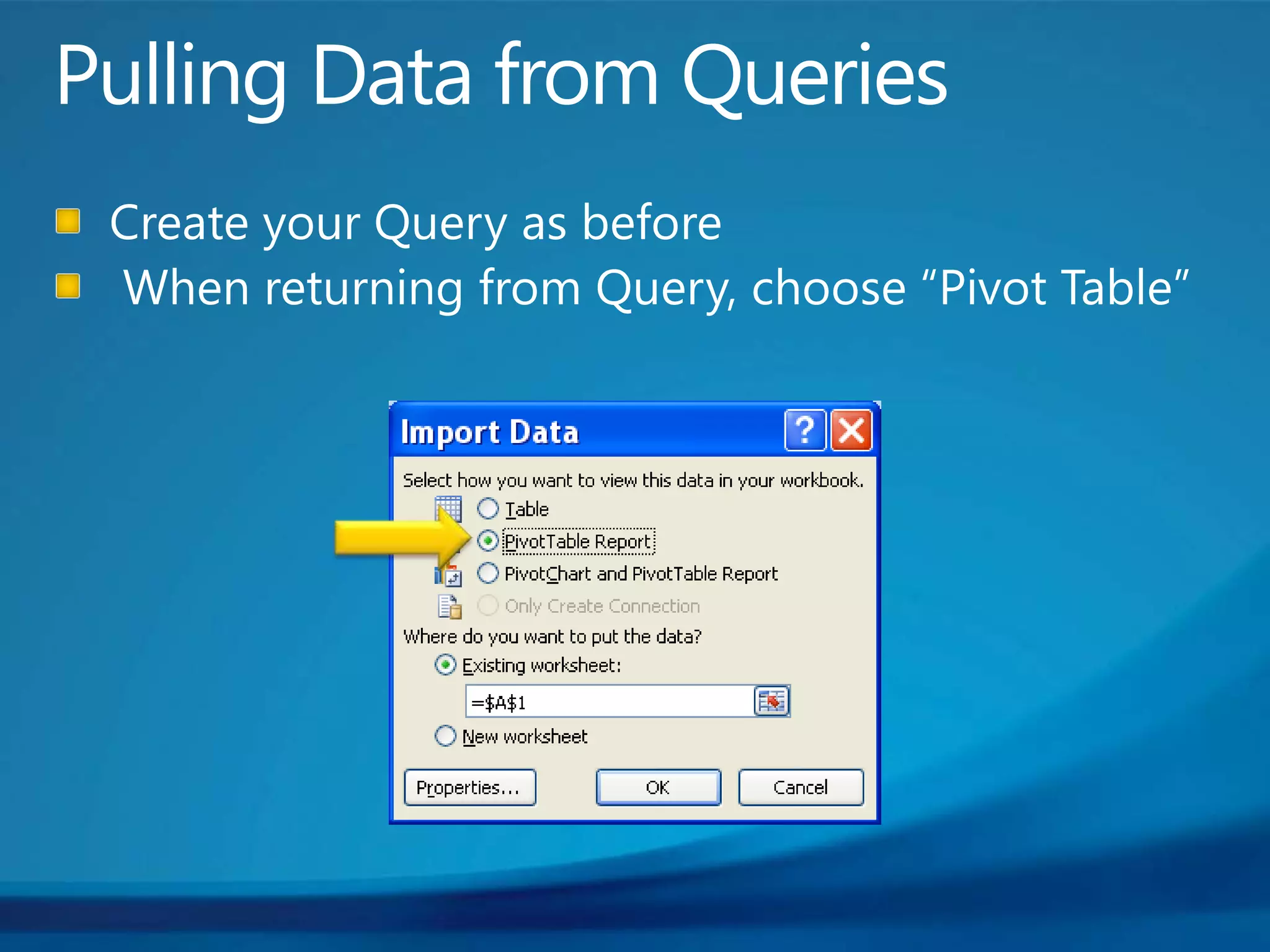
Pulling Data from QueriesCreate your Query as before When returning from Query, choose “Pivot Table”
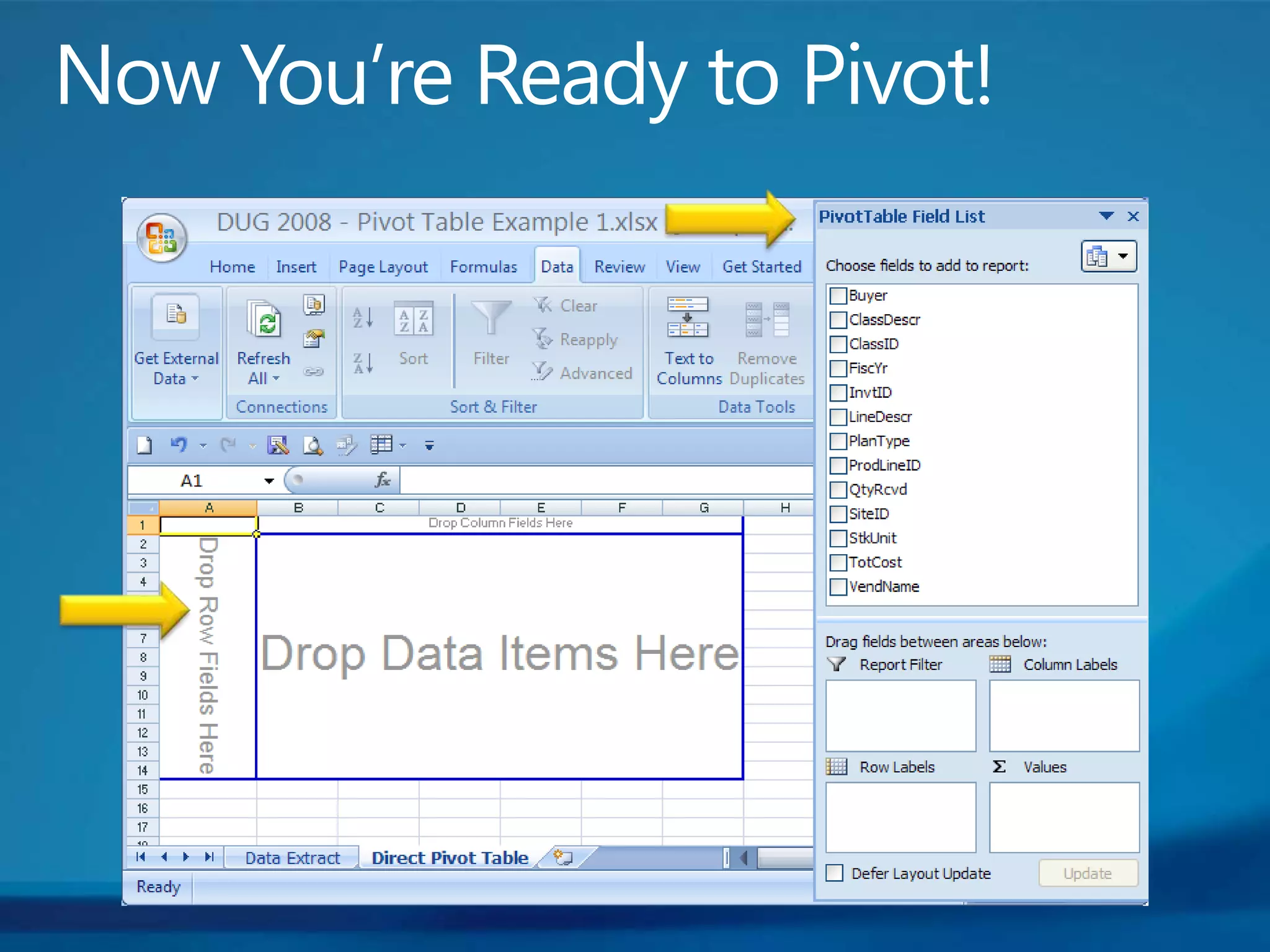
Now You’re Ready to Pivot!
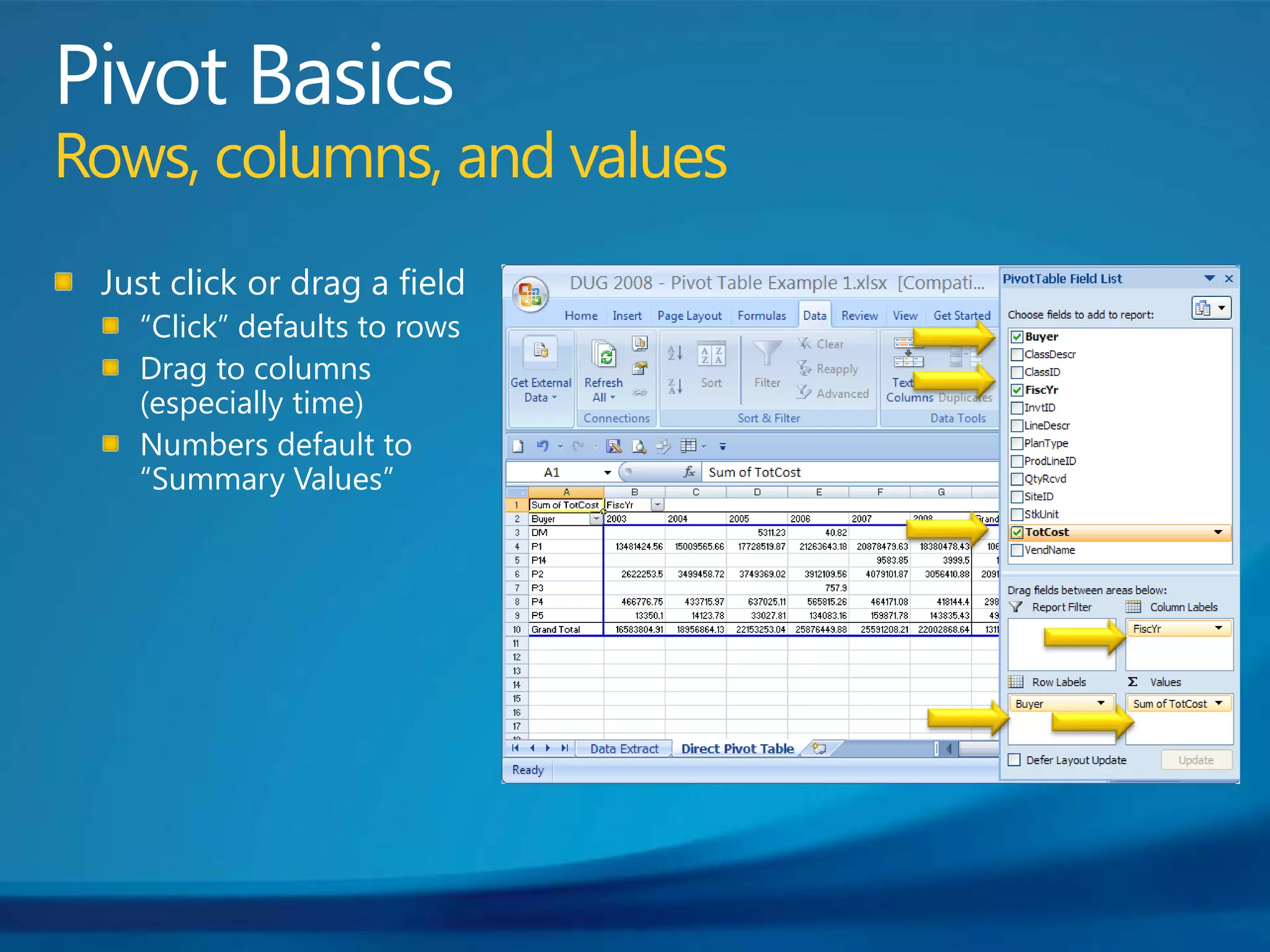
Pivot Basics  Rows, columns, and valuesJust click or drag a field“Click” defaults to rowsDrag to columns (especially time)Numbers default to “Summary Values”
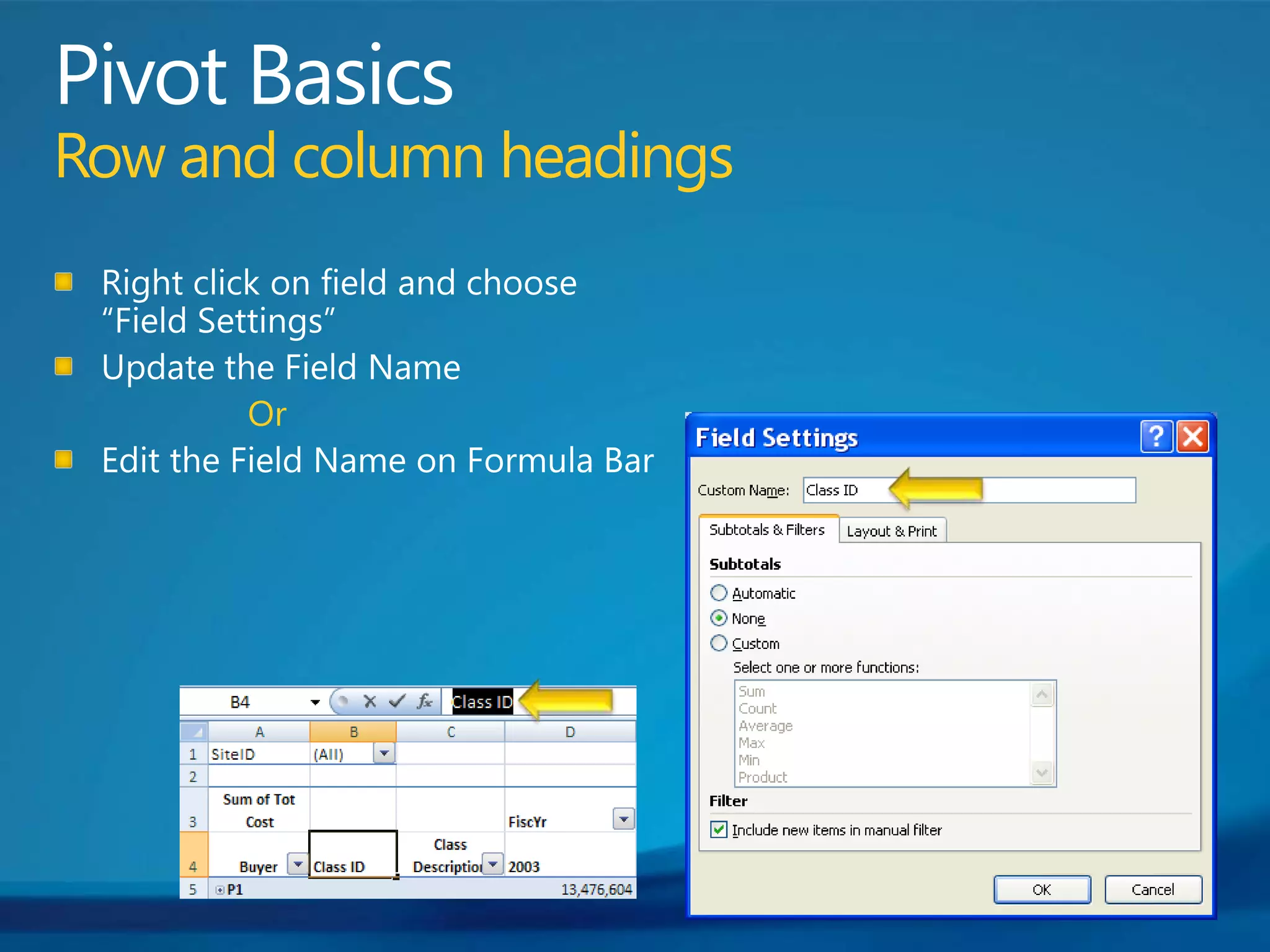
Pivot BasicsRow and column headingsRight click on field and choose “Field Settings”Update the Field NameOrEdit the Field Name on Formula Bar
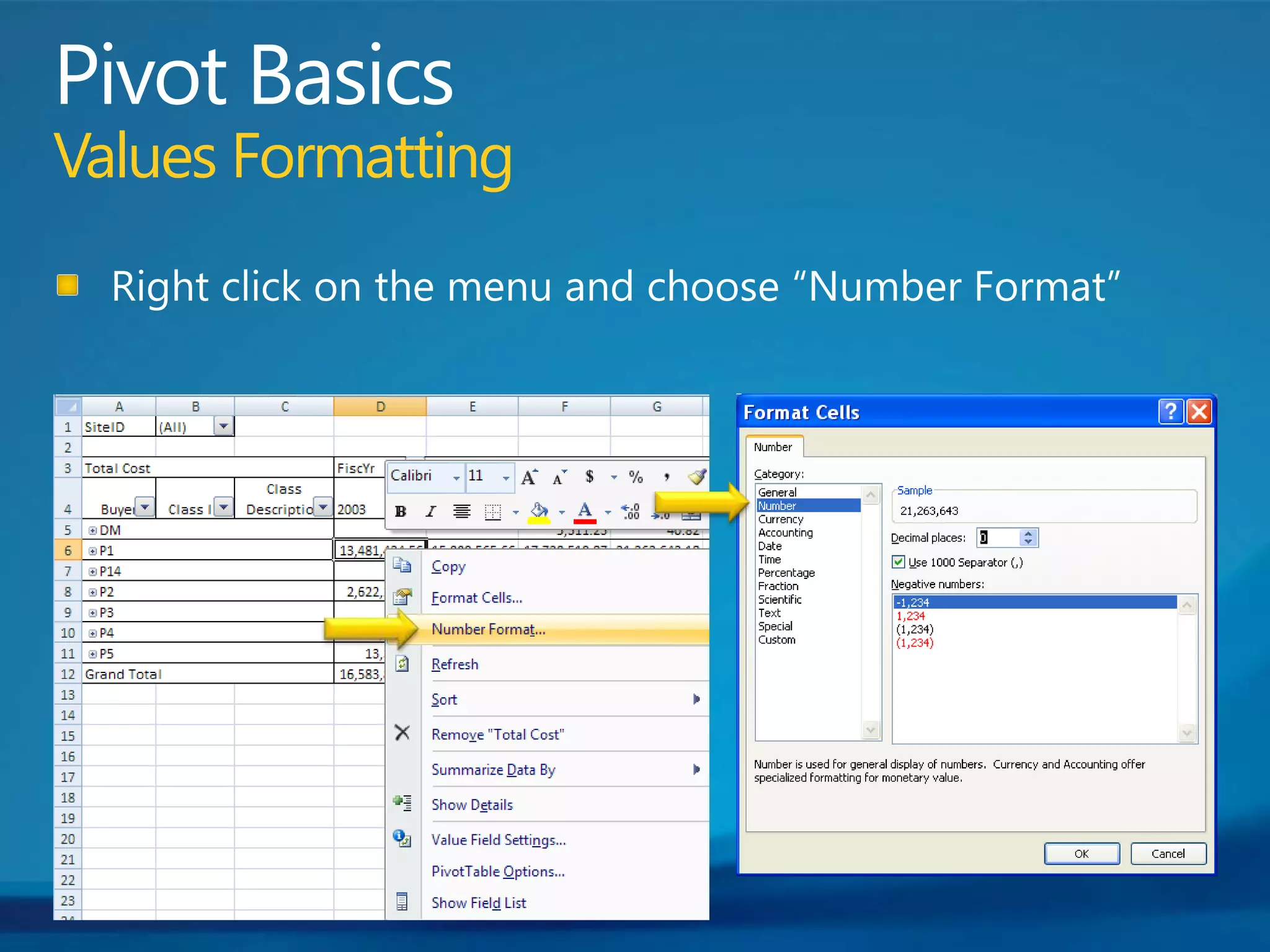
Pivot BasicsValues FormattingRight click on the menu and choose “Number Format”
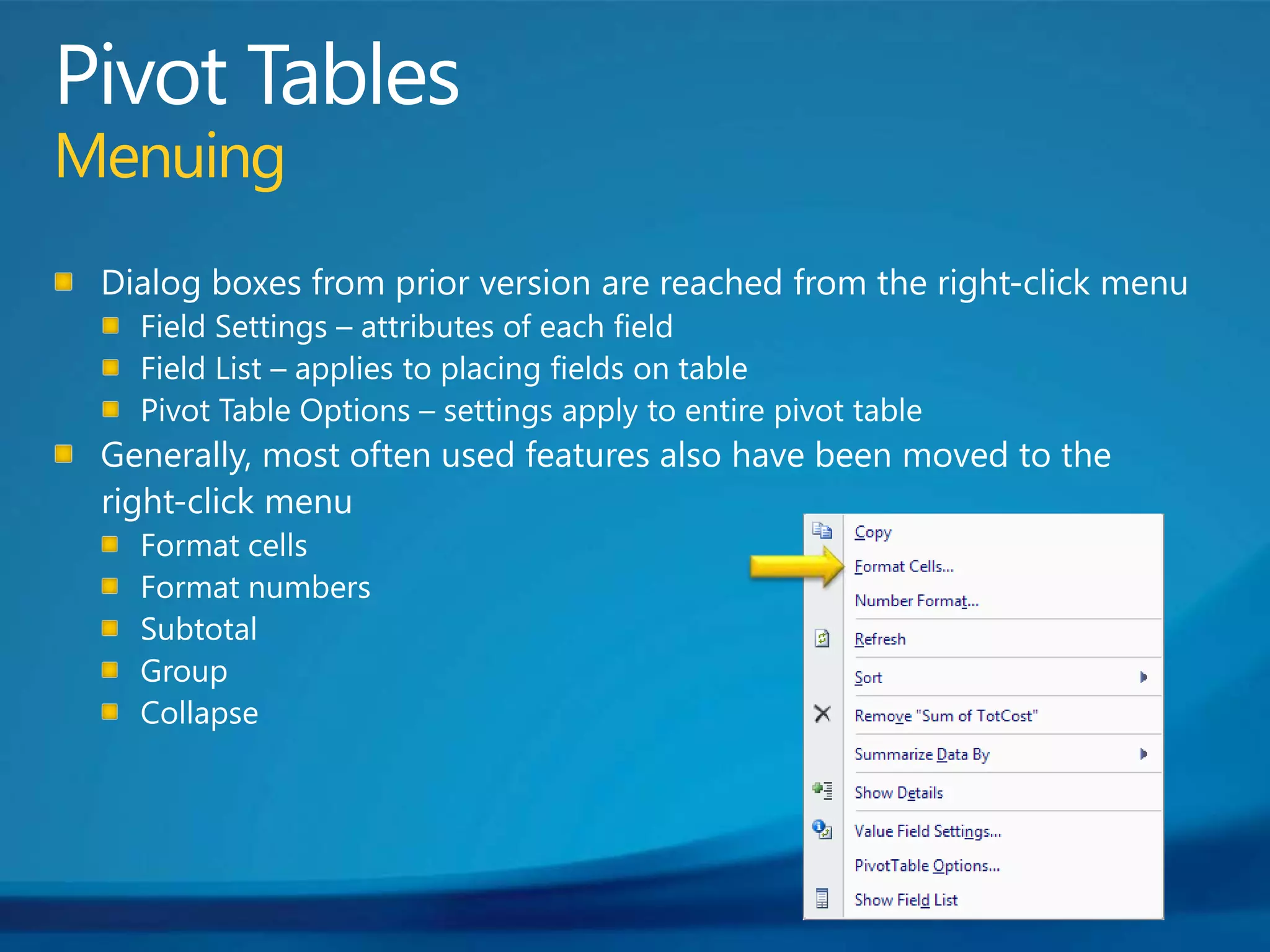
Pivot TablesMenuingDialog boxes from prior version are reached from the right-click menuField Settings – attributes of each fieldField List – applies to placing fields on tablePivot Table Options – settings apply to entire pivot tableGenerally, most often used features also have been moved to the      right-click menuFormat cellsFormat numbersSubtotalGroupCollapse
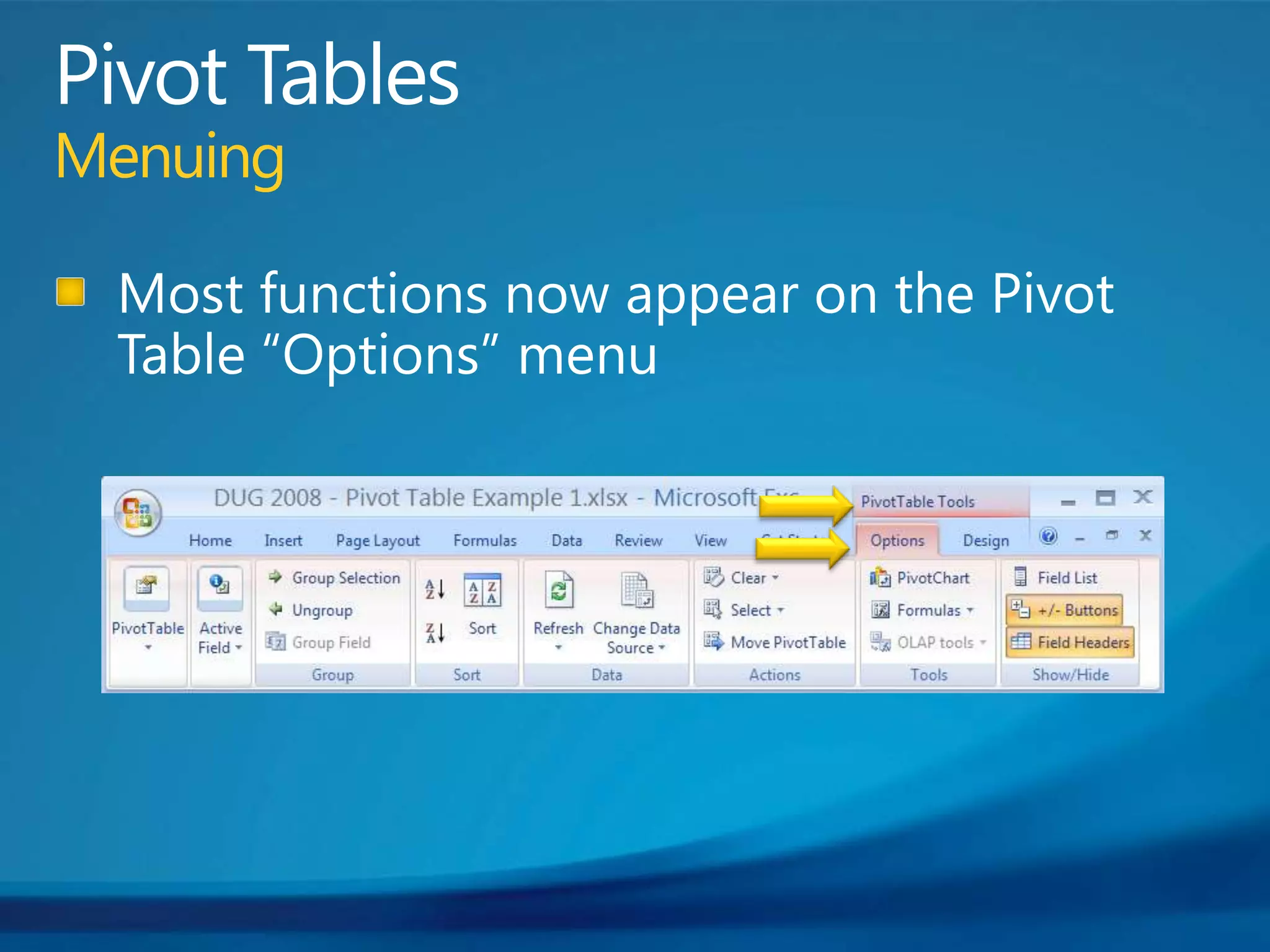
Pivot TablesMenuingMost functions now appear on the Pivot Table “Options” menu
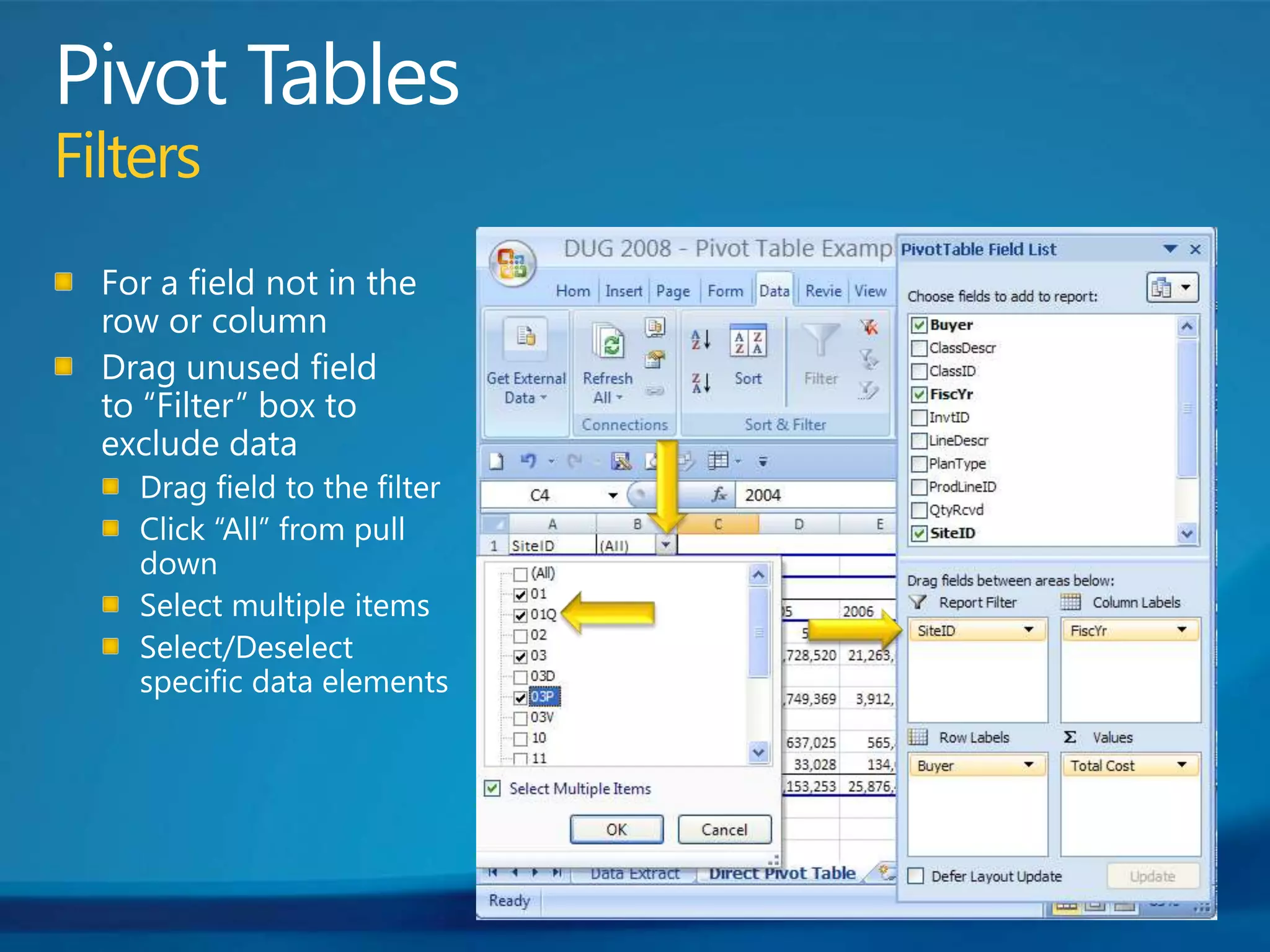
Pivot TablesFiltersFor a field not in the row or columnDrag unused field to “Filter” box to exclude dataDrag field to the filterClick “All” from pull downSelect multiple itemsSelect/Deselect specific data elements
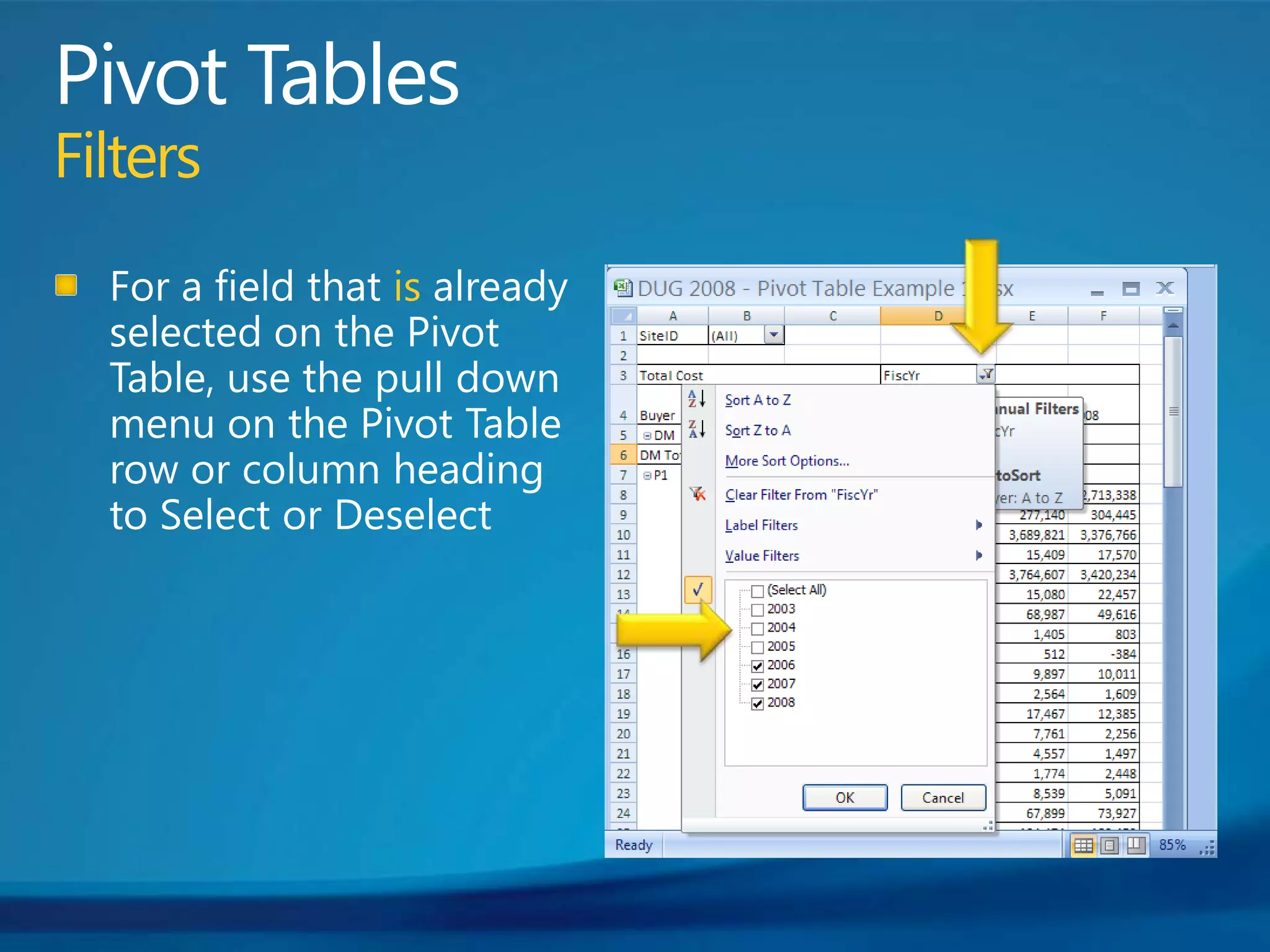
Pivot TablesFiltersFor a field that is already selected on the Pivot Table, use the pull down menu on the Pivot Table row or column heading to Select or Deselect
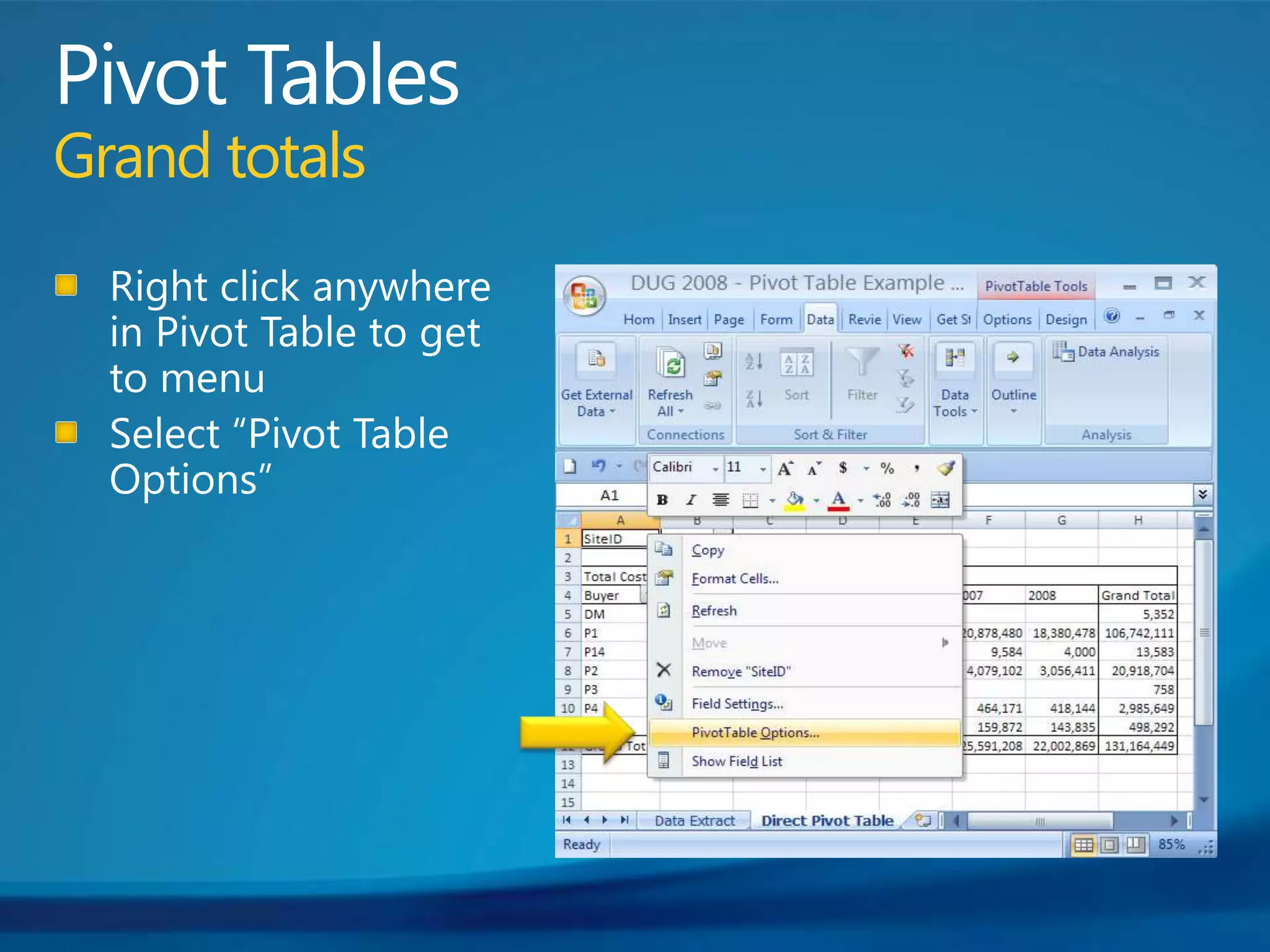
Pivot TablesGrand totalsRight click anywhere in Pivot Table to get to menuSelect “Pivot Table Options”
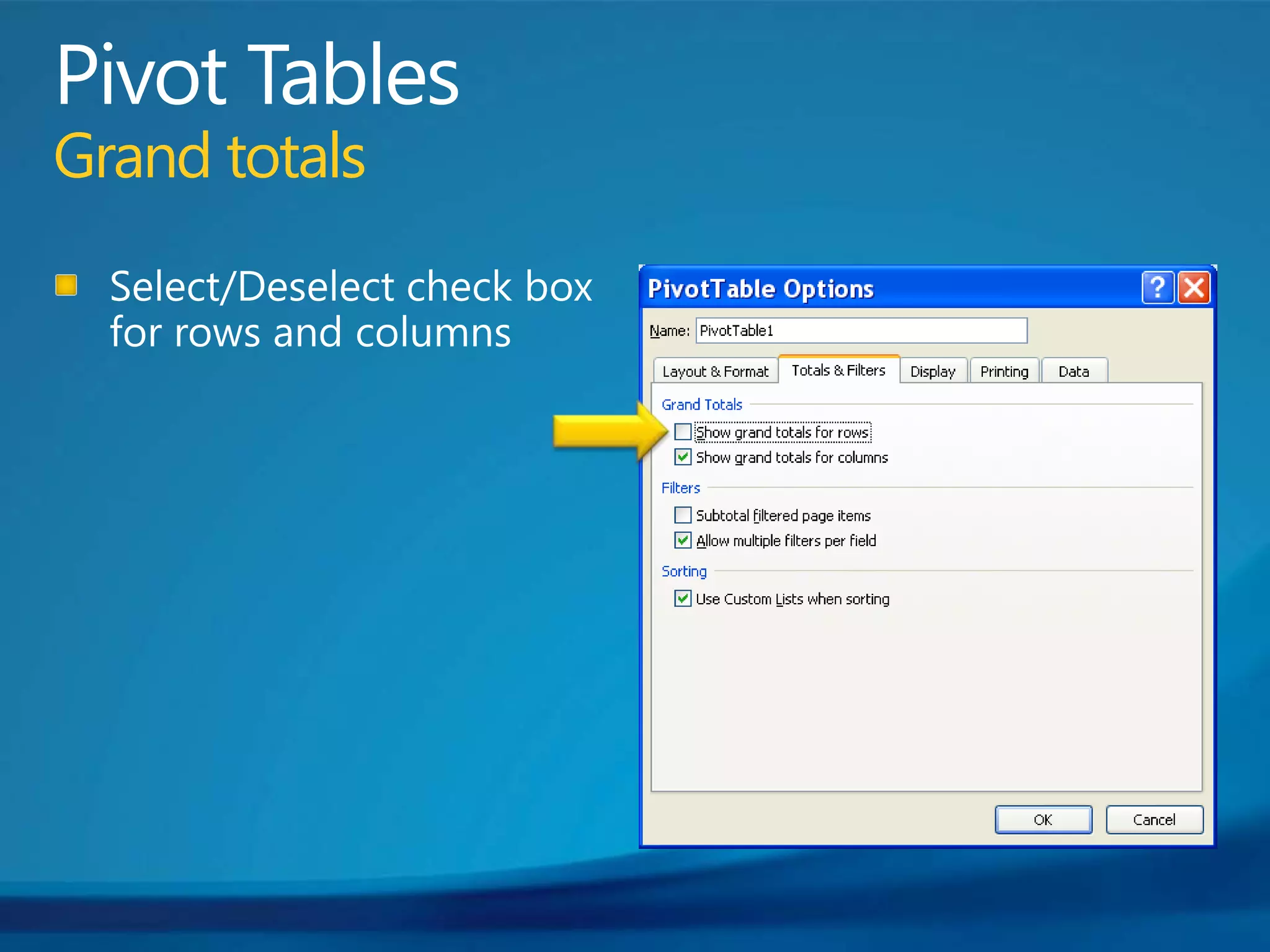
Pivot TablesGrand totalsSelect/Deselect check box for rows and columns
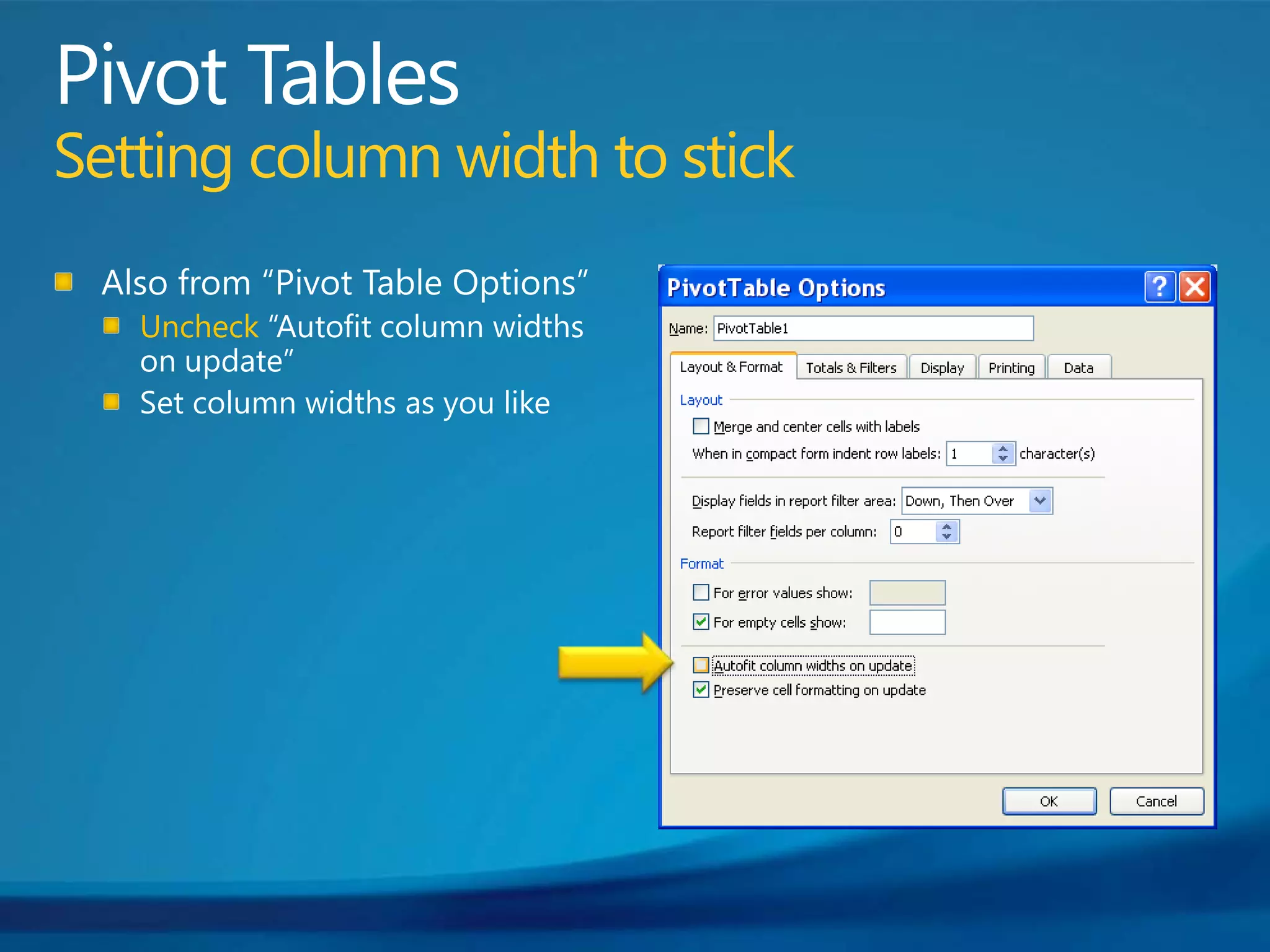
Pivot TablesSetting column width to stickAlso from “Pivot Table Options”Uncheck “Autofit column widths on update”Set column widths as you like
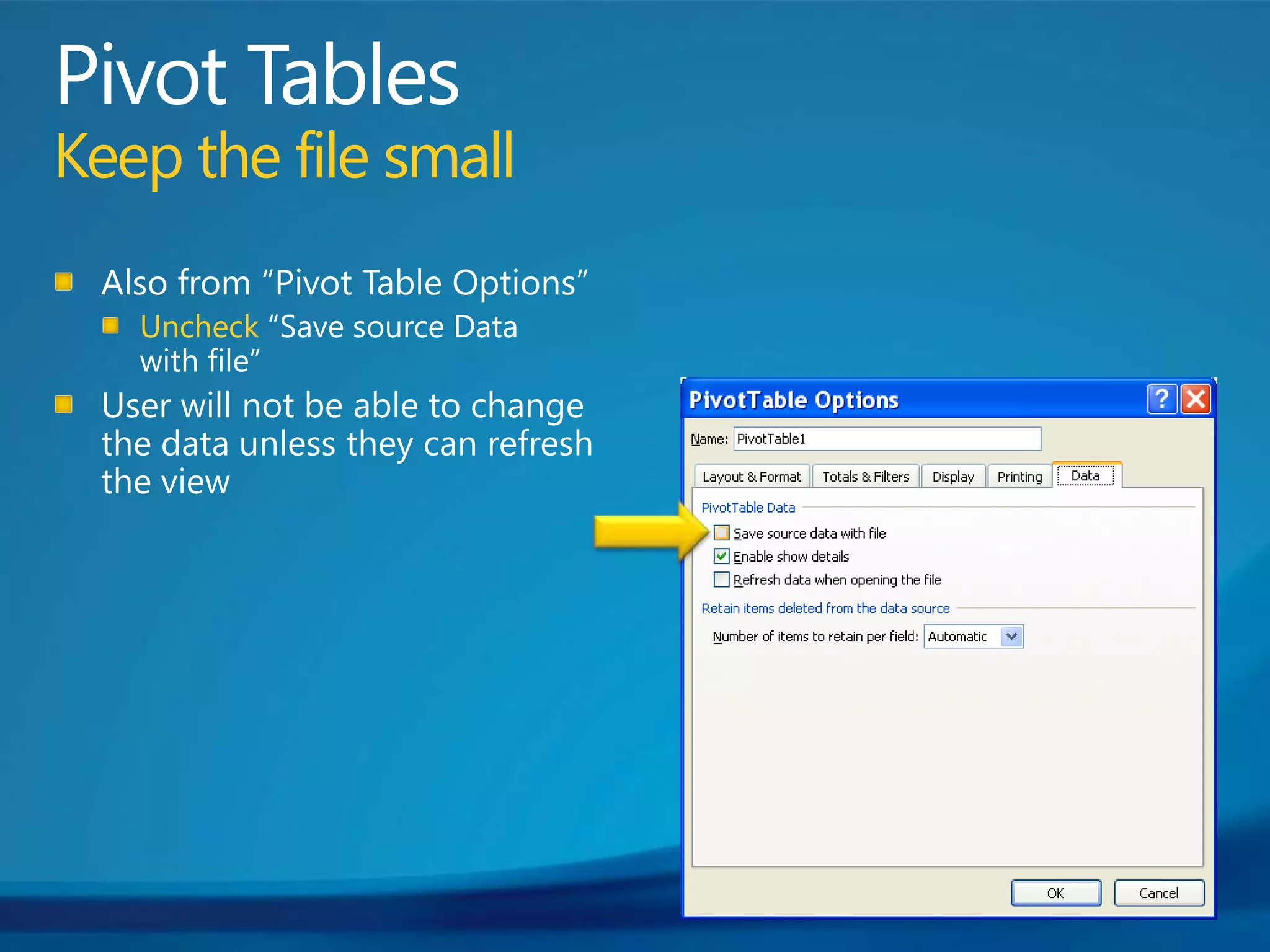
Pivot TablesKeep the file smallAlso from “Pivot Table Options”Uncheck “Save source Data with file”User will not be able to change the data unless they can refresh the view
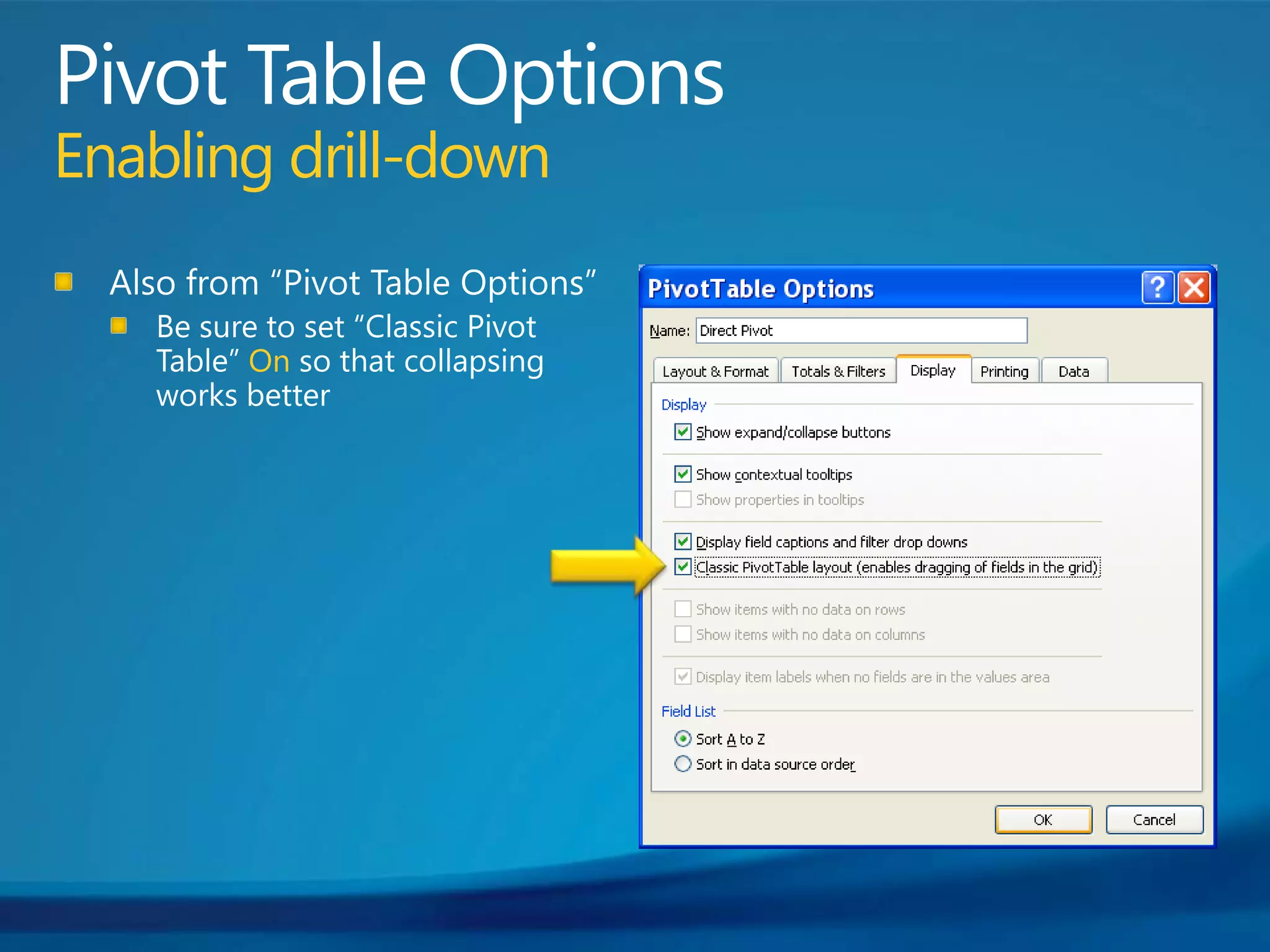
Pivot Table OptionsEnabling drill-downAlso from “Pivot Table Options”Be sure to set “Classic Pivot Table” On so that collapsing works better
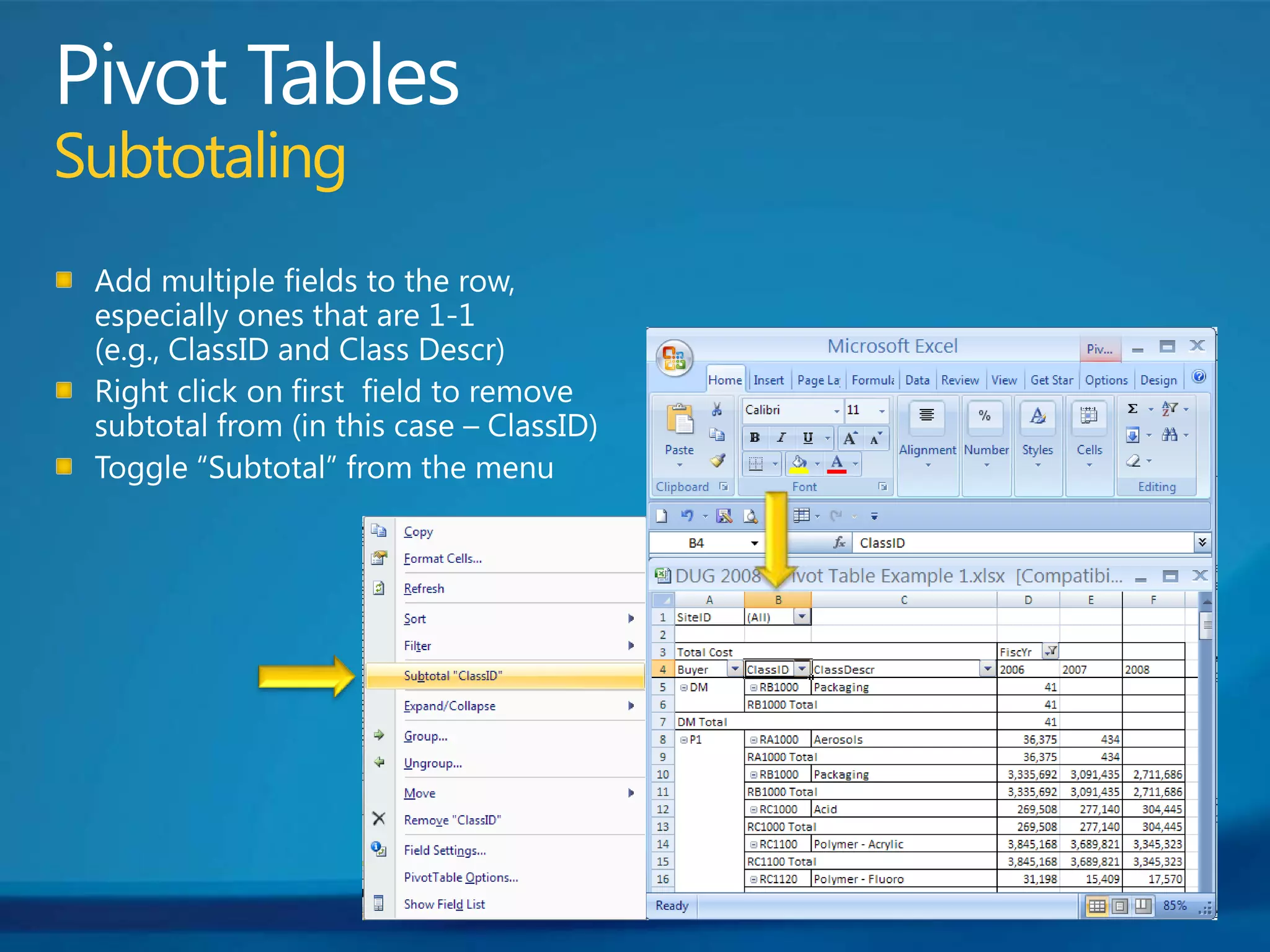
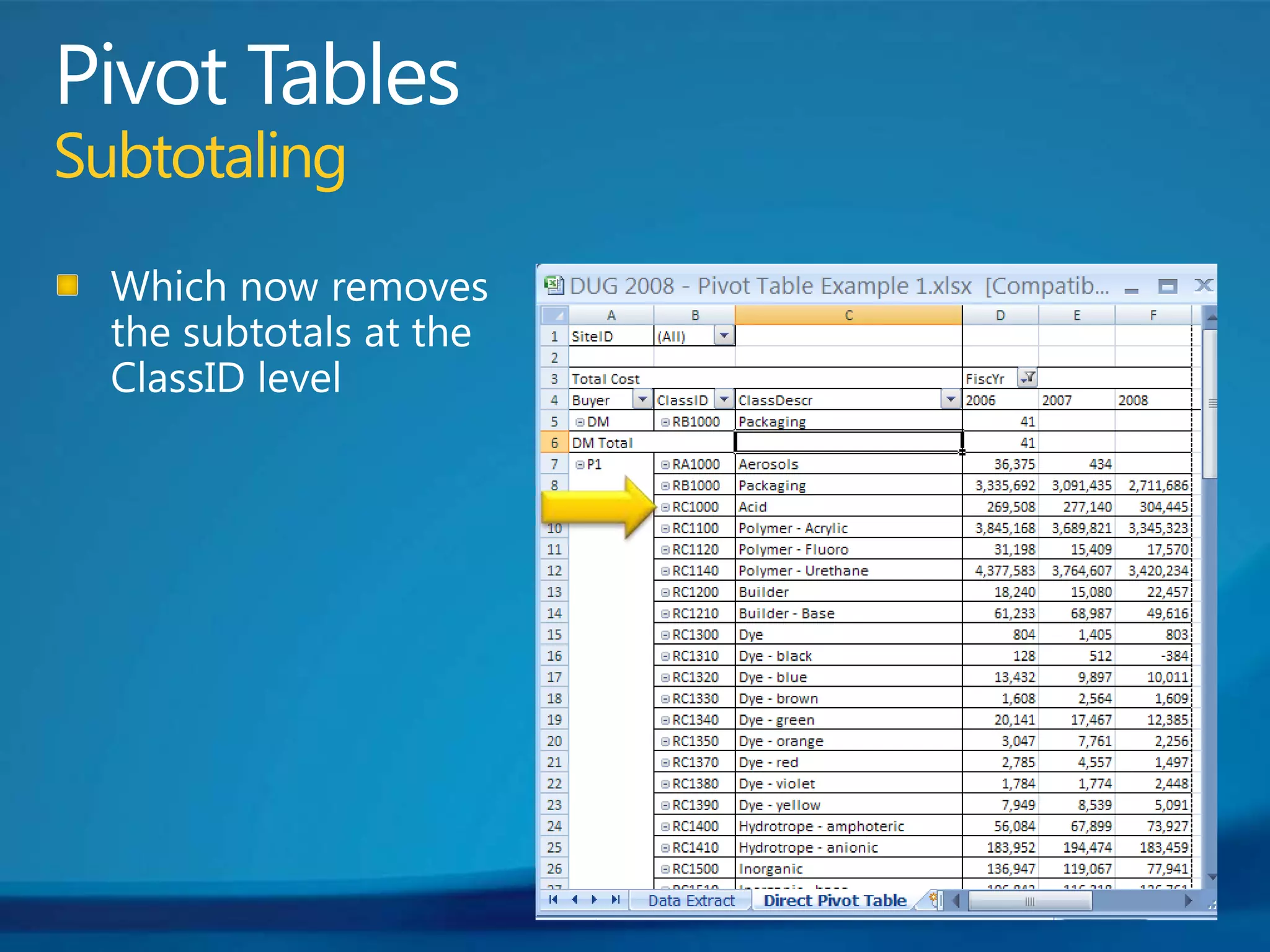
Pivot TablesSubtotalingAdd multiple fields to the row, especially ones that are 1-1 (e.g., ClassID and Class Descr)Right click on first  field to remove subtotal from (in this case – ClassID)Toggle “Subtotal” from the menu
Pivot TablesSubtotalingWhich now removes the subtotals at the ClassID level
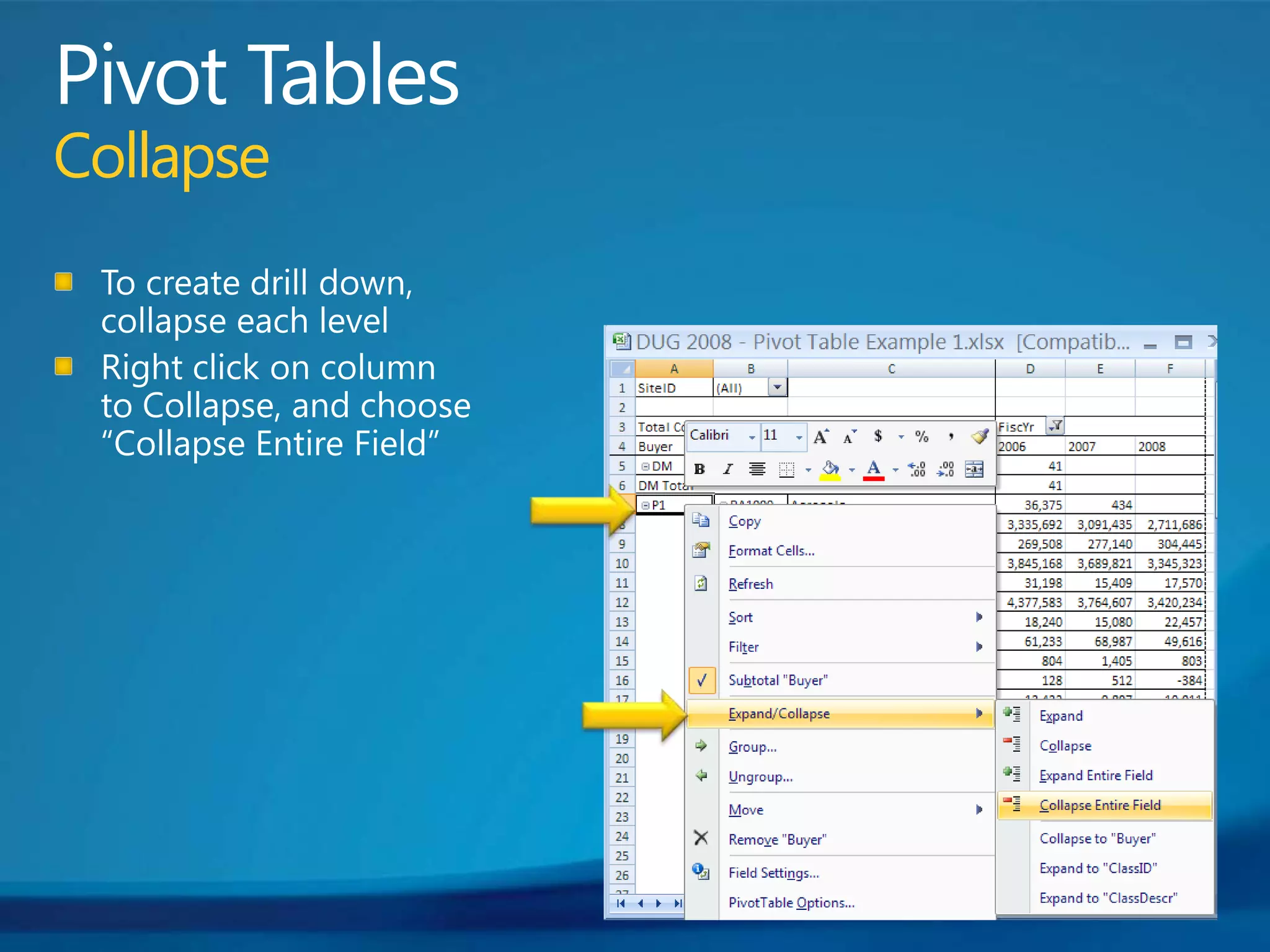
Pivot TablesCollapseTo create drill down, collapse each levelRight click on column to Collapse, and choose “Collapse Entire Field”
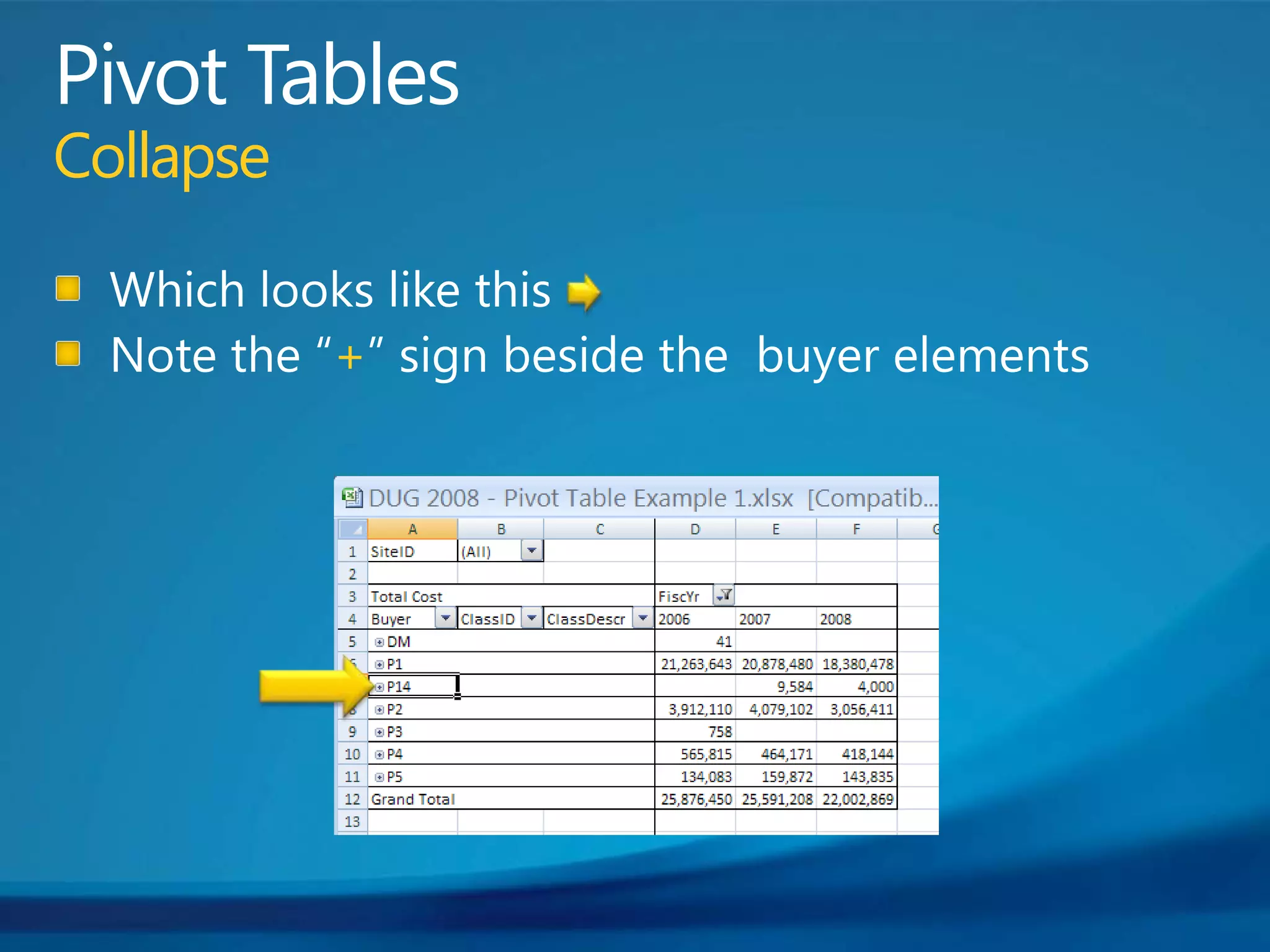
Pivot TablesCollapseWhich looks like thisNote the “+” sign beside the  buyer elements
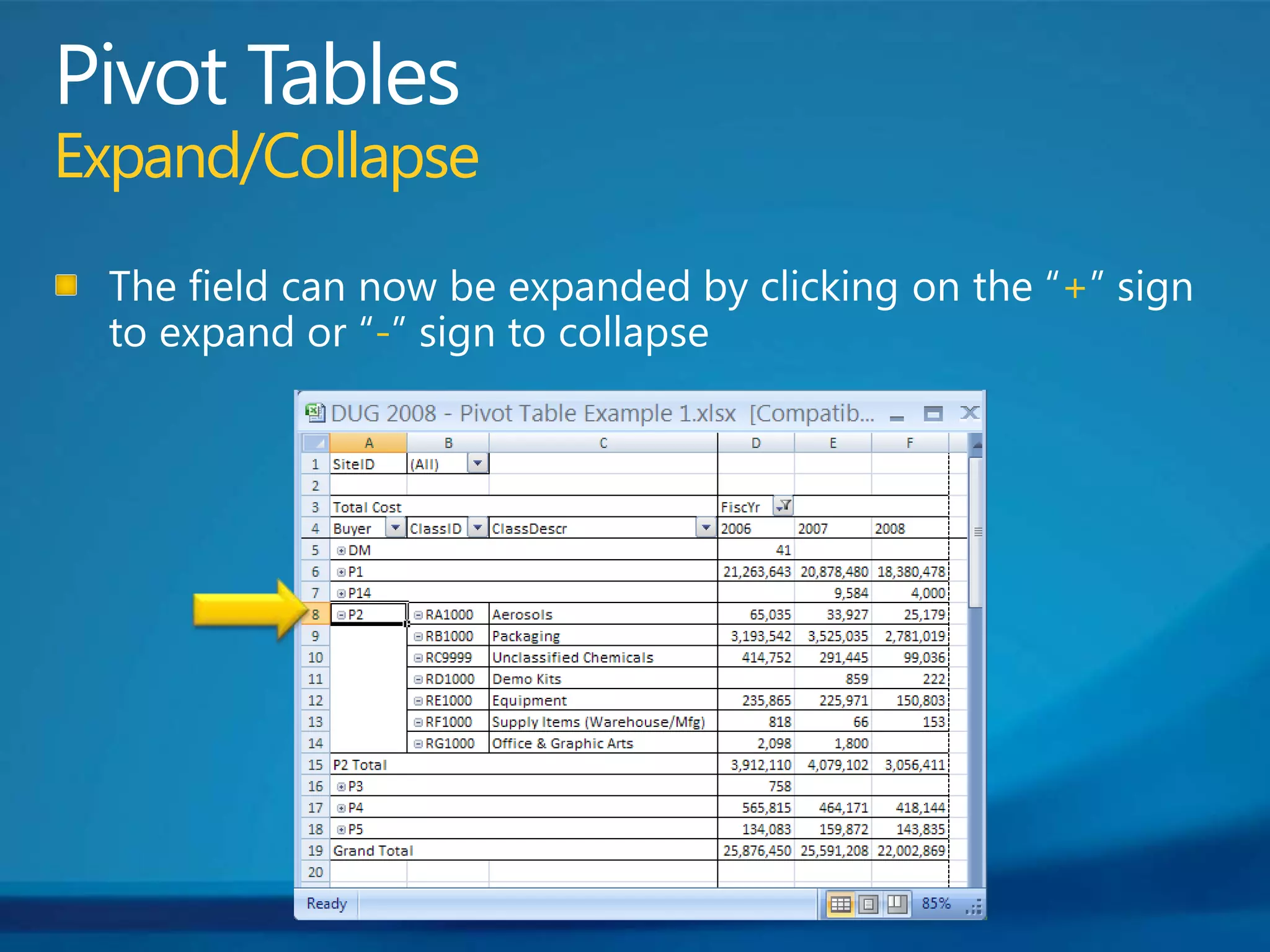
Pivot TablesExpand/CollapseThe field can now be expanded by clicking on the “+” sign to expand or “-” sign to collapse
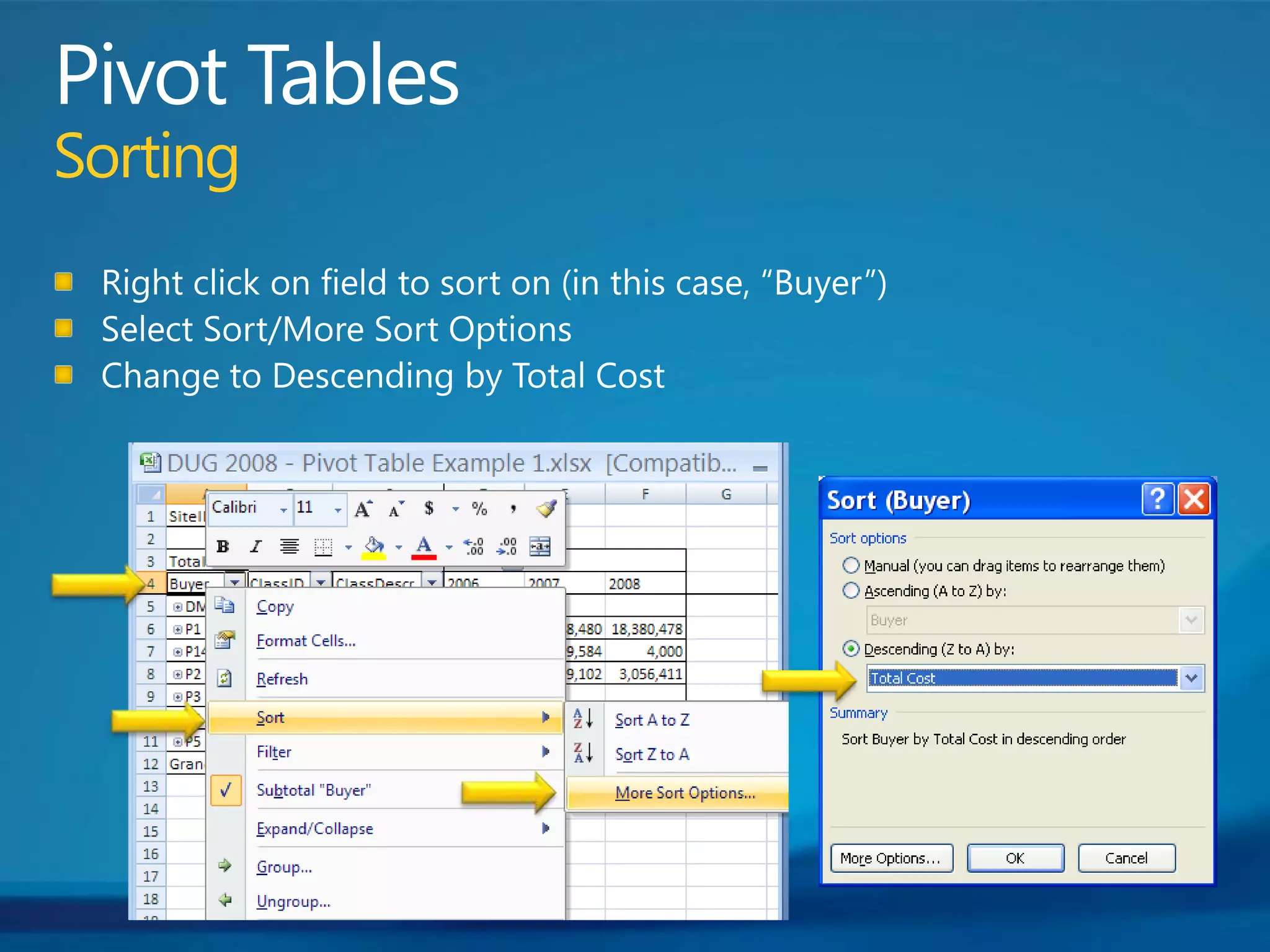
Pivot TablesSortingRight click on field to sort on (in this case, “Buyer”)Select Sort/More Sort OptionsChange to Descending by Total Cost
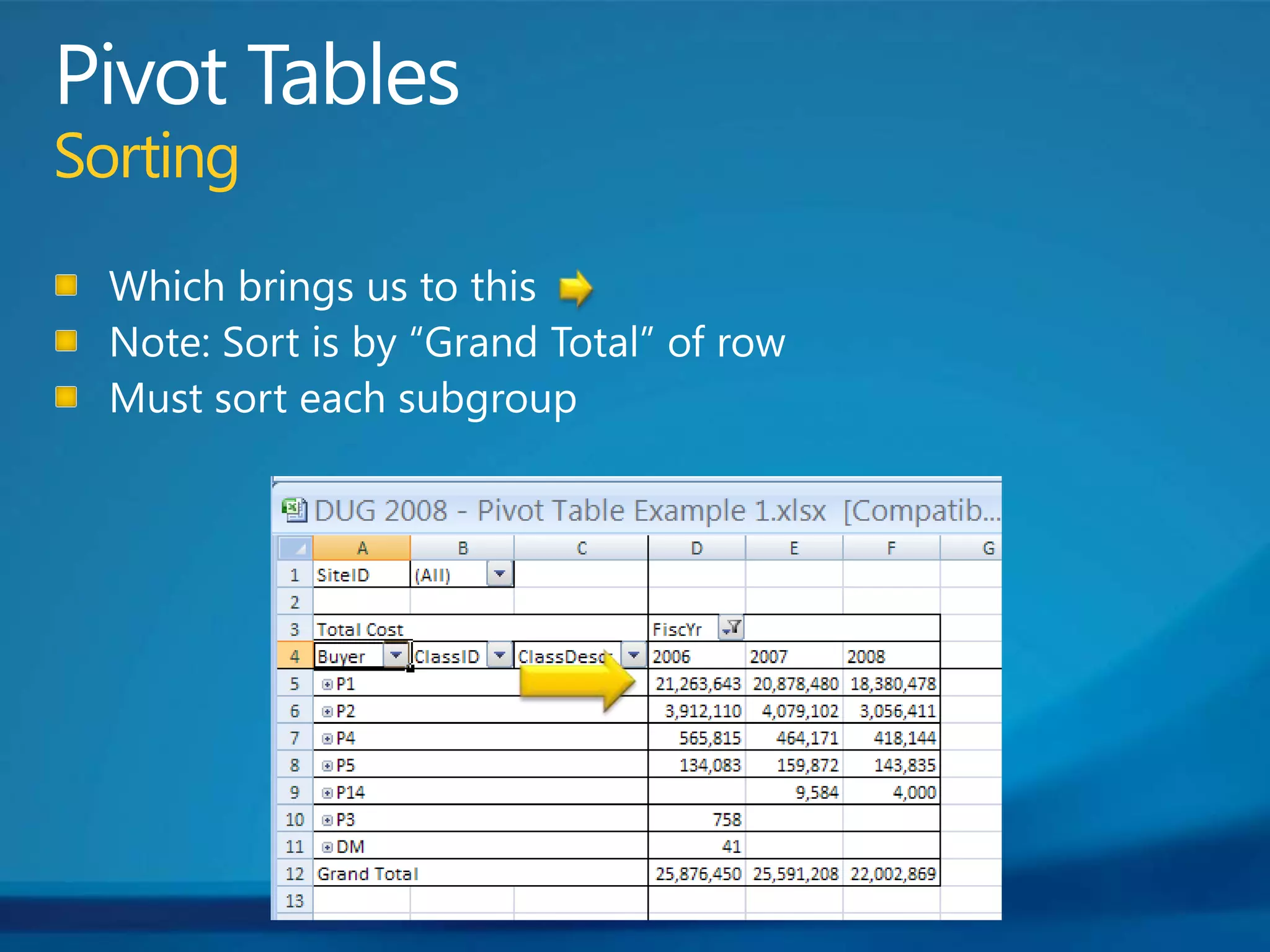
Pivot TablesSortingWhich brings us to thisNote: Sort is by “Grand Total” of rowMust sort each subgroup
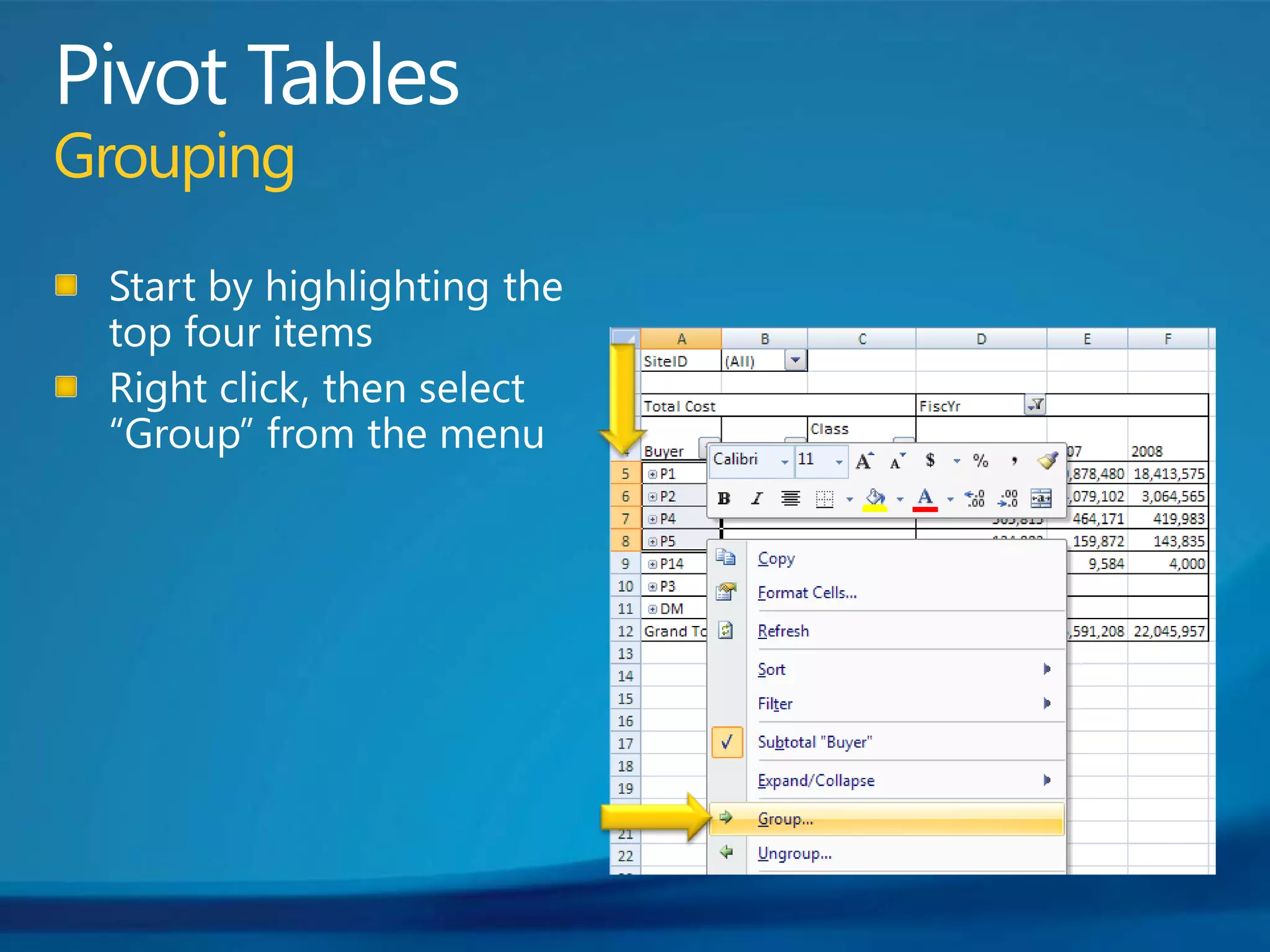
Pivot TablesGroupingStart by highlighting the top four itemsRight click, then select “Group” from the menu
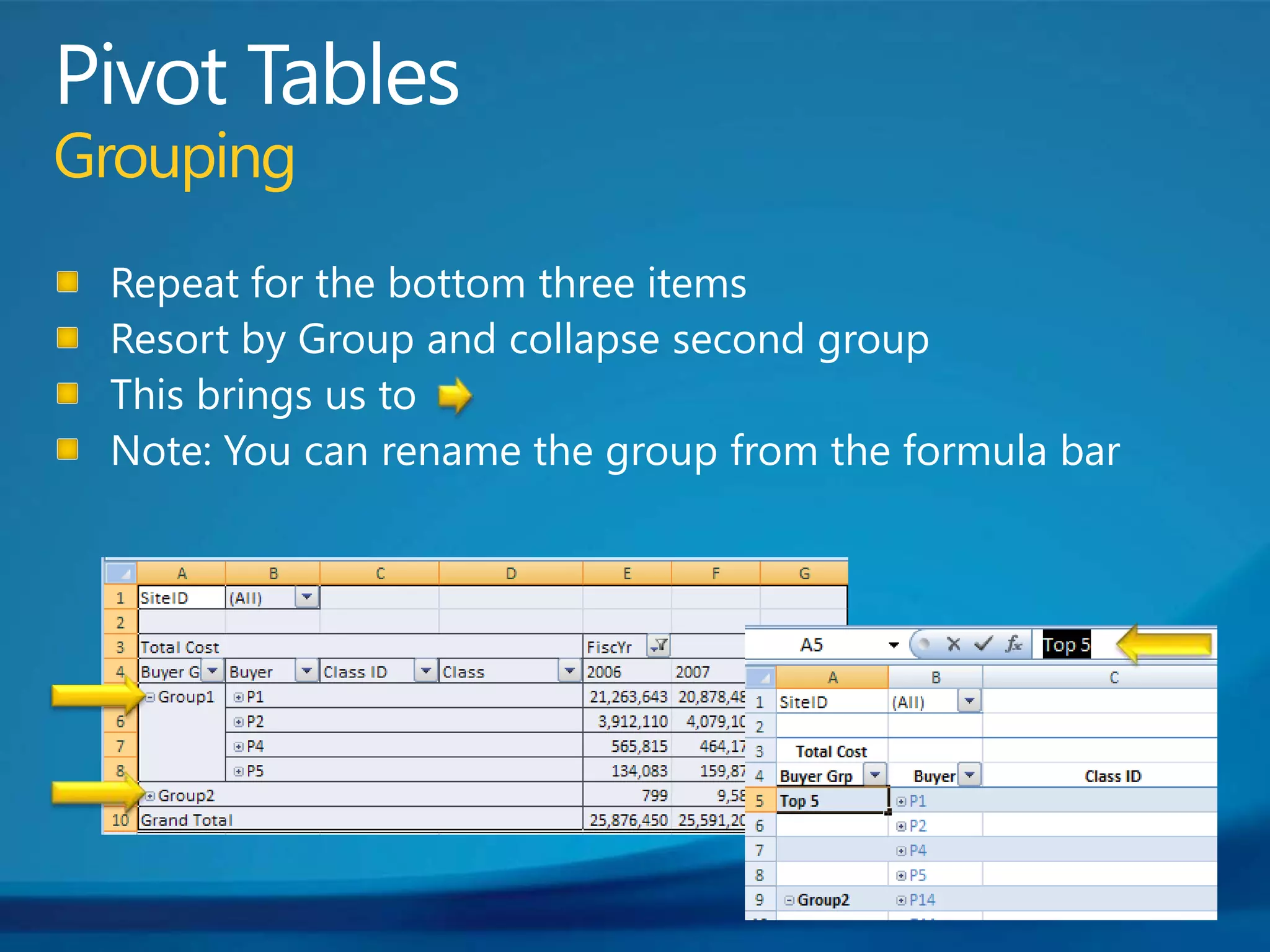
Pivot TablesGroupingRepeat for the bottom three itemsResort by Group and collapse second group This brings us to Note: You can rename the group from the formula bar
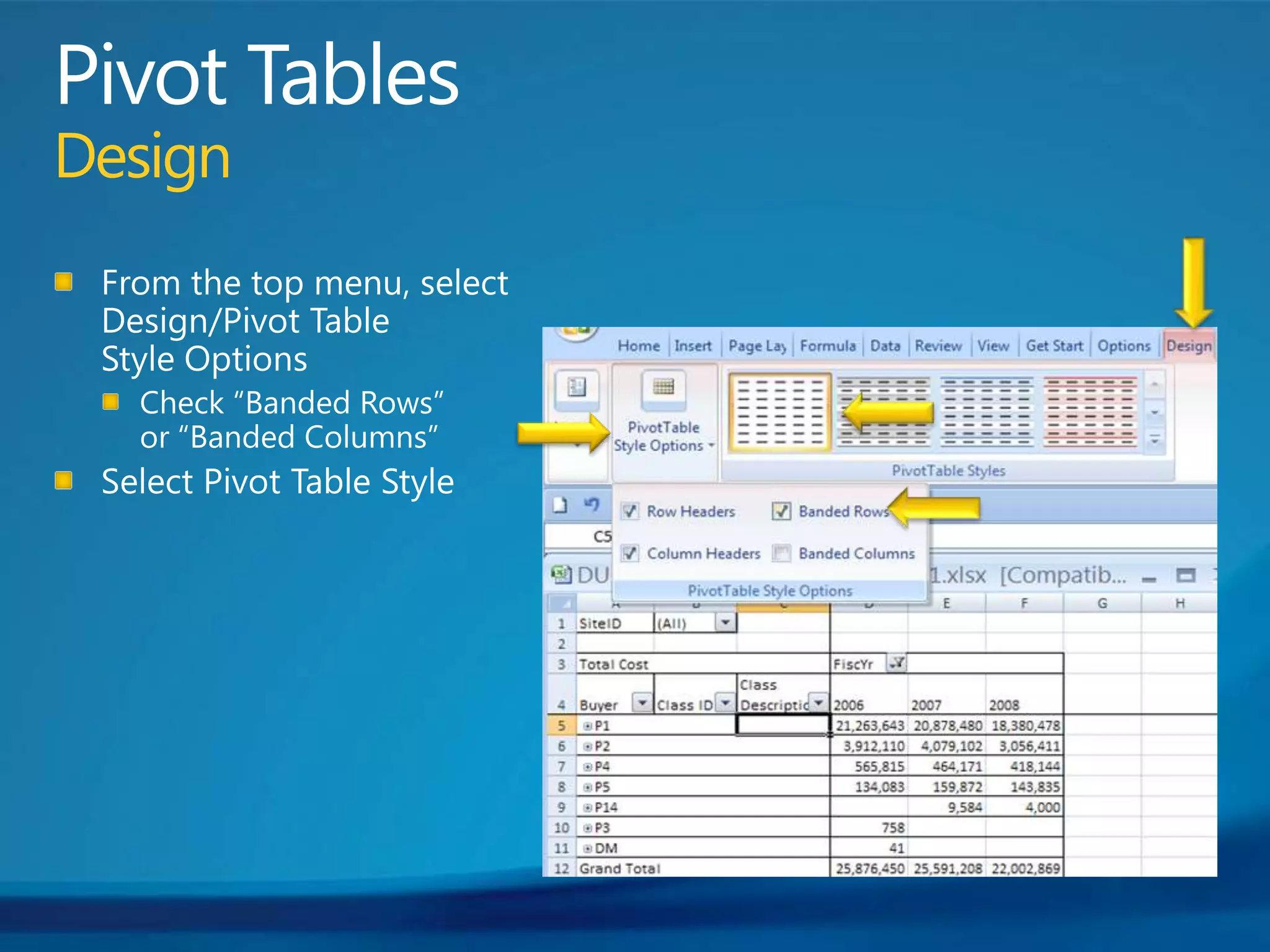
Pivot TablesDesignFrom the top menu, select Design/Pivot Table Style OptionsCheck “Banded Rows” or “Banded Columns”Select Pivot Table Style
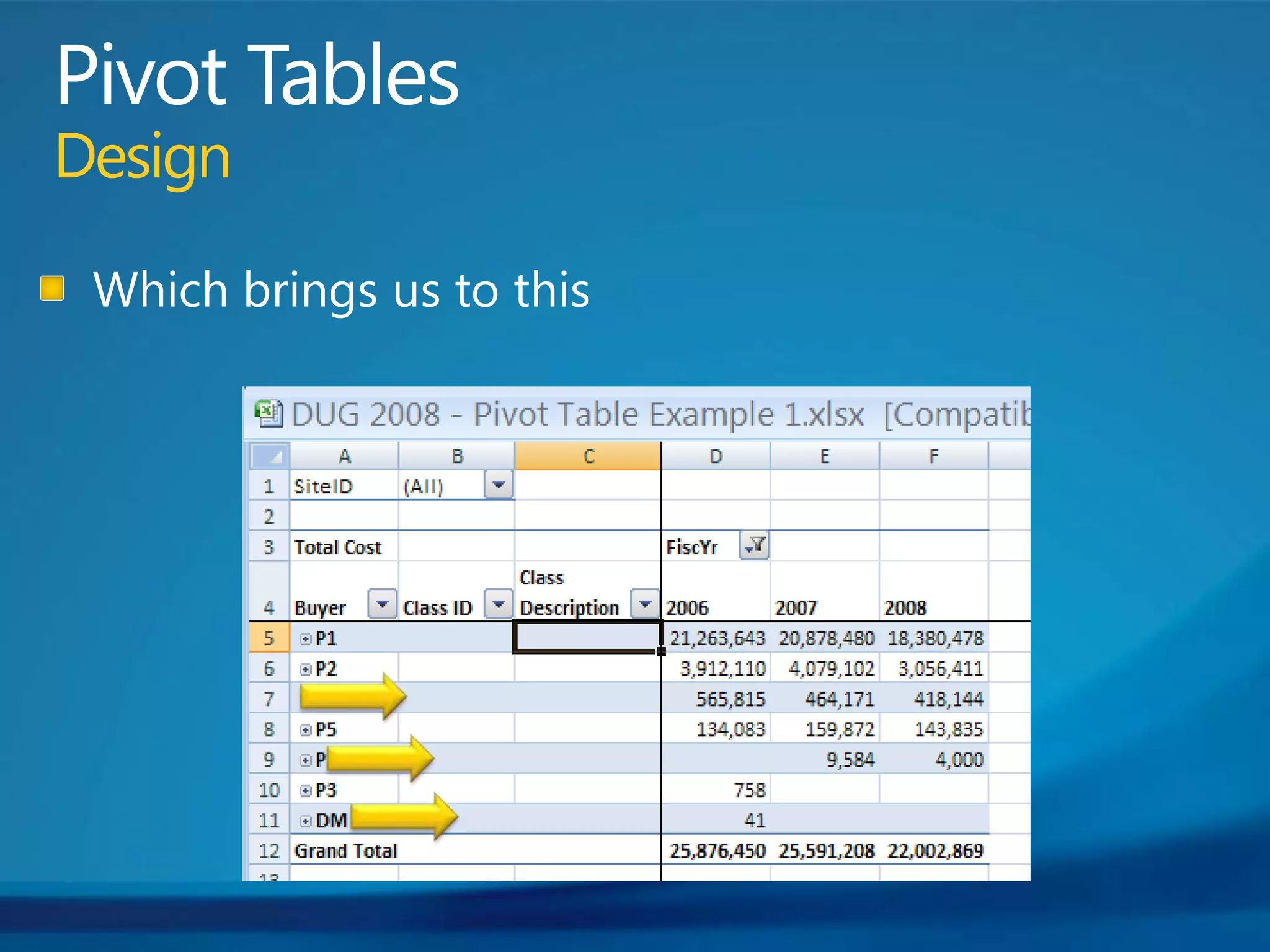
Pivot TablesDesignWhich brings us to this
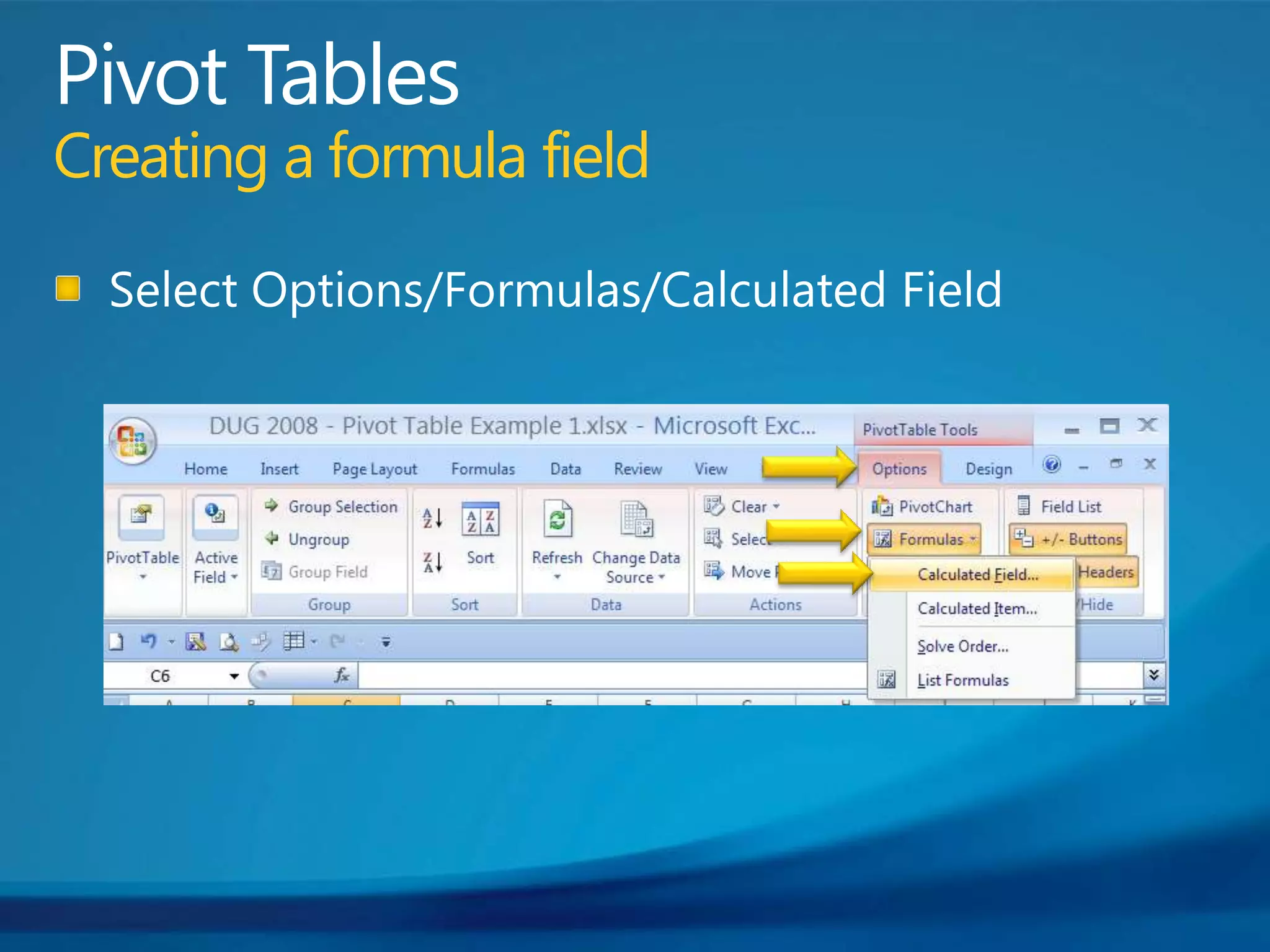
Pivot TablesCreating a formula fieldSelect Options/Formulas/Calculated Field
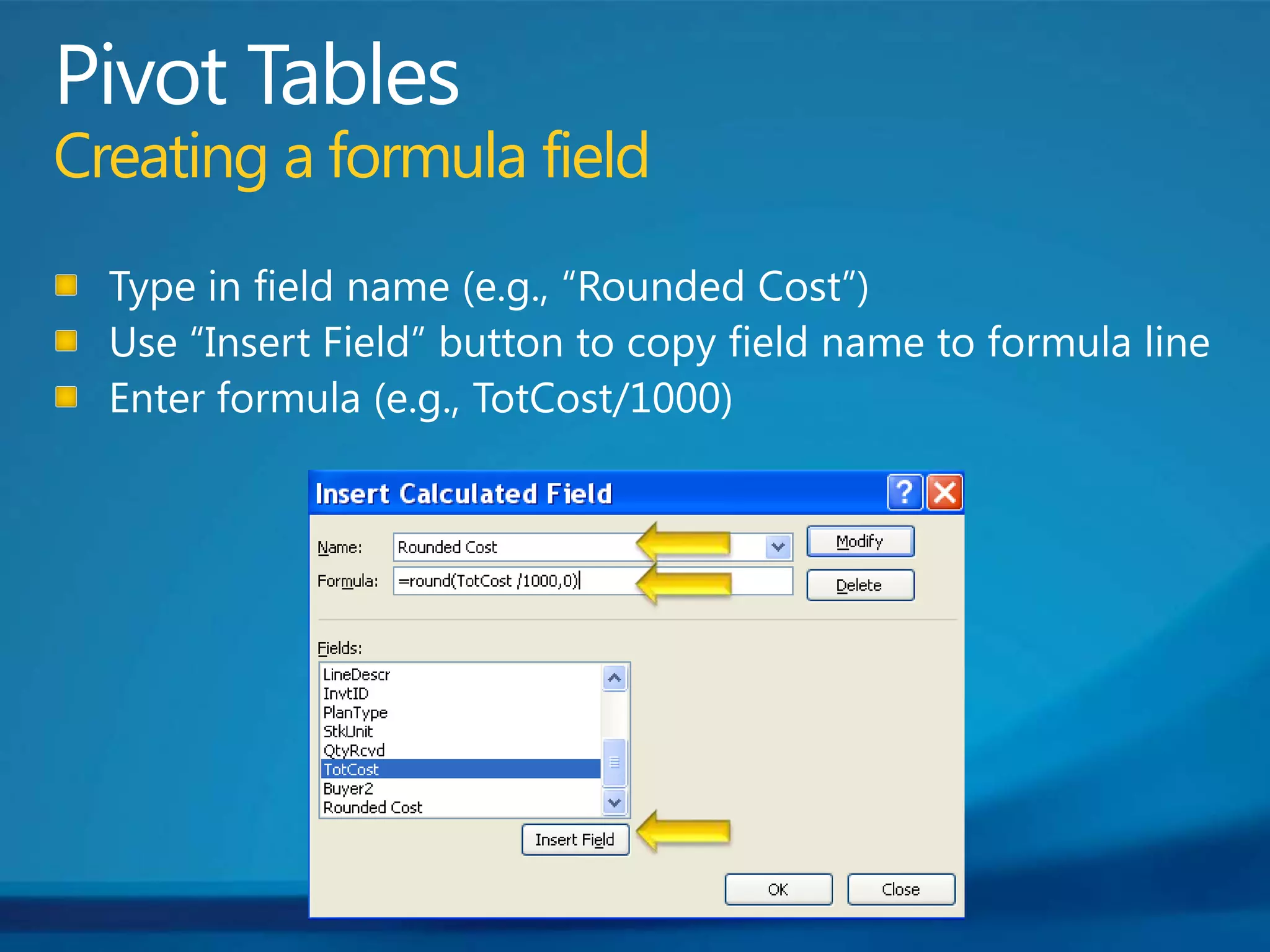
Pivot TablesCreating a formula fieldType in field name (e.g., “Rounded Cost”)Use “Insert Field” button to copy field name to formula lineEnter formula (e.g., TotCost/1000)
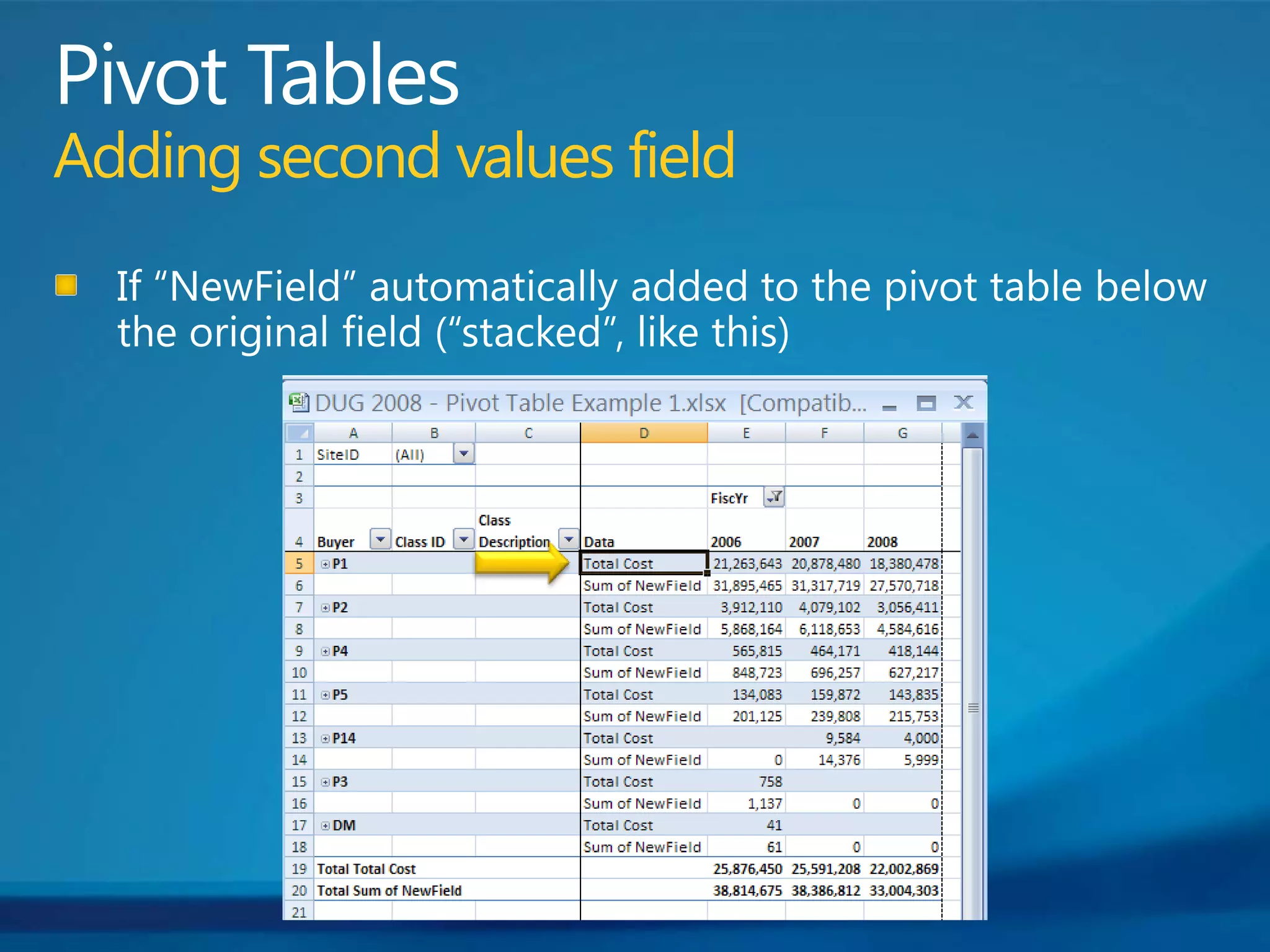
Pivot Tables Adding second values fieldIf “NewField” automatically added to the pivot table below the original field (“stacked”, like this)
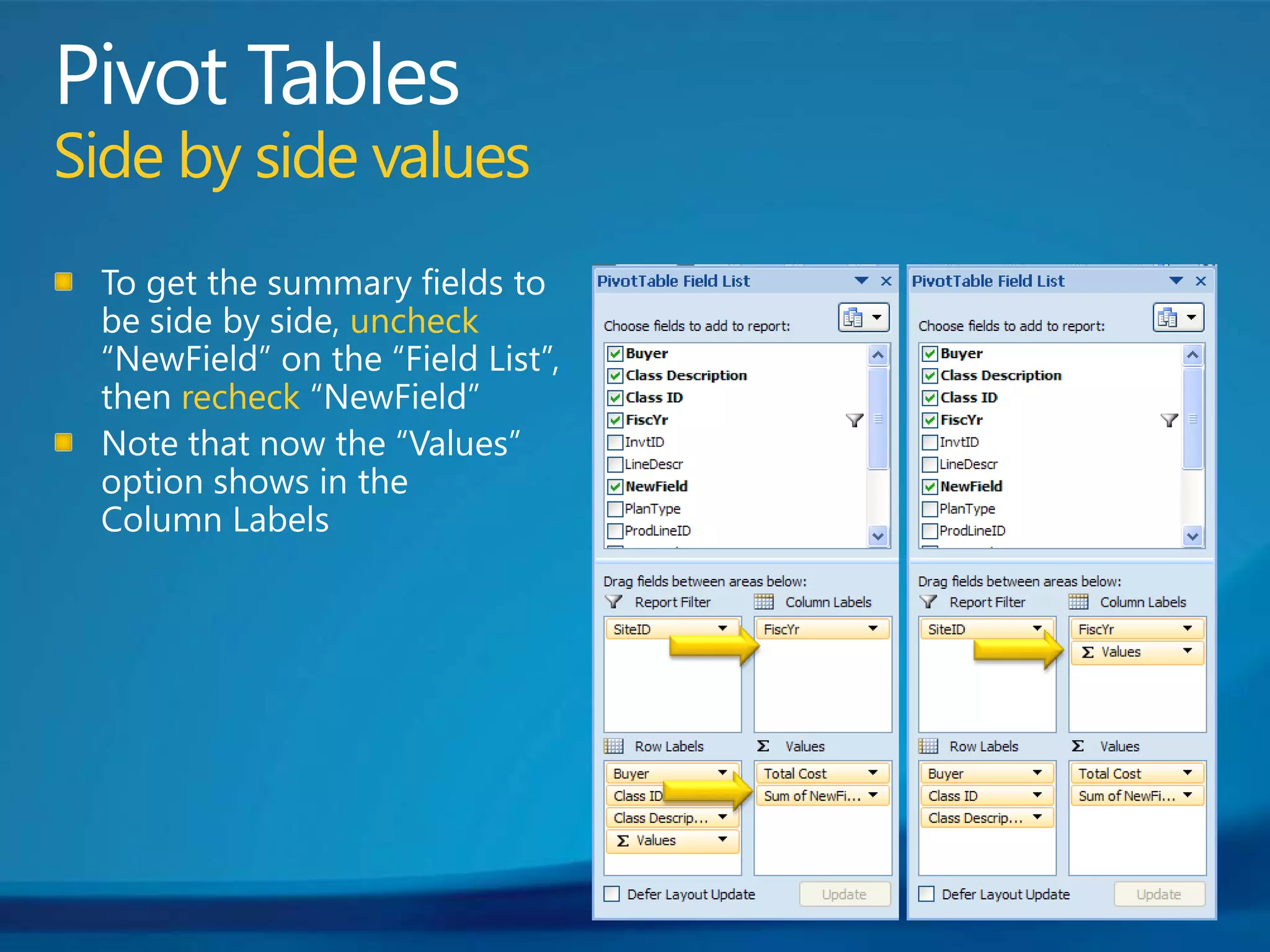
Pivot TablesSide by side valuesTo get the summary fields to be side by side, uncheck “NewField” on the “Field List”, then recheck “NewField”Note that now the “Values” option shows in the Column Labels
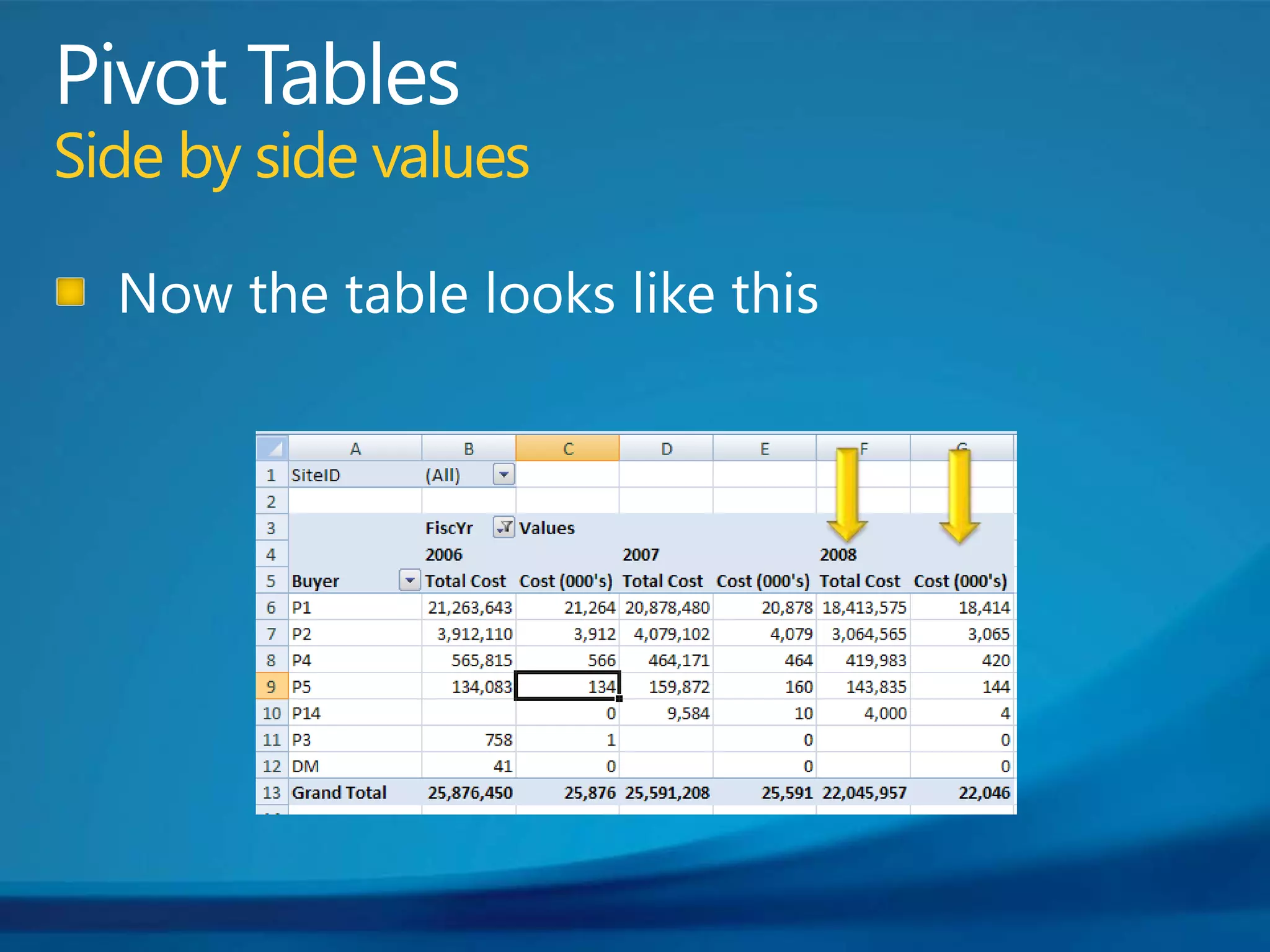
Pivot TablesSide by side valuesNow the table looks like this
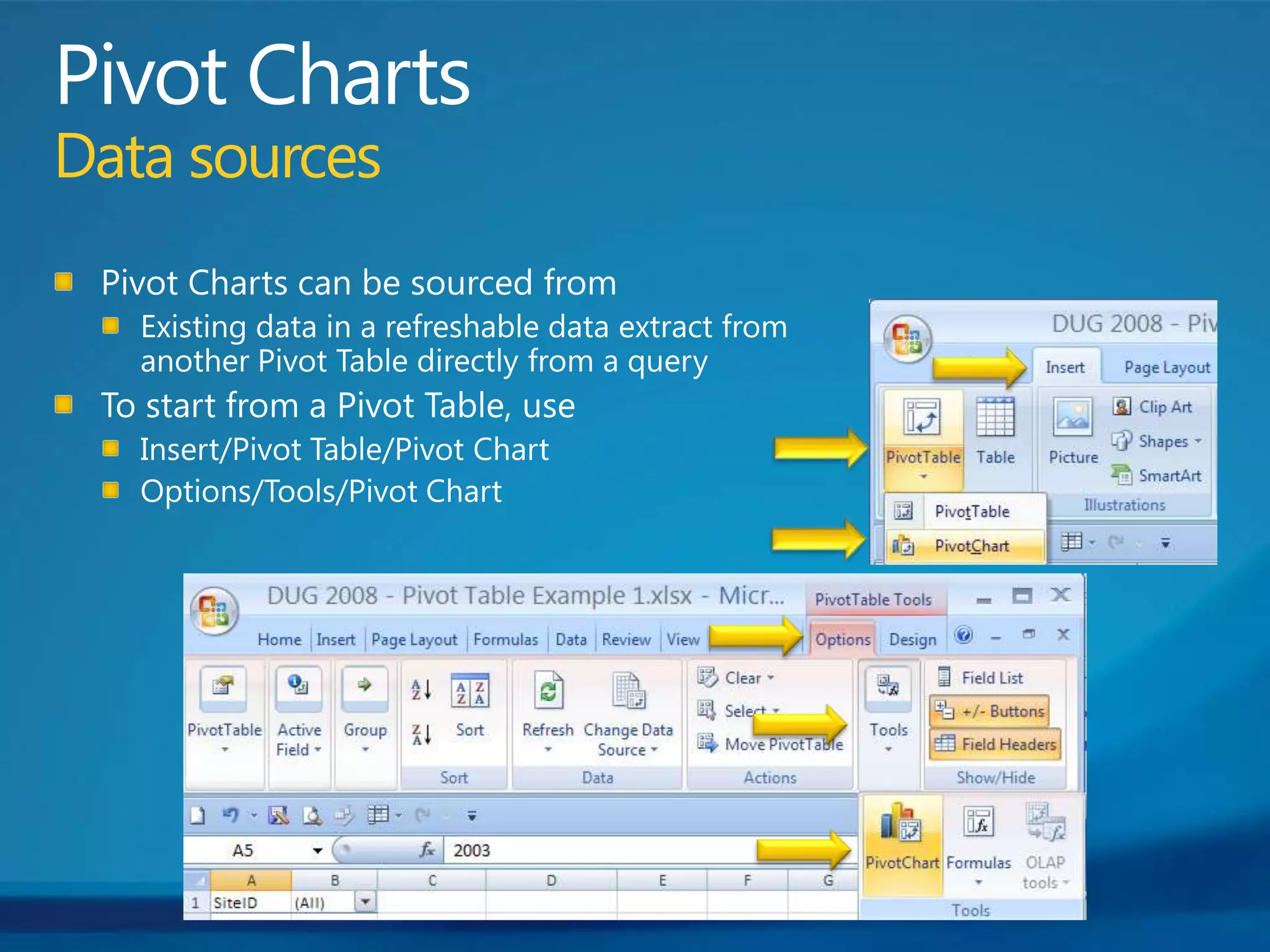
Pivot ChartsData sourcesPivot Charts can be sourced fromExisting data in a refreshable data extract from another Pivot Table directly from a queryTo start from a Pivot Table, use  Insert/Pivot Table/Pivot ChartOptions/Tools/Pivot Chart
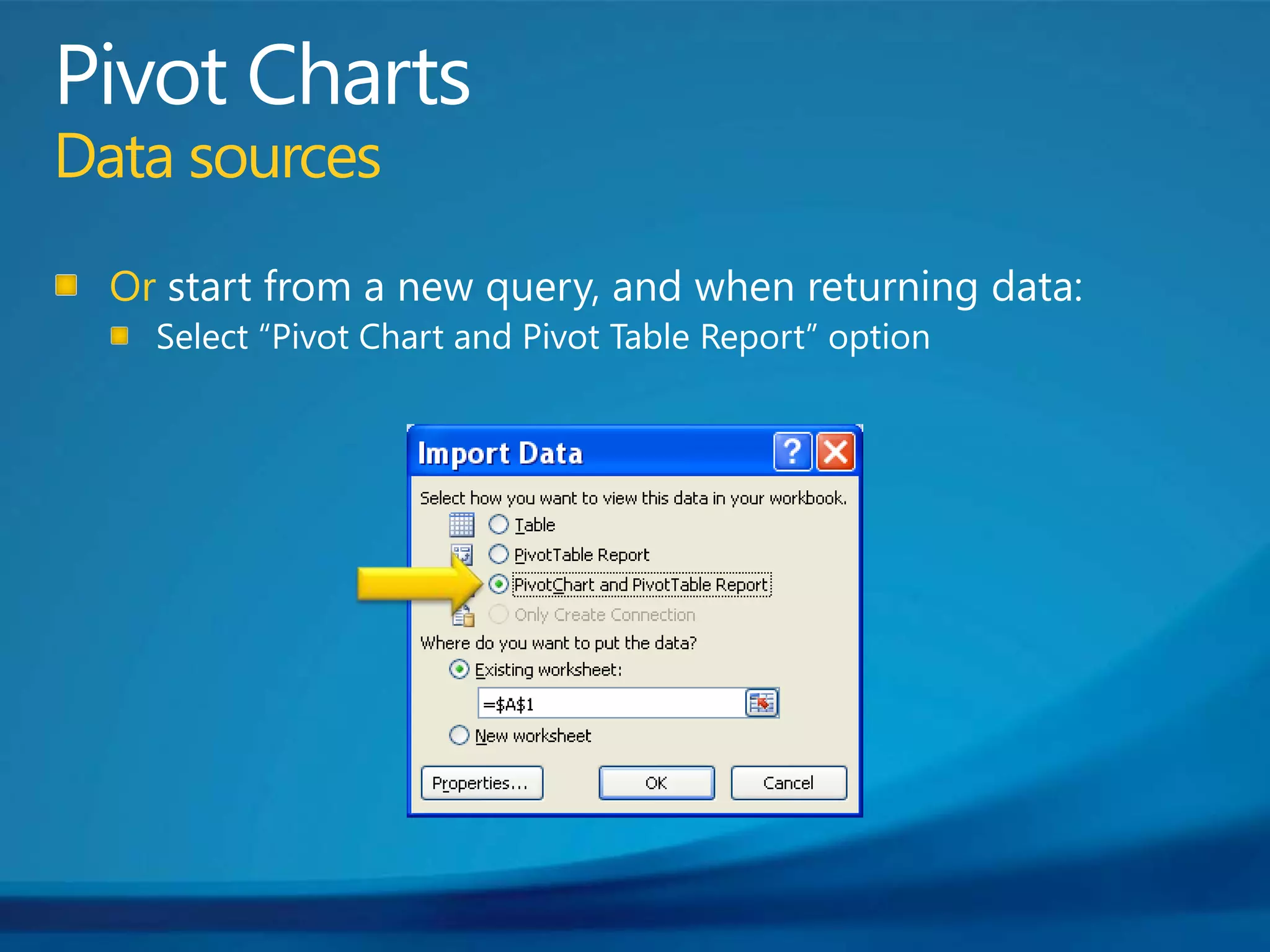
Pivot ChartsData sourcesOr start from a new query, and when returning data:Select “Pivot Chart and Pivot Table Report” option
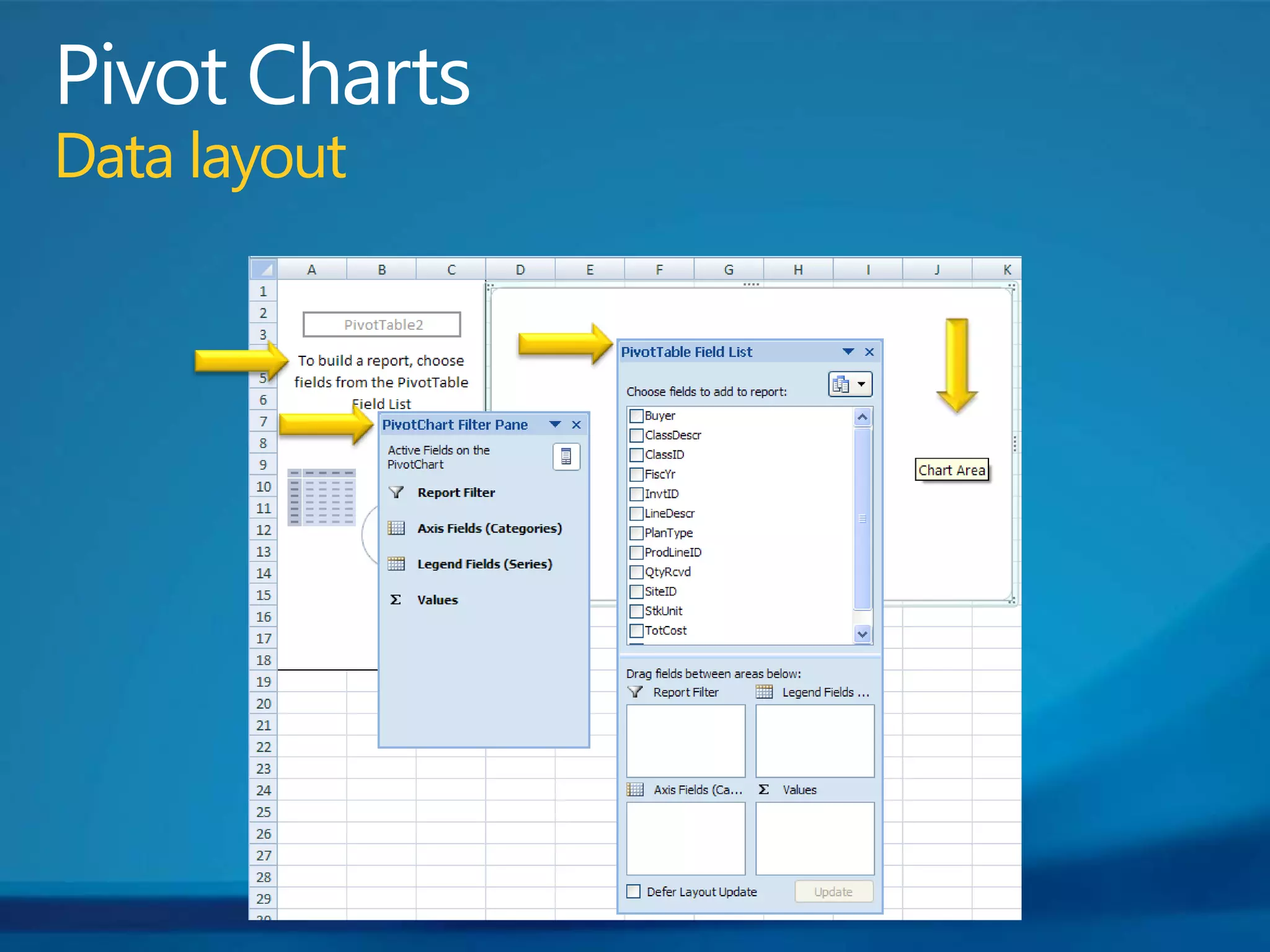
Pivot ChartsData layout
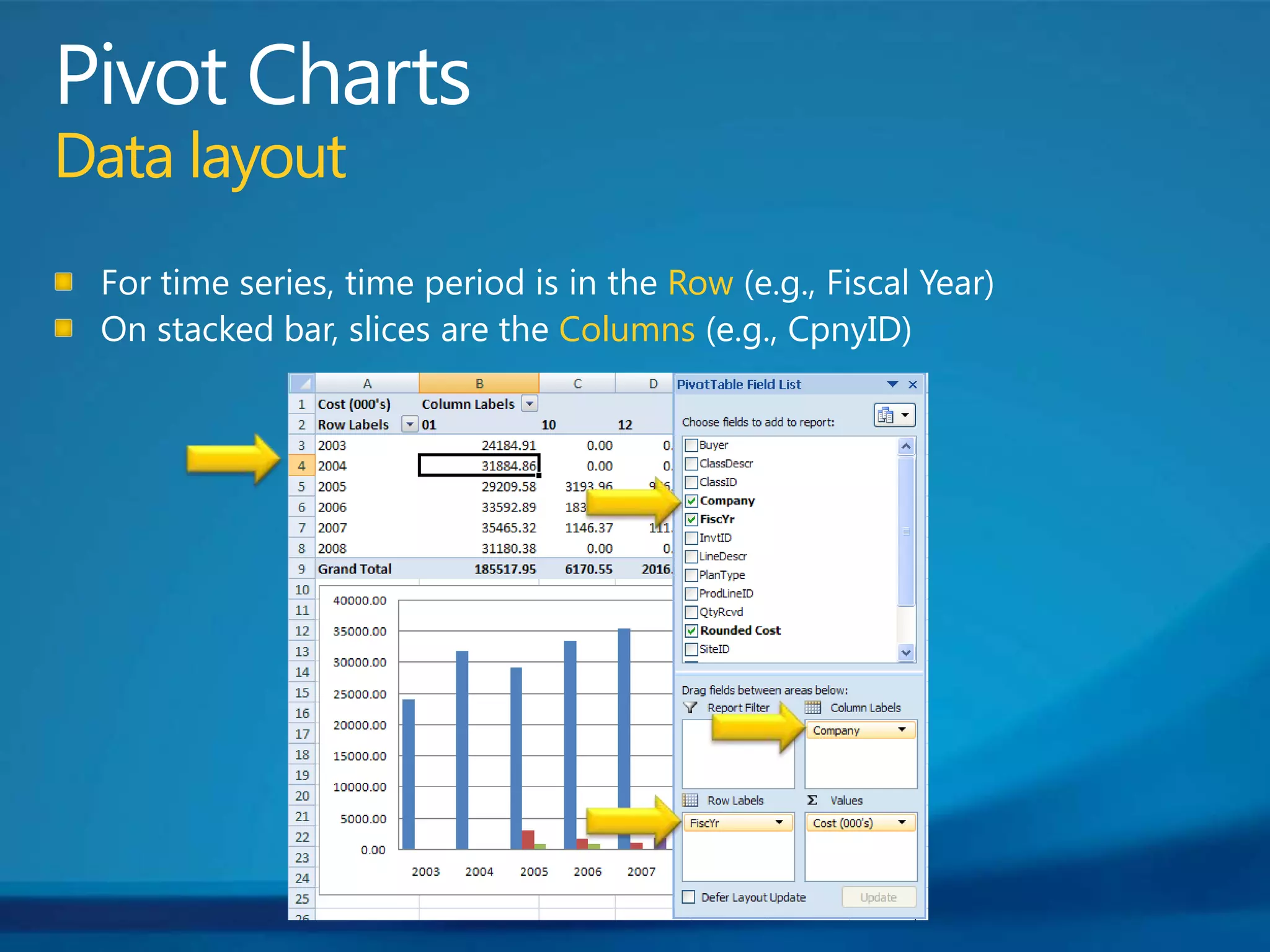
Pivot ChartsData layoutFor time series, time period is in the Row (e.g., Fiscal Year)On stacked bar, slices are the Columns (e.g., CpnyID)
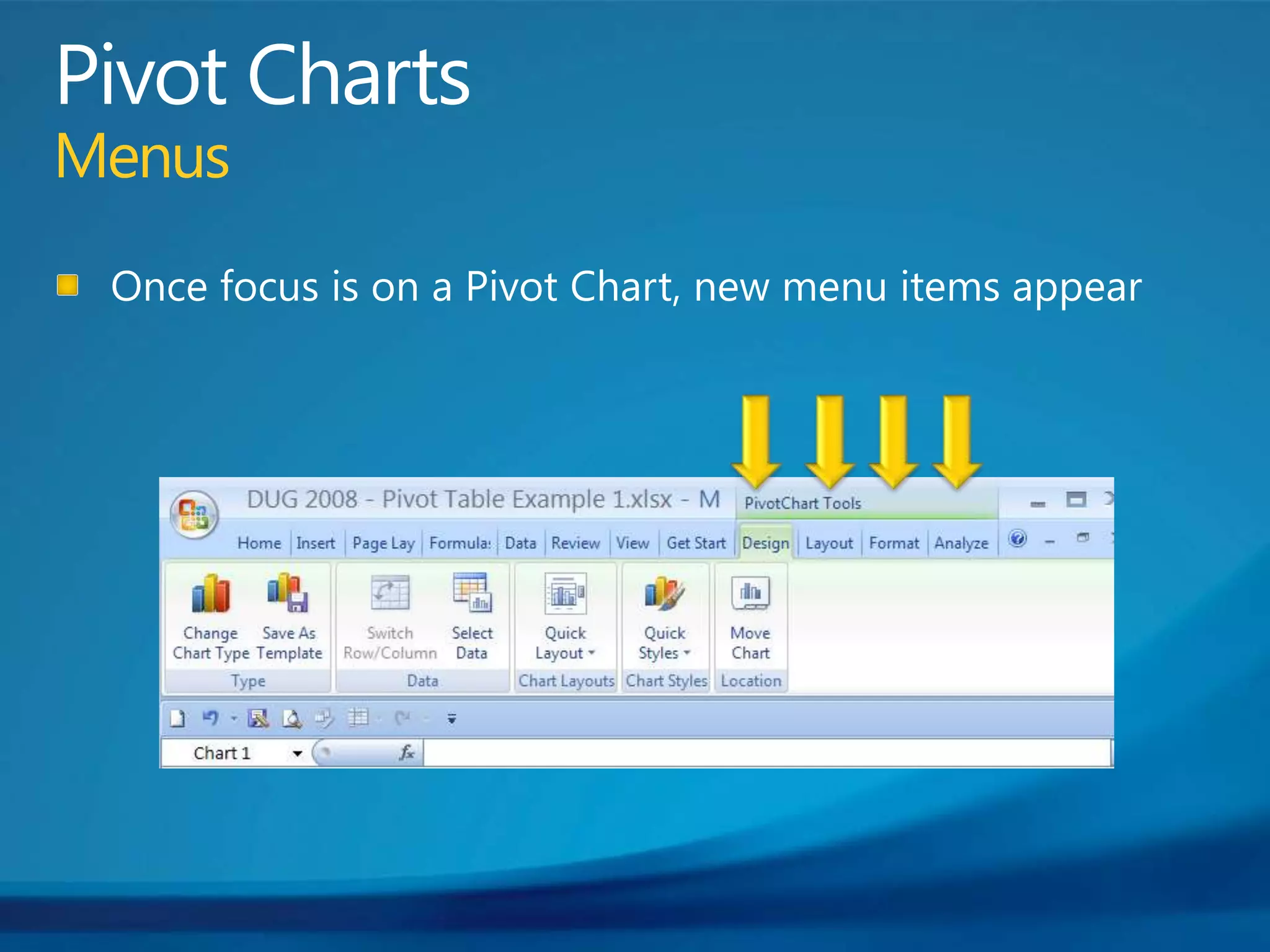
Pivot ChartsMenusOnce focus is on a Pivot Chart, new menu items appear
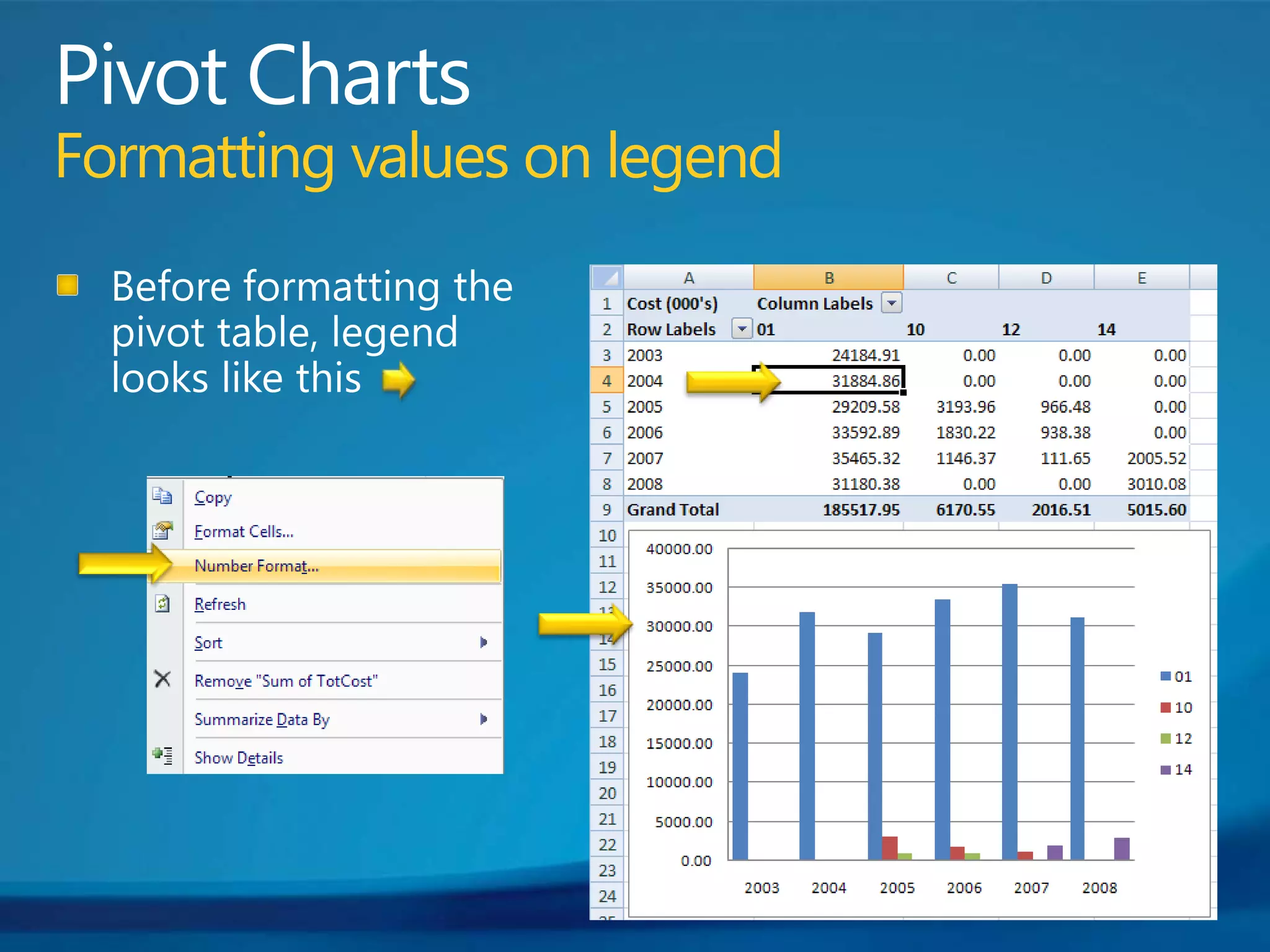
Pivot ChartsFormatting values on legendBefore formatting the pivot table, legend looks like this
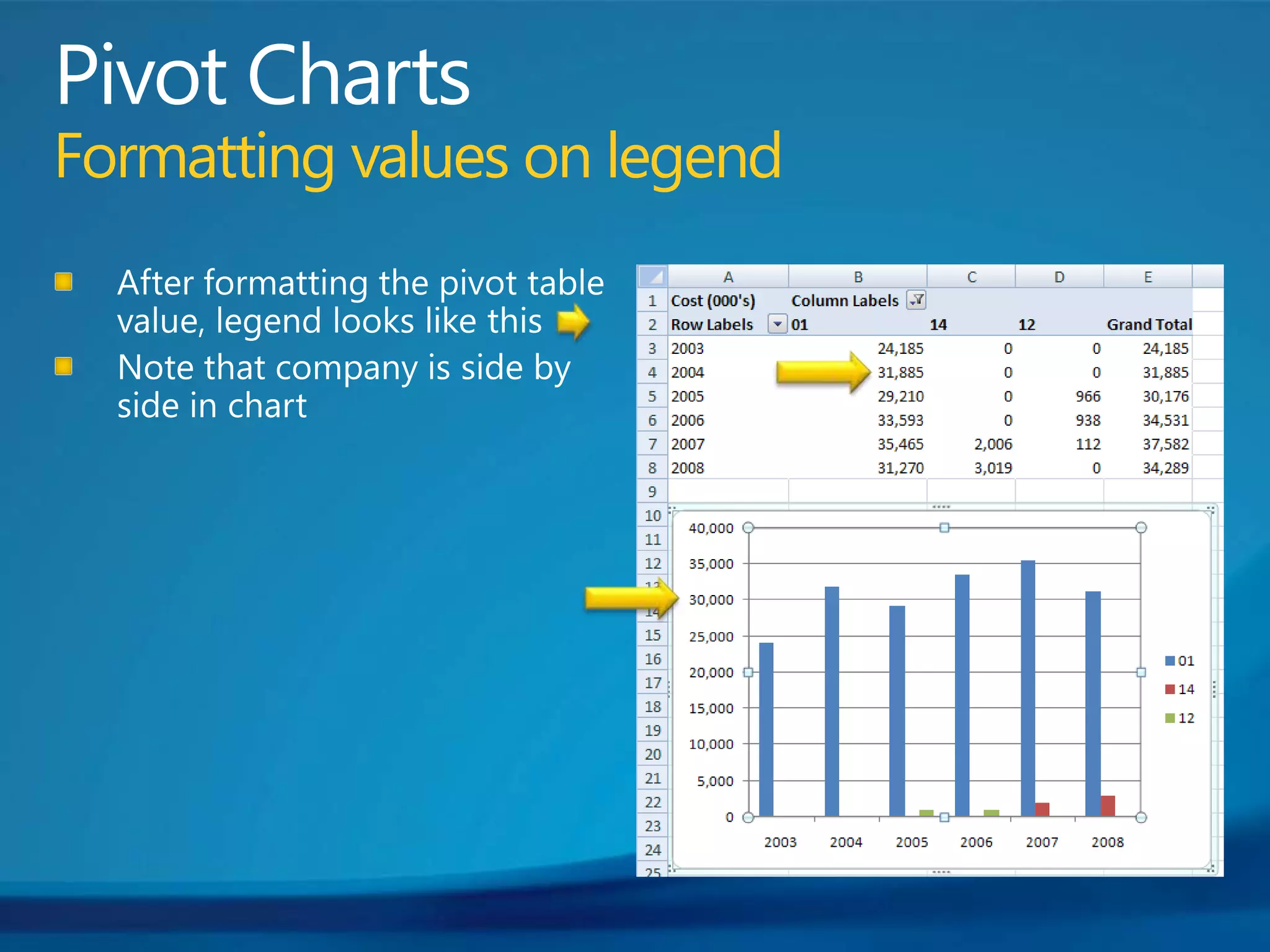
Pivot ChartsFormatting values on legendAfter formatting the pivot table value, legend looks like thisNote that company is side by side in chart
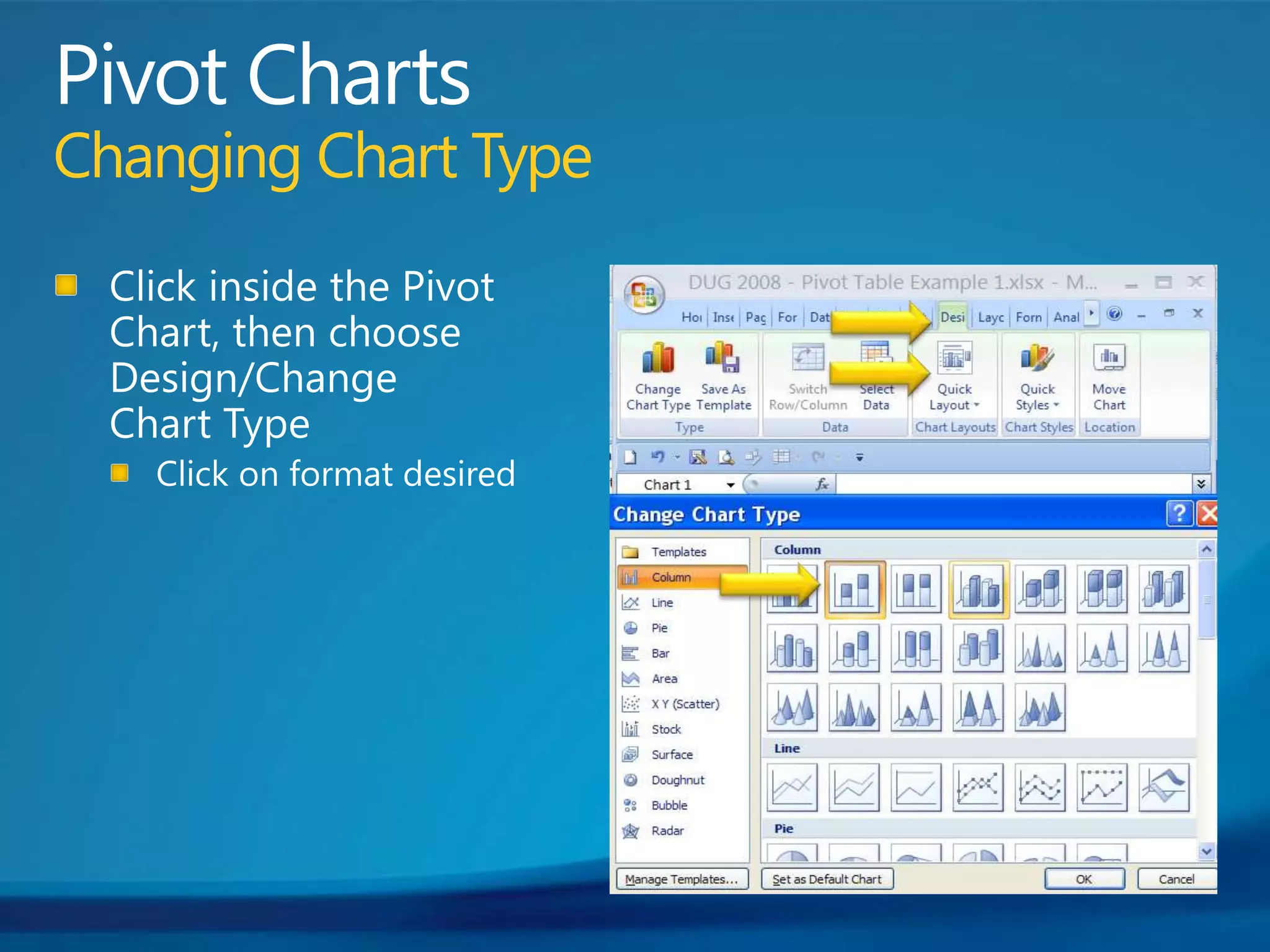
Pivot ChartsChanging Chart TypeClick inside the Pivot Chart, then choose Design/Change Chart TypeClick on format desired
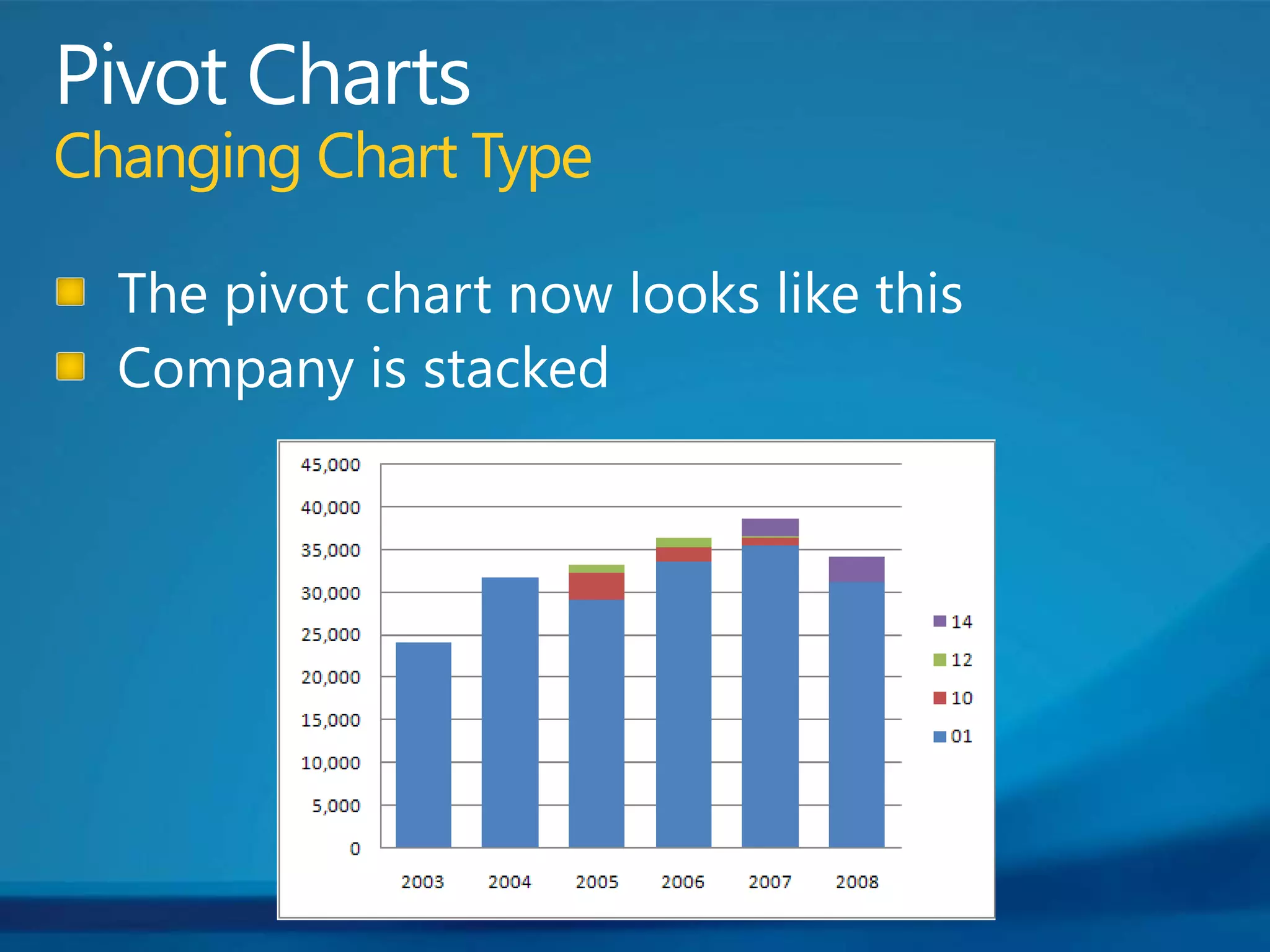
Pivot ChartsChanging Chart TypeThe pivot chart now looks like thisCompany is stacked
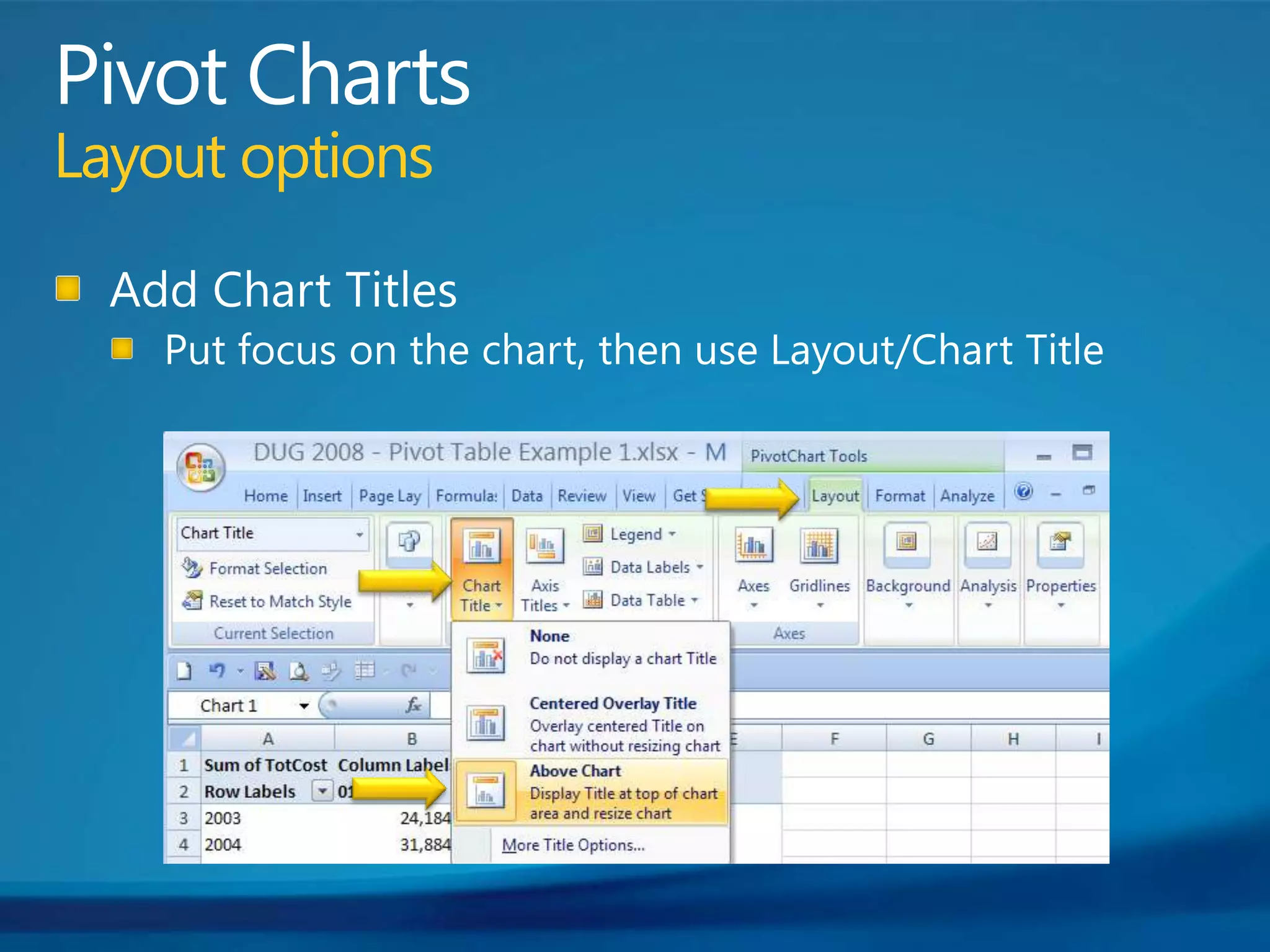
Pivot ChartsLayout optionsAdd Chart TitlesPut focus on the chart, then use Layout/Chart Title
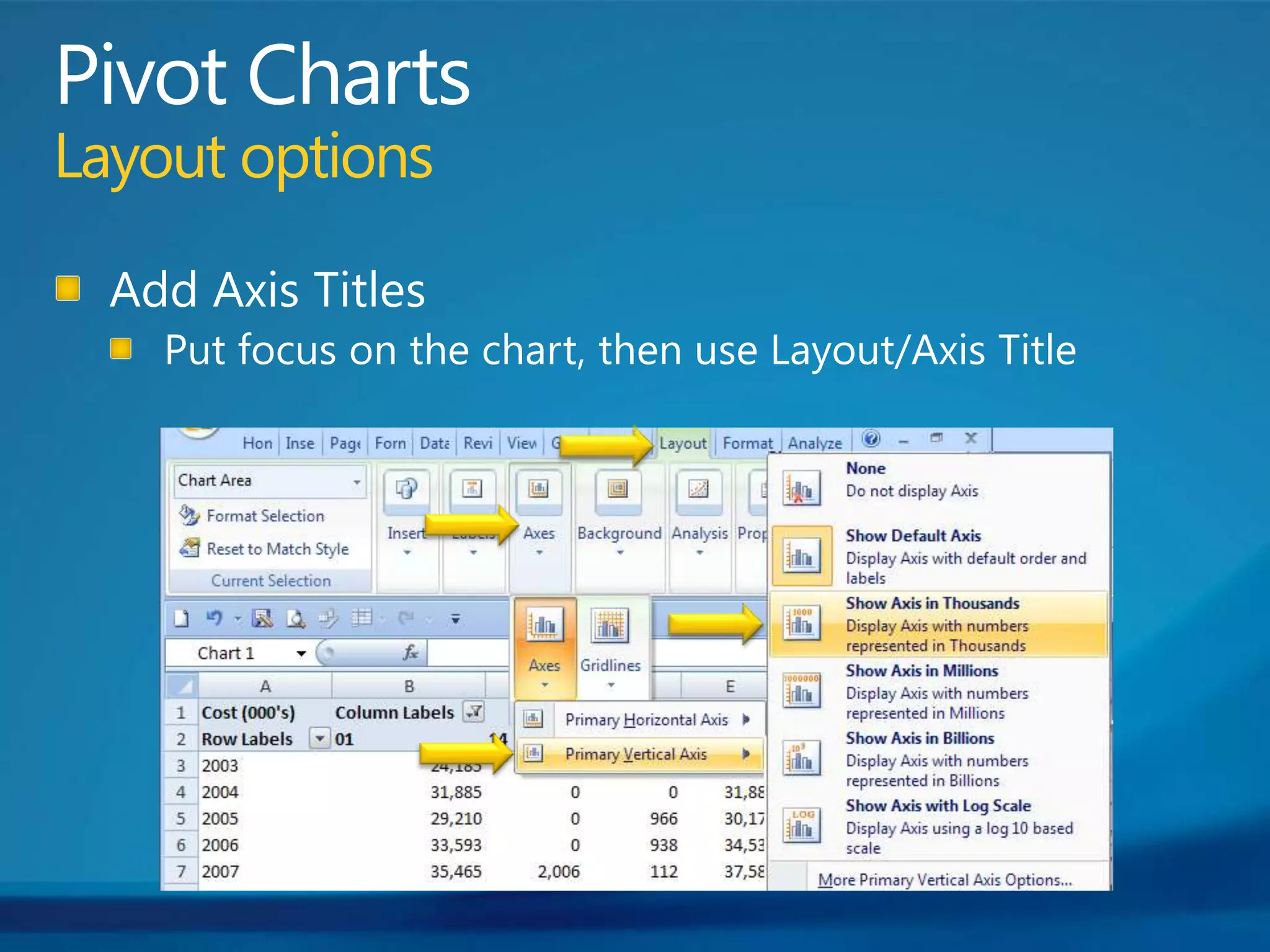
Pivot ChartsLayout optionsAdd Axis TitlesPut focus on the chart, then use Layout/Axis Title
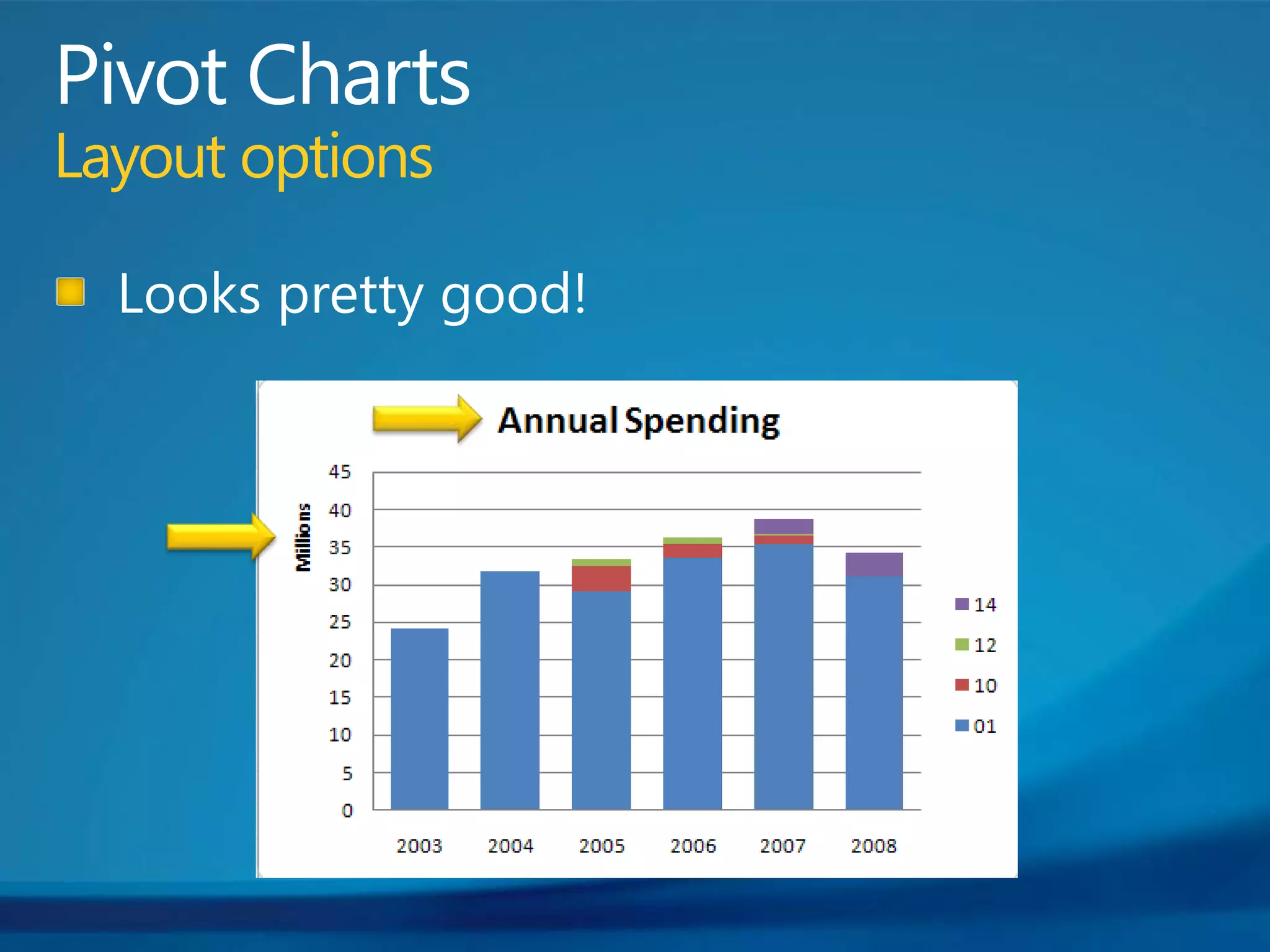
Pivot ChartsLayout optionsLooks pretty good!
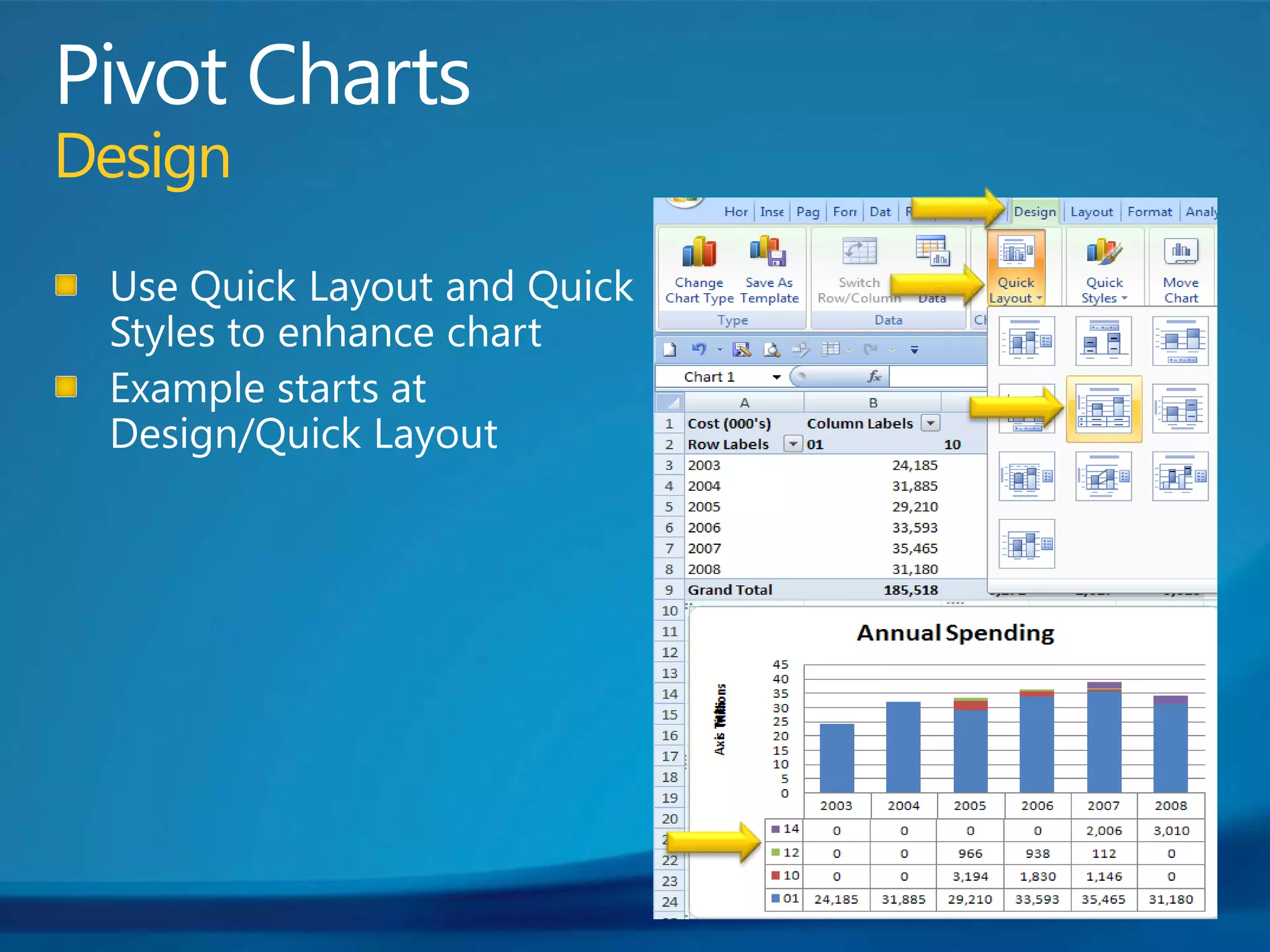
Pivot ChartsDesignUse Quick Layout and Quick Styles to enhance chartExample starts at Design/Quick Layout
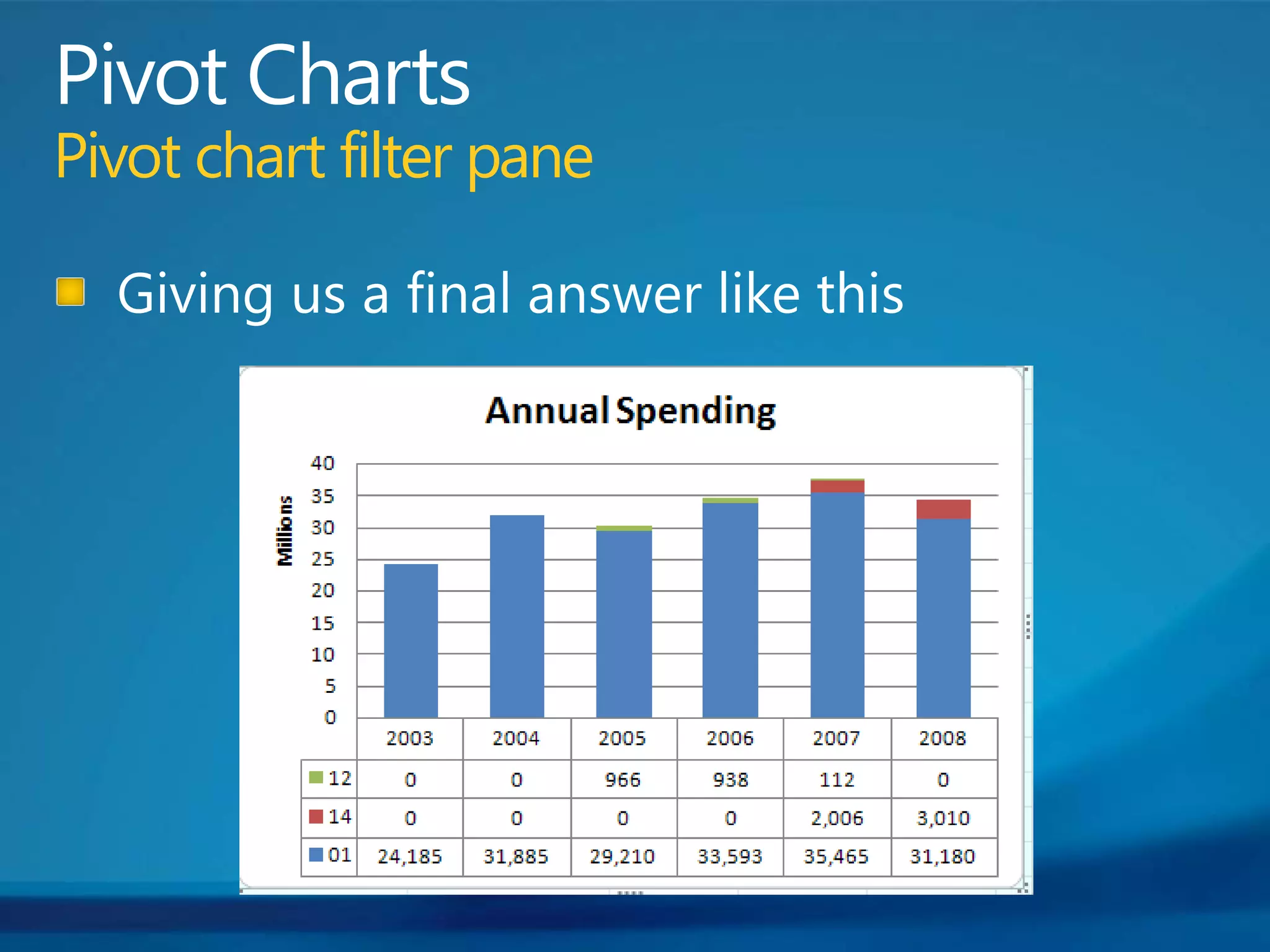
Pivot ChartsPivot chart filter paneGiving us a final answer like this
Questions?Thank You!Contact me at gj-n@toast.net

Pivot Tables

  • 1.
    Pivot Tables: Stepby StepGail Jones-NemethToledo, OhioCSSL10
  • 2.
    AgendaStarting a newPivot Table or chart from data extracted into Excel QueryPivot TablesLaying out rows, columns, valuesCosmetics – make it pretty!Filtering, totaling, subtotaling, sorting, groupingDrill Down: Expanding and collapsingPivot ChartsData setupTime series chart
  • 3.
    About the PresenterSolomonconsultant for 15 years, beginning in 1985; Betco CIO 2000-2010Betco is regional manufacturer and distributor of floor finishes, skin care products, and cleaning chemicals and equipment for the Jan/San and institutional/educational marketsDeeply implemented Dynamics-SL site
  • 4.
    Excel Query TipsCreateread-only access user group with specific read-only rights only to tables that need to be queriedUse SQL authentication to assign rightsCreate separate database with predefined, read-only views to shorten list of tablesKeep your spreadsheets smallSkip straight from extract to Pivot Table reportDon’t save data in the Pivot Table!
  • 5.
    Pulling Data fromQueriesFirst way: From data in same spreadsheetInsert/Pivot table/Pivot Table/Select Table or Range
  • 6.
    Pulling Data fromQueriesSecond Way: Directly from QueryData/Get External Data/From Other Sources/From Microsoft Query
  • 7.
    Pulling Data fromQueriesCreate your Query as before When returning from Query, choose “Pivot Table”
  • 8.
  • 9.
    Pivot Basics Rows, columns, and valuesJust click or drag a field“Click” defaults to rowsDrag to columns (especially time)Numbers default to “Summary Values”
  • 10.
    Pivot BasicsRow andcolumn headingsRight click on field and choose “Field Settings”Update the Field NameOrEdit the Field Name on Formula Bar
  • 11.
    Pivot BasicsValues FormattingRightclick on the menu and choose “Number Format”
  • 12.
    Pivot TablesMenuingDialog boxesfrom prior version are reached from the right-click menuField Settings – attributes of each fieldField List – applies to placing fields on tablePivot Table Options – settings apply to entire pivot tableGenerally, most often used features also have been moved to the right-click menuFormat cellsFormat numbersSubtotalGroupCollapse
  • 13.
    Pivot TablesMenuingMost functionsnow appear on the Pivot Table “Options” menu
  • 14.
    Pivot TablesFiltersFor afield not in the row or columnDrag unused field to “Filter” box to exclude dataDrag field to the filterClick “All” from pull downSelect multiple itemsSelect/Deselect specific data elements
  • 15.
    Pivot TablesFiltersFor afield that is already selected on the Pivot Table, use the pull down menu on the Pivot Table row or column heading to Select or Deselect
  • 16.
    Pivot TablesGrand totalsRightclick anywhere in Pivot Table to get to menuSelect “Pivot Table Options”
  • 17.
    Pivot TablesGrand totalsSelect/Deselectcheck box for rows and columns
  • 18.
    Pivot TablesSetting columnwidth to stickAlso from “Pivot Table Options”Uncheck “Autofit column widths on update”Set column widths as you like
  • 19.
    Pivot TablesKeep thefile smallAlso from “Pivot Table Options”Uncheck “Save source Data with file”User will not be able to change the data unless they can refresh the view
  • 20.
    Pivot Table OptionsEnablingdrill-downAlso from “Pivot Table Options”Be sure to set “Classic Pivot Table” On so that collapsing works better
  • 21.
    Pivot TablesSubtotalingAdd multiplefields to the row, especially ones that are 1-1 (e.g., ClassID and Class Descr)Right click on first field to remove subtotal from (in this case – ClassID)Toggle “Subtotal” from the menu
  • 22.
    Pivot TablesSubtotalingWhich nowremoves the subtotals at the ClassID level
  • 23.
    Pivot TablesCollapseTo createdrill down, collapse each levelRight click on column to Collapse, and choose “Collapse Entire Field”
  • 24.
    Pivot TablesCollapseWhich lookslike thisNote the “+” sign beside the buyer elements
  • 25.
    Pivot TablesExpand/CollapseThe fieldcan now be expanded by clicking on the “+” sign to expand or “-” sign to collapse
  • 26.
    Pivot TablesSortingRight clickon field to sort on (in this case, “Buyer”)Select Sort/More Sort OptionsChange to Descending by Total Cost
  • 27.
    Pivot TablesSortingWhich bringsus to thisNote: Sort is by “Grand Total” of rowMust sort each subgroup
  • 28.
    Pivot TablesGroupingStart byhighlighting the top four itemsRight click, then select “Group” from the menu
  • 29.
    Pivot TablesGroupingRepeat forthe bottom three itemsResort by Group and collapse second group This brings us to Note: You can rename the group from the formula bar
  • 30.
    Pivot TablesDesignFrom thetop menu, select Design/Pivot Table Style OptionsCheck “Banded Rows” or “Banded Columns”Select Pivot Table Style
  • 31.
  • 32.
    Pivot TablesCreating aformula fieldSelect Options/Formulas/Calculated Field
  • 33.
    Pivot TablesCreating aformula fieldType in field name (e.g., “Rounded Cost”)Use “Insert Field” button to copy field name to formula lineEnter formula (e.g., TotCost/1000)
  • 34.
    Pivot Tables Addingsecond values fieldIf “NewField” automatically added to the pivot table below the original field (“stacked”, like this)
  • 35.
    Pivot TablesSide byside valuesTo get the summary fields to be side by side, uncheck “NewField” on the “Field List”, then recheck “NewField”Note that now the “Values” option shows in the Column Labels
  • 36.
    Pivot TablesSide byside valuesNow the table looks like this
  • 37.
    Pivot ChartsData sourcesPivotCharts can be sourced fromExisting data in a refreshable data extract from another Pivot Table directly from a queryTo start from a Pivot Table, use Insert/Pivot Table/Pivot ChartOptions/Tools/Pivot Chart
  • 38.
    Pivot ChartsData sourcesOrstart from a new query, and when returning data:Select “Pivot Chart and Pivot Table Report” option
  • 39.
  • 40.
    Pivot ChartsData layoutFortime series, time period is in the Row (e.g., Fiscal Year)On stacked bar, slices are the Columns (e.g., CpnyID)
  • 41.
    Pivot ChartsMenusOnce focusis on a Pivot Chart, new menu items appear
  • 42.
    Pivot ChartsFormatting valueson legendBefore formatting the pivot table, legend looks like this
  • 43.
    Pivot ChartsFormatting valueson legendAfter formatting the pivot table value, legend looks like thisNote that company is side by side in chart
  • 44.
    Pivot ChartsChanging ChartTypeClick inside the Pivot Chart, then choose Design/Change Chart TypeClick on format desired
  • 45.
    Pivot ChartsChanging ChartTypeThe pivot chart now looks like thisCompany is stacked
  • 46.
    Pivot ChartsLayout optionsAddChart TitlesPut focus on the chart, then use Layout/Chart Title
  • 47.
    Pivot ChartsLayout optionsAddAxis TitlesPut focus on the chart, then use Layout/Axis Title
  • 48.
  • 49.
    Pivot ChartsDesignUse QuickLayout and Quick Styles to enhance chartExample starts at Design/Quick Layout
  • 50.
    Pivot ChartsPivot chartfilter paneGiving us a final answer like this
  • 51.