Presented by:
 Michael Hertz – SOHO Systems
PC Maintenance
 Hard drive disk space and performance
   Disk Cleanup
     ACC – System Tools
   Disk Defragmenting
     ACC – System Tools

   Disk Error Checking
     Drive properties – Tools
PC Maintenance


 CCleaner
   Clean temp files
   Check registry
   Check startup options
   Uninstall unwanted programs
    http://www.piriform.com/CCLEANER
PC Maintenance
 Installing Updates
    Windows/Microsoft automatic updates
    Java
    Adobe
       Reader
       Flash
   Anti-Virus/Anti-Malware
     Virus/malware definitions

     Program updates

   Other; Vendor s/w, drivers, utilities.
     If it ain’t broke…
PC Maintenance
 Clean and dust
   Heat is the enemy
      Blow out w/ canned air or vacuum vents and fans
      Provide good circulation
      Check that fans are spinning
PC Maintenance

 Schedule daily/weekly scan with your Anti-Malware
 software

 Backup your system!
PC Security – protect your
systems, data and identity
 Firewalls
   Hardware
     Basic consumer grade routers
     Advanced routers/security appliances
   Software
     Windows Firewall
     Security Suite firewalls
     Standalone free firewalls
           ZoneAlarm
PC Security – protect your
systems, data and identity
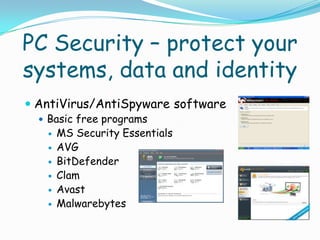
 AntiVirus/AntiSpyware software
   Basic free programs
      MS Security Essentials
      AVG
      BitDefender
      Clam
      Avast
      Malwarebytes
PC Security – protect your
systems, data and identity
  Basic licensed programs
     Norton/Symantec AV
     Kaspersky
     McAfee
     Trend Micro
PC Security – protect your
systems, data and identity
  Security/Internet Suites
     What’s Included
       AV/AM

       Firewalls

       Browser protection, web site scanning

       Spam filter
PC Security – protect your
systems, data and identity
  Security/Internet Suites
     Not recommended for older PC’s due to
      performance degradation
         Use basic AV programs
         Install anti-malware free-ware
           Malwarebytes, Spybot, SuperAntiMalware
               Run manual updates and manual scans routinely
         Browser add-ons
           Web of Trust (WOT), AVG LinkScanner

           Avoid unnecessary browser toolbars
PC Security – protect your
systems, data and identity
 Other means of protection
   Smell test
     If it doesn’t seem right…
   Email attachments and links
   Drive by downloads
   Rogue AntiMalware programs/popups
     Know the look and feel of your Security s/w

     Test your AV w/ “angryip scanner”
Troubleshooting

Common PC problems

  PC won’t boot
     Do any lights/LEDs light up or
     blink?
     Can you hear the fans?
     Can you hear the hard drive?
Troubleshooting
    During the initial power up
       Does anything appear on the screen?
           Manufacturer logo
           Error messages
           Windows logo
       If nothing, check power source and
       connections
       Check monitor, monitor power
           Laptops & lcd displays – look very
           closely, is there a faint image?
               Possibly bad backlight
       Check to see if fans are turning
Troubleshooting

 If manufacturer BIOS screen displays error
    Probably a hardware problem or corrupted OS

 If Windows logo appears and hangs
    Reboot in “safe mode”
       Hit F8 after BIOS screens and before
       Windows logo
Troubleshooting
 BSOD
    Did you install or update any programs,
    hardware, drivers, utilities
       If BSOD continues
          Remove new hardware
          Uninstall programs
          Roll back updates
          Run manufacturers diagnostics
 Hangs or crashes
    See BSOD
 Slow
    See PC maintenance
       Clean, defrag, check disk, scan
Troubleshooting
 Use Windows System Restore
     System Restore rolls back Windows (registry)
     to a restore point in time
        Useful when new programs, drivers or
        updates/patches create problems
        After cleaning malware infections with
        Anti-malware s/w
 Boot PC from a bootable CD/DVD (Windows OS cd
 is bootable)
     Run system repair from Windows 7 CD/DVD
Thank You!

Any Questions?

PC Maintenance Security and Troubleshooting

  • 2.
    Presented by: MichaelHertz – SOHO Systems
  • 3.
    PC Maintenance  Harddrive disk space and performance  Disk Cleanup  ACC – System Tools  Disk Defragmenting  ACC – System Tools  Disk Error Checking  Drive properties – Tools
  • 4.
    PC Maintenance  CCleaner  Clean temp files  Check registry  Check startup options  Uninstall unwanted programs http://www.piriform.com/CCLEANER
  • 5.
    PC Maintenance  InstallingUpdates  Windows/Microsoft automatic updates  Java  Adobe  Reader  Flash  Anti-Virus/Anti-Malware  Virus/malware definitions  Program updates  Other; Vendor s/w, drivers, utilities.  If it ain’t broke…
  • 6.
    PC Maintenance  Cleanand dust  Heat is the enemy  Blow out w/ canned air or vacuum vents and fans  Provide good circulation  Check that fans are spinning
  • 7.
    PC Maintenance  Scheduledaily/weekly scan with your Anti-Malware software  Backup your system!
  • 8.
    PC Security –protect your systems, data and identity  Firewalls  Hardware  Basic consumer grade routers  Advanced routers/security appliances  Software  Windows Firewall  Security Suite firewalls  Standalone free firewalls  ZoneAlarm
  • 9.
    PC Security –protect your systems, data and identity  AntiVirus/AntiSpyware software  Basic free programs  MS Security Essentials  AVG  BitDefender  Clam  Avast  Malwarebytes
  • 10.
    PC Security –protect your systems, data and identity  Basic licensed programs  Norton/Symantec AV  Kaspersky  McAfee  Trend Micro
  • 11.
    PC Security –protect your systems, data and identity  Security/Internet Suites  What’s Included  AV/AM  Firewalls  Browser protection, web site scanning  Spam filter
  • 12.
    PC Security –protect your systems, data and identity  Security/Internet Suites  Not recommended for older PC’s due to performance degradation  Use basic AV programs  Install anti-malware free-ware  Malwarebytes, Spybot, SuperAntiMalware  Run manual updates and manual scans routinely  Browser add-ons  Web of Trust (WOT), AVG LinkScanner  Avoid unnecessary browser toolbars
  • 13.
    PC Security –protect your systems, data and identity  Other means of protection  Smell test  If it doesn’t seem right…  Email attachments and links  Drive by downloads  Rogue AntiMalware programs/popups  Know the look and feel of your Security s/w  Test your AV w/ “angryip scanner”
  • 14.
    Troubleshooting Common PC problems PC won’t boot Do any lights/LEDs light up or blink? Can you hear the fans? Can you hear the hard drive?
  • 15.
    Troubleshooting During the initial power up Does anything appear on the screen? Manufacturer logo Error messages Windows logo If nothing, check power source and connections Check monitor, monitor power Laptops & lcd displays – look very closely, is there a faint image? Possibly bad backlight Check to see if fans are turning
  • 16.
    Troubleshooting If manufacturerBIOS screen displays error Probably a hardware problem or corrupted OS If Windows logo appears and hangs Reboot in “safe mode” Hit F8 after BIOS screens and before Windows logo
  • 17.
    Troubleshooting BSOD Did you install or update any programs, hardware, drivers, utilities If BSOD continues Remove new hardware Uninstall programs Roll back updates Run manufacturers diagnostics Hangs or crashes See BSOD Slow See PC maintenance Clean, defrag, check disk, scan
  • 18.
    Troubleshooting Use WindowsSystem Restore System Restore rolls back Windows (registry) to a restore point in time Useful when new programs, drivers or updates/patches create problems After cleaning malware infections with Anti-malware s/w Boot PC from a bootable CD/DVD (Windows OS cd is bootable) Run system repair from Windows 7 CD/DVD
  • 19.