Computer Hardware and
Maintenance
VIRUS
Sl. No# Name ID Email
1 Md. Ohidul Islam
(01676661706)
2 Md. Imran Khan
3 Kamrun Nahar Liza
4 Abdul Hai Aimon
5 Tamjid Abedin Khan
6 Kazi Shafkat Meraz Britta
Content
 Introduction
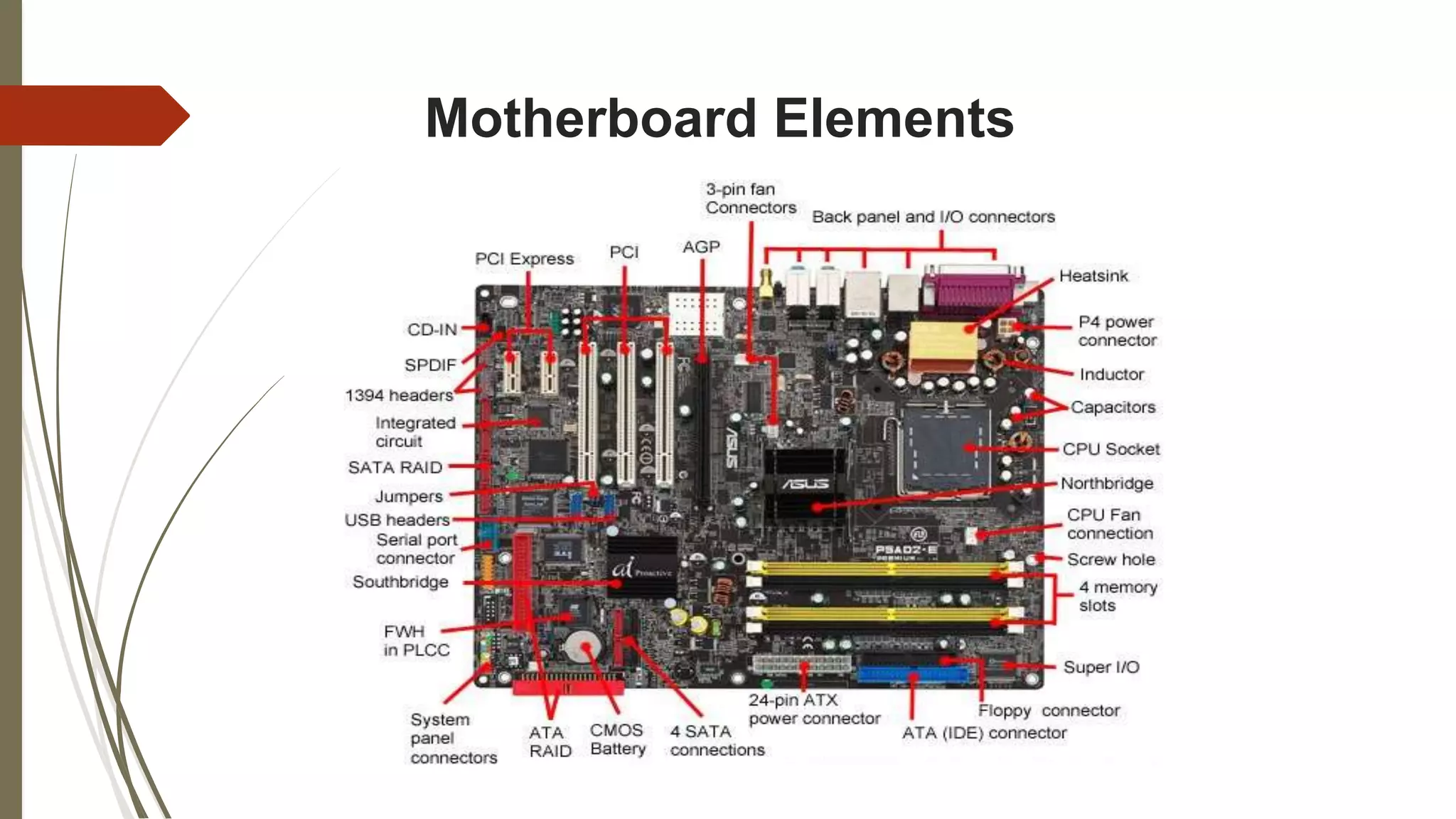
 Motherboard Elements
 Installing Motherboard
 Installing CPU
 Inserting Memory Module
 Installing Hard Disk
 Hardware Maintenance
 Boot Disk
 Formatting
 Partitioning
 Cables and Connectors
 Computer Connectors
 Network Connector
 Audio and Video Connector
 BIOS Optimization
 Flashing BIOS
 Conclusion
Introduction
The motherboard (also known as main board, system board,
planar board or logic board, or colloquially) is the main circuit
board inside the PC. It holds the processor, memory and
expansion slots and connects directly or indirectly to every part
of the PC. It's made up of a chipset, some code in ROM and the
various interconnections or buses.
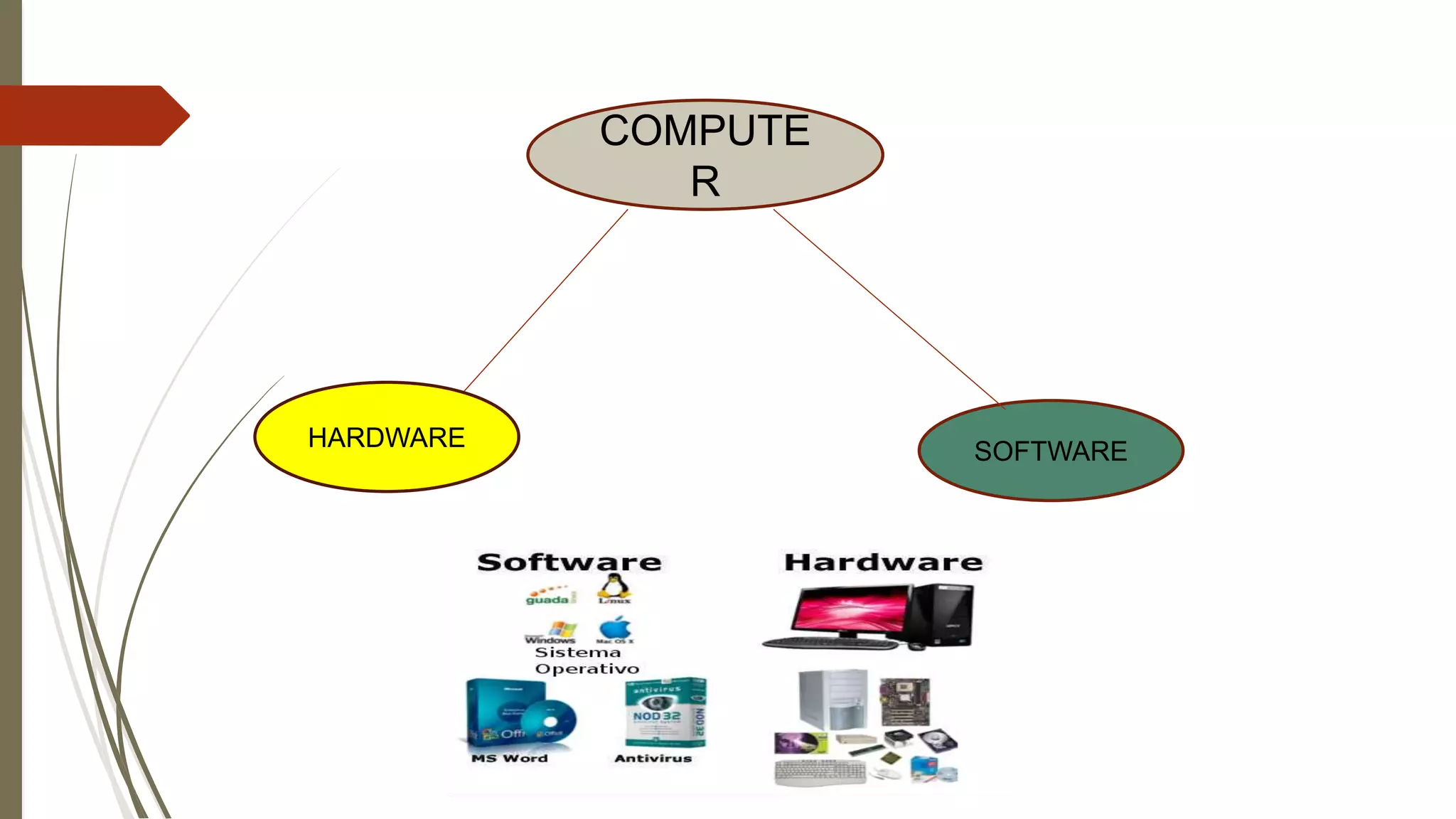
COMPUTE
R
HARDWARE SOFTWARE
Motherboard Elements
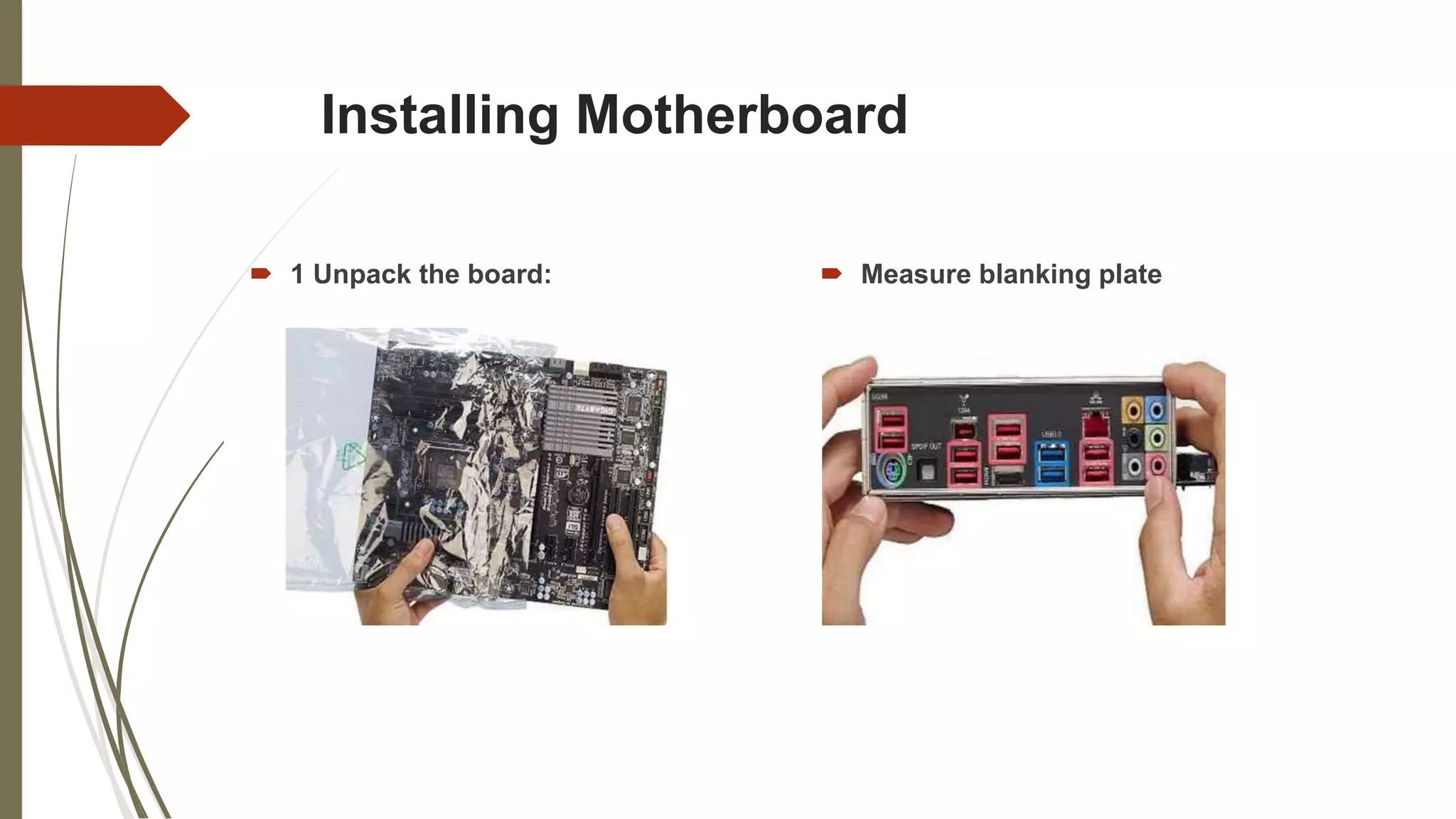
Installing Motherboard
 1 Unpack the board:  Measure blanking plate
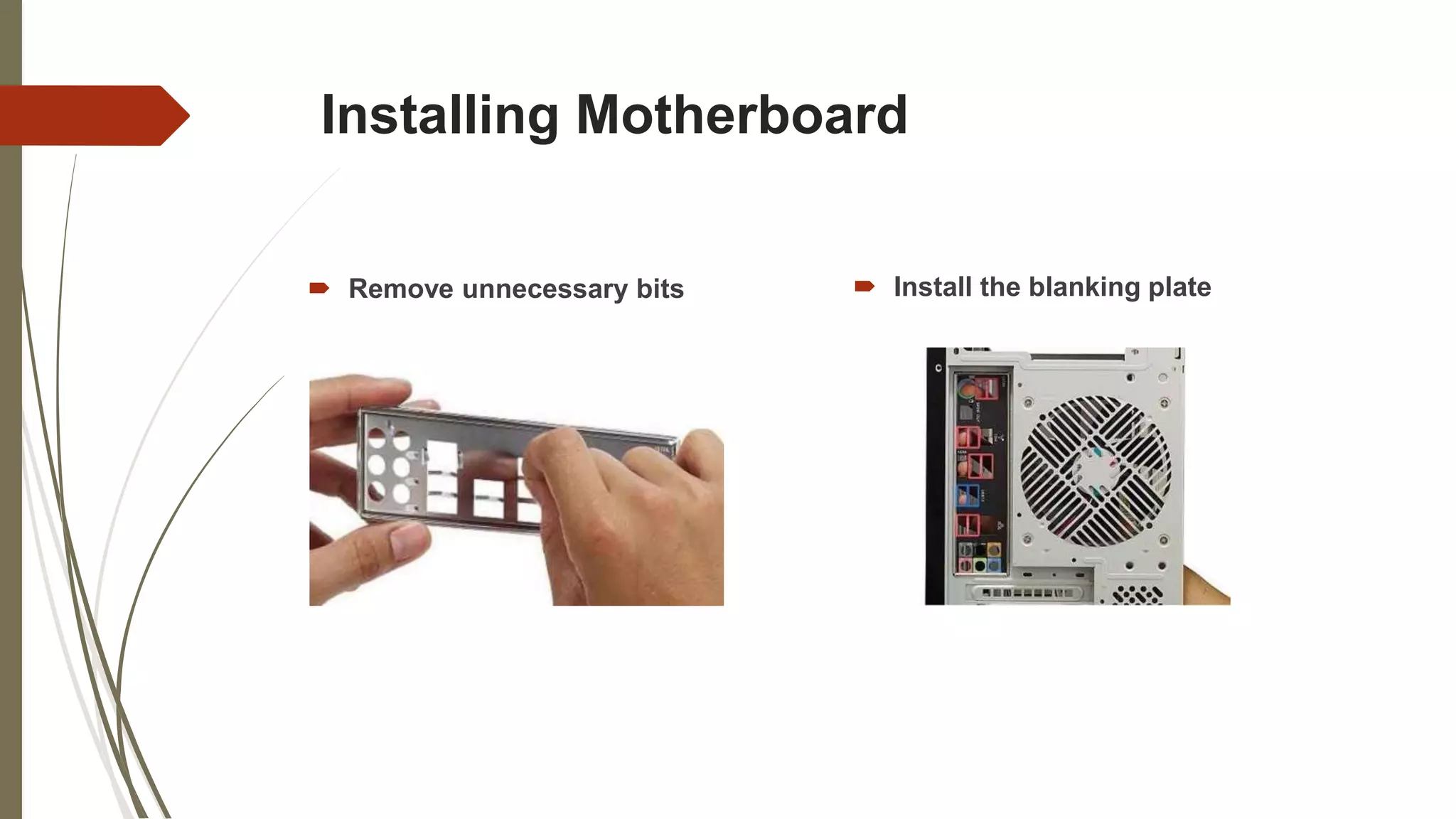
Installing Motherboard
 Remove unnecessary bits  Install the blanking plate
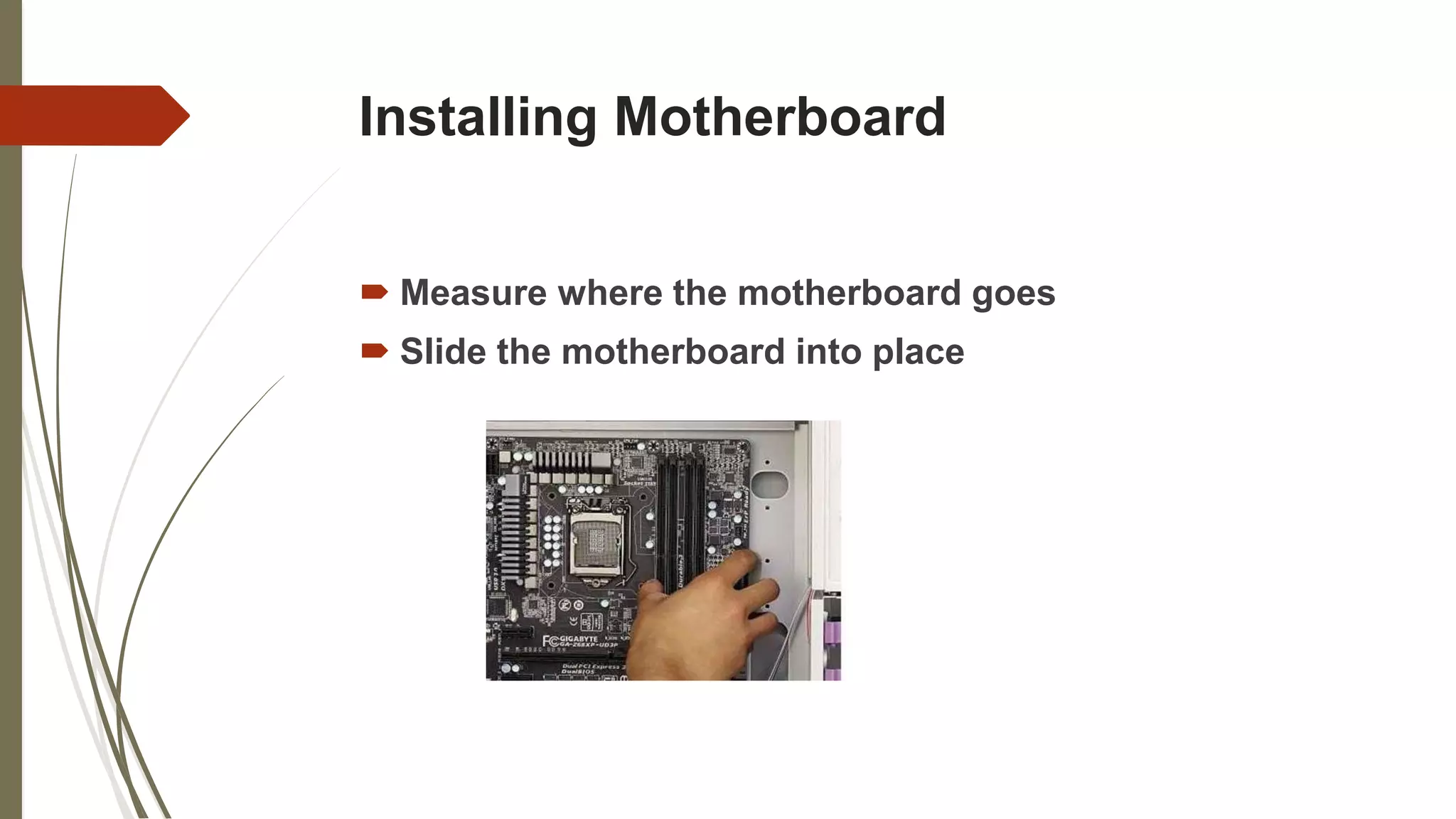
Installing Motherboard
 Measure where the motherboard goes
 Slide the motherboard into place
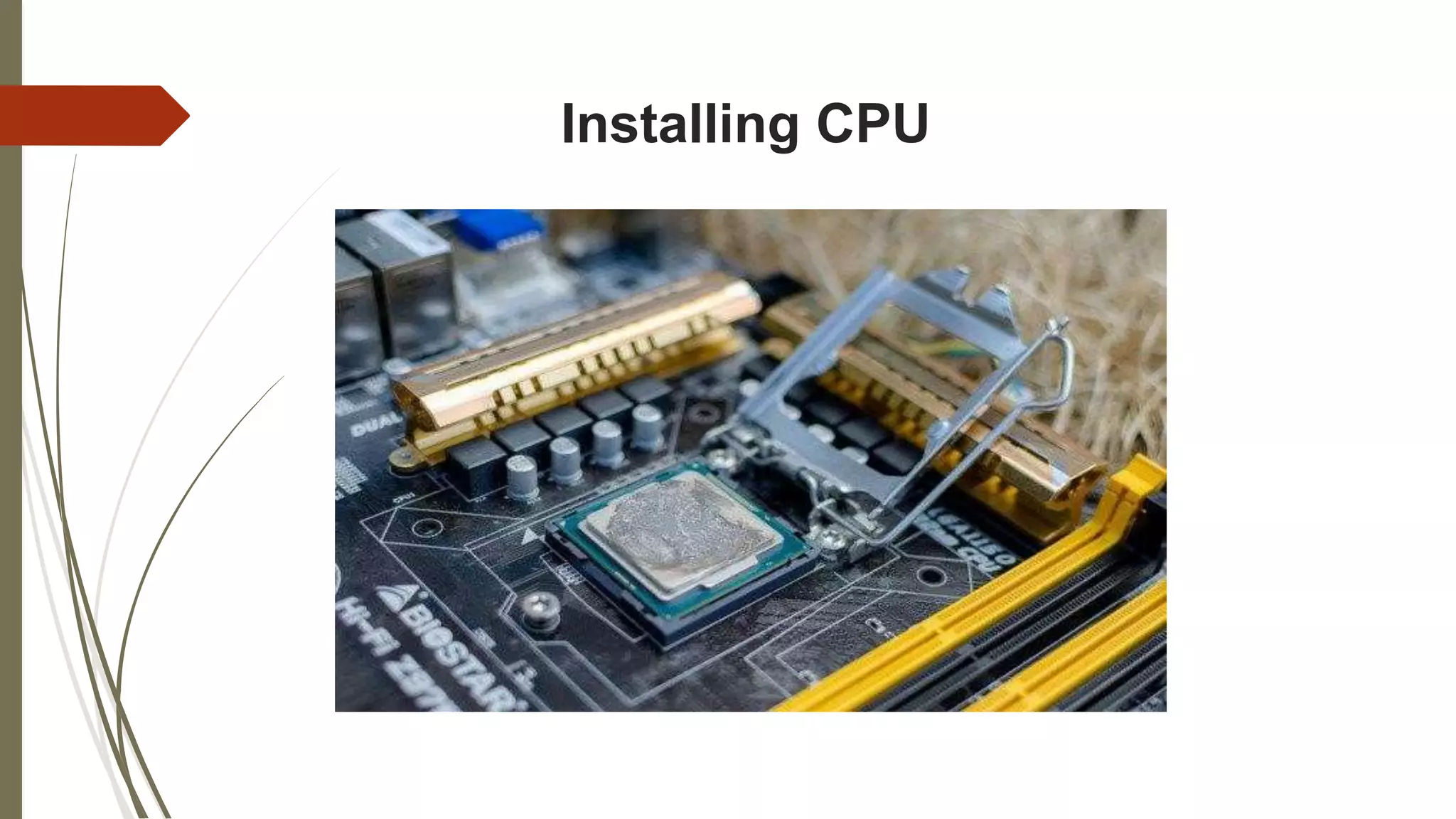
Installing CPU
Installing CPU
 Select the perfect CPU Model
 Remove the CPU Fan
 Open the CPU Socket
 Install the CPU
Inserting Memory Module
 There are various types of random access memory. The latest
motherboards are equipped with DDR2 or DDR memory. Some are even
equipped with RAM Bus memory. The oldest ones actually have SDRAM
connectors, or even EDO RAM connectors.
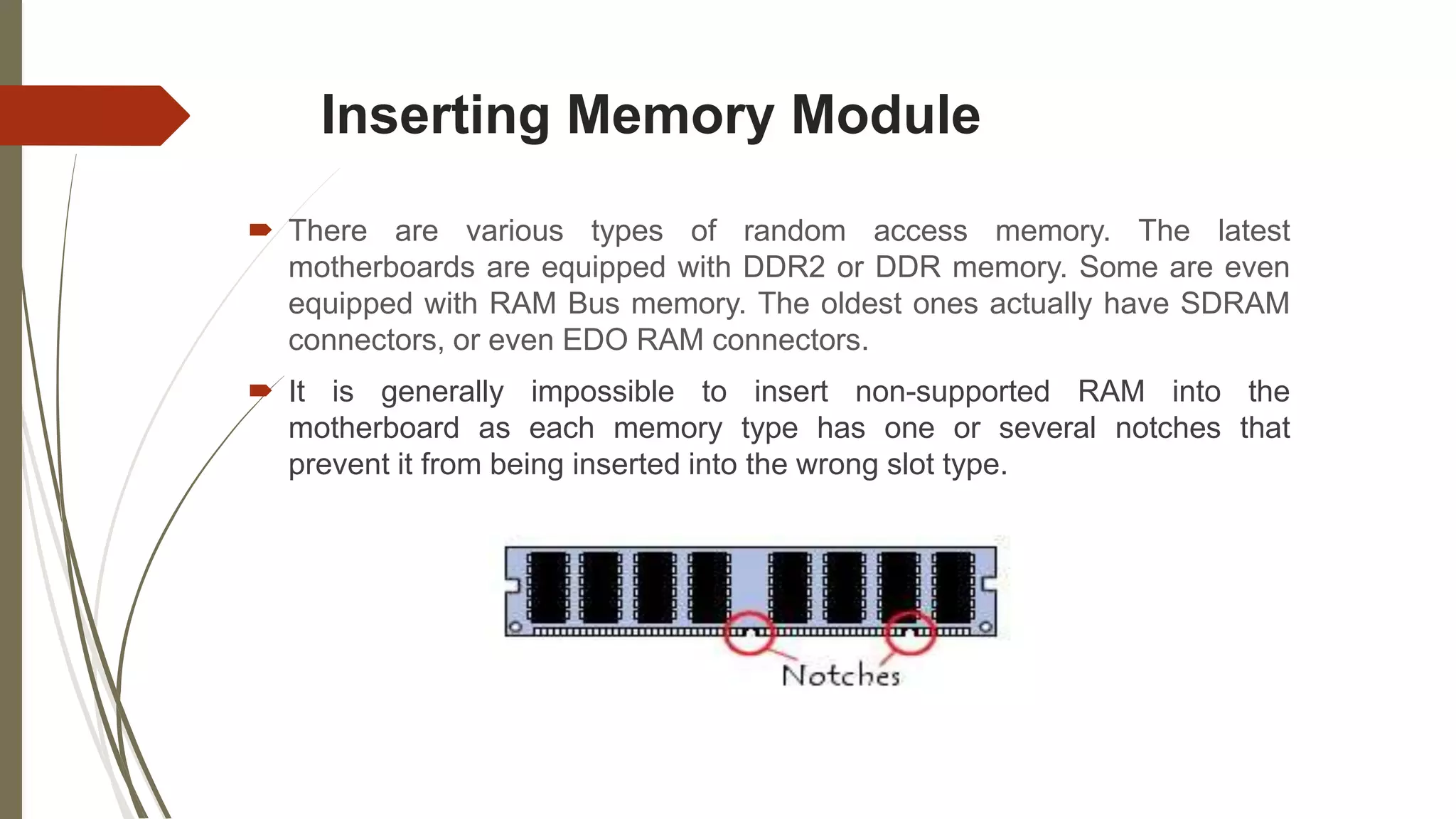
 It is generally impossible to insert non-supported RAM into the
motherboard as each memory type has one or several notches that
prevent it from being inserted into the wrong slot type.
Inserting Memory Module
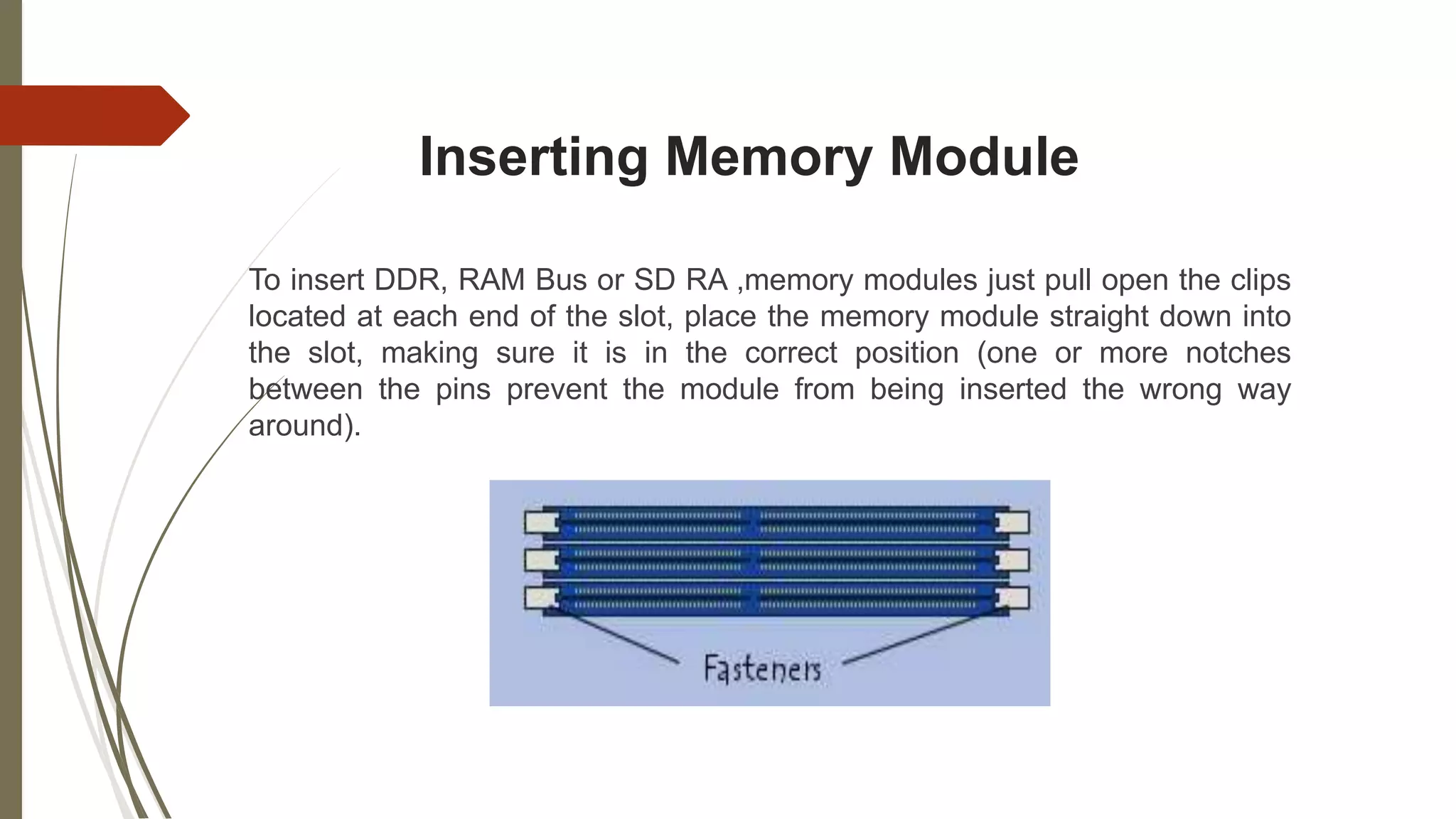
To insert DDR, RAM Bus or SD RA ,memory modules just pull open the clips
located at each end of the slot, place the memory module straight down into
the slot, making sure it is in the correct position (one or more notches
between the pins prevent the module from being inserted the wrong way
around).
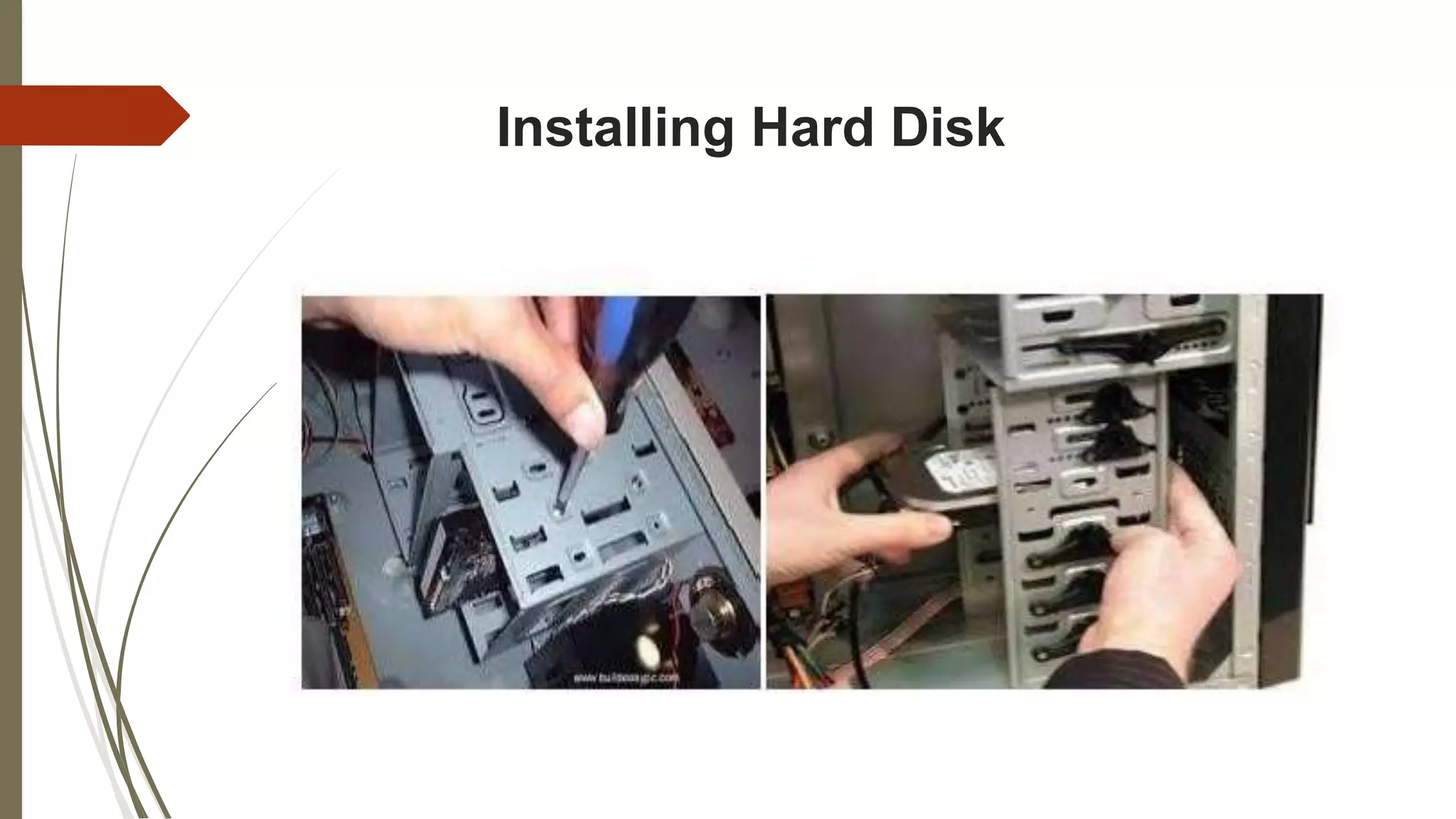
Installing Hard Disk
 Remove the computer's casing for a desktop computer.
 Unscrew and remove the casing of the tower where the CPU is located.
 In a desktop computer, there might be space to add another hard drive without
disconnecting the old one.
 Connect the new hard drive and set it to primary if desired Remove the old hard
drive after it has been disconnected, and connect the new one with the appropriate
cables.
 The hard drive will specify whether it should be connected to the IDE or the SATA
hard drive.
 In a desktop computer, jumper pins can be used to set one of the hard drives as
the primary hard drive.
Installing Hard Disk
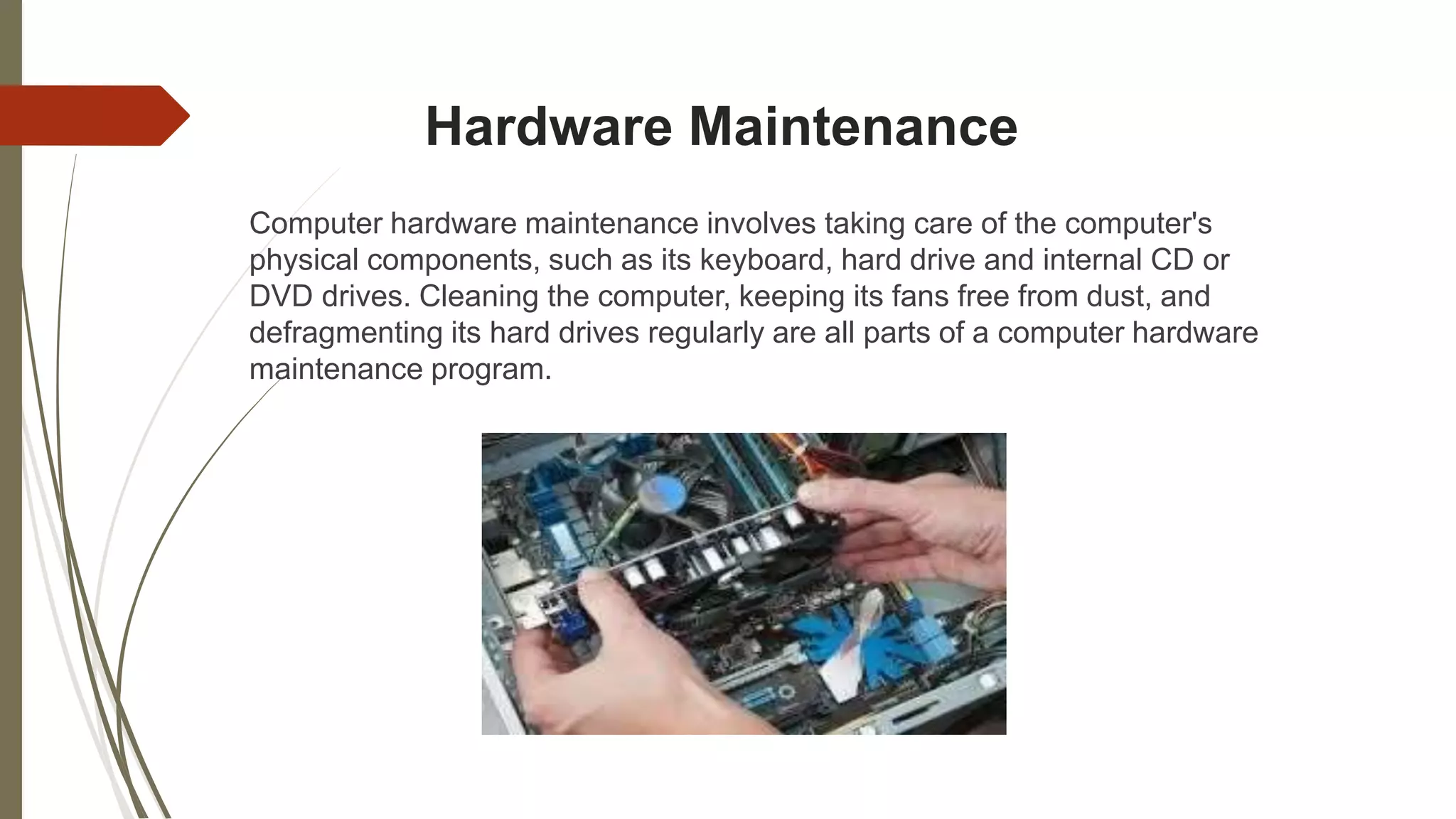
Hardware Maintenance
Computer hardware maintenance involves taking care of the computer's
physical components, such as its keyboard, hard drive and internal CD or
DVD drives. Cleaning the computer, keeping its fans free from dust, and
defragmenting its hard drives regularly are all parts of a computer hardware
maintenance program.
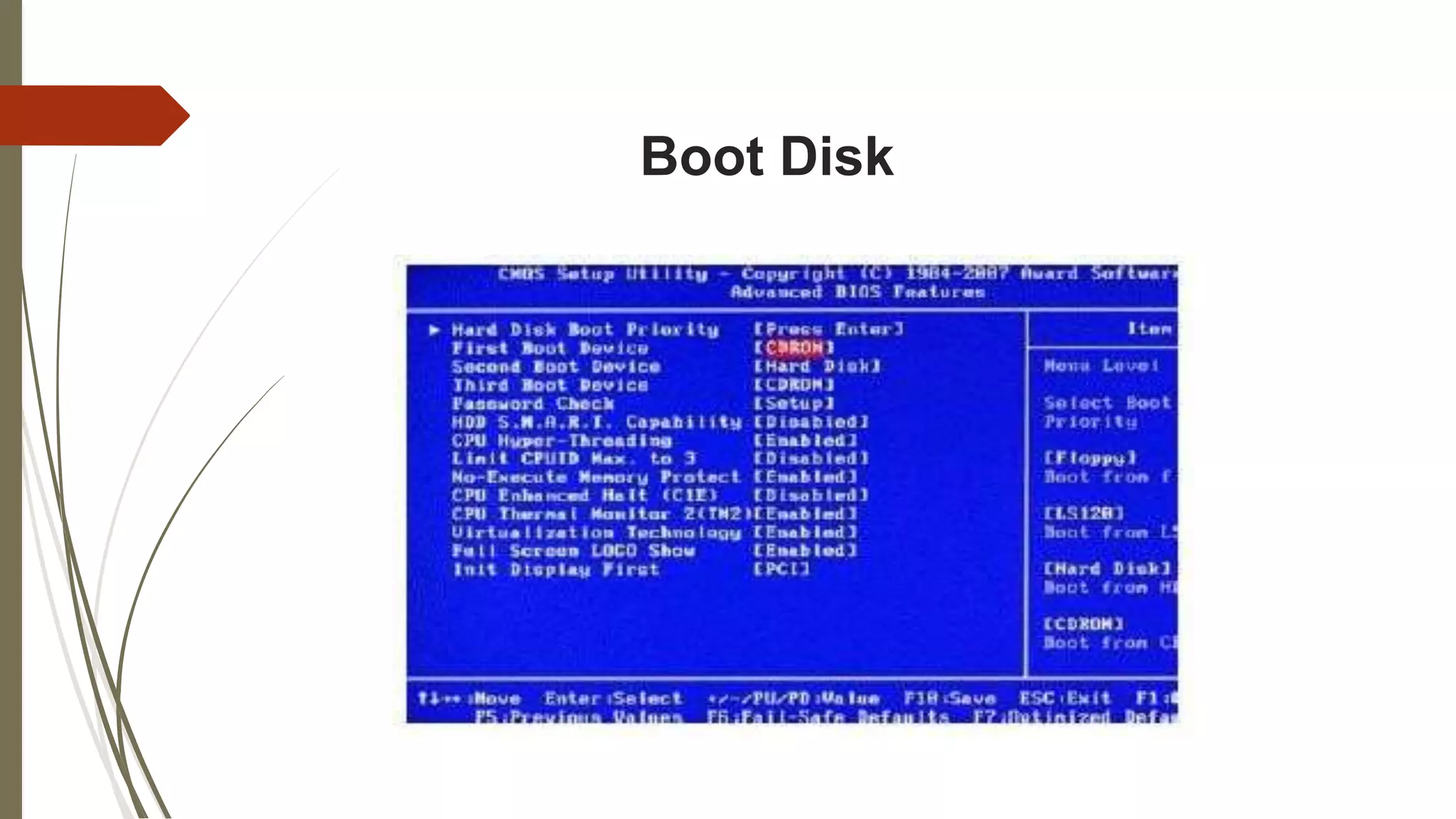
Boot Disk
 Removable digital data
 Run (boot) an operating system or utility program.
 The computer must have a built-in program
 CD-ROMs are the most common forms of media used, but other media,
such as magnetic or paper tape drives, zip drives, and more recently USB
flash drives can be used.
 Boot disks are used for
• Operating system installation
• Data recovery
• Data purging
Boot Disk
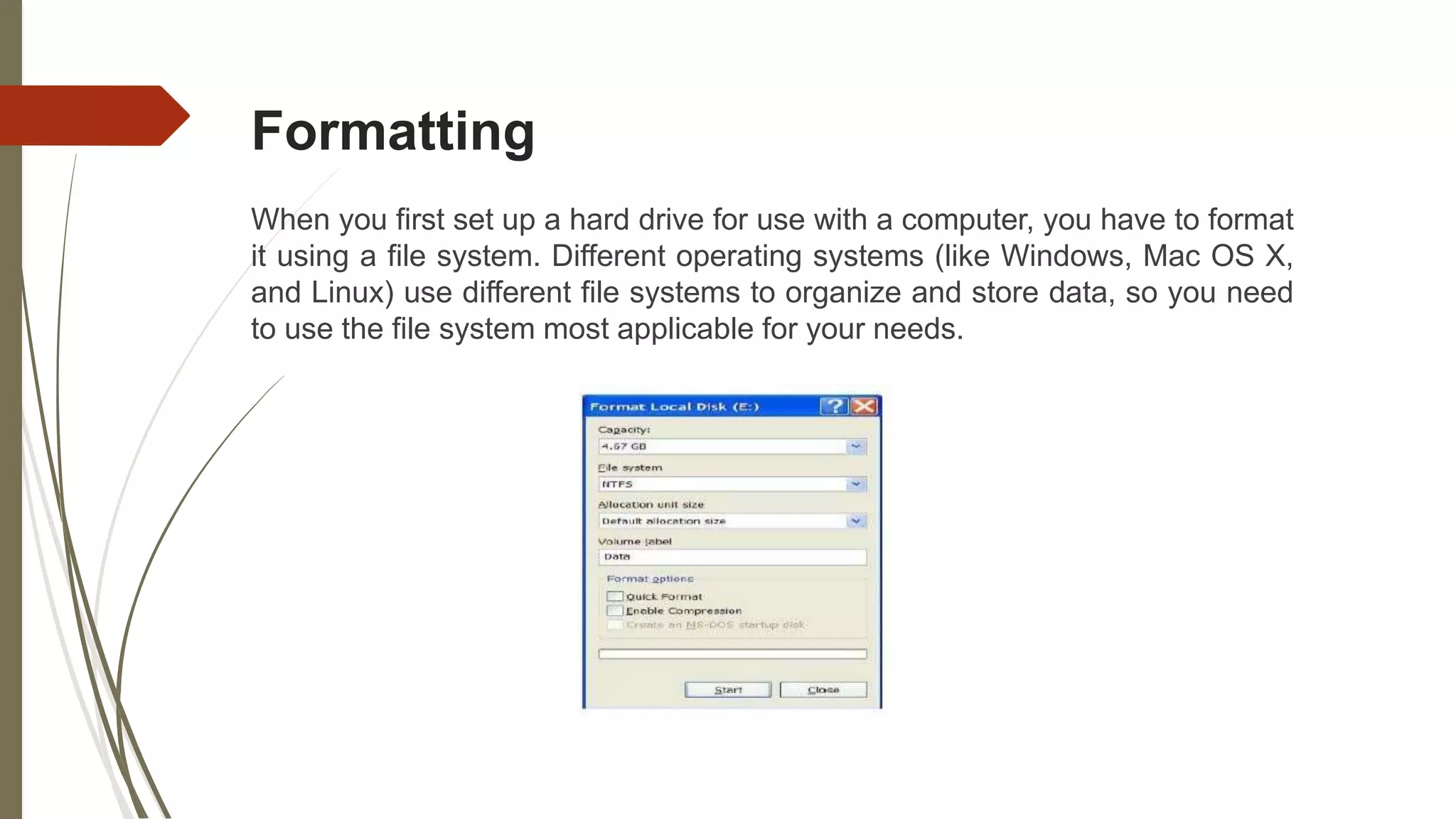
Formatting
When you first set up a hard drive for use with a computer, you have to format
it using a file system. Different operating systems (like Windows, Mac OS X,
and Linux) use different file systems to organize and store data, so you need
to use the file system most applicable for your needs.
Formatting
Here are a few of the more popular file systems you'll see
NTFS: This is Windows' default file system. Windows can read and write to
NTFS-formatted drives.
FAT32: FAT32 is an older file system. You can't install newer versions of
Windows on a FAT32 system, but it can be handy for external drives since it
can be read and written to by Windows, OS X, and Linux.
ExFAT: ExFAT is less commonly used, but is similar to FAT32 without the
downsides. Both Windows and OS X can read and write ExFAT-formatted
drives, and it can store files over 4GB. This makes it ideal for flash drives.
Partitioning
 Disk partitioning or disk slicing is the creation of one or more regions on a
hard disk or other secondary storage, so that an operating system can
manage information in each region separately.
 We can divide your hard drive into multiple partitions.
 We can create separate system & utility, recovery, Windows, or data
partitions.
Cables and Connectors
 Computer cables are confusing to most users.
 Here’s a visual guide to help you quickly identify all the
common cable and connectors that came bundled with your
computers, mobile phones and other electronic gadgets. You
may also refer to this guide for ideas on how to hook different
devices using commonly available connectors and converters.
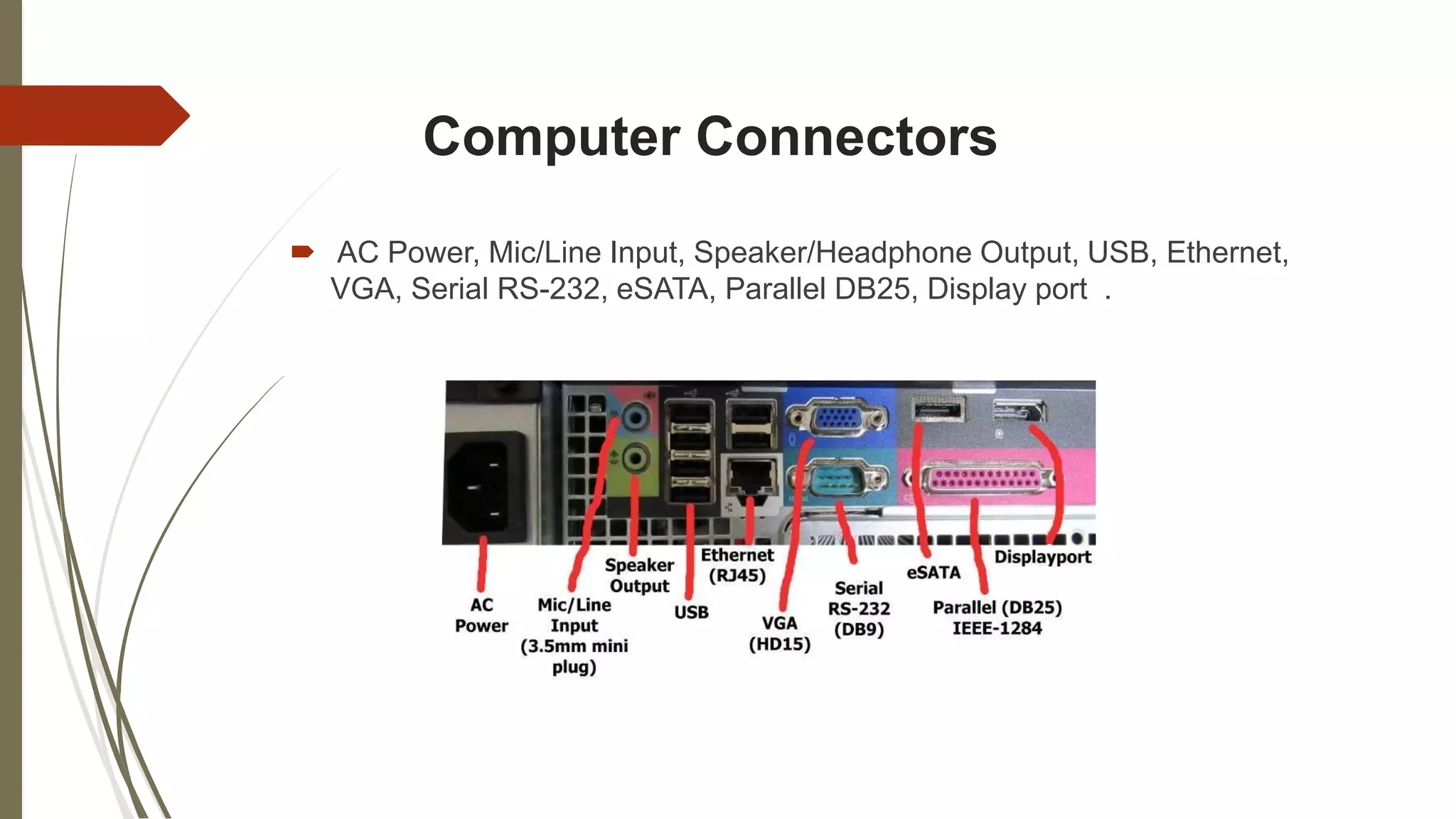
Computer Connectors
 AC Power, Mic/Line Input, Speaker/Headphone Output, USB, Ethernet,
VGA, Serial RS-232, eSATA, Parallel DB25, Display port .
Monitor Connectors S-Video Connector
Serial Printer Connector Parallel Printer Connector
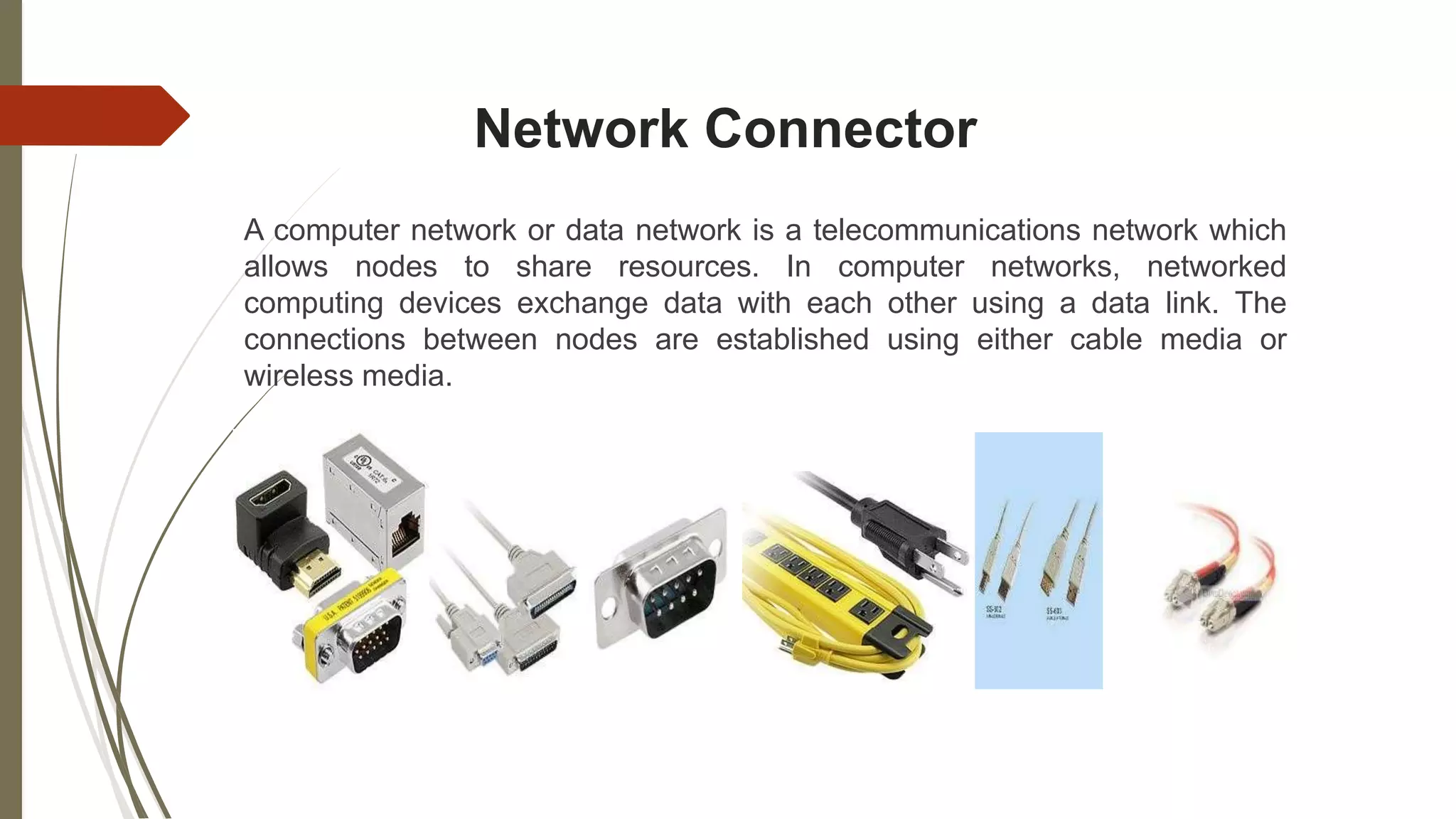
Network Connector
A computer network or data network is a telecommunications network which
allows nodes to share resources. In computer networks, networked
computing devices exchange data with each other using a data link. The
connections between nodes are established using either cable media or
wireless media.
Audio and Video Connector
 Most speakers and microphones can connect to the computer with these
audio cables. The microphone port on your computer is usually pink while
the speaker port, where you insert the stereo audio cable, is colored
green. Some computers have additional TSR audio ports colored black,
grey, and gold; these are for rear, front, and center/subwoofer output,
respectively.
 : One of the most common video connectors for computer monitors and
high-definition TVs is the VGA cable. A standard VGA connector has 15-
pins and other than connecting a computer to a monitor, you may also use
a VGA cable to connect your laptop to a TV screen or a projector.
Audio Connector Video Connector
BIOS Optimization
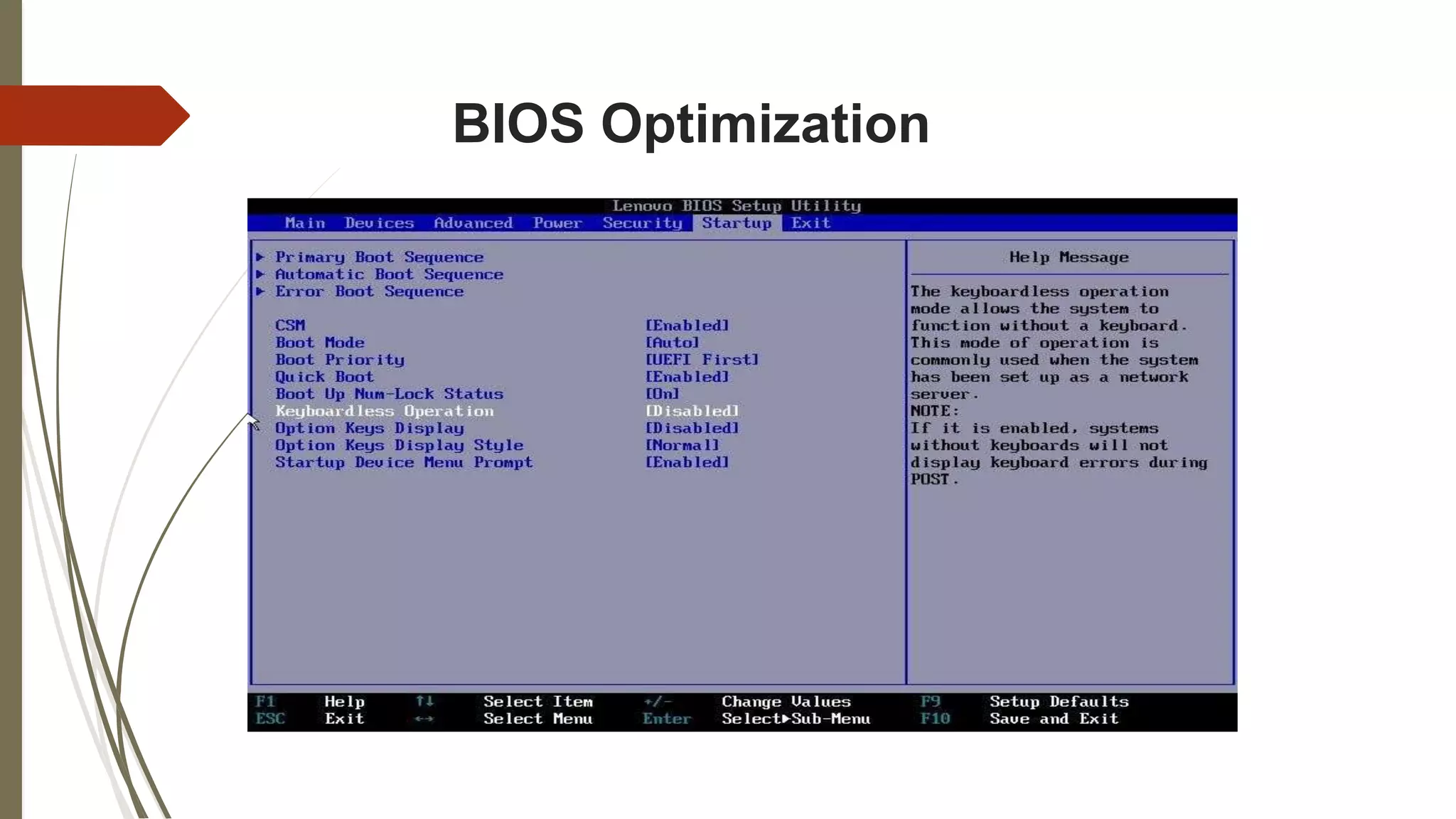
The BIOS ( Basic Input/output System and also known as the
System BIOS, ROM BIOS or PC BIOS) is a type of firmware
used to perform hardware initialization during the booting
process (power-on startup) on IBM PC compatible computers,
and to provide runtime services for operating systems and
programs. The BIOS firmware is built into personal computers
(PCs), and it is the first software they run when powered on.
BIOS Optimization
Flashing BIOS
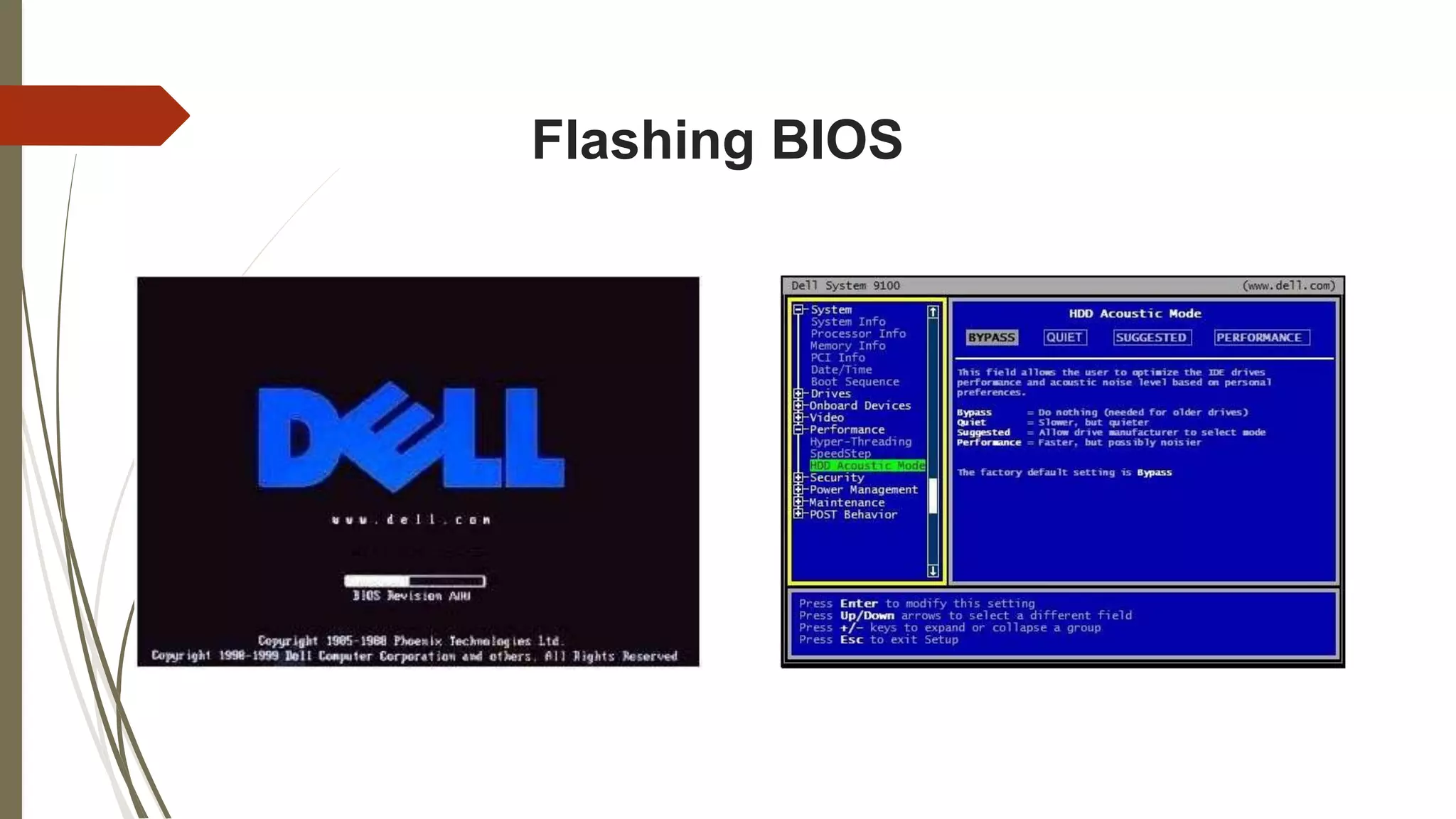
Flashing it means to update it with a new program. If power goes out
while flashing, you can be left with an unbootable computer. The
process is usually done by using either built-in functionality of the old
BIOS, or a MS-DOS-based program (booted from floppy), or more
recently, a Windows program (which comes with a special driver to
obtain access to hardware). Some motherboards come with
secondary firmware on a separate chip, which kicks in if the main
BIOS is corrupted. This firmware usually supports flashing the BIOS
from a file in a CD or floppy disk.
Flashing BIOS
Conclusion
Computer hardware is the collection of physical components that
constitute a computer system. Computer hardware is the
physical parts or components of a computer, such as monitor,
keyboard, computer data storage, graphic card, sound card,
motherboard, and so on, all of which are tangible objects. By
contrast, software is instructions that can be stored and run by
hardware.
Thank You

Computer hardware and maintenance

  • 1.
  • 2.
    VIRUS Sl. No# NameID Email 1 Md. Ohidul Islam (01676661706) 2 Md. Imran Khan 3 Kamrun Nahar Liza 4 Abdul Hai Aimon 5 Tamjid Abedin Khan 6 Kazi Shafkat Meraz Britta
  • 3.
    Content  Introduction  MotherboardElements  Installing Motherboard  Installing CPU  Inserting Memory Module  Installing Hard Disk  Hardware Maintenance  Boot Disk  Formatting  Partitioning  Cables and Connectors  Computer Connectors  Network Connector  Audio and Video Connector  BIOS Optimization  Flashing BIOS  Conclusion
  • 4.
    Introduction The motherboard (alsoknown as main board, system board, planar board or logic board, or colloquially) is the main circuit board inside the PC. It holds the processor, memory and expansion slots and connects directly or indirectly to every part of the PC. It's made up of a chipset, some code in ROM and the various interconnections or buses.
  • 5.
  • 6.
  • 7.
    Installing Motherboard  1Unpack the board:  Measure blanking plate
  • 8.
    Installing Motherboard  Removeunnecessary bits  Install the blanking plate
  • 9.
    Installing Motherboard  Measurewhere the motherboard goes  Slide the motherboard into place
  • 10.
  • 11.
    Installing CPU  Selectthe perfect CPU Model  Remove the CPU Fan  Open the CPU Socket  Install the CPU
  • 12.
    Inserting Memory Module There are various types of random access memory. The latest motherboards are equipped with DDR2 or DDR memory. Some are even equipped with RAM Bus memory. The oldest ones actually have SDRAM connectors, or even EDO RAM connectors.  It is generally impossible to insert non-supported RAM into the motherboard as each memory type has one or several notches that prevent it from being inserted into the wrong slot type.
  • 13.
    Inserting Memory Module Toinsert DDR, RAM Bus or SD RA ,memory modules just pull open the clips located at each end of the slot, place the memory module straight down into the slot, making sure it is in the correct position (one or more notches between the pins prevent the module from being inserted the wrong way around).
  • 14.
    Installing Hard Disk Remove the computer's casing for a desktop computer.  Unscrew and remove the casing of the tower where the CPU is located.  In a desktop computer, there might be space to add another hard drive without disconnecting the old one.  Connect the new hard drive and set it to primary if desired Remove the old hard drive after it has been disconnected, and connect the new one with the appropriate cables.  The hard drive will specify whether it should be connected to the IDE or the SATA hard drive.  In a desktop computer, jumper pins can be used to set one of the hard drives as the primary hard drive.
  • 15.
  • 16.
    Hardware Maintenance Computer hardwaremaintenance involves taking care of the computer's physical components, such as its keyboard, hard drive and internal CD or DVD drives. Cleaning the computer, keeping its fans free from dust, and defragmenting its hard drives regularly are all parts of a computer hardware maintenance program.
  • 17.
    Boot Disk  Removabledigital data  Run (boot) an operating system or utility program.  The computer must have a built-in program  CD-ROMs are the most common forms of media used, but other media, such as magnetic or paper tape drives, zip drives, and more recently USB flash drives can be used.  Boot disks are used for • Operating system installation • Data recovery • Data purging
  • 18.
  • 19.
    Formatting When you firstset up a hard drive for use with a computer, you have to format it using a file system. Different operating systems (like Windows, Mac OS X, and Linux) use different file systems to organize and store data, so you need to use the file system most applicable for your needs.
  • 20.
    Formatting Here are afew of the more popular file systems you'll see NTFS: This is Windows' default file system. Windows can read and write to NTFS-formatted drives. FAT32: FAT32 is an older file system. You can't install newer versions of Windows on a FAT32 system, but it can be handy for external drives since it can be read and written to by Windows, OS X, and Linux. ExFAT: ExFAT is less commonly used, but is similar to FAT32 without the downsides. Both Windows and OS X can read and write ExFAT-formatted drives, and it can store files over 4GB. This makes it ideal for flash drives.
  • 21.
    Partitioning  Disk partitioningor disk slicing is the creation of one or more regions on a hard disk or other secondary storage, so that an operating system can manage information in each region separately.  We can divide your hard drive into multiple partitions.  We can create separate system & utility, recovery, Windows, or data partitions.
  • 22.
    Cables and Connectors Computer cables are confusing to most users.  Here’s a visual guide to help you quickly identify all the common cable and connectors that came bundled with your computers, mobile phones and other electronic gadgets. You may also refer to this guide for ideas on how to hook different devices using commonly available connectors and converters.
  • 23.
    Computer Connectors  ACPower, Mic/Line Input, Speaker/Headphone Output, USB, Ethernet, VGA, Serial RS-232, eSATA, Parallel DB25, Display port .
  • 24.
    Monitor Connectors S-VideoConnector Serial Printer Connector Parallel Printer Connector
  • 25.
    Network Connector A computernetwork or data network is a telecommunications network which allows nodes to share resources. In computer networks, networked computing devices exchange data with each other using a data link. The connections between nodes are established using either cable media or wireless media.
  • 26.
    Audio and VideoConnector  Most speakers and microphones can connect to the computer with these audio cables. The microphone port on your computer is usually pink while the speaker port, where you insert the stereo audio cable, is colored green. Some computers have additional TSR audio ports colored black, grey, and gold; these are for rear, front, and center/subwoofer output, respectively.  : One of the most common video connectors for computer monitors and high-definition TVs is the VGA cable. A standard VGA connector has 15- pins and other than connecting a computer to a monitor, you may also use a VGA cable to connect your laptop to a TV screen or a projector.
  • 27.
  • 28.
    BIOS Optimization The BIOS( Basic Input/output System and also known as the System BIOS, ROM BIOS or PC BIOS) is a type of firmware used to perform hardware initialization during the booting process (power-on startup) on IBM PC compatible computers, and to provide runtime services for operating systems and programs. The BIOS firmware is built into personal computers (PCs), and it is the first software they run when powered on.
  • 29.
  • 30.
    Flashing BIOS Flashing itmeans to update it with a new program. If power goes out while flashing, you can be left with an unbootable computer. The process is usually done by using either built-in functionality of the old BIOS, or a MS-DOS-based program (booted from floppy), or more recently, a Windows program (which comes with a special driver to obtain access to hardware). Some motherboards come with secondary firmware on a separate chip, which kicks in if the main BIOS is corrupted. This firmware usually supports flashing the BIOS from a file in a CD or floppy disk.
  • 31.
  • 32.
    Conclusion Computer hardware isthe collection of physical components that constitute a computer system. Computer hardware is the physical parts or components of a computer, such as monitor, keyboard, computer data storage, graphic card, sound card, motherboard, and so on, all of which are tangible objects. By contrast, software is instructions that can be stored and run by hardware.
  • 33.