1
WordPress: Tips & Tricks
Jon Bishop"
Kurt Eng
June 1st, 2013
2
Tips & Tricks
• Best Practices
•  Security
•  Backups
•  SEO
•  Upgrades
• Child Theming
• Caching
Best Practices
•  Security
•  Backups
•  SEO
•  Upgrades
•  Managing Content
3
Security
•  Upgrade WordPress core, plugins, and themes!
•  Password strength across all entry points (Hosting control panel, FTP,
WordPress admin)
•  Don’t use default username “admin”
•  Download code directly wordpress.org
•  Public WiFi caution: your traffic is probably not secure
•  Disable unused/unneeded features (e.g., remote publishing)
•  File permissions (FTP)
4
5
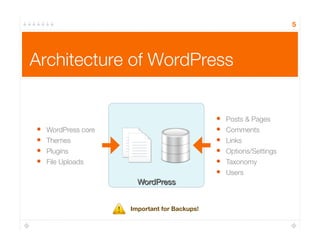
Architecture of WordPress
•  Posts & Pages
•  Comments
•  Links
•  Options/Settings
•  Taxonomy
•  Users
•  WordPress core
•  Themes
•  Plugins
•  File Uploads
Important for Backups!
6
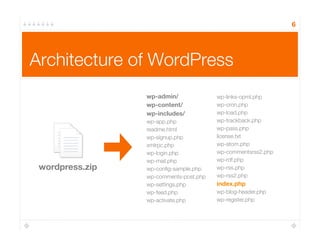
Architecture of WordPress
wordpress.zip
wp-admin/
wp-content/
wp-includes/
wp-app.php
readme.html
wp-signup.php
xmlrpc.php
wp-login.php
wp-mail.php
wp-config-sample.php
wp-comments-post.php
wp-settings.php
wp-feed.php
wp-activate.php
wp-links-opml.php
wp-cron.php
wp-load.php
wp-trackback.php
wp-pass.php
license.txt
wp-atom.php
wp-commentsrss2.php
wp-rdf.php
wp-rss.php
wp-rss2.php
index.php
wp-blog-header.php
wp-register.php
7
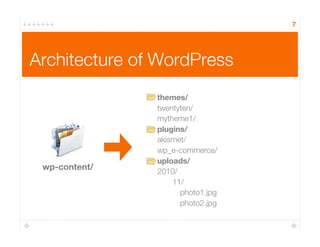
Architecture of WordPress
wp-content/
themes/
twentyten/
mytheme1/
plugins/
akismet/
wp_e-commerce/
uploads/
2010/
11/
photo1.jpg
photo2.jpg
Backups
•  Use a plugin or service (set & forget)
•  BackupBuddy, VaultPress
•  Automated backups provided by your hosting provider (but don’t back up to the
same server your site is hosted!)
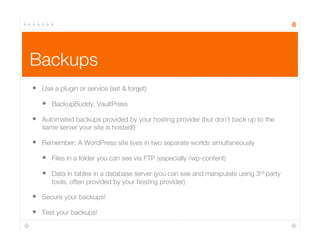
•  Remember: A WordPress site lives in two separate worlds simultaneously
•  Files in a folder you can see via FTP (especially /wp-content)
•  Data in tables in a database server (you can see and manipulate using 3rd party
tools, often provided by your hosting provider)
•  Secure your backups!
•  Test your backups!
8
SEO
•  Beyond the benefits provided by a stock WordPress install…
•  Theme used & author’s ability to write semantic HTML
•  Additional meta data you supply using an SEO plugin
•  How you write and organize your content (HTML, taxonomy, etc.)
•  Permalinks w/ a good link structure (the default works wonders)
•  Google Webmaster Tools (monitor your site’s ranking performance)
9
Upgrades
•  Upgrade often, but maybe not too often
•  Don’t wait for minor updates that fix critical bugs or security issues
•  Wait a bit longer on major releases (3.0, 3.2, 3.3)
•  Follow the WordPress Development Blog: http://wordpress.org/news
•  WordPress, themes & plugins are open-source & community developed: embrace
but be cautious
•  Keep plugins & themes updated, too
•  Be careful & mindful of what files you’ve changed (ideally, don’t change any “core”
files in themes, plugins or WordPress itself)
•  Before upgrading, backup your site & check plugin compatibility
10
Content Tips
•  Chris Brogan
•  http://www.chrisbrogan.com/40-ways-to-deliver-killer-blog-content/
•  http://www.chrisbrogan.com/the-writing-practice/
•  Boston WordPress Meetup presentation: http://blip.tv/file/4368461
•  Chris Penn
•  Upcoming WordCamp Session
11
Content Tips (cont.)
12
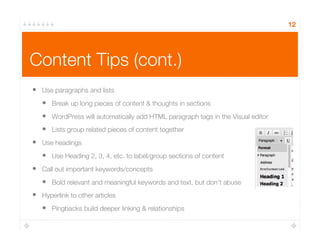
•  Use paragraphs and lists
•  Break up long pieces of content & thoughts in sections
•  WordPress will automatically add HTML paragraph tags in the Visual editor
•  Lists group related pieces of content together 
•  Use headings
•  Use Heading 2, 3, 4, etc. to label/group sections of content
•  Call out important keywords/concepts
•  Bold relevant and meaningful keywords and text, but don’t abuse
•  Hyperlink to other articles
•  Pingbacks build deeper linking & relationships
Content Tips (cont.)
13
•  Spell-check & proof
•  Spell-check plugins
•  Post as “pending” and have other preview
•  Think before you post
•  Beware: ranting on blogs is commonplace today
•  Once it’s published, it’s syndicated via RSS, reblogged, tweeted, indexed by SEs
& directories…
•  Write about what you like
•  Don’t force yourself to write about uninteresting things, enjoy the experience.
•  Avoid excess slang and localized terms
Content Tips (cont.)
14
•  Don’t hide your emotions
•  If you have to, remain anonymous but voice your opinions (take a stand!)
•  Show your readers your passion & seek to create good discussion
•  Consider your readers/audience
•  Who’s reading? Is your content useful to that person/group? Is it appropriate?
•  How often will you post? Consider your audience’s attention span vs. your average article length?
•  Make use of comments (even the nasty ones)
•  Feedback can be rewarding and useful, whether it’s praise or constructive criticism. 
•  Worry about content first, then blog design, features, etc.
•  Content is king! Build an audience/readership first. Get visitors to subscribe via RSS and email
(increase repeat visits).
•  Your site will likely undergo many design and functional iterations anyway.
Content Tips (cont.)
15
•  Use rich multimedia (images, audio, video, maps)
•  The make your content pages more colorful, break up lengthy copy, and present information in a
visual (and often more easily interpreted) ways
•  Keep writing!
•  Don’t stop publishing content
•  Writer’s block could mean you’re holding back on something
•  Browse and subscribe to others’ blogs for inspiration and motivation
•  Write everywhere
•  You can publish to your WordPress blog from your mobile phone, your iPad, popular
social web apps like Facebook and Twitter, email, and desktop applications
16
Child Themes
•  Inherit the functionality of a parent theme
•  Typically override:
•  Styling (colors, fonts, margin/padding)
•  Addition or removal of functionality
•  Templates
•  A good way to modify third party themes without hacking the original
code
•  Provide several flavors of a parent theme
•  Video of Jonathan May’s presentation: http://youtu.be/t8npHrg-teI
17
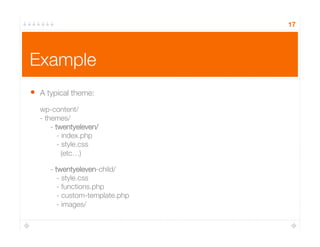
Example
•  A typical theme:
wp-content/"
- themes/"

- twentyeleven/"

 - index.php"

 - style.css"

 (etc…)

- twentyeleven-child/"

 - style.css"

 - functions.php"

 - custom-template.php"

 - images/
18
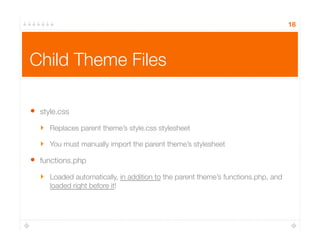
Child Theme Files
•  style.css
‣  Replaces parent theme’s style.css stylesheet
‣  You must manually import the parent theme’s stylesheet
•  functions.php
‣  Loaded automatically, in addition to the parent theme’s functions.php, and
loaded right before it!
19
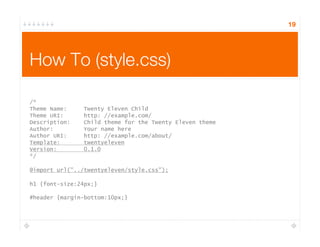
How To (style.css)
/*
Theme Name: Twenty Eleven Child
Theme URI: http: //example.com/
Description: Child theme for the Twenty Eleven theme
Author: Your name here
Author URI: http: //example.com/about/
Template: twentyeleven
Version: 0.1.0
*/
@import url("../twentyeleven/style.css");
h1 {font-size:24px;}
#header {margin-bottom:10px;}
20
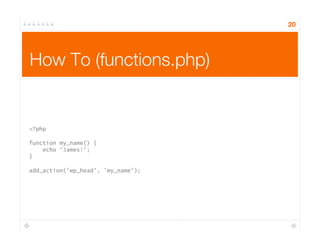
How To (functions.php)
<?php
function my_name() {
echo ‘James!’;
}
add_action('wp_head', ’my_name');
21
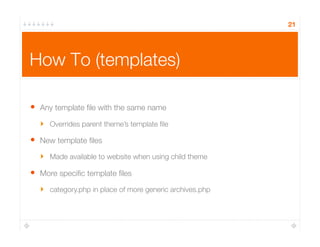
How To (templates)
•  Any template file with the same name
‣  Overrides parent theme’s template file
•  New template files
‣  Made available to website when using child theme
•  More specific template files
‣  category.php in place of more generic archives.php
22
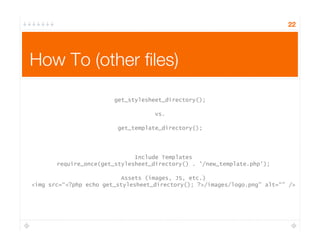
How To (other files)
get_stylesheet_directory();
vs.
get_template_directory();
Include Templates
require_once(get_stylesheet_directory() . '/new_template.php');
Assets (images, JS, etc.)
<img src=“<?php echo get_stylesheet_directory(); ?>/images/logo.png” alt=“” />
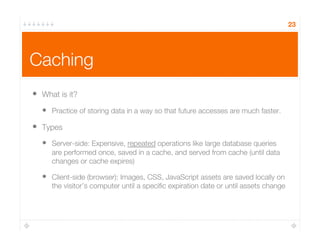
Caching
•  What is it?
•  Practice of storing data in a way so that future accesses are much faster.
•  Types
•  Server-side: Expensive, repeated operations like large database queries
are performed once, saved in a cache, and served from cache (until data
changes or cache expires)
•  Client-side (browser): Images, CSS, JavaScript assets are saved locally on
the visitor’s computer until a specific expiration date or until assets change
23
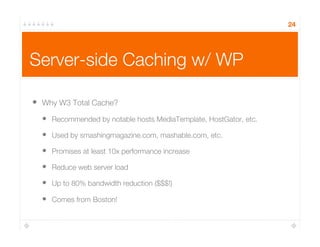
Server-side Caching w/ WP
•  Why W3 Total Cache?
•  Recommended by notable hosts MediaTemplate, HostGator, etc.
•  Used by smashingmagazine.com, mashable.com, etc.
•  Promises at least 10x performance increase
•  Reduce web server load
•  Up to 80% bandwidth reduction ($$$!)
•  Comes from Boston!
24
Why W3 Total Cache?
•  Server & client side caching tools for WordPress
•  Recommended by notable hosts MediaTemplate, HostGator, etc.
•  Used by smashingmagazine.com, mashable.com, etc.
•  Promises at least 10x performance increase
•  Reduce web server load
•  Up to 80% bandwidth reduction ($$$!)
•  Comes from Boston!
25
Demo
26
HostGator
•  Cheaper hosting with unlimited storage, bandwidth and domains
•  Great if you plan on starting more than 1 WordPress site
•  Plenty of support for the server and you don’t need to have WordPress on
it (self-install)
•  Lots of software, room to experiment!
27
Use code TechDayCamp for 25% discount
WP-Engine
•  WordPress only hosting
•  Cheap, integrated, automatic backups and updates
•  Set it and forget it!
•  Secure, fast and reliable
28
Use code WPMeetupBoston2013 at 
http://j.mp/boswpshop for 1 month free
Thank You
29
Jon Bishop
Twitter: @jondbishop
http://johbishop.com
Kurt Eng
Twitter: @kurteng
http://kurteng.com

WordPress Intermediate Workshop

  • 1.
    1 WordPress: Tips &Tricks Jon Bishop" Kurt Eng June 1st, 2013
  • 2.
    2 Tips & Tricks • BestPractices •  Security •  Backups •  SEO •  Upgrades • Child Theming • Caching
  • 3.
    Best Practices •  Security • Backups •  SEO •  Upgrades •  Managing Content 3
  • 4.
    Security •  Upgrade WordPresscore, plugins, and themes! •  Password strength across all entry points (Hosting control panel, FTP, WordPress admin) •  Don’t use default username “admin” •  Download code directly wordpress.org •  Public WiFi caution: your traffic is probably not secure •  Disable unused/unneeded features (e.g., remote publishing) •  File permissions (FTP) 4
  • 5.
    5 Architecture of WordPress • Posts & Pages •  Comments •  Links •  Options/Settings •  Taxonomy •  Users •  WordPress core •  Themes •  Plugins •  File Uploads Important for Backups!
  • 6.
  • 7.
  • 8.
    Backups •  Use aplugin or service (set & forget) •  BackupBuddy, VaultPress •  Automated backups provided by your hosting provider (but don’t back up to the same server your site is hosted!) •  Remember: A WordPress site lives in two separate worlds simultaneously •  Files in a folder you can see via FTP (especially /wp-content) •  Data in tables in a database server (you can see and manipulate using 3rd party tools, often provided by your hosting provider) •  Secure your backups! •  Test your backups! 8
  • 9.
    SEO •  Beyond thebenefits provided by a stock WordPress install… •  Theme used & author’s ability to write semantic HTML •  Additional meta data you supply using an SEO plugin •  How you write and organize your content (HTML, taxonomy, etc.) •  Permalinks w/ a good link structure (the default works wonders) •  Google Webmaster Tools (monitor your site’s ranking performance) 9
  • 10.
    Upgrades •  Upgrade often,but maybe not too often •  Don’t wait for minor updates that fix critical bugs or security issues •  Wait a bit longer on major releases (3.0, 3.2, 3.3) •  Follow the WordPress Development Blog: http://wordpress.org/news •  WordPress, themes & plugins are open-source & community developed: embrace but be cautious •  Keep plugins & themes updated, too •  Be careful & mindful of what files you’ve changed (ideally, don’t change any “core” files in themes, plugins or WordPress itself) •  Before upgrading, backup your site & check plugin compatibility 10
  • 11.
    Content Tips •  ChrisBrogan •  http://www.chrisbrogan.com/40-ways-to-deliver-killer-blog-content/ •  http://www.chrisbrogan.com/the-writing-practice/ •  Boston WordPress Meetup presentation: http://blip.tv/file/4368461 •  Chris Penn •  Upcoming WordCamp Session 11
  • 12.
    Content Tips (cont.) 12 • Use paragraphs and lists •  Break up long pieces of content & thoughts in sections •  WordPress will automatically add HTML paragraph tags in the Visual editor •  Lists group related pieces of content together •  Use headings •  Use Heading 2, 3, 4, etc. to label/group sections of content •  Call out important keywords/concepts •  Bold relevant and meaningful keywords and text, but don’t abuse •  Hyperlink to other articles •  Pingbacks build deeper linking & relationships
  • 13.
    Content Tips (cont.) 13 • Spell-check & proof •  Spell-check plugins •  Post as “pending” and have other preview •  Think before you post •  Beware: ranting on blogs is commonplace today •  Once it’s published, it’s syndicated via RSS, reblogged, tweeted, indexed by SEs & directories… •  Write about what you like •  Don’t force yourself to write about uninteresting things, enjoy the experience. •  Avoid excess slang and localized terms
  • 14.
    Content Tips (cont.) 14 • Don’t hide your emotions •  If you have to, remain anonymous but voice your opinions (take a stand!) •  Show your readers your passion & seek to create good discussion •  Consider your readers/audience •  Who’s reading? Is your content useful to that person/group? Is it appropriate? •  How often will you post? Consider your audience’s attention span vs. your average article length? •  Make use of comments (even the nasty ones) •  Feedback can be rewarding and useful, whether it’s praise or constructive criticism. •  Worry about content first, then blog design, features, etc. •  Content is king! Build an audience/readership first. Get visitors to subscribe via RSS and email (increase repeat visits). •  Your site will likely undergo many design and functional iterations anyway.
  • 15.
    Content Tips (cont.) 15 • Use rich multimedia (images, audio, video, maps) •  The make your content pages more colorful, break up lengthy copy, and present information in a visual (and often more easily interpreted) ways •  Keep writing! •  Don’t stop publishing content •  Writer’s block could mean you’re holding back on something •  Browse and subscribe to others’ blogs for inspiration and motivation •  Write everywhere •  You can publish to your WordPress blog from your mobile phone, your iPad, popular social web apps like Facebook and Twitter, email, and desktop applications
  • 16.
    16 Child Themes •  Inheritthe functionality of a parent theme •  Typically override: •  Styling (colors, fonts, margin/padding) •  Addition or removal of functionality •  Templates •  A good way to modify third party themes without hacking the original code •  Provide several flavors of a parent theme •  Video of Jonathan May’s presentation: http://youtu.be/t8npHrg-teI
  • 17.
    17 Example •  A typicaltheme: wp-content/" - themes/" - twentyeleven/" - index.php" - style.css" (etc…) - twentyeleven-child/" - style.css" - functions.php" - custom-template.php" - images/
  • 18.
    18 Child Theme Files • style.css ‣  Replaces parent theme’s style.css stylesheet ‣  You must manually import the parent theme’s stylesheet •  functions.php ‣  Loaded automatically, in addition to the parent theme’s functions.php, and loaded right before it!
  • 19.
    19 How To (style.css) /* ThemeName: Twenty Eleven Child Theme URI: http: //example.com/ Description: Child theme for the Twenty Eleven theme Author: Your name here Author URI: http: //example.com/about/ Template: twentyeleven Version: 0.1.0 */ @import url("../twentyeleven/style.css"); h1 {font-size:24px;} #header {margin-bottom:10px;}
  • 20.
    20 How To (functions.php) <?php functionmy_name() { echo ‘James!’; } add_action('wp_head', ’my_name');
  • 21.
    21 How To (templates) • Any template file with the same name ‣  Overrides parent theme’s template file •  New template files ‣  Made available to website when using child theme •  More specific template files ‣  category.php in place of more generic archives.php
  • 22.
    22 How To (otherfiles) get_stylesheet_directory(); vs. get_template_directory(); Include Templates require_once(get_stylesheet_directory() . '/new_template.php'); Assets (images, JS, etc.) <img src=“<?php echo get_stylesheet_directory(); ?>/images/logo.png” alt=“” />
  • 23.
    Caching •  What isit? •  Practice of storing data in a way so that future accesses are much faster. •  Types •  Server-side: Expensive, repeated operations like large database queries are performed once, saved in a cache, and served from cache (until data changes or cache expires) •  Client-side (browser): Images, CSS, JavaScript assets are saved locally on the visitor’s computer until a specific expiration date or until assets change 23
  • 24.
    Server-side Caching w/WP •  Why W3 Total Cache? •  Recommended by notable hosts MediaTemplate, HostGator, etc. •  Used by smashingmagazine.com, mashable.com, etc. •  Promises at least 10x performance increase •  Reduce web server load •  Up to 80% bandwidth reduction ($$$!) •  Comes from Boston! 24
  • 25.
    Why W3 TotalCache? •  Server & client side caching tools for WordPress •  Recommended by notable hosts MediaTemplate, HostGator, etc. •  Used by smashingmagazine.com, mashable.com, etc. •  Promises at least 10x performance increase •  Reduce web server load •  Up to 80% bandwidth reduction ($$$!) •  Comes from Boston! 25
  • 26.
  • 27.
    HostGator •  Cheaper hostingwith unlimited storage, bandwidth and domains •  Great if you plan on starting more than 1 WordPress site •  Plenty of support for the server and you don’t need to have WordPress on it (self-install) •  Lots of software, room to experiment! 27 Use code TechDayCamp for 25% discount
  • 28.
    WP-Engine •  WordPress onlyhosting •  Cheap, integrated, automatic backups and updates •  Set it and forget it! •  Secure, fast and reliable 28 Use code WPMeetupBoston2013 at http://j.mp/boswpshop for 1 month free
  • 29.
    Thank You 29 Jon Bishop Twitter:@jondbishop http://johbishop.com Kurt Eng Twitter: @kurteng http://kurteng.com