Subject: Information Technology
Instructor: Mr. Ryan Francis
Date: January 5-9, 2015
Unit 1: Health & Safety
Maintaining a computer involves three
things: keeping it
a) physically clean
b) protecting it from malware
c) backing up important files
When dealing with computers, dust isn't
just unattractive—it can destroy parts
of your computer. By cleaning your
computer regularly, you can help
to keep it working properly and avoid
expensive repairs.
A dirty keyboard doesn't look nice and
can cause your keyboard to not
work properly. Dust, food, liquid, and
other particles can get stuck
underneath the keys, which can prevent
them from working properly. The
following steps are basic cleaning
tips that can help keep your keyboard
clean.
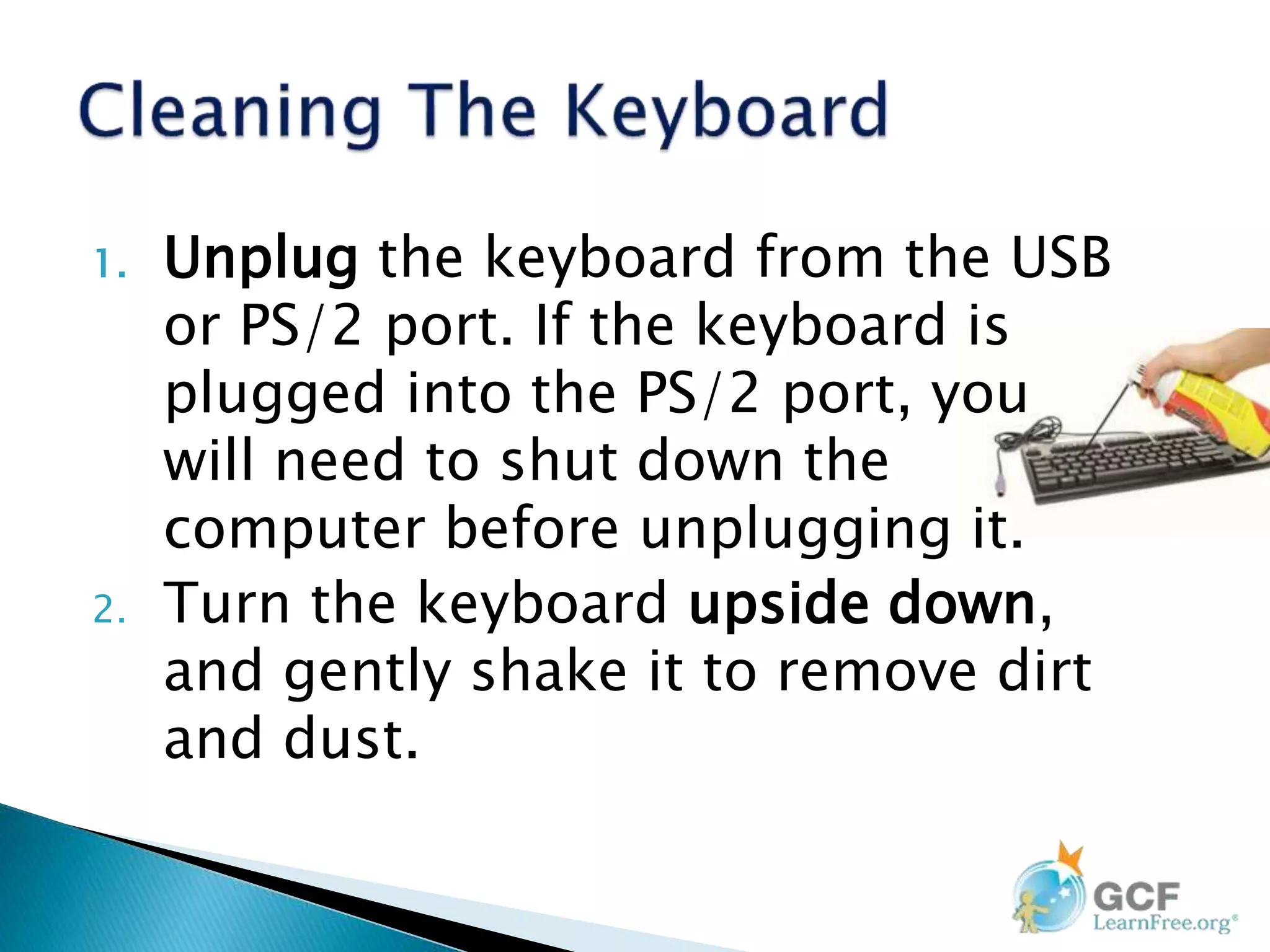
1. Unplug the keyboard from the USB
or PS/2 port. If the keyboard is
plugged into the PS/2 port, you
will need to shut down the
computer before unplugging it.
2. Turn the keyboard upside down,
and gently shake it to remove dirt
and dust.
3. Use a can of compressed air to clean
between the keys.
4. Moisten a cotton cloth or paper towel with
rubbing alcohol, and use it to clean the
tops of the keys. Do not pour alcohol or
any other liquid directly onto the keys.
5. Reconnect the keyboard to the computer
once it is dry. If you are connecting it to a
PS/2 port, you will need to connect
it before turning on the computer.
There are two main types of
mice: optical and mechanical. Each is
cleaned in basically the same way,
although the mechanical mouse
requires a bit more work.
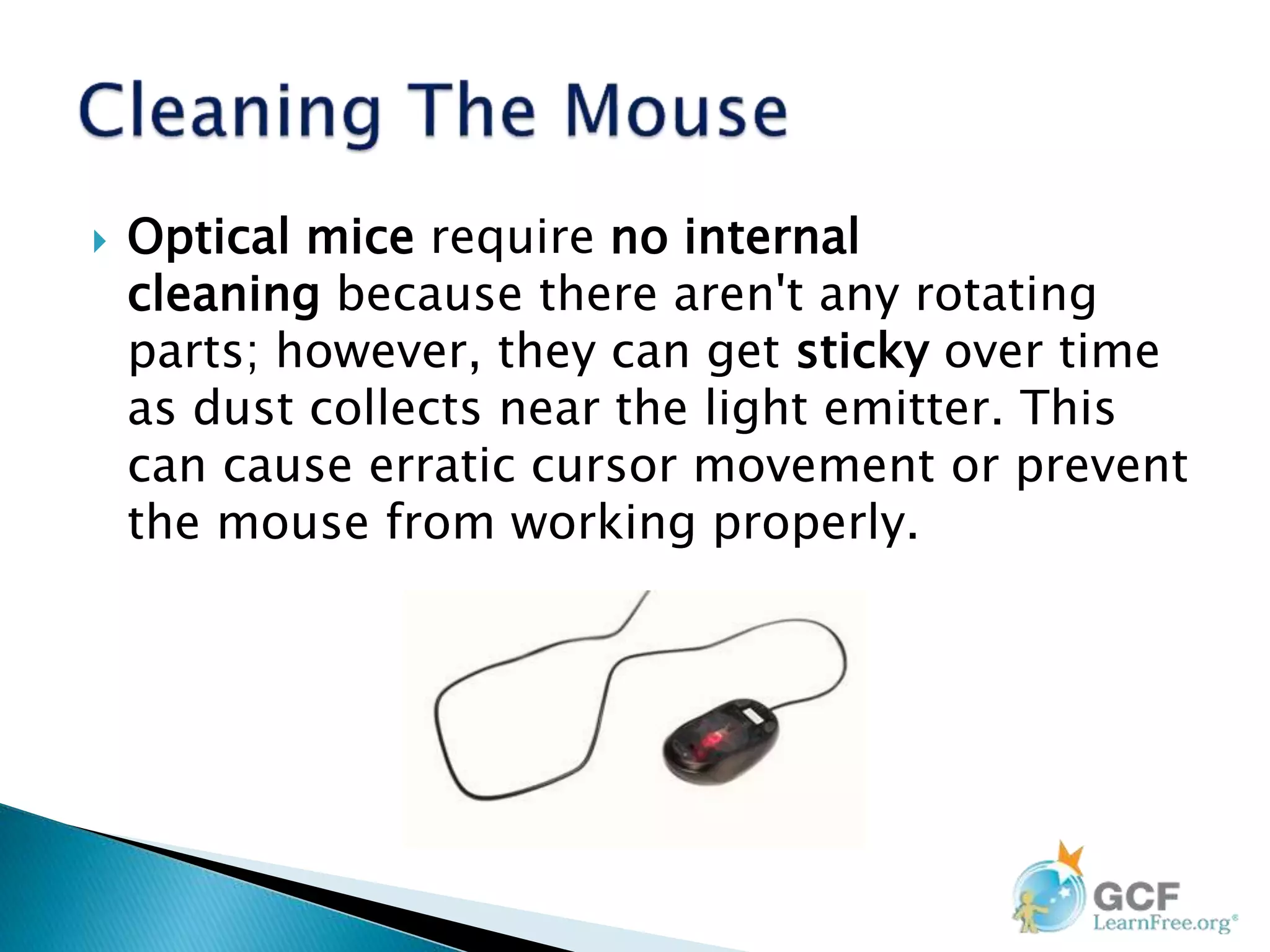
 Optical mice require no internal
cleaning because there aren't any rotating
parts; however, they can get sticky over time
as dust collects near the light emitter. This
can cause erratic cursor movement or prevent
the mouse from working properly.
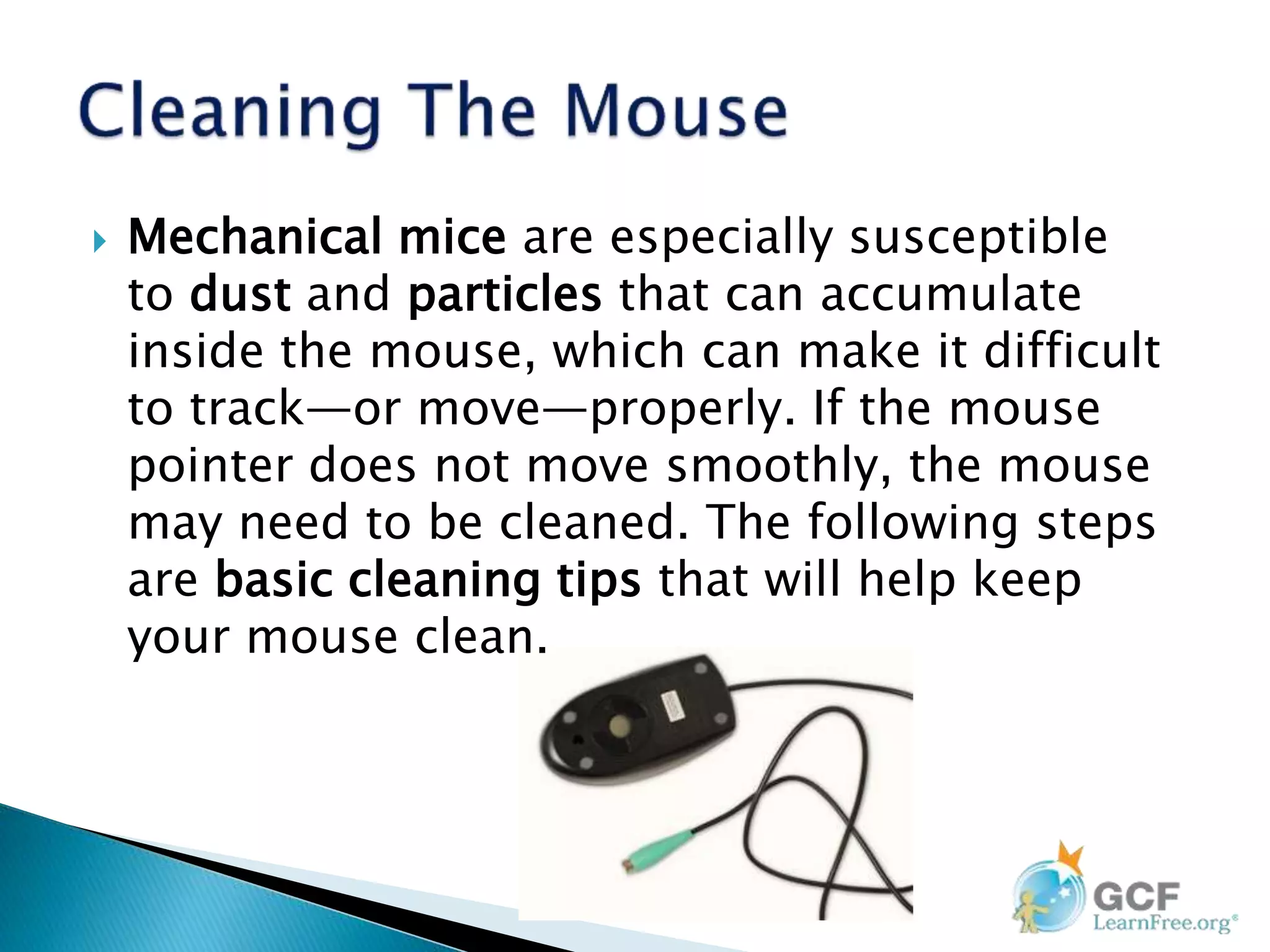
 Mechanical mice are especially susceptible
to dust and particles that can accumulate
inside the mouse, which can make it difficult
to track—or move—properly. If the mouse
pointer does not move smoothly, the mouse
may need to be cleaned. The following steps
are basic cleaning tips that will help keep
your mouse clean.
1. Unplug the mouse from the USB or PS/2
port. If the mouse is plugged into the PS/2
port, you will need to shut down the
computer before unplugging it.
2. Moisten a cotton cloth with rubbing alcohol,
and use it to clean the top and bottom of
the mouse.
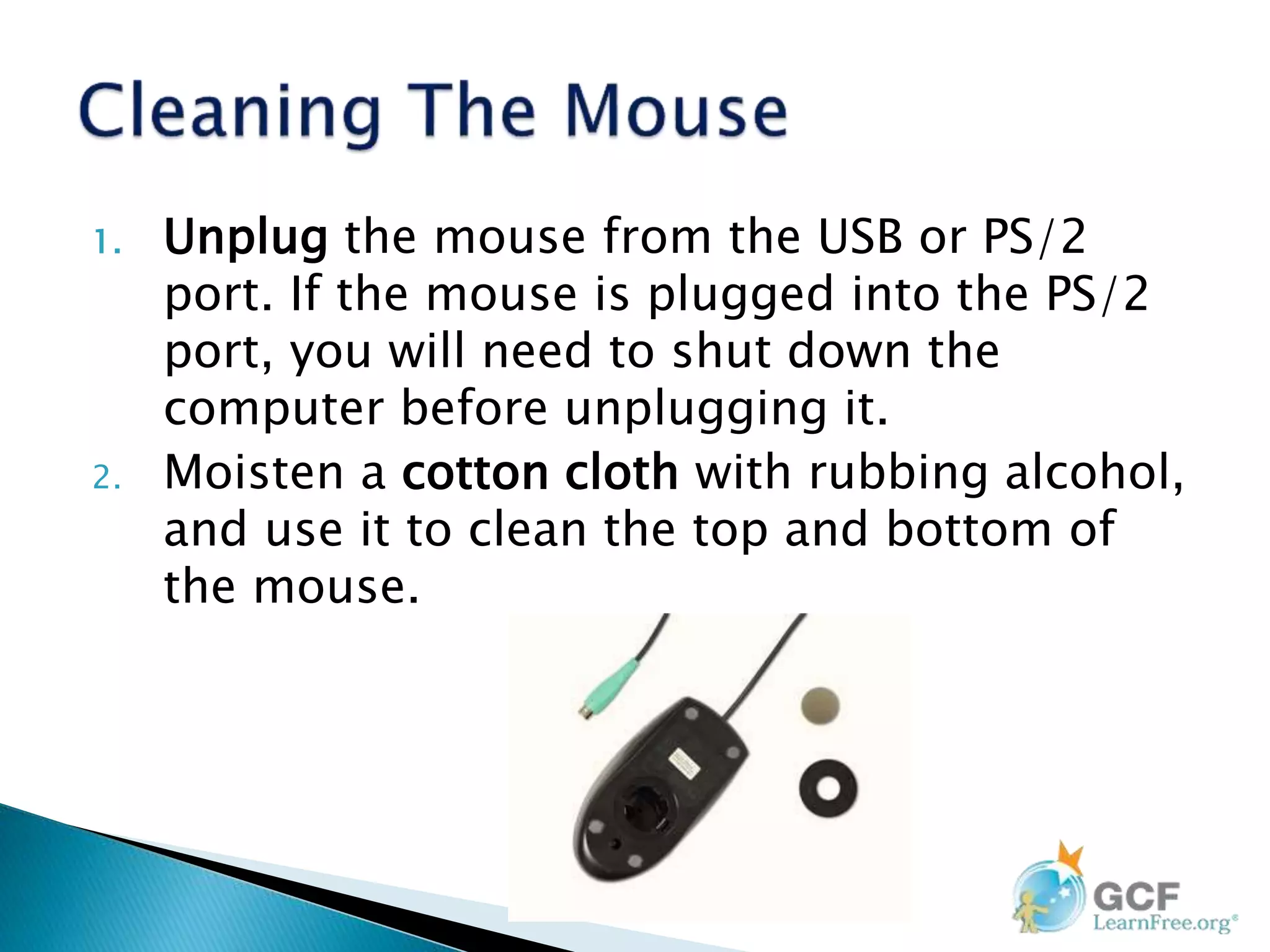
3. If you have a mechanical mouse, remove
the tracking ball by turning the ball-cover
ring counterclockwise. Then clean the
tracking ball and the inside of the mouse
with a cotton cloth moistened with rubbing
alcohol.
4. Let all of the parts dry before reassembling
and reconnecting the mouse. If you are
connecting it to a PS/2 port, you will need
to connect it before turning on the
computer.
 Dirt, fingerprints, and dust can make
your computer screen difficult to read;
however, it's easy to clean your screen
when needed.
 The safest method is simply to use
a soft clean cloth moistened with
water.
Do not use glass cleaner to clean a monitor. Many screens have
anti-glare coatings that can be damaged by glass cleaner.
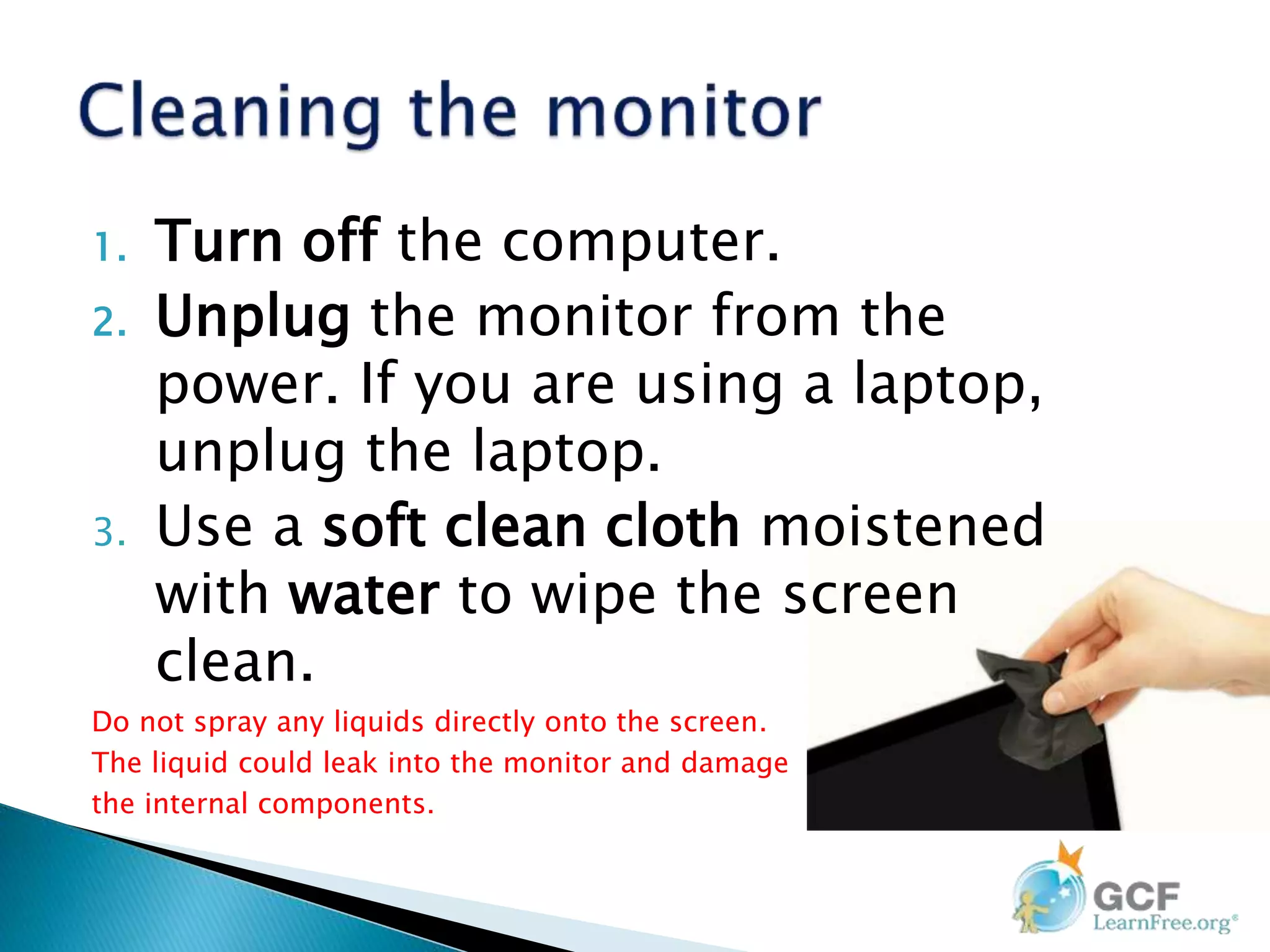
1. Turn off the computer.
2. Unplug the monitor from the
power. If you are using a laptop,
unplug the laptop.
3. Use a soft clean cloth moistened
with water to wipe the screen
clean.
Do not spray any liquids directly onto the screen.
The liquid could leak into the monitor and damage
the internal components.
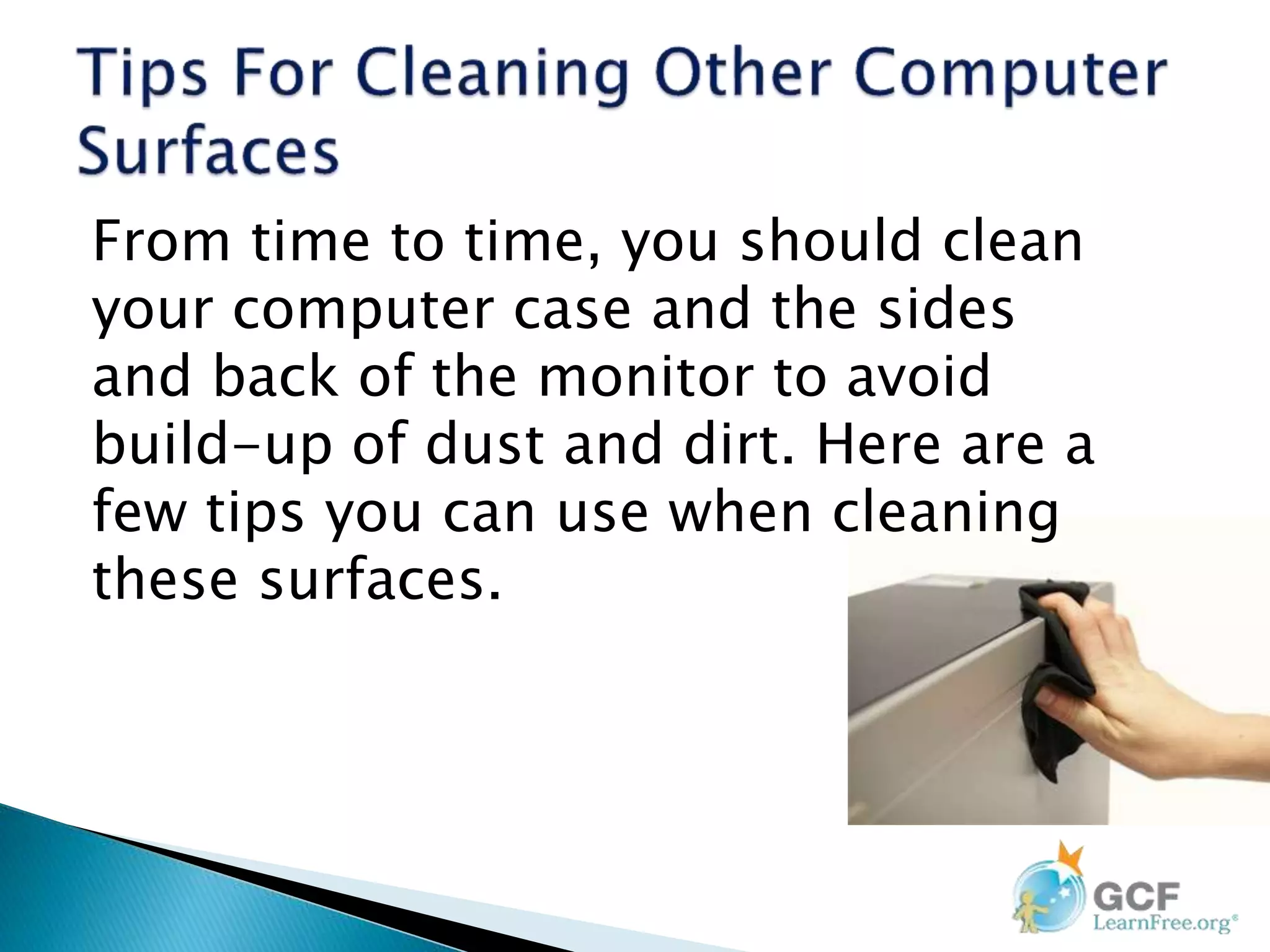
From time to time, you should clean
your computer case and the sides
and back of the monitor to avoid
build-up of dust and dirt. Here are a
few tips you can use when cleaning
these surfaces.
1. Dust is your computer's main enemy.
Use an antistatic wipe to lightly dust
your computer casing. Don't
use furniture cleaners or strong
solvents.
2. Use a can of compressed air with a
narrow nozzle to blow out debris
from the air intake slots.
 Spray cleaning solution—like diluted
ammonia cleaner or glass cleaner—on
a paper towel or antistatic wipe. Clean
the monitor housing and case—not the
monitor screen—by wiping in a downward
motion.
 A safe cleaning solution for computer
surfaces—not computer screens—is ammonia
diluted with water or glass cleaner comprised
mostly of ammonia and water (check the
label). The milder the solution, the better.
1. Don't restrict airflow around your computer.
A computer can generate a lot of heat, so
the casing has fans that keep it from
overheating. Avoid stacking papers, books,
and other items around your computer.
2. Many computer desks have an enclosed
compartment for the computer case. If you
have this type of desk, you may want to
position the case so it is not against the
back side of the desk. If the compartment
has a door, you may want to leave it open to
improve airflow.
Ergonomics is concerned with the ‘fit’
between people and their tools and
environments. It takes account of the user's
capabilities and limitations in seeking to
ensure that tasks, equipment and the
environment suit each user.
1. Health
2. Safety
3. Protect
4. Maintain
5. Ergonomics
6. Computer lab rules

Lesson 1 computer safety and maintenance

  • 1.
    Subject: Information Technology Instructor:Mr. Ryan Francis Date: January 5-9, 2015 Unit 1: Health & Safety
  • 2.
    Maintaining a computerinvolves three things: keeping it a) physically clean b) protecting it from malware c) backing up important files
  • 4.
    When dealing withcomputers, dust isn't just unattractive—it can destroy parts of your computer. By cleaning your computer regularly, you can help to keep it working properly and avoid expensive repairs.
  • 5.
    A dirty keyboarddoesn't look nice and can cause your keyboard to not work properly. Dust, food, liquid, and other particles can get stuck underneath the keys, which can prevent them from working properly. The following steps are basic cleaning tips that can help keep your keyboard clean.
  • 6.
    1. Unplug thekeyboard from the USB or PS/2 port. If the keyboard is plugged into the PS/2 port, you will need to shut down the computer before unplugging it. 2. Turn the keyboard upside down, and gently shake it to remove dirt and dust.
  • 7.
    3. Use acan of compressed air to clean between the keys. 4. Moisten a cotton cloth or paper towel with rubbing alcohol, and use it to clean the tops of the keys. Do not pour alcohol or any other liquid directly onto the keys. 5. Reconnect the keyboard to the computer once it is dry. If you are connecting it to a PS/2 port, you will need to connect it before turning on the computer.
  • 8.
    There are twomain types of mice: optical and mechanical. Each is cleaned in basically the same way, although the mechanical mouse requires a bit more work.
  • 9.
     Optical micerequire no internal cleaning because there aren't any rotating parts; however, they can get sticky over time as dust collects near the light emitter. This can cause erratic cursor movement or prevent the mouse from working properly.
  • 10.
     Mechanical miceare especially susceptible to dust and particles that can accumulate inside the mouse, which can make it difficult to track—or move—properly. If the mouse pointer does not move smoothly, the mouse may need to be cleaned. The following steps are basic cleaning tips that will help keep your mouse clean.
  • 11.
    1. Unplug themouse from the USB or PS/2 port. If the mouse is plugged into the PS/2 port, you will need to shut down the computer before unplugging it. 2. Moisten a cotton cloth with rubbing alcohol, and use it to clean the top and bottom of the mouse.
  • 12.
    3. If youhave a mechanical mouse, remove the tracking ball by turning the ball-cover ring counterclockwise. Then clean the tracking ball and the inside of the mouse with a cotton cloth moistened with rubbing alcohol. 4. Let all of the parts dry before reassembling and reconnecting the mouse. If you are connecting it to a PS/2 port, you will need to connect it before turning on the computer.
  • 13.
     Dirt, fingerprints,and dust can make your computer screen difficult to read; however, it's easy to clean your screen when needed.  The safest method is simply to use a soft clean cloth moistened with water. Do not use glass cleaner to clean a monitor. Many screens have anti-glare coatings that can be damaged by glass cleaner.
  • 14.
    1. Turn offthe computer. 2. Unplug the monitor from the power. If you are using a laptop, unplug the laptop. 3. Use a soft clean cloth moistened with water to wipe the screen clean. Do not spray any liquids directly onto the screen. The liquid could leak into the monitor and damage the internal components.
  • 15.
    From time totime, you should clean your computer case and the sides and back of the monitor to avoid build-up of dust and dirt. Here are a few tips you can use when cleaning these surfaces.
  • 16.
    1. Dust isyour computer's main enemy. Use an antistatic wipe to lightly dust your computer casing. Don't use furniture cleaners or strong solvents. 2. Use a can of compressed air with a narrow nozzle to blow out debris from the air intake slots.
  • 17.
     Spray cleaningsolution—like diluted ammonia cleaner or glass cleaner—on a paper towel or antistatic wipe. Clean the monitor housing and case—not the monitor screen—by wiping in a downward motion.  A safe cleaning solution for computer surfaces—not computer screens—is ammonia diluted with water or glass cleaner comprised mostly of ammonia and water (check the label). The milder the solution, the better.
  • 18.
    1. Don't restrictairflow around your computer. A computer can generate a lot of heat, so the casing has fans that keep it from overheating. Avoid stacking papers, books, and other items around your computer. 2. Many computer desks have an enclosed compartment for the computer case. If you have this type of desk, you may want to position the case so it is not against the back side of the desk. If the compartment has a door, you may want to leave it open to improve airflow.
  • 19.
    Ergonomics is concernedwith the ‘fit’ between people and their tools and environments. It takes account of the user's capabilities and limitations in seeking to ensure that tasks, equipment and the environment suit each user.
  • 22.
    1. Health 2. Safety 3.Protect 4. Maintain 5. Ergonomics 6. Computer lab rules