WordPress
Plug-ins & Security
Presented by:
Reiko Beach
PodCamp WM - April 2014
Plugins
Plug-ins extend the functionality of
WordPress
● Add new menus & configuration options to the Admin
Dashboard (post types, spam filters, content importing)
● Add new features to the frontend of your website (social
sharing tools)
● Change the way your site is displayed (mobile)
● Collect stats (analytics)
● Automate tasks (backup)
Suggested Free Plugins
 Jetpack
 Disqus/Intense Debate
 Akismet (already built in)
 W3 Total Cache
 WordPress SEO by Yoast
http://wordpress.org/extend/plugins/
Many other plugins freely available!
Some Suggested Plugins
• Gravity Forms ($99 Business)
• Backup Buddy ($80 Personal)
• WordPress SEO by Yoast
• Anti-Spam
• One-Click Child Theme
• WP Database Cleaner
• Anti-Captcha
• Testimonial Widgets
• Woo Sidebars
• Google Analytics Dashboard for WP
What functionality
do you want?
Security
• Always upgrade your
• WordPress Core, plugins and themes
• Steps:
• 1. Backup your site (vaultpress/backup buddy)
• 2. Upgrade your themes and plugins first
• 3. Upgrade WordPress core
Security
• Have strong passwords at all entry points:
• - Hosting control panel
• - FTP
• - WordPress admin (never use “admin”)
• Download code directly from
• wordpress.org whenever possible
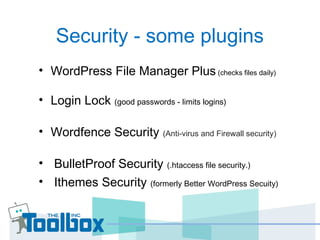
Security - some plugins
• WordPress File Manager Plus (checks files daily)
• Login Lock (good passwords - limits logins)
• Wordfence Security (Anti-virus and Firewall security)
• BulletProof Security (.htaccess file security.)
• Ithemes Security (formerly Better WordPress Secuity)
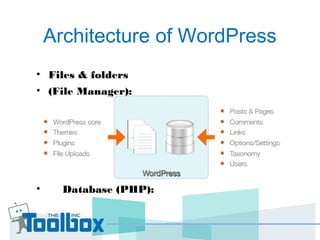
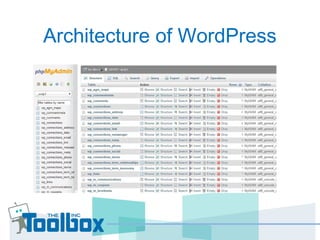
Architecture of WordPress
• Files & folders
• (File Manager):
• Database (PHP):
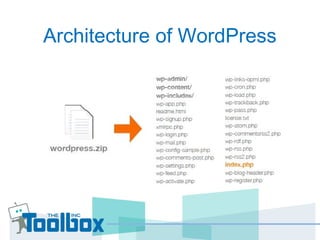
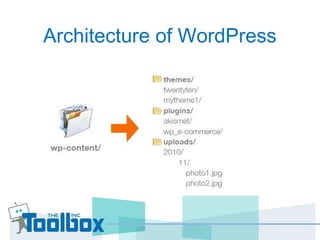
Architecture of WordPress
Backups
Use a plugin or service (automatic) Backup
Buddy or VaultPress -or-
Your Hosting service - just make sure its
not backing up to the same server.
Here’s a recent article about different (free)
ways to backup your site:
http://premium.wpmudev.org/blog/free-wordpress-backup-plugi
Backups
REMEMBER - A WordPress site lives in
two separate places simultaneously
 files in a folder
 data in tables in a database
You need to back up both
Secure your backups
Test your backups
SEO
Beyond the benefits of a stock WordPress install…• 
Additional meta data you supply using an SEO plugin (next
class)• How you write and organize your content (HTML, 
taxonomy, etc.)• Permalinks w/ a good link structure 
•  Google Webmaster Tools (monitor your site’s ranking
performance)
Upgrade your WordPress
Upgrade often
 Don’t wait for minor updates that fix
critical bugs or security issues 3.1.2,
3.1.4
 Wait a bit longer on major releases 3.0,
3.2
Upgrade your WordPress
WordPress, themes & plugins are open-
source & community developed: embrace -
but be cautiousKeep plugins & themes
updatedBe careful of what files you’ve
changed (ideally, don’t change any “core” files in
themes, plugins or WordPress itself)
Upgrade your WordPress
Before upgrading, backup your site & check
plugin compatibility
Questions?
»Twitter: Reikob and
TechDayCamp
»Linkedin: ReikoBeach
»Reiko@thetoolboxinc.com
»phone: 781.987.1655
TRBDesigns.com TheToolboxInc.com
Let’s connect:

WordPress Fav Plugins & Security

  • 1.
    WordPress Plug-ins & Security Presentedby: Reiko Beach PodCamp WM - April 2014
  • 2.
    Plugins Plug-ins extend thefunctionality of WordPress ● Add new menus & configuration options to the Admin Dashboard (post types, spam filters, content importing) ● Add new features to the frontend of your website (social sharing tools) ● Change the way your site is displayed (mobile) ● Collect stats (analytics) ● Automate tasks (backup)
  • 3.
    Suggested Free Plugins Jetpack  Disqus/Intense Debate  Akismet (already built in)  W3 Total Cache  WordPress SEO by Yoast http://wordpress.org/extend/plugins/ Many other plugins freely available!
  • 4.
    Some Suggested Plugins •Gravity Forms ($99 Business) • Backup Buddy ($80 Personal) • WordPress SEO by Yoast • Anti-Spam • One-Click Child Theme • WP Database Cleaner • Anti-Captcha • Testimonial Widgets • Woo Sidebars • Google Analytics Dashboard for WP
  • 5.
  • 6.
    Security • Always upgradeyour • WordPress Core, plugins and themes • Steps: • 1. Backup your site (vaultpress/backup buddy) • 2. Upgrade your themes and plugins first • 3. Upgrade WordPress core
  • 7.
    Security • Have strongpasswords at all entry points: • - Hosting control panel • - FTP • - WordPress admin (never use “admin”) • Download code directly from • wordpress.org whenever possible
  • 8.
    Security - someplugins • WordPress File Manager Plus (checks files daily) • Login Lock (good passwords - limits logins) • Wordfence Security (Anti-virus and Firewall security) • BulletProof Security (.htaccess file security.) • Ithemes Security (formerly Better WordPress Secuity)
  • 9.
    Architecture of WordPress •Files & folders • (File Manager): • Database (PHP):
  • 10.
  • 11.
  • 12.
  • 13.
    Backups Use a pluginor service (automatic) Backup Buddy or VaultPress -or- Your Hosting service - just make sure its not backing up to the same server. Here’s a recent article about different (free) ways to backup your site: http://premium.wpmudev.org/blog/free-wordpress-backup-plugi
  • 14.
    Backups REMEMBER - AWordPress site lives in two separate places simultaneously  files in a folder  data in tables in a database You need to back up both Secure your backups Test your backups
  • 15.
    SEO Beyond the benefitsof a stock WordPress install…•  Additional meta data you supply using an SEO plugin (next class)• How you write and organize your content (HTML,  taxonomy, etc.)• Permalinks w/ a good link structure  •  Google Webmaster Tools (monitor your site’s ranking performance)
  • 16.
    Upgrade your WordPress Upgradeoften  Don’t wait for minor updates that fix critical bugs or security issues 3.1.2, 3.1.4  Wait a bit longer on major releases 3.0, 3.2
  • 17.
    Upgrade your WordPress WordPress,themes & plugins are open- source & community developed: embrace - but be cautiousKeep plugins & themes updatedBe careful of what files you’ve changed (ideally, don’t change any “core” files in themes, plugins or WordPress itself)
  • 18.
    Upgrade your WordPress Beforeupgrading, backup your site & check plugin compatibility
  • 19.
    Questions? »Twitter: Reikob and TechDayCamp »Linkedin:ReikoBeach »Reiko@thetoolboxinc.com »phone: 781.987.1655 TRBDesigns.com TheToolboxInc.com Let’s connect: