TROUBLESHOOTING


       Common Problems and Possible Solutions
TROUBLESHOOTING
ALWAYS!
Save your work,
and save it often!!
Why?
Electricity goes out.
Cables are unplugged.
Computers “lock up”


               Save Your Work!!
TROUBLESHOOTING
Look for the simple cause/solution
first!            Is the power turned on (computer,
                         monitor, printer, etc.?)

                         Is everything plugged in?

                         Is a caps-lock or number-lock
                         pressed (or does one need to be
                         pressed?)


             Keep it Simple…
TROUBLESHOOTING
Passwords:
   •Are you typing the upper and lower-case letters correctly?
   •Is the “Caps-Lock” key turned on or off?

PINs (Personal Identification Numbers)
   •Check your Number-Lock key!

Confusing letters an numbers?
   •Letter: O (capital Oo) or Number:0 (zero)
   •Letter: l (lower-case Ll) or Number: 1 (one)


                Passwords/Logins
TROUBLESHOOTING

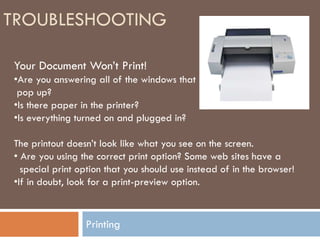
Your Document Won’t Print!
•Are you answering all of the windows that
 pop up?
•Is there paper in the printer?
•Is everything turned on and plugged in?

The printout doesn’t look like what you see on the screen.
• Are you using the correct print option? Some web sites have a
  special print option that you should use instead of in the browser!
•If in doubt, look for a print-preview option.


                 Printing
TROUBLESHOOTING
Your program isn’t responding. It’s “Locked up”.

•Hopefully, you have been saving your work!
•Try to close the program and re-open it.
•Use CONTROL-ALT-DELETE to close the program (See next
slide)
•Reboot (restart) the computer (See upcoming slide!)


             “Locked Up”
TROUBLESHOOTING
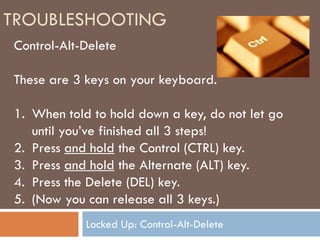
Control-Alt-Delete

These are 3 keys on your keyboard.

1. When told to hold down a key, do not let go
   until you’ve finished all 3 steps!
2. Press and hold the Control (CTRL) key.
3. Press and hold the Alternate (ALT) key.
4. Press the Delete (DEL) key.
5. (Now you can release all 3 keys.)
            Locked Up: Control-Alt-Delete
TROUBLESHOOTING
If you do not
immediately see a
window like this, you
might need to click a
button that says “Task
List”

Highlight your program
on the list, and then click
“end task”
              Locked Up: Control-Alt-Delete
TROUBLESHOOTING
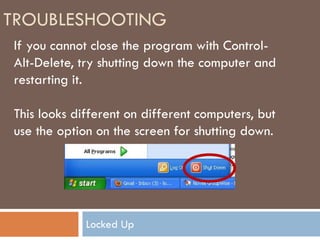
If you cannot close the program with Control-
Alt-Delete, try shutting down the computer and
restarting it.

This looks different on different computers, but
use the option on the screen for shutting down.


             Locked Up
TROUBLESHOOTING


  To be very thorough, use the SHUTDOWN
  option, to completely turn off the computer
  (Don’t just use RESTART.)

           Locked Up
TROUBLESHOOTING
What if…
The computer will NOT RESPOND AT ALL!!!


            Entire Computer is Locked Up
TROUBLESHOOTING

Sometimes, you’re left with no choice,
and will need to turn off the computer at
the power switch.

Do this as a last resort.

You may need to hold the power button
for a few seconds before the computer
turns off.


               Locked Up
TROUBLESHOOTING
Did we mention…


ALWAYS!
Save your work
often!!

        Save your work!!
TROUBLESHOOTING
Mistakes (or “D’OH!”)
When using Microsoft Office (Word, Excel, Powerpoint…)
and similar programs.


                               Meet your new
                               friend…

                               The UNDO button!

             Meet the “Undo” Button!
TROUBLESHOOTING
UNDO
If you’re working in a program such as Microsoft Word, and you do
something accidentally, such as…
•Delete text
•Change format (size, shape, etc) of your text
•Not sure what you did, but you don’t like it!

Click UNDO.
•Must be soon after you’ve made the mistake, though!


                Undo
TROUBLESHOOTING
How do I….

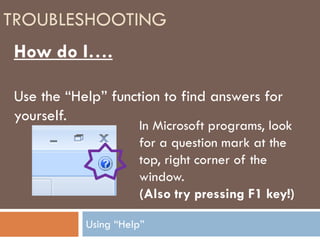
Use the “Help” function to find answers for
yourself.
                     In Microsoft programs, look
                     for a question mark at the
                     top, right corner of the
                     window.
                     (Also try pressing F1 key!)

           Using “Help”
TROUBLESHOOTING


                      Search for what you
                      would like to do with
                      the help window.


       Using “Help”
TROUBLESHOOTING


                      Click on the best
                      matching instructions.


       Using “Help”
TROUBLESHOOTING
                      Follow the instructions!

                       The biggest challenge
                       with “Help”, is often
                       knowing the name of
                       what you want to do!


       Using “Help”

Computer Troubleshooting

  • 1.
    TROUBLESHOOTING Common Problems and Possible Solutions
  • 2.
    TROUBLESHOOTING ALWAYS! Save your work, andsave it often!! Why? Electricity goes out. Cables are unplugged. Computers “lock up” Save Your Work!!
  • 3.
    TROUBLESHOOTING Look for thesimple cause/solution first! Is the power turned on (computer, monitor, printer, etc.?) Is everything plugged in? Is a caps-lock or number-lock pressed (or does one need to be pressed?) Keep it Simple…
  • 4.
    TROUBLESHOOTING Passwords: •Are you typing the upper and lower-case letters correctly? •Is the “Caps-Lock” key turned on or off? PINs (Personal Identification Numbers) •Check your Number-Lock key! Confusing letters an numbers? •Letter: O (capital Oo) or Number:0 (zero) •Letter: l (lower-case Ll) or Number: 1 (one) Passwords/Logins
  • 5.
    TROUBLESHOOTING Your Document Won’tPrint! •Are you answering all of the windows that pop up? •Is there paper in the printer? •Is everything turned on and plugged in? The printout doesn’t look like what you see on the screen. • Are you using the correct print option? Some web sites have a special print option that you should use instead of in the browser! •If in doubt, look for a print-preview option. Printing
  • 6.
    TROUBLESHOOTING Your program isn’tresponding. It’s “Locked up”. •Hopefully, you have been saving your work! •Try to close the program and re-open it. •Use CONTROL-ALT-DELETE to close the program (See next slide) •Reboot (restart) the computer (See upcoming slide!) “Locked Up”
  • 7.
    TROUBLESHOOTING Control-Alt-Delete These are 3keys on your keyboard. 1. When told to hold down a key, do not let go until you’ve finished all 3 steps! 2. Press and hold the Control (CTRL) key. 3. Press and hold the Alternate (ALT) key. 4. Press the Delete (DEL) key. 5. (Now you can release all 3 keys.) Locked Up: Control-Alt-Delete
  • 8.
    TROUBLESHOOTING If you donot immediately see a window like this, you might need to click a button that says “Task List” Highlight your program on the list, and then click “end task” Locked Up: Control-Alt-Delete
  • 9.
    TROUBLESHOOTING If you cannotclose the program with Control- Alt-Delete, try shutting down the computer and restarting it. This looks different on different computers, but use the option on the screen for shutting down. Locked Up
  • 10.
    TROUBLESHOOTING Tobe very thorough, use the SHUTDOWN option, to completely turn off the computer (Don’t just use RESTART.) Locked Up
  • 11.
    TROUBLESHOOTING What if… The computerwill NOT RESPOND AT ALL!!! Entire Computer is Locked Up
  • 12.
    TROUBLESHOOTING Sometimes, you’re leftwith no choice, and will need to turn off the computer at the power switch. Do this as a last resort. You may need to hold the power button for a few seconds before the computer turns off. Locked Up
  • 13.
    TROUBLESHOOTING Did we mention… ALWAYS! Saveyour work often!! Save your work!!
  • 14.
    TROUBLESHOOTING Mistakes (or “D’OH!”) Whenusing Microsoft Office (Word, Excel, Powerpoint…) and similar programs. Meet your new friend… The UNDO button! Meet the “Undo” Button!
  • 15.
    TROUBLESHOOTING UNDO If you’re workingin a program such as Microsoft Word, and you do something accidentally, such as… •Delete text •Change format (size, shape, etc) of your text •Not sure what you did, but you don’t like it! Click UNDO. •Must be soon after you’ve made the mistake, though! Undo
  • 16.
    TROUBLESHOOTING How do I…. Usethe “Help” function to find answers for yourself. In Microsoft programs, look for a question mark at the top, right corner of the window. (Also try pressing F1 key!) Using “Help”
  • 17.
    TROUBLESHOOTING Search for what you would like to do with the help window. Using “Help”
  • 18.
    TROUBLESHOOTING Click on the best matching instructions. Using “Help”
  • 19.
    TROUBLESHOOTING Follow the instructions! The biggest challenge with “Help”, is often knowing the name of what you want to do! Using “Help”