“Computer Maintenance:
Keeping Your System Healthy”
BEST PRACTICES AND TIPS
Introduction
• In today's digital age, computers are an integral part of our lives.
They help us work, connect, and create. But like any valuable tool,
they require care and maintenance to perform at their best.
• Whether you're a casual user or an IT professional, this presentation
will provide valuable insights into preserving your computer's
health and optimizing its performance.
Why Computer Maintenance Matters
• Performance Optimization: Regular maintenance keeps your
computer running smoothly, preventing slowdowns, crashes, and
freezes. It ensures that your system operates at its peak performance.
• Extended Lifespan: Proper care can significantly extend the life of your
computer. By addressing issues early and preventing wear and tear,
you can delay the need for costly replacements.
• Security: Outdated software and neglected maintenance can leave
your computer vulnerable to viruses, malware, and cyberattacks.
Regular updates and security checks are essential to protect your
digital life.
Why Computer Maintenance Matters
• Cost Savings: Preventative maintenance is cost-effective. It's far
less expensive to address minor issues and perform routine
upkeep than to deal with major hardware failures or data recovery
after a catastrophic event.
• User Experience: A well-maintained computer provides a better
user experience. It's more responsive, less frustrating, and allows
you to focus on your tasks rather than troubleshooting problems.
Tools for Cleaning and Maintenance of a Computer
• Cleaning and maintaining your
computer's system unit is essential to
keep it running smoothly and prolong
its lifespan. Here are some tools and
supplies you'll need for this task:
• Compressed Air Canister
It helps remove dust and debris
from the components inside the
system unit. Make sure to use a
canister of compressed air designed
for cleaning electronics.
Tools for Cleaning and Maintenance of a Computer
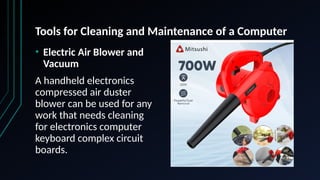
• Electric Air Blower and
Vacuum
A handheld electronics
compressed air duster
blower can be used for any
work that needs cleaning
for electronics computer
keyboard complex circuit
boards.
Tools for Cleaning and Maintenance of a Computer
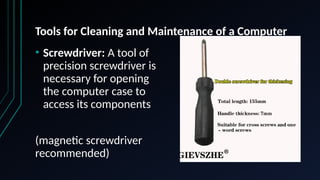
• Screwdriver: A tool of
precision screwdriver is
necessary for opening
the computer case to
access its components
(magnetic screwdriver
recommended)
Tools for Cleaning and Maintenance of a Computer
• Antistatic Wrist Strap:
When working inside your
computer, it's essential to
discharge static electricity
from your body to
prevent damage to
sensitive components. An
antistatic wrist strap or
mat can help with this.
Tools for Cleaning and Maintenance of a Computer
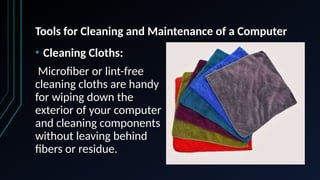
• Cleaning Cloths:
Microfiber or lint-free
cleaning cloths are handy
for wiping down the
exterior of your computer
and cleaning components
without leaving behind
fibers or residue.
Tools for Cleaning and Maintenance of a Computer
• Isopropyl Alcohol:
Isopropyl alcohol is useful
for cleaning various
computer components,
especially if they have
stubborn residue or
thermal paste that needs
to be removed and
reapplied.
Tools for Cleaning and Maintenance of a Computer
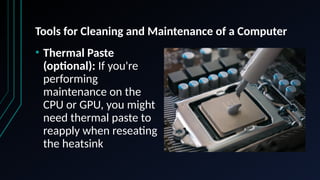
• Thermal Paste
(optional): If you're
performing
maintenance on the
CPU or GPU, you might
need thermal paste to
reapply when reseating
the heatsink
Tools for Cleaning and Maintenance of a Computer
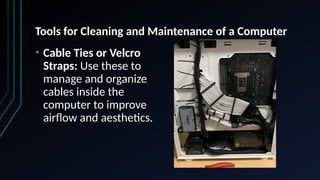
• Cable Ties or Velcro
Straps: Use these to
manage and organize
cables inside the
computer to improve
airflow and aesthetics.
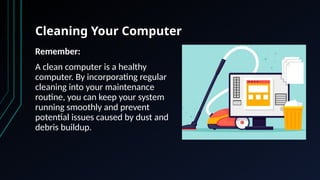
Cleaning Your Computer
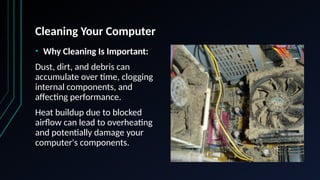
• Why Cleaning Is Important:
Dust, dirt, and debris can
accumulate over time, clogging
internal components, and
affecting performance.
Heat buildup due to blocked
airflow can lead to overheating
and potentially damage your
computer's components.
Cleaning Your Computer
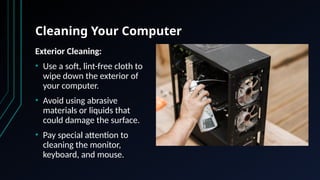
Exterior Cleaning:
• Use a soft, lint-free cloth to
wipe down the exterior of
your computer.
• Avoid using abrasive
materials or liquids that
could damage the surface.
• Pay special attention to
cleaning the monitor,
keyboard, and mouse.
Cleaning Your Computer
Interior Cleaning:
• Turn off and unplug your computer
before opening the case.
• Use compressed air to blow dust
out of the case, fans, and vents.
• Be gentle when cleaning internal
components to avoid damage.
Cleaning Your Computer
Monitor Cleaning:
• Use a microfiber cloth to clean
the screen.
• For stubborn spots, dampen
the cloth with a mixture of
distilled water and isopropyl
alcohol (50/50 ratio).
Cleaning Your Computer
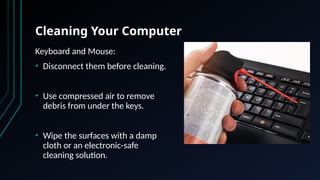
Keyboard and Mouse:
• Disconnect them before cleaning.
• Use compressed air to remove
debris from under the keys.
• Wipe the surfaces with a damp
cloth or an electronic-safe
cleaning solution.
Cleaning Your Computer
Frequency:
• Clean the exterior regularly (weekly or as needed).
• Perform interior cleaning every 3-6 months, depending on your
computer's environment.
Cleaning Your Computer
Remember:
A clean computer is a healthy
computer. By incorporating regular
cleaning into your maintenance
routine, you can keep your system
running smoothly and prevent
potential issues caused by dust and
debris buildup.
Software Maintenance
• Operating System Updates:
• Keep your operating system (OS) up-to-date with the latest patches and updates.
• Updates often include bug fixes, security enhancements, and improved
compatibility.
• Software Updates:
• Regularly update all installed software, including applications and drivers.
• Outdated software can be vulnerable to security threats and may lead to
compatibility issues.
• Uninstall Unnecessary Programs:
• Remove software and applications you no longer use.
• This frees up storage space and reduces system clutter.
Importance of Software Maintenance
• Automated Updates:
Enable automatic updates whenever possible for convenience
and to ensure timely maintenance
• Manual Updates:
For software that doesn't offer automatic updates, regularly
check for updates on the developer's website or within the
software itself.
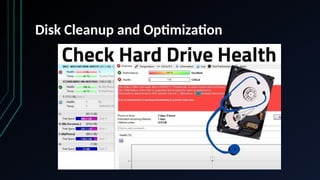
Disk Cleanup and Optimization
Why Disk Cleanup and
Optimization are Crucial:
Over time, your computer's
storage can become cluttered
with unnecessary files, leading to
decreased performance and less
available storage space.
Disk Cleanup and Optimization
Backup Strategies
Why Backup Strategies Are Essential:
• Data loss can occur due to various reasons, including hardware
failures, malware, accidental deletion, or natural disasters.
• A solid backup strategy is your insurance policy against these data
catastrophes.
Backup Locations:
Choose appropriate backup
locations:
• External Drives:
• USB drives, external hard drives,
or network-attached storage (NAS)
devices.
Backup Locations:
• Cloud Services:
Utilize cloud storage services
like Google Drive, Dropbox,
or iCloud for off-site
backups.
Backup Strategies
Conclusion:
A backup strategy is your safeguard
against data loss. By implementing a
well-thought-out plan, you can
protect your valuable data and
minimize downtime in case of
unforeseen events. Remember, it's
not a question of if data loss will
happen, but when, so be prepared.
Hardware Maintenance
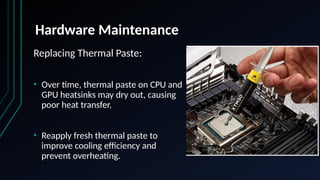
Replacing Thermal Paste:
• Over time, thermal paste on CPU and
GPU heatsinks may dry out, causing
poor heat transfer.
• Reapply fresh thermal paste to
improve cooling efficiency and
prevent overheating.
Hardware Maintenance
Checking Cables and Connections:
• Loose or damaged cables can cause
intermittent issues or connectivity
problems.
• Inspect and secure all cables and
connections, including power cords,
data cables, and peripheral
connections.
Hardware Maintenance
Monitor Power Supply
• A failing power supply can damage
other components. Listen for
unusual noises (e.g., whining or
clicking) and replace them if
necessary.
Hardware Maintenance
Hardware Upgrades:
• Consider hardware
upgrades like adding more
RAM or replacing an HDD
with an SSD for
performance
enhancements.
Troubleshooting Common Issues
• Computer issues can disrupt productivity and frustrate users. Knowing how
to troubleshoot common problems can save time and money.
Common Issues and Solutions:
• Slow Performance:
1. Close unnecessary background applications.
2. Check for malware and clean up your hard drive.
3. Consider upgrading your hardware (RAM or SSD).
Troubleshooting Common Issues
• Frequent Freezing or Crashing:
1. Update drivers for hardware
components.
2. Check for overheating and ensure
proper ventilation.
3. Scan for malware and viruses.
Troubleshooting Common Issues
• Blue Screen of Death (BSOD):
1. Identify error codes on the
BSOD screen.
2. Search for solutions based on
the error code.
3. Update or reinstall
problematic drivers.
Troubleshooting Common Issues
• Internet Connection Problems:
1. Restart your modem and
router.
2. Check for loose cables and
ensure proper Wi-Fi signal
strength.
3. Test your internet speed and
contact your ISP if necessary.
Troubleshooting Common Issues
• Software Errors or
Compatibility Issues:
1. Update or reinstall the
problematic software.
2. Check for software updates or
patches.
3. Research online forums or
support resources for solutions.
Troubleshooting Common Issues
• Professional Assistance:
If you cannot resolve an issue
or if it involves hardware
problems, consider seeking
professional help from a
technician or IT specialist.
Key Takeaways:
• Regular cleaning, both inside and outside your computer, prevents dust buildup
and overheating.
• Software maintenance, including updates and security checks, is critical for
performance and security.
• Backup strategies safeguard your valuable data against loss and ensure quick
recovery.
• Hardware maintenance prolongs the lifespan of your components and prevents
issues caused by neglect.
• Troubleshooting skills empower you to address common computer problems
and maintain productivity.
Remember
• Prevention is often more cost-effective than dealing with issues
after they occur.
• Develop a maintenance schedule and stick to it.
• Stay informed about the latest security threats and updates.

Computer-Maintenance-Keeping-Your-System-Healthy.pptx

  • 1.
    “Computer Maintenance: Keeping YourSystem Healthy” BEST PRACTICES AND TIPS
  • 2.
    Introduction • In today'sdigital age, computers are an integral part of our lives. They help us work, connect, and create. But like any valuable tool, they require care and maintenance to perform at their best. • Whether you're a casual user or an IT professional, this presentation will provide valuable insights into preserving your computer's health and optimizing its performance.
  • 3.
    Why Computer MaintenanceMatters • Performance Optimization: Regular maintenance keeps your computer running smoothly, preventing slowdowns, crashes, and freezes. It ensures that your system operates at its peak performance. • Extended Lifespan: Proper care can significantly extend the life of your computer. By addressing issues early and preventing wear and tear, you can delay the need for costly replacements. • Security: Outdated software and neglected maintenance can leave your computer vulnerable to viruses, malware, and cyberattacks. Regular updates and security checks are essential to protect your digital life.
  • 4.
    Why Computer MaintenanceMatters • Cost Savings: Preventative maintenance is cost-effective. It's far less expensive to address minor issues and perform routine upkeep than to deal with major hardware failures or data recovery after a catastrophic event. • User Experience: A well-maintained computer provides a better user experience. It's more responsive, less frustrating, and allows you to focus on your tasks rather than troubleshooting problems.
  • 5.
    Tools for Cleaningand Maintenance of a Computer • Cleaning and maintaining your computer's system unit is essential to keep it running smoothly and prolong its lifespan. Here are some tools and supplies you'll need for this task: • Compressed Air Canister It helps remove dust and debris from the components inside the system unit. Make sure to use a canister of compressed air designed for cleaning electronics.
  • 6.
    Tools for Cleaningand Maintenance of a Computer • Electric Air Blower and Vacuum A handheld electronics compressed air duster blower can be used for any work that needs cleaning for electronics computer keyboard complex circuit boards.
  • 7.
    Tools for Cleaningand Maintenance of a Computer • Screwdriver: A tool of precision screwdriver is necessary for opening the computer case to access its components (magnetic screwdriver recommended)
  • 8.
    Tools for Cleaningand Maintenance of a Computer • Antistatic Wrist Strap: When working inside your computer, it's essential to discharge static electricity from your body to prevent damage to sensitive components. An antistatic wrist strap or mat can help with this.
  • 9.
    Tools for Cleaningand Maintenance of a Computer • Cleaning Cloths: Microfiber or lint-free cleaning cloths are handy for wiping down the exterior of your computer and cleaning components without leaving behind fibers or residue.
  • 10.
    Tools for Cleaningand Maintenance of a Computer • Isopropyl Alcohol: Isopropyl alcohol is useful for cleaning various computer components, especially if they have stubborn residue or thermal paste that needs to be removed and reapplied.
  • 12.
    Tools for Cleaningand Maintenance of a Computer • Thermal Paste (optional): If you're performing maintenance on the CPU or GPU, you might need thermal paste to reapply when reseating the heatsink
  • 13.
    Tools for Cleaningand Maintenance of a Computer • Cable Ties or Velcro Straps: Use these to manage and organize cables inside the computer to improve airflow and aesthetics.
  • 14.
    Cleaning Your Computer •Why Cleaning Is Important: Dust, dirt, and debris can accumulate over time, clogging internal components, and affecting performance. Heat buildup due to blocked airflow can lead to overheating and potentially damage your computer's components.
  • 16.
    Cleaning Your Computer ExteriorCleaning: • Use a soft, lint-free cloth to wipe down the exterior of your computer. • Avoid using abrasive materials or liquids that could damage the surface. • Pay special attention to cleaning the monitor, keyboard, and mouse.
  • 17.
    Cleaning Your Computer InteriorCleaning: • Turn off and unplug your computer before opening the case. • Use compressed air to blow dust out of the case, fans, and vents. • Be gentle when cleaning internal components to avoid damage.
  • 18.
    Cleaning Your Computer MonitorCleaning: • Use a microfiber cloth to clean the screen. • For stubborn spots, dampen the cloth with a mixture of distilled water and isopropyl alcohol (50/50 ratio).
  • 19.
    Cleaning Your Computer Keyboardand Mouse: • Disconnect them before cleaning. • Use compressed air to remove debris from under the keys. • Wipe the surfaces with a damp cloth or an electronic-safe cleaning solution.
  • 20.
    Cleaning Your Computer Frequency: •Clean the exterior regularly (weekly or as needed). • Perform interior cleaning every 3-6 months, depending on your computer's environment.
  • 21.
    Cleaning Your Computer Remember: Aclean computer is a healthy computer. By incorporating regular cleaning into your maintenance routine, you can keep your system running smoothly and prevent potential issues caused by dust and debris buildup.
  • 22.
    Software Maintenance • OperatingSystem Updates: • Keep your operating system (OS) up-to-date with the latest patches and updates. • Updates often include bug fixes, security enhancements, and improved compatibility. • Software Updates: • Regularly update all installed software, including applications and drivers. • Outdated software can be vulnerable to security threats and may lead to compatibility issues. • Uninstall Unnecessary Programs: • Remove software and applications you no longer use. • This frees up storage space and reduces system clutter.
  • 23.
    Importance of SoftwareMaintenance • Automated Updates: Enable automatic updates whenever possible for convenience and to ensure timely maintenance • Manual Updates: For software that doesn't offer automatic updates, regularly check for updates on the developer's website or within the software itself.
  • 24.
    Disk Cleanup andOptimization Why Disk Cleanup and Optimization are Crucial: Over time, your computer's storage can become cluttered with unnecessary files, leading to decreased performance and less available storage space.
  • 25.
    Disk Cleanup andOptimization
  • 26.
    Disk Cleanup andOptimization
  • 27.
    Backup Strategies Why BackupStrategies Are Essential: • Data loss can occur due to various reasons, including hardware failures, malware, accidental deletion, or natural disasters. • A solid backup strategy is your insurance policy against these data catastrophes.
  • 28.
    Backup Locations: Choose appropriatebackup locations: • External Drives: • USB drives, external hard drives, or network-attached storage (NAS) devices.
  • 29.
    Backup Locations: • CloudServices: Utilize cloud storage services like Google Drive, Dropbox, or iCloud for off-site backups.
  • 30.
    Backup Strategies Conclusion: A backupstrategy is your safeguard against data loss. By implementing a well-thought-out plan, you can protect your valuable data and minimize downtime in case of unforeseen events. Remember, it's not a question of if data loss will happen, but when, so be prepared.
  • 31.
    Hardware Maintenance Replacing ThermalPaste: • Over time, thermal paste on CPU and GPU heatsinks may dry out, causing poor heat transfer. • Reapply fresh thermal paste to improve cooling efficiency and prevent overheating.
  • 33.
    Hardware Maintenance Checking Cablesand Connections: • Loose or damaged cables can cause intermittent issues or connectivity problems. • Inspect and secure all cables and connections, including power cords, data cables, and peripheral connections.
  • 34.
    Hardware Maintenance Monitor PowerSupply • A failing power supply can damage other components. Listen for unusual noises (e.g., whining or clicking) and replace them if necessary.
  • 35.
    Hardware Maintenance Hardware Upgrades: •Consider hardware upgrades like adding more RAM or replacing an HDD with an SSD for performance enhancements.
  • 36.
    Troubleshooting Common Issues •Computer issues can disrupt productivity and frustrate users. Knowing how to troubleshoot common problems can save time and money. Common Issues and Solutions: • Slow Performance: 1. Close unnecessary background applications. 2. Check for malware and clean up your hard drive. 3. Consider upgrading your hardware (RAM or SSD).
  • 37.
    Troubleshooting Common Issues •Frequent Freezing or Crashing: 1. Update drivers for hardware components. 2. Check for overheating and ensure proper ventilation. 3. Scan for malware and viruses.
  • 38.
    Troubleshooting Common Issues •Blue Screen of Death (BSOD): 1. Identify error codes on the BSOD screen. 2. Search for solutions based on the error code. 3. Update or reinstall problematic drivers.
  • 39.
    Troubleshooting Common Issues •Internet Connection Problems: 1. Restart your modem and router. 2. Check for loose cables and ensure proper Wi-Fi signal strength. 3. Test your internet speed and contact your ISP if necessary.
  • 40.
    Troubleshooting Common Issues •Software Errors or Compatibility Issues: 1. Update or reinstall the problematic software. 2. Check for software updates or patches. 3. Research online forums or support resources for solutions.
  • 41.
    Troubleshooting Common Issues •Professional Assistance: If you cannot resolve an issue or if it involves hardware problems, consider seeking professional help from a technician or IT specialist.
  • 42.
    Key Takeaways: • Regularcleaning, both inside and outside your computer, prevents dust buildup and overheating. • Software maintenance, including updates and security checks, is critical for performance and security. • Backup strategies safeguard your valuable data against loss and ensure quick recovery. • Hardware maintenance prolongs the lifespan of your components and prevents issues caused by neglect. • Troubleshooting skills empower you to address common computer problems and maintain productivity.
  • 43.
    Remember • Prevention isoften more cost-effective than dealing with issues after they occur. • Develop a maintenance schedule and stick to it. • Stay informed about the latest security threats and updates.