Fast Track
       to
Troubleshooting
   Your PC
     By Team Digit
Credits
People Behind This Book

EDITORIAL
Deepak Ajwani Editor
Robert Sovereign-Smith, Copy Editor & Writer
Ram Mohan Rao, Copy Editor & Writer
Sanket Naik Writer
Jayesh Limaye Writer
Anup Nair Writer
Nimish Chandiramani Writer
Prakash Ballakoor Writer
Abey John Writer

DESIGN AND LAYOUT
Vijay Padaya Layout Designer
Sivalal S Cover Design
Harsho Mohan Chattoraj Illustrator

© Jasubhai Digital Media
Published by Maulik Jasubhai on behalf of Jasubhai Digital Media.
No part of this book may be reproduced, stored in a retrieval
system or transmitted in any form or by any means without the
prior written permission of the publisher.

March 2006
Free with Digit. Not to be sold separately. If you have paid
separately for this book, please e-mail the editor at
editor@thinkdigit.com along with details of location of
purchase, for appropriate action.
Introduction


                  Band-Aid

F
      ew aspects of technology can ever aspire to be as frustrating
      as computing. Unavoidable that they are, PCs come with
      new problems for every one they solve, and some claim that
PC problems can even drive people to drink! We’ve always hoped
for a helping hand to turn to for every weird sound, every ugly
error and every sluggishly-performed operation, lest we too suc-
cumb to such vices.
    In this month’s Fast Track, we’ve taken a long, hard look at the
most common (and some bizarrely uncommon) problems that
rear their ugly heads during the course of your computing expe-
rience. From upgrading and assembling troubles to trouble when
online to problems with memory and hard disks, it's all here in
this one-stop shop to cure what can ail your PC.
    As always, this Fast Track has been written to be your happy
helper—something that is thankfully within arm's reach. For
quick reference and relief, there are Symptom > Problem >
Solution structures within each chapter, so when something
strange happens with your PC, your solution will be right there.
You might also want to keep your eyes peeled for a handy tip
every now and then.
    The first two chapters will help you get your PC started with-
out having to worry about beeps, clicks or any such undesirable
sounds. Following them are solutions to common display and
sound woes, both hardware and software, before we move on to
more complex matters such as memory, storage and networking.
    Unless otherwise specified, we’ve assumed that the OS you
use is Windows XP, though many of the solutions aren’t that dif-
ferent from those for older versions of Windows.
TROUBLESHOOTING YOUR PC


                      Contents
    Chapter 1     The Basics                                   8
    1.1           Troubleshooting Techniques                   9
    1.2           Don’t Be Careless                           10
    1.3           Troubleshooting Power Supply Units (PSUs)   11
    1.4           Troubleshooting Motherboards                14
    1.5           Troubleshooting Hardware
                  Device Conflicts In Windows                 18
    1.6           Troubleshooting the Blue
                  Screen Of Death                             37
    1.7           Upgrading from Windows 98 to
                  Windows                                     45
    1.8           Troubleshooting Startup And
                  Shutdown Problems In XP                     51

    Chapter 2     The BIOS                                    58
    2.1           The BIOS: What is it?                       59
    2.2           BIOS Beep Codes                             60
    2.3           General BIOS Problems                       63
    2.4           User-Configurable BIOS settings             65
    2.5           Updating (flashing) the BIOS and
                  other firmware                              73

    Chapter 3     The Display                                 78
    3.1           Troubleshooting Display Problems            79
    3.2           Troubleshooting the Monitor                 81
    3.3           Troubleshooting the
                  Video Card / Memory/Driver / BIOS           85
    3.4           Troubleshooting AGP                         89
    3.5           Troubleshooting Video Codecs                94


6    FAST TRACK
TROUBLESHOOTING YOUR PC


   Chapter 4    Sound                                      97
   4.1          Deathly Silence                            98
   4.2          Snap, Crackle, Pop!                       101
   4.3          Bringing it Home                          103
   4.4          Going Digital                             106
   4.5          Players                                   107

   Chapter 5    Internet                                  109
   5.1          Firefox                                   110
   5.2          Internet Explorer                         118
   5.3          Microsoft Outlook                         121
   5.4          Outlook Express                           130
   5.5          Modems                                    135

   Chapter 6    Networking                                142
   6.1          Wired Networks                            143
   6.2          Wireless LANs                             150

   Chapter 7    Storage                                   152
   7.1          Internal Hard drives                      153
   7.2          Optical Drives                            158
   7.3          External Storage Devices                  162

   Chapter 8    Computer Memory                           163
   8.1          Testing the Memory                        164
   8.2          Common Symptoms, Problems And Solution    168
   8.3          RAM Optimisers: Are They Any Good?        174
   8.4          Points to remember when buying RAM        175

   9            Input Devices                             177
                Mouse, Keyboard, Gamepad, Joystick

   10           Peripherals                               186
   10.1         Printers                                  187
   10.2         Scanners                                  195
   10.3         Other Peripheral Devices                  198
   10.4         Glossary                                  203


                                                     FAST TRACK   7
I      THE BASICS
                                                 TROUBLESHOOTING YOUR PC


    The Basics


        W      hen working with PCs day-in and day-out, a problem is
               bound to crop up. This handy reference guide will give you
        an insight into many of the common problems users face, and
        provide suggestions in solving the problem or at the very least
        point you in the right direction.
            In this guide we cover basic to intermediate-level hardware and
        software troubleshooting. We assume you’re running Windows.


8        FAST TRACK
TROUBLESHOOTING YOUR PC
                                                        THE BASICS        I

1.1 Troubleshooting Techniques

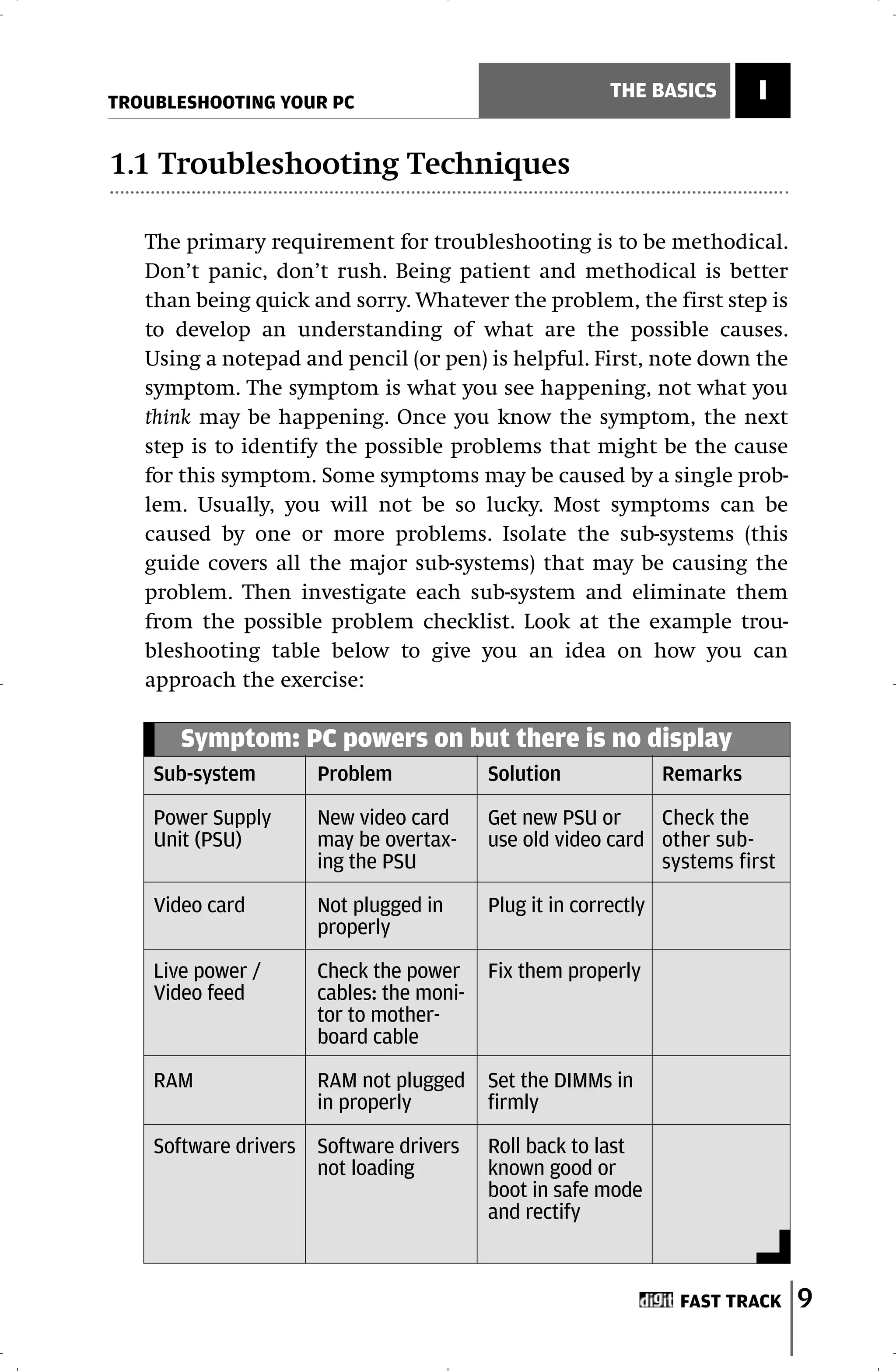
   The primary requirement for troubleshooting is to be methodical.
   Don’t panic, don’t rush. Being patient and methodical is better
   than being quick and sorry. Whatever the problem, the first step is
   to develop an understanding of what are the possible causes.
   Using a notepad and pencil (or pen) is helpful. First, note down the
   symptom. The symptom is what you see happening, not what you
   think may be happening. Once you know the symptom, the next
   step is to identify the possible problems that might be the cause
   for this symptom. Some symptoms may be caused by a single prob-
   lem. Usually, you will not be so lucky. Most symptoms can be
   caused by one or more problems. Isolate the sub-systems (this
   guide covers all the major sub-systems) that may be causing the
   problem. Then investigate each sub-system and eliminate them
   from the possible problem checklist. Look at the example trou-
   bleshooting table below to give you an idea on how you can
   approach the exercise:

       Symptom: PC powers on but there is no display
    Sub-system       Problem             Solution               Remarks

    Power Supply     New video card      Get new PSU or     Check the
    Unit (PSU)       may be overtax-     use old video card other sub-
                     ing the PSU                            systems first

    Video card       Not plugged in      Plug it in correctly
                     properly

    Live power /     Check the power     Fix them properly
    Video feed       cables: the moni-
                     tor to mother-
                     board cable

    RAM              RAM not plugged     Set the DIMMs in
                     in properly         firmly

    Software drivers Software drivers    Roll back to last
                     not loading         known good or
                                         boot in safe mode
                                         and rectify


                                                                 FAST TRACK   9
I       THE BASICS
                                                      TROUBLESHOOTING YOUR PC


              If you are used to troubleshooting, you are most likely following
          something similar in your head already. Once you begin to think in
          terms of the various sub-systems, the chances of you not finding
          your problem are very low. Over time, and with experience, you
          would be doing this naturally and automatically. Of course on
          paper it looks terribly boring and to tell you the truth, it is! But, it
          is a good strategy to use a methodical approach in troubleshooting
          rather than dive straight in, start poking around, pressing keys and
          buttons blindly and then regretting it later.

              After trying everything and you are at your wits end with no
          solution in sight, it is time to take a step back and forget about
          it for a while—attack the problem after some time with a fresh
          mind. You could also post a message in the relevant Digit forum
          sub-section (www.thinkdigit.com/forum), the members are pret-
          ty helpful and quite experienced. Chances are someone else has
          faced the same problem and you should be able to get an answer
          quickly.

     1.2 Don’t Be Careless

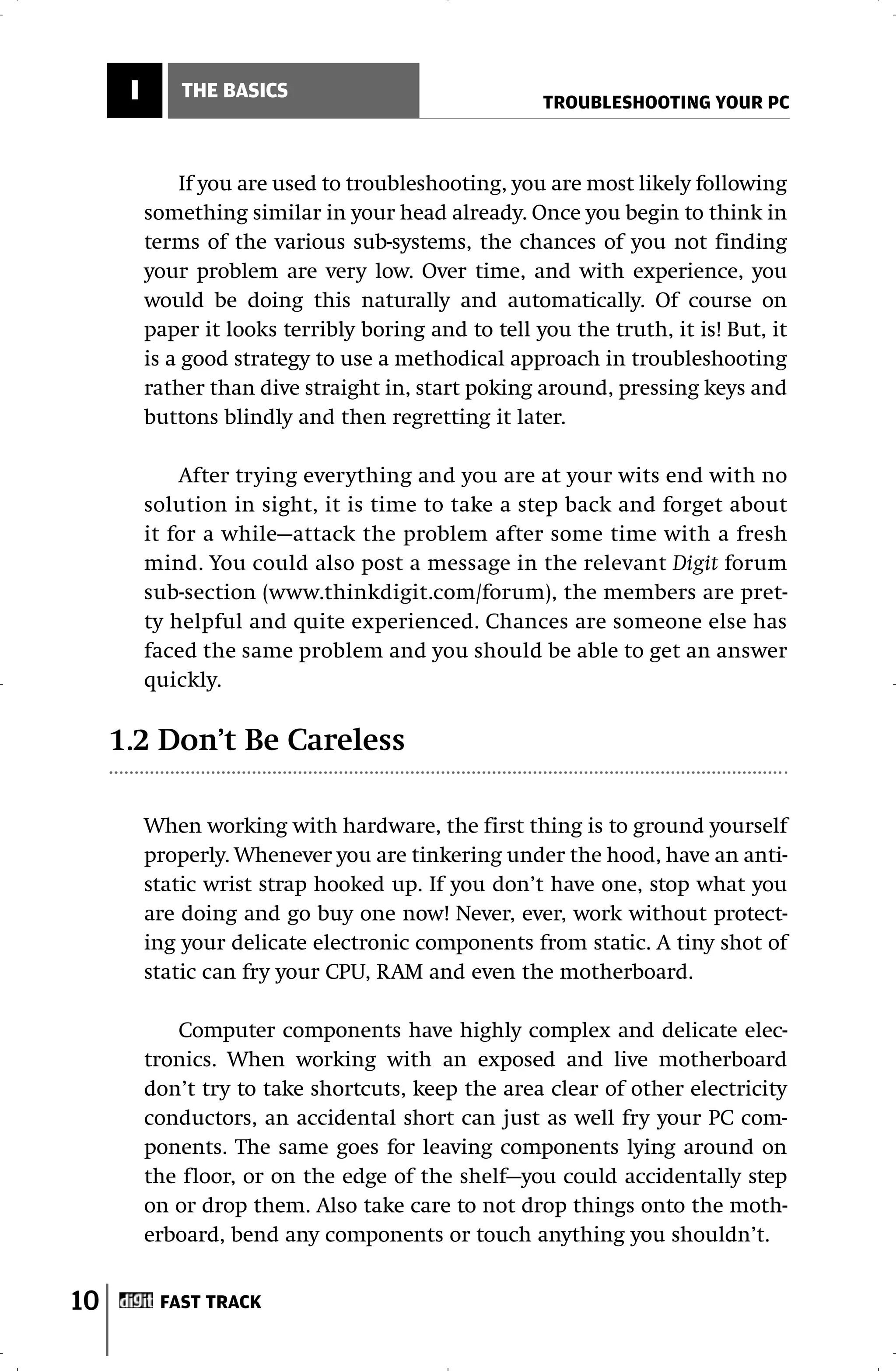
          When working with hardware, the first thing is to ground yourself
          properly. Whenever you are tinkering under the hood, have an anti-
          static wrist strap hooked up. If you don’t have one, stop what you
          are doing and go buy one now! Never, ever, work without protect-
          ing your delicate electronic components from static. A tiny shot of
          static can fry your CPU, RAM and even the motherboard.

             Computer components have highly complex and delicate elec-
          tronics. When working with an exposed and live motherboard
          don’t try to take shortcuts, keep the area clear of other electricity
          conductors, an accidental short can just as well fry your PC com-
          ponents. The same goes for leaving components lying around on
          the floor, or on the edge of the shelf—you could accidentally step
          on or drop them. Also take care to not drop things onto the moth-
          erboard, bend any components or touch anything you shouldn’t.


10         FAST TRACK
TROUBLESHOOTING YOUR PC
                                                     THE BASICS      I

1.3 Troubleshooting Power Supply Units (PSUs)

   Among all the PC components, the power supply is the most dan-
   gerous. It converts the 240V wall voltage into smaller 12V, 5V and
   3.3V DC allocations required by the PC. Usually, the power supply
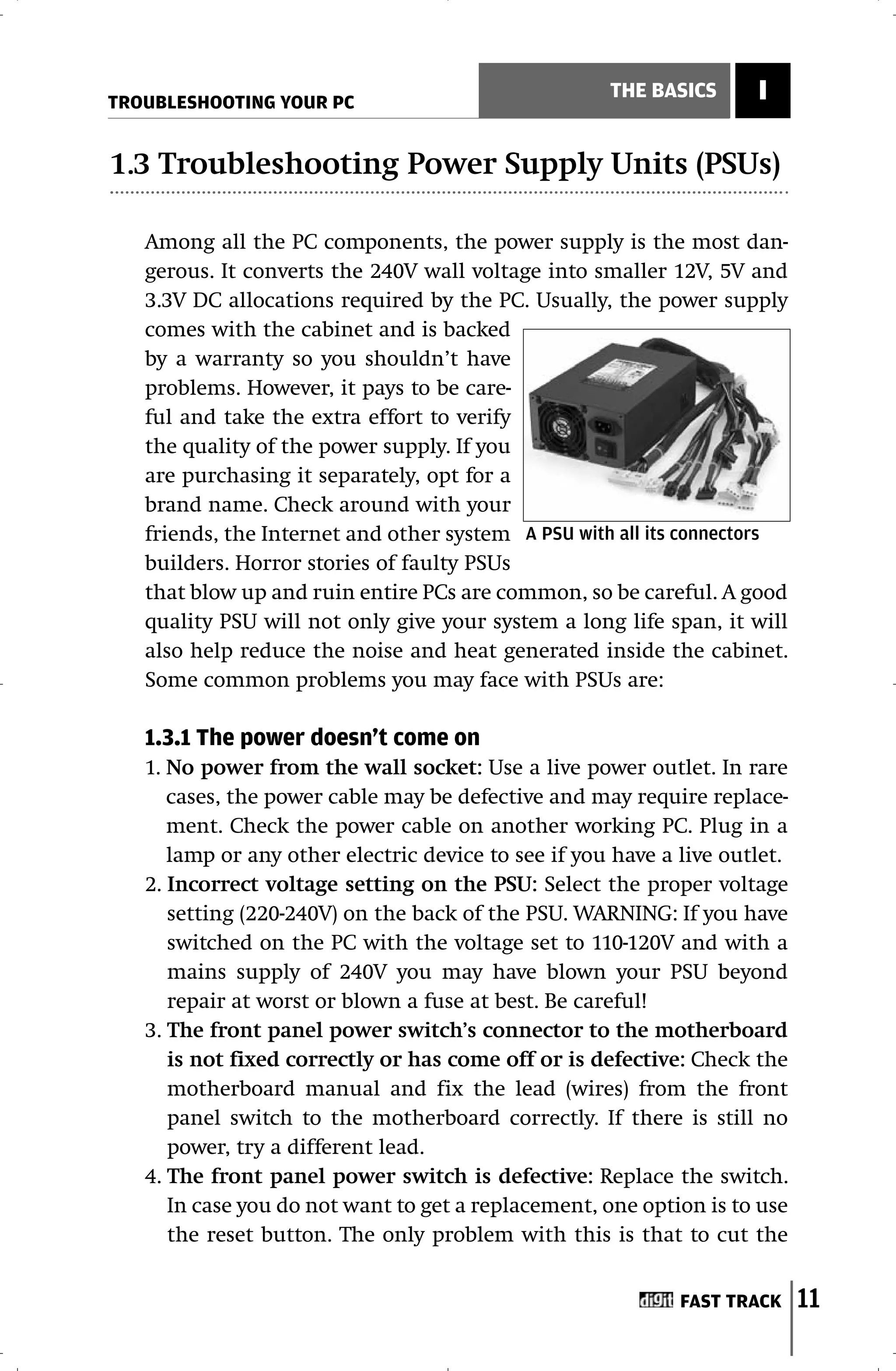
   comes with the cabinet and is backed
   by a warranty so you shouldn’t have
   problems. However, it pays to be care-
   ful and take the extra effort to verify
   the quality of the power supply. If you
   are purchasing it separately, opt for a
   brand name. Check around with your
   friends, the Internet and other system A PSU with all its connectors
   builders. Horror stories of faulty PSUs
   that blow up and ruin entire PCs are common, so be careful. A good
   quality PSU will not only give your system a long life span, it will
   also help reduce the noise and heat generated inside the cabinet.
   Some common problems you may face with PSUs are:

   1.3.1 The power doesn’t come on
   1. No power from the wall socket: Use a live power outlet. In rare
      cases, the power cable may be defective and may require replace-
      ment. Check the power cable on another working PC. Plug in a
      lamp or any other electric device to see if you have a live outlet.
   2. Incorrect voltage setting on the PSU: Select the proper voltage
      setting (220-240V) on the back of the PSU. WARNING: If you have
      switched on the PC with the voltage set to 110-120V and with a
      mains supply of 240V you may have blown your PSU beyond
      repair at worst or blown a fuse at best. Be careful!
   3. The front panel power switch’s connector to the motherboard
      is not fixed correctly or has come off or is defective: Check the
      motherboard manual and fix the lead (wires) from the front
      panel switch to the motherboard correctly. If there is still no
      power, try a different lead.
   4. The front panel power switch is defective: Replace the switch.
      In case you do not want to get a replacement, one option is to use
      the reset button. The only problem with this is that to cut the


                                                             FAST TRACK     11
I       THE BASICS
                                                    TROUBLESHOOTING YOUR PC


            power to the system in case of system hangs etc., you will have to
            switch off the power from the mains wall outlet rather than
            from the front panel.
         5. The power supply connections to the motherboard are not cor-
            rect: Check the power connections from the PSU to the mother-
            board. Refer to the motherboard manual and identify the correct
            connection points.
         6. Not identified; non-PSU related problem: After attempting all
            the above, if the system still doesn’t power up, it is time to look
            elsewhere.

           Disconnect all the drives and see if it is powering up. (Note: Pull
           out the power cord when removing or disconnecting
           something.)

           If the system is powering up, then start reconnecting the drives
           one by one to identify which is defective drive.

          If the system is not powering with all drives disconnected,
          remove the other adaptors one at a time and checking to see if it
          is powering up. Leave the video adaptor for the last.

          If you are able to isolate the problem to one of the adaptor cards,
          verify that the slot and the adaptor cards are compatible. Then
          try plugging it into a different slot and see if the system powers
          up before discarding it and going for a new one.

          If the system is still not powering up, then you either have a
          defective PSU or a defective motherboard. If there is a burnt
          smell, then most probably either one of them has been fried.
          Look for burn marks on the motherboard. Sometimes the PSU
          and motherboard may be incompatible. If the motherboard looks
          fine, replace the PSU, since it’s cheaper!

          Check the relevant sections of this guide for troubleshooting
          hints for the other components.


12        FAST TRACK
TROUBLESHOOTING YOUR PC
                                                     THE BASICS      I


   1.3.2 The PC powers on after the second or third try
   The mostly likely problem is that the power_ok (or power_good) sig-
   nal is sent before the power supply has stabilised. Get a better qual-
   ity PSU. In modern PCs, the power switch is a logic device that tells
   the PSU to supply full power to the motherboard. The power_ok sig-
   nal tells the motherboard that the power supply is available and
   stable. If the signal is sent too soon the motherboard does not rec-
   ognize it and stays off to protect itself. This can happen in lower-
   quality PSUs. Booting more than once is not recommended, and
   you will be better off getting a better PSU.

   1.3.3 The PC powers on but nothing happens after that
   (no beep)
   1. This may be due to the addition of new hardware that is over-
      taxing the power supply. Remove the last hardware component
      installed and check again.
   2. A defective hard disk or one that is not plugged in correctly:
      Check the power cable to the hard disk. Sometimes it may not be
      fully plugged in. Check the hard disk on another system.

   1.3.4 The PC powers on, beeps and stops. No Power On Self
   Test (POST) messages.
   This may be a motherboard problem and not related to the PSU.
   Check the motherboard section of this guide.

   1.3.5 The PC powers on and runs POST but there is no display
   This may be a display card problem and not related to the PSU.
   Check the display section of this guide.

   1.3.6 There is a squealing/whistling/whining noise when the
   PC starts
   This could indicate either a problem with the fan, which has accu-
   mulated dirt over time, or one of the internal components of the
   PSU. Switch on the PC and listen carefully to confirm that it’s the
   PSU fan and not the CPU fan or the hard disk. Usually, the noise
   will stop once the fan picks up speed, and you can ignore it tem-
   porarily. It’s a good idea, however, to clean out the dirt around the


                                                             FAST TRACK     13
I       THE BASICS
                                                      TROUBLESHOOTING YOUR PC


          PSU fan using a PC vacuum. This will increase the working life of
          the PSU fan as well as the PSU itself. If the fan stops working, the
          PSU will generate heat and cause more trouble. So a little preven-
          tion will save you a lot of headaches later.

              If the sound is not from the fan but from within the PSU
          itself, then you may be able to service it. A PSU has no ‘user-serv-
          iceable’ parts, and it’s best left to a competent technician,
          although in most cases of component failure, you will have to
          replace the PSU.

          1.3.7 The PC freezes or reboots suddenly
          1. This could indicate a failing PSU that is not supplying power
             correctly to the motherboard. You may be able to get the PSU
             serviced but in most cases you will be better off getting a new
             power supply.

          2. This could be due to overheating of the PSU or CPU: If the PSU is
             overheating, the metal cabinet may be hot to touch or you might
             get a shock. Shut off immediately. Check if the PSU fan is work-
             ing, clean or replace the fan if not working or spinning very slow-
             ly. If it’s a faulty PSU you may be able to service it.

             If the PSU seems normal it might be due to an overheating CPU.

     1.4 Troubleshooting Motherboards
          Problems with motherboards are rare. It gets blamed for problems
          caused by other hardware such as add-on cards. However, you cannot
          eliminate the motherboard from your list of suspects till you’ve
          investigated further. It’s a good idea to leave troubleshooting the
          motherboard for the end, unless, of course, there is some visible sign
          like scorch marks or a burnt smell coming from the motherboard.
          The bad news is there is little you can repair on the motherboard. So,
          keep your fingers crossed when working with it, and hopefully you
          won’t have to shell out big bucks to replace it. And not to forget the
          standard warning: Don’t work on or touch the motherboard with the power


14         FAST TRACK
TROUBLESHOOTING YOUR PC
                                                       THE BASICS      I


   on unless you are absolutely sure of what you are doing. An accidental
   short can just as easily fry the motherboard, RAM, display card or
   any other add-ons you may have.

   1.4.1 The PC powers on (with/without beeps) but there is no
   display
   1. After ensuring that the problem is not related to the PSU or the dis-
      play card, it may be that the RAM modules are mismatched or are
      not seated properly. If the problem is with the RAM, you will most
      likely hear beeps emitted by the BIOS. See the BIOS section to under-
      stand beep codes and how to troubleshoot the BIOS. Check the RAM
      modules to see if they are seated properly. Also, try to use modules
      from the same manufacturer. In some cases, RAM modules from
      different manufacturers don’t work together. Also check the mem-
      ory section in this guide to troubleshoot RAM and memory.

   2. The CPU may not be seated correctly. This problem should only
      be relevant if you have installed a new motherboard or upgrad-
      ed the CPU.

       Visually inspect to
   check if the socket CPU is
   sitting flat in the socket,
   which means that the
   heat sink should be per-
   fectly parallel to the
   motherboard. With a
   new socket CPU the heat
   sink may completely
   cover the CPU and you
   will have to remove the
                                 A Pentium IV motherboard
   heat sink to check. Check
   for any crushed or bent legs. If the CPU’s socket locking arm was
   not raised up all the way up before seating the CPU or if it was not
   lowered all the way down after seating it, the CPU won’t sit prop-
   erly. If the CPU doesn’t sit properly after this, then either the sock-
   et is faulty, or you have the wrong CPU for the motherboard!


                                                              FAST TRACK      15
I       THE BASICS
                                                     TROUBLESHOOTING YOUR PC


             It’s pretty difficult to tell by visual inspection if slot CPUs are
         seated properly. When in doubt, reseat the CPU, which is fairly easy
         since the heat sink and the CPU are an integrated unit. Also, make
         sure that you correctly identify release levers located on the top of
         the slot CPU package.

         3. There’s no power to the heat sink fan
           If the heat sink has a fan, it should be hooked to the correct
           power source on the motherboard for the BIOS to monitor and
           control its state. Be careful! If you have installed a new CPU and
           switched it on without the fan it may have failed already!
           Hopefully, you will be lucky and get away with it by hooking up
           the fan. It may also be that the power point on the motherboard
           is failing.

         4. The jumper settings may have been incorrectly set if you are
            experimenting with overclocking or have installed a new moth-
            erboard Return the motherboard to its default settings. Use the
            motherboard manual to get the default values.

         5. The cabinet or uneven fixing of the motherboard may be causing
            a short. Put the motherboard on a cardboard box covered with
            foam or a static free bag and hook it up. If the PC boots normal-
            ly then the problem is most likely related to the cabinet or the
            fixing of the motherboard. Mechanical stresses on a bent moth-
            erboard might be leaving a circuit open and preventing it from
            working. Fix the motherboard properly in the cabinet and if the
            problem re-occurs change the cabinet.

         Note: If there is a crack on the motherboard, you are in serious trou-
         ble! The motherboard is a printed circuit board and hence a crack
         will break the circuitry. You will in all probability have to buy a new
         motherboard.

         1.4.2 The PC runs POST and then freezes
         1. This may be a problem with the RAM modules or other add-on
            cards. In case of RAM module problems, you will usually be alert-


16        FAST TRACK
TROUBLESHOOTING YOUR PC
                                                       THE BASICS       I


     ed by beeps from the BIOS. Strip the PC down to the ‘barebones’,
     that is, just the power supply, motherboard (with CPU & heat
     sink), minimum RAM and display card. Switch the RAM module
     to another slot. Verify that the RAM modules are as per the specs
     defined by motherboard manufacturer. Use matched RAM mod-
     ules from the same manufacturer. Try a different RAM. If every-
     thing is working you should boot up and see the message ‘No
     boot device’ or something similar. Power off, connect the hard
     disk and reboot. If the problem still occurs, this points to some-
     thing wrong with the hard disk or the basic boot up of the oper-
     ating system. Check the storage section and the Windows trou-
     bleshooting section of this guide.

       If the OS boots normally, then power off and start adding each
   add-on card one by one, powering up after adding each card until
   you isolate the culprit. Check the relevant sections for trou-
   bleshooting hints for those components.

   2. It may be a BIOS problem. Check the BIOS section in this guide.

   1.4.3 The PC freezes suddenly
   1. This could be due to overheating of the CPU caused by poor contact
      between the heat sink and the CPU Remove the heat sink and fan
      (make sure the fan is working). On the exposed CPU die surface
      apply some thermal grease or thermal tape. This is to fill in the
      microscopic gaps that may exist between the CPU and the heat
      sink. Don’t use too much grease and don’t try to substitute with
      something else, use approved thermal media only. Also, don’t get
      impatient and try to force the heat sink on the die to try and make
      it fit. You may break the heat sink or worse still damage the CPU.

       If the fan is not working, verify the power connections. If the con-
   nections are correct and the fan still does not work you can try replac-
   ing the fan but the best option is to get a new heat sink unit (heat sink
   + fan). Note: The problem with a failed heat sink is the likelihood that
   you have already cooked your CPU. Most modern CPUs overheat very
   quickly and require cooling right from power on.


                                                               FAST TRACK      17
I      THE BASICS
                                                   TROUBLESHOOTING YOUR PC


     1.5 Troubleshooting Hardware Device
     Conflicts In Windows

          Hardware devices can conflict with each other due to a variety of
          reasons. Every hardware device installed must be allocated a set of
          operating system (Windows) resources to operate correctly. These
          resources include IRQ, DMA (Direct Memory Access), I/O port
          addresses and memory resources. Some of these resources will be
          shared by more than one device while others cannot. This depends
          on the capabilities of the hardware and its software drivers.

              Each device installed will have one or more software device
          drivers that enable the operating system to access and use the
          device. The software could be provided either by Microsoft itself
          that will enable basic functionality, or by the device vendor who
          knows more about the specific model and hence will be able to pro-
          vide a more tightly integrated device driver.

              Normally, Windows Plug and Play will automatically detect the
          newly-added hardware, determine the system resources required
          and assign them properly. Plug and Play will also search for the
          required software drivers and install them transparently. If Plug
          and Play cannot find the required drivers, it will prompt the user
          to provide them by inserting the CD/floppy provided by the device
          manufacturer. Additionally, it will also reconfigure the system
          resources if required, for example when the newly added device
          requires some resources already in use.

          1.5.1 Device Conflict Symptoms
          A hardware conflict may occur when you add a new device to
          your system. In some instances, this conflict will not cause any
          problem, and depending on the operating system you may not
          even be aware that such a conflict exists. Typical symptoms of
          hardware conflicts include:

          ❍ The   operating system may freeze frequently
          ❍ The   new device may suffer performance problems


18         FAST TRACK
TROUBLESHOOTING YOUR PC
                                                     THE BASICS        I

   ❍ An existing device that is conflicting with the new device may
      suffer performance problems
   ❍ Windows starts in Safe Mode
   ❍ The system crashes and you get a BSOD (Blue Screen of Death)
   ❍ The sound card stops working or stutters
   ❍ The screen jumps and shows garbled images
   ❍ The mouse stops working
   ❍ Modem/network card doesn’t respond
   ❍ CD/DVD drive doesn’t respond or crashes the system


   1.5.2 Problems causing
   conflicts                            Concepts
   A wide range of problems may        IRQ
   be causing the above and other      Interrupt ReQuest lines. These
   symptoms. Assuming that the         are communication lines over
   hardware is not defective and       which all hardware components
   has been installed correctly, at    talk to the processor.
   the operating system level the
   problems can be broadly classi-     DMA
   fied as follows:                    Direct Memory Access enables
                                       hardware devices to transfer
   ❍   There could be a resource       data directly from memory
        allocation     (IRQ/memory     (RAM) without going through the
        address)    conf lict.  Two    processor.
        devices are allocated the
        same IRQ/memory address
                                       I/O Ports
        space. Usually, non-Plug and
                                       Input/Output ports: the connec-
        Play devices would give this
        problem. Since Windows is      tion points between the mother-
        unable to detect these         board and hardware devices.
        devices it may not allocate
        the resources properly and     Memory Address
        hence cause conflicts with     A specific physical location in the
        an existing device.            RAM chip.

   Note: Some devices, such as PCI     Windows Registry
     devices, can share a single       A database that stores all the
     IRQ without conflicts in
                                       configuration information of the
     Windows 2000/XP.
                                       computer.


                                                             FAST TRACK      19
I        THE BASICS
                                                     TROUBLESHOOTING YOUR PC

         ❍ The software device drivers may not be compatible with the oper-
           ating system, or may have been corrupted, or may not have been
           installed. If you have recently upgraded from Windows 95/98,
           this would usually be the problem.

         ❍A new software program installed is trying to use system resources
           allocated to other hardware devices or software programs.


         1.5.3 Resolving conflicts
         With thousands of devices that work with Windows operating sys-
         tems, it is practically impossible to describe all scenario specific
         solutions. What remains is to describe a strategy that will help you
         identify and resolve the problem.

              The first step is to determine that the problem is really a
         hardware conflict at the OS level and not something caused by an
         incorrect physical installation. If you are able to normally boot
         into the OS, this would probably mean that the physical installa-
         tion is fine. However, you cannot be certain at this stage. Try
         accessing the device. If the system hangs, crashes or starts acting
         weird, then it is pretty safe to assume that the physical installa-
         tion is fine and the problem is because of the operating system’s
         interaction with the device. However, just to be on the safe side,
         power off and inspect the device for proper installation.

             If everything seems correct, verify that you have followed the
         installation procedure as described in the manufacturer’s manual,
         have all the required software driver CDs and/or floppies on hand
         and switch the PC on.

             If the device drivers are already installed and you are facing sys-
         tem instability when accessing or using the device, go to the Using
         the Device Manager section.

         1.5.4 Installation of Plug and Play Devices
         If the device is a new installation, Windows should detect the
         device at startup. One of three things can happen:
         1. Windows will already have the required software device drivers


20        FAST TRACK
TROUBLESHOOTING YOUR PC
                                                      THE BASICS      I


      and configure the system with or without user prompts
   2. Windows will prompt the user for the OS installation CDs to
      retrieve the required drivers
   3. Windows will prompt the user to provide the location for the
      required drivers supplied by the device manufacturer.

       This would be your cue to insert the manufacturer’s CD that
   came with the device and point Windows to the correct driver
   installation file for the OS. Alternately, the manufacturer’s instal-
   lation guide may provide a different method for installation.
   Example: most USB devices require that you install the software
   first before connecting the device.

       If Windows recognizes the device but you don’t have the man-
   ufacturer’s CD, there is a good chance that you can enable basic
   functionality by using the default Windows drivers. See the section
   Installation of non-Plug and Play Devices on how to tell Windows to use
   the default Windows drivers.

   1.5.5 Installation of non-Plug and Play devices
   If the device is not getting detected by Plug and Play during system
   startup, this usually means that you have a non-Plug and Play
   device. If you have the manufacturer’s CD and/or manual, look for
   installation instructions. Non-Plug and Play devices are usually
   older, and require manual allocation of resources, usually through
   setting jumpers or switchers on the device itself. Once you have
   ensured that the device has been configured as per the manufac-
   turer’s guidelines, boot up and install any software provided by the
   manufacturer as per the installation guidelines.

       If there are no installation guidelines or the device is a
   second hand component with no documentation or you don’t
   have the required software drivers, then you can try to force
   Windows to recognise the device. First try to verify if the phys-
   ical installation and the jumper/switch settings on the device
   are correct. Search the Internet for information on how to do
   this. If you are able to do this, good; if not, don’t worry


                                                              FAST TRACK     21
I       THE BASICS
                                                    TROUBLESHOOTING YOUR PC


         too much about it and go on to forcing Windows to recognise
         the device:

         1. Click on the Add New Hardware (Windows 9x/ME) / Add
            Hardware (Windows 2000/XP) in the Control Panel. The Add
            Hardware Wizard will start up. Click Next.
         2. If you have Windows 9x/ME go to Step 3, else go to Step 5.
         3. In Windows 9x/ME, the Wizard will inform you that it is going to
            search for new hardware. Allow it to do so by clicking Next twice.
            After Windows finishes searching for Plug and Play Devices it
            will report that no Plug and Play devices are found.
         4. Click Next. The first option tells Windows to search for non-Plug
            and Play devices. If it successfully detects the device, follow the
            on-screen instructions to complete the installation. Otherwise,
            select “No, I want to select the hardware from a list” and click
            Next. Go to Step 6.
         5. In Windows 2000/XP, select “Add a new hardware device” and
            click Next. In the next dialog box, you can either ask Windows to
            search for a driver, or you can install the device manually. For
            manual device installation, select “Install the hardware that I
            manually select from a list (Advanced)”.
         6. Select the hardware type from the list and click Next.
         7. If you know the name of the device manufacturer, select the
            name of the manufacturer and browse through the list on the
            right side to see if your device model number is listed or a gener-
            ic name for your model series e.g. HP DeskJet for DeskJet printers.
            If you do not know the name of the manufacturer or the device
            model number, check if there are standard device types that you
            can install. If there are no standard types that can be installed,
            you will need to find a suitable driver by searching the Internet
            or getting it from other sources.
         8. If the device has a standard type, choose the specification closest
            matching to your device. If the device does not have a standard
            type, click the “Have Disk…” button and provide the location for
            the appropriate driver installation file. Follow the on-screen
            instructions to complete the installation.


22        FAST TRACK
TROUBLESHOOTING YOUR PC
                                                    THE BASICS      I


       The above steps (for both Plug and Play and non-Plug and Play
   devices) should normally solve the device conflict and get your hard-
   ware operational. However, if you still face problems with the device
   see the section Using Device Manager for further troubleshooting.

   1.5.6 Using Device Manager
   The Device Manager utility provides a graphical view of all the hard-
   ware installed on the computer along with their associated device
   drivers and resources. It also acts as a central point to change any
   hardware settings and update associated device drivers. To access
   Device Manager on Windows 9x/ME, right-click My Computer and
   select Properties. Select the Device Manager tab. On Windows
   2000/XP, right-click My Computer, select Manage, and click Device
   Manager in the left pane.

       Device Manager will list all the hardware in the PC in a tree
   structure. You can view devices by device-type or by connection-
   type. In either view, Device Manager will list the devices causing
   problems. The problem devices will be listed with any of the fol-
   lowing symbols:

   ❍A  black exclamation mark (!) in a yellow circle means that the
     device has a problem. Note: A problem-state device could still be
     working.
   ❍ A red “X” means the device is disabled. That is, it is physically
     present in the computer and is consuming resources, but does
     not have a driver loaded.
   ❍ A blue “i” on a white circle means that the device’s “Use
     Automatic Settings” feature is not selected for the device, and
     that the resources were manually allocated, usually for non-Plug
     and Play devices. Note: This does not mean that the device is in a
     problem or disabled state.
   ❍ A green question mark (?) in Device Manager means that a com-
     patible (and not the actual) driver for this device is installed,
     which makes it possible that all the functionality may not be
     available. Note: This applies only to Windows ME.
   ❍ A yellow question mark (?) with “Unknown Device” means that
     Windows has not recognised the device.


                                                            FAST TRACK     23
I        THE BASICS
                                                   TROUBLESHOOTING YOUR PC


             Once you’ve identified the device(s) with problems, double-click
         on the device to bring up the property page for the device. The prop-
         erty page or sheet has a General tab that shows the details of the
         device, and its current status (enabled or disabled). Depending on
         the type of device, there may be additional tabs such as Resources,
         Driver and Settings.

         1.5.7 Device Manager Error Codes
         Additionally, a problem code explaining the problem is displayed
         for the device. The next step is to understand what each of these
         error codes mean and apply the recommended resolution. The list
         of problem codes and the recommended resolution are as follows:

         Code 1
         Code Meaning: The device is not configured correctly.
         Recommended Resolution: The software drivers for the device
         have been incorrectly installed or incorrectly configured. Select
         the Driver tab and click the Update Driver button. This will launch
         an update Wizard. Follow the instructions and locate the correct
         driver for the device to install it.

           Additionally, you could try removing the device from Device
         Manager and reinstalling it using the Add Hardware Wizard.

             Verify from the hardware documentation/manufacturer’s Web
         site that the device will work with your OS.

         Code 2
         Code Meaning: (Not applicable to Windows XP) Depending on the
         type of device, this could indicate either a problem with the BIOS
         or a problem with loading the device driver.
         Recommended Resolution: Check with the BIOS manufacturer for
         an updated BIOS. See the BIOS section of this guide on how to
         update the BIOS.

         OR


24        FAST TRACK
TROUBLESHOOTING YOUR PC
                                                    THE BASICS     I


   Get an updated driver for the device from the manufacturer and
   update the device software by clicking Update Driver on the Driver
   tab.
   AND/OR
   Remove the device from Device Manager and reinstall it using the
   Add Hardware Wizard.

   Code 3
   Code Meaning: The driver is corrupt or your system is running
   low on memory and other resources.
   Recommended Resolution: Run the Update Driver Wizard and rein-
   stall the driver or get an updated driver from the manufacturer.
   AND/OR
   Close any applications using memory.
   AND/OR
   Add more RAM. See the chapter on Memory on how to do that.
   AND/OR
   Remove the device from Device Manager and reinstall it using the
   Add Hardware Wizard.

   Code 4
   Code Meaning: (Not applicable to Windows XP) One of the drivers
   for the device may have been corrupted, or its Windows Registry
   entry may be damaged.
   Recommended Resolution: Check the registry by running scan-
   regw.exe. Click Start > Run. Type scanregw.exe and hit [Enter]. This
   program will check the Registry for corruption and prompt you to
   restore a previous good version of the Registry if it encounters any
   damaged entries.
   AND
   Remove the device from Device Manager and reinstall it using Add
   Hardware Wizard.

   Code 5
   Code Meaning: (Not applicable to Windows XP) The device has
   requested a resource that Windows doesn’t know how to handle.
   Recommended Resolution: Run the Update Driver Wizard and rein-


                                                           FAST TRACK     25
I       THE BASICS
                                                     TROUBLESHOOTING YOUR PC


         stall the driver or get an updated driver from the manufacturer.
         OR
         Remove the device from Device Manager and reinstall it using the
         Add Hardware Wizard.

         Code 6
         Code Meaning: (Not applicable to Windows XP) Another device is
         using a resource that this device needs.
         Recommended Resolution: Run msinfo32.exe to get more infor-
         mation on the conflict. Check the Resources tab to get details of
         the conflict. Refer to the hardware documentation and/or the man-
         ufacturer’s Web site for instructions on the correct values that
         need to be set manually. Clear the Automatic Settings checkbox,
         click the Change Setting button and input the values.
         OR
         Run the Update Driver Wizard and reinstall the driver or get an
         updated driver from the manufacturer.
         AND/OR
         Remove the device from Device Manager and reinstall it using Add
         Hardware Wizard.

         Code 7
         Code Meaning: (Not applicable to Windows XP) The drivers need to
         be reinstalled.
         Recommended Resolution: Run the Update Driver Wizard and rein-
         stall the driver or get an updated driver from the manufacturer.
         AND/OR
         Remove the device from Device Manager and reinstall it using the
         Add Hardware Wizard.

         Code 8
         Code Meaning: (Not applicable to Windows XP) Windows cannot
         load the basic device loader file that loads the device driver, or it is
         missing or corrupt, or a software value for the device is missing or
         corrupt.
         Recommended Resolution: Run the Update Driver Wizard and rein-
         stall the driver or get an updated driver from the manufacturer.


26        FAST TRACK
TROUBLESHOOTING YOUR PC
                                                  THE BASICS     I


   AND/OR
   Remove the device from Device Manager and reinstall it using the
   Add Hardware Wizard.

   Code 9
   Code Meaning: (Not applicable to Windows XP) The BIOS is report-
   ing the resources for this device incorrectly and the Windows
   Registry is invalid.
   Recommended Resolution: Run the Update Driver Wizard and
   reinstall the driver or get an updated driver and the correct
   Registry entries from the manufacturer.
   AND/OR
   Remove the device from Device Manager and reinstall it using the
   Add Hardware Wizard.
   OR (as a last resort)
   Reinstall Windows.

   Code 10
   Code Meaning: The hardware will report the reason for failure that
   Windows should display. If the hardware doesn’t report the reason
   for failure, Windows will say that the device is not present, not
   working correctly or does not have all the required drivers
   installed.
   Recommended Resolution: If the failure message is present, use
   that to troubleshoot the problem by referring to the documenta-
   tion or manufacturer’s Web site.
   AND/OR
   Run the Update Driver Wizard and reinstall the driver or get an
   updated driver from the manufacturer.
   AND/OR
   Remove the device from Device Manager and reinstall it using the
   Add Hardware Wizard.

   Code 11
   Code Meaning: (Not applicable to Windows XP) Windows stopped
   responding when it tried to start the device, and hence will never
   try to start this device again.


                                                         FAST TRACK     27
I      THE BASICS
                                                   TROUBLESHOOTING YOUR PC


         Recommended Resolution: Run the Update Driver Wizard and
         reinstall with an updated driver from the manufacturer.

         Code 12
         Code Meaning: Two devices have been assigned the same I/O port,
         interrupt or DMA channel. This could be by the BIOS, by Windows,
         or both. Also, it could be that the BIOS has not allocated enough
         resources for the device.
         Recommended Resolution: Disable one of the devices. (Windows
         9x/ME: Double-click, select “Disable in this hardware profile” on
         the General tab of the property sheet; Windows 2000/XP: Right-
         click and select Disable)
         OR
         Check the Resources tab to get details of the conflict. Refer to the
         hardware documentation and/or the manufacturer’s Web site for
         instructions on the correct values that need to be set manually.
         Clear the “Automatic Settings” checkbox, click the “Change
         Setting” button, and input the values.
         AND/OR
         Reconfigure the BIOS resource allocation if possible. Refer to the
         motherboard documentation along with the device documentation.

         Code 13
         Code Meaning: (Not applicable to Windows XP) Windows did not
         detect the hardware.
         Recommended Resolution: Verify that the hardware is working
         and that the physical installation is correct. Refer to the manufac-
         turer’s documentation for specific installation instructions.
         AND
         Remove the device from Device Manager and reinstall it using the
         Add Hardware Wizard.

         Code 14
         Code Meaning: The device cannot work properly until the system is
         restarted.
         Recommended Resolution: Restart the computer.


28        FAST TRACK
TROUBLESHOOTING YOUR PC
                                                   THE BASICS     I


   Code 15
   Code Meaning: (Not applicable to Windows XP) The device is caus-
   ing a resource conflict.
   Recommended Resolution: Run msinfo32.exe to get more infor-
   mation on the conflict. Check the Resources tab to get details of
   the conflict. Refer to the hardware documentation and/or the
   manufacturer’s Web site for instructions on the correct values that
   need to be set manually. Clear the “Automatic Settings” checkbox,
   click the “Change Settings” button, and input the values.

   Code 16
   Code Meaning: The device is only partially configured and
   Windows could not find all the resources required by this device.
   Recommended Resolution: Run msinfo32.exe to get more infor-
   mation on the conflict. Check the Resources tab to get details of
   the conflict. Refer to the hardware documentation and/or the man-
   ufacturer’s Web site for instructions on the correct values that
   need to be set manually. Clear the “Automatic Settings” checkbox,
   click the “Change Settings” button, and input the values.

   Code 17
   Code Meaning: (Not applicable to Windows XP) The hardware is a
   multi-function device whose driver file is reporting invalid infor-
   mation on how to split the resources.
   Recommended Resolution: Remove the device from Device
   Manager and reinstall it using the Add Hardware Wizard. Use an
   updated device driver if required.

   Code 18
   Code Meaning: The drivers for this device should be reinstalled.
   Recommended Resolution: Select the driver tab and click the
   “Update Driver” button. Use an updated device driver if required.

   Code 19
   Code Meaning: A problem with the Windows Registry entry for
   this device was detected.
   Recommended Resolution: In Windows 9x/ME/2000, run the


                                                          FAST TRACK     29
I       THE BASICS
                                                     TROUBLESHOOTING YOUR PC


         Registry scanner (scanreg.exe). If this does not solve the problem, run
         “scanreg.exe /restore”. If this still does not solve the problem, remove
         the device and reinstall it using the Add New Hardware Wizard.

         In Windows XP, run the Troubleshooting Wizard from the General
         tab of the Device Properties sheet. Click Uninstall and then click
         “Scan for hardware changes” to reinstall the device. If that doesn’t
         solve the problem, restart the computer in Safe Mode and select
         “Last Known Good Configuration”.

         Code 20
         Code Meaning: (Not applicable to Windows XP) One of the drivers
         for this device could not be loaded, and Windows is not able to
         interpret the result.
         Recommended Resolution: Remove the device from Device
         Manager and reinstall it using the Add Hardware Wizard.

         Code 21
         Code Meaning: The device is being removed as it has a problem,
         and Windows needs to be restarted.
         Recommended Resolution: Wait a few seconds and refresh the
         Device Manager. If the device still shows, then restart the computer.

         Code 22
         Code Meaning: The device has either been disabled by a user or has
         not started.
         Recommended Resolution: Wait a few seconds and refresh the
         Device Manager. If the device still shows, then restart the computer.
         Trying enabling the device. If that is not possible, remove the
         device, reboot the computer and reinstall it using the Add
         Hardware Wizard.

         Code 23
         Code Meaning: (Not applicable to Windows XP) This indicates a
         problem with the drivers of either the primary or secondary dis-
         play adaptor. The device loader program delayed loading the device
         and then did not inform Windows.


30        FAST TRACK
TROUBLESHOOTING YOUR PC
                                                  THE BASICS    I


   Recommended Resolution: Verify that the drivers for all the dis-
   play adaptors on the computer are correct and updated. Remove
   the display adaptors and reboot. Windows will automatically
   detect the adaptors and configure them.

      If the device is not a display adaptor, then remove the device
   and reinstall it using the Add Hardware Wizard.

   Code 24
   Code Meaning: Windows couldn’t detect the device. This error may
   happen if the device has been set for removal.
   Recommended Resolution: Verify that the hardware is working
   and that the physical installation is correct. Remove the device
   from Device Manager. Reinstall it using the Add Hardware Wizard.
   Update the device driver to the latest.

   Code 25
   Code Meaning: (Not applicable to Windows XP) The device installa-
   tion has not yet been completed.
   Recommended Resolution: Restart the computer. Windows may
   require to be reinstalled depending on whether the reboot solves
   the problem or not.

   Code 26
   Code Meaning: (Not applicable to Windows XP)
   The device did not load or not all the drivers were installed.
   Recommended Resolution: Remove the device from Device
   Manager. Reinstall using the Add Hardware Wizard.

   Code 27:
   Code Meaning: (Not applicable to Windows XP)
   The Windows Registry entry describing the resources for this
   device is not valid.
   Recommended Resolution: Remove the device from Device
   Manager. Reinstall it using the Add Hardware Wizard.


                                                         FAST TRACK    31
I       THE BASICS
                                                   TROUBLESHOOTING YOUR PC


         Code 28
         Code Meaning: (Not applicable to Windows XP) The driver for the
         device was not installed correctly.
         Recommended Resolution: Use the Update Driver Wizard to rein-
         stall the driver.
         AND/OR
         Remove the device from Device Manager. Reinstall it using the Add
         Hardware Wizard.

         Code 29
         Code Meaning: The device has been disabled in the BIOS, or the
         device will not work with the version of Windows you are using.
         Recommended Resolution: Enable the device in the BIOS. Refer to
         the motherboard documentation for details and see the BIOS sec-
         tion of this guide for further information.

         Code 30
         Code Meaning: (Not applicable to Windows XP) An IRQ that cannot
         be shared is being used by this device and another device driver.
         Recommended Resolution: View the resource conflict in the
         resources tab, if available. Refer to the manufacturer’s documenta-
         tion for either device and change the IRQ allocation manually. You
         can do this by clearing the “Automatic Settings” checkbox and
         clicking the “Change Settings” button.

         Code 31
         Code Meaning: To function properly, the device depends on anoth-
         er device which is not functioning properly. Most likely the other
         device will also have a error code.
         Recommended Resolution: Troubleshoot the dependant device to
         enable this device. If they still don’t work, remove them from Device
         Manager and reinstall them using the Add Hardware Wizard.

         Code 32
         Code Meaning: (a) The installation disk/CD-ROM or network loca-
         tion was not accessible to install the device drivers.
         (b) A driver or service for the device has been disabled.


32        FAST TRACK
TROUBLESHOOTING YOUR PC
                                                   THE BASICS     I


   Recommended Resolution: (a) Restart the computer. If that doesn’t
   solve the problem, copy the installation files to the hard disk and
   run the setup program for the device.
   (b) Remove the device from Device Manager and reinstall it using
   the Add Hardware Wizard.

   Code 33
   Code Meaning: (a) The hardware is not responding to the driver
   software for the device.
   (b) The software that determines the resources required by the
   device has failed.
   Recommended Resolution: (a) Obtain an updated driver from the
   manufacturer. Remove the device from Device Manager and rein-
   stall it using the Add Hardware Wizard.
   (b) The hardware might have failed and needs to be replaced.

   Code 34
   Code Meaning: The device has to be configured manually.
   Recommended Resolution: Refer to the manufacturer’s documen-
   tation for instructions.

   Code 35
   Code Meaning: The BIOS is missing a resource assignment entry
   for the device and needs to be updated.
   Recommended Resolution: Obtain and install a new or updated
   BIOS from the computer manufacturer or motherboard
   manufacturer.

   Code 36
   Code Meaning: The IRQ configuration has failed.
   Recommended Resolution: Refer to the motherboard documenta-
   tion to see if you can change the IRQ settings in the BIOS. See the
   BIOS section of this guide for further information.


                                                          FAST TRACK     33
I      THE BASICS
                                                 TROUBLESHOOTING YOUR PC


         Code 37
         Code Meaning: The driver software failed to load.
         Recommended Resolution: Remove the device from Device
         Manager and reinstall it using the Add Hardware Wizard.

         Code 38
         Code Meaning: The driver software is already loaded into RAM and
         cannot be loaded again.
         Recommended Resolution: Restart the computer.

         Code 39
         Code Meaning: Some or all the drivers could not be loaded as they
         may be corrupted or missing.
         Recommended Resolution: Remove the device from Device
         Manager and reinstall it using the Add Hardware Wizard. Update
         the driver if possible.

         Code 40
         Code Meaning: The driver’s Registry entry is either corrupted or
         missing.
         Recommended Resolution: Remove the device from Device
         Manager and reinstall it using the Add Hardware Wizard. Update
         the driver if possible.

         Code 41
         Code Meaning: This usually happens when Windows cannot
         detect non-Plug and Play devices.
         Recommended Resolution: Obtain an updated driver for the
         device from the manufacturer. Remove the device from Device
         Manager and reinstall it using the Add Hardware Wizard. Update
         the driver if possible.

         Code 42
         Code Meaning: A (system bus) driver has created duplicate entries,
         or a serial number is discovered in a new location before it is
         removed from the old location.
         Recommended Resolution: Restart the computer.


34        FAST TRACK
TROUBLESHOOTING YOUR PC
                                                   THE BASICS     I


   Code 43
   Code Meaning: One of the drivers controlling the device notified
   Windows that the hardware has failed in some manner, and
   Windows stopped the device.
   Recommended Resolution: Refer to the hardware documentation
   or the manufacturer’s Web site to resolve this error.

   Code 44
   Code Meaning: A software program or system service has shut
   down the hardware.
   Recommended Resolution: Restart the computer.

   Code 45
   Code Meaning: The hardware is not connected to the computer.
   This error is reported when the computer is set to show all devices
   previously connected to the computer.
   Recommended Resolution: Reconnect the hardware or ignore the
   error. No resolution is necessary.

   Code 46
   Code Meaning: Windows is not able to access the device as the sys-
   tem is shutting down.
   Recommended Resolution: The device should work correctly when
   the computer restarts.

   Code 47
   Code Meaning: The device has been prepared for safe removal
   either by unplugging or pressing an eject button.
   Recommended Resolution: Unplug or eject the device and then
   plug it or insert it back in to bring the device back online. Note:
   Restarting the computer also brings the device back online.

   Code 48
   Code Meaning: The driver for the device is known to have problems
   with Windows.
   Recommended Resolution: Obtain an updated driver from the
   device manufacturer and update the driver.


                                                          FAST TRACK     35
I         THE BASICS
                                                    TROUBLESHOOTING YOUR PC


         Code 49
         Code Meaning: The system hive of the Windows registry has
         reached its maximum limit and new devices cannot work until the
         size is reduced.
         Recommended Resolution: The system hive contains configura-
         tion for the entire computer. Uninstall all device drivers that are no
         longer in use to reduce the size of the system hive.

         1.5.8 Troubleshooting unknown devices in Device Manager
         (Those with a yellow question mark)
         There are many reasons that a Device Manager will list a device as
         unknown and hence, there is no foolproof way to troubleshoot the
         error. Some of the causes for Unknown Device error are:

         ❍ The hardware does not have the requisite software drivers, and
            Windows is not able to determine the device type
         ❍ The driver is not compatible with the OS and hence it is not able
            to inform Windows about the hardware. This is common if a
            Windows 9x/ME driver is installed on Windows 2000/XP.
         ❍ Each hardware component should normally communicate a
            basic device ID to Windows. If the hardware does not have this
            device ID or Windows does not recognise the device ID of the
            hardware, then the device is listed as unknown.
         ❍ Programs can also install virtual devices. Usually, these virtual
            devices act as a bridge between the software and some hardware
            function. Sometimes, device driver software for hardware is
            installed in a non-standard way. When the hardware along with
            driver software is removed, all the entries in the Registry are not-
            deleted.


             First, boot the computer into Safe Mode. If the device is no
         longer listed in Device Manager, then most likely it was a virtu-
         al device driver. Next, check the programs loaded at system
         startup (Start > Programs > Startup). By trial and error, disable
         each program till you identify the software that is causing the
         device to be unknown. Uninstall and reinstall the software. If
         these steps do not work, or if you suspect that the problem is
         hardware-related, remove hardware devices from your comput-


36           FAST TRACK
TROUBLESHOOTING YOUR PC
                                                     THE BASICS      I


   er one at a time until Device Manager no longer lists the
   unknown device. Or, if you know what hardware is causing the
   error, verify that the hardware is working and that you have all
   the correct and updated drivers for the OS. Install the drivers
   through the Add Hardware Wizard.

1.6 Troubleshooting the Blue Screen Of Death

   One of the most dreaded error messages for a Windows user is
   the blue screen, or the Blue Screen of Death (BSOD) as it is pop-
   ularly known, which suddenly pops up informing you that
   something is seriously wrong with Windows. What this screen
   essentially means is that Windows has crashed and needs to
   reboot to recover. Usually, you will be able to recover and con-
   tinue without any problems, but it can sometimes be a hair-rais-
   ing experience—like when you’re pressed for time and have to
   get that PowerPoint presentation ready for your boss!

   Windows 9x/ME
   In Windows 9x/ME this error is less serious but more common. You
   can usually recover from the error by simply pressing [Ctrl] + [Alt] +
   [Del] and restarting the computer, or by switching off the PC and
   switching it back on. However, the error message will contain very
   little information that you can use in troubleshooting.

   1.6.1 Problems causing the BSOD
   The BSOD is the main way for virtual device drivers to report a
   problem. The error description will state that Windows faced a
   problem (exception) at a particular memory address (a portion of
   the RAM) in a certain file, usually with the prefix VxD (virtual
   device driver), or the file name may have the DLL extension. At the
   minimum, it indicates that there was a problem with that particu-
   lar file. Typically, this may have been caused by some action of the
   user that Windows does not allow—like accessing a document from
   a floppy and then removing the floppy before closing document. In
   other cases it may indicate that there is a problem with a


                                                             FAST TRACK     37
I       THE BASICS
                                                     TROUBLESHOOTING YOUR PC


         particular software or hardware. If the BSOD repeats with the same
         message, then there is potentially something seriously wrong, and
         you should investigate further.

         1.6.2 The basic approach
         Use the file name in the error message to give you a clue as to what is
         causing the problem. Search the hard disk for the filename and look
         at the folder in which the file is located to give you an idea of which
         software program or hardware uses this file. Also search the Internet
         for any information on this file. Once you have identified the soft-
         ware or hardware associated with the filename, uninstall or remove
         the software or hardware. Verify that the software or hardware, as the
         case may be, is compatible with your version of Windows. Get updates
         if applicable and reinstall it. Also, see the Troubleshooting Startup,
         Shutdown and Power Management sections in this guide.

         1.6.2.1 System Restore in Windows ME and Windows XP
         In addition to the above, Windows ME/XP provides the extremely
         useful System Restore tool. System Restore takes daily snapshots of
         the system state—every 10 hours the system is on and every 24
         hours of real-time. The snapshot contains all the information
         required to restore the system to that particular point in time. To
         restore the system to a previous point in time do the following:
         ❍ Go to Start > Programs > Accessories > System Tools > System
            Restore.
         ❍ Choose “Restore my computer to an earlier time” and click Next.
         ❍ On the calendar on the left, choose the last day you remember
            that Windows operated without problems. On the right, choose
            the Restore Point description; if there are multiple restore points
            that day, choose the one you’re most certain about or choose the
            latest time. Click Next.
         ❍ Make sure you’ve closed all open files and running programs, and
            click OK.
         ❍ The system will roll back to the settings of that restore point and
            you can continue working normally.

         1.6.2.2 Windows 2000/XP
         Error reporting in Windows 2000/XP is more robust, nevertheless,


38        FAST TRACK
TROUBLESHOOTING YOUR PC
                                                  THE BASICS       I


   when you get a BSOD, it is just as
   mysterious at first glance. The
   “Windows Stop Message”, which is
   the official name for the BSOD,
   occurs when Windows encounters a
   problem from which it cannot
   recover. At this moment Windows
   stops and displays the error mes- System Restore in Windows ME
   sage shown on the screen.
   Additionally, the contents of the system memory are dumped to a
   file. This memory dump file can be analysed by competent support
   technicians to troubleshoot the problem in depth. All the stop
   errors are numbered according to the circumstances that caused
   the error. This is a big step up from Windows 9x/ME, where the
   stop errors were more generalised and hence were much more dif-
   ficult to troubleshoot.

   1.6.3 Problems causing the BSOD
   The BSODs are generally associated
   with five problems faced by
   Windows:
                                        The BSOD in Windows 2000
   ❍  Software or device drivers may
      have a problem
   ❍ A hardware device is malfunction-
      ing, or was removed while
      Windows was running, or does not
      fully support Windows. On older
      machines, outdated BIOS informa-
                                          The BSOD in Windows XP
      tion can also cause errors.
   ❍ Hardware or hard disk errors during installation of Windows.
   ❍ Corrupted startup files, hardware and driver software during
      Windows startup can also be the cause. This type of error
      will always require troubleshooting before Windows can start
      up normally.
   ❍ Intermittent errors that appear randomly. These can be caused by
      an overheating processor, a defective memory system, a dying or
      dead hard disk, or faulty software and device drivers.


                                                          FAST TRACK    39
I       THE BASICS
                                                     TROUBLESHOOTING YOUR PC


         1.6.4 Possible solutions to the BSOD
         When a BSOD occurs, the first step is to note down the Stop num-
         ber, the ‘friendly name’ of the error and also the name of the file
         that is reported as the cause of the problem. The Stop number will
         be in hexadecimal format—something like this:

            STOP : 0x0000000A (0xDB000000, 0x00000001, 0x00000002,
         0xB04FB0DB)

            The friendly name will be something like this:

              IRQL_NOT_LESS_OR_EQUAL

             If the error comes up very briefly, before you can note it down,
         and the system restarts, you will need to change a setting to tell
         Windows not to automatically reboot. Right-click My Computer,
         select the Advanced tab, and click “Startup and Recovery”, in
         Windows 2000, clear the “Automatically Reboot” checkbox. In
         Windows XP, click Settings and clear the “Automatic Restart”
         checkbox. This, of course, assumes that Windows has rebooted
         normally and you are able to change the setting.

             If you are not able to boot normally, restart Windows and press
         [F8] repeatedly during the POST cycle. This will take you to the
         Advanced Options menu. Choose Safe Mode. Windows will attempt
         to load with a minimum set of drivers. If Windows is able to boot
         into Safe Mode, this most likely means that the problem is with a
         particular software, and is not hardware-related. If Windows is not
         able to boot into Safe Mode, restart the computer, bring up the
         Advanced Options screen (by pressing [F8] during POST) and select
         “Last Known Good Configuration”. Windows will then attempt to
         load the last settings where everything worked normally. If that
         doesn’t work, then it most likely means you have a serious hardware
         or critical startup system file error. If this error has occurred after
         any recent hardware additions, remove the hardware and try to
         boot again.


40        FAST TRACK
TROUBLESHOOTING YOUR PC
                                                        THE BASICS       I


       If you are able to boot into Safe Mode, first perform a virus and spy-
   ware scan using a tool such as Norton AntiVirus and Spybot S&D.
   Uninstall any recently added software, and remove or roll back any
   updated device drivers. (To roll back device drivers, go to the Properties
   page of the device in Device Manager, select the Driver tab, and click
   Roll Back Driver). In XP, you can perform one additional step—running
   System Restore, as explained above for Windows ME.

        Restart the computer normally and check if the problem recurs.
   If it is an intermittent problem, and occurs at random, you can note
   down the error number the next time it occurs, since you disabled
   Automatic Restart after a crash. Boot into Safe Mode and see if you
   get the same random error. If you do, then the problem is likely
   hardware-related. Resolve the issue by following the hardware trou-
   bleshooting steps explained below. If the error only occurs in nor-
   mal mode, then it is likely a software problem. Follow the steps for
   software and device driver troubleshooting described below.

      Look in Device Manager and troubleshoot any hardware device
   conflicts as explained in the Troubleshooting Hardware Device Conflicts
   in Windows section. You can remove or disable the device, or roll
   back its driver to a previous version.

       If the BSOD is caused by a faulty program that crashes Windows
   at system startup, you can disable the software from starting up by
   using msconfig.exe. Type Start > Run, type in “msconfig” and press
   [Enter]. Select the Startup tab and disable any or all software you
   think may be the ones causing the problem. Better still, you could
   disable all the software in the list, enable them one at a time, and
   reboot the computer to identify the offending software.

        If the BSOD is caused by faulty hardware, remove any recently
   added hardware—after switching off the PC, of course! If the BSOD
   still occurs, or there are no newly added hardware, test the RAM for
   errors by using a memory diagnostic program such as Windows
   Memory Diagnostic (http://oca.microsoft.com/en/windiag.asp). See
   the Memory section of this guide for further information. If the


                                                                FAST TRACK      41
I       THE BASICS
                                                     TROUBLESHOOTING YOUR PC


         diagnostic reports errors, then you’ve found the culprit. Replace
         the defective RAM.

             If the BSOD is due to corrupt system startup files, you can repair
         Windows by performing a Repair Install. Boot the PC from the
         Windows installation CD, press [Enter] to set up Windows XP, press
         [F8] to accept the license agreement, and then press [R] to start the
         Repair Installation. Windows will reinstall all the system files and
         redetect all the hardware. Note: You will have to visit the Windows
         Update site to reinstall any patches and Service Packs, since the
         repair installation will remove them.

             If you are still getting BSODs, switch off the PC, open the cabinet
         and remove all but the essential hardware: the mouse, keyboard, hard
         disk, CD-ROM, display card and RAM, along with the PSU and proces-
         sor of course! Now, first attempt booting into Safe Mode, and if that
         works, reboot normally. If you are successful, the problem is with one
         of the peripheral devices. Add all the peripherals back one by one till
         you get a BSOD again—the last added peripheral is the culprit.

             If you are getting BSODs during installation, then the prob-
         lem could be with the RAM, hard disk, processor, or one of the
         peripherals. Test the RAM using a memory diagnostic tool as
         described above, check the hard disk for errors (most hard disk
         manufacturers provide software utilities that can diagnose
         errors), verify that the CPU is not overheating by following the
         instructions in the Motherboard section of this guide, and
         remove all peripherals and run the installation with the mini-
         mum configuration as described above. If the installation is suc-
         cessful, you can troubleshoot the rest of the hardware devices
         from within Windows.

         1.6.5 Common Stop Message error codes and suggested
         resolutions

         These are some of the most common Stop Messages along with
         their cause and suggested resolution:


42        FAST TRACK
TROUBLESHOOTING YOUR PC
                                                    THE BASICS      I


   Stop Code: STOP 0x0000000A
                 IRQL_NOT_LESS_EQUAL
   Code Meaning : Faulty device drivers, or services from backup util-
   ities or virus scanners
   Recommended Resolution: Remove, disable or stop the offending
   drivers, backup utilities or anti-virus programs. Get updated soft-
   ware from the manufacturer.

   Stop Code: STOP 0x0000001E
                  KMODE_EXCEPTION_NOT_HANDLED
   Code Meaning: Some driver files may be causing a problem.
   Recommended Resolution: Remove, disable or update the driver-
   file listed in the error message. Verify if new hardware installation
   is correct.

   Stop Code: STOP 0x00000024
               NTFS_FILE_SYSTEM
   Code Meaning: Usually caused by disk corruption in the NTFS file
   system or third-party disk defragmenters.
   Recommended Resolution: Use hard disk diagnostic software to
   verify that the hard disk is working. Remember to always Use
   Microsoft-certified disk defragmenters.

   Stop Code: STOP 0x0000002E
                 DATA_BUS_ERROR
   Code Meaning: Caused by a parity error in the system memory.
   Almost always caused by hardware problems—a configuration
   issue, defective hardware, or incompatible hardware.
   Recommended Resolution: If physical RAM was recently added to
   the system, remove it and see if the error still occurs. If the error
   persists, try disabling memory caching in the BIOS. Else remove,
   repair or reinstall the defective hardware.

   Stop Code: STOP 0x00000050
               PAGE_FAULT_IN_NONPAGED_AREA
   Code Meaning : Caused when requested data is not found in mem-
   ory; the system checks the page file, but the missing data is


                                                            FAST TRACK     43
I       THE BASICS
                                                    TROUBLESHOOTING YOUR PC


         identified as unable to be written to the page file
         Recommended Resolution: Remove any newly-added hardware or
         run diagnostic software supplied by the manufacturer to check if
         the component has failed. Install updated device drivers or roll
         back to a previous driver.

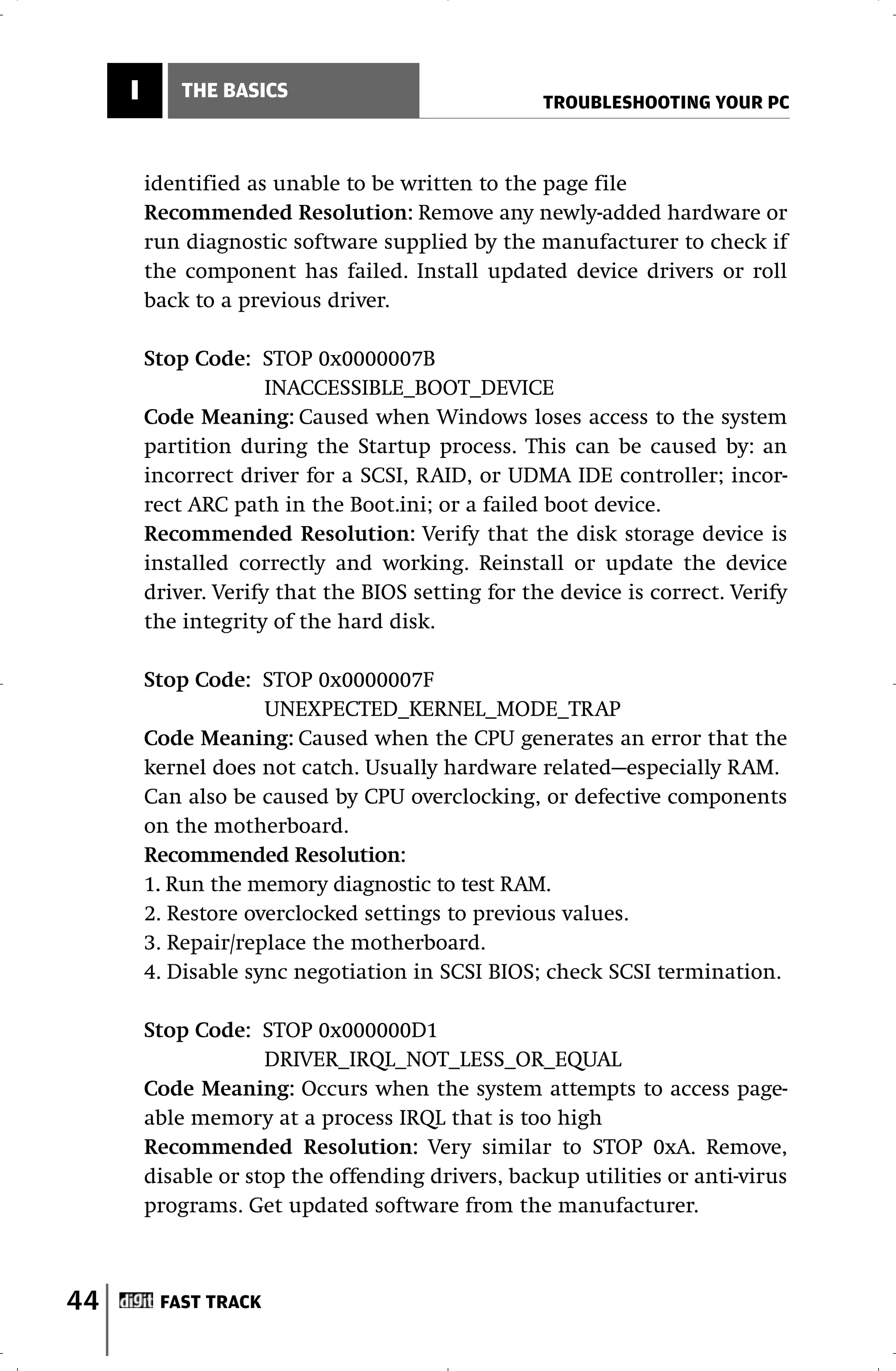
         Stop Code: STOP 0x0000007B
                       INACCESSIBLE_BOOT_DEVICE
         Code Meaning: Caused when Windows loses access to the system
         partition during the Startup process. This can be caused by: an
         incorrect driver for a SCSI, RAID, or UDMA IDE controller; incor-
         rect ARC path in the Boot.ini; or a failed boot device.
         Recommended Resolution: Verify that the disk storage device is
         installed correctly and working. Reinstall or update the device
         driver. Verify that the BIOS setting for the device is correct. Verify
         the integrity of the hard disk.

         Stop Code: STOP 0x0000007F
                      UNEXPECTED_KERNEL_MODE_TRAP
         Code Meaning: Caused when the CPU generates an error that the
         kernel does not catch. Usually hardware related—especially RAM.
         Can also be caused by CPU overclocking, or defective components
         on the motherboard.
         Recommended Resolution:
         1. Run the memory diagnostic to test RAM.
         2. Restore overclocked settings to previous values.
         3. Repair/replace the motherboard.
         4. Disable sync negotiation in SCSI BIOS; check SCSI termination.

         Stop Code: STOP 0x000000D1
                      DRIVER_IRQL_NOT_LESS_OR_EQUAL
         Code Meaning: Occurs when the system attempts to access page-
         able memory at a process IRQL that is too high
         Recommended Resolution: Very similar to STOP 0xA. Remove,
         disable or stop the offending drivers, backup utilities or anti-virus
         programs. Get updated software from the manufacturer.


44        FAST TRACK
TROUBLESHOOTING YOUR PC
                                                     THE BASICS      I


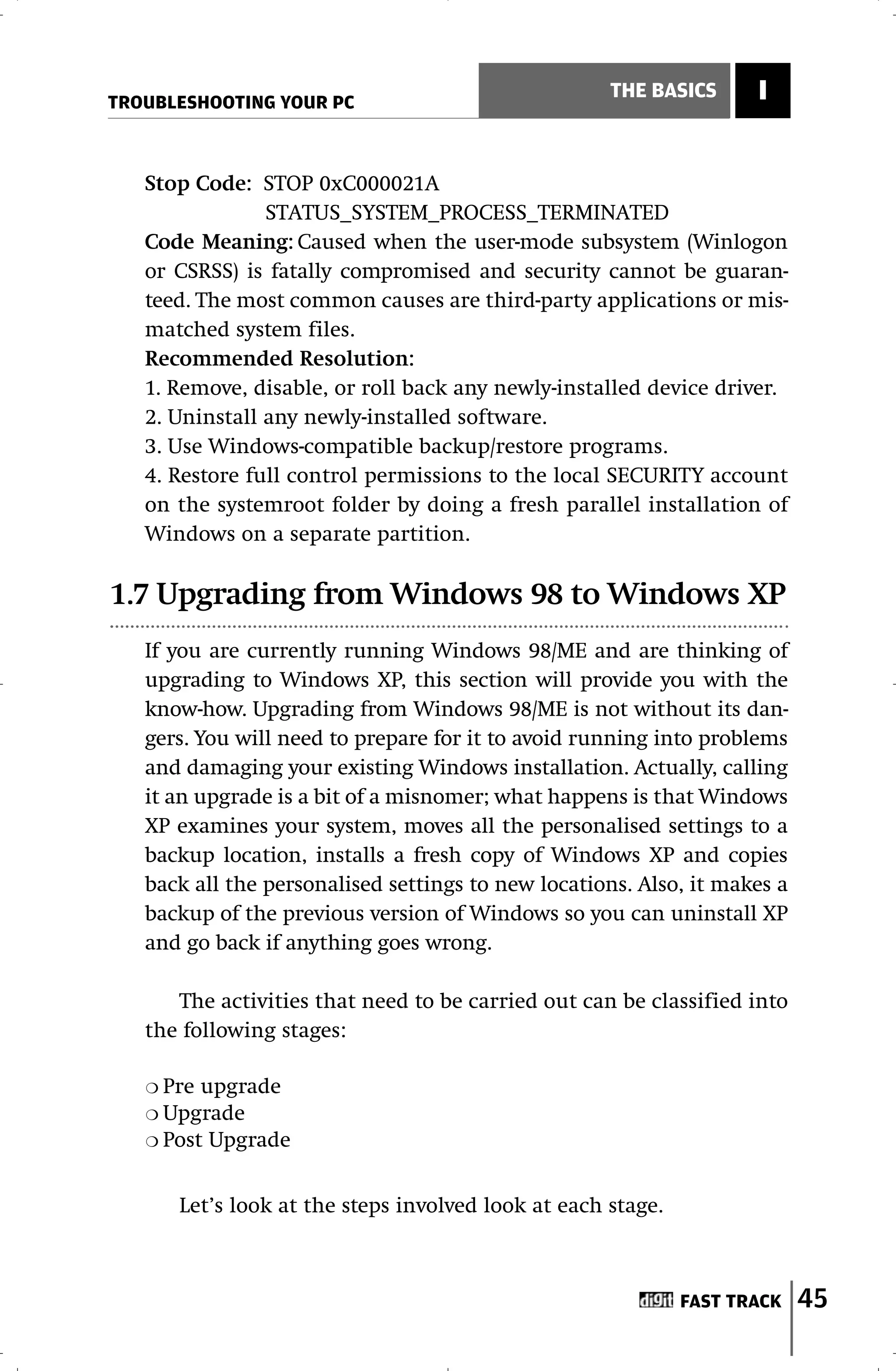
   Stop Code: STOP 0xC000021A
                STATUS_SYSTEM_PROCESS_TERMINATED
   Code Meaning: Caused when the user-mode subsystem (Winlogon
   or CSRSS) is fatally compromised and security cannot be guaran-
   teed. The most common causes are third-party applications or mis-
   matched system files.
   Recommended Resolution:
   1. Remove, disable, or roll back any newly-installed device driver.
   2. Uninstall any newly-installed software.
   3. Use Windows-compatible backup/restore programs.
   4. Restore full control permissions to the local SECURITY account
   on the systemroot folder by doing a fresh parallel installation of
   Windows on a separate partition.

1.7 Upgrading from Windows 98 to Windows XP
   If you are currently running Windows 98/ME and are thinking of
   upgrading to Windows XP, this section will provide you with the
   know-how. Upgrading from Windows 98/ME is not without its dan-
   gers. You will need to prepare for it to avoid running into problems
   and damaging your existing Windows installation. Actually, calling
   it an upgrade is a bit of a misnomer; what happens is that Windows
   XP examines your system, moves all the personalised settings to a
   backup location, installs a fresh copy of Windows XP and copies
   back all the personalised settings to new locations. Also, it makes a
   backup of the previous version of Windows so you can uninstall XP
   and go back if anything goes wrong.

      The activities that need to be carried out can be classified into
   the following stages:

   ❍ Pre upgrade
   ❍ Upgrade
   ❍ Post Upgrade


       Let’s look at the steps involved look at each stage.


                                                              FAST TRACK   45
I       THE BASICS
                                                     TROUBLESHOOTING YOUR PC


         1.7.1 The pre-upgrade stage

         1. Verify the minimum requirements for the hardware and sys-
         tem configuration.
         While Microsoft’s official recommendation is for a 300 MHz
         Pentium processor with 128 MB of RAM, experts and practical
         experience suggest you should at least have a Pentium III 500 MHz
         processor with at least 256 MB of RAM. Otherwise, Windows XP
         will be sluggish. In addition, you should have at least 1 or 2 GB of
         free hard disk space on your primary partition (the C: drive in
         most cases), an SVGA monitor that can support a screen resolution
         of 800 x 600 or higher, a display card, a sound card, a modem, and
         a CD or DVD drive. The sound card and modem are not essential,
         but you will want to connect to the Internet and update XP with
         all the latest patches once installation is complete, so a modem is
         required sooner or later. The sound card is preferable for your
         audio feedback (XP Setup sounds and music) at different stages of
         the setup process.

         2. Which file system?
         During setup, XP will ask you if you want to convert to NTFS from
         FAT/FAT32. FAT or FAT32 is the file system on which Windows
         98/ME runs. NTFS is a newer, more robust file system used by both
         Windows 2000 and XP. Be warned, however, that this is a one-way
         street. If you convert to NTFS, you cannot convert back to FAT, and
         if you want to make your system a dual-boot, i.e. you want to be
         able to boot into either XP or Windows 98/ME, you will not be able
         to log into Windows 98/ME. The same goes if you want to uninstall
         XP and revert to your previous Windows version after converting
         to NTFS.

             During setup, it is best to leave it as FAT32, and later, after you
         have stopped relying on Windows 98/ME completely, you can con-
         vert from FAT32 to NTFS. In Windows XP, open a command prompt
         and type in “convert/?” to get details of the FAT32 to NTFS conver-
         sion process.


46        FAST TRACK
TROUBLESHOOTING YOUR PC
                                                     THE BASICS      I


   3. Hard disk clean-up
   Run Scandisk and Disk Defragmenter. This will clean up the hard
   disk for the installation.

   4. Run Upgrade Advisor
   The Upgrade Advisor is an excellent tool that will test your sys-
   tem’s hardware and software compatibility with Windows XP. It is
   the same tool that runs during the XP Setup, but since you are
   running it independently, it will give you a report that will help
   you prepare for the upgrade. It is nearly 32 MB, in size and can be
   downloaded from www.microsoft.com/windowsxp/pro/howto-
   buy/upgrading/advisor.asp.

       Once you’ve verified and are satisfied about the compatibility
   of your hardware and software, you can start the upgrade.

   1.7.2 Upgrading to Windows XP
   1. Insert the CD-ROM and select “Install Windows XP.”

   2. Close all running applications such as virus scanners, spyware
      scanners, etc.

   3. Choose an installation type. You can either upgrade or do a clean
      install. The clean install will either overwrite the existing OS or
      create a dual-boot system where you can select to either log in to
      XP or your previous Windows version at system startup. If you’re
      opting for a dual-boot, don’t forget to retain your FAT/FAT32 file
      system. We assume you’re opting for an in-place upgrade, so
      choose “Upgrade (Recommended)” and click next.

   4. Accept the license agreement and enter the product key in the
      next screen.

   5. This step duplicates the Upgrade Advisor and verifies the hard-
      ware and software compatibility. Review the report and proceed
      if you are satisfied, else cancel the installation and rectify the
      problems identified by the Upgrade Advisor.


                                                             FAST TRACK     47
I      THE BASICS
                                                  TROUBLESHOOTING YOUR PC


         Running The Upgrade Advisor


     The first screen is basic informa-   In this screen, you are asked if you
     tion about the Advisor               want to connect to the Internet and
                                          get the latest compatibility updates


     More information on compatibility    Even more information on compat-
                                          ibility, informing you about the
                                          report categories


     Upgrade Advisor connects to the      The advisor examines the system
     Internet and downloads the latest    against the latest compatibility list
     compatibility information updates


48        FAST TRACK
TROUBLESHOOTING YOUR PC
                                                      THE BASICS       I


     The upgrade report lists all the     You can also visit the Windows
     software and hardware with prob-     Catalog Web site to get a list of
     lems and requiring either replace-   hardware and software that will
     ment or XP-compatible updates.       work with Windows
     Save this report and review it to
     determine which hardware and
     software requires replacement or
     upgrades


   6. If you are connected to the Internet, Setup will ask you if it can
      get updated setup files over the Internet. It is strongly recom-
      mended to accept this, as you will get all the latest critical
      updates and driver updates.

   7. Windows XP Setup will be updated. It will copy some files to the
      hard disk and reboot. On reboot, if you see a message to press
      any key to boot from the CD-ROM, ignore it. Setup has config-
      ured itself to run from the hard disk.

   8. Setup will copy more files and reboot again. Ignore the message
      to press any key to boot from the CD.

   9. Setup installs devices and the network, and then copies files
      and configures the rest of the files needed to install XP.

   10. Finally, program and system settings are upgraded, temporary
       files are removed, and the system reboots again.

   11. The first time XP boots, you are presented with the option of
       connecting to the Internet, activating Windows and optionally
       registering. You are then presented with the XP desktop.


                                                              FAST TRACK      49
I       THE BASICS
                                                   TROUBLESHOOTING YOUR PC


         1.7.3 Post-Upgrade Tasks
         1. Testing Installed Software
         Check all your software programs to see if they are working. If any
         are not, try reinstalling the application or visit the software ven-
         dor’s Web site to get XP updates for the program. If they still don’t
         work, go to “Fixing a problem” in the “Help and Support Center”
         to get help in solving application and software problems.

         2. Testing Installed Hardware
         Check if all the hardware is working. Right-click on My Computer,
         and go to Properties > Hardware, and click on Device Manager. See
         if there are any problematic devices; double-click to see the prop-
         erties page and the error code. See the Troubleshooting Hardware
         Device Conflicts in Windows section of this guide to understand what
         the Device Manager error codes mean, and their possible resolu-
         tion. Update the drivers as applicable by right-clicking on the prob-
         lematic device and selecting Update Driver. Leave the XP setup CD
         in the drive and try the option “Install the software automatically
         (Recommended)”. If that doesn’t work, get the updated Windows
         XP driver from the manufacturer. If that fails, go to “Fixing a prob-
         lem” in the “Help and Support Center” to get help in solving appli-
         cation and software problems.

         3. Run Windows Update
         Update your installation of Windows XP with all the patches,
         other updates, and service packs by connecting to the Windows
         Update site.

         4. Defragment your hard disk
         The upgrade would have made your system files heavily fragment-
         ed. Open My Computer, right-click the installation drive (usually
         C:), select Properties, click on the Tools tab, and select
         “Defragment Now”.

         5. Customise
         Further customise the system—wallpapers, screensavers, etc. You
         are now ready to use Windows XP!


50        FAST TRACK
TROUBLESHOOTING YOUR PC
                                                       THE BASICS      I


      Use Windows XP for a few weeks to verify that everything is
   working correctly. Once this is confirmed, go to Add or Remove
   Programs. Remove the option to revert to your old system. This will
   save on disk space, but be warned that there is no going back to
   your previous OS once you remove it.

1.8 Troubleshooting Startup And Shutdown
Problems In XP

   In the Windows family of operating systems, XP is by far the most
   reliable. Still, it’s not without its problems, and there are chances of
   things going wrong. Startup and shutdown troubles are mostly due
   to incompatible hardware and software. Before getting down to
   troubleshooting, it is advisable to make sure your system has all the
   latest hardware device driver updates, patches and software pro-
   grams updates that are XP-specific. At the minimum, you should
   run Windows Update and download all the latest patches. If you are
   not sure whether there is an update required for any device or
   software program, and are not sure where to start looking, don’t
   worry—let’s get on with the troubleshooting. We will eventually
   stumble across the offending device or program.

   1.8.1 Troubleshooting startup problems

   There are many sources of problems that could give you Startup
   troubles. These include (but are not limited to): defective, incom-
   patible, or incorrectly configured hardware, incompatible (soft-
   ware) device drivers, or a recently installed program.

     Problem: Your screen remains blank when you switch on the PC.
   Cause: That you are not able to even get the BIOS POST screen indi-
   cates a problem with basic hardware.
   Solution: Look at the other sections in this guide. Work through
   the PSU, video card, and motherboard troubleshooting sections
   before checking the other components.


                                                              FAST TRACK      51
I       THE BASICS
                                                   TROUBLESHOOTING YOUR PC


           Problem: After the POST screen, the system hangs.
         Cause: Again, more hardware related problems. This time the
         culprit could be the video card.
         Solution: Work through the video card troubleshooting section
         before checking the other components.

            Problem: Your XP computer stops responding at startup.
         Cause 1: A device driver or a recently installed software or service
         is stopping Windows from booting up normally. There has been a
         corruption in the Windows registry.
         Solution 1a: Restart the computer and log into XP in Safe Mode.
         Open Device Manager and look for any problematic devices. Ensure
         that any jumper settings on the hardware are properly set. If the
         hardware is properly configured and you are still facing the prob-
         lem, then it may mean that the device driver for the hardware
         needs to be updated. Remove the device through Device Manager
         and reboot normally. Obtain the updated device drivers for the
         hardware (through the Internet, a CD, etc.). Run the Add Hardware
         Wizard and reinstall the device drivers.
         Solution 1b: Reboot the computer in Safe Mode. If the problem is
         not related to hardware, or you don’t see any problematic devices in
         Device Manager, run the System Restore utility to roll back the com-
         puter to a previous time when you know it was working normally.
         Solution 1c: If System Restore doesn’t get your computer to start
         normally, get to the Windows Advanced Options menu and select
         “Last Known Good Configuration (your most recent settings that
         worked)”. Windows XP will start the computer using the Registry
         information from the last shutdown.
         Solution 1d: If the Last Known Good Configuration does not work,
         then your final course of action is to do an in-place upgrade. Run
         the Windows XP Setup program from your installation CD. Refer
         to the Upgrading Windows XP from Windows 98 section of this guide.
         The steps are similar.
         Solution 1e: If you suspect that a recently installed system service
         is causing this problem, stop the service by following the steps out-
         lined earlier.


52        FAST TRACK
TROUBLESHOOTING YOUR PC
                                                    THE BASICS     I


   Cause 2: The BIOS settings are incorrect.
   Solution 2: Restart the computer and enter the BIOS setup screen.
   If you have changed any settings, restore them to the previous val-
   ues. If you are not sure about the previous values or haven’t
   changed the settings, select the Load Fail-safe Defaults (this could
   also be “Factory Defaults”, “BIOS Setup Defaults”, etc.) option and
   reboot.

   Cause 3: There might be a hard disk failure or data corruption in
   the boot records
   Solution 3: Insert the Windows XP installation CD and restart the
   computer. On the “Welcome to Setup” screen, press [R] to start the
   Recovery Console. You will be prompted for the administrator
   password. Type in the password, or if the password is blank, hit
   [Enter]. At the command prompt, type in “chkdsk”. This will run
   the Checkdisk utility that will scan the hard disk for any faults.
   Checkdisk may report a hardware failure or errors on your disk. If
   it does, it is best to take your PC to a repair professional.

      Problem: You receive an error message when Windows XP starts.
   Cause: A recently installed file or service or software program is
   incompatible with Windows XP and is preventing it from starting.
   Look carefully at the error message. If a file or service name is
   referred to in the error message, then you can troubleshoot by
   either clean booting or by stopping the service.
   Solution 1a: To perform a clean boot in Windows XP, use the fol-
   lowing steps:
   1. Start the system configuration tool by going to Start > Run, typ-
      ing in “msconfig”, and pressing [Enter]
   2. Click Selective Startup and clear the following checkboxes:
      “Process System.ini File”, “Process Win.ini File”, and “Load
      Startup Items”.
   3. Select the Services tab and click the “Hide All Microsoft
      Services” checkbox, and then select “Disable All”.
   4. Click OK and then “Restart” to restart your system.
   5. When Windows restarts, if the error doesn’t occur, re-open
      “msconfig” and check the “Process System.ini File” checkbox,


                                                           FAST TRACK     53
I       THE BASICS
                                                   TROUBLESHOOTING YOUR PC


            click OK and restart your computer. If the error returns, you
            know that the problem is with one of the System.ini entries. If
            the error doesn’t occur, progressively enable the remaining
            checkboxes (“Process Win.ini File”, “Load Startup Items”, and
            “Load System Services”). Restart the computer after you enable
            each checkbox till the error occurs again.
         6. Once you have identified the area in which the error occurs, dis-
            able the entry or stop/disable the service as the case may be.

         Solution 1b: If you are unable to perform a clean boot to trou-
         bleshoot the problem and you know the name of the service,
         then start the Recovery Console as explained earlier. From the
         command prompt, change to the System32 folder. Type in
         “listsvc” at the command prompt in the System32 folder. A list of
         all services on your computer will be displayed. Locate the serv-
         ice name that is causing the error. Type “disable <servicename>”
         and press [Enter].

             The computer will print a message listing the “start type” that
         is being shut down. Note it down in case you need to re-enable the
         service. Type “exit” and allow the computer to restart normally.

         Solution 1c: If you recently installed a program that is causing this
         error, remove the program. If the program is not listed in the
         Add/Remove list, you’ll have to visit the developer’s Web site for
         instructions on how to remove the program.

           Problem: After an upgrade, programs that loaded during start
         up do not start.
         Cause: This symptom is noticed when you log in for the first time
         after upgrading from Windows 98 or ME. Windows XP will remove
         all programs from the startup list, which it ‘feels’ are not compat-
         ible.
         Solution: Click Start > Run, type in “msconfig” and press [Enter].
         Click the Startup tab. Select the “Restore Startup Programs” option
         and click OK. Restart the computer. (This option won’t be available
         if Windows XP Setup did not disable any startup programs.)


54        FAST TRACK
TROUBLESHOOTING YOUR PC
                                                    THE BASICS      I


   1.8.2 Troubleshooting Shutdown Problems

      Problem: When you click on “Shut down”, XP reboots!
   Cause: Windows XP, by default, is configured to restart in case of
   an error. This behavior may occur if an error is generated during
   the shutdown process. It could be either hardware or a software
   problem.
   Solution: Disable Automatic
   Restart.     Right-click     My
                                         Tip
   Computer. Select Properties >
   Advanced > Settings > Startup         Disabling the wrong service
   and Recovery. Clear the               will cause further problems so
   “Automatically Restart” check-        be sure of the service you wish
   box. Shut down the computer           to disable. If you wish to re-
   and see if you get an error mes-      enable a service from Recovery
   sage or a BSOD. Follow the trou-      Console type “enable <service-
   bleshooting steps explained ear-      name_ type>”. Here, service-
   lier in the BSOD section of this      name_type should be the same
   guide. If there is no error mes-      type that was showed on your
   sage or BSOD, check your hard-        screen when you shut down the
   ware. Some of the most com-           service.
   mon culprits are CD-Writing
   software suites (Roxio, Nero, etc.), some specialty keyboards such
   as Internet keyboards, USB devices, and power management set-
   tings. Check the drivers for all the hardware devices and update
   them if possible. Unplug the hardware devices one by one and go
   through the shutdown process to isolate the device. Check the
   power management settings and switch to the “Always On” option.
   Troubleshoot problems with Windows system services as
   explained earlier in this chapter.

     Problem: The system hangs at the “Saving your settings” screen.
   Cause: This is a known issue in older XP releases, and can be
   patched by upgrading to Service Pack 1. Also, some software driv-
   ers “lock” during the shutdown process, preventing Windows XP
   from shutting down completely.
   Solution: Upgrade your system to at least Service Pack 1. Update the


                                                            FAST TRACK     55
I       THE BASICS
                                                     TROUBLESHOOTING YOUR PC


         device drivers. If the problem persists, uninstall problematic devices
         through Device Manager and all their associated software, and
         restart the computer. Windows XP will auto-detect the hardware and
         ask you to provide the location for the software drivers. Specify the
         location of the new drivers and let Windows complete the installa-
         tion. Some devices may require a firmware update. See the Updating
         the BIOS section of this guide to understand the general principles on
         how it is done. Refer to the manufacturer’s Web site for details on the
         exact steps to be followed.

           Problem: A BSOD during shutdown.
         Cause: This is most likely a problem with the hardware; it may
         also be caused by rogue software or problems with system
         services.
         Solution: Note down the stop message error code and the friend-
         ly name. Refer to the Troubleshooting BSODs section for general
         principles on how to troubleshoot the problem. Troubleshoot
         problems with Windows system services as explained earlier in
         this chapter.

           Problem: Shutdown is very slow.
         Cause: Windows is waiting for all running programs and services
         to stop before shutting down.
         Solution: In XP, many programs (including Windows itself) install
         services that run in the background, waiting for some action from
         the user. Some of these may take a long time to shut themselves
         down after receiving the Shutdown command from Windows.
         Identifying the service or services causing this problem will mostly
         be a trial and error process. If you have installed some software
         recently it might have a service that is slow in exiting and is delay-
         ing the shutdown process.

             To find out the list of services that are running on your system,
         click Start > Run, type in “services.msc” and click OK. This launch-
         es the Services Manager. Look through the list and identify any
         services related to software you have recently installed.


56        FAST TRACK
TROUBLESHOOTING YOUR PC
                                                  THE BASICS     I


       Stop the services one at a time and shut down the system till
   you identify the offending service. Restart all the other services
   and shutdown again just to make doubly sure you’ve stopped the
   right service. Note: Ensure that you don’t stop any Windows sys-
   tems services and other essential services. Stopping critical and
   essential services will cause more problems. Also, you should be
   aware that if you stop a service related to any software you have
   installed, that particular software may not function correctly or
   not function at all. Check the vendor’s Web site for more details
   on the issue and any updates to correct it.


                                                         FAST TRACK     57
II       BIOS
                                                   TROUBLESHOOTING YOUR PC


     The BIOS


          T   he BIOS is a dark and dangerous world, where a wrong setting
              can toast your OS, cook a hardware component, melt your
          motherboard and leave you with a lump of electronics looking at
          you in silent baleful accusation: “You killed me!” That said, it is
          not so easy to damage your system through the BIOS—but only if
          you’re careful. Messing around with the BIOS requires patience
          first and patience last! You also definitely need to understand
          what you are doing when you’re changing any setting. Scared
          already? OK, pay attention now…


58         FAST TRACK
TROUBLESHOOTING YOUR PC
                                                                BIOS     II

2.1 The BIOS: What is it?

   The BIOS (Basic Input/Output System) is the software code that
   first runs when the PC powers on. It contains all the information
   necessary to initialise nearly all the hardware components of the
   PC. Normally, when you switch on the PC, the BIOS performs a
   Power on Self Test, or POST as it is called. This is a series of diag-
   nostic tests on the RAM and other hardware. It also initialises all
   the hardware devices such as the hard disk, memory, video and
   other hardware, identifies and reserves memory addresses for all
   the IRQs and ports available on the motherboard, and calls a small
   operating system program known as the boot loader. The boot
   loader, using the BIOS information amongst other things, starts
   calling the programs that will load the OS. And finally, the OS uses
   the BIOS information to take control over the hardware devices.

       Motherboard manufacturers use the BIOS to define settings
   for the various hardware components including the hard disk,
   RAM, CD-ROMs, I/O ports etc. These are generally set at the facto-
   ry and are what is called the Factory Settings or the BIOS Setup
   Default Settings.


      EFI—The End of BIOS?
      The BIOS as we know it is well over 20 years old, and has changed
      little since it was first introduced. In early 2000, Intel indicated
      that this was about to change with the release of the first version
      of the Extensible Firmware Interface (EFI). The EFI is a tiny oper-
      ating system that has its own basic networking, graphics, key-
      board and storage handling software. It will allow hardware ven-
      dors to create OS-independent device drivers. This means that
      whatever the operating system, your hardware device would
      work, at least theoretically, without you having to install specific
      drivers. Bye bye to Device Manager hell? It’s still too early to say.
      Windows Vista will be the first Windows version to offer native EFI
      support, and hardware vendors have been reluctant to include EFI
      due to lack of mainstream (read Windows!) demand.


                                                                 FAST TRACK   59
II      BIOS
                                                    TROUBLESHOOTING YOUR PC


               The BIOS software code and all the settings for the PC are
           stored on a memory chip that’s continuously supplied with power
           by a battery. The battery also powers a real-time clock that keeps
           accurate time. Hence, these settings (and time values) are retained
           even when the power is switched off.

               Motherboard manufacturers and BIOS vendors frequently
           release updates, which can be “flashed” to the BIOS. In some trou-
           bleshooting cases, your only option is to update the BIOS. Look
           later in this section to learn how.

              To enter the BIOS setup, you’ll need to press [Delete], or some-
           thing similar, when your computer is booting up. Depending on
           the PC, the key may be different—[Esc], [F1], [F10], etc.

     2.2 BIOS Beep Codes
           When your system has a problem that won’t let it start up proper-
           ly, the first thing you will hear is warning beeps. These could be
           because of hardware or even because of the BIOS itself.

               Unfortunately, beep codes are not standardised across BIOS
           vendors and motherboard manufacturers. Below are mentioned
           the beep codes, along with the possible problem that could be
           causing the beep, and some suggestions towards resolution. These
           are for two popular BIOS vendors—AMI and Award. If your BIOS is
           from any other vendor, you will need to refer to the motherboard
           manufacturer’s or the BIOS vendor’s manual for details.

               Also, motherboard manufacturers may modify the beep codes
           to their convenience and not maintain consistency. Keep an open
           mind when you decipher the beep, and don’t get into a tizzy if the
           codes don’t match what is in here or in the BIOS vendor’s manual!
           You should always try and contact the manufacturer to get the
           correct beep codes.


60          FAST TRACK
TROUBLESHOOTING YOUR PC
                                                          BIOS     II


   2.2.1 AMIBIOS (American Megatrends Inc.)
   One beep: RAM failure
   Problem: Motherboard problem or failed RAM.
   Solution: Troubleshoot the motherboard and/or the RAM.

   Two beeps: Parity Circuit Failure
   Problem: Motherboard problem or failed RAM.
   Solution: Troubleshoot the motherboard and/or the RAM.

   Three beeps: Base 64K RAM failure
   Problem: There is a failure within the first 64K of memory.
   Solution: Troubleshoot the motherboard and/or the RAM.

   Four beeps: System Timer Failure
   Problem: One or more of the system timers on the motherboard
   has failed; usually indicates motherboard failure.
   Solution: Troubleshoot the motherboard. You may need to replace it.

   Five beeps: Processor Failure
   Problem: The processor is generating an error condition. This does
   not mean that the processor is not working—with a dead proces-
   sor, the computer won’t boot at all.
   Solution: Check if the processor is overheating, and whether it is
   set correctly on the motherboard. Troubleshoot the motherboard.

   Six beeps: Keyboard controller or gate A20 failure
   Problem: Keyboard, keyboard controller or motherboard error.
   Solution: Check if the keyboard is connected properly. Use anoth-
   er keyboard to see if the problem persists. If it does, look for the
   keyboard controller chip on the motherboard and see if it is seat-
   ed properly and that it is not damaged. If the problem continues,
   troubleshoot the motherboard.

   Seven beeps: Virtual mode exception error
   Problem: This error is reported when testing the processor’s virtu-
   al mode.
   Solution: Troubleshoot the motherboard/processor. Verify that


                                                           FAST TRACK     61
II       BIOS
                                                    TROUBLESHOOTING YOUR PC


          all jumpers are properly configured.

          Eight beeps: Display memory read/write failure
          Problem: The BIOS is not able to read/write the display card’s
          memory.
          Solution: Troubleshoot the motherboard and/or display card.

          Nine beeps: BIOS’ ROM checksum failure
          Problem: The BIOS CMOS chip is most likely defective. May also be
          a problem with the motherboard.
          Solution: The CMOS chip can be replaced, but replacing the moth-
          erboard is simpler and more cost-effective.

          10 beeps: CMOS shutdown register read/write error
          Problem: A motherboard component is creating an error when
          interacting with the CMOS.
          Solution: Troubleshoot the motherboard and verify that all com-
          ponents are properly set up and configured.

          11 beeps: Cache memory error
          Problem: There is an problem with the processor’s L2 cache.
          Solution: Verify that the L2 cache chip is inserted correctly. Verify
          that all connections inside the PC are correct. Replace the cache
          module if the problem persists.

          Continuous beeps: Video / Memory problem
          Problem: A problem with the RAM, display card or motherboard.
          Solution: Troubleshoot the RAM first, followed by the display card
          and then the motherboard.

          Other beeps: Check motherboard manual
          Problem: Check the motherboard manual or the vendor’s Web site
          for more information. Treat it as a motherboard problem.
          Solution: Troubleshoot the motherboard.

          2.2.2Award BIOS
          Award has the least number of documented beep codes. They pre-


62         FAST TRACK
TROUBLESHOOTING YOUR PC
                                                         BIOS      II


   fer to display an error message on the screen. Beep codes are used
   only if the BIOS can’t access the display subsystem.

   One long beep: Memory problem
   Problem: A problem with the memory or motherboard
   Solution: Troubleshoot the memory and the motherboard

   One long and two short beeps: Video error
   Problem: The BIOS is not able to access the video sub-system
   Solution: Troubleshoot the video card, and if the problem persists,
   go on to the motherboard.

   One long and three short beeps: Video error
   Problem: The BIOS is not able to access the video sub-system
   Solution: Troubleshoot the video card, and the if problem persists,
   go on to the motherboard.

   Continuous beeps: Video / memory problem
   Problem: There is a problem with the RAM, display card or
   motherboard.
   Solution: Troubleshoot the RAM first, followed by the display card
   and then the motherboard.

   Other beeps: Check the motherboard manual
   Problem: Check the motherboard manual or the vendor’s Web site
   for more information. Treat it as a motherboard problem.
   Solution: Check the motherboard manual. Troubleshoot the
   motherboard.

2.3 General BIOS Problems

     Problem: The BIOS fails to detect the hard disk(s), CD-ROM,
   floppy drive, etc.
   Cause: All of a sudden, hard drives and floppies disappear from
   the list of devices, or you cannot boot because the BIOS declares
   that you have no hard drive!


                                                          FAST TRACK     63
II       BIOS
                                                    TROUBLESHOOTING YOUR PC


          Solution: The most common reason for this error is a bad or loose-
          ly connected cable or incorrect jumper settings on the device.
          Check all the cable connections to the device. Ensure that the data
          cable and the power cable are properly plugged in both to the
          device and to the motherboard. Next, check the jumper settings. If
          two disks are connected to a single port, make sure one is set to
          Master and the other to Slave. Also check the BIOS setup program
          and ensure that IDE controllers are enabled. Go to the Integrated
          Peripherals menu and confirm that the Primary and Secondary
          Channels are enabled. If you are not comfortable changing indi-
          vidual values, reset the settings using the “Load Fail-safe (or
          Factory) Defaults” option.

            Problem: After powering off the PC and switching it back on
          after a few hours, the time has changed
          Cause: The CMOS battery powers the real-time clock. This symp-
          tom indicates that the battery is dying. In rare cases, it could also
          mean there’s a problem with the battery port of the CMOS.
          Solution: Replace the battery. If the symptom persists, there’s a
          good chance that the battery port is damaged. In this latter case,
          you may need to replace the motherboard! Get it checked by a
          computer technician first.

            Problem: An error message says there is a problem with IRQ, I/O
          port, DMA configuration or resource allocation, and refers to
          troubleshooting the BIOS
          Cause: The BIOS configures and allocates resources to the IRQ and
          I/O ports. In most BIOSes, this allocation cannot be changed or
          modified by the user. Some BIOSes may provide a “soft menu” to
          change these allocations.
          Solution: It’s preferable to get the BIOS checked by a computer
          engineer. Use the “Load Fail-safe (Factory) Defaults” options in the
          setup menu. If a soft menu is available, ensure you read up the
          associated documentation before changing any settings.


64         FAST TRACK
TROUBLESHOOTING YOUR PC
                                                           BIOS     II

     Problem: An error message asks to update the BIOS
   Cause: The BIOS firmware does not support the device without an
   update.
   Solution: See the Updating the BIOS section

2.4 User-Configurable BIOS settings

   Using the BIOS setup, you can configure and change the settings
   of many hardware components. Some of the settings can give you
   performance boosts if done right. If done wrong, they can cause
   rapid overheating and can fry your system. While we have tried to
   keep everything as accurate as possible, it should be noted that the
   BIOS options in your system may radically differ from what we
   have described here. Also, we cannot be sure on how these options
   are implemented in your system.

       Make any changes one at a time or in the smallest increments.
   Test system stability by booting into Windows and working on it
   for 5 to 10 minutes after each change. If the system becomes unsta-
   ble, revert to the previous settings. Using these settings is at your
   own risk!

   2.4.1 Memory Options
   15M—16M Memory Hole / Memory Hole
   Options: Enabled, Disabled
   Recommended Setting: Disabled
   Explanation: Older ISA cards used the 15th megabyte of memory
   for their own purposes. Modern EISA, PnP-ISA and PCI cards don’t
   need this, with one exception: Sound Blaster PCI128 and Sound
   Blaster Live cards. If you have these cards, leave this enabled.

   Autodetect DIMM/PCI Clock
   Options: Enabled, Disabled
   Recommended Setting: Enabled
   Explanation: Turns off unused slots. It may also slightly reduce
   power usage.


                                                            FAST TRACK     65
II      BIOS
                                                    TROUBLESHOOTING YOUR PC


          Bank Interleave
          Options: Disabled, 2-Way, 4-Way
          Recommended Setting: Depends on the memory modules
          you have.
          Explanation: Interleaving requests to different RAM banks can
          give you a performance boost. 64 MB and lower RAM modules have
          two banks. Larger modules have four banks. Check your RAM mod-
          ules and decide.

          Data Integrity Mode
          Options: ECC, Non-ECC
          Recommended Setting: ECC
          Explanation: Both the chipset (motherboard) and the RAM have to
          support ECC. If you don’t know, then it should be set to Non-ECC.

          Delay DRAM Read Latch
          Options: Auto, No Delay, 0.5ns, 1.0ns, 1.5ns
          Recommended Setting: Depends on the memory modules you have.
          Explanation: Tweaks for high RAM loads. Two-sided 256MB mod-
          ules are high-load, one-sided memory modules are not. For lower
          RAM loads, set it at No Delay. For high RAM loads, you need to
          increase the delay. If you are getting crashes after you install new
          RAM, this is the first place to look.

          DRAM CAS Latency Time / DRAM Cycle Length
          Options: 2, 2.5, 3
          Recommended Setting: Depends on the memory modules
          you have.
          Explanation: CAS latency is part of the wait between the chipset
          requesting data and the RAM modules getting ready to send it.
          Shorter delays are better. A lower number is therefore better if
          your RAM is able to handle it. 2.5 is only available with DDR RAM.

          Fast R-W Turnaround
          Options: Enabled, Disabled
          Recommended Setting: Depends on system stability
          Explanation: When the CPU switches from reading to writing


66         FAST TRACK
TROUBLESHOOTING YOUR PC
                                                             BIOS     II


   there is a delay. Enabling it reduces the delay. Disable it if it caus-
   es system instability.

   Force 4-Way Interleave
   Options: Enable, Disable
   Recommended Setting: Disabled
   Explanation: This is supposed to force the chipset to use 4-way
   interleave even if it does not detect it. The chipset will most likely
   turn on 4-way interleave if it is specified in the Bank Interleaving
   setting, so you can leave this disabled.

   MD Driving Strength/Memory Data Drive
   Options: Low, High
   Recommended Setting: Depends on the memory modules
   you have.
   Explanation: Change from low to high if the signal strength,
   under high RAM Load, is insufficient. Changing this setting may
   affect system stability.

   Read Around Write
   Options: Enabled, Disabled
   Recommended Setting: Enabled
   Explanation: Out-of-order read-write commands result in higher
   performance.

   Read Wait State/Read Latency
   Options: 0, 1
   Recommended Setting: 0 if there is no instability.
   Explanation: When a device reads from the RAM, the chipset
   holds the data for one cycle. Setting it to zero cycles increases per-
   formance, but the device may not be ready to receive the data—
   resulting in instability.

   Refresh Interval/Refresh Mode Select
   Options: 7.8 µsec, 15.6 µsec, 31.2 µsec, 64 µsec, 128 µsec
   Recommended Setting: 128 µsec; depends on the memory mod-
   ules you have.


                                                              FAST TRACK     67
II       BIOS
                                                      TROUBLESHOOTING YOUR PC


          Explanation: Every cell in SDRAM and DDR are refreshed every 64
          milliseconds. But trying to refresh everything together will result
          in a power surge which is not good, so it is staggered. 128 MB and
          smaller modules are refreshed every 15.6 microseconds. 256 MB
          modules every 7.8 microseconds (µsec). Today’s RAM modules can
          handle more than the recommended 64 µsec between refreshes.
          A setting of 128 µsec increases performance and reduces power
          consumption.

          SDRAM Command Leadoff
          Options: 3, 4
          Recommended Setting: Depends on system stability
          Explanation: 3 is better.

          SDRAM Idle Limit/SDRAM Idle Timer
          Options: Disabled, 0 cycles, 8 cycles, 12 cycles, 16 cycles, 24 cycles,
          32 cycles, 48 cycles
          Recommended Setting: 12 cycles for less than 512 MB, 32 cycles for
          all others
          Explanation: The idle time before SDRAM recharge. Higher values
          postpone the recharge and reduce RAM latency. Use this together
          with the Refresh Interval setting for best results.

          SDRAM Precharge Control/SDRAM Page Control
          Options: Enabled, Disabled
          Recommended Setting: Enabled. Disable it if there is instability.
          Explanation: This checks whether the RAM or the chipset
          should control the refreshing. Enable for RAM to control the
          refresh. Can cause instability with large amounts of RAM or
          poor-quality RAM.

          Video RAM Cacheable
          Options: Enabled, Disabled
          Recommended Setting: Disabled
          Explanation: Enabling this causes video data to be cached in the
          L2 cache. Can cause a performance bottleneck when enabled.


68         FAST TRACK
TROUBLESHOOTING YOUR PC
                                                           BIOS     II


   2.4.2 PCI and AGP Options
   8-bit I/O Recovery Time
   Options: N/A, 1, 2, 3, 4, 5, 6, 7, 8
   Recommended Setting: N/A
   Explanation: Synchronises the PCI-ISA bus. If don’t have an ISA
   card it does nothing.
   16-bit I/O Recovery Time
   Options: N/A, 1, 2, 3, 4
   Recommended Setting: N/A
   Explanation: Same as 8-bit, but for 16-bit transactions. Does noth-
   ing without an ISA card.

   AGP 2x Mode and AGP 4x Mode
   Options: Enabled, Disabled
   Recommended Setting: Enabled
   Explanation: This enables or disables AGP 2x or 4x depending on
   what your BIOS shows. Even if your card is AGP 2x and you set it to
   4x, the chipset will fall back to 2x, so there is no harm in enabling
   this setting.

   AGP Aperture
   Options: Disabled, 8MB, 16MB, 32MB, 64MB, 128MB, 256MB
   Recommended Setting: Disabled
   Explanation: Controls how much system RAM the AGP card is
   allowed to use for AGP texturing. If you’re not a heavy gamer, and
   if you don’t work too much with 3D applications, there’s no point
   assigning an AGP aperture. Also, if you’ve got, say, only 256 MB of
   RAM, you don’t have RAM to spare—hence the AGP Aperture
   should be disabled.

   Assign IRQ to PCI/AGP VGA
   Options: Enabled, Disabled
   Recommended Setting: Enabled
   Explanation: Tells the BIOS to assign an IRQ to the display. Useful
   for Windows 95/98/ME. Makes no difference to Windows 2000/XP
   if enabled.


                                                            FAST TRACK     69
II       BIOS
                                                    TROUBLESHOOTING YOUR PC


          CPU to PCI Write Buffer
          Options: Enabled, Disabled
          Recommended Setting: Enabled
          Explanation: Sets the priority to the CPU when writing to the PCI
          bus. Better performance if enabled. May cause instability with
          some sound cards.
          Fast Writes
          Options: Enabled, Disabled
          Recommended Setting: Disabled
          Explanation: There’s a very slight performance increase if
          enabled. But it causes instability with video cards that doesn’t sup-
          port Fast Writes.

          I/O Recovery Time
          Options: Enabled, Disabled
          Recommended Setting: Disabled
          Explanation: Enable this if you are facing problems with any ISA
          cards you may have.

          Master Priority Rotation
          Options: 1 PCI, 2 PCI, 3 PCI
          Recommended Setting: Depends on your configuration.
          Explanation: Controls CPU access to the PCI bus. If you have RAID
          and SCSI, 3 PCI is better. With NICs and TV-Tuners, 1 PCI is better.
          You will have to experiment for your configuration.

          Passive Release
          Options: Enabled, Disabled
          Recommended Setting: Depends on how your system responds.
          Explanation: Allows ISA devices to write to the Passive Release
          Buffer without waiting for the PCI bus. Enable for better perform-
          ance; disable if your ISA cards or NICs have problems.

          PCI #2 Access #1 Retry
          Options: Enabled, Disabled
          Recommended Setting: Enabled
          Explanation: Works with the CPU to PCI Write Buffer. Enabling


70         FAST TRACK
TROUBLESHOOTING YOUR PC
                                                             BIOS     II


   this will tell the buffer to retry any writes to the bus. Disable it if
   you face performance issues and your PCI bus has high-bandwidth
   devices. Many retries will jam the bus.

   PCI Delay Transaction/PCI 2.1 Compatible/PCI 2.1 Compliance
   Options: Enabled, Disabled
   Recommended Setting: Enabled
   Explanation: A buffer between the faster PCI and the slower ISA. If
   enabled, may cause problems with some sounds cards. Look for
   driver updates for the cards.

   PCI Dynamic Bursting
   Options: Enabled, Disabled
   Recommended Setting: Enabled
   Explanation: PCI devices write to this burst buffer, and the buffer
   writes to the PCI bus when it is free or the buffer is full.

   PCI Latency
   Options: 16 to 255
   Recommended Setting: It varies. It’s usually set to 32 or 64.
   Explanation: This controls the time a PCI device is allowed to use
   the bus.

   PCI Master 0 WS Write
   Options: Enabled, Disabled
   Recommended Setting: Enabled
   Explanation: Disabling puts a 30ns write delay for PCI busmasters.
   Disable this if you are facing issues with SCSI or a NIC.

   PCI Master Read Caching
   Options: Enabled, Disabled
   Recommended Setting: Disabled
   Explanation: Caches PCI Master reads to the CPU’s L2 cache. Will
   cause a performance hit on the CPU if enabled.

   PCI Master Pipeline Req/PCI Pipelining
   Options: Enabled, Disabled


                                                              FAST TRACK     71
II      BIOS
                                                  TROUBLESHOOTING YOUR PC


          Recommended Setting: Disabled
          Explanation: Enable for better performance with a PCI video card,
          TV-Tuner, etc. May cause system instability with some devices
          when enabled.
          Sidebanding
          Options: Enabled, Disabled
          Recommended Setting: Enabled
          Explanation: Enabled is faster. Permits AGP to send addresses
          down different lines to data.

          2.4.3 Other options

          Force ESCD update
          Options: Enabled, Disabled
          Recommended Setting: Enabled
          Explanation: This refreshes the ESCD (Extended System
          Configuration Data) data on every boot, regardless of whether it’s
          changed or not.

          IDE Access mode
          Options: CHS, LBA, Large/Other
          Recommended Setting: Depends on your hard disk.
          Explanation: CHS for drives smaller than 512 MB. LBA for drives
          that are larger. “Other” or “Large” for drives that do not support
          LBA after 8 GB, usually very old drives that are larger than 8 GB.

          PnP Aware OS
          Options: Enabled, Disabled
          Recommended Setting: Depends on the OS
          Explanation: Enable for Windows 95, 98, NT4 and ME, and Linux
          kernels without ACPI support. Disable for Windows 2000 and XP.

          USB Legacy/BIOS USB Keyboard/BIOS USB Translation/USB
          Keyboard Support
          Options: Enabled, Disabled
          Recommended Setting: Disabled
          Explanation: Allows a USB keyboard to work in Win 3.x, MS-DOS,


72         FAST TRACK
TROUBLESHOOTING YOUR PC
                                                            BIOS     II


   and other environments that are not USB-aware. Enable only if
   you need to use an USB keyboard in a DOS environment, for exam-
   ple, flashing your BIOS from a DOS boot disk.

2.5 Updating (flashing) the BIOS and other
firmware

   Taking advantage of the capabili-     Warning
   ties offered by EEPROM, mother-       Never Flash The BIOS Unless
   board manufacturers have begun        Absolutely Essential!
   releasing new versions of the BIOS    In the old days, when you
   with greater frequency these days.    wanted to upgrade/update your
   There are many reasons that an        BIOS, you had one of two
   update to the BIOS may be             options: change the mother-
   required: the new version offers      board or replace the chip with a
   better stability, compatibility or    newer model. With the
   performance; new technical break-     introduction     of    EEPROM
   throughs require new features in      (Electronically Erasable and
   the BIOS; a device attached to the    Programmable Read Only
   computer may not function with-       Memory) it has now become
   out the newer version; and increas-   possible to update the BIOS via
   ingly, flashes fix some problems in   software.
   the earlier version of the BIOS!

       Just as the PC motherboard has a BIOS chip, so do other hard-
   ware components and peripherals. These include things such as
   the video card, the CD-ROM/RW, DVD-ROM/RW, etc. Generally, the
   BIOSes on these are known as firmware. And just as the PC BIOS
   can be updated, the BIOS of these devices can be updated, too.
   While we only cover flashing the PC BIOS, the procedure is pretty
   similar for other firmware. In all cases, make sure you have all the
   information and the procedure down before the procedure.

      Updating, or flashing as it’s popularly known, the BIOS should
   only be undertaken if everything else fails and you have sufficient
   reason to believe that flashing your BIOS will help. The golden


                                                            FAST TRACK      73
II       BIOS
                                                    TROUBLESHOOTING YOUR PC


          rule to follow here is, “If it
          ain’t broke, don’t fix it!”.

          Identify if your BIOS is
          flashable
          The first step is to identify if
          you have a flashable BIOS.
          Peel the sticker off the BIOS
          chip and note down the The CMOS chip on a motherboard
          model number. Go to the motherboard manufacturer’s Web site and
          search for the model and whether it’s flashable. Once you’ve deter-
          mined that you have a flashable BIOS, we are in business.

          Note Down The Current Settings
          The next step is to note down all the current BIOS settings. Switch
          on the PC and enter your BIOS setup. If you have a printer attached
          and the print screen button works, go to each and every menu
          page and print out the settings. Otherwise, note it down by hand.
          In case something goes wrong, you will need to refer to these set-
          tings to reset your BIOS.

          Get the latest BIOS updates
          Once you’ve copied down all your settings, the next step is to iden-
          tify the latest updates for your BIOS. To do this, go to your moth-
          erboard manufacturer’s Web site and look up BIOS updates for
          your motherboard model, make and number. Download the cor-
          rect update from the site. Download the flash program (usually a
          .exe file) that will ‘flash’ the update onto your BIOS chip. Usually,
          the update and the flash program will be zipped together.

          Create two MS-DOS boot floppy disks
          Ensure that you’re on a reliable power supply and that your flop-
          py drive is not defective. Copy the flash program to a new floppy
          disk formatted as an MS-DOS startup disk. (Right click the floppy
          drive and select ‘Format…’; in Windows 98, select the ‘Copy System
          Files’ checkbox, in Windows XP, select ‘Create an MS-DOS Startup
          Disk’). Keep a second formatted disk also ready.


74         FAST TRACK
TROUBLESHOOTING YOUR PC
                                                             BIOS     II


   Back up your current BIOS
   Ensure that the floppy drive is the first boot device in your BIOS set-
   tings. Insert the first floppy and reboot the system. You will taken to
   a DOS prompt (A:) from where you should type in the name of the
   flash program. On the screen that appears, select the option to save
   your current BIOS to the first floppy disk where you only have the
   flash program. This will serve as a backup in case something goes
   wrong with your update and you need to revert to your old BIOS.

   Flash the BIOS
   Copy the flash program and the BIOS update file to the second
   floppy disk. Verify that the update file has been copied correctly.
   Reboot the system with the floppy inserted in the floppy drive. At
   the A: prompt, type out the name of the flash program followed
   by the BIOS update file name. A screen appears showing you the
   update file that will be flashed to the BIOS. Confirm it. WAIT will
   the BIOS is flashed. You will be informed when it is over and asked
   to exit. Once you are back
   at the DOS prompt,             Flashing From Within Windows
   remove the floppy and
   reboot the system. If         Some motherboard vendors have start-
   everything has gone off       ed offering the option of flashing soft-
   well, you should get the      ware that works under Windows. This is
   normal POST screen.           usually a program that is specifically
                                 designed to work the motherboard and
   Configure the new             BIOS of that system and makes the
   BIOS                          process of updating your BIOS much eas-
   After flashing your BIOS      ier. Typically, the software will search
   with new version and          the Internet for BIOS updates and guide
   rebooting, enter the          you through the update process through
   BIOS setup. The first         a Wizard-like interface. This option is
   step is to load the facto-    safer than the manual process, but only
   ry defaults (or the BIOS      a few motherboard vendors provide this
   setup defaults—the ter-       facility. So if you are shopping around
   minology may vary             for a new motherboard, you might want
   depending on your             to consider this feature as one of your
   BIOS). This will ensure       requirements.


                                                              FAST TRACK     75
II       BIOS
                                                     TROUBLESHOOTING YOUR PC


                                                Warning!
          that all the new options will
          default to the factory setting,       Disable all forms of shadow-
          which under normal circum-            ing. Do not shadow the BIOS
          stances should be safe. After         while trying to flash it. The
          loading the defaults, the next        BIOS will not be completely
          step is to configure the BIOS to      written. This applies to video
          your system-specific settings.        BIOS or any other shadowed
          Pull out the screenshots you          BIOS.
          printed out (or the settings you      Disable the byte merge set-
          wrote down) earlier and key in        ting—it can potentially kill
          all the settings there. You may,      your motherboard.
          of course, change any of those        Check the manufacturer's site
          settings if you are sure about        for any other settings that
          what you are doing. As a first        need to be disabled.
          step, however, it is better to use
          the old settings and check if your   system boots up to the OS and
          everything is working normally.

          Recovering from a corrupted flash
          Some of the main reasons for flash BIOS corruption are incom-
          patible add-on cards, aborted flash updates due to power fluctua-
          tions (laptop users note: don’t flash while on battery, ensure you
          are plugged into a live wall outlet), or improper BIOS images.

              If your flash attempt fails, don’t panic! Such failures are often
          reliably recoverable, as most newer BIOS codes today include a Boot
          Block Protection option. A BIOS of this type has two distinct parts.
          The first Boot Block part contains information needed to initialise
          only critical system devices such as the floppy drive, processor,
          memory and ISA video devices. This part is write-protected and can-
          not be overwritten by flashing. The second part is the flashable part,
          known as the System Block, and contains all the information need-
          ed to initialise other system devices such as video, storage, COM
          ports, input devices, other peripherals, and performing the POST.

              To recover from a corrupted flash, you need to be able to boot
          into the floppy where you have the flash program and the BIOS


76         FAST TRACK
TROUBLESHOOTING YOUR PC
                                                            BIOS     II


   file you want to flash. An ISA video card is preferable, but if you do
   not have one, you can still do it. If you have the ISA card then you
   will be able to see what you are doing. Reboot the system to the
   DOS prompt and repeat the steps outlined above for flashing, or
   the steps specified by your motherboard manufacturer.

       If you don’t have an ISA video card, create an autoexec.bat file,
   which will run when you boot into the DOS system. Use Notepad
   to a create a single line entry which will contain the flash pro-
   gram name followed by the update file name along with any
   switches that are specified. For example, the following line should
   be in the autoexec.bat file to flash an Award BIOS:
       a: awd802.exe backup.bin /py /Sb /sn /cc /cp /cd /R.

       This instructs the DOS system to run autoexec.bat when the
   system boots up and run the awd802.exe flash program using the
   backup.bin BIOS update file. The switches are various options spe-
   cific to the flash program, with the last switch instructing the pro-
   gram to reboot once flashing is completed.

       Copy the autoexec.bat file to the floppy with your flash pro-
   gram and the BIOS update file you want to use. The floppy should
   only contain the basic DOS system files, and should not have any
   other files (such as config.sys) that may auto-load on start up and
   interfere with the flashing.

      The example above is for an Award BIOS update. While the
   parameters will most likely differ for your particular BIOS version,
   the general approach remains the same:

   ❍Create a DOS system floppy
   ❍Copy the flash program and the BIOS update file
   ❍ Create an autoexec.bat batch file with a single line entry
     instructing DOS to flash the BIOS when the system starts up
       Be sure to read up the manufacturer’s instructions on each
   switch parameter and how they should be used.


                                                             FAST TRACK     77
III     THE DISPLAY
                                               TROUBLESHOOTING YOUR PC


     The Display


       N    othing is more irritating than display problems. Sometimes
            you cannot see anything on the screen, leave alone be able to
       fix things. When displays go kaput, hair loss and blood pressure
       reading may increase drastically. This chapter should help you
       control all these…


78         FAST TRACK
TROUBLESHOOTING YOUR PC
                                                 THE DISPLAY    III

3.1 Troubleshooting Display Problems

   Earlier, images dis-
   played on the monitor
   used to be processed by
   the CPU and sent to the
   monitor via the video
   adapter (also known by
   various other names
   such as display adapter,
   video card, video board,
   video display board,
   graphics card, graphics
   adapter etc). To change
   the image on the
   screen, a computer
   needs to change individ-
   ual      pixels.     GUIs
   (Graphical           User
                               A motherboard with on-board graphics
   Interfaces) and image-
   intensive applications increased the burden on the CPU and the
   RAM, causing a performance hit on the rest of the system. To over-
   come this bottleneck, accelerated graphics cards were introduced.
   These took over the image processing tasks from the CPU, and, as
   is common in technology, graphics cards have become complex
   sub-systems in themselves. A typical mid-range graphics card is
   like a mini-motherboard with its own Graphics Processor, memo-
   ry (RAM) and even a heat sink for all the heat generated. With
   growth in complexity came the increase in price, which led to a
   kind of reverse innovation where motherboard manufacturers
   began to incorporate the graphics card directly onto the mother-
   board. These are generally known as ‘on-board’ or integrated
   graphics adapters, and give fairly good graphics handling capabil-
   ity for general use.

      Troubleshooting the video subsystem requires a basic under-
   standing of what kind of graphics card you have—on-board or


                                                         FAST TRACK     79
III     THE DISPLAY
                                                       TROUBLESHOOTING YOUR PC


            Concepts
             System bus: All the components and peripherals inside the
             computer such as the CPU, RAM, hard disk, graphics card, etc.
             communicate with each other via a data highway, generally
             referred to as the system bus or simply the bus. With contin-
             ued improvements in technology driven by the need for faster
             communication between the various components, the bus has
             evolved over time. The older buses were ISA, EISA, MCA and
             VLB. We now live in the era of the PCI, AGP and PCI-Express
             (PCIe) buses. Each is faster than the previous one.

             PCI: The most common bus on modern motherboards, with a
             maximum transfer rate of 133 MBps. The major drawback
             with PCI is that it is an ‘open’ highway. That is, all devices use
             the same highway mostly on a first-come-first-served basis. If
             the bus is fully in use, the devices would have to wait in queue
             till they get their chance. It’s too slow for the graphics-rich 3D
             applications of today.

             AGP: Strictly speaking, AGP is not a bus but a port. However,
             in terms of computing, its behaviour is more like a bus. AGP is
             a special kind of bus designed for exclusive use by graphics
             cards. This frees up the PCI bus to handle the data exchange
             between the various other components. AGP 8x has a maxi-
             mum transfer rate of slightly more than 2 GBps.

             PCIe: This is the new standard in graphics and system buses.
             The increasing high-bandwidth demands of modern applica-
             tions and devices have led to the development of the PCI-
             Express bus. To squeeze faster performance out of graphics
             cards, PCIe 16x delivers data transfer rates at a whopping 8
             GBps. Here we won’t explain how, but if you are curious, just
             remember that PCIe does this by “serial communication at
             higher clock rates” as against the parallel communication
             used by all earlier buses.


80         FAST TRACK
TROUBLESHOOTING YOUR PC
                                                    THE DISPLAY     III


   add-on, and the kind of system bus it runs on—PCI-Express, ded-
   icated AGP, or the older PCI. Some video-related settings (AGP
   and PCI) are handled by the BIOS, which have been covered in
   the BIOS section of this guide, so we won’t repeat those here.

3.2 Troubleshooting the Monitor

   Modern monitors are especially robust and in most cases, you
   would upgrade the PC before thinking of changing the monitor.
   Troubleshooting is relatively easier than the rest of the PC for the
   simple reason that it is an independent ‘box’ with no user-service-
   able parts.

   3.2.1 There’s no power to the monitor

   Cause 1: There actually is no power being supplied to
   the monitor.
   Solution 1: By far the most common mistake people make is to for-
   get to check the power cables! Sometimes, when monitors are
   moved around, the power connectors come off or become loose.
   Plug all cables in tight and check if the power returns. If it is con-
   nected to a UPS or stabiliser, check if there is power supply from
   that unit. Also check the power cable; try using another cable
   which you know works, to see if power is restored.

   Cause 2: If the power cables are plugged in and there is still no
   power, the problem is more serious. It could mean that a fuse has
   blown, or there is a more serious problem with the CRT (Cathode
   Ray Tube).
   Solution 2: If the fuse is accessible from the casing of the monitor,
   replace it and check. If the fuse blows again, or if it still doesn’t
   power up, you have a problem with the electrical circuitry inside
   the monitor. Your only option is to take it in for repairs.


                                                             FAST TRACK     81
III     THE DISPLAY
                                                 TROUBLESHOOTING YOUR PC


                                             Warning
       3.2.2 The LED on the monitor
       glows but the screen is blank        Do not try to open the
                                            monitor yourself. There are
       Cause 1: A black screen is dis-      high voltages inside, and it is
       played.                              best left to a monitor
       Solution 1: Another common           professional who knows what
       mistake. Check the brightness        he is doing.
       and contrast settings. Some-
       times the settings are turned way down, giving you a blank screen.
       Also try the other display controls if changing the brightness and
       contrast don’t seem to work.

       Cause 2: The monitor is incompatible with the PC or the CRT
       is dead.
       Solution 2: If the monitor is being connected to the PC for the
       first time, it could be that you have a monitor that is incompati-
       ble with your PC. Check if the monitor works on another PC. If
       the monitor doesn’t work on that PC either, then it is most like-
       ly some sort of internal failure in the monitor and you will have
       to get it repaired, if possible. Otherwise, you’ll have to go in for
       a new monitor.

       Cause 3: There might be a problem with the signal between the PC
       and the monitor.
       Solution 3: In most modern monitors, if there is no signal from the
       video card, there should be a message on the screen saying some-
       thing like “No Signal.” Absence of any message, however, does not
       rule out the possibility of a problem with the cable between the
       monitor and PC. If the monitor works with another PC and the sig-
       nal cable is detachable (most monitors have the signal cable inte-
       grated with the monitor), use a different signal cable.

           If the signal cable is not detachable you might have to take it in
       for repairs. Check the other possible problems before you do so. If
       there is still no picture then this would point to some problem with
       the video card. Check the Troubleshooting the Video Card section for
       further details.


82         FAST TRACK
TROUBLESHOOTING YOUR PC
                                                       THE DISPLAY      III


   3.2.3 The monitor is producing a high-pitched whine
   Cause: This is often noticed in cheaper monitors, and it will
   become more pronounced with age.
   Solution: Try adjusting the brightness and contrast controls, this
   may reduce the noise somewhat. You can also try ignoring the
   noise and let it merge with the background, like the hum from
   your TV. If it is bothersome, take it to repair shop; there might be
   some components that can be changed to reduce the noise.

   3.2.4 The screen is totally white or grey in colour
   Cause: There is no signal from the video card.
   Solution: Check the signal cable as explained above. If the signal
   cable is fine, check the Troubleshooting the Video Card section for fur-
   ther details.

   3.2.5 The display is too bright or dim; the contrast is too
   high or low
   Cause: The brightness and contrast settings may not be set
   correctly. The CRT may be wearing out.
   Solution: Check the brightness and contrast settings. As the CRT
   ages, the screen will start to dim. In some cases, your repair shop
   may be able to tweak the monitor to improve the brightness.
   Change the lighting in the room so that there is no direct light
   falling on the monitor. Turn off the monitor when not in use. In
   any case, this might well be an indication of age catching up with
   the monitor—time to go shopping!

   3.2.6 The screen has a bluish, greenish or purplish tint
   Cause: This is usually caused by a break in one of the three colour sig-
   nals between the video card and the monitor. The problem is espe-
   cially common in older monitors, and is caused by heat stresses that
   break the connections between the cable and the circuit board inside
   the monitor.
   Solution: Check the signal cable for kinks, frays and other signs of
   wear and tear. If the cable is not integrated, have it replaced, else take
   the monitor to the repair shop and they should replace it for you at
   very little cost.


                                                                FAST TRACK      83
III     THE DISPLAY
                                               TROUBLESHOOTING YOUR PC


       3.2.7 The screen twists with wavy lines and the picture
       bends
       Cause: This is caused by electromagnetic interference (EMI)
       from some other appliance such as a fan, motor, or even other
       monitors, either very close to the monitor or on the same
       power circuit.
       Solution: Move the other appliance out of range of the monitor or
       off the same power circuit. If the symptom continues, there could
       be an EMI problem with the monitor itself. Have it checked at the
       repair shop.

       3.2.8 Images are blurred
       Cause: This may be a problem with the display settings of the mon-
       itor, or with the signal cable
       Solution: Adjust the display. There might be an option called
       ‘Focus’ or ‘Sharpness’. Adjust that setting. If that doesn’t work,
       check the cable and its connection to the PC.

       3.2.9 There is some irregular discoloration along the edges
       of the screen
       Cause: This is caused by
       the magnetisation of
       the metallic elements
       on the surface of the
       CRT. The magnetisation
       happens because of EMI
       or due to sudden
       knocks to the body.
       Solution: Cycle through
       the display controls and
       select the Degauss
       option. Degaussing is A monitor being degaussed
       the process of demag-
       netising the CRT.


84         FAST TRACK
TROUBLESHOOTING YOUR PC
                                                   THE DISPLAY     III


   3.2.10 The image disappears and reappears randomly
   Cause: This most probably points to an electrical fault.
   Solution: Check all the cable connections as well as the video card.
   The electrical fault may be internal to the monitor; get it checked
   at a repair shop.

3.3 Troubleshooting the Video Card / Memory /
Driver / BIOS

   3.3.1 The screen flickers, causing eye strain and fatigue
   Cause: The computer ‘paints’ the screen with the image several
   times a second—this is known as the refresh rate. If the refresh rate
   is set too low, it can cause visible
   flicker, which can be a strain on    Read This First
   the eyes.
   Solution: Right-click on the         Many problems with video
   Desktop, select Properties, go to    (graphics, display, etc.) cards,
   Settings > Advanced, and look        and general Windows stability,
   for the Refresh Rate option in       can be due to incorrect soft-
   the Properties window for the        ware drivers. Before looking
   display adapter that launches.       anywhere else, ensure that you
   Increase the refresh rate to the     have the correct drivers for
   maximum supported level.             your video card. This will save
   Note that setting the refresh        you many hours of needless
   rate too high can cause blank        frustration. If your card is
   screens—you’ll then have to          onboard and part of the moth-
   revert to the old setting.           erboard chipset you can visit
                                        the motherboard manufactur-
   3.3.2 The image is scrambled         er’s Web site to download the
   or jumping, or there are             latest updates for the video
   diagonal lines                       drivers, or get it from the
   Cause: The display controls          motherboard CD. If you have
   could have ‘pushed’ the image        an add-on card, get the latest
   off-screen. It may also be a prob-   updates from the card manu-
   lem with the refresh rate or the     facturer’s Web site or the CD
   resolution being set too high.       that came with the card.


                                                            FAST TRACK     85
III     THE DISPLAY
                                                 TROUBLESHOOTING YOUR PC


       Solution: Adjust the display controls and see if you are able to get
       back a stable picture. Reduce the refresh rate and/or the resolu-
       tion. If you are not able to see the screen, reboot and press [F8].
       Select Safe Mode from the list of options; Windows will start with
       a simple driver at a low resolution and low refresh rate. Disable
       any video drivers (through Device Manager) so that Windows is
       forced to use its own driver to handle the display when you reboot
       normally. After rebooting in normal mode, enable the driver and
       run the Add New Hardware Wizard to redetect your video driver at
       the basic resolution. Readjust your refresh rates and resolution to
       below the values that caused the scrambling.

       3.3.3 The display is too large or small, or the screen is
       spilling out
       Cause: It could be either that the horizontal, vertical, and other
       image controls are not adjusted properly, or it could be a problem
       with the video driver.
       Solution: Adjust the image controls of the monitor. Check the
       screen resolution and try lowering it. Ensure that you have the cor-
       rect video driver for your video card. Check the options in the video
       driver software to adjust the screen size.

       3.3.4 You think the problem is with the video card, but
       you’re not sure exactly what!
       There are several possible problems that can’t be directly pin-
       pointed. The most likely causes are resource conflicts or wrong
       configuration settings. If you recently upgraded or added a com-
       ponent to your system, check that first. Verify everything is
       installed correctly; that jumpers, if any, are configured properly,
       and then read on.

       Cause 1: If the video card was recently added, it could be a prob-
       lem with the fixing.
       Solution 1: Ensure that the card is seated tightly, firmly and com-
       pletely in its slot. Power off, remove the card, reseat it properly,
       and then reboot.


86         FAST TRACK
TROUBLESHOOTING YOUR PC
                                                    THE DISPLAY      III


   Cause 2: If you have an older card, the chips on the card itself may
   have come loose.
   Solution 2: Carefully press the chips back in. Take care not to
   touch any exposed circuitry. Moreover, don’t pile on the pressure!
   A firm but gentle push should push the chips back in.

   Cause 3: There maybe a resource conflict with another device
   using the same IRQ. PCI video cards generally use IRQs 9, 10, 11
   or 12.
   Solution 3: Remove the video card and reboot. Open Device
   Manager and verify that at least one of these IRQs are available.
   Check the video card manual for any jumper settings you need to
   set to match the IRQ settings of your system.

   Cause 4: If the motherboard has an onboard graphics adapter, the
   video card may be conflicting with the adapter, and neither will
   work.
   Solution 4: Disable the onboard video adapter in the BIOS or
   through a jumper setting on the motherboard.

   Cause 5: The video card is bad.
   Solution 5: If you have a similar video card, test the second one on
   your system. If the second video card works, then you can conclude
   that your original card is bad. Test your video card on another sys-
   tem. If your card works on the other system then the video card is
   good and the problem is most likely a resource conflict. In rare cases,
   it could mean that your video card is not compatible with your PC.

   Cause 6: If you just added memory to your video card, this could
   point to memory incompatibility or faulty insertion.
   Solution 6: Remove the memory module and reinsert it properly.
   Verify you have the correct memory for the card. The memory
   should be identical to what already exists.

   Cause 7: Video BIOS Shadowing may be conflicting with the graph-
   ics card.
   Solution 7: Disable Video BIOS Shadowing from the BIOS.


                                                              FAST TRACK     87
III     THE DISPLAY
                                                 TROUBLESHOOTING YOUR PC


       3.3.5 The screen blanks after it is idle for some time even
       without the screensaver
       Cause: This could be due to the Power Management settings in
       either Windows or the BIOS. The settings control when the moni-
       tor should blank out after a period of inactivity.
       Solution: Disable Power Management (ACPI) in the BIOS. If
       required, disable it in Windows as well. (Right-click on the
       Desktop, select Properties, and click the Power Management but-
       ton on the Screen Saver tab).

       3.3.6 A ‘Not Enough Video Memory’ error message comes up
       Cause: This message would appear when you have run out of both
       RAM and virtual memory.
       Solution: Increase the virtual memory of your system. Virtual
       memory should be at least 1.5 times your physical RAM. In
       Windows XP, right-click My Computer and select Properties. Click
       the Advanced tab, and click Settings under Performance. Select
       the Advanced tab. Under Virtual Memory, click Change. Select
       Custom, and set Initial equal to the amount of RAM you have and
       Maximum to 1.5 times the RAM you have.

       3.3.7 The PC works fine for a few hours and then freezes
       Cause: This symptom is typical of overheating. Overheating proces-
       sors are a major source of PC freezes and crashes. Other than the
       main processor, the graphics processor can also overheat and bring
       the entire PC to a grinding halt. Like the CPU, the graphics proces-
       sor has its own heat sink and fan. An overheating graphics proces-
       sor would point to some problem with the cooling system.
       Solution: Troubleshooting this is similar to troubleshooting an
       overheating CPU. However, you should eliminate all the other heat
       generating culprits first: check the power supply, the CPU heat
       sink, and fan. Once you have eliminated these possibilities, turn
       your attention to the graphics processor: check the heat sink and
       fan, it may be that the fan is not working or the heat sink is not
       fitted snugly on the graphics processor. Check the power connec-
       tions for the fan and reseat the heat sink to fit it tightly with the
       processor. Use thermal paste if necessary.


88         FAST TRACK
TROUBLESHOOTING YOUR PC
                                                  THE DISPLAY     III


       Such      graphics
   cards should have a
   temperature sensor
   that can be viewed
   from within the oper-
   ating system. This
   would give you a good
   indication of whether
   the card is overheat-
   ing. Unless you are A graphics processor card with a fan
   stressing out the sys-
   tem with high-end 3D applications for hours on end, it is unlike-
   ly that the graphics card is your source of trouble. In most cases
   it would be the power supply. But the sudden freeze and shut
   down is typical of overheating, so look at the CPU and PSU again
   if you have ruled out the graphics card as the source of
   the problem.

3.4 Troubleshooting AGP
   The AGP expansion slot was introduced to overcome the speed lim-
   itations of PCI on the graphics sub-system. The AGP slot is a mod-
   ified version of the 66 MHz 32-bit PCI Slot. If AGP is disabled, the
   slot reverts to being a PCI slot. Initially, AGP 1x and 2x provided
   twice and four times the speed of PCI respectively. AGP 2.0 intro-
   duced Fast Writes and a 4x speed while reducing the signalling
   voltage. With AGP 3.0, the speed got pushed up to 8x and further
   reduced the signalling voltage.

       On most computers, AGP works without a hitch. However, a sig-
   nificant number of PCs face problems with the AGP port.

     Problems with instability: Typical symptoms include random
   crashes in 3D mode, instantaneous crashes or hangs when enter
   ing 3D mode, image corruption, monitor blanking, computer
   freezes, and just about every other symptom that you might face
   with a video card.


                                                           FAST TRACK     89
III     THE DISPLAY
                                                    TROUBLESHOOTING YOUR PC


       Causes of the instability: There are two main sources
       of instability. First, there could be an incompatibility between
       the AGP card and the slot on the motherboard. Second, AGP
       instability will also be noticed on cards and motherboards con
       figured for 8x speeds. Sometimes, at this speed, the data trans
       fer rate of 2133 MBps becomes too fast for the rest of the
       system to handle.


           The motherboard is a complex knit of multiple components,
       talking to each other at varying speeds. When the CPU, RAM, PSU
       and other components are all perfectly matched and adjusted,
       AGP should work just fine. Any weakness in any of the links in this
       chain and problems are bound to show up.

           If you are facing reliability and stability problems with your
       system and you have narrowed it down to the AGP port, the solu-
       tion is to verify card and motherboard compatibility and/or slow
       down AGP and see if that solves the problems. In rare cases, you
       might also face a memory resource conflict.

       Solutions
       Incompatibility: The AGP card communicates with the AGP moth-
       erboard using a ‘signalling voltage’ that varies according to the ver-
       sion. AGP 1.0 uses 3.3 volts, AGP 2.0 uses 1.5 volts, and AGP 3.0 uses
       0.8 volts. Depending on the AGP version supported, the AGP card has
       one or two slots. 3.3 volts uses one type of slot, while 1.5 and 0.8 volts
       use the same type of slot. According to the official AGP 3.0 specifi-
       cations, AGP cards have been categorised as in the table on the next
       page (AGP Card Specifications).

           The above are Intel’s official names for the cards allowed by the
       specification. Manufacturers, however, are not so consistent, and
       you might find various kinds of names describing their cards. So
       use the table on the next page to figure out what kind of AGP card
       you have. Similarly, AGP slots on the motherboard also have offi-
       cial specifications as in the second table (AGP Slot Specifications).


90         FAST TRACK
TROUBLESHOOTING YOUR PC
                                                    THE DISPLAY        III

       AGP Card Specifications
    AGP Card Type       Connector Type   Details
    AGP 3.3V            3.3 V slot       Supports only 3.3 V signalling.
                                         Available speeds are 1x, 2x.

    AGP 1.5V            1.5 V slot       Supports only 1.5V signalling.
                                         Available speeds are 1x, 2x, 4x.

    Universal AGP card Double-slotted Supports 3.3 V and 1.5 V sig-
                                      nalling. Available speeds are 1x,
                                      2x at 3.3 V & 1x, 2x, 4x at 1.5V.

    AGP 3.0             1.5 V slot       Supports only 0.8 V signalling.
                                         Available speeds are 4x, 8x.

    Universal 1.5V AGP 1.5 V slot        Supports 1.5 V and 0.8 V sig-
    3.0 card                             nalling. Available speeds are 1x,
                                         2x, 4x at 1.5 V & 4x, 8x at 0.8 V.

    Universal AGP 3.0   Double-slotted Supports AGP 3.3 V, 1.5 V, and
    card                               0.8 V signalling. Available
                                       speed are 1x, 2x at 3.3 V; 1x, 2x,
                                       4x at 1.5 V; and 4x, 8x at 0.8 V.


    AGP Voltage Slots


                                                               FAST TRACK     91
III      THE DISPLAY
                                                      TROUBLESHOOTING YOUR PC


             AGP Slot Specifications
           Motherboard Type     Slot Type   Details
           AGP 3.3V             3.3 V keyed Supports only 3.3 V signalling.
                                            Available speeds are 1x, 2x.

           AGP 1.5V             1.5 V keyed   Supports only 1.5V signalling.
                                              Available speeds are 1x, 2x, 4x.

           Universal AGP        Universal     Supports both 3.3 V and 1.5 V sig-
           Motherboard                        nalling. Available speeds are 1x, 2x
                                              at 3.3 V and 1x, 2x, 4x at 1.5 V.

           AGP 3.0              1.5 V keyed   Supports only 0.8 V signalling.
                                              Additional electrical ID to prevent
                                              1.5 V operation. Available speeds
                                              are 4x, 8x.

           Universal 1.5V AGP   1.5 V keyed   Supports 1.5 V and 0.8 V signalling.
           3.0 Motherboard                    Available speeds are 1x, 2x, 4x at
                                              1.5 V and 4x, 8x at 0.8 V.

           Universal AGP 3.0    Universal     Supports 3.3 V, 1.5 V, and 0.8 V sig-
           Motherboard                        nalling. Available speeds are 1x, 2x
                                              at 3.3 V; 1x, 2x, 4x at 1.5 V; and 4x,
                                              8x at 0.8 V.


           For the AGP card to work with the motherboard both the slot
       type and the signaling voltage has to match. Verify the compatibil-
       ity between your AGP card and motherboard using the table on the
       next page (AGP Card And Motherboard Compatibility). Note that for all
       practical purposes, none of the manufacturers make cards and
       motherboards with just AGP 3.0 (greyed out in the chart).

          Stabilising the AGP port: Adjusting the AGP speed multiplier
       and Fast Writes can stabilise your AGP port. Typically, both the
       motherboard and the AGP port are initialised to the highest speed


92         FAST TRACK
TROUBLESHOOTING YOUR PC
                                                                          THE DISPLAY          III


   multiplier each can support when shipped. This could be 8x, 4x,
   2x, or 1x. The speed multiplier can be adjusted through either the
   BIOS or configuration software that came with your graphics card.
   It is preferable to use the configuration software, as that will be

        AGP Card And Motherboard Compatibility
                     AGP         AGP            Universal AGP 3.0           Universal      Universal
                     3.3V        1.5V           AGP       Card              1.5V AGP       AGP 3.0
                     Card        Card           Card                        3.0 Card       Card
    AGP 3.3V         Works       Won’t fit      Works at   Won’t fit in     Won’t fit in   Works at
    Motherboard      at 3.3V     in slot        3.3V       slot             slot           3.3V
    AGP 1.5V         Won’t fit   Works at       Works at   Fits in slot     Works at       Works at
    Motherboard      in slot     1.5V           1.5V       but won’t        1.5V           1.5V
                                                           work.

    Universal AGP    Works       Works at       Works at   Fits in slot     Works at       Works at
    Motherboard      at 3.3V     1.5V           1.5V       but won’t        1.5V           1.5V
                                                           work

    AGP 3.0          Won’t       Fits in slot   Fits in slot Works at       Works at       Works at
    Motherboard      fit in      but won’t      but won’t 0.8V              0.8V           0.8V
                     slot        work           work
    Universal 1.5V   Won’t fit   Works at       Works at   Works at         Works at       Works at
    AGP 3.0          in slot     1.5V           1.5V       0.8V             0.8V           0.8V
    Motherboard

    Universal        Works at    Works at       Works at   Works at         Works at       Works at
    AGP 3.0          3.3V        1.5V           1.5V       0.8V             0.8V           0.8V
    Motherboard


   more specific to your card. Choose a speed below the current AGP
   speed setting. You may have to reboot the system for it to take
   effect. Sometimes, the software will not apply the change, so once
   you’re back in Windows, go back to the software and verify that
   the speed has been changed. If you’re not able to change the speed
   through the software, use the BIOS to change the speed.

       If Fast Writes are enabled by default in your BIOS, leave them
   enabled and reduce the speed multiplier. If the system still
   shows instability, then disabling Fast Writes will most likely
   solve the problem. The reverse also applies: if Fast Writes are dis-
   abled by default, leave them disabled. Reduce the multiplier and


                                                                                     FAST TRACK        93
III     THE DISPLAY
                                                 TROUBLESHOOTING YOUR PC


       check for stability. If system is still unstable, then enable Fast
       Writes. Note that some graphics cards refuse to work with Fast
       Writes disabled.

       Memory Resource Conflicts: This type of problem is rarely fixable.
       When you fix a new AGP card on an old AGP 1.0 slot, you might get
       memory resource conflicts. This would show up when you install
       the video card’s display drivers. Try changing the memory address-
       es assigned through either the BIOS or Device Manager under
       Windows. If you are successful in getting the card to work, then
       you’ve been lucky! Typically, your only solution would be opt for a
       card that is compatible with your slot.

     3.5 Troubleshooting Video Codecs

       3.5.1 Problems
       One of the common problems many people face is the inability
       to play some downloaded movie files or video CDs. There might
       be an error message stating that a particular codec is missing
       and needs to be installed before the file can play correctly. In
       many cases, the player will not give any kind of error message,
       leaving you mystified. Assuming that your CD and DVD drives
       are working without trouble, the culprit would be the lack of a
       supporting codec.

       3.5.2 What are codecs?
       “Codec” stands for “Compression-Decompression algorithm.” In
       raw uncompressed form, multimedia files take up a huge amount
       of space. To minimise the space used, the multimedia video and/or
       audio files are encoded using a particular codec. When you want
       to listen to or view the file, a video/audio player decodes the infor-
       mation in the file using the specific compression-decompression
       algorithm. When a multimedia player (like Windows Media Player,
       Winamp, etc.) doesn’t play a particular file, the problem is usual-
       ly that the required codec is missing.


94         FAST TRACK
TROUBLESHOOTING YOUR PC
                                                  THE DISPLAY     III


   3.5.3 Finding and installing the missing codec
   There are millions of codecs with varying efficiencies in encoding
   and compressing multimedia files. However, there are a limited
   number of popular video codecs and typically, your movie file/CD
   should be of one of the types in the list below:

   MPEG-1 Part 2: One of the most popular, nearly all computers in
   the world can play this codec. It is regularly used for video CDs
   (VCDs) and sometime for online video.

   MPEG-2 Part 2: Used in most digital video broadcasting, cable
   distribution and DVD systems. Also used in another form for
   SVCD. On DVD, it supports widescreen with good picture quali-
   ty. It’s not as good on SVCD, but definitely better than VCD.
   (Note: SVCD can hold 40 minutes of video on a CD whereas VCD
   can fit 60-70 minutes.)

   MPEG-4 Part 2: Relative to MPEG-2, it offers better quality and is
   intended for use on the Internet and broadcast and storage media.

   MPEG-4 Part 10: The current state of the art in standardised com-
   pression technology. It is rapidly gaining adoption in many appli-
   cations, and has been recently adopted in a number of companies’
   products including the PlayStation Portable, Nero Digital product
   suite, and Mac OS X v10.4.

   DivX, XviD and 3ivx: Video codec packages using MPEG-4 Part 2,
   with the *.avi, *.mp4, *.ogm or *.mkv file extension formats.

   Sorenson 3: Many movie trailers on the Internet use this codec. It
   is used by Apple’s popular QuickTime movies, which have the .mov
   file extension.

   WMV (Windows Media Video): Microsoft’s video codec family
   includes WMV 7, WMV 8, and WMV 9. It can be used right from
   low-resolution video for dial-up users to HDTV. Files can be written
   to CD-Rs and DVD-Rs or output to many types of devices. Also


                                                           FAST TRACK     95
III     THE DISPLAY
                                                 TROUBLESHOOTING YOUR PC


       useful for Media Center PCs, WMV can be considered a version of
       the MPEG-4 codec design.
       RealVideo: Developed by RealNetworks, a popular codec (.ram file
       extension) technology a few years ago, now fading in importance
       for a variety of reasons.

       Flash Video: Gaining popularity of late, the Macromedia Flash
       Video file format (FLV) is becoming a standard on many Web sites.
       To play back files, a Macromedia Flash Video player is embedded
       into the Web page. You may need to also get the Flash plug-in for
       your browser.

           Finding out what codec is missing can be a frustrating process
       if done manually. Thankfully, there are codec information soft-
       ware tools that will do the job for you. Select the multimedia file
       that is not playing from within the codec information tool, and it
       will inform you what codec is required to play the file correctly.
       Some of the tools also give you direct links to download the miss-
       ing codecs! Take your pick from some of the popular commercial
       and freeware tools listed below.

           VideoInspector (www.kcsoftwares.com/index.php?vtb): This
       gives direct download links to missing codecs after analysing the
       file format. Can analyse most file formats such as AVI, MPEG, etc.

           Gspot (www.headbands.com/gspot/): Even though it has some
       features missing that you can find in others, Gspot is a useful tool.
       It was a pioneer in troubleshooting video applications.

          MediaInfo (http://mediainfo.sourceforge.net/en): An open
       source alternative to GSpot.

           AVICodec (http://avicodec.duby.info): Another useful codec
       information tool.


96         FAST TRACK
TROUBLESHOOTING YOUR PC
                                                     SOUND     IV


Sound


   I f you‘ve moved on from Windows 98 to XP, chances are that most
     of your problems with sound have faded into the background.
   Even so, there’s always the odd chance that, out of the blue,
   something could just go wrong, . Here’s what to do when unnamed
   forces stand between you and that perfect audio experience.


                                                        FAST TRACK    97
IV     SOUND
                                                  TROUBLESHOOTING YOUR PC


           Easy Way Out
            Windows XP offers you a Sound Troubleshooter, which takes
            you through a step-by-step solution to your problem.
            Getting to the Sound Troubleshooter:
            1. Go to Start > Help and Support
            2. Under "Pick a help topic", choose Fixing a Problem
            3. In the next screen, choose Game, Sound and Video
            Problems, and select Sound Troubleshooter on the right side
            of the window.
                More often than not, if your problem is minor, the
            Troubleshooter proves quite handy to solve it.


     4.1 Deathly Silence

       You’ve begged and pleaded and prayed and cried, but still can’t get
       a beep out of your system? Let’s take a look.

       Speaker Woes
       Before anything else, check if your speakers are all right. Plug
       them into a power socket, and see if they’re linked in properly. Use
       any type of audio device — portable or otherwise, to check if your
       speakers work with those. If they don’t, it’s probably time to get
       some new speakers.

           Now make sure the speakers are connected properly. This
       rarely happens with 2 or 2.1 speaker systems (with all the colour
       codes and only one connection to make), but it’s easy to go wrong
       with a multi-channel speaker system. Read the manual that came
       with your speakers to make sure you’ve plugged them in right.

           If you’re trying to use a multi-channel (say, a 5.1) speaker sys-
       tem with an onboard sound card, using the microphone and line-
       in jacks as output sound channels, make sure that the sound
       chipset on your motherboard supports being used that way (Line
       out for Front, Line In for Rear and Microphone In for Centre). To


98        FAST TRACK
TROUBLESHOOTING YOUR PC
                                                            SOUND       IV


   find out which sound chipset is on your motherboard, open up
   your PC and look at the chip next to the sound jacks; note the
   name of the manufacturer and model number of the chip. Visiting
   the manufacturer’s Web site will tell you whether the chip sup-
   ports connecting a 5.1 speaker system. Most new motherboards
   come with chipsets that support this feature.

      If you’ve connected your multi-channel speakers, checked all
   the connections, and one or more of them still stay silent, check
   the power connections—make sure that they are secure and that
   each speaker is getting power.

       If some of your
   speakers still stay silent,
   it is possible that your
   system thinks that you
   are using a stereo speak-
   er setup. To change this,
   go to Control Panel >
   Sounds and Multimedia
   Audio > Sound Playback
   > Advanced, and select
   your speaker configura-
   tion from the dialog Choose your speaker configuration
   that appears.

   Sound Card Woes
   If you‘ve installed a new PCI sound card,
   make sure that you‘ve configured your
   PC to send sound to your new card rather
   than the old, on-board card. To do this,
   right-click on the Speaker icon in the
   taskbar and select Adjust Audio Properties.
   Under the Audio tab, make sure that your
   default device for sound playback is your
   new sound card. Make sure you check the
                                                 Selecting your default play-
   Use only Default Devices box.                 back device

                                                               FAST TRACK       99
IV     SOUND
                                                   TROUBLESHOOTING YOUR PC


           If you don’t see your
       new card in the list for
       Sound Playback, it
       might not have been
       properly installed. You
       can check this in the
       Device Manager. To get to
       it, go to the Control
       Panel and open the
       System dialog. Under The Device Manager
       the Hardware tab, click
       on the Device Manager button.
                                           Tip
       In the Device Manager, look
       under “Sound, Video and game        If you’re going to use an
       controllers”. If your card isn’t    external sound card, disable
       listed here, you will need to       the on-board card through the
       manually install it using the       BIOS. Press the [Delete] button
       Add Hardware utility in the         as soon as your system boots
       Control Panel. If the utility fails up to enter the BIOS. Go to the
       to detect your soundcard, you       Integrated Peripherals section
       might need to open up your          and change the setting for the
       cabinet and make sure that (a)      on-board audio card to
       Both, the card and the PCI slot     Disabled.
       are clean, and (b) the card is
       connected firmly.

           If your card does show up in the Device Manager, but has a big,
       yellow Exclamation Mark next to it, it means that the sound card’s
       drivers weren’t properly installed. Make sure you get the latest
       drivers from the manufacturer’s Web site and install them.

       Codec Woes
       If your PC falls silent when you try to play a particular file type, it
       simply means the appropriate codec (Compressor-decompressor)
       hasn’t been installed. Invariably, your media player will tell you so.
       All you have to do then is install the codec, and everything should
       be back to normal.


100        FAST TRACK
TROUBLESHOOTING YOUR PC
                                                        SOUND     IV


   Game Woes
   If sound works fine in
   Windows, but you get
   nothing from games, its
   quite possible that game
   has compatibility issues
   with your sound card, or
   simply that something’s
   wrong with your DirectX
   drivers (which you need
   for playing DirectX-based
                               The DirectX diagnostic tool
   games). Reinstall the lat-
   est version of DirectX
   and check again. If you still face problems, start the DirectX diag-
   nostic tool by navigating to Start > Run, typing in “dxdiag” and
   pressing [Enter]. The diagnostic tool will test the sound on your
   system and will tell you exactly what’s wrong.

4.2 Snap, Crackle, Pop!

   All systems go, but sound quality not as you expected? A badly
   timed click here, a hiss there, some static somewhere, choppy
   sound—the whole experience just ruined?

   Speaker Woes
   Check if there are any other electronic devices in the vicinity.
   Speakers sometimes tend to pick up interference from the sur-
   roundings, and having an appliance in the vicinity doesn’t help
   much. Try moving your speakers and wires around and see if it
   helps. A common culprit is the radio, and should be the first thing
   to be removed from the immediate surroundings. Your speakers
   shouldn’t be too close to your monitor, either.

       Another cause of your problem could be because of how your
   speakers are placed. Subwoofers are best under your table—for one
   thing, they sound best from there; secondly, they aren’t magnetical-


                                                           FAST TRACK     101
IV     SOUND
                                                    TROUBLESHOOTING YOUR PC


                                              Tip
       ly shielded, so having them clos-
       er to your monitor can cause dis-   To get the most out of your
       tortions in both sound and pic-     subwoofer, place it in a corner.
       ture. If you own a 5.1 surround     The sound will reflect off the
       sound speaker system, keep in       three wall surfaces, sending a
       mind that audio from the centre     very desirable blast all across
       speaker fans out horizontally, so   your room.
       the best place for it is above your
       monitor, where the sound won’t encounter any obstacles.

          Finally, check the speakers themselves—plug them into your
       music system as well, and check if they work fine. If they do, then
       the problem goes deeper than just speakers.

       Sound Card Woes
       Have you installed the latest drivers for your card? Every time you
       install drivers, make sure that you follow the installation instruc-
       tions to the letter—there are no shortcuts to good sound.

           Electro-magnetic interference is possible within your cabinet,
       too. Make sure that the sound card is not too close to other cards.

           Have you connected any hardware you don’t use? Every device
       reserves some resources for itself, so make sure you remove any
       devices you don’t use.

          If you don’t have a microphone or a device connected to your
       Line-in jack, make sure that both the Microphone and Line-in are
       muted—any unused input is a potential noisemaker. To do this,
       double-click on the Volume icon in the System tray and check
       Mute for both. If you don’t see a volume slider for either, go to
       Options > Properties and in the dialog, check the mute boxes for
       Microphone and Line-in.

       System Woes
       Sometimes sound won’t play properly for the simple reason that your
       CPU is too slow to handle it! You should first try optimising your sys-


102        FAST TRACK
TROUBLESHOOTING YOUR PC
                                                          SOUND     IV


   tem performance a little: go to the Control Panel and open the System
   dialog. Under the Advanced tab, click on the Settings button under
   Performance. Under the Advanced tab here, adjust for best perform-
   ance of Background Applications. This can cause quite an improve-
   ment in sound performance. You should also close all unnecessary pro-
   grams that may hog memory. If you’re still insistent on running many
   programs at the same time, including sound applications, upgrade!

   Codec Woes
   If you’re experiencing bad sound quality from only specific file
   types, it’s more likely that the codec is either damaged or just
   badly written. If it’s the former, all you need to do is reinstall the
   codec, but if it’s the latter, you need to wait for a patched version
   that fixes the error. In case of any problems with specific file-
   types, we recommend first installing the K-Lite Mega Codec Pack
   (which we put on every Digit CD) before going any further.

   Software Woes
   If it’s a particular software or game that outputs distorted sound,
   it might be a problem with the software itself. Check with the
   developer if there is adequate support for your sound hardware,
   and if a patch is available for it.

4.3 Bringing it Home
   What could go wrong during a recording or CD-Ripping session?

   Sound Card Woes
   If you have an external sound card, make sure it’s selected as the
   Default Recording device. Right-click on the Volume icon in the
   System Tray, select “Adjust Audio Properties”, and look under the
   Audio Tab. Under Sound recording, select your sound card as the
   default device.

   Microphone Woes
   A common hassle with microphones is the horrifying sound your
   speakers make the moment you connect them. This is called feed-


                                                             FAST TRACK     103
IV     SOUND
                                                   TROUBLESHOOTING YOUR PC


       back, and is caused by noise
       that is picked up by the
       microphone and output
       through the speakers, and
       this output goes back into
       the microphone again—effec-
       tively leading to the sound
       getting louder and hence a
       lot more irritating. The only
       way to avoid it is to keep the
       microphone a good distance
       away from your speakers, and
       turn down speaker volume a
       little when speaking.
                                        Selecting a default recording device

           If your voice recording is
       too soft to hear, first check the PC volume control by clicking on
       the Speaker icon in the System Tray. The Microphone’s volume
       control slider should be a good way up. Even if this is insufficient,
       most sound cards (both on-board and PCI) offer a “Mic-Boost” fea-
       ture, which you can use to kick up the microphone volume. You
       can access this feature by right-clicking on the Volume icon in the
       System Tray, selecting “Adjust
       Audio Properties”, navigating
       to the Audio tab and clicking
                                              Tip
       the Advanced button under             For many applications, you can
       Sound Recording. Be warned,           still record voice while keeping
       this feature also increases feed-     the microphone muted. You
       back, and your microphone             won't get any output from the
       should be a good way away             speakers, though, which
       from your speakers for this to        means no feedback!
       work well.

       Aargh! Too loud and distorted!
       When you connect an audio source to the line-in jack of your
       sound card, you need to know that first the analogue sound from
       your source is amplified and converted into a digital format. The


104        FAST TRACK
TROUBLESHOOTING YOUR PC
                                                           SOUND      IV


   amplifier is built to handle weak audio signals—anything too
   strong causes it to overload and leads to distorted sound. So when
   you connect a music player to your sound card, start at a lower vol-
   ume and increase it till the sound is just audible. After that, use
   the recording software to increase the volume of the sound input.
   This way, your sound will have little or no distortion.

       If you have a file that you didn’t record, but would like to tone
   down the volume, use the Normalize function which any sound
   editor will have. It reduces the volume levels in such a way that the
   loudest part of the sound file will be just loud enough not to cause
   any awful distortions.

   Just plain distorted
   For a smooth, error-free recording, you need to maximise the mem-
   ory available to your recording application. Close all unnecessary
   programs and try to perform as little activity as possible while sound
   is recording. You might also want to turn off System Restore on all
   drives while the recording is going on to improve performance.

   Out of Space?
   All recording is first done in the uncompressed Wave format (.wav),
   and this can really hog disk space. Most recording software let you
   specify a location to store temporary recorded files. Select a partition
   with maximum free space to avoid any hassles in this department.

   Rrrrrip!
   Tearing your hair out trying to rip audio from CDs and DVDs?
   Every so often, you will find that your ripped tracks skip and click
   during playback. Check if the CD has any dust or scratches. A badly
   scratched CD won’t rip properly, and you will need to look else-
   where for that music. If the CD is just dirty, use a soft, non-abrasive
   cloth to clean it.

       Secondly, try not to load your PC too much while ripping audio.
   It needs a lot of memory to do its job, so make sure it gets it.


                                                              FAST TRACK      105
IV     SOUND
                                                 TROUBLESHOOTING YOUR PC


            If you still experience problems, rip the audio to the uncom-
        pressed (WAV) format. It takes less memory, but will result in huge
        files, so ensure that you have enough hard-disk space. After rip-
        ping, use an MP3 encoder such as Lame Encoder to convert these
        WAV files to MP3.

      4.4 Going Digital

        Till recently, sound cards would convert the digi-
        tal signal received from the CPU to analogue sig-
        nals that could then be fed to the speakers.
        However, this often results in some loss of quality.
        With the coming of digital speakers, we can now
        avoid this loss and feed digital audio right into the
        speakers. But even this comes with a whole new
        set of problems.

        What’s up, Jack?
        Digital Speakers don’t plug into your standard 3.5
        mm audio jacks. Instead, many of them use the
        S/PDIF (Sony/Philips Digital Interface) interface.
        Popularly, this consists of an RCA plug (the kind you Make sure
        use in TVs and Music Systems) or an Optical Toslink your sound
                                                              card supports
        Connection. So if you come home with the new S/PDIF
        speakers and find that you can’t connect them, you
        should either return the speakers or invest in a sound card that
        does support S/PDIF.

        No CD Audio
        If you can’t hear music from your audio CDs, it’s probably because
        you haven’t enabled digital audio from your CD/DVD drive. To do
        this, go to the Device Manager: Control Panel > System > Hardware
        > Device Manager. Right-click on your CD/DVD drive and choose
        Properties. Under the Properties tab, make sure that “Enable digi-
        tal CD Audio for this CD-ROM device” is checked.


106        FAST TRACK
TROUBLESHOOTING YOUR PC
                                                          SOUND     IV

4.5 Players

   Ah. So you’ve tweaked everything to ensure the best audio experi-
   ence, and sit back to listen to your collection, but…

   It just refuses to play!
   If your media player gives you an error saying “Cannot playback
   stream” or something to that effect, it usually means that it can’t
   access your sound card. Check if you have other programs running
   that are using the sound card (such as games, other media players
   or sound editors), and close them.

       If the problem persists, check if you have the proper codecs
   installed to play the file. As mentioned before, installing the K-Lite
   Mega Codec Pack should take care of nearly all codec problems.

      You could also try VLC Media Player to play the file—it can play
   almost any audio format.

   The music just…stops
   If your audio files play a little way through and then fall silent, it
   means that the file is corrupt—it’s probably due to an error in down-
   loading or ripping. If you encoded the file yourself, the corruption
   may be due to a glitch in the encoding process. When encoding
   files, make sure that you close all unnecessary applications and try
   to do as little with your machine as possible while encoding. You’ll
   need to download or encode the file again to fix this.

   Some MP3s won’t play on my portable player
   Check if the MP3 is a VBR (Variable Bit-rate) or a CBR (Constant Bit-
   rate) encoded file. Open the file in a player such as Winamp and
   check the description. Some older portable music players do not
   have support for VBR MP3s, so you won’t be able to hear them.

       There is also the chance that you’ve had a run-in with Digital
   Rights Management (DRM). Music vendors program the MP3 with lim-
   itations in an attempt to curb piracy. One of these measures is pre-


                                                             FAST TRACK     107
IV      SOUND
                                                         TROUBLESHOOTING YOUR PC


       venting the use of such files on portable MP3 players. Unfortunately,
       if the MP3 is protected, there is little you can do to play it.

       Windows Media Player Woes
       Older versions of Windows Media Player have a bug that causes
       sound to distort when the equaliser is set to anything but the
       default, and you decide to repeat playback for the file. The only way
       to prevent this is to disable the equaliser in the Now Playing
       Options under the View menu, click Graphic Equalizer and then
       click the “On” option to switch the equaliser off.

       Online Woes
       Streaming audio is extremely prone to skips and distortions,
       depending on the speed of your Internet connection. So unless you
       have a really fast connection, close applications such as download
       accelerators, P2P applications, etc., while you are listening to
       Internet radio.

         If you’re trying to stream an audio file, hit Pause on your
       media player, let the file download completely, and then click play.


           Strange Beautiful Music
           We didn't believe it at first, but if it's on Microsoft's Knowledge Base, it
           must be true!
           "During normal operation or in Safe mode, your computer may play "Fur
           Elise" or "It's a Small, Small World" seemingly at random. This is an indi-
           cation sent to the PC speaker from the computer's BIOS that the CPU fan
           is failing or has failed, or that the power supply voltages have drifted out
           of tolerance. This is a design feature of a detection circuit and system
           BIOSes developed by Award/Unicore from 1997 on."
           Link: http://support.microsoft .com/?kbid=261186


108        FAST TRACK
TROUBLESHOOTING YOUR PC
                                              THE INTERNET     V


Internet


   In this chapter, we’ll look at all the problems you may come
    across while online. These include problems with browsers, e-
   mail clients, spyware as well as connection hassles and problems
   with modems.


                                                        FAST TRACK    109
V       THE INTERNET
                                                          TROUBLESHOOTING YOUR PC


      5.1 Firefox


           The Windows Media Player Plugin Test for Firefox


             Problem: Firefox is unable to play embedded Windows Media
           Player files in Web pages.
           Cause: The plugin could be missing, or it might be refusing to
           work properly.
           Solution: Restore the plugin if it is missing, and configure it if it
           doesn't work properly.

               First off, you need to you have Windows Media Player 9 or 10
           installed.

           The WMP Plugin Test for Firefox
           You can test the Windows Media Player plugin at
           http://jrzycrim.sitesled.com/mozilla/wmp/vidtest-LS.html. If the
           test player works, then the Windows Media Player is installed. If it
           doesn’t, you need to check that Firefox can detect the Windows


110         FAST TRACK
TROUBLESHOOTING YOUR PC
                                                   THE INTERNET       V


   Media Player plugin. Type “about:plugins” into the address bar.
   This will display Firefox’s plugin information. If the following
   MIME type entries are present under “Windows Media Player Plug-
   in Dynamic Link Library,” then WMP is installed correctly. Note
   that under the “Enabled” column, all the entries should be “Yes”:

      application/asx; video/x-ms-asf-plugin; application/x-mplayer2;
   video/x-ms-asf; video/x-ms-wm; audio/x-ms-wma; audio/x-ms-wax;
   video/x-ms-wmv; video/x-ms-wvx.

      Also, under the following…
      “Microsoft DRM
      File name: npdrmv2.dll
      DRM Netscape Network Object”
      …the MIME type “application/x-drm-v2” should be enabled.
      Finally, under…
      “Microsoft DRM
      File name: npwmsdrm.dll
      DRM Store Netscape Plugin”
      …the MIME type “application/x-drm” should be enabled.

      Note that the “Microsoft DRM” entry with the filename
   “npwmsdrm.dll” might be called “Microsoft Corp. DRM Netscape
   Plugin” instead. Now, if any of these entries are missing, the
   Windows Media Player plugin is not properly installed.

       To restore the Windows Media Player plugin, look for the
   files in the Windows Media Player directory (usually
   C:Program FilesWindows Media Player), and copy them to the
   Firefox plugins directory (usually C:Program FilesMozilla
   Firefoxplugins). Then repeat the “about:plugins” step and-
   check the files are all there.

       If any of the entries are still not present, close Firefox and then
   install the Windows Media Player Plug-in for Netscape Navigator,
   which contains some of those files. When installation is complete,
   repeat the "about:plugins" step and check if the files are all there.


                                                              FAST TRACK     111
V       THE INTERNET
                                                     TROUBLESHOOTING YOUR PC


             If some of the files are still missing, you can download the indi-
          vidual files from dlldump.com:
             npdsplay.dll: www.dlldump.com/dllfiles/N/npdsplay.dll
             npwmsdrm.dll: www.dlldump.com/dllfiles/N/npwmsdrm.dll
             npdrmv2.dll: www.dlldump.com/dllfiles/N/npdrmv2.dll

             Download them to the Firefoxs plugins folder (usually
          C:Program FilesMozilla Firefoxplugins).

            Problem: You’re having issues with the WMP plugin, such as the
            video disappearing when you press a control.
          Comments: There are several known issues with the WMP plugin.
          Here are some of them.
          Solution:
          1. If, when playing a video, the video image is either invisible or
             disappears when you click a control, you need to adjust the plu-
             gin settings:
          ❍ When the player is active, right-click on it and select ‘Options...’
          ❍ At the bottom of the window should be a ‘Video Acceleration’
             option. Change it from full to half by moving the slider.


          2. If the player controls look like they are from an older version of
             Windows Media Player:
          ❍ Right-click this link and save it to your desktop: http://plugin-
             doc.mozdev.org/resources/wmp9.reg
          ❍ When it has downloaded, double-click it. A pop-up will ask if you
             want to add the information in it to the Registry. Click Yes.
          3. If you get a “Cannot create DirectShow Player” error, try rein-
          stalling WMP and installing the latest version of DirectX. Users with
          WMP 9 can try upgrading to WMP 10, and WMP 10 users can also try
          rolling back to WMP 9. It has been reported that booting Windows
          XP in Safe Mode, deleting WMP, then reinstalling WMP will solve it.

          4. You could get the following error when you try to watch embed-
             ded Windows media:

             “Illegal Operation in Plugin


112        FAST TRACK
TROUBLESHOOTING YOUR PC
                                                  THE INTERNET       V


      Windows Media Player Plug-in Dynamic Link Library
      The plugin performed an illegal operation. You are strongly
   advised to restart Navigator.”

   ❍ This can be caused by having JavaScript disabled.
   ❍ Click Tools > Options > Web Features, and make sure JavaScript
      is enabled.
   ❍ Make sure that any extensions you might have that can block
      JavaScript are not blocking the site in question or are disabled.
      These include NoScript and Adblock Plus.


   5. Firefox could crash while trying to play embedded WMV files.
      This can be because VLC Media Player is installed, which
      includes its own browser plugin. This plugin conflicts with the
      WMP plugin, so you need to remove the VLC plugin for embed-
      ded WMV files to play properly.


     Problem: Firefox crashes often.
   Cause: There are several causes. We list a few here.
   Solution #1: Update Firefox.

       It is always a good idea to use the latest public release version
   of Firefox, since it will contain the most recent fixes. You can
   download and install the latest version of Firefox from www.mozil-
   la.com. Doing so could disable Extensions or Themes if they are
   likely to cause problems.

      If you are using Firefox 1.5 or later (1.5.0.x), the latest updates
   can be downloaded and installed from within Firefox. Simply open
   the “Help” menu and choose “Check for Updates”.

       Solution #2: Check for problematic extensions

      A list of problematic extensions is maintained                  at
   http://kb.mozillazine.org/Problematic_extensions.


                                                             FAST TRACK     113
V       THE INTERNET
                                                     TROUBLESHOOTING YOUR PC


          Problematic extensions for Firefox


              If an extension you use appears in the list and is known to
          cause crashing or hanging, update it to the latest version or unin-
          stall it from Firefox until a fix is available.

              Solution #3: Update Extensions

              Every time a new version of Firefox is released, extensions need
          to be updated so that they are compatible. However, irrespective of
          your Firefox version, it is always best to use the most recent release
          of any extensions that you have installed.

              Not all extension updates will be available through Firefox’s
          update system. You may have to find updates for these extensions
          manually by visiting their homepage and installing the latest ver-
          sion over the top of the current version. You may also find exten-
          sions at the following sites:


114        FAST TRACK
TROUBLESHOOTING YOUR PC
                                                  THE INTERNET       V


       https://addons.mozilla.org
       http://www.extensionsmirror.nl
       http://extensionroom.mozdev.org

      Note that if you instal extensions from sites other than Mozilla
   Update then you do so at your own risk!

       Solution #4: Update Plugins

       As with Firefox and Firefox Extensions, the latest versions of
   the plugins are always the best. You can find plugins at Mozilla
   Update’s Plugin page (https://pfs.mozilla.org/plugins/?applica-
   tion=firefox) and PluginDoc (http://plugindoc.mozdev.org/).

      Plugins that are known to cause crashing in Firefox if they are
   not updated include:

   ❍ Macromedia Flash (www.macromedia.com/go/getflashplayer)
   ❍ Real Player (www.real.com)
   ❍ Real Alternative (www.codecguide.com/about_real.htm)
   ❍ Java (www.java.com/en/download/)


       Solution #5: If you’re having problems downloading files

      Close Firefox, then search for and delete “downloads.rdf” from
   your hard disk. You will need to search for hidden and system files.
   You may also be able to solve this problem by clearing the
   Download History from the Clear Private Data tool.

       Solution #6: Some programs could be causing Firefox to hang.

       Having Microsoft AntiSpyware running in the background has
   been known to affect Firefox. If you’re experiencing hangs running
   both these programs at the same time, turn off MS AntiSpyware. Also,
   McAfee AntiVirus can stop Firefox from operating correctly. To fix the
   problem, open the virus-scan Console, and go to Access protection >
   Prevent downloads from the World Wide Web, and add “firefox.exe”.


                                                             FAST TRACK     115
V      THE INTERNET
                                                    TROUBLESHOOTING YOUR PC


              Solution #7: Try a standard diagnostic.

             If all the above have been ruled out as causes of your problem,
          try the standard diagnostic at http://kb.mozillazine.org/
          Standard_diagnostic_%28Firefox%29.

            Problem: Firefox uses too much memory.
          Comments: By default, Firefox does not use a fixed size memory
          cache. Setting a fixed size memory cache can reduce memory usage.
          The about: config window in Firefox lists many options you can
          change.
          Solution: To set a fixed size memory cache, add the following pref-
          erence in about:config (type in “about:config” in the address bar):

             browser.cache.memory.capacity

             This is an integer value, and can be set to the size you want the
          cache to be, in kilobytes.

              To disable the memory cache entirely, set browser.cache.mem-
          ory.enable to false. Note that this is not advised unless you’re
          extremely short of memory, as it can slow things down severely, as
          well as causing other odd behaviour.

             There is also a preference that enables trimming Firefox mem-
          ory usage when you minimise all Firefox windows. To enable it, set
          “config.trim_on_minimize” to “true” in about:config.

            Problem: Firefox takes longer than expected to go back and for
          ward between pages or Firefox 1.5 is too slow when you use multi
          ple tabs.
          Comments: There is a preference in about:config that can fix this,
          depending on how much RAM you have.
          Solution: Firefox 1.5 has a new fast back/forward feature that
             vast
          ly reduces the amount of time taken to display pages when the
          back/forward buttons are used. This does add to memory usage,
          though. Set “browser.sessionhistory.max_total_viewers” to the

116        FAST TRACK
TROUBLESHOOTING YOUR PC
                                                       THE INTERNET       V


   The about:config window in Firefox lists many options you can change

   appropriate setting. When set to -1, it stores 1 page in memory:
   set 1 page if your RAM is 64 MB; 2 if it’s 128 MB; 5 if it’s 512 MB,
   and so on. When set to 0, Firefox does not store any pages in
   memory. When set it to any positive integer, it stores those
   many pages in memory.

     Problem: A Web page with sound on it opens properly (with the
     sound) in Internet Explorer, but not in Firefox.
   Comment: There is an extension and a user script that can solve this.
   Solution: First, install the Greasemonkey extension:
       https://addons.mozilla.org/extensions/moreinfo.php?id=748
       Then, install the following user script into Greasemonkey so
   that it will play embedded sound in Firefox that was coded only
   for IE:
       http://userscripts.org/scripts/show/1827

      As a final word, you can post your questions, receive answers,
   and read others questions and answers at forums.mozillazine.org.


                                                                  FAST TRACK   117
V       THE INTERNET
                                                       TROUBLESHOOTING YOUR PC


      5.2 Internet Explorer

             Problem: You’re unable to load certain pages in Internet
           Explorer.
           Cause: One reason could be active content (ActiveX scripts and
           controls, as well as Java programs) in the Web pages you’re trying
           to view.
           Comments: We’ll be talking about disabling active content, so
           some functionality in the Web sites that are causing the problem
           will be affected. Here are three steps you can take. After the first
           step, you should check and see if the Web page in question is load-
           able. If it’s not, continue to steps 2 and 3. These apply to IE versions
           5.0, 5.01, 5.5 and 6.
           Step 1: Configure Internet Explorer so that it does not run Active
           scripts automatically. Click Internet Options on the Tools menu in
           IE. Click the Security tab, click the Internet Web content zone, and
           then click Custom Level. In the Security Settings box, go the
           Scripting section, and click the Disable radio button next to both
           ‘Active scripting’ and ‘Scripting of Java applets’. Click OK twice to
           save and exit.
           Step 2: Configure Internet Explorer so it does not automatically
           use items that show active content, such as vertical marquees or
           animations. On the Tools menu, click Internet Options, click the
           Security tab, click the Internet Web content zone, and then click
           Custom Level. In the Security Settings box, click Disable under all
           the following: ‘Download signed ActiveX controls’, ‘Download
           unsigned ActiveX controls’, ‘Initialize and script ActiveX controls
           not marked as safe’, ‘Run ActiveX controls and plugins’, and
           ‘Script ActiveX controls marked safe for scripting’. Click OK twice.
           Step 3: Disable Java. Under Internet Options, click the Advanced
           tab. Scroll down to the Java icon where it says “Use JRE…” Uncheck
           the box.

             Problem: When you’re browsing a Web site, all of a sudden, you
           receive an error message that looks something like this: “A run
           time error has occurred. Do you wish to debug? Line number…
           Error: Permission Denied.”


118         FAST TRACK
TROUBLESHOOTING YOUR PC
                                                 THE INTERNET       V


   Cause: This can occur when you upgrade to IE 5.5 (on Windows XP
   with SP1). The upgrade enables the script-debugging and script-
   error-notification options.
   Solution: Disable the script-debugging and script-error-notifica-
   tion options: go to Tools > Internet Options. Click the Advanced
   tab. Click to select the ‘Disable script debugging’ checkbox. Also
   clear the ‘Display a notification about every script error’ checkbox.
   Click Apply, and then OK.

     Problem: A new Internet Explorer Window opens partially off
   the screen. When this occurs, only a small section of the new win
   dow may be visible on the screen.
   Cause: This can occur if certain registry values for IE are incorrect
   or damaged.
   Solution: Always use the Registry Editor with care, and do so at
   your own risk!

      Use the Registry Editor to delete the following IE registry val-
   ues, and then restart your computer.


   IE windows can sometimes appear off-screen

                                                            FAST TRACK     119
V       THE INTERNET
                                                      TROUBLESHOOTING YOUR PC


             HKEY_CURRENT_USERSof twareMicrosof tInter net
          ExplorerMainwindow_placement

             HKEY_CURRENT_USERSof twareMicrosof tInter net
          ExplorerDesktopoldWorkAreasOldWorkAreaRects

            Problem: You get invalid page faults in Internet Explorer.
          Cause: There are several causes for this, and here, we mention sev-
          eral solutions.
          Solution #1: This could be the result of video resource limitations.
          Upgrade to the latest version of your video driver. To do so, look up
          the Web site of the manufacturer of your video adapter.

          Solution #2: Disable the “Run=” and “Load=” lines in the Win.ini
          file: click Start > Run, type in “sysedit”, and click OK. On the
          Window menu, click ‘Win.ini’. Then on the Search menu, click
          Find, type “load=” in the Find box, and click Next. If there is text
          to the right of the equals sign (=), place a semicolon (;) at the begin-
          ning of the “Load=” line.

              Next, on the Search menu, click Find, type “run=” in the Find
          box, and click Next. If there is anything to the right of the equals
          sign (=), place a semicolon (;) at the beginning of the “Run=” line.
          Save the file.

          Solution #3: Reduce the hardware acceleration for your video
          adapter: right-click My Computer, click Properties, and then click
          the Performance tab. Click Graphics, and then move the Hardware
          Acceleration slider to ‘None’. Click OK, click Close, and click Yes to
          restart your computer.

          Solution #4: Install the latest version of DirectX from
          www.microsoft.com/directx.

          Solution #5: Check with the video adapter manufacturer for spe-
          cific Internet Explorer issues. Some video adapter manufacturers
          have fixes for issues with their display adapters. For example, sever-


120        FAST TRACK
TROUBLESHOOTING YOUR PC
                                                 THE INTERNET       V


   al ATi video adapters with the Rage chip set require a “DevBmp=1”
   entry in the [Display] section of the WindowsSystem.ini file.

      Problem: Internet Explorer is very slow at loading pages.
   Cause: This could be a spyware issue.
   Solution: Scan your computer for spyware using both Lavasoft's
   Ad-Aware and Spybot Search&Destroy. If no spyware is detected, or
   if you detected spyware and still have the same problem, try doing
   a System Restore: go to Start > All Programs > Accessories > System
   tools > System restore, and choose a Restore Point for a date before
   the problem first cropped up.

     Problem: Internet Explorer starts up with a weird, unknown
   page, displays a lot of pop-ups, and you see sites in your Favorites
   folder that you don’t recognise.
   Cause: This happens when your browser has been “hijacked” by
   spyware.
   Solution: First off, clean your system of spyware by using both
   Lavasoft’s Ad-Aware and Spybot Search&Destroy. If no spyware is
   detected (which is unlikely), or if the problem persists, visit
   http://hijack-this.net/ and do a free scan of your computer.

      After the spyware scans, check for the spyware itself, and
   delete them manually from your computer (including the folders).
   Note down the names of the folders you deleted. Open the Registry
   Editor. Find the keys with the names of these folders and then
   delete the keys. Remember to always take a backup of your
   Registry!


5.3 Microsoft Outlook

     Problem: You get attachments in Outlook as “winmail.dat”.
   Solution: Use AkeeSoft WMViewer, a free GUI utility for dealing
   with the winmail.dat problem. It can extract winmail.dat files,
   view the mail body and save any attachments. To use it, just open


                                                            FAST TRACK    121
V      THE INTERNET
                                                    TROUBLESHOOTING YOUR PC


          WMViewer.exe, drag/drop a WINMAIL.DAT file onto it to retrieve
          the mail body and attachments. Download WMViewer at
          www.winsite.com/bin/Info?23500000036956

            Problem: Sent e-mails appear blank with no body text. Also,
          incoming e-mails could show the same behaviour.
          Cause: This is a known Microsoft issue.
          Solution: A fix is provided in MS Office XP SP3. Download SP3 at
          http://snipurl.com/4z5f

            Problem: Nothing happens when you click an embedded link in
          an e-mail.
          Solution: Reset Web-related options to their defaults in Internet
          Explorer. In IE, select Internet Options on the Tools menu. Click
          the Programs tab. Here, click ‘Reset Web Settings’.

            Problem: Outlook is slow.
          Cause: There may be several causes for this. Here is one solution.
          Solution: Turning off the Instant Messaging feature in Outlook
          often improves performance. In Outlook 2002, on the Tools menu,
          select Options. Choose the ‘Other’ tab. Deselect ‘Instant
          Messaging’ and click OK.

           Problem: The Search feature in Outlook does not appear to be
          working.
          Cause: Sub-folders have not been selected.
          Solution: Make sure to configure the Search to include sub-folders:
          click the main folder in which to start the search. On the Tools
          Menu, select Find. In the Look For box, enter the information you
          want to find. Then in the ‘Search In’ drop-down list, select ‘Choose
          Folders’. And in the far left corner, select ‘Search Sub Folders’.

            Problem: When you reply to a message in Outlook, a copy goes
          into the Inbox.
          Cause: You’ve set an option that causes this to happen.
          Solution: To turn off the option that causes this to happen, on the
          Tools menu, select Options, then Email Options. Under Email


122        FAST TRACK
TROUBLESHOOTING YOUR PC
                                                   THE INTERNET       V


   Options, select Advanced E-mail Options. Deselect the option “In
   folders other than the Inbox, save replies with original message”.

    Problem: There are many attachments you cannot open in
   Outlook.
   Cause: This is intentional, in order to make your computer more
   secure.
   Solution: Outlook 2002, Outlook 2003 and Outlook 2000 SP3
   allow you to use a registry key to open up access to blocked
   attachments. Always make a backup before editing the registry.
   Open the Registry Editor, and go to this key: HKEY_CUR-
   RENT_USERSoftwareMicrosoftOffice10.0OutlookSecurity

       (change 10.0 to 9.0 for Outlook 2000 SP3 or to 11.0 for Outlook
   2003.) Under that key, add a new string value named
   Level1Remove. For the value for Level1Remove, enter a semicolon-
   delimited list of file extensions. For example, entering “.mdb;.url”
   would unblock Microsoft Access files and Internet shortcuts. Note
   that the use of a leading dot was not previously required, howev-
   er, new security patches may require it. If you are using “mdb;url”
   format and extensions are blocked, add a dot to each extension.
   Note also that there is no space between extensions.

      If you prefer not to edit the Registry, you can use one of these
   tools to make the change; not all support both Outlook 2002
   and 2000.

   Attachment Options
   (http://www.slovaktech.com/attachmentoptions.htm): This is a
   shareware COM add-in that adds an Attachment Security
   Options page to the Tools > Options dialog in Outlook 2002 to
   allow you to manage which file attachments are blocked. It is
   only for Outlook 2000 SP3, Outlook 2002, and Outlook 2003. It also pro-
   vides a user interface for setting two other Outlook options: Read
   As Plain Text (Outlook 2002, SP-1 or later) and Minimize to
   System Tray.


                                                              FAST TRACK     123
V       THE INTERNET
                                                    TROUBLESHOOTING YOUR PC


          Attachments Zip Compressor
          (http://slipstick.com/redirect.asp? id=compressor):
          Automatically compresses outgoing attachments into .zip files.
          Can extract files from incoming .zip attachments or compress
          attachments in an incoming message. Can handle incoming files
          that Outlook blocks and put them into .zip files.

          DetachOL
          (http://mcdev.com/programs.php?page=DetachOL):
          A free, standalone utility to change the list of blocked file attach-
          ments according to the level of risk you’re willing to take. Works
          with Outlook 2000, 2002, and 2003.

          Outlook Permissions Add-in (www.mrhtech.com/Software /OPA/):
          A freeware add-in for adjusting which attachments you can open
          under Outlook’s increased security, for Outlook 2003, 2002 and
          Outlook 2000 SP3 or later.

          TweakOL
          (http://mcdev.com/programs.php?page=TweakOL):
          Modifies the Windows Registry to change the list of blocked file
          attachments according to the level of risk you’re willing to take,
          always show the Bcc field, minimise Outlook 2002 to the system
          tray, and disable or enable MSN Messenger. It is freeware, and is
          available for Outlook 2002 and Outlook 2003.

          Xenos Outlook Security Extension
          (www.xenossoftware.com/ xsoutlooksecurityext/):
          A utility to manage file attachment blocking in Outlook 2000 SP3,
          Outlook 2002, and later. Also manages optional settings such as
          minimize to tray and purge data file on exit. New settings added
          in new Outlook updates are supported through online updates to
          the software.

             After applying this registry fix or using one of the above tools,
          the user still has to save the attached file to a system drive before
          opening it.


124        FAST TRACK
TROUBLESHOOTING YOUR PC
                                                   THE INTERNET       V

      Problem: Your PST file is damaged.
   Comment: There are several possible causes for this.
   Solution: Microsoft provides the Inbox Repair Tool for correcting
   most problems with damaged Personal Folders (.pst) files. If you do
   not see the Inbox Repair Tool on the Start menu, under Programs
   > Accessories > System Tools, use Start > Find or Start > Search
   (depending on your operating system) to search your system for
   Scanpst.exe, since you will need to know the location of the .pst
   file that you want to repair.


      When you run Scanpst.exe, it performs a number of tests. If it
   finds errors, it asks whether you want to make a backup copy of
   the original file. Always say Yes. It then tries to correct the errors.

       If you run Scanpst.exe against a .pst file that Outlook 2003 cre-
   ated for a local copy of Windows SharePoint Services events and
   contacts lists, you will get an error message that you can ignore. If
   you do receive the error message, see http://support.microsoft.com
   /?kbid=817966

       For seriously corrupted PST files, try running Scandisk.exe
   under Programs > Accessories > System Tools first. Then Scanpst.exe,
   repeating 3 to 4 times until neither program returns an error. This
   technique has been known to restore data that the user thought was
   lost forever. If that doesn’t do it, try the following:

   1. Outlook has no inbuilt way to reduce a PST or OST file that has
      gone over the limit. However, Microsoft provides a tool, PST2GB,
      which you can download to restore the file to operability. Note,
      however, that the utility truncates the data from between 25
      and 50 MB, and the truncated data is not recoverable. The
      remaining data under 2 GB should be restored.

      The file “PST2GB” is available from www.microsoft.com (do a
   search for that term).

       If you want to attempt repairs yourself, use a tool called a hex
   editor to edit the data in the file directly.


                                                              FAST TRACK     125
V      THE INTERNET
                                                    TROUBLESHOOTING YOUR PC


             Every Windows shareware site has a selection of hex editors. A
          recommended, free hex editor is the iHex editor (http://www.
          memecode.com/ihex.php), which loads only 64 KB of the file at a
          time, making it ideal for tinkering with extremelylarge PST files.

          2. Make a backup of your PST or OST, then open the original file
             with the hex editor. You’ll want to remove a few characters from
             the middle of the file, then save it and try to run the Inbox
             Repair Tool (Scanpst.exe) to repair the damage you did with the
             hex editor. If Scanpst can repair the file, you should be able to
             open it Outlook again. If not, try removing some additional
             characters from the file.

             If this process works, you could end up losing only one or two
          items. You may be able to recover all the data by repeating the
          process with a new copy of the file.

            Problem: When you upgrade to Outlook 2002 from Outlook
          2000, you cannot find Outlook 2002 on the Start menu.
          Comment: If you click ‘Add or Remove Programs’, Outlook 2002
          appears as an installed program.
          Cause: This issue may occur when all the following conditions
          are true
          ❍ You installed Outlook 2000 using the ‘Not Available’ option in
             the Microsoft Office 2000 Setup program.
          ❍ You installed Outlook 2002 using the typical ‘Install Now’ insta-
             llation option in the Microsoft Office XP Setup program.
          Workaround: Use one of the following methods to work around
          this issue depending on your situation.

          Method 1: Use this method if Outlook 2002 or Office XP is installed:

              Go to Add or Remove Programs in the Control Panel. Click your
          installation of Outlook 2002 or your installation of Office XP, and
          then click Change. Click Add or Remove Features, and then click
          Next. Click Microsoft Outlook for Windows, and then click ‘Run all
          from My Computer’. Click Update.


126        FAST TRACK
TROUBLESHOOTING YOUR PC
                                                   THE INTERNET       V


   Method 2: Use this method if Outlook 2002 or Microsoft Office XP
   is not installed:

       Start the Setup program for Outlook 2002 or for Office XP. Type
   your user information and the Product Key from your Outlook 2002
   or from your Office XP CD-ROM, and then click Next. Accept the
   License Agreement, and then click Next. Click Custom, and then
   click Next. Click “Choose detailed installation options for each appli-
   cation”, and then click Next. Click Microsoft Outlook for Windows,
   click ‘Run all from My Computer’, and then click Next. Click Install.

     Problem: When you start Microsoft Outlook 2002 Service Pack 3
   (SP3), you receive the following error message: “Outlook cannot open
   the data file (File Name) until it has been checked for problems.”
   Cause: This issue may occur if Outlook was previously shut down
   incorrectly and you are using a personal folder file (.pst) or an
   offline folder file (.ost).
   Solution: No action is required. When this message appears,
   Outlook is checking the files. Outlook opens normally when this
   check is complete.
   More Information: The message in the “Symptoms” section is a
   new message that is introduced in Outlook 2002 SP3. When the
   message appears, the check is in process. If you end the Outlook
   process, this issue is not resolved. The check process must com-
   plete before Outlook can open, and the file check does not display
   a progress status.

     Problem: Every time you try to send a self-extracting zip file, or
   self-running PowerPoint presentation, etc., Outlook 2002 auto
   matically deletes the .exe file attachment.
   Workaround: Change the extension, and tell the receiver to
   change it back to .exe. (Change digit.exe to digit.2exe, for example).

     Problem: You aren’t able to control line length in messages.
   Comments: Line length is an issue in plain text format messages
   and in rich-text format (RTF) messages sent to recipients whose
   entries in your address book are not set up for RTF. It is not an issue


                                                              FAST TRACK     127
V       THE INTERNET
                                                    TROUBLESHOOTING YOUR PC


          in HTML messages, unless you send an HTML message to someone
          whose mail program can’t display HTML (such as Outlook 97).

              Mail may use a “content-transfer-encoding” called “quoted-
          printable,” which does not have a fixed line length. Some e-mail
          programs cannot wrap “quoted-printable” text and, therefore, dis-
          play it all as one long line. On the other hand, if you send mail
          using a fixed line length, when recipients reply and using
          “Internet-style” quoting, the resulting message may have lines
          that wrap with just one or two words on a line.

          Solution: The default setting in Outlook 2003 is to insert a hard
          return at the end of each line in a plain text message. This causes
          long URLs to be unusable in the received message. You can turn off
          these hard returns (and, by default, use quoted-printable encod-
          ing) by adding a WrapLines entry to the Windows registry. Here’s
          how it’s done, as described in the MSKB article available at
          http://support.microsoft.com/?id=823921:
          1. Locate, and then click the following registry key: HKEY_Current
             _UserSoftwareMicrosoftOffice11.0CommonMailSettings
          2. In the right-pane, double-click the WrapLinesDWORD value.
          3. Note the value that appears in the Value Data box.
          4. If the WrapLines value is set to a non-zero value or is not pres-
             ent (the default setting), plain text lines are wrapped before the
             e-mail message is encoded. In this situation, you must create the
             WrapLines value. To do so, follow these steps:
          a. Locate, and then click the following registry key:
          HKEY_Current_UserSoftwareMicrosoftOffice11.0Common
          MailSettings
          b. On the Edit menu, click Add Value.
          c. In the Value Name box, type WrapLines.
          d. Click REG_DWORD in the Data Type drop-down list, and then
          click OK.
          e. In the Data box, type 0, and then click OK.

             If the WrapLines value is set to 0, no line-wrapping is per-
          formed before the e-mail message is encoded.


128        FAST TRACK
TROUBLESHOOTING YOUR PC
                                                 THE INTERNET       V

     Problem: You’re not able to use Internet-style quoting in replies.
   Comments: Internet-style quoting consists of putting a “>” or
   other character in front of the original message when you reply or
   forward it. Recipients can easily distinguish the original message
   from your comments. This method is preferred on many Internet
   mailing lists that transmit in plain text only.
   Solution: Choose Tools > Options. On the Preferences tab, click E-
   mail Options. Under “When replying to a message” and “When for-
   warding a message”, choose “Prefix each line of the original mes-
   sage”. Set the prefix character(s) under “Prefix each line with”.
   Click OK twice.

     Problem: Within your own domain, you can’t send, using
   Outlook, messages without the full domain name. For example,
   within thinkdigit.com, you have to type in “digit@thinkdigit.com”
   instead of just “digit”.
   Workaround: Outlook, Exchange and Windows Messaging do not
   support this feature directly. You’ll need to enter the address in
   the ‘To’ box as [SMTP:accountname], being sure to include the
   brackets. The “SMTP” tells Outlook that it’s an Internet address. It
   will try to deliver it to the “accountname” account on your own
   SMTP server.

     Problem: You are not able to view full Internet headers.
   Solution: The method depends on the version of Outlook. With
   the exception of Outlook 2003, Outlook displays only the head-
   ers, not the full message source. If viewing headers is something
   you need to do often, use Pocketknife Peek (www.xintercept.com/
   pkpeek.htm) to view and copy the headers.

      Problem: You receive an error that says:
   “Sending and Receiving reported error (0x800CCC0F) : ‘The connec-
   tion to the server was interrupted. If this problem continues, con-
   tact your server administrator or Internet service provider (ISP).’”
   Cause: This error is generally caused by a spam mail sent to you
   with a malformed header.
   Solution: The easiest way to clear the problem is go to your Web mail
   interface (if you have one) and delete the offending spam message.


                                                            FAST TRACK     129
V       THE INTERNET
                                                      TROUBLESHOOTING YOUR PC


             Problem: You are prompted for your password, and you may
           receive duplicate e-mail messages if your profile has two POP3
           accounts in Outlook.
           Cause: This can occur if your Outlook profile contains two Internet
           accounts that both point to the same POP3 server, or for other rea-
           sons. We point here to six solutions.
           Solution #1: Turn off e-mail reception for one of the POP3 accounts:
           in Outlook, on the Tools menu, point to Send/Receive Settings, and
           then click Define Send/Receive Groups. Double-click the group that
           contains the two POP3 accounts, and under Accounts, click one of
           the POP3 accounts. Click to clear the Receive mail items checkbox.

           Solution #2: Outlook downloads duplicate POP3 Messages after
           exchange server is temporarily offline. Visit http://support.
           microsoft.com/default.aspx?scid=kb;en-us;290043

           Solution #3: Outlook downloads messages from a POP3 server twice.
           Visit   http://support.microsoft.com/default.aspx?scid=kb;en-us;
           292249

           Solution #4: Mail retrieval problems occur when you receive POP mail.
           Visit http://support.microsoft.com/default .aspx?scid=kb;en-us; 317945

           Solution #5: Duplicate messages appear if Outlook profile has two
           POP3 accounts. Visit http://support.microsoft.com/default.
           aspx?scid=kb;en-us;284404&Product=ol2002

           Solution #6: POP3 headers are duplicated. Visit http://support.
           microsoft.com/default.aspx?scid=kb;en-us;289942&Product=ol2002

      5.4 Outlook Express

             Problem: You’ve lost all your Outlook Express mail.
           Cause: This could happen if you have background compacting
           selected and it was running when Windows was shut down
           improperly. Check if this option is selected under Tools > Options
           > Maintenance.


130         FAST TRACK
TROUBLESHOOTING YOUR PC
                                                 THE INTERNET       V


   Solution: If your computer often shuts down improperly, disable
   background compacting. Now, to recover your mail, re-extract
   them using a paid utility called DBXpress from www.oehelp.com/
   DBXpress/Default.aspx

     Problem: Outlook Express will not allow attachments
   Cause: This is intentional. It’s meant to make your computer more
   secure, but can be an annoyance.
   Solution #1: Go to Tools > Options > Security tab and remove the
   checkmark beside “Do not allow attachments to be saved or opened
   that could potentially be a virus”. Press Apply and then OK. Exit
   Outlook Express via the File menu, then re-launch the program. You
   should now be able to view and save attachments to your hard disk,
   but it is generally advised that you leave this turned on most of the
   time to prevent accidentally opening infected attachments.

   Solution #2: Here’s a quick work-around. Open the mail with the
   attachment, then click Forward (just as if you were going to for-
   ward the message to someone else). The attachment will now be
   viewable below the Subject Line.

     Problem: OE won’t switch identities.
   Comments: There is a fix available for this: “An Overview of the
   Cumulative Update for Outlook Express 6.0 SP-1”. This is available at
   http://support.microsoft.com/default.aspx?scid=kb;EN-US;q3319 23
   Workaround #1: You might find that the problem was caused by
   installing SP1. The workaround is to uncheck the “use this identi-
   ty as default” box under “Manage Identities”, and get prompted
   for which identity to use every time you start.
   Workaround #2: Hit the [F1] key before switching identities. This
   will bring up the Outlook Express Help window. With this window
   minimised, you can switch identities.

     Problem: Outlook Express loads very slowly.
   Cause: A possible cause for slow performance when starting
   Microsoft Outlook Express in Windows XP is the integration of
   Windows Messenger.


                                                            FAST TRACK     131
V       THE INTERNET
                                                     TROUBLESHOOTING YOUR PC


          Solution #1: Is Messenger starting when Windows starts? If so,
          then that’s the cause of OE’s performance hit. If it is not running
          at startup, then OE is probably launching Messenger and waiting
          for it to fully initialise before it continues initializing OE itself.

              To prevent OE from launching Messenger, click Tools > Options
          and remove the check mark for “Automatically log on to Windows
          Messenger”. Then add a checkmark for “When starting, go direct-
          ly to my Inbox folder”. Then click View > Layout, and remove the
          checkmark for “Contacts”.

              Note that if you open the Contacts pane, or if you open the OE
          start page, then Messenger will launch in order to update the
          online status of your contacts.

          Solution #2: Open the Registry Editor and navigate to this key
          HKEY_CL ASSES_ROOTCLSID{FB7199AB-79BF -11d2-8D94-
          0000F875C541}InProcServer32
          In the right-hand pane, double-click on the “Default” value and
          delete whatever is entered there, leaving it blank. Click OK. Now
          perform exactly the same step with the key directly underneath,
          namely
              HKEY_CLASSES_ROOTCLSID{FB7199AB-79BF-11d2-8D94-
          0000F875C541}LocalServer32
              Once both “Default” values are empty, OE will open normally.

            Problem: Outlook Express could not be started because MSO
          ERES.DLL could not be found.
          Cause: Outlook Express may not be installed correctly.
          Solution: First, uninstall and reinstall OE. This can be done from
          ‘Add or Remove Programs’ in the Control Panel, and selecting
          “Windows Components.” Remove OE, and re-install it. If that
          doesn’t work, try the following link:
          http://support.microsoft.com/default.aspx?scid=KB;EN-
          US;Q318378


132        FAST TRACK
TROUBLESHOOTING YOUR PC
                                                    THE INTERNET        V

     Problem: Links in mails do not work
   Cause: This is a problem with your file type settings.
   Solution: In Windows Explorer, go to Tools > Folder Options > File
   Types and scroll down to “HTML” or “HTM”. Check the values
   there. Click “Advanced” at the bottom right. Assuming you’re
   using Internet Explorer, click “open”, then click “Edit”. Under
   “Application used to perform action, the entry should be
      “C:PROGRAM FILESINTERNET EXPLORERiexplore.exe” -
   nohome
      (Check the path to iexplore.exe to make sure it is correct.)
      “DDE” should be checked. In the boxes below it you should
   have, in order,
      “%1”,,-1,0,,,,
      IExplore
       (blank)
      WWW_OpenURL

       If this is incorrect, change the values to the above. If it’s correct
   and you still have problems, go to Start > Run and type in “regsvr32
   urlmon.dll”. Next, open Internet Explorer and go to Tools >
   Internet Options > Programs, and click “Reset Web Settings”.

      Problem: Messages do not appear in Outlook Express 6
   Comments: When you try to access e-mails or newsgroup mes-
   sages, the general header information appears, but when you
   click on the message, you get an “hourglass” cursor, and the
   body of the message does not appear. This happens to pre-down-
   loaded email as well, not just new messages.
   Cause: One of the causes of this could be a virus or spyware.
   Solution #1: Do a thorough spyware and virus scan using the
   latest definitions.

   Solution #2: Go to: Start > Run and type in “regsvr32 inet-
   comm.dll”, and press [Enter]. That might do the trick.

   Solution #3: In Outlook Express, go to Tools > Options > Read >
   Fonts, and change the default encoding setting to Western (ISO).


                                                               FAST TRACK      133
V       THE INTERNET
                                                     TROUBLESHOOTING YOUR PC


             Problem: When a mail is highlighted and deleted, a copy goes to
          the deleted folder but the original stays in the Inbox.
          Cause: This can occur if the Deleted Items folder is damaged.
          Solution: Move all messages you want to keep out of the Deleted
          Items folder and into another mail folder. Close OE, then delete
          the “Deleted Items.dbx” file in your Identity’s store folder. OE will
          create a new one when it is reopened.
          (To find where your data files are stored, go to Tools > Options >
          Maintenance > Store Folder and see where OE is keeping its files.)

            Problem: After installing Windows XP SP2, you get a Red X
          instead of a picture.
          Comments: In order to
          view the pictures, you
          need to click the bar
          under the subject line in
          the preview pane that
          says, “Some pictures have
          been blocked...Click here
          to download pictures.”
          The pictures will now be
          visible.
          Cause: This is an inten- SP2 blocks images in e-mails
          tional feature in SP2.
          Solution: If you would like to turn the feature off all together, go
          to Tools > Options and click the Security tab. Under “Download
          Images”, uncheck the box marked “Block images and other exter-
          nal content...” Your pictures should now appear without you hav-
          ing to do anything.

             Problem: Messages are invisible in the Inbox.
          Comments: When you do a search for an e-mail message, you find
          it to be in your Inbox. But when you go directly in to the Inbox, it’s
          not there.
          Cause: This is due to a corrupt inbox.dbx file.
          Solution: First, use the search feature and move the files from
          your Inbox to some other folder (you could create a new folder and
          put the files in there). After that, locate the folder where OE stores


134        FAST TRACK
TROUBLESHOOTING YOUR PC
                                                 THE INTERNET       V


   your messages by going to Tools > Options > Maintenance tab >
   Store Folder. In that folder, delete the inbox.dbx file. (You’ll need
   to shut down OE before doing this.) Now when you restart OE, a
   new Inbox folder will have been created.

5.5 MODEMS

     Problem: Your modem does not work properly.
   Cause: There are too many possible causes for this to list here.
   Solution: There are resources for troubleshooting modem prob-
   lems in Windows XP at http://support.microsoft.com/kb/q308022/

     Problem: You get low connection speeds with your 56K modem.
   Cause: There are too many possible causes for this to list here.
   Solution: Visit http://support.microsoft.com/kb/q310590/

     Problem: Spyware seems to have hijacked your browser, and
   you’re getting very low download speeds. You also experience
   weird errors such as dialup settings keeping changing from “never
   dial” to “always dial” or vice versa.
   Solution: Your dialup settings may change if you have Norton
   AntiVirus with Auto-Protect turned on. If this applies to you, turn
   off the Auto-protect and set NAV to only scan program files.

        Check for spyware. Apart from Lavasoft’s Ad-Aware and Spybot
   Search&Destroy, visit www.trendmicro.com/cwshredder. CW
   Shredder removes browser hijackers—“CW” stands for “CoolWeb
   Search”, which installs dozens of bookmarks on your desktop,
   mostly to pornographic sites, changes your home page without
   asking, and continually changes it back if you attempt to correct
   it. Furthermore, it significantly slows down the performance of
   your PC, and introduces modifications which cause Windows to
   freeze, crash or randomly reboot.

       If you haven’t installed SP2, use BHOCaptor from www.snap-
   files.com/reviews/BHOCaptor/bho.html. BHOCaptor lets you con-


                                                            FAST TRACK     135
V         THE INTERNET
                                                     TROUBLESHOOTING YOUR PC


          trol the Internet Explorer Browser Helper Objects (BHOs) installed
          on your system. It makes it easy to see what BHOs are installed and
          to de-activate them. BHOCaptor puts you in control, displaying all
          BHOs, and lets you deactivate them if desired.

              WinSock XP Fix (www.spychecker.com/program/winsockxp-
          fix.htm) is a last resort if your Internet connectivity has been cor-
          rupted due to invalid or removed registry entries. It can often cure
          the problem of lost connections after the removal of adware com-
          ponents or improper uninstall of firewall applications or other
          tools that modify the XP network and Winsock settings. If you
          encounter connection problems after removing network related
          software, adware, or after registry cleanup, and all other ways fail,
          then give WinSock XP Fix a try. It can create a registry backup of
          your current settings, so it is fairly safe to use.

             Also download and run HijackThis from www.merijn.org/
          downloads.html. This is a free tool as well.

            Problem: You cannot connect to the Internet after installing IE6
          SP1, XP SP1, Hotfix 312176 or Hotfix 325662.
          Solution: Visit http://support.microsoft.com?scid=kb;EN-US;Q331
          906

             Problem: You cannot establish a dial-up networking connection
          if you quit Internet Explorer while you are connecting.
          Solution: Visit http://support.microsoft .com/default.aspx?scid
          =kb;EN-US;Q285786

            Problem: When you try to connect to the Internet by using a
          Point-to-Point Protocol over Ethernet (PPPoE) connection, you may
          receive one of the following error messages:
          ❍ Error 769: The specific destination is not reachable.

               or

          ❍   Error 769: Either you specified a destination address that is not
               valid, or your remote server is down.


136           FAST TRACK
TROUBLESHOOTING YOUR PC
                                                 THE INTERNET       V


   Comments: This behaviour may occur after you upgrade to
   Windows XP.
   Cause: This may occur if the network card in your computer is not
   enabled.
   Solution: To resolve this issue, enable the network card, and then
   run the Network Setup Wizard: in the Control Panel, click
   Performance and Maintenance, and then click System. In the
   System Properties dialog box, click the Hardware tab, and then
   click Device Manager. In Device Manager, click Network adapters.
   On the Action menu, click Enable. Quit Device Manager. Now, in
   the Control Panel, click Network and Internet Connections, and
   then click Network Connections. In Network Connections, click
   Network Setup Wizard under Network Tasks, and then follow the
   on-screen steps. Finally, restart your computer.

     Problem: Internet Explorer does not automatically connect to
   the Internet.
   Solution: Visit http://support.microsoft.com/default.aspx? scid=
   kb;EN-US;Q231643

     Problem: The computer keeps disconnecting from the Internet.
   Cause: This could be due to Internet Explorer or Outlook Express
   settings.
   Solution: In Internet Explorer, do to Tools > Internet Options >
   Connections > Dial-up Settings > Advanced Dial-up settings. Make
   sure that ‘Disconnect when connection may no longer be
   required’ is turned off, and that the option to disconnect if idle is
   turned off as well.

       Outlook Express options can cause problems as well. Go to
   Outlook Express > Tools > Options > Connections, and make sure
   “Connect to this account using” is not selected for each mail and
   news account. Make sure there is no conflict in account settings-
   each account should show the connection option “Any available”.
   Next, go to Tools > Options > Connections and turn off “Hang up
   after send/receive”.


                                                            FAST TRACK     137
V       THE INTERNET
                                                      TROUBLESHOOTING YOUR PC


            Problem: Auto-disconnect doesn’t work, or the settings change.
          Solution: If the settings change, visit http://support.microsoft
          .com/default.aspx?scid=kb;EN-US;Q230142

              If auto disconnect doesn’t work, go to the advanced options of
          your dial up settings: in Internet Explorer, go to Tools > Internet
          options > Connections > Dial-up settings > Advanced dial-up set-
          tings, and turn on the option to “disconnect if connection no
          longer required.”
              Also see these links:
              http://support.microsoft.com/support/kb/articles/q153/9/65.asp
              http://support.microsoft.com/support/kb/articles/q180/9/48.asp
              http://support.microsoft.com/support/kb/articles/q193/5/55.asp
              http://support.microsoft.com/support/kb/articles/Q256/3/02.ASP
              If that doesn’t work, open the Registry Editor, and navigate to
          HKEY_CURRENT_USERRemoteAccessProfile<Connection>
              Now look at the following DWORDS:
              EnableExitDisconnect
              EnableAutodisconnect

             If either one has the data of 00 00 00 00, right-click the value
          and select Modify. Change the data to 01 00 00 00.

             Also check this registry key: HKEY_CURRENT_USERSoftware
          MicrosoftWindowsCurrentVersionInternet Settings. Look at
          the DWORD: EnableAutodisconnect. If this value has the data of 00
          00 00 00, change it to 01 00 00 00. Reboot your computer.

            Problem: Web pages take too long to get displayed.
          Cause: Your browser cache may be full.
          Comments: Your computer stores temporary copies of the sites you
          visit on your hard drive, which helps each site open much faster
          when you visit it again. This set of stored files is called a cache. If
          the cache gets too big, it may take a long time to display a Web
          page in your browser.
          Solution: You can empty your cache in Internet Explorer by select-
          ing Tools > Internet Options, then under the General tab, delete
          the files and cookies.


138        FAST TRACK
TROUBLESHOOTING YOUR PC
                                                  THE INTERNET       V

     Problem: You have a problem with your modem settings.
   Cause: There are too many causes to be listed here.
   Solution #1: Modem Strings
   Some modem manuals recommend that you add special modem
   initialisation (or ‘init’) strings to your modem settings. These are a
   series of numeric commands that can improve efficiency and sta-
   bility of online connections. Check your modem documentation
   or Web site for more information.

   Solution #2: Modem Drivers
   Modem manufacturers continually tweak and refine their modem
   software. Re-installing the software of your modem or running a
   firmware upgrade may significantly improve connectivity and
   speed. Most manufacturers make copies of their latest software
   available for download on their Web sites.

   Solution #3: Software Modems
   Some modems use the processing power of your computer to per-
   form some tasks. If you own a software modem and an older PC,
   or a PC with low memory, this may affect your connection speed.
   Also, having a lot of applications open while using a software
   modem may affect the speed and stability of your connection.

   Solution #4: Modem Port Speeds
   External modems connect to your computer via a communica-
   tions port to a piece of hardware known as a ‘serial card’.
   Although on all new PCs, these are built into the motherboard,
   some older PCs, however, have slower serial cards, which struggle
   to keep up with faster modems. If you use a 56K modem in con-
   junction with an older PC, you may experience unstable connec-
   tions. We suggest you consult the modem documentation or speak
   with the vendor to find out what type of serial card your PC has,
   and whether it is suitable for the modem you’re using.
   Solution #5: Overheating Modems
   External modems can become quite hot during their normal oper-
   ation and may start to perform erratically if they overheat. Be sure
   to place your modem away from your PC, preferably in a well-ven-
   tilated area.


                                                             FAST TRACK     139
V       THE INTERNET
                                                      TROUBLESHOOTING YOUR PC


          Solution #6: Modem Power Supplies
          You should only use the power supply provided with your modem.
          Even though other power supplies might work, they may cause the
          modem to act erratically, resulting in slow speeds or disconnection.

          Solution #7: Modem Error Correction
          High data speeds require an error correcting modem. Ensure your
          modem has this feature enabled/turned on (usually found in the
          Control Panel under Modems).

             Problem: Your 56K modem connects at 33.6 or less.
          Cause: There are several causes for this.
          Solution: Some Internet service providers have separate phone
          numbers for 56K. Make sure you’re calling the right number. Next,
          if there is a telephone, answering machine, etc., plugged into the
          back of the modem, unplug it. The modem is supposed to ignore
          devices plugged into it when it is online, but that is not always the
          case. Also try disconnecting additional telephony devices (fax,
          phones, answering machines, etc.) from the phone line, even if
          they’re in a different room. Try running the phone line directly
          from the back of the modem to the wall, without passing through
          surge suppressors, splitters, phone line extenders, etc.

             It’s always a good idea to check the firmware and drivers
          page for your modem to see if there is a more recent version
          available. Many people’s problems disappear once they installed
          a new version of the driver or firmware.

            Problem: You cannot get PPPoE in XP to log in automatically at bootup.
          Solution: Open Network Connections in the Control Panel, right-
          click on your connection icon, and select Properties. Uncheck
          “Prompt for name and password...” and click OK. Now go to
          C:Documents and SettingsAll UsersStart MenuPrograms.
          Here, add a shortcut to your PPPoE connection.

           Problem: A prompt to shut down the Internet connection comes
          up when you switch users in Windows XP.


140        FAST TRACK
TROUBLESHOOTING YOUR PC
                                                 THE INTERNET      V


   Cause: This is by design in XP.
   Solution: To enable a permanent Internet connection with multi-
   ple users on your PC under Windows XP, open the Registry Editor,
   and navigate to
   HKEY_LOCAL_MACHINESOFTWAREMicrosoftWindowsNTCur
   rent VersionWinlogon
   Right-click the right-hand pane, and select New > String Value.
   Name the value KeepRasConnections and set it to 1.

     Problem: When you dial up in XP, you sometimes cannot con
   nect, and get error messages about the PPP link control protocol
   being terminated.
   Cause: This has to do with Windows XP’s “multi-link” option.
   Solution: If you’re seeing this error message, the multi-link option
   is probably already off, but you’ll need to turn it on and then back
   off. Select your dial-up connection, select Properties and click the
   Networking tab. Below and to the right of “Type of dial-up server I
   am calling”, click the Settings button. Now in the PPP Settings
   window, find the checkbox labelled “Negotiate multilink for sin-
   gle link connections”. If the box is checked, click to remove the
   checkmark. If the box is already unchecked, click to make the
   checkmark appear, then click again to remove the checkmark.
   Click OK until all the dialog boxes close and try connecting again.

     Problem: You’re not sure if you’re getting optimal speeds out of
   your modem.
   Solution: Visit www.speedguide.net/downloads.php. The TCP
   Optimizer is a free, easy Windows program that provides an intu-
   itive interface for tuning and optimising your Internet connection.
   No installation is required. The program makes it easy to find the
   best MTU and RWIN values, test latency, and tweak all the impor-
   tant registry parameters. This application can be helpful with tun-
   ing any Internet connection type, from dialup to Gigabit+.


                                                           FAST TRACK     141
VI     NETWORKING
                                              TROUBLESHOOTING YOUR PC


      Networking


       N    etworking has become an integral aspect of any computing
            system today—be it connecting two home computers or
       connecting to the Internet. Sometimes, simple network
       connections can lead you to dead ends, and these can be terribly
       frustrating! Here are some common problems and solutions.


142        FAST TRACK
TROUBLESHOOTING YOUR PC
                                                    NETWORKING        VI

6.1 Wired Networks

   The most common
   problem you might face
   in networking is when
   you are not able to see
   other computers on the
   network. In this situa-
   tion you need to follow
   the following steps.

       First, check if your
   network card is properly
   installed. Verify that
   your network card is
   properly inserted in the
   motherboard slot and
   that the card’s resources
   are properly set and not The Device Manager in Windows XP
   conflicting with other
   hardware. Also check that there are no loose network cable con-
   nections. If you have connected your home network to a hub or
   switch, check if the cables are connected properly and that the hub
   or switch is powered on. It is important to note that the maximum
   allowable distance from an adapter to the hub is 100 metres.

        To check if the network cable is properly connected to the back
   of the computer, look if the LEDs on the network card are proper-
   ly illuminated. If there is a solid green/yellow LED, or if the light is
   blinking, it indicates that the card is connected and that it is
   receiving signals from the network.

       To check if your LAN card is conflicting with other hardware
   in your computer, open the Device Manger. If the network drivers
   are not properly installed, there will be a question mark icon in
   front of the device. You should install the motherboard drivers
   first, and then the network drivers. If you want to update the net-


                                                              FAST TRACK      143
VI     NETWORKING
                                                  TROUBLESHOOTING YOUR PC


       work driver, use only the latest drivers from the adapter manufac-
       turer’s Web site.

          If you are connecting two computers together without using a
       hub or switch, make sure you’ve used a crossover cable. Crossover
       cables can be easily confused with regular cables.

       Let’s Play Ping-Pong
       If you’ve followed the
       above steps and still
       have no luck, check if
       the network card can
       ping itself. “Ping” is a
       diagnostic utility that Pinging your LAN card
       helps you to find out if
       the network connection is working properly, and the utility is
       present in all versions of the Windows and Linux operating sys-
       tems. In Windows, you can ping your network card by going to
       Start > Run, typing in “command” and pressing [Enter]. At the
       command prompt, type in “ping 127.0.0.1” or “ping localhost”. You
       should see a set of replies from your network card. If you receive
       an error message, or if transmission fails, then the network card is
       not physically installed in the computer correctly, or is faulty. If
       the network card is faulty, get it replaced instead of trying to get
       it repaired. If you buy a new card, opt for a gigabit Ethernet card
       instead of the older 10/100 cards.

          If your card is properly installed and pings itself, but still can-
       not see other computers on the network. It’s time to verify that the
       protocols used are correct and installed on all the computers on
       the network. Most computers today use TCP/IP as the default pro-
       tocol, but some network administrators prefer IPX/SPX and
       NetBEUI.

          When specifying the IP values, it is important to make sure
       that the Subnet Mask must be the same on all the systems con-
       nected to the network, and that no two systems have the same IP


144        FAST TRACK
TROUBLESHOOTING YOUR PC
                                                  NETWORKING       VI


   address. The Internet Assigned Numbers Authority has reserved
   the following three blocks for private networks such as a LAN:
   10.0.0.0 to 10.255.255.255, 172.16.0.0 to 172.31.255.255, and
   192.168.0.0 to 192.168.255.255. So if you are setting up a LAN that’s
   also connected to the Internet, you can safely use these numbers
   within your network without causing errors in DNS (Domain
   Name System) resolving.

       If you have firewalls installed on the system, make sure that all
   ports that are required are open. If you are running a firewall and
   cannot access the network, try disabling your firewall for a bit and
   attempt to access your network again.

       Note: Ports are gateways for programs on your system. When a
   browser wants to communicate with a server for Web pages, it does
   so via port 80. Each program uses certain ports to communicate.

        If you still cannot
   see computers on the
   network, try to ping
   other computers. To do
   this, verify that the
   TCP/IP      protocol    is
   installed on all the
   computers on the net- Pinging a computer on the network
   work. At a command
   prompt, type in the IP address you want to ping. Let’s say there
   is a computer on the network with the IP address 192.168.0.2.
   Then you should type in
        “ping 192.168.0.2”
        If you get a response from the computer you pinged, it means
   that you are able to communicate with that computer. If you are
   still unable to connect or see the network, there may be other net-
   work issues.

      Another method of isolating issues with your network is using
   the “tracert” command (“traceroute” for Linux users). To use this


                                                            FAST TRACK     145
VI     NETWORKING
                                                 TROUBLESHOOTING YOUR PC


       command, get to a com-
       mand prompt and type
       in the following:
           “tracert 192.168.0.2”
           This will start listing
       the number of hops
       between the computer
       and network devices. Tracing the number of hops
       When a device fails, you
       know it’s that device that is causing the problem.

       Note: Hops are the number of intermediates (such as routers)
       through which data passes from the source (your computer) to the
       destination (the traced computer) or vice-versa.

       Missing Protocols
       In Windows 95 and 98, to check if TCP/IP is installed on your com-
       puter, go to Network in the Control Panel. If the protocol is
       installed, it should be listed under the installed Local Area
       Network properties. If not, you need to reinstall it by clicking the
       Add button. Select “Microsoft” as the manufacturer, and under
       the network protocol, select the TCP/IP protocol. You’ll need to
       reboot the system.

       If you’re using Windows ME/2000/XP, go to Control Panel >
       Network and Dial-up connections > Local Area Connection. Here,
       go to Properties. If the protocol is installed, it should be listed
       under the network adaptor properties. It is important to note here
       that a network adaptor is different from a dial-up adaptor. The
       dial-up adaptor gives you access to the Internet, and not to the
       LAN. If you don’t see the TCP/IP protocol here, click the Add or
       Install button, select the protocol and click OK. Once installed, you
       will need to reboot your system for the changes to take effect.

       Version Problems
       Sometimes, problems crop up when using certain programs, and you
       see a pop-up with an error message. This may be due to differences


146        FAST TRACK
TROUBLESHOOTING YOUR PC
                                                  NETWORKING       VI


   in program versions between the connected systems, or it could be
   that one system does not have the latest network drivers. The best
   way to solve this is to verify that the programs you’re using on the
   different systems are of same version. Also, it’s advisable to update
   your LAN card driver—go to Control Panel > System > Hardware >
   Device Manager > Network Adaptors, right-click on the LAN card dis-
   played in Network Adaptors, and select Update Driver. Make sure you
   have the updated driver handy—the system will ask for its location.

       If the TCP/IP proto-
   col files are corrupt, you
   need to reinstall them.
   Go to Control Panel >
   Network Connections,
   select the Local Area
   Connection, right-click
   it and go to Properties.
   Select           “Internet
   Protocol (TCP/IP)”, unin- Updating the LAN drivers
   stall it, reboot your com-
   puter and reinstall it. If you don’t find the protocol after reboot-
   ing, return to the menu, click Install > Protocol > Add, and select
   TCP/IP.

   What Icon?
   If you can’t see the net-
   work icon in the system
   tray, it’s only because it
   isn’t set to be displayed.
   By default, the system
   tray network icon is not
   enabled      in    certain
   Windows versions. To
   enable the system icon,
   go to Control Panel >
   Network Connection > Installing the TCP/IP Protocol
   Local Area Connection,


                                                            FAST TRACK     147
VI     NETWORKING
                                                   TROUBLESHOOTING YOUR PC


       right-click your LAN connection and select Properties. Check
       “Show icon in notification area when connected”.

       Router Woes
       If your system is part of a LAN, and you’re trying unsuccessfully to
       connect to the Internet through a router, try to connect to the Net
       directly from your system. If you are still not able to connect, call
       your ISP and get the Internet connection checked.

           If you can connect to the Internet directly from your system,
       reconnect the router, modem (dial-up, DSL, or cable) and comput-
       er. Check if you can log on to the router. If not, check for loose
       cables or joints. Also check if the LED of the port on the router that
       your computer is connected to is lit up. If the LED does not light
       up, connect the cable to a different slot. If that doesn’t work,
       power off the router for a few minutes and then turn it back on.

           If no LED lights up after this, hard-reset your router. You can do
       this by looking for a tiny hole at the bottom of the router, insert-
       ing a pin into the hole and pressing the tiny button inside.
       Remember, the router power needs to be on while hard-resetting.

            The router should now check if its IP address is static or dynamic,
       and if you are using PPPoE. If you are using the router to connect to
       an ISP that assigns static IP address, type in the ISP’s DNS and the
       address of the gateway. If PPPoE is configured, enter the username
       and password set by you or your ISP and click Apply. If the router still
       cannot find its IP address, power off the modem, router and comput-
       er. First turn on the modem, wait a minute or so, and then turn the
       router back on and finally the computer. If you can access the Internet
       now, no computer on your network should have any problems.

          If you still cannot access the Net, try and find the modem’s IP
       address through the router’s status page, as described in the
       router’s manual. If you can’t see the IP address of the modem,
       then there is a problem with your browser settings. The browser’s
       security settings may be set to high-change this to medium.


148        FAST TRACK
TROUBLESHOOTING YOUR PC
                                                 NETWORKING      VI


   Other Problems
   Wake on LAN: Check if the system you are trying to wake up is
   connected to the power source. Check for loose cables and for the
   Wake up on LAN setting in the BIOS (this should be enabled). If you
   don’t find the “Wake on LAN” setting in the BIOS, your mother-
   board doesn’t support this feature.

   Cannot access a system: If you’re trying to connect to a
   Windows NT/2000/XP-based system and receive a message that
   the system cannot be found, it’s probably not a network prob-
   lem—it’s just that the user name might not be listed. To over-
   come this, just add the user name to the Windows NT, 2000 or
   XP-based system.

   System locks up after installing network card: Sometimes, when
   you install a new LAN card, your system could hang. If that hap-
   pens, open your machine’s cabinet and remove the LAN card.
   Clean the LAN card’s golden connectors as well as the PCI slot on
   the motherboard. Re-plug the card and make sure that the card
   sits properly in the slot. Now restart the system in Safe Mode and
   go to Start > All Programs > Accessories > System Tools > System
   Information > System Summary > Hardware Resources > IRQs.
   Check if any IRQ is conflicting with another.

   Cannot see others computers on the network: Check if there are
   multiple workgroups. If so, go to Control Panel > System >
   Computer Name. Here, click “Change…”. Under “Member of” in
   the Workgroup text field, type in the name of the new workgroup
   you want to connect to and click OK. You should now be able to see
   other computers on the network.

   Cannot share printers or folders over the network: If you want to
   share your printer, but other systems on the network cannot
   access it, your printer is not shared. To share a printer, go to
   Control Panel > Printers and Faxes. Select the printer you want to
   share, right-click it and select Sharing. Here, select “Share this
   printer” and give it a name that others can use to connect to it.


                                                          FAST TRACK     149
VI     NETWORKING
                                                   TROUBLESHOOTING YOUR PC


            Similarly, if you want to share a folder, right-click on the fold-
        er, go to “Sharing and security…”, and check the box “Share this
        folder on the network”. If you want others on the network to mod-
        ify the contents on the folder, check the box “Allow network users
        to change my files”. Click Apply and then OK. Now other systems
        under the same workgroup should be able to access the printer
        and the shared folder.

        Networked computer works with 10BASE-T network but not
        with Fast Ethernet: You might face this problem when the com-
        puter is located far from the hub. The computer should be within
        100 meters of the hub or switch. If the system in the network is fur-
        ther away, you need to install a repeater.

        One user can’t access network, but others can: This problem aris-
        es only when the user has not logged on to the network. To over-
        come this problem, log off the system and log in again.

      6.2 Wireless LANs
        Poor performance: The throughput of a wireless LAN (WLAN) is
        said to be around 54 Mbps for 802.11g and 11 Mbps for 802.11b. If
        your computer is using the 802.11b standard and the source is
        using 802.11g, you will not receive speeds in excess of 11 Mbps.

            Apart from this simple mismatch, problems with WLANs
        abound: high utilisation, coverage holes, obstructions, interference
        and bad access point placement can also affect the speed of the net-
        work. WLANs work on the radio frequency and use air as the medi-
        um. Since air has a time lag while sending and receiving signals (as
        compared to copper), it causes high collision rates and retransmis-
        sion. These collisions result in noise, which in turn affects network
        speeds. Gadgets such as microwave ovens affect the performance of
        a WLAN as well. Other objects include cordless phones that run on
        the 2.4 GHz frequency, as well as other WLANs. If there are other
        WLANs within the area, change your WLAN to non-conflicting
        channels. It’s important to note here that there are only three


150        FAST TRACK
TROUBLESHOOTING YOUR PC
                                                 NETWORKING       VI


   channels available in the 2.4 Ghz spectrum—1, 6 and 11. If you have
   a microwave or cordless phone, place them in a position that’s well
   away from your normal work area and access points.

      If you find that there are other WLANs using all three chan-
   nels, increase the transmitting power of your WLAN. Remember to
   keep access points closer to each other to improve the signal to
   noise ratio. Also, if too many users log on to your network at the
   same time, your network performance will degrade—keep access
   points closer together and reduce the transmission power (the
   same concept used in your mobile phone). This reduces the num-
   ber of users per access point.

       Obstructions in the WLAN field can also affect performance.
   Properly survey the area that you want to cover with your WLAN and
   place access points smartly. Walk about with a laptop and look for
   coverage holes—spots in your coverage area where network strength
   drops drastically (even to zero). Shift your access points about and
   increase transmission strengths to plug these holes. You could also
   try to get hold of directional antennas, and point them in such a
   way so as to plug coverage holes.

       Sometimes, the access points themselves are to blame, due to
   lockdowns, broken antennas, use of incorrect power adaptors or
   varied output frequencies. A reboot of the access point should
   solve a lockdown problem. Make sure to upgrade the firmware reg-
   ularly, and also only use adaptors meant for the same model.

   Connection Problems: You could face connection problems when
   moving from one access point’s area to another’s. This happens
   when the two access points have different subnet masks.

   WLANs that work on the older 802.11a (5 GHz frequency) system
   are not compatible with newer standards such as 802.11b and g.
   The newer versions work on the 2.4 GHz frequency and are back-
   ward-compatible. You will have to upgrade your network card if
   you want to connect to an 802.11b/g network.


                                                           FAST TRACK     151
VII     STORAGE
                                                   TROUBLESHOOTING YOUR PC


      Storage


        T   he most common problems you encounter with your system
            are arguably those with optical drives and media. Hard disk
        errors, though not as common, are grave because of the
        magnitude of the problem they pose. We cannot (in this space)
        give you an exhaustive listing of all drive problems, but list out the
        most common ones and possible solutions.


152         FAST TRACK
TROUBLESHOOTING YOUR PC
                                                        STORAGE      VII

7.1 Internal Hard drives

     Problem: You can’t access the full capacity of a hard drive that’s
   larger than 8.4 GB.

   Cause: This a common problem with older computers when the
   hard drive is upgraded. BIOSes on older machines were written
   such that they could only recognise hard drives of up to 8 GB
   capacity. When one tries to attach a higher-capacity hard drive,
   the system either recognises it as an 8 GB drive, or fails to recog-
   nise it altogether.

   Solution: The most common
   solution to this problem is to
   flash the motherboard BIOS.
   However, since such mother-
   boards are really dated, it is
   quite unlikely that you’ll be
   able to get hold of new BIOS. If
   you’re lucky, you might find a Use an IDE-PCI card as the last option
   new BIOS on the manufac-
   turer’s Web site. If you don’t, you have the option of installing an
   IDE-PCI card—a card that fits into the PCI slot and offers two IDE con-
   nectors for hard drives. These IDE-PCI cards have a separate BIOS,
   which allows you to attach higher-capacity hard drives. It shouldn’t
   cost more than Rs 500.

     Problem: FDISK in Windows 98 misidentifies the capacity of a
   drive over 64 GB.
   Cause: This generally occurs when your bootable floppy has an older
   version of the FDISK tool.
   Solution: FDISK is a hard drive partitioning tool often used for
   preparing the hard drive before installing an OS. This tool is often
   bundled with the Windows CD, and is an essential part of the
   bootable floppy created using any Windows machine. If you have
   your original Windows 98 CD then boot the machine via it and then
   use the FDISK tool from the CD. Else you can also use the Ranish Par-


                                                              FAST TRACK     153
VII     STORAGE
                                                  TROUBLESHOOTING YOUR PC


        tition Manager- a free tool
        and excellent at that too. Go
        to www.ranish.com/part to
        download it.

          Problem: A UDMA/66 or
        UDMA/100 drive runs at    40 pin conductor and 80 Pin conductor
        UDMA/33 on systems that
        support UDMA/66 or UDMA/100.
        Cause: This problem was common with IDE drives, but seldom
        occurs with SATA drives. The troublemaker used to be the cable
        that connected the drive to the motherboard.
        Solution: For drives supporting UDMA/100, one needs to use an 80-
        pin conductor cable to make it work at its full potential. As a rule
        of thumb, use 80-pin conductor cables for connecting IDE drives
        unless the drive is older than, say, four years: back then, UDMA 33
        and 66 were the de facto standard.

           Problem: You get an “IDE drive not ready” error at startup.
        Cause: The BIOS flashes this message during startup. The problem
        generally occurs when the hard drive fails to spin up quickly enough.
        Solution: Hard drives have mechanical components that need to
        attain a certain threshold rotational speed before they are ready
        for data transfer. There is a motherboard setting in the BIOS known
        as “Hard Disk Pre-delay”. Activating this setting determines the
        amount of threshold time offered to the drive before the BIOS polls
        it for the requisite information. You can increase or decrease this
        setting with some motherboards. In most cases, increasing the hard
        disk pre-delay time works.

          Problem: The boot sector is corrupt.
        Cause: You’ll face this problem when a boot sector virus corrupts
        the MBR (Master Boot Record). Boot sector corruption can generally
        be attributed to viruses, but sometimes, tweaking the boot loader
        can also leave the system with a corrupt boot record.
        Solution: For Windows 9x/ME and DOS, one can use the FDISK com-
        mand to repair the boot sector. Boot the system from a bootable


154         FAST TRACK
TROUBLESHOOTING YOUR PC
                                                          STORAGE      VII


   floppy or CD-ROM and locate the FDISK command. Once located,
   type in “FDISK /MBR” and hit [Enter]. Wait for the process to com-
   plete, and your boot sector should be fixed.
       For Windows NT/2000/XP, boot via the bootable CD-ROM and
   enter the repair console. Here, type in “FIXMBR” and hit [Enter] to
   restore the boot sector.

     Problem: You get an error that says, “Immediately back up your
   data and replace your hard disk drive. A failure may be imminent.”
   Cause: A failure could indeed be imminent. The error is displayed
   during the boot process only when you have a hard drive that is
   SMART-enabled. “SMART” stands for “Self-Monitoring Analysis and
   Reporting Technology,” and is an industry-wide standard for
   increasing the reliability of hard drives to prevent loss of data.
   Solution: When you get such an error, it is advisable to back up
   the data on your hard drive. If your drive is in the warranty
   period, it should be immediately sent to the service centre for
   replacement or repair. As of now, the SMART tool can detect up
   to 70 per cent of drive errors—the warning should therefore be
   taken seriously.

     Problem: The system refuses to boot after installing a new
   hard drive.
   Cause: The hard drive may not be connected properly, i.e., the data con-
   nector and the power connector could be improperly connected.
   Solution: When installing a new hard drive, always double-check
   the connection of the data cable. Pin number one on the mother-
   board should coincide with pin number one on the hard drive. One
   edge of the data cable is marked red to indicate it as pin number one.

       While connecting it to the drive, make sure the red line coincides
   with pin number one of the drive and motherboard. Usually, the red line
   on the cable and the red wire of the power connector will be side by side
   when connected to the drive—this indicates a proper connection.

     Problem: Hard drive letters after C: are pushed ahead when a
   second drive is attached.


                                                               FAST TRACK      155
VII     STORAGE
                                                  TROUBLESHOOTING YOUR PC


        Cause: This generally happens when the second drive has a primary
        partition on it. Since primary partitions take precedence over
        extended ones, it will take up a drive letter immediately after the
        primary partition of the first drive, i.e., C:.
        Solution: After installing the second drive, make sure the drive is
        formatted and that all partitions created are extended. If the second
        drive contains data, move the data to the first drive and then
        remove all the partitions before creating new (extended) ones.

           Problem: You get an “Invalid media type” error.
        Cause: This generally occurs when one tries to view a non-for-
        matted, non-partitioned drive in Windows, or when you try to view
        a different file type in an OS that does not support that particular
        file type. For example, trying to view an NTFS partition in Win-
        dows 98 will result in this error.
        Solution: First use a bootable floppy or CD-ROM, and then use FDISK
        to see what type of partitions are present on the drive. The fourth
        option in FDISK lets you do that. If a non-Windows partition exists,
        delete it and create a new FAT32 or NTFS partition that Windows
        can recognise. If the drive is brand new, then creating new parti-
        tions and subsequently formatting them should help.

          Problem: Your hard drive is not detected in the BIOS.
        Cause: This is the most common problem with hard drives, and it
        has a simple solution too. Improper connection of the power cable
        results in this problem. Also, current-generation drives require
        more power to run, so if your power supply isn’t powerful enough,
        the hard drives will fail to start up.
        Solution: Check whether the power connector is connected prop-
        erly; if you think it is, then touch the drive. A powered drive will
        always vibrate a little because of the high-speed spinning of the
        platters. If the drive doesn’t seem to vibrate, the platters aren’t
        spinning, and the drive requires more power to work—in which
        case, you’ll need to change your power supply. If it is vibrating
        and still the drive isn’t recognised then probably there is some
        problem with the data cable connection, or the BIOS is not set
        up properly.


156         FAST TRACK
TROUBLESHOOTING YOUR PC
                                                       STORAGE      VII

     Problem: The system can’t detect either of two drives connected
   on the same channel.
   Cause: This occurs when both drives are set to either Master or
   Slave.
   Solution: Check the jumper connection on both devices and set one
   as the Master and the other as the Slave. In newer motherboards,
   you can set both the devices to cable select—this takes care of the
   problem in an efficient manner.

     Problem: There is a large number of .CHK files in the root direc
   tory of the drive.
   Cause: .CHK files are created by the SCANDISK and CHKDSK utilities
   when they scan the system for lost allocation units.
   Solution: You can safely delete all .CHK files after searching for
   them. It’s only when the PC is not shut down properly that these
   .CHK files are created by the two scanning utilities. Hence, always
   switch off the PC properly, i.e., don’t reboot the machine by pressing
   the reset button on the front panel.

    Problem: You’re unable to view a SATA hard drive during
   Windows XP installation.
   Cause: Windows XP loads the required drivers before it begins to
   copy the files necessary for installation. Motherboard chipsets
   lacking native support for SATA drives are not recognised during
   the installation. You’ll have to manually load the drivers before the
   file copying starts.
   Solution: Such motherboards come bundled with a floppy drive
   that contains the necessary SATA drivers. While loading Win-
   dows XP, at a certain stage, i.e., before loading generic drivers
   into memory, you’re prompted to press [F6] for installing addi-
   tional device drivers. Press [F6] once the generic drivers are
   loaded. The system will prompt for the floppy disk containing
   the SATA drivers; insert the floppy disk and then load the appro-
   priate driver for XP. Once this is done, Windows XP will recog-
   nise SATA drives during setup.


                                                             FAST TRACK     157
VII     STORAGE
                                                   TROUBLESHOOTING YOUR PC


      7.2 Optical Drives
          Problem: Your drive reads data very slowly.
        Cause: This could occur if the drive is old, and the laser pickup
        assembly weakens. It might also happen when the pickup lens
        gathers dust.
        Solution: Get a lens cleaning kit and clean the lens. If that doesn’t
        work, it’s time to get a new drive!

          Problem: Your CD-RW drive ejects and reloads the disc during
        operation
        Cause: This isn’t a problem; it’s a mechanism to clear the drive’s
        buffer. All CD-RW drives are provided with some buffer memory to
        smooth out the writing process. While some drives have a way to
        clear it out, some aren’t provided with any, in which case the drive
        might pop out the disc to clear the buffer memory.
        Solution: Before buying a drive, make sure it has a way to clear out
        buffer memory. To find out what drives have this feature and which
        ones don’t, ask someone who already has the drive model you’re
        contemplating buying.

          Problem: Your CD-ROM drive immediately ejects an empty disc.
        Cause: This can be either a software or a hardware problem.
        Solution: Certain hardware faults can cause the drive to immedi-
        ately reject certain CDs. To make sure that it’s the drive and not the
        OS that is rejecting the CD, pull out the data cable from the drive
        and then insert a CD. If it is rejected, then the drive has a hardware
        fault. If the problem is with the OS, try disabling features such as
        auto-insertion notification.

            If the machine is powered on for some time and the CD-R was
        in use, then the resultant heat can at times lead to such rejection
        problems. The drive might needs realignment, and should be given
        to a service centre.

          Problem: A multi-session disc has only the last-burnt data; you
        can’t see data from older sessions
        Cause: This happens when you forget to link the data from previous


158         FAST TRACK
TROUBLESHOOTING YOUR PC
                                                             STORAGE   VII


   sessions to the data in the
   latest sessions. Most CD-
   ROMs can’t view the data
   from older sessions unless
   they use an application
   that allows a selection of
   sessions to view.
                                 Nero Multisession details

   Solution: This used to be a
   problem with older burning applications that simply overlooked
   this problem. Newer applications default to saving the older ses-
   sions, or prompt for user input in this regard. If you are stuck with
   older software, update to a newer one that supports the session-
   saving feature. Else in the older software, make sure you manually
   specify that the disc is a multi-session disc and that you want the
   older session to be saved.

       Also, applications such as IsoBuster and CD-R diagnostics allow
   accessing of older data sessions. However, some older CD-ROMs
   might not be able to work with this software, especially for
   retrieving older data.

     Problem: A disc fails repeatedly.
   Cause: The problem probably lies with the media and not the writer.
   Solution: Media compatibility is critical for proper CD writing.
   Cheap blank CDs are the culprit—their reliability is questionable.
   Always use reliable CDs, even if they are more expensive. Try out dif-
   ferent media and see which one offers better compatibility with
   your drive.

      Problem: You’re unable to copy game CDs
   Cause: It’s illegal to try to copy game CDs! Today, most game CDs come
   with some form of copy protection to avoid piracy. The game pub-
   lisher places blank or unreadable sectors on the disc, which con-
   fuses the copying applications.
   Solution: There’s no “solution” we can provide! We only suggest
   you use your game CD carefully so you won’t ever need a copy.


                                                                FAST TRACK   159
VII     STORAGE
                                                    TROUBLESHOOTING YOUR PC


          Problem: You get a buffer underrun error.
        Cause: Almost all CD/DVD recorders come with a small amount of
        buffer memory to smooth out the burning process. The buffer
        reads ahead and provides the data required for burning in a lin
        ear manner. A buffer underrun error happens when the data
        source slows down for some reason. Since the CD is spinning and
        there is no data to be burnt, it causes the burning process to be
        aborted, resulting in a coaster.
        Solution: Unless you have a really old drive, you shouldn’t see this
        error. In fact, almost all recorders today have hardware support to
        ensure buffer underruns don’t occur. Moreover, burning software
        also have support for this feature - make sure you activate it; it’s
        just a matter of checking a box. If you have a drive that does not sup-
        port this feature, make sure you use your hard drive as the data
        source, since a CD to CD copy will definitely result in a coaster. Also,
        defragment your hard disk regularly to avoid a slow-down during
        the burning process.

          Problem: Despite the write process completing, a CD turns up
        blank.
        Cause: It’s not clear why this happens.
        Solution: Try using different media. Go to the burning software’s
        Web site and check whether any patches to fix the problem have
        been released. Sometimes, these patches will fix such an issue, if
        they don’t, try an alternative application.

          Problem: A recorder won’t work with blank CD-RWs.
        Cause: This is a common problem. CD-RWs are rated as Slow (1x to
        4x), High Speed (4x to 10x), Ultra Speed (12x to 24x), and Ultra
        Speed+ (for drives supporting even higher burning speeds).
        Solution: Choose the correct CD-RW media depending on the
        burning speed supported by your drive. Also, if you’re trying to use
        an Ultra Speed + media, it might not get detected, whereas a lower-
        speed media will get burnt at its maximum speed.

          Problem: Video DVDs stutter.
        Cause: This is a common problem with most DVD players. During
        video playback, most drives drop down to a lower speed to cut


160         FAST TRACK
TROUBLESHOOTING YOUR PC
                                                       STORAGE     VII

   down on the excessive noise they make when spinning at high
   speeds. In technical terms, this lowering of the speed is called
   riplock. In poor-quality DVD drives, riplock is responsible for video
   stutter.
   Solution: When choosing a DVD drive, make sure it won’t suffer from
   video stutter - ask people who have bought the same model you’re
   contemplating. Essentially, opt for drives from known manufacturers.

      Problem: Some DVDs aren’t recognised in your DVD drive.
   Cause: The problem lies with the media type. There are two main
   DVD formats - +R and -R. -R format is more commonly available and
   hence is usually supported by lot many older drives than +R format.
   If you have an older DVD drive, then it is possible that it has been
   manufactured to recognise only one format.
   Solution: Check the formats supported by your drive and use media
   of only that format.

      Problem: Your DVD-Writer doesn’t play DVD-RAMs.
   Cause: Not all DVD-Writers are equipped to handle DVD-RAM. Unlike
   DVD±RW, DVD-RAM uses phase-change dual technology peppered
   with magneto-optic features. The main advantage of DVD-RAM is its
   defect management and faster access speeds. However, as we’ve men-
   tioned, this format incompatible with most drives.
   Solution: Select a drive that features support for DVD-RAM. Drives
   manufactured by LG, Hitachi, and Matsushita (Panasonic) have sup-
   port for DVD-RAM.

     Problem: You can’t burn DVDs faster than the rated speed as you
   used to do with your CD-Writer.
   Cause: Overspeeding is a feature supported only by a handful of
   drives, and only on selected media types. DVD drives from BenQ and
   Philips officially support overspeeding; however, you need to use
   good-quality media or media specially developed for overspeeding.
   Solution: Buy a DVD drive that officially supports the overspeeding
   feature. Also, make sure you use officially certified overspeeding
   media, for example, Taiyo Yuden. It might be possible to get such
   media, but it is not commonly available.


                                                            FAST TRACK     161
VII     STORAGE
                                                  TROUBLESHOOTING YOUR PC


          Problem: Some movie DVDs don’t play on your DVD drive
        Cause: The movie is region locked, and will only play on a DVD
        drive that has the same region code. To control the release of their
        movies, the motion picture group divided the world into seven
        regions or zones. Each zone has its own region or zone number.
        When a specific movie is released in a particular zone, it is encod
        ed with the zone number. DVD players, too, have a zone number.
        Hence, a movie released in America plays on all DVD players man
        ufactured in the US, but not on DVD players manufactured in
        India such as those from Onida, Mitashi, Sony, etc.

        Solution: Many DVD players can be hacked using software to do
        away with the region locking encryption. This voids the warranty,
        but it isn’t illegal to do so. On some drives, however, you need to
        modify the chip to make it all-region playable.

      7.3 External Storage Devices

          Problem: Windows pops up a message saying, “A HI-SPEED USB
        device plugged into a non-HI-SPEED USB hub.”
        Cause: This problem generally occurs when one plugs a USB 2.0
        device into a USB port, the reason being the lack of proper drivers.
        Solution: In you’re using Windows XP, make sure you have installed
        the drivers for proper functioning of the USB 2.0 hub. Most moth-
        erboards rely on Microsoft-certified USB drivers for USB 2.0. You can
        download the USB 2.0 drivers from Microsoft’s Web site, or you can
        install Windows XP SP2.

          Problem: Your Flash drive is 512 MB, but it can’t store data more
        than 256 MB
        Cause: This is a common problem with most cheap Flash drives.
        Though they are advertised as 512 MB and show up as 512 MB in the
        system, they have a bad memory chip that doesn’t allow copying of
        data more than 256 MB.
        Solution: Don’t take chances with Flash memory. Buy a Flash drive
        only from a reliable and known manufacturer.


162         FAST TRACK
TROUBLESHOOTING YOUR PC
                                         COMPUTER MEMORY       VIII


Computer Memory


   S   ystem memory is as important a component of a computer as
       the processor, motherboard and graphics card. These four
   components are interdependent, and a system won't function
   properly if one malfunctions. It is important to have sufficient,
   fast and reliable memory for optimum functioning of a system.


                                                         FAST TRACK    163
VIII     COMPUTER MEMORY
                                                   TROUBLESHOOTING YOUR PC


      8.1 Testing the Memory

        Why does one need to test RAM? If
        you observe poor performance even
        after reinstalling Windows, if the
        system hangs intermittently, or
        Windows restarts every now and
        then, you should check the
        memory for problems!

            Memory problems are difficult
        to trace. Problems with memory FastPage RAM looks a little similar
                                          to EDO RAM.
        often seem like problems with
        other areas of the system.

           Even A Blue Screen Of Death (BSOD: a STOP error) can be
        caused due to a faulty memory module, but the displayed error
        may not specifically mention it. So, if you’ve had enough trouble
        getting your machine to work, then it’s time you checked the
        RAM for errors.

        8.1.1 How Do I Test It?
        Every motherboard BIOS has a small memory test program that
        runs at POST (Power On Self Test). It not only tests the memory, but
        also counts it. The count thus obtained is compared to a count that
        was obtained the last time PC was operational. You will see or hear
        an error message if a failure is detected. The POST memory test runs
        quickly; it is not a thorough test to detect intermittent and subtle
        hardware errors.

            Memory module testers are of two kinds—hardware kits and
        software diagnosis. We will look at the software diagnostic method
        of testing: hardware kits are expensive and are used by PC repair
        workshops.

           Diagnostic tools are available on the Internet for this purpose,
        but one should be careful in selecting the right tool. Microsoft, too,


164          FAST TRACK
TROUBLESHOOTING YOUR PC
                                            COMPUTER MEMORY         VIII


   provides such a tool. Those who want to use a non-Microsoft product
   can rely on Memtest86. It is reliable, powerful and free. It is a pre-
   ferred tool because it is capable of detailed diagnosis, but it takes a
   lot of time to do its testing.

       The idea of memory testing revolves around throwing a pattern
   of data to the memory and then testing whether the pattern is
   intact in the module.

      To use either tool mentioned above, you need to create a start-
   up disk or a bootable CD containing the downloaded utility. Boot
   the system from this disk and run the memory test program.

   Memtest86
   Download the precompiled, latest Windows version (Memtest86
   v3.2) or the ISO image from www.memtest86.com to create a
   bootable CD. Start your PC and go to the CMOS/BIOS setup by
   pressing the appropriate key (most likely [Delete] or [F2]) and
   change the boot priority to CD-ROM. Save the changes and exit
   the CMOS/BIOS setup. Your PC will boot Memtest86, a tool that is
   independent of the installed OS. The help bar, located at the
   bottom of the screen, guides you through the process of memory
   testing. All you have to do is press [C] to enter the main menu from
   which you can choose ‘Test Selection’. Advanced options such as
   Cache mode, ECC mode, Address range, etc. are also available from
   the main menu.

   Windows Memory Diagnostic
   The file (mtinst.exe) that is available for download at Microsoft’s
   Online Crash Analysis site (http://oca.microsoft.com/en/win-
   diag.asp) can be used to create a start-up (floppy) disk or an ISO
   image file (windiag.iso) on your hard disk. Once you have a
   bootable CD/floppy ready, boot the machine using it. This will load
   the Windows Memory Diagnostic with a DOS-like user interface.
   The first test pass begins; you may choose to pause it or just exit
   the memory test. If the first pass completes without any errors
   then it is unlikely that second pass will find any, as the consequent


                                                              FAST TRACK     165
VIII     COMPUTER MEMORY
                                                      TROUBLESHOOTING YOUR PC


        tests will use the same test set-
        tings. Press [T] for a detailed inspec-
        tion of the memory module. This
        process consumes a lot of time,
        and you may have to leave your
        machine on through the night.
                                                  EDO RAM—Match the notches with
            If you have more than one RAM those on the slots when fixing the
        chip, then use one chip at a time RAM otherwise you may damage
                                              the module
        while testing. This way, you’ll know
        which one is faulty. Moreover, the problem could also arise due to a
        corroded interface on the motherboard. To counter this problem,
        perform the test using different combinations of slots and memory.
        Depending on the type of error and its gravity, you might need to call
        a technician to rectify the problem—which is most likely replacing
        the RAM chips or soldering new RAM slots to the motherboard.

        8.1.2 Generic testing procedures
        Keeping the system cache enabled when testing memory is the
        biggest mistake you can make, as most systems have a ‘write-back
        cache’, which invalidates the memory test. Data sent to main
        memory is first written into cache. A memory test program first
        writes data and then immediately reads it back. Eventually, the test
        program mainly reads and writes from the cache, and does not test
        all of the memory! The cache should therefore be disabled from the
        BIOS/CMOS setup before memory test programs are run.

            The generic test procedure is a method by which a user can iden-
        tify whether there is a problem, and then isolate it.

        Procedure A: Detecting a problem
        i. Power on the system from an off state and observe the POST ses-
           sion. If no errors were detected, go to step ii otherwise follow pro-
           cedure B.
        ii. Restart the system and enter the CMOS setup. Set all cache settings
            to ‘Disabled’. Save and exit the CMOS setup and boot the system
            from a start-up disk containing a memory diagnostic tool.


166          FAST TRACK
TROUBLESHOOTING YOUR PC
                                            COMPUTER MEMORY        VIII


   iii. Follow the instructions laid down by the diagnostic tool to test
        the system memory. If an error is found, then follow the instruc-
        tions in procedure B.
   iv. If no problems were detected and you’re still having a problem,
       then it is undetectable by simple pass/fail testing methods. You
       will have to call an engineer or technician to test the memory on
       a SIMM/DIMM tester for more accurate analysis.

       At the end of procedure A, we assume you’ve detected a
   problem, and so we need to isolate the cause—is it faulty memory,
   or a bad memory slot?

   Procedure B: Isolation
   i. Start the system and enter the CMOS/BIOS setup. Load the Setup
      defaults or BIOS defaults; these are normally the slowest and most
      workable settings for a system. Save and exit the BIOS setup.
      Follow the steps in procedure A; if the error is resolved, then the
      cause was faulty BIOS settings. If the problem persists, go to the
      next step.
   ii. Turn off the machine and unplug the power cord. Open the cab-
       inet so you have access to the memory chips. Remove all the
       installed memory chips and clean the connecting ends using an
       eraser or satin cloth. Use a blower to clean the slot. Replace the
       RAM into the slots and restart the machine. Follow procedure A;
       if errors are still detected then go to the next step.
   iii. Here we need to isolate the RAM modules (if you have more than
        one module). Keep only one module on the first memory bank
        on the motherboard and follow procedure A. If an error is
        detected, the problem could be with slot or the module. Use a
        known good module and retrace the step. If the test passes, then
        the earlier memory module is faulty, and if it fails, the slot is
        faulty. Repeat this step to test the other modules.
   iv. If the modules are faulty, you need to replace them, but if the
        problem is with the slot, you can either change the motherboard
        or replace the SIMM/DIMM slots with the help of expert techni-
        cians at PC repair shops.


                                                             FAST TRACK     167
VIII     COMPUTER MEMORY
                                                  TROUBLESHOOTING YOUR PC


      8.2 Common Symptoms, Problems And Solution

          Problem: The computer
        beeps and doesn’t boot.
        The error beeps may vary
        between BIOS manufac
        turers. A memory error
        beep-code is normally
        repeated long beeps with
        an interval of a few sec
        onds. If your machine
        produces this pattern of
        beeps, and the system        When choosing SD RAM make sure to choose
        fails to boot, you have      the one supported by your motherboard
        problems with your RAM
        module(s).
        Cause: The problem can be due to a loosely-inserted module. Other
        causes could be failure of the BIOS to recognise the module, and the
        failure of the module itself.
        Solution: Clean the modules and the slot using non-static cloth,
        carefully insert the modules (making sure the notches match and
        that the clips hold the RAM in the slot), and start the machine. This
        should take care of loosely-inserted modules or improper contact
        due to accumulation of dust or fungus. If the problem is not solved,
        make sure you have a RAM module that matches your system
        (motherboard) requirements. If all these fail, perform a BIOS
        update. Check with the motherboard manufacturer whether an
        update is necessary to support the RAM module you purchased.
        Contact a technician or the dealer from whom you purchased the
        system if the problem persists.

          Problem: The system doesn’t display the proper memory value.
        The system boots normally, but Windows doesn’t show all of the
        installed memory capacity.
        Cause: Do you use on-board graphics? If yes, then the graphics will
        share memory from the system RAM, since it doesn’t have its own.
        If the installed module is dual-banked and the system board only
        supports single-banked memory, then the computer will read and


168          FAST TRACK
TROUBLESHOOTING YOUR PC
                                              COMPUTER MEMORY          VIII


   use only half the installed memory. Older machines have a limita-
   tion on the amount of system memory. If the limit is crossed, the
   additional megabytes go unrecognised.
   Solution: Find out (from the BIOS setup under Advanced Chipset
   Features) how much MB of the system RAM is allotted to on-board
   graphics. Now compare the remaining amount with the amount
   displayed by Windows. If the count does not match, then restart
   the system and check with the BIOS/CMOS setup for the memory
   count. Failure of the BIOS to detect the entire capacity indicates
   incorrect choice of hardware. Refer the motherboard manual or
   site or dealer for suitable specifications.

     Problem: Address (Hexadecimal) Error Messages
   Such error messages indicate a problem with the memory. They
   specify a hexadecimal address. For example:
       Memory failure at 0x44AE44683C
       Memory verification error at: 0x00FC3588AE
       (Note: The addresses specified above are not real—they’re just for the
   sake of explanation.)
   Cause: The computer constantly performs read-write processes on
   the memory, and also verifies the authenticity of the data being
   processed. Errors mentioned above come up on the screen when
   the computer does not receive the expected data/value from the
   RAM. This error can be caused by a defective module or a mismatch
   between old and new modules.
   Solution: Use only one RAM module at a time (remove the new
   module, if any) and work on your PC the way you would normally
   do. If you still face the problem, remove the old module and check
   again with only the new module inserted.

     Problem: Himem.sys Error
      This is a common error with Windows 9x systems. The most
   common error messages related to this are:
      “Himem.sys missing or corrupt”
      “ERROR: HIMEM.SYS has detected unreliable memory at
   address 001003A4h”
   Cause: Himem.sys file is a program that controls system access to


                                                                FAST TRACK      169
VIII     COMPUTER MEMORY
                                                  TROUBLESHOOTING YOUR PC


        RAM, and it is supposed to load with CONFIG.SYS. The error is either
        a result of a corrupt HIMEM.SYS file, or physical issues such as a
        RAM module not
        meeting the system
        board specifications.
        Solution: Assuming
        that the file is actu-
        ally corrupt, let’s
        overwrite it with a
        new file. Boot the DDR RAM has only one notch and it is not centrally
                                  located
        system with a Win 9x
        startup disk. If the system boots properly, then it is likely that
        Himem.sys is corrupt or missing, or it hasn’t been configured prop-
        erly in CONFIG.SYS. At the prompt (A:>) type in “copy himem.sys
        C:WINDOWS” and press [Enter]. If you encounter the problem on
        rebooting the system, then edit CONFIG.SYS and make sure that it
        contains the line
            DEVICE=C:WINDOWSHIMEM.SYS
            Save the edited file and reboot the system. You will have to con-
        sult a technician or replace the module(s) if the problem persists.

           Problem: New RAM Module Doesn’t Work On A Branded PC
        You purchased a new RAM module and installed it in addition to an
        existing module on a branded PC. The new module is not detected
        by the computer.
        Cause: Some branded PC manufacturers customise computer
        peripherals to deliver better performance. Due to this customisa-
        tion or proprietary peripherals, a user is unable to buy and install
        peripherals available in the market. If you do, mismatch errors are
        encountered.
        Solution: Upgrading of the RAM must be done through the dealer
        of your branded machine. Call their customer care centre for
        assistance.

          Problem: Problem Booting A RIMM-Based Machine
        A RIMM-based machine fails to boot when a few RIMM slots are
        left open.


170          FAST TRACK
TROUBLESHOOTING YOUR PC
                                           COMPUTER MEMORY        VIII


   Cause: Intel’s 850 chipset motherboard includes RIMM sockets as a
   support for RDRAM. Usually, the board has four slots. RDRAM works
   in pairs, so for 256 MB, you will need two identical modules of 128
   MB each and two ‘dummy’ modules, or four modules of 64 MB each.
   The latter option will limit the scope of upgrading.
       Dummy’ modules are used to enable conductivity in empty
   sockets. If the sockets are left open, then the RIMM issues a failure
   error and the system won’t boot.
   Solution: Keep the RIMM slots/sockets occupied with compatible
   RDRAM or ‘dummy’ (or conductivity) modules. Also make sure the
   modules in the pair are identical.

     Problem: Frequent Reboots
   Windows restarts frequently.
   Cause: Recurring restarts can arise due to problems in both hard-
   ware and software. As far as RAM is concerned, it can be caused
   due to electrostatic discharge (ESD), overheating, corrosion at the
   contacts, a module mismatch, or a faulty power supply.
   Solution: Replace the memory module for damage due to ESD. To avoid
   such damage, apply anti-static measures—use anti-static gloves, and
   keep materials that attract static charges away from your work area.
      Use stabilisers or high-end SMPSes to eliminate errors caused
   by faulty power supplies. Clean the contact surface of the
   memory and socket if you suspect corrosion to be the cause of
   constant restarts.

     Problem: Registry Error
   Windows prompts you to restart and restore the machine stating a
   registry error.
   Cause: Windows writes a large part of its registry into the RAM. If
   the RAM is faulty, Windows finds it difficult to read the registry,
   and so prompts the user to restart and restore the system.
   Solution: Replace your system RAM with a known working piece of
   RAM. Use the machine as you would normally, for diagnostic pur-
   poses. If the system runs without any glitches, then go through the
   procedure of isolation to identify which module is corrupt, and
   replace it with a new one.


                                                            FAST TRACK     171
VIII     COMPUTER MEMORY
                                                    TROUBLESHOOTING YOUR PC


             Problem: “Out of memory” Error In Win9x And Win ME

        After upgrading the RAM to 512 MB, the system displays an error
        message stating it’s “out of memory.”
        Cause: This is due to a bug in Windows 9x and Windows ME systems
        that have more than 512 MB of RAM. This is because the OS reserves
        too much memory to be used as temporary cache. The reservation
        is based on the amount of RAM. Therefore, when you use any Win-
        dows application, or at Windows startup itself, this error message
        pops up; the system is not actually out of memory.
        Solution/Workaround: Go to Start > Run and type in “sysedit” and
        hit [Enter]. The System Configuration Editor window opens; it opens
        all the system configuration files within its window. Choose the
        ‘C:Windowssystem.ini’ box, and under ‘[vcache]’, enter the fol-
        lowing parameter:
            MaxFileCache=524288
            The above value is in KB, and the amount should be less than or
        equal to 512 MB. If you do not have [vcache] in your system.ini file,
        then make the entry towards the end of the file:
            [vcache]
            MaxFileCache=524288
            Save the file and reboot the machine.

           Problem: Virtual Memory Error
        There can be two types of error arising from virtual memory:
        1. A STOP error stating “DRIVER_IRQL_NOT_LESS_OR_EQUAL”
        2. System low on virtual memory
        Cause: Let’s take the first case. Virtual memory is the swap space
        used by Windows that creates an illusion of larger system memory.
        This space is allocated by the OS under the primary partition (in
        most cases). NT calculates this space as RAM + 12 MB, whereas Win-
        dows 2000 and Windows XP counts it as 1.5 times the amount of
        RAM. A STOP error occurs when the area on your hard disk that
        contains pagefile.sys (the virtual memory) gets corrupted.
             When the real system memory is low and the page file thus allotted
        is also low, applications that use RAM extensively issue a ‘System low
        on virtual memory’ error as the requirement shoots over the total
        memory (RAM + virtual memory) available to the operating system.


172          FAST TRACK
TROUBLESHOOTING YOUR PC
                                              COMPUTER MEMORY          VIII


   Solution/Workaround: To rectify the first problem, all you have
   to do is relocate the virtual memory to another partition. Let’s
   assume the system has 256 MB of RAM; the virtual memory
   should ideally be 1.5 times the RAM, that is, 384 MB. But this
   value may be insufficient if Windows XP is installed running
   many memory-hungry applications. So, take three times the size
   of RAM if the system RAM is less than or equal to 256 MB. The safe
   value in our example
   would be 768 MB.

       To      administer
   these changes, go to
   Control      Panel    >
   System. Find “Virtual
   Memory” and click on
   it to change the set-
   tings. For Windows XP
                             RD RAM should be installed in pairs and the open
   users, virtual memory slots should be filled with Dummy modules else
   is located under the machine will not boot sue to RAM error
   ‘Advanced’ tab of the
   System Properties dialog box that pops up on double-clicking
   ‘System’ in the Control Panel. Click on the ‘Change’ button to
   change the size of the virtual memory. Choose an initial size and
   final size for the page file. You can also choose to change the parti-
   tion under which the page file should reside. Set the values and
   apply the changes. You will have to reboot the machine to effect
   the changes.


                                                                FAST TRACK      173
VIII     COMPUTER MEMORY
                                                     TROUBLESHOOTING YOUR PC


      8.3 RAM Optimisers: Are They Any Good?

        There are many paid products available on the Internet that claim
        to optimise system RAM for better performance. Such software
        manipulates certain settings in the OS that deal with accessing the
        RAM and the virtual memory.

            The pages for the most frequently used applications are kept in
        RAM, whereas those used not so often are kept in the page file by
        Windows. And virtual memory is much slower than RAM. So, appli-
        cations running from virtual memory are slow, and make the
        system look slower.

            RAM optimisers or accelerators force application to use as much
        RAM as possible when it is free. And some even flush redundant
        data out of the RAM. Theoretically, the implementation of such a
        tool is helpful, but how much difference will they make in current
        machines? Analyse this: RAM speeds are on the increase; proces-
        sors and graphics cards available now are a thousand times better
        than what was available a few years ago; and now, both processors
        and motherboards have dual-channel memory architectures. If that
        weren’t enough, you can also instruct Windows XP to limit its swap
        usage by editing the system.ini file.

            The moral of the story is that memory optimisers may sound
        useful, but they will not effect a radical change in performance. If you
        think your system is slow, then you need to check the system require-
        ments of the OS and the applications you are using. It’s always better
        to have more than sufficient RAM. For instance, running Windows XP
        on 2.4 GHz system with 256 MB RAM will result in slow performance
        because the system memory will be used up by the OS, anti-virus and
        other start-up applications. So, additional applications will have to use
        the little space left in the RAM, or be satisfied with virtual memory.
        Upgrade the RAM to obtain better performance.


174          FAST TRACK
TROUBLESHOOTING YOUR PC
                                               COMPUTER MEMORY         VIII

8.4 Points to remember when buying RAM

   It is foolhardy to go out and buy RAM without knowing your system
   specifications. Listed here are a few tips to use when buying RAM.

   ❍   First and foremost, you must figure out the type of RAM (whether
       SD, DDR or RD) supported by your system. This information is
       available in your motherboard’s manual, or by searching for the
       specification of your motherboard on the Internet. Second, find
       out the speed of RAM supported by your motherboard, which
       may be 266, 333 and 400 MHz for DDR and 533 or 800 MHz for
       DDR2 modules. For RDRAM, the speeds are 533 and 800 MHz and,
       the old SDRAM’s clock ticks at 66, 100, 133 and 166 MHz.

   ❍   In case of an upgrade, you must check the speed of the installed
       RAM module and preferably buy an identical (same model and
       manufacturer) module to avoid mismatch errors. The POST
       screen will display the clock speed of the current RAM under the
       memory count.


        1. Open the clips                 2. Insert RAM Modules


                                          4. Inserted DDR RAM Module
        3. Push the module till the
        clips snap back

        Steps to Install RAM Modules in Motherboard Slots


                                                                  FAST TRACK   175
VIII     COMPUTER MEMORY
                                                    TROUBLESHOOTING YOUR PC

        ❍    Buy sufficient memory depending on your needs—operating
             system, applications, gaming, etc. The reason is pretty straight-
             forward… more memory = better performance. It’s better to buy
             more memory when you decide to buy any memory at all,
             because the next time you get to buying memory, the kind of
             RAM you’re using now might not be in stock!

        ❍    In case of RDRAM, buy two identical chips. Such RAM is very
             expensive, so be extremely conscious about the size of the RAM.

        ❍ Prefer   good-quality modules that come in static-proof packages.


176          FAST TRACK
TROUBLESHOOTING YOUR PC
                                               INPUT DEVICES     IX


Input Devices


   W      hat happens when your mouse, keyboard or joystick start
          giving trouble? More often than not these are hardware
   issues, but sometimes erratic or corrupt software drivers can play
   havoc with your computing experience. Be it hardware or
   software, this chapter will cover most of the problems you come
   across.


                                                         FAST TRACK     177
IX     INPUT DEVICES
                                               TROUBLESHOOTING YOUR PC


          Problem: You’re facing intermittent keyboard failures.
       Cause: The keyboard cable or keyboard jack might be defective.
       Solution: Test the cable and jack with a digital multimeter.
       If there’s no signal someplace, you’ll need to replace the jack
       or the cable.

         Problem: Your regular keys
       work but not the multimedia
       keys.
       Cause: You don’t have the correct
       software.
       Solution: Download the latest
       software from the manufacturer’s
       Web site. The software is also
       probably present on the CD that
       came with the keyboard (if one
       did), but checking for the latest version is always recommended.

         Problem: Your USB keyboard doesn’t work in the BIOS.
       Cause: The USB legacy mode in the BIOS hasn’t been enabled.
       Solution: Connect a non-USB keyboard, and enable USB legacy
       mode in the BIOS.

         Problem: Your mouse doesn’t work with a different port type:
       for example, when you’re trying to connect a PS2 mouse to a USB
       port using an adapter.
       Cause: The mouse needs to be a hybrid mouse.
       Solution: Check whether the mouse is indeed of the hybrid type
       (designed for various ports). Use only the adapter that came with
       the mouse packaging.

         Problem: The mouse pointer jerks onscreen.
       Cause: The mouse ball and/or rollers are dirty, or there’s some-
       thing stuck on the ball, such as a hair.
       Solution: Turn the mouse upside down and unscrew the plastic
       cover that reveals the mouse ball. Clean it. Also clean the three
       rollers using your nails or a liquid such as distilled alcohol or
       acetone.


178        FAST TRACK
TROUBLESHOOTING YOUR PC
                                                INPUT DEVICES     IX

      Problem: A liquid such as coffee or Coke spilt on your keyboard,
   and you need to fix it.
   Comments: It is possible in most cases to get a keyboard, to which
   this has happened, working.
   Solution: Immediately turn off the PC and disconnect the key-
   board. Then, drain all the liquid from the keyboard by shaking it.
   If the fluid in the keyboard was not plain water, rinse the key-
   board out using plain water, preferably distilled water. Then, rinse
   out the keyboard using distilled alcohol. This will force the water
   out of the keyboard and allow it to dry better. Wait until the key-
   board is thoroughly dry; this may take two or three days even. The
   keyboard should then be usable, but don't try to plug it in unless
   you're sure it is thoroughly dry.

   This procedure is not foolproof, and can destroy the keyboard; of
   course, not doing it will, in many cases, mean the keyboard is
   destroyed anyway. If the spill was just water, and you don’t want
   to use alcohol, you may be able to just wait for the water to evap-
   orate. This can take a lot of time.

     Problem: One or more of the keys on your keyboard is sticking,
   bouncing, repeating, or not generating a keystroke reliably.
   Comments: Sometimes, on older keyboards and/or ones that have
   seen a lot of use, keys may stick when you press them down (and
   refuse to pop back up), or they may cause bouncing or repeating
   (more than one character showing up after pressing a key only
   once). Sometimes a key may not generate a keystroke the first time
   it is pressed and may have to be pressed down hard in order to
   recognise.
   Cause: These problems are usually caused by dirt and debris with-
   in the keyboard, and can usually be fixed. On very old keyboards,
   these symptoms can just generally be a sign of wear-out of the
   internal mechanisms.
   Solution #1: If the problem is that of keys repeating, and this hap-
   pens on many different keys on the keyboard, then this may not
   be a physical problem but rather the “typematic” setting. This is a
   feature that causes a keystroke to repeat automatically when you
   hold the key down. Check in your BIOS and in the Keyboard sec-


                                                           FAST TRACK     179
IX     INPUT DEVICES
                                                   TROUBLESHOOTING YOUR PC


       tion of the Control Panel for a setting to control the typematic
       delay, which is the amount of time a key must be held down before
       it starts repeating, and increase it if you are finding the key repeat-
       ing too quickly.

       Solution #2: Clean the keyboard. If you are only having a problem
       with one key, you may want to try first just cleaning around that
       key cap. Of course once you open up the keyboard (if you do) you
       might as well clean the entire inside of the keyboard. Be careful
       about what you open; some keyboards cannot be reassembled
       once opened!

         Problem: There is a loud ringing or repeated beeping sound from
       the PC speaker when the keyboard is connected to the system.
       Cause: This is usually caused by the PC getting confused when the
       keyboard is attached to it. Systems don’t usually react well to hav-
       ing a keyboard attached to them when they are already on.
       Solution: Turn the PC off, wait for 15 seconds, and then turn it
       back on.

         Problem: You get a “Keyboard error or no keyboard present”
       error during startup.
       Cause: This can happen if keys have been pressed during the POST
       (Power On Self Test).
       Solution: Make sure the keyboard is attached correctly and that no
       keys are pressed during POST.


180        FAST TRACK
TROUBLESHOOTING YOUR PC
                                                 INPUT DEVICES     IX

     Problem: You get an error that says something about the device
   driver for the Standard 101/102-Key or Microsoft Natural PS/2
   Keyboard when you try to enter standby.
   Cause: This issue may occur if Adobe Type Manager is installed on
   your computer. Certain versions of Adobe Type Manager (version
   4.0, for example) may not be compatible with the power manage-
   ment features of Windows XP.
   Exact Symptoms: When you try to put your computer into stand-
   by, you receive the following error message:
   “The device driver for the “Standard 101/102-Key or Microsoft
   Natural PS/2 Keyboard” device is preventing the machine from
   entering standby. Please close all applications and try again. If the
   problem persists, you may need to update this driver.”
   Solution: To resolve this issue, uninstall Adobe Type Manager.

     Problem: You get an error message when using [Ctrl] + [Alt] +
   [Delete] to shut down the computer with a USB keyboard.
   Exact Symptoms: If you press [Ctrl] + [Alt] + [Delete] twice on a USB
   keyboard in Windows, you may receive the following error mes-
   sage on a blue screen:

   “A fatal exception 06 has occurred at xxxx:xxxxxxxx. The current
   application will be terminated.”

   Cause: Restarting Windows by pressing [Ctrl] + [Alt] + [Delete] twice
   is not recommended. This method causes Windows to suspend
   most processes and should be used only when the normal shut-
   down process is not possible.
   Solution: Use the Shut Down command on the Start menu to
   restart your computer.

     Problem: Your wireless USB Mouse does not seem to get connected
   to the system.
   Cause: You haven’t synchronised the device properly.
   Solution: There are three ways you can get the mouse to work.
   First, press the Connect button on the mouse itself, located at the
   bottom. You’ll need to use a pen for this. Second, press the
   Connect button on the USB receiver. Third, go to the Mouse


                                                            FAST TRACK     181
IX     INPUT DEVICES
                                                 TROUBLESHOOTING YOUR PC


       Properties in the Control Panel, and on the Cordless tab, click
       Connect. One of these three should solve the problem, and your
       mouse should get connected.

          Problem: Batteries in your optical mouse drain out too quickly.
       Cause: You’re using a bad mouse pad or no mouse pad at all.
       Solution: LED-based optical mice work better with a light background
       (ideally, white) under them. Use a white mousepad (or any other
       white background) for your mouse. The batteries will last longer.

         Problem: On your multi-button mouse, you can’t seem to assign
       a non-standard button to a function.
       Cause: You don’t have the latest drivers installed.
       Solution: Download the latest drivers from the manufacturer’s
       Web site.

         Problem: You have a problem defining keys in games—all of
       them appear as “mouse wheel up”.
       Cause: The cause for this could be the device drivers themselves!
       Solution: Use Windows’ generic drivers instead.

         Problem: Your computer hangs when you try to bring it out of
       Standby or out of Hibernation using a USB device.
       Solution: To resolve this problem, obtain the latest service pack
       (SP2) for Microsoft Windows XP.


182        FAST TRACK
TROUBLESHOOTING YOUR PC
                                                 INPUT DEVICES    IX

      Problem: You have several issues
      with your USB joystick, such as
   it not initialising properly.
   Cause: This is due to a bad USB
      configuration.
   Solution: Remove all entries under
   “Universal Serial Bus Controllers”,
   rebooting as necessary. This lets you start at
   square one. Now install the drivers for your
   hardware. You can also try plugging the joy-
   stick into another port.
   Another problem occurs if you’ve
   got too many drivers and devices list-
   ed. The proper driver for your joystick
   is probably not loading. You can fiddle
   with this, but it is advisable to remove
   everything under “Universal Serial Bus
   Controllers” and start from scratch
   installing the USB drivers and joystick drivers first.

     Problem: Your joystick won’t work in a game. And when you try
   to test it in Windows, it doesn’t even appear as a selection.
   Cause: There could be several causes for this.
   Solution #1: Before beginning more troubleshooting, try the
   device on another system. If you install the software on another
   system and the gaming devices works as it should, then continue
   with the other solutions. If it doesn’t work on another system,
   you’ll need to exchange the product.

   Solution #2: If a USB port hub is being used, try connecting the
   device directly to the USB port on the computer.

   Solution #3: Do not connect the device to the serial and USB ports
   at the same time; use only one connection at a time. Connecting a
   gaming device to both ports simultaneously can cause detection
   problems or erratic joystick behaviour.

   Solution #4: Many early USB systems (PIX 3) shipped with the USB


                                                            FAST TRACK   183
IX     INPUT DEVICES
                                                   TROUBLESHOOTING YOUR PC


       ports disabled. These systems must have their USB ports enabled
       before a USB device will be detected and function properly. These
       USB ports are generally enabled through the system BIOS.

       Solution #5: In many cases, updating or reinstalling Microsoft
       DirectX can resolve these issues.

       Solution #6: Check to see that the USB port is correctly config-
       ured. Go to System in the Control Panel. Click on the Device
       Manger tab. Here, verify that you have an entry called “Universal
       serial bus controller”. If this entry does not exist, you will need to
       contact a technician for information on correctly configuring the
       USB Controller. If the entry does exist, expand “Universal serial
       bus controller”. Verify that there is a USB Root Hub icon and an
       icon for the USB Port. If either of these icons are missing or have
       an exclamation points or red crosses on them, contact a computer
       engineer.

       Solution #7: In many cases updating the driver for the USB port
       resolves detection issues.

       Solution #8: In some cases, corrupted system files can cause detec-
       tion issues. System File Checker can check for corrupted files and
       attempt to repair them. At a command prompt, type in “SFC/SCAN-
       NOW” and hit [Enter]. Select “Scan for altered files”, and click
       “Start”.

       System File Checker will now scan for damaged and altered files.
       If SFC finds such files, use the option to repair or restore the files.
       Please note that if SFC finds that “USER.EXE” is damaged, do not
       restore this file. “USER.EXE” is a core Windows component and
       indicates a serious problem with Windows. If you decide to restore
       “USER.EXE,” you should back up any important data, as Windows
       may not restart if this file is restored.

         Problem: Your joystick appears to be uncalibrated.
       Solution: Simply disconnect and reconnect the game controller to


184        FAST TRACK
TROUBLESHOOTING YOUR PC
                                                  INPUT DEVICES      IX


   the USB port. It is very important that when you reconnect the joy-
   stick, it remains centred. If that doesn’t work, try the manufac-
   turer’s clear calibration utility. Most manufacturers offer this tiny
   utility for download on their sites, and running it will clear all reg-
   istry values that relate to device calibration. Note that all calibra-
   tion information might be removed for all game controllers from
   all manufacturers.

     Problem: Your joystick is jumpy or erratic in a game.
   Cause: Various things can cause a gaming device to act erratically.
   These include problems with DirectX, calibration entries in the
   Windows Registry, and game issues.
   Solution: Make sure you are running the latest version of DirectX.
   If you are unsure about what version of DirectX you are using, at
   a command prompt, type in “dxdiag” and press [Enter]. The box
   that comes up will tell you about what version of DirectX you have
   installed on your system. Check the Microsoft Web site
   (www.microsoft.com/directx) for the latest version.

   You may also want to uninstall and reinstall the joystick software.
   In some cases, if the calibration issue is within a game, you could
   try uninstalling and reinstalling the game.

     Problem: Your game says it supports force feedback, but you
   don’t feel any forces on your force feedback device.

   Solution: In order to feel forces, the game must support the
   IFORCE-2 instruction set. In addition to using the IFORCE-2
   instruction set, the option to feel forces must be turned on in the
   game. For information on enabling forces within the game or find-
   ing out if the game uses the IFORCE-2 instruction set, consult the
   game’s documentation.


                                                              FAST TRACK     185
X       PERIPHERALS
                                                       TROUBLESHOOTING YOUR PC


      Peripherals


          A    snag with a peripheral device is not as serious as something gone
               wrong with your PC, but getting something to work can
          sometimes be really frustrating. A recurring problem with, say, a new
          printer or scanner, can also be a royal pain in the, err..., neck, making
          you wonder whether you should have bought a different make and
          model! Drivers are often the cause of problems with peripherals, but
          as you’ll see in this chapter, there can be other issues as well.


186        FAST TRACK
TROUBLESHOOTING YOUR PC
                                                    PERIPHERALS        X

10.1 Printers

     Problem: In Windows Me, a
   printer connected to the USB
   port is not detected, even after
   using the Add New Hardware
   Wizard.
   Cause: This can occur if the
   printer was already installed, or
   if an install was attempted and
   did not complete.
   Solution: When you attempt sdfsdf
   to reinstall the driver, the
   ‘Add New Hardware’ Wizard
   does not appear again. To solve the problem, you need to unin-
   stall the printer first. Download and execute the USB supple-
   mental uninstaller from the manufacturer’s Web site. This will
   uninstall the printer from your system. After the system
   restarts, you will be able to successfully install your printer.

      Problem: Whenever you try to print, you get an error saying
   “Incorrect Installation” and “Your colour cartridge is not properly
   installed.” Also, when you open the top lid, the cradle comes to
   rest at the centre, but after closing the lid, it does not go back to
   its rest position at the right; instead, the cradle stays in the centre,
   and the resume/error light continues to flash.

   Cause: This is most probably a problem with the installation of the
   printer cartridges.
   Solution: Try a printer self-test without using the software driv-
   er. For this, switch on the printer power supply and hold down
   the Resume button for a few seconds. The self-test page should
   print. If this doesn’t work, try reinstalling the cartridges.
   Specifically check for whether you have removed the tape over
   the ink nozzles on the colour cartridge, and that the colour car-
   tridge is firmly locked in position. Make sure you push down and
   align the arrow on the cartridge top with the three coloured dots
   on the top of the cradle, and then push the arrow towards the


                                                              FAST TRACK      187
X      PERIPHERALS
                                                    TROUBLESHOOTING YOUR PC


          coloured dots till the cartridge
          locks into position. If the prob-
          lem persists, the most likely
          cause is a mechanical fault due to
          fluctuating voltages, and you
          might have to get the printer
          serviced.

            Problem: On a peer-to-peer
          network connection, you are
          able to connect all the systems,
          but are unable to share the Inkjet Printer Cartridge
             print
          er amongst all the systems. For example, you might be able to con
          nect the printer only with the first, fifth and sixth system.

          Cause: The File and Printer Sharing service is improperly installed.
          Solution: Right-click the Network Neighbourhood icon, select
          Properties, and make sure you have “File and Printer Sharing for
          Microsoft Networks” installed on the machine to which your print-
          er is connected. Also make sure you enable “Print Sharing” in the
          “File and Printer Sharing” settings. Then, check that your client
          PCs have “Client for Microsoft Networks” installed, and are map-
          ping their printer driver to the network port instead of a local
          port. Also, ensure that you set up the protocols for all the
          machines properly.

            Problem: Windows 98 SE hangs whenever you try to take a
          printout. The printer LPT port properties shows basic configura
          tion 0000 with input/output range 0378 - 037F, 0778 - 077B, inter
          rupt request 07 and Direct Memory Access 03, with no conflicts.
          Cause: This could be due to Improper configuration of the parallel
          port in the BIOS and/or an IRQ conflict.
          Solution: Go to your BIOS settings and check whether your paral-
          lel port is configured as ECP mode + EPP mode. Next, check
          whether your printer is assigned IRQ 7, and whether any other
          hardware is utilising the same IRQ.
              If your printer is not assigned IRQ 7, make sure you assign this


188        FAST TRACK
TROUBLESHOOTING YOUR PC
                                                       PERIPHERALS   X


   IRQ to it, and change the
   IRQ of any other hard-
   ware that uses it.
     Problem: You are
   unable to print clipart or
   pictures in Word or
   PowerPoint. You’ve tried
   the repair feature, rein
   stalling Office and
   reinstalling your printer
   drivers.
                                Color Inkjet Printer
   Cause: There are multiple
   possibilities.
   Solution: Try printing a heavy image in any image-editing pack-
   age, even MS Paint. If that works fine, then the problem is cer-
   tainly with Office XP’s print engine, otherwise it’s a printer car-
   tridge problem. First try printing in high quality mode and if that
   doesn’t solve the problem, reinstall the package. If that doesn’t
   work, remove and clean the cartridge.

     Problem: You are unable to take printouts from Outlook Express
   or Microsoft Outlook. When you try to print, the printer dialog
   box doesn’t appear, and there is no response.
   Cause: Your Office XP files are corrupt.
   Solution: Uninstall Office XP, delete the folder it creates in
   Program Files, and also delete the registry entries (navigate to
   HKEY_LOCAL_MACHINESoftwareMicrosoftOffice and delete
   it). Make sure you take a backup of the registry before making any
   changes to it. Now reinstall Office XP.

     Problem: Your LaserJet printer gives you an “Out of memory”
   error.
   Cause: There are multiple possibilities.
   Solution: Each printer has a distinct set of drivers that instruct
   the printer on how a task is to be handled. Your driver or the set-
   tings might have been changed. Some printers also require the
   user to specify the amount of RAM that the printer will be allo-


                                                              FAST TRACK   189
X       PERIPHERALS
                                                      TROUBLESHOOTING YOUR PC


          cated. Hence, check the
          settings for the printer. Go
          to Start > Settings >
          Printers and Faxes, right-
          click on the printer and go
          to Properties. There you
          will be able to see this
          option. The setting here
          should match the rated
          setting of the printer. If
          this is not a problem, then Laser Printer
          it may be that the printer
          spools all tasks to the hard disk before printing any task; over a
          period of time, your hard disk may have become clogged with all
          this data, leaving you with no space to spool tasks. This can be
          fixed by clearing some space from your hard drive.

              There’s another, remote possibility: the memory chips might
          have become loose or perhaps damaged. In that case, you’ll need
          to contact a technician.

            Problem: Your printer prints garbled text.
          Cause: It could be a corrupt driver, or the problem could be with
          the print head—worn-out pins or badly-rotating pin cushion rollers.
          Solution: If reinstalling the drivers doesn’t help, you’ll need to call
          in a technician.

           Problem: When you try to print, you get a message saying “Error
          writing to LPT1”.
          Cause: There are multiple possibilities.
          Solution: There are quite a few ways to fix this error. First, make
          sure the printer is online and that there is sufficient paper in the
          tray(s). Then, clear the printer’s memory by turning off the print-
          er, and check whether the printer cable is properly connected. If
          you still get the error, remove the printer drivers by going to
          Add/Remove Programs, and reinstall them. If you still can’t print,
          then check the parallel port settings by right-clicking My


190        FAST TRACK
TROUBLESHOOTING YOUR PC
                                                  PERIPHERALS       X


   Dot Matrix Printer


   Computer and selecting Properties. Go to Device Manager, double-
   click ‘Ports (COM and LPT)’ and double-click ‘Printer Port (LPT1)’.
   Select the Resources tab and check the ‘Conflicting device list’ box
   for an IRQ or DMA conflict. If another device is using the printer
   port’s IRQ, disable that device or assign it a new IRQ.

       To disable the device, locate it in Device Manager, open its
   Properties dialog box, select the General tab, and check ‘Disable in
   this hardware profile’. To look for a DMA conflict, first check
   whether your printer port is configured as an ECP port (the latest
   parallel port technology designed to speed up printing by using a
   DMA; older settings are Standard, Bi-directional, and EPP). If your
   printer does support ECP, assign the parallel port to an unused
   DMA, usually in the BIOS.

       If your printer doesn’t support ECP, configure the parallel port
   to a slower, compatible setting. The next-best option is EPP. If your
   printer doesn’t support that either, go with Standard - the slowest
   but the most compatible setting.

     Problem: Your parallel-port printer takes a long time to start
   printing. Even the preview takes a long time to show up.
   Cause: This is due to improper configuration of the parallel port
   in the BIOS.
   Solution: The preview time may be long because of the file being


                                                            FAST TRACK     191
X       PERIPHERALS
                                                    TROUBLESHOOTING YOUR PC


          heavy. However, if a light file such as a text file takes too long to
          preview, then the program you are viewing it in is not correctly
          installed. Try reinstalling the program.

             In order to speed up the printing process, go to your BIOS, and
          under ‘Communication Ports’, select the parallel port and config-
          ure it as ECP + EPP.

            Problem: How does you use a parallel port scanner and printer
          simultaneously?
          Solution: All scanners that use the parallel port have two parallel
          ports at the back panel. One is marked ‘To Computer’, and the
          other, ‘To Printer’. All you need to do is first detach the printer
          cable from the computer and reattach it to the scanner. Then take
          the scanner cable and attach it to the computer. This way the scan-
          ner mediates between the printer and your computer, and both
          devices can be used simultaneously.

            Problem: With a dot matrix printer under Windows XP, you are
          not able to change the page setup to 9 x 6 inches.
          Cause: This is because of an old printer driver.
          Solution: The available paper sizes are just a function of the print-
          er driver. Download the latest drivers for the printer you’re your
          manufacturer’s Web site. You could also try using different dot
          matrix drivers for the printer from the Windows XP list of printers
          (Control Panel > Printers > Add Printer).

            Problem: While printing a document in landscape orientation
          and draft mode, the printer prints from the right edge of the
          paper, irrespective of the right margin set.

          Cause: This is a printer driver issue.
          Solution: Download the drivers for your printer from your manu-
          facturer’s Web site. If this does not solve the problem, download
          the drivers for a printer from the same family and try those
          instead. Also, when printing in landscape orientation, try using
          the Landscape (Rotated) option.


192        FAST TRACK
TROUBLESHOOTING YOUR PC
                                                    PERIPHERALS        X

     Problem: Your laser printer prints heavy on one line about two
   inches from the bottom.

   Cause: The toner cartridge may be damaged, or the lower fuser
   roller may be bad.
   Solution: Some printers sometimes don’t pinch the paper tightly
   enough during fusing, causing smears. The fuser has a Teflon-coat-
   ed hollow metal roller with a heat lamp inside, and another roller
   that pinches the paper against the hot roller during fusing. The
   lower roller is made of high-temperature silicone rubber. Those
   sometimes go bad as described above, but if you have replaced the
   fuser assembly recently, that isn’t the problem.

       Look for any rollers between the pickup roller and the fuser,
   and clean them with naphtha or mineral spirits. If there is a black
   roller with a foam-like surface, it is electrically conductive, and is
   part of the mechanism that places electrical charge on the paper.
   Clean it with alcohol, taking care not to get fingerprints on it.

       Clean everything in the paper path: if there is a corona wire
   (instead of the conductive roller), clean it with a Q-tip dipped in
   alcohol. If this does not help, the toner cartridge might need to
   be replaced.

     Problem: A shared printer prints documents fired from the host
   computer, but not from other computers on the network.
   Cause: The printer drivers have not been installed properly.
   Solution: Uninstall the drivers and install them afresh. A printer
   connected to either a USB port or an LPT port should not in any
   way cause a problem while printing on a LAN.

   10.1.1 How to get the best out of your inkjet printer
   ❍   Use original ink cartridges to prevent clogging, leaks and bleeding.
   ❍   Set the printer driver settings correctly.
   ❍   The best results will be achieved by matching the printer, print-
       er settings, ink and paper.
   ❍   Handle inkjet papers like photographic papers, by the edges to
       avoid oil deposits and fingerprints.
   ❍   Set your printer for the proper paper type and weight. Fine art

                                                               FAST TRACK     193
X         PERIPHERALS
                                                      TROUBLESHOOTING YOUR PC

              papers are heavier than ordinary inkjet or bond papers. If pos-
              sible, set printer to thicker paper settings, or use the ‘envelope’
              setting.
          ❍   Feed heavy/stiff paper one sheet at a time. Placing a sheet of
              plain copier/bond paper behind a heavy sheet sometimes
              improves the feed.
          ❍   Media settings on your printer determine how much ink will be
              applied to the paper. Thinly coated glossy films require less ink,
              while plain paper soaks in more. Coatings are designed to con-
              trol ink absorption and spread, producing brilliant, sharp
              images with less ink.
          ❍   Allow ink to dry completely to avoid smudging. The time it
              takes to dry will vary based on the ink and paper quality used
              as well as the temperature and humidity conditions.
          10.1.2 TLC for your laser printer
          ❍   Select a good location for your laser printer. A properly venti-
              lated area is recommended. Select a place where temperature
              and humidity do not change frequently. Try to avoid areas with
              heavy dust build-up.
          ❍   Position the printer on a sturdy and level surface. Allow suffi-
              cient space around the printer for air flow.
          ❍   While cleaning your printer, always use a lightly dampened
              cloth to clean the outside of the printer. To clean the inside, use
              a dry, lint-free cloth. This will ensure that no liquid enters the
              inner parts of the printer. Most manufacturers provide useful
              cleaning information on their manuals - always refer to them.
          ❍   Use paper manufactured specifically for your printer, and also
              select the correct paper type for your print job.
          ❍   Keep your printer up-to-date by downloading the latest drivers
              and patches from the manufacturer’s Web site. This helps
              because most manufacturers provide driver updates for their
              units and these include patches that add fonts or rectify
              incompatibilities.
          ❍   If debris is the primary cause of failures, toner is the primary
              cause of debris. All toner cartridges release a small amount of
              toner into the machine. This is why it’s important to clean the
              machine when you change the cartridge. It is also important
              that the density control of the machine be properly set to pre-
              vent the machine from pulling too much toner into itself. We
              all like dark prints, but if your print settings are too dark, it
              could be detrimental to the life of the printer in the long run.


194           FAST TRACK
TROUBLESHOOTING YOUR PC
                                                   PERIPHERALS    X

   ❍   Don’t pile documents or miscellaneous objects on top of your
       printer, as they could cause damage. Your printer could over-
       heat and this could result in malfunctioning and even a reduc-
       tion in the printer’s life.


10.2 Scanners

     Problem: On close inspection, you notice a green spot under
   neath the scanner glass.
   Cause: This could be a manufacturing defect.
   Solution: It is advisable to contact the nearest service centre and
   get it checked. Even if your scanner works well, you should ask
   an authorised technician to check the device and change the
   glass if necessary.

     Problem: Scans come out blurred and blocky.
   Cause: The scanner resolution is set too low.
   Solution: The default resolution of most scanners is set low (as
   low as the print preview). Hence the image scanned using the
   default resolution appears to be blurred. You will have to change
   the manual scan resolution to a higher resolution that suits
   your needs.

     Problem: When scanning at full resolution, you keep getting
   “Out of memory” errors.
   Cause: There is insufficient RAM and/or free disk space.
   Solution: Scanning at
   high resolutions pro-
   duces very large files: for
   example, whereas a 72
   dpi colour (RGB) scan of
   an A4 page uses 1.43 MB
   of disk space, the same
   scan at 300 dpi uses 24.9
   MB, at 600 dpi, it uses
   99.6MB, while at 4800
   dpi, it requires around       Flatbed Scanner


                                                          FAST TRACK     195
X      PERIPHERALS
                                                    TROUBLESHOOTING YOUR PC


          6.4 gigabytes of memory!
          As a rule of thumb, a PC
          should have at least as
          much RAM as the size
          that will be occupied by
          the image to be scanned,
          and at least double the
          free disk space on the
          hard disk. A higher
          amount of free space        Multi Function Device Scanner
          will improve the scan-
          ner’s (and the comput-
          er’s) performance.

             Note: CMYK scans are 25 per cent larger than RGB scans, while
          greyscale scans are a third of the size of RGB scans.

            Problem: The colours in your scanned photographs don’t appear
          the same as the original.
          Cause: You’re probably scanning at a low colour bit depth.
          Solution: Try increasing the colour depth of the scanner in the
          manual scan options. You should also check if your display adapter
          is set to display the highest colour bit depth from the Display
          Properties in the Control Panel.

            Problem: While some applications are able to scan from your
          scanner, there are some that are unable to locate a scanner.
          Cause: The incorrect scan source has been selected.
          Solution: In order to use a scanner with an application, you need
          to choose the TWAIN source corresponding to the scanner you’re
          using. You will be able to select the TWAIN source in the applica-
          tion, most likely under the File menu.
          10.2.1 How to get the best out of your scanner
          Selecting the scanning area: Always preview the document and
          select just the area to be scanned, instead of scanning the entire
          document. This will reduce the scanning time as well as the file
          size, especially when scanning at high resolutions.


196        FAST TRACK
TROUBLESHOOTING YOUR PC
                                                 PERIPHERALS       X


   Resist scanning at high resolutions: If you intend to scan your
   documents only to view them onscreen, scanning at a resolution
   between 100 and 150 dpi is enough, as monitors can only display
   72 dots per inch (dpi). Scanning documents at higher resolutions
   will only result in a larger file size. If you are scanning a docu-
   ment for faxing or OCR-ing, 200 to 300 dpi is sufficient; for print-
   ing photos, 300 to 600 dpi is more than enough. For photo scan-
   ning, keep the setting at the maximum colour depth that your
   scanner supports.

   Use the Descreen option: When you scan content from magazines
   or newspapers, you will notice a lot of moiré (converging and
   diverging lines) on the scanned image. The best way to reduce this
   pattern is to use the Descreen option in the scanner software. If
   your scanner software does not have a Descreen option, you can
   use an image editing software.

   Image formats: Select an image format depending on where you
   will be using the image. If you will be using it for the Web or for
   animation, save it in JPEG or GIF—these compressed formats save a
   lot of hard disk space. On the other hand, if you are scanning the
   image for print, TIFF is the best format, as it compresses the image
   with hardly any loss in image quality.

   Correct ghost images: A ghost image occurs when the scanner
   picks up images from the back of the page. This can usually be cor-
   rected by changing the brightness and contrast settings.
   Experiment to find the best settings for your scanner. Another
   simple way to correct this is to place a thick white paper over the
   document being scanned.

   Adjust brightness, contrast and sharpness: Many a time, the
   scanned image turns out to be dull. This can be easily fixed
   through the TWAIN driver (if your scanner supports it) or using
   image editing software, where you can adjust the contrast and
   brightness levels.


                                                           FAST TRACK     197
X       PERIPHERALS
                                                      TROUBLESHOOTING YOUR PC


      10.3 Other Peripheral Devices

             Problem: When your PC attempts to detect your Webcam, it
           hangs and then restarts. After restarting, the following error
           shows up: “[filename] is missing...”
           Cause: The Web cam’s drivers are corrupt.
           Solution: Download the latest drivers from the manufacturer’s
           Web site.
             Problem: When you connect your Webcam to a USB port,
           Windows does not detect it. (You installed it on another computer
           and it worked just fine.)
           Cause: The onboard USB is not enabled in your motherboard.
           Solution: To enable onboard USB, you need to access the BIOS
           setup and select the ‘Integrated Peripherals’ option. Here, you will
           find the options to enable/disable onboard USB. Enable it and
           restart your machine with the device plugged in.

             Problem: You are unable to use the
             USB ports on your PC.
           Cause: The USB ports might be dis-
           abled, or there’s a problem with
           Windows.
           Solution: Enable the USB ports in BIOS.
           This is usually under the Integrated
           Peripherals option. If you have an older
           version of Windows such as 95 or 98,
           you will need to install the USB drivers
           for your version of Windows either
           from the motherboard driver CD or
           from the motherboard manufacturer’s
           Web site.

             Problem: USB ports are available in
             the BIOS but are not visible
           under System in the Control Panel.
           Cause: The USB header cables are not
           connected to the motherboard.
           Solution: Some motherboards have


198         FAST TRACK
TROUBLESHOOTING YOUR PC
                                               PERIPHERALS     X


     Game Controller


   USB headers that require to be connected to separately provided
   USB ports. Install the USB header cables and the USB ports will
   be ready to use.

     Problem: A USB game con
   troller doesn’t work with
   some older games.
   Cause: The USB game controller might not perfectly emulate game
   port-based controllers.
   Solution: Check with the game controller manufacturer for
   updated drivers, patches or workarounds.

    Problem: You can’t use a USB keyboard and mouse outside of
   Windows.
   Cause: USB legacy support is disabled in BIOS.
   Solution: Enable USB legacy support. You can do this under the
   Integrated Peripherals setup in the BIOS.

     Problem: You cannot use any USB devices—they are not detected.
   Cause: USB is disabled, or not assigned an IRQ.


                                                        FAST TRACK    199
X       PERIPHERALS
                                                   TROUBLESHOOTING YOUR PC


          Solution: Enable USB in the
          BIOS. This will be accessible
          under      the    Integrated
          Peripherals option. If this
          does not solve the problem,
          then assign an IRQ to USB in
          the BIOS. See the BIOS sec-
          tion of this book for details.

            Problem: The USB 2.0
          ports aren’t supporting USB 2.0 devices at top speed.
          Cause: The USB 2.0 ports might not be configured correctly.
          Solution: Enable USB 2.0 support in the BIOS and install the cor-
          rect USB drivers for your motherboard. These drivers are usually
          provided on the driver CD that accompanies the motherboard, or
          you can download them from the motherboard manufacturer’s
          Web site.

            Problem: A USB pen drive is not
          recognised by Windows 98, but is
          recognised by later versions.
          Cause: Windows 98 does not have inbuilt support for USB pen
          drives.
          Solution: Install the correct USB driver on the Windows 98 system
          to enable support for USB pen drives. These drivers will most like-
          ly be provided on the driver CD that accompanied the pen drive.
          You can also download the drivers from the USB drive manufac-
          turer’s Web site.

            Problem: USB peripherals work when plugged into the comput
          er but not when plugged into a hub.
          Cause: External hubs that are bus-powered might not provide
          enough power for some devices.
          Solution: Use the Power dialog box on the “USB hub properties”
          sheet in Device Manager to see the power requirements for a
          device and the power available.


200        FAST TRACK
TROUBLESHOOTING YOUR PC
                                                     PERIPHERALS        X

      Problem: When you con
   nect your USB camera to
   your Windows 98 computer,
   an error that says “STIMON
   caused an invalid page fault”
   is displayed. When you
   access ‘Scanners’ from the
   Control Panel and select the
   camera in the window, an
   error with Sticpl.cpl is
   displayed.

   Cause: The Stimon.exe file on your PC is damaged.
   Solution: Press [Ctrl] + [Alt] + [Del] and check if Stimon is running. If
   it is, end the task. Delete the file from C:WindowsSystem (where
   C: is the drive Windows is loaded on). Run the Registry Editor and
   navigate to HKEY_Local_MachineSoftwareMicrosoftWindows
   CurrentVersion. Look for a value named “StillImageMonitor”
   under either the “Run” or “RunServices” keys. Delete the value and
   restart the PC. Now reinstall the drivers for the USB camera. If you
   still get an error, replace the Sticpl.cpl file as well. To do this, run
   “sfc” from Start > Run and insert the Windows 98 installation disk.
   Select the option ‘Extract one file from installation disk’ and click
   Browse. Locate Sticpl.cpl in the ..WindowsSystem folder and click
   Start. Restart the machine after restoring the file.

     Problem: Your Web camera just doesn’t activate in Windows 98.
   You’ve tried reinstalling the drivers, but the installation failed.
   The camera is not detected when you plug it in either. The USB
   port is enabled in the BIOS. The Web cam works perfectly on
   another system.
   Cause: Since the possibilities have been narrowed down; the USB
   port seems to be the culprit.
   Solution: To be doubly sure that it is a problem with the USB port,
   you can try installing a version of Windows with better USB sup
   port, such as Windows XP. If the problem persists, your USB port is
   definitely kaput! You are then left with two options—either buy
   new USB ports with cables that connect to the USB header on your
   motherboard (if your motherboard has such headers), or buy a
   USB PCI card for new USB ports to connect your devices to.


                                                               FAST TRACK      201
X      PERIPHERALS
                                                    TROUBLESHOOTING YOUR PC


             Problem: Your USB DVD-Writer fails to write at its maximum
          rated speed, even when you use media certified for the maxi
          mum rated speed of the writer.
          Cause: The USB DVD-Writer is USB 2.0 compliant while the port
          is an older version.
          Solution: Check if the motherboard supports USB 2.0. If not, the
          speed bottleneck may be the cause of your problem. If your moth
          erboard supports USB 2.0, then check if it is enabled, and set it to
          USB 2.0 mode in the BIOS.


            Problem: When you disconnect a USB device from your PC and
          reconnect it later, duplicate names of the device appear in the
          Device Manager.
          Cause: The firmware of the USB device is corrupt.
          Solution: Download the latest firmware for the USB device from
          the manufacturer’s Web site and upgrade your device.

            Problem: You have
          a FireWire DV
          Camcorder. After
          installing
          Service Pack 2 on
          Windows XP
          Professional, the
          performance of
          the FireWire has
          decreased, and your
          capture application
          reports
          dropped frames
          every now and then.
          Cause: This is a
          known issue with
          Windows XP Service
          Pack 2.
          Solution: There is
          an update available
          on the Microsoft


202        FAST TRACK
TROUBLESHOOTING YOUR PC
                                                  PERIPHERALS       X

   Web site at http://support. microsoft.com/?kbid=885222 which
    addresses this issue.

                Problem: Your external FireWire DVD-RW drive is
                  not detected by XP.
                       Cause: This is a bug in Windows XP.
                           Solution: Microsoft suggests you install at
                               least Service Pack 1. This will solve, in
                                  most cases, problems faced while
                                   hot-plugging FireWire devices
                                   such as DV Cams, DVD-RW drives,
                                   etc. The other possible solution is
                                   to open the Device Manager and if
                            you see an exclamation mark beside the
                     FireWire controller, uninstall the controller
               and restart the computer.

10.3 Glossary

   BIOS: Basic Input Output System, which handles the communica-
   tion between the computer and its peripherals. Often burned onto
   read-only memory (ROM) chips or rewritable Flash (EEPROM) mem-
   ory chips found on motherboards and expansion cards, such as
   video cards and SCSI and ATA/IDE host adapters.

   Bit depth: This is the number of bits used to describe the colour of
   each pixel on a computer display. For example, a bit depth of two
   (2 to the power 2) means the monitor can display only black and
   white pixels; a bit depth of four (2 to the power 4) means the mon-
   itor can display 16 different colours; a bit depth of eight (2 to the
   power 8) allows for 256 colours, and so on.

   CMOS (Complementary Metal-Oxide Semiconductor): A type of
   chip design that requires little power to operate. In PCs, a battery-
   powered CMOS memory and clock chip is used to store and main-
   tain the clock setting and system configuration information. The
   PC BIOS is built on such a chip.


                                                            FAST TRACK     203
X       PERIPHERALS
                                                     TROUBLESHOOTING YOUR PC


          FireWire: Also called IEEE-1394 or i.Link, this is a serial I/O inter-
          face standard that is extremely fast, with data transfer rates up to
          400 Mbps, 800 Mbps, or 3.2 Gbps, depending on the version of the
          standard used. Most current implementations use the 400 Mbps
          IEEE-1394a and b versions.

          ECP (Enhanced Capabilities Port): A type of high-speed parallel
          port jointly developed by Microsoft and Hewlett-Packard that offers
          improved performance for the parallel port and requires special
          hardware logic. ECP ports use both an IRQ and a DMA channel.

          USB (Universal Serial Bus): USB version 1.1 is a 12 Mbps (1.5 MBps)
          interface over a simple four-wire connection. The bus supports up
          to 127 devices. USB 2.0, also called High-Speed USB, runs at 480
          Mbps and handles multiple devices better than does USB 1.1.


204        FAST TRACK
TROUBLESHOOTING YOUR PC
                          PERIPHERALS   X


   Notes:


                                 FAST TRACK   205
X      PERIPHERALS
                           TROUBLESHOOTING YOUR PC


          Notes:


206        FAST TRACK
TROUBLESHOOTING YOUR PC
                          PERIPHERALS   X


   Notes:


                                 FAST TRACK   207
X      PERIPHERALS
                           TROUBLESHOOTING YOUR PC


          Notes:


208        FAST TRACK
TROUBLESHOOTING YOUR PC
                          PERIPHERALS   X


   Notes:


                                 FAST TRACK   209
X      PERIPHERALS
                           TROUBLESHOOTING YOUR PC


          Notes:


210        FAST TRACK

Fast track to troubleshooting your pc

  • 2.
    Fast Track to Troubleshooting Your PC By Team Digit
  • 3.
    Credits People Behind ThisBook EDITORIAL Deepak Ajwani Editor Robert Sovereign-Smith, Copy Editor & Writer Ram Mohan Rao, Copy Editor & Writer Sanket Naik Writer Jayesh Limaye Writer Anup Nair Writer Nimish Chandiramani Writer Prakash Ballakoor Writer Abey John Writer DESIGN AND LAYOUT Vijay Padaya Layout Designer Sivalal S Cover Design Harsho Mohan Chattoraj Illustrator © Jasubhai Digital Media Published by Maulik Jasubhai on behalf of Jasubhai Digital Media. No part of this book may be reproduced, stored in a retrieval system or transmitted in any form or by any means without the prior written permission of the publisher. March 2006 Free with Digit. Not to be sold separately. If you have paid separately for this book, please e-mail the editor at editor@thinkdigit.com along with details of location of purchase, for appropriate action.
  • 4.
    Introduction Band-Aid F ew aspects of technology can ever aspire to be as frustrating as computing. Unavoidable that they are, PCs come with new problems for every one they solve, and some claim that PC problems can even drive people to drink! We’ve always hoped for a helping hand to turn to for every weird sound, every ugly error and every sluggishly-performed operation, lest we too suc- cumb to such vices. In this month’s Fast Track, we’ve taken a long, hard look at the most common (and some bizarrely uncommon) problems that rear their ugly heads during the course of your computing expe- rience. From upgrading and assembling troubles to trouble when online to problems with memory and hard disks, it's all here in this one-stop shop to cure what can ail your PC. As always, this Fast Track has been written to be your happy helper—something that is thankfully within arm's reach. For quick reference and relief, there are Symptom > Problem > Solution structures within each chapter, so when something strange happens with your PC, your solution will be right there. You might also want to keep your eyes peeled for a handy tip every now and then. The first two chapters will help you get your PC started with- out having to worry about beeps, clicks or any such undesirable sounds. Following them are solutions to common display and sound woes, both hardware and software, before we move on to more complex matters such as memory, storage and networking. Unless otherwise specified, we’ve assumed that the OS you use is Windows XP, though many of the solutions aren’t that dif- ferent from those for older versions of Windows.
  • 5.
    TROUBLESHOOTING YOUR PC Contents Chapter 1 The Basics 8 1.1 Troubleshooting Techniques 9 1.2 Don’t Be Careless 10 1.3 Troubleshooting Power Supply Units (PSUs) 11 1.4 Troubleshooting Motherboards 14 1.5 Troubleshooting Hardware Device Conflicts In Windows 18 1.6 Troubleshooting the Blue Screen Of Death 37 1.7 Upgrading from Windows 98 to Windows 45 1.8 Troubleshooting Startup And Shutdown Problems In XP 51 Chapter 2 The BIOS 58 2.1 The BIOS: What is it? 59 2.2 BIOS Beep Codes 60 2.3 General BIOS Problems 63 2.4 User-Configurable BIOS settings 65 2.5 Updating (flashing) the BIOS and other firmware 73 Chapter 3 The Display 78 3.1 Troubleshooting Display Problems 79 3.2 Troubleshooting the Monitor 81 3.3 Troubleshooting the Video Card / Memory/Driver / BIOS 85 3.4 Troubleshooting AGP 89 3.5 Troubleshooting Video Codecs 94 6 FAST TRACK
  • 6.
    TROUBLESHOOTING YOUR PC Chapter 4 Sound 97 4.1 Deathly Silence 98 4.2 Snap, Crackle, Pop! 101 4.3 Bringing it Home 103 4.4 Going Digital 106 4.5 Players 107 Chapter 5 Internet 109 5.1 Firefox 110 5.2 Internet Explorer 118 5.3 Microsoft Outlook 121 5.4 Outlook Express 130 5.5 Modems 135 Chapter 6 Networking 142 6.1 Wired Networks 143 6.2 Wireless LANs 150 Chapter 7 Storage 152 7.1 Internal Hard drives 153 7.2 Optical Drives 158 7.3 External Storage Devices 162 Chapter 8 Computer Memory 163 8.1 Testing the Memory 164 8.2 Common Symptoms, Problems And Solution 168 8.3 RAM Optimisers: Are They Any Good? 174 8.4 Points to remember when buying RAM 175 9 Input Devices 177 Mouse, Keyboard, Gamepad, Joystick 10 Peripherals 186 10.1 Printers 187 10.2 Scanners 195 10.3 Other Peripheral Devices 198 10.4 Glossary 203 FAST TRACK 7
  • 7.
    I THE BASICS TROUBLESHOOTING YOUR PC The Basics W hen working with PCs day-in and day-out, a problem is bound to crop up. This handy reference guide will give you an insight into many of the common problems users face, and provide suggestions in solving the problem or at the very least point you in the right direction. In this guide we cover basic to intermediate-level hardware and software troubleshooting. We assume you’re running Windows. 8 FAST TRACK
  • 8.
    TROUBLESHOOTING YOUR PC THE BASICS I 1.1 Troubleshooting Techniques The primary requirement for troubleshooting is to be methodical. Don’t panic, don’t rush. Being patient and methodical is better than being quick and sorry. Whatever the problem, the first step is to develop an understanding of what are the possible causes. Using a notepad and pencil (or pen) is helpful. First, note down the symptom. The symptom is what you see happening, not what you think may be happening. Once you know the symptom, the next step is to identify the possible problems that might be the cause for this symptom. Some symptoms may be caused by a single prob- lem. Usually, you will not be so lucky. Most symptoms can be caused by one or more problems. Isolate the sub-systems (this guide covers all the major sub-systems) that may be causing the problem. Then investigate each sub-system and eliminate them from the possible problem checklist. Look at the example trou- bleshooting table below to give you an idea on how you can approach the exercise: Symptom: PC powers on but there is no display Sub-system Problem Solution Remarks Power Supply New video card Get new PSU or Check the Unit (PSU) may be overtax- use old video card other sub- ing the PSU systems first Video card Not plugged in Plug it in correctly properly Live power / Check the power Fix them properly Video feed cables: the moni- tor to mother- board cable RAM RAM not plugged Set the DIMMs in in properly firmly Software drivers Software drivers Roll back to last not loading known good or boot in safe mode and rectify FAST TRACK 9
  • 9.
    I THE BASICS TROUBLESHOOTING YOUR PC If you are used to troubleshooting, you are most likely following something similar in your head already. Once you begin to think in terms of the various sub-systems, the chances of you not finding your problem are very low. Over time, and with experience, you would be doing this naturally and automatically. Of course on paper it looks terribly boring and to tell you the truth, it is! But, it is a good strategy to use a methodical approach in troubleshooting rather than dive straight in, start poking around, pressing keys and buttons blindly and then regretting it later. After trying everything and you are at your wits end with no solution in sight, it is time to take a step back and forget about it for a while—attack the problem after some time with a fresh mind. You could also post a message in the relevant Digit forum sub-section (www.thinkdigit.com/forum), the members are pret- ty helpful and quite experienced. Chances are someone else has faced the same problem and you should be able to get an answer quickly. 1.2 Don’t Be Careless When working with hardware, the first thing is to ground yourself properly. Whenever you are tinkering under the hood, have an anti- static wrist strap hooked up. If you don’t have one, stop what you are doing and go buy one now! Never, ever, work without protect- ing your delicate electronic components from static. A tiny shot of static can fry your CPU, RAM and even the motherboard. Computer components have highly complex and delicate elec- tronics. When working with an exposed and live motherboard don’t try to take shortcuts, keep the area clear of other electricity conductors, an accidental short can just as well fry your PC com- ponents. The same goes for leaving components lying around on the floor, or on the edge of the shelf—you could accidentally step on or drop them. Also take care to not drop things onto the moth- erboard, bend any components or touch anything you shouldn’t. 10 FAST TRACK
  • 10.
    TROUBLESHOOTING YOUR PC THE BASICS I 1.3 Troubleshooting Power Supply Units (PSUs) Among all the PC components, the power supply is the most dan- gerous. It converts the 240V wall voltage into smaller 12V, 5V and 3.3V DC allocations required by the PC. Usually, the power supply comes with the cabinet and is backed by a warranty so you shouldn’t have problems. However, it pays to be care- ful and take the extra effort to verify the quality of the power supply. If you are purchasing it separately, opt for a brand name. Check around with your friends, the Internet and other system A PSU with all its connectors builders. Horror stories of faulty PSUs that blow up and ruin entire PCs are common, so be careful. A good quality PSU will not only give your system a long life span, it will also help reduce the noise and heat generated inside the cabinet. Some common problems you may face with PSUs are: 1.3.1 The power doesn’t come on 1. No power from the wall socket: Use a live power outlet. In rare cases, the power cable may be defective and may require replace- ment. Check the power cable on another working PC. Plug in a lamp or any other electric device to see if you have a live outlet. 2. Incorrect voltage setting on the PSU: Select the proper voltage setting (220-240V) on the back of the PSU. WARNING: If you have switched on the PC with the voltage set to 110-120V and with a mains supply of 240V you may have blown your PSU beyond repair at worst or blown a fuse at best. Be careful! 3. The front panel power switch’s connector to the motherboard is not fixed correctly or has come off or is defective: Check the motherboard manual and fix the lead (wires) from the front panel switch to the motherboard correctly. If there is still no power, try a different lead. 4. The front panel power switch is defective: Replace the switch. In case you do not want to get a replacement, one option is to use the reset button. The only problem with this is that to cut the FAST TRACK 11
  • 11.
    I THE BASICS TROUBLESHOOTING YOUR PC power to the system in case of system hangs etc., you will have to switch off the power from the mains wall outlet rather than from the front panel. 5. The power supply connections to the motherboard are not cor- rect: Check the power connections from the PSU to the mother- board. Refer to the motherboard manual and identify the correct connection points. 6. Not identified; non-PSU related problem: After attempting all the above, if the system still doesn’t power up, it is time to look elsewhere. Disconnect all the drives and see if it is powering up. (Note: Pull out the power cord when removing or disconnecting something.) If the system is powering up, then start reconnecting the drives one by one to identify which is defective drive. If the system is not powering with all drives disconnected, remove the other adaptors one at a time and checking to see if it is powering up. Leave the video adaptor for the last. If you are able to isolate the problem to one of the adaptor cards, verify that the slot and the adaptor cards are compatible. Then try plugging it into a different slot and see if the system powers up before discarding it and going for a new one. If the system is still not powering up, then you either have a defective PSU or a defective motherboard. If there is a burnt smell, then most probably either one of them has been fried. Look for burn marks on the motherboard. Sometimes the PSU and motherboard may be incompatible. If the motherboard looks fine, replace the PSU, since it’s cheaper! Check the relevant sections of this guide for troubleshooting hints for the other components. 12 FAST TRACK
  • 12.
    TROUBLESHOOTING YOUR PC THE BASICS I 1.3.2 The PC powers on after the second or third try The mostly likely problem is that the power_ok (or power_good) sig- nal is sent before the power supply has stabilised. Get a better qual- ity PSU. In modern PCs, the power switch is a logic device that tells the PSU to supply full power to the motherboard. The power_ok sig- nal tells the motherboard that the power supply is available and stable. If the signal is sent too soon the motherboard does not rec- ognize it and stays off to protect itself. This can happen in lower- quality PSUs. Booting more than once is not recommended, and you will be better off getting a better PSU. 1.3.3 The PC powers on but nothing happens after that (no beep) 1. This may be due to the addition of new hardware that is over- taxing the power supply. Remove the last hardware component installed and check again. 2. A defective hard disk or one that is not plugged in correctly: Check the power cable to the hard disk. Sometimes it may not be fully plugged in. Check the hard disk on another system. 1.3.4 The PC powers on, beeps and stops. No Power On Self Test (POST) messages. This may be a motherboard problem and not related to the PSU. Check the motherboard section of this guide. 1.3.5 The PC powers on and runs POST but there is no display This may be a display card problem and not related to the PSU. Check the display section of this guide. 1.3.6 There is a squealing/whistling/whining noise when the PC starts This could indicate either a problem with the fan, which has accu- mulated dirt over time, or one of the internal components of the PSU. Switch on the PC and listen carefully to confirm that it’s the PSU fan and not the CPU fan or the hard disk. Usually, the noise will stop once the fan picks up speed, and you can ignore it tem- porarily. It’s a good idea, however, to clean out the dirt around the FAST TRACK 13
  • 13.
    I THE BASICS TROUBLESHOOTING YOUR PC PSU fan using a PC vacuum. This will increase the working life of the PSU fan as well as the PSU itself. If the fan stops working, the PSU will generate heat and cause more trouble. So a little preven- tion will save you a lot of headaches later. If the sound is not from the fan but from within the PSU itself, then you may be able to service it. A PSU has no ‘user-serv- iceable’ parts, and it’s best left to a competent technician, although in most cases of component failure, you will have to replace the PSU. 1.3.7 The PC freezes or reboots suddenly 1. This could indicate a failing PSU that is not supplying power correctly to the motherboard. You may be able to get the PSU serviced but in most cases you will be better off getting a new power supply. 2. This could be due to overheating of the PSU or CPU: If the PSU is overheating, the metal cabinet may be hot to touch or you might get a shock. Shut off immediately. Check if the PSU fan is work- ing, clean or replace the fan if not working or spinning very slow- ly. If it’s a faulty PSU you may be able to service it. If the PSU seems normal it might be due to an overheating CPU. 1.4 Troubleshooting Motherboards Problems with motherboards are rare. It gets blamed for problems caused by other hardware such as add-on cards. However, you cannot eliminate the motherboard from your list of suspects till you’ve investigated further. It’s a good idea to leave troubleshooting the motherboard for the end, unless, of course, there is some visible sign like scorch marks or a burnt smell coming from the motherboard. The bad news is there is little you can repair on the motherboard. So, keep your fingers crossed when working with it, and hopefully you won’t have to shell out big bucks to replace it. And not to forget the standard warning: Don’t work on or touch the motherboard with the power 14 FAST TRACK
  • 14.
    TROUBLESHOOTING YOUR PC THE BASICS I on unless you are absolutely sure of what you are doing. An accidental short can just as easily fry the motherboard, RAM, display card or any other add-ons you may have. 1.4.1 The PC powers on (with/without beeps) but there is no display 1. After ensuring that the problem is not related to the PSU or the dis- play card, it may be that the RAM modules are mismatched or are not seated properly. If the problem is with the RAM, you will most likely hear beeps emitted by the BIOS. See the BIOS section to under- stand beep codes and how to troubleshoot the BIOS. Check the RAM modules to see if they are seated properly. Also, try to use modules from the same manufacturer. In some cases, RAM modules from different manufacturers don’t work together. Also check the mem- ory section in this guide to troubleshoot RAM and memory. 2. The CPU may not be seated correctly. This problem should only be relevant if you have installed a new motherboard or upgrad- ed the CPU. Visually inspect to check if the socket CPU is sitting flat in the socket, which means that the heat sink should be per- fectly parallel to the motherboard. With a new socket CPU the heat sink may completely cover the CPU and you will have to remove the A Pentium IV motherboard heat sink to check. Check for any crushed or bent legs. If the CPU’s socket locking arm was not raised up all the way up before seating the CPU or if it was not lowered all the way down after seating it, the CPU won’t sit prop- erly. If the CPU doesn’t sit properly after this, then either the sock- et is faulty, or you have the wrong CPU for the motherboard! FAST TRACK 15
  • 15.
    I THE BASICS TROUBLESHOOTING YOUR PC It’s pretty difficult to tell by visual inspection if slot CPUs are seated properly. When in doubt, reseat the CPU, which is fairly easy since the heat sink and the CPU are an integrated unit. Also, make sure that you correctly identify release levers located on the top of the slot CPU package. 3. There’s no power to the heat sink fan If the heat sink has a fan, it should be hooked to the correct power source on the motherboard for the BIOS to monitor and control its state. Be careful! If you have installed a new CPU and switched it on without the fan it may have failed already! Hopefully, you will be lucky and get away with it by hooking up the fan. It may also be that the power point on the motherboard is failing. 4. The jumper settings may have been incorrectly set if you are experimenting with overclocking or have installed a new moth- erboard Return the motherboard to its default settings. Use the motherboard manual to get the default values. 5. The cabinet or uneven fixing of the motherboard may be causing a short. Put the motherboard on a cardboard box covered with foam or a static free bag and hook it up. If the PC boots normal- ly then the problem is most likely related to the cabinet or the fixing of the motherboard. Mechanical stresses on a bent moth- erboard might be leaving a circuit open and preventing it from working. Fix the motherboard properly in the cabinet and if the problem re-occurs change the cabinet. Note: If there is a crack on the motherboard, you are in serious trou- ble! The motherboard is a printed circuit board and hence a crack will break the circuitry. You will in all probability have to buy a new motherboard. 1.4.2 The PC runs POST and then freezes 1. This may be a problem with the RAM modules or other add-on cards. In case of RAM module problems, you will usually be alert- 16 FAST TRACK
  • 16.
    TROUBLESHOOTING YOUR PC THE BASICS I ed by beeps from the BIOS. Strip the PC down to the ‘barebones’, that is, just the power supply, motherboard (with CPU & heat sink), minimum RAM and display card. Switch the RAM module to another slot. Verify that the RAM modules are as per the specs defined by motherboard manufacturer. Use matched RAM mod- ules from the same manufacturer. Try a different RAM. If every- thing is working you should boot up and see the message ‘No boot device’ or something similar. Power off, connect the hard disk and reboot. If the problem still occurs, this points to some- thing wrong with the hard disk or the basic boot up of the oper- ating system. Check the storage section and the Windows trou- bleshooting section of this guide. If the OS boots normally, then power off and start adding each add-on card one by one, powering up after adding each card until you isolate the culprit. Check the relevant sections for trou- bleshooting hints for those components. 2. It may be a BIOS problem. Check the BIOS section in this guide. 1.4.3 The PC freezes suddenly 1. This could be due to overheating of the CPU caused by poor contact between the heat sink and the CPU Remove the heat sink and fan (make sure the fan is working). On the exposed CPU die surface apply some thermal grease or thermal tape. This is to fill in the microscopic gaps that may exist between the CPU and the heat sink. Don’t use too much grease and don’t try to substitute with something else, use approved thermal media only. Also, don’t get impatient and try to force the heat sink on the die to try and make it fit. You may break the heat sink or worse still damage the CPU. If the fan is not working, verify the power connections. If the con- nections are correct and the fan still does not work you can try replac- ing the fan but the best option is to get a new heat sink unit (heat sink + fan). Note: The problem with a failed heat sink is the likelihood that you have already cooked your CPU. Most modern CPUs overheat very quickly and require cooling right from power on. FAST TRACK 17
  • 17.
    I THE BASICS TROUBLESHOOTING YOUR PC 1.5 Troubleshooting Hardware Device Conflicts In Windows Hardware devices can conflict with each other due to a variety of reasons. Every hardware device installed must be allocated a set of operating system (Windows) resources to operate correctly. These resources include IRQ, DMA (Direct Memory Access), I/O port addresses and memory resources. Some of these resources will be shared by more than one device while others cannot. This depends on the capabilities of the hardware and its software drivers. Each device installed will have one or more software device drivers that enable the operating system to access and use the device. The software could be provided either by Microsoft itself that will enable basic functionality, or by the device vendor who knows more about the specific model and hence will be able to pro- vide a more tightly integrated device driver. Normally, Windows Plug and Play will automatically detect the newly-added hardware, determine the system resources required and assign them properly. Plug and Play will also search for the required software drivers and install them transparently. If Plug and Play cannot find the required drivers, it will prompt the user to provide them by inserting the CD/floppy provided by the device manufacturer. Additionally, it will also reconfigure the system resources if required, for example when the newly added device requires some resources already in use. 1.5.1 Device Conflict Symptoms A hardware conflict may occur when you add a new device to your system. In some instances, this conflict will not cause any problem, and depending on the operating system you may not even be aware that such a conflict exists. Typical symptoms of hardware conflicts include: ❍ The operating system may freeze frequently ❍ The new device may suffer performance problems 18 FAST TRACK
  • 18.
    TROUBLESHOOTING YOUR PC THE BASICS I ❍ An existing device that is conflicting with the new device may suffer performance problems ❍ Windows starts in Safe Mode ❍ The system crashes and you get a BSOD (Blue Screen of Death) ❍ The sound card stops working or stutters ❍ The screen jumps and shows garbled images ❍ The mouse stops working ❍ Modem/network card doesn’t respond ❍ CD/DVD drive doesn’t respond or crashes the system 1.5.2 Problems causing conflicts Concepts A wide range of problems may IRQ be causing the above and other Interrupt ReQuest lines. These symptoms. Assuming that the are communication lines over hardware is not defective and which all hardware components has been installed correctly, at talk to the processor. the operating system level the problems can be broadly classi- DMA fied as follows: Direct Memory Access enables hardware devices to transfer ❍ There could be a resource data directly from memory allocation (IRQ/memory (RAM) without going through the address) conf lict. Two processor. devices are allocated the same IRQ/memory address I/O Ports space. Usually, non-Plug and Input/Output ports: the connec- Play devices would give this problem. Since Windows is tion points between the mother- unable to detect these board and hardware devices. devices it may not allocate the resources properly and Memory Address hence cause conflicts with A specific physical location in the an existing device. RAM chip. Note: Some devices, such as PCI Windows Registry devices, can share a single A database that stores all the IRQ without conflicts in configuration information of the Windows 2000/XP. computer. FAST TRACK 19
  • 19.
    I THE BASICS TROUBLESHOOTING YOUR PC ❍ The software device drivers may not be compatible with the oper- ating system, or may have been corrupted, or may not have been installed. If you have recently upgraded from Windows 95/98, this would usually be the problem. ❍A new software program installed is trying to use system resources allocated to other hardware devices or software programs. 1.5.3 Resolving conflicts With thousands of devices that work with Windows operating sys- tems, it is practically impossible to describe all scenario specific solutions. What remains is to describe a strategy that will help you identify and resolve the problem. The first step is to determine that the problem is really a hardware conflict at the OS level and not something caused by an incorrect physical installation. If you are able to normally boot into the OS, this would probably mean that the physical installa- tion is fine. However, you cannot be certain at this stage. Try accessing the device. If the system hangs, crashes or starts acting weird, then it is pretty safe to assume that the physical installa- tion is fine and the problem is because of the operating system’s interaction with the device. However, just to be on the safe side, power off and inspect the device for proper installation. If everything seems correct, verify that you have followed the installation procedure as described in the manufacturer’s manual, have all the required software driver CDs and/or floppies on hand and switch the PC on. If the device drivers are already installed and you are facing sys- tem instability when accessing or using the device, go to the Using the Device Manager section. 1.5.4 Installation of Plug and Play Devices If the device is a new installation, Windows should detect the device at startup. One of three things can happen: 1. Windows will already have the required software device drivers 20 FAST TRACK
  • 20.
    TROUBLESHOOTING YOUR PC THE BASICS I and configure the system with or without user prompts 2. Windows will prompt the user for the OS installation CDs to retrieve the required drivers 3. Windows will prompt the user to provide the location for the required drivers supplied by the device manufacturer. This would be your cue to insert the manufacturer’s CD that came with the device and point Windows to the correct driver installation file for the OS. Alternately, the manufacturer’s instal- lation guide may provide a different method for installation. Example: most USB devices require that you install the software first before connecting the device. If Windows recognizes the device but you don’t have the man- ufacturer’s CD, there is a good chance that you can enable basic functionality by using the default Windows drivers. See the section Installation of non-Plug and Play Devices on how to tell Windows to use the default Windows drivers. 1.5.5 Installation of non-Plug and Play devices If the device is not getting detected by Plug and Play during system startup, this usually means that you have a non-Plug and Play device. If you have the manufacturer’s CD and/or manual, look for installation instructions. Non-Plug and Play devices are usually older, and require manual allocation of resources, usually through setting jumpers or switchers on the device itself. Once you have ensured that the device has been configured as per the manufac- turer’s guidelines, boot up and install any software provided by the manufacturer as per the installation guidelines. If there are no installation guidelines or the device is a second hand component with no documentation or you don’t have the required software drivers, then you can try to force Windows to recognise the device. First try to verify if the phys- ical installation and the jumper/switch settings on the device are correct. Search the Internet for information on how to do this. If you are able to do this, good; if not, don’t worry FAST TRACK 21
  • 21.
    I THE BASICS TROUBLESHOOTING YOUR PC too much about it and go on to forcing Windows to recognise the device: 1. Click on the Add New Hardware (Windows 9x/ME) / Add Hardware (Windows 2000/XP) in the Control Panel. The Add Hardware Wizard will start up. Click Next. 2. If you have Windows 9x/ME go to Step 3, else go to Step 5. 3. In Windows 9x/ME, the Wizard will inform you that it is going to search for new hardware. Allow it to do so by clicking Next twice. After Windows finishes searching for Plug and Play Devices it will report that no Plug and Play devices are found. 4. Click Next. The first option tells Windows to search for non-Plug and Play devices. If it successfully detects the device, follow the on-screen instructions to complete the installation. Otherwise, select “No, I want to select the hardware from a list” and click Next. Go to Step 6. 5. In Windows 2000/XP, select “Add a new hardware device” and click Next. In the next dialog box, you can either ask Windows to search for a driver, or you can install the device manually. For manual device installation, select “Install the hardware that I manually select from a list (Advanced)”. 6. Select the hardware type from the list and click Next. 7. If you know the name of the device manufacturer, select the name of the manufacturer and browse through the list on the right side to see if your device model number is listed or a gener- ic name for your model series e.g. HP DeskJet for DeskJet printers. If you do not know the name of the manufacturer or the device model number, check if there are standard device types that you can install. If there are no standard types that can be installed, you will need to find a suitable driver by searching the Internet or getting it from other sources. 8. If the device has a standard type, choose the specification closest matching to your device. If the device does not have a standard type, click the “Have Disk…” button and provide the location for the appropriate driver installation file. Follow the on-screen instructions to complete the installation. 22 FAST TRACK
  • 22.
    TROUBLESHOOTING YOUR PC THE BASICS I The above steps (for both Plug and Play and non-Plug and Play devices) should normally solve the device conflict and get your hard- ware operational. However, if you still face problems with the device see the section Using Device Manager for further troubleshooting. 1.5.6 Using Device Manager The Device Manager utility provides a graphical view of all the hard- ware installed on the computer along with their associated device drivers and resources. It also acts as a central point to change any hardware settings and update associated device drivers. To access Device Manager on Windows 9x/ME, right-click My Computer and select Properties. Select the Device Manager tab. On Windows 2000/XP, right-click My Computer, select Manage, and click Device Manager in the left pane. Device Manager will list all the hardware in the PC in a tree structure. You can view devices by device-type or by connection- type. In either view, Device Manager will list the devices causing problems. The problem devices will be listed with any of the fol- lowing symbols: ❍A black exclamation mark (!) in a yellow circle means that the device has a problem. Note: A problem-state device could still be working. ❍ A red “X” means the device is disabled. That is, it is physically present in the computer and is consuming resources, but does not have a driver loaded. ❍ A blue “i” on a white circle means that the device’s “Use Automatic Settings” feature is not selected for the device, and that the resources were manually allocated, usually for non-Plug and Play devices. Note: This does not mean that the device is in a problem or disabled state. ❍ A green question mark (?) in Device Manager means that a com- patible (and not the actual) driver for this device is installed, which makes it possible that all the functionality may not be available. Note: This applies only to Windows ME. ❍ A yellow question mark (?) with “Unknown Device” means that Windows has not recognised the device. FAST TRACK 23
  • 23.
    I THE BASICS TROUBLESHOOTING YOUR PC Once you’ve identified the device(s) with problems, double-click on the device to bring up the property page for the device. The prop- erty page or sheet has a General tab that shows the details of the device, and its current status (enabled or disabled). Depending on the type of device, there may be additional tabs such as Resources, Driver and Settings. 1.5.7 Device Manager Error Codes Additionally, a problem code explaining the problem is displayed for the device. The next step is to understand what each of these error codes mean and apply the recommended resolution. The list of problem codes and the recommended resolution are as follows: Code 1 Code Meaning: The device is not configured correctly. Recommended Resolution: The software drivers for the device have been incorrectly installed or incorrectly configured. Select the Driver tab and click the Update Driver button. This will launch an update Wizard. Follow the instructions and locate the correct driver for the device to install it. Additionally, you could try removing the device from Device Manager and reinstalling it using the Add Hardware Wizard. Verify from the hardware documentation/manufacturer’s Web site that the device will work with your OS. Code 2 Code Meaning: (Not applicable to Windows XP) Depending on the type of device, this could indicate either a problem with the BIOS or a problem with loading the device driver. Recommended Resolution: Check with the BIOS manufacturer for an updated BIOS. See the BIOS section of this guide on how to update the BIOS. OR 24 FAST TRACK
  • 24.
    TROUBLESHOOTING YOUR PC THE BASICS I Get an updated driver for the device from the manufacturer and update the device software by clicking Update Driver on the Driver tab. AND/OR Remove the device from Device Manager and reinstall it using the Add Hardware Wizard. Code 3 Code Meaning: The driver is corrupt or your system is running low on memory and other resources. Recommended Resolution: Run the Update Driver Wizard and rein- stall the driver or get an updated driver from the manufacturer. AND/OR Close any applications using memory. AND/OR Add more RAM. See the chapter on Memory on how to do that. AND/OR Remove the device from Device Manager and reinstall it using the Add Hardware Wizard. Code 4 Code Meaning: (Not applicable to Windows XP) One of the drivers for the device may have been corrupted, or its Windows Registry entry may be damaged. Recommended Resolution: Check the registry by running scan- regw.exe. Click Start > Run. Type scanregw.exe and hit [Enter]. This program will check the Registry for corruption and prompt you to restore a previous good version of the Registry if it encounters any damaged entries. AND Remove the device from Device Manager and reinstall it using Add Hardware Wizard. Code 5 Code Meaning: (Not applicable to Windows XP) The device has requested a resource that Windows doesn’t know how to handle. Recommended Resolution: Run the Update Driver Wizard and rein- FAST TRACK 25
  • 25.
    I THE BASICS TROUBLESHOOTING YOUR PC stall the driver or get an updated driver from the manufacturer. OR Remove the device from Device Manager and reinstall it using the Add Hardware Wizard. Code 6 Code Meaning: (Not applicable to Windows XP) Another device is using a resource that this device needs. Recommended Resolution: Run msinfo32.exe to get more infor- mation on the conflict. Check the Resources tab to get details of the conflict. Refer to the hardware documentation and/or the man- ufacturer’s Web site for instructions on the correct values that need to be set manually. Clear the Automatic Settings checkbox, click the Change Setting button and input the values. OR Run the Update Driver Wizard and reinstall the driver or get an updated driver from the manufacturer. AND/OR Remove the device from Device Manager and reinstall it using Add Hardware Wizard. Code 7 Code Meaning: (Not applicable to Windows XP) The drivers need to be reinstalled. Recommended Resolution: Run the Update Driver Wizard and rein- stall the driver or get an updated driver from the manufacturer. AND/OR Remove the device from Device Manager and reinstall it using the Add Hardware Wizard. Code 8 Code Meaning: (Not applicable to Windows XP) Windows cannot load the basic device loader file that loads the device driver, or it is missing or corrupt, or a software value for the device is missing or corrupt. Recommended Resolution: Run the Update Driver Wizard and rein- stall the driver or get an updated driver from the manufacturer. 26 FAST TRACK
  • 26.
    TROUBLESHOOTING YOUR PC THE BASICS I AND/OR Remove the device from Device Manager and reinstall it using the Add Hardware Wizard. Code 9 Code Meaning: (Not applicable to Windows XP) The BIOS is report- ing the resources for this device incorrectly and the Windows Registry is invalid. Recommended Resolution: Run the Update Driver Wizard and reinstall the driver or get an updated driver and the correct Registry entries from the manufacturer. AND/OR Remove the device from Device Manager and reinstall it using the Add Hardware Wizard. OR (as a last resort) Reinstall Windows. Code 10 Code Meaning: The hardware will report the reason for failure that Windows should display. If the hardware doesn’t report the reason for failure, Windows will say that the device is not present, not working correctly or does not have all the required drivers installed. Recommended Resolution: If the failure message is present, use that to troubleshoot the problem by referring to the documenta- tion or manufacturer’s Web site. AND/OR Run the Update Driver Wizard and reinstall the driver or get an updated driver from the manufacturer. AND/OR Remove the device from Device Manager and reinstall it using the Add Hardware Wizard. Code 11 Code Meaning: (Not applicable to Windows XP) Windows stopped responding when it tried to start the device, and hence will never try to start this device again. FAST TRACK 27
  • 27.
    I THE BASICS TROUBLESHOOTING YOUR PC Recommended Resolution: Run the Update Driver Wizard and reinstall with an updated driver from the manufacturer. Code 12 Code Meaning: Two devices have been assigned the same I/O port, interrupt or DMA channel. This could be by the BIOS, by Windows, or both. Also, it could be that the BIOS has not allocated enough resources for the device. Recommended Resolution: Disable one of the devices. (Windows 9x/ME: Double-click, select “Disable in this hardware profile” on the General tab of the property sheet; Windows 2000/XP: Right- click and select Disable) OR Check the Resources tab to get details of the conflict. Refer to the hardware documentation and/or the manufacturer’s Web site for instructions on the correct values that need to be set manually. Clear the “Automatic Settings” checkbox, click the “Change Setting” button, and input the values. AND/OR Reconfigure the BIOS resource allocation if possible. Refer to the motherboard documentation along with the device documentation. Code 13 Code Meaning: (Not applicable to Windows XP) Windows did not detect the hardware. Recommended Resolution: Verify that the hardware is working and that the physical installation is correct. Refer to the manufac- turer’s documentation for specific installation instructions. AND Remove the device from Device Manager and reinstall it using the Add Hardware Wizard. Code 14 Code Meaning: The device cannot work properly until the system is restarted. Recommended Resolution: Restart the computer. 28 FAST TRACK
  • 28.
    TROUBLESHOOTING YOUR PC THE BASICS I Code 15 Code Meaning: (Not applicable to Windows XP) The device is caus- ing a resource conflict. Recommended Resolution: Run msinfo32.exe to get more infor- mation on the conflict. Check the Resources tab to get details of the conflict. Refer to the hardware documentation and/or the manufacturer’s Web site for instructions on the correct values that need to be set manually. Clear the “Automatic Settings” checkbox, click the “Change Settings” button, and input the values. Code 16 Code Meaning: The device is only partially configured and Windows could not find all the resources required by this device. Recommended Resolution: Run msinfo32.exe to get more infor- mation on the conflict. Check the Resources tab to get details of the conflict. Refer to the hardware documentation and/or the man- ufacturer’s Web site for instructions on the correct values that need to be set manually. Clear the “Automatic Settings” checkbox, click the “Change Settings” button, and input the values. Code 17 Code Meaning: (Not applicable to Windows XP) The hardware is a multi-function device whose driver file is reporting invalid infor- mation on how to split the resources. Recommended Resolution: Remove the device from Device Manager and reinstall it using the Add Hardware Wizard. Use an updated device driver if required. Code 18 Code Meaning: The drivers for this device should be reinstalled. Recommended Resolution: Select the driver tab and click the “Update Driver” button. Use an updated device driver if required. Code 19 Code Meaning: A problem with the Windows Registry entry for this device was detected. Recommended Resolution: In Windows 9x/ME/2000, run the FAST TRACK 29
  • 29.
    I THE BASICS TROUBLESHOOTING YOUR PC Registry scanner (scanreg.exe). If this does not solve the problem, run “scanreg.exe /restore”. If this still does not solve the problem, remove the device and reinstall it using the Add New Hardware Wizard. In Windows XP, run the Troubleshooting Wizard from the General tab of the Device Properties sheet. Click Uninstall and then click “Scan for hardware changes” to reinstall the device. If that doesn’t solve the problem, restart the computer in Safe Mode and select “Last Known Good Configuration”. Code 20 Code Meaning: (Not applicable to Windows XP) One of the drivers for this device could not be loaded, and Windows is not able to interpret the result. Recommended Resolution: Remove the device from Device Manager and reinstall it using the Add Hardware Wizard. Code 21 Code Meaning: The device is being removed as it has a problem, and Windows needs to be restarted. Recommended Resolution: Wait a few seconds and refresh the Device Manager. If the device still shows, then restart the computer. Code 22 Code Meaning: The device has either been disabled by a user or has not started. Recommended Resolution: Wait a few seconds and refresh the Device Manager. If the device still shows, then restart the computer. Trying enabling the device. If that is not possible, remove the device, reboot the computer and reinstall it using the Add Hardware Wizard. Code 23 Code Meaning: (Not applicable to Windows XP) This indicates a problem with the drivers of either the primary or secondary dis- play adaptor. The device loader program delayed loading the device and then did not inform Windows. 30 FAST TRACK
  • 30.
    TROUBLESHOOTING YOUR PC THE BASICS I Recommended Resolution: Verify that the drivers for all the dis- play adaptors on the computer are correct and updated. Remove the display adaptors and reboot. Windows will automatically detect the adaptors and configure them. If the device is not a display adaptor, then remove the device and reinstall it using the Add Hardware Wizard. Code 24 Code Meaning: Windows couldn’t detect the device. This error may happen if the device has been set for removal. Recommended Resolution: Verify that the hardware is working and that the physical installation is correct. Remove the device from Device Manager. Reinstall it using the Add Hardware Wizard. Update the device driver to the latest. Code 25 Code Meaning: (Not applicable to Windows XP) The device installa- tion has not yet been completed. Recommended Resolution: Restart the computer. Windows may require to be reinstalled depending on whether the reboot solves the problem or not. Code 26 Code Meaning: (Not applicable to Windows XP) The device did not load or not all the drivers were installed. Recommended Resolution: Remove the device from Device Manager. Reinstall using the Add Hardware Wizard. Code 27: Code Meaning: (Not applicable to Windows XP) The Windows Registry entry describing the resources for this device is not valid. Recommended Resolution: Remove the device from Device Manager. Reinstall it using the Add Hardware Wizard. FAST TRACK 31
  • 31.
    I THE BASICS TROUBLESHOOTING YOUR PC Code 28 Code Meaning: (Not applicable to Windows XP) The driver for the device was not installed correctly. Recommended Resolution: Use the Update Driver Wizard to rein- stall the driver. AND/OR Remove the device from Device Manager. Reinstall it using the Add Hardware Wizard. Code 29 Code Meaning: The device has been disabled in the BIOS, or the device will not work with the version of Windows you are using. Recommended Resolution: Enable the device in the BIOS. Refer to the motherboard documentation for details and see the BIOS sec- tion of this guide for further information. Code 30 Code Meaning: (Not applicable to Windows XP) An IRQ that cannot be shared is being used by this device and another device driver. Recommended Resolution: View the resource conflict in the resources tab, if available. Refer to the manufacturer’s documenta- tion for either device and change the IRQ allocation manually. You can do this by clearing the “Automatic Settings” checkbox and clicking the “Change Settings” button. Code 31 Code Meaning: To function properly, the device depends on anoth- er device which is not functioning properly. Most likely the other device will also have a error code. Recommended Resolution: Troubleshoot the dependant device to enable this device. If they still don’t work, remove them from Device Manager and reinstall them using the Add Hardware Wizard. Code 32 Code Meaning: (a) The installation disk/CD-ROM or network loca- tion was not accessible to install the device drivers. (b) A driver or service for the device has been disabled. 32 FAST TRACK
  • 32.
    TROUBLESHOOTING YOUR PC THE BASICS I Recommended Resolution: (a) Restart the computer. If that doesn’t solve the problem, copy the installation files to the hard disk and run the setup program for the device. (b) Remove the device from Device Manager and reinstall it using the Add Hardware Wizard. Code 33 Code Meaning: (a) The hardware is not responding to the driver software for the device. (b) The software that determines the resources required by the device has failed. Recommended Resolution: (a) Obtain an updated driver from the manufacturer. Remove the device from Device Manager and rein- stall it using the Add Hardware Wizard. (b) The hardware might have failed and needs to be replaced. Code 34 Code Meaning: The device has to be configured manually. Recommended Resolution: Refer to the manufacturer’s documen- tation for instructions. Code 35 Code Meaning: The BIOS is missing a resource assignment entry for the device and needs to be updated. Recommended Resolution: Obtain and install a new or updated BIOS from the computer manufacturer or motherboard manufacturer. Code 36 Code Meaning: The IRQ configuration has failed. Recommended Resolution: Refer to the motherboard documenta- tion to see if you can change the IRQ settings in the BIOS. See the BIOS section of this guide for further information. FAST TRACK 33
  • 33.
    I THE BASICS TROUBLESHOOTING YOUR PC Code 37 Code Meaning: The driver software failed to load. Recommended Resolution: Remove the device from Device Manager and reinstall it using the Add Hardware Wizard. Code 38 Code Meaning: The driver software is already loaded into RAM and cannot be loaded again. Recommended Resolution: Restart the computer. Code 39 Code Meaning: Some or all the drivers could not be loaded as they may be corrupted or missing. Recommended Resolution: Remove the device from Device Manager and reinstall it using the Add Hardware Wizard. Update the driver if possible. Code 40 Code Meaning: The driver’s Registry entry is either corrupted or missing. Recommended Resolution: Remove the device from Device Manager and reinstall it using the Add Hardware Wizard. Update the driver if possible. Code 41 Code Meaning: This usually happens when Windows cannot detect non-Plug and Play devices. Recommended Resolution: Obtain an updated driver for the device from the manufacturer. Remove the device from Device Manager and reinstall it using the Add Hardware Wizard. Update the driver if possible. Code 42 Code Meaning: A (system bus) driver has created duplicate entries, or a serial number is discovered in a new location before it is removed from the old location. Recommended Resolution: Restart the computer. 34 FAST TRACK
  • 34.
    TROUBLESHOOTING YOUR PC THE BASICS I Code 43 Code Meaning: One of the drivers controlling the device notified Windows that the hardware has failed in some manner, and Windows stopped the device. Recommended Resolution: Refer to the hardware documentation or the manufacturer’s Web site to resolve this error. Code 44 Code Meaning: A software program or system service has shut down the hardware. Recommended Resolution: Restart the computer. Code 45 Code Meaning: The hardware is not connected to the computer. This error is reported when the computer is set to show all devices previously connected to the computer. Recommended Resolution: Reconnect the hardware or ignore the error. No resolution is necessary. Code 46 Code Meaning: Windows is not able to access the device as the sys- tem is shutting down. Recommended Resolution: The device should work correctly when the computer restarts. Code 47 Code Meaning: The device has been prepared for safe removal either by unplugging or pressing an eject button. Recommended Resolution: Unplug or eject the device and then plug it or insert it back in to bring the device back online. Note: Restarting the computer also brings the device back online. Code 48 Code Meaning: The driver for the device is known to have problems with Windows. Recommended Resolution: Obtain an updated driver from the device manufacturer and update the driver. FAST TRACK 35
  • 35.
    I THE BASICS TROUBLESHOOTING YOUR PC Code 49 Code Meaning: The system hive of the Windows registry has reached its maximum limit and new devices cannot work until the size is reduced. Recommended Resolution: The system hive contains configura- tion for the entire computer. Uninstall all device drivers that are no longer in use to reduce the size of the system hive. 1.5.8 Troubleshooting unknown devices in Device Manager (Those with a yellow question mark) There are many reasons that a Device Manager will list a device as unknown and hence, there is no foolproof way to troubleshoot the error. Some of the causes for Unknown Device error are: ❍ The hardware does not have the requisite software drivers, and Windows is not able to determine the device type ❍ The driver is not compatible with the OS and hence it is not able to inform Windows about the hardware. This is common if a Windows 9x/ME driver is installed on Windows 2000/XP. ❍ Each hardware component should normally communicate a basic device ID to Windows. If the hardware does not have this device ID or Windows does not recognise the device ID of the hardware, then the device is listed as unknown. ❍ Programs can also install virtual devices. Usually, these virtual devices act as a bridge between the software and some hardware function. Sometimes, device driver software for hardware is installed in a non-standard way. When the hardware along with driver software is removed, all the entries in the Registry are not- deleted. First, boot the computer into Safe Mode. If the device is no longer listed in Device Manager, then most likely it was a virtu- al device driver. Next, check the programs loaded at system startup (Start > Programs > Startup). By trial and error, disable each program till you identify the software that is causing the device to be unknown. Uninstall and reinstall the software. If these steps do not work, or if you suspect that the problem is hardware-related, remove hardware devices from your comput- 36 FAST TRACK
  • 36.
    TROUBLESHOOTING YOUR PC THE BASICS I er one at a time until Device Manager no longer lists the unknown device. Or, if you know what hardware is causing the error, verify that the hardware is working and that you have all the correct and updated drivers for the OS. Install the drivers through the Add Hardware Wizard. 1.6 Troubleshooting the Blue Screen Of Death One of the most dreaded error messages for a Windows user is the blue screen, or the Blue Screen of Death (BSOD) as it is pop- ularly known, which suddenly pops up informing you that something is seriously wrong with Windows. What this screen essentially means is that Windows has crashed and needs to reboot to recover. Usually, you will be able to recover and con- tinue without any problems, but it can sometimes be a hair-rais- ing experience—like when you’re pressed for time and have to get that PowerPoint presentation ready for your boss! Windows 9x/ME In Windows 9x/ME this error is less serious but more common. You can usually recover from the error by simply pressing [Ctrl] + [Alt] + [Del] and restarting the computer, or by switching off the PC and switching it back on. However, the error message will contain very little information that you can use in troubleshooting. 1.6.1 Problems causing the BSOD The BSOD is the main way for virtual device drivers to report a problem. The error description will state that Windows faced a problem (exception) at a particular memory address (a portion of the RAM) in a certain file, usually with the prefix VxD (virtual device driver), or the file name may have the DLL extension. At the minimum, it indicates that there was a problem with that particu- lar file. Typically, this may have been caused by some action of the user that Windows does not allow—like accessing a document from a floppy and then removing the floppy before closing document. In other cases it may indicate that there is a problem with a FAST TRACK 37
  • 37.
    I THE BASICS TROUBLESHOOTING YOUR PC particular software or hardware. If the BSOD repeats with the same message, then there is potentially something seriously wrong, and you should investigate further. 1.6.2 The basic approach Use the file name in the error message to give you a clue as to what is causing the problem. Search the hard disk for the filename and look at the folder in which the file is located to give you an idea of which software program or hardware uses this file. Also search the Internet for any information on this file. Once you have identified the soft- ware or hardware associated with the filename, uninstall or remove the software or hardware. Verify that the software or hardware, as the case may be, is compatible with your version of Windows. Get updates if applicable and reinstall it. Also, see the Troubleshooting Startup, Shutdown and Power Management sections in this guide. 1.6.2.1 System Restore in Windows ME and Windows XP In addition to the above, Windows ME/XP provides the extremely useful System Restore tool. System Restore takes daily snapshots of the system state—every 10 hours the system is on and every 24 hours of real-time. The snapshot contains all the information required to restore the system to that particular point in time. To restore the system to a previous point in time do the following: ❍ Go to Start > Programs > Accessories > System Tools > System Restore. ❍ Choose “Restore my computer to an earlier time” and click Next. ❍ On the calendar on the left, choose the last day you remember that Windows operated without problems. On the right, choose the Restore Point description; if there are multiple restore points that day, choose the one you’re most certain about or choose the latest time. Click Next. ❍ Make sure you’ve closed all open files and running programs, and click OK. ❍ The system will roll back to the settings of that restore point and you can continue working normally. 1.6.2.2 Windows 2000/XP Error reporting in Windows 2000/XP is more robust, nevertheless, 38 FAST TRACK
  • 38.
    TROUBLESHOOTING YOUR PC THE BASICS I when you get a BSOD, it is just as mysterious at first glance. The “Windows Stop Message”, which is the official name for the BSOD, occurs when Windows encounters a problem from which it cannot recover. At this moment Windows stops and displays the error mes- System Restore in Windows ME sage shown on the screen. Additionally, the contents of the system memory are dumped to a file. This memory dump file can be analysed by competent support technicians to troubleshoot the problem in depth. All the stop errors are numbered according to the circumstances that caused the error. This is a big step up from Windows 9x/ME, where the stop errors were more generalised and hence were much more dif- ficult to troubleshoot. 1.6.3 Problems causing the BSOD The BSODs are generally associated with five problems faced by Windows: The BSOD in Windows 2000 ❍ Software or device drivers may have a problem ❍ A hardware device is malfunction- ing, or was removed while Windows was running, or does not fully support Windows. On older machines, outdated BIOS informa- The BSOD in Windows XP tion can also cause errors. ❍ Hardware or hard disk errors during installation of Windows. ❍ Corrupted startup files, hardware and driver software during Windows startup can also be the cause. This type of error will always require troubleshooting before Windows can start up normally. ❍ Intermittent errors that appear randomly. These can be caused by an overheating processor, a defective memory system, a dying or dead hard disk, or faulty software and device drivers. FAST TRACK 39
  • 39.
    I THE BASICS TROUBLESHOOTING YOUR PC 1.6.4 Possible solutions to the BSOD When a BSOD occurs, the first step is to note down the Stop num- ber, the ‘friendly name’ of the error and also the name of the file that is reported as the cause of the problem. The Stop number will be in hexadecimal format—something like this: STOP : 0x0000000A (0xDB000000, 0x00000001, 0x00000002, 0xB04FB0DB) The friendly name will be something like this: IRQL_NOT_LESS_OR_EQUAL If the error comes up very briefly, before you can note it down, and the system restarts, you will need to change a setting to tell Windows not to automatically reboot. Right-click My Computer, select the Advanced tab, and click “Startup and Recovery”, in Windows 2000, clear the “Automatically Reboot” checkbox. In Windows XP, click Settings and clear the “Automatic Restart” checkbox. This, of course, assumes that Windows has rebooted normally and you are able to change the setting. If you are not able to boot normally, restart Windows and press [F8] repeatedly during the POST cycle. This will take you to the Advanced Options menu. Choose Safe Mode. Windows will attempt to load with a minimum set of drivers. If Windows is able to boot into Safe Mode, this most likely means that the problem is with a particular software, and is not hardware-related. If Windows is not able to boot into Safe Mode, restart the computer, bring up the Advanced Options screen (by pressing [F8] during POST) and select “Last Known Good Configuration”. Windows will then attempt to load the last settings where everything worked normally. If that doesn’t work, then it most likely means you have a serious hardware or critical startup system file error. If this error has occurred after any recent hardware additions, remove the hardware and try to boot again. 40 FAST TRACK
  • 40.
    TROUBLESHOOTING YOUR PC THE BASICS I If you are able to boot into Safe Mode, first perform a virus and spy- ware scan using a tool such as Norton AntiVirus and Spybot S&D. Uninstall any recently added software, and remove or roll back any updated device drivers. (To roll back device drivers, go to the Properties page of the device in Device Manager, select the Driver tab, and click Roll Back Driver). In XP, you can perform one additional step—running System Restore, as explained above for Windows ME. Restart the computer normally and check if the problem recurs. If it is an intermittent problem, and occurs at random, you can note down the error number the next time it occurs, since you disabled Automatic Restart after a crash. Boot into Safe Mode and see if you get the same random error. If you do, then the problem is likely hardware-related. Resolve the issue by following the hardware trou- bleshooting steps explained below. If the error only occurs in nor- mal mode, then it is likely a software problem. Follow the steps for software and device driver troubleshooting described below. Look in Device Manager and troubleshoot any hardware device conflicts as explained in the Troubleshooting Hardware Device Conflicts in Windows section. You can remove or disable the device, or roll back its driver to a previous version. If the BSOD is caused by a faulty program that crashes Windows at system startup, you can disable the software from starting up by using msconfig.exe. Type Start > Run, type in “msconfig” and press [Enter]. Select the Startup tab and disable any or all software you think may be the ones causing the problem. Better still, you could disable all the software in the list, enable them one at a time, and reboot the computer to identify the offending software. If the BSOD is caused by faulty hardware, remove any recently added hardware—after switching off the PC, of course! If the BSOD still occurs, or there are no newly added hardware, test the RAM for errors by using a memory diagnostic program such as Windows Memory Diagnostic (http://oca.microsoft.com/en/windiag.asp). See the Memory section of this guide for further information. If the FAST TRACK 41
  • 41.
    I THE BASICS TROUBLESHOOTING YOUR PC diagnostic reports errors, then you’ve found the culprit. Replace the defective RAM. If the BSOD is due to corrupt system startup files, you can repair Windows by performing a Repair Install. Boot the PC from the Windows installation CD, press [Enter] to set up Windows XP, press [F8] to accept the license agreement, and then press [R] to start the Repair Installation. Windows will reinstall all the system files and redetect all the hardware. Note: You will have to visit the Windows Update site to reinstall any patches and Service Packs, since the repair installation will remove them. If you are still getting BSODs, switch off the PC, open the cabinet and remove all but the essential hardware: the mouse, keyboard, hard disk, CD-ROM, display card and RAM, along with the PSU and proces- sor of course! Now, first attempt booting into Safe Mode, and if that works, reboot normally. If you are successful, the problem is with one of the peripheral devices. Add all the peripherals back one by one till you get a BSOD again—the last added peripheral is the culprit. If you are getting BSODs during installation, then the prob- lem could be with the RAM, hard disk, processor, or one of the peripherals. Test the RAM using a memory diagnostic tool as described above, check the hard disk for errors (most hard disk manufacturers provide software utilities that can diagnose errors), verify that the CPU is not overheating by following the instructions in the Motherboard section of this guide, and remove all peripherals and run the installation with the mini- mum configuration as described above. If the installation is suc- cessful, you can troubleshoot the rest of the hardware devices from within Windows. 1.6.5 Common Stop Message error codes and suggested resolutions These are some of the most common Stop Messages along with their cause and suggested resolution: 42 FAST TRACK
  • 42.
    TROUBLESHOOTING YOUR PC THE BASICS I Stop Code: STOP 0x0000000A IRQL_NOT_LESS_EQUAL Code Meaning : Faulty device drivers, or services from backup util- ities or virus scanners Recommended Resolution: Remove, disable or stop the offending drivers, backup utilities or anti-virus programs. Get updated soft- ware from the manufacturer. Stop Code: STOP 0x0000001E KMODE_EXCEPTION_NOT_HANDLED Code Meaning: Some driver files may be causing a problem. Recommended Resolution: Remove, disable or update the driver- file listed in the error message. Verify if new hardware installation is correct. Stop Code: STOP 0x00000024 NTFS_FILE_SYSTEM Code Meaning: Usually caused by disk corruption in the NTFS file system or third-party disk defragmenters. Recommended Resolution: Use hard disk diagnostic software to verify that the hard disk is working. Remember to always Use Microsoft-certified disk defragmenters. Stop Code: STOP 0x0000002E DATA_BUS_ERROR Code Meaning: Caused by a parity error in the system memory. Almost always caused by hardware problems—a configuration issue, defective hardware, or incompatible hardware. Recommended Resolution: If physical RAM was recently added to the system, remove it and see if the error still occurs. If the error persists, try disabling memory caching in the BIOS. Else remove, repair or reinstall the defective hardware. Stop Code: STOP 0x00000050 PAGE_FAULT_IN_NONPAGED_AREA Code Meaning : Caused when requested data is not found in mem- ory; the system checks the page file, but the missing data is FAST TRACK 43
  • 43.
    I THE BASICS TROUBLESHOOTING YOUR PC identified as unable to be written to the page file Recommended Resolution: Remove any newly-added hardware or run diagnostic software supplied by the manufacturer to check if the component has failed. Install updated device drivers or roll back to a previous driver. Stop Code: STOP 0x0000007B INACCESSIBLE_BOOT_DEVICE Code Meaning: Caused when Windows loses access to the system partition during the Startup process. This can be caused by: an incorrect driver for a SCSI, RAID, or UDMA IDE controller; incor- rect ARC path in the Boot.ini; or a failed boot device. Recommended Resolution: Verify that the disk storage device is installed correctly and working. Reinstall or update the device driver. Verify that the BIOS setting for the device is correct. Verify the integrity of the hard disk. Stop Code: STOP 0x0000007F UNEXPECTED_KERNEL_MODE_TRAP Code Meaning: Caused when the CPU generates an error that the kernel does not catch. Usually hardware related—especially RAM. Can also be caused by CPU overclocking, or defective components on the motherboard. Recommended Resolution: 1. Run the memory diagnostic to test RAM. 2. Restore overclocked settings to previous values. 3. Repair/replace the motherboard. 4. Disable sync negotiation in SCSI BIOS; check SCSI termination. Stop Code: STOP 0x000000D1 DRIVER_IRQL_NOT_LESS_OR_EQUAL Code Meaning: Occurs when the system attempts to access page- able memory at a process IRQL that is too high Recommended Resolution: Very similar to STOP 0xA. Remove, disable or stop the offending drivers, backup utilities or anti-virus programs. Get updated software from the manufacturer. 44 FAST TRACK
  • 44.
    TROUBLESHOOTING YOUR PC THE BASICS I Stop Code: STOP 0xC000021A STATUS_SYSTEM_PROCESS_TERMINATED Code Meaning: Caused when the user-mode subsystem (Winlogon or CSRSS) is fatally compromised and security cannot be guaran- teed. The most common causes are third-party applications or mis- matched system files. Recommended Resolution: 1. Remove, disable, or roll back any newly-installed device driver. 2. Uninstall any newly-installed software. 3. Use Windows-compatible backup/restore programs. 4. Restore full control permissions to the local SECURITY account on the systemroot folder by doing a fresh parallel installation of Windows on a separate partition. 1.7 Upgrading from Windows 98 to Windows XP If you are currently running Windows 98/ME and are thinking of upgrading to Windows XP, this section will provide you with the know-how. Upgrading from Windows 98/ME is not without its dan- gers. You will need to prepare for it to avoid running into problems and damaging your existing Windows installation. Actually, calling it an upgrade is a bit of a misnomer; what happens is that Windows XP examines your system, moves all the personalised settings to a backup location, installs a fresh copy of Windows XP and copies back all the personalised settings to new locations. Also, it makes a backup of the previous version of Windows so you can uninstall XP and go back if anything goes wrong. The activities that need to be carried out can be classified into the following stages: ❍ Pre upgrade ❍ Upgrade ❍ Post Upgrade Let’s look at the steps involved look at each stage. FAST TRACK 45
  • 45.
    I THE BASICS TROUBLESHOOTING YOUR PC 1.7.1 The pre-upgrade stage 1. Verify the minimum requirements for the hardware and sys- tem configuration. While Microsoft’s official recommendation is for a 300 MHz Pentium processor with 128 MB of RAM, experts and practical experience suggest you should at least have a Pentium III 500 MHz processor with at least 256 MB of RAM. Otherwise, Windows XP will be sluggish. In addition, you should have at least 1 or 2 GB of free hard disk space on your primary partition (the C: drive in most cases), an SVGA monitor that can support a screen resolution of 800 x 600 or higher, a display card, a sound card, a modem, and a CD or DVD drive. The sound card and modem are not essential, but you will want to connect to the Internet and update XP with all the latest patches once installation is complete, so a modem is required sooner or later. The sound card is preferable for your audio feedback (XP Setup sounds and music) at different stages of the setup process. 2. Which file system? During setup, XP will ask you if you want to convert to NTFS from FAT/FAT32. FAT or FAT32 is the file system on which Windows 98/ME runs. NTFS is a newer, more robust file system used by both Windows 2000 and XP. Be warned, however, that this is a one-way street. If you convert to NTFS, you cannot convert back to FAT, and if you want to make your system a dual-boot, i.e. you want to be able to boot into either XP or Windows 98/ME, you will not be able to log into Windows 98/ME. The same goes if you want to uninstall XP and revert to your previous Windows version after converting to NTFS. During setup, it is best to leave it as FAT32, and later, after you have stopped relying on Windows 98/ME completely, you can con- vert from FAT32 to NTFS. In Windows XP, open a command prompt and type in “convert/?” to get details of the FAT32 to NTFS conver- sion process. 46 FAST TRACK
  • 46.
    TROUBLESHOOTING YOUR PC THE BASICS I 3. Hard disk clean-up Run Scandisk and Disk Defragmenter. This will clean up the hard disk for the installation. 4. Run Upgrade Advisor The Upgrade Advisor is an excellent tool that will test your sys- tem’s hardware and software compatibility with Windows XP. It is the same tool that runs during the XP Setup, but since you are running it independently, it will give you a report that will help you prepare for the upgrade. It is nearly 32 MB, in size and can be downloaded from www.microsoft.com/windowsxp/pro/howto- buy/upgrading/advisor.asp. Once you’ve verified and are satisfied about the compatibility of your hardware and software, you can start the upgrade. 1.7.2 Upgrading to Windows XP 1. Insert the CD-ROM and select “Install Windows XP.” 2. Close all running applications such as virus scanners, spyware scanners, etc. 3. Choose an installation type. You can either upgrade or do a clean install. The clean install will either overwrite the existing OS or create a dual-boot system where you can select to either log in to XP or your previous Windows version at system startup. If you’re opting for a dual-boot, don’t forget to retain your FAT/FAT32 file system. We assume you’re opting for an in-place upgrade, so choose “Upgrade (Recommended)” and click next. 4. Accept the license agreement and enter the product key in the next screen. 5. This step duplicates the Upgrade Advisor and verifies the hard- ware and software compatibility. Review the report and proceed if you are satisfied, else cancel the installation and rectify the problems identified by the Upgrade Advisor. FAST TRACK 47
  • 47.
    I THE BASICS TROUBLESHOOTING YOUR PC Running The Upgrade Advisor The first screen is basic informa- In this screen, you are asked if you tion about the Advisor want to connect to the Internet and get the latest compatibility updates More information on compatibility Even more information on compat- ibility, informing you about the report categories Upgrade Advisor connects to the The advisor examines the system Internet and downloads the latest against the latest compatibility list compatibility information updates 48 FAST TRACK
  • 48.
    TROUBLESHOOTING YOUR PC THE BASICS I The upgrade report lists all the You can also visit the Windows software and hardware with prob- Catalog Web site to get a list of lems and requiring either replace- hardware and software that will ment or XP-compatible updates. work with Windows Save this report and review it to determine which hardware and software requires replacement or upgrades 6. If you are connected to the Internet, Setup will ask you if it can get updated setup files over the Internet. It is strongly recom- mended to accept this, as you will get all the latest critical updates and driver updates. 7. Windows XP Setup will be updated. It will copy some files to the hard disk and reboot. On reboot, if you see a message to press any key to boot from the CD-ROM, ignore it. Setup has config- ured itself to run from the hard disk. 8. Setup will copy more files and reboot again. Ignore the message to press any key to boot from the CD. 9. Setup installs devices and the network, and then copies files and configures the rest of the files needed to install XP. 10. Finally, program and system settings are upgraded, temporary files are removed, and the system reboots again. 11. The first time XP boots, you are presented with the option of connecting to the Internet, activating Windows and optionally registering. You are then presented with the XP desktop. FAST TRACK 49
  • 49.
    I THE BASICS TROUBLESHOOTING YOUR PC 1.7.3 Post-Upgrade Tasks 1. Testing Installed Software Check all your software programs to see if they are working. If any are not, try reinstalling the application or visit the software ven- dor’s Web site to get XP updates for the program. If they still don’t work, go to “Fixing a problem” in the “Help and Support Center” to get help in solving application and software problems. 2. Testing Installed Hardware Check if all the hardware is working. Right-click on My Computer, and go to Properties > Hardware, and click on Device Manager. See if there are any problematic devices; double-click to see the prop- erties page and the error code. See the Troubleshooting Hardware Device Conflicts in Windows section of this guide to understand what the Device Manager error codes mean, and their possible resolu- tion. Update the drivers as applicable by right-clicking on the prob- lematic device and selecting Update Driver. Leave the XP setup CD in the drive and try the option “Install the software automatically (Recommended)”. If that doesn’t work, get the updated Windows XP driver from the manufacturer. If that fails, go to “Fixing a prob- lem” in the “Help and Support Center” to get help in solving appli- cation and software problems. 3. Run Windows Update Update your installation of Windows XP with all the patches, other updates, and service packs by connecting to the Windows Update site. 4. Defragment your hard disk The upgrade would have made your system files heavily fragment- ed. Open My Computer, right-click the installation drive (usually C:), select Properties, click on the Tools tab, and select “Defragment Now”. 5. Customise Further customise the system—wallpapers, screensavers, etc. You are now ready to use Windows XP! 50 FAST TRACK
  • 50.
    TROUBLESHOOTING YOUR PC THE BASICS I Use Windows XP for a few weeks to verify that everything is working correctly. Once this is confirmed, go to Add or Remove Programs. Remove the option to revert to your old system. This will save on disk space, but be warned that there is no going back to your previous OS once you remove it. 1.8 Troubleshooting Startup And Shutdown Problems In XP In the Windows family of operating systems, XP is by far the most reliable. Still, it’s not without its problems, and there are chances of things going wrong. Startup and shutdown troubles are mostly due to incompatible hardware and software. Before getting down to troubleshooting, it is advisable to make sure your system has all the latest hardware device driver updates, patches and software pro- grams updates that are XP-specific. At the minimum, you should run Windows Update and download all the latest patches. If you are not sure whether there is an update required for any device or software program, and are not sure where to start looking, don’t worry—let’s get on with the troubleshooting. We will eventually stumble across the offending device or program. 1.8.1 Troubleshooting startup problems There are many sources of problems that could give you Startup troubles. These include (but are not limited to): defective, incom- patible, or incorrectly configured hardware, incompatible (soft- ware) device drivers, or a recently installed program. Problem: Your screen remains blank when you switch on the PC. Cause: That you are not able to even get the BIOS POST screen indi- cates a problem with basic hardware. Solution: Look at the other sections in this guide. Work through the PSU, video card, and motherboard troubleshooting sections before checking the other components. FAST TRACK 51
  • 51.
    I THE BASICS TROUBLESHOOTING YOUR PC Problem: After the POST screen, the system hangs. Cause: Again, more hardware related problems. This time the culprit could be the video card. Solution: Work through the video card troubleshooting section before checking the other components. Problem: Your XP computer stops responding at startup. Cause 1: A device driver or a recently installed software or service is stopping Windows from booting up normally. There has been a corruption in the Windows registry. Solution 1a: Restart the computer and log into XP in Safe Mode. Open Device Manager and look for any problematic devices. Ensure that any jumper settings on the hardware are properly set. If the hardware is properly configured and you are still facing the prob- lem, then it may mean that the device driver for the hardware needs to be updated. Remove the device through Device Manager and reboot normally. Obtain the updated device drivers for the hardware (through the Internet, a CD, etc.). Run the Add Hardware Wizard and reinstall the device drivers. Solution 1b: Reboot the computer in Safe Mode. If the problem is not related to hardware, or you don’t see any problematic devices in Device Manager, run the System Restore utility to roll back the com- puter to a previous time when you know it was working normally. Solution 1c: If System Restore doesn’t get your computer to start normally, get to the Windows Advanced Options menu and select “Last Known Good Configuration (your most recent settings that worked)”. Windows XP will start the computer using the Registry information from the last shutdown. Solution 1d: If the Last Known Good Configuration does not work, then your final course of action is to do an in-place upgrade. Run the Windows XP Setup program from your installation CD. Refer to the Upgrading Windows XP from Windows 98 section of this guide. The steps are similar. Solution 1e: If you suspect that a recently installed system service is causing this problem, stop the service by following the steps out- lined earlier. 52 FAST TRACK
  • 52.
    TROUBLESHOOTING YOUR PC THE BASICS I Cause 2: The BIOS settings are incorrect. Solution 2: Restart the computer and enter the BIOS setup screen. If you have changed any settings, restore them to the previous val- ues. If you are not sure about the previous values or haven’t changed the settings, select the Load Fail-safe Defaults (this could also be “Factory Defaults”, “BIOS Setup Defaults”, etc.) option and reboot. Cause 3: There might be a hard disk failure or data corruption in the boot records Solution 3: Insert the Windows XP installation CD and restart the computer. On the “Welcome to Setup” screen, press [R] to start the Recovery Console. You will be prompted for the administrator password. Type in the password, or if the password is blank, hit [Enter]. At the command prompt, type in “chkdsk”. This will run the Checkdisk utility that will scan the hard disk for any faults. Checkdisk may report a hardware failure or errors on your disk. If it does, it is best to take your PC to a repair professional. Problem: You receive an error message when Windows XP starts. Cause: A recently installed file or service or software program is incompatible with Windows XP and is preventing it from starting. Look carefully at the error message. If a file or service name is referred to in the error message, then you can troubleshoot by either clean booting or by stopping the service. Solution 1a: To perform a clean boot in Windows XP, use the fol- lowing steps: 1. Start the system configuration tool by going to Start > Run, typ- ing in “msconfig”, and pressing [Enter] 2. Click Selective Startup and clear the following checkboxes: “Process System.ini File”, “Process Win.ini File”, and “Load Startup Items”. 3. Select the Services tab and click the “Hide All Microsoft Services” checkbox, and then select “Disable All”. 4. Click OK and then “Restart” to restart your system. 5. When Windows restarts, if the error doesn’t occur, re-open “msconfig” and check the “Process System.ini File” checkbox, FAST TRACK 53
  • 53.
    I THE BASICS TROUBLESHOOTING YOUR PC click OK and restart your computer. If the error returns, you know that the problem is with one of the System.ini entries. If the error doesn’t occur, progressively enable the remaining checkboxes (“Process Win.ini File”, “Load Startup Items”, and “Load System Services”). Restart the computer after you enable each checkbox till the error occurs again. 6. Once you have identified the area in which the error occurs, dis- able the entry or stop/disable the service as the case may be. Solution 1b: If you are unable to perform a clean boot to trou- bleshoot the problem and you know the name of the service, then start the Recovery Console as explained earlier. From the command prompt, change to the System32 folder. Type in “listsvc” at the command prompt in the System32 folder. A list of all services on your computer will be displayed. Locate the serv- ice name that is causing the error. Type “disable <servicename>” and press [Enter]. The computer will print a message listing the “start type” that is being shut down. Note it down in case you need to re-enable the service. Type “exit” and allow the computer to restart normally. Solution 1c: If you recently installed a program that is causing this error, remove the program. If the program is not listed in the Add/Remove list, you’ll have to visit the developer’s Web site for instructions on how to remove the program. Problem: After an upgrade, programs that loaded during start up do not start. Cause: This symptom is noticed when you log in for the first time after upgrading from Windows 98 or ME. Windows XP will remove all programs from the startup list, which it ‘feels’ are not compat- ible. Solution: Click Start > Run, type in “msconfig” and press [Enter]. Click the Startup tab. Select the “Restore Startup Programs” option and click OK. Restart the computer. (This option won’t be available if Windows XP Setup did not disable any startup programs.) 54 FAST TRACK
  • 54.
    TROUBLESHOOTING YOUR PC THE BASICS I 1.8.2 Troubleshooting Shutdown Problems Problem: When you click on “Shut down”, XP reboots! Cause: Windows XP, by default, is configured to restart in case of an error. This behavior may occur if an error is generated during the shutdown process. It could be either hardware or a software problem. Solution: Disable Automatic Restart. Right-click My Tip Computer. Select Properties > Advanced > Settings > Startup Disabling the wrong service and Recovery. Clear the will cause further problems so “Automatically Restart” check- be sure of the service you wish box. Shut down the computer to disable. If you wish to re- and see if you get an error mes- enable a service from Recovery sage or a BSOD. Follow the trou- Console type “enable <service- bleshooting steps explained ear- name_ type>”. Here, service- lier in the BSOD section of this name_type should be the same guide. If there is no error mes- type that was showed on your sage or BSOD, check your hard- screen when you shut down the ware. Some of the most com- service. mon culprits are CD-Writing software suites (Roxio, Nero, etc.), some specialty keyboards such as Internet keyboards, USB devices, and power management set- tings. Check the drivers for all the hardware devices and update them if possible. Unplug the hardware devices one by one and go through the shutdown process to isolate the device. Check the power management settings and switch to the “Always On” option. Troubleshoot problems with Windows system services as explained earlier in this chapter. Problem: The system hangs at the “Saving your settings” screen. Cause: This is a known issue in older XP releases, and can be patched by upgrading to Service Pack 1. Also, some software driv- ers “lock” during the shutdown process, preventing Windows XP from shutting down completely. Solution: Upgrade your system to at least Service Pack 1. Update the FAST TRACK 55
  • 55.
    I THE BASICS TROUBLESHOOTING YOUR PC device drivers. If the problem persists, uninstall problematic devices through Device Manager and all their associated software, and restart the computer. Windows XP will auto-detect the hardware and ask you to provide the location for the software drivers. Specify the location of the new drivers and let Windows complete the installa- tion. Some devices may require a firmware update. See the Updating the BIOS section of this guide to understand the general principles on how it is done. Refer to the manufacturer’s Web site for details on the exact steps to be followed. Problem: A BSOD during shutdown. Cause: This is most likely a problem with the hardware; it may also be caused by rogue software or problems with system services. Solution: Note down the stop message error code and the friend- ly name. Refer to the Troubleshooting BSODs section for general principles on how to troubleshoot the problem. Troubleshoot problems with Windows system services as explained earlier in this chapter. Problem: Shutdown is very slow. Cause: Windows is waiting for all running programs and services to stop before shutting down. Solution: In XP, many programs (including Windows itself) install services that run in the background, waiting for some action from the user. Some of these may take a long time to shut themselves down after receiving the Shutdown command from Windows. Identifying the service or services causing this problem will mostly be a trial and error process. If you have installed some software recently it might have a service that is slow in exiting and is delay- ing the shutdown process. To find out the list of services that are running on your system, click Start > Run, type in “services.msc” and click OK. This launch- es the Services Manager. Look through the list and identify any services related to software you have recently installed. 56 FAST TRACK
  • 56.
    TROUBLESHOOTING YOUR PC THE BASICS I Stop the services one at a time and shut down the system till you identify the offending service. Restart all the other services and shutdown again just to make doubly sure you’ve stopped the right service. Note: Ensure that you don’t stop any Windows sys- tems services and other essential services. Stopping critical and essential services will cause more problems. Also, you should be aware that if you stop a service related to any software you have installed, that particular software may not function correctly or not function at all. Check the vendor’s Web site for more details on the issue and any updates to correct it. FAST TRACK 57
  • 57.
    II BIOS TROUBLESHOOTING YOUR PC The BIOS T he BIOS is a dark and dangerous world, where a wrong setting can toast your OS, cook a hardware component, melt your motherboard and leave you with a lump of electronics looking at you in silent baleful accusation: “You killed me!” That said, it is not so easy to damage your system through the BIOS—but only if you’re careful. Messing around with the BIOS requires patience first and patience last! You also definitely need to understand what you are doing when you’re changing any setting. Scared already? OK, pay attention now… 58 FAST TRACK
  • 58.
    TROUBLESHOOTING YOUR PC BIOS II 2.1 The BIOS: What is it? The BIOS (Basic Input/Output System) is the software code that first runs when the PC powers on. It contains all the information necessary to initialise nearly all the hardware components of the PC. Normally, when you switch on the PC, the BIOS performs a Power on Self Test, or POST as it is called. This is a series of diag- nostic tests on the RAM and other hardware. It also initialises all the hardware devices such as the hard disk, memory, video and other hardware, identifies and reserves memory addresses for all the IRQs and ports available on the motherboard, and calls a small operating system program known as the boot loader. The boot loader, using the BIOS information amongst other things, starts calling the programs that will load the OS. And finally, the OS uses the BIOS information to take control over the hardware devices. Motherboard manufacturers use the BIOS to define settings for the various hardware components including the hard disk, RAM, CD-ROMs, I/O ports etc. These are generally set at the facto- ry and are what is called the Factory Settings or the BIOS Setup Default Settings. EFI—The End of BIOS? The BIOS as we know it is well over 20 years old, and has changed little since it was first introduced. In early 2000, Intel indicated that this was about to change with the release of the first version of the Extensible Firmware Interface (EFI). The EFI is a tiny oper- ating system that has its own basic networking, graphics, key- board and storage handling software. It will allow hardware ven- dors to create OS-independent device drivers. This means that whatever the operating system, your hardware device would work, at least theoretically, without you having to install specific drivers. Bye bye to Device Manager hell? It’s still too early to say. Windows Vista will be the first Windows version to offer native EFI support, and hardware vendors have been reluctant to include EFI due to lack of mainstream (read Windows!) demand. FAST TRACK 59
  • 59.
    II BIOS TROUBLESHOOTING YOUR PC The BIOS software code and all the settings for the PC are stored on a memory chip that’s continuously supplied with power by a battery. The battery also powers a real-time clock that keeps accurate time. Hence, these settings (and time values) are retained even when the power is switched off. Motherboard manufacturers and BIOS vendors frequently release updates, which can be “flashed” to the BIOS. In some trou- bleshooting cases, your only option is to update the BIOS. Look later in this section to learn how. To enter the BIOS setup, you’ll need to press [Delete], or some- thing similar, when your computer is booting up. Depending on the PC, the key may be different—[Esc], [F1], [F10], etc. 2.2 BIOS Beep Codes When your system has a problem that won’t let it start up proper- ly, the first thing you will hear is warning beeps. These could be because of hardware or even because of the BIOS itself. Unfortunately, beep codes are not standardised across BIOS vendors and motherboard manufacturers. Below are mentioned the beep codes, along with the possible problem that could be causing the beep, and some suggestions towards resolution. These are for two popular BIOS vendors—AMI and Award. If your BIOS is from any other vendor, you will need to refer to the motherboard manufacturer’s or the BIOS vendor’s manual for details. Also, motherboard manufacturers may modify the beep codes to their convenience and not maintain consistency. Keep an open mind when you decipher the beep, and don’t get into a tizzy if the codes don’t match what is in here or in the BIOS vendor’s manual! You should always try and contact the manufacturer to get the correct beep codes. 60 FAST TRACK
  • 60.
    TROUBLESHOOTING YOUR PC BIOS II 2.2.1 AMIBIOS (American Megatrends Inc.) One beep: RAM failure Problem: Motherboard problem or failed RAM. Solution: Troubleshoot the motherboard and/or the RAM. Two beeps: Parity Circuit Failure Problem: Motherboard problem or failed RAM. Solution: Troubleshoot the motherboard and/or the RAM. Three beeps: Base 64K RAM failure Problem: There is a failure within the first 64K of memory. Solution: Troubleshoot the motherboard and/or the RAM. Four beeps: System Timer Failure Problem: One or more of the system timers on the motherboard has failed; usually indicates motherboard failure. Solution: Troubleshoot the motherboard. You may need to replace it. Five beeps: Processor Failure Problem: The processor is generating an error condition. This does not mean that the processor is not working—with a dead proces- sor, the computer won’t boot at all. Solution: Check if the processor is overheating, and whether it is set correctly on the motherboard. Troubleshoot the motherboard. Six beeps: Keyboard controller or gate A20 failure Problem: Keyboard, keyboard controller or motherboard error. Solution: Check if the keyboard is connected properly. Use anoth- er keyboard to see if the problem persists. If it does, look for the keyboard controller chip on the motherboard and see if it is seat- ed properly and that it is not damaged. If the problem continues, troubleshoot the motherboard. Seven beeps: Virtual mode exception error Problem: This error is reported when testing the processor’s virtu- al mode. Solution: Troubleshoot the motherboard/processor. Verify that FAST TRACK 61
  • 61.
    II BIOS TROUBLESHOOTING YOUR PC all jumpers are properly configured. Eight beeps: Display memory read/write failure Problem: The BIOS is not able to read/write the display card’s memory. Solution: Troubleshoot the motherboard and/or display card. Nine beeps: BIOS’ ROM checksum failure Problem: The BIOS CMOS chip is most likely defective. May also be a problem with the motherboard. Solution: The CMOS chip can be replaced, but replacing the moth- erboard is simpler and more cost-effective. 10 beeps: CMOS shutdown register read/write error Problem: A motherboard component is creating an error when interacting with the CMOS. Solution: Troubleshoot the motherboard and verify that all com- ponents are properly set up and configured. 11 beeps: Cache memory error Problem: There is an problem with the processor’s L2 cache. Solution: Verify that the L2 cache chip is inserted correctly. Verify that all connections inside the PC are correct. Replace the cache module if the problem persists. Continuous beeps: Video / Memory problem Problem: A problem with the RAM, display card or motherboard. Solution: Troubleshoot the RAM first, followed by the display card and then the motherboard. Other beeps: Check motherboard manual Problem: Check the motherboard manual or the vendor’s Web site for more information. Treat it as a motherboard problem. Solution: Troubleshoot the motherboard. 2.2.2Award BIOS Award has the least number of documented beep codes. They pre- 62 FAST TRACK
  • 62.
    TROUBLESHOOTING YOUR PC BIOS II fer to display an error message on the screen. Beep codes are used only if the BIOS can’t access the display subsystem. One long beep: Memory problem Problem: A problem with the memory or motherboard Solution: Troubleshoot the memory and the motherboard One long and two short beeps: Video error Problem: The BIOS is not able to access the video sub-system Solution: Troubleshoot the video card, and if the problem persists, go on to the motherboard. One long and three short beeps: Video error Problem: The BIOS is not able to access the video sub-system Solution: Troubleshoot the video card, and the if problem persists, go on to the motherboard. Continuous beeps: Video / memory problem Problem: There is a problem with the RAM, display card or motherboard. Solution: Troubleshoot the RAM first, followed by the display card and then the motherboard. Other beeps: Check the motherboard manual Problem: Check the motherboard manual or the vendor’s Web site for more information. Treat it as a motherboard problem. Solution: Check the motherboard manual. Troubleshoot the motherboard. 2.3 General BIOS Problems Problem: The BIOS fails to detect the hard disk(s), CD-ROM, floppy drive, etc. Cause: All of a sudden, hard drives and floppies disappear from the list of devices, or you cannot boot because the BIOS declares that you have no hard drive! FAST TRACK 63
  • 63.
    II BIOS TROUBLESHOOTING YOUR PC Solution: The most common reason for this error is a bad or loose- ly connected cable or incorrect jumper settings on the device. Check all the cable connections to the device. Ensure that the data cable and the power cable are properly plugged in both to the device and to the motherboard. Next, check the jumper settings. If two disks are connected to a single port, make sure one is set to Master and the other to Slave. Also check the BIOS setup program and ensure that IDE controllers are enabled. Go to the Integrated Peripherals menu and confirm that the Primary and Secondary Channels are enabled. If you are not comfortable changing indi- vidual values, reset the settings using the “Load Fail-safe (or Factory) Defaults” option. Problem: After powering off the PC and switching it back on after a few hours, the time has changed Cause: The CMOS battery powers the real-time clock. This symp- tom indicates that the battery is dying. In rare cases, it could also mean there’s a problem with the battery port of the CMOS. Solution: Replace the battery. If the symptom persists, there’s a good chance that the battery port is damaged. In this latter case, you may need to replace the motherboard! Get it checked by a computer technician first. Problem: An error message says there is a problem with IRQ, I/O port, DMA configuration or resource allocation, and refers to troubleshooting the BIOS Cause: The BIOS configures and allocates resources to the IRQ and I/O ports. In most BIOSes, this allocation cannot be changed or modified by the user. Some BIOSes may provide a “soft menu” to change these allocations. Solution: It’s preferable to get the BIOS checked by a computer engineer. Use the “Load Fail-safe (Factory) Defaults” options in the setup menu. If a soft menu is available, ensure you read up the associated documentation before changing any settings. 64 FAST TRACK
  • 64.
    TROUBLESHOOTING YOUR PC BIOS II Problem: An error message asks to update the BIOS Cause: The BIOS firmware does not support the device without an update. Solution: See the Updating the BIOS section 2.4 User-Configurable BIOS settings Using the BIOS setup, you can configure and change the settings of many hardware components. Some of the settings can give you performance boosts if done right. If done wrong, they can cause rapid overheating and can fry your system. While we have tried to keep everything as accurate as possible, it should be noted that the BIOS options in your system may radically differ from what we have described here. Also, we cannot be sure on how these options are implemented in your system. Make any changes one at a time or in the smallest increments. Test system stability by booting into Windows and working on it for 5 to 10 minutes after each change. If the system becomes unsta- ble, revert to the previous settings. Using these settings is at your own risk! 2.4.1 Memory Options 15M—16M Memory Hole / Memory Hole Options: Enabled, Disabled Recommended Setting: Disabled Explanation: Older ISA cards used the 15th megabyte of memory for their own purposes. Modern EISA, PnP-ISA and PCI cards don’t need this, with one exception: Sound Blaster PCI128 and Sound Blaster Live cards. If you have these cards, leave this enabled. Autodetect DIMM/PCI Clock Options: Enabled, Disabled Recommended Setting: Enabled Explanation: Turns off unused slots. It may also slightly reduce power usage. FAST TRACK 65
  • 65.
    II BIOS TROUBLESHOOTING YOUR PC Bank Interleave Options: Disabled, 2-Way, 4-Way Recommended Setting: Depends on the memory modules you have. Explanation: Interleaving requests to different RAM banks can give you a performance boost. 64 MB and lower RAM modules have two banks. Larger modules have four banks. Check your RAM mod- ules and decide. Data Integrity Mode Options: ECC, Non-ECC Recommended Setting: ECC Explanation: Both the chipset (motherboard) and the RAM have to support ECC. If you don’t know, then it should be set to Non-ECC. Delay DRAM Read Latch Options: Auto, No Delay, 0.5ns, 1.0ns, 1.5ns Recommended Setting: Depends on the memory modules you have. Explanation: Tweaks for high RAM loads. Two-sided 256MB mod- ules are high-load, one-sided memory modules are not. For lower RAM loads, set it at No Delay. For high RAM loads, you need to increase the delay. If you are getting crashes after you install new RAM, this is the first place to look. DRAM CAS Latency Time / DRAM Cycle Length Options: 2, 2.5, 3 Recommended Setting: Depends on the memory modules you have. Explanation: CAS latency is part of the wait between the chipset requesting data and the RAM modules getting ready to send it. Shorter delays are better. A lower number is therefore better if your RAM is able to handle it. 2.5 is only available with DDR RAM. Fast R-W Turnaround Options: Enabled, Disabled Recommended Setting: Depends on system stability Explanation: When the CPU switches from reading to writing 66 FAST TRACK
  • 66.
    TROUBLESHOOTING YOUR PC BIOS II there is a delay. Enabling it reduces the delay. Disable it if it caus- es system instability. Force 4-Way Interleave Options: Enable, Disable Recommended Setting: Disabled Explanation: This is supposed to force the chipset to use 4-way interleave even if it does not detect it. The chipset will most likely turn on 4-way interleave if it is specified in the Bank Interleaving setting, so you can leave this disabled. MD Driving Strength/Memory Data Drive Options: Low, High Recommended Setting: Depends on the memory modules you have. Explanation: Change from low to high if the signal strength, under high RAM Load, is insufficient. Changing this setting may affect system stability. Read Around Write Options: Enabled, Disabled Recommended Setting: Enabled Explanation: Out-of-order read-write commands result in higher performance. Read Wait State/Read Latency Options: 0, 1 Recommended Setting: 0 if there is no instability. Explanation: When a device reads from the RAM, the chipset holds the data for one cycle. Setting it to zero cycles increases per- formance, but the device may not be ready to receive the data— resulting in instability. Refresh Interval/Refresh Mode Select Options: 7.8 µsec, 15.6 µsec, 31.2 µsec, 64 µsec, 128 µsec Recommended Setting: 128 µsec; depends on the memory mod- ules you have. FAST TRACK 67
  • 67.
    II BIOS TROUBLESHOOTING YOUR PC Explanation: Every cell in SDRAM and DDR are refreshed every 64 milliseconds. But trying to refresh everything together will result in a power surge which is not good, so it is staggered. 128 MB and smaller modules are refreshed every 15.6 microseconds. 256 MB modules every 7.8 microseconds (µsec). Today’s RAM modules can handle more than the recommended 64 µsec between refreshes. A setting of 128 µsec increases performance and reduces power consumption. SDRAM Command Leadoff Options: 3, 4 Recommended Setting: Depends on system stability Explanation: 3 is better. SDRAM Idle Limit/SDRAM Idle Timer Options: Disabled, 0 cycles, 8 cycles, 12 cycles, 16 cycles, 24 cycles, 32 cycles, 48 cycles Recommended Setting: 12 cycles for less than 512 MB, 32 cycles for all others Explanation: The idle time before SDRAM recharge. Higher values postpone the recharge and reduce RAM latency. Use this together with the Refresh Interval setting for best results. SDRAM Precharge Control/SDRAM Page Control Options: Enabled, Disabled Recommended Setting: Enabled. Disable it if there is instability. Explanation: This checks whether the RAM or the chipset should control the refreshing. Enable for RAM to control the refresh. Can cause instability with large amounts of RAM or poor-quality RAM. Video RAM Cacheable Options: Enabled, Disabled Recommended Setting: Disabled Explanation: Enabling this causes video data to be cached in the L2 cache. Can cause a performance bottleneck when enabled. 68 FAST TRACK
  • 68.
    TROUBLESHOOTING YOUR PC BIOS II 2.4.2 PCI and AGP Options 8-bit I/O Recovery Time Options: N/A, 1, 2, 3, 4, 5, 6, 7, 8 Recommended Setting: N/A Explanation: Synchronises the PCI-ISA bus. If don’t have an ISA card it does nothing. 16-bit I/O Recovery Time Options: N/A, 1, 2, 3, 4 Recommended Setting: N/A Explanation: Same as 8-bit, but for 16-bit transactions. Does noth- ing without an ISA card. AGP 2x Mode and AGP 4x Mode Options: Enabled, Disabled Recommended Setting: Enabled Explanation: This enables or disables AGP 2x or 4x depending on what your BIOS shows. Even if your card is AGP 2x and you set it to 4x, the chipset will fall back to 2x, so there is no harm in enabling this setting. AGP Aperture Options: Disabled, 8MB, 16MB, 32MB, 64MB, 128MB, 256MB Recommended Setting: Disabled Explanation: Controls how much system RAM the AGP card is allowed to use for AGP texturing. If you’re not a heavy gamer, and if you don’t work too much with 3D applications, there’s no point assigning an AGP aperture. Also, if you’ve got, say, only 256 MB of RAM, you don’t have RAM to spare—hence the AGP Aperture should be disabled. Assign IRQ to PCI/AGP VGA Options: Enabled, Disabled Recommended Setting: Enabled Explanation: Tells the BIOS to assign an IRQ to the display. Useful for Windows 95/98/ME. Makes no difference to Windows 2000/XP if enabled. FAST TRACK 69
  • 69.
    II BIOS TROUBLESHOOTING YOUR PC CPU to PCI Write Buffer Options: Enabled, Disabled Recommended Setting: Enabled Explanation: Sets the priority to the CPU when writing to the PCI bus. Better performance if enabled. May cause instability with some sound cards. Fast Writes Options: Enabled, Disabled Recommended Setting: Disabled Explanation: There’s a very slight performance increase if enabled. But it causes instability with video cards that doesn’t sup- port Fast Writes. I/O Recovery Time Options: Enabled, Disabled Recommended Setting: Disabled Explanation: Enable this if you are facing problems with any ISA cards you may have. Master Priority Rotation Options: 1 PCI, 2 PCI, 3 PCI Recommended Setting: Depends on your configuration. Explanation: Controls CPU access to the PCI bus. If you have RAID and SCSI, 3 PCI is better. With NICs and TV-Tuners, 1 PCI is better. You will have to experiment for your configuration. Passive Release Options: Enabled, Disabled Recommended Setting: Depends on how your system responds. Explanation: Allows ISA devices to write to the Passive Release Buffer without waiting for the PCI bus. Enable for better perform- ance; disable if your ISA cards or NICs have problems. PCI #2 Access #1 Retry Options: Enabled, Disabled Recommended Setting: Enabled Explanation: Works with the CPU to PCI Write Buffer. Enabling 70 FAST TRACK
  • 70.
    TROUBLESHOOTING YOUR PC BIOS II this will tell the buffer to retry any writes to the bus. Disable it if you face performance issues and your PCI bus has high-bandwidth devices. Many retries will jam the bus. PCI Delay Transaction/PCI 2.1 Compatible/PCI 2.1 Compliance Options: Enabled, Disabled Recommended Setting: Enabled Explanation: A buffer between the faster PCI and the slower ISA. If enabled, may cause problems with some sounds cards. Look for driver updates for the cards. PCI Dynamic Bursting Options: Enabled, Disabled Recommended Setting: Enabled Explanation: PCI devices write to this burst buffer, and the buffer writes to the PCI bus when it is free or the buffer is full. PCI Latency Options: 16 to 255 Recommended Setting: It varies. It’s usually set to 32 or 64. Explanation: This controls the time a PCI device is allowed to use the bus. PCI Master 0 WS Write Options: Enabled, Disabled Recommended Setting: Enabled Explanation: Disabling puts a 30ns write delay for PCI busmasters. Disable this if you are facing issues with SCSI or a NIC. PCI Master Read Caching Options: Enabled, Disabled Recommended Setting: Disabled Explanation: Caches PCI Master reads to the CPU’s L2 cache. Will cause a performance hit on the CPU if enabled. PCI Master Pipeline Req/PCI Pipelining Options: Enabled, Disabled FAST TRACK 71
  • 71.
    II BIOS TROUBLESHOOTING YOUR PC Recommended Setting: Disabled Explanation: Enable for better performance with a PCI video card, TV-Tuner, etc. May cause system instability with some devices when enabled. Sidebanding Options: Enabled, Disabled Recommended Setting: Enabled Explanation: Enabled is faster. Permits AGP to send addresses down different lines to data. 2.4.3 Other options Force ESCD update Options: Enabled, Disabled Recommended Setting: Enabled Explanation: This refreshes the ESCD (Extended System Configuration Data) data on every boot, regardless of whether it’s changed or not. IDE Access mode Options: CHS, LBA, Large/Other Recommended Setting: Depends on your hard disk. Explanation: CHS for drives smaller than 512 MB. LBA for drives that are larger. “Other” or “Large” for drives that do not support LBA after 8 GB, usually very old drives that are larger than 8 GB. PnP Aware OS Options: Enabled, Disabled Recommended Setting: Depends on the OS Explanation: Enable for Windows 95, 98, NT4 and ME, and Linux kernels without ACPI support. Disable for Windows 2000 and XP. USB Legacy/BIOS USB Keyboard/BIOS USB Translation/USB Keyboard Support Options: Enabled, Disabled Recommended Setting: Disabled Explanation: Allows a USB keyboard to work in Win 3.x, MS-DOS, 72 FAST TRACK
  • 72.
    TROUBLESHOOTING YOUR PC BIOS II and other environments that are not USB-aware. Enable only if you need to use an USB keyboard in a DOS environment, for exam- ple, flashing your BIOS from a DOS boot disk. 2.5 Updating (flashing) the BIOS and other firmware Taking advantage of the capabili- Warning ties offered by EEPROM, mother- Never Flash The BIOS Unless board manufacturers have begun Absolutely Essential! releasing new versions of the BIOS In the old days, when you with greater frequency these days. wanted to upgrade/update your There are many reasons that an BIOS, you had one of two update to the BIOS may be options: change the mother- required: the new version offers board or replace the chip with a better stability, compatibility or newer model. With the performance; new technical break- introduction of EEPROM throughs require new features in (Electronically Erasable and the BIOS; a device attached to the Programmable Read Only computer may not function with- Memory) it has now become out the newer version; and increas- possible to update the BIOS via ingly, flashes fix some problems in software. the earlier version of the BIOS! Just as the PC motherboard has a BIOS chip, so do other hard- ware components and peripherals. These include things such as the video card, the CD-ROM/RW, DVD-ROM/RW, etc. Generally, the BIOSes on these are known as firmware. And just as the PC BIOS can be updated, the BIOS of these devices can be updated, too. While we only cover flashing the PC BIOS, the procedure is pretty similar for other firmware. In all cases, make sure you have all the information and the procedure down before the procedure. Updating, or flashing as it’s popularly known, the BIOS should only be undertaken if everything else fails and you have sufficient reason to believe that flashing your BIOS will help. The golden FAST TRACK 73
  • 73.
    II BIOS TROUBLESHOOTING YOUR PC rule to follow here is, “If it ain’t broke, don’t fix it!”. Identify if your BIOS is flashable The first step is to identify if you have a flashable BIOS. Peel the sticker off the BIOS chip and note down the The CMOS chip on a motherboard model number. Go to the motherboard manufacturer’s Web site and search for the model and whether it’s flashable. Once you’ve deter- mined that you have a flashable BIOS, we are in business. Note Down The Current Settings The next step is to note down all the current BIOS settings. Switch on the PC and enter your BIOS setup. If you have a printer attached and the print screen button works, go to each and every menu page and print out the settings. Otherwise, note it down by hand. In case something goes wrong, you will need to refer to these set- tings to reset your BIOS. Get the latest BIOS updates Once you’ve copied down all your settings, the next step is to iden- tify the latest updates for your BIOS. To do this, go to your moth- erboard manufacturer’s Web site and look up BIOS updates for your motherboard model, make and number. Download the cor- rect update from the site. Download the flash program (usually a .exe file) that will ‘flash’ the update onto your BIOS chip. Usually, the update and the flash program will be zipped together. Create two MS-DOS boot floppy disks Ensure that you’re on a reliable power supply and that your flop- py drive is not defective. Copy the flash program to a new floppy disk formatted as an MS-DOS startup disk. (Right click the floppy drive and select ‘Format…’; in Windows 98, select the ‘Copy System Files’ checkbox, in Windows XP, select ‘Create an MS-DOS Startup Disk’). Keep a second formatted disk also ready. 74 FAST TRACK
  • 74.
    TROUBLESHOOTING YOUR PC BIOS II Back up your current BIOS Ensure that the floppy drive is the first boot device in your BIOS set- tings. Insert the first floppy and reboot the system. You will taken to a DOS prompt (A:) from where you should type in the name of the flash program. On the screen that appears, select the option to save your current BIOS to the first floppy disk where you only have the flash program. This will serve as a backup in case something goes wrong with your update and you need to revert to your old BIOS. Flash the BIOS Copy the flash program and the BIOS update file to the second floppy disk. Verify that the update file has been copied correctly. Reboot the system with the floppy inserted in the floppy drive. At the A: prompt, type out the name of the flash program followed by the BIOS update file name. A screen appears showing you the update file that will be flashed to the BIOS. Confirm it. WAIT will the BIOS is flashed. You will be informed when it is over and asked to exit. Once you are back at the DOS prompt, Flashing From Within Windows remove the floppy and reboot the system. If Some motherboard vendors have start- everything has gone off ed offering the option of flashing soft- well, you should get the ware that works under Windows. This is normal POST screen. usually a program that is specifically designed to work the motherboard and Configure the new BIOS of that system and makes the BIOS process of updating your BIOS much eas- After flashing your BIOS ier. Typically, the software will search with new version and the Internet for BIOS updates and guide rebooting, enter the you through the update process through BIOS setup. The first a Wizard-like interface. This option is step is to load the facto- safer than the manual process, but only ry defaults (or the BIOS a few motherboard vendors provide this setup defaults—the ter- facility. So if you are shopping around minology may vary for a new motherboard, you might want depending on your to consider this feature as one of your BIOS). This will ensure requirements. FAST TRACK 75
  • 75.
    II BIOS TROUBLESHOOTING YOUR PC Warning! that all the new options will default to the factory setting, Disable all forms of shadow- which under normal circum- ing. Do not shadow the BIOS stances should be safe. After while trying to flash it. The loading the defaults, the next BIOS will not be completely step is to configure the BIOS to written. This applies to video your system-specific settings. BIOS or any other shadowed Pull out the screenshots you BIOS. printed out (or the settings you Disable the byte merge set- wrote down) earlier and key in ting—it can potentially kill all the settings there. You may, your motherboard. of course, change any of those Check the manufacturer's site settings if you are sure about for any other settings that what you are doing. As a first need to be disabled. step, however, it is better to use the old settings and check if your system boots up to the OS and everything is working normally. Recovering from a corrupted flash Some of the main reasons for flash BIOS corruption are incom- patible add-on cards, aborted flash updates due to power fluctua- tions (laptop users note: don’t flash while on battery, ensure you are plugged into a live wall outlet), or improper BIOS images. If your flash attempt fails, don’t panic! Such failures are often reliably recoverable, as most newer BIOS codes today include a Boot Block Protection option. A BIOS of this type has two distinct parts. The first Boot Block part contains information needed to initialise only critical system devices such as the floppy drive, processor, memory and ISA video devices. This part is write-protected and can- not be overwritten by flashing. The second part is the flashable part, known as the System Block, and contains all the information need- ed to initialise other system devices such as video, storage, COM ports, input devices, other peripherals, and performing the POST. To recover from a corrupted flash, you need to be able to boot into the floppy where you have the flash program and the BIOS 76 FAST TRACK
  • 76.
    TROUBLESHOOTING YOUR PC BIOS II file you want to flash. An ISA video card is preferable, but if you do not have one, you can still do it. If you have the ISA card then you will be able to see what you are doing. Reboot the system to the DOS prompt and repeat the steps outlined above for flashing, or the steps specified by your motherboard manufacturer. If you don’t have an ISA video card, create an autoexec.bat file, which will run when you boot into the DOS system. Use Notepad to a create a single line entry which will contain the flash pro- gram name followed by the update file name along with any switches that are specified. For example, the following line should be in the autoexec.bat file to flash an Award BIOS: a: awd802.exe backup.bin /py /Sb /sn /cc /cp /cd /R. This instructs the DOS system to run autoexec.bat when the system boots up and run the awd802.exe flash program using the backup.bin BIOS update file. The switches are various options spe- cific to the flash program, with the last switch instructing the pro- gram to reboot once flashing is completed. Copy the autoexec.bat file to the floppy with your flash pro- gram and the BIOS update file you want to use. The floppy should only contain the basic DOS system files, and should not have any other files (such as config.sys) that may auto-load on start up and interfere with the flashing. The example above is for an Award BIOS update. While the parameters will most likely differ for your particular BIOS version, the general approach remains the same: ❍Create a DOS system floppy ❍Copy the flash program and the BIOS update file ❍ Create an autoexec.bat batch file with a single line entry instructing DOS to flash the BIOS when the system starts up Be sure to read up the manufacturer’s instructions on each switch parameter and how they should be used. FAST TRACK 77
  • 77.
    III THE DISPLAY TROUBLESHOOTING YOUR PC The Display N othing is more irritating than display problems. Sometimes you cannot see anything on the screen, leave alone be able to fix things. When displays go kaput, hair loss and blood pressure reading may increase drastically. This chapter should help you control all these… 78 FAST TRACK
  • 78.
    TROUBLESHOOTING YOUR PC THE DISPLAY III 3.1 Troubleshooting Display Problems Earlier, images dis- played on the monitor used to be processed by the CPU and sent to the monitor via the video adapter (also known by various other names such as display adapter, video card, video board, video display board, graphics card, graphics adapter etc). To change the image on the screen, a computer needs to change individ- ual pixels. GUIs (Graphical User A motherboard with on-board graphics Interfaces) and image- intensive applications increased the burden on the CPU and the RAM, causing a performance hit on the rest of the system. To over- come this bottleneck, accelerated graphics cards were introduced. These took over the image processing tasks from the CPU, and, as is common in technology, graphics cards have become complex sub-systems in themselves. A typical mid-range graphics card is like a mini-motherboard with its own Graphics Processor, memo- ry (RAM) and even a heat sink for all the heat generated. With growth in complexity came the increase in price, which led to a kind of reverse innovation where motherboard manufacturers began to incorporate the graphics card directly onto the mother- board. These are generally known as ‘on-board’ or integrated graphics adapters, and give fairly good graphics handling capabil- ity for general use. Troubleshooting the video subsystem requires a basic under- standing of what kind of graphics card you have—on-board or FAST TRACK 79
  • 79.
    III THE DISPLAY TROUBLESHOOTING YOUR PC Concepts System bus: All the components and peripherals inside the computer such as the CPU, RAM, hard disk, graphics card, etc. communicate with each other via a data highway, generally referred to as the system bus or simply the bus. With contin- ued improvements in technology driven by the need for faster communication between the various components, the bus has evolved over time. The older buses were ISA, EISA, MCA and VLB. We now live in the era of the PCI, AGP and PCI-Express (PCIe) buses. Each is faster than the previous one. PCI: The most common bus on modern motherboards, with a maximum transfer rate of 133 MBps. The major drawback with PCI is that it is an ‘open’ highway. That is, all devices use the same highway mostly on a first-come-first-served basis. If the bus is fully in use, the devices would have to wait in queue till they get their chance. It’s too slow for the graphics-rich 3D applications of today. AGP: Strictly speaking, AGP is not a bus but a port. However, in terms of computing, its behaviour is more like a bus. AGP is a special kind of bus designed for exclusive use by graphics cards. This frees up the PCI bus to handle the data exchange between the various other components. AGP 8x has a maxi- mum transfer rate of slightly more than 2 GBps. PCIe: This is the new standard in graphics and system buses. The increasing high-bandwidth demands of modern applica- tions and devices have led to the development of the PCI- Express bus. To squeeze faster performance out of graphics cards, PCIe 16x delivers data transfer rates at a whopping 8 GBps. Here we won’t explain how, but if you are curious, just remember that PCIe does this by “serial communication at higher clock rates” as against the parallel communication used by all earlier buses. 80 FAST TRACK
  • 80.
    TROUBLESHOOTING YOUR PC THE DISPLAY III add-on, and the kind of system bus it runs on—PCI-Express, ded- icated AGP, or the older PCI. Some video-related settings (AGP and PCI) are handled by the BIOS, which have been covered in the BIOS section of this guide, so we won’t repeat those here. 3.2 Troubleshooting the Monitor Modern monitors are especially robust and in most cases, you would upgrade the PC before thinking of changing the monitor. Troubleshooting is relatively easier than the rest of the PC for the simple reason that it is an independent ‘box’ with no user-service- able parts. 3.2.1 There’s no power to the monitor Cause 1: There actually is no power being supplied to the monitor. Solution 1: By far the most common mistake people make is to for- get to check the power cables! Sometimes, when monitors are moved around, the power connectors come off or become loose. Plug all cables in tight and check if the power returns. If it is con- nected to a UPS or stabiliser, check if there is power supply from that unit. Also check the power cable; try using another cable which you know works, to see if power is restored. Cause 2: If the power cables are plugged in and there is still no power, the problem is more serious. It could mean that a fuse has blown, or there is a more serious problem with the CRT (Cathode Ray Tube). Solution 2: If the fuse is accessible from the casing of the monitor, replace it and check. If the fuse blows again, or if it still doesn’t power up, you have a problem with the electrical circuitry inside the monitor. Your only option is to take it in for repairs. FAST TRACK 81
  • 81.
    III THE DISPLAY TROUBLESHOOTING YOUR PC Warning 3.2.2 The LED on the monitor glows but the screen is blank Do not try to open the monitor yourself. There are Cause 1: A black screen is dis- high voltages inside, and it is played. best left to a monitor Solution 1: Another common professional who knows what mistake. Check the brightness he is doing. and contrast settings. Some- times the settings are turned way down, giving you a blank screen. Also try the other display controls if changing the brightness and contrast don’t seem to work. Cause 2: The monitor is incompatible with the PC or the CRT is dead. Solution 2: If the monitor is being connected to the PC for the first time, it could be that you have a monitor that is incompati- ble with your PC. Check if the monitor works on another PC. If the monitor doesn’t work on that PC either, then it is most like- ly some sort of internal failure in the monitor and you will have to get it repaired, if possible. Otherwise, you’ll have to go in for a new monitor. Cause 3: There might be a problem with the signal between the PC and the monitor. Solution 3: In most modern monitors, if there is no signal from the video card, there should be a message on the screen saying some- thing like “No Signal.” Absence of any message, however, does not rule out the possibility of a problem with the cable between the monitor and PC. If the monitor works with another PC and the sig- nal cable is detachable (most monitors have the signal cable inte- grated with the monitor), use a different signal cable. If the signal cable is not detachable you might have to take it in for repairs. Check the other possible problems before you do so. If there is still no picture then this would point to some problem with the video card. Check the Troubleshooting the Video Card section for further details. 82 FAST TRACK
  • 82.
    TROUBLESHOOTING YOUR PC THE DISPLAY III 3.2.3 The monitor is producing a high-pitched whine Cause: This is often noticed in cheaper monitors, and it will become more pronounced with age. Solution: Try adjusting the brightness and contrast controls, this may reduce the noise somewhat. You can also try ignoring the noise and let it merge with the background, like the hum from your TV. If it is bothersome, take it to repair shop; there might be some components that can be changed to reduce the noise. 3.2.4 The screen is totally white or grey in colour Cause: There is no signal from the video card. Solution: Check the signal cable as explained above. If the signal cable is fine, check the Troubleshooting the Video Card section for fur- ther details. 3.2.5 The display is too bright or dim; the contrast is too high or low Cause: The brightness and contrast settings may not be set correctly. The CRT may be wearing out. Solution: Check the brightness and contrast settings. As the CRT ages, the screen will start to dim. In some cases, your repair shop may be able to tweak the monitor to improve the brightness. Change the lighting in the room so that there is no direct light falling on the monitor. Turn off the monitor when not in use. In any case, this might well be an indication of age catching up with the monitor—time to go shopping! 3.2.6 The screen has a bluish, greenish or purplish tint Cause: This is usually caused by a break in one of the three colour sig- nals between the video card and the monitor. The problem is espe- cially common in older monitors, and is caused by heat stresses that break the connections between the cable and the circuit board inside the monitor. Solution: Check the signal cable for kinks, frays and other signs of wear and tear. If the cable is not integrated, have it replaced, else take the monitor to the repair shop and they should replace it for you at very little cost. FAST TRACK 83
  • 83.
    III THE DISPLAY TROUBLESHOOTING YOUR PC 3.2.7 The screen twists with wavy lines and the picture bends Cause: This is caused by electromagnetic interference (EMI) from some other appliance such as a fan, motor, or even other monitors, either very close to the monitor or on the same power circuit. Solution: Move the other appliance out of range of the monitor or off the same power circuit. If the symptom continues, there could be an EMI problem with the monitor itself. Have it checked at the repair shop. 3.2.8 Images are blurred Cause: This may be a problem with the display settings of the mon- itor, or with the signal cable Solution: Adjust the display. There might be an option called ‘Focus’ or ‘Sharpness’. Adjust that setting. If that doesn’t work, check the cable and its connection to the PC. 3.2.9 There is some irregular discoloration along the edges of the screen Cause: This is caused by the magnetisation of the metallic elements on the surface of the CRT. The magnetisation happens because of EMI or due to sudden knocks to the body. Solution: Cycle through the display controls and select the Degauss option. Degaussing is A monitor being degaussed the process of demag- netising the CRT. 84 FAST TRACK
  • 84.
    TROUBLESHOOTING YOUR PC THE DISPLAY III 3.2.10 The image disappears and reappears randomly Cause: This most probably points to an electrical fault. Solution: Check all the cable connections as well as the video card. The electrical fault may be internal to the monitor; get it checked at a repair shop. 3.3 Troubleshooting the Video Card / Memory / Driver / BIOS 3.3.1 The screen flickers, causing eye strain and fatigue Cause: The computer ‘paints’ the screen with the image several times a second—this is known as the refresh rate. If the refresh rate is set too low, it can cause visible flicker, which can be a strain on Read This First the eyes. Solution: Right-click on the Many problems with video Desktop, select Properties, go to (graphics, display, etc.) cards, Settings > Advanced, and look and general Windows stability, for the Refresh Rate option in can be due to incorrect soft- the Properties window for the ware drivers. Before looking display adapter that launches. anywhere else, ensure that you Increase the refresh rate to the have the correct drivers for maximum supported level. your video card. This will save Note that setting the refresh you many hours of needless rate too high can cause blank frustration. If your card is screens—you’ll then have to onboard and part of the moth- revert to the old setting. erboard chipset you can visit the motherboard manufactur- 3.3.2 The image is scrambled er’s Web site to download the or jumping, or there are latest updates for the video diagonal lines drivers, or get it from the Cause: The display controls motherboard CD. If you have could have ‘pushed’ the image an add-on card, get the latest off-screen. It may also be a prob- updates from the card manu- lem with the refresh rate or the facturer’s Web site or the CD resolution being set too high. that came with the card. FAST TRACK 85
  • 85.
    III THE DISPLAY TROUBLESHOOTING YOUR PC Solution: Adjust the display controls and see if you are able to get back a stable picture. Reduce the refresh rate and/or the resolu- tion. If you are not able to see the screen, reboot and press [F8]. Select Safe Mode from the list of options; Windows will start with a simple driver at a low resolution and low refresh rate. Disable any video drivers (through Device Manager) so that Windows is forced to use its own driver to handle the display when you reboot normally. After rebooting in normal mode, enable the driver and run the Add New Hardware Wizard to redetect your video driver at the basic resolution. Readjust your refresh rates and resolution to below the values that caused the scrambling. 3.3.3 The display is too large or small, or the screen is spilling out Cause: It could be either that the horizontal, vertical, and other image controls are not adjusted properly, or it could be a problem with the video driver. Solution: Adjust the image controls of the monitor. Check the screen resolution and try lowering it. Ensure that you have the cor- rect video driver for your video card. Check the options in the video driver software to adjust the screen size. 3.3.4 You think the problem is with the video card, but you’re not sure exactly what! There are several possible problems that can’t be directly pin- pointed. The most likely causes are resource conflicts or wrong configuration settings. If you recently upgraded or added a com- ponent to your system, check that first. Verify everything is installed correctly; that jumpers, if any, are configured properly, and then read on. Cause 1: If the video card was recently added, it could be a prob- lem with the fixing. Solution 1: Ensure that the card is seated tightly, firmly and com- pletely in its slot. Power off, remove the card, reseat it properly, and then reboot. 86 FAST TRACK
  • 86.
    TROUBLESHOOTING YOUR PC THE DISPLAY III Cause 2: If you have an older card, the chips on the card itself may have come loose. Solution 2: Carefully press the chips back in. Take care not to touch any exposed circuitry. Moreover, don’t pile on the pressure! A firm but gentle push should push the chips back in. Cause 3: There maybe a resource conflict with another device using the same IRQ. PCI video cards generally use IRQs 9, 10, 11 or 12. Solution 3: Remove the video card and reboot. Open Device Manager and verify that at least one of these IRQs are available. Check the video card manual for any jumper settings you need to set to match the IRQ settings of your system. Cause 4: If the motherboard has an onboard graphics adapter, the video card may be conflicting with the adapter, and neither will work. Solution 4: Disable the onboard video adapter in the BIOS or through a jumper setting on the motherboard. Cause 5: The video card is bad. Solution 5: If you have a similar video card, test the second one on your system. If the second video card works, then you can conclude that your original card is bad. Test your video card on another sys- tem. If your card works on the other system then the video card is good and the problem is most likely a resource conflict. In rare cases, it could mean that your video card is not compatible with your PC. Cause 6: If you just added memory to your video card, this could point to memory incompatibility or faulty insertion. Solution 6: Remove the memory module and reinsert it properly. Verify you have the correct memory for the card. The memory should be identical to what already exists. Cause 7: Video BIOS Shadowing may be conflicting with the graph- ics card. Solution 7: Disable Video BIOS Shadowing from the BIOS. FAST TRACK 87
  • 87.
    III THE DISPLAY TROUBLESHOOTING YOUR PC 3.3.5 The screen blanks after it is idle for some time even without the screensaver Cause: This could be due to the Power Management settings in either Windows or the BIOS. The settings control when the moni- tor should blank out after a period of inactivity. Solution: Disable Power Management (ACPI) in the BIOS. If required, disable it in Windows as well. (Right-click on the Desktop, select Properties, and click the Power Management but- ton on the Screen Saver tab). 3.3.6 A ‘Not Enough Video Memory’ error message comes up Cause: This message would appear when you have run out of both RAM and virtual memory. Solution: Increase the virtual memory of your system. Virtual memory should be at least 1.5 times your physical RAM. In Windows XP, right-click My Computer and select Properties. Click the Advanced tab, and click Settings under Performance. Select the Advanced tab. Under Virtual Memory, click Change. Select Custom, and set Initial equal to the amount of RAM you have and Maximum to 1.5 times the RAM you have. 3.3.7 The PC works fine for a few hours and then freezes Cause: This symptom is typical of overheating. Overheating proces- sors are a major source of PC freezes and crashes. Other than the main processor, the graphics processor can also overheat and bring the entire PC to a grinding halt. Like the CPU, the graphics proces- sor has its own heat sink and fan. An overheating graphics proces- sor would point to some problem with the cooling system. Solution: Troubleshooting this is similar to troubleshooting an overheating CPU. However, you should eliminate all the other heat generating culprits first: check the power supply, the CPU heat sink, and fan. Once you have eliminated these possibilities, turn your attention to the graphics processor: check the heat sink and fan, it may be that the fan is not working or the heat sink is not fitted snugly on the graphics processor. Check the power connec- tions for the fan and reseat the heat sink to fit it tightly with the processor. Use thermal paste if necessary. 88 FAST TRACK
  • 88.
    TROUBLESHOOTING YOUR PC THE DISPLAY III Such graphics cards should have a temperature sensor that can be viewed from within the oper- ating system. This would give you a good indication of whether the card is overheat- ing. Unless you are A graphics processor card with a fan stressing out the sys- tem with high-end 3D applications for hours on end, it is unlike- ly that the graphics card is your source of trouble. In most cases it would be the power supply. But the sudden freeze and shut down is typical of overheating, so look at the CPU and PSU again if you have ruled out the graphics card as the source of the problem. 3.4 Troubleshooting AGP The AGP expansion slot was introduced to overcome the speed lim- itations of PCI on the graphics sub-system. The AGP slot is a mod- ified version of the 66 MHz 32-bit PCI Slot. If AGP is disabled, the slot reverts to being a PCI slot. Initially, AGP 1x and 2x provided twice and four times the speed of PCI respectively. AGP 2.0 intro- duced Fast Writes and a 4x speed while reducing the signalling voltage. With AGP 3.0, the speed got pushed up to 8x and further reduced the signalling voltage. On most computers, AGP works without a hitch. However, a sig- nificant number of PCs face problems with the AGP port. Problems with instability: Typical symptoms include random crashes in 3D mode, instantaneous crashes or hangs when enter ing 3D mode, image corruption, monitor blanking, computer freezes, and just about every other symptom that you might face with a video card. FAST TRACK 89
  • 89.
    III THE DISPLAY TROUBLESHOOTING YOUR PC Causes of the instability: There are two main sources of instability. First, there could be an incompatibility between the AGP card and the slot on the motherboard. Second, AGP instability will also be noticed on cards and motherboards con figured for 8x speeds. Sometimes, at this speed, the data trans fer rate of 2133 MBps becomes too fast for the rest of the system to handle. The motherboard is a complex knit of multiple components, talking to each other at varying speeds. When the CPU, RAM, PSU and other components are all perfectly matched and adjusted, AGP should work just fine. Any weakness in any of the links in this chain and problems are bound to show up. If you are facing reliability and stability problems with your system and you have narrowed it down to the AGP port, the solu- tion is to verify card and motherboard compatibility and/or slow down AGP and see if that solves the problems. In rare cases, you might also face a memory resource conflict. Solutions Incompatibility: The AGP card communicates with the AGP moth- erboard using a ‘signalling voltage’ that varies according to the ver- sion. AGP 1.0 uses 3.3 volts, AGP 2.0 uses 1.5 volts, and AGP 3.0 uses 0.8 volts. Depending on the AGP version supported, the AGP card has one or two slots. 3.3 volts uses one type of slot, while 1.5 and 0.8 volts use the same type of slot. According to the official AGP 3.0 specifi- cations, AGP cards have been categorised as in the table on the next page (AGP Card Specifications). The above are Intel’s official names for the cards allowed by the specification. Manufacturers, however, are not so consistent, and you might find various kinds of names describing their cards. So use the table on the next page to figure out what kind of AGP card you have. Similarly, AGP slots on the motherboard also have offi- cial specifications as in the second table (AGP Slot Specifications). 90 FAST TRACK
  • 90.
    TROUBLESHOOTING YOUR PC THE DISPLAY III AGP Card Specifications AGP Card Type Connector Type Details AGP 3.3V 3.3 V slot Supports only 3.3 V signalling. Available speeds are 1x, 2x. AGP 1.5V 1.5 V slot Supports only 1.5V signalling. Available speeds are 1x, 2x, 4x. Universal AGP card Double-slotted Supports 3.3 V and 1.5 V sig- nalling. Available speeds are 1x, 2x at 3.3 V & 1x, 2x, 4x at 1.5V. AGP 3.0 1.5 V slot Supports only 0.8 V signalling. Available speeds are 4x, 8x. Universal 1.5V AGP 1.5 V slot Supports 1.5 V and 0.8 V sig- 3.0 card nalling. Available speeds are 1x, 2x, 4x at 1.5 V & 4x, 8x at 0.8 V. Universal AGP 3.0 Double-slotted Supports AGP 3.3 V, 1.5 V, and card 0.8 V signalling. Available speed are 1x, 2x at 3.3 V; 1x, 2x, 4x at 1.5 V; and 4x, 8x at 0.8 V. AGP Voltage Slots FAST TRACK 91
  • 91.
    III THE DISPLAY TROUBLESHOOTING YOUR PC AGP Slot Specifications Motherboard Type Slot Type Details AGP 3.3V 3.3 V keyed Supports only 3.3 V signalling. Available speeds are 1x, 2x. AGP 1.5V 1.5 V keyed Supports only 1.5V signalling. Available speeds are 1x, 2x, 4x. Universal AGP Universal Supports both 3.3 V and 1.5 V sig- Motherboard nalling. Available speeds are 1x, 2x at 3.3 V and 1x, 2x, 4x at 1.5 V. AGP 3.0 1.5 V keyed Supports only 0.8 V signalling. Additional electrical ID to prevent 1.5 V operation. Available speeds are 4x, 8x. Universal 1.5V AGP 1.5 V keyed Supports 1.5 V and 0.8 V signalling. 3.0 Motherboard Available speeds are 1x, 2x, 4x at 1.5 V and 4x, 8x at 0.8 V. Universal AGP 3.0 Universal Supports 3.3 V, 1.5 V, and 0.8 V sig- Motherboard nalling. Available speeds are 1x, 2x at 3.3 V; 1x, 2x, 4x at 1.5 V; and 4x, 8x at 0.8 V. For the AGP card to work with the motherboard both the slot type and the signaling voltage has to match. Verify the compatibil- ity between your AGP card and motherboard using the table on the next page (AGP Card And Motherboard Compatibility). Note that for all practical purposes, none of the manufacturers make cards and motherboards with just AGP 3.0 (greyed out in the chart). Stabilising the AGP port: Adjusting the AGP speed multiplier and Fast Writes can stabilise your AGP port. Typically, both the motherboard and the AGP port are initialised to the highest speed 92 FAST TRACK
  • 92.
    TROUBLESHOOTING YOUR PC THE DISPLAY III multiplier each can support when shipped. This could be 8x, 4x, 2x, or 1x. The speed multiplier can be adjusted through either the BIOS or configuration software that came with your graphics card. It is preferable to use the configuration software, as that will be AGP Card And Motherboard Compatibility AGP AGP Universal AGP 3.0 Universal Universal 3.3V 1.5V AGP Card 1.5V AGP AGP 3.0 Card Card Card 3.0 Card Card AGP 3.3V Works Won’t fit Works at Won’t fit in Won’t fit in Works at Motherboard at 3.3V in slot 3.3V slot slot 3.3V AGP 1.5V Won’t fit Works at Works at Fits in slot Works at Works at Motherboard in slot 1.5V 1.5V but won’t 1.5V 1.5V work. Universal AGP Works Works at Works at Fits in slot Works at Works at Motherboard at 3.3V 1.5V 1.5V but won’t 1.5V 1.5V work AGP 3.0 Won’t Fits in slot Fits in slot Works at Works at Works at Motherboard fit in but won’t but won’t 0.8V 0.8V 0.8V slot work work Universal 1.5V Won’t fit Works at Works at Works at Works at Works at AGP 3.0 in slot 1.5V 1.5V 0.8V 0.8V 0.8V Motherboard Universal Works at Works at Works at Works at Works at Works at AGP 3.0 3.3V 1.5V 1.5V 0.8V 0.8V 0.8V Motherboard more specific to your card. Choose a speed below the current AGP speed setting. You may have to reboot the system for it to take effect. Sometimes, the software will not apply the change, so once you’re back in Windows, go back to the software and verify that the speed has been changed. If you’re not able to change the speed through the software, use the BIOS to change the speed. If Fast Writes are enabled by default in your BIOS, leave them enabled and reduce the speed multiplier. If the system still shows instability, then disabling Fast Writes will most likely solve the problem. The reverse also applies: if Fast Writes are dis- abled by default, leave them disabled. Reduce the multiplier and FAST TRACK 93
  • 93.
    III THE DISPLAY TROUBLESHOOTING YOUR PC check for stability. If system is still unstable, then enable Fast Writes. Note that some graphics cards refuse to work with Fast Writes disabled. Memory Resource Conflicts: This type of problem is rarely fixable. When you fix a new AGP card on an old AGP 1.0 slot, you might get memory resource conflicts. This would show up when you install the video card’s display drivers. Try changing the memory address- es assigned through either the BIOS or Device Manager under Windows. If you are successful in getting the card to work, then you’ve been lucky! Typically, your only solution would be opt for a card that is compatible with your slot. 3.5 Troubleshooting Video Codecs 3.5.1 Problems One of the common problems many people face is the inability to play some downloaded movie files or video CDs. There might be an error message stating that a particular codec is missing and needs to be installed before the file can play correctly. In many cases, the player will not give any kind of error message, leaving you mystified. Assuming that your CD and DVD drives are working without trouble, the culprit would be the lack of a supporting codec. 3.5.2 What are codecs? “Codec” stands for “Compression-Decompression algorithm.” In raw uncompressed form, multimedia files take up a huge amount of space. To minimise the space used, the multimedia video and/or audio files are encoded using a particular codec. When you want to listen to or view the file, a video/audio player decodes the infor- mation in the file using the specific compression-decompression algorithm. When a multimedia player (like Windows Media Player, Winamp, etc.) doesn’t play a particular file, the problem is usual- ly that the required codec is missing. 94 FAST TRACK
  • 94.
    TROUBLESHOOTING YOUR PC THE DISPLAY III 3.5.3 Finding and installing the missing codec There are millions of codecs with varying efficiencies in encoding and compressing multimedia files. However, there are a limited number of popular video codecs and typically, your movie file/CD should be of one of the types in the list below: MPEG-1 Part 2: One of the most popular, nearly all computers in the world can play this codec. It is regularly used for video CDs (VCDs) and sometime for online video. MPEG-2 Part 2: Used in most digital video broadcasting, cable distribution and DVD systems. Also used in another form for SVCD. On DVD, it supports widescreen with good picture quali- ty. It’s not as good on SVCD, but definitely better than VCD. (Note: SVCD can hold 40 minutes of video on a CD whereas VCD can fit 60-70 minutes.) MPEG-4 Part 2: Relative to MPEG-2, it offers better quality and is intended for use on the Internet and broadcast and storage media. MPEG-4 Part 10: The current state of the art in standardised com- pression technology. It is rapidly gaining adoption in many appli- cations, and has been recently adopted in a number of companies’ products including the PlayStation Portable, Nero Digital product suite, and Mac OS X v10.4. DivX, XviD and 3ivx: Video codec packages using MPEG-4 Part 2, with the *.avi, *.mp4, *.ogm or *.mkv file extension formats. Sorenson 3: Many movie trailers on the Internet use this codec. It is used by Apple’s popular QuickTime movies, which have the .mov file extension. WMV (Windows Media Video): Microsoft’s video codec family includes WMV 7, WMV 8, and WMV 9. It can be used right from low-resolution video for dial-up users to HDTV. Files can be written to CD-Rs and DVD-Rs or output to many types of devices. Also FAST TRACK 95
  • 95.
    III THE DISPLAY TROUBLESHOOTING YOUR PC useful for Media Center PCs, WMV can be considered a version of the MPEG-4 codec design. RealVideo: Developed by RealNetworks, a popular codec (.ram file extension) technology a few years ago, now fading in importance for a variety of reasons. Flash Video: Gaining popularity of late, the Macromedia Flash Video file format (FLV) is becoming a standard on many Web sites. To play back files, a Macromedia Flash Video player is embedded into the Web page. You may need to also get the Flash plug-in for your browser. Finding out what codec is missing can be a frustrating process if done manually. Thankfully, there are codec information soft- ware tools that will do the job for you. Select the multimedia file that is not playing from within the codec information tool, and it will inform you what codec is required to play the file correctly. Some of the tools also give you direct links to download the miss- ing codecs! Take your pick from some of the popular commercial and freeware tools listed below. VideoInspector (www.kcsoftwares.com/index.php?vtb): This gives direct download links to missing codecs after analysing the file format. Can analyse most file formats such as AVI, MPEG, etc. Gspot (www.headbands.com/gspot/): Even though it has some features missing that you can find in others, Gspot is a useful tool. It was a pioneer in troubleshooting video applications. MediaInfo (http://mediainfo.sourceforge.net/en): An open source alternative to GSpot. AVICodec (http://avicodec.duby.info): Another useful codec information tool. 96 FAST TRACK
  • 96.
    TROUBLESHOOTING YOUR PC SOUND IV Sound I f you‘ve moved on from Windows 98 to XP, chances are that most of your problems with sound have faded into the background. Even so, there’s always the odd chance that, out of the blue, something could just go wrong, . Here’s what to do when unnamed forces stand between you and that perfect audio experience. FAST TRACK 97
  • 97.
    IV SOUND TROUBLESHOOTING YOUR PC Easy Way Out Windows XP offers you a Sound Troubleshooter, which takes you through a step-by-step solution to your problem. Getting to the Sound Troubleshooter: 1. Go to Start > Help and Support 2. Under "Pick a help topic", choose Fixing a Problem 3. In the next screen, choose Game, Sound and Video Problems, and select Sound Troubleshooter on the right side of the window. More often than not, if your problem is minor, the Troubleshooter proves quite handy to solve it. 4.1 Deathly Silence You’ve begged and pleaded and prayed and cried, but still can’t get a beep out of your system? Let’s take a look. Speaker Woes Before anything else, check if your speakers are all right. Plug them into a power socket, and see if they’re linked in properly. Use any type of audio device — portable or otherwise, to check if your speakers work with those. If they don’t, it’s probably time to get some new speakers. Now make sure the speakers are connected properly. This rarely happens with 2 or 2.1 speaker systems (with all the colour codes and only one connection to make), but it’s easy to go wrong with a multi-channel speaker system. Read the manual that came with your speakers to make sure you’ve plugged them in right. If you’re trying to use a multi-channel (say, a 5.1) speaker sys- tem with an onboard sound card, using the microphone and line- in jacks as output sound channels, make sure that the sound chipset on your motherboard supports being used that way (Line out for Front, Line In for Rear and Microphone In for Centre). To 98 FAST TRACK
  • 98.
    TROUBLESHOOTING YOUR PC SOUND IV find out which sound chipset is on your motherboard, open up your PC and look at the chip next to the sound jacks; note the name of the manufacturer and model number of the chip. Visiting the manufacturer’s Web site will tell you whether the chip sup- ports connecting a 5.1 speaker system. Most new motherboards come with chipsets that support this feature. If you’ve connected your multi-channel speakers, checked all the connections, and one or more of them still stay silent, check the power connections—make sure that they are secure and that each speaker is getting power. If some of your speakers still stay silent, it is possible that your system thinks that you are using a stereo speak- er setup. To change this, go to Control Panel > Sounds and Multimedia Audio > Sound Playback > Advanced, and select your speaker configura- tion from the dialog Choose your speaker configuration that appears. Sound Card Woes If you‘ve installed a new PCI sound card, make sure that you‘ve configured your PC to send sound to your new card rather than the old, on-board card. To do this, right-click on the Speaker icon in the taskbar and select Adjust Audio Properties. Under the Audio tab, make sure that your default device for sound playback is your new sound card. Make sure you check the Selecting your default play- Use only Default Devices box. back device FAST TRACK 99
  • 99.
    IV SOUND TROUBLESHOOTING YOUR PC If you don’t see your new card in the list for Sound Playback, it might not have been properly installed. You can check this in the Device Manager. To get to it, go to the Control Panel and open the System dialog. Under The Device Manager the Hardware tab, click on the Device Manager button. Tip In the Device Manager, look under “Sound, Video and game If you’re going to use an controllers”. If your card isn’t external sound card, disable listed here, you will need to the on-board card through the manually install it using the BIOS. Press the [Delete] button Add Hardware utility in the as soon as your system boots Control Panel. If the utility fails up to enter the BIOS. Go to the to detect your soundcard, you Integrated Peripherals section might need to open up your and change the setting for the cabinet and make sure that (a) on-board audio card to Both, the card and the PCI slot Disabled. are clean, and (b) the card is connected firmly. If your card does show up in the Device Manager, but has a big, yellow Exclamation Mark next to it, it means that the sound card’s drivers weren’t properly installed. Make sure you get the latest drivers from the manufacturer’s Web site and install them. Codec Woes If your PC falls silent when you try to play a particular file type, it simply means the appropriate codec (Compressor-decompressor) hasn’t been installed. Invariably, your media player will tell you so. All you have to do then is install the codec, and everything should be back to normal. 100 FAST TRACK
  • 100.
    TROUBLESHOOTING YOUR PC SOUND IV Game Woes If sound works fine in Windows, but you get nothing from games, its quite possible that game has compatibility issues with your sound card, or simply that something’s wrong with your DirectX drivers (which you need for playing DirectX-based The DirectX diagnostic tool games). Reinstall the lat- est version of DirectX and check again. If you still face problems, start the DirectX diag- nostic tool by navigating to Start > Run, typing in “dxdiag” and pressing [Enter]. The diagnostic tool will test the sound on your system and will tell you exactly what’s wrong. 4.2 Snap, Crackle, Pop! All systems go, but sound quality not as you expected? A badly timed click here, a hiss there, some static somewhere, choppy sound—the whole experience just ruined? Speaker Woes Check if there are any other electronic devices in the vicinity. Speakers sometimes tend to pick up interference from the sur- roundings, and having an appliance in the vicinity doesn’t help much. Try moving your speakers and wires around and see if it helps. A common culprit is the radio, and should be the first thing to be removed from the immediate surroundings. Your speakers shouldn’t be too close to your monitor, either. Another cause of your problem could be because of how your speakers are placed. Subwoofers are best under your table—for one thing, they sound best from there; secondly, they aren’t magnetical- FAST TRACK 101
  • 101.
    IV SOUND TROUBLESHOOTING YOUR PC Tip ly shielded, so having them clos- er to your monitor can cause dis- To get the most out of your tortions in both sound and pic- subwoofer, place it in a corner. ture. If you own a 5.1 surround The sound will reflect off the sound speaker system, keep in three wall surfaces, sending a mind that audio from the centre very desirable blast all across speaker fans out horizontally, so your room. the best place for it is above your monitor, where the sound won’t encounter any obstacles. Finally, check the speakers themselves—plug them into your music system as well, and check if they work fine. If they do, then the problem goes deeper than just speakers. Sound Card Woes Have you installed the latest drivers for your card? Every time you install drivers, make sure that you follow the installation instruc- tions to the letter—there are no shortcuts to good sound. Electro-magnetic interference is possible within your cabinet, too. Make sure that the sound card is not too close to other cards. Have you connected any hardware you don’t use? Every device reserves some resources for itself, so make sure you remove any devices you don’t use. If you don’t have a microphone or a device connected to your Line-in jack, make sure that both the Microphone and Line-in are muted—any unused input is a potential noisemaker. To do this, double-click on the Volume icon in the System tray and check Mute for both. If you don’t see a volume slider for either, go to Options > Properties and in the dialog, check the mute boxes for Microphone and Line-in. System Woes Sometimes sound won’t play properly for the simple reason that your CPU is too slow to handle it! You should first try optimising your sys- 102 FAST TRACK
  • 102.
    TROUBLESHOOTING YOUR PC SOUND IV tem performance a little: go to the Control Panel and open the System dialog. Under the Advanced tab, click on the Settings button under Performance. Under the Advanced tab here, adjust for best perform- ance of Background Applications. This can cause quite an improve- ment in sound performance. You should also close all unnecessary pro- grams that may hog memory. If you’re still insistent on running many programs at the same time, including sound applications, upgrade! Codec Woes If you’re experiencing bad sound quality from only specific file types, it’s more likely that the codec is either damaged or just badly written. If it’s the former, all you need to do is reinstall the codec, but if it’s the latter, you need to wait for a patched version that fixes the error. In case of any problems with specific file- types, we recommend first installing the K-Lite Mega Codec Pack (which we put on every Digit CD) before going any further. Software Woes If it’s a particular software or game that outputs distorted sound, it might be a problem with the software itself. Check with the developer if there is adequate support for your sound hardware, and if a patch is available for it. 4.3 Bringing it Home What could go wrong during a recording or CD-Ripping session? Sound Card Woes If you have an external sound card, make sure it’s selected as the Default Recording device. Right-click on the Volume icon in the System Tray, select “Adjust Audio Properties”, and look under the Audio Tab. Under Sound recording, select your sound card as the default device. Microphone Woes A common hassle with microphones is the horrifying sound your speakers make the moment you connect them. This is called feed- FAST TRACK 103
  • 103.
    IV SOUND TROUBLESHOOTING YOUR PC back, and is caused by noise that is picked up by the microphone and output through the speakers, and this output goes back into the microphone again—effec- tively leading to the sound getting louder and hence a lot more irritating. The only way to avoid it is to keep the microphone a good distance away from your speakers, and turn down speaker volume a little when speaking. Selecting a default recording device If your voice recording is too soft to hear, first check the PC volume control by clicking on the Speaker icon in the System Tray. The Microphone’s volume control slider should be a good way up. Even if this is insufficient, most sound cards (both on-board and PCI) offer a “Mic-Boost” fea- ture, which you can use to kick up the microphone volume. You can access this feature by right-clicking on the Volume icon in the System Tray, selecting “Adjust Audio Properties”, navigating to the Audio tab and clicking Tip the Advanced button under For many applications, you can Sound Recording. Be warned, still record voice while keeping this feature also increases feed- the microphone muted. You back, and your microphone won't get any output from the should be a good way away speakers, though, which from your speakers for this to means no feedback! work well. Aargh! Too loud and distorted! When you connect an audio source to the line-in jack of your sound card, you need to know that first the analogue sound from your source is amplified and converted into a digital format. The 104 FAST TRACK
  • 104.
    TROUBLESHOOTING YOUR PC SOUND IV amplifier is built to handle weak audio signals—anything too strong causes it to overload and leads to distorted sound. So when you connect a music player to your sound card, start at a lower vol- ume and increase it till the sound is just audible. After that, use the recording software to increase the volume of the sound input. This way, your sound will have little or no distortion. If you have a file that you didn’t record, but would like to tone down the volume, use the Normalize function which any sound editor will have. It reduces the volume levels in such a way that the loudest part of the sound file will be just loud enough not to cause any awful distortions. Just plain distorted For a smooth, error-free recording, you need to maximise the mem- ory available to your recording application. Close all unnecessary programs and try to perform as little activity as possible while sound is recording. You might also want to turn off System Restore on all drives while the recording is going on to improve performance. Out of Space? All recording is first done in the uncompressed Wave format (.wav), and this can really hog disk space. Most recording software let you specify a location to store temporary recorded files. Select a partition with maximum free space to avoid any hassles in this department. Rrrrrip! Tearing your hair out trying to rip audio from CDs and DVDs? Every so often, you will find that your ripped tracks skip and click during playback. Check if the CD has any dust or scratches. A badly scratched CD won’t rip properly, and you will need to look else- where for that music. If the CD is just dirty, use a soft, non-abrasive cloth to clean it. Secondly, try not to load your PC too much while ripping audio. It needs a lot of memory to do its job, so make sure it gets it. FAST TRACK 105
  • 105.
    IV SOUND TROUBLESHOOTING YOUR PC If you still experience problems, rip the audio to the uncom- pressed (WAV) format. It takes less memory, but will result in huge files, so ensure that you have enough hard-disk space. After rip- ping, use an MP3 encoder such as Lame Encoder to convert these WAV files to MP3. 4.4 Going Digital Till recently, sound cards would convert the digi- tal signal received from the CPU to analogue sig- nals that could then be fed to the speakers. However, this often results in some loss of quality. With the coming of digital speakers, we can now avoid this loss and feed digital audio right into the speakers. But even this comes with a whole new set of problems. What’s up, Jack? Digital Speakers don’t plug into your standard 3.5 mm audio jacks. Instead, many of them use the S/PDIF (Sony/Philips Digital Interface) interface. Popularly, this consists of an RCA plug (the kind you Make sure use in TVs and Music Systems) or an Optical Toslink your sound card supports Connection. So if you come home with the new S/PDIF speakers and find that you can’t connect them, you should either return the speakers or invest in a sound card that does support S/PDIF. No CD Audio If you can’t hear music from your audio CDs, it’s probably because you haven’t enabled digital audio from your CD/DVD drive. To do this, go to the Device Manager: Control Panel > System > Hardware > Device Manager. Right-click on your CD/DVD drive and choose Properties. Under the Properties tab, make sure that “Enable digi- tal CD Audio for this CD-ROM device” is checked. 106 FAST TRACK
  • 106.
    TROUBLESHOOTING YOUR PC SOUND IV 4.5 Players Ah. So you’ve tweaked everything to ensure the best audio experi- ence, and sit back to listen to your collection, but… It just refuses to play! If your media player gives you an error saying “Cannot playback stream” or something to that effect, it usually means that it can’t access your sound card. Check if you have other programs running that are using the sound card (such as games, other media players or sound editors), and close them. If the problem persists, check if you have the proper codecs installed to play the file. As mentioned before, installing the K-Lite Mega Codec Pack should take care of nearly all codec problems. You could also try VLC Media Player to play the file—it can play almost any audio format. The music just…stops If your audio files play a little way through and then fall silent, it means that the file is corrupt—it’s probably due to an error in down- loading or ripping. If you encoded the file yourself, the corruption may be due to a glitch in the encoding process. When encoding files, make sure that you close all unnecessary applications and try to do as little with your machine as possible while encoding. You’ll need to download or encode the file again to fix this. Some MP3s won’t play on my portable player Check if the MP3 is a VBR (Variable Bit-rate) or a CBR (Constant Bit- rate) encoded file. Open the file in a player such as Winamp and check the description. Some older portable music players do not have support for VBR MP3s, so you won’t be able to hear them. There is also the chance that you’ve had a run-in with Digital Rights Management (DRM). Music vendors program the MP3 with lim- itations in an attempt to curb piracy. One of these measures is pre- FAST TRACK 107
  • 107.
    IV SOUND TROUBLESHOOTING YOUR PC venting the use of such files on portable MP3 players. Unfortunately, if the MP3 is protected, there is little you can do to play it. Windows Media Player Woes Older versions of Windows Media Player have a bug that causes sound to distort when the equaliser is set to anything but the default, and you decide to repeat playback for the file. The only way to prevent this is to disable the equaliser in the Now Playing Options under the View menu, click Graphic Equalizer and then click the “On” option to switch the equaliser off. Online Woes Streaming audio is extremely prone to skips and distortions, depending on the speed of your Internet connection. So unless you have a really fast connection, close applications such as download accelerators, P2P applications, etc., while you are listening to Internet radio. If you’re trying to stream an audio file, hit Pause on your media player, let the file download completely, and then click play. Strange Beautiful Music We didn't believe it at first, but if it's on Microsoft's Knowledge Base, it must be true! "During normal operation or in Safe mode, your computer may play "Fur Elise" or "It's a Small, Small World" seemingly at random. This is an indi- cation sent to the PC speaker from the computer's BIOS that the CPU fan is failing or has failed, or that the power supply voltages have drifted out of tolerance. This is a design feature of a detection circuit and system BIOSes developed by Award/Unicore from 1997 on." Link: http://support.microsoft .com/?kbid=261186 108 FAST TRACK
  • 108.
    TROUBLESHOOTING YOUR PC THE INTERNET V Internet In this chapter, we’ll look at all the problems you may come across while online. These include problems with browsers, e- mail clients, spyware as well as connection hassles and problems with modems. FAST TRACK 109
  • 109.
    V THE INTERNET TROUBLESHOOTING YOUR PC 5.1 Firefox The Windows Media Player Plugin Test for Firefox Problem: Firefox is unable to play embedded Windows Media Player files in Web pages. Cause: The plugin could be missing, or it might be refusing to work properly. Solution: Restore the plugin if it is missing, and configure it if it doesn't work properly. First off, you need to you have Windows Media Player 9 or 10 installed. The WMP Plugin Test for Firefox You can test the Windows Media Player plugin at http://jrzycrim.sitesled.com/mozilla/wmp/vidtest-LS.html. If the test player works, then the Windows Media Player is installed. If it doesn’t, you need to check that Firefox can detect the Windows 110 FAST TRACK
  • 110.
    TROUBLESHOOTING YOUR PC THE INTERNET V Media Player plugin. Type “about:plugins” into the address bar. This will display Firefox’s plugin information. If the following MIME type entries are present under “Windows Media Player Plug- in Dynamic Link Library,” then WMP is installed correctly. Note that under the “Enabled” column, all the entries should be “Yes”: application/asx; video/x-ms-asf-plugin; application/x-mplayer2; video/x-ms-asf; video/x-ms-wm; audio/x-ms-wma; audio/x-ms-wax; video/x-ms-wmv; video/x-ms-wvx. Also, under the following… “Microsoft DRM File name: npdrmv2.dll DRM Netscape Network Object” …the MIME type “application/x-drm-v2” should be enabled. Finally, under… “Microsoft DRM File name: npwmsdrm.dll DRM Store Netscape Plugin” …the MIME type “application/x-drm” should be enabled. Note that the “Microsoft DRM” entry with the filename “npwmsdrm.dll” might be called “Microsoft Corp. DRM Netscape Plugin” instead. Now, if any of these entries are missing, the Windows Media Player plugin is not properly installed. To restore the Windows Media Player plugin, look for the files in the Windows Media Player directory (usually C:Program FilesWindows Media Player), and copy them to the Firefox plugins directory (usually C:Program FilesMozilla Firefoxplugins). Then repeat the “about:plugins” step and- check the files are all there. If any of the entries are still not present, close Firefox and then install the Windows Media Player Plug-in for Netscape Navigator, which contains some of those files. When installation is complete, repeat the "about:plugins" step and check if the files are all there. FAST TRACK 111
  • 111.
    V THE INTERNET TROUBLESHOOTING YOUR PC If some of the files are still missing, you can download the indi- vidual files from dlldump.com: npdsplay.dll: www.dlldump.com/dllfiles/N/npdsplay.dll npwmsdrm.dll: www.dlldump.com/dllfiles/N/npwmsdrm.dll npdrmv2.dll: www.dlldump.com/dllfiles/N/npdrmv2.dll Download them to the Firefoxs plugins folder (usually C:Program FilesMozilla Firefoxplugins). Problem: You’re having issues with the WMP plugin, such as the video disappearing when you press a control. Comments: There are several known issues with the WMP plugin. Here are some of them. Solution: 1. If, when playing a video, the video image is either invisible or disappears when you click a control, you need to adjust the plu- gin settings: ❍ When the player is active, right-click on it and select ‘Options...’ ❍ At the bottom of the window should be a ‘Video Acceleration’ option. Change it from full to half by moving the slider. 2. If the player controls look like they are from an older version of Windows Media Player: ❍ Right-click this link and save it to your desktop: http://plugin- doc.mozdev.org/resources/wmp9.reg ❍ When it has downloaded, double-click it. A pop-up will ask if you want to add the information in it to the Registry. Click Yes. 3. If you get a “Cannot create DirectShow Player” error, try rein- stalling WMP and installing the latest version of DirectX. Users with WMP 9 can try upgrading to WMP 10, and WMP 10 users can also try rolling back to WMP 9. It has been reported that booting Windows XP in Safe Mode, deleting WMP, then reinstalling WMP will solve it. 4. You could get the following error when you try to watch embed- ded Windows media: “Illegal Operation in Plugin 112 FAST TRACK
  • 112.
    TROUBLESHOOTING YOUR PC THE INTERNET V Windows Media Player Plug-in Dynamic Link Library The plugin performed an illegal operation. You are strongly advised to restart Navigator.” ❍ This can be caused by having JavaScript disabled. ❍ Click Tools > Options > Web Features, and make sure JavaScript is enabled. ❍ Make sure that any extensions you might have that can block JavaScript are not blocking the site in question or are disabled. These include NoScript and Adblock Plus. 5. Firefox could crash while trying to play embedded WMV files. This can be because VLC Media Player is installed, which includes its own browser plugin. This plugin conflicts with the WMP plugin, so you need to remove the VLC plugin for embed- ded WMV files to play properly. Problem: Firefox crashes often. Cause: There are several causes. We list a few here. Solution #1: Update Firefox. It is always a good idea to use the latest public release version of Firefox, since it will contain the most recent fixes. You can download and install the latest version of Firefox from www.mozil- la.com. Doing so could disable Extensions or Themes if they are likely to cause problems. If you are using Firefox 1.5 or later (1.5.0.x), the latest updates can be downloaded and installed from within Firefox. Simply open the “Help” menu and choose “Check for Updates”. Solution #2: Check for problematic extensions A list of problematic extensions is maintained at http://kb.mozillazine.org/Problematic_extensions. FAST TRACK 113
  • 113.
    V THE INTERNET TROUBLESHOOTING YOUR PC Problematic extensions for Firefox If an extension you use appears in the list and is known to cause crashing or hanging, update it to the latest version or unin- stall it from Firefox until a fix is available. Solution #3: Update Extensions Every time a new version of Firefox is released, extensions need to be updated so that they are compatible. However, irrespective of your Firefox version, it is always best to use the most recent release of any extensions that you have installed. Not all extension updates will be available through Firefox’s update system. You may have to find updates for these extensions manually by visiting their homepage and installing the latest ver- sion over the top of the current version. You may also find exten- sions at the following sites: 114 FAST TRACK
  • 114.
    TROUBLESHOOTING YOUR PC THE INTERNET V https://addons.mozilla.org http://www.extensionsmirror.nl http://extensionroom.mozdev.org Note that if you instal extensions from sites other than Mozilla Update then you do so at your own risk! Solution #4: Update Plugins As with Firefox and Firefox Extensions, the latest versions of the plugins are always the best. You can find plugins at Mozilla Update’s Plugin page (https://pfs.mozilla.org/plugins/?applica- tion=firefox) and PluginDoc (http://plugindoc.mozdev.org/). Plugins that are known to cause crashing in Firefox if they are not updated include: ❍ Macromedia Flash (www.macromedia.com/go/getflashplayer) ❍ Real Player (www.real.com) ❍ Real Alternative (www.codecguide.com/about_real.htm) ❍ Java (www.java.com/en/download/) Solution #5: If you’re having problems downloading files Close Firefox, then search for and delete “downloads.rdf” from your hard disk. You will need to search for hidden and system files. You may also be able to solve this problem by clearing the Download History from the Clear Private Data tool. Solution #6: Some programs could be causing Firefox to hang. Having Microsoft AntiSpyware running in the background has been known to affect Firefox. If you’re experiencing hangs running both these programs at the same time, turn off MS AntiSpyware. Also, McAfee AntiVirus can stop Firefox from operating correctly. To fix the problem, open the virus-scan Console, and go to Access protection > Prevent downloads from the World Wide Web, and add “firefox.exe”. FAST TRACK 115
  • 115.
    V THE INTERNET TROUBLESHOOTING YOUR PC Solution #7: Try a standard diagnostic. If all the above have been ruled out as causes of your problem, try the standard diagnostic at http://kb.mozillazine.org/ Standard_diagnostic_%28Firefox%29. Problem: Firefox uses too much memory. Comments: By default, Firefox does not use a fixed size memory cache. Setting a fixed size memory cache can reduce memory usage. The about: config window in Firefox lists many options you can change. Solution: To set a fixed size memory cache, add the following pref- erence in about:config (type in “about:config” in the address bar): browser.cache.memory.capacity This is an integer value, and can be set to the size you want the cache to be, in kilobytes. To disable the memory cache entirely, set browser.cache.mem- ory.enable to false. Note that this is not advised unless you’re extremely short of memory, as it can slow things down severely, as well as causing other odd behaviour. There is also a preference that enables trimming Firefox mem- ory usage when you minimise all Firefox windows. To enable it, set “config.trim_on_minimize” to “true” in about:config. Problem: Firefox takes longer than expected to go back and for ward between pages or Firefox 1.5 is too slow when you use multi ple tabs. Comments: There is a preference in about:config that can fix this, depending on how much RAM you have. Solution: Firefox 1.5 has a new fast back/forward feature that vast ly reduces the amount of time taken to display pages when the back/forward buttons are used. This does add to memory usage, though. Set “browser.sessionhistory.max_total_viewers” to the 116 FAST TRACK
  • 116.
    TROUBLESHOOTING YOUR PC THE INTERNET V The about:config window in Firefox lists many options you can change appropriate setting. When set to -1, it stores 1 page in memory: set 1 page if your RAM is 64 MB; 2 if it’s 128 MB; 5 if it’s 512 MB, and so on. When set to 0, Firefox does not store any pages in memory. When set it to any positive integer, it stores those many pages in memory. Problem: A Web page with sound on it opens properly (with the sound) in Internet Explorer, but not in Firefox. Comment: There is an extension and a user script that can solve this. Solution: First, install the Greasemonkey extension: https://addons.mozilla.org/extensions/moreinfo.php?id=748 Then, install the following user script into Greasemonkey so that it will play embedded sound in Firefox that was coded only for IE: http://userscripts.org/scripts/show/1827 As a final word, you can post your questions, receive answers, and read others questions and answers at forums.mozillazine.org. FAST TRACK 117
  • 117.
    V THE INTERNET TROUBLESHOOTING YOUR PC 5.2 Internet Explorer Problem: You’re unable to load certain pages in Internet Explorer. Cause: One reason could be active content (ActiveX scripts and controls, as well as Java programs) in the Web pages you’re trying to view. Comments: We’ll be talking about disabling active content, so some functionality in the Web sites that are causing the problem will be affected. Here are three steps you can take. After the first step, you should check and see if the Web page in question is load- able. If it’s not, continue to steps 2 and 3. These apply to IE versions 5.0, 5.01, 5.5 and 6. Step 1: Configure Internet Explorer so that it does not run Active scripts automatically. Click Internet Options on the Tools menu in IE. Click the Security tab, click the Internet Web content zone, and then click Custom Level. In the Security Settings box, go the Scripting section, and click the Disable radio button next to both ‘Active scripting’ and ‘Scripting of Java applets’. Click OK twice to save and exit. Step 2: Configure Internet Explorer so it does not automatically use items that show active content, such as vertical marquees or animations. On the Tools menu, click Internet Options, click the Security tab, click the Internet Web content zone, and then click Custom Level. In the Security Settings box, click Disable under all the following: ‘Download signed ActiveX controls’, ‘Download unsigned ActiveX controls’, ‘Initialize and script ActiveX controls not marked as safe’, ‘Run ActiveX controls and plugins’, and ‘Script ActiveX controls marked safe for scripting’. Click OK twice. Step 3: Disable Java. Under Internet Options, click the Advanced tab. Scroll down to the Java icon where it says “Use JRE…” Uncheck the box. Problem: When you’re browsing a Web site, all of a sudden, you receive an error message that looks something like this: “A run time error has occurred. Do you wish to debug? Line number… Error: Permission Denied.” 118 FAST TRACK
  • 118.
    TROUBLESHOOTING YOUR PC THE INTERNET V Cause: This can occur when you upgrade to IE 5.5 (on Windows XP with SP1). The upgrade enables the script-debugging and script- error-notification options. Solution: Disable the script-debugging and script-error-notifica- tion options: go to Tools > Internet Options. Click the Advanced tab. Click to select the ‘Disable script debugging’ checkbox. Also clear the ‘Display a notification about every script error’ checkbox. Click Apply, and then OK. Problem: A new Internet Explorer Window opens partially off the screen. When this occurs, only a small section of the new win dow may be visible on the screen. Cause: This can occur if certain registry values for IE are incorrect or damaged. Solution: Always use the Registry Editor with care, and do so at your own risk! Use the Registry Editor to delete the following IE registry val- ues, and then restart your computer. IE windows can sometimes appear off-screen FAST TRACK 119
  • 119.
    V THE INTERNET TROUBLESHOOTING YOUR PC HKEY_CURRENT_USERSof twareMicrosof tInter net ExplorerMainwindow_placement HKEY_CURRENT_USERSof twareMicrosof tInter net ExplorerDesktopoldWorkAreasOldWorkAreaRects Problem: You get invalid page faults in Internet Explorer. Cause: There are several causes for this, and here, we mention sev- eral solutions. Solution #1: This could be the result of video resource limitations. Upgrade to the latest version of your video driver. To do so, look up the Web site of the manufacturer of your video adapter. Solution #2: Disable the “Run=” and “Load=” lines in the Win.ini file: click Start > Run, type in “sysedit”, and click OK. On the Window menu, click ‘Win.ini’. Then on the Search menu, click Find, type “load=” in the Find box, and click Next. If there is text to the right of the equals sign (=), place a semicolon (;) at the begin- ning of the “Load=” line. Next, on the Search menu, click Find, type “run=” in the Find box, and click Next. If there is anything to the right of the equals sign (=), place a semicolon (;) at the beginning of the “Run=” line. Save the file. Solution #3: Reduce the hardware acceleration for your video adapter: right-click My Computer, click Properties, and then click the Performance tab. Click Graphics, and then move the Hardware Acceleration slider to ‘None’. Click OK, click Close, and click Yes to restart your computer. Solution #4: Install the latest version of DirectX from www.microsoft.com/directx. Solution #5: Check with the video adapter manufacturer for spe- cific Internet Explorer issues. Some video adapter manufacturers have fixes for issues with their display adapters. For example, sever- 120 FAST TRACK
  • 120.
    TROUBLESHOOTING YOUR PC THE INTERNET V al ATi video adapters with the Rage chip set require a “DevBmp=1” entry in the [Display] section of the WindowsSystem.ini file. Problem: Internet Explorer is very slow at loading pages. Cause: This could be a spyware issue. Solution: Scan your computer for spyware using both Lavasoft's Ad-Aware and Spybot Search&Destroy. If no spyware is detected, or if you detected spyware and still have the same problem, try doing a System Restore: go to Start > All Programs > Accessories > System tools > System restore, and choose a Restore Point for a date before the problem first cropped up. Problem: Internet Explorer starts up with a weird, unknown page, displays a lot of pop-ups, and you see sites in your Favorites folder that you don’t recognise. Cause: This happens when your browser has been “hijacked” by spyware. Solution: First off, clean your system of spyware by using both Lavasoft’s Ad-Aware and Spybot Search&Destroy. If no spyware is detected (which is unlikely), or if the problem persists, visit http://hijack-this.net/ and do a free scan of your computer. After the spyware scans, check for the spyware itself, and delete them manually from your computer (including the folders). Note down the names of the folders you deleted. Open the Registry Editor. Find the keys with the names of these folders and then delete the keys. Remember to always take a backup of your Registry! 5.3 Microsoft Outlook Problem: You get attachments in Outlook as “winmail.dat”. Solution: Use AkeeSoft WMViewer, a free GUI utility for dealing with the winmail.dat problem. It can extract winmail.dat files, view the mail body and save any attachments. To use it, just open FAST TRACK 121
  • 121.
    V THE INTERNET TROUBLESHOOTING YOUR PC WMViewer.exe, drag/drop a WINMAIL.DAT file onto it to retrieve the mail body and attachments. Download WMViewer at www.winsite.com/bin/Info?23500000036956 Problem: Sent e-mails appear blank with no body text. Also, incoming e-mails could show the same behaviour. Cause: This is a known Microsoft issue. Solution: A fix is provided in MS Office XP SP3. Download SP3 at http://snipurl.com/4z5f Problem: Nothing happens when you click an embedded link in an e-mail. Solution: Reset Web-related options to their defaults in Internet Explorer. In IE, select Internet Options on the Tools menu. Click the Programs tab. Here, click ‘Reset Web Settings’. Problem: Outlook is slow. Cause: There may be several causes for this. Here is one solution. Solution: Turning off the Instant Messaging feature in Outlook often improves performance. In Outlook 2002, on the Tools menu, select Options. Choose the ‘Other’ tab. Deselect ‘Instant Messaging’ and click OK. Problem: The Search feature in Outlook does not appear to be working. Cause: Sub-folders have not been selected. Solution: Make sure to configure the Search to include sub-folders: click the main folder in which to start the search. On the Tools Menu, select Find. In the Look For box, enter the information you want to find. Then in the ‘Search In’ drop-down list, select ‘Choose Folders’. And in the far left corner, select ‘Search Sub Folders’. Problem: When you reply to a message in Outlook, a copy goes into the Inbox. Cause: You’ve set an option that causes this to happen. Solution: To turn off the option that causes this to happen, on the Tools menu, select Options, then Email Options. Under Email 122 FAST TRACK
  • 122.
    TROUBLESHOOTING YOUR PC THE INTERNET V Options, select Advanced E-mail Options. Deselect the option “In folders other than the Inbox, save replies with original message”. Problem: There are many attachments you cannot open in Outlook. Cause: This is intentional, in order to make your computer more secure. Solution: Outlook 2002, Outlook 2003 and Outlook 2000 SP3 allow you to use a registry key to open up access to blocked attachments. Always make a backup before editing the registry. Open the Registry Editor, and go to this key: HKEY_CUR- RENT_USERSoftwareMicrosoftOffice10.0OutlookSecurity (change 10.0 to 9.0 for Outlook 2000 SP3 or to 11.0 for Outlook 2003.) Under that key, add a new string value named Level1Remove. For the value for Level1Remove, enter a semicolon- delimited list of file extensions. For example, entering “.mdb;.url” would unblock Microsoft Access files and Internet shortcuts. Note that the use of a leading dot was not previously required, howev- er, new security patches may require it. If you are using “mdb;url” format and extensions are blocked, add a dot to each extension. Note also that there is no space between extensions. If you prefer not to edit the Registry, you can use one of these tools to make the change; not all support both Outlook 2002 and 2000. Attachment Options (http://www.slovaktech.com/attachmentoptions.htm): This is a shareware COM add-in that adds an Attachment Security Options page to the Tools > Options dialog in Outlook 2002 to allow you to manage which file attachments are blocked. It is only for Outlook 2000 SP3, Outlook 2002, and Outlook 2003. It also pro- vides a user interface for setting two other Outlook options: Read As Plain Text (Outlook 2002, SP-1 or later) and Minimize to System Tray. FAST TRACK 123
  • 123.
    V THE INTERNET TROUBLESHOOTING YOUR PC Attachments Zip Compressor (http://slipstick.com/redirect.asp? id=compressor): Automatically compresses outgoing attachments into .zip files. Can extract files from incoming .zip attachments or compress attachments in an incoming message. Can handle incoming files that Outlook blocks and put them into .zip files. DetachOL (http://mcdev.com/programs.php?page=DetachOL): A free, standalone utility to change the list of blocked file attach- ments according to the level of risk you’re willing to take. Works with Outlook 2000, 2002, and 2003. Outlook Permissions Add-in (www.mrhtech.com/Software /OPA/): A freeware add-in for adjusting which attachments you can open under Outlook’s increased security, for Outlook 2003, 2002 and Outlook 2000 SP3 or later. TweakOL (http://mcdev.com/programs.php?page=TweakOL): Modifies the Windows Registry to change the list of blocked file attachments according to the level of risk you’re willing to take, always show the Bcc field, minimise Outlook 2002 to the system tray, and disable or enable MSN Messenger. It is freeware, and is available for Outlook 2002 and Outlook 2003. Xenos Outlook Security Extension (www.xenossoftware.com/ xsoutlooksecurityext/): A utility to manage file attachment blocking in Outlook 2000 SP3, Outlook 2002, and later. Also manages optional settings such as minimize to tray and purge data file on exit. New settings added in new Outlook updates are supported through online updates to the software. After applying this registry fix or using one of the above tools, the user still has to save the attached file to a system drive before opening it. 124 FAST TRACK
  • 124.
    TROUBLESHOOTING YOUR PC THE INTERNET V Problem: Your PST file is damaged. Comment: There are several possible causes for this. Solution: Microsoft provides the Inbox Repair Tool for correcting most problems with damaged Personal Folders (.pst) files. If you do not see the Inbox Repair Tool on the Start menu, under Programs > Accessories > System Tools, use Start > Find or Start > Search (depending on your operating system) to search your system for Scanpst.exe, since you will need to know the location of the .pst file that you want to repair. When you run Scanpst.exe, it performs a number of tests. If it finds errors, it asks whether you want to make a backup copy of the original file. Always say Yes. It then tries to correct the errors. If you run Scanpst.exe against a .pst file that Outlook 2003 cre- ated for a local copy of Windows SharePoint Services events and contacts lists, you will get an error message that you can ignore. If you do receive the error message, see http://support.microsoft.com /?kbid=817966 For seriously corrupted PST files, try running Scandisk.exe under Programs > Accessories > System Tools first. Then Scanpst.exe, repeating 3 to 4 times until neither program returns an error. This technique has been known to restore data that the user thought was lost forever. If that doesn’t do it, try the following: 1. Outlook has no inbuilt way to reduce a PST or OST file that has gone over the limit. However, Microsoft provides a tool, PST2GB, which you can download to restore the file to operability. Note, however, that the utility truncates the data from between 25 and 50 MB, and the truncated data is not recoverable. The remaining data under 2 GB should be restored. The file “PST2GB” is available from www.microsoft.com (do a search for that term). If you want to attempt repairs yourself, use a tool called a hex editor to edit the data in the file directly. FAST TRACK 125
  • 125.
    V THE INTERNET TROUBLESHOOTING YOUR PC Every Windows shareware site has a selection of hex editors. A recommended, free hex editor is the iHex editor (http://www. memecode.com/ihex.php), which loads only 64 KB of the file at a time, making it ideal for tinkering with extremelylarge PST files. 2. Make a backup of your PST or OST, then open the original file with the hex editor. You’ll want to remove a few characters from the middle of the file, then save it and try to run the Inbox Repair Tool (Scanpst.exe) to repair the damage you did with the hex editor. If Scanpst can repair the file, you should be able to open it Outlook again. If not, try removing some additional characters from the file. If this process works, you could end up losing only one or two items. You may be able to recover all the data by repeating the process with a new copy of the file. Problem: When you upgrade to Outlook 2002 from Outlook 2000, you cannot find Outlook 2002 on the Start menu. Comment: If you click ‘Add or Remove Programs’, Outlook 2002 appears as an installed program. Cause: This issue may occur when all the following conditions are true ❍ You installed Outlook 2000 using the ‘Not Available’ option in the Microsoft Office 2000 Setup program. ❍ You installed Outlook 2002 using the typical ‘Install Now’ insta- llation option in the Microsoft Office XP Setup program. Workaround: Use one of the following methods to work around this issue depending on your situation. Method 1: Use this method if Outlook 2002 or Office XP is installed: Go to Add or Remove Programs in the Control Panel. Click your installation of Outlook 2002 or your installation of Office XP, and then click Change. Click Add or Remove Features, and then click Next. Click Microsoft Outlook for Windows, and then click ‘Run all from My Computer’. Click Update. 126 FAST TRACK
  • 126.
    TROUBLESHOOTING YOUR PC THE INTERNET V Method 2: Use this method if Outlook 2002 or Microsoft Office XP is not installed: Start the Setup program for Outlook 2002 or for Office XP. Type your user information and the Product Key from your Outlook 2002 or from your Office XP CD-ROM, and then click Next. Accept the License Agreement, and then click Next. Click Custom, and then click Next. Click “Choose detailed installation options for each appli- cation”, and then click Next. Click Microsoft Outlook for Windows, click ‘Run all from My Computer’, and then click Next. Click Install. Problem: When you start Microsoft Outlook 2002 Service Pack 3 (SP3), you receive the following error message: “Outlook cannot open the data file (File Name) until it has been checked for problems.” Cause: This issue may occur if Outlook was previously shut down incorrectly and you are using a personal folder file (.pst) or an offline folder file (.ost). Solution: No action is required. When this message appears, Outlook is checking the files. Outlook opens normally when this check is complete. More Information: The message in the “Symptoms” section is a new message that is introduced in Outlook 2002 SP3. When the message appears, the check is in process. If you end the Outlook process, this issue is not resolved. The check process must com- plete before Outlook can open, and the file check does not display a progress status. Problem: Every time you try to send a self-extracting zip file, or self-running PowerPoint presentation, etc., Outlook 2002 auto matically deletes the .exe file attachment. Workaround: Change the extension, and tell the receiver to change it back to .exe. (Change digit.exe to digit.2exe, for example). Problem: You aren’t able to control line length in messages. Comments: Line length is an issue in plain text format messages and in rich-text format (RTF) messages sent to recipients whose entries in your address book are not set up for RTF. It is not an issue FAST TRACK 127
  • 127.
    V THE INTERNET TROUBLESHOOTING YOUR PC in HTML messages, unless you send an HTML message to someone whose mail program can’t display HTML (such as Outlook 97). Mail may use a “content-transfer-encoding” called “quoted- printable,” which does not have a fixed line length. Some e-mail programs cannot wrap “quoted-printable” text and, therefore, dis- play it all as one long line. On the other hand, if you send mail using a fixed line length, when recipients reply and using “Internet-style” quoting, the resulting message may have lines that wrap with just one or two words on a line. Solution: The default setting in Outlook 2003 is to insert a hard return at the end of each line in a plain text message. This causes long URLs to be unusable in the received message. You can turn off these hard returns (and, by default, use quoted-printable encod- ing) by adding a WrapLines entry to the Windows registry. Here’s how it’s done, as described in the MSKB article available at http://support.microsoft.com/?id=823921: 1. Locate, and then click the following registry key: HKEY_Current _UserSoftwareMicrosoftOffice11.0CommonMailSettings 2. In the right-pane, double-click the WrapLinesDWORD value. 3. Note the value that appears in the Value Data box. 4. If the WrapLines value is set to a non-zero value or is not pres- ent (the default setting), plain text lines are wrapped before the e-mail message is encoded. In this situation, you must create the WrapLines value. To do so, follow these steps: a. Locate, and then click the following registry key: HKEY_Current_UserSoftwareMicrosoftOffice11.0Common MailSettings b. On the Edit menu, click Add Value. c. In the Value Name box, type WrapLines. d. Click REG_DWORD in the Data Type drop-down list, and then click OK. e. In the Data box, type 0, and then click OK. If the WrapLines value is set to 0, no line-wrapping is per- formed before the e-mail message is encoded. 128 FAST TRACK
  • 128.
    TROUBLESHOOTING YOUR PC THE INTERNET V Problem: You’re not able to use Internet-style quoting in replies. Comments: Internet-style quoting consists of putting a “>” or other character in front of the original message when you reply or forward it. Recipients can easily distinguish the original message from your comments. This method is preferred on many Internet mailing lists that transmit in plain text only. Solution: Choose Tools > Options. On the Preferences tab, click E- mail Options. Under “When replying to a message” and “When for- warding a message”, choose “Prefix each line of the original mes- sage”. Set the prefix character(s) under “Prefix each line with”. Click OK twice. Problem: Within your own domain, you can’t send, using Outlook, messages without the full domain name. For example, within thinkdigit.com, you have to type in “digit@thinkdigit.com” instead of just “digit”. Workaround: Outlook, Exchange and Windows Messaging do not support this feature directly. You’ll need to enter the address in the ‘To’ box as [SMTP:accountname], being sure to include the brackets. The “SMTP” tells Outlook that it’s an Internet address. It will try to deliver it to the “accountname” account on your own SMTP server. Problem: You are not able to view full Internet headers. Solution: The method depends on the version of Outlook. With the exception of Outlook 2003, Outlook displays only the head- ers, not the full message source. If viewing headers is something you need to do often, use Pocketknife Peek (www.xintercept.com/ pkpeek.htm) to view and copy the headers. Problem: You receive an error that says: “Sending and Receiving reported error (0x800CCC0F) : ‘The connec- tion to the server was interrupted. If this problem continues, con- tact your server administrator or Internet service provider (ISP).’” Cause: This error is generally caused by a spam mail sent to you with a malformed header. Solution: The easiest way to clear the problem is go to your Web mail interface (if you have one) and delete the offending spam message. FAST TRACK 129
  • 129.
    V THE INTERNET TROUBLESHOOTING YOUR PC Problem: You are prompted for your password, and you may receive duplicate e-mail messages if your profile has two POP3 accounts in Outlook. Cause: This can occur if your Outlook profile contains two Internet accounts that both point to the same POP3 server, or for other rea- sons. We point here to six solutions. Solution #1: Turn off e-mail reception for one of the POP3 accounts: in Outlook, on the Tools menu, point to Send/Receive Settings, and then click Define Send/Receive Groups. Double-click the group that contains the two POP3 accounts, and under Accounts, click one of the POP3 accounts. Click to clear the Receive mail items checkbox. Solution #2: Outlook downloads duplicate POP3 Messages after exchange server is temporarily offline. Visit http://support. microsoft.com/default.aspx?scid=kb;en-us;290043 Solution #3: Outlook downloads messages from a POP3 server twice. Visit http://support.microsoft.com/default.aspx?scid=kb;en-us; 292249 Solution #4: Mail retrieval problems occur when you receive POP mail. Visit http://support.microsoft.com/default .aspx?scid=kb;en-us; 317945 Solution #5: Duplicate messages appear if Outlook profile has two POP3 accounts. Visit http://support.microsoft.com/default. aspx?scid=kb;en-us;284404&Product=ol2002 Solution #6: POP3 headers are duplicated. Visit http://support. microsoft.com/default.aspx?scid=kb;en-us;289942&Product=ol2002 5.4 Outlook Express Problem: You’ve lost all your Outlook Express mail. Cause: This could happen if you have background compacting selected and it was running when Windows was shut down improperly. Check if this option is selected under Tools > Options > Maintenance. 130 FAST TRACK
  • 130.
    TROUBLESHOOTING YOUR PC THE INTERNET V Solution: If your computer often shuts down improperly, disable background compacting. Now, to recover your mail, re-extract them using a paid utility called DBXpress from www.oehelp.com/ DBXpress/Default.aspx Problem: Outlook Express will not allow attachments Cause: This is intentional. It’s meant to make your computer more secure, but can be an annoyance. Solution #1: Go to Tools > Options > Security tab and remove the checkmark beside “Do not allow attachments to be saved or opened that could potentially be a virus”. Press Apply and then OK. Exit Outlook Express via the File menu, then re-launch the program. You should now be able to view and save attachments to your hard disk, but it is generally advised that you leave this turned on most of the time to prevent accidentally opening infected attachments. Solution #2: Here’s a quick work-around. Open the mail with the attachment, then click Forward (just as if you were going to for- ward the message to someone else). The attachment will now be viewable below the Subject Line. Problem: OE won’t switch identities. Comments: There is a fix available for this: “An Overview of the Cumulative Update for Outlook Express 6.0 SP-1”. This is available at http://support.microsoft.com/default.aspx?scid=kb;EN-US;q3319 23 Workaround #1: You might find that the problem was caused by installing SP1. The workaround is to uncheck the “use this identi- ty as default” box under “Manage Identities”, and get prompted for which identity to use every time you start. Workaround #2: Hit the [F1] key before switching identities. This will bring up the Outlook Express Help window. With this window minimised, you can switch identities. Problem: Outlook Express loads very slowly. Cause: A possible cause for slow performance when starting Microsoft Outlook Express in Windows XP is the integration of Windows Messenger. FAST TRACK 131
  • 131.
    V THE INTERNET TROUBLESHOOTING YOUR PC Solution #1: Is Messenger starting when Windows starts? If so, then that’s the cause of OE’s performance hit. If it is not running at startup, then OE is probably launching Messenger and waiting for it to fully initialise before it continues initializing OE itself. To prevent OE from launching Messenger, click Tools > Options and remove the check mark for “Automatically log on to Windows Messenger”. Then add a checkmark for “When starting, go direct- ly to my Inbox folder”. Then click View > Layout, and remove the checkmark for “Contacts”. Note that if you open the Contacts pane, or if you open the OE start page, then Messenger will launch in order to update the online status of your contacts. Solution #2: Open the Registry Editor and navigate to this key HKEY_CL ASSES_ROOTCLSID{FB7199AB-79BF -11d2-8D94- 0000F875C541}InProcServer32 In the right-hand pane, double-click on the “Default” value and delete whatever is entered there, leaving it blank. Click OK. Now perform exactly the same step with the key directly underneath, namely HKEY_CLASSES_ROOTCLSID{FB7199AB-79BF-11d2-8D94- 0000F875C541}LocalServer32 Once both “Default” values are empty, OE will open normally. Problem: Outlook Express could not be started because MSO ERES.DLL could not be found. Cause: Outlook Express may not be installed correctly. Solution: First, uninstall and reinstall OE. This can be done from ‘Add or Remove Programs’ in the Control Panel, and selecting “Windows Components.” Remove OE, and re-install it. If that doesn’t work, try the following link: http://support.microsoft.com/default.aspx?scid=KB;EN- US;Q318378 132 FAST TRACK
  • 132.
    TROUBLESHOOTING YOUR PC THE INTERNET V Problem: Links in mails do not work Cause: This is a problem with your file type settings. Solution: In Windows Explorer, go to Tools > Folder Options > File Types and scroll down to “HTML” or “HTM”. Check the values there. Click “Advanced” at the bottom right. Assuming you’re using Internet Explorer, click “open”, then click “Edit”. Under “Application used to perform action, the entry should be “C:PROGRAM FILESINTERNET EXPLORERiexplore.exe” - nohome (Check the path to iexplore.exe to make sure it is correct.) “DDE” should be checked. In the boxes below it you should have, in order, “%1”,,-1,0,,,, IExplore (blank) WWW_OpenURL If this is incorrect, change the values to the above. If it’s correct and you still have problems, go to Start > Run and type in “regsvr32 urlmon.dll”. Next, open Internet Explorer and go to Tools > Internet Options > Programs, and click “Reset Web Settings”. Problem: Messages do not appear in Outlook Express 6 Comments: When you try to access e-mails or newsgroup mes- sages, the general header information appears, but when you click on the message, you get an “hourglass” cursor, and the body of the message does not appear. This happens to pre-down- loaded email as well, not just new messages. Cause: One of the causes of this could be a virus or spyware. Solution #1: Do a thorough spyware and virus scan using the latest definitions. Solution #2: Go to: Start > Run and type in “regsvr32 inet- comm.dll”, and press [Enter]. That might do the trick. Solution #3: In Outlook Express, go to Tools > Options > Read > Fonts, and change the default encoding setting to Western (ISO). FAST TRACK 133
  • 133.
    V THE INTERNET TROUBLESHOOTING YOUR PC Problem: When a mail is highlighted and deleted, a copy goes to the deleted folder but the original stays in the Inbox. Cause: This can occur if the Deleted Items folder is damaged. Solution: Move all messages you want to keep out of the Deleted Items folder and into another mail folder. Close OE, then delete the “Deleted Items.dbx” file in your Identity’s store folder. OE will create a new one when it is reopened. (To find where your data files are stored, go to Tools > Options > Maintenance > Store Folder and see where OE is keeping its files.) Problem: After installing Windows XP SP2, you get a Red X instead of a picture. Comments: In order to view the pictures, you need to click the bar under the subject line in the preview pane that says, “Some pictures have been blocked...Click here to download pictures.” The pictures will now be visible. Cause: This is an inten- SP2 blocks images in e-mails tional feature in SP2. Solution: If you would like to turn the feature off all together, go to Tools > Options and click the Security tab. Under “Download Images”, uncheck the box marked “Block images and other exter- nal content...” Your pictures should now appear without you hav- ing to do anything. Problem: Messages are invisible in the Inbox. Comments: When you do a search for an e-mail message, you find it to be in your Inbox. But when you go directly in to the Inbox, it’s not there. Cause: This is due to a corrupt inbox.dbx file. Solution: First, use the search feature and move the files from your Inbox to some other folder (you could create a new folder and put the files in there). After that, locate the folder where OE stores 134 FAST TRACK
  • 134.
    TROUBLESHOOTING YOUR PC THE INTERNET V your messages by going to Tools > Options > Maintenance tab > Store Folder. In that folder, delete the inbox.dbx file. (You’ll need to shut down OE before doing this.) Now when you restart OE, a new Inbox folder will have been created. 5.5 MODEMS Problem: Your modem does not work properly. Cause: There are too many possible causes for this to list here. Solution: There are resources for troubleshooting modem prob- lems in Windows XP at http://support.microsoft.com/kb/q308022/ Problem: You get low connection speeds with your 56K modem. Cause: There are too many possible causes for this to list here. Solution: Visit http://support.microsoft.com/kb/q310590/ Problem: Spyware seems to have hijacked your browser, and you’re getting very low download speeds. You also experience weird errors such as dialup settings keeping changing from “never dial” to “always dial” or vice versa. Solution: Your dialup settings may change if you have Norton AntiVirus with Auto-Protect turned on. If this applies to you, turn off the Auto-protect and set NAV to only scan program files. Check for spyware. Apart from Lavasoft’s Ad-Aware and Spybot Search&Destroy, visit www.trendmicro.com/cwshredder. CW Shredder removes browser hijackers—“CW” stands for “CoolWeb Search”, which installs dozens of bookmarks on your desktop, mostly to pornographic sites, changes your home page without asking, and continually changes it back if you attempt to correct it. Furthermore, it significantly slows down the performance of your PC, and introduces modifications which cause Windows to freeze, crash or randomly reboot. If you haven’t installed SP2, use BHOCaptor from www.snap- files.com/reviews/BHOCaptor/bho.html. BHOCaptor lets you con- FAST TRACK 135
  • 135.
    V THE INTERNET TROUBLESHOOTING YOUR PC trol the Internet Explorer Browser Helper Objects (BHOs) installed on your system. It makes it easy to see what BHOs are installed and to de-activate them. BHOCaptor puts you in control, displaying all BHOs, and lets you deactivate them if desired. WinSock XP Fix (www.spychecker.com/program/winsockxp- fix.htm) is a last resort if your Internet connectivity has been cor- rupted due to invalid or removed registry entries. It can often cure the problem of lost connections after the removal of adware com- ponents or improper uninstall of firewall applications or other tools that modify the XP network and Winsock settings. If you encounter connection problems after removing network related software, adware, or after registry cleanup, and all other ways fail, then give WinSock XP Fix a try. It can create a registry backup of your current settings, so it is fairly safe to use. Also download and run HijackThis from www.merijn.org/ downloads.html. This is a free tool as well. Problem: You cannot connect to the Internet after installing IE6 SP1, XP SP1, Hotfix 312176 or Hotfix 325662. Solution: Visit http://support.microsoft.com?scid=kb;EN-US;Q331 906 Problem: You cannot establish a dial-up networking connection if you quit Internet Explorer while you are connecting. Solution: Visit http://support.microsoft .com/default.aspx?scid =kb;EN-US;Q285786 Problem: When you try to connect to the Internet by using a Point-to-Point Protocol over Ethernet (PPPoE) connection, you may receive one of the following error messages: ❍ Error 769: The specific destination is not reachable. or ❍ Error 769: Either you specified a destination address that is not valid, or your remote server is down. 136 FAST TRACK
  • 136.
    TROUBLESHOOTING YOUR PC THE INTERNET V Comments: This behaviour may occur after you upgrade to Windows XP. Cause: This may occur if the network card in your computer is not enabled. Solution: To resolve this issue, enable the network card, and then run the Network Setup Wizard: in the Control Panel, click Performance and Maintenance, and then click System. In the System Properties dialog box, click the Hardware tab, and then click Device Manager. In Device Manager, click Network adapters. On the Action menu, click Enable. Quit Device Manager. Now, in the Control Panel, click Network and Internet Connections, and then click Network Connections. In Network Connections, click Network Setup Wizard under Network Tasks, and then follow the on-screen steps. Finally, restart your computer. Problem: Internet Explorer does not automatically connect to the Internet. Solution: Visit http://support.microsoft.com/default.aspx? scid= kb;EN-US;Q231643 Problem: The computer keeps disconnecting from the Internet. Cause: This could be due to Internet Explorer or Outlook Express settings. Solution: In Internet Explorer, do to Tools > Internet Options > Connections > Dial-up Settings > Advanced Dial-up settings. Make sure that ‘Disconnect when connection may no longer be required’ is turned off, and that the option to disconnect if idle is turned off as well. Outlook Express options can cause problems as well. Go to Outlook Express > Tools > Options > Connections, and make sure “Connect to this account using” is not selected for each mail and news account. Make sure there is no conflict in account settings- each account should show the connection option “Any available”. Next, go to Tools > Options > Connections and turn off “Hang up after send/receive”. FAST TRACK 137
  • 137.
    V THE INTERNET TROUBLESHOOTING YOUR PC Problem: Auto-disconnect doesn’t work, or the settings change. Solution: If the settings change, visit http://support.microsoft .com/default.aspx?scid=kb;EN-US;Q230142 If auto disconnect doesn’t work, go to the advanced options of your dial up settings: in Internet Explorer, go to Tools > Internet options > Connections > Dial-up settings > Advanced dial-up set- tings, and turn on the option to “disconnect if connection no longer required.” Also see these links: http://support.microsoft.com/support/kb/articles/q153/9/65.asp http://support.microsoft.com/support/kb/articles/q180/9/48.asp http://support.microsoft.com/support/kb/articles/q193/5/55.asp http://support.microsoft.com/support/kb/articles/Q256/3/02.ASP If that doesn’t work, open the Registry Editor, and navigate to HKEY_CURRENT_USERRemoteAccessProfile<Connection> Now look at the following DWORDS: EnableExitDisconnect EnableAutodisconnect If either one has the data of 00 00 00 00, right-click the value and select Modify. Change the data to 01 00 00 00. Also check this registry key: HKEY_CURRENT_USERSoftware MicrosoftWindowsCurrentVersionInternet Settings. Look at the DWORD: EnableAutodisconnect. If this value has the data of 00 00 00 00, change it to 01 00 00 00. Reboot your computer. Problem: Web pages take too long to get displayed. Cause: Your browser cache may be full. Comments: Your computer stores temporary copies of the sites you visit on your hard drive, which helps each site open much faster when you visit it again. This set of stored files is called a cache. If the cache gets too big, it may take a long time to display a Web page in your browser. Solution: You can empty your cache in Internet Explorer by select- ing Tools > Internet Options, then under the General tab, delete the files and cookies. 138 FAST TRACK
  • 138.
    TROUBLESHOOTING YOUR PC THE INTERNET V Problem: You have a problem with your modem settings. Cause: There are too many causes to be listed here. Solution #1: Modem Strings Some modem manuals recommend that you add special modem initialisation (or ‘init’) strings to your modem settings. These are a series of numeric commands that can improve efficiency and sta- bility of online connections. Check your modem documentation or Web site for more information. Solution #2: Modem Drivers Modem manufacturers continually tweak and refine their modem software. Re-installing the software of your modem or running a firmware upgrade may significantly improve connectivity and speed. Most manufacturers make copies of their latest software available for download on their Web sites. Solution #3: Software Modems Some modems use the processing power of your computer to per- form some tasks. If you own a software modem and an older PC, or a PC with low memory, this may affect your connection speed. Also, having a lot of applications open while using a software modem may affect the speed and stability of your connection. Solution #4: Modem Port Speeds External modems connect to your computer via a communica- tions port to a piece of hardware known as a ‘serial card’. Although on all new PCs, these are built into the motherboard, some older PCs, however, have slower serial cards, which struggle to keep up with faster modems. If you use a 56K modem in con- junction with an older PC, you may experience unstable connec- tions. We suggest you consult the modem documentation or speak with the vendor to find out what type of serial card your PC has, and whether it is suitable for the modem you’re using. Solution #5: Overheating Modems External modems can become quite hot during their normal oper- ation and may start to perform erratically if they overheat. Be sure to place your modem away from your PC, preferably in a well-ven- tilated area. FAST TRACK 139
  • 139.
    V THE INTERNET TROUBLESHOOTING YOUR PC Solution #6: Modem Power Supplies You should only use the power supply provided with your modem. Even though other power supplies might work, they may cause the modem to act erratically, resulting in slow speeds or disconnection. Solution #7: Modem Error Correction High data speeds require an error correcting modem. Ensure your modem has this feature enabled/turned on (usually found in the Control Panel under Modems). Problem: Your 56K modem connects at 33.6 or less. Cause: There are several causes for this. Solution: Some Internet service providers have separate phone numbers for 56K. Make sure you’re calling the right number. Next, if there is a telephone, answering machine, etc., plugged into the back of the modem, unplug it. The modem is supposed to ignore devices plugged into it when it is online, but that is not always the case. Also try disconnecting additional telephony devices (fax, phones, answering machines, etc.) from the phone line, even if they’re in a different room. Try running the phone line directly from the back of the modem to the wall, without passing through surge suppressors, splitters, phone line extenders, etc. It’s always a good idea to check the firmware and drivers page for your modem to see if there is a more recent version available. Many people’s problems disappear once they installed a new version of the driver or firmware. Problem: You cannot get PPPoE in XP to log in automatically at bootup. Solution: Open Network Connections in the Control Panel, right- click on your connection icon, and select Properties. Uncheck “Prompt for name and password...” and click OK. Now go to C:Documents and SettingsAll UsersStart MenuPrograms. Here, add a shortcut to your PPPoE connection. Problem: A prompt to shut down the Internet connection comes up when you switch users in Windows XP. 140 FAST TRACK
  • 140.
    TROUBLESHOOTING YOUR PC THE INTERNET V Cause: This is by design in XP. Solution: To enable a permanent Internet connection with multi- ple users on your PC under Windows XP, open the Registry Editor, and navigate to HKEY_LOCAL_MACHINESOFTWAREMicrosoftWindowsNTCur rent VersionWinlogon Right-click the right-hand pane, and select New > String Value. Name the value KeepRasConnections and set it to 1. Problem: When you dial up in XP, you sometimes cannot con nect, and get error messages about the PPP link control protocol being terminated. Cause: This has to do with Windows XP’s “multi-link” option. Solution: If you’re seeing this error message, the multi-link option is probably already off, but you’ll need to turn it on and then back off. Select your dial-up connection, select Properties and click the Networking tab. Below and to the right of “Type of dial-up server I am calling”, click the Settings button. Now in the PPP Settings window, find the checkbox labelled “Negotiate multilink for sin- gle link connections”. If the box is checked, click to remove the checkmark. If the box is already unchecked, click to make the checkmark appear, then click again to remove the checkmark. Click OK until all the dialog boxes close and try connecting again. Problem: You’re not sure if you’re getting optimal speeds out of your modem. Solution: Visit www.speedguide.net/downloads.php. The TCP Optimizer is a free, easy Windows program that provides an intu- itive interface for tuning and optimising your Internet connection. No installation is required. The program makes it easy to find the best MTU and RWIN values, test latency, and tweak all the impor- tant registry parameters. This application can be helpful with tun- ing any Internet connection type, from dialup to Gigabit+. FAST TRACK 141
  • 141.
    VI NETWORKING TROUBLESHOOTING YOUR PC Networking N etworking has become an integral aspect of any computing system today—be it connecting two home computers or connecting to the Internet. Sometimes, simple network connections can lead you to dead ends, and these can be terribly frustrating! Here are some common problems and solutions. 142 FAST TRACK
  • 142.
    TROUBLESHOOTING YOUR PC NETWORKING VI 6.1 Wired Networks The most common problem you might face in networking is when you are not able to see other computers on the network. In this situa- tion you need to follow the following steps. First, check if your network card is properly installed. Verify that your network card is properly inserted in the motherboard slot and that the card’s resources are properly set and not The Device Manager in Windows XP conflicting with other hardware. Also check that there are no loose network cable con- nections. If you have connected your home network to a hub or switch, check if the cables are connected properly and that the hub or switch is powered on. It is important to note that the maximum allowable distance from an adapter to the hub is 100 metres. To check if the network cable is properly connected to the back of the computer, look if the LEDs on the network card are proper- ly illuminated. If there is a solid green/yellow LED, or if the light is blinking, it indicates that the card is connected and that it is receiving signals from the network. To check if your LAN card is conflicting with other hardware in your computer, open the Device Manger. If the network drivers are not properly installed, there will be a question mark icon in front of the device. You should install the motherboard drivers first, and then the network drivers. If you want to update the net- FAST TRACK 143
  • 143.
    VI NETWORKING TROUBLESHOOTING YOUR PC work driver, use only the latest drivers from the adapter manufac- turer’s Web site. If you are connecting two computers together without using a hub or switch, make sure you’ve used a crossover cable. Crossover cables can be easily confused with regular cables. Let’s Play Ping-Pong If you’ve followed the above steps and still have no luck, check if the network card can ping itself. “Ping” is a diagnostic utility that Pinging your LAN card helps you to find out if the network connection is working properly, and the utility is present in all versions of the Windows and Linux operating sys- tems. In Windows, you can ping your network card by going to Start > Run, typing in “command” and pressing [Enter]. At the command prompt, type in “ping 127.0.0.1” or “ping localhost”. You should see a set of replies from your network card. If you receive an error message, or if transmission fails, then the network card is not physically installed in the computer correctly, or is faulty. If the network card is faulty, get it replaced instead of trying to get it repaired. If you buy a new card, opt for a gigabit Ethernet card instead of the older 10/100 cards. If your card is properly installed and pings itself, but still can- not see other computers on the network. It’s time to verify that the protocols used are correct and installed on all the computers on the network. Most computers today use TCP/IP as the default pro- tocol, but some network administrators prefer IPX/SPX and NetBEUI. When specifying the IP values, it is important to make sure that the Subnet Mask must be the same on all the systems con- nected to the network, and that no two systems have the same IP 144 FAST TRACK
  • 144.
    TROUBLESHOOTING YOUR PC NETWORKING VI address. The Internet Assigned Numbers Authority has reserved the following three blocks for private networks such as a LAN: 10.0.0.0 to 10.255.255.255, 172.16.0.0 to 172.31.255.255, and 192.168.0.0 to 192.168.255.255. So if you are setting up a LAN that’s also connected to the Internet, you can safely use these numbers within your network without causing errors in DNS (Domain Name System) resolving. If you have firewalls installed on the system, make sure that all ports that are required are open. If you are running a firewall and cannot access the network, try disabling your firewall for a bit and attempt to access your network again. Note: Ports are gateways for programs on your system. When a browser wants to communicate with a server for Web pages, it does so via port 80. Each program uses certain ports to communicate. If you still cannot see computers on the network, try to ping other computers. To do this, verify that the TCP/IP protocol is installed on all the computers on the net- Pinging a computer on the network work. At a command prompt, type in the IP address you want to ping. Let’s say there is a computer on the network with the IP address 192.168.0.2. Then you should type in “ping 192.168.0.2” If you get a response from the computer you pinged, it means that you are able to communicate with that computer. If you are still unable to connect or see the network, there may be other net- work issues. Another method of isolating issues with your network is using the “tracert” command (“traceroute” for Linux users). To use this FAST TRACK 145
  • 145.
    VI NETWORKING TROUBLESHOOTING YOUR PC command, get to a com- mand prompt and type in the following: “tracert 192.168.0.2” This will start listing the number of hops between the computer and network devices. Tracing the number of hops When a device fails, you know it’s that device that is causing the problem. Note: Hops are the number of intermediates (such as routers) through which data passes from the source (your computer) to the destination (the traced computer) or vice-versa. Missing Protocols In Windows 95 and 98, to check if TCP/IP is installed on your com- puter, go to Network in the Control Panel. If the protocol is installed, it should be listed under the installed Local Area Network properties. If not, you need to reinstall it by clicking the Add button. Select “Microsoft” as the manufacturer, and under the network protocol, select the TCP/IP protocol. You’ll need to reboot the system. If you’re using Windows ME/2000/XP, go to Control Panel > Network and Dial-up connections > Local Area Connection. Here, go to Properties. If the protocol is installed, it should be listed under the network adaptor properties. It is important to note here that a network adaptor is different from a dial-up adaptor. The dial-up adaptor gives you access to the Internet, and not to the LAN. If you don’t see the TCP/IP protocol here, click the Add or Install button, select the protocol and click OK. Once installed, you will need to reboot your system for the changes to take effect. Version Problems Sometimes, problems crop up when using certain programs, and you see a pop-up with an error message. This may be due to differences 146 FAST TRACK
  • 146.
    TROUBLESHOOTING YOUR PC NETWORKING VI in program versions between the connected systems, or it could be that one system does not have the latest network drivers. The best way to solve this is to verify that the programs you’re using on the different systems are of same version. Also, it’s advisable to update your LAN card driver—go to Control Panel > System > Hardware > Device Manager > Network Adaptors, right-click on the LAN card dis- played in Network Adaptors, and select Update Driver. Make sure you have the updated driver handy—the system will ask for its location. If the TCP/IP proto- col files are corrupt, you need to reinstall them. Go to Control Panel > Network Connections, select the Local Area Connection, right-click it and go to Properties. Select “Internet Protocol (TCP/IP)”, unin- Updating the LAN drivers stall it, reboot your com- puter and reinstall it. If you don’t find the protocol after reboot- ing, return to the menu, click Install > Protocol > Add, and select TCP/IP. What Icon? If you can’t see the net- work icon in the system tray, it’s only because it isn’t set to be displayed. By default, the system tray network icon is not enabled in certain Windows versions. To enable the system icon, go to Control Panel > Network Connection > Installing the TCP/IP Protocol Local Area Connection, FAST TRACK 147
  • 147.
    VI NETWORKING TROUBLESHOOTING YOUR PC right-click your LAN connection and select Properties. Check “Show icon in notification area when connected”. Router Woes If your system is part of a LAN, and you’re trying unsuccessfully to connect to the Internet through a router, try to connect to the Net directly from your system. If you are still not able to connect, call your ISP and get the Internet connection checked. If you can connect to the Internet directly from your system, reconnect the router, modem (dial-up, DSL, or cable) and comput- er. Check if you can log on to the router. If not, check for loose cables or joints. Also check if the LED of the port on the router that your computer is connected to is lit up. If the LED does not light up, connect the cable to a different slot. If that doesn’t work, power off the router for a few minutes and then turn it back on. If no LED lights up after this, hard-reset your router. You can do this by looking for a tiny hole at the bottom of the router, insert- ing a pin into the hole and pressing the tiny button inside. Remember, the router power needs to be on while hard-resetting. The router should now check if its IP address is static or dynamic, and if you are using PPPoE. If you are using the router to connect to an ISP that assigns static IP address, type in the ISP’s DNS and the address of the gateway. If PPPoE is configured, enter the username and password set by you or your ISP and click Apply. If the router still cannot find its IP address, power off the modem, router and comput- er. First turn on the modem, wait a minute or so, and then turn the router back on and finally the computer. If you can access the Internet now, no computer on your network should have any problems. If you still cannot access the Net, try and find the modem’s IP address through the router’s status page, as described in the router’s manual. If you can’t see the IP address of the modem, then there is a problem with your browser settings. The browser’s security settings may be set to high-change this to medium. 148 FAST TRACK
  • 148.
    TROUBLESHOOTING YOUR PC NETWORKING VI Other Problems Wake on LAN: Check if the system you are trying to wake up is connected to the power source. Check for loose cables and for the Wake up on LAN setting in the BIOS (this should be enabled). If you don’t find the “Wake on LAN” setting in the BIOS, your mother- board doesn’t support this feature. Cannot access a system: If you’re trying to connect to a Windows NT/2000/XP-based system and receive a message that the system cannot be found, it’s probably not a network prob- lem—it’s just that the user name might not be listed. To over- come this, just add the user name to the Windows NT, 2000 or XP-based system. System locks up after installing network card: Sometimes, when you install a new LAN card, your system could hang. If that hap- pens, open your machine’s cabinet and remove the LAN card. Clean the LAN card’s golden connectors as well as the PCI slot on the motherboard. Re-plug the card and make sure that the card sits properly in the slot. Now restart the system in Safe Mode and go to Start > All Programs > Accessories > System Tools > System Information > System Summary > Hardware Resources > IRQs. Check if any IRQ is conflicting with another. Cannot see others computers on the network: Check if there are multiple workgroups. If so, go to Control Panel > System > Computer Name. Here, click “Change…”. Under “Member of” in the Workgroup text field, type in the name of the new workgroup you want to connect to and click OK. You should now be able to see other computers on the network. Cannot share printers or folders over the network: If you want to share your printer, but other systems on the network cannot access it, your printer is not shared. To share a printer, go to Control Panel > Printers and Faxes. Select the printer you want to share, right-click it and select Sharing. Here, select “Share this printer” and give it a name that others can use to connect to it. FAST TRACK 149
  • 149.
    VI NETWORKING TROUBLESHOOTING YOUR PC Similarly, if you want to share a folder, right-click on the fold- er, go to “Sharing and security…”, and check the box “Share this folder on the network”. If you want others on the network to mod- ify the contents on the folder, check the box “Allow network users to change my files”. Click Apply and then OK. Now other systems under the same workgroup should be able to access the printer and the shared folder. Networked computer works with 10BASE-T network but not with Fast Ethernet: You might face this problem when the com- puter is located far from the hub. The computer should be within 100 meters of the hub or switch. If the system in the network is fur- ther away, you need to install a repeater. One user can’t access network, but others can: This problem aris- es only when the user has not logged on to the network. To over- come this problem, log off the system and log in again. 6.2 Wireless LANs Poor performance: The throughput of a wireless LAN (WLAN) is said to be around 54 Mbps for 802.11g and 11 Mbps for 802.11b. If your computer is using the 802.11b standard and the source is using 802.11g, you will not receive speeds in excess of 11 Mbps. Apart from this simple mismatch, problems with WLANs abound: high utilisation, coverage holes, obstructions, interference and bad access point placement can also affect the speed of the net- work. WLANs work on the radio frequency and use air as the medi- um. Since air has a time lag while sending and receiving signals (as compared to copper), it causes high collision rates and retransmis- sion. These collisions result in noise, which in turn affects network speeds. Gadgets such as microwave ovens affect the performance of a WLAN as well. Other objects include cordless phones that run on the 2.4 GHz frequency, as well as other WLANs. If there are other WLANs within the area, change your WLAN to non-conflicting channels. It’s important to note here that there are only three 150 FAST TRACK
  • 150.
    TROUBLESHOOTING YOUR PC NETWORKING VI channels available in the 2.4 Ghz spectrum—1, 6 and 11. If you have a microwave or cordless phone, place them in a position that’s well away from your normal work area and access points. If you find that there are other WLANs using all three chan- nels, increase the transmitting power of your WLAN. Remember to keep access points closer to each other to improve the signal to noise ratio. Also, if too many users log on to your network at the same time, your network performance will degrade—keep access points closer together and reduce the transmission power (the same concept used in your mobile phone). This reduces the num- ber of users per access point. Obstructions in the WLAN field can also affect performance. Properly survey the area that you want to cover with your WLAN and place access points smartly. Walk about with a laptop and look for coverage holes—spots in your coverage area where network strength drops drastically (even to zero). Shift your access points about and increase transmission strengths to plug these holes. You could also try to get hold of directional antennas, and point them in such a way so as to plug coverage holes. Sometimes, the access points themselves are to blame, due to lockdowns, broken antennas, use of incorrect power adaptors or varied output frequencies. A reboot of the access point should solve a lockdown problem. Make sure to upgrade the firmware reg- ularly, and also only use adaptors meant for the same model. Connection Problems: You could face connection problems when moving from one access point’s area to another’s. This happens when the two access points have different subnet masks. WLANs that work on the older 802.11a (5 GHz frequency) system are not compatible with newer standards such as 802.11b and g. The newer versions work on the 2.4 GHz frequency and are back- ward-compatible. You will have to upgrade your network card if you want to connect to an 802.11b/g network. FAST TRACK 151
  • 151.
    VII STORAGE TROUBLESHOOTING YOUR PC Storage T he most common problems you encounter with your system are arguably those with optical drives and media. Hard disk errors, though not as common, are grave because of the magnitude of the problem they pose. We cannot (in this space) give you an exhaustive listing of all drive problems, but list out the most common ones and possible solutions. 152 FAST TRACK
  • 152.
    TROUBLESHOOTING YOUR PC STORAGE VII 7.1 Internal Hard drives Problem: You can’t access the full capacity of a hard drive that’s larger than 8.4 GB. Cause: This a common problem with older computers when the hard drive is upgraded. BIOSes on older machines were written such that they could only recognise hard drives of up to 8 GB capacity. When one tries to attach a higher-capacity hard drive, the system either recognises it as an 8 GB drive, or fails to recog- nise it altogether. Solution: The most common solution to this problem is to flash the motherboard BIOS. However, since such mother- boards are really dated, it is quite unlikely that you’ll be able to get hold of new BIOS. If you’re lucky, you might find a Use an IDE-PCI card as the last option new BIOS on the manufac- turer’s Web site. If you don’t, you have the option of installing an IDE-PCI card—a card that fits into the PCI slot and offers two IDE con- nectors for hard drives. These IDE-PCI cards have a separate BIOS, which allows you to attach higher-capacity hard drives. It shouldn’t cost more than Rs 500. Problem: FDISK in Windows 98 misidentifies the capacity of a drive over 64 GB. Cause: This generally occurs when your bootable floppy has an older version of the FDISK tool. Solution: FDISK is a hard drive partitioning tool often used for preparing the hard drive before installing an OS. This tool is often bundled with the Windows CD, and is an essential part of the bootable floppy created using any Windows machine. If you have your original Windows 98 CD then boot the machine via it and then use the FDISK tool from the CD. Else you can also use the Ranish Par- FAST TRACK 153
  • 153.
    VII STORAGE TROUBLESHOOTING YOUR PC tition Manager- a free tool and excellent at that too. Go to www.ranish.com/part to download it. Problem: A UDMA/66 or UDMA/100 drive runs at 40 pin conductor and 80 Pin conductor UDMA/33 on systems that support UDMA/66 or UDMA/100. Cause: This problem was common with IDE drives, but seldom occurs with SATA drives. The troublemaker used to be the cable that connected the drive to the motherboard. Solution: For drives supporting UDMA/100, one needs to use an 80- pin conductor cable to make it work at its full potential. As a rule of thumb, use 80-pin conductor cables for connecting IDE drives unless the drive is older than, say, four years: back then, UDMA 33 and 66 were the de facto standard. Problem: You get an “IDE drive not ready” error at startup. Cause: The BIOS flashes this message during startup. The problem generally occurs when the hard drive fails to spin up quickly enough. Solution: Hard drives have mechanical components that need to attain a certain threshold rotational speed before they are ready for data transfer. There is a motherboard setting in the BIOS known as “Hard Disk Pre-delay”. Activating this setting determines the amount of threshold time offered to the drive before the BIOS polls it for the requisite information. You can increase or decrease this setting with some motherboards. In most cases, increasing the hard disk pre-delay time works. Problem: The boot sector is corrupt. Cause: You’ll face this problem when a boot sector virus corrupts the MBR (Master Boot Record). Boot sector corruption can generally be attributed to viruses, but sometimes, tweaking the boot loader can also leave the system with a corrupt boot record. Solution: For Windows 9x/ME and DOS, one can use the FDISK com- mand to repair the boot sector. Boot the system from a bootable 154 FAST TRACK
  • 154.
    TROUBLESHOOTING YOUR PC STORAGE VII floppy or CD-ROM and locate the FDISK command. Once located, type in “FDISK /MBR” and hit [Enter]. Wait for the process to com- plete, and your boot sector should be fixed. For Windows NT/2000/XP, boot via the bootable CD-ROM and enter the repair console. Here, type in “FIXMBR” and hit [Enter] to restore the boot sector. Problem: You get an error that says, “Immediately back up your data and replace your hard disk drive. A failure may be imminent.” Cause: A failure could indeed be imminent. The error is displayed during the boot process only when you have a hard drive that is SMART-enabled. “SMART” stands for “Self-Monitoring Analysis and Reporting Technology,” and is an industry-wide standard for increasing the reliability of hard drives to prevent loss of data. Solution: When you get such an error, it is advisable to back up the data on your hard drive. If your drive is in the warranty period, it should be immediately sent to the service centre for replacement or repair. As of now, the SMART tool can detect up to 70 per cent of drive errors—the warning should therefore be taken seriously. Problem: The system refuses to boot after installing a new hard drive. Cause: The hard drive may not be connected properly, i.e., the data con- nector and the power connector could be improperly connected. Solution: When installing a new hard drive, always double-check the connection of the data cable. Pin number one on the mother- board should coincide with pin number one on the hard drive. One edge of the data cable is marked red to indicate it as pin number one. While connecting it to the drive, make sure the red line coincides with pin number one of the drive and motherboard. Usually, the red line on the cable and the red wire of the power connector will be side by side when connected to the drive—this indicates a proper connection. Problem: Hard drive letters after C: are pushed ahead when a second drive is attached. FAST TRACK 155
  • 155.
    VII STORAGE TROUBLESHOOTING YOUR PC Cause: This generally happens when the second drive has a primary partition on it. Since primary partitions take precedence over extended ones, it will take up a drive letter immediately after the primary partition of the first drive, i.e., C:. Solution: After installing the second drive, make sure the drive is formatted and that all partitions created are extended. If the second drive contains data, move the data to the first drive and then remove all the partitions before creating new (extended) ones. Problem: You get an “Invalid media type” error. Cause: This generally occurs when one tries to view a non-for- matted, non-partitioned drive in Windows, or when you try to view a different file type in an OS that does not support that particular file type. For example, trying to view an NTFS partition in Win- dows 98 will result in this error. Solution: First use a bootable floppy or CD-ROM, and then use FDISK to see what type of partitions are present on the drive. The fourth option in FDISK lets you do that. If a non-Windows partition exists, delete it and create a new FAT32 or NTFS partition that Windows can recognise. If the drive is brand new, then creating new parti- tions and subsequently formatting them should help. Problem: Your hard drive is not detected in the BIOS. Cause: This is the most common problem with hard drives, and it has a simple solution too. Improper connection of the power cable results in this problem. Also, current-generation drives require more power to run, so if your power supply isn’t powerful enough, the hard drives will fail to start up. Solution: Check whether the power connector is connected prop- erly; if you think it is, then touch the drive. A powered drive will always vibrate a little because of the high-speed spinning of the platters. If the drive doesn’t seem to vibrate, the platters aren’t spinning, and the drive requires more power to work—in which case, you’ll need to change your power supply. If it is vibrating and still the drive isn’t recognised then probably there is some problem with the data cable connection, or the BIOS is not set up properly. 156 FAST TRACK
  • 156.
    TROUBLESHOOTING YOUR PC STORAGE VII Problem: The system can’t detect either of two drives connected on the same channel. Cause: This occurs when both drives are set to either Master or Slave. Solution: Check the jumper connection on both devices and set one as the Master and the other as the Slave. In newer motherboards, you can set both the devices to cable select—this takes care of the problem in an efficient manner. Problem: There is a large number of .CHK files in the root direc tory of the drive. Cause: .CHK files are created by the SCANDISK and CHKDSK utilities when they scan the system for lost allocation units. Solution: You can safely delete all .CHK files after searching for them. It’s only when the PC is not shut down properly that these .CHK files are created by the two scanning utilities. Hence, always switch off the PC properly, i.e., don’t reboot the machine by pressing the reset button on the front panel. Problem: You’re unable to view a SATA hard drive during Windows XP installation. Cause: Windows XP loads the required drivers before it begins to copy the files necessary for installation. Motherboard chipsets lacking native support for SATA drives are not recognised during the installation. You’ll have to manually load the drivers before the file copying starts. Solution: Such motherboards come bundled with a floppy drive that contains the necessary SATA drivers. While loading Win- dows XP, at a certain stage, i.e., before loading generic drivers into memory, you’re prompted to press [F6] for installing addi- tional device drivers. Press [F6] once the generic drivers are loaded. The system will prompt for the floppy disk containing the SATA drivers; insert the floppy disk and then load the appro- priate driver for XP. Once this is done, Windows XP will recog- nise SATA drives during setup. FAST TRACK 157
  • 157.
    VII STORAGE TROUBLESHOOTING YOUR PC 7.2 Optical Drives Problem: Your drive reads data very slowly. Cause: This could occur if the drive is old, and the laser pickup assembly weakens. It might also happen when the pickup lens gathers dust. Solution: Get a lens cleaning kit and clean the lens. If that doesn’t work, it’s time to get a new drive! Problem: Your CD-RW drive ejects and reloads the disc during operation Cause: This isn’t a problem; it’s a mechanism to clear the drive’s buffer. All CD-RW drives are provided with some buffer memory to smooth out the writing process. While some drives have a way to clear it out, some aren’t provided with any, in which case the drive might pop out the disc to clear the buffer memory. Solution: Before buying a drive, make sure it has a way to clear out buffer memory. To find out what drives have this feature and which ones don’t, ask someone who already has the drive model you’re contemplating buying. Problem: Your CD-ROM drive immediately ejects an empty disc. Cause: This can be either a software or a hardware problem. Solution: Certain hardware faults can cause the drive to immedi- ately reject certain CDs. To make sure that it’s the drive and not the OS that is rejecting the CD, pull out the data cable from the drive and then insert a CD. If it is rejected, then the drive has a hardware fault. If the problem is with the OS, try disabling features such as auto-insertion notification. If the machine is powered on for some time and the CD-R was in use, then the resultant heat can at times lead to such rejection problems. The drive might needs realignment, and should be given to a service centre. Problem: A multi-session disc has only the last-burnt data; you can’t see data from older sessions Cause: This happens when you forget to link the data from previous 158 FAST TRACK
  • 158.
    TROUBLESHOOTING YOUR PC STORAGE VII sessions to the data in the latest sessions. Most CD- ROMs can’t view the data from older sessions unless they use an application that allows a selection of sessions to view. Nero Multisession details Solution: This used to be a problem with older burning applications that simply overlooked this problem. Newer applications default to saving the older ses- sions, or prompt for user input in this regard. If you are stuck with older software, update to a newer one that supports the session- saving feature. Else in the older software, make sure you manually specify that the disc is a multi-session disc and that you want the older session to be saved. Also, applications such as IsoBuster and CD-R diagnostics allow accessing of older data sessions. However, some older CD-ROMs might not be able to work with this software, especially for retrieving older data. Problem: A disc fails repeatedly. Cause: The problem probably lies with the media and not the writer. Solution: Media compatibility is critical for proper CD writing. Cheap blank CDs are the culprit—their reliability is questionable. Always use reliable CDs, even if they are more expensive. Try out dif- ferent media and see which one offers better compatibility with your drive. Problem: You’re unable to copy game CDs Cause: It’s illegal to try to copy game CDs! Today, most game CDs come with some form of copy protection to avoid piracy. The game pub- lisher places blank or unreadable sectors on the disc, which con- fuses the copying applications. Solution: There’s no “solution” we can provide! We only suggest you use your game CD carefully so you won’t ever need a copy. FAST TRACK 159
  • 159.
    VII STORAGE TROUBLESHOOTING YOUR PC Problem: You get a buffer underrun error. Cause: Almost all CD/DVD recorders come with a small amount of buffer memory to smooth out the burning process. The buffer reads ahead and provides the data required for burning in a lin ear manner. A buffer underrun error happens when the data source slows down for some reason. Since the CD is spinning and there is no data to be burnt, it causes the burning process to be aborted, resulting in a coaster. Solution: Unless you have a really old drive, you shouldn’t see this error. In fact, almost all recorders today have hardware support to ensure buffer underruns don’t occur. Moreover, burning software also have support for this feature - make sure you activate it; it’s just a matter of checking a box. If you have a drive that does not sup- port this feature, make sure you use your hard drive as the data source, since a CD to CD copy will definitely result in a coaster. Also, defragment your hard disk regularly to avoid a slow-down during the burning process. Problem: Despite the write process completing, a CD turns up blank. Cause: It’s not clear why this happens. Solution: Try using different media. Go to the burning software’s Web site and check whether any patches to fix the problem have been released. Sometimes, these patches will fix such an issue, if they don’t, try an alternative application. Problem: A recorder won’t work with blank CD-RWs. Cause: This is a common problem. CD-RWs are rated as Slow (1x to 4x), High Speed (4x to 10x), Ultra Speed (12x to 24x), and Ultra Speed+ (for drives supporting even higher burning speeds). Solution: Choose the correct CD-RW media depending on the burning speed supported by your drive. Also, if you’re trying to use an Ultra Speed + media, it might not get detected, whereas a lower- speed media will get burnt at its maximum speed. Problem: Video DVDs stutter. Cause: This is a common problem with most DVD players. During video playback, most drives drop down to a lower speed to cut 160 FAST TRACK
  • 160.
    TROUBLESHOOTING YOUR PC STORAGE VII down on the excessive noise they make when spinning at high speeds. In technical terms, this lowering of the speed is called riplock. In poor-quality DVD drives, riplock is responsible for video stutter. Solution: When choosing a DVD drive, make sure it won’t suffer from video stutter - ask people who have bought the same model you’re contemplating. Essentially, opt for drives from known manufacturers. Problem: Some DVDs aren’t recognised in your DVD drive. Cause: The problem lies with the media type. There are two main DVD formats - +R and -R. -R format is more commonly available and hence is usually supported by lot many older drives than +R format. If you have an older DVD drive, then it is possible that it has been manufactured to recognise only one format. Solution: Check the formats supported by your drive and use media of only that format. Problem: Your DVD-Writer doesn’t play DVD-RAMs. Cause: Not all DVD-Writers are equipped to handle DVD-RAM. Unlike DVD±RW, DVD-RAM uses phase-change dual technology peppered with magneto-optic features. The main advantage of DVD-RAM is its defect management and faster access speeds. However, as we’ve men- tioned, this format incompatible with most drives. Solution: Select a drive that features support for DVD-RAM. Drives manufactured by LG, Hitachi, and Matsushita (Panasonic) have sup- port for DVD-RAM. Problem: You can’t burn DVDs faster than the rated speed as you used to do with your CD-Writer. Cause: Overspeeding is a feature supported only by a handful of drives, and only on selected media types. DVD drives from BenQ and Philips officially support overspeeding; however, you need to use good-quality media or media specially developed for overspeeding. Solution: Buy a DVD drive that officially supports the overspeeding feature. Also, make sure you use officially certified overspeeding media, for example, Taiyo Yuden. It might be possible to get such media, but it is not commonly available. FAST TRACK 161
  • 161.
    VII STORAGE TROUBLESHOOTING YOUR PC Problem: Some movie DVDs don’t play on your DVD drive Cause: The movie is region locked, and will only play on a DVD drive that has the same region code. To control the release of their movies, the motion picture group divided the world into seven regions or zones. Each zone has its own region or zone number. When a specific movie is released in a particular zone, it is encod ed with the zone number. DVD players, too, have a zone number. Hence, a movie released in America plays on all DVD players man ufactured in the US, but not on DVD players manufactured in India such as those from Onida, Mitashi, Sony, etc. Solution: Many DVD players can be hacked using software to do away with the region locking encryption. This voids the warranty, but it isn’t illegal to do so. On some drives, however, you need to modify the chip to make it all-region playable. 7.3 External Storage Devices Problem: Windows pops up a message saying, “A HI-SPEED USB device plugged into a non-HI-SPEED USB hub.” Cause: This problem generally occurs when one plugs a USB 2.0 device into a USB port, the reason being the lack of proper drivers. Solution: In you’re using Windows XP, make sure you have installed the drivers for proper functioning of the USB 2.0 hub. Most moth- erboards rely on Microsoft-certified USB drivers for USB 2.0. You can download the USB 2.0 drivers from Microsoft’s Web site, or you can install Windows XP SP2. Problem: Your Flash drive is 512 MB, but it can’t store data more than 256 MB Cause: This is a common problem with most cheap Flash drives. Though they are advertised as 512 MB and show up as 512 MB in the system, they have a bad memory chip that doesn’t allow copying of data more than 256 MB. Solution: Don’t take chances with Flash memory. Buy a Flash drive only from a reliable and known manufacturer. 162 FAST TRACK
  • 162.
    TROUBLESHOOTING YOUR PC COMPUTER MEMORY VIII Computer Memory S ystem memory is as important a component of a computer as the processor, motherboard and graphics card. These four components are interdependent, and a system won't function properly if one malfunctions. It is important to have sufficient, fast and reliable memory for optimum functioning of a system. FAST TRACK 163
  • 163.
    VIII COMPUTER MEMORY TROUBLESHOOTING YOUR PC 8.1 Testing the Memory Why does one need to test RAM? If you observe poor performance even after reinstalling Windows, if the system hangs intermittently, or Windows restarts every now and then, you should check the memory for problems! Memory problems are difficult to trace. Problems with memory FastPage RAM looks a little similar to EDO RAM. often seem like problems with other areas of the system. Even A Blue Screen Of Death (BSOD: a STOP error) can be caused due to a faulty memory module, but the displayed error may not specifically mention it. So, if you’ve had enough trouble getting your machine to work, then it’s time you checked the RAM for errors. 8.1.1 How Do I Test It? Every motherboard BIOS has a small memory test program that runs at POST (Power On Self Test). It not only tests the memory, but also counts it. The count thus obtained is compared to a count that was obtained the last time PC was operational. You will see or hear an error message if a failure is detected. The POST memory test runs quickly; it is not a thorough test to detect intermittent and subtle hardware errors. Memory module testers are of two kinds—hardware kits and software diagnosis. We will look at the software diagnostic method of testing: hardware kits are expensive and are used by PC repair workshops. Diagnostic tools are available on the Internet for this purpose, but one should be careful in selecting the right tool. Microsoft, too, 164 FAST TRACK
  • 164.
    TROUBLESHOOTING YOUR PC COMPUTER MEMORY VIII provides such a tool. Those who want to use a non-Microsoft product can rely on Memtest86. It is reliable, powerful and free. It is a pre- ferred tool because it is capable of detailed diagnosis, but it takes a lot of time to do its testing. The idea of memory testing revolves around throwing a pattern of data to the memory and then testing whether the pattern is intact in the module. To use either tool mentioned above, you need to create a start- up disk or a bootable CD containing the downloaded utility. Boot the system from this disk and run the memory test program. Memtest86 Download the precompiled, latest Windows version (Memtest86 v3.2) or the ISO image from www.memtest86.com to create a bootable CD. Start your PC and go to the CMOS/BIOS setup by pressing the appropriate key (most likely [Delete] or [F2]) and change the boot priority to CD-ROM. Save the changes and exit the CMOS/BIOS setup. Your PC will boot Memtest86, a tool that is independent of the installed OS. The help bar, located at the bottom of the screen, guides you through the process of memory testing. All you have to do is press [C] to enter the main menu from which you can choose ‘Test Selection’. Advanced options such as Cache mode, ECC mode, Address range, etc. are also available from the main menu. Windows Memory Diagnostic The file (mtinst.exe) that is available for download at Microsoft’s Online Crash Analysis site (http://oca.microsoft.com/en/win- diag.asp) can be used to create a start-up (floppy) disk or an ISO image file (windiag.iso) on your hard disk. Once you have a bootable CD/floppy ready, boot the machine using it. This will load the Windows Memory Diagnostic with a DOS-like user interface. The first test pass begins; you may choose to pause it or just exit the memory test. If the first pass completes without any errors then it is unlikely that second pass will find any, as the consequent FAST TRACK 165
  • 165.
    VIII COMPUTER MEMORY TROUBLESHOOTING YOUR PC tests will use the same test set- tings. Press [T] for a detailed inspec- tion of the memory module. This process consumes a lot of time, and you may have to leave your machine on through the night. EDO RAM—Match the notches with If you have more than one RAM those on the slots when fixing the chip, then use one chip at a time RAM otherwise you may damage the module while testing. This way, you’ll know which one is faulty. Moreover, the problem could also arise due to a corroded interface on the motherboard. To counter this problem, perform the test using different combinations of slots and memory. Depending on the type of error and its gravity, you might need to call a technician to rectify the problem—which is most likely replacing the RAM chips or soldering new RAM slots to the motherboard. 8.1.2 Generic testing procedures Keeping the system cache enabled when testing memory is the biggest mistake you can make, as most systems have a ‘write-back cache’, which invalidates the memory test. Data sent to main memory is first written into cache. A memory test program first writes data and then immediately reads it back. Eventually, the test program mainly reads and writes from the cache, and does not test all of the memory! The cache should therefore be disabled from the BIOS/CMOS setup before memory test programs are run. The generic test procedure is a method by which a user can iden- tify whether there is a problem, and then isolate it. Procedure A: Detecting a problem i. Power on the system from an off state and observe the POST ses- sion. If no errors were detected, go to step ii otherwise follow pro- cedure B. ii. Restart the system and enter the CMOS setup. Set all cache settings to ‘Disabled’. Save and exit the CMOS setup and boot the system from a start-up disk containing a memory diagnostic tool. 166 FAST TRACK
  • 166.
    TROUBLESHOOTING YOUR PC COMPUTER MEMORY VIII iii. Follow the instructions laid down by the diagnostic tool to test the system memory. If an error is found, then follow the instruc- tions in procedure B. iv. If no problems were detected and you’re still having a problem, then it is undetectable by simple pass/fail testing methods. You will have to call an engineer or technician to test the memory on a SIMM/DIMM tester for more accurate analysis. At the end of procedure A, we assume you’ve detected a problem, and so we need to isolate the cause—is it faulty memory, or a bad memory slot? Procedure B: Isolation i. Start the system and enter the CMOS/BIOS setup. Load the Setup defaults or BIOS defaults; these are normally the slowest and most workable settings for a system. Save and exit the BIOS setup. Follow the steps in procedure A; if the error is resolved, then the cause was faulty BIOS settings. If the problem persists, go to the next step. ii. Turn off the machine and unplug the power cord. Open the cab- inet so you have access to the memory chips. Remove all the installed memory chips and clean the connecting ends using an eraser or satin cloth. Use a blower to clean the slot. Replace the RAM into the slots and restart the machine. Follow procedure A; if errors are still detected then go to the next step. iii. Here we need to isolate the RAM modules (if you have more than one module). Keep only one module on the first memory bank on the motherboard and follow procedure A. If an error is detected, the problem could be with slot or the module. Use a known good module and retrace the step. If the test passes, then the earlier memory module is faulty, and if it fails, the slot is faulty. Repeat this step to test the other modules. iv. If the modules are faulty, you need to replace them, but if the problem is with the slot, you can either change the motherboard or replace the SIMM/DIMM slots with the help of expert techni- cians at PC repair shops. FAST TRACK 167
  • 167.
    VIII COMPUTER MEMORY TROUBLESHOOTING YOUR PC 8.2 Common Symptoms, Problems And Solution Problem: The computer beeps and doesn’t boot. The error beeps may vary between BIOS manufac turers. A memory error beep-code is normally repeated long beeps with an interval of a few sec onds. If your machine produces this pattern of beeps, and the system When choosing SD RAM make sure to choose fails to boot, you have the one supported by your motherboard problems with your RAM module(s). Cause: The problem can be due to a loosely-inserted module. Other causes could be failure of the BIOS to recognise the module, and the failure of the module itself. Solution: Clean the modules and the slot using non-static cloth, carefully insert the modules (making sure the notches match and that the clips hold the RAM in the slot), and start the machine. This should take care of loosely-inserted modules or improper contact due to accumulation of dust or fungus. If the problem is not solved, make sure you have a RAM module that matches your system (motherboard) requirements. If all these fail, perform a BIOS update. Check with the motherboard manufacturer whether an update is necessary to support the RAM module you purchased. Contact a technician or the dealer from whom you purchased the system if the problem persists. Problem: The system doesn’t display the proper memory value. The system boots normally, but Windows doesn’t show all of the installed memory capacity. Cause: Do you use on-board graphics? If yes, then the graphics will share memory from the system RAM, since it doesn’t have its own. If the installed module is dual-banked and the system board only supports single-banked memory, then the computer will read and 168 FAST TRACK
  • 168.
    TROUBLESHOOTING YOUR PC COMPUTER MEMORY VIII use only half the installed memory. Older machines have a limita- tion on the amount of system memory. If the limit is crossed, the additional megabytes go unrecognised. Solution: Find out (from the BIOS setup under Advanced Chipset Features) how much MB of the system RAM is allotted to on-board graphics. Now compare the remaining amount with the amount displayed by Windows. If the count does not match, then restart the system and check with the BIOS/CMOS setup for the memory count. Failure of the BIOS to detect the entire capacity indicates incorrect choice of hardware. Refer the motherboard manual or site or dealer for suitable specifications. Problem: Address (Hexadecimal) Error Messages Such error messages indicate a problem with the memory. They specify a hexadecimal address. For example: Memory failure at 0x44AE44683C Memory verification error at: 0x00FC3588AE (Note: The addresses specified above are not real—they’re just for the sake of explanation.) Cause: The computer constantly performs read-write processes on the memory, and also verifies the authenticity of the data being processed. Errors mentioned above come up on the screen when the computer does not receive the expected data/value from the RAM. This error can be caused by a defective module or a mismatch between old and new modules. Solution: Use only one RAM module at a time (remove the new module, if any) and work on your PC the way you would normally do. If you still face the problem, remove the old module and check again with only the new module inserted. Problem: Himem.sys Error This is a common error with Windows 9x systems. The most common error messages related to this are: “Himem.sys missing or corrupt” “ERROR: HIMEM.SYS has detected unreliable memory at address 001003A4h” Cause: Himem.sys file is a program that controls system access to FAST TRACK 169
  • 169.
    VIII COMPUTER MEMORY TROUBLESHOOTING YOUR PC RAM, and it is supposed to load with CONFIG.SYS. The error is either a result of a corrupt HIMEM.SYS file, or physical issues such as a RAM module not meeting the system board specifications. Solution: Assuming that the file is actu- ally corrupt, let’s overwrite it with a new file. Boot the DDR RAM has only one notch and it is not centrally located system with a Win 9x startup disk. If the system boots properly, then it is likely that Himem.sys is corrupt or missing, or it hasn’t been configured prop- erly in CONFIG.SYS. At the prompt (A:>) type in “copy himem.sys C:WINDOWS” and press [Enter]. If you encounter the problem on rebooting the system, then edit CONFIG.SYS and make sure that it contains the line DEVICE=C:WINDOWSHIMEM.SYS Save the edited file and reboot the system. You will have to con- sult a technician or replace the module(s) if the problem persists. Problem: New RAM Module Doesn’t Work On A Branded PC You purchased a new RAM module and installed it in addition to an existing module on a branded PC. The new module is not detected by the computer. Cause: Some branded PC manufacturers customise computer peripherals to deliver better performance. Due to this customisa- tion or proprietary peripherals, a user is unable to buy and install peripherals available in the market. If you do, mismatch errors are encountered. Solution: Upgrading of the RAM must be done through the dealer of your branded machine. Call their customer care centre for assistance. Problem: Problem Booting A RIMM-Based Machine A RIMM-based machine fails to boot when a few RIMM slots are left open. 170 FAST TRACK
  • 170.
    TROUBLESHOOTING YOUR PC COMPUTER MEMORY VIII Cause: Intel’s 850 chipset motherboard includes RIMM sockets as a support for RDRAM. Usually, the board has four slots. RDRAM works in pairs, so for 256 MB, you will need two identical modules of 128 MB each and two ‘dummy’ modules, or four modules of 64 MB each. The latter option will limit the scope of upgrading. Dummy’ modules are used to enable conductivity in empty sockets. If the sockets are left open, then the RIMM issues a failure error and the system won’t boot. Solution: Keep the RIMM slots/sockets occupied with compatible RDRAM or ‘dummy’ (or conductivity) modules. Also make sure the modules in the pair are identical. Problem: Frequent Reboots Windows restarts frequently. Cause: Recurring restarts can arise due to problems in both hard- ware and software. As far as RAM is concerned, it can be caused due to electrostatic discharge (ESD), overheating, corrosion at the contacts, a module mismatch, or a faulty power supply. Solution: Replace the memory module for damage due to ESD. To avoid such damage, apply anti-static measures—use anti-static gloves, and keep materials that attract static charges away from your work area. Use stabilisers or high-end SMPSes to eliminate errors caused by faulty power supplies. Clean the contact surface of the memory and socket if you suspect corrosion to be the cause of constant restarts. Problem: Registry Error Windows prompts you to restart and restore the machine stating a registry error. Cause: Windows writes a large part of its registry into the RAM. If the RAM is faulty, Windows finds it difficult to read the registry, and so prompts the user to restart and restore the system. Solution: Replace your system RAM with a known working piece of RAM. Use the machine as you would normally, for diagnostic pur- poses. If the system runs without any glitches, then go through the procedure of isolation to identify which module is corrupt, and replace it with a new one. FAST TRACK 171
  • 171.
    VIII COMPUTER MEMORY TROUBLESHOOTING YOUR PC Problem: “Out of memory” Error In Win9x And Win ME After upgrading the RAM to 512 MB, the system displays an error message stating it’s “out of memory.” Cause: This is due to a bug in Windows 9x and Windows ME systems that have more than 512 MB of RAM. This is because the OS reserves too much memory to be used as temporary cache. The reservation is based on the amount of RAM. Therefore, when you use any Win- dows application, or at Windows startup itself, this error message pops up; the system is not actually out of memory. Solution/Workaround: Go to Start > Run and type in “sysedit” and hit [Enter]. The System Configuration Editor window opens; it opens all the system configuration files within its window. Choose the ‘C:Windowssystem.ini’ box, and under ‘[vcache]’, enter the fol- lowing parameter: MaxFileCache=524288 The above value is in KB, and the amount should be less than or equal to 512 MB. If you do not have [vcache] in your system.ini file, then make the entry towards the end of the file: [vcache] MaxFileCache=524288 Save the file and reboot the machine. Problem: Virtual Memory Error There can be two types of error arising from virtual memory: 1. A STOP error stating “DRIVER_IRQL_NOT_LESS_OR_EQUAL” 2. System low on virtual memory Cause: Let’s take the first case. Virtual memory is the swap space used by Windows that creates an illusion of larger system memory. This space is allocated by the OS under the primary partition (in most cases). NT calculates this space as RAM + 12 MB, whereas Win- dows 2000 and Windows XP counts it as 1.5 times the amount of RAM. A STOP error occurs when the area on your hard disk that contains pagefile.sys (the virtual memory) gets corrupted. When the real system memory is low and the page file thus allotted is also low, applications that use RAM extensively issue a ‘System low on virtual memory’ error as the requirement shoots over the total memory (RAM + virtual memory) available to the operating system. 172 FAST TRACK
  • 172.
    TROUBLESHOOTING YOUR PC COMPUTER MEMORY VIII Solution/Workaround: To rectify the first problem, all you have to do is relocate the virtual memory to another partition. Let’s assume the system has 256 MB of RAM; the virtual memory should ideally be 1.5 times the RAM, that is, 384 MB. But this value may be insufficient if Windows XP is installed running many memory-hungry applications. So, take three times the size of RAM if the system RAM is less than or equal to 256 MB. The safe value in our example would be 768 MB. To administer these changes, go to Control Panel > System. Find “Virtual Memory” and click on it to change the set- tings. For Windows XP RD RAM should be installed in pairs and the open users, virtual memory slots should be filled with Dummy modules else is located under the machine will not boot sue to RAM error ‘Advanced’ tab of the System Properties dialog box that pops up on double-clicking ‘System’ in the Control Panel. Click on the ‘Change’ button to change the size of the virtual memory. Choose an initial size and final size for the page file. You can also choose to change the parti- tion under which the page file should reside. Set the values and apply the changes. You will have to reboot the machine to effect the changes. FAST TRACK 173
  • 173.
    VIII COMPUTER MEMORY TROUBLESHOOTING YOUR PC 8.3 RAM Optimisers: Are They Any Good? There are many paid products available on the Internet that claim to optimise system RAM for better performance. Such software manipulates certain settings in the OS that deal with accessing the RAM and the virtual memory. The pages for the most frequently used applications are kept in RAM, whereas those used not so often are kept in the page file by Windows. And virtual memory is much slower than RAM. So, appli- cations running from virtual memory are slow, and make the system look slower. RAM optimisers or accelerators force application to use as much RAM as possible when it is free. And some even flush redundant data out of the RAM. Theoretically, the implementation of such a tool is helpful, but how much difference will they make in current machines? Analyse this: RAM speeds are on the increase; proces- sors and graphics cards available now are a thousand times better than what was available a few years ago; and now, both processors and motherboards have dual-channel memory architectures. If that weren’t enough, you can also instruct Windows XP to limit its swap usage by editing the system.ini file. The moral of the story is that memory optimisers may sound useful, but they will not effect a radical change in performance. If you think your system is slow, then you need to check the system require- ments of the OS and the applications you are using. It’s always better to have more than sufficient RAM. For instance, running Windows XP on 2.4 GHz system with 256 MB RAM will result in slow performance because the system memory will be used up by the OS, anti-virus and other start-up applications. So, additional applications will have to use the little space left in the RAM, or be satisfied with virtual memory. Upgrade the RAM to obtain better performance. 174 FAST TRACK
  • 174.
    TROUBLESHOOTING YOUR PC COMPUTER MEMORY VIII 8.4 Points to remember when buying RAM It is foolhardy to go out and buy RAM without knowing your system specifications. Listed here are a few tips to use when buying RAM. ❍ First and foremost, you must figure out the type of RAM (whether SD, DDR or RD) supported by your system. This information is available in your motherboard’s manual, or by searching for the specification of your motherboard on the Internet. Second, find out the speed of RAM supported by your motherboard, which may be 266, 333 and 400 MHz for DDR and 533 or 800 MHz for DDR2 modules. For RDRAM, the speeds are 533 and 800 MHz and, the old SDRAM’s clock ticks at 66, 100, 133 and 166 MHz. ❍ In case of an upgrade, you must check the speed of the installed RAM module and preferably buy an identical (same model and manufacturer) module to avoid mismatch errors. The POST screen will display the clock speed of the current RAM under the memory count. 1. Open the clips 2. Insert RAM Modules 4. Inserted DDR RAM Module 3. Push the module till the clips snap back Steps to Install RAM Modules in Motherboard Slots FAST TRACK 175
  • 175.
    VIII COMPUTER MEMORY TROUBLESHOOTING YOUR PC ❍ Buy sufficient memory depending on your needs—operating system, applications, gaming, etc. The reason is pretty straight- forward… more memory = better performance. It’s better to buy more memory when you decide to buy any memory at all, because the next time you get to buying memory, the kind of RAM you’re using now might not be in stock! ❍ In case of RDRAM, buy two identical chips. Such RAM is very expensive, so be extremely conscious about the size of the RAM. ❍ Prefer good-quality modules that come in static-proof packages. 176 FAST TRACK
  • 176.
    TROUBLESHOOTING YOUR PC INPUT DEVICES IX Input Devices W hat happens when your mouse, keyboard or joystick start giving trouble? More often than not these are hardware issues, but sometimes erratic or corrupt software drivers can play havoc with your computing experience. Be it hardware or software, this chapter will cover most of the problems you come across. FAST TRACK 177
  • 177.
    IX INPUT DEVICES TROUBLESHOOTING YOUR PC Problem: You’re facing intermittent keyboard failures. Cause: The keyboard cable or keyboard jack might be defective. Solution: Test the cable and jack with a digital multimeter. If there’s no signal someplace, you’ll need to replace the jack or the cable. Problem: Your regular keys work but not the multimedia keys. Cause: You don’t have the correct software. Solution: Download the latest software from the manufacturer’s Web site. The software is also probably present on the CD that came with the keyboard (if one did), but checking for the latest version is always recommended. Problem: Your USB keyboard doesn’t work in the BIOS. Cause: The USB legacy mode in the BIOS hasn’t been enabled. Solution: Connect a non-USB keyboard, and enable USB legacy mode in the BIOS. Problem: Your mouse doesn’t work with a different port type: for example, when you’re trying to connect a PS2 mouse to a USB port using an adapter. Cause: The mouse needs to be a hybrid mouse. Solution: Check whether the mouse is indeed of the hybrid type (designed for various ports). Use only the adapter that came with the mouse packaging. Problem: The mouse pointer jerks onscreen. Cause: The mouse ball and/or rollers are dirty, or there’s some- thing stuck on the ball, such as a hair. Solution: Turn the mouse upside down and unscrew the plastic cover that reveals the mouse ball. Clean it. Also clean the three rollers using your nails or a liquid such as distilled alcohol or acetone. 178 FAST TRACK
  • 178.
    TROUBLESHOOTING YOUR PC INPUT DEVICES IX Problem: A liquid such as coffee or Coke spilt on your keyboard, and you need to fix it. Comments: It is possible in most cases to get a keyboard, to which this has happened, working. Solution: Immediately turn off the PC and disconnect the key- board. Then, drain all the liquid from the keyboard by shaking it. If the fluid in the keyboard was not plain water, rinse the key- board out using plain water, preferably distilled water. Then, rinse out the keyboard using distilled alcohol. This will force the water out of the keyboard and allow it to dry better. Wait until the key- board is thoroughly dry; this may take two or three days even. The keyboard should then be usable, but don't try to plug it in unless you're sure it is thoroughly dry. This procedure is not foolproof, and can destroy the keyboard; of course, not doing it will, in many cases, mean the keyboard is destroyed anyway. If the spill was just water, and you don’t want to use alcohol, you may be able to just wait for the water to evap- orate. This can take a lot of time. Problem: One or more of the keys on your keyboard is sticking, bouncing, repeating, or not generating a keystroke reliably. Comments: Sometimes, on older keyboards and/or ones that have seen a lot of use, keys may stick when you press them down (and refuse to pop back up), or they may cause bouncing or repeating (more than one character showing up after pressing a key only once). Sometimes a key may not generate a keystroke the first time it is pressed and may have to be pressed down hard in order to recognise. Cause: These problems are usually caused by dirt and debris with- in the keyboard, and can usually be fixed. On very old keyboards, these symptoms can just generally be a sign of wear-out of the internal mechanisms. Solution #1: If the problem is that of keys repeating, and this hap- pens on many different keys on the keyboard, then this may not be a physical problem but rather the “typematic” setting. This is a feature that causes a keystroke to repeat automatically when you hold the key down. Check in your BIOS and in the Keyboard sec- FAST TRACK 179
  • 179.
    IX INPUT DEVICES TROUBLESHOOTING YOUR PC tion of the Control Panel for a setting to control the typematic delay, which is the amount of time a key must be held down before it starts repeating, and increase it if you are finding the key repeat- ing too quickly. Solution #2: Clean the keyboard. If you are only having a problem with one key, you may want to try first just cleaning around that key cap. Of course once you open up the keyboard (if you do) you might as well clean the entire inside of the keyboard. Be careful about what you open; some keyboards cannot be reassembled once opened! Problem: There is a loud ringing or repeated beeping sound from the PC speaker when the keyboard is connected to the system. Cause: This is usually caused by the PC getting confused when the keyboard is attached to it. Systems don’t usually react well to hav- ing a keyboard attached to them when they are already on. Solution: Turn the PC off, wait for 15 seconds, and then turn it back on. Problem: You get a “Keyboard error or no keyboard present” error during startup. Cause: This can happen if keys have been pressed during the POST (Power On Self Test). Solution: Make sure the keyboard is attached correctly and that no keys are pressed during POST. 180 FAST TRACK
  • 180.
    TROUBLESHOOTING YOUR PC INPUT DEVICES IX Problem: You get an error that says something about the device driver for the Standard 101/102-Key or Microsoft Natural PS/2 Keyboard when you try to enter standby. Cause: This issue may occur if Adobe Type Manager is installed on your computer. Certain versions of Adobe Type Manager (version 4.0, for example) may not be compatible with the power manage- ment features of Windows XP. Exact Symptoms: When you try to put your computer into stand- by, you receive the following error message: “The device driver for the “Standard 101/102-Key or Microsoft Natural PS/2 Keyboard” device is preventing the machine from entering standby. Please close all applications and try again. If the problem persists, you may need to update this driver.” Solution: To resolve this issue, uninstall Adobe Type Manager. Problem: You get an error message when using [Ctrl] + [Alt] + [Delete] to shut down the computer with a USB keyboard. Exact Symptoms: If you press [Ctrl] + [Alt] + [Delete] twice on a USB keyboard in Windows, you may receive the following error mes- sage on a blue screen: “A fatal exception 06 has occurred at xxxx:xxxxxxxx. The current application will be terminated.” Cause: Restarting Windows by pressing [Ctrl] + [Alt] + [Delete] twice is not recommended. This method causes Windows to suspend most processes and should be used only when the normal shut- down process is not possible. Solution: Use the Shut Down command on the Start menu to restart your computer. Problem: Your wireless USB Mouse does not seem to get connected to the system. Cause: You haven’t synchronised the device properly. Solution: There are three ways you can get the mouse to work. First, press the Connect button on the mouse itself, located at the bottom. You’ll need to use a pen for this. Second, press the Connect button on the USB receiver. Third, go to the Mouse FAST TRACK 181
  • 181.
    IX INPUT DEVICES TROUBLESHOOTING YOUR PC Properties in the Control Panel, and on the Cordless tab, click Connect. One of these three should solve the problem, and your mouse should get connected. Problem: Batteries in your optical mouse drain out too quickly. Cause: You’re using a bad mouse pad or no mouse pad at all. Solution: LED-based optical mice work better with a light background (ideally, white) under them. Use a white mousepad (or any other white background) for your mouse. The batteries will last longer. Problem: On your multi-button mouse, you can’t seem to assign a non-standard button to a function. Cause: You don’t have the latest drivers installed. Solution: Download the latest drivers from the manufacturer’s Web site. Problem: You have a problem defining keys in games—all of them appear as “mouse wheel up”. Cause: The cause for this could be the device drivers themselves! Solution: Use Windows’ generic drivers instead. Problem: Your computer hangs when you try to bring it out of Standby or out of Hibernation using a USB device. Solution: To resolve this problem, obtain the latest service pack (SP2) for Microsoft Windows XP. 182 FAST TRACK
  • 182.
    TROUBLESHOOTING YOUR PC INPUT DEVICES IX Problem: You have several issues with your USB joystick, such as it not initialising properly. Cause: This is due to a bad USB configuration. Solution: Remove all entries under “Universal Serial Bus Controllers”, rebooting as necessary. This lets you start at square one. Now install the drivers for your hardware. You can also try plugging the joy- stick into another port. Another problem occurs if you’ve got too many drivers and devices list- ed. The proper driver for your joystick is probably not loading. You can fiddle with this, but it is advisable to remove everything under “Universal Serial Bus Controllers” and start from scratch installing the USB drivers and joystick drivers first. Problem: Your joystick won’t work in a game. And when you try to test it in Windows, it doesn’t even appear as a selection. Cause: There could be several causes for this. Solution #1: Before beginning more troubleshooting, try the device on another system. If you install the software on another system and the gaming devices works as it should, then continue with the other solutions. If it doesn’t work on another system, you’ll need to exchange the product. Solution #2: If a USB port hub is being used, try connecting the device directly to the USB port on the computer. Solution #3: Do not connect the device to the serial and USB ports at the same time; use only one connection at a time. Connecting a gaming device to both ports simultaneously can cause detection problems or erratic joystick behaviour. Solution #4: Many early USB systems (PIX 3) shipped with the USB FAST TRACK 183
  • 183.
    IX INPUT DEVICES TROUBLESHOOTING YOUR PC ports disabled. These systems must have their USB ports enabled before a USB device will be detected and function properly. These USB ports are generally enabled through the system BIOS. Solution #5: In many cases, updating or reinstalling Microsoft DirectX can resolve these issues. Solution #6: Check to see that the USB port is correctly config- ured. Go to System in the Control Panel. Click on the Device Manger tab. Here, verify that you have an entry called “Universal serial bus controller”. If this entry does not exist, you will need to contact a technician for information on correctly configuring the USB Controller. If the entry does exist, expand “Universal serial bus controller”. Verify that there is a USB Root Hub icon and an icon for the USB Port. If either of these icons are missing or have an exclamation points or red crosses on them, contact a computer engineer. Solution #7: In many cases updating the driver for the USB port resolves detection issues. Solution #8: In some cases, corrupted system files can cause detec- tion issues. System File Checker can check for corrupted files and attempt to repair them. At a command prompt, type in “SFC/SCAN- NOW” and hit [Enter]. Select “Scan for altered files”, and click “Start”. System File Checker will now scan for damaged and altered files. If SFC finds such files, use the option to repair or restore the files. Please note that if SFC finds that “USER.EXE” is damaged, do not restore this file. “USER.EXE” is a core Windows component and indicates a serious problem with Windows. If you decide to restore “USER.EXE,” you should back up any important data, as Windows may not restart if this file is restored. Problem: Your joystick appears to be uncalibrated. Solution: Simply disconnect and reconnect the game controller to 184 FAST TRACK
  • 184.
    TROUBLESHOOTING YOUR PC INPUT DEVICES IX the USB port. It is very important that when you reconnect the joy- stick, it remains centred. If that doesn’t work, try the manufac- turer’s clear calibration utility. Most manufacturers offer this tiny utility for download on their sites, and running it will clear all reg- istry values that relate to device calibration. Note that all calibra- tion information might be removed for all game controllers from all manufacturers. Problem: Your joystick is jumpy or erratic in a game. Cause: Various things can cause a gaming device to act erratically. These include problems with DirectX, calibration entries in the Windows Registry, and game issues. Solution: Make sure you are running the latest version of DirectX. If you are unsure about what version of DirectX you are using, at a command prompt, type in “dxdiag” and press [Enter]. The box that comes up will tell you about what version of DirectX you have installed on your system. Check the Microsoft Web site (www.microsoft.com/directx) for the latest version. You may also want to uninstall and reinstall the joystick software. In some cases, if the calibration issue is within a game, you could try uninstalling and reinstalling the game. Problem: Your game says it supports force feedback, but you don’t feel any forces on your force feedback device. Solution: In order to feel forces, the game must support the IFORCE-2 instruction set. In addition to using the IFORCE-2 instruction set, the option to feel forces must be turned on in the game. For information on enabling forces within the game or find- ing out if the game uses the IFORCE-2 instruction set, consult the game’s documentation. FAST TRACK 185
  • 185.
    X PERIPHERALS TROUBLESHOOTING YOUR PC Peripherals A snag with a peripheral device is not as serious as something gone wrong with your PC, but getting something to work can sometimes be really frustrating. A recurring problem with, say, a new printer or scanner, can also be a royal pain in the, err..., neck, making you wonder whether you should have bought a different make and model! Drivers are often the cause of problems with peripherals, but as you’ll see in this chapter, there can be other issues as well. 186 FAST TRACK
  • 186.
    TROUBLESHOOTING YOUR PC PERIPHERALS X 10.1 Printers Problem: In Windows Me, a printer connected to the USB port is not detected, even after using the Add New Hardware Wizard. Cause: This can occur if the printer was already installed, or if an install was attempted and did not complete. Solution: When you attempt sdfsdf to reinstall the driver, the ‘Add New Hardware’ Wizard does not appear again. To solve the problem, you need to unin- stall the printer first. Download and execute the USB supple- mental uninstaller from the manufacturer’s Web site. This will uninstall the printer from your system. After the system restarts, you will be able to successfully install your printer. Problem: Whenever you try to print, you get an error saying “Incorrect Installation” and “Your colour cartridge is not properly installed.” Also, when you open the top lid, the cradle comes to rest at the centre, but after closing the lid, it does not go back to its rest position at the right; instead, the cradle stays in the centre, and the resume/error light continues to flash. Cause: This is most probably a problem with the installation of the printer cartridges. Solution: Try a printer self-test without using the software driv- er. For this, switch on the printer power supply and hold down the Resume button for a few seconds. The self-test page should print. If this doesn’t work, try reinstalling the cartridges. Specifically check for whether you have removed the tape over the ink nozzles on the colour cartridge, and that the colour car- tridge is firmly locked in position. Make sure you push down and align the arrow on the cartridge top with the three coloured dots on the top of the cradle, and then push the arrow towards the FAST TRACK 187
  • 187.
    X PERIPHERALS TROUBLESHOOTING YOUR PC coloured dots till the cartridge locks into position. If the prob- lem persists, the most likely cause is a mechanical fault due to fluctuating voltages, and you might have to get the printer serviced. Problem: On a peer-to-peer network connection, you are able to connect all the systems, but are unable to share the Inkjet Printer Cartridge print er amongst all the systems. For example, you might be able to con nect the printer only with the first, fifth and sixth system. Cause: The File and Printer Sharing service is improperly installed. Solution: Right-click the Network Neighbourhood icon, select Properties, and make sure you have “File and Printer Sharing for Microsoft Networks” installed on the machine to which your print- er is connected. Also make sure you enable “Print Sharing” in the “File and Printer Sharing” settings. Then, check that your client PCs have “Client for Microsoft Networks” installed, and are map- ping their printer driver to the network port instead of a local port. Also, ensure that you set up the protocols for all the machines properly. Problem: Windows 98 SE hangs whenever you try to take a printout. The printer LPT port properties shows basic configura tion 0000 with input/output range 0378 - 037F, 0778 - 077B, inter rupt request 07 and Direct Memory Access 03, with no conflicts. Cause: This could be due to Improper configuration of the parallel port in the BIOS and/or an IRQ conflict. Solution: Go to your BIOS settings and check whether your paral- lel port is configured as ECP mode + EPP mode. Next, check whether your printer is assigned IRQ 7, and whether any other hardware is utilising the same IRQ. If your printer is not assigned IRQ 7, make sure you assign this 188 FAST TRACK
  • 188.
    TROUBLESHOOTING YOUR PC PERIPHERALS X IRQ to it, and change the IRQ of any other hard- ware that uses it. Problem: You are unable to print clipart or pictures in Word or PowerPoint. You’ve tried the repair feature, rein stalling Office and reinstalling your printer drivers. Color Inkjet Printer Cause: There are multiple possibilities. Solution: Try printing a heavy image in any image-editing pack- age, even MS Paint. If that works fine, then the problem is cer- tainly with Office XP’s print engine, otherwise it’s a printer car- tridge problem. First try printing in high quality mode and if that doesn’t solve the problem, reinstall the package. If that doesn’t work, remove and clean the cartridge. Problem: You are unable to take printouts from Outlook Express or Microsoft Outlook. When you try to print, the printer dialog box doesn’t appear, and there is no response. Cause: Your Office XP files are corrupt. Solution: Uninstall Office XP, delete the folder it creates in Program Files, and also delete the registry entries (navigate to HKEY_LOCAL_MACHINESoftwareMicrosoftOffice and delete it). Make sure you take a backup of the registry before making any changes to it. Now reinstall Office XP. Problem: Your LaserJet printer gives you an “Out of memory” error. Cause: There are multiple possibilities. Solution: Each printer has a distinct set of drivers that instruct the printer on how a task is to be handled. Your driver or the set- tings might have been changed. Some printers also require the user to specify the amount of RAM that the printer will be allo- FAST TRACK 189
  • 189.
    X PERIPHERALS TROUBLESHOOTING YOUR PC cated. Hence, check the settings for the printer. Go to Start > Settings > Printers and Faxes, right- click on the printer and go to Properties. There you will be able to see this option. The setting here should match the rated setting of the printer. If this is not a problem, then Laser Printer it may be that the printer spools all tasks to the hard disk before printing any task; over a period of time, your hard disk may have become clogged with all this data, leaving you with no space to spool tasks. This can be fixed by clearing some space from your hard drive. There’s another, remote possibility: the memory chips might have become loose or perhaps damaged. In that case, you’ll need to contact a technician. Problem: Your printer prints garbled text. Cause: It could be a corrupt driver, or the problem could be with the print head—worn-out pins or badly-rotating pin cushion rollers. Solution: If reinstalling the drivers doesn’t help, you’ll need to call in a technician. Problem: When you try to print, you get a message saying “Error writing to LPT1”. Cause: There are multiple possibilities. Solution: There are quite a few ways to fix this error. First, make sure the printer is online and that there is sufficient paper in the tray(s). Then, clear the printer’s memory by turning off the print- er, and check whether the printer cable is properly connected. If you still get the error, remove the printer drivers by going to Add/Remove Programs, and reinstall them. If you still can’t print, then check the parallel port settings by right-clicking My 190 FAST TRACK
  • 190.
    TROUBLESHOOTING YOUR PC PERIPHERALS X Dot Matrix Printer Computer and selecting Properties. Go to Device Manager, double- click ‘Ports (COM and LPT)’ and double-click ‘Printer Port (LPT1)’. Select the Resources tab and check the ‘Conflicting device list’ box for an IRQ or DMA conflict. If another device is using the printer port’s IRQ, disable that device or assign it a new IRQ. To disable the device, locate it in Device Manager, open its Properties dialog box, select the General tab, and check ‘Disable in this hardware profile’. To look for a DMA conflict, first check whether your printer port is configured as an ECP port (the latest parallel port technology designed to speed up printing by using a DMA; older settings are Standard, Bi-directional, and EPP). If your printer does support ECP, assign the parallel port to an unused DMA, usually in the BIOS. If your printer doesn’t support ECP, configure the parallel port to a slower, compatible setting. The next-best option is EPP. If your printer doesn’t support that either, go with Standard - the slowest but the most compatible setting. Problem: Your parallel-port printer takes a long time to start printing. Even the preview takes a long time to show up. Cause: This is due to improper configuration of the parallel port in the BIOS. Solution: The preview time may be long because of the file being FAST TRACK 191
  • 191.
    X PERIPHERALS TROUBLESHOOTING YOUR PC heavy. However, if a light file such as a text file takes too long to preview, then the program you are viewing it in is not correctly installed. Try reinstalling the program. In order to speed up the printing process, go to your BIOS, and under ‘Communication Ports’, select the parallel port and config- ure it as ECP + EPP. Problem: How does you use a parallel port scanner and printer simultaneously? Solution: All scanners that use the parallel port have two parallel ports at the back panel. One is marked ‘To Computer’, and the other, ‘To Printer’. All you need to do is first detach the printer cable from the computer and reattach it to the scanner. Then take the scanner cable and attach it to the computer. This way the scan- ner mediates between the printer and your computer, and both devices can be used simultaneously. Problem: With a dot matrix printer under Windows XP, you are not able to change the page setup to 9 x 6 inches. Cause: This is because of an old printer driver. Solution: The available paper sizes are just a function of the print- er driver. Download the latest drivers for the printer you’re your manufacturer’s Web site. You could also try using different dot matrix drivers for the printer from the Windows XP list of printers (Control Panel > Printers > Add Printer). Problem: While printing a document in landscape orientation and draft mode, the printer prints from the right edge of the paper, irrespective of the right margin set. Cause: This is a printer driver issue. Solution: Download the drivers for your printer from your manu- facturer’s Web site. If this does not solve the problem, download the drivers for a printer from the same family and try those instead. Also, when printing in landscape orientation, try using the Landscape (Rotated) option. 192 FAST TRACK
  • 192.
    TROUBLESHOOTING YOUR PC PERIPHERALS X Problem: Your laser printer prints heavy on one line about two inches from the bottom. Cause: The toner cartridge may be damaged, or the lower fuser roller may be bad. Solution: Some printers sometimes don’t pinch the paper tightly enough during fusing, causing smears. The fuser has a Teflon-coat- ed hollow metal roller with a heat lamp inside, and another roller that pinches the paper against the hot roller during fusing. The lower roller is made of high-temperature silicone rubber. Those sometimes go bad as described above, but if you have replaced the fuser assembly recently, that isn’t the problem. Look for any rollers between the pickup roller and the fuser, and clean them with naphtha or mineral spirits. If there is a black roller with a foam-like surface, it is electrically conductive, and is part of the mechanism that places electrical charge on the paper. Clean it with alcohol, taking care not to get fingerprints on it. Clean everything in the paper path: if there is a corona wire (instead of the conductive roller), clean it with a Q-tip dipped in alcohol. If this does not help, the toner cartridge might need to be replaced. Problem: A shared printer prints documents fired from the host computer, but not from other computers on the network. Cause: The printer drivers have not been installed properly. Solution: Uninstall the drivers and install them afresh. A printer connected to either a USB port or an LPT port should not in any way cause a problem while printing on a LAN. 10.1.1 How to get the best out of your inkjet printer ❍ Use original ink cartridges to prevent clogging, leaks and bleeding. ❍ Set the printer driver settings correctly. ❍ The best results will be achieved by matching the printer, print- er settings, ink and paper. ❍ Handle inkjet papers like photographic papers, by the edges to avoid oil deposits and fingerprints. ❍ Set your printer for the proper paper type and weight. Fine art FAST TRACK 193
  • 193.
    X PERIPHERALS TROUBLESHOOTING YOUR PC papers are heavier than ordinary inkjet or bond papers. If pos- sible, set printer to thicker paper settings, or use the ‘envelope’ setting. ❍ Feed heavy/stiff paper one sheet at a time. Placing a sheet of plain copier/bond paper behind a heavy sheet sometimes improves the feed. ❍ Media settings on your printer determine how much ink will be applied to the paper. Thinly coated glossy films require less ink, while plain paper soaks in more. Coatings are designed to con- trol ink absorption and spread, producing brilliant, sharp images with less ink. ❍ Allow ink to dry completely to avoid smudging. The time it takes to dry will vary based on the ink and paper quality used as well as the temperature and humidity conditions. 10.1.2 TLC for your laser printer ❍ Select a good location for your laser printer. A properly venti- lated area is recommended. Select a place where temperature and humidity do not change frequently. Try to avoid areas with heavy dust build-up. ❍ Position the printer on a sturdy and level surface. Allow suffi- cient space around the printer for air flow. ❍ While cleaning your printer, always use a lightly dampened cloth to clean the outside of the printer. To clean the inside, use a dry, lint-free cloth. This will ensure that no liquid enters the inner parts of the printer. Most manufacturers provide useful cleaning information on their manuals - always refer to them. ❍ Use paper manufactured specifically for your printer, and also select the correct paper type for your print job. ❍ Keep your printer up-to-date by downloading the latest drivers and patches from the manufacturer’s Web site. This helps because most manufacturers provide driver updates for their units and these include patches that add fonts or rectify incompatibilities. ❍ If debris is the primary cause of failures, toner is the primary cause of debris. All toner cartridges release a small amount of toner into the machine. This is why it’s important to clean the machine when you change the cartridge. It is also important that the density control of the machine be properly set to pre- vent the machine from pulling too much toner into itself. We all like dark prints, but if your print settings are too dark, it could be detrimental to the life of the printer in the long run. 194 FAST TRACK
  • 194.
    TROUBLESHOOTING YOUR PC PERIPHERALS X ❍ Don’t pile documents or miscellaneous objects on top of your printer, as they could cause damage. Your printer could over- heat and this could result in malfunctioning and even a reduc- tion in the printer’s life. 10.2 Scanners Problem: On close inspection, you notice a green spot under neath the scanner glass. Cause: This could be a manufacturing defect. Solution: It is advisable to contact the nearest service centre and get it checked. Even if your scanner works well, you should ask an authorised technician to check the device and change the glass if necessary. Problem: Scans come out blurred and blocky. Cause: The scanner resolution is set too low. Solution: The default resolution of most scanners is set low (as low as the print preview). Hence the image scanned using the default resolution appears to be blurred. You will have to change the manual scan resolution to a higher resolution that suits your needs. Problem: When scanning at full resolution, you keep getting “Out of memory” errors. Cause: There is insufficient RAM and/or free disk space. Solution: Scanning at high resolutions pro- duces very large files: for example, whereas a 72 dpi colour (RGB) scan of an A4 page uses 1.43 MB of disk space, the same scan at 300 dpi uses 24.9 MB, at 600 dpi, it uses 99.6MB, while at 4800 dpi, it requires around Flatbed Scanner FAST TRACK 195
  • 195.
    X PERIPHERALS TROUBLESHOOTING YOUR PC 6.4 gigabytes of memory! As a rule of thumb, a PC should have at least as much RAM as the size that will be occupied by the image to be scanned, and at least double the free disk space on the hard disk. A higher amount of free space Multi Function Device Scanner will improve the scan- ner’s (and the comput- er’s) performance. Note: CMYK scans are 25 per cent larger than RGB scans, while greyscale scans are a third of the size of RGB scans. Problem: The colours in your scanned photographs don’t appear the same as the original. Cause: You’re probably scanning at a low colour bit depth. Solution: Try increasing the colour depth of the scanner in the manual scan options. You should also check if your display adapter is set to display the highest colour bit depth from the Display Properties in the Control Panel. Problem: While some applications are able to scan from your scanner, there are some that are unable to locate a scanner. Cause: The incorrect scan source has been selected. Solution: In order to use a scanner with an application, you need to choose the TWAIN source corresponding to the scanner you’re using. You will be able to select the TWAIN source in the applica- tion, most likely under the File menu. 10.2.1 How to get the best out of your scanner Selecting the scanning area: Always preview the document and select just the area to be scanned, instead of scanning the entire document. This will reduce the scanning time as well as the file size, especially when scanning at high resolutions. 196 FAST TRACK
  • 196.
    TROUBLESHOOTING YOUR PC PERIPHERALS X Resist scanning at high resolutions: If you intend to scan your documents only to view them onscreen, scanning at a resolution between 100 and 150 dpi is enough, as monitors can only display 72 dots per inch (dpi). Scanning documents at higher resolutions will only result in a larger file size. If you are scanning a docu- ment for faxing or OCR-ing, 200 to 300 dpi is sufficient; for print- ing photos, 300 to 600 dpi is more than enough. For photo scan- ning, keep the setting at the maximum colour depth that your scanner supports. Use the Descreen option: When you scan content from magazines or newspapers, you will notice a lot of moiré (converging and diverging lines) on the scanned image. The best way to reduce this pattern is to use the Descreen option in the scanner software. If your scanner software does not have a Descreen option, you can use an image editing software. Image formats: Select an image format depending on where you will be using the image. If you will be using it for the Web or for animation, save it in JPEG or GIF—these compressed formats save a lot of hard disk space. On the other hand, if you are scanning the image for print, TIFF is the best format, as it compresses the image with hardly any loss in image quality. Correct ghost images: A ghost image occurs when the scanner picks up images from the back of the page. This can usually be cor- rected by changing the brightness and contrast settings. Experiment to find the best settings for your scanner. Another simple way to correct this is to place a thick white paper over the document being scanned. Adjust brightness, contrast and sharpness: Many a time, the scanned image turns out to be dull. This can be easily fixed through the TWAIN driver (if your scanner supports it) or using image editing software, where you can adjust the contrast and brightness levels. FAST TRACK 197
  • 197.
    X PERIPHERALS TROUBLESHOOTING YOUR PC 10.3 Other Peripheral Devices Problem: When your PC attempts to detect your Webcam, it hangs and then restarts. After restarting, the following error shows up: “[filename] is missing...” Cause: The Web cam’s drivers are corrupt. Solution: Download the latest drivers from the manufacturer’s Web site. Problem: When you connect your Webcam to a USB port, Windows does not detect it. (You installed it on another computer and it worked just fine.) Cause: The onboard USB is not enabled in your motherboard. Solution: To enable onboard USB, you need to access the BIOS setup and select the ‘Integrated Peripherals’ option. Here, you will find the options to enable/disable onboard USB. Enable it and restart your machine with the device plugged in. Problem: You are unable to use the USB ports on your PC. Cause: The USB ports might be dis- abled, or there’s a problem with Windows. Solution: Enable the USB ports in BIOS. This is usually under the Integrated Peripherals option. If you have an older version of Windows such as 95 or 98, you will need to install the USB drivers for your version of Windows either from the motherboard driver CD or from the motherboard manufacturer’s Web site. Problem: USB ports are available in the BIOS but are not visible under System in the Control Panel. Cause: The USB header cables are not connected to the motherboard. Solution: Some motherboards have 198 FAST TRACK
  • 198.
    TROUBLESHOOTING YOUR PC PERIPHERALS X Game Controller USB headers that require to be connected to separately provided USB ports. Install the USB header cables and the USB ports will be ready to use. Problem: A USB game con troller doesn’t work with some older games. Cause: The USB game controller might not perfectly emulate game port-based controllers. Solution: Check with the game controller manufacturer for updated drivers, patches or workarounds. Problem: You can’t use a USB keyboard and mouse outside of Windows. Cause: USB legacy support is disabled in BIOS. Solution: Enable USB legacy support. You can do this under the Integrated Peripherals setup in the BIOS. Problem: You cannot use any USB devices—they are not detected. Cause: USB is disabled, or not assigned an IRQ. FAST TRACK 199
  • 199.
    X PERIPHERALS TROUBLESHOOTING YOUR PC Solution: Enable USB in the BIOS. This will be accessible under the Integrated Peripherals option. If this does not solve the problem, then assign an IRQ to USB in the BIOS. See the BIOS sec- tion of this book for details. Problem: The USB 2.0 ports aren’t supporting USB 2.0 devices at top speed. Cause: The USB 2.0 ports might not be configured correctly. Solution: Enable USB 2.0 support in the BIOS and install the cor- rect USB drivers for your motherboard. These drivers are usually provided on the driver CD that accompanies the motherboard, or you can download them from the motherboard manufacturer’s Web site. Problem: A USB pen drive is not recognised by Windows 98, but is recognised by later versions. Cause: Windows 98 does not have inbuilt support for USB pen drives. Solution: Install the correct USB driver on the Windows 98 system to enable support for USB pen drives. These drivers will most like- ly be provided on the driver CD that accompanied the pen drive. You can also download the drivers from the USB drive manufac- turer’s Web site. Problem: USB peripherals work when plugged into the comput er but not when plugged into a hub. Cause: External hubs that are bus-powered might not provide enough power for some devices. Solution: Use the Power dialog box on the “USB hub properties” sheet in Device Manager to see the power requirements for a device and the power available. 200 FAST TRACK
  • 200.
    TROUBLESHOOTING YOUR PC PERIPHERALS X Problem: When you con nect your USB camera to your Windows 98 computer, an error that says “STIMON caused an invalid page fault” is displayed. When you access ‘Scanners’ from the Control Panel and select the camera in the window, an error with Sticpl.cpl is displayed. Cause: The Stimon.exe file on your PC is damaged. Solution: Press [Ctrl] + [Alt] + [Del] and check if Stimon is running. If it is, end the task. Delete the file from C:WindowsSystem (where C: is the drive Windows is loaded on). Run the Registry Editor and navigate to HKEY_Local_MachineSoftwareMicrosoftWindows CurrentVersion. Look for a value named “StillImageMonitor” under either the “Run” or “RunServices” keys. Delete the value and restart the PC. Now reinstall the drivers for the USB camera. If you still get an error, replace the Sticpl.cpl file as well. To do this, run “sfc” from Start > Run and insert the Windows 98 installation disk. Select the option ‘Extract one file from installation disk’ and click Browse. Locate Sticpl.cpl in the ..WindowsSystem folder and click Start. Restart the machine after restoring the file. Problem: Your Web camera just doesn’t activate in Windows 98. You’ve tried reinstalling the drivers, but the installation failed. The camera is not detected when you plug it in either. The USB port is enabled in the BIOS. The Web cam works perfectly on another system. Cause: Since the possibilities have been narrowed down; the USB port seems to be the culprit. Solution: To be doubly sure that it is a problem with the USB port, you can try installing a version of Windows with better USB sup port, such as Windows XP. If the problem persists, your USB port is definitely kaput! You are then left with two options—either buy new USB ports with cables that connect to the USB header on your motherboard (if your motherboard has such headers), or buy a USB PCI card for new USB ports to connect your devices to. FAST TRACK 201
  • 201.
    X PERIPHERALS TROUBLESHOOTING YOUR PC Problem: Your USB DVD-Writer fails to write at its maximum rated speed, even when you use media certified for the maxi mum rated speed of the writer. Cause: The USB DVD-Writer is USB 2.0 compliant while the port is an older version. Solution: Check if the motherboard supports USB 2.0. If not, the speed bottleneck may be the cause of your problem. If your moth erboard supports USB 2.0, then check if it is enabled, and set it to USB 2.0 mode in the BIOS. Problem: When you disconnect a USB device from your PC and reconnect it later, duplicate names of the device appear in the Device Manager. Cause: The firmware of the USB device is corrupt. Solution: Download the latest firmware for the USB device from the manufacturer’s Web site and upgrade your device. Problem: You have a FireWire DV Camcorder. After installing Service Pack 2 on Windows XP Professional, the performance of the FireWire has decreased, and your capture application reports dropped frames every now and then. Cause: This is a known issue with Windows XP Service Pack 2. Solution: There is an update available on the Microsoft 202 FAST TRACK
  • 202.
    TROUBLESHOOTING YOUR PC PERIPHERALS X Web site at http://support. microsoft.com/?kbid=885222 which addresses this issue. Problem: Your external FireWire DVD-RW drive is not detected by XP. Cause: This is a bug in Windows XP. Solution: Microsoft suggests you install at least Service Pack 1. This will solve, in most cases, problems faced while hot-plugging FireWire devices such as DV Cams, DVD-RW drives, etc. The other possible solution is to open the Device Manager and if you see an exclamation mark beside the FireWire controller, uninstall the controller and restart the computer. 10.3 Glossary BIOS: Basic Input Output System, which handles the communica- tion between the computer and its peripherals. Often burned onto read-only memory (ROM) chips or rewritable Flash (EEPROM) mem- ory chips found on motherboards and expansion cards, such as video cards and SCSI and ATA/IDE host adapters. Bit depth: This is the number of bits used to describe the colour of each pixel on a computer display. For example, a bit depth of two (2 to the power 2) means the monitor can display only black and white pixels; a bit depth of four (2 to the power 4) means the mon- itor can display 16 different colours; a bit depth of eight (2 to the power 8) allows for 256 colours, and so on. CMOS (Complementary Metal-Oxide Semiconductor): A type of chip design that requires little power to operate. In PCs, a battery- powered CMOS memory and clock chip is used to store and main- tain the clock setting and system configuration information. The PC BIOS is built on such a chip. FAST TRACK 203
  • 203.
    X PERIPHERALS TROUBLESHOOTING YOUR PC FireWire: Also called IEEE-1394 or i.Link, this is a serial I/O inter- face standard that is extremely fast, with data transfer rates up to 400 Mbps, 800 Mbps, or 3.2 Gbps, depending on the version of the standard used. Most current implementations use the 400 Mbps IEEE-1394a and b versions. ECP (Enhanced Capabilities Port): A type of high-speed parallel port jointly developed by Microsoft and Hewlett-Packard that offers improved performance for the parallel port and requires special hardware logic. ECP ports use both an IRQ and a DMA channel. USB (Universal Serial Bus): USB version 1.1 is a 12 Mbps (1.5 MBps) interface over a simple four-wire connection. The bus supports up to 127 devices. USB 2.0, also called High-Speed USB, runs at 480 Mbps and handles multiple devices better than does USB 1.1. 204 FAST TRACK
  • 204.
    TROUBLESHOOTING YOUR PC PERIPHERALS X Notes: FAST TRACK 205
  • 205.
    X PERIPHERALS TROUBLESHOOTING YOUR PC Notes: 206 FAST TRACK
  • 206.
    TROUBLESHOOTING YOUR PC PERIPHERALS X Notes: FAST TRACK 207
  • 207.
    X PERIPHERALS TROUBLESHOOTING YOUR PC Notes: 208 FAST TRACK
  • 208.
    TROUBLESHOOTING YOUR PC PERIPHERALS X Notes: FAST TRACK 209
  • 209.
    X PERIPHERALS TROUBLESHOOTING YOUR PC Notes: 210 FAST TRACK