
Lesson 8
Samantha TerBeest
Adult Services Librarian
Willmar Public Library
 Tips for Creating a PowerPoint Presentations
 Tips for Giving a Presentation
 Your Title Slide Should Always Include the
Following:
 A Title & Subtitle (if you have one)
 Example: Microsoft Office Power Point 2007
Lesson 8
 Always include your name, your job title (if
applicable), your organization and/or where you
are presenting
 Example:
Samantha TerBeest
Adult Services Librarian
Willmar Public Library
Lake Superior Library Symposium
 Presentations should always have an
overview slide
 Gives your audience a general sense of what
you will be talking about
 Add/Create your Overview Slide after you
have finished your creating your presentation
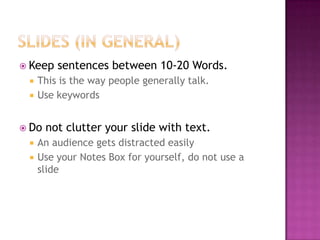
 Keep sentences between 10-20 Words.
 This is the way people generally talk.
 Use keywords
 Do not clutter your slide with text.
 An audience gets distracted easily
 Use your Notes Box for yourself, do not use a
slide
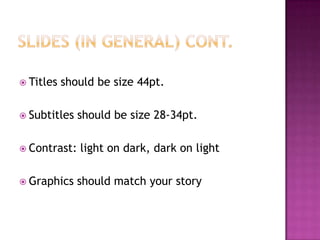
 Titles should be size 44pt.
 Subtitles should be size 28-34pt.
 Contrast: light on dark, dark on light
 Graphics should match your story
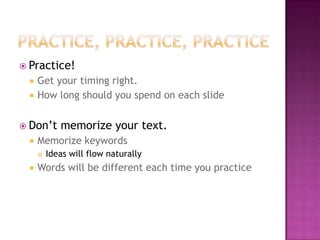
 Practice!
 Get your timing right.
 How long should you spend on each slide
 Don’t memorize your text.
 Memorize keywords
 Ideas will flow naturally
 Words will be different each time you practice
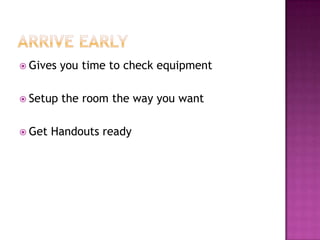
 Gives you time to check equipment
 Setup the room the way you want
 Get Handouts ready
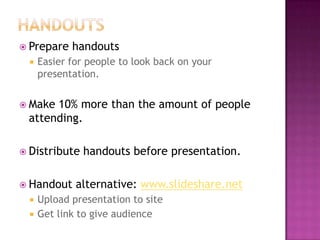
 Prepare handouts
 Easier for people to look back on your
presentation.
 Make 10% more than the amount of people
attending.
 Distribute handouts before presentation.
 Handout alternative: www.slideshare.net
 Upload presentation to site
 Get link to give audience
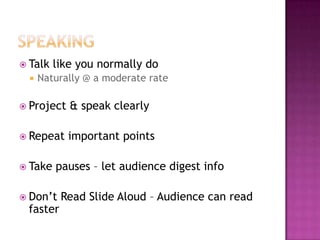
 Talk like you normally do
 Naturally @ a moderate rate
 Project & speak clearly
 Repeat important points
 Take pauses – let audience digest info
 Don’t Read Slide Aloud – Audience can read
faster
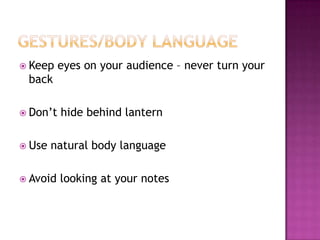
 Keep eyes on your audience – never turn your
back
 Don’t hide behind lantern
 Use natural body language
 Avoid looking at your notes
 Leave time at end of presentation for
questions
 Questions during presentations = 25% longer than
practice time
 Can jump back to slides if necessary
 Don’t be afraid to say “I don’t know, or I
have not done the research.”
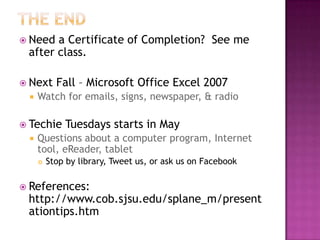
 Need a Certificate of Completion? See me
after class.
 Next Fall – Microsoft Office Excel 2007
 Watch for emails, signs, newspaper, & radio
 Techie Tuesdays starts in May
 Questions about a computer program, Internet
tool, eReader, tablet
 Stop by library, Tweet us, or ask us on Facebook
 References:
http://www.cob.sjsu.edu/splane_m/present
ationtips.htm

Microsoft Office PowerPoint 2007 - Lesson 8

  • 1.
    Lesson 8 Samantha TerBeest AdultServices Librarian Willmar Public Library
  • 2.
     Tips forCreating a PowerPoint Presentations  Tips for Giving a Presentation
  • 4.
     Your TitleSlide Should Always Include the Following:  A Title & Subtitle (if you have one)  Example: Microsoft Office Power Point 2007 Lesson 8  Always include your name, your job title (if applicable), your organization and/or where you are presenting  Example: Samantha TerBeest Adult Services Librarian Willmar Public Library Lake Superior Library Symposium
  • 5.
     Presentations shouldalways have an overview slide  Gives your audience a general sense of what you will be talking about  Add/Create your Overview Slide after you have finished your creating your presentation
  • 6.
     Keep sentencesbetween 10-20 Words.  This is the way people generally talk.  Use keywords  Do not clutter your slide with text.  An audience gets distracted easily  Use your Notes Box for yourself, do not use a slide
  • 7.
     Titles shouldbe size 44pt.  Subtitles should be size 28-34pt.  Contrast: light on dark, dark on light  Graphics should match your story
  • 9.
     Practice!  Getyour timing right.  How long should you spend on each slide  Don’t memorize your text.  Memorize keywords  Ideas will flow naturally  Words will be different each time you practice
  • 10.
     Gives youtime to check equipment  Setup the room the way you want  Get Handouts ready
  • 11.
     Prepare handouts Easier for people to look back on your presentation.  Make 10% more than the amount of people attending.  Distribute handouts before presentation.  Handout alternative: www.slideshare.net  Upload presentation to site  Get link to give audience
  • 12.
     Talk likeyou normally do  Naturally @ a moderate rate  Project & speak clearly  Repeat important points  Take pauses – let audience digest info  Don’t Read Slide Aloud – Audience can read faster
  • 13.
     Keep eyeson your audience – never turn your back  Don’t hide behind lantern  Use natural body language  Avoid looking at your notes
  • 14.
     Leave timeat end of presentation for questions  Questions during presentations = 25% longer than practice time  Can jump back to slides if necessary  Don’t be afraid to say “I don’t know, or I have not done the research.”
  • 15.
     Need aCertificate of Completion? See me after class.  Next Fall – Microsoft Office Excel 2007  Watch for emails, signs, newspaper, & radio  Techie Tuesdays starts in May  Questions about a computer program, Internet tool, eReader, tablet  Stop by library, Tweet us, or ask us on Facebook  References: http://www.cob.sjsu.edu/splane_m/present ationtips.htm