Microsoft Office Word 2007
Lesson 5: More on the Home Tab
Samantha TerBeest
Willmar Public Library
Overview
• More on Bullet & Numbered Lists
• About Styles & Themes
• How to Find & Replace Text
Open Document - from Recent Lists
• You can Open Recently Used Documents 2
Different Ways:
▫ Clicking the Office Button – list appears on the
right side of the Pane
▫ Clicking the Windows/Start Button & Selecting
“Recent Items”
Exercise - Part 1
• Click the Start Button at the bottom of the Desktop Screen.
Type “Libraries” in the search bar and click Enter. Choose
Documents from the menu.
• Double-click the WB_PracticeFiles folder to open it.
• Double-click on A Diller.
• Open & load A Pinch of Salt.
• Open & load Twinkle twinkly little star.
• Now close all Word windows. You opened 3 documents so
there are 3 Word windows open – close them all.
Exercise – Part 2
• Launch Word.
• Click the Office button.
• Note the right pane. The most recent documents
are shown. The last one you opened is a the top.
You can click on the name of a document to open
it.
• Close Word.
Exercise – Part 3 – We will Talk About
this One
• Click Start.
• Click Recent Items in the right pane. A small
menu shows recent items. Just click on the one
you want.
Bullet List, Numbered List, & Sorting
• Exercise Part 1:
▫ Start Word.
▫ Type shopping list. Press the Enter key.
▫ Type 10 items as they come to mind.
▫ Press the Enter key after each item to put it on a
line of its own.
Bullet List, Numbered List, & Sorting
• Bullet List Exercise:
▫ Select all lines except the first one (the list title).
▫ Click the Bullets Command in the Paragraph
Group on the Home tab.
Bullet List, Numbered List, & Sorting
• Numbered List Exercise:
▫ Select all the lines except the first one (the title).
▫ Click the Numbering command in the
Paragraph group on the Home Tab.
Bullet List, Numbered List, & Sorting
• Sorting Exercise:
▫ Select all lines except the first one (the list title).
▫ Click the Sort Command in the Paragraph
group on the Home Tab.
▫ Accept the settings in the Sort Text dialog by
clicking OK.
Create a List as You Type
• Exercise (Continued from last exercise):
▫ Use the Ctrl+End command to go to the end of
the document.
▫ Press the Enter key. Word will put “11.” on the
next line for you.
▫ Press the Enter again. The number will be erased
& the cursor placed at the left margin to start a
normal line.
▫ Press the Enter several more times to enter
vertical space.
▫ Exercise continued on next slide.
Create a List as You Type
• Exercise Continued:
▫ Type the following text: To Do List for
Kid’s Visit.
▫ Press Enter.
▫ Now type the following: * vacuum guest room
Press Enter. Note that Word started a bulleted
list – it also capitalized the first letter on the line.
▫ Continue typing: set out fresh bed linen
Press Enter.
▫ Type: clean quest bathroom Press Enter.
Press Enter again to end list.
▫ Press Enter a couple more times.
▫ Exercise continued on next slide.
Create a List as You Type
• Exercise Continued:
▫ Now type: make living room ready for
kids Press Enter.
▫ Type: 1. pack knick-knacks and put in
closet Press Enter.
▫ Type: move recliner in front of closet
Press Enter.
▫ Type: put safety plugs into all
outlets Press Enter.
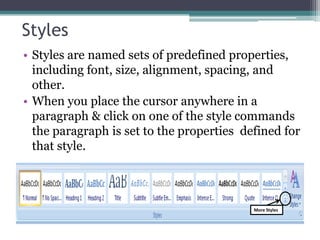
Styles
• Styles are named sets of predefined properties,
including font, size, alignment, spacing, and
other.
• When you place the cursor anywhere in a
paragraph & click on one of the style commands
the paragraph is set to the properties defined for
that style.
More Styles
Exercise
• Use last exercise. Press Ctrl+Home to get to the top
of the document.
• Select the title line.
• Click the More button in the Styles group on the
Home Tab. The styles gallery will be displayed.
• Now move the pointer around in the styles gallery &
watch what happens in the text window. As you
come to a style, the title line will be shown in that
style.
• Click on the Title style. The title line will be set to
that style & the gallery closes.
Exercise
• Use the keyboard shortcut Ctrl+A to select the
entire document.
• Click the Change Styles command.
• Place the pointer on Style Set in the little menu.
• Move the pointer into the larger menu & move it
up & down over the list of style sets. Watch the
text Window.
Find & Replace
• Sometimes you wish to find a certain word or
phrase in a document, sometimes you need to
change a word or phrase to another.
Find Exercise
• Close Word.
• Launch Why Computers Frustrate Older
Adults from the WB_PracticeFiles Folder.
• Click the Find command in the Editing group
on the Home tab. The Find & Replace dialog
opens.
• In the Find what: text box enter computer.
• Click the Find Next repeatedly. Watch how each
instance of the word computer is found &
highlighted (selected).
Replace Exercise
• Close any dialog boxes.
• Go to the top of the document (Ctrl+Home).
• Click Replace in the Editing group on the Home tab.
• In the Find what: box enter adults.
• In the Replace with: box enter people.
• Click Find Next.
• When the first instance of the word adults is found & selected
click Replace.
• The replacement will be made & the next instance of adult will
be found.
• This time click Replace All.
End of Lesson 5
• Senior Academy. (2008). Word 2007 Basics:
An Introduction to Microsoft Office Word 2007.
Ludwig Keck.
• Next Class is Tuesday, November 20th @ 11AM.
We will be learning more about the Insert &
Review Tabs.

Microsoft Office Word 2007 - Lesson 5

  • 1.
    Microsoft Office Word2007 Lesson 5: More on the Home Tab Samantha TerBeest Willmar Public Library
  • 2.
    Overview • More onBullet & Numbered Lists • About Styles & Themes • How to Find & Replace Text
  • 3.
    Open Document -from Recent Lists • You can Open Recently Used Documents 2 Different Ways: ▫ Clicking the Office Button – list appears on the right side of the Pane ▫ Clicking the Windows/Start Button & Selecting “Recent Items”
  • 4.
    Exercise - Part1 • Click the Start Button at the bottom of the Desktop Screen. Type “Libraries” in the search bar and click Enter. Choose Documents from the menu. • Double-click the WB_PracticeFiles folder to open it. • Double-click on A Diller. • Open & load A Pinch of Salt. • Open & load Twinkle twinkly little star. • Now close all Word windows. You opened 3 documents so there are 3 Word windows open – close them all.
  • 5.
    Exercise – Part2 • Launch Word. • Click the Office button. • Note the right pane. The most recent documents are shown. The last one you opened is a the top. You can click on the name of a document to open it. • Close Word.
  • 6.
    Exercise – Part3 – We will Talk About this One • Click Start. • Click Recent Items in the right pane. A small menu shows recent items. Just click on the one you want.
  • 7.
    Bullet List, NumberedList, & Sorting • Exercise Part 1: ▫ Start Word. ▫ Type shopping list. Press the Enter key. ▫ Type 10 items as they come to mind. ▫ Press the Enter key after each item to put it on a line of its own.
  • 8.
    Bullet List, NumberedList, & Sorting • Bullet List Exercise: ▫ Select all lines except the first one (the list title). ▫ Click the Bullets Command in the Paragraph Group on the Home tab.
  • 9.
    Bullet List, NumberedList, & Sorting • Numbered List Exercise: ▫ Select all the lines except the first one (the title). ▫ Click the Numbering command in the Paragraph group on the Home Tab.
  • 10.
    Bullet List, NumberedList, & Sorting • Sorting Exercise: ▫ Select all lines except the first one (the list title). ▫ Click the Sort Command in the Paragraph group on the Home Tab. ▫ Accept the settings in the Sort Text dialog by clicking OK.
  • 11.
    Create a Listas You Type • Exercise (Continued from last exercise): ▫ Use the Ctrl+End command to go to the end of the document. ▫ Press the Enter key. Word will put “11.” on the next line for you. ▫ Press the Enter again. The number will be erased & the cursor placed at the left margin to start a normal line. ▫ Press the Enter several more times to enter vertical space. ▫ Exercise continued on next slide.
  • 12.
    Create a Listas You Type • Exercise Continued: ▫ Type the following text: To Do List for Kid’s Visit. ▫ Press Enter. ▫ Now type the following: * vacuum guest room Press Enter. Note that Word started a bulleted list – it also capitalized the first letter on the line. ▫ Continue typing: set out fresh bed linen Press Enter. ▫ Type: clean quest bathroom Press Enter. Press Enter again to end list. ▫ Press Enter a couple more times. ▫ Exercise continued on next slide.
  • 13.
    Create a Listas You Type • Exercise Continued: ▫ Now type: make living room ready for kids Press Enter. ▫ Type: 1. pack knick-knacks and put in closet Press Enter. ▫ Type: move recliner in front of closet Press Enter. ▫ Type: put safety plugs into all outlets Press Enter.
  • 14.
    Styles • Styles arenamed sets of predefined properties, including font, size, alignment, spacing, and other. • When you place the cursor anywhere in a paragraph & click on one of the style commands the paragraph is set to the properties defined for that style. More Styles
  • 15.
    Exercise • Use lastexercise. Press Ctrl+Home to get to the top of the document. • Select the title line. • Click the More button in the Styles group on the Home Tab. The styles gallery will be displayed. • Now move the pointer around in the styles gallery & watch what happens in the text window. As you come to a style, the title line will be shown in that style. • Click on the Title style. The title line will be set to that style & the gallery closes.
  • 16.
    Exercise • Use thekeyboard shortcut Ctrl+A to select the entire document. • Click the Change Styles command. • Place the pointer on Style Set in the little menu. • Move the pointer into the larger menu & move it up & down over the list of style sets. Watch the text Window.
  • 17.
    Find & Replace •Sometimes you wish to find a certain word or phrase in a document, sometimes you need to change a word or phrase to another.
  • 18.
    Find Exercise • CloseWord. • Launch Why Computers Frustrate Older Adults from the WB_PracticeFiles Folder. • Click the Find command in the Editing group on the Home tab. The Find & Replace dialog opens. • In the Find what: text box enter computer. • Click the Find Next repeatedly. Watch how each instance of the word computer is found & highlighted (selected).
  • 19.
    Replace Exercise • Closeany dialog boxes. • Go to the top of the document (Ctrl+Home). • Click Replace in the Editing group on the Home tab. • In the Find what: box enter adults. • In the Replace with: box enter people. • Click Find Next. • When the first instance of the word adults is found & selected click Replace. • The replacement will be made & the next instance of adult will be found. • This time click Replace All.
  • 20.
    End of Lesson5 • Senior Academy. (2008). Word 2007 Basics: An Introduction to Microsoft Office Word 2007. Ludwig Keck. • Next Class is Tuesday, November 20th @ 11AM. We will be learning more about the Insert & Review Tabs.