Lesson 2
Samantha TerBeest
Adult Services Librarian
Willmar Public Library
 Hiding & Displaying Panes
 Selecting, Moving, Deleting, & Hiding Slides
 Themes – what they are, choosing one
 Slide Backgrounds
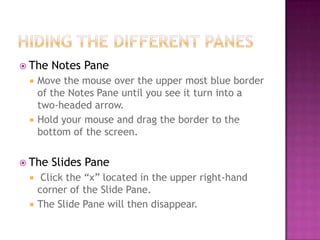
 The Notes Pane
 Move the mouse over the upper most blue border
of the Notes Pane until you see it turn into a
two-headed arrow.
 Hold your mouse and drag the border to the
bottom of the screen.
 The Slides Pane
 Click the “x” located in the upper right-hand
corner of the Slide Pane.
 The Slide Pane will then disappear.
 The light blue borders representing each
pane will appear at the bottom of the screen
(Notes Pane) and on the left side of the
screen (Slides Plane).
 To display each pane, hover over the border
until a two headed arrow appears. Hold
down your mouse and move the borders up
or to the right.
 Pick a pane – the Notes or Slide pane.
 If you picked the Slide Pane, click the “x” in the
upper right-hand corner of the pane to hide it.
 If you picked the Notes Pane, hover over the
light blue border until you see the two-headed
arrow. Hold down the mouse and drag the
border to the bottom of the screen.
 Now make the pane you picked visible. Hover
over the blue border either at the bottom of the
screen or left of the screen – until you see the
two headed arrow. Drag the border out until the
pane(s) are visible.
 Why?
 We select slides to move them to a different spot
or to delete them.
 Can do this in the Slide Pane or Slide Sorter
View
 Select One Slide
 Click the slide
 Select Several Different Slides
 Hold down the Ctrl key & select the slides you want
 Select Several Slides in Succession
 Hold down the Shift key & select the first and last
slide
 Select a Block of Slides
 Drag across the slides you want
 Note: You are not actually touching slides when you
do this.
 Why?
 People move slides often for better emphasis
 Can move slides in Slide Pane or Slide Sorter
View
 Dragging & Dropping
 Click the slide(s) and drag them a new location
 To drag a slide, hold down your mouse over the
slide you want to move. Then move the mouse
to the slides new location; a line will appear in
that new area. Let go of the mouse and the slide
will appear in the new location.
 Cutting & Pasting
 Click the slide(s) you want and cut & paste to the
new location
 Select the slide you want to move and right click;
choose Cut from the menu that appears. (The
slide will disappear.) Select the slide that comes
before the location you want to move the new
slide and right-click, choose paste from the menu
and the slide will reappear in its new location.
 Why?
 Unnecessary slide, format not liked
 Can delete slides in Slide Pane or Slide Sorter
View
 How To:
 Select the slide you want to delete and click the
Delete key on the keyboard
 Why?
 Presentations can differ based on audiences
 Can hides slides in Slide Pane or Slide Sorter
View
 How To:
 Select the Slide that you want to Hide the right-
click and select Hide Slide from the Menu.
 Open the Documents folder from the Desktop.
 Choose the file called “Arizona and the Grand Canyon.”
 Switch the View to Slide Sorter View.
 Select & delete the second slide.
 Move Slide 3 up to Slide 2.
 Move Slide 5 up to Slide 4.
 Hide Slide 6.
 Once you are done close out of PowerPoint. Do not
Save.
 A “canned” slide design
 Includes slide background, text and bullet color,
and more
 Designed by graphic artists
 Name of theme appears on the far left side
of the status bar
 To choose a theme for your presentation:
 Click the Design Tab.
 In the Themes Group, there are several different
themes to choose from.
 To view all themes select the downward pointing
arrow on the lower right-hand side of the group
 Open Microsoft Office PowerPoint from the Desktop.
 Click on the Design tab.
 In the Themes Group, scroll along to view each
theme. To view all themes, click the button.
 After scrolling through each theme, choose a them
that you like best.
 Type some text in the text boxes to see what it will
look like.
 When you are done, close PowerPoint. Do Not Save.
 Create your own background by doing one of
these:
 Solid Color
 Have each slide be a single, uniform color.
 Gradient
 Each slide is two colors with one color blending into
the other
 Clip Art
 Use a clip art image supplied by Microsoft on
each of your slides.
 Picture
 Use your own personal photograph on each slide.
 Texture
 A pattern used on each slide.
 Open PowerPoint from the Desktop.
 On the Design tab, click the Background Styles
button & choose Format Background on the
drop-down list.
 Select the Solid Fill option button.
 Click the Color Picker button & choose a color
on the drop-down list.
 Click the Apply to All button and then the Close
button.
 On the Design tab, click the Background Styles
button & choose Format Background on the drop-
down list.
 Select the Gradient Fill option button.
 Select a Type: from the drop-down list. (Each type
will appear on the slide as you select them.)
 Under Gradient Stops, select Stop 1.
 Select your first color from the Color drop-down
list.
 Click the Add Button.
 Select Stop 2 from the Gradient Stops drop-
down list.
 Choose your second color from the color
drop-down list.
 Click the Add button.
 Next, click the Apply to All button and then
the Close Button.
 On the Design tab, click the Background Styles
button & choose Format Background on the drop-
down list.
 Click the Picture/Texture Fill option button.
 Click the Clip Art button.
 Find & select a clip-art image that you want to
use for a background. (You can search clip art
by typing in a keyword.)
 Once you’ve found an image click the Apply to
All button & then click close.
 On the Design tab, click the Background Styles
button and choose Format Background on the
drop-down list.
 Click the Picture/Texture Fill option button.
 Click the File button.
 Locate the graphic called library, select it, and
click the Insert button.
 Click the Apply to All button.
 On the Design tab, click the Background Styles
button & choose Format Background on the
drop-down list.
 Click the Picture/Texture Fill option button.
 Click the Texture button & choose a texture on
the drop-down list.
 Click the Apply to All button & then click
close.
 When finished close PowerPoint. Do not save.
 The Next class is Tuesday, February 12 at
11AM.
 We will be meeting in the upstairs
multipurpose room.
 We will discuss entering & changing the font,
size, & color of text; creating text boxes; &
creating bulleted & numbered lists.
 Weverka, P. (2006). Office 2007 All-in-One
Desk Reference for Dummies. Hoboken, N.J.
: Wiley.

Microsoft Office PowerPoint 2007 - Lesson 2

  • 1.
    Lesson 2 Samantha TerBeest AdultServices Librarian Willmar Public Library
  • 2.
     Hiding &Displaying Panes  Selecting, Moving, Deleting, & Hiding Slides  Themes – what they are, choosing one  Slide Backgrounds
  • 3.
     The NotesPane  Move the mouse over the upper most blue border of the Notes Pane until you see it turn into a two-headed arrow.  Hold your mouse and drag the border to the bottom of the screen.  The Slides Pane  Click the “x” located in the upper right-hand corner of the Slide Pane.  The Slide Pane will then disappear.
  • 4.
     The lightblue borders representing each pane will appear at the bottom of the screen (Notes Pane) and on the left side of the screen (Slides Plane).  To display each pane, hover over the border until a two headed arrow appears. Hold down your mouse and move the borders up or to the right.
  • 5.
     Pick apane – the Notes or Slide pane.  If you picked the Slide Pane, click the “x” in the upper right-hand corner of the pane to hide it.  If you picked the Notes Pane, hover over the light blue border until you see the two-headed arrow. Hold down the mouse and drag the border to the bottom of the screen.  Now make the pane you picked visible. Hover over the blue border either at the bottom of the screen or left of the screen – until you see the two headed arrow. Drag the border out until the pane(s) are visible.
  • 6.
     Why?  Weselect slides to move them to a different spot or to delete them.  Can do this in the Slide Pane or Slide Sorter View
  • 7.
     Select OneSlide  Click the slide  Select Several Different Slides  Hold down the Ctrl key & select the slides you want  Select Several Slides in Succession  Hold down the Shift key & select the first and last slide  Select a Block of Slides  Drag across the slides you want  Note: You are not actually touching slides when you do this.
  • 8.
     Why?  Peoplemove slides often for better emphasis  Can move slides in Slide Pane or Slide Sorter View
  • 9.
     Dragging &Dropping  Click the slide(s) and drag them a new location  To drag a slide, hold down your mouse over the slide you want to move. Then move the mouse to the slides new location; a line will appear in that new area. Let go of the mouse and the slide will appear in the new location.  Cutting & Pasting  Click the slide(s) you want and cut & paste to the new location  Select the slide you want to move and right click; choose Cut from the menu that appears. (The slide will disappear.) Select the slide that comes before the location you want to move the new slide and right-click, choose paste from the menu and the slide will reappear in its new location.
  • 10.
     Why?  Unnecessaryslide, format not liked  Can delete slides in Slide Pane or Slide Sorter View  How To:  Select the slide you want to delete and click the Delete key on the keyboard
  • 11.
     Why?  Presentationscan differ based on audiences  Can hides slides in Slide Pane or Slide Sorter View  How To:  Select the Slide that you want to Hide the right- click and select Hide Slide from the Menu.
  • 12.
     Open theDocuments folder from the Desktop.  Choose the file called “Arizona and the Grand Canyon.”  Switch the View to Slide Sorter View.  Select & delete the second slide.  Move Slide 3 up to Slide 2.  Move Slide 5 up to Slide 4.  Hide Slide 6.  Once you are done close out of PowerPoint. Do not Save.
  • 13.
     A “canned”slide design  Includes slide background, text and bullet color, and more  Designed by graphic artists  Name of theme appears on the far left side of the status bar
  • 14.
     To choosea theme for your presentation:  Click the Design Tab.  In the Themes Group, there are several different themes to choose from.  To view all themes select the downward pointing arrow on the lower right-hand side of the group
  • 15.
     Open MicrosoftOffice PowerPoint from the Desktop.  Click on the Design tab.  In the Themes Group, scroll along to view each theme. To view all themes, click the button.  After scrolling through each theme, choose a them that you like best.  Type some text in the text boxes to see what it will look like.  When you are done, close PowerPoint. Do Not Save.
  • 16.
     Create yourown background by doing one of these:  Solid Color  Have each slide be a single, uniform color.  Gradient  Each slide is two colors with one color blending into the other
  • 17.
     Clip Art Use a clip art image supplied by Microsoft on each of your slides.  Picture  Use your own personal photograph on each slide.  Texture  A pattern used on each slide.
  • 18.
     Open PowerPointfrom the Desktop.  On the Design tab, click the Background Styles button & choose Format Background on the drop-down list.  Select the Solid Fill option button.  Click the Color Picker button & choose a color on the drop-down list.  Click the Apply to All button and then the Close button.
  • 19.
     On theDesign tab, click the Background Styles button & choose Format Background on the drop- down list.  Select the Gradient Fill option button.  Select a Type: from the drop-down list. (Each type will appear on the slide as you select them.)  Under Gradient Stops, select Stop 1.  Select your first color from the Color drop-down list.  Click the Add Button.
  • 20.
     Select Stop2 from the Gradient Stops drop- down list.  Choose your second color from the color drop-down list.  Click the Add button.  Next, click the Apply to All button and then the Close Button.
  • 21.
     On theDesign tab, click the Background Styles button & choose Format Background on the drop- down list.  Click the Picture/Texture Fill option button.  Click the Clip Art button.  Find & select a clip-art image that you want to use for a background. (You can search clip art by typing in a keyword.)  Once you’ve found an image click the Apply to All button & then click close.
  • 22.
     On theDesign tab, click the Background Styles button and choose Format Background on the drop-down list.  Click the Picture/Texture Fill option button.  Click the File button.  Locate the graphic called library, select it, and click the Insert button.  Click the Apply to All button.
  • 23.
     On theDesign tab, click the Background Styles button & choose Format Background on the drop-down list.  Click the Picture/Texture Fill option button.  Click the Texture button & choose a texture on the drop-down list.  Click the Apply to All button & then click close.  When finished close PowerPoint. Do not save.
  • 24.
     The Nextclass is Tuesday, February 12 at 11AM.  We will be meeting in the upstairs multipurpose room.  We will discuss entering & changing the font, size, & color of text; creating text boxes; & creating bulleted & numbered lists.  Weverka, P. (2006). Office 2007 All-in-One Desk Reference for Dummies. Hoboken, N.J. : Wiley.