MICROSOFT OFFICE WORD
2007
LESSON 4: MODIFYING
TEXT
Samantha TerBeest
Willmar Public Library
Overview
 Selecting Text
 Word, line, sentence, paragraph, range of words,
range of text
 Format selected text, bold, italic, color, and
more
 Cut, copy, and paste text
 Move text around
 Align the text, left, center, right, and justified
Selecting Text
 There are many different ways to select text:
 Select a Word
 Double-click on a word to select it
 Select a Line
 Move the pointer into the left margin in front of the line
– so that the pointer turns into an arrow. Now click –
the line is selected.
 Select a Paragraph
 Move the pointer into the left margin in front of the
paragraph – so that the pointer turns into an arrow.
Now double-click – the paragraph is selected.
Selecting Text, Cont.
 More Ways:
 Select a Sentence
 Hold down the Ctrl key and click anywhere in the
sentence
 Select a Range of Characters or Words
 Click at the beginning point to place the cursor. Hold
down the Shift key and the right (or other) arrow key
until the cursor is at the end point of the selection
range.
Selecting Text, Cont.
 One More Way:
 Select a Range of Text
 With the pointer at the start of the range of text press
down the left mouse button, drag to the end point and
release the mouse button.
 “Unselect” a Selection
 To cancel a selection, click anywhere inside or
outside the selected text.
Exercise
 Open a Document: Click the Start Button at the
bottom of the Desktop Screen; Type “Libraries” in
the search bar and click Enter; Choose
Documents from the menu –double click sample
document
 Practice selecting
words, lines, paragraphs, sentences, and ranges
of text and words. (Use your handout for the
descriptions of how to select)
Formatting Text – The Mini
Toolbar
 When you select text, there is a toolbar called
“The Mini Toolbar” that pops up.
 It provides the most common commands for
modifying text
Exercise
 Select the word “NEXT” in the first line of the document title.
Notice that the pointer changes from the I-beam to the normal
pointer and a faint outline of the Mini Toolbar appears.
 Move the pointer over the Mini Toolbar and it will “darken” to a
normal view.
 Click on the Bold command in the Mini Toolbar. The selected
word will be unbolded.
 The Mini Toolbar stays put so you can make additional
changes.
 Change the font, the size, and close Word.
Formatting Text – Color &
Highlight
 Text Color
 The Font Color tool for changing text color looks
like this: . Clicking on the brings up a gallery
of colors. Click the desired color. The selected
text will now be in this color (you can’t see it until
the selection highlight is removed.)
 Highlight Color
 Similarly, you set a highlight color over selected
text with the Text Highlight Color command:
Cut, Copy, & Paste
 When youcut selected text the text is removed
from the document. It is stored on the
clipboard.
 When you copy selected text, the text in the
document is not affect. A copy of the selected
text is stored on the clipboard.
 When you paste, the item that was placed last
on the clipboard is inserted into the document
at the position of the cursor.
Exercise
 Launch Word.
 Open the file Star little twinkle in the WB_PracticeFiles
folder.
 Select the first line of the poem.
 With the pointer anywhere on the selected line, right click.
The Mini toolbar ad a menu will be displayed.
 In the menu, click Cut. Notice the symbol in front of Cut.
The selected line will disappear from the document. It is now
on the clipboard.
 Next right-click below the line. Again the Mini Toolbar and a
menu will be shown.
 Click on Past in the menu. Note the paste symbol:
 Repeat with the other lines to assemble the poem correctly.
 Close Word. (No need to save the changed document.)
Cut, Copy & Paste – Using
Icons
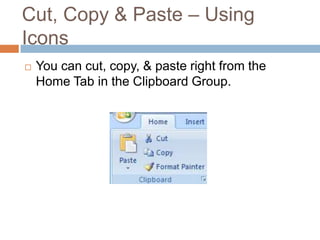
 You can cut, copy, & paste right from the
Home Tab in the Clipboard Group.
Exercise, Part 1
 Launch Word.
 Open the file Star little twinkle 2 in the
WB_PracticeFiles folder.
 Select the first line of the poem.
 Click the Cut command, , in the Clipboard
group.
 Click the end of the document.
 Click the Paste command, , in the Clipboard
group. (Click on the clipboard picture.)
 Repeat with the other lines to assemble the poem
correctly.
Exercise, Part 2
 Close Word. Do Not Save.
 Launch Word again and reload the Star little
twinkle 2 file from
theWB_PracticeFilesfolder.
 Repeat the steps in the previous exercise, but
instead of using Cut use the Copy command.
 You will retain the original text and build the
correct poem below it.
 Close Word.
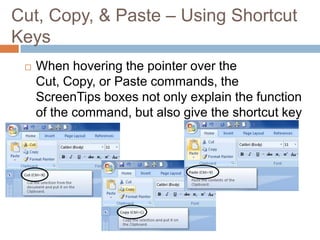
Cut, Copy, & Paste – Using Shortcut
Keys
 When hovering the pointer over the
Cut, Copy, or Paste commands, the
ScreenTips boxes not only explain the function
of the command, but also give the shortcut key
instructions:
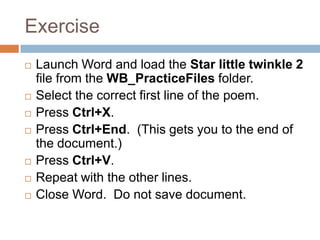
Exercise
 Launch Word and load the Star little twinkle 2
file from the WB_PracticeFiles folder.
 Select the correct first line of the poem.
 Press Ctrl+X.
 Press Ctrl+End. (This gets you to the end of
the document.)
 Press Ctrl+V.
 Repeat with the other lines.
 Close Word. Do not save document.
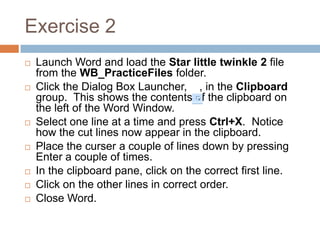
Exercise 2
 Launch Word and load the Star little twinkle 2 file
from the WB_PracticeFiles folder.
 Click the Dialog Box Launcher, , in the Clipboard
group. This shows the contents of the clipboard on
the left of the Word Window.
 Select one line at a time and press Ctrl+X. Notice
how the cut lines now appear in the clipboard.
 Place the curser a couple of lines down by pressing
Enter a couple of times.
 In the clipboard pane, click on the correct first line.
 Click on the other lines in correct order.
 Close Word.
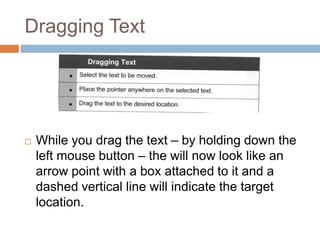
Dragging Text
 While you drag the text – by holding down the
left mouse button – the will now look like an
arrow point with a box attached to it and a
dashed vertical line will indicate the target
location.
Exercise
 Launch Word and load the Star little twinkle 2 file
from the WB_PracticeFiles folder.
 Select the last line: place the pointer to the left of the
line and click.
 Move the pointer to anywhere on the selected line.
 Press the left mouse button down and hold it while
you move the pointer to the space above the first line.
 Release the mouse button when the dashed vertical
line is above the word “How” in the first line. The
selected text will move to this position.
 Continue to finish the poem.
 Close Word. No need to save the document.
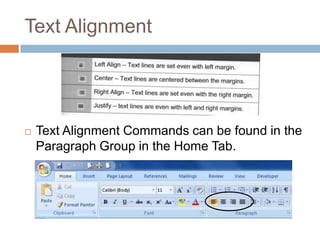
Text Alignment
 Text Alignment Commands can be found in the
Paragraph Group in the Home Tab.
Exercise
 Launch Word and load the A Pinch of Salt file
from the WB_PracticeFiles folder.
 Scroll down a bit if necessary to show all the
rhyme.
 Click anwhere in the text.
 Click the Align Text Left Command. Inspect the
result.
 Click the Align Text Right Command. See what
happened.
 Click the Center Command.
 Click the Justify command. For this example not
very pretty.
 Close Word.
End of Lesson 4
 Senior Academy. (2008). Word 2007 Basics:
An Introduction to Microsoft Office Word 2007.
Ludwig Keck.
 Next Class is Tuesday, November 6th
(Election Day) @ 11AM. We will be learning
more about the Home Tab.

Microsoft Office Word 2007 - Lesson 4

  • 1.
    MICROSOFT OFFICE WORD 2007 LESSON4: MODIFYING TEXT Samantha TerBeest Willmar Public Library
  • 2.
    Overview  Selecting Text Word, line, sentence, paragraph, range of words, range of text  Format selected text, bold, italic, color, and more  Cut, copy, and paste text  Move text around  Align the text, left, center, right, and justified
  • 3.
    Selecting Text  Thereare many different ways to select text:  Select a Word  Double-click on a word to select it  Select a Line  Move the pointer into the left margin in front of the line – so that the pointer turns into an arrow. Now click – the line is selected.  Select a Paragraph  Move the pointer into the left margin in front of the paragraph – so that the pointer turns into an arrow. Now double-click – the paragraph is selected.
  • 4.
    Selecting Text, Cont. More Ways:  Select a Sentence  Hold down the Ctrl key and click anywhere in the sentence  Select a Range of Characters or Words  Click at the beginning point to place the cursor. Hold down the Shift key and the right (or other) arrow key until the cursor is at the end point of the selection range.
  • 5.
    Selecting Text, Cont. One More Way:  Select a Range of Text  With the pointer at the start of the range of text press down the left mouse button, drag to the end point and release the mouse button.  “Unselect” a Selection  To cancel a selection, click anywhere inside or outside the selected text.
  • 6.
    Exercise  Open aDocument: Click the Start Button at the bottom of the Desktop Screen; Type “Libraries” in the search bar and click Enter; Choose Documents from the menu –double click sample document  Practice selecting words, lines, paragraphs, sentences, and ranges of text and words. (Use your handout for the descriptions of how to select)
  • 7.
    Formatting Text –The Mini Toolbar  When you select text, there is a toolbar called “The Mini Toolbar” that pops up.  It provides the most common commands for modifying text
  • 8.
    Exercise  Select theword “NEXT” in the first line of the document title. Notice that the pointer changes from the I-beam to the normal pointer and a faint outline of the Mini Toolbar appears.  Move the pointer over the Mini Toolbar and it will “darken” to a normal view.  Click on the Bold command in the Mini Toolbar. The selected word will be unbolded.  The Mini Toolbar stays put so you can make additional changes.  Change the font, the size, and close Word.
  • 9.
    Formatting Text –Color & Highlight  Text Color  The Font Color tool for changing text color looks like this: . Clicking on the brings up a gallery of colors. Click the desired color. The selected text will now be in this color (you can’t see it until the selection highlight is removed.)  Highlight Color  Similarly, you set a highlight color over selected text with the Text Highlight Color command:
  • 10.
    Cut, Copy, &Paste  When youcut selected text the text is removed from the document. It is stored on the clipboard.  When you copy selected text, the text in the document is not affect. A copy of the selected text is stored on the clipboard.  When you paste, the item that was placed last on the clipboard is inserted into the document at the position of the cursor.
  • 11.
    Exercise  Launch Word. Open the file Star little twinkle in the WB_PracticeFiles folder.  Select the first line of the poem.  With the pointer anywhere on the selected line, right click. The Mini toolbar ad a menu will be displayed.  In the menu, click Cut. Notice the symbol in front of Cut. The selected line will disappear from the document. It is now on the clipboard.  Next right-click below the line. Again the Mini Toolbar and a menu will be shown.  Click on Past in the menu. Note the paste symbol:  Repeat with the other lines to assemble the poem correctly.  Close Word. (No need to save the changed document.)
  • 12.
    Cut, Copy &Paste – Using Icons  You can cut, copy, & paste right from the Home Tab in the Clipboard Group.
  • 13.
    Exercise, Part 1 Launch Word.  Open the file Star little twinkle 2 in the WB_PracticeFiles folder.  Select the first line of the poem.  Click the Cut command, , in the Clipboard group.  Click the end of the document.  Click the Paste command, , in the Clipboard group. (Click on the clipboard picture.)  Repeat with the other lines to assemble the poem correctly.
  • 14.
    Exercise, Part 2 Close Word. Do Not Save.  Launch Word again and reload the Star little twinkle 2 file from theWB_PracticeFilesfolder.  Repeat the steps in the previous exercise, but instead of using Cut use the Copy command.  You will retain the original text and build the correct poem below it.  Close Word.
  • 15.
    Cut, Copy, &Paste – Using Shortcut Keys  When hovering the pointer over the Cut, Copy, or Paste commands, the ScreenTips boxes not only explain the function of the command, but also give the shortcut key instructions:
  • 16.
    Exercise  Launch Wordand load the Star little twinkle 2 file from the WB_PracticeFiles folder.  Select the correct first line of the poem.  Press Ctrl+X.  Press Ctrl+End. (This gets you to the end of the document.)  Press Ctrl+V.  Repeat with the other lines.  Close Word. Do not save document.
  • 17.
    Exercise 2  LaunchWord and load the Star little twinkle 2 file from the WB_PracticeFiles folder.  Click the Dialog Box Launcher, , in the Clipboard group. This shows the contents of the clipboard on the left of the Word Window.  Select one line at a time and press Ctrl+X. Notice how the cut lines now appear in the clipboard.  Place the curser a couple of lines down by pressing Enter a couple of times.  In the clipboard pane, click on the correct first line.  Click on the other lines in correct order.  Close Word.
  • 18.
    Dragging Text  Whileyou drag the text – by holding down the left mouse button – the will now look like an arrow point with a box attached to it and a dashed vertical line will indicate the target location.
  • 19.
    Exercise  Launch Wordand load the Star little twinkle 2 file from the WB_PracticeFiles folder.  Select the last line: place the pointer to the left of the line and click.  Move the pointer to anywhere on the selected line.  Press the left mouse button down and hold it while you move the pointer to the space above the first line.  Release the mouse button when the dashed vertical line is above the word “How” in the first line. The selected text will move to this position.  Continue to finish the poem.  Close Word. No need to save the document.
  • 20.
    Text Alignment  TextAlignment Commands can be found in the Paragraph Group in the Home Tab.
  • 21.
    Exercise  Launch Wordand load the A Pinch of Salt file from the WB_PracticeFiles folder.  Scroll down a bit if necessary to show all the rhyme.  Click anwhere in the text.  Click the Align Text Left Command. Inspect the result.  Click the Align Text Right Command. See what happened.  Click the Center Command.  Click the Justify command. For this example not very pretty.  Close Word.
  • 22.
    End of Lesson4  Senior Academy. (2008). Word 2007 Basics: An Introduction to Microsoft Office Word 2007. Ludwig Keck.  Next Class is Tuesday, November 6th (Election Day) @ 11AM. We will be learning more about the Home Tab.