PowerPoint
Presentation Tips
Less is better
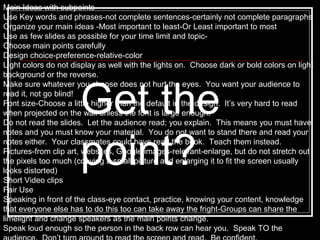
Main Ideas with subpoints
Use Key words and phrases-not complete sentences-certainly not complete paragraphs
Organize your main ideas -Most important to least-Or Least important to most
Use as few slides as possible for your time limit and topic-
Choose main points carefully
Design choice-preference-relative-color
Light colors do not display as well with the lights on. Choose dark or bold colors on light
background or the reverse.
Make sure whatever you choose does not hurt the eyes. You want your audience to
read it, not go blind!
Font size-Choose a little higher than the default in the design. It’s very hard to read
when projected on the wall unless the font is large enough.
Do not read the slides. Let the audience read; you explain. This means you must have
notes and you must know your material. You do not want to stand there and read your
notes either. Your classmates could have read the book. Teach them instead.
Pictures-from clip art, websites, Google images-relevant-enlarge, but do not stretch out
the pixels too much (copying a small picture and enlarging it to fit the screen usually
looks distorted)
Short Video clips
Fair Use
Speaking in front of the class-eye contact, practice, knowing your content, knowledge
that everyone else has to do this too can take away the fright-Groups can share the
limelight and change speakers as the main points change.
Speak loud enough so the person in the back row can hear you. Speak TO the
Get the
point?
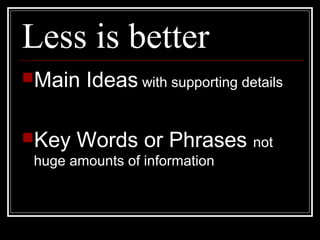
Less is better
Main Ideas with supporting details
Key Words or Phrases not
huge amounts of information
Organize
Most important to least important
Or
Least important to Most important
Organize
Keep supporting details with their
main point.
Don’t skip around.
Color
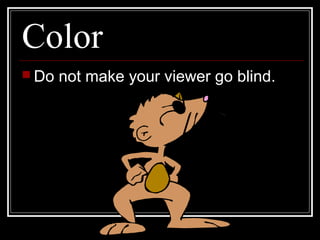
 Do not make your viewer go blind.
Does this make
me look too
bright?
Color
 Too bright results in temporary blindness.
 Too light cannot be seen.
Can you see me?
Color
 Too bright results in temporary blindness.
 Too light cannot be seen.
 Go for Contrast.
 Make it Easy to Read.
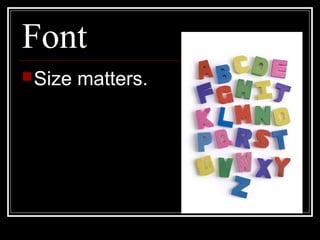
Font
Size matters.
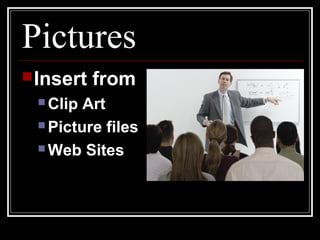
Pictures
Insert from
 Clip Art
 Picture files
 Web Sites
Videos
 Enter URL from site will mean you will need
Internet access during the presentation.
 It’s usually best to download the video to a
USB or laptop file.
Sound & Movement
 You can customize your slides with sound
and movement, but adding too much will
cause distraction.
Fair Use
 For instructional purposes
 Use mostly Pictures
 Information: limit to phrases
 However,
 Not permitted to use trademarks
 Cite your sources for anything not just general
information
Speaking
 Before the presentation
 Research
 Study
 Practice
 During the presentation
 Use Eye Contact
 Use appropriate Volume
 Be Confident
Don’t just read – TEACH!
 Give more
information than
is included on
the slides.

Power Point Presentation Tips

  • 1.
  • 2.
  • 3.
    Main Ideas withsubpoints Use Key words and phrases-not complete sentences-certainly not complete paragraphs Organize your main ideas -Most important to least-Or Least important to most Use as few slides as possible for your time limit and topic- Choose main points carefully Design choice-preference-relative-color Light colors do not display as well with the lights on. Choose dark or bold colors on light background or the reverse. Make sure whatever you choose does not hurt the eyes. You want your audience to read it, not go blind! Font size-Choose a little higher than the default in the design. It’s very hard to read when projected on the wall unless the font is large enough. Do not read the slides. Let the audience read; you explain. This means you must have notes and you must know your material. You do not want to stand there and read your notes either. Your classmates could have read the book. Teach them instead. Pictures-from clip art, websites, Google images-relevant-enlarge, but do not stretch out the pixels too much (copying a small picture and enlarging it to fit the screen usually looks distorted) Short Video clips Fair Use Speaking in front of the class-eye contact, practice, knowing your content, knowledge that everyone else has to do this too can take away the fright-Groups can share the limelight and change speakers as the main points change. Speak loud enough so the person in the back row can hear you. Speak TO the Get the point?
  • 4.
    Less is better MainIdeas with supporting details Key Words or Phrases not huge amounts of information
  • 5.
    Organize Most important toleast important Or Least important to Most important
  • 6.
    Organize Keep supporting detailswith their main point. Don’t skip around.
  • 7.
    Color  Do notmake your viewer go blind.
  • 8.
    Does this make melook too bright?
  • 9.
    Color  Too brightresults in temporary blindness.  Too light cannot be seen.
  • 10.
  • 11.
    Color  Too brightresults in temporary blindness.  Too light cannot be seen.  Go for Contrast.  Make it Easy to Read.
  • 12.
  • 13.
    Pictures Insert from  ClipArt  Picture files  Web Sites
  • 14.
    Videos  Enter URLfrom site will mean you will need Internet access during the presentation.  It’s usually best to download the video to a USB or laptop file.
  • 15.
    Sound & Movement You can customize your slides with sound and movement, but adding too much will cause distraction.
  • 16.
    Fair Use  Forinstructional purposes  Use mostly Pictures  Information: limit to phrases  However,  Not permitted to use trademarks  Cite your sources for anything not just general information
  • 17.
    Speaking  Before thepresentation  Research  Study  Practice  During the presentation  Use Eye Contact  Use appropriate Volume  Be Confident
  • 18.
    Don’t just read– TEACH!  Give more information than is included on the slides.