Power point
Tutorial
PowerPoint is a presentation program developed by
Microsoft. PowerPoint is often used to create
business presentations ,But can also be used for
educational or informal purposes. The presentations
are comprised of slides, which may contain text,
images and other media, such as audio clips and
movies.
PPT
>Quick Access Tool Bar
>File Tab
>Ribbon
>Tabs
>Slide Tab
>Zoom options
>Note Sections(Bottom of the file)
>To Add new Slide Shortcut CTRL+M
Clipboard
Clipboard in Microsoft save the copied item in it. From clipboard you can
use save item in it. It can store 24 item in stack and when you copied the 25th
item it automatically remove last copied item from the clipboard. Beauty of
clipboard is that the items we copy in clipboard saves temporarily at that
time .In That time all opened file can access the same clipboard like word
,excel & ppt simultaneously.
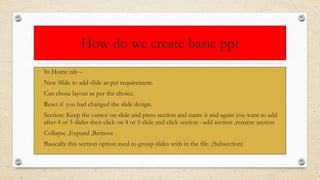
How do we create basic ppt
• In Home tab –
• New Slide to add slide as per requirement.
• Can chose layout as per the choice.
• Reset if you had changed the slide design.
• Section: Keep the cursor on slide and press section and name it and again you want to add
after 4 or 5 slides then click on 4 or 5 slide and click section –add section ,rename section
• Collapse ,Expand ,Remove .
• Basically this section option used to group slides with in the file. (Subsection)
Editing presentation
• To navigate between the Microsoft file without mouse just press
F6 . It will move to pane to pane .Then use TAB key.
• Format Text
• Open the font dialogue box to change the font by
shortcut key CTRL+SHIFT+F.
• Or go to home tab and in font customize your fonts as
per the requirement.
Other Basic shortcuts
• All basic shortcuts like Select all, copy, paste, cut, bold, underline in ms
office are same.
• To increase the font size in word and ppt is same :CTRL+SHIFT+>.
• To Decrease the font size: CTRL+SHIFT+>.
• To change the alphabets in upper case , lover case ,proper: SHIFT+F3
• To center alignment: CTRL+E.
• To adjust in proper sentence : CTRL+J.
• For duplicate slide select slide and press CTRL+D.
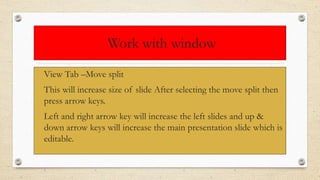
Work with window
• View Tab –Move split
• This will increase size of slide After selecting the move split then
press arrow keys.
• Left and right arrow key will increase the left slides and up &
down arrow keys will increase the main presentation slide which is
editable.
Comparison in excel and ppt has same steps
• If we want to compare same file but for different located
data in same file.
• Then go to view tab –New window –arrange all.
Working with slides
• To add slide –in home tab click new slides or press CTRL+M.
• Or right click between slides and select new slide.
• To copy same slide just click CTRL+C or paste in another slide or press
CTRL+D.
• To re-arrange the slide ,select the slide and hold by cursor and drag up or
down as per the requirement.
• To delete slide and press delete or right click and choose option delete
slide.
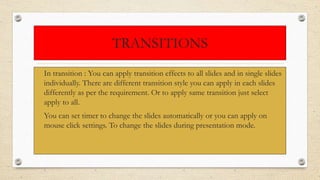
TRANSITIONS
• In transition : You can apply transition effects to all slides and in single slides
individually. There are different transition style you can apply in each slides
differently as per the requirement. Or to apply same transition just select
apply to all.
• You can set timer to change the slides automatically or you can apply on
mouse click settings. To change the slides during presentation mode.
Convert ppt file to another format
• To convert PPT file in video format , ppt show ,image
file , to pdf …Just click save as change in dialogue box
below file name change the extension in which you want
to convert. It will convert and will save as per your
selection.
Shapes
In PPT you can use various shapes like lines , Rectangle shapes , Basic shapes , Block arrows ,Equation
shapes ,Stars and banners , Flow chart ,callouts , Action buttons.
Action buttons shapes are used to play ,pause ,forward ,Reward for inserted items.
These actions work in two ways.
-Action on mouse click:
Insert –Shapes (Select) –Actions – mouse click –Action button –Select hyperlink to or run program and
attach link to the file from computer file manager.
In this when you will go to presentation mode it will run media by mouse click.
-Actions on mouse click:
Insert –Shapes (Select) –Actions – mouse over
In this when you will go in presentation mode it will run your by only moving cursor over the data.
Smart Art
• -Layout.
• -Smart Art Style.
• -Reset.
• -Create Graphic.
• -Shape Styles.
• -Word art styles.
• -Arrange.
• -Size.
Smart art and layout
• To convert in smart art and choose different layout.
• Just select the text –Text go to home tab –Convert to smart art –Go to home tab –Convert
to smart art. In design and format (Smart art tool) You can choose different layout options.
• Or you can add layout and enter text later.
• There are some layouts which help you to add move features. Select those layout where it
has picture options to put.
• You can customize colours ,different smart art tools.
• You can also change the position of graphics and also rest them by going to design tab and
selecting reset.
Graphic smart art
Create graphic art :
• India China
• Mumbai Shanghai
Bangalore Beijing
Go to home tab –Convert to smart art
More smart graphic:
Select as per requirement.
Smart art styles
-Shape
-Shape Styles
-Word Art Styles
-Arrange
-Size
Suppose you have selected the smart art.
Then in design tab – There you can modify your shapes like-Size , Change colors , Shape outline , Shape fill ,
shape effects.
In Format you can choose to convert text into word art. You can also align your data in format tab as in right or
left.
Table styles
• How to create table in ppt first method.
• 1. Insert –Table
• Design table.
• In this design tab you can customize your table.
• You can insert excel spreadsheet –Insert –Table –Choose spreadsheet.
• In this you will get all functions related to excel .
Tables
• -Merge & Split.
• -Cell Size , Alignment.
-Table Size ,Arrange.
-Row , Columns ,Table.
If you want to delete row or column .
Just select the row by clicking next outside the area and go to layout tab and choose delete row/column.
If you want to add row/column just select cell of the table go to layout and insert row/column right /left from
that cell selection for merging select all cells and in layout choose merge cells.
Cells size can be customize ,options like distribute rows and columns can equally aize the width and height of
the cell of the table.
Chart in ppt
• Insert –Chart
• In this excel file will be open for values because in this it cannot work alone
for data.
Photo album in ppt
• *Insert tab –Photo Album –New photo album –file /disk –click
• Select pics and insert button in open window.
• *Pictures –Add and format pictures ,change shape , Remove background to
make it 3d look , Border ,color ,shades ,crop.
• Insert –Picture –Shape or Size.
• In format –Remove background option to make it 3d look –Click the mouse
with pointer select the area then click keep changes.
Hyperlink
• Just click text which you want to make the hyperlink go to :Insert –Hyperlink
• If you want to create line just select create live docs then select create new
document.
• Select in when to edit
o Edit the new document now.
o Name the document.
o It works same as in excel.
o If you make hyperlink to picture it will work only in slide show mode.
Header & footer
Select header & footer from insert to mention date ,slide number. You
can increase and decrease the size of the text .
This header & footer is useful if you print the documents.
Go to view tab –select notes page view –Now apply.
Header & footer from insert . Apply to all.
Screen recording
• Insert Tab –Screen Recording you can select audio .
• Insert video
• Insert media
• Media control Shortcuts:
• ALT+P –Play / Pause.
• Alt + Q –Stop Playbook.
• Alt + Home/End –Go to previous or next bookmark.
• Alt + Down/Up –Volume down/up.
• Alt + Shift + left/Right –Skip backward / Forward.
• Alt + U –Mute / Unmute.
Insert objects in ppt
• Insert –Object
• Create new.
• Create From file.
•
Power point slide show
• Slide Show –Go to slide show tab or press F5 from keyboard.
• To start your presentation from current slide then press Shift +F5.
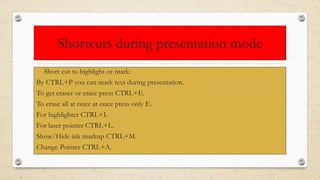
Shortcuts during presentation mode
• Short cut to highlight or mark:
By CTRL+P you can mark text during presentation.
To get eraser or erase press CTRL+E.
To erase all at once at once press only E.
For highlighter CTRL+I.
For laser pointer CTRL+L.
Show/Hide ink markup CTRL+M.
Change Pointer CTRL+A.
Setup slide show
• Hide/Show slide:
• Slide Show -Set up -Hide Slide/Unhide.
• Set up Slide show: Slide Show –Setup Slide show
• Set up Show:
• -Presented by speaker(Shared)
• -Browsed by individual (Presented)
• -Browsed at kiosk (Will play in loop)
• Show without narration
• Show without animation.
Custom slides
• Go to slide show –Select custom show –Rename –Add –ok
• This option separately shows the slides.
Record Slide Show/rehearse timings
• *Slide Show –Record Slide Show.
• This saves sound and how much time spend on one slide.
• *Rehearse Timings
• -Observe only timings.
• So it will record only timing.
Compare & merge
• -Compare two PowerPoint files.
• -Review one by one slide.
• -Accept changes.
• -Reject Changes.
• -End Review
• *Review tab –Compare –Merge
• You will se reviewing pane. Tick mark ,it will merge items from another file we
opened for comparison.
Thank You

Power point tutorial

  • 1.
  • 2.
    PowerPoint is apresentation program developed by Microsoft. PowerPoint is often used to create business presentations ,But can also be used for educational or informal purposes. The presentations are comprised of slides, which may contain text, images and other media, such as audio clips and movies.
  • 3.
    PPT >Quick Access ToolBar >File Tab >Ribbon >Tabs >Slide Tab >Zoom options >Note Sections(Bottom of the file) >To Add new Slide Shortcut CTRL+M
  • 4.
    Clipboard Clipboard in Microsoftsave the copied item in it. From clipboard you can use save item in it. It can store 24 item in stack and when you copied the 25th item it automatically remove last copied item from the clipboard. Beauty of clipboard is that the items we copy in clipboard saves temporarily at that time .In That time all opened file can access the same clipboard like word ,excel & ppt simultaneously.
  • 5.
    How do wecreate basic ppt • In Home tab – • New Slide to add slide as per requirement. • Can chose layout as per the choice. • Reset if you had changed the slide design. • Section: Keep the cursor on slide and press section and name it and again you want to add after 4 or 5 slides then click on 4 or 5 slide and click section –add section ,rename section • Collapse ,Expand ,Remove . • Basically this section option used to group slides with in the file. (Subsection)
  • 6.
    Editing presentation • Tonavigate between the Microsoft file without mouse just press F6 . It will move to pane to pane .Then use TAB key. • Format Text • Open the font dialogue box to change the font by shortcut key CTRL+SHIFT+F. • Or go to home tab and in font customize your fonts as per the requirement.
  • 7.
    Other Basic shortcuts •All basic shortcuts like Select all, copy, paste, cut, bold, underline in ms office are same. • To increase the font size in word and ppt is same :CTRL+SHIFT+>. • To Decrease the font size: CTRL+SHIFT+>. • To change the alphabets in upper case , lover case ,proper: SHIFT+F3 • To center alignment: CTRL+E. • To adjust in proper sentence : CTRL+J. • For duplicate slide select slide and press CTRL+D.
  • 8.
    Work with window •View Tab –Move split • This will increase size of slide After selecting the move split then press arrow keys. • Left and right arrow key will increase the left slides and up & down arrow keys will increase the main presentation slide which is editable.
  • 9.
    Comparison in exceland ppt has same steps • If we want to compare same file but for different located data in same file. • Then go to view tab –New window –arrange all.
  • 10.
    Working with slides •To add slide –in home tab click new slides or press CTRL+M. • Or right click between slides and select new slide. • To copy same slide just click CTRL+C or paste in another slide or press CTRL+D. • To re-arrange the slide ,select the slide and hold by cursor and drag up or down as per the requirement. • To delete slide and press delete or right click and choose option delete slide.
  • 11.
    TRANSITIONS • In transition: You can apply transition effects to all slides and in single slides individually. There are different transition style you can apply in each slides differently as per the requirement. Or to apply same transition just select apply to all. • You can set timer to change the slides automatically or you can apply on mouse click settings. To change the slides during presentation mode.
  • 12.
    Convert ppt fileto another format • To convert PPT file in video format , ppt show ,image file , to pdf …Just click save as change in dialogue box below file name change the extension in which you want to convert. It will convert and will save as per your selection.
  • 13.
    Shapes In PPT youcan use various shapes like lines , Rectangle shapes , Basic shapes , Block arrows ,Equation shapes ,Stars and banners , Flow chart ,callouts , Action buttons. Action buttons shapes are used to play ,pause ,forward ,Reward for inserted items. These actions work in two ways. -Action on mouse click: Insert –Shapes (Select) –Actions – mouse click –Action button –Select hyperlink to or run program and attach link to the file from computer file manager. In this when you will go to presentation mode it will run media by mouse click. -Actions on mouse click: Insert –Shapes (Select) –Actions – mouse over In this when you will go in presentation mode it will run your by only moving cursor over the data.
  • 14.
    Smart Art • -Layout. •-Smart Art Style. • -Reset. • -Create Graphic. • -Shape Styles. • -Word art styles. • -Arrange. • -Size.
  • 15.
    Smart art andlayout • To convert in smart art and choose different layout. • Just select the text –Text go to home tab –Convert to smart art –Go to home tab –Convert to smart art. In design and format (Smart art tool) You can choose different layout options. • Or you can add layout and enter text later. • There are some layouts which help you to add move features. Select those layout where it has picture options to put. • You can customize colours ,different smart art tools. • You can also change the position of graphics and also rest them by going to design tab and selecting reset.
  • 16.
    Graphic smart art Creategraphic art : • India China • Mumbai Shanghai Bangalore Beijing Go to home tab –Convert to smart art More smart graphic: Select as per requirement.
  • 17.
    Smart art styles -Shape -ShapeStyles -Word Art Styles -Arrange -Size Suppose you have selected the smart art. Then in design tab – There you can modify your shapes like-Size , Change colors , Shape outline , Shape fill , shape effects. In Format you can choose to convert text into word art. You can also align your data in format tab as in right or left.
  • 18.
    Table styles • Howto create table in ppt first method. • 1. Insert –Table • Design table. • In this design tab you can customize your table. • You can insert excel spreadsheet –Insert –Table –Choose spreadsheet. • In this you will get all functions related to excel .
  • 19.
    Tables • -Merge &Split. • -Cell Size , Alignment. -Table Size ,Arrange. -Row , Columns ,Table. If you want to delete row or column . Just select the row by clicking next outside the area and go to layout tab and choose delete row/column. If you want to add row/column just select cell of the table go to layout and insert row/column right /left from that cell selection for merging select all cells and in layout choose merge cells. Cells size can be customize ,options like distribute rows and columns can equally aize the width and height of the cell of the table.
  • 20.
    Chart in ppt •Insert –Chart • In this excel file will be open for values because in this it cannot work alone for data.
  • 21.
    Photo album inppt • *Insert tab –Photo Album –New photo album –file /disk –click • Select pics and insert button in open window. • *Pictures –Add and format pictures ,change shape , Remove background to make it 3d look , Border ,color ,shades ,crop. • Insert –Picture –Shape or Size. • In format –Remove background option to make it 3d look –Click the mouse with pointer select the area then click keep changes.
  • 22.
    Hyperlink • Just clicktext which you want to make the hyperlink go to :Insert –Hyperlink • If you want to create line just select create live docs then select create new document. • Select in when to edit o Edit the new document now. o Name the document. o It works same as in excel. o If you make hyperlink to picture it will work only in slide show mode.
  • 23.
    Header & footer Selectheader & footer from insert to mention date ,slide number. You can increase and decrease the size of the text . This header & footer is useful if you print the documents. Go to view tab –select notes page view –Now apply. Header & footer from insert . Apply to all.
  • 24.
    Screen recording • InsertTab –Screen Recording you can select audio . • Insert video • Insert media • Media control Shortcuts: • ALT+P –Play / Pause. • Alt + Q –Stop Playbook. • Alt + Home/End –Go to previous or next bookmark. • Alt + Down/Up –Volume down/up. • Alt + Shift + left/Right –Skip backward / Forward. • Alt + U –Mute / Unmute.
  • 25.
    Insert objects inppt • Insert –Object • Create new. • Create From file. •
  • 26.
    Power point slideshow • Slide Show –Go to slide show tab or press F5 from keyboard. • To start your presentation from current slide then press Shift +F5.
  • 27.
    Shortcuts during presentationmode • Short cut to highlight or mark: By CTRL+P you can mark text during presentation. To get eraser or erase press CTRL+E. To erase all at once at once press only E. For highlighter CTRL+I. For laser pointer CTRL+L. Show/Hide ink markup CTRL+M. Change Pointer CTRL+A.
  • 28.
    Setup slide show •Hide/Show slide: • Slide Show -Set up -Hide Slide/Unhide. • Set up Slide show: Slide Show –Setup Slide show • Set up Show: • -Presented by speaker(Shared) • -Browsed by individual (Presented) • -Browsed at kiosk (Will play in loop) • Show without narration • Show without animation.
  • 29.
    Custom slides • Goto slide show –Select custom show –Rename –Add –ok • This option separately shows the slides.
  • 30.
    Record Slide Show/rehearsetimings • *Slide Show –Record Slide Show. • This saves sound and how much time spend on one slide. • *Rehearse Timings • -Observe only timings. • So it will record only timing.
  • 31.
    Compare & merge •-Compare two PowerPoint files. • -Review one by one slide. • -Accept changes. • -Reject Changes. • -End Review • *Review tab –Compare –Merge • You will se reviewing pane. Tick mark ,it will merge items from another file we opened for comparison.
  • 32.