 PowerPoint 2010 is a visual and graphical
application, primarily used for creating
presentations. With PowerPoint, you can
create, view, and present slide shows that
combine text, shapes, pictures, graphs,
animation, charts, videos, and much more.
 Click Start, point to All Programs and
Point to MS Office
 Click Microsoft PowerPoint2010
 Automatically the Microsoft
PowerPoint window opens up on the
screen.
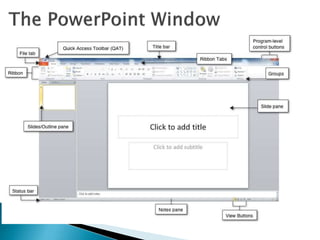
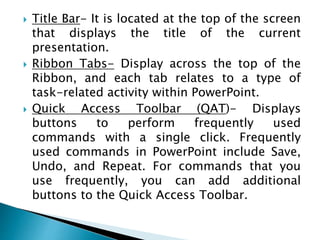
 Title Bar- It is located at the top of the screen
that displays the title of the current
presentation.
 Ribbon Tabs- Display across the top of the
Ribbon, and each tab relates to a type of
task-related activity within PowerPoint.
 Quick Access Toolbar (QAT)- Displays
buttons to perform frequently used
commands with a single click. Frequently
used commands in PowerPoint include Save,
Undo, and Repeat. For commands that you
use frequently, you can add additional
buttons to the Quick Access Toolbar.
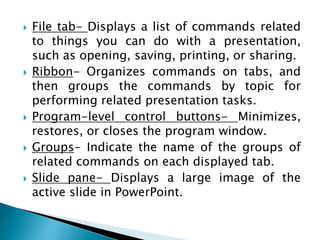
 File tab- Displays a list of commands related
to things you can do with a presentation,
such as opening, saving, printing, or sharing.
 Ribbon- Organizes commands on tabs, and
then groups the commands by topic for
performing related presentation tasks.
 Program-level control buttons- Minimizes,
restores, or closes the program window.
 Groups- Indicate the name of the groups of
related commands on each displayed tab.
 Slide pane- Displays a large image of the
active slide in PowerPoint.
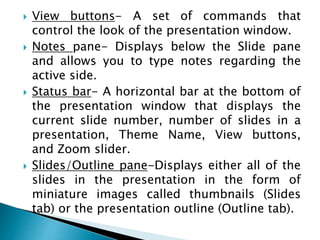
 View buttons- A set of commands that
control the look of the presentation window.
 Notes pane- Displays below the Slide pane
and allows you to type notes regarding the
active side.
 Status bar- A horizontal bar at the bottom of
the presentation window that displays the
current slide number, number of slides in a
presentation, Theme Name, View buttons,
and Zoom slider.
 Slides/Outline pane-Displays either all of the
slides in the presentation in the form of
miniature images called thumbnails (Slides
tab) or the presentation outline (Outline tab).
 Minimize the number of slides
-To maintain a clear message and to keep
your audience attentive and interested, keep
the number of slides in your presentation to a
minimum.
 Choose an audience-friendly font size
-Choosing the best font size helps
communicate your message. Remember that
the audience must be able to read your slides
from a distance. Generally speaking, a font size
smaller than 30 might be too difficult for the
audience to see.
 Keep your slide text simple
-You want your audience to listen to you
present your information, instead of reading
the screen. Use bullets or short sentences, and
try to keep each to one line; that is, without
text wrapping.
-Some projectors crop slides at the edges,
so that long sentences might be cropped.
 Use visuals to help express your message
-Pictures, charts, graphs, and SmartArt
graphics provide visual cues for your audience
to remember. Add meaningful art to
complement the text and messaging on your
slides.
-As with text, however, avoid including
too many visual aids on your slide.
 Make labels for charts and graphs understandable
-Use only enough text to make label elements
in a chart or graph comprehensible.
 Check the spelling and grammar
-To earn and maintain the respect of your
audience, always check the spelling and grammar
in your presentation.
1. Unleash your imagination.
2. Say hello to the World.
3. Show how much you care!
4. Be a creative director.
5. Capture every special moment.
 Templates- are ready made presentations.
 Microsoft Fluent User Interface (UI)- An
improved MS Office user-friendly
environment that presents functions using
Ribbons and Tabs instead of menus and
toolbars.
 Thumbnails- These are small images of
slides.
 Notes pane- Located directly below the active
slide is where you input speaker notes for the
current slides.
 Zoom options- Click and drag the slider to
use the Zoom control. The number on the left
of the side bar reflects the zoom percentage.
 Normal view- clicking on this enables normal
views.
 Slide sorter view- clicking on this display
thumbnails that can be zoom for every slide
in the open presentation.
 Slide Show from Current Slide- shows the
presentation as a full screen slide show from
the current selected slides.
 Ruler- Acts as your measurement and
placement guide.
 Scroll bars- clicking and dragging this bar
enable you to move up and down or across
your window screen.
 Mini Toolbar- it is a semi-transparent
floating toolbar that spawns right next to the
cursor, and it is also available instantly with a
right-click.

Introduction to ms power point Grade 9

  • 2.
     PowerPoint 2010is a visual and graphical application, primarily used for creating presentations. With PowerPoint, you can create, view, and present slide shows that combine text, shapes, pictures, graphs, animation, charts, videos, and much more.
  • 3.
     Click Start,point to All Programs and Point to MS Office  Click Microsoft PowerPoint2010  Automatically the Microsoft PowerPoint window opens up on the screen.
  • 5.
     Title Bar-It is located at the top of the screen that displays the title of the current presentation.  Ribbon Tabs- Display across the top of the Ribbon, and each tab relates to a type of task-related activity within PowerPoint.  Quick Access Toolbar (QAT)- Displays buttons to perform frequently used commands with a single click. Frequently used commands in PowerPoint include Save, Undo, and Repeat. For commands that you use frequently, you can add additional buttons to the Quick Access Toolbar.
  • 6.
     File tab-Displays a list of commands related to things you can do with a presentation, such as opening, saving, printing, or sharing.  Ribbon- Organizes commands on tabs, and then groups the commands by topic for performing related presentation tasks.  Program-level control buttons- Minimizes, restores, or closes the program window.  Groups- Indicate the name of the groups of related commands on each displayed tab.  Slide pane- Displays a large image of the active slide in PowerPoint.
  • 7.
     View buttons-A set of commands that control the look of the presentation window.  Notes pane- Displays below the Slide pane and allows you to type notes regarding the active side.  Status bar- A horizontal bar at the bottom of the presentation window that displays the current slide number, number of slides in a presentation, Theme Name, View buttons, and Zoom slider.  Slides/Outline pane-Displays either all of the slides in the presentation in the form of miniature images called thumbnails (Slides tab) or the presentation outline (Outline tab).
  • 8.
     Minimize thenumber of slides -To maintain a clear message and to keep your audience attentive and interested, keep the number of slides in your presentation to a minimum.  Choose an audience-friendly font size -Choosing the best font size helps communicate your message. Remember that the audience must be able to read your slides from a distance. Generally speaking, a font size smaller than 30 might be too difficult for the audience to see.
  • 9.
     Keep yourslide text simple -You want your audience to listen to you present your information, instead of reading the screen. Use bullets or short sentences, and try to keep each to one line; that is, without text wrapping. -Some projectors crop slides at the edges, so that long sentences might be cropped.
  • 10.
     Use visualsto help express your message -Pictures, charts, graphs, and SmartArt graphics provide visual cues for your audience to remember. Add meaningful art to complement the text and messaging on your slides. -As with text, however, avoid including too many visual aids on your slide.
  • 11.
     Make labelsfor charts and graphs understandable -Use only enough text to make label elements in a chart or graph comprehensible.  Check the spelling and grammar -To earn and maintain the respect of your audience, always check the spelling and grammar in your presentation.
  • 12.
    1. Unleash yourimagination. 2. Say hello to the World. 3. Show how much you care! 4. Be a creative director. 5. Capture every special moment.
  • 13.
     Templates- areready made presentations.  Microsoft Fluent User Interface (UI)- An improved MS Office user-friendly environment that presents functions using Ribbons and Tabs instead of menus and toolbars.  Thumbnails- These are small images of slides.  Notes pane- Located directly below the active slide is where you input speaker notes for the current slides.
  • 14.
     Zoom options-Click and drag the slider to use the Zoom control. The number on the left of the side bar reflects the zoom percentage.  Normal view- clicking on this enables normal views.  Slide sorter view- clicking on this display thumbnails that can be zoom for every slide in the open presentation.  Slide Show from Current Slide- shows the presentation as a full screen slide show from the current selected slides.  Ruler- Acts as your measurement and placement guide.
  • 15.
     Scroll bars-clicking and dragging this bar enable you to move up and down or across your window screen.  Mini Toolbar- it is a semi-transparent floating toolbar that spawns right next to the cursor, and it is also available instantly with a right-click.